
Catch Game Cards Make a game where you

- Slides: 16
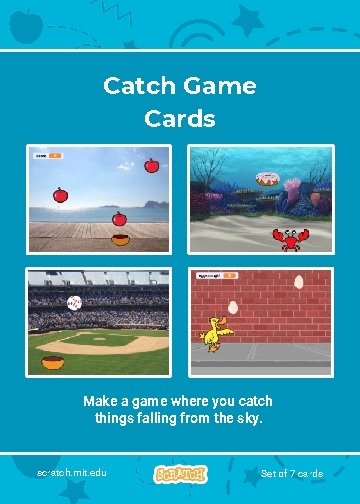
Catch Game Cards Make a game where you catch things falling from the sky. scratch. mit. edu Set of 7 cards
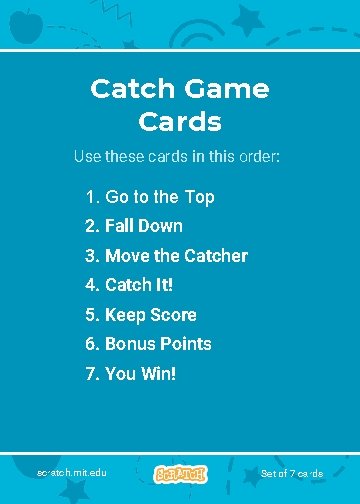
Catch Game Cards Use these cards in this order: 1. Go to the Top 2. Fall Down 3. Move the Catcher 4. Catch It! 5. Keep Score 6. Bonus Points 7. You Win! scratch. mit. edu Set of 7 cards
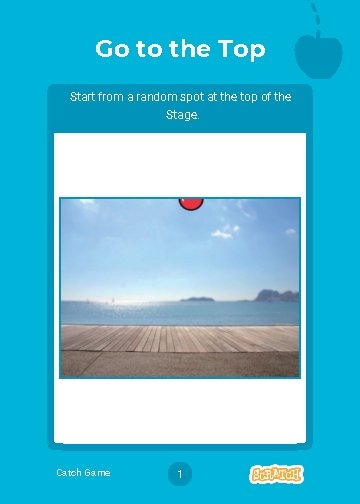
Go to the Top Start from a random spot at the top of the Stage. Catch Game 1
Go to the Top scratch. mit. edu GET READY Choose a backdrop, like Boardwalk. Choose a sprite, like Apple. Boardwalk Apple ADD THIS CODE Apple Type 180 to go to the top of the stage. TRY IT Click the green flag to start. TIP y is the position on the Stage from top to bottom. y = 180 x = – 240 x = 240 y = – 180
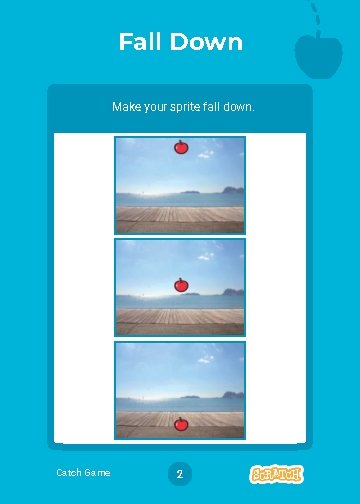
Fall Down Make your sprite fall down. Catch Game 2
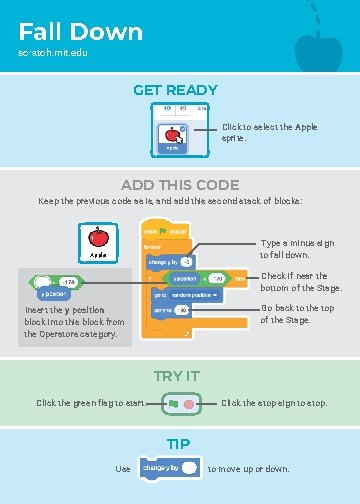
Fall Down scratch. mit. edu GET READY Click to select the Apple sprite. ADD THIS CODE Keep the previous code as is, and add this second stack of blocks: Type a minus sign to fall down. Apple Check if near the bottom of the Stage. Go back to the top of the Stage. Insert the y position block into this block from the Operators category. TRY IT Click the green flag to start. Click the stop sign to stop. TIP Use to move up or down.
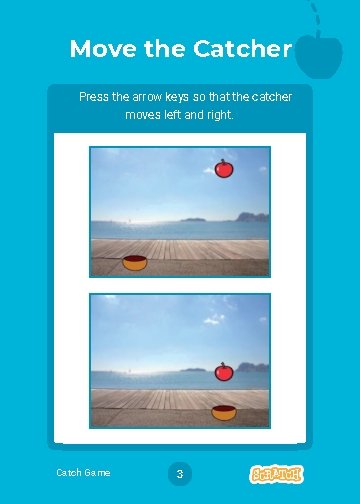
Move the Catcher Press the arrow keys so that the catcher moves left and right. Catch Game 3
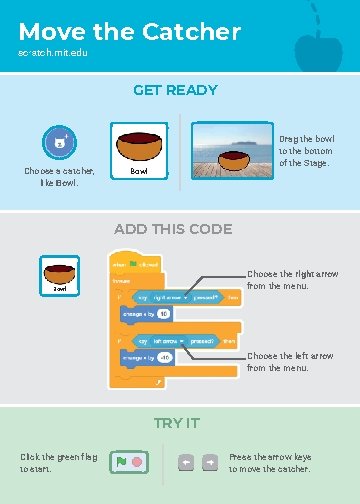
Move the Catcher scratch. mit. edu GET READY Choose a catcher, like Bowl. Drag the bowl to the bottom of the Stage. Bowl ADD THIS CODE Choose the right arrow from the menu. Bowl Choose the left arrow from the menu. TRY IT Click the green flag to start. Press the arrow keys to move the catcher.
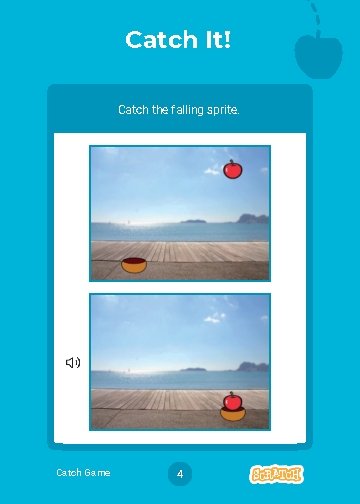
Catch It! Catch the falling sprite. Catch Game 4
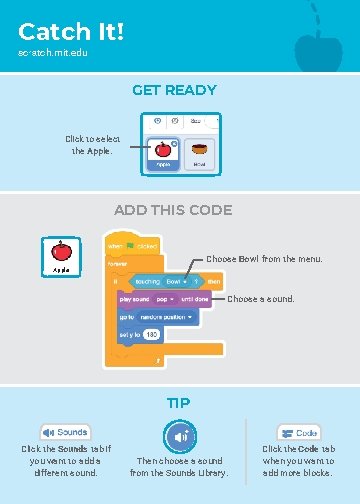
Catch It! scratch. mit. edu GET READY Click to select the Apple. ADD THIS CODE Choose Bowl from the menu. Apple Choose a sound. TIP Click the Sounds tab if you want to add a different sound. Then choose a sound from the Sounds Library. Click the Code tab when you want to add more blocks.
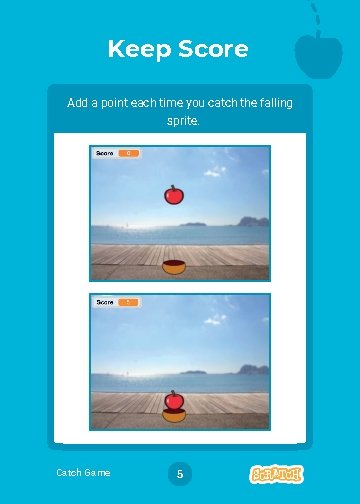
Keep Score Add a point each time you catch the falling sprite. Catch Game 5
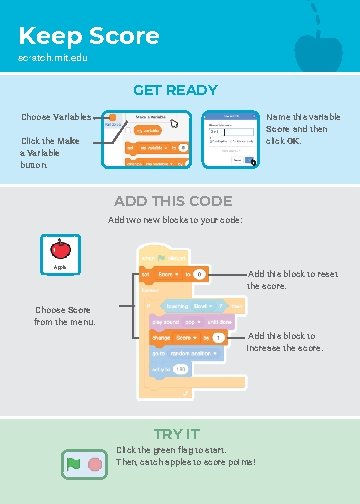
Keep Score scratch. mit. edu GET READY Name this variable Score and then click OK. Choose Variables. Scor e Click the Make a Variable button. ADD THIS CODE Add two new blocks to your code: Apple Add this block to reset the score. Choose Score from the menu. Add this block to increase the score. TRY IT Click the green flag to start. Then, catch apples to score points!
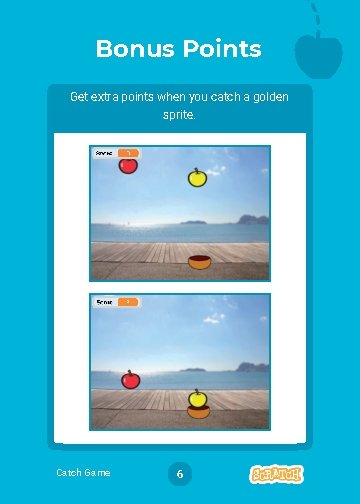
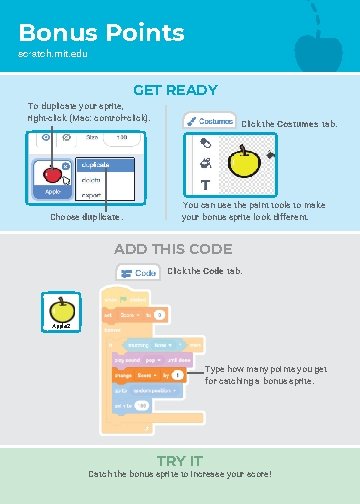
Bonus Points Get extra points when you catch a golden sprite. Catch Game 6
Bonus Points scratch. mit. edu GET READY To duplicate your sprite, right-click (Mac: control+click). Choose duplicate. Click the Costumes tab. You can use the paint tools to make your bonus sprite look different. ADD THIS CODE Click the Code tab. Apple 2 Type how many points you get for catching a bonus sprite. TRY IT Catch the bonus sprite to increase your score!
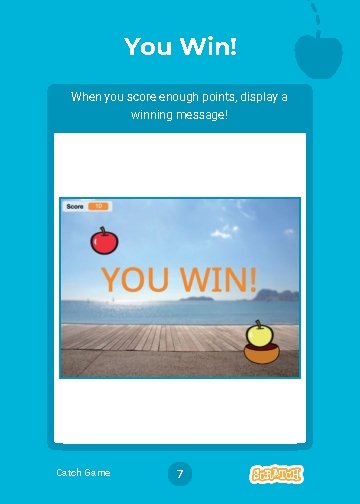
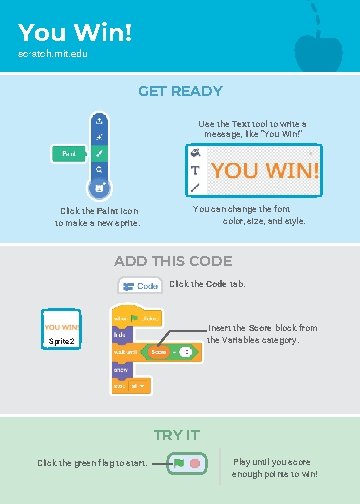
You Win! When you score enough points, display a winning message! Catch Game 7
You Win! scratch. mit. edu GET READY Use the Text tool to write a message, like “You Win!” Click the Paint icon to make a new sprite. You can change the font color, size, and style. ADD THIS CODE Click the Code tab. Insert the Score block from the Variables category. Sprite 2 TRY IT Click the green flag to start. Play until you score enough points to win!