
Caseworx IAO Tier Advancement Nelson Mark neljklsoftware com













- Slides: 94
Caseworx IAO Tier Advancement Nelson Mark, nel@jklsoftware. com Senior Platform Architect, JKL Software Commercial Photographer, Lightwriters JKL Software
IAO Tier Advancement
Benefits of Tier Advancement • Builds confidence in your cases and treatments • Learn best practices for record keeping • Analyze cases quicker and with more accuracy • Maintain consistent treatment protocols • Better outcomes, less work
Getting Started • Contact the IAO headquarters to apply • Return form to IAO with application fee • Get registration token for Caseworx • Meet and submit documentation for CE credit hours • Prepare, submit, and pass required cases
Four Membership Tiers • Associate • Active • 150 hours of ortho or related education • Fellow • 300 hours of ortho or related education • 5 IBO format case presentations • Diplomate • Board recognized status • 500 hours of ortho or related education • Achieve all prior tiers • Written examination • 10 IBO format case presentations • 5 cases with two year post treatment data
IBO Case Presentation Format • Full narrative output with histories, analysis, treatment plan, progress notes, and outcome • Radiographs • Ceph tracings sets (radiograph, tracing, overlay, superimpositions) • Intraoral / extraoral photographs • Study models (digital or soaped) • IBO Cephalometric Data Summary
Caseworx • Creates IBO formatted case presentations • Work online or offline on cases • Work on multiple cases • Submit from anywhere in the world, at any time • Scored case returns automatically from examiner • Guides user through process • Checks for missing info to help user • Saves time and expense doing tier advancement
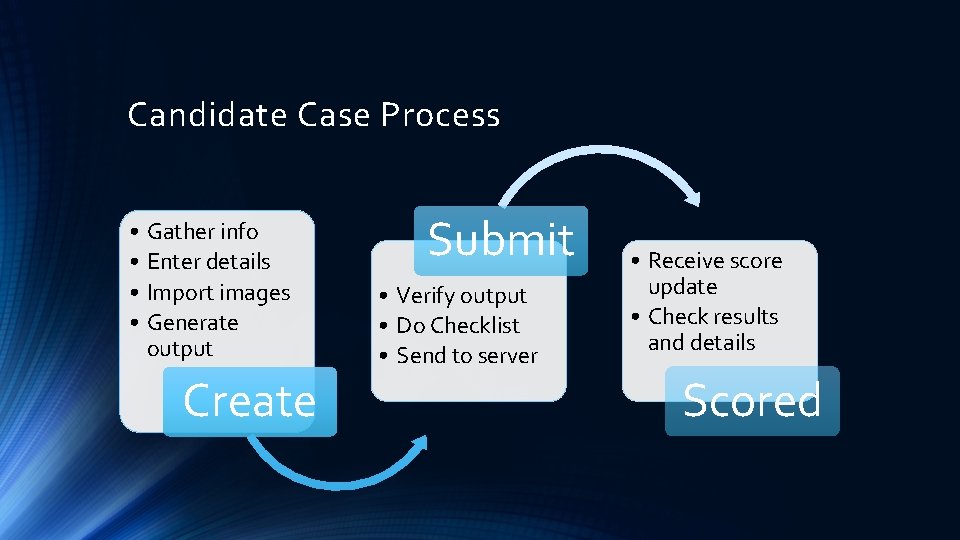
Candidate Case Process • Gather info • Enter details • Import images • Generate output Create Submit • Verify output • Do Checklist • Send to server • Receive score update • Check results and details Scored
Caseworx INSTALLAT IO N
…Windows Users • Works with Windows 7, 8, and 10 • Use a 64 -bit version of Windows (most modern machines already have this unless lightweight tablet) • Be sure you have at least 4 GB RAM
…Mac Users • Add Parallels or VMWare Fusion “virtual machine” to your computer – http: //parallels. com • Be sure the Windows version is 7, 8, or 10 – 64 -bit • Set your virtual machine to have a minimum of 4 GB RAM
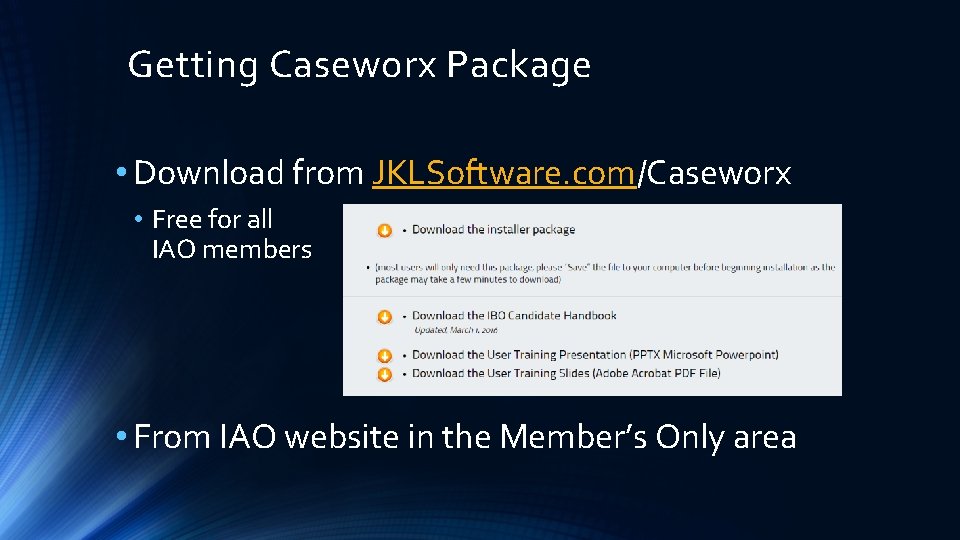
Getting Caseworx Package • Download from JKLSoftware. com/Caseworx • Free for all IAO members • From IAO website in the Member’s Only area
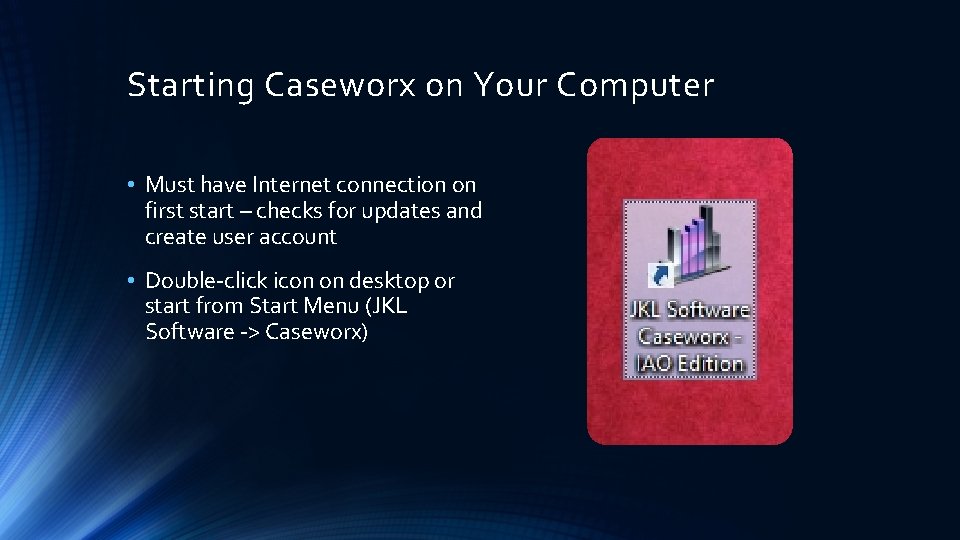
Starting Caseworx on Your Computer • Must have Internet connection on first start – checks for updates and create user account • Double-click icon on desktop or start from Start Menu (JKL Software -> Caseworx)
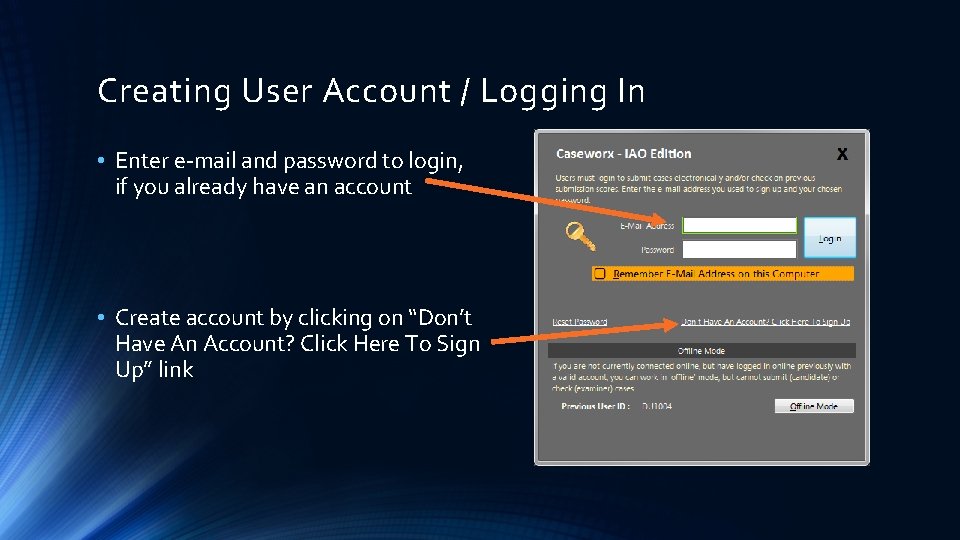
Creating User Account / Logging In • Enter e-mail and password to login, if you already have an account • Create account by clicking on “Don’t Have An Account? Click Here To Sign Up” link
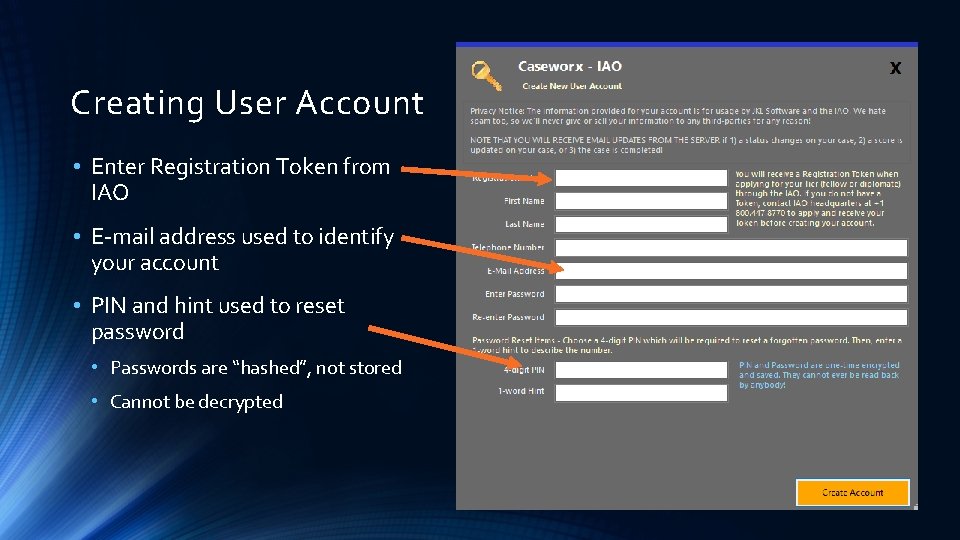
Creating User Account • Enter Registration Token from IAO • E-mail address used to identify your account • PIN and hint used to reset password • Passwords are “hashed”, not stored • Cannot be decrypted
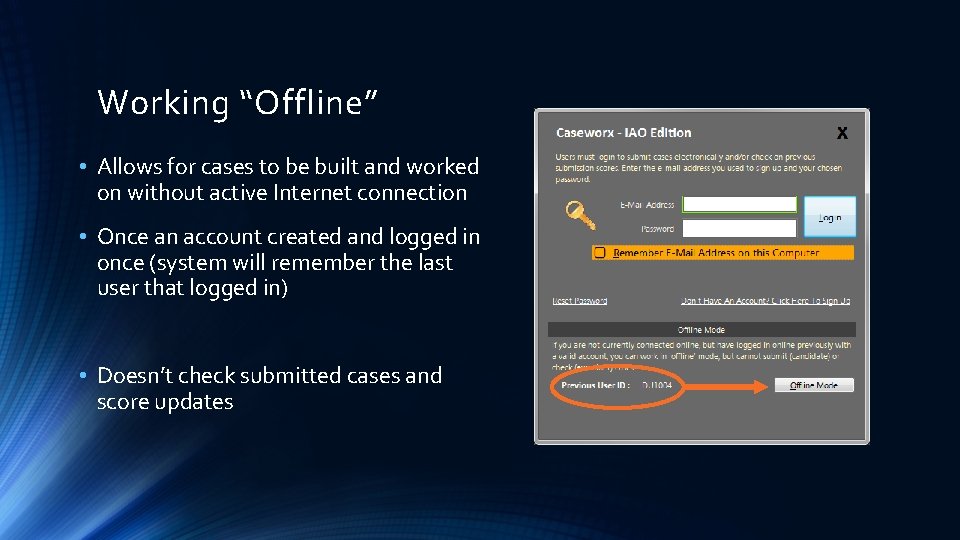
Working “Offline” • Allows for cases to be built and worked on without active Internet connection • Once an account created and logged in once (system will remember the last user that logged in) • Doesn’t check submitted cases and score updates
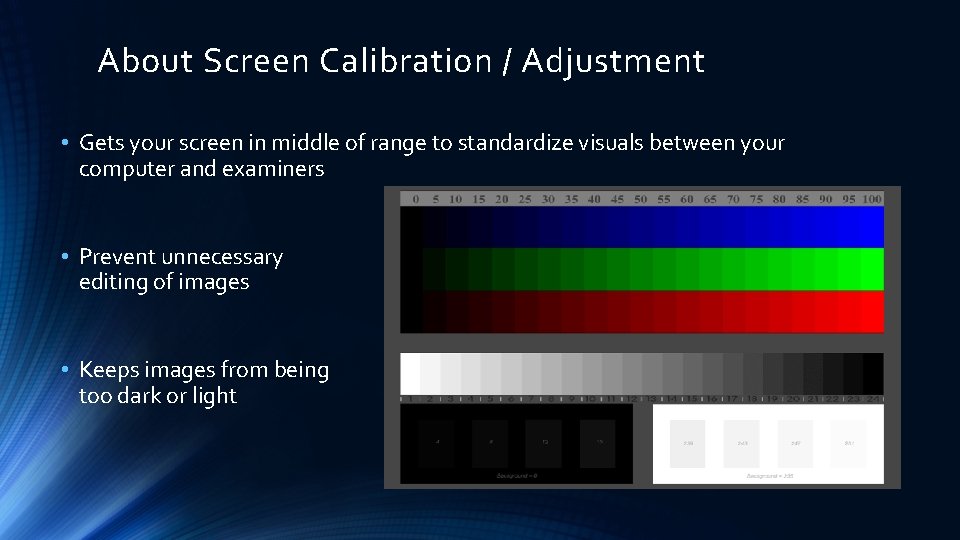
About Screen Calibration / Adjustment • Gets your screen in middle of range to standardize visuals between your computer and examiners • Prevent unnecessary editing of images • Keeps images from being too dark or light
Caseworx NAVIGA TI ON
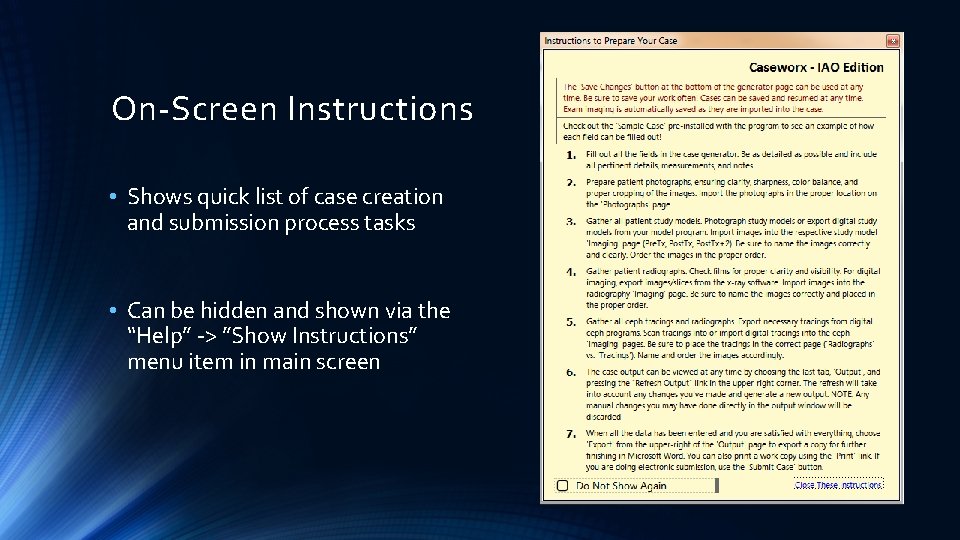
On-Screen Instructions • Shows quick list of case creation and submission process tasks • Can be hidden and shown via the “Help” -> ”Show Instructions” menu item in main screen
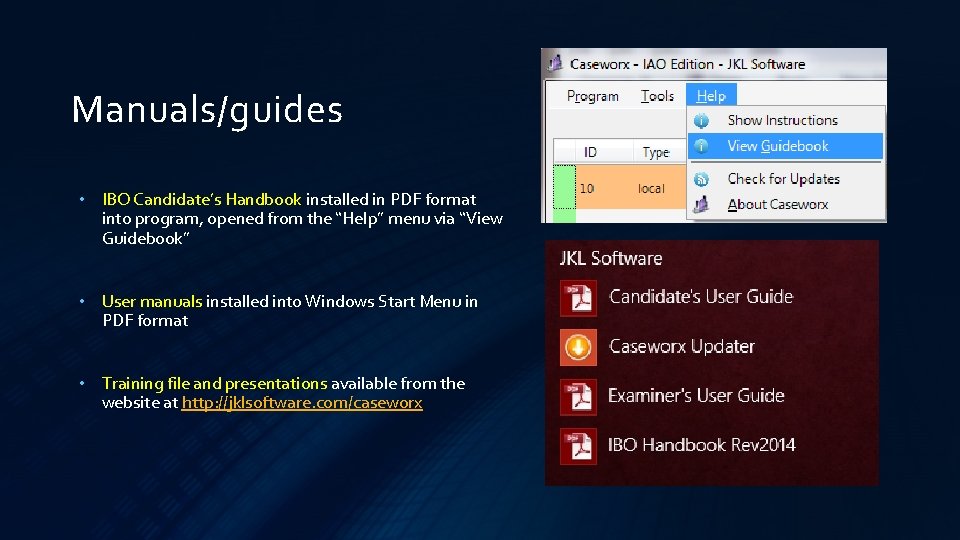
Manuals/guides • IBO Candidate’s Handbook installed in PDF format into program, opened from the “Help” menu via “View Guidebook” • User manuals installed into Windows Start Menu in PDF format • Training file and presentations available from the website at http: //jklsoftware. com/caseworx
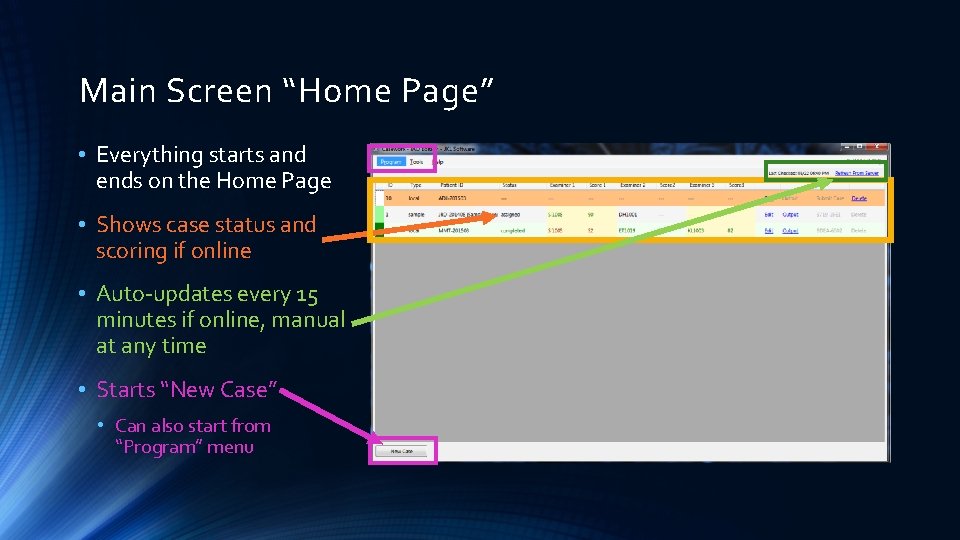
Main Screen “Home Page” • Everything starts and ends on the Home Page • Shows case status and scoring if online • Auto-updates every 15 minutes if online, manual at any time • Starts “New Case” • Can also start from “Program” menu
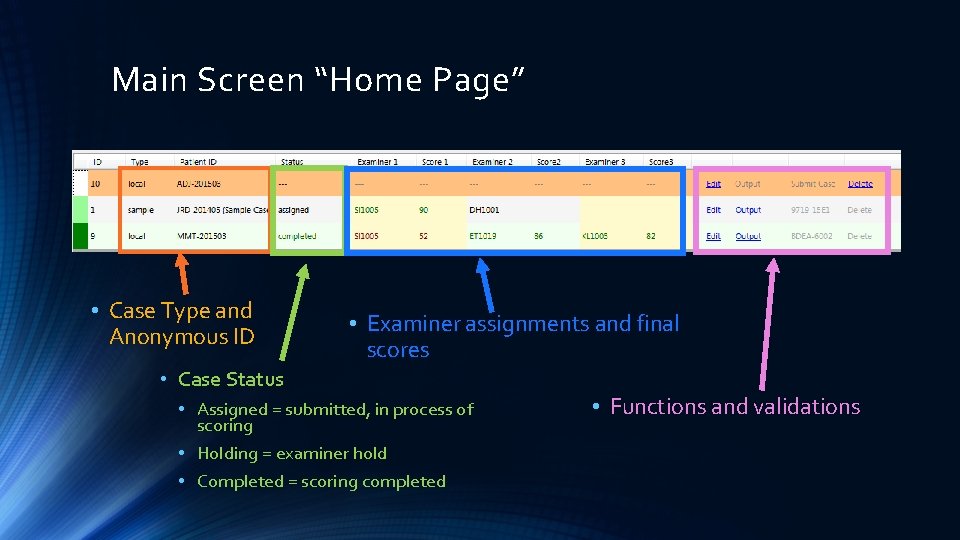
Main Screen “Home Page” • Case Type and Anonymous ID • Examiner assignments and final scores • Case Status • Assigned = submitted, in process of scoring • Holding = examiner hold • Completed = scoring completed • Functions and validations
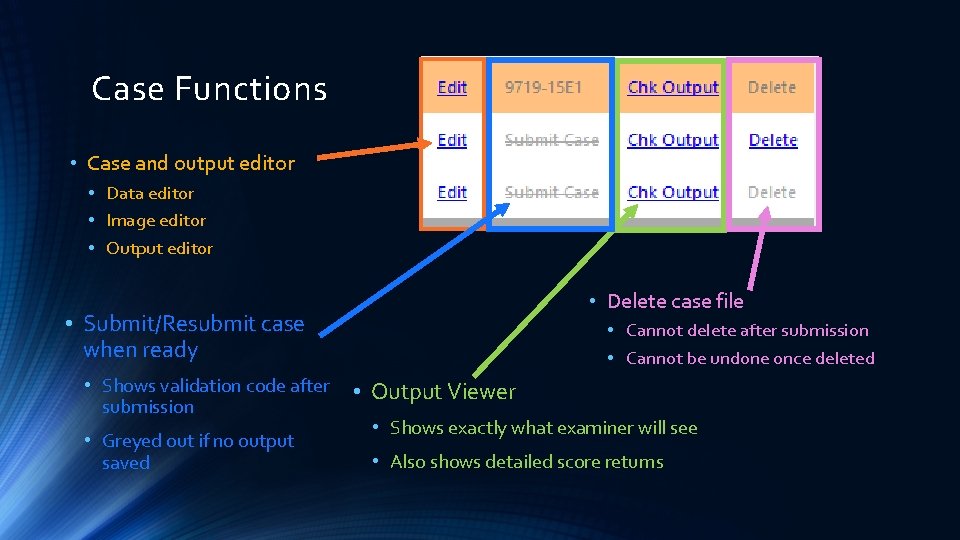
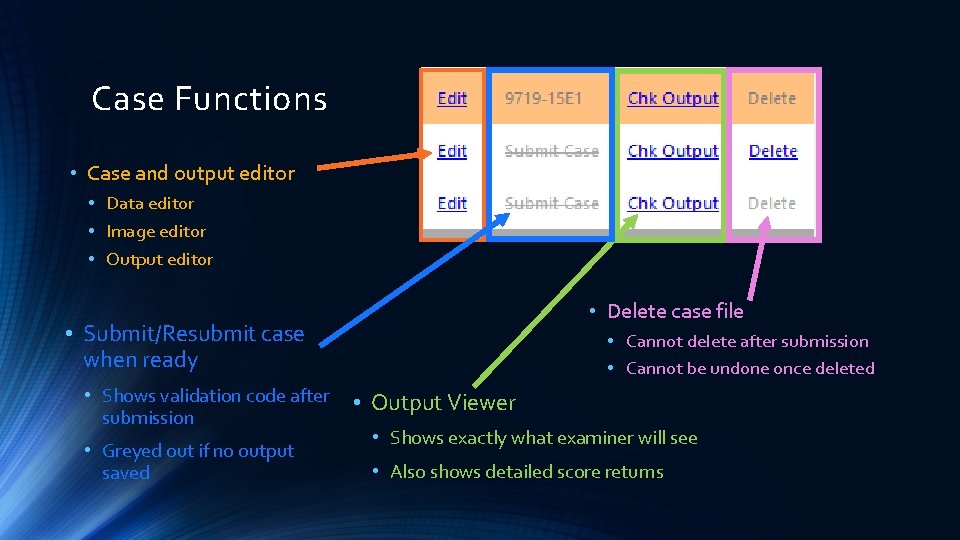
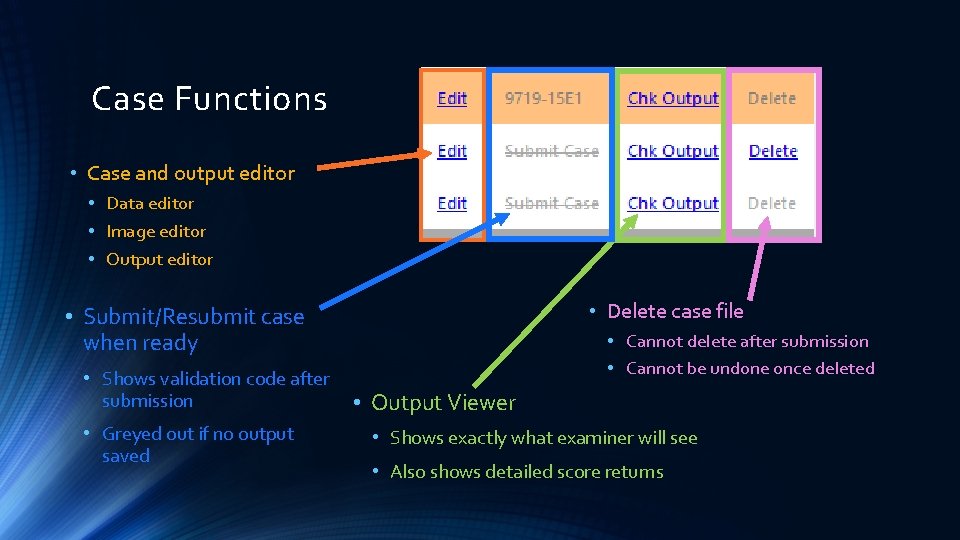
Case Functions • Case and output editor • Data editor • Image editor • Output editor • Delete case file • Submit/Resubmit case when ready • Shows validation code after submission • Greyed out if no output saved • Cannot delete after submission • Cannot be undone once deleted • Output Viewer • Shows exactly what examiner will see • Also shows detailed score returns
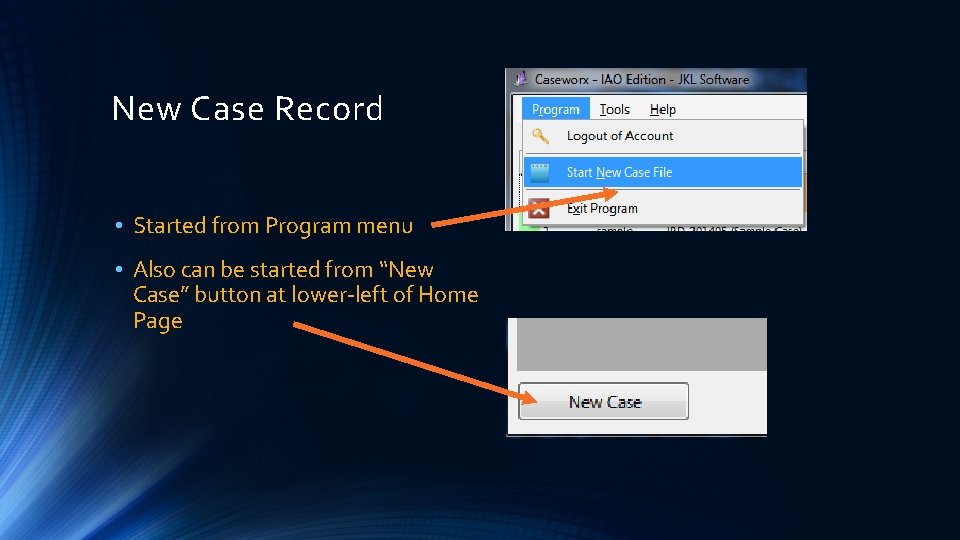
New Case Record • Started from Program menu • Also can be started from “New Case” button at lower-left of Home Page
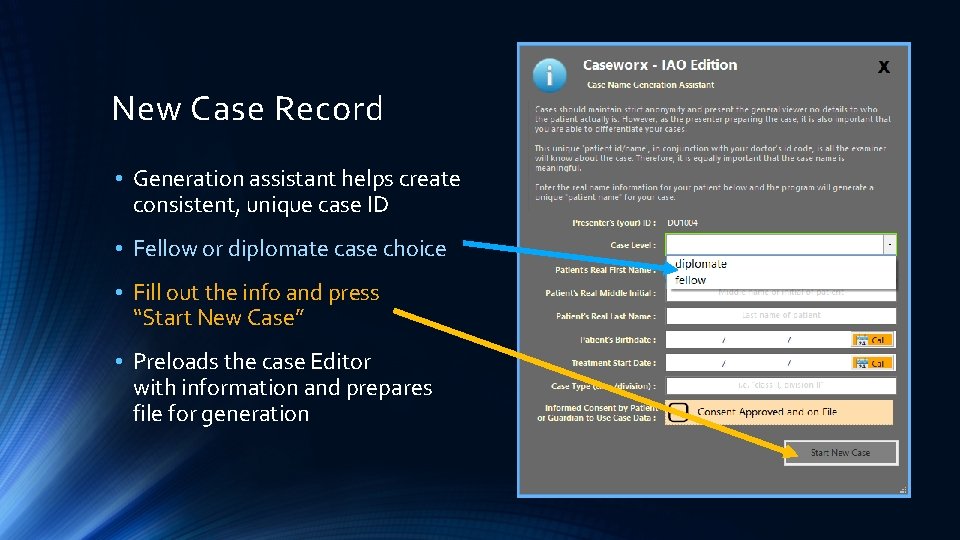
New Case Record • Generation assistant helps create consistent, unique case ID • Fellow or diplomate case choice • Fill out the info and press “Start New Case” • Preloads the case Editor with information and prepares file for generation
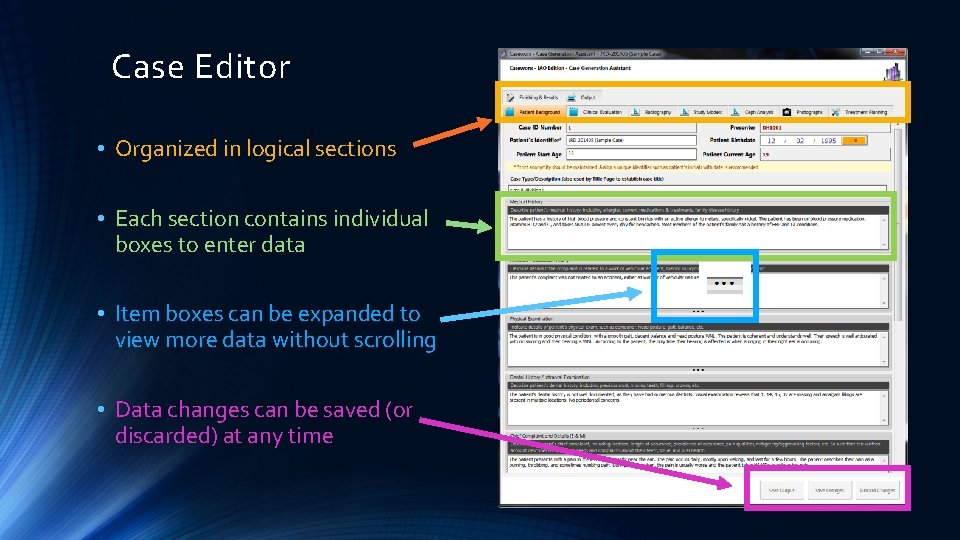
Case Editor • Organized in logical sections • Each section contains individual boxes to enter data • Item boxes can be expanded to view more data without scrolling • Data changes can be saved (or discarded) at any time
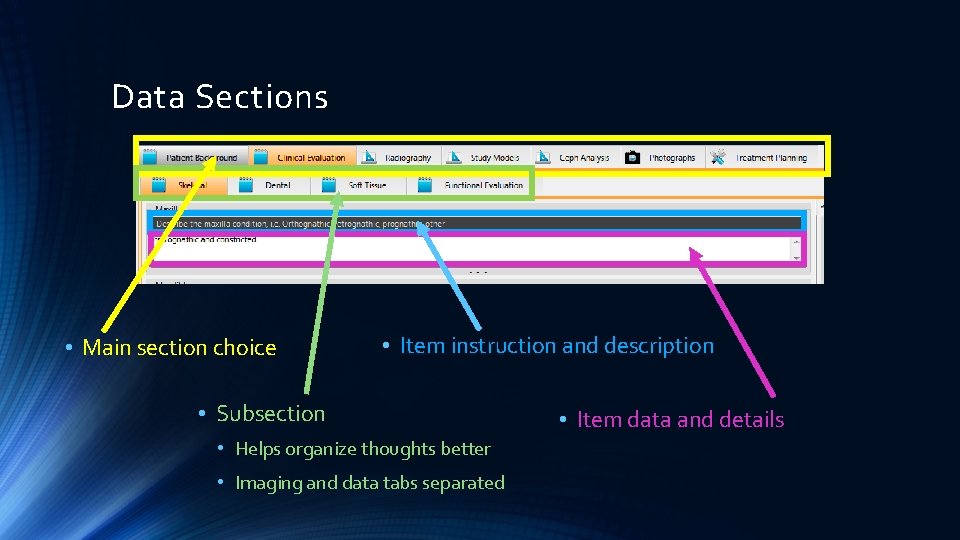
Data Sections • Main section choice • Item instruction and description • Subsection • Helps organize thoughts better • Imaging and data tabs separated • Item data and details
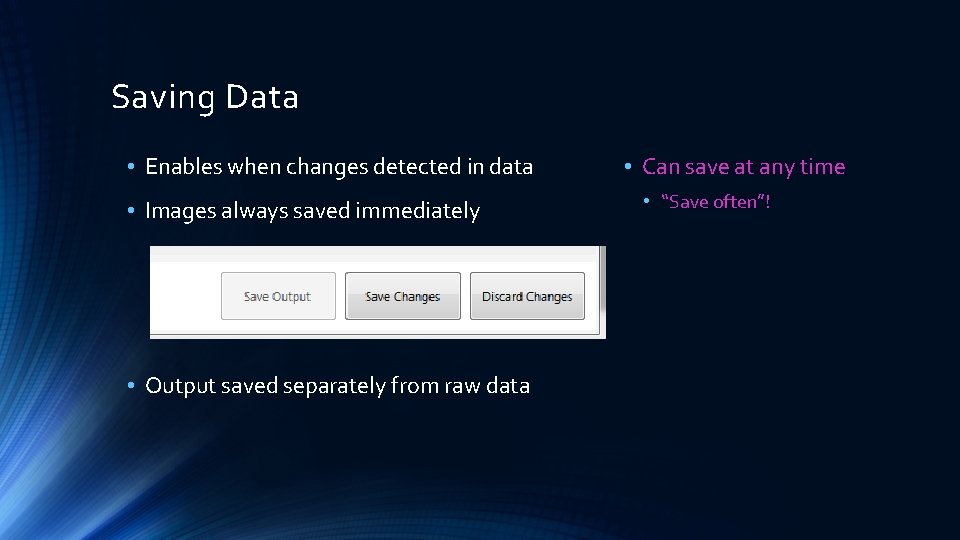
Saving Data • Enables when changes detected in data • Images always saved immediately • Output saved separately from raw data • Can save at any time • “Save often”!
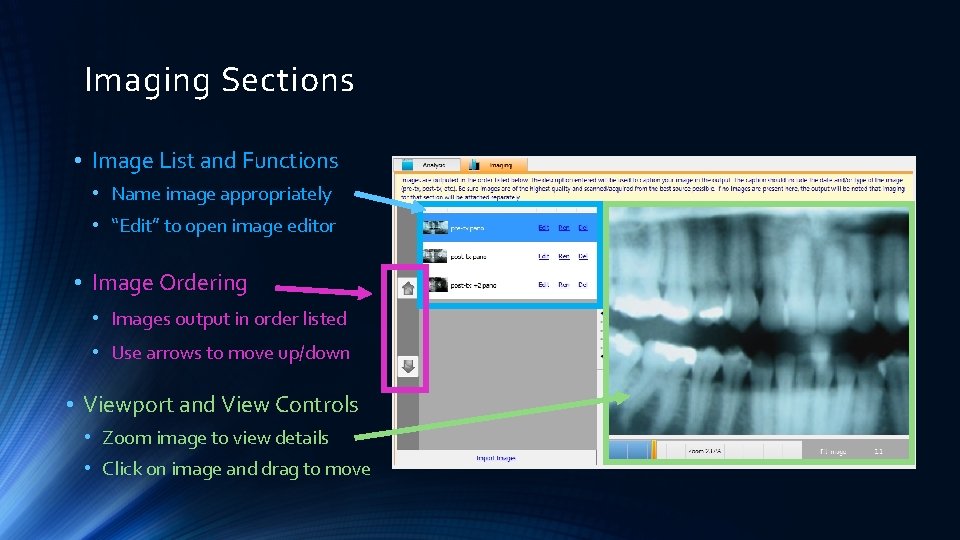
Imaging Sections • Image List and Functions • Name image appropriately • “Edit” to open image editor • Image Ordering • Images output in order listed • Use arrows to move up/down • Viewport and View Controls • Zoom image to view details • Click on image and drag to move
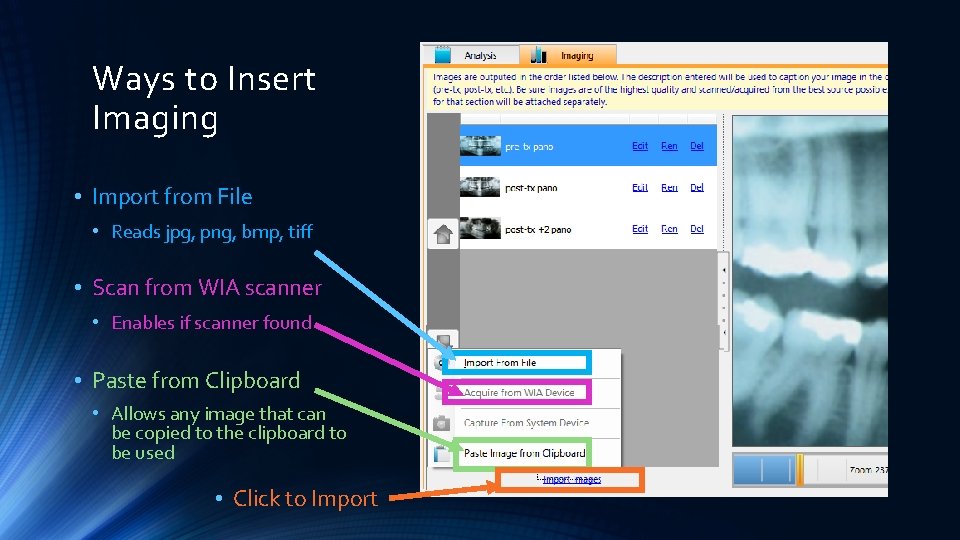
Ways to Insert Imaging • Import from File • Reads jpg, png, bmp, tiff • Scan from WIA scanner • Enables if scanner found • Paste from Clipboard • Allows any image that can be copied to the clipboard to be used • Click to Import
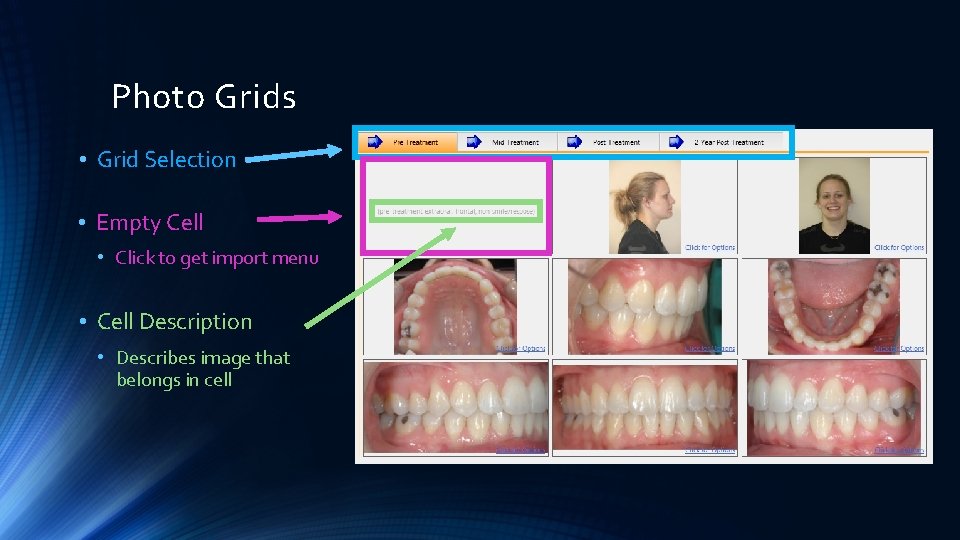
Photo Grids • Grid Selection • Empty Cell • Click to get import menu • Cell Description • Describes image that belongs in cell
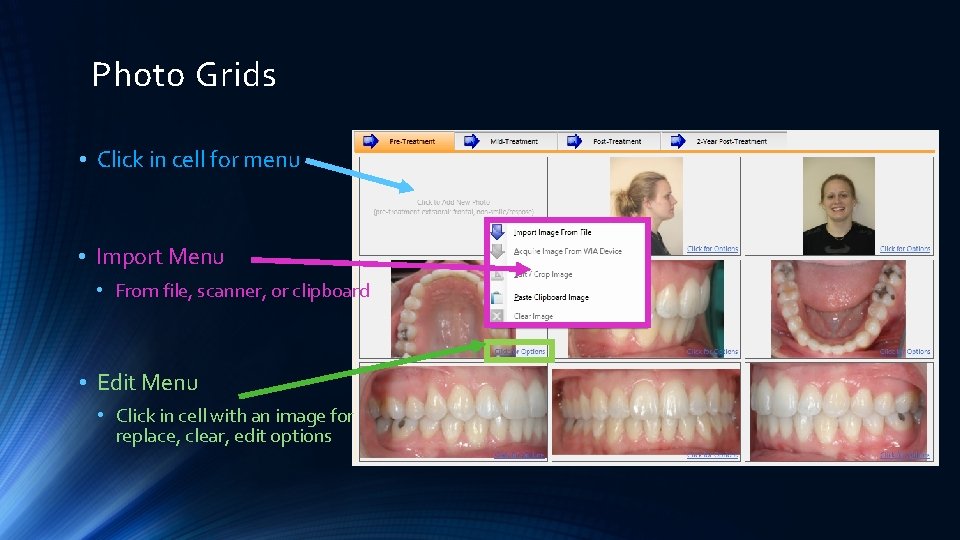
Photo Grids • Click in cell for menu • Import Menu • From file, scanner, or clipboard • Edit Menu • Click in cell with an image for replace, clear, edit options
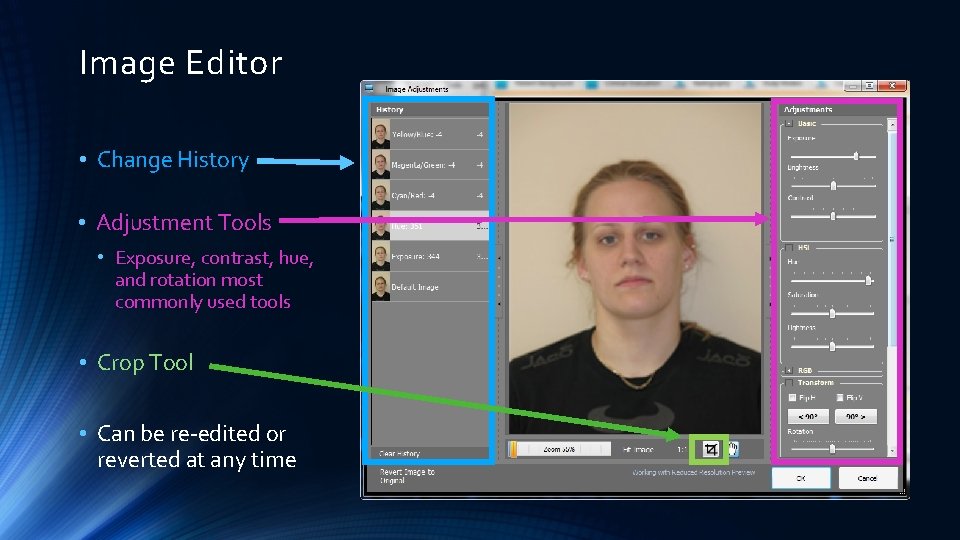
Image Editor • Change History • Adjustment Tools • Exposure, contrast, hue, and rotation most commonly used tools • Crop Tool • Can be re-edited or reverted at any time
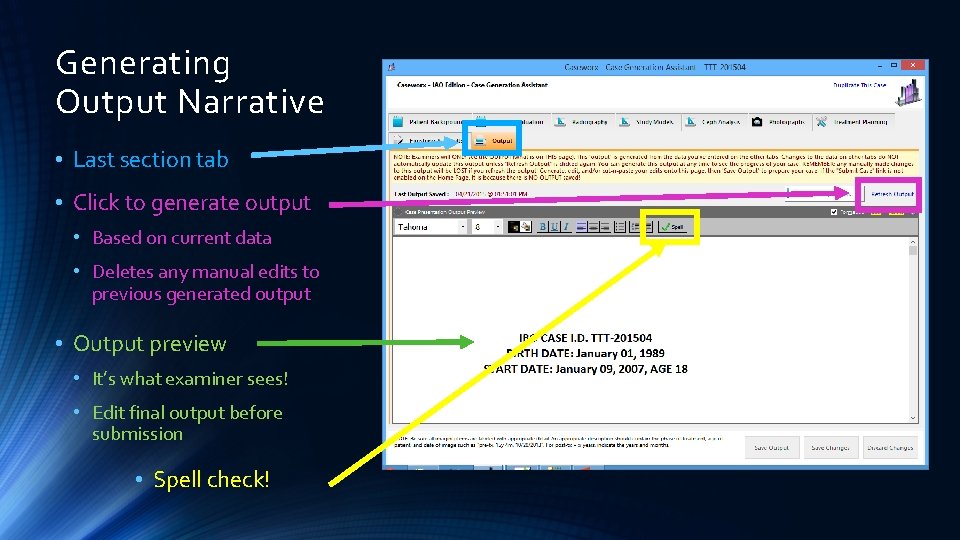
Generating Output Narrative • Last section tab • Click to generate output • Based on current data • Deletes any manual edits to previous generated output • Output preview • It’s what examiner sees! • Edit final output before submission • Spell check!
Caseworx CASE SUBMISS ION
Case Functions • Case and output editor • Data editor • Image editor • Output editor • Delete case file • Submit/Resubmit case when ready • Shows validation code after submission • Greyed out if no output saved • Cannot delete after submission • Cannot be undone once deleted • Output Viewer • Shows exactly what examiner will see • Also shows detailed score returns
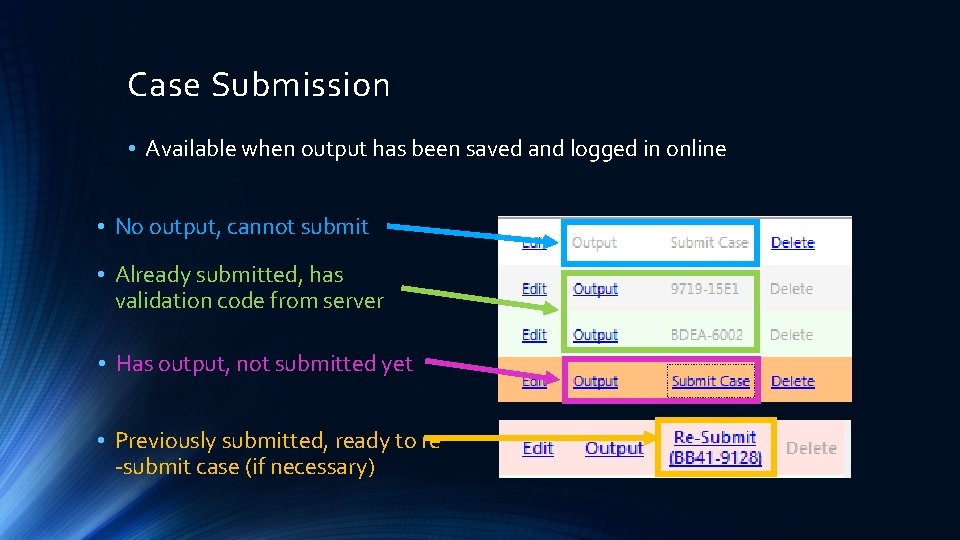
Case Submission • Available when output has been saved and logged in online • No output, cannot submit • Already submitted, has validation code from server • Has output, not submitted yet • Previously submitted, ready to re -submit case (if necessary)
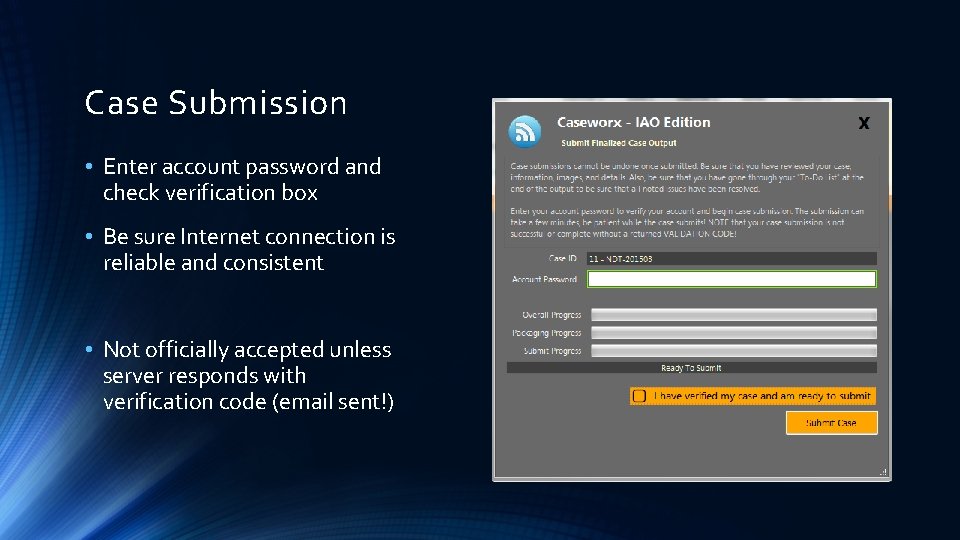
Case Submission • Enter account password and check verification box • Be sure Internet connection is reliable and consistent • Not officially accepted unless server responds with verification code (email sent!)
Caseworx CHECKING Y OU R CAS E
Case Functions • Case and output editor • Data editor • Image editor • Output editor • Delete case file • Submit/Resubmit case when ready • Shows validation code after submission • Greyed out if no output saved • Cannot delete after submission • Cannot be undone once deleted • Output Viewer • Shows exactly what examiner will see • Also shows detailed score returns
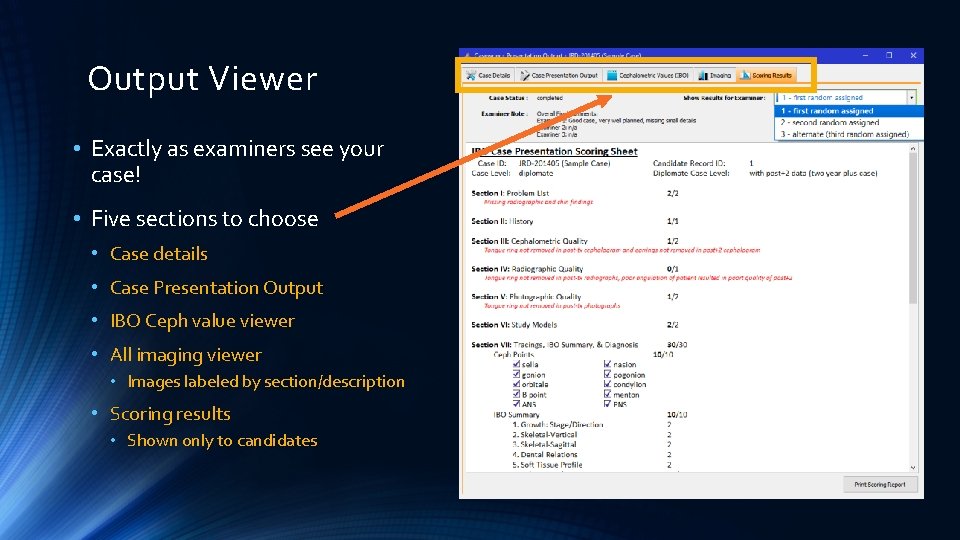
Output Viewer • Exactly as examiners see your case! • Five sections to choose • Case details • Case Presentation Output • IBO Ceph value viewer • All imaging viewer • Images labeled by section/description • Scoring results • Shown only to candidates
Caseworx SCOR ING
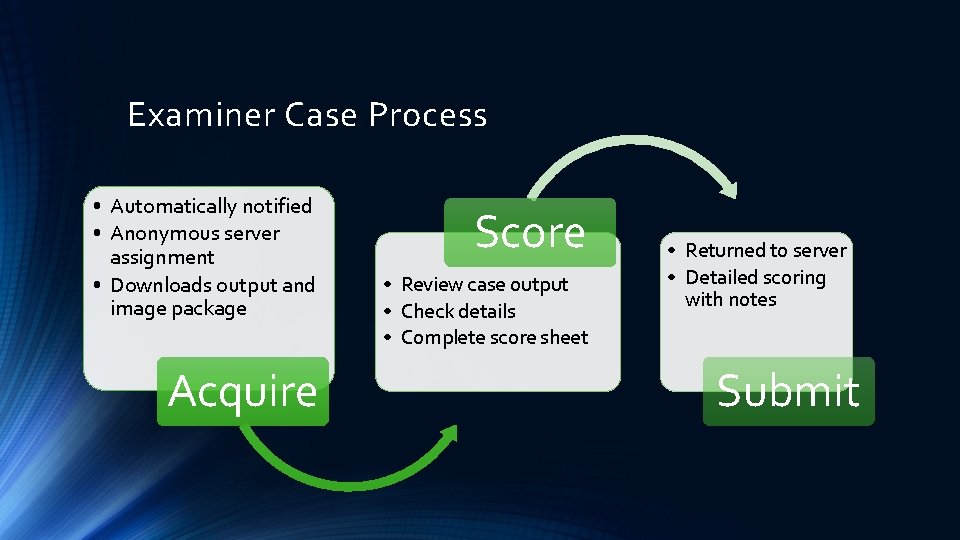
Examiner Case Process • Automatically notified • Anonymous server assignment • Downloads output and image package Acquire Score • Review case output • Check details • Complete score sheet • Returned to server • Detailed scoring with notes Submit
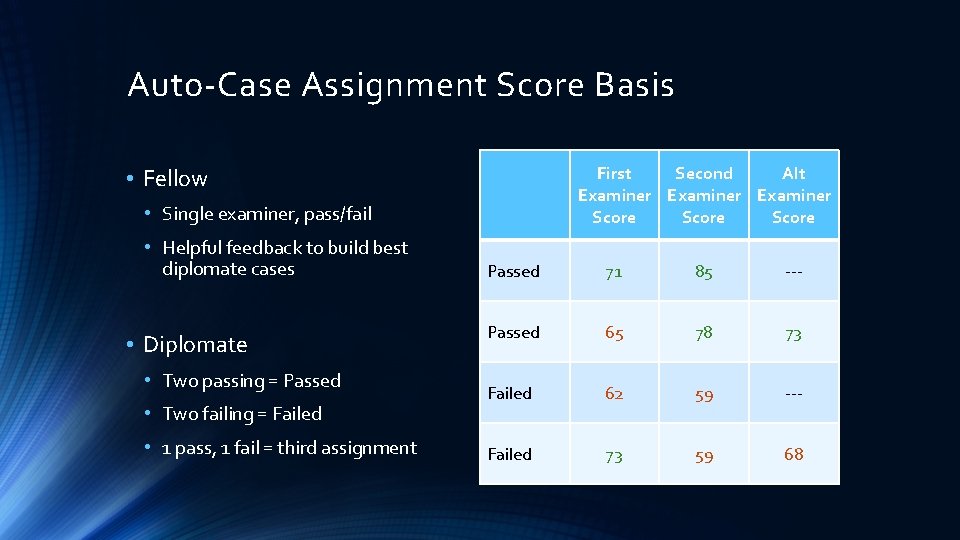
Auto-Case Assignment Score Basis First Second Alt Examiner Score • Fellow • Single examiner, pass/fail • Helpful feedback to build best diplomate cases • Diplomate • Two passing = Passed • Two failing = Failed • 1 pass, 1 fail = third assignment Passed 71 85 --- Passed 65 78 73 Failed 62 59 --- Failed 73 59 68
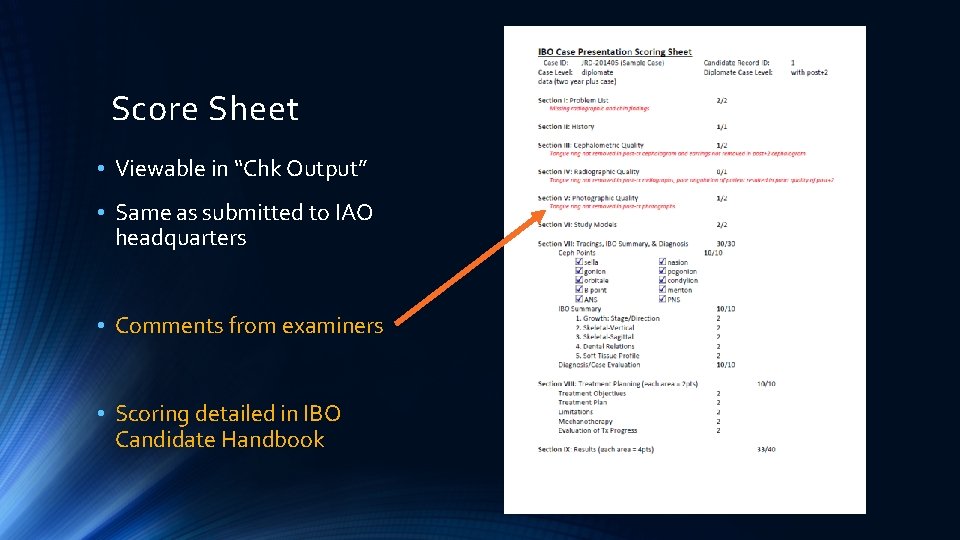
Score Sheet • Viewable in “Chk Output” • Same as submitted to IAO headquarters • Comments from examiners • Scoring detailed in IBO Candidate Handbook
Let’s See It In Real Life!
Clinical Photography
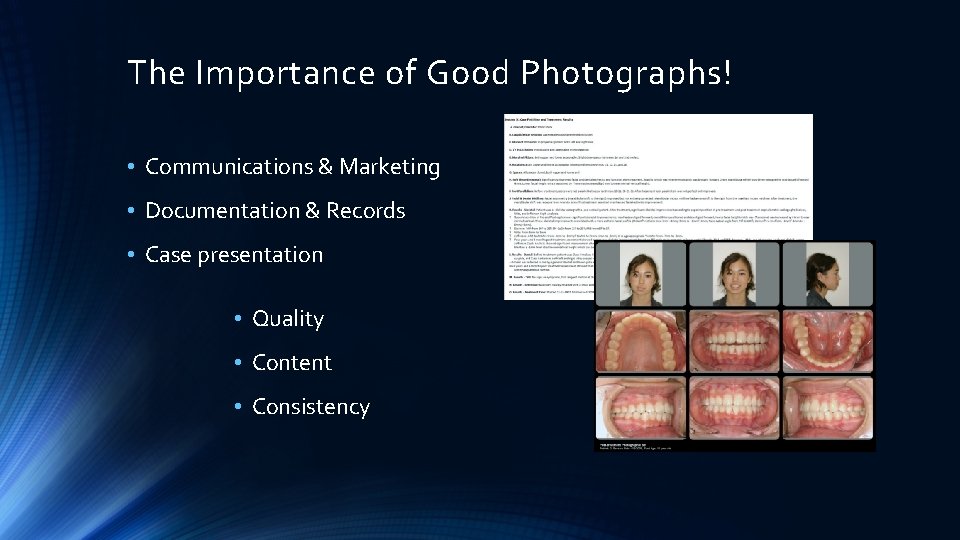
The Importance of Good Photographs! • Communications & Marketing • Documentation & Records • Case presentation • Quality • Content • Consistency
“A picture is worth a thousand words”
Good, Quality Photography Is All About…? Hint: The picture is a result…but not what it’s about!
…Controlling Light!
Requirements for the Perfect Image • Gear • Technique • Style • Reference • Practice
Gear It really does make a difference
Gear • “Real” SLR camera • True Macro lens • Ringlight FLASH is a must have • Quality power sources • Willing staff member*
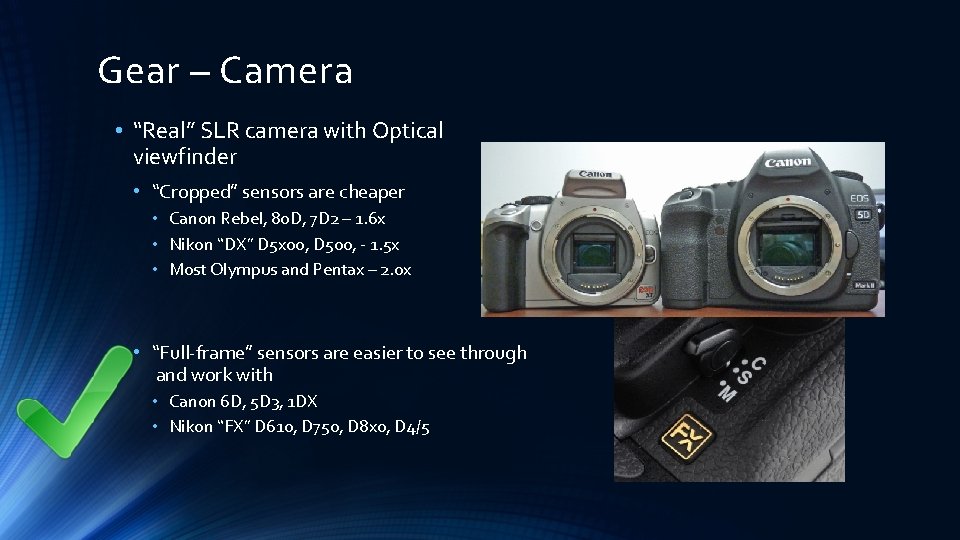
Gear – Camera • “Real” SLR camera with Optical viewfinder • “Cropped” sensors are cheaper • Canon Rebel, 80 D, 7 D 2 – 1. 6 x • Nikon “DX” D 5 x 00, D 500, - 1. 5 x • Most Olympus and Pentax – 2. 0 x • “Full-frame” sensors are easier to see through and work with • Canon 6 D, 5 D 3, 1 DX • Nikon “FX” D 610, D 750, D 8 x 0, D 4/5
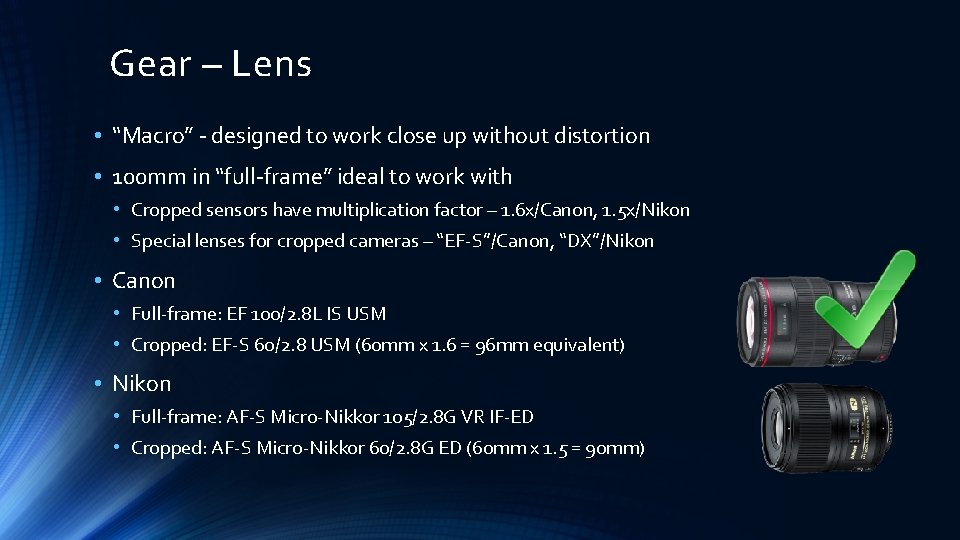
Gear – Lens • “Macro” - designed to work close up without distortion • 100 mm in “full-frame” ideal to work with • Cropped sensors have multiplication factor – 1. 6 x/Canon, 1. 5 x/Nikon • Special lenses for cropped cameras – “EF-S”/Canon, “DX”/Nikon • Canon • Full-frame: EF 100/2. 8 L IS USM • Cropped: EF-S 60/2. 8 USM (60 mm x 1. 6 = 96 mm equivalent) • Nikon • Full-frame: AF-S Micro-Nikkor 105/2. 8 G VR IF-ED • Cropped: AF-S Micro-Nikkor 60/2. 8 G ED (60 mm x 1. 5 = 90 mm)
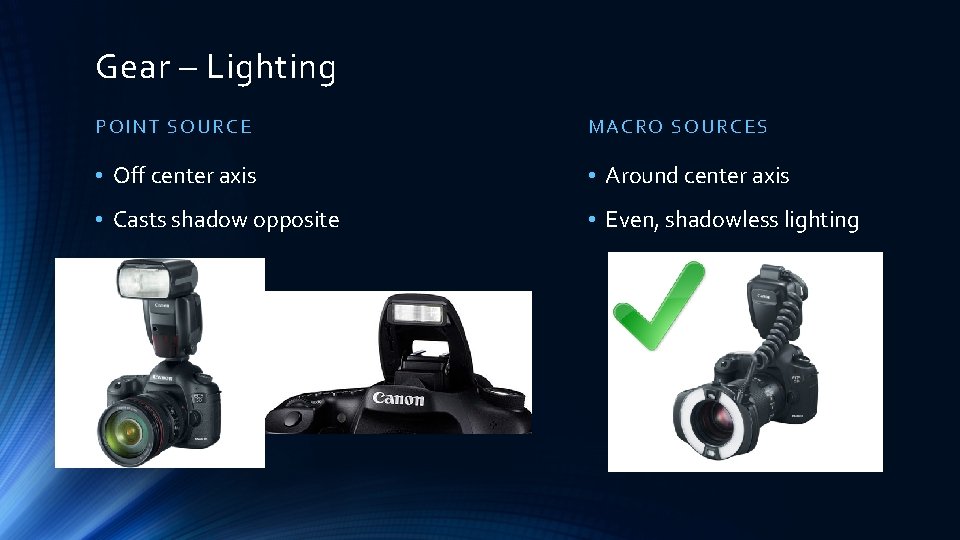
Gear – Lighting POINT SOURCE MACRO SOU RCE S • Off center axis • Around center axis • Casts shadow opposite • Even, shadowless lighting
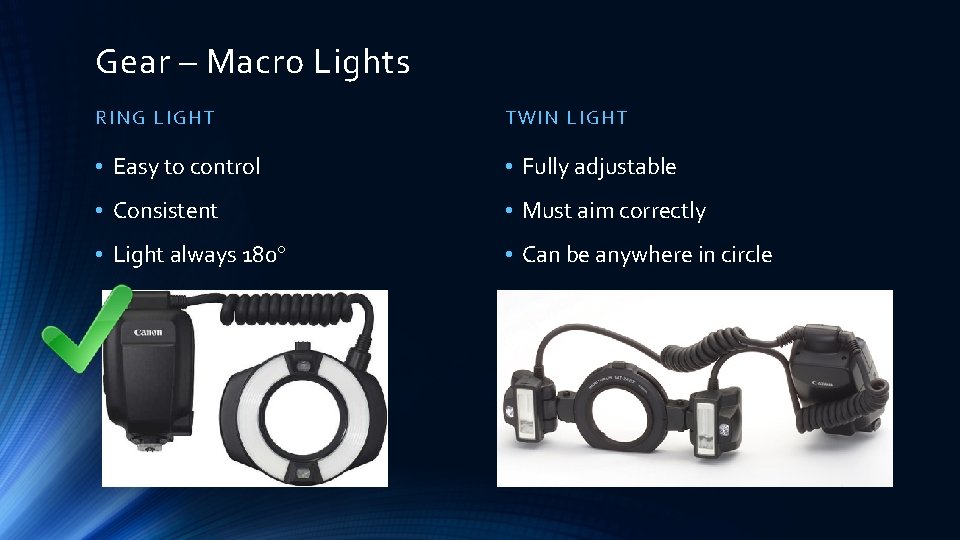
Gear – Macro Lights RING L IG HT TWIN LIGHT • Easy to control • Fully adjustable • Consistent • Must aim correctly • Light always 180 • Can be anywhere in circle
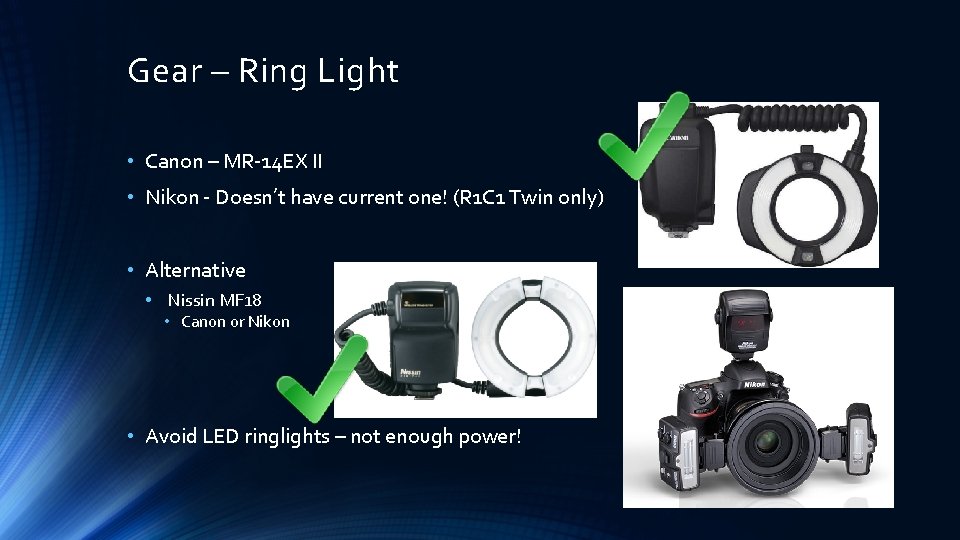
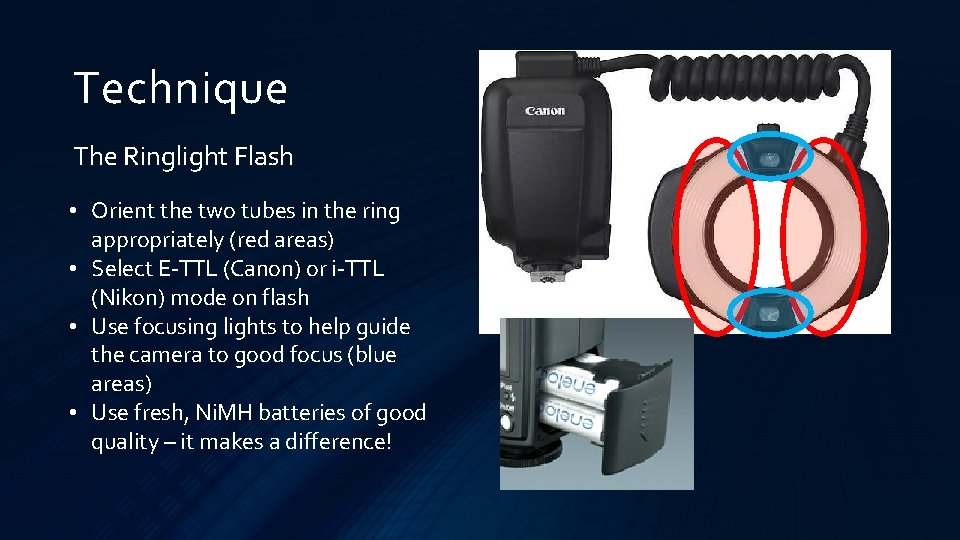
Gear – Ring Light • Canon – MR-14 EX II • Nikon - Doesn’t have current one! (R 1 C 1 Twin only) • Alternative • Nissin MF 18 • Canon or Nikon • Avoid LED ringlights – not enough power!
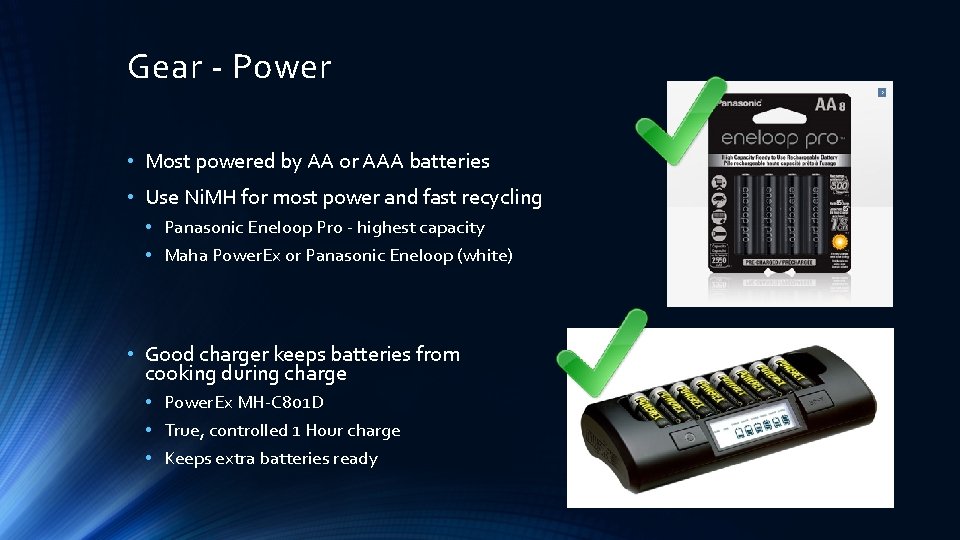
Gear - Power • Most powered by AA or AAA batteries • Use Ni. MH for most power and fast recycling • Panasonic Eneloop Pro - highest capacity • Maha Power. Ex or Panasonic Eneloop (white) • Good charger keeps batteries from cooking during charge • Power. Ex MH-C 801 D • True, controlled 1 Hour charge • Keeps extra batteries ready
Technique Keep it simple
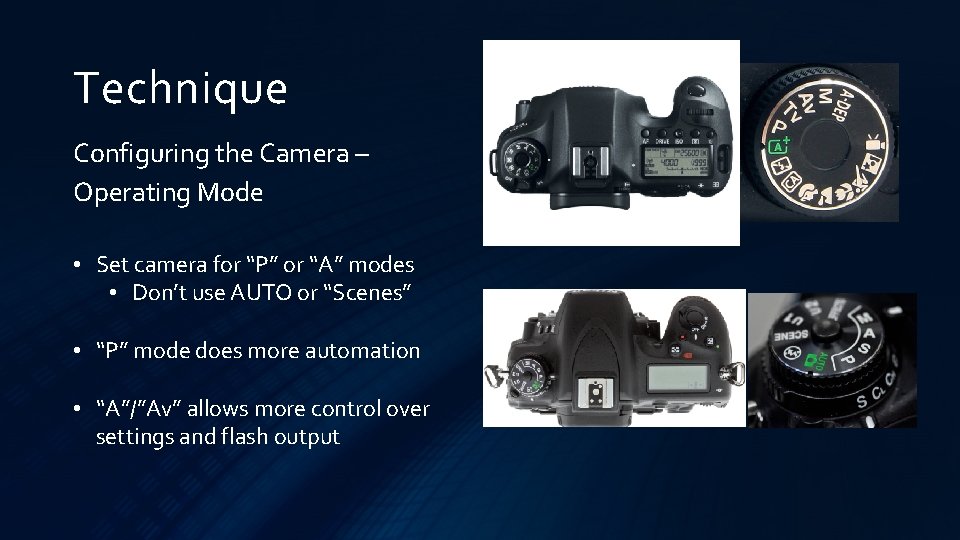
Technique Configuring the Camera – Operating Mode • Set camera for “P” or “A” modes • Don’t use AUTO or “Scenes” • “P” mode does more automation • “A”/”Av” allows more control over settings and flash output
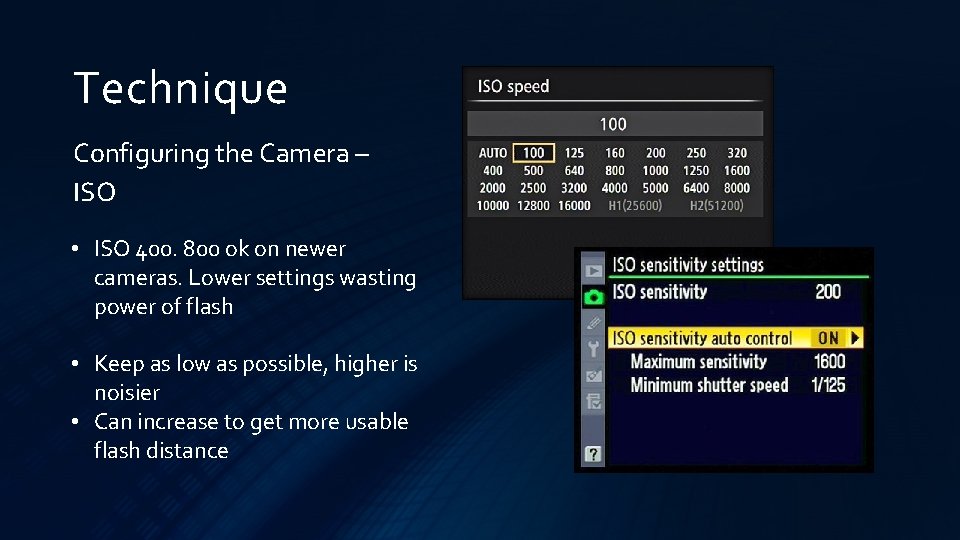
Technique Configuring the Camera – ISO • ISO 400. 800 ok on newer cameras. Lower settings wasting power of flash • Keep as low as possible, higher is noisier • Can increase to get more usable flash distance
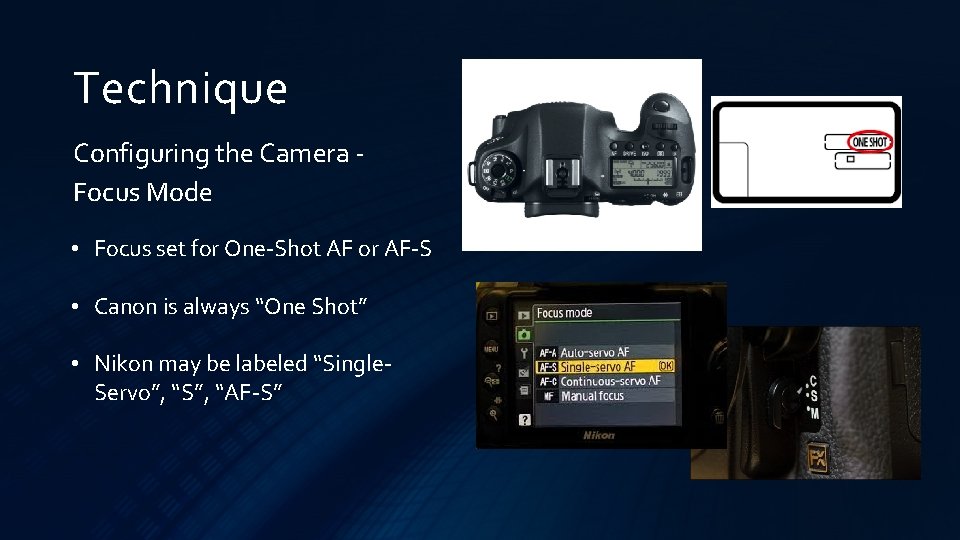
Technique Configuring the Camera Focus Mode • Focus set for One-Shot AF or AF-S • Canon is always “One Shot” • Nikon may be labeled “Single. Servo”, “S”, “AF-S”
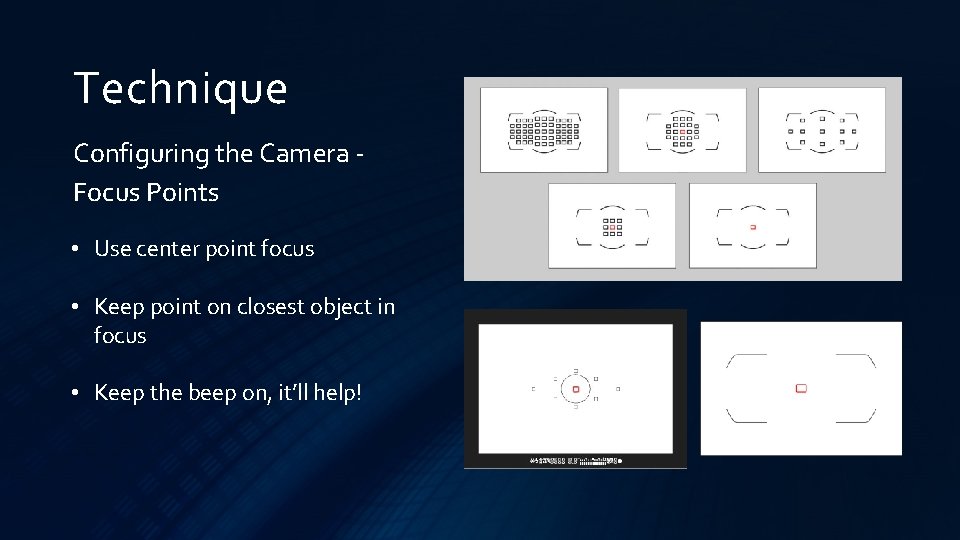
Technique Configuring the Camera Focus Points • Use center point focus • Keep point on closest object in focus • Keep the beep on, it’ll help!
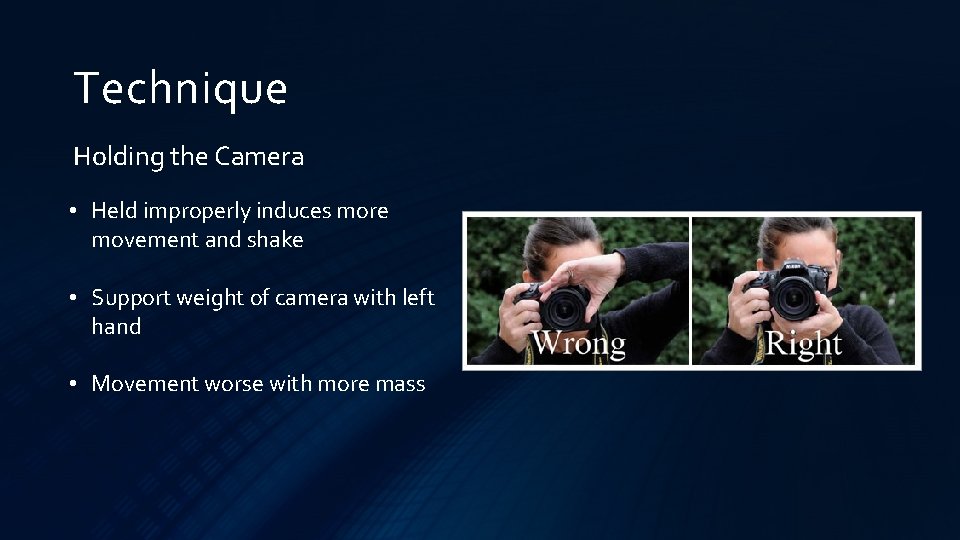
Technique Holding the Camera • Held improperly induces more movement and shake • Support weight of camera with left hand • Movement worse with more mass
Technique The Ringlight Flash • Orient the two tubes in the ring appropriately (red areas) • Select E-TTL (Canon) or i-TTL (Nikon) mode on flash • Use focusing lights to help guide the camera to good focus (blue areas) • Use fresh, Ni. MH batteries of good quality – it makes a difference!
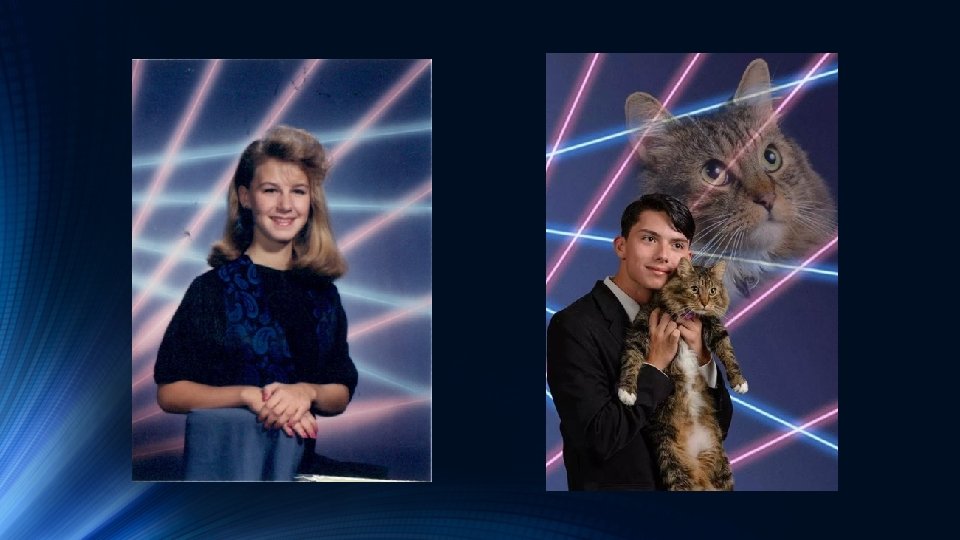
Style Define yourself with it!
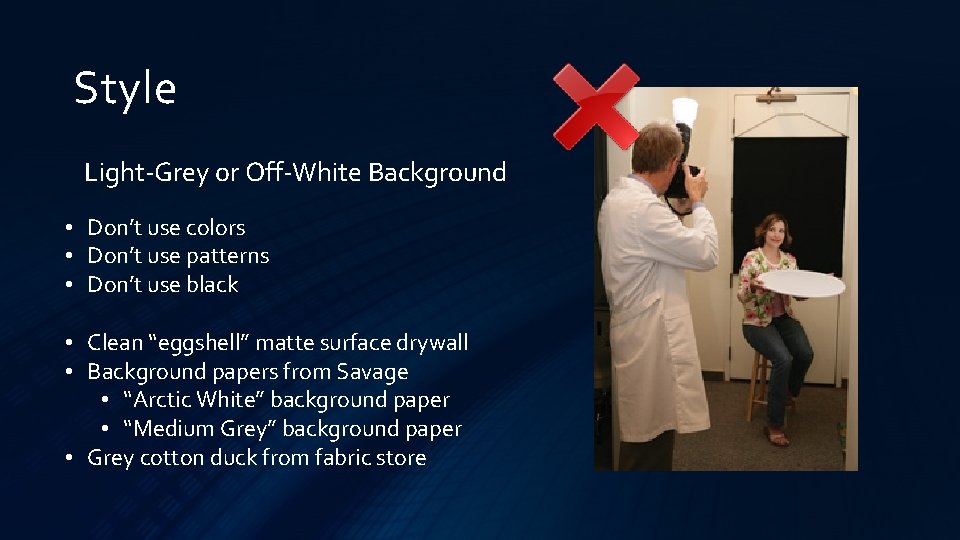
Style Light-Grey or Off-White Background • Don’t use colors • Don’t use patterns • Don’t use black • Clean “eggshell” matte surface drywall • Background papers from Savage • “Arctic White” background paper • “Medium Grey” background paper • Grey cotton duck from fabric store
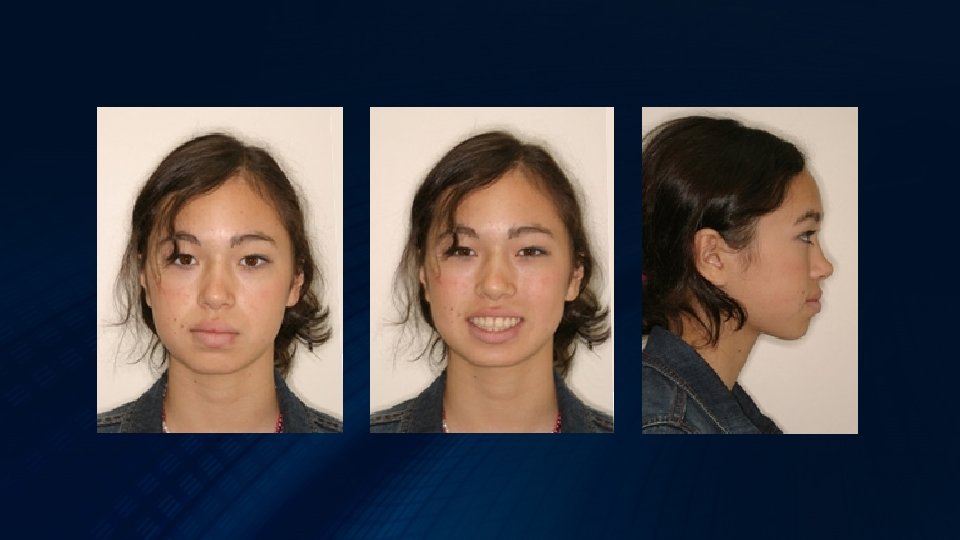
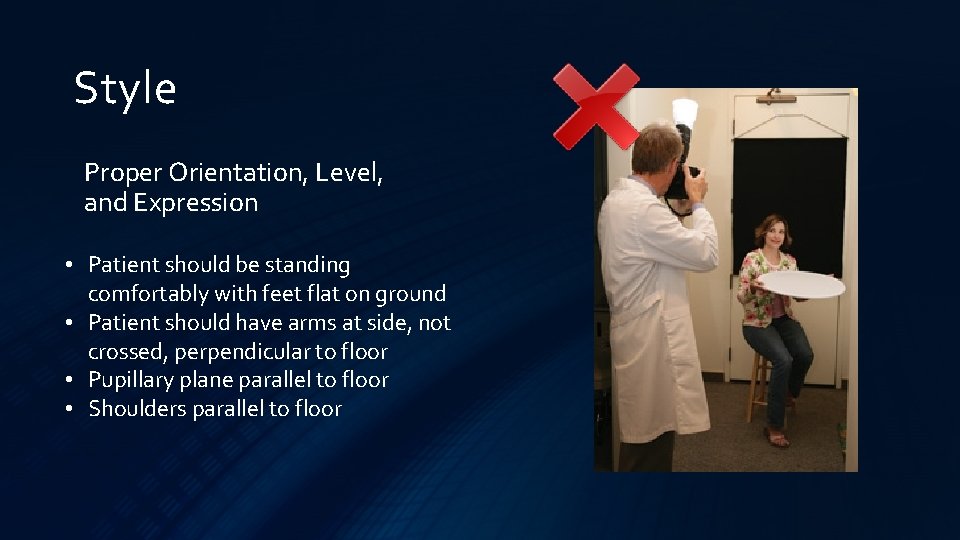
Style Proper Orientation, Level, and Expression • Patient should be standing comfortably with feet flat on ground • Patient should have arms at side, not crossed, perpendicular to floor • Pupillary plane parallel to floor • Shoulders parallel to floor
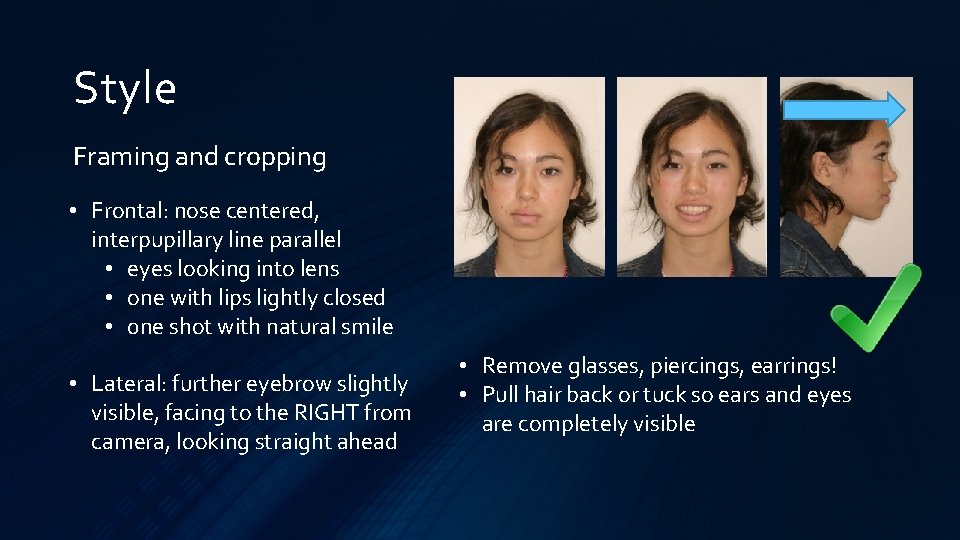
Style Framing and cropping • Frontal: nose centered, interpupillary line parallel • eyes looking into lens • one with lips lightly closed • 0 ne shot with natural smile • Lateral: further eyebrow slightly visible, facing to the RIGHT from camera, looking straight ahead • Remove glasses, piercings, earrings! • Pull hair back or tuck so ears and eyes are completely visible
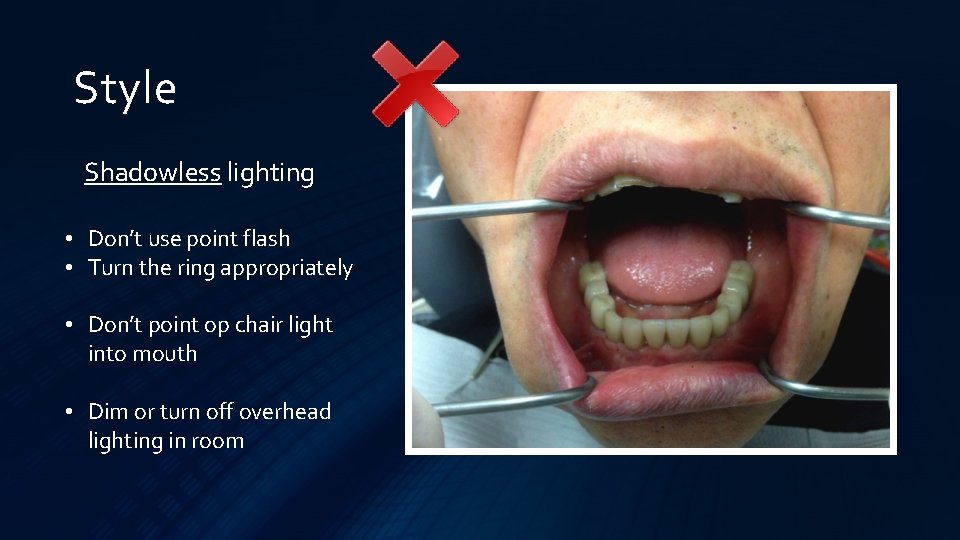
Style Shadowless lighting • Don’t use point flash • Turn the ring appropriately • Don’t point op chair light into mouth • Dim or turn off overhead lighting in room
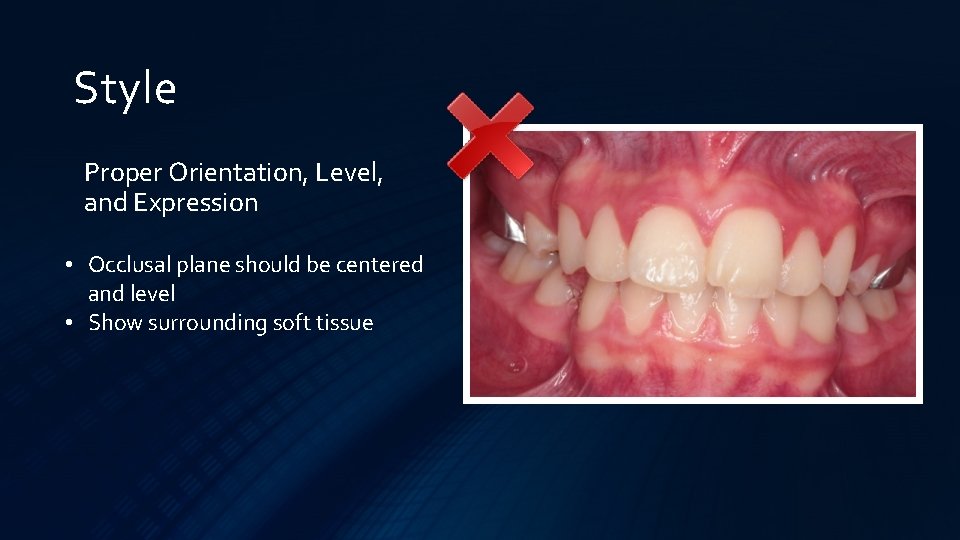
Style Proper Orientation, Level, and Expression • Occlusal plane should be centered and level • Show surrounding soft tissue
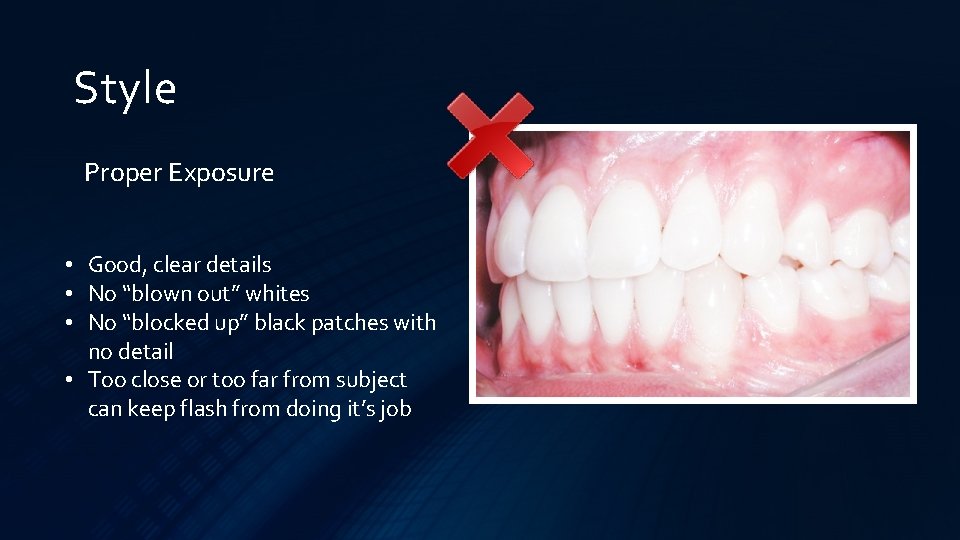
Style Proper Exposure • Good, clear details • No “blown out” whites • No “blocked up” black patches with no detail • Too close or too far from subject can keep flash from doing it’s job
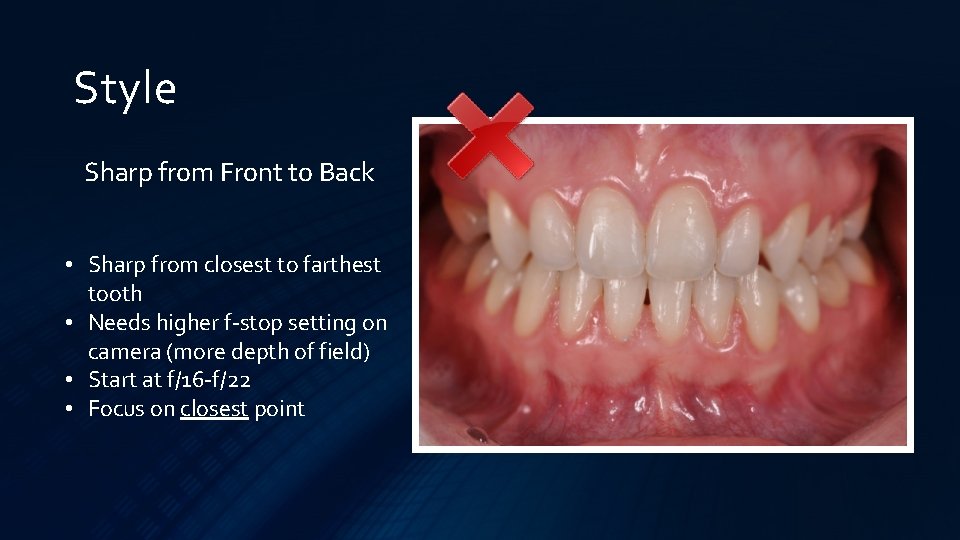
Style Sharp from Front to Back • Sharp from closest to farthest tooth • Needs higher f-stop setting on camera (more depth of field) • Start at f/16 -f/22 • Focus on closest point
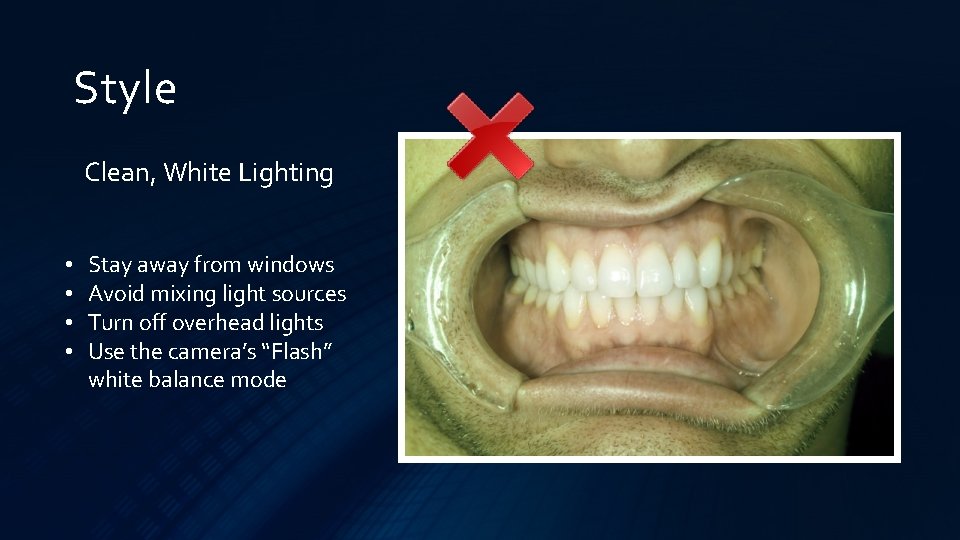
Style Clean, White Lighting • • Stay away from windows Avoid mixing light sources Turn off overhead lights Use the camera’s “Flash” white balance mode
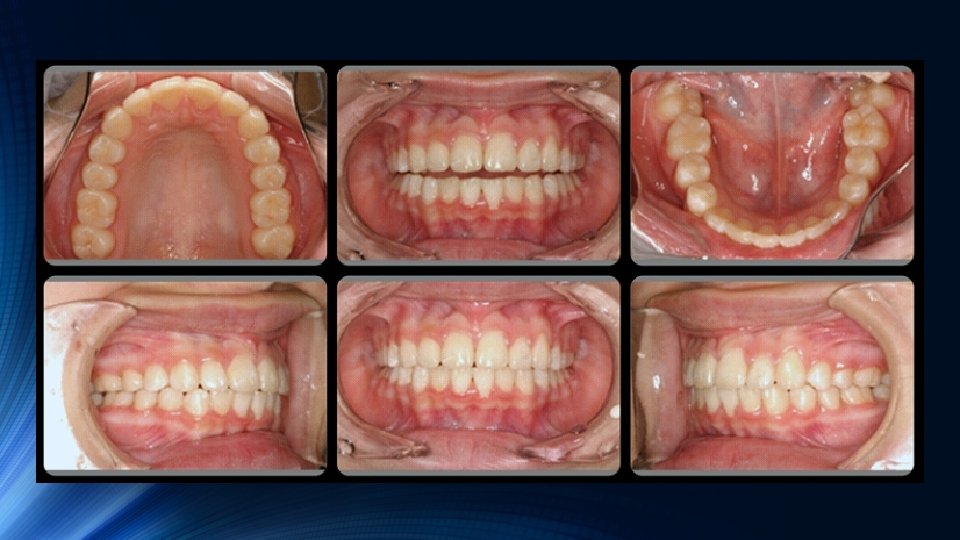
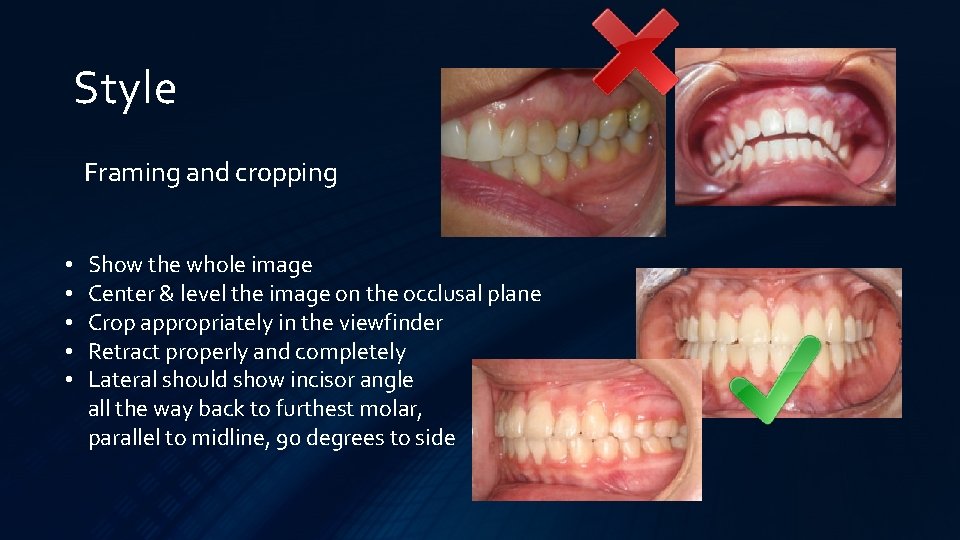
Style Framing and cropping • • • Show the whole image Center & level the image on the occlusal plane Crop appropriately in the viewfinder Retract properly and completely Lateral should show incisor angle all the way back to furthest molar, parallel to midline, 90 degrees to side
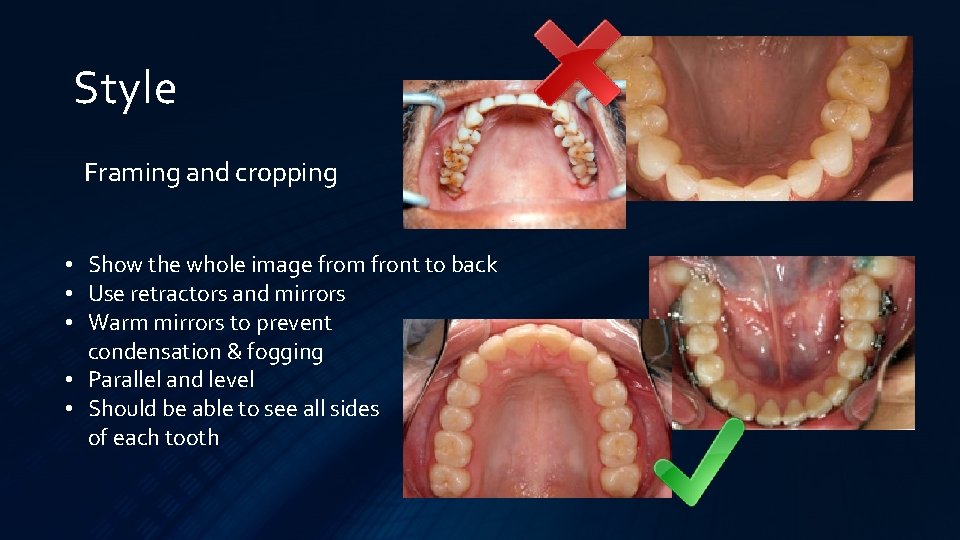
Style Framing and cropping • Show the whole image from front to back • Use retractors and mirrors • Warm mirrors to prevent condensation & fogging • Parallel and level • Should be able to see all sides of each tooth
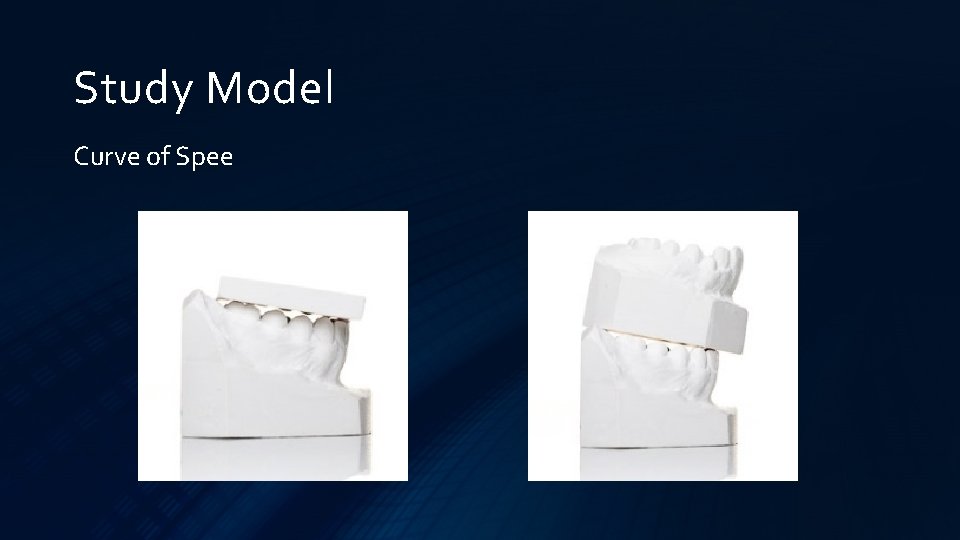
Study Model Curve of Spee
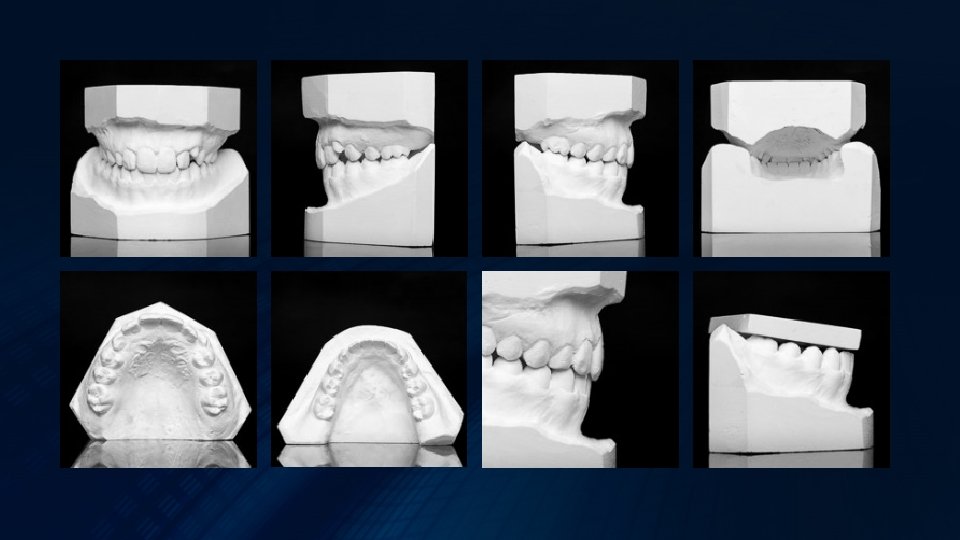
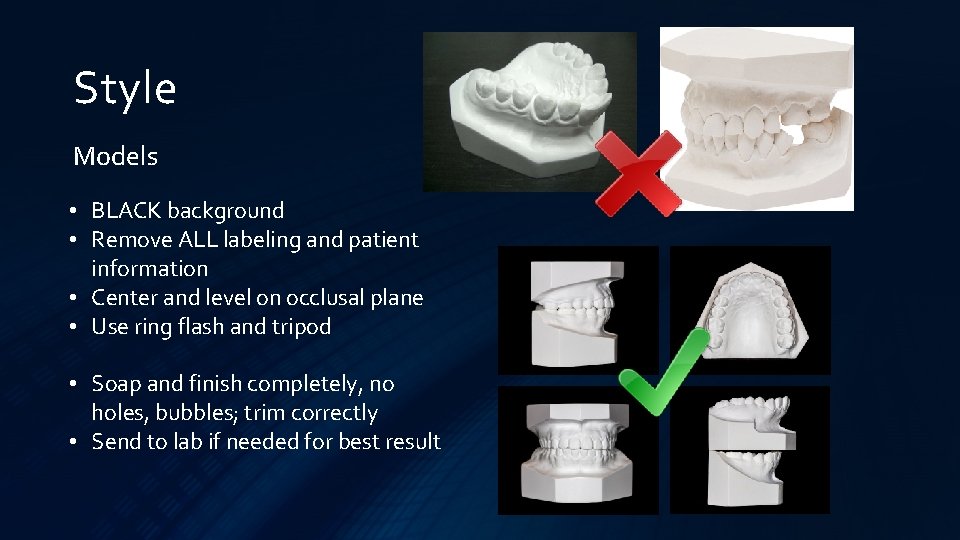
Style Models • BLACK background • Remove ALL labeling and patient information • Center and level on occlusal plane • Use ring flash and tripod • Soap and finish completely, no holes, bubbles; trim correctly • Send to lab if needed for best result
Reference Don’t fix what’s not broken
Reference • Record settings that work • Use same location, op, or area • Mark locations • Create a comp card of proper shots for reference • Dedicate a staff member who likes their task* • Secure dials and buttons • Keep accessories in easy to remember location • Update and clean gear on a schedule
Strive to create the reference each time!
Practice Give the squeaky wheel some grease
Practice • Try different settings to learn what changes • Try different locations to see how image is affected • Establish a practice time for honing skills • Pay attention to the rough spots! • Group review imaging
Caseworx
Takeaway - Tier Advancement • Investment in yourself • Become more consistent and methodical • Get better case records • Save time and effort • Receive acknowledgement for your achievements • Good for you, good for your patient
Takeaway – Case Presentation • Include all required data in detail • Good quality photographs – clear, detailed, proper format • Clear pano and ceph radiographs • Proper IBO format ceph tracing, overlays, and superimpositions • Properly finish and photograph physical study models Or, use digital study model image files • Include complete treatment plan and progress report
Takeaway - Caseworx • Download jklsoftware. com or IAO website members only section • Worldwide submission at anytime • Anonymity of case • Removes formatting errors and missed data • Concentrate on quality data • Retrieve results quickly and easily
IAO Tier Advancement JKL Software Caseworx Nelson Mark , ( nel@jk lsoftw are. com ) http : / / jklsoft wa re. com