
Cascading Style Sheets Chapters 7 8 Positioning Controls


- Slides: 19
Cascading Style Sheets Chapters 7, 8 Positioning Controls Visibility
Positioning in the Window • The browser window has 2 specific areas— the window and the active browser window. • The active browser window (viewport) refers to the area where the HTML document is rendered.
• The active window should be considered a rectangle. The rectangle has a position in the window. The top left corner is the position of the element in the window. • The element (based on its defined or specified width and height) expands to fill in the rectangle. • The default for the first object in the window is (0, 0) (top, left)
Position Types • Static – Defined based on the position of the element in the body of the document. • Relative – Defined based on its parent object; if not specified, it's the body • Absolute – Defined based on a rectangle starting from the top-left corner. Objects are "out of the flow" of the normal document • Fixed – Now supported in IE 7 (and Firefox, of course)
Defining an Object Position • To position an element, • You define the type of position • And usually the top-left corner of the object in the window • Example – { position: absolute; top : 3 em; left : 5 em; } – An object using this style definition would be positioned in the top of the window 3 ems down and 5 ems from the margin.
Defining the margins • Options for top and left – A value • em or px • a percentage –relative to the parent’s width • auto (based on the browser calculation and the absolute position) • Right and Bottom are also options but are not supported by all browsers
• Defining a negative value for – Top will cause the element to be raised above – Left will cause the element to be moved on the opposite side of the margin.
Stacking objects 3 -D positioning • You can use a position style called the z-index to give the sense of a 3 rd dimension (or stacking of the objects) in relationship to one another. • Objects which are stacked are given z-index starting with 0. • In order to cause the position to happen, you use the position, top, left and z-index to define the object position. • You can change the appearance by redefining the width and height. • If you don’t set the z-index, the elements stack in the opposite order and the large one is set on top
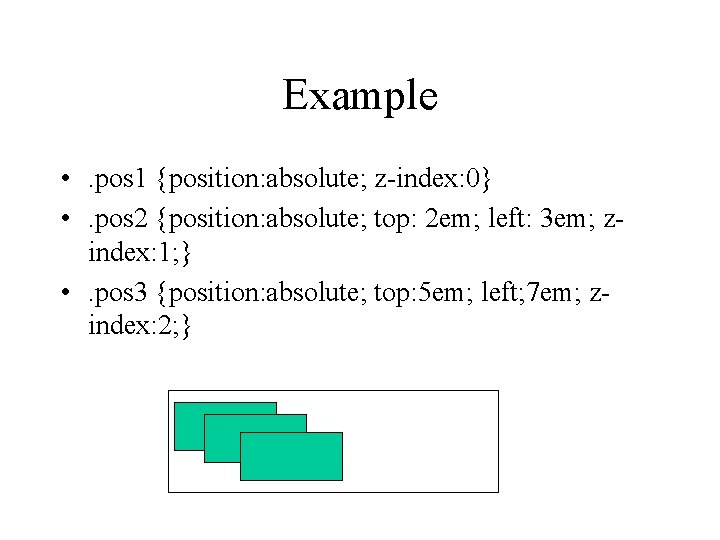
• You may use the position styles to lay a series of the same object on top of itself. • Set the first object as absolute with a top and left and a z-index of 0. • Set the second object as absolute with a higher top and a further left value and a z-index of 1. • Set the third object as absolute with a higher top and a further higher left value and a z-index of 2.
Example • . pos 1 {position: absolute; z-index: 0} • . pos 2 {position: absolute; top: 2 em; left: 3 em; zindex: 1; } • . pos 3 {position: absolute; top: 5 em; left; 7 em; zindex: 2; }
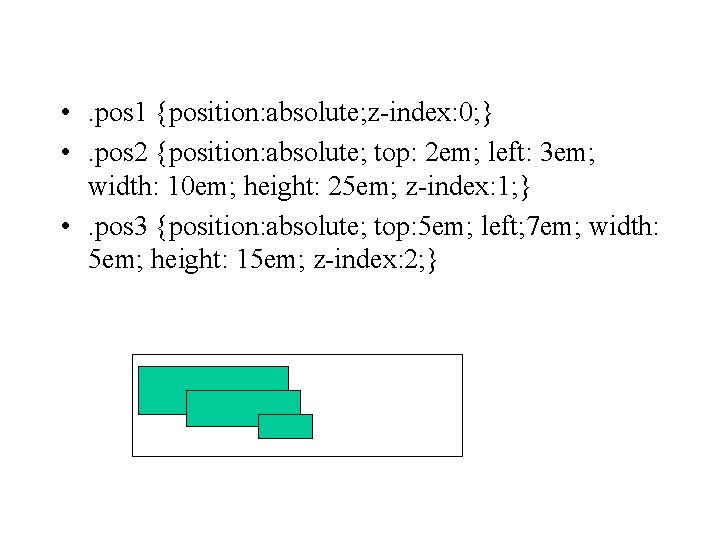
Example • To make them seem like a progression, change the side of the image (width and height)
• . pos 1 {position: absolute; z-index: 0; } • . pos 2 {position: absolute; top: 2 em; left: 3 em; width: 10 em; height: 25 em; z-index: 1; } • . pos 3 {position: absolute; top: 5 em; left; 7 em; width: 5 em; height: 15 em; z-index: 2; }
Floats • float: – Options are left; right; • Need to specify width for floated elements • See chapter 21 for techniques to make columns with floats • Combine with clear: (left; right; both) to move next element below floated elements, e. g. for footers
Absolute within a Relative • If you position an object using an absolute position within a relative element, the absolute object will appear in an absolute place within the relative box. Often used for wrapper <div> • May be used to put a background image in a paragraph.
Relative within an Absolute • The absolute object is positioned—the relative object is positioned within the limits of the absolute window. • If you move the absolute object—everything moves.
Visibility • You may set the visibility of an object to be hidden. This will cause the space for the object to be allocated in the page and a big rectangle placed where the object should be in the page. • With a visibility setting the object is allotted space in the page—with display set to none, no space is set in the page.
Clipping an Object • You can cause the portions of an object to be clipped • Style – clip: rect(top, right, bottom, left) – The values are distances from the element’s origin.
Overflowing an Object • Defines how an object is displayed when it doesn’t fit in area (e. g. when clipped). • overflow: – Scroll • Sets the scroll bars around the visible area – Hidden • Hides the overflow area and the scroll bars – Visible • Causes the clipped area to shop up over the area. – Auto • Allows the browser to define how to handle this overflow.
• Opacity Use of filter: for IE (link to come) opacity: for MOSE • cursor: (lots of options, e. g. cursor: help; for popup boxes) • Scrollbars (IE only; see links page, this site)