
Cascading Style Sheets By Mimi Opkins What Well
Cascading Style Sheets By Mimi Opkins
What We’ll Cover u. Specifying style sheet rules u. External and inline style specifications u. Creating new HTML elements through style sheet classes u. Specifying font and text properties u. Controlling spacing and alignment u. Controlling foreground and background properties
Benefits of Cascading Style Sheets u. Powerful and flexible way to specify the formatting of HTML elements u. Can define font, size, background color, background image, margins, etc. u. Share style sheets across multiple documents or entire Web site u. Can specify a class definition for a style, effectively defining new HTML elements u. Rules are applied in a hierarchical manner
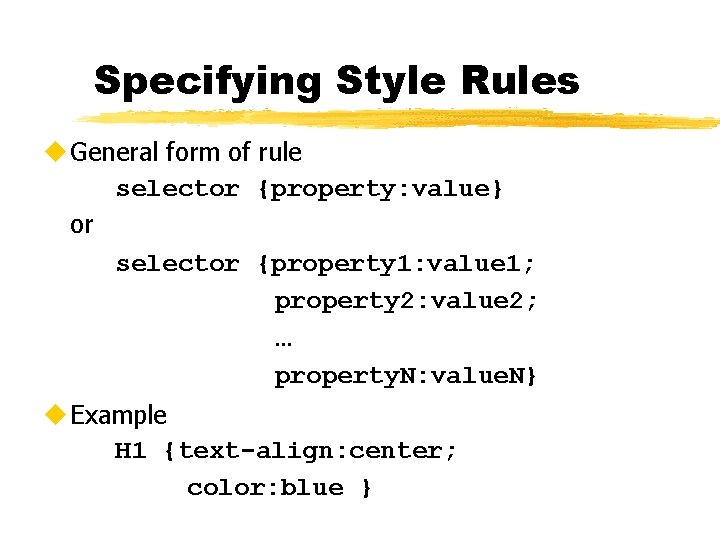
Specifying Style Rules u General form of rule selector {property: value} or selector {property 1: value 1; property 2: value 2; … property. N: value. N} u Example H 1 {text-align: center; color: blue }
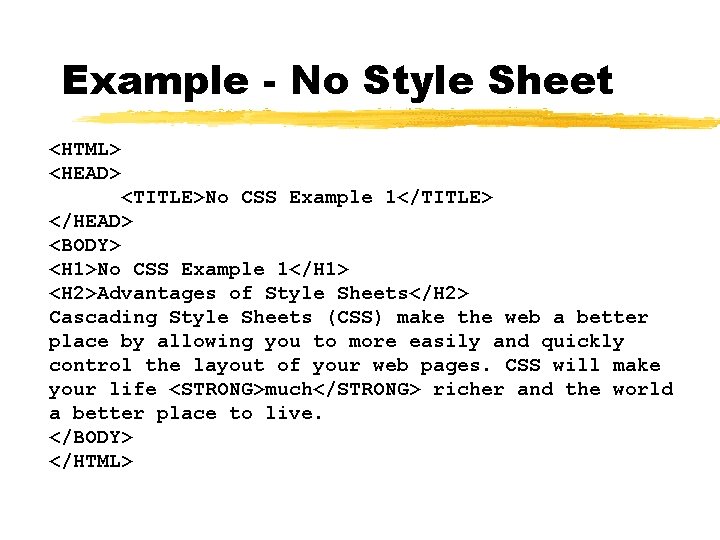
Example - No Style Sheet <HTML> <HEAD> <TITLE>No CSS Example 1</TITLE> </HEAD> <BODY> <H 1>No CSS Example 1</H 1> <H 2>Advantages of Style Sheets</H 2> Cascading Style Sheets (CSS) make the web a better place by allowing you to more easily and quickly control the layout of your web pages. CSS will make your life <STRONG>much</STRONG> richer and the world a better place to live. </BODY> </HTML>
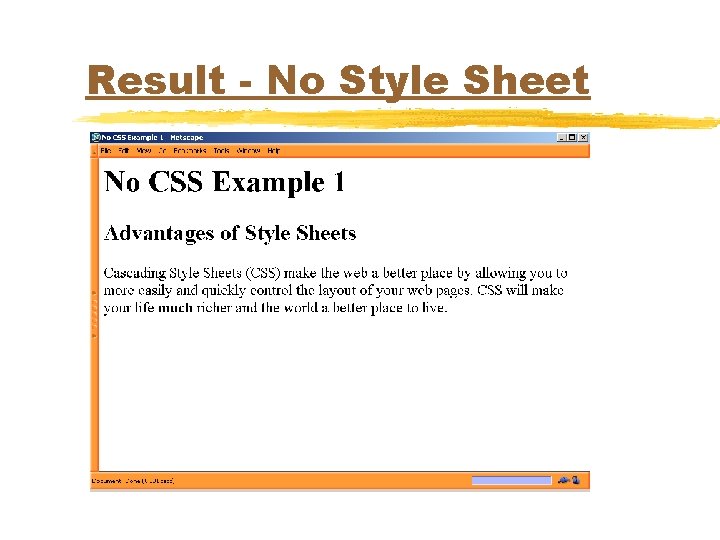
Result - No Style Sheet
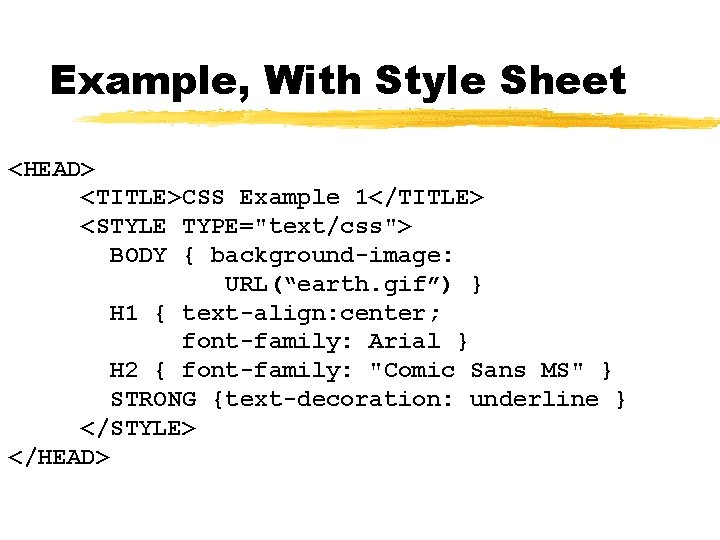
Example, With Style Sheet <HEAD> <TITLE>CSS Example 1</TITLE> <STYLE TYPE="text/css"> BODY { background-image: URL(“earth. gif”) } H 1 { text-align: center; font-family: Arial } H 2 { font-family: "Comic Sans MS" } STRONG {text-decoration: underline } </STYLE> </HEAD>
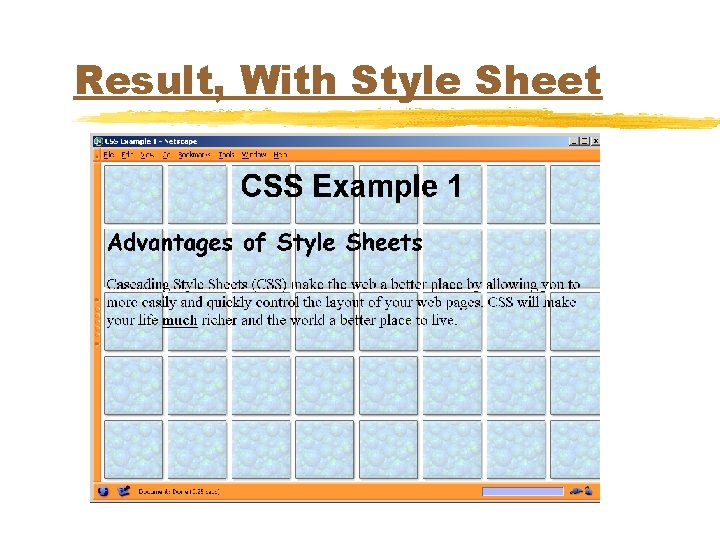
Result, With Style Sheet
Ways to Use Style Sheets u. Linking to an External Style Sheet u. Embedding a Style Sheet u. Inline Style Sheets
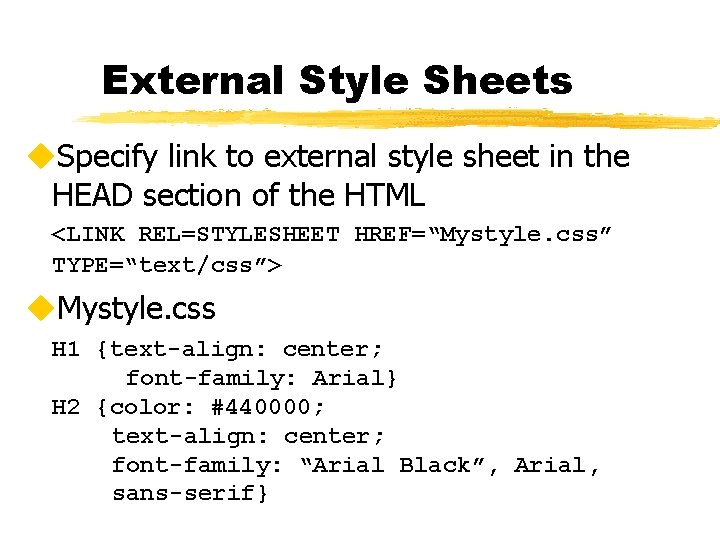
External Style Sheets u. Specify link to external style sheet in the HEAD section of the HTML <LINK REL=STYLESHEET HREF=“Mystyle. css” TYPE=“text/css”> u. Mystyle. css H 1 {text-align: center; font-family: Arial} H 2 {color: #440000; text-align: center; font-family: “Arial Black”, Arial, sans-serif}
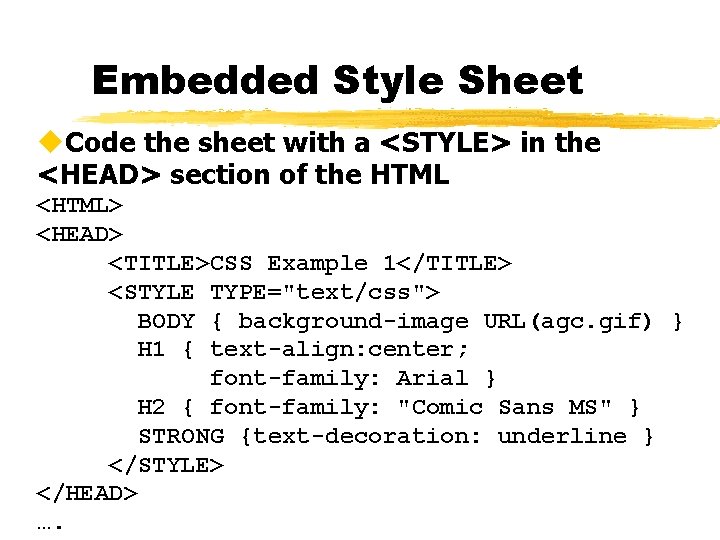
Embedded Style Sheet u. Code the sheet with a <STYLE> in the <HEAD> section of the HTML <HTML> <HEAD> <TITLE>CSS Example 1</TITLE> <STYLE TYPE="text/css"> BODY { background-image URL(agc. gif) } H 1 { text-align: center; font-family: Arial } H 2 { font-family: "Comic Sans MS" } STRONG {text-decoration: underline } </STYLE> </HEAD> ….

Inline Style Sheets u. Use the STYLE attribute for each HTML element to directory specify the style <H 1>Style Sheets are great</H 1> <P STYLE=“margin-left: 0. 5 in; margin-right: 0. 5 in; font-style: italic”> This slide show will teach you some of the basics of using Cascading Style Sheets.
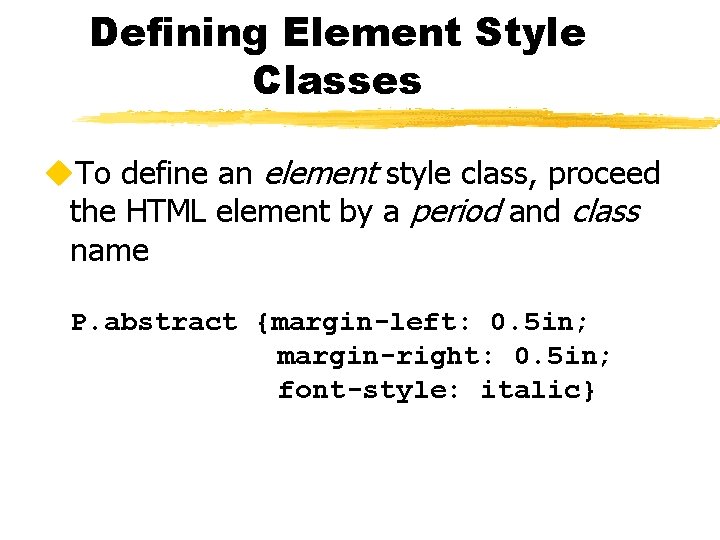
Defining Element Style Classes u. To define an element style class, proceed the HTML element by a period and class name P. abstract {margin-left: 0. 5 in; margin-right: 0. 5 in; font-style: italic}
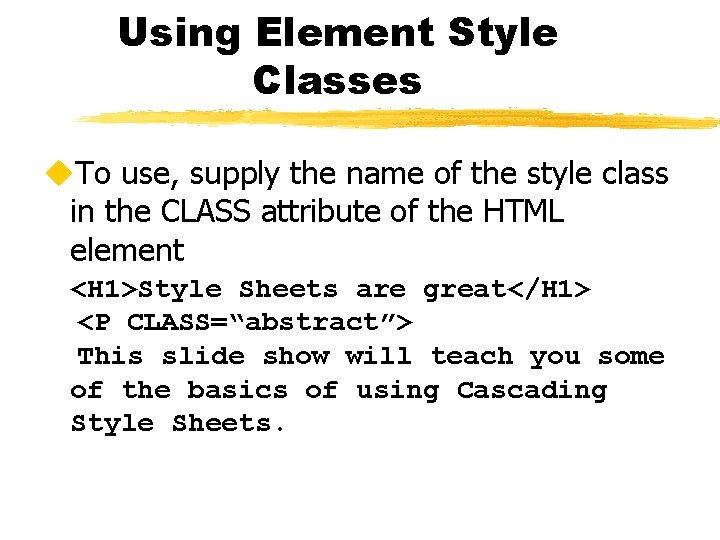
Using Element Style Classes u. To use, supply the name of the style class in the CLASS attribute of the HTML element <H 1>Style Sheets are great</H 1> <P CLASS=“abstract”> This slide show will teach you some of the basics of using Cascading Style Sheets.
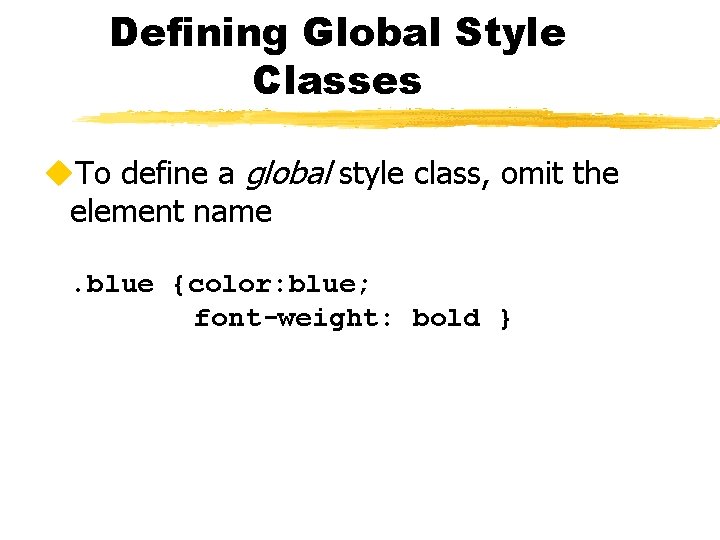
Defining Global Style Classes u. To define a global style class, omit the element name. blue {color: blue; font-weight: bold }
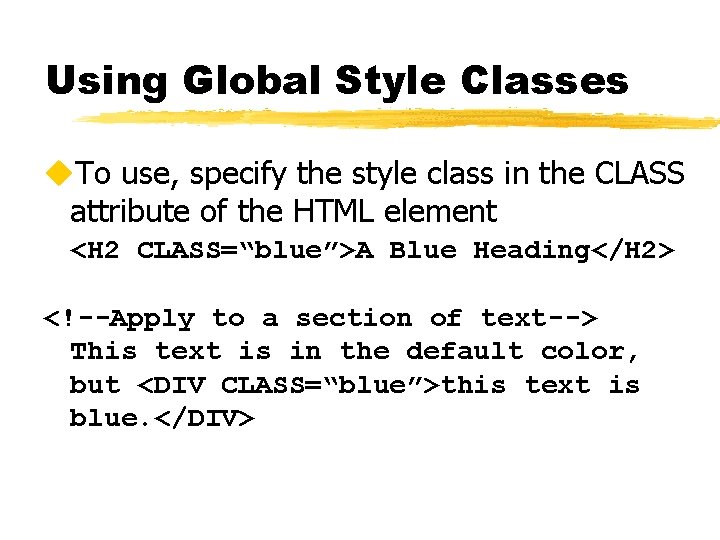
Using Global Style Classes u. To use, specify the style class in the CLASS attribute of the HTML element <H 2 CLASS=“blue”>A Blue Heading</H 2> <!--Apply to a section of text--> This text is in the default color, but <DIV CLASS=“blue”>this text is blue. </DIV>
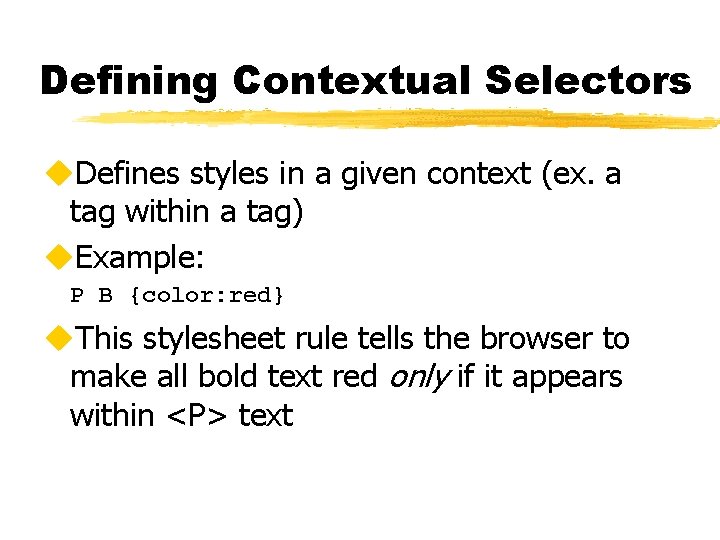
Defining Contextual Selectors u. Defines styles in a given context (ex. a tag within a tag) u. Example: P B {color: red} u. This stylesheet rule tells the browser to make all bold text red only if it appears within <P> text
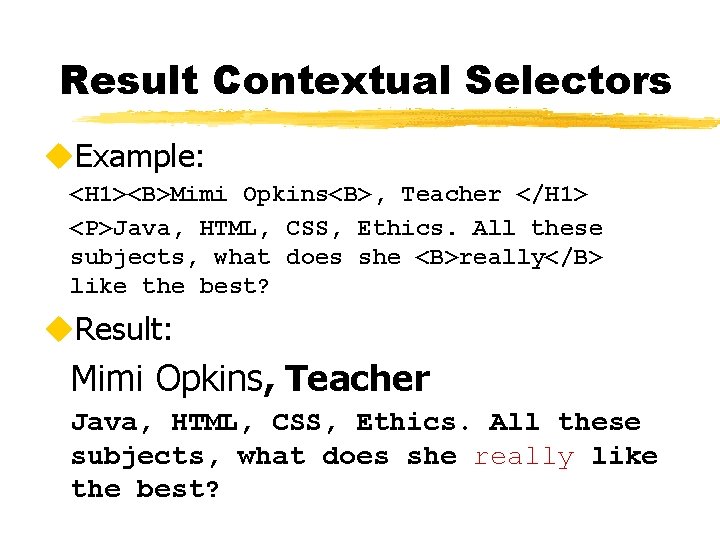
Result Contextual Selectors u. Example: <H 1><B>Mimi Opkins<B>, Teacher </H 1> <P>Java, HTML, CSS, Ethics. All these subjects, what does she <B>really</B> like the best? u. Result: Mimi Opkins, Teacher Java, HTML, CSS, Ethics. All these subjects, what does she really like the best?
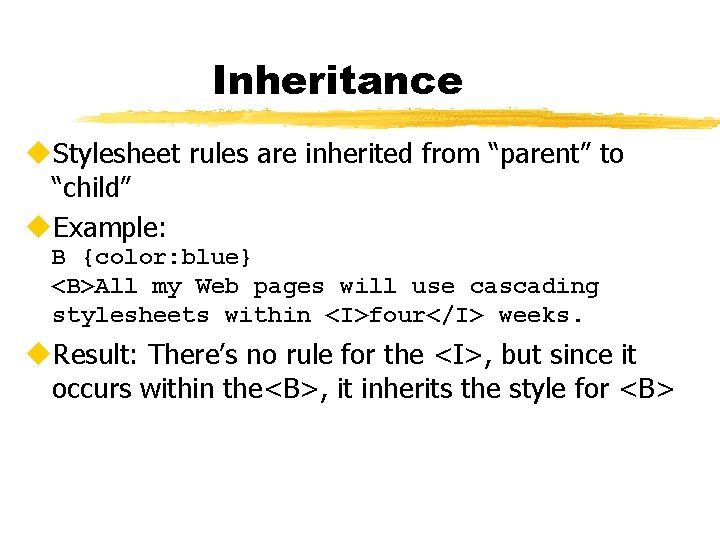
Inheritance u. Stylesheet rules are inherited from “parent” to “child” u. Example: B {color: blue} <B>All my Web pages will use cascading stylesheets within <I>four</I> weeks. u. Result: There’s no rule for the <I>, but since it occurs within the<B>, it inherits the style for <B>
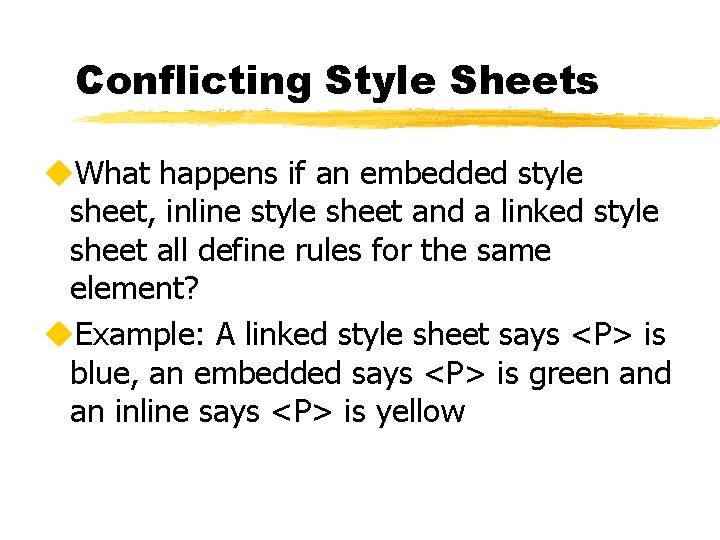
Conflicting Style Sheets u. What happens if an embedded style sheet, inline style sheet and a linked style sheet all define rules for the same element? u. Example: A linked style sheet says <P> is blue, an embedded says <P> is green and an inline says <P> is yellow
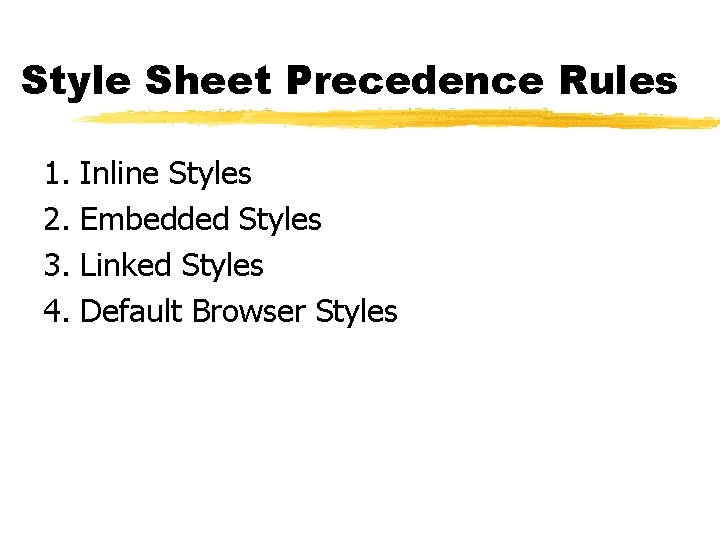
Style Sheet Precedence Rules 1. 2. 3. 4. Inline Styles Embedded Styles Linked Styles Default Browser Styles
Font Properties ufont-weight ufont-style ufont-size ufont-family utext-decoration
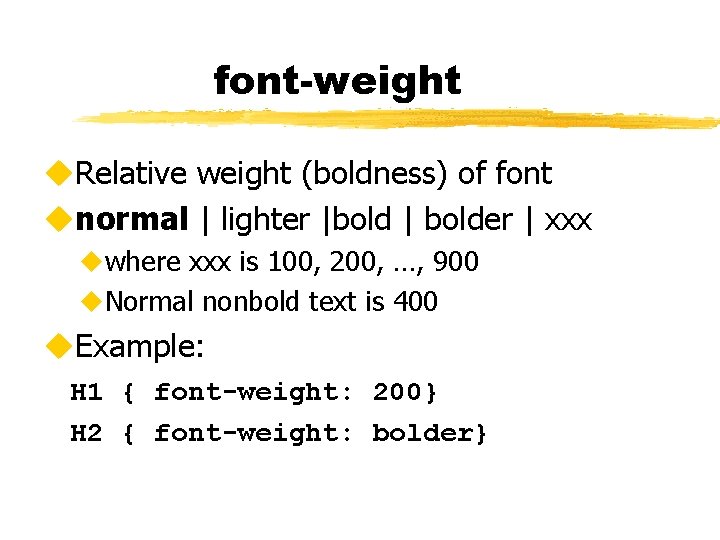
font-weight u. Relative weight (boldness) of font unormal | lighter |bold | bolder | xxx uwhere xxx is 100, 200, …, 900 u. Normal nonbold text is 400 u. Example: H 1 { font-weight: 200} H 2 { font-weight: bolder}
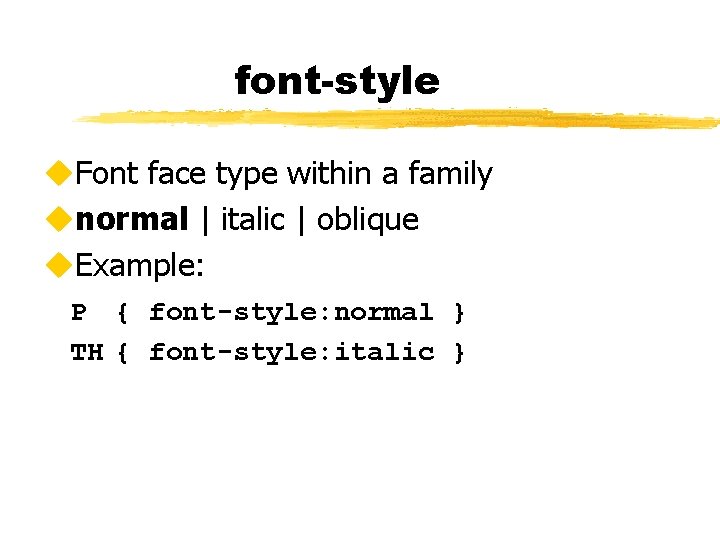
font-style u. Font face type within a family unormal | italic | oblique u. Example: P { font-style: normal } TH { font-style: italic }
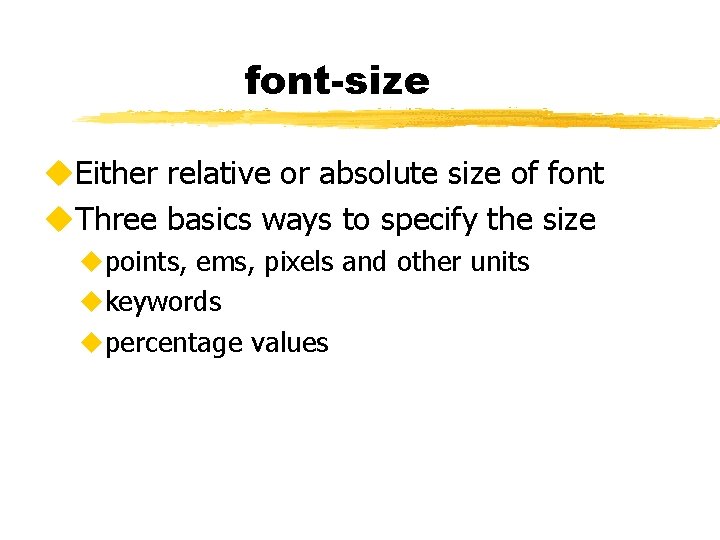
font-size u. Either relative or absolute size of font u. Three basics ways to specify the size upoints, ems, pixels and other units ukeywords upercentage values
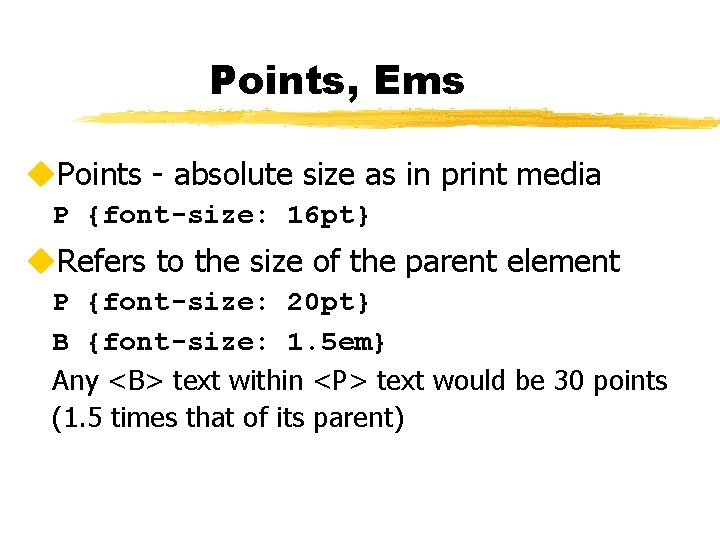
Points, Ems u. Points - absolute size as in print media P {font-size: 16 pt} u. Refers to the size of the parent element P {font-size: 20 pt} B {font-size: 1. 5 em} Any <B> text within <P> text would be 30 points (1. 5 times that of its parent)
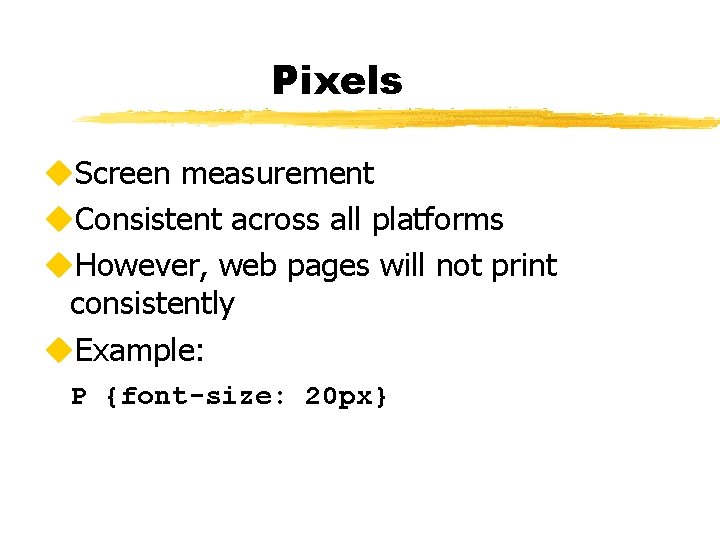
Pixels u. Screen measurement u. Consistent across all platforms u. However, web pages will not print consistently u. Example: P {font-size: 20 px}
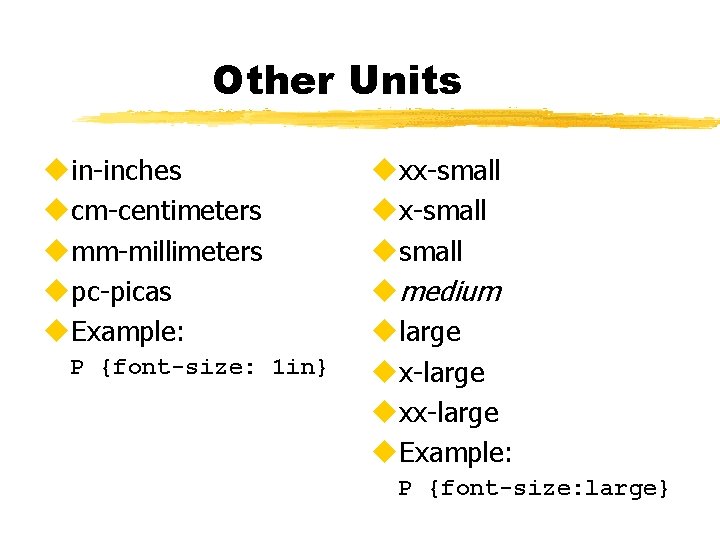
Other Units uin-inches ucm-centimeters umm-millimeters upc-picas u. Example: P {font-size: 1 in} uxx-small usmall umedium ularge ux-large uxx-large u. Example: P {font-size: large}
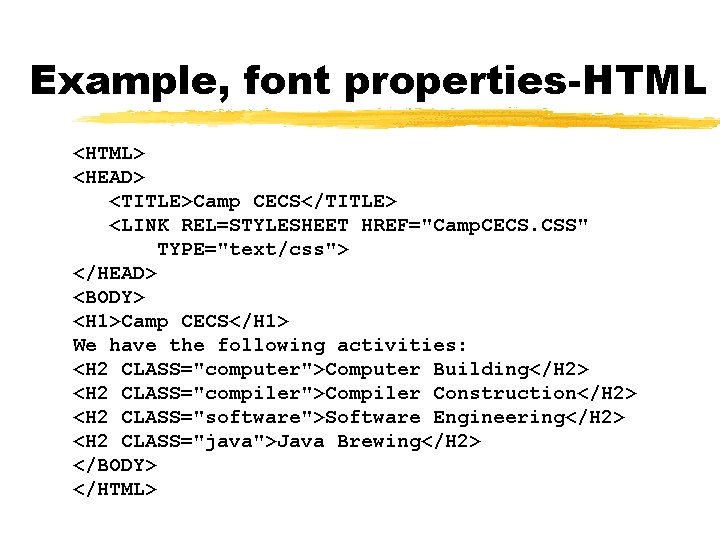
Example, font properties-HTML <HTML> <HEAD> <TITLE>Camp CECS</TITLE> <LINK REL=STYLESHEET HREF="Camp. CECS. CSS" TYPE="text/css"> </HEAD> <BODY> <H 1>Camp CECS</H 1> We have the following activities: <H 2 CLASS="computer">Computer Building</H 2> <H 2 CLASS="compiler">Compiler Construction</H 2> <H 2 CLASS="software">Software Engineering</H 2> <H 2 CLASS="java">Java Brewing</H 2> </BODY> </HTML>
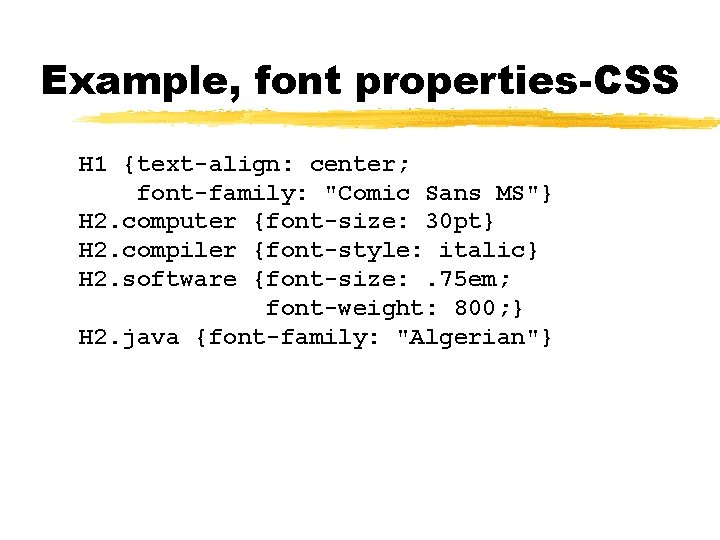
Example, font properties-CSS H 1 {text-align: center; font-family: "Comic Sans MS"} H 2. computer {font-size: 30 pt} H 2. compiler {font-style: italic} H 2. software {font-size: . 75 em; font-weight: 800; } H 2. java {font-family: "Algerian"}
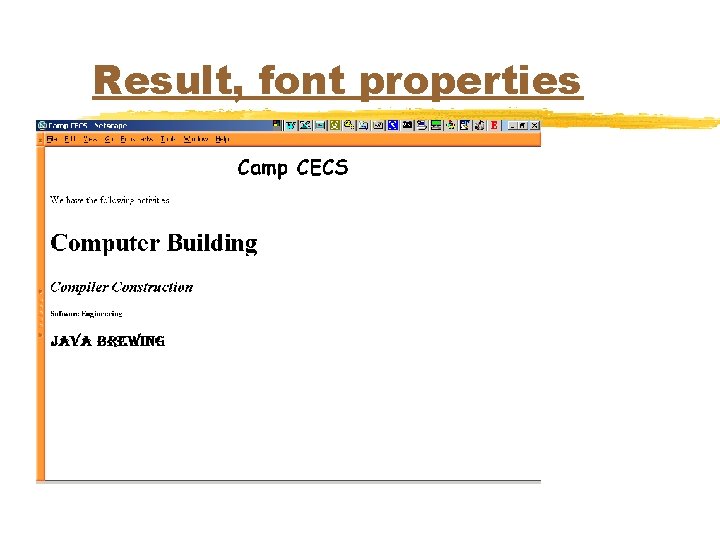
Result, font properties
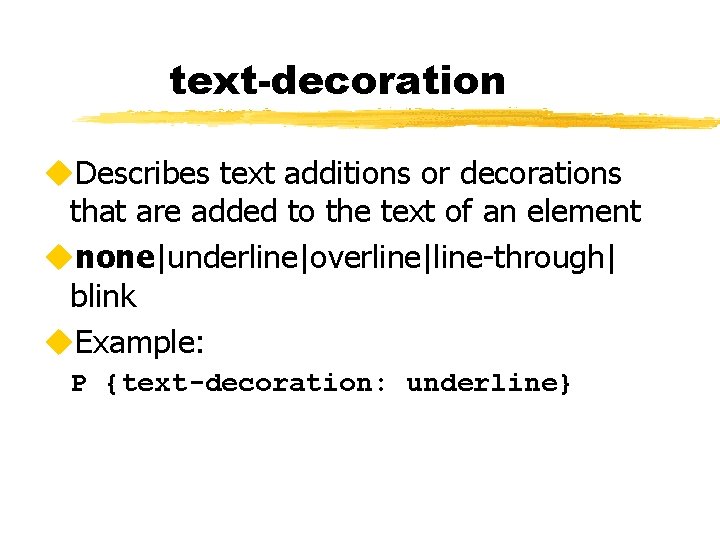
text-decoration u. Describes text additions or decorations that are added to the text of an element unone|underline|overline|line-through| blink u. Example: P {text-decoration: underline}
Alignment and Spacing utext-align uvertical-align utext-indent umargin-top, margin-bottom, margin-left, margin-right
text-align u. Determines how paragraph are positioned horizontally uleft|right|center|justify u. Example: P {text-align: right}
vertical-align u. Determines how elements are positioned vertically utop|bottom|text-top|text-bottom| baseline|middle|sub|super u. Example: P {vertical-align: super}
text-indent u. Specifies the indentation of the first line of the paragraph u+/- pt, pc, in, cm, mm|+/- em, ex, px, % u. Example: P {text-indent: -25 px}
Margins u. Enable you to control the margin around each side of an element umargin-top, margin-bottom, margin-left, margin-right u. Example: H 4 {margin-top: 20 px, margin-bottom: 5 px; margin-left: 100 px; margin-right: 55 px}
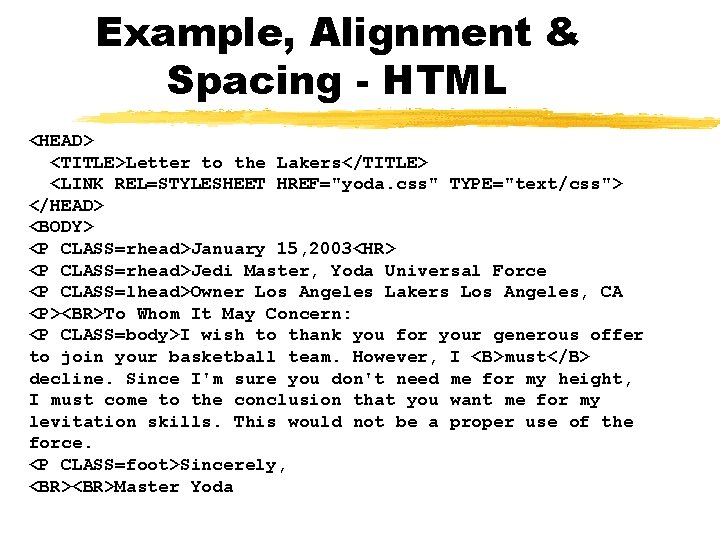
Example, Alignment & Spacing - HTML <HEAD> <TITLE>Letter to the Lakers</TITLE> <LINK REL=STYLESHEET HREF="yoda. css" TYPE="text/css"> </HEAD> <BODY> <P CLASS=rhead>January 15, 2003<HR> <P CLASS=rhead>Jedi Master, Yoda Universal Force <P CLASS=lhead>Owner Los Angeles Lakers Los Angeles, CA <P><BR>To Whom It May Concern: <P CLASS=body>I wish to thank you for your generous offer to join your basketball team. However, I <B>must</B> decline. Since I'm sure you don't need me for my height, I must come to the conclusion that you want me for my levitation skills. This would not be a proper use of the force. <P CLASS=foot>Sincerely, <BR>Master Yoda
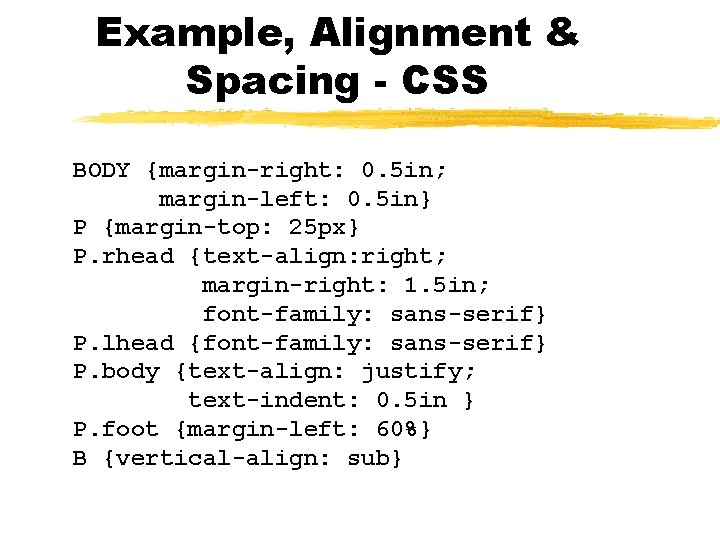
Example, Alignment & Spacing - CSS BODY {margin-right: 0. 5 in; margin-left: 0. 5 in} P {margin-top: 25 px} P. rhead {text-align: right; margin-right: 1. 5 in; font-family: sans-serif} P. lhead {font-family: sans-serif} P. body {text-align: justify; text-indent: 0. 5 in } P. foot {margin-left: 60%} B {vertical-align: sub}
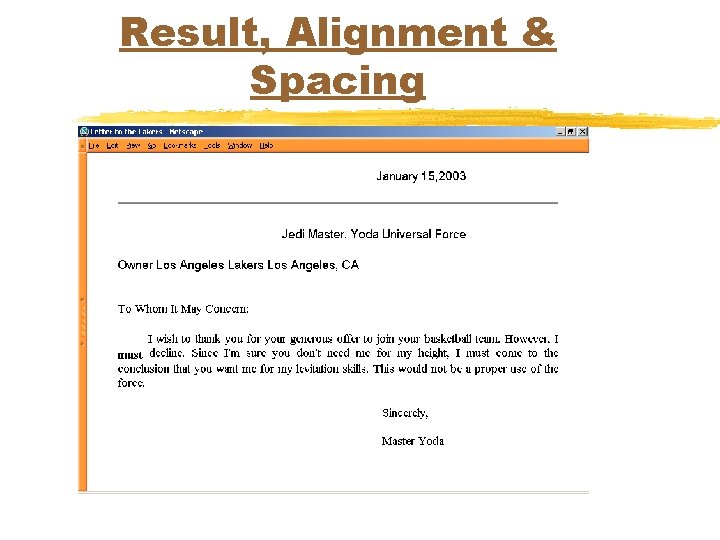
Result, Alignment & Spacing
Foreground and Background Properties ucolor ubackground-image
color u. Color of the text or foreground color ucolor-name|#RRGGBB ucolor-name (blue, yellow, green, red, etc. ) u#RRGGBB - Red, Green, Blue hexidecimal values u. Example: B {color: blue}
background-image u. Specifies an image to use as the background of any element unone|url(filename) uurl can be either relative (images/bg. gif) or a full url (http: //www. csulb. edu/images/my. gif) u. Example: TABLE {background-image: url(abc. gif)}
background-color u. Adds a solid color behind any element on a page, including images ucolor-name|#RRGGBB ucolor-name (blue, yellow, green, red, etc. ) u#RRGGBB - Red, Green, Blue hexidecimal values u. Example: P. yellow {background-color: #FFFF 66}
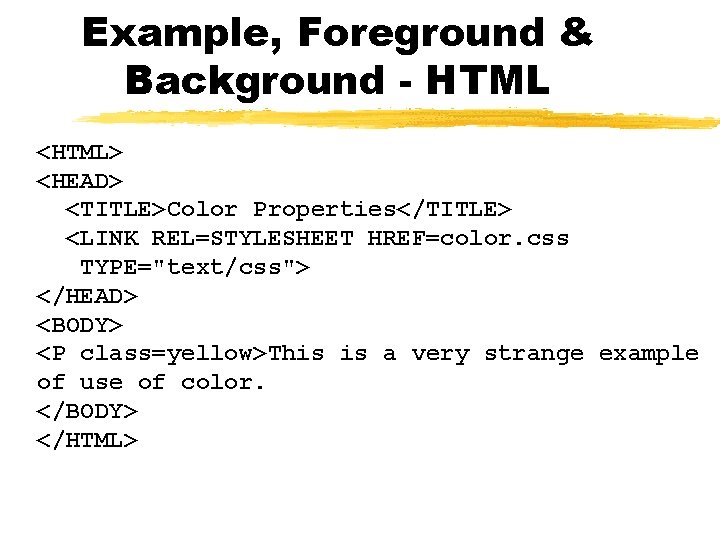
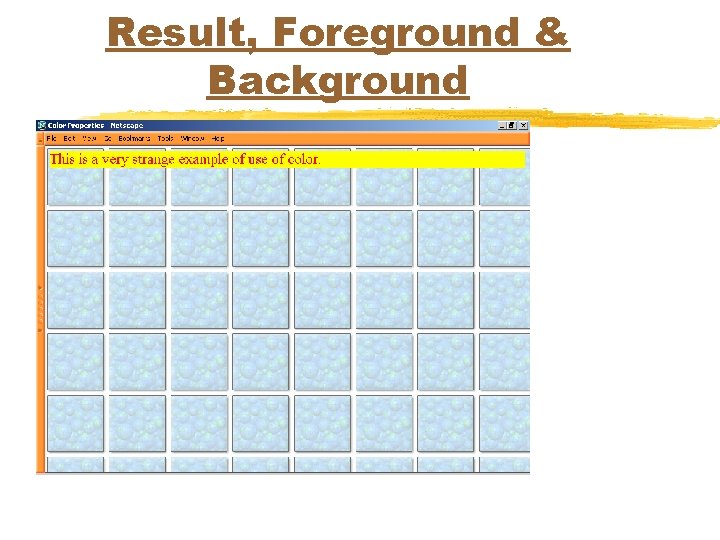
Example, Foreground & Background - HTML <HTML> <HEAD> <TITLE>Color Properties</TITLE> <LINK REL=STYLESHEET HREF=color. css TYPE="text/css"> </HEAD> <BODY> <P class=yellow>This is a very strange example of use of color. </BODY> </HTML>
Example, Foreground & Background - CSS BODY {background-image: url(earth. gif)} P. yellow {background-color: yellow; color: red}
Result, Foreground & Background
Credits u. Thanks to the following for input to this presentation: u. Core Web Programming, Cascading Style Sheets by Marty Hall, Larry Brown u. Mulder’s Stylesheets Tutorial by Steve Mulder
- Slides: 48