
Cartogram Construction Using Tilegrams How to Purpose Many

- Slides: 14
Cartogram Construction Using Tilegrams How to
Purpose • Many times spatial area and quantity of attribute measures are mismatched. For example both Rhode Island Wyoming have approximately the same population (attribute measure) but vastly different spatial sizes. Cartogram distort the spatial boundaries to reflect an underlying attribute thus adjusting for such differences. • Tilegrams are a fairly simple free online method for performing this work based on the creation of hexagons.
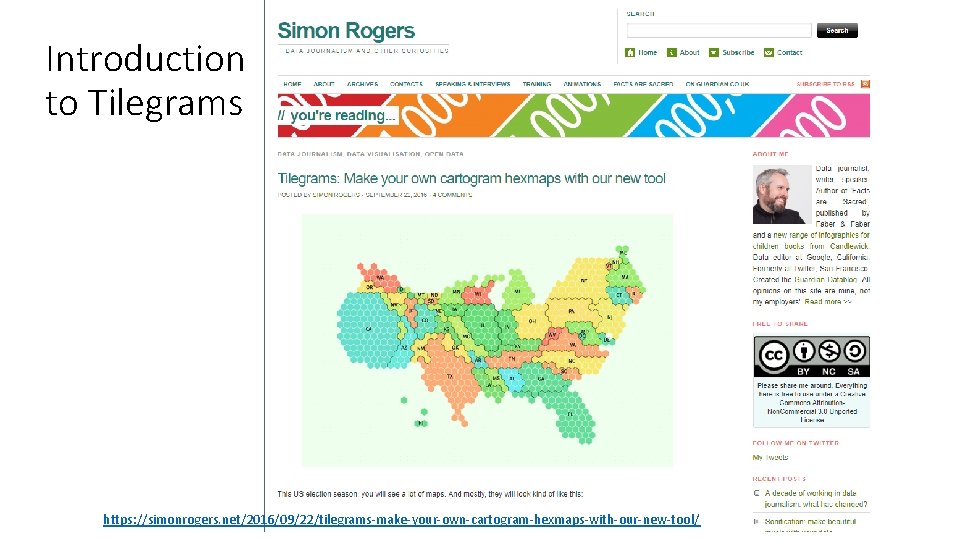
Introduction to Tilegrams https: //simonrogers. net/2016/09/22/tilegrams-make-your-own-cartogram-hexmaps-with-our-new-tool/
Link to start free version of Tilegram • https: //pitchinteractiveinc. github. io/tilegrams/
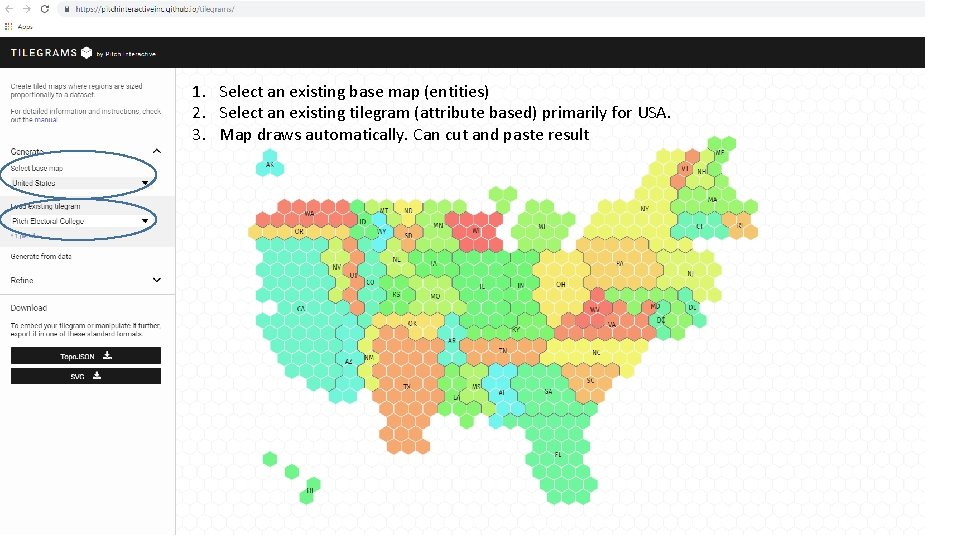
1. Select an existing base map (entities) 2. Select an existing tilegram (attribute based) primarily for USA. 3. Map draws automatically. Can cut and paste result
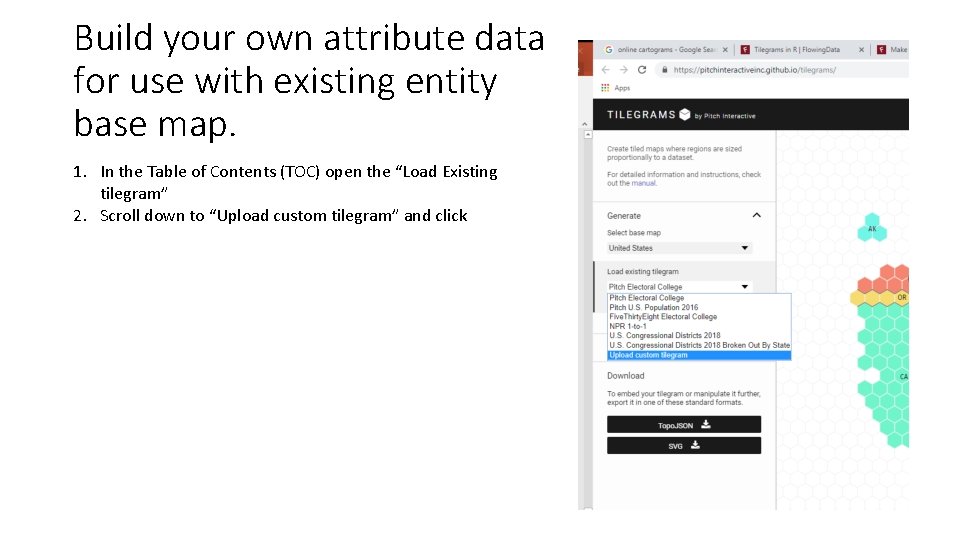
Build your own attribute data for use with existing entity base map. 1. In the Table of Contents (TOC) open the “Load Existing tilegram” 2. Scroll down to “Upload custom tilegram” and click
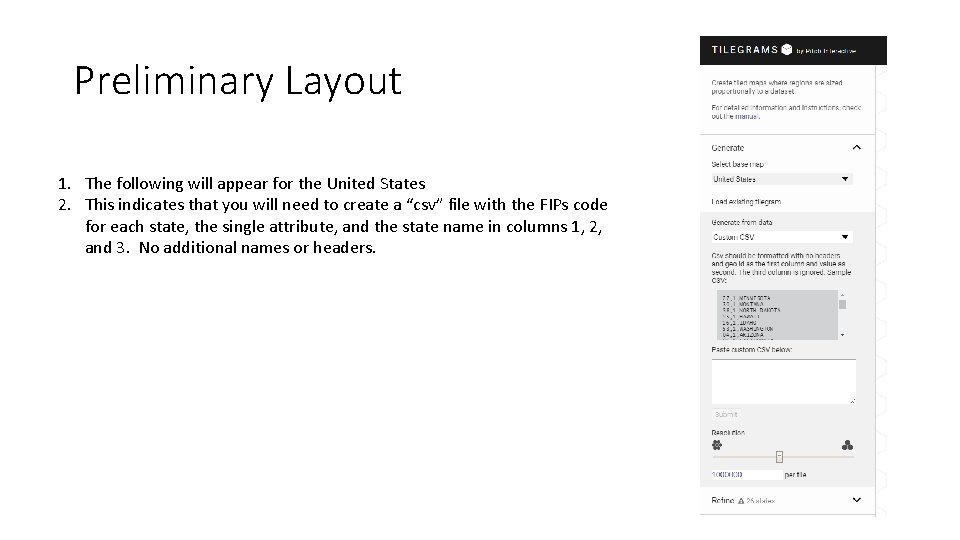
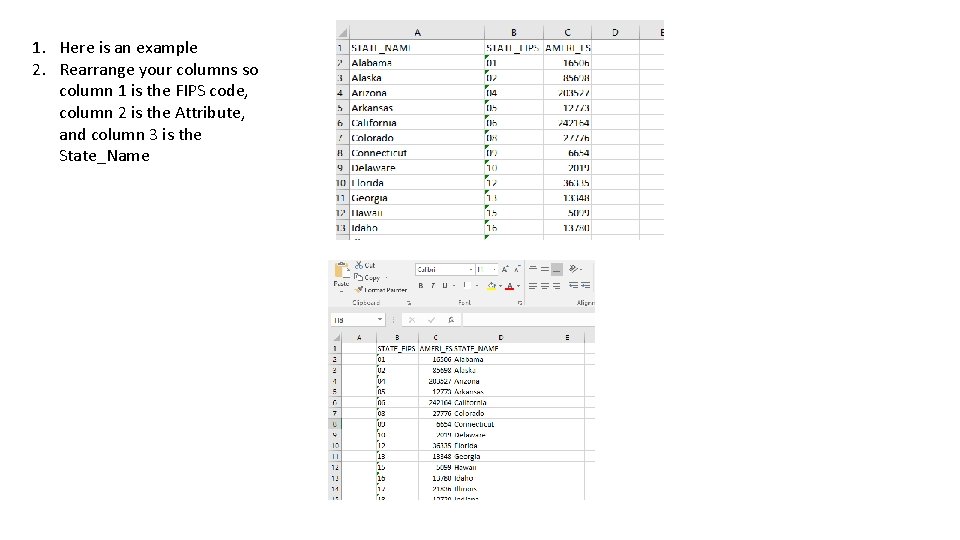
Preliminary Layout 1. The following will appear for the United States 2. This indicates that you will need to create a “csv” file with the FIPs code for each state, the single attribute, and the state name in columns 1, 2, and 3. No additional names or headers.
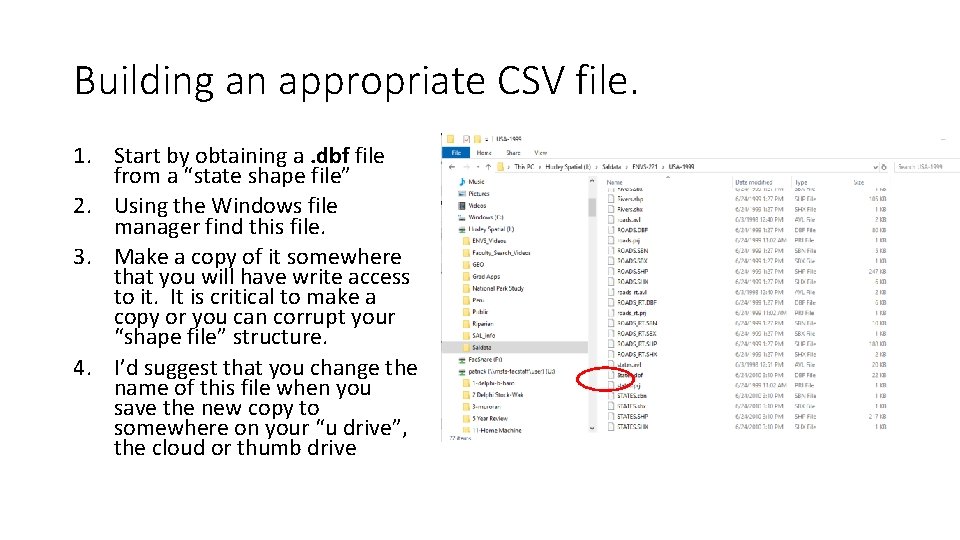
Building an appropriate CSV file. 1. Start by obtaining a. dbf file from a “state shape file” 2. Using the Windows file manager find this file. 3. Make a copy of it somewhere that you will have write access to it. It is critical to make a copy or you can corrupt your “shape file” structure. 4. I’d suggest that you change the name of this file when you save the new copy to somewhere on your “u drive”, the cloud or thumb drive
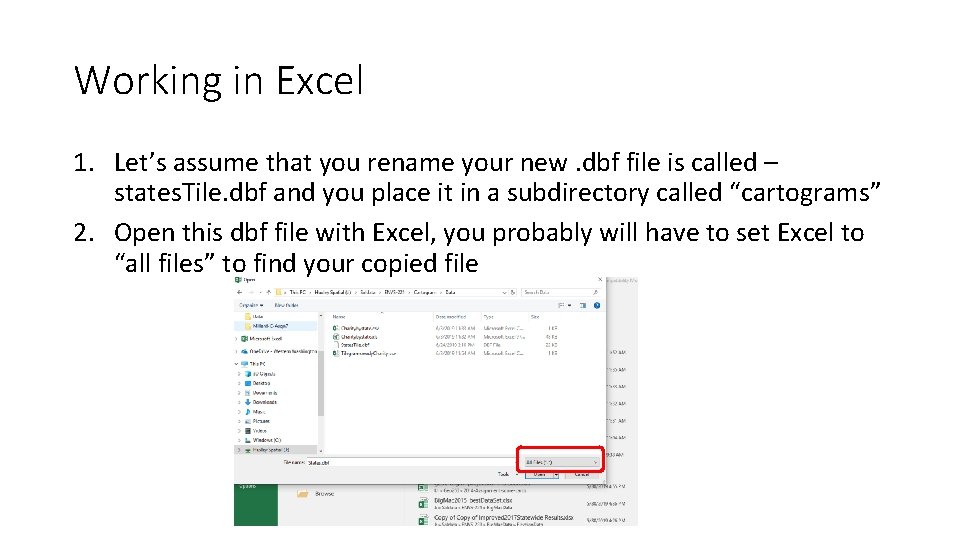
Working in Excel 1. Let’s assume that you rename your new. dbf file is called – states. Tile. dbf and you place it in a subdirectory called “cartograms” 2. Open this dbf file with Excel, you probably will have to set Excel to “all files” to find your copied file
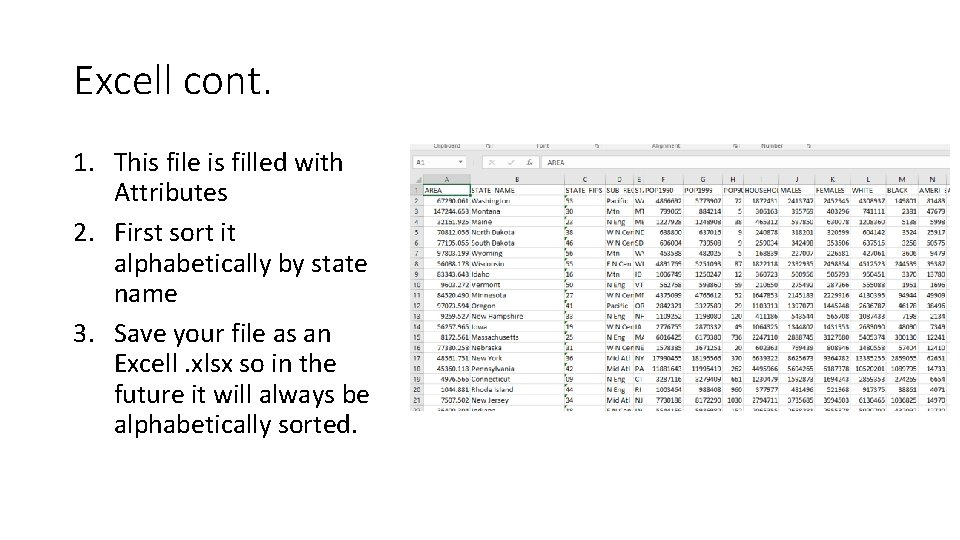
Excell cont. 1. This file is filled with Attributes 2. First sort it alphabetically by state name 3. Save your file as an Excell. xlsx so in the future it will always be alphabetically sorted.
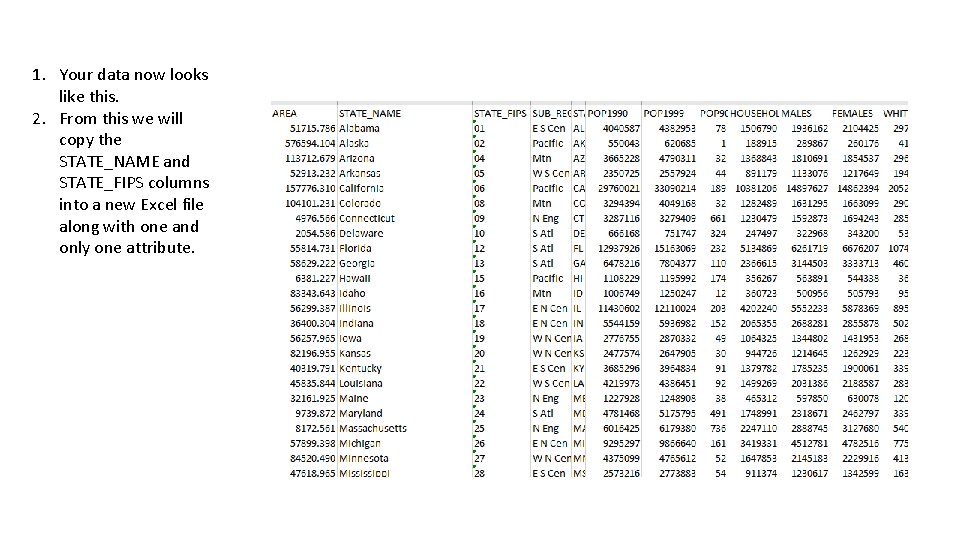
1. Your data now looks like this. 2. From this we will copy the STATE_NAME and STATE_FIPS columns into a new Excel file along with one and only one attribute.
1. Here is an example 2. Rearrange your columns so column 1 is the FIPS code, column 2 is the Attribute, and column 3 is the State_Name
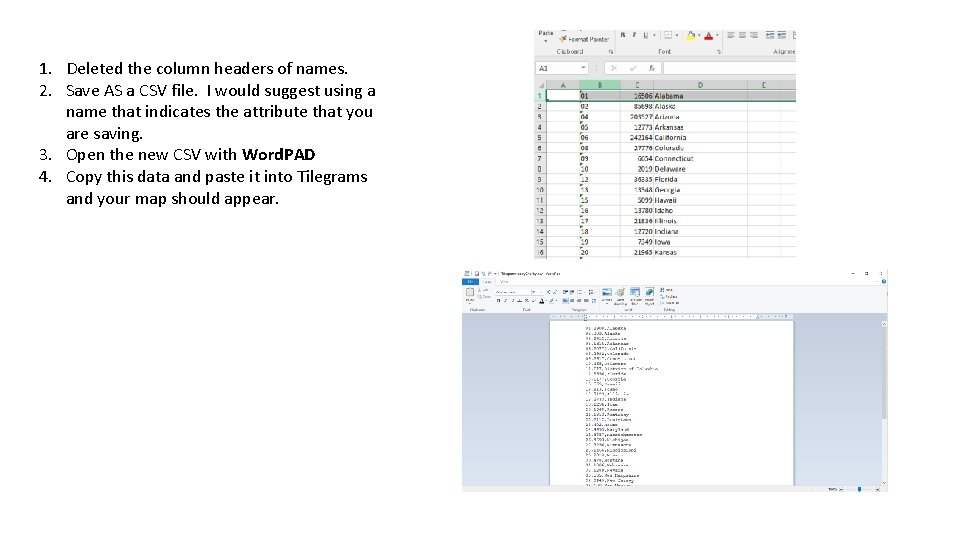
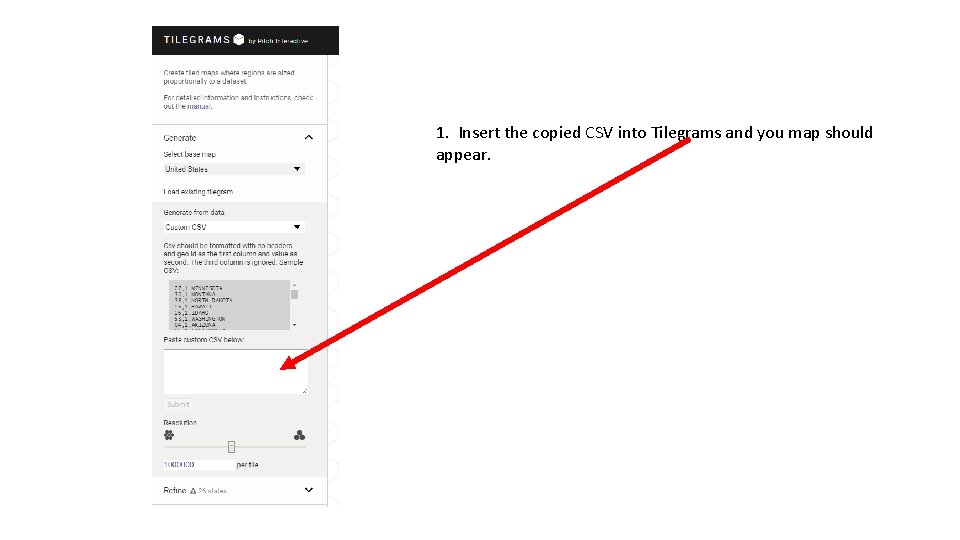
1. Deleted the column headers of names. 2. Save AS a CSV file. I would suggest using a name that indicates the attribute that you are saving. 3. Open the new CSV with Word. PAD 4. Copy this data and paste it into Tilegrams and your map should appear.
1. Insert the copied CSV into Tilegrams and you map should appear.