
Capital Equipment Request Process 1 In this session



- Slides: 21
Capital Equipment Request Process 1
In this session… • General Guidelines • Who Does What? • Timeline • Purchasing • Using the Capital Equipment Request Portal • Q&A 2
General Guidelines • Capital Equipment Funds are for the purchase of capital equipment (e. g. office furniture, lab equipment, lawn mowers, etc. ) that cost more than $1, 000 per item. • Items costing less than $1, 000, or deemed disposable (e. g. calculators, digital cameras, office chairs, etc. ) are to be funded from operating expenses. • Requests for Computers and Smart Classroom items need to be directed to ITS. • Request each item separately and assign a priority to it. • Capital equipment awards must be used to purchase the approved item(s). • Consider whether your Capital Equipment will require installation and if so, remember to submit a Renewal & Replacement (R&R) request. • Once a department request is approved, items must be purchased and received within the current fiscal year. 3
Who does what? • • Departments: • Identify departmental needs and priorities • Consult with the Budget Office as needed • Submit requests on time Capital Committee: • Evaluate each request • Make recommendations as needed • Communicate approvals 4
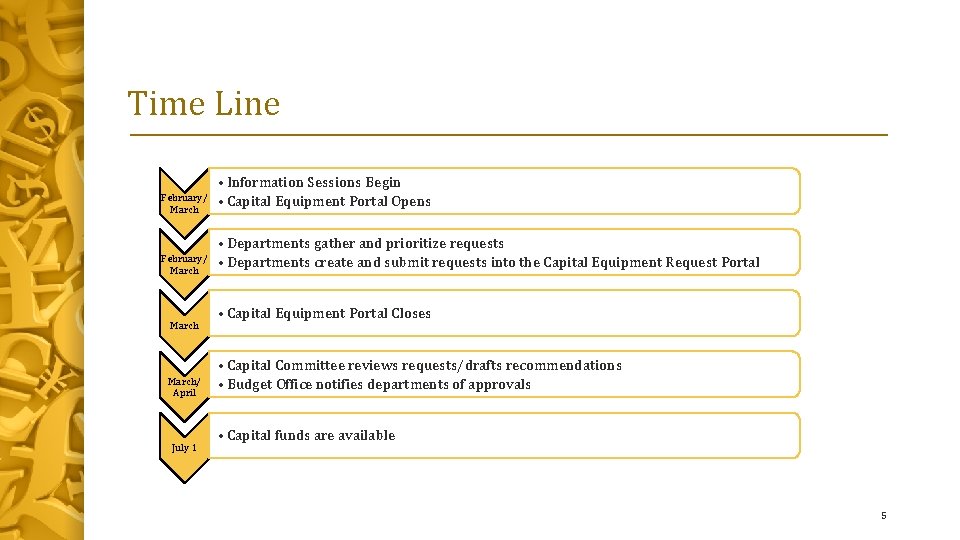
Time Line February/ March/ April July 1 • Information Sessions Begin • Capital Equipment Portal Opens • Departments gather and prioritize requests • Departments create and submit requests into the Capital Equipment Request Portal • Capital Equipment Portal Closes • Capital Committee reviews requests/drafts recommendations • Budget Office notifies departments of approvals • Capital funds are available 5
Purchasing • Remember lead time on all purchases • All purchases must be on campus before the end of the fiscal year • Roll forwards are not available for this program • Over expenditures must be approved in advance by the Budget Office and covered by the department’s operating budget 6
Capital Equipment Request Portal 7
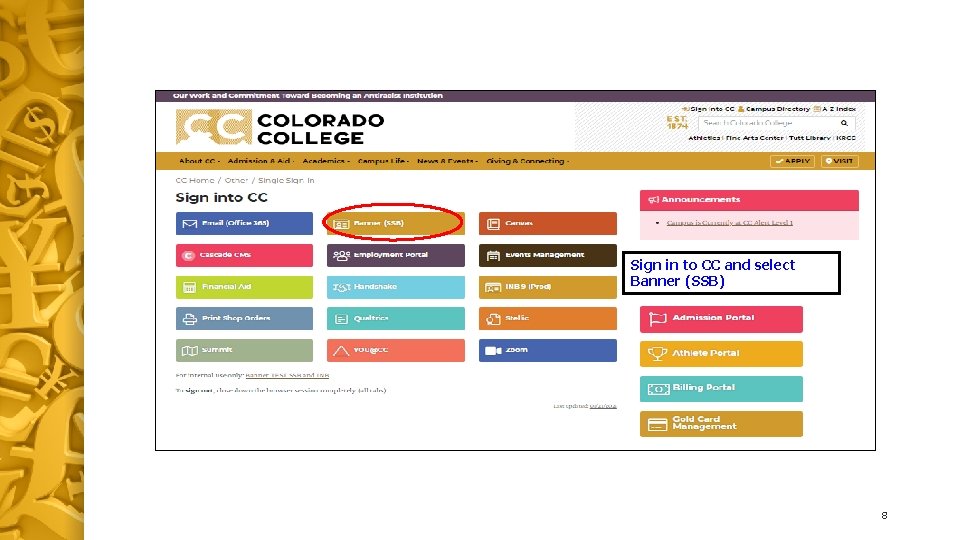
Sign in to CC and select Banner (SSB) 8
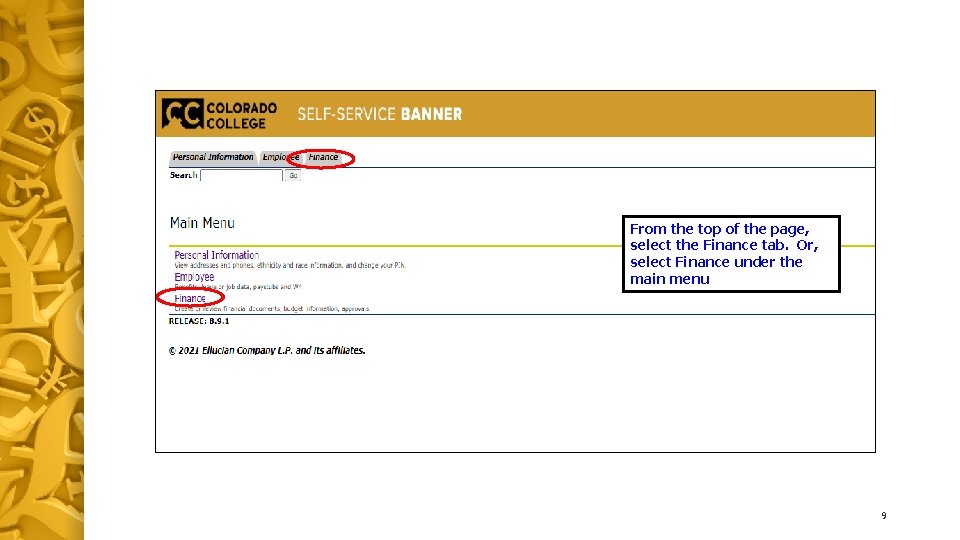
From the top of the page, select the Finance tab. Or, select Finance under the main menu 9
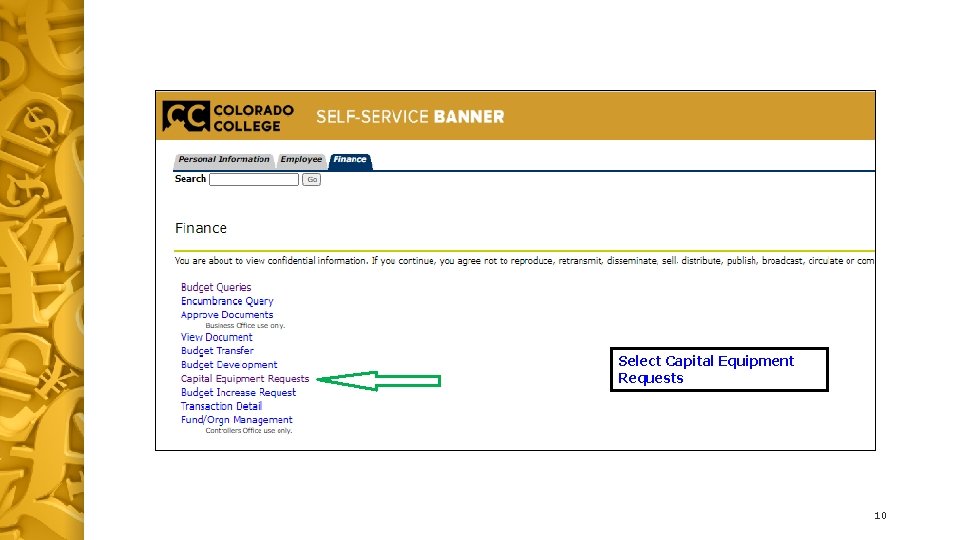
Select Capital Equipment Requests 10
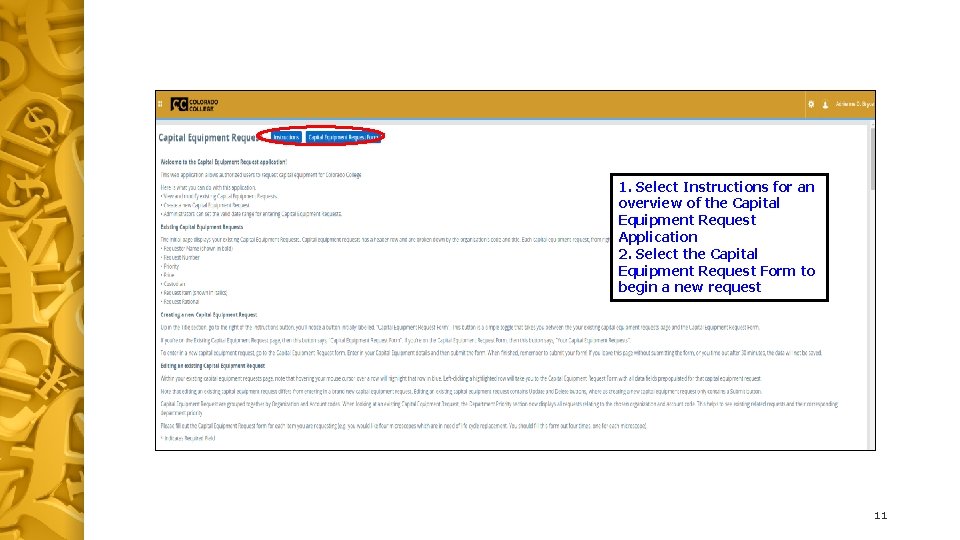
1. Select Instructions for an overview of the Capital Equipment Request Application 2. Select the Capital Equipment Request Form to begin a new request 11
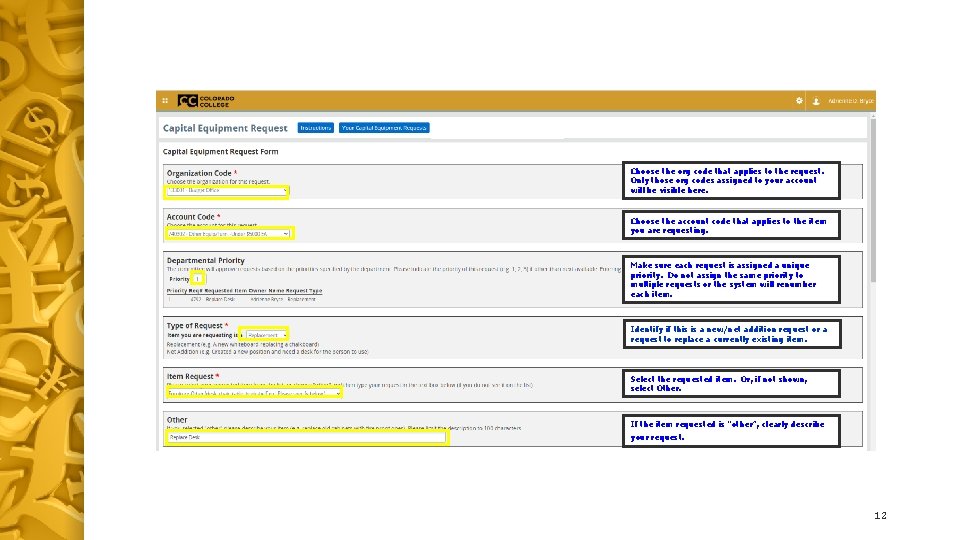
Choose the org code that applies to the request. Only those org codes assigned to your account will be visible here. Choose the account code that applies to the item you are requesting. Make sure each request is assigned a unique priority. Do not assign the same priority to multiple requests or the system will renumber each item. Identify if this is a new/net addition request or a request to replace a currently existing item. Select the requested item. Or, if not shown, select Other. If the item requested is “other”, clearly describe your request. 12
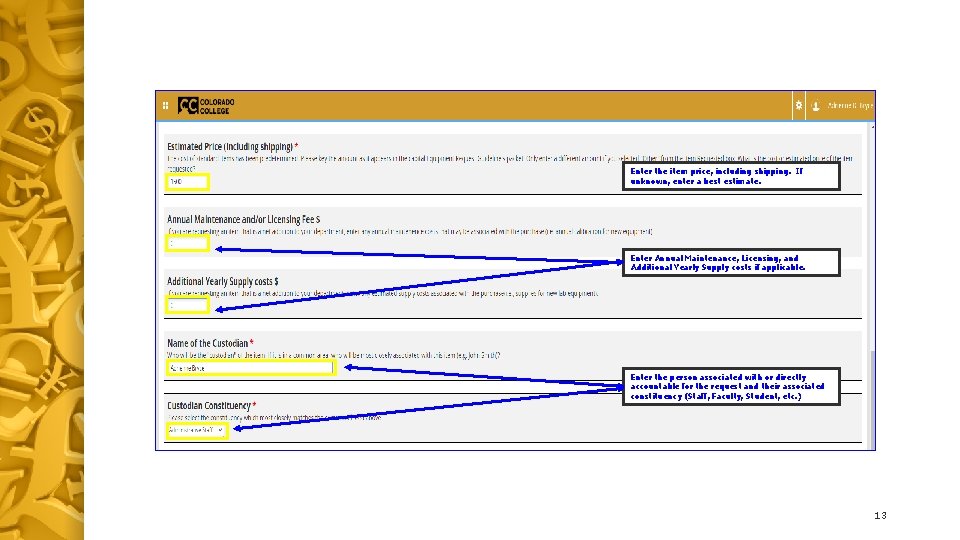
Enter the item price, including shipping. If unknown, enter a best estimate. Enter Annual Maintenance, Licensing, and Additional Yearly Supply costs if applicable. Enter the person associated with or directly accountable for the request and their associated constituency (Staff, Faculty, Student, etc. ) 13
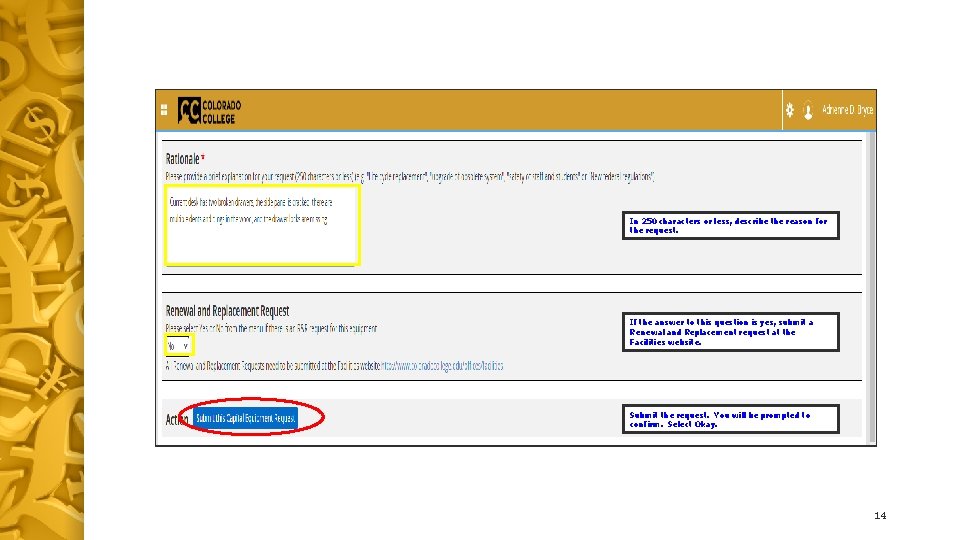
In 250 characters or less, describe the reason for the request. If the answer to this question is yes, submit a Renewal and Replacement request at the Facilities website. Submit the request. You will be prompted to confirm. Select Okay. 14
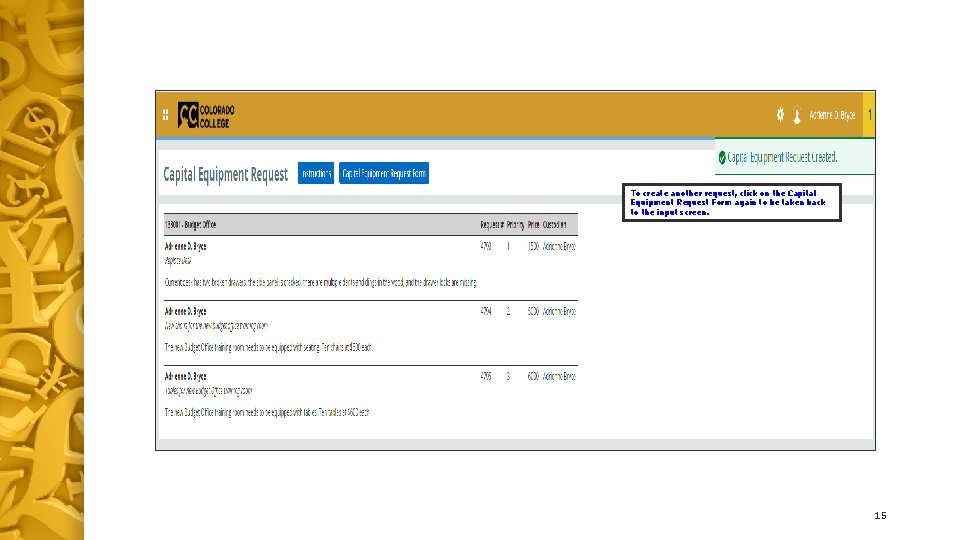
To create another request, click on the Capital Equipment Request Form again to be taken back to the input screen. 15
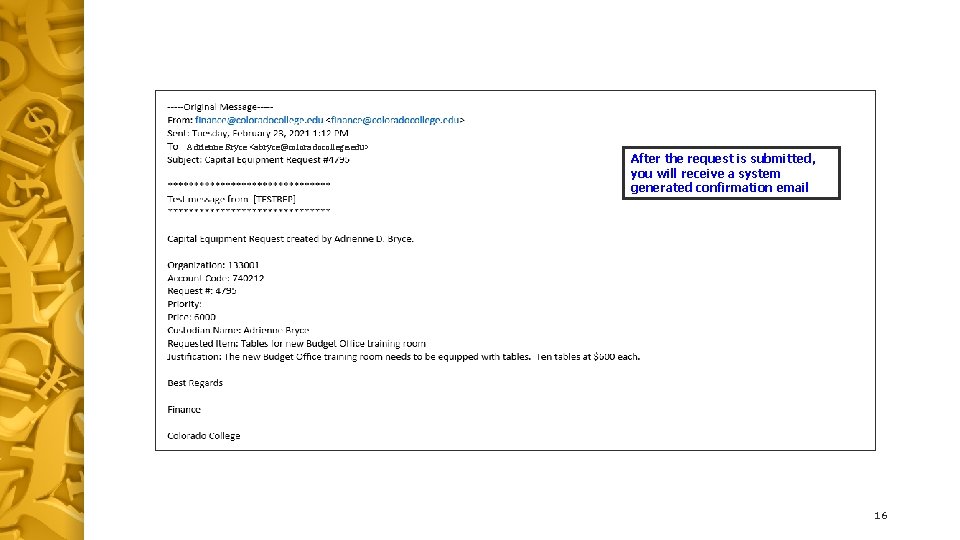
Adrienne Bryce <abryce@coloradocollege. edu> After the request is submitted, you will receive a system generated confirmation email 16
Update or Delete a Capital Equipment Request 17
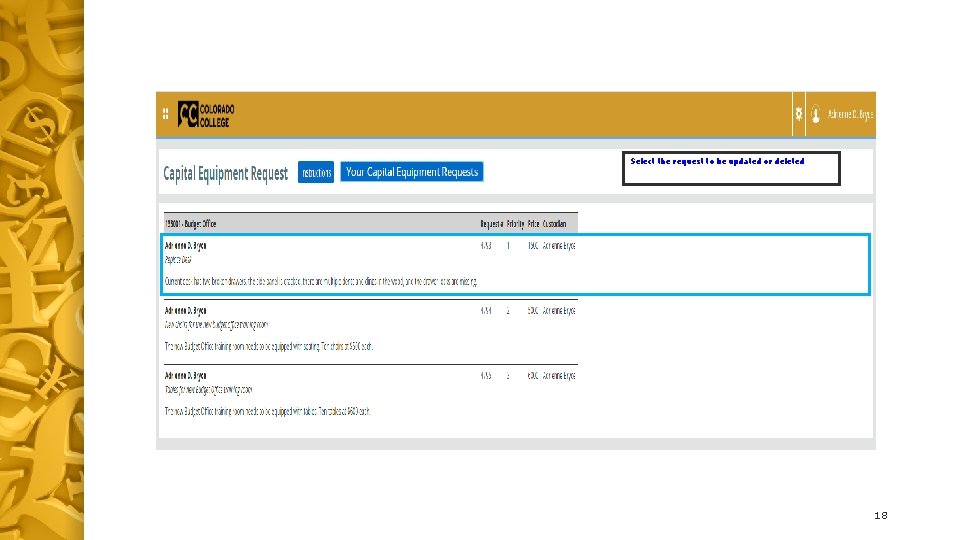
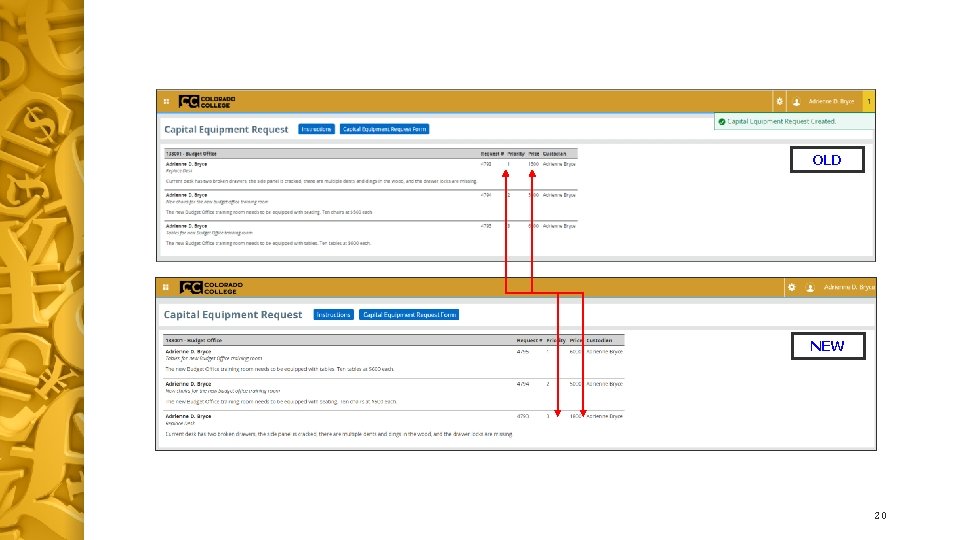
Select the request to be updated or deleted 18
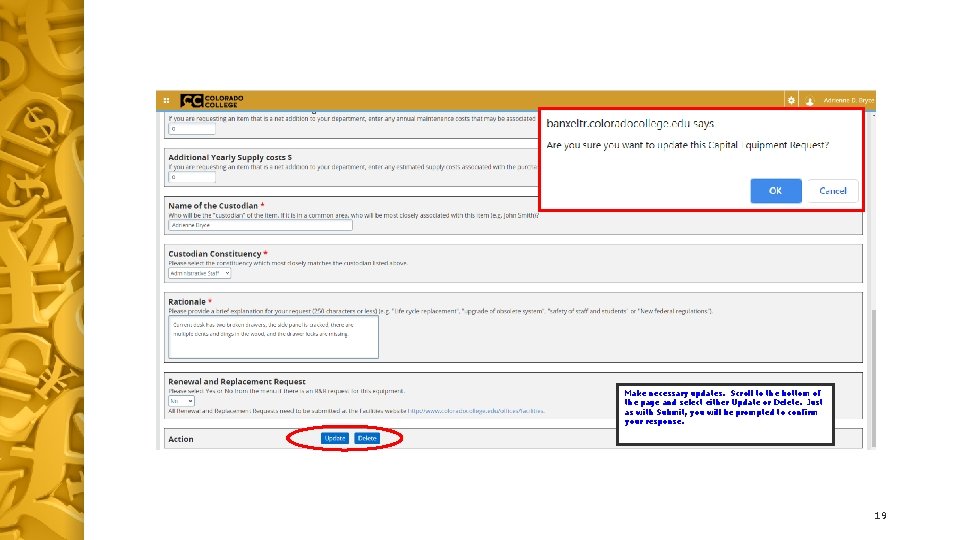
Make necessary updates. Scroll to the bottom of the page and select either Update or Delete. Just as with Submit, you will be prompted to confirm your response. 19
OLD NEW 20
Call or Email Adrienne Bryce X 6854 or Mateo Munoz X 6051 abryce@coloradocollege. edu mmunoz@coloradocollege. edu 21