
CANVAS OVERVIEW Canvas is our Learning Management System
- Slides: 28
CANVAS OVERVIEW § Canvas is our Learning Management System at the University of Twente. You use Canvas to: • Access course content (for example lecture slides) • See announcements and messages from teachers • Sign up for groups • Collaborate with your group • View and submit assignments • Take online (practice) quizzes • Check feedback and (partial) grades § Login to Canvas: https: //canvas. utwente. nl/, enter the login name and password of your ICT account. Educational systems UT 6 -6 -2021 1
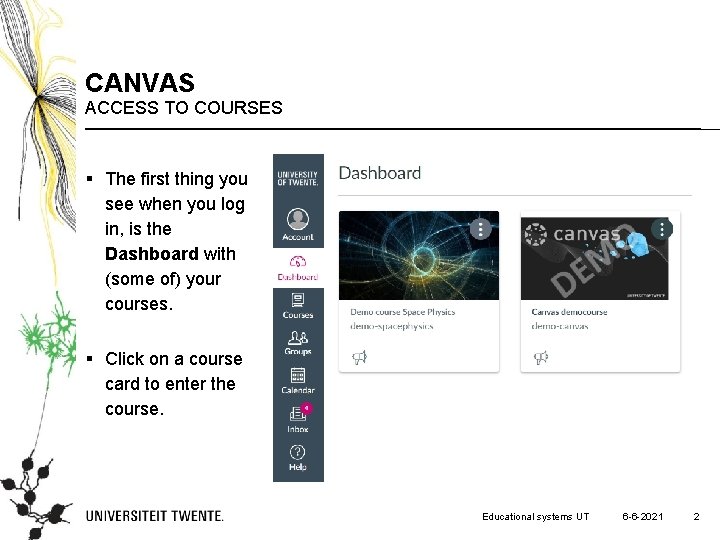
CANVAS ACCESS TO COURSES § The first thing you see when you log in, is the Dashboard with (some of) your courses. § Click on a course card to enter the course. Educational systems UT 6 -6 -2021 2
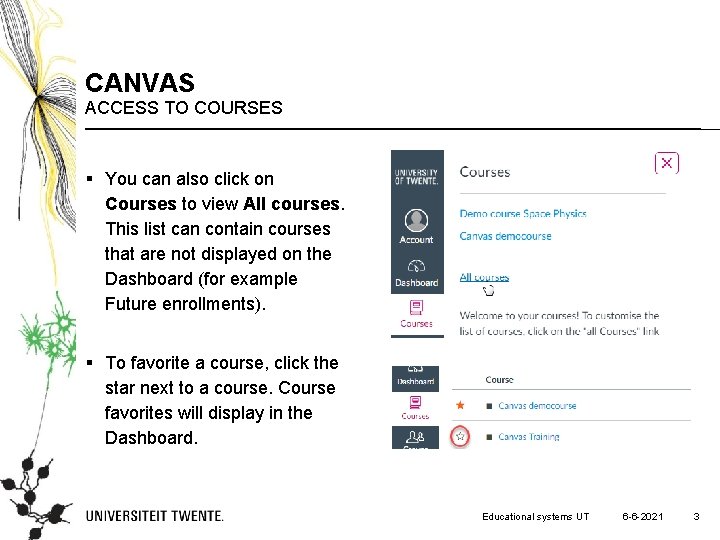
CANVAS ACCESS TO COURSES § You can also click on Courses to view All courses. This list can contain courses that are not displayed on the Dashboard (for example Future enrollments). § To favorite a course, click the star next to a course. Course favorites will display in the Dashboard. Educational systems UT 6 -6 -2021 3
CANVAS ACCESS TO COURSES FROM YOUR STUDY PROGRAM § For courses from your study programme, you first have to register for the course in OSIRIS. § After that, you will automatically be enrolled in the corresponding course in Canvas. § From two weeks before the start of the quartile, the course will be accessible from the Dashboard. Before that, the course will be listed under ‘Future enrolments’ in Courses and is not accessible yet. § Registration (in OSIRIS) can be done up until the last day before the start of a quartile Educational systems UT 6 -6 -2021 4
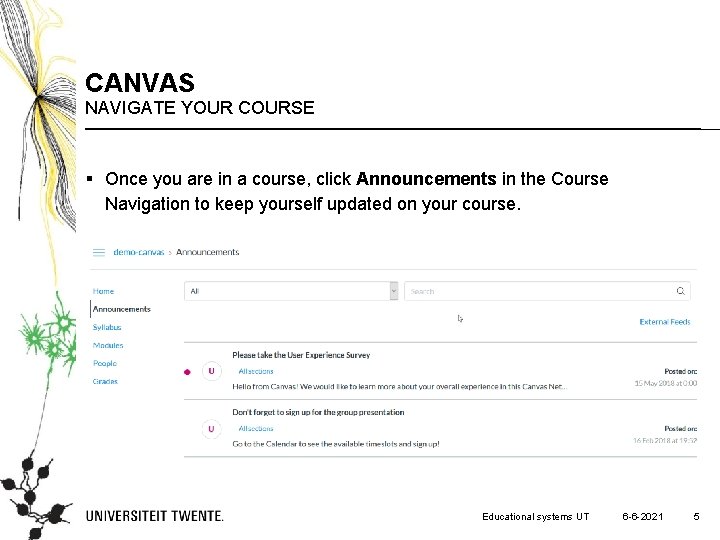
CANVAS NAVIGATE YOUR COURSE § Once you are in a course, click Announcements in the Course Navigation to keep yourself updated on your course. Educational systems UT 6 -6 -2021 5
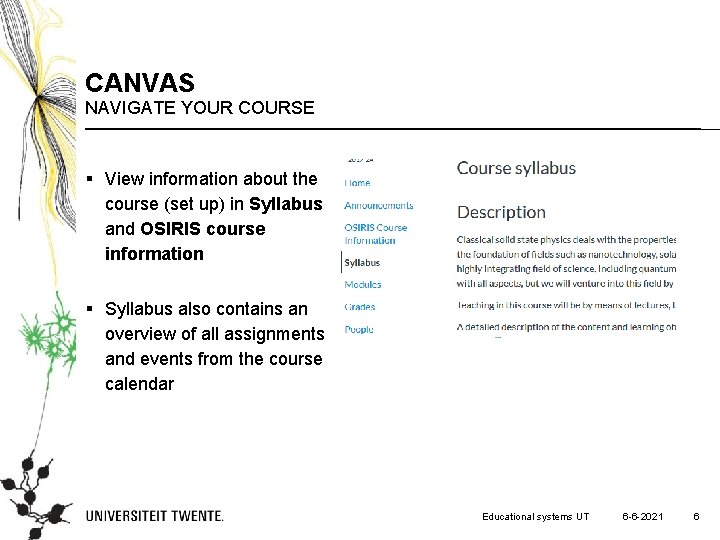
CANVAS NAVIGATE YOUR COURSE § View information about the course (set up) in Syllabus and OSIRIS course information § Syllabus also contains an overview of all assignments and events from the course calendar Educational systems UT 6 -6 -2021 6
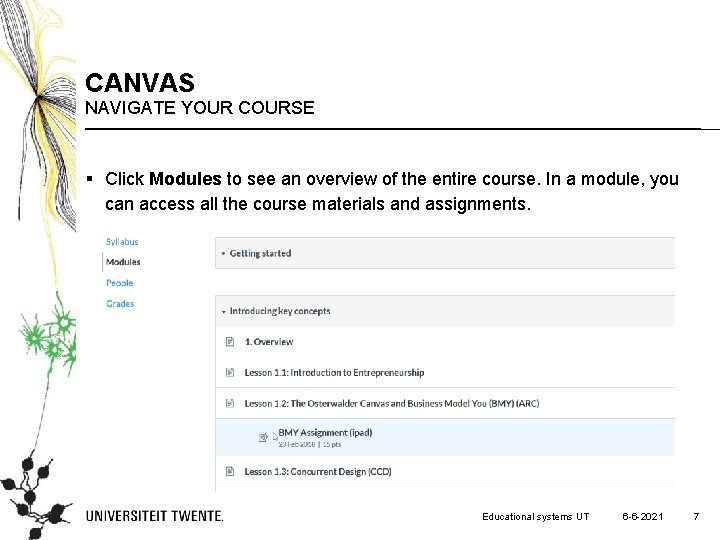
CANVAS NAVIGATE YOUR COURSE § Click Modules to see an overview of the entire course. In a module, you can access all the course materials and assignments. Educational systems UT 6 -6 -2021 7
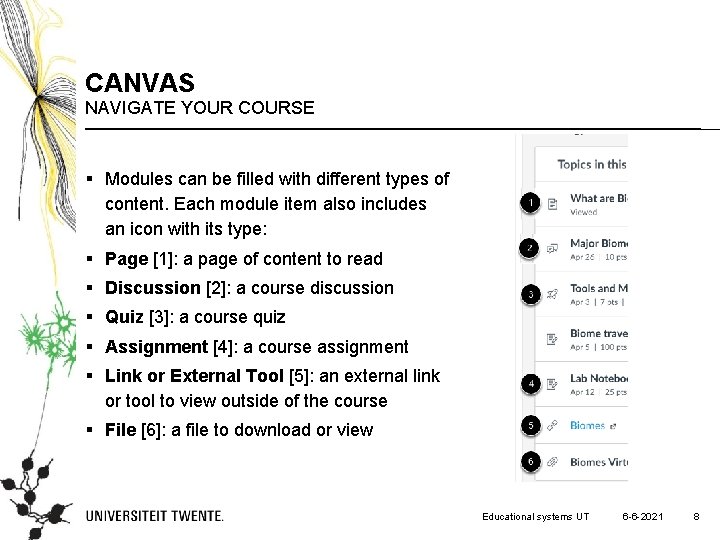
CANVAS NAVIGATE YOUR COURSE § Modules can be filled with different types of content. Each module item also includes an icon with its type: § Page [1]: a page of content to read § Discussion [2]: a course discussion § Quiz [3]: a course quiz § Assignment [4]: a course assignment § Link or External Tool [5]: an external link or tool to view outside of the course § File [6]: a file to download or view Educational systems UT 6 -6 -2021 8
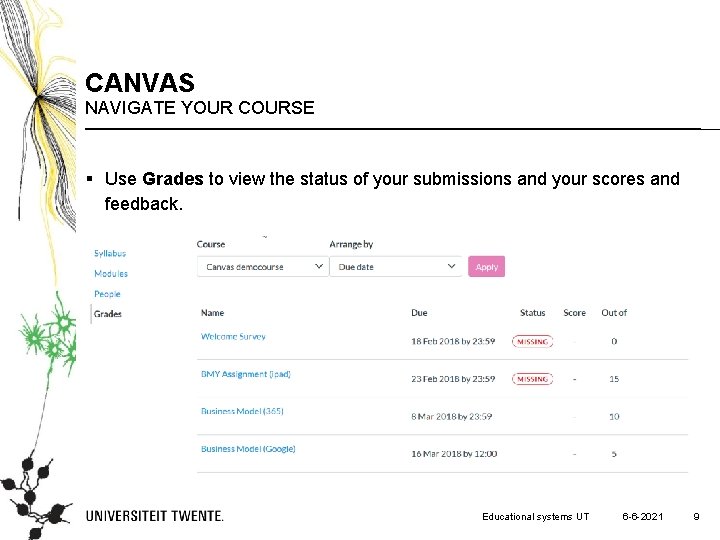
CANVAS NAVIGATE YOUR COURSE § Use Grades to view the status of your submissions and your scores and feedback. Educational systems UT 6 -6 -2021 9
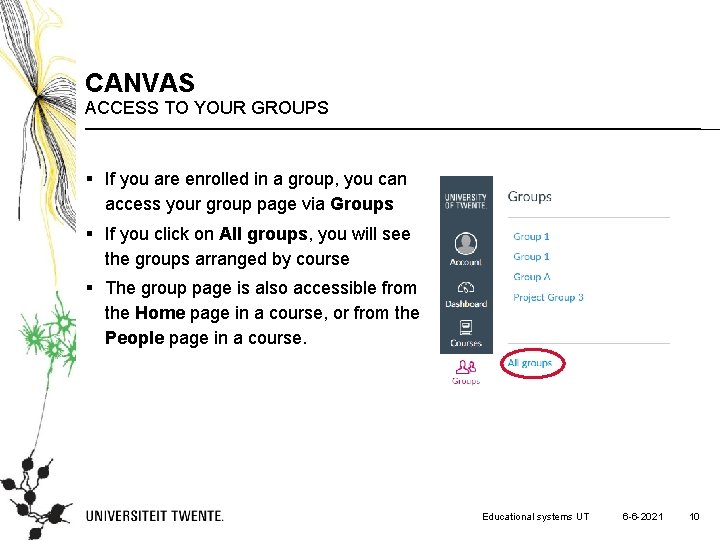
CANVAS ACCESS TO YOUR GROUPS § If you are enrolled in a group, you can access your group page via Groups § If you click on All groups, you will see the groups arranged by course § The group page is also accessible from the Home page in a course, or from the People page in a course. Educational systems UT 6 -6 -2021 10
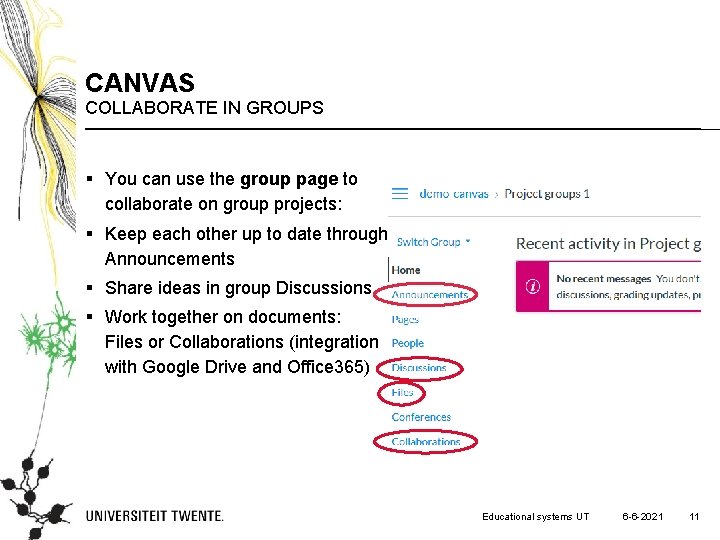
CANVAS COLLABORATE IN GROUPS § You can use the group page to collaborate on group projects: § Keep each other up to date through Announcements § Share ideas in group Discussions § Work together on documents: Files or Collaborations (integration with Google Drive and Office 365) Educational systems UT 6 -6 -2021 11
CANVAS TEACHER ACCESS TO GROUPS § Be aware that teachers and TA’s in the course also have access to the group pages. § Teachers and TA’s also will receive a notification if students add an announcement in a group page, if they have not switched off the announcement notifications in their notification settings. Educational systems UT 6 -6 -2021 12
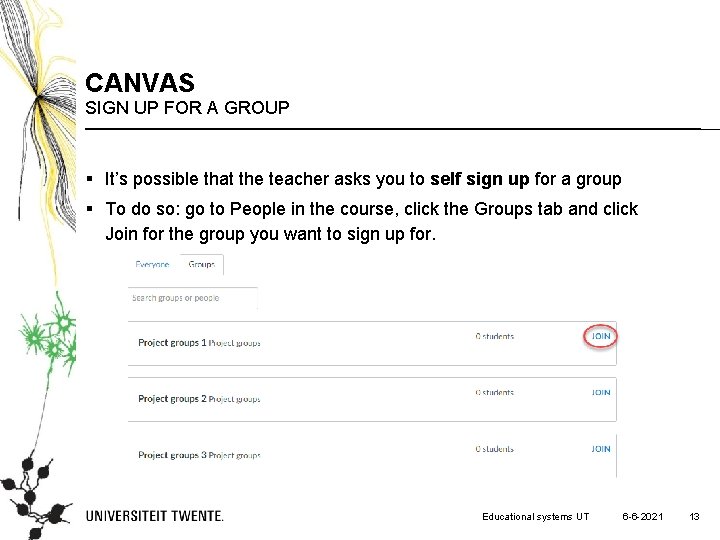
CANVAS SIGN UP FOR A GROUP § It’s possible that the teacher asks you to self sign up for a group § To do so: go to People in the course, click the Groups tab and click Join for the group you want to sign up for. Educational systems UT 6 -6 -2021 13
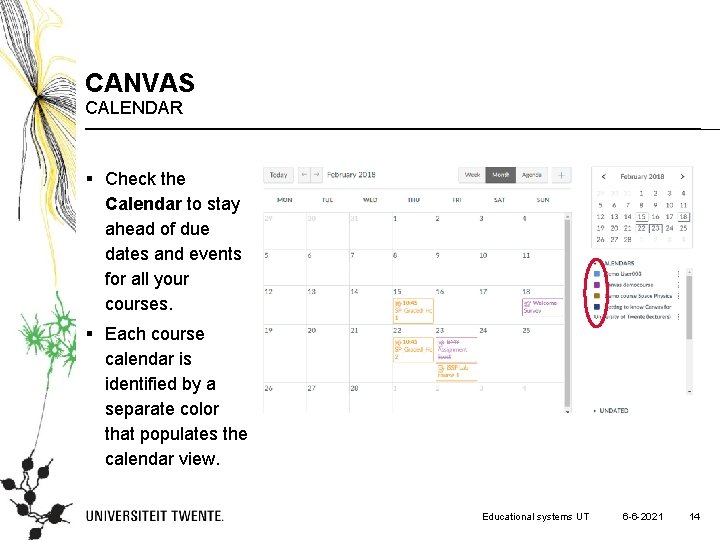
CANVAS CALENDAR § Check the Calendar to stay ahead of due dates and events for all your courses. § Each course calendar is identified by a separate color that populates the calendar view. Educational systems UT 6 -6 -2021 14
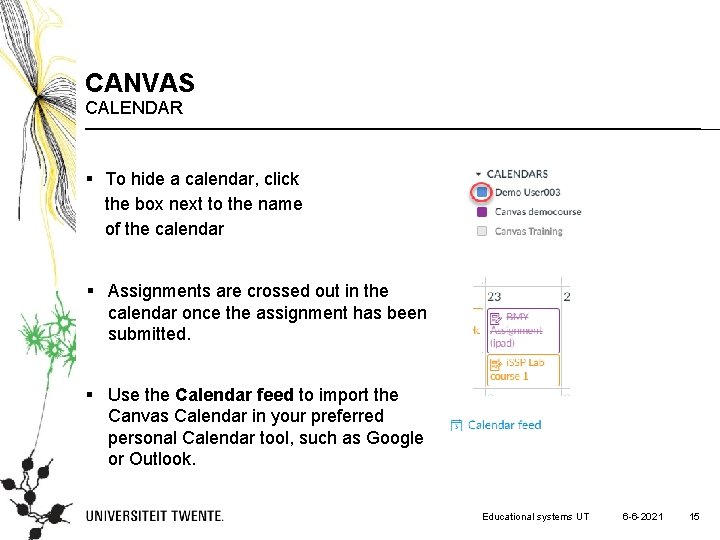
CANVAS CALENDAR § To hide a calendar, click the box next to the name of the calendar § Assignments are crossed out in the calendar once the assignment has been submitted. § Use the Calendar feed to import the Canvas Calendar in your preferred personal Calendar tool, such as Google or Outlook. Educational systems UT 6 -6 -2021 15
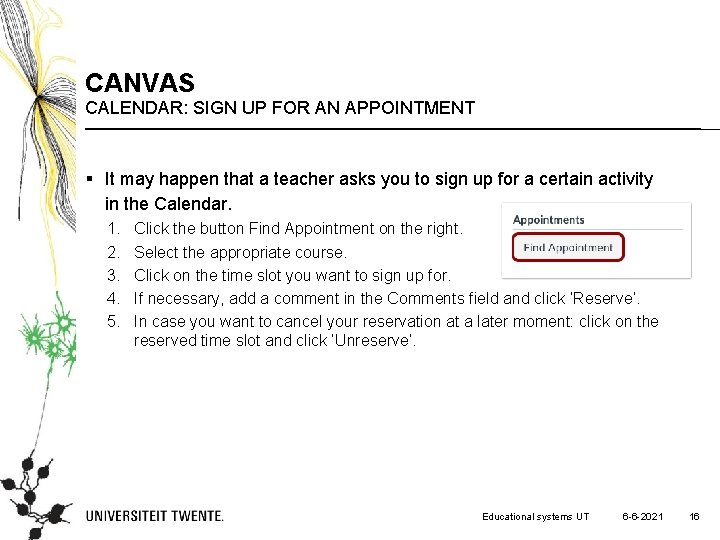
CANVAS CALENDAR: SIGN UP FOR AN APPOINTMENT § It may happen that a teacher asks you to sign up for a certain activity in the Calendar. 1. 2. 3. 4. 5. Click the button Find Appointment on the right. Select the appropriate course. Click on the time slot you want to sign up for. If necessary, add a comment in the Comments field and click ‘Reserve’. In case you want to cancel your reservation at a later moment: click on the reserved time slot and click ‘Unreserve’. Educational systems UT 6 -6 -2021 16
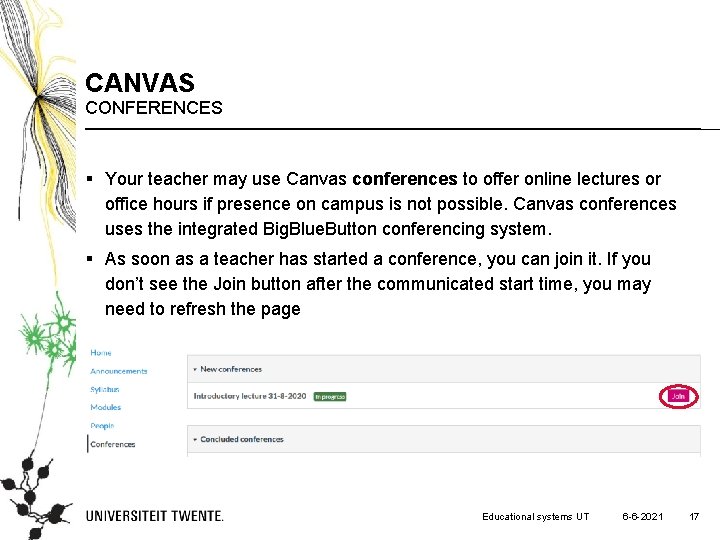
CANVAS CONFERENCES § Your teacher may use Canvas conferences to offer online lectures or office hours if presence on campus is not possible. Canvas conferences uses the integrated Big. Blue. Button conferencing system. § As soon as a teacher has started a conference, you can join it. If you don’t see the Join button after the communicated start time, you may need to refresh the page Educational systems UT 6 -6 -2021 17
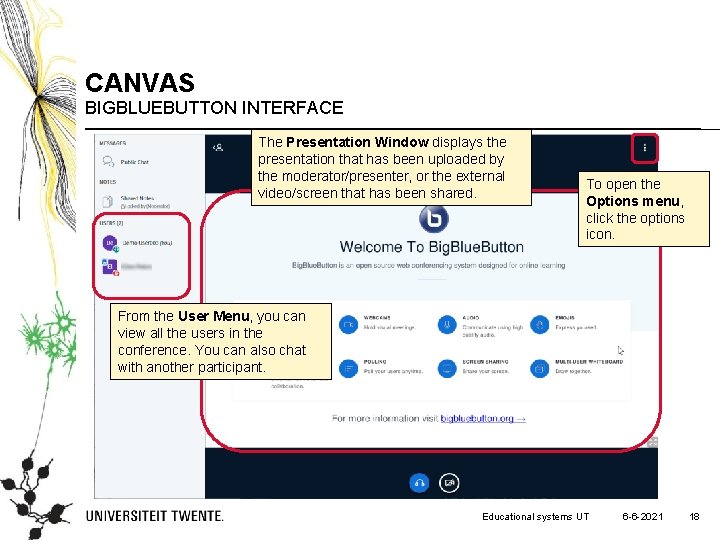
CANVAS BIGBLUEBUTTON INTERFACE The Presentation Window displays the presentation that has been uploaded by the moderator/presenter, or the external video/screen that has been shared. To open the Options menu, click the options icon. From the User Menu, you can view all the users in the conference. You can also chat with another participant. Educational systems UT 6 -6 -2021 18
CANVAS BIGBLUEBUTTON § Important: check the Technical requirements and advice for using Big. Blue. Button Educational systems UT 6 -6 -2021 19
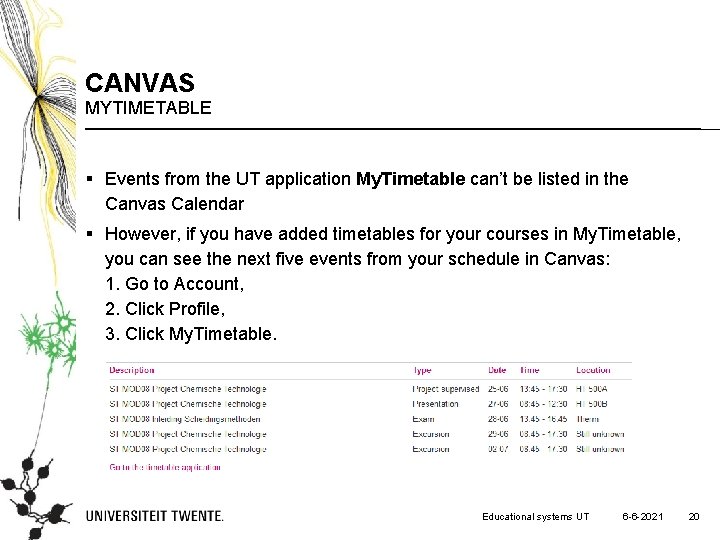
CANVAS MYTIMETABLE § Events from the UT application My. Timetable can’t be listed in the Canvas Calendar § However, if you have added timetables for your courses in My. Timetable, you can see the next five events from your schedule in Canvas: 1. Go to Account, 2. Click Profile, 3. Click My. Timetable. Educational systems UT 6 -6 -2021 20
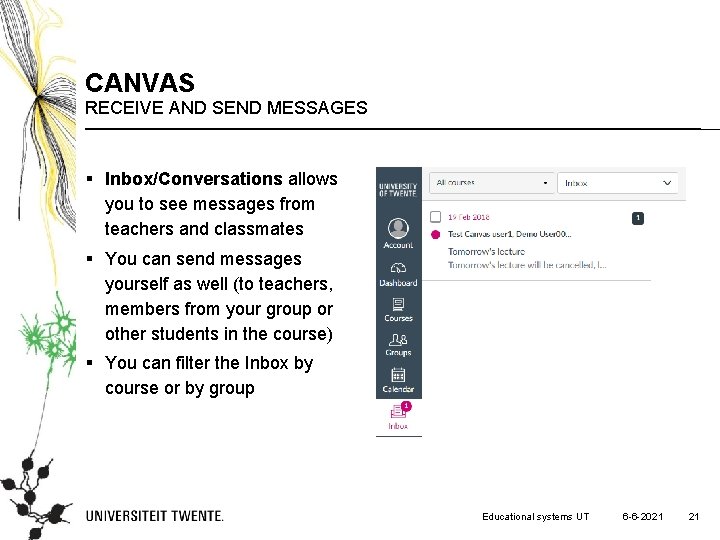
CANVAS RECEIVE AND SEND MESSAGES § Inbox/Conversations allows you to see messages from teachers and classmates § You can send messages yourself as well (to teachers, members from your group or other students in the course) § You can filter the Inbox by course or by group Educational systems UT 6 -6 -2021 21
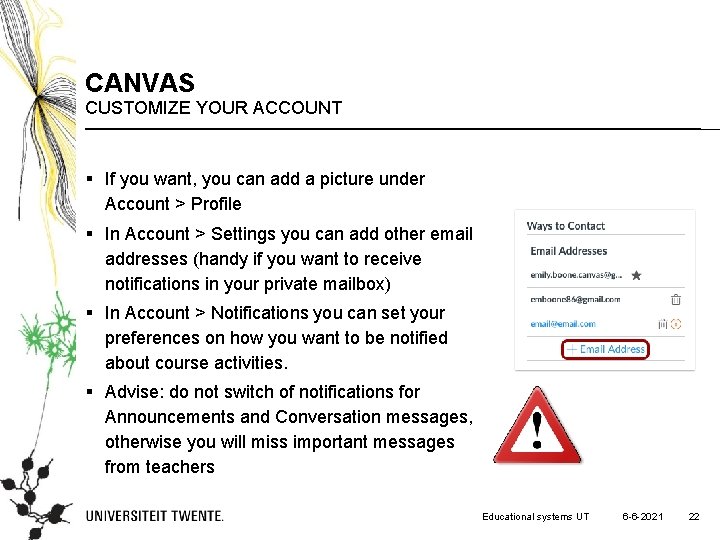
CANVAS CUSTOMIZE YOUR ACCOUNT § If you want, you can add a picture under Account > Profile § In Account > Settings you can add other email addresses (handy if you want to receive notifications in your private mailbox) § In Account > Notifications you can set your preferences on how you want to be notified about course activities. § Advise: do not switch of notifications for Announcements and Conversation messages, otherwise you will miss important messages from teachers Educational systems UT 6 -6 -2021 22
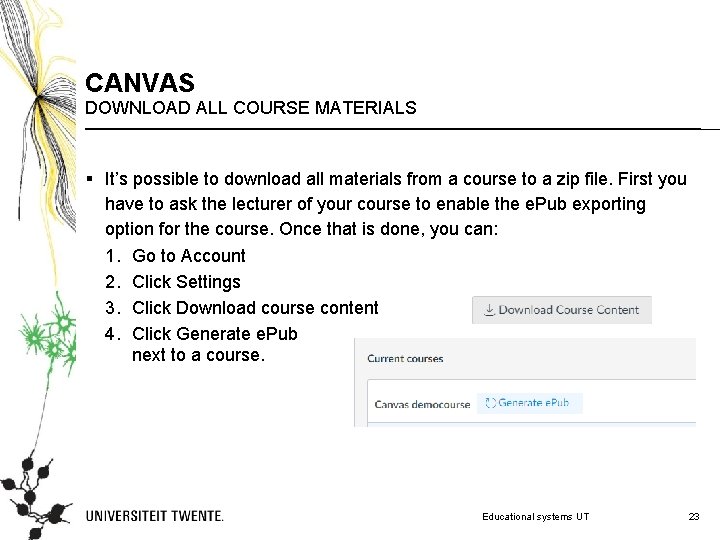
CANVAS DOWNLOAD ALL COURSE MATERIALS § It’s possible to download all materials from a course to a zip file. First you have to ask the lecturer of your course to enable the e. Pub exporting option for the course. Once that is done, you can: 1. Go to Account 2. Click Settings 3. Click Download course content 4. Click Generate e. Pub next to a course. Educational systems UT 23
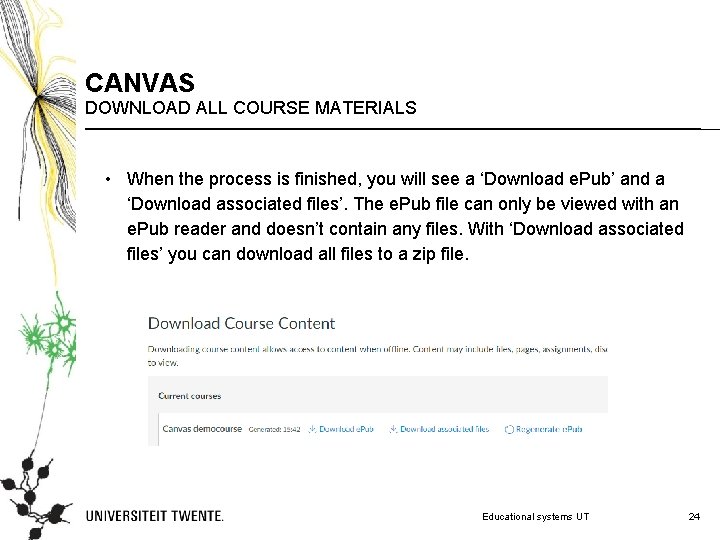
CANVAS DOWNLOAD ALL COURSE MATERIALS • When the process is finished, you will see a ‘Download e. Pub’ and a ‘Download associated files’. The e. Pub file can only be viewed with an e. Pub reader and doesn’t contain any files. With ‘Download associated files’ you can download all files to a zip file. Educational systems UT 24
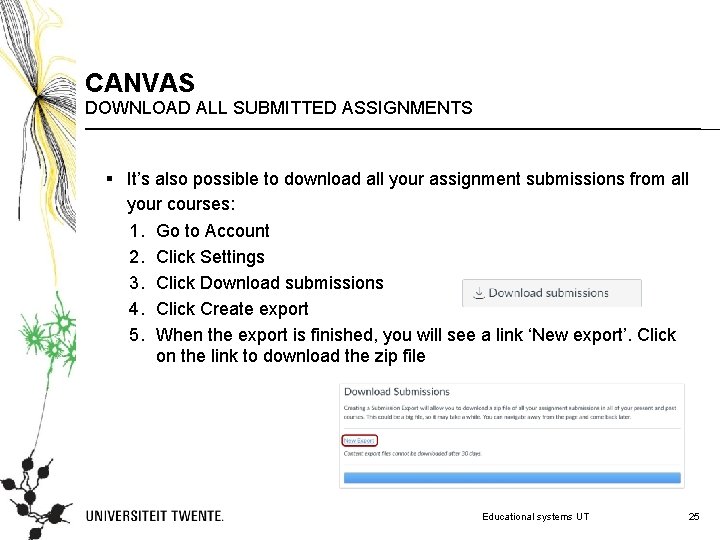
CANVAS DOWNLOAD ALL SUBMITTED ASSIGNMENTS § It’s also possible to download all your assignment submissions from all your courses: 1. Go to Account 2. Click Settings 3. Click Download submissions 4. Click Create export 5. When the export is finished, you will see a link ‘New export’. Click on the link to download the zip file Educational systems UT 25
CANVAS SELF ENROLMENT COURSES § Canvas also has course pages for things that do not have an OSIRIS course code. For example: § Information from your study program § Non-regular courses § Pages for internships/graduation/study trips § These courses may be open for self enrolment. You may receive a URL to self enrol, or you may find the course in Courses: 1. Click All courses 2. Click Browse more courses 3. Select the checkbox ‘Open enrolment courses only’ and use the search field to search for the course. 4. When you’ve found the course, click + Join this course. Educational systems UT 6 -6 -2021 26
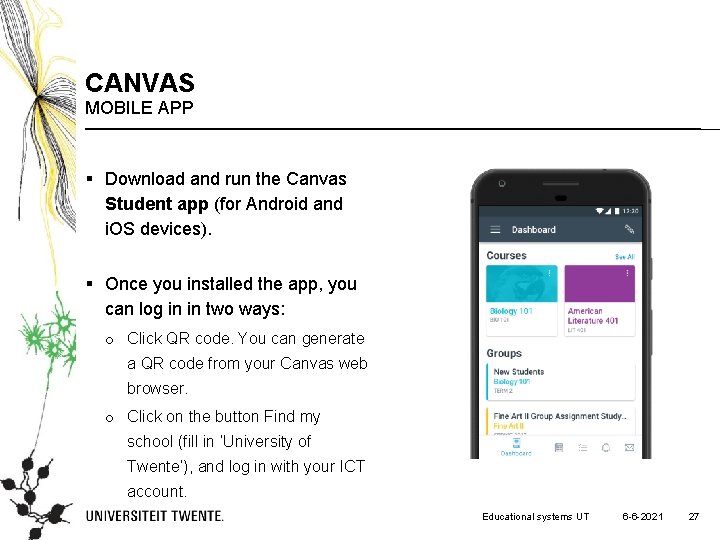
CANVAS MOBILE APP § Download and run the Canvas Student app (for Android and i. OS devices). § Once you installed the app, you can log in in two ways: o Click QR code. You can generate a QR code from your Canvas web browser. o Click on the button Find my school (fill in ‘University of Twente’), and log in with your ICT account. Educational systems UT 6 -6 -2021 27
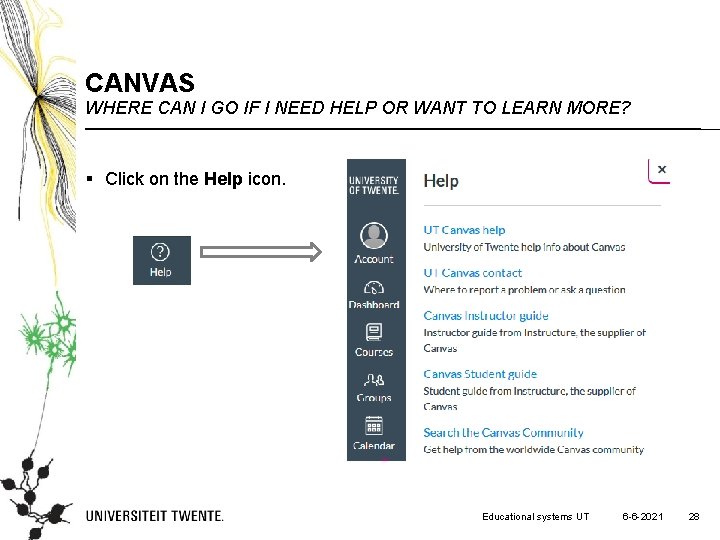
CANVAS WHERE CAN I GO IF I NEED HELP OR WANT TO LEARN MORE? § Click on the Help icon. Educational systems UT 6 -6 -2021 28