
Canvas Design Tools Training What is Design Tools

- Slides: 32
Canvas & Design Tools Training
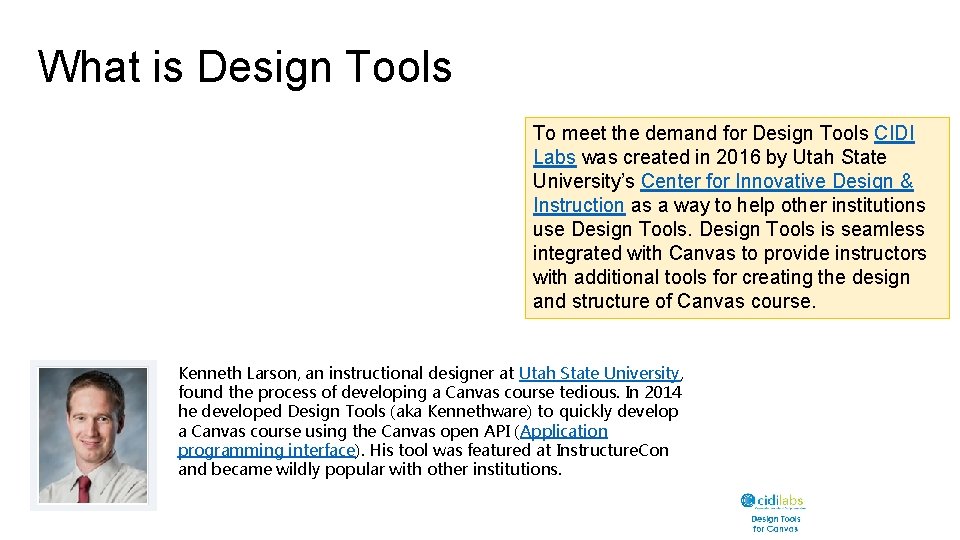
What is Design Tools To meet the demand for Design Tools CIDI Labs was created in 2016 by Utah State University’s Center for Innovative Design & Instruction as a way to help other institutions use Design Tools is seamless integrated with Canvas to provide instructors with additional tools for creating the design and structure of Canvas course. Kenneth Larson, an instructional designer at Utah State University, found the process of developing a Canvas course tedious. In 2014 he developed Design Tools (aka Kennethware) to quickly develop a Canvas course using the Canvas open API (Application programming interface). His tool was featured at Instructure. Con and became wildly popular with other institutions.
What Can I Do With Design Tools? • There are three main components of Design Tools • Available in the Rich content editor • Image Uploader • Design Tools • Available in the course menu • Multi Tool • Templates • Module Builder • Assignment Due Date Modifier Jonathan Cohen - Flickr. CC
Important Accessibility Tips Guides Tips • Section 508 • WCAG Guidelines • Accessibility checklists • • Design for Mobile Use Canvas Pages Format content correctly Use color wisely Add alternative text for multimedia Use modules to structure content Consider the course menu Review accessibility guidelines Accessibility within Canvas General Accessibility Design Guidelines
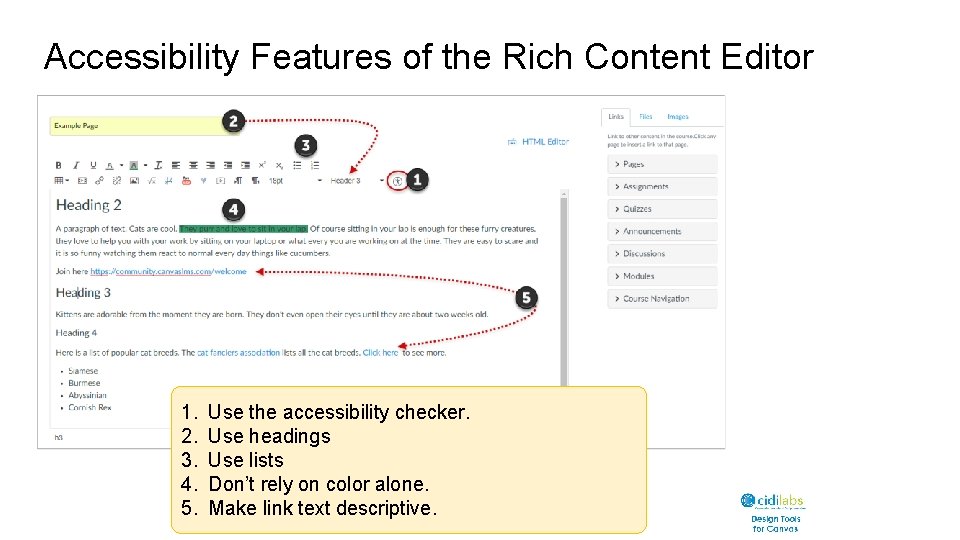
Accessibility Features of the Rich Content Editor 1. 2. 3. 4. 5. Use the accessibility checker. Use headings Use lists Don’t rely on color alone. Make link text descriptive.
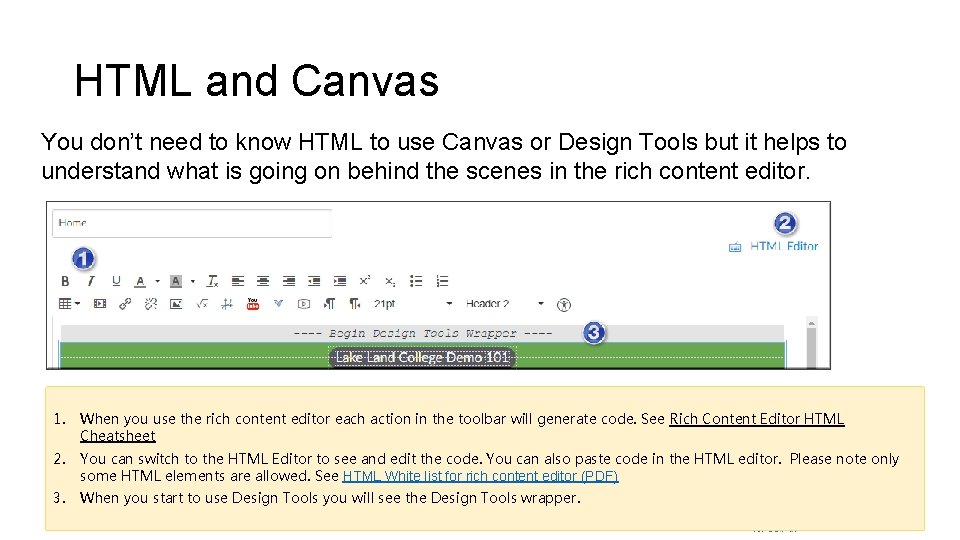
HTML and Canvas You don’t need to know HTML to use Canvas or Design Tools but it helps to understand what is going on behind the scenes in the rich content editor. 1. When you use the rich content editor each action in the toolbar will generate code. See Rich Content Editor HTML Cheatsheet 2. You can switch to the HTML Editor to see and edit the code. You can also paste code in the HTML editor. Please note only some HTML elements are allowed. See HTML White list for rich content editor (PDF) 3. When you start to use Design Tools you will see the Design Tools wrapper.
Important Image Tips General Image Tips Choose images that are meaningful to the subject of your course. Avoid excessive use of clip art and decorative images in course. Avoid using poor quality images that are blurry and have jagged bitmapped edges. Make sure images have meaningful alternative text www. pixelbay. com Banner Image Tips • The image you choose should have minimum size of 1100 x 300 pixels. Larger images will be resized or cropped. • Choose images that can be cropped without losing the intended visual meaning. • Use aspect ratio feature in the image uploader to be sure your image will not distort. • Banner images are typically decorative images and Design Tools will mark them as decorative.
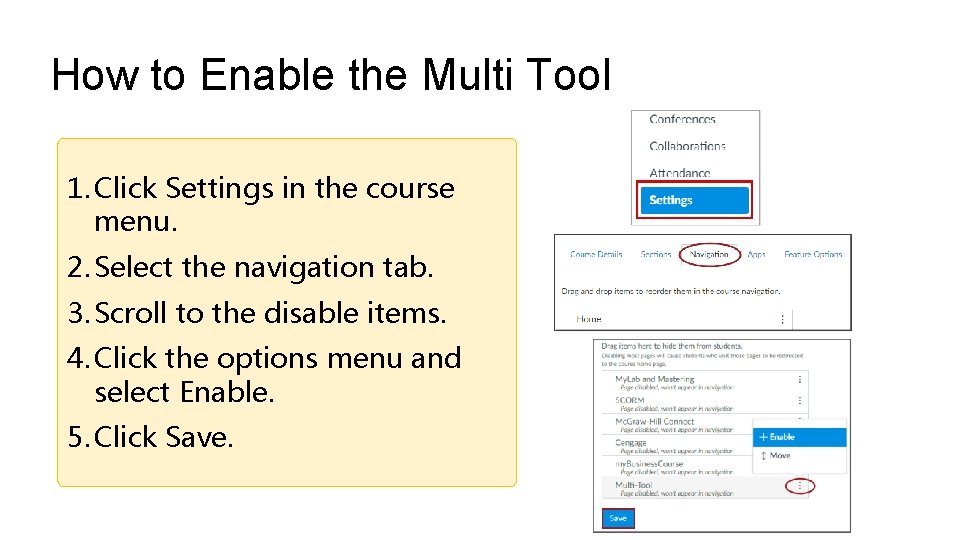
How to Enable the Multi Tool 1. Click Settings in the course menu. 2. Select the navigation tab. 3. Scroll to the disable items. 4. Click the options menu and select Enable. 5. Click Save.
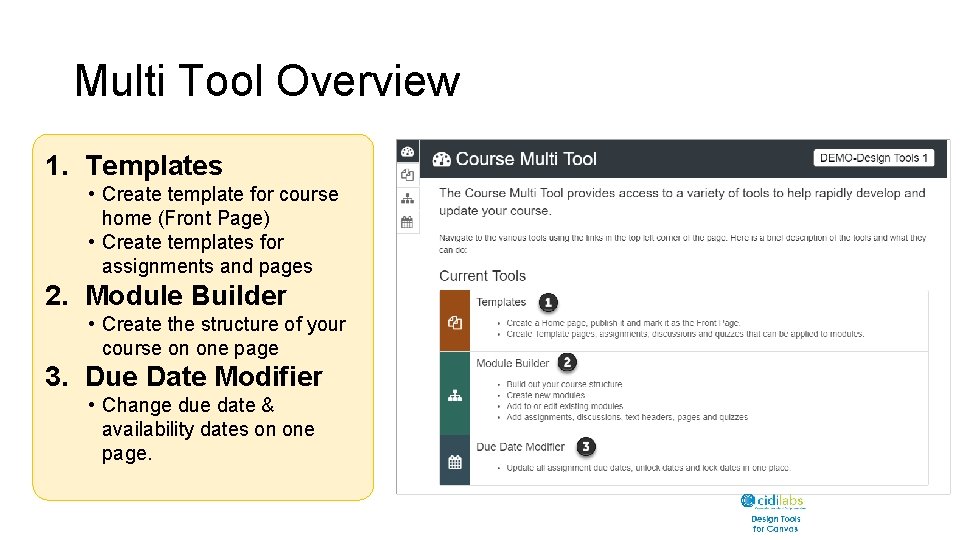
Multi Tool Overview 1. Templates • Create template for course home (Front Page) • Create templates for assignments and pages 2. Module Builder • Create the structure of your course on one page 3. Due Date Modifier • Change due date & availability dates on one page.
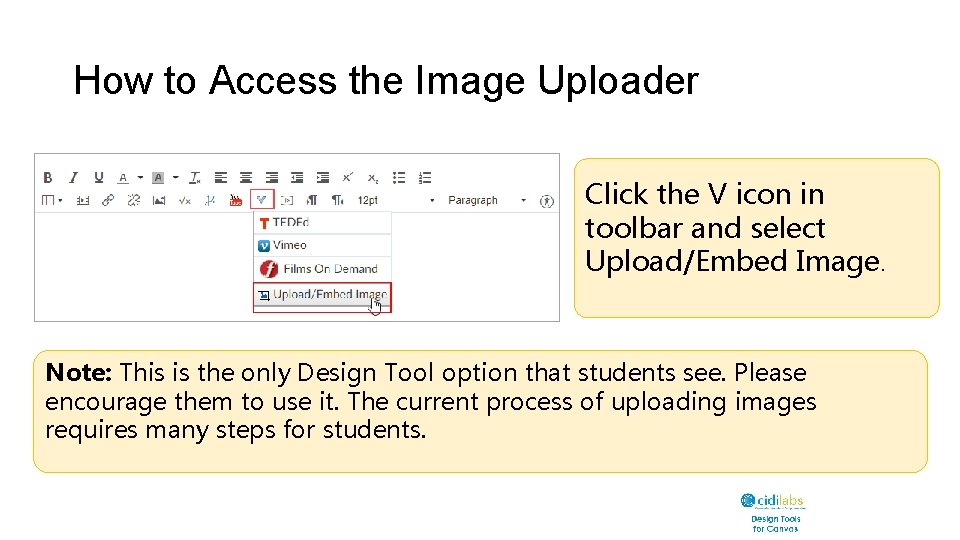
How to Access the Image Uploader Click the V icon in toolbar and select Upload/Embed Image. Note: This is the only Design Tool option that students see. Please encourage them to use it. The current process of uploading images requires many steps for students.
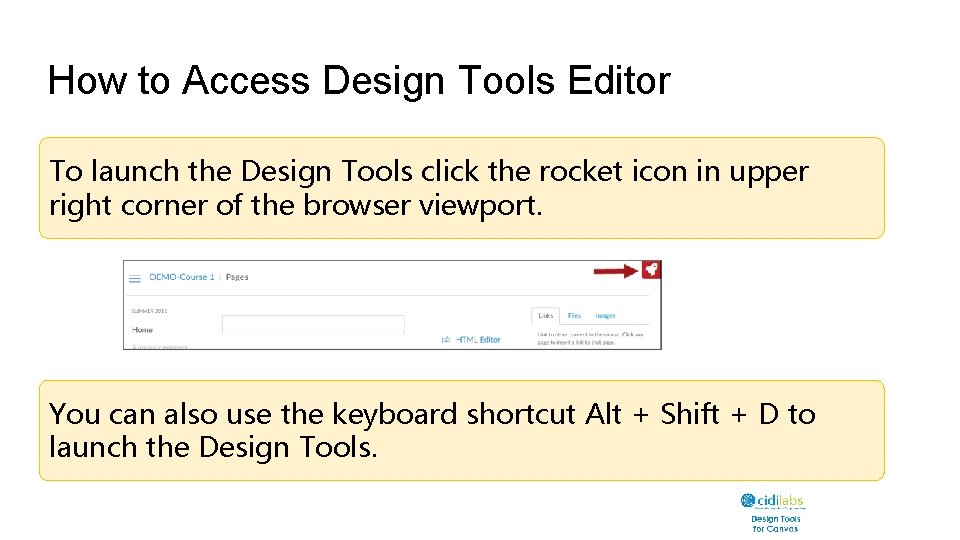
How to Access Design Tools Editor To launch the Design Tools click the rocket icon in upper right corner of the browser viewport. You can also use the keyboard shortcut Alt + Shift + D to launch the Design Tools.
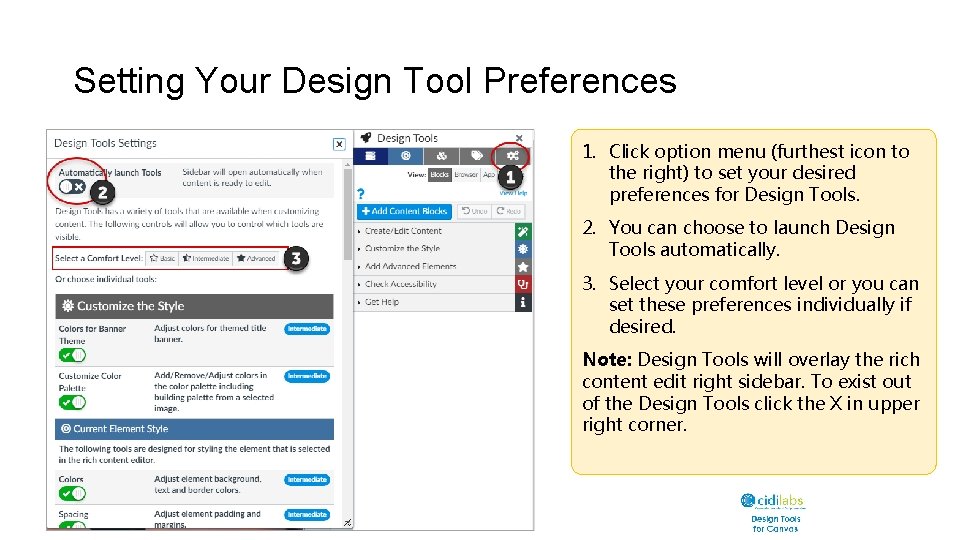
Setting Your Design Tool Preferences 1. Click option menu (furthest icon to the right) to set your desired preferences for Design Tools. 2. You can choose to launch Design Tools automatically. 3. Select your comfort level or you can set these preferences individually if desired. Note: Design Tools will overlay the rich content edit right sidebar. To exist out of the Design Tools click the X in upper right corner.
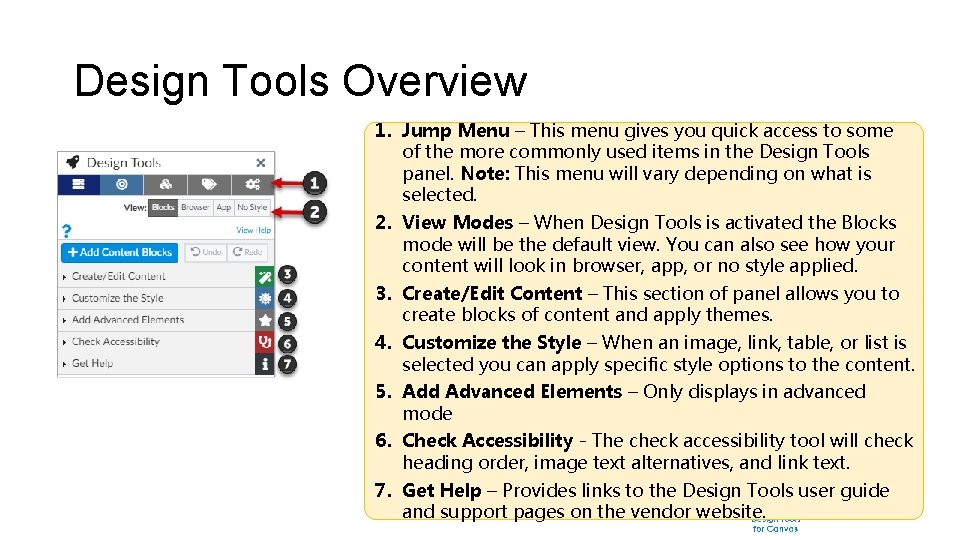
Design Tools Overview 1. Jump Menu – This menu gives you quick access to some of the more commonly used items in the Design Tools panel. Note: This menu will vary depending on what is selected. 2. View Modes – When Design Tools is activated the Blocks mode will be the default view. You can also see how your content will look in browser, app, or no style applied. 3. Create/Edit Content – This section of panel allows you to create blocks of content and apply themes. 4. Customize the Style – When an image, link, table, or list is selected you can apply specific style options to the content. 5. Add Advanced Elements – Only displays in advanced mode 6. Check Accessibility - The check accessibility tool will check heading order, image text alternatives, and link text. 7. Get Help – Provides links to the Design Tools user guide and support pages on the vendor website.
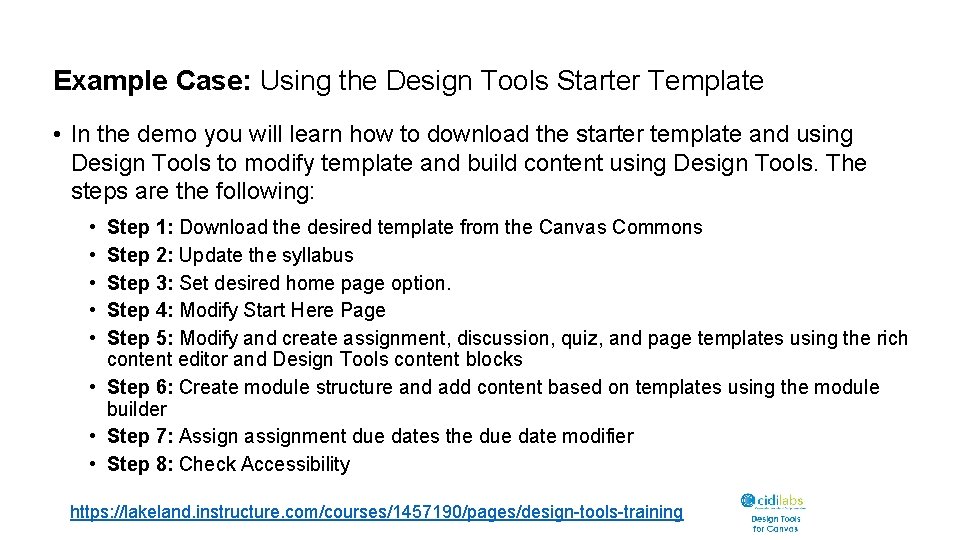
Example Case: Using the Design Tools Starter Template • In the demo you will learn how to download the starter template and using Design Tools to modify template and build content using Design Tools. The steps are the following: • • • Step 1: Download the desired template from the Canvas Commons Step 2: Update the syllabus Step 3: Set desired home page option. Step 4: Modify Start Here Page Step 5: Modify and create assignment, discussion, quiz, and page templates using the rich content editor and Design Tools content blocks • Step 6: Create module structure and add content based on templates using the module builder • Step 7: Assign assignment due dates the due date modifier • Step 8: Check Accessibility https: //lakeland. instructure. com/courses/1457190/pages/design-tools-training
Demo Time! https: //lakeland. instructure. com/courses/1457190/pages/design-tools-training
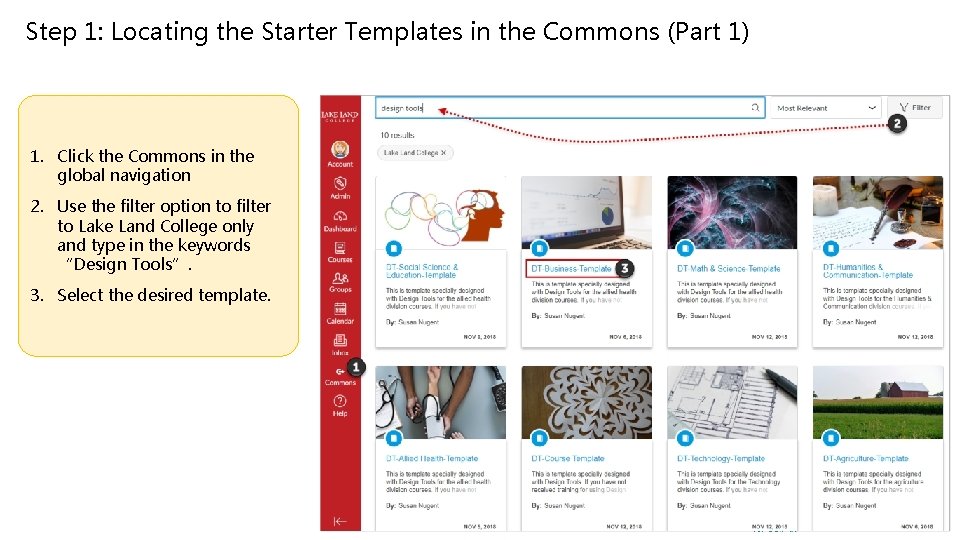
Step 1: Locating the Starter Templates in the Commons (Part 1) 1. Click the Commons in the global navigation 2. Use the filter option to filter to Lake Land College only and type in the keywords “Design Tools”. 3. Select the desired template.
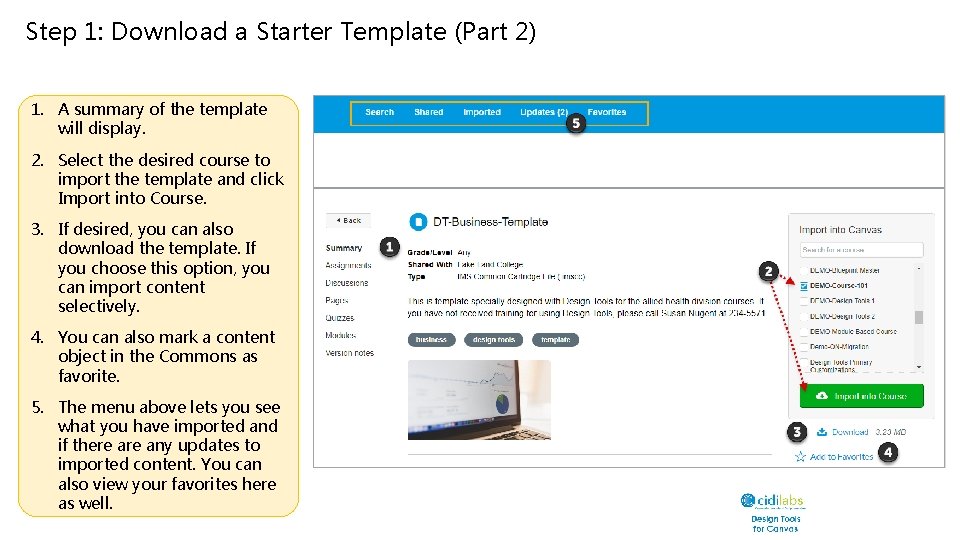
Step 1: Download a Starter Template (Part 2) 1. A summary of the template will display. 2. Select the desired course to import the template and click Import into Course. 3. If desired, you can also download the template. If you choose this option, you can import content selectively. 4. You can also mark a content object in the Commons as favorite. 5. The menu above lets you see what you have imported and if there any updates to imported content. You can also view your favorites here as well.
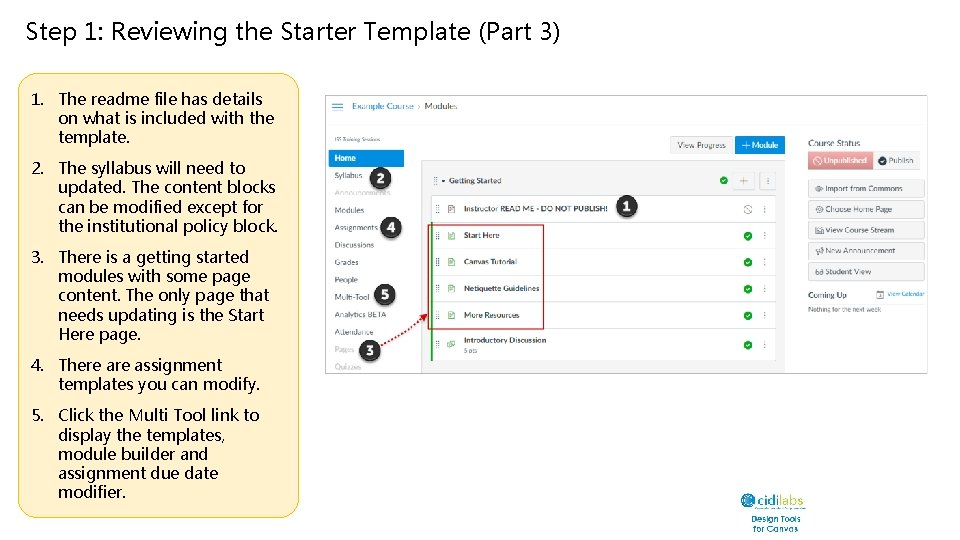
Step 1: Reviewing the Starter Template (Part 3) 1. The readme file has details on what is included with the template. 2. The syllabus will need to updated. The content blocks can be modified except for the institutional policy block. 3. There is a getting started modules with some page content. The only page that needs updating is the Start Here page. 4. There assignment templates you can modify. 5. Click the Multi Tool link to display the templates, module builder and assignment due date modifier.
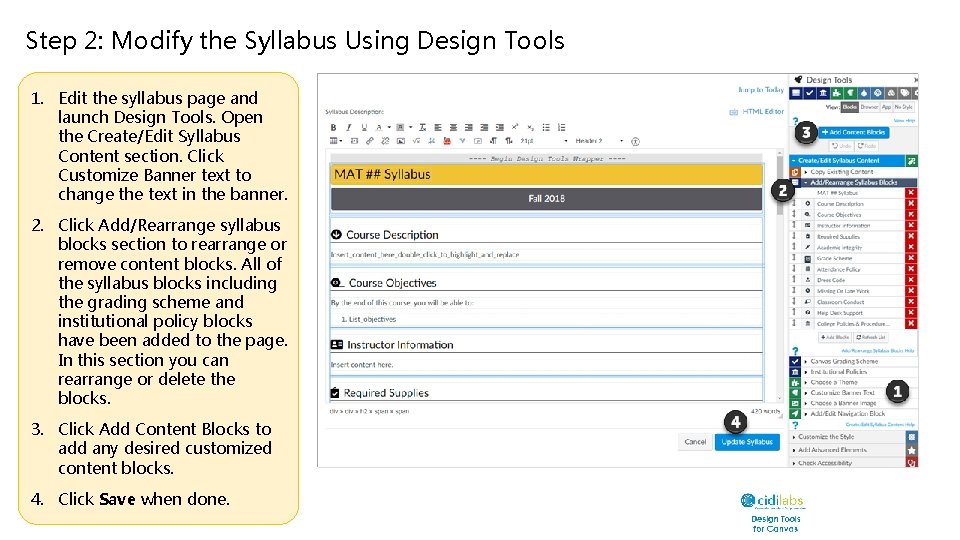
Step 2: Modify the Syllabus Using Design Tools 1. Edit the syllabus page and launch Design Tools. Open the Create/Edit Syllabus Content section. Click Customize Banner text to change the text in the banner. 2. Click Add/Rearrange syllabus blocks section to rearrange or remove content blocks. All of the syllabus blocks including the grading scheme and institutional policy blocks have been added to the page. In this section you can rearrange or delete the blocks. 3. Click Add Content Blocks to add any desired customized content blocks. 4. Click Save when done.
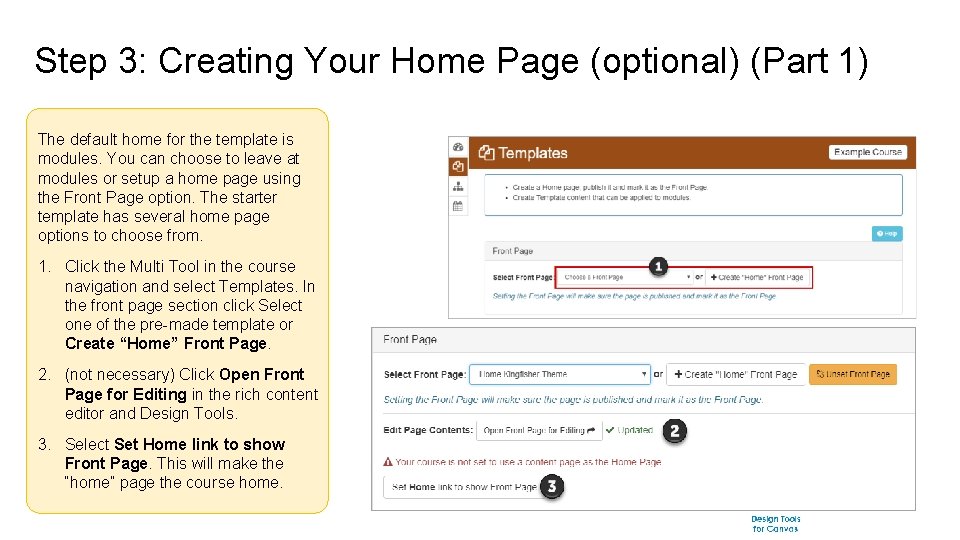
Step 3: Creating Your Home Page (optional) (Part 1) The default home for the template is modules. You can choose to leave at modules or setup a home page using the Front Page option. The starter template has several home page options to choose from. 1. Click the Multi Tool in the course navigation and select Templates. In the front page section click Select one of the pre-made template or Create “Home” Front Page. 2. (not necessary) Click Open Front Page for Editing in the rich content editor and Design Tools. 3. Select Set Home link to show Front Page. This will make the “home” page the course home.
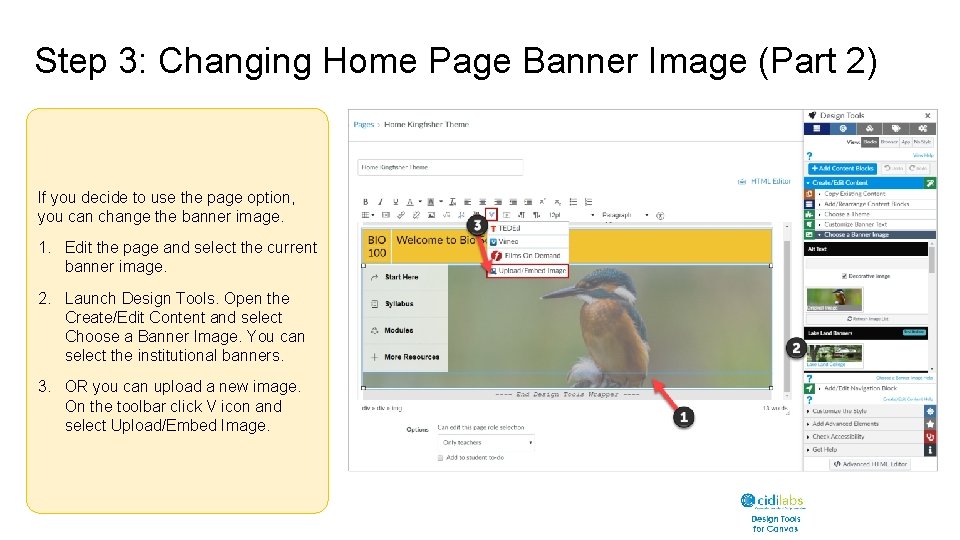
Step 3: Changing Home Page Banner Image (Part 2) If you decide to use the page option, you can change the banner image. 1. Edit the page and select the current banner image. 2. Launch Design Tools. Open the Create/Edit Content and select Choose a Banner Image. You can select the institutional banners. 3. OR you can upload a new image. On the toolbar click V icon and select Upload/Embed Image.
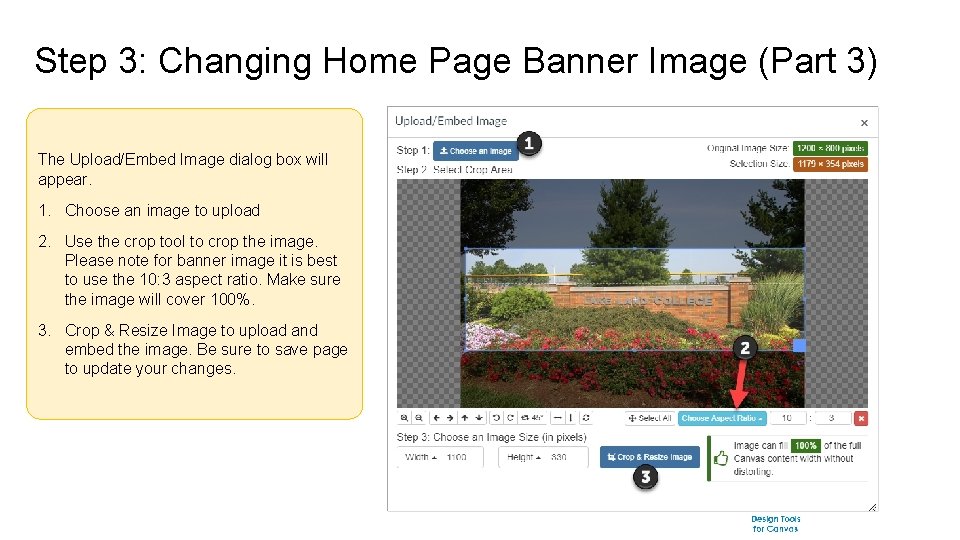
Step 3: Changing Home Page Banner Image (Part 3) The Upload/Embed Image dialog box will appear. 1. Choose an image to upload 2. Use the crop tool to crop the image. Please note for banner image it is best to use the 10: 3 aspect ratio. Make sure the image will cover 100%. 3. Crop & Resize Image to upload and embed the image. Be sure to save page to update your changes.
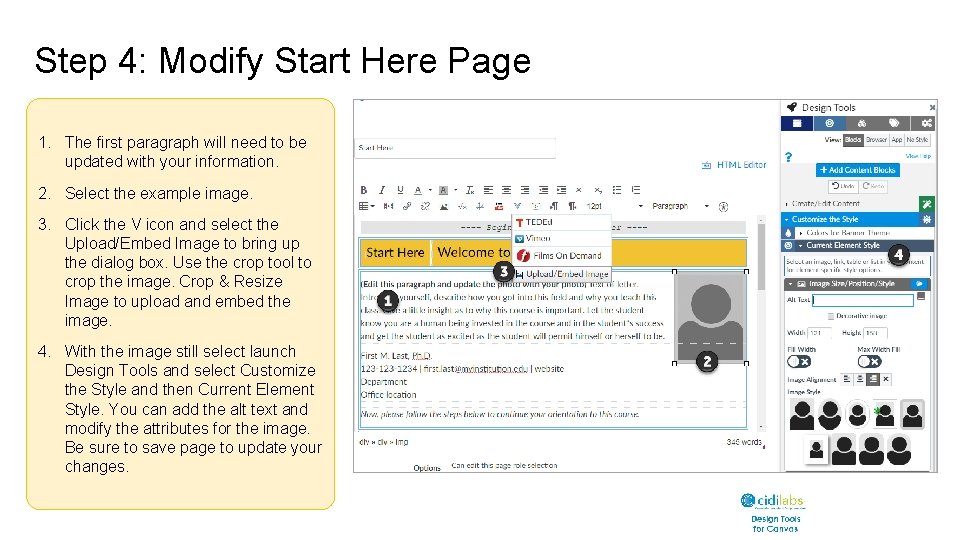
Step 4: Modify Start Here Page 1. The first paragraph will need to be updated with your information. 2. Select the example image. 3. Click the V icon and select the Upload/Embed Image to bring up the dialog box. Use the crop tool to crop the image. Crop & Resize Image to upload and embed the image. 4. With the image still select launch Design Tools and select Customize the Style and then Current Element Style. You can add the alt text and modify the attributes for the image. Be sure to save page to update your changes.
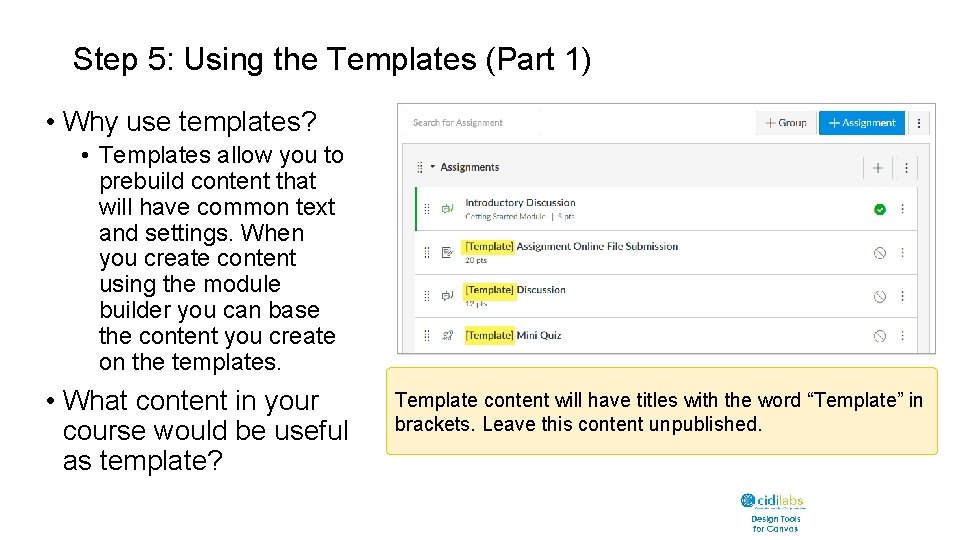
Step 5: Using the Templates (Part 1) • Why use templates? • Templates allow you to prebuild content that will have common text and settings. When you create content using the module builder you can base the content you create on the templates. • What content in your course would be useful as template? Template content will have titles with the word “Template” in brackets. Leave this content unpublished.
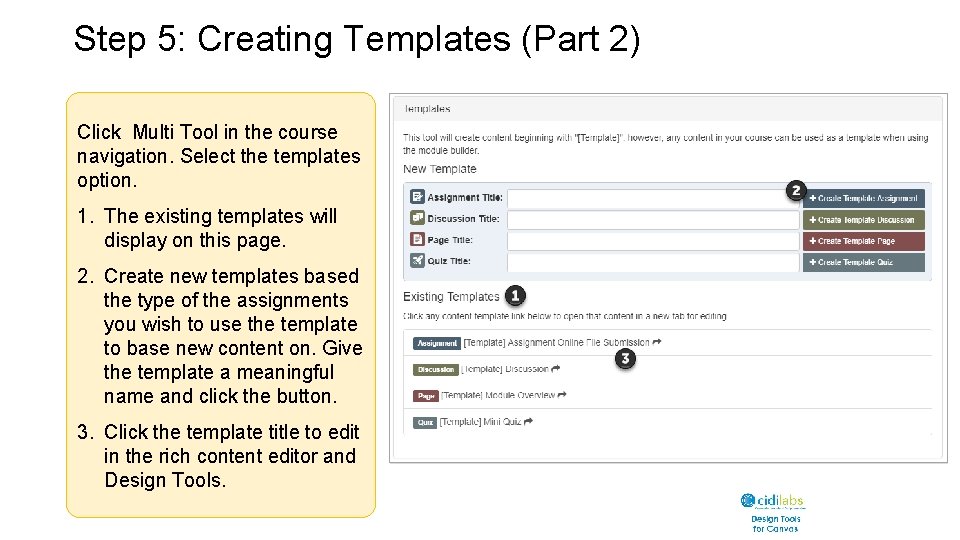
Step 5: Creating Templates (Part 2) Click Multi Tool in the course navigation. Select the templates option. 1. The existing templates will display on this page. 2. Create new templates based the type of the assignments you wish to use the template to base new content on. Give the template a meaningful name and click the button. 3. Click the template title to edit in the rich content editor and Design Tools.
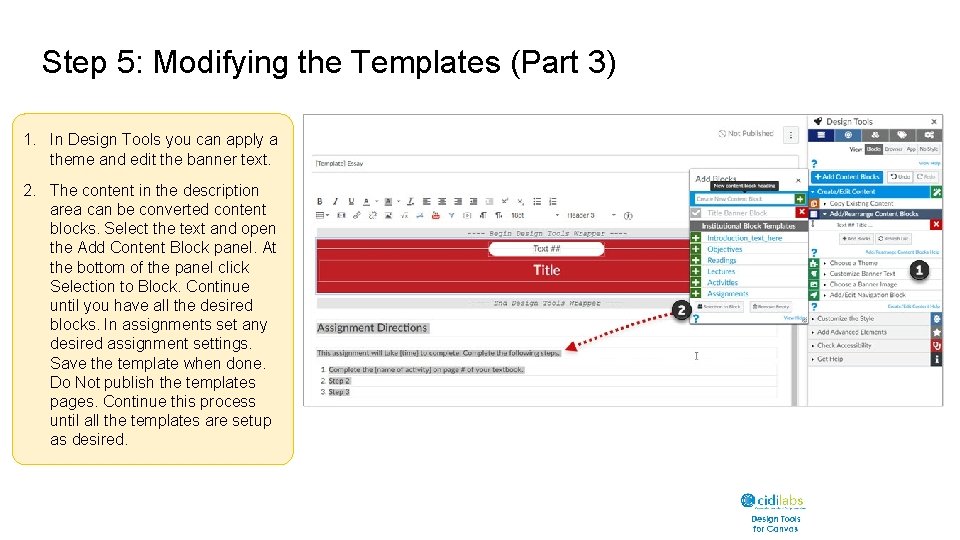
Step 5: Modifying the Templates (Part 3) 1. In Design Tools you can apply a theme and edit the banner text. 2. The content in the description area can be converted content blocks. Select the text and open the Add Content Block panel. At the bottom of the panel click Selection to Block. Continue until you have all the desired blocks. In assignments set any desired assignment settings. Save the template when done. Do Not publish the templates pages. Continue this process until all the templates are setup as desired.
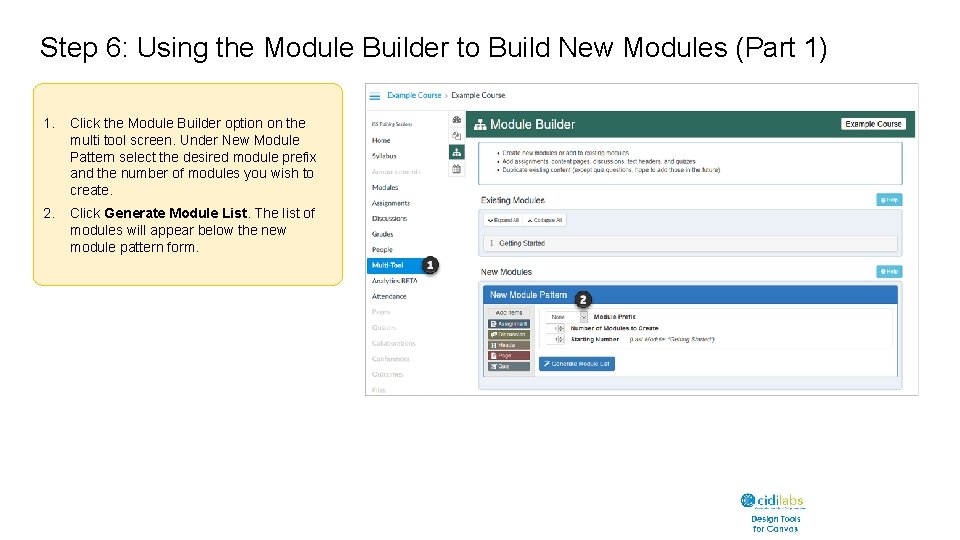
Step 6: Using the Module Builder to Build New Modules (Part 1) 1. Click the Module Builder option on the multi tool screen. Under New Module Pattern select the desired module prefix and the number of modules you wish to create. 2. Click Generate Module List. The list of modules will appear below the new module pattern form.
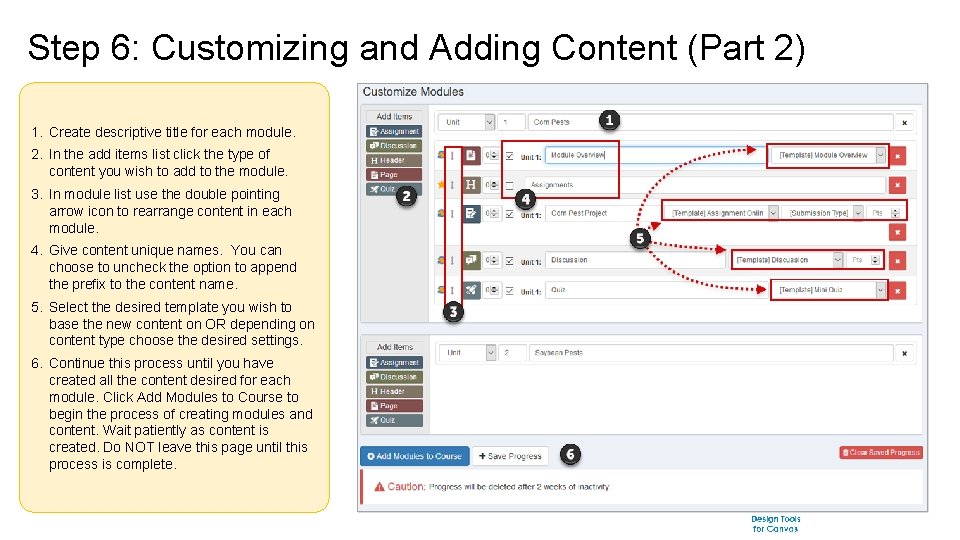
Step 6: Customizing and Adding Content (Part 2) 1. Create descriptive title for each module. 2. In the add items list click the type of content you wish to add to the module. 3. In module list use the double pointing arrow icon to rearrange content in each module. 4. Give content unique names. You can choose to uncheck the option to append the prefix to the content name. 5. Select the desired template you wish to base the new content on OR depending on content type choose the desired settings. 6. Continue this process until you have created all the content desired for each module. Click Add Modules to Course to begin the process of creating modules and content. Wait patiently as content is created. Do NOT leave this page until this process is complete.
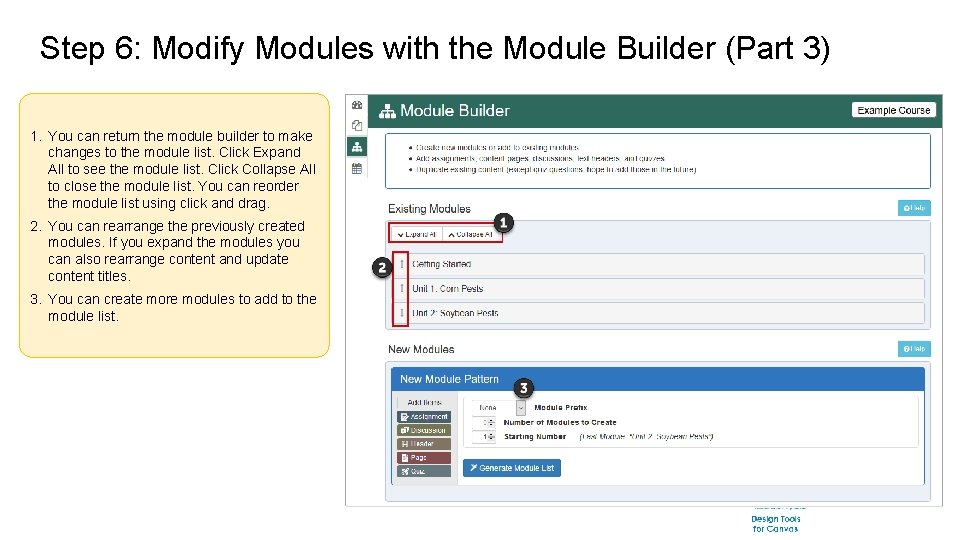
Step 6: Modify Modules with the Module Builder (Part 3) 1. You can return the module builder to make changes to the module list. Click Expand All to see the module list. Click Collapse All to close the module list. You can reorder the module list using click and drag. 2. You can rearrange the previously created modules. If you expand the modules you can also rearrange content and update content titles. 3. You can create more modules to add to the module list.
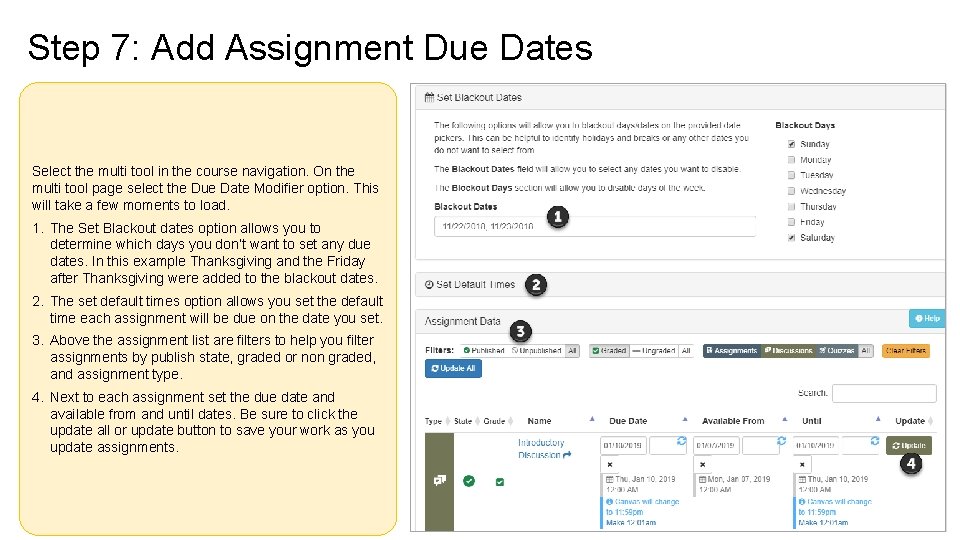
Step 7: Add Assignment Due Dates Select the multi tool in the course navigation. On the multi tool page select the Due Date Modifier option. This will take a few moments to load. 1. The Set Blackout dates option allows you to determine which days you don’t want to set any due dates. In this example Thanksgiving and the Friday after Thanksgiving were added to the blackout dates. 2. The set default times option allows you set the default time each assignment will be due on the date you set. 3. Above the assignment list are filters to help you filter assignments by publish state, graded or non graded, and assignment type. 4. Next to each assignment set the due date and available from and until dates. Be sure to click the update all or update button to save your work as you update assignments.
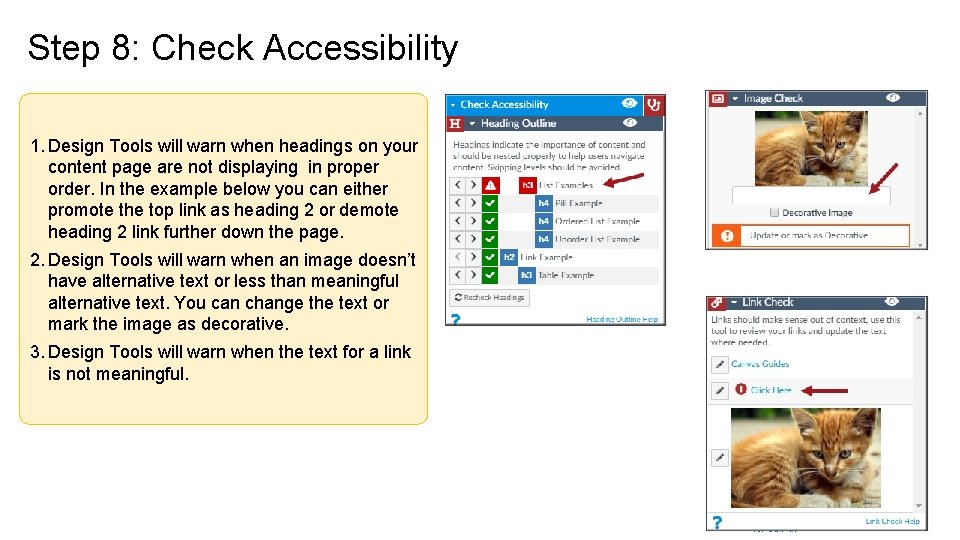
Step 8: Check Accessibility 1. Design Tools will warn when headings on your content page are not displaying in proper order. In the example below you can either promote the top link as heading 2 or demote heading 2 link further down the page. 2. Design Tools will warn when an image doesn’t have alternative text or less than meaningful alternative text. You can change the text or mark the image as decorative. 3. Design Tools will warn when the text for a link is not meaningful.
Any Questions? Please contact me with any questions you may have. Susan Nugent Online Support & Instructional Technology Specialist 217 -234 -5571 snugent@lakelandcollege. edu