
CANopen Software setup with PL 7 and Sycon
- Slides: 38
CANopen Software setup with PL 7 and Sycon V 2. 8 Industrial Automation - Customer View - Services - Training Ph. W - CANopen_soft_setup_en 10/ 2003 Slide 1/38
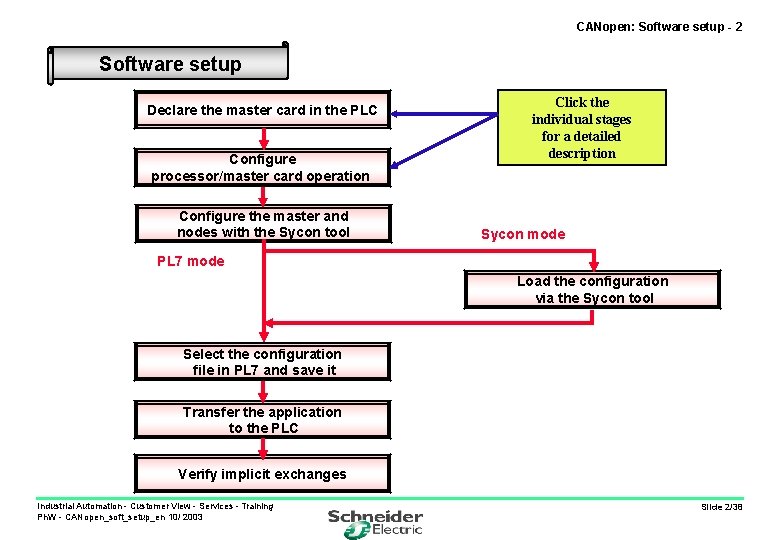
CANopen: Software setup - 2 Software setup Declare the master card in the PLC Configure processor/master card operation Configure the master and nodes with the Sycon tool Click the individual stages for a detailed description Sycon mode PL 7 mode Load the configuration via the Sycon tool Select the configuration file in PL 7 and save it Transfer the application to the PLC Verify implicit exchanges Industrial Automation - Customer View - Services - Training Ph. W - CANopen_soft_setup_en 10/ 2003 Slide 2/38
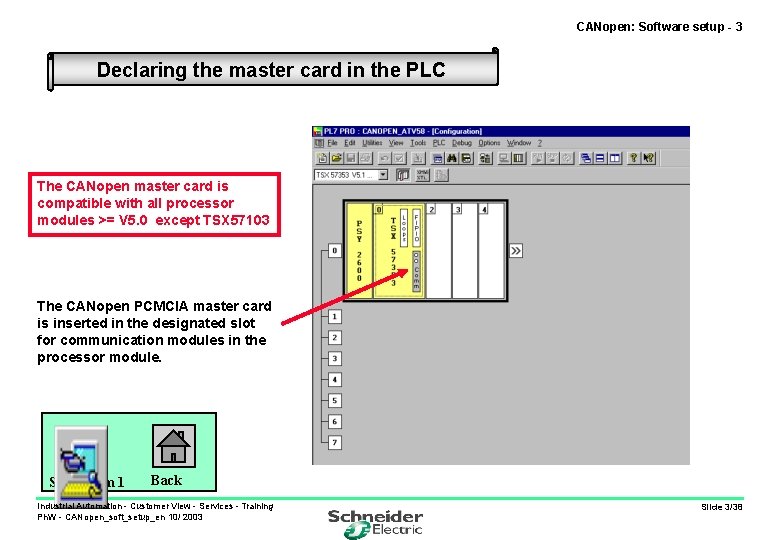
CANopen: Software setup - 3 Declaring the master card in the PLC The CANopen master card is compatible with all processor modules >= V 5. 0 except TSX 57103 The CANopen PCMCIA master card is inserted in the designated slot for communication modules in the processor module. Screencam 1 Back Industrial Automation - Customer View - Services - Training Ph. W - CANopen_soft_setup_en 10/ 2003 Slide 3/38
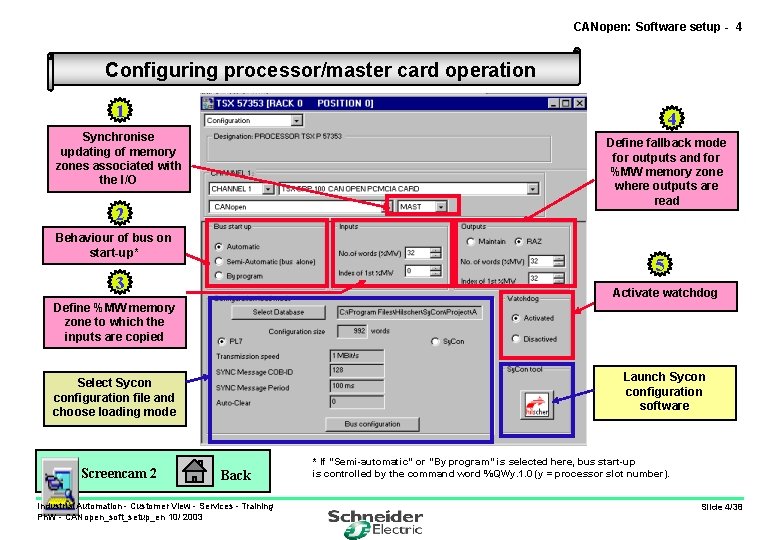
CANopen: Software setup - 4 Configuring processor/master card operation 1 4 Synchronise updating of memory zones associated with the I/O Define fallback mode for outputs and for %MW memory zone where outputs are read 2 Behaviour of bus on start-up* 5 3 Activate watchdog Define %MW memory zone to which the inputs are copied Launch Sycon configuration software Select Sycon configuration file and choose loading mode Screencam 2 Back Industrial Automation - Customer View - Services - Training Ph. W - CANopen_soft_setup_en 10/ 2003 * If “Semi-automatic” or “By program” is selected here, bus start-up is controlled by the command word %QWy. 1. 0 (y = processor slot number). Slide 4/38
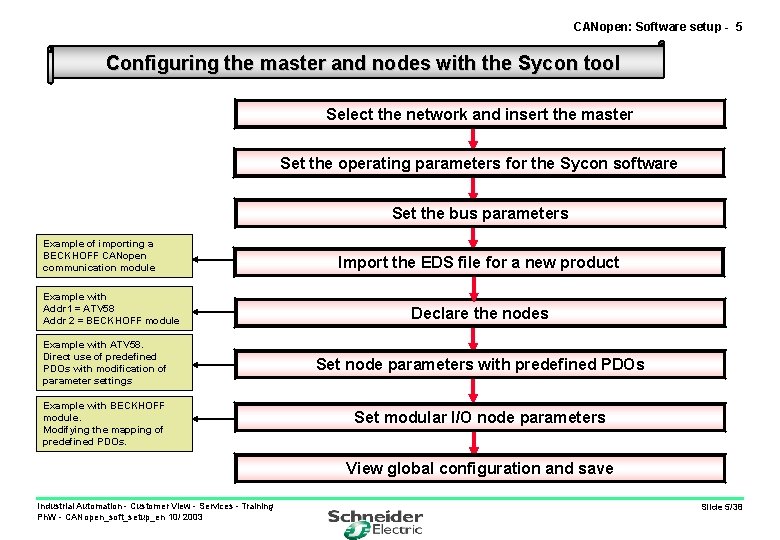
CANopen: Software setup - 5 Configuring the master and nodes with the Sycon tool Select the network and insert the master Set the operating parameters for the Sycon software Set the bus parameters Example of importing a BECKHOFF CANopen communication module Example with Addr 1 = ATV 58 Addr 2 = BECKHOFF module Example with ATV 58. Direct use of predefined PDOs with modification of parameter settings Example with BECKHOFF module. Modifying the mapping of predefined PDOs. Import the EDS file for a new product Declare the nodes Set node parameters with predefined PDOs Set modular I/O node parameters View global configuration and save Industrial Automation - Customer View - Services - Training Ph. W - CANopen_soft_setup_en 10/ 2003 Slide 5/38
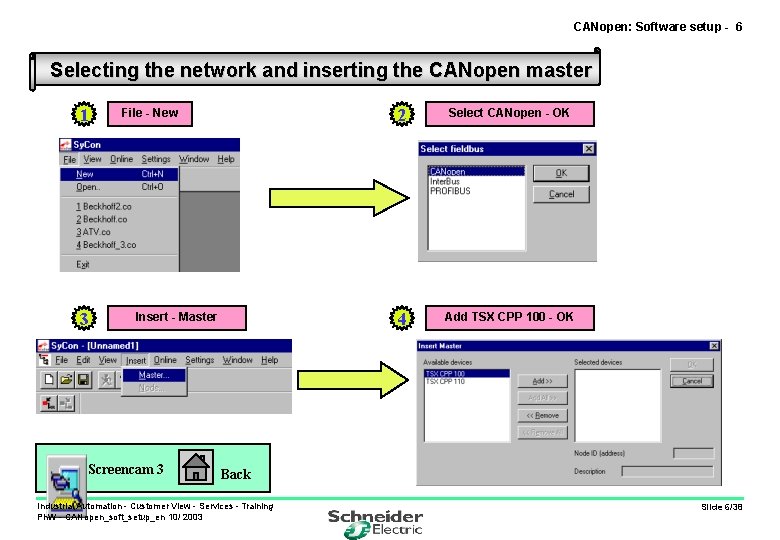
CANopen: Software setup - 6 Selecting the network and inserting the CANopen master 1 3 File - New Insert - Master Screencam 3 2 Select CANopen - OK 4 Add TSX CPP 100 - OK Back Industrial Automation - Customer View - Services - Training Ph. W - CANopen_soft_setup_en 10/ 2003 Slide 6/38
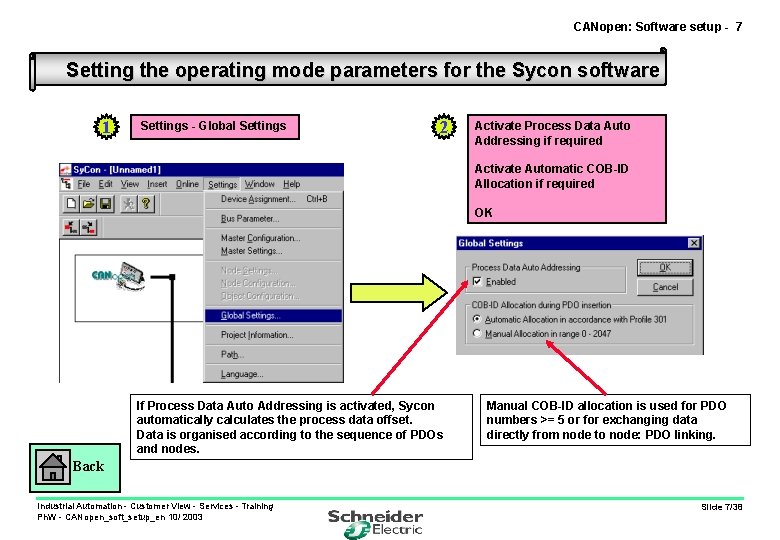
CANopen: Software setup - 7 Setting the operating mode parameters for the Sycon software 1 Settings - Global Settings 2 Activate Process Data Auto Addressing if required Activate Automatic COB-ID Allocation if required OK If Process Data Auto Addressing is activated, Sycon automatically calculates the process data offset. Data is organised according to the sequence of PDOs and nodes. Manual COB-ID allocation is used for PDO numbers >= 5 or for exchanging data directly from node to node: PDO linking. Back Industrial Automation - Customer View - Services - Training Ph. W - CANopen_soft_setup_en 10/ 2003 Slide 7/38
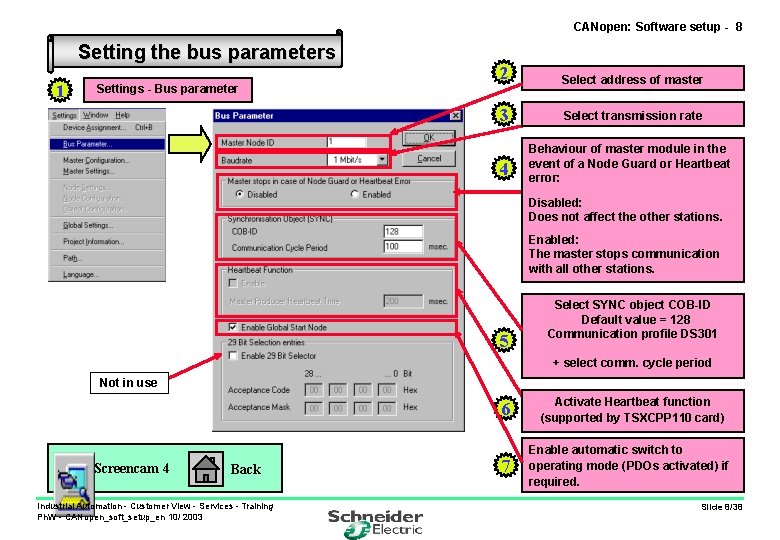
CANopen: Software setup - 8 Setting the bus parameters 1 Settings - Bus parameter 2 Select address of master 3 Select transmission rate 4 Behaviour of master module in the event of a Node Guard or Heartbeat error: Disabled: Does not affect the other stations. Enabled: The master stops communication with all other stations. 5 Select SYNC object COB-ID Default value = 128 Communication profile DS 301 + select comm. cycle period Not in use 6 Screencam 4 Back Industrial Automation - Customer View - Services - Training Ph. W - CANopen_soft_setup_en 10/ 2003 7 Activate Heartbeat function (supported by TSXCPP 110 card) Enable automatic switch to operating mode (PDOs activated) if required. Slide 8/38
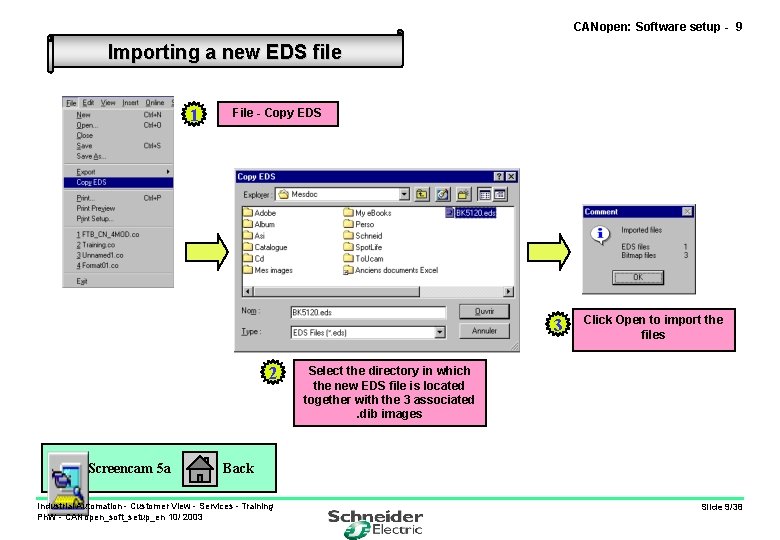
CANopen: Software setup - 9 Importing a new EDS file 1 File - Copy EDS 3 2 Screencam 5 a Click Open to import the files Select the directory in which the new EDS file is located together with the 3 associated. dib images Back Industrial Automation - Customer View - Services - Training Ph. W - CANopen_soft_setup_en 10/ 2003 Slide 9/38
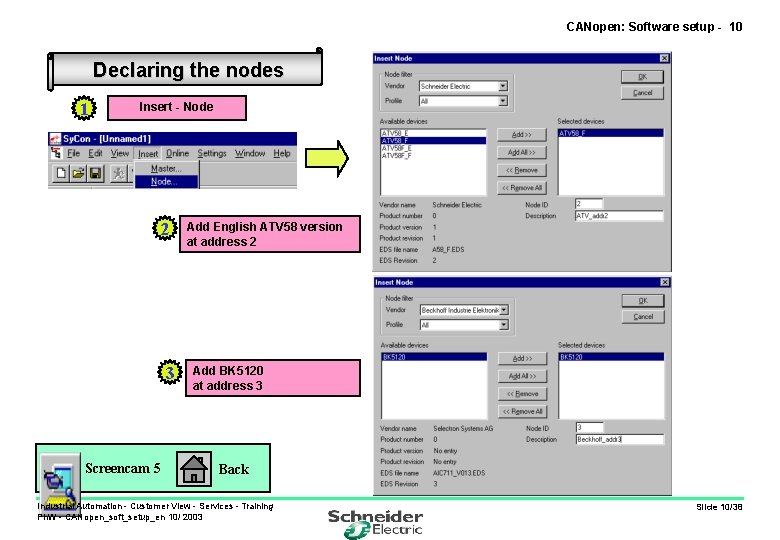
CANopen: Software setup - 10 Declaring the nodes 1 Insert - Node 2 3 Screencam 5 Add English ATV 58 version at address 2 Add BK 5120 at address 3 Back Industrial Automation - Customer View - Services - Training Ph. W - CANopen_soft_setup_en 10/ 2003 Slide 10/38
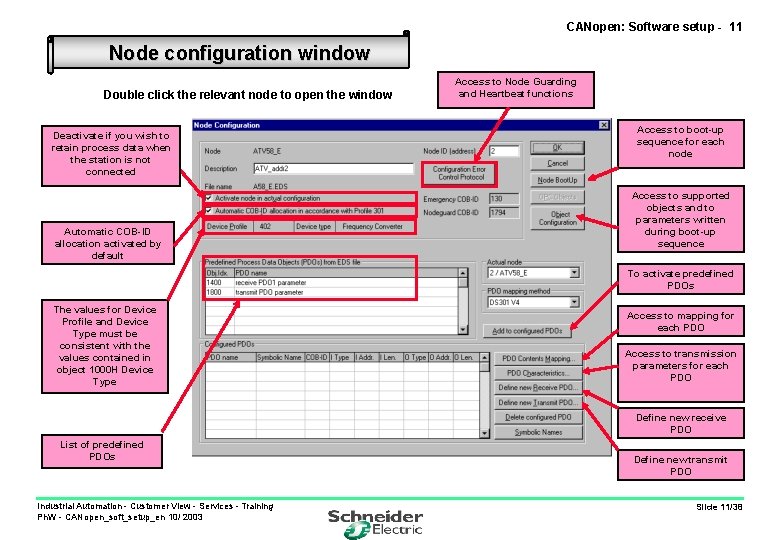
CANopen: Software setup - 11 Node configuration window Double click the relevant node to open the window Deactivate if you wish to retain process data when the station is not connected Automatic COB-ID allocation activated by default Access to Node Guarding and Heartbeat functions Access to boot-up sequence for each node Access to supported objects and to parameters written during boot-up sequence To activate predefined PDOs The values for Device Profile and Device Type must be consistent with the values contained in object 1000 H Device Type Access to mapping for each PDO Access to transmission parameters for each PDO Define new receive PDO List of predefined PDOs Industrial Automation - Customer View - Services - Training Ph. W - CANopen_soft_setup_en 10/ 2003 Define new transmit PDO Slide 11/38
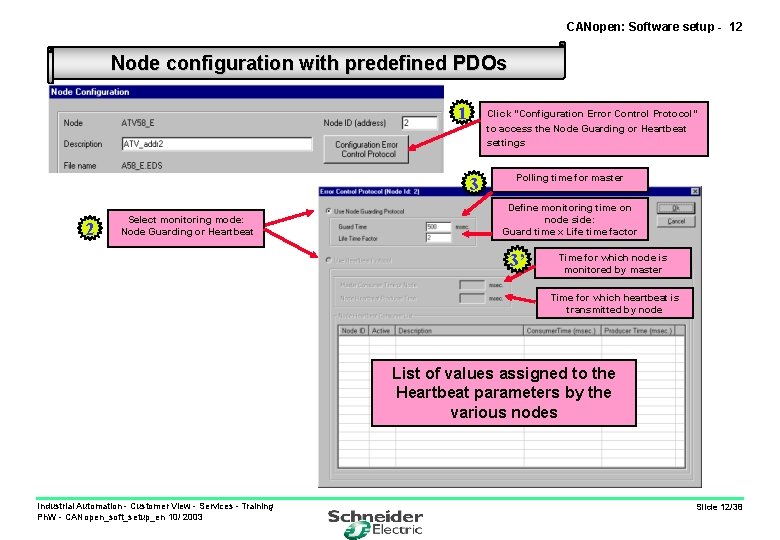
CANopen: Software setup - 12 Node configuration with predefined PDOs 1 Click “Configuration Error Control Protocol” to access the Node Guarding or Heartbeat settings 3 2 Select monitoring mode: Node Guarding or Heartbeat Polling time for master Define monitoring time on node side: Guard time x Life time factor 3’ Time for which node is monitored by master Time for which heartbeat is transmitted by node List of values assigned to the Heartbeat parameters by the various nodes Industrial Automation - Customer View - Services - Training Ph. W - CANopen_soft_setup_en 10/ 2003 Slide 12/38
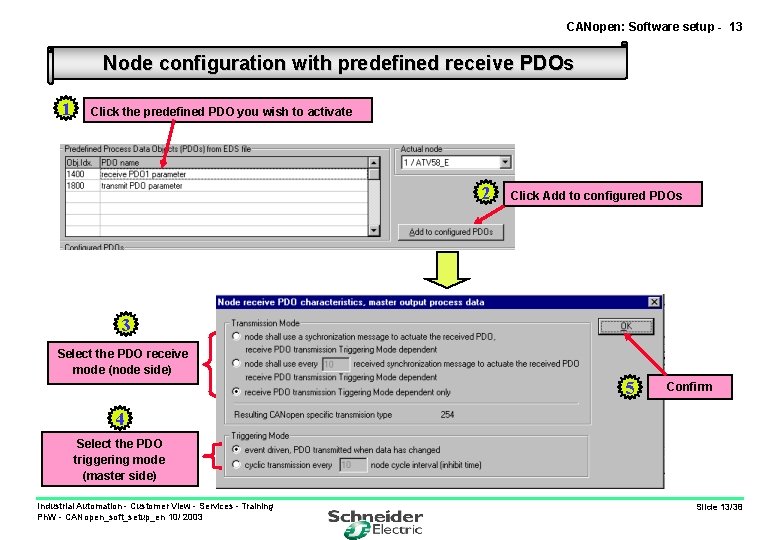
CANopen: Software setup - 13 Node configuration with predefined receive PDOs 1 Click the predefined PDO you wish to activate 2 Click Add to configured PDOs 3 Select the PDO receive mode (node side) 5 Confirm 4 Select the PDO triggering mode (master side) Industrial Automation - Customer View - Services - Training Ph. W - CANopen_soft_setup_en 10/ 2003 3 Slide 13/38
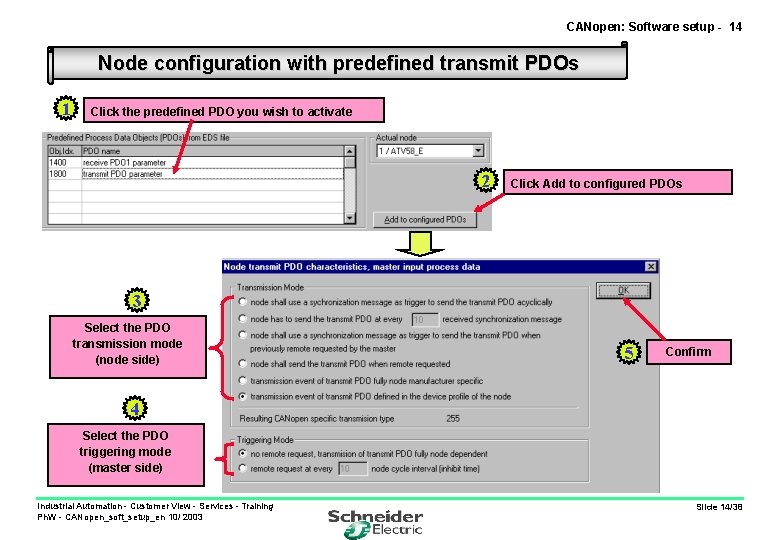
CANopen: Software setup - 14 Node configuration with predefined transmit PDOs 1 Click the predefined PDO you wish to activate 2 Click Add to configured PDOs 3 Select the PDO transmission mode (node side) 5 Confirm 4 Select the PDO triggering mode (master side) Industrial Automation - Customer View - Services - Training Ph. W - CANopen_soft_setup_en 10/ 2003 Slide 14/38
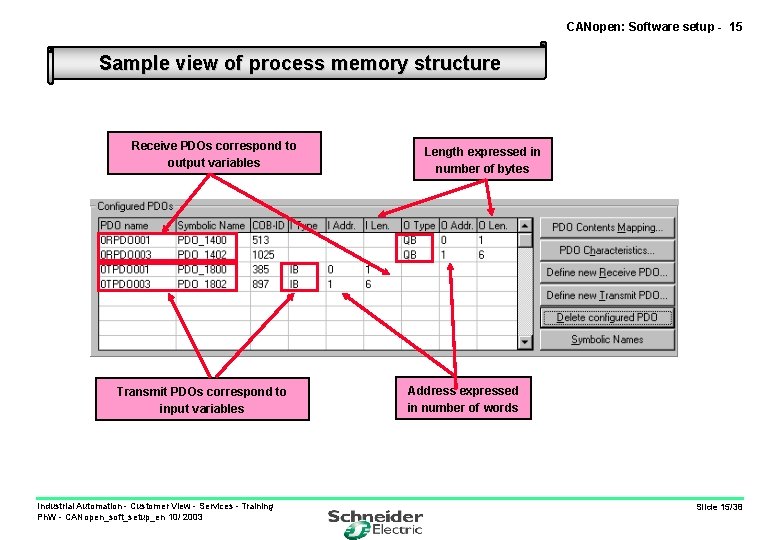
CANopen: Software setup - 15 Sample view of process memory structure Receive PDOs correspond to output variables Transmit PDOs correspond to input variables Industrial Automation - Customer View - Services - Training Ph. W - CANopen_soft_setup_en 10/ 2003 Length expressed in number of bytes Address expressed in number of words Slide 15/38
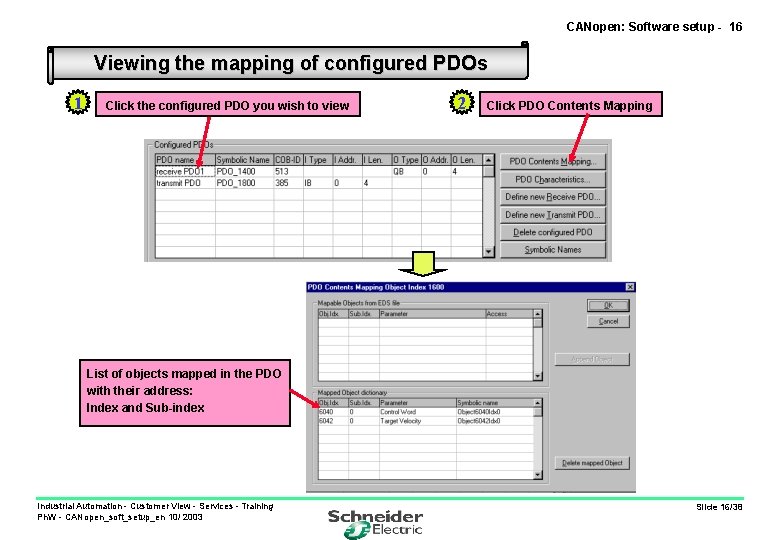
CANopen: Software setup - 16 Viewing the mapping of configured PDOs 1 Click the configured PDO you wish to view 2 Click PDO Contents Mapping List of objects mapped in the PDO with their address: Index and Sub-index Industrial Automation - Customer View - Services - Training Ph. W - CANopen_soft_setup_en 10/ 2003 Slide 16/38
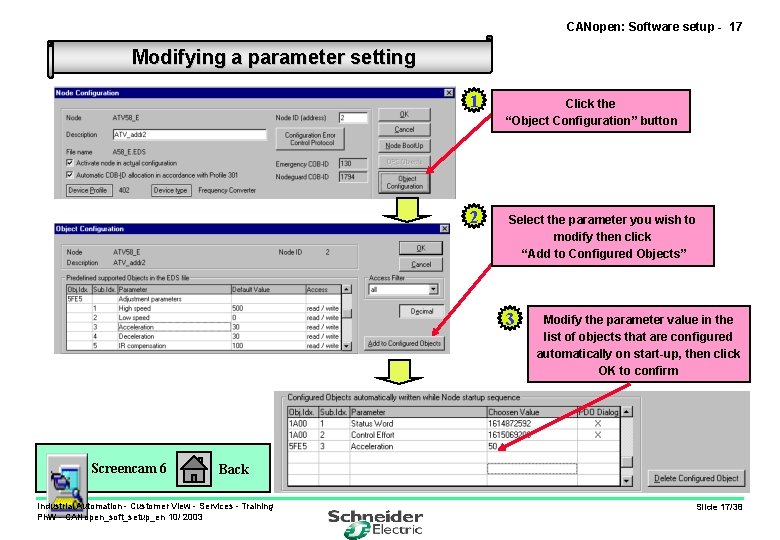
CANopen: Software setup - 17 Modifying a parameter setting 1 2 Click the “Object Configuration” button Select the parameter you wish to modify then click “Add to Configured Objects” 3 Screencam 6 Modify the parameter value in the list of objects that are configured automatically on start-up, then click OK to confirm Back Industrial Automation - Customer View - Services - Training Ph. W - CANopen_soft_setup_en 10/ 2003 Slide 17/38
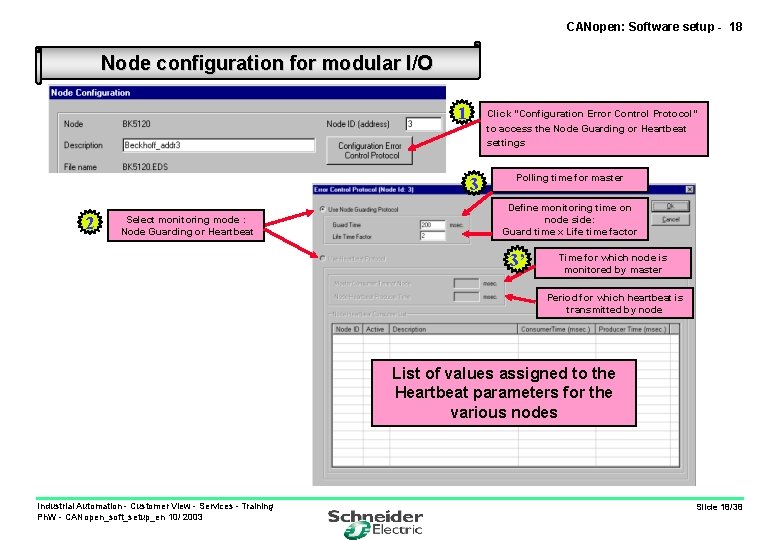
CANopen: Software setup - 18 Node configuration for modular I/O 1 Click “Configuration Error Control Protocol” to access the Node Guarding or Heartbeat settings 3 2 Select monitoring mode : Node Guarding or Heartbeat Polling time for master Define monitoring time on node side: Guard time x Life time factor 3’ Time for which node is monitored by master Period for which heartbeat is transmitted by node List of values assigned to the Heartbeat parameters for the various nodes Industrial Automation - Customer View - Services - Training Ph. W - CANopen_soft_setup_en 10/ 2003 Slide 18/38
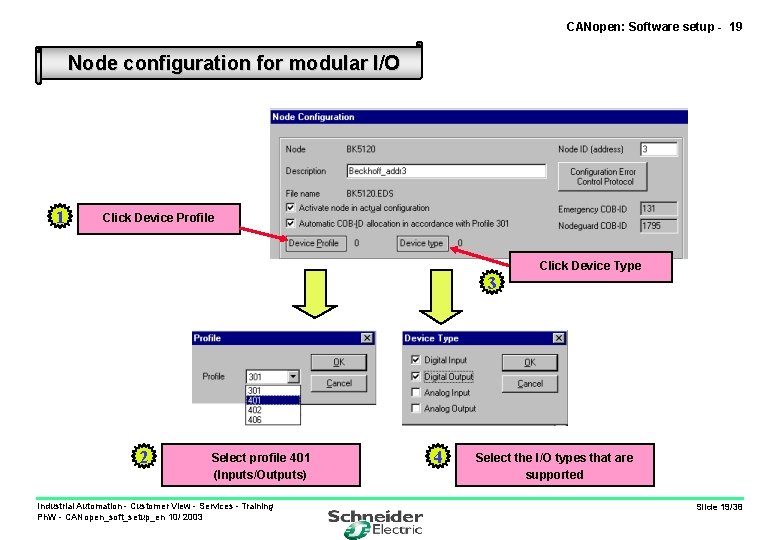
CANopen: Software setup - 19 Node configuration for modular I/O 1 Click Device Profile Click Device Type 3 2 Select profile 401 (Inputs/Outputs) Industrial Automation - Customer View - Services - Training Ph. W - CANopen_soft_setup_en 10/ 2003 4 Select the I/O types that are supported Slide 19/38
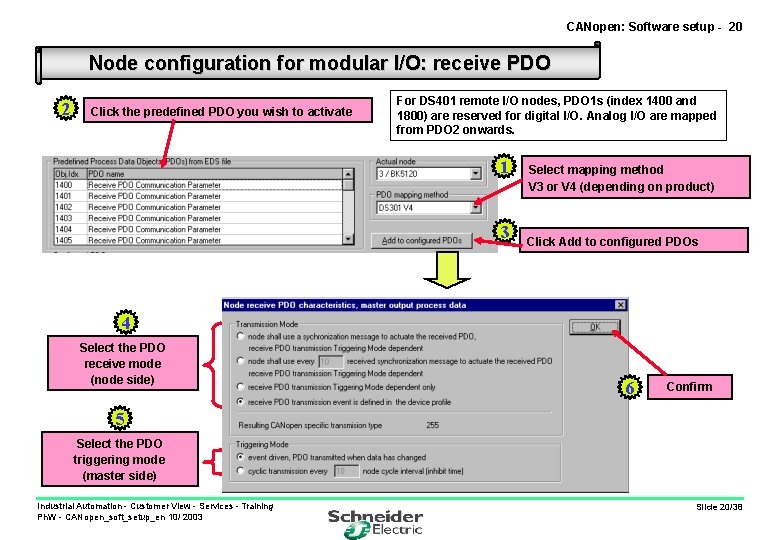
CANopen: Software setup - 20 Node configuration for modular I/O: receive PDO 2 Click the predefined PDO you wish to activate For DS 401 remote I/O nodes, PDO 1 s (index 1400 and 1800) are reserved for digital I/O. Analog I/O are mapped from PDO 2 onwards. 1 3 Select mapping method V 3 or V 4 (depending on product) Click Add to configured PDOs 4 Select the PDO receive mode (node side) 6 Confirm 5 Select the PDO triggering mode (master side) Industrial Automation - Customer View - Services - Training Ph. W - CANopen_soft_setup_en 10/ 2003 Slide 20/38
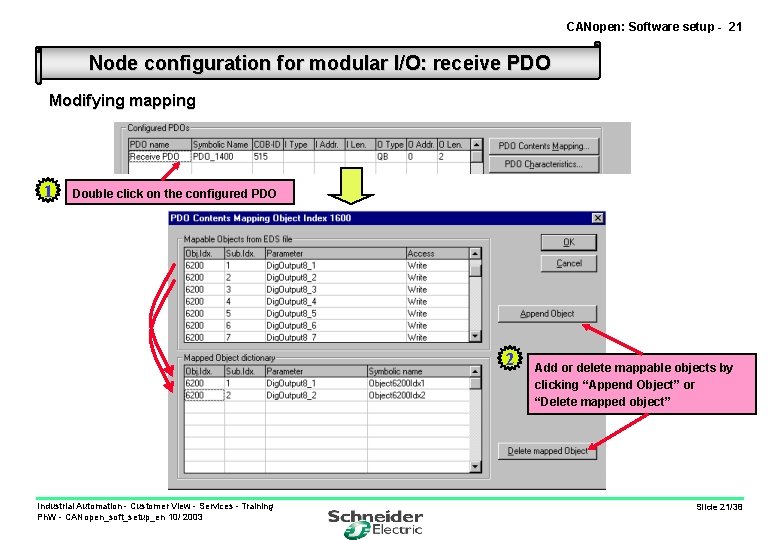
CANopen: Software setup - 21 Node configuration for modular I/O: receive PDO Modifying mapping 1 Double click on the configured PDO 2 Industrial Automation - Customer View - Services - Training Ph. W - CANopen_soft_setup_en 10/ 2003 Add or delete mappable objects by clicking “Append Object” or “Delete mapped object” Slide 21/38
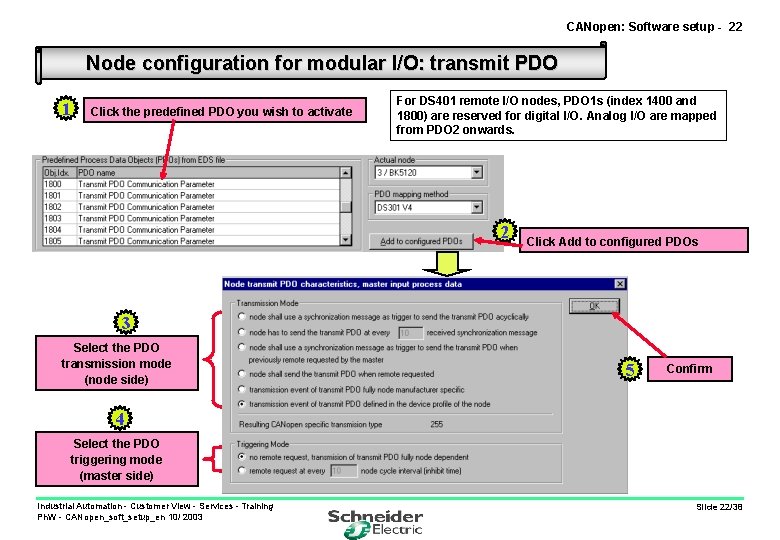
CANopen: Software setup - 22 Node configuration for modular I/O: transmit PDO 1 Click the predefined PDO you wish to activate For DS 401 remote I/O nodes, PDO 1 s (index 1400 and 1800) are reserved for digital I/O. Analog I/O are mapped from PDO 2 onwards. 2 Click Add to configured PDOs 3 Select the PDO transmission mode (node side) 5 Confirm 4 Select the PDO triggering mode (master side) Industrial Automation - Customer View - Services - Training Ph. W - CANopen_soft_setup_en 10/ 2003 Slide 22/38
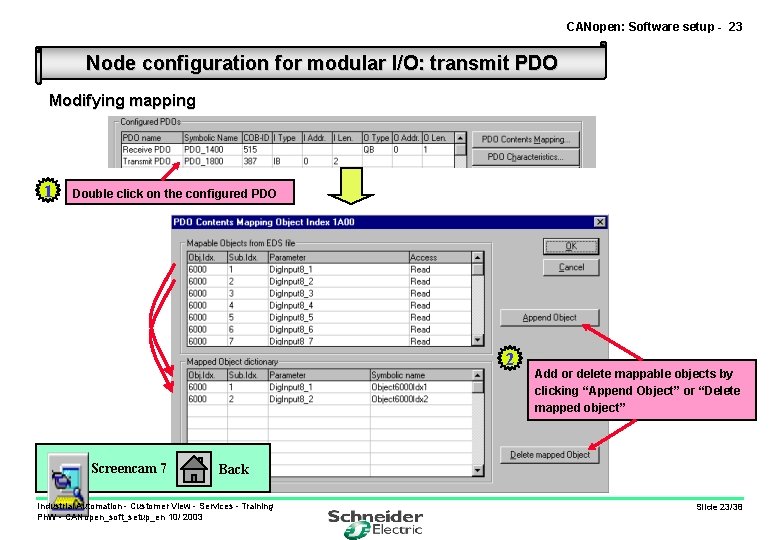
CANopen: Software setup - 23 Node configuration for modular I/O: transmit PDO Modifying mapping 1 Double click on the configured PDO 2 Screencam 7 Add or delete mappable objects by clicking “Append Object” or “Delete mapped object” Back Industrial Automation - Customer View - Services - Training Ph. W - CANopen_soft_setup_en 10/ 2003 Slide 23/38
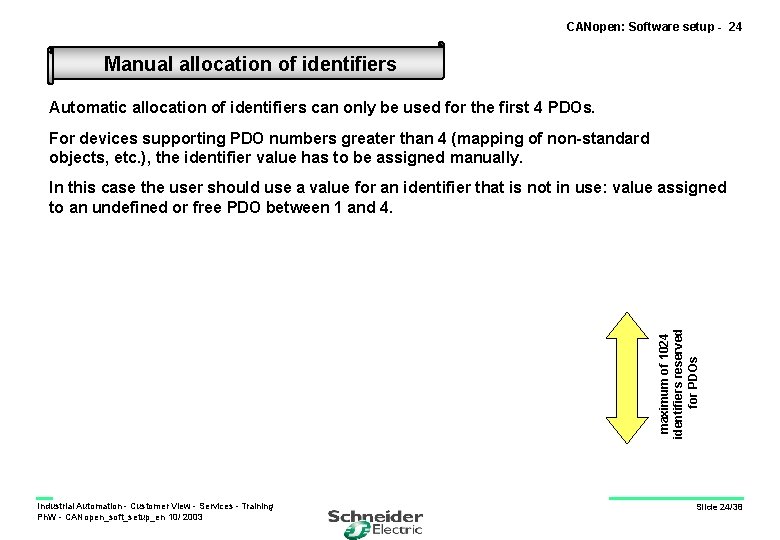
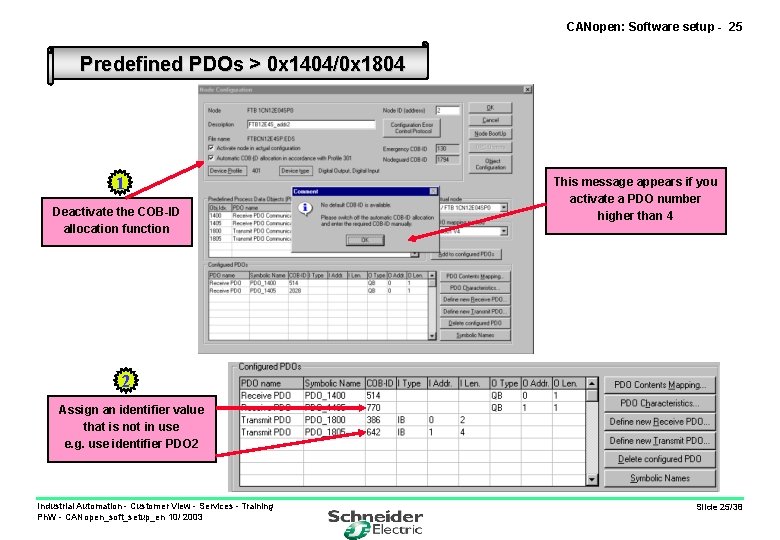
CANopen: Software setup - 24 Manual allocation of identifiers Automatic allocation of identifiers can only be used for the first 4 PDOs. For devices supporting PDO numbers greater than 4 (mapping of non-standard objects, etc. ), the identifier value has to be assigned manually. maximum of 1024 identifiers reserved for PDOs In this case the user should use a value for an identifier that is not in use: value assigned to an undefined or free PDO between 1 and 4. Industrial Automation - Customer View - Services - Training Ph. W - CANopen_soft_setup_en 10/ 2003 Slide 24/38
CANopen: Software setup - 25 Predefined PDOs > 0 x 1404/0 x 1804 1 Deactivate the COB-ID allocation function This message appears if you activate a PDO number higher than 4 2 Assign an identifier value that is not in use e. g. use identifier PDO 2 Industrial Automation - Customer View - Services - Training Ph. W - CANopen_soft_setup_en 10/ 2003 Slide 25/38
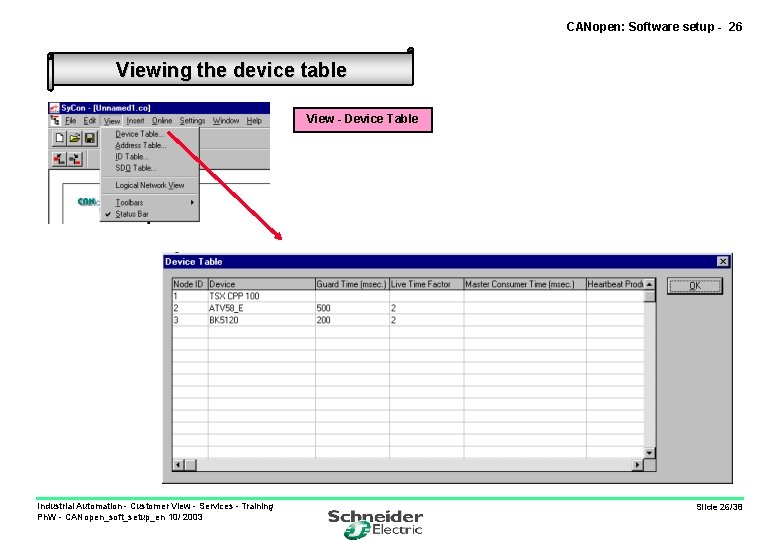
CANopen: Software setup - 26 Viewing the device table View - Device Table Industrial Automation - Customer View - Services - Training Ph. W - CANopen_soft_setup_en 10/ 2003 Slide 26/38
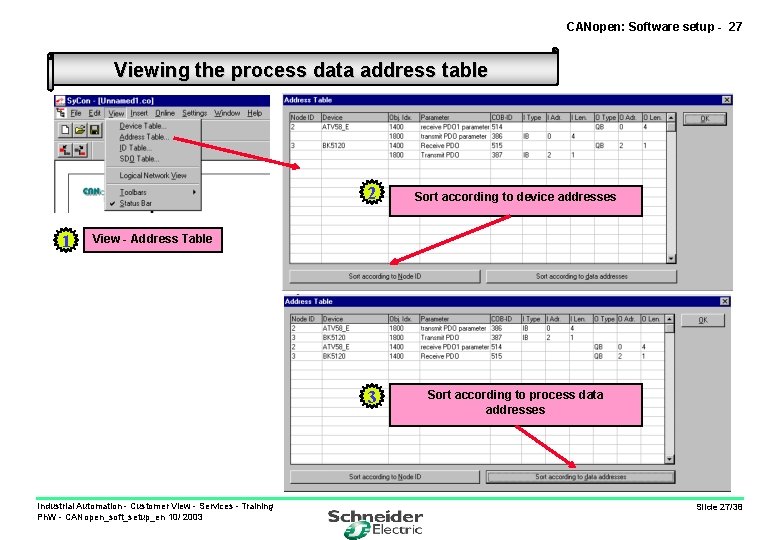
CANopen: Software setup - 27 Viewing the process data address table 1 2 Sort according to device addresses 3 Sort according to process data addresses View - Address Table Industrial Automation - Customer View - Services - Training Ph. W - CANopen_soft_setup_en 10/ 2003 Slide 27/38
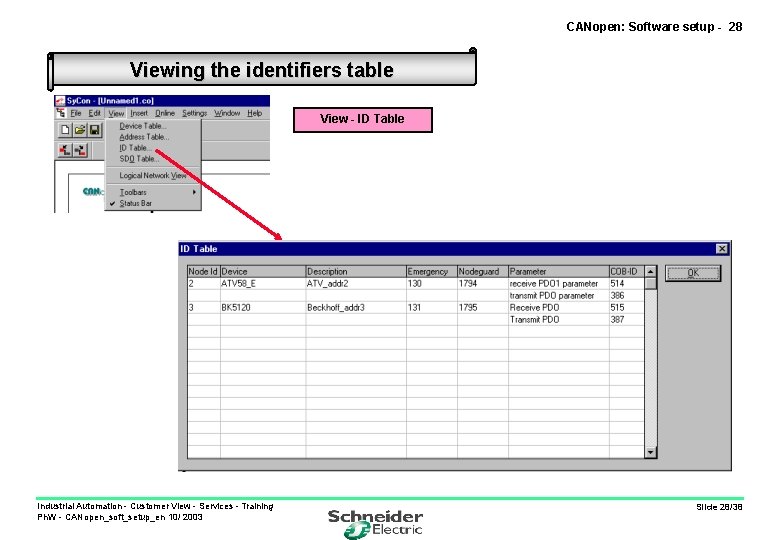
CANopen: Software setup - 28 Viewing the identifiers table View - ID Table Industrial Automation - Customer View - Services - Training Ph. W - CANopen_soft_setup_en 10/ 2003 Slide 28/38
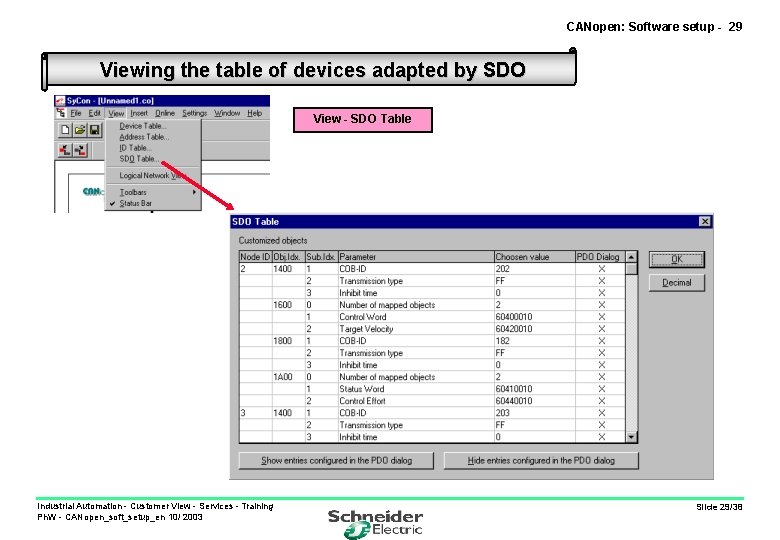
CANopen: Software setup - 29 Viewing the table of devices adapted by SDO View - SDO Table Industrial Automation - Customer View - Services - Training Ph. W - CANopen_soft_setup_en 10/ 2003 Slide 29/38
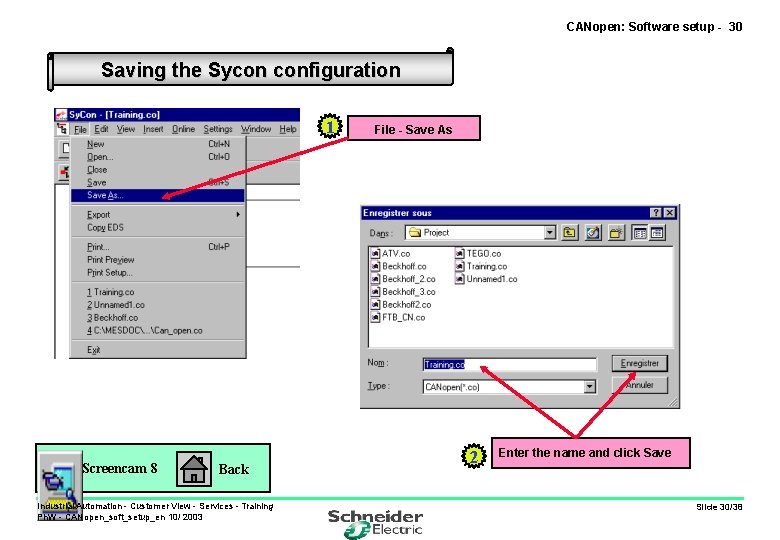
CANopen: Software setup - 30 Saving the Sycon configuration 1 Screencam 8 Back Industrial Automation - Customer View - Services - Training Ph. W - CANopen_soft_setup_en 10/ 2003 File - Save As 2 Enter the name and click Save Slide 30/38
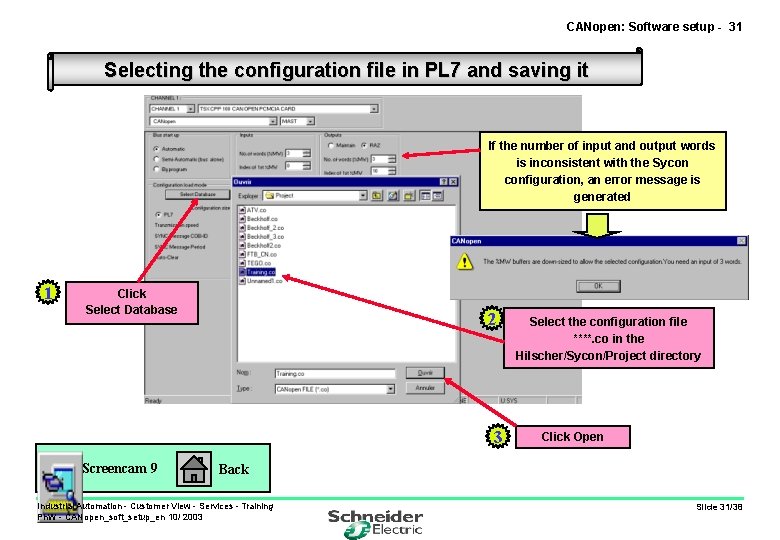
CANopen: Software setup - 31 Selecting the configuration file in PL 7 and saving it If the number of input and output words is inconsistent with the Sycon configuration, an error message is generated 1 Click Select Database 2 3 Screencam 9 Select the configuration file ****. co in the Hilscher/Sycon/Project directory Click Open Back Industrial Automation - Customer View - Services - Training Ph. W - CANopen_soft_setup_en 10/ 2003 Slide 31/38
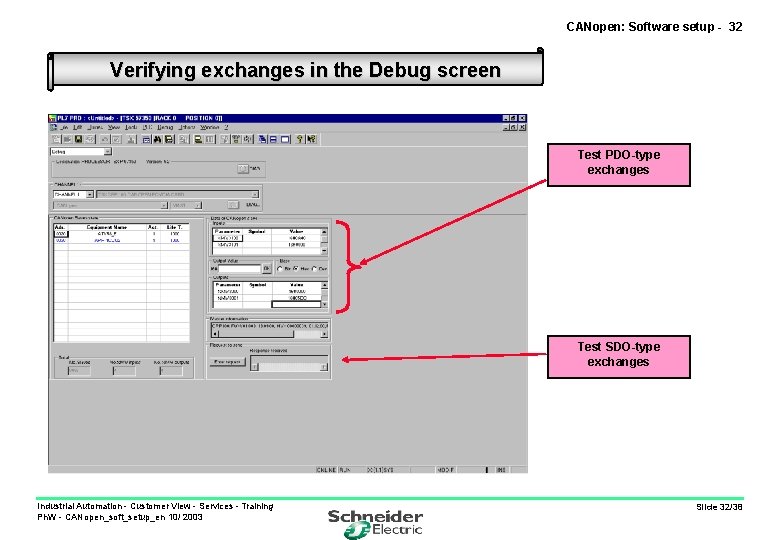
CANopen: Software setup - 32 Verifying exchanges in the Debug screen Test PDO-type exchanges Test SDO-type exchanges Industrial Automation - Customer View - Services - Training Ph. W - CANopen_soft_setup_en 10/ 2003 Slide 32/38
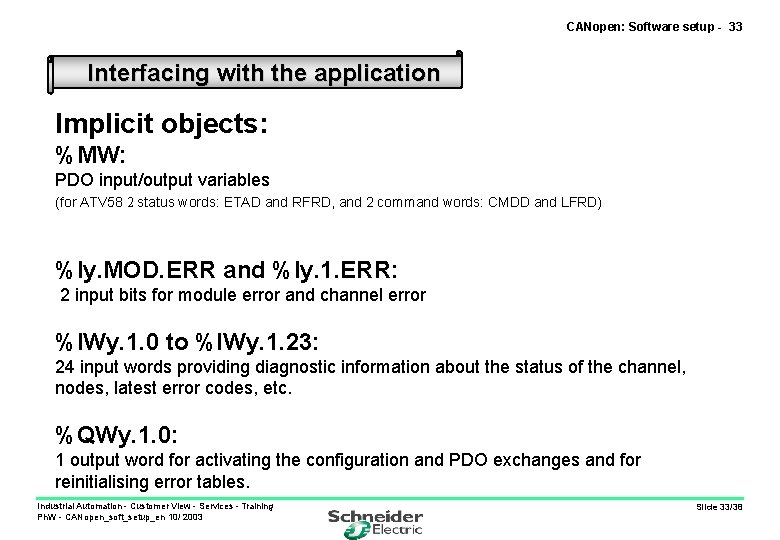
CANopen: Software setup - 33 Interfacing with the application Implicit objects: %MW: PDO input/output variables (for ATV 58 2 status words: ETAD and RFRD, and 2 command words: CMDD and LFRD) %Iy. MOD. ERR and %Iy. 1. ERR: 2 input bits for module error and channel error %IWy. 1. 0 to %IWy. 1. 23: 24 input words providing diagnostic information about the status of the channel, nodes, latest error codes, etc. %QWy. 1. 0: 1 output word for activating the configuration and PDO exchanges and for reinitialising error tables. Industrial Automation - Customer View - Services - Training Ph. W - CANopen_soft_setup_en 10/ 2003 Slide 33/38
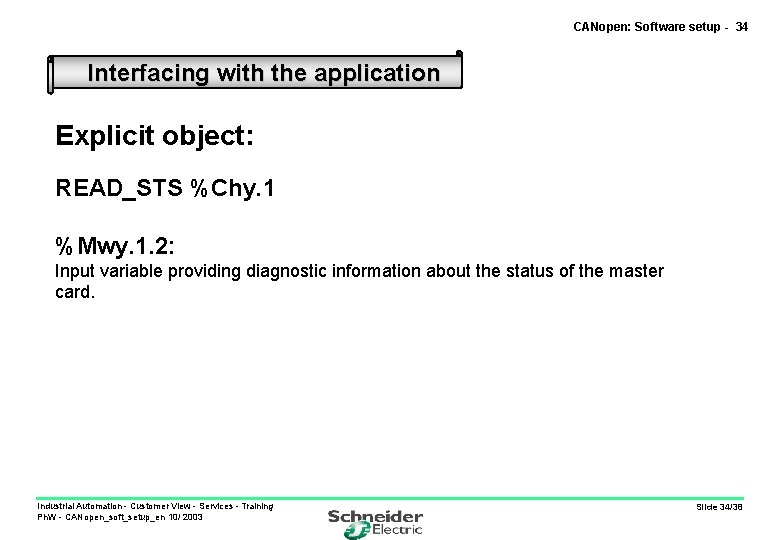
CANopen: Software setup - 34 Interfacing with the application Explicit object: READ_STS %Chy. 1 %Mwy. 1. 2: Input variable providing diagnostic information about the status of the master card. Industrial Automation - Customer View - Services - Training Ph. W - CANopen_soft_setup_en 10/ 2003 Slide 34/38
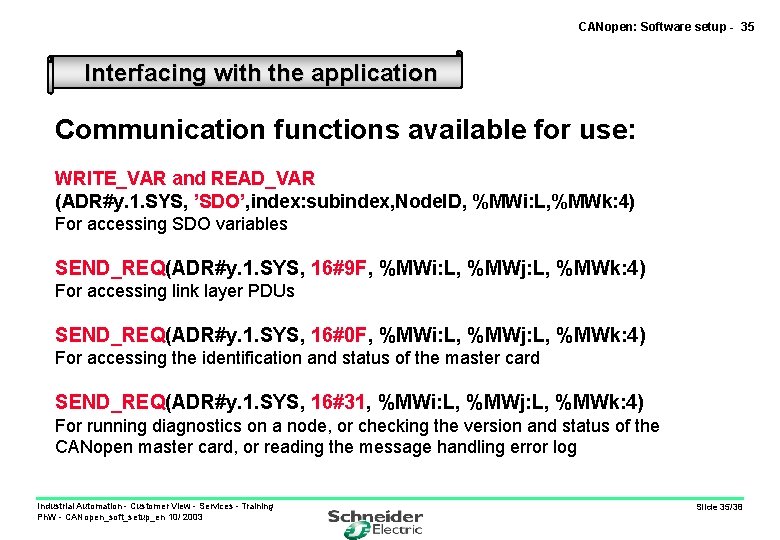
CANopen: Software setup - 35 Interfacing with the application Communication functions available for use: WRITE_VAR and READ_VAR (ADR#y. 1. SYS, ’SDO’, index: subindex, Node. ID, %MWi: L, %MWk: 4) For accessing SDO variables SEND_REQ(ADR#y. 1. SYS, 16#9 F, %MWi: L, %MWj: L, %MWk: 4) For accessing link layer PDUs SEND_REQ(ADR#y. 1. SYS, 16#0 F, %MWi: L, %MWj: L, %MWk: 4) For accessing the identification and status of the master card SEND_REQ(ADR#y. 1. SYS, 16#31, %MWi: L, %MWj: L, %MWk: 4) For running diagnostics on a node, or checking the version and status of the CANopen master card, or reading the message handling error log Industrial Automation - Customer View - Services - Training Ph. W - CANopen_soft_setup_en 10/ 2003 Slide 35/38
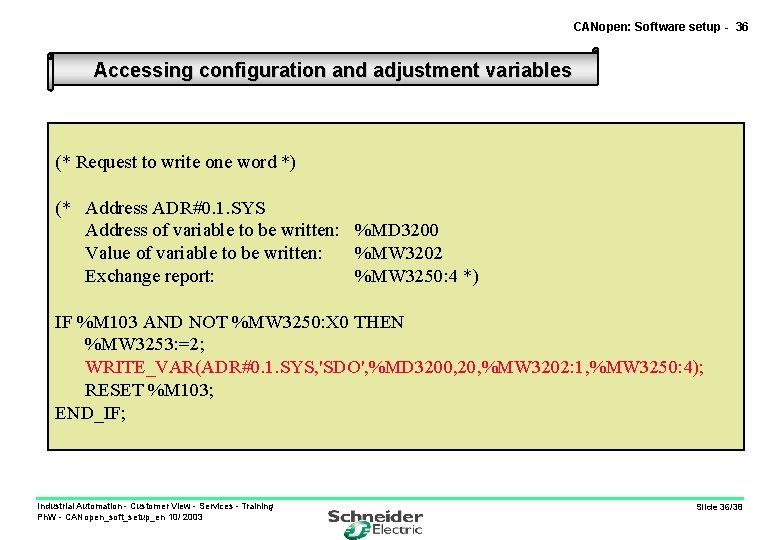
CANopen: Software setup - 36 Accessing configuration and adjustment variables (* Request to write one word *) (* Address ADR#0. 1. SYS Address of variable to be written: %MD 3200 Value of variable to be written: %MW 3202 Exchange report: %MW 3250: 4 *) IF %M 103 AND NOT %MW 3250: X 0 THEN %MW 3253: =2; WRITE_VAR(ADR#0. 1. SYS, 'SDO', %MD 3200, 20, %MW 3202: 1, %MW 3250: 4); RESET %M 103; END_IF; Industrial Automation - Customer View - Services - Training Ph. W - CANopen_soft_setup_en 10/ 2003 Slide 36/38
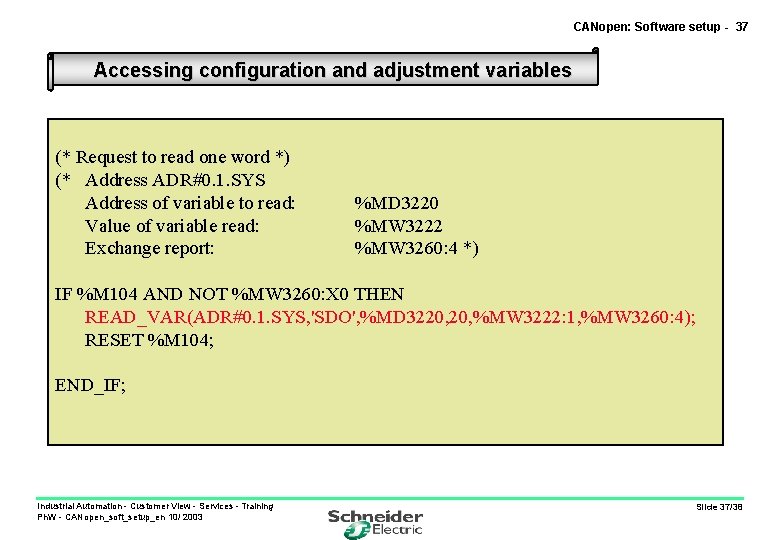
CANopen: Software setup - 37 Accessing configuration and adjustment variables (* Request to read one word *) (* Address ADR#0. 1. SYS Address of variable to read: Value of variable read: Exchange report: %MD 3220 %MW 3222 %MW 3260: 4 *) IF %M 104 AND NOT %MW 3260: X 0 THEN READ_VAR(ADR#0. 1. SYS, 'SDO', %MD 3220, %MW 3222: 1, %MW 3260: 4); RESET %M 104; END_IF; Industrial Automation - Customer View - Services - Training Ph. W - CANopen_soft_setup_en 10/ 2003 Slide 37/38
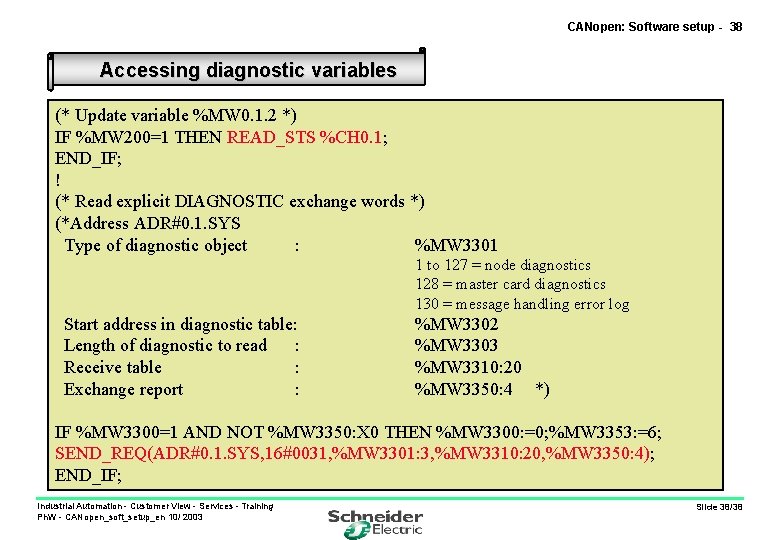
CANopen: Software setup - 38 Accessing diagnostic variables (* Update variable %MW 0. 1. 2 *) IF %MW 200=1 THEN READ_STS %CH 0. 1; END_IF; ! (* Read explicit DIAGNOSTIC exchange words *) (*Address ADR#0. 1. SYS Type of diagnostic object : %MW 3301 1 to 127 = node diagnostics 128 = master card diagnostics 130 = message handling error log Start address in diagnostic table: Length of diagnostic to read : Receive table : Exchange report : %MW 3302 %MW 3303 %MW 3310: 20 %MW 3350: 4 *) IF %MW 3300=1 AND NOT %MW 3350: X 0 THEN %MW 3300: =0; %MW 3353: =6; SEND_REQ(ADR#0. 1. SYS, 16#0031, %MW 3301: 3, %MW 3310: 20, %MW 3350: 4); END_IF; Industrial Automation - Customer View - Services - Training Ph. W - CANopen_soft_setup_en 10/ 2003 Slide 38/38