
Camtral Crib sheets Logging on and checking your
Camtral Crib sheets Logging on and checking your profile University Biomedical Services
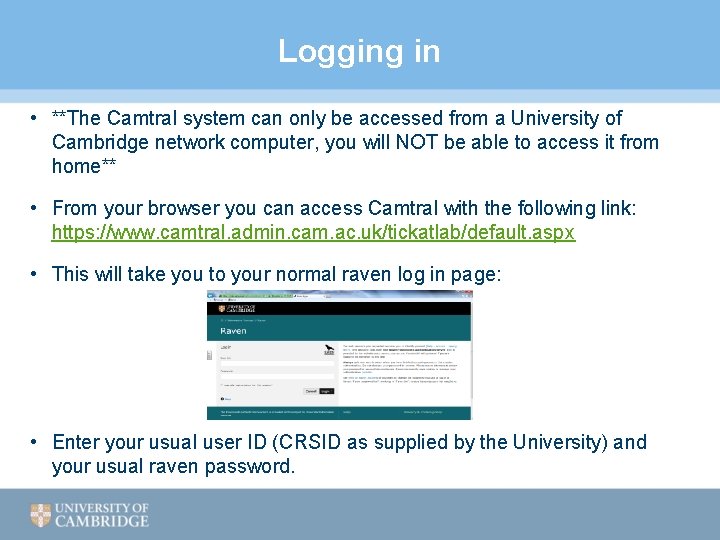
Logging in • **The Camtral system can only be accessed from a University of Cambridge network computer, you will NOT be able to access it from home** • From your browser you can access Camtral with the following link: https: //www. camtral. admin. cam. ac. uk/tickatlab/default. aspx • This will take you to your normal raven log in page: • Enter your usual user ID (CRSID as supplied by the University) and your usual raven password.
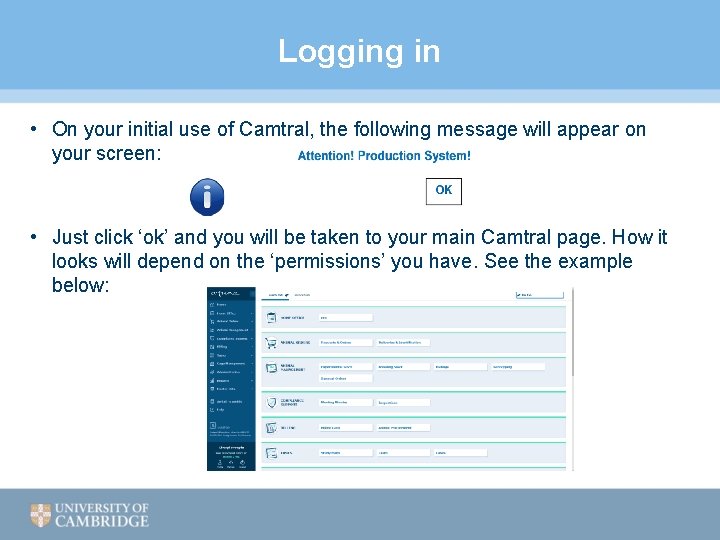
Logging in • On your initial use of Camtral, the following message will appear on your screen: • Just click ‘ok’ and you will be taken to your main Camtral page. How it looks will depend on the ‘permissions’ you have. See the example below:
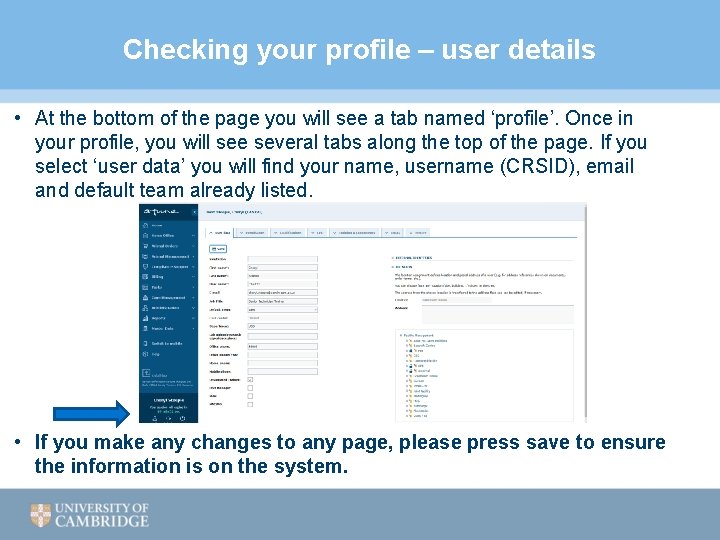
Checking your profile – user details • At the bottom of the page you will see a tab named ‘profile’. Once in your profile, you will see several tabs along the top of the page. If you select ‘user data’ you will find your name, username (CRSID), email and default team already listed. • If you make any changes to any page, please press save to ensure the information is on the system.
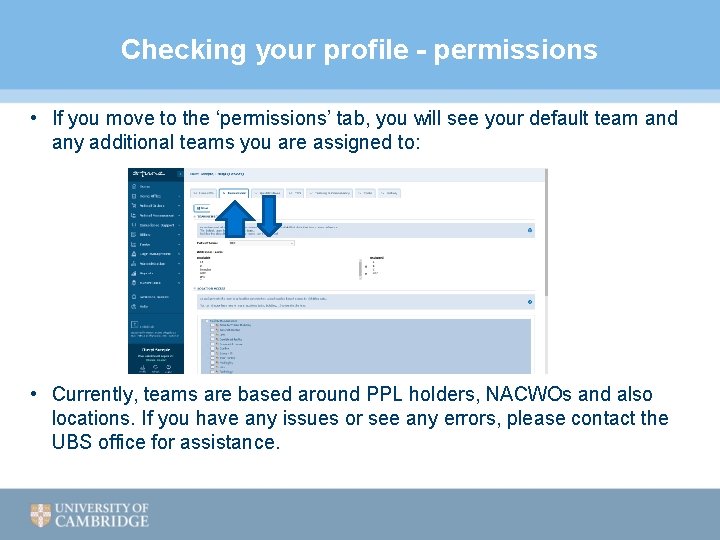
Checking your profile - permissions • If you move to the ‘permissions’ tab, you will see your default team and any additional teams you are assigned to: • Currently, teams are based around PPL holders, NACWOs and also locations. If you have any issues or see any errors, please contact the UBS office for assistance.
Checking your profile - permissions • Personal Licence holders will have access to their own records only • Project Licence holders will have access to their own training record, & the training records of the Personal Licence holders in their team. Project Licence holders cannot alter training records (except their own). • Deputy Directors & NACWOs will have unlimited access to data at their assigned locations (facilities). Deputy Directors will be assigned multiple locations. • Animal technicians and non-licenced individuals will be able to access their own training record only • Individuals who are trainers or assessors will be able to access their own records, as well as the records of anyone they train regularly
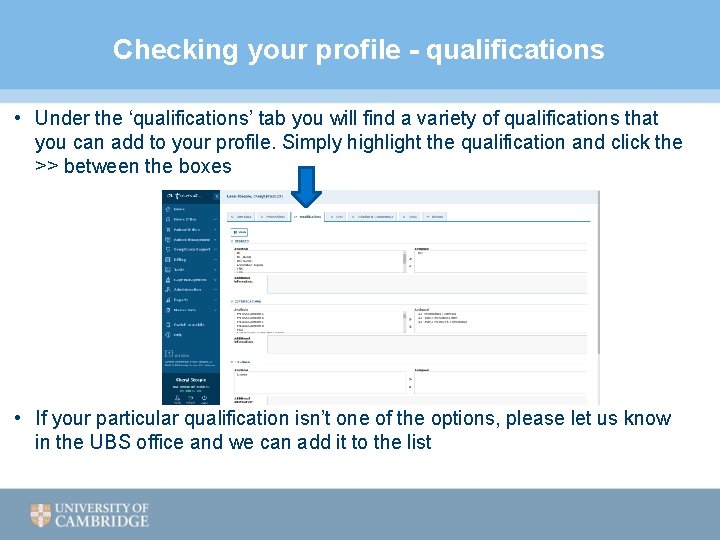
Checking your profile - qualifications • Under the ‘qualifications’ tab you will find a variety of qualifications that you can add to your profile. Simply highlight the qualification and click the >> between the boxes • If your particular qualification isn’t one of the options, please let us know in the UBS office and we can add it to the list
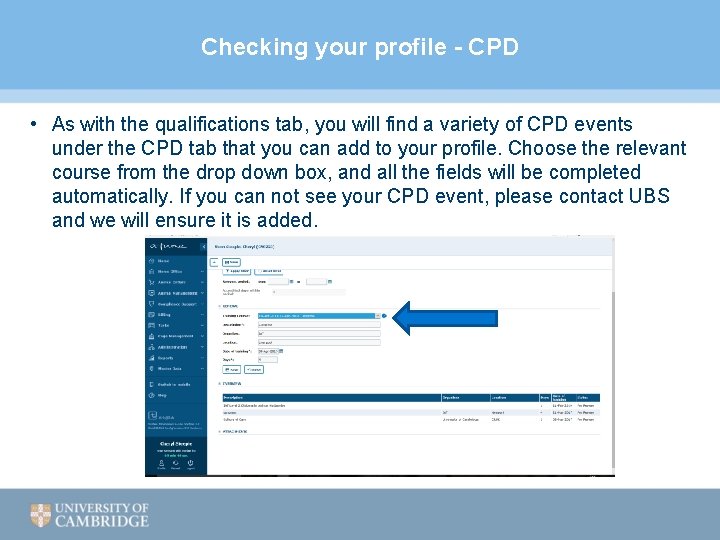
Checking your profile - CPD • As with the qualifications tab, you will find a variety of CPD events under the CPD tab that you can add to your profile. Choose the relevant course from the drop down box, and all the fields will be completed automatically. If you can not see your CPD event, please contact UBS and we will ensure it is added.
Checking your profile – other tabs • There are of course 3 other tabs in your profile: • Training and Competency • Populating this is covered in the Camtral Crib Sheet – Adding competencies • Tasks • This tab can be ignored as it is not currently being used at the University for anything • History • Logs every entry on Camtral on your profile. This is where you will be able to add your completed DOPS forms as evidence of competency. • How to add attachments is covered in the relevant Crib Sheet
Contacts • If you have any problems with Camtral, please contact the Training Centre: ubstraining@admin. cam. ac. uk
- Slides: 10