
Camtasia Screen Capture Software Version 7 Dominic Bygate
Camtasia Screen Capture Software Version 7 Dominic Bygate D. Bygate@herts. ac. uk Ashlesha Shukla a. shukla 4@herts. ac. uk
Aims of Workshop • Get a sense of what Camtasia can do • Consider the pedagogical perspective • Use Camtasia for simple video production • Think about how you might use it in your teaching
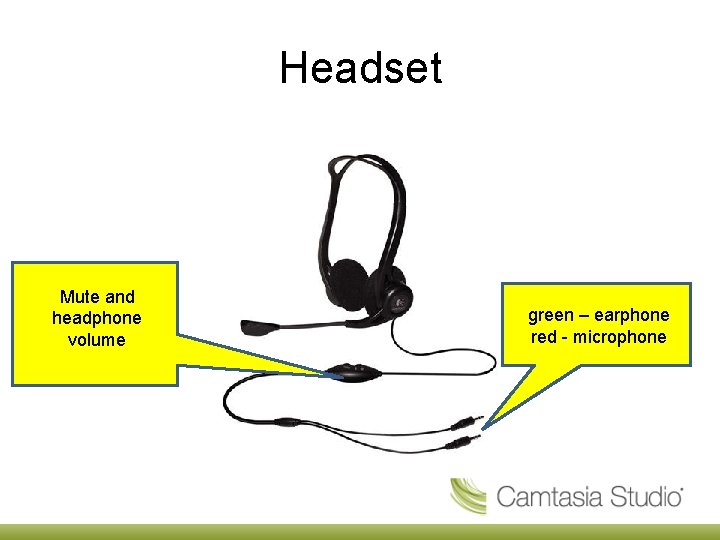
Headset Mute and headphone volume green – earphone red - microphone
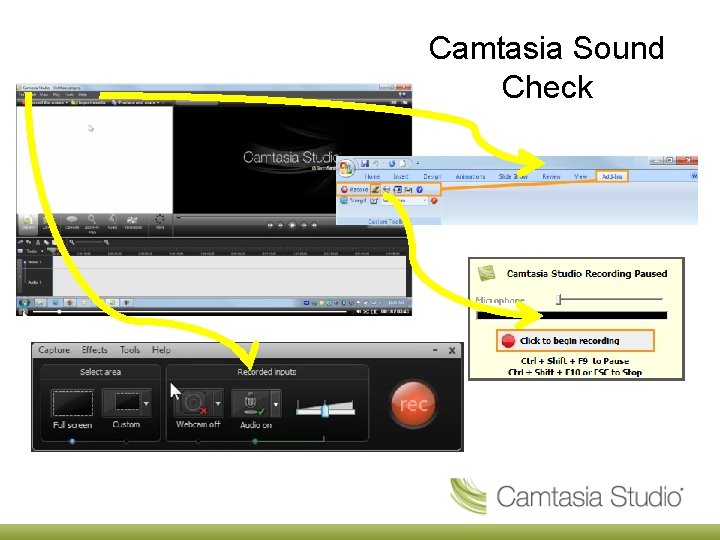
Camtasia Sound Check
Camtasia • What can it do? – Narrated Screen Capture – Narrated Power. Point • What can I use it for? – Demonstration – Tutorial video – Lecture
Camtasia Examples Callouts in Power. Point http: //tinyurl. com/63 brm 9 x Simple Screen capture http: //tinyurl. com/3 zfqbf 6
Help Available From: • LTI Knowledge Exchange – Camtasia resources • LTI Knowledge Exchange – short video tutorials • Techsmith have a large bank of video tutorials • Camtasia Studio Documentation • How to create a Camtasia video to put on Study. Net • How to upload your Camtasia video to the Video Portal:
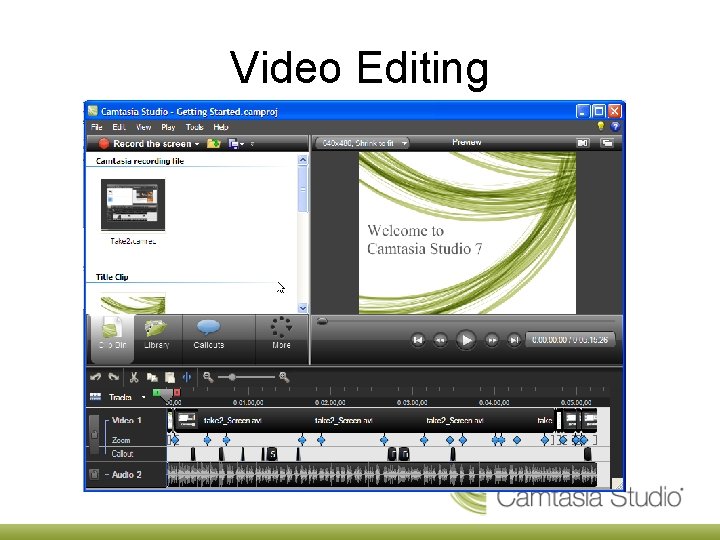
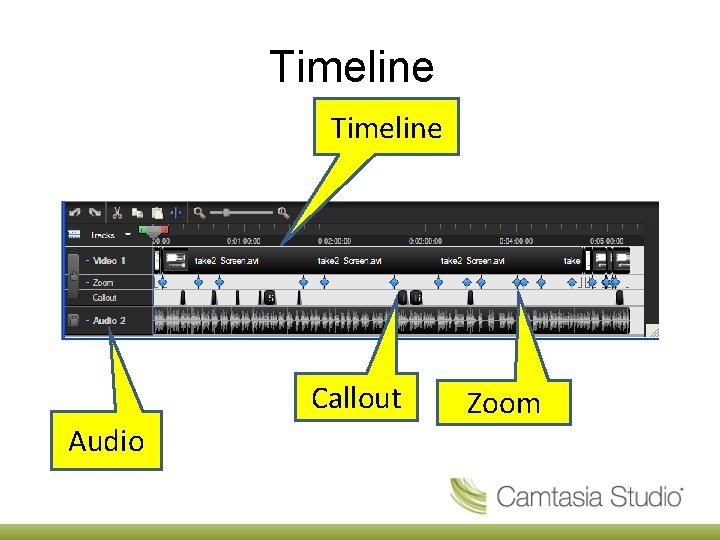
Four Stages of Camtasia Production 1. Record 2. Edit 3. Produce choose format eg MP 4, real Player etc 4. Make available online Study. Net, Video Server, Internet What about the pedagogy!
What about the pedagogy? • Probably not a good idea to migrate current practice to an online version • Think about : – how do you want students to engage with the material – How will active learning take place – What formative assessment is pertinent here – How long can students concentrate on a … zzzzzz
Video Editing
Timeline Callout Audio Zoom
Callouts
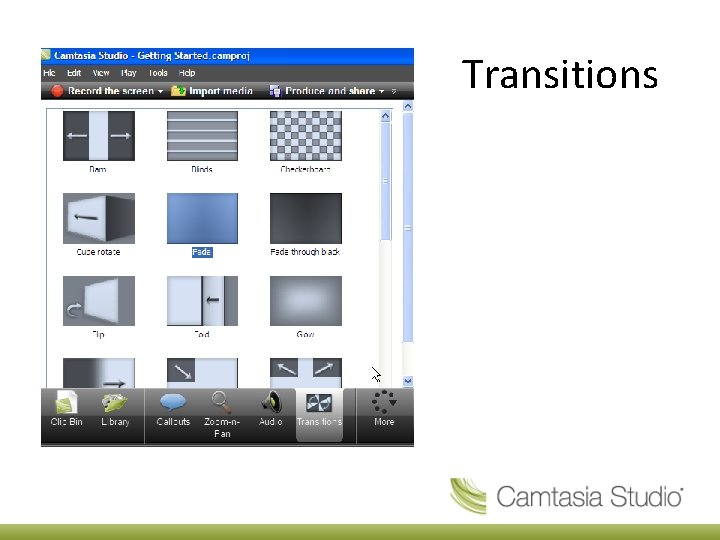
Transitions
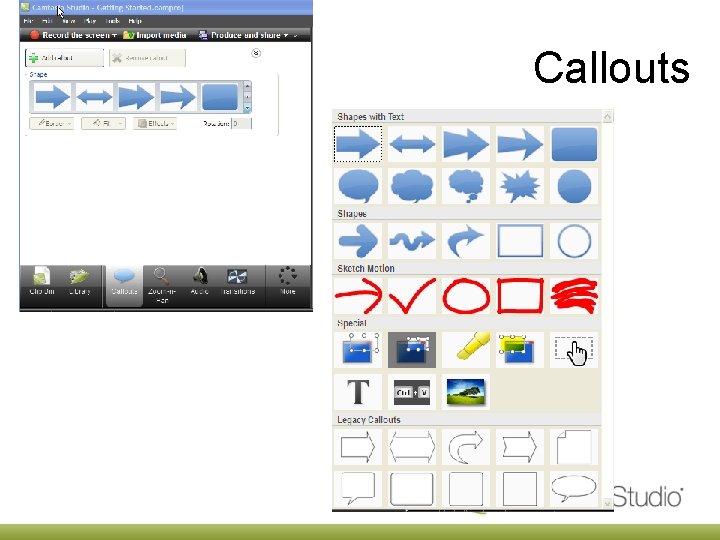
Workshop tasks • Produce a narrated screen capture video to show to use a resource for example; – Use voyager search a journal database – Demonstrate how to add column of numbers in Microsoft Excel • Produce a narrated Power. Point presentation – Add callouts and zooming • Edit your videos
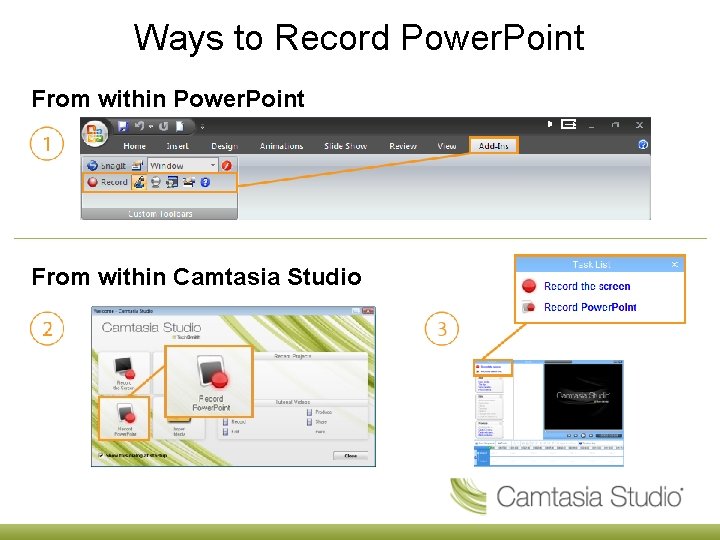
Ways to Record Power. Point From within Camtasia Studio
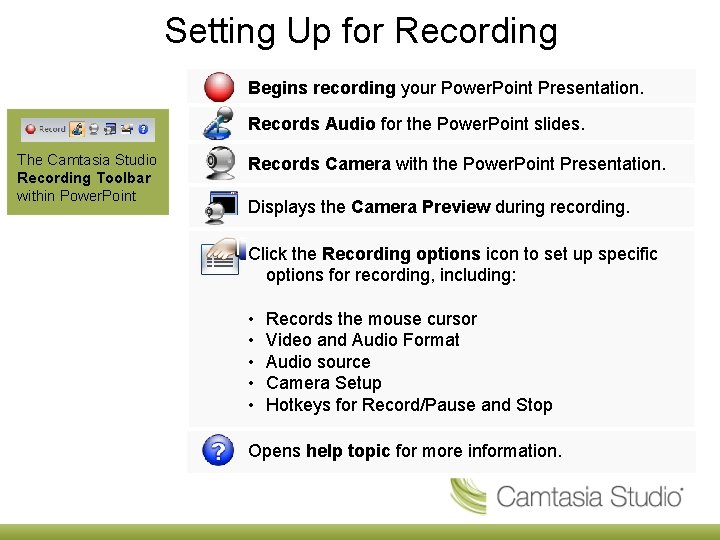
Setting Up for Recording Begins recording your Power. Point Presentation. Records Audio for the Power. Point slides. The Camtasia Studio Recording Toolbar within Power. Point Records Camera with the Power. Point Presentation. Displays the Camera Preview during recording. Click the Recording options icon to set up specific options for recording, including: • • • Records the mouse cursor Video and Audio Format Audio source Camera Setup Hotkeys for Record/Pause and Stop Opens help topic for more information.
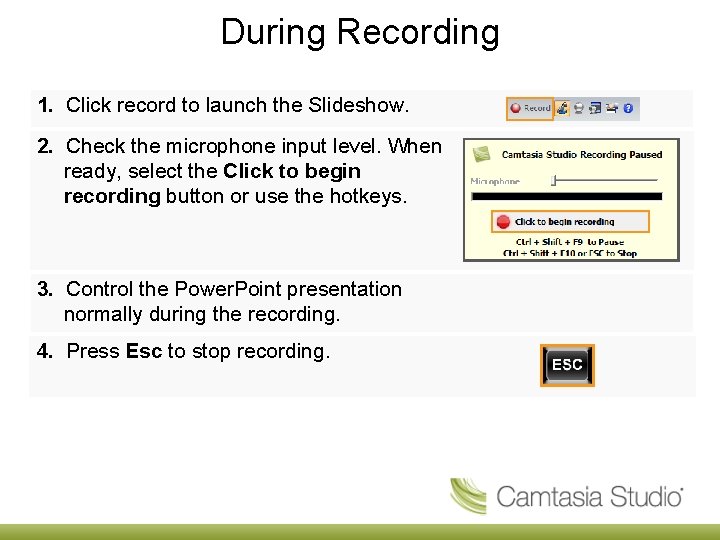
During Recording 1. Click record to launch the Slideshow. 2. Check the microphone input level. When ready, select the Click to begin recording button or use the hotkeys. 3. Control the Power. Point presentation normally during the recording. 4. Press Esc to stop recording.
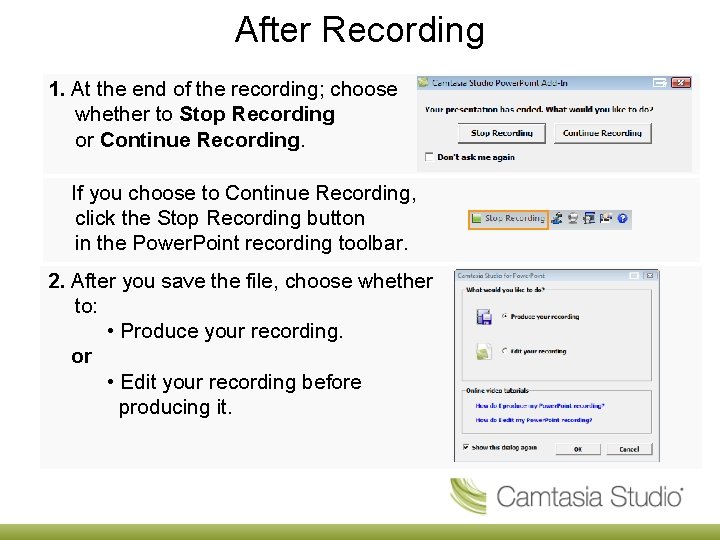
After Recording 1. At the end of the recording; choose whether to Stop Recording or Continue Recording. If you choose to Continue Recording, click the Stop Recording button in the Power. Point recording toolbar. 2. After you save the file, choose whether to: • Produce your recording. or • Edit your recording before producing it.
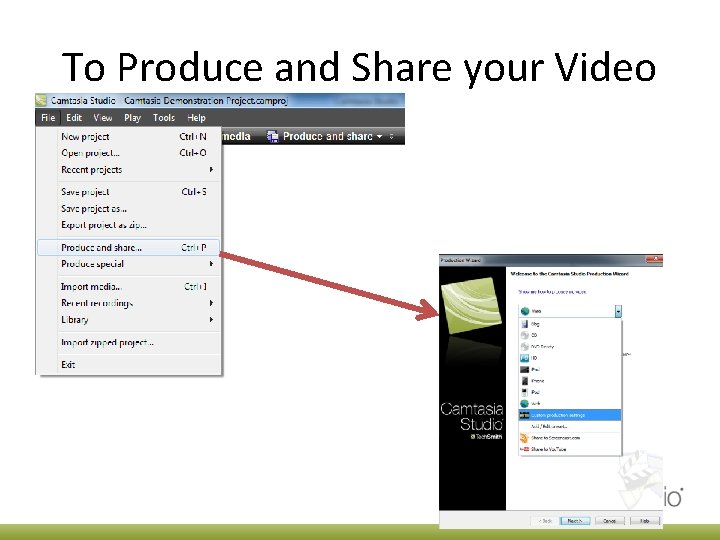
To Produce and Share your Video
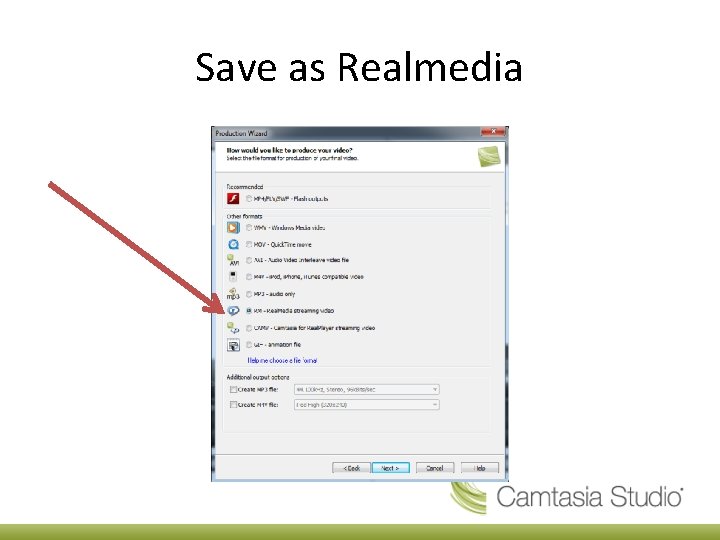
Save as Realmedia
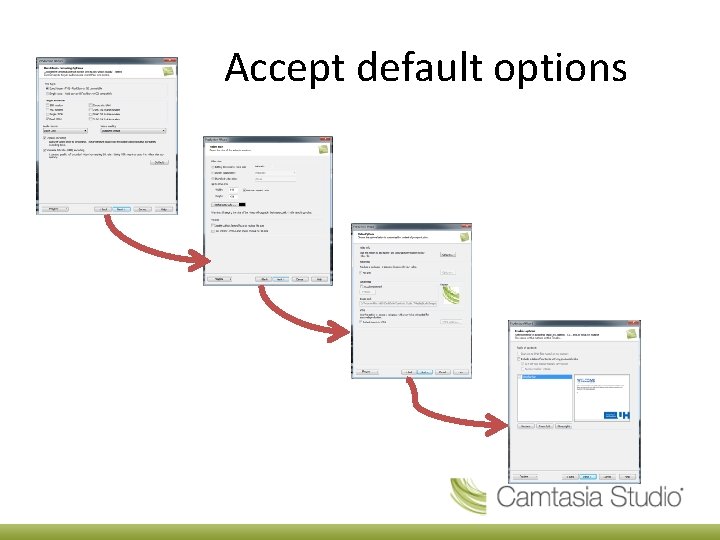
Accept default options
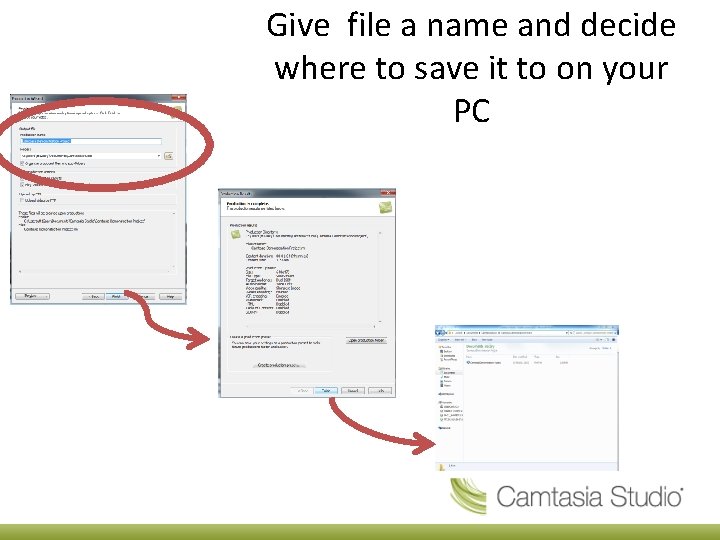
Give file a name and decide where to save it to on your PC
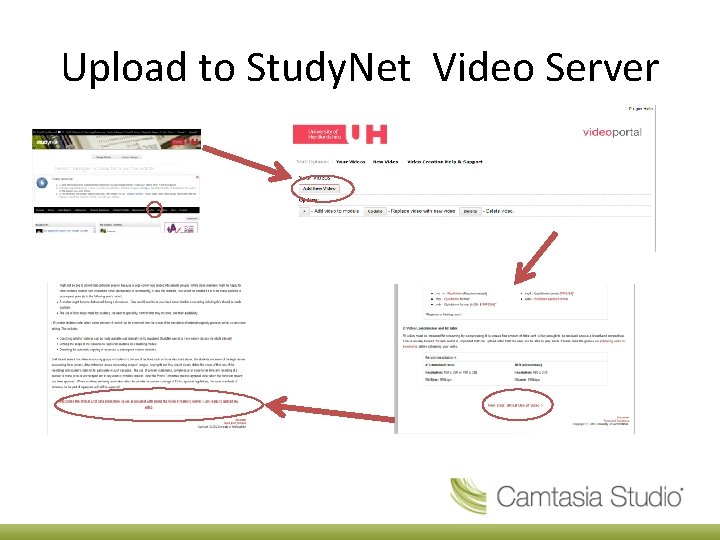
Upload to Study. Net Video Server
- Slides: 24