
California Assessment of Student Performance and Progress CAASPP

- Slides: 46
California Assessment of Student Performance and Progress (CAASPP) Preparing Technology for 2015 Online Testing October 15, 2014 1– 2: 30 p. m.
Purpose • The purpose of this Webcast is to review your local educational agency’s (LEA’s) technological resources to ensure they meet requirements for the online CAASPP assessments. Preparing Technology for 2015 Online Testing 2
Source Material • Detailed information and step-by-step instructions can be found in the following manuals: – Technical Specifications Manual for Online Testing § Forthcoming on http: //caaspp. org – Secure Browser Installation Manual § http: //caaspp. org/rsc/pdfs/CAASPP. secure-browser -manual. 2015. pdf Preparing Technology for 2015 Online Testing 3
Agenda • • Preparing for Online Testing Internet and Network Requirements Hardware Requirements Software Requirements Secure Browser Installation Mobile Secure Browsers Questions Updates and Announcements Preparing Technology for 2015 Online Testing 4
Preparing for Online Testing
Data Readiness • • CALPADS is the sole source for student demographic, enrollment, and program data for the student test registration system known as the Test Operations Management System (TOMS) All updates must be made in CALPADS. LEAs cannot update student demographic, enrollment, or program data in TOMS. Student accommodations and designated supports are not collected in CALPADS. Student accommodations and supports cannot be uploaded by the LEA until CALPADS data is available in TOMS. Preparing Technology for 2015 Online Testing 6
Staff Coordination • Planning the technology components for online testing requires close coordination and collaboration among: − − LEA CAASPP coordinators CALPADS administrators IT/LEA technology coordinators Curriculum staff Preparing Technology for 2015 Online Testing 7
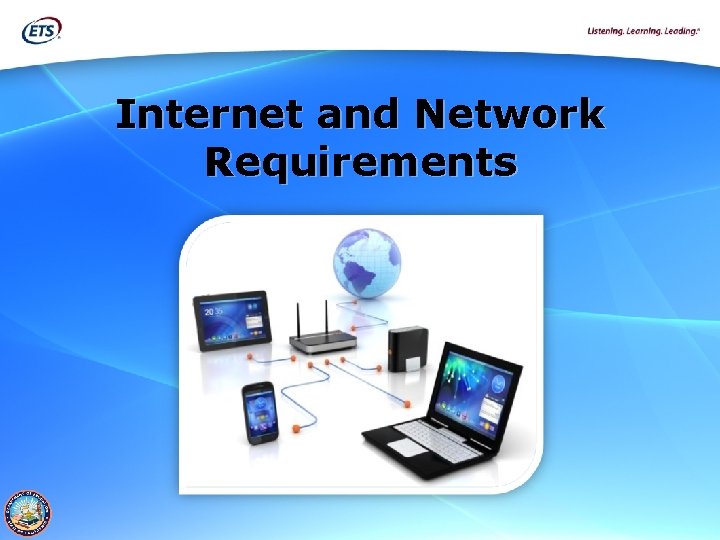
Internet and Network Requirements
Internet and Network Requirements • For testing to occur, a stable, high-speed Internet connection is required since the Test Delivery System (TDS) administers tests via the Internet. Preparing Technology for 2015 Online Testing 9
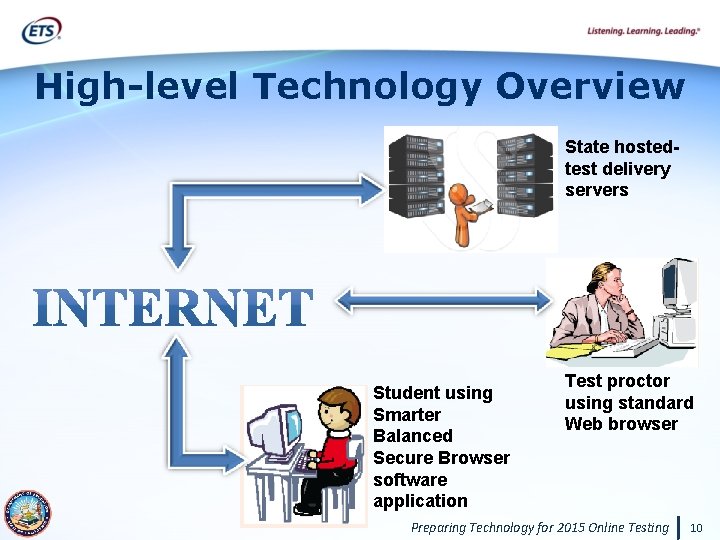
High-level Technology Overview State hostedtest delivery servers Student using Smarter Balanced Secure Browser software application Test proctor using standard Web browser Preparing Technology for 2015 Online Testing 10
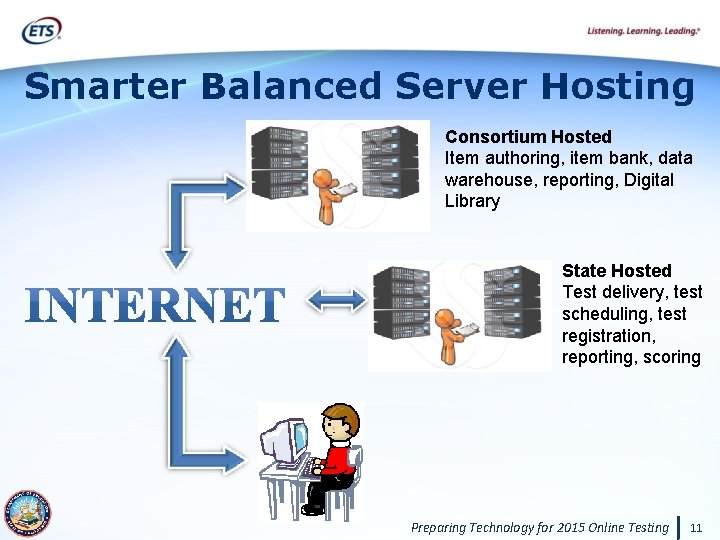
Smarter Balanced Server Hosting Consortium Hosted Item authoring, item bank, data warehouse, reporting, Digital Library State Hosted Test delivery, test scheduling, test registration, reporting, scoring Preparing Technology for 2015 Online Testing 11
Network Configuration Settings • To ensure proper communication and optimal performance: – – • Configure network firewalls and proxy servers to allow traffic to the URLs, IP addresses, and ports without content filtering (see Appendix A of the Technical Specifications Manual). Give the URLs and IP addresses high priority settings if your network uses network traffic management techniques (e. g. , traffic shaping, packet prioritization, Quality of Service). Configure Web proxy servers NOT to cache data from the test delivery system (TDS). Maintain a good bandwidth. To avoid timeouts during tests: – Set session timeout values to be longer than the average scheduled testing time. Preparing Technology for 2015 Online Testing 12
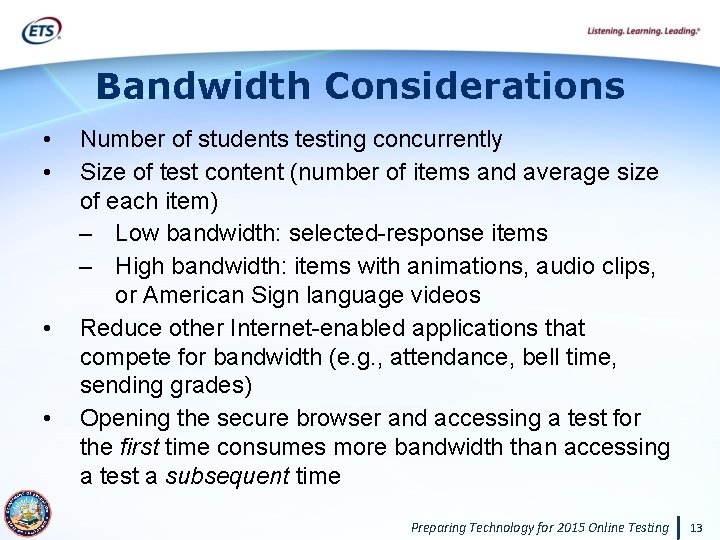
Bandwidth Considerations • • Number of students testing concurrently Size of test content (number of items and average size of each item) – Low bandwidth: selected-response items – High bandwidth: items with animations, audio clips, or American Sign language videos Reduce other Internet-enabled applications that compete for bandwidth (e. g. , attendance, bell time, sending grades) Opening the secure browser and accessing a test for the first time consumes more bandwidth than accessing a test a subsequent time Preparing Technology for 2015 Online Testing 13
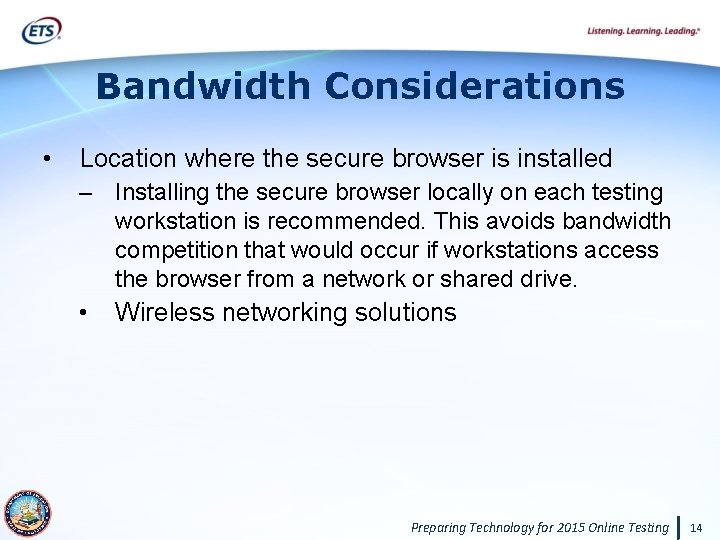
Bandwidth Considerations • Location where the secure browser is installed – Installing the secure browser locally on each testing workstation is recommended. This avoids bandwidth competition that would occur if workstations access the browser from a network or shared drive. • Wireless networking solutions Preparing Technology for 2015 Online Testing 14
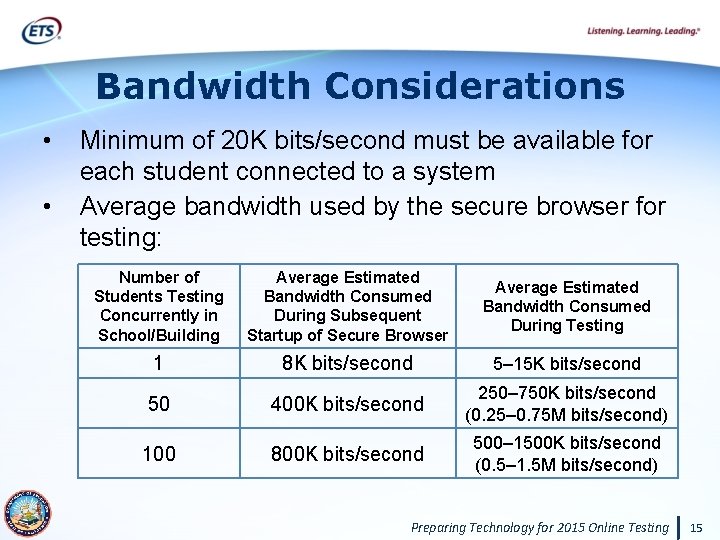
Bandwidth Considerations • • Minimum of 20 K bits/second must be available for each student connected to a system Average bandwidth used by the secure browser for testing: Number of Students Testing Concurrently in School/Building Average Estimated Bandwidth Consumed During Subsequent Startup of Secure Browser Average Estimated Bandwidth Consumed During Testing 1 8 K bits/second 5– 15 K bits/second 50 400 K bits/second 250– 750 K bits/second (0. 25– 0. 75 M bits/second) 100 800 K bits/second 500– 1500 K bits/second (0. 5– 1. 5 M bits/second) Preparing Technology for 2015 Online Testing 15
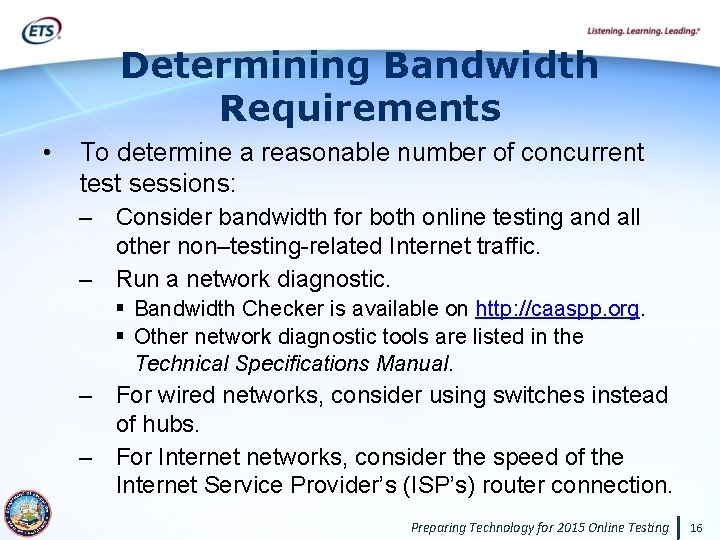
Determining Bandwidth Requirements • To determine a reasonable number of concurrent test sessions: – Consider bandwidth for both online testing and all other non–testing-related Internet traffic. – Run a network diagnostic. § Bandwidth Checker is available on http: //caaspp. org. § Other network diagnostic tools are listed in the Technical Specifications Manual. – For wired networks, consider using switches instead of hubs. – For Internet networks, consider the speed of the Internet Service Provider’s (ISP’s) router connection. Preparing Technology for 2015 Online Testing 16
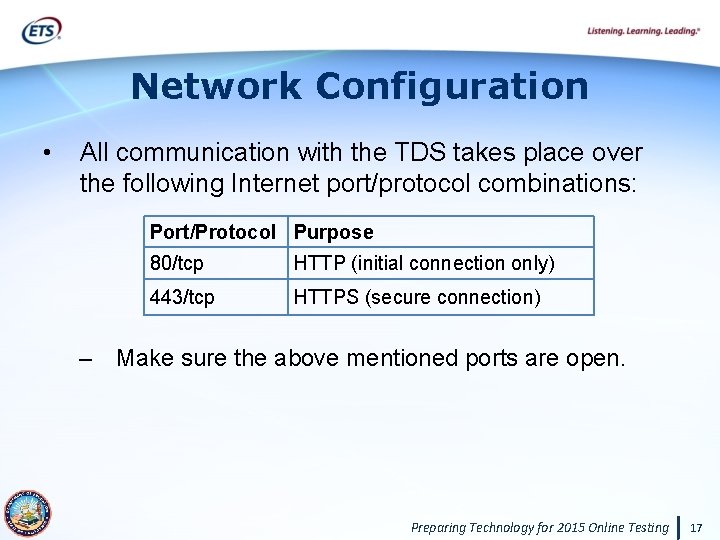
Network Configuration • All communication with the TDS takes place over the following Internet port/protocol combinations: Port/Protocol Purpose 80/tcp HTTP (initial connection only) 443/tcp HTTPS (secure connection) – Make sure the above mentioned ports are open. Preparing Technology for 2015 Online Testing 17
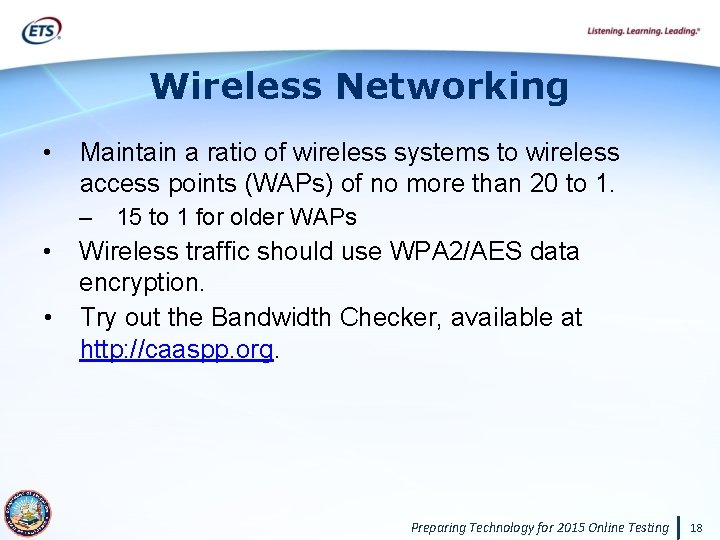
Wireless Networking • Maintain a ratio of wireless systems to wireless access points (WAPs) of no more than 20 to 1. – 15 to 1 for older WAPs • • Wireless traffic should use WPA 2/AES data encryption. Try out the Bandwidth Checker, available at http: //caaspp. org. Preparing Technology for 2015 Online Testing 18
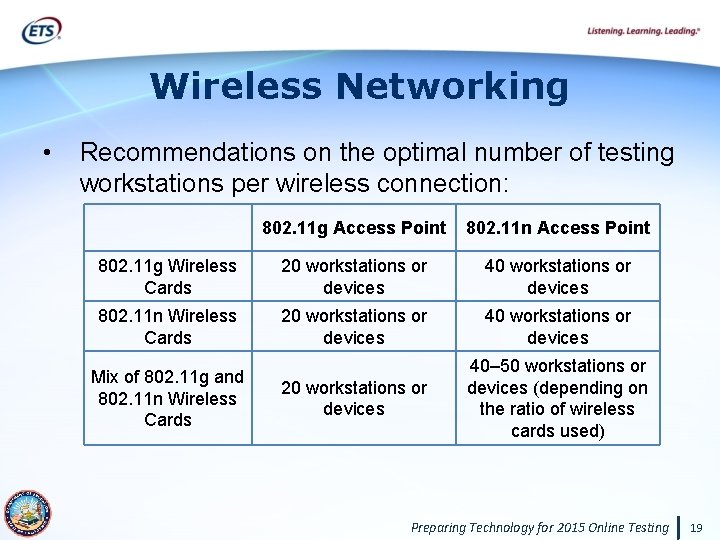
Wireless Networking • Recommendations on the optimal number of testing workstations per wireless connection: 802. 11 g Access Point 802. 11 n Access Point 802. 11 g Wireless Cards 20 workstations or devices 40 workstations or devices 802. 11 n Wireless Cards 20 workstations or devices 40 workstations or devices 20 workstations or devices 40– 50 workstations or devices (depending on the ratio of wireless cards used) Mix of 802. 11 g and 802. 11 n Wireless Cards Preparing Technology for 2015 Online Testing 19
Hardware Requirements
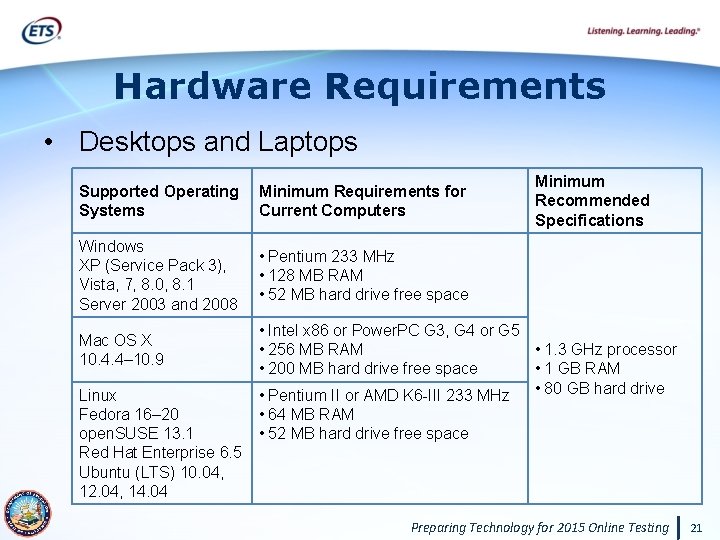
Hardware Requirements • Desktops and Laptops Supported Operating Systems Minimum Requirements for Current Computers Windows XP (Service Pack 3), Vista, 7, 8. 0, 8. 1 Server 2003 and 2008 • Pentium 233 MHz • 128 MB RAM • 52 MB hard drive free space Mac OS X 10. 4. 4– 10. 9 Linux Fedora 16– 20 open. SUSE 13. 1 Red Hat Enterprise 6. 5 Ubuntu (LTS) 10. 04, 12. 04, 14. 04 Minimum Recommended Specifications • Intel x 86 or Power. PC G 3, G 4 or G 5 • 256 MB RAM • 1. 3 GHz processor • 1 GB RAM • 200 MB hard drive free space • 80 GB hard drive • Pentium II or AMD K 6 -III 233 MHz • 64 MB RAM • 52 MB hard drive free space Preparing Technology for 2015 Online Testing 21
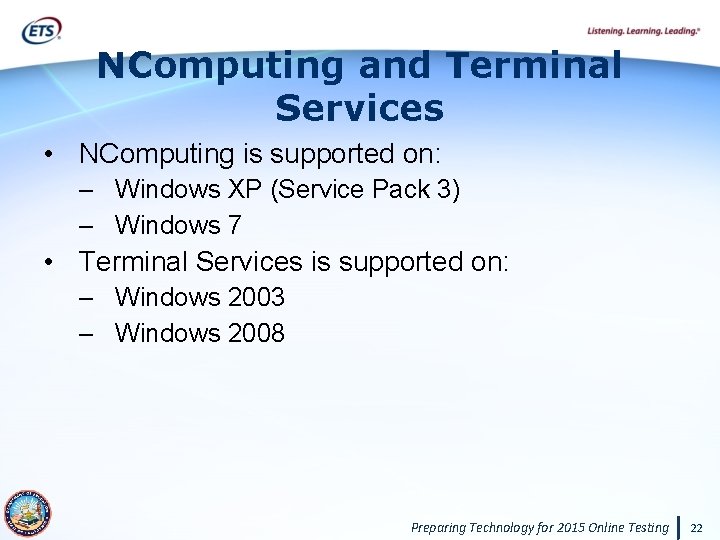
NComputing and Terminal Services • NComputing is supported on: – Windows XP (Service Pack 3) – Windows 7 • Terminal Services is supported on: – Windows 2003 – Windows 2008 Preparing Technology for 2015 Online Testing 22
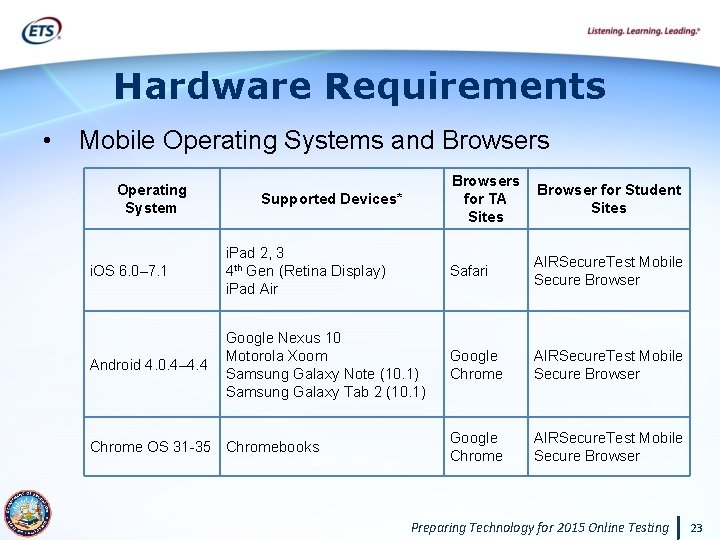
Hardware Requirements • Mobile Operating Systems and Browsers for TA Sites Browser for Student Sites i. OS 6. 0– 7. 1 i. Pad 2, 3 4 th Gen (Retina Display) i. Pad Air Safari AIRSecure. Test Mobile Secure Browser Android 4. 0. 4– 4. 4 Google Nexus 10 Motorola Xoom Samsung Galaxy Note (10. 1) Samsung Galaxy Tab 2 (10. 1) Google Chrome AIRSecure. Test Mobile Secure Browser Operating System Supported Devices* Chrome OS 31 -35 Chromebooks Preparing Technology for 2015 Online Testing 23
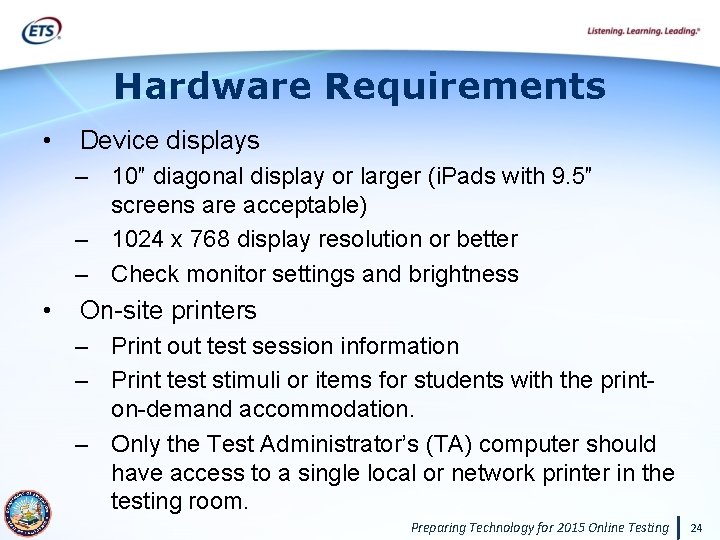
Hardware Requirements • Device displays – 10″ diagonal display or larger (i. Pads with 9. 5″ screens are acceptable) – 1024 x 768 display resolution or better – Check monitor settings and brightness • On-site printers – Print out test session information – Print test stimuli or items for students with the printon-demand accommodation. – Only the Test Administrator’s (TA) computer should have access to a single local or network printer in the testing room. Preparing Technology for 2015 Online Testing 24
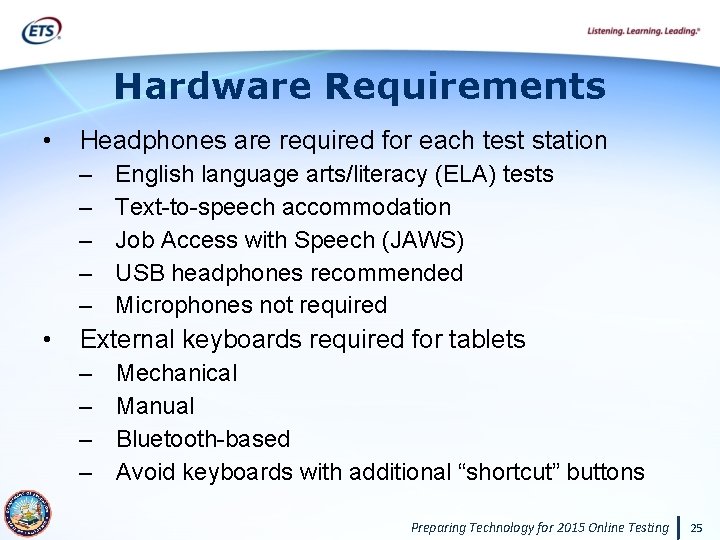
Hardware Requirements • Headphones are required for each test station – – – • English language arts/literacy (ELA) tests Text-to-speech accommodation Job Access with Speech (JAWS) USB headphones recommended Microphones not required External keyboards required for tablets – – Mechanical Manual Bluetooth-based Avoid keyboards with additional “shortcut” buttons Preparing Technology for 2015 Online Testing 25
Software Requirements
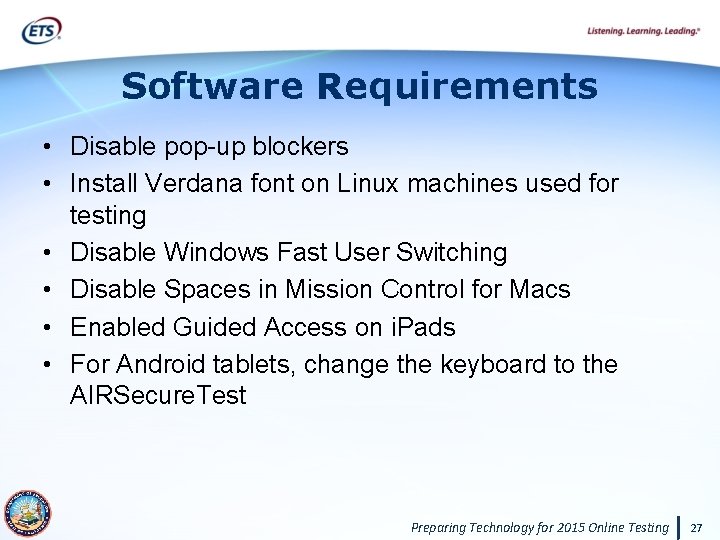
Software Requirements • Disable pop-up blockers • Install Verdana font on Linux machines used for testing • Disable Windows Fast User Switching • Disable Spaces in Mission Control for Macs • Enabled Guided Access on i. Pads • For Android tablets, change the keyboard to the AIRSecure. Test Preparing Technology for 2015 Online Testing 27
Secure Browser Installation
What is the Secure Browser? • • • Type of software that must be installed on each testing workstation Prevents students from accessing other computer or Internet applications during testing Different versions of the secure browser for different device types and operating systems – Link to secure browsers download Web page is on http: //caaspp. org Preparing Technology for 2015 Online Testing 29
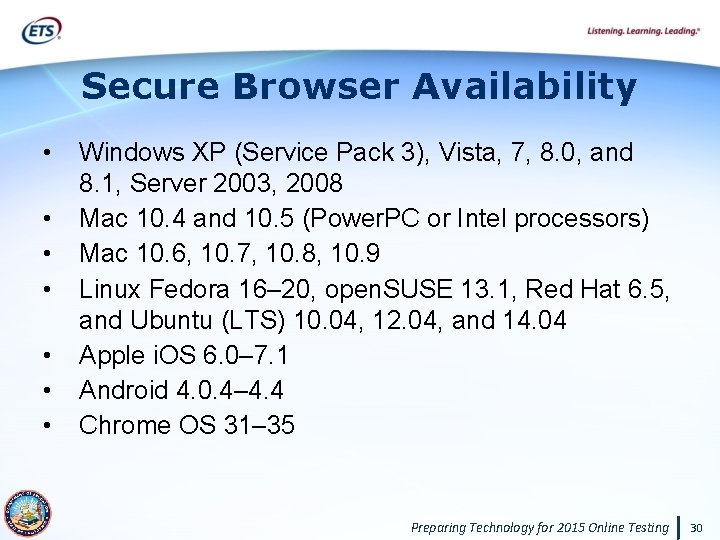
Secure Browser Availability • • Windows XP (Service Pack 3), Vista, 7, 8. 0, and 8. 1, Server 2003, 2008 Mac 10. 4 and 10. 5 (Power. PC or Intel processors) Mac 10. 6, 10. 7, 10. 8, 10. 9 Linux Fedora 16– 20, open. SUSE 13. 1, Red Hat 6. 5, and Ubuntu (LTS) 10. 04, 12. 04, and 14. 04 Apple i. OS 6. 0– 7. 1 Android 4. 0. 4– 4. 4 Chrome OS 31– 35 Preparing Technology for 2015 Online Testing 30
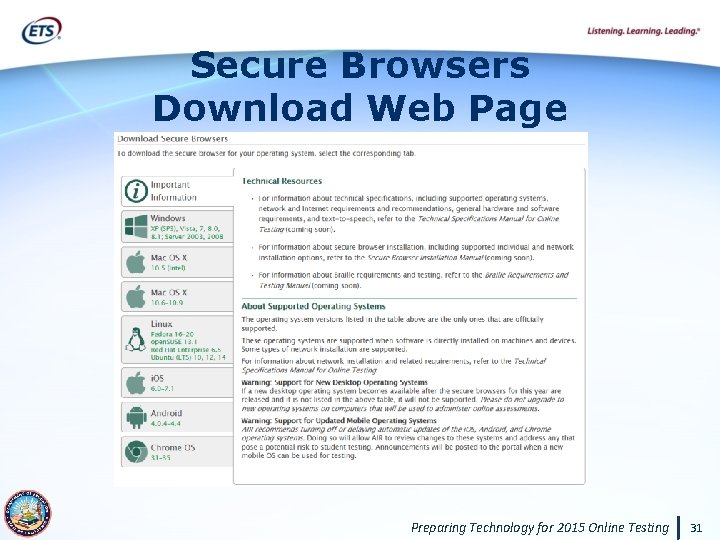
Secure Browsers Download Web Page Preparing Technology for 2015 Online Testing 31
Secure Browser Installation: Desktops and Laptops • One-by-one manual installation: – Download and install directly on each computer – Download and save onto a media device (i. e. , flash drive) – Download and save to a network folder Preparing Technology for 2015 Online Testing 32
Secure Browser Installation: Desktops and Laptops • Network installation or distribution: − Shared drive − Push the secure browser installation directory from the network to client computers − Installation without administrator rights − Thin Client (Windows) − Terminal server − NComputing − Apple Remote Desktop (Mac OS X) Preparing Technology for 2015 Online Testing 33
Secure Browser and Proxy Settings • • Secure browsers for Windows, Mac, and Linux are packaged with the proxy setting set to “auto-detect” The following proxy values are supported: – – – 0: Direct connection, no proxy 1: Manual proxy configuration 2: Proxy auto-configuration (PAC) 4: Autodetect proxy settings 5: System proxy settings (this is the default) Preparing Technology for 2015 Online Testing 34
Secure Browser Notes • Old secure browsers used for the Field Test need to be uninstalled before installing new ones. – Installing the new Windows secure browser will uninstall previous versions automatically (most cases). • Mac secure browser installation: – Secure browser must be launched to successfully complete the installation. – Disable Spaces in Mission Control (Mac 10. 7– 10. 9). – Disable function keys on Mac computers and keyboards. Preparing Technology for 2015 Online Testing 35
Mobile Secure Browsers
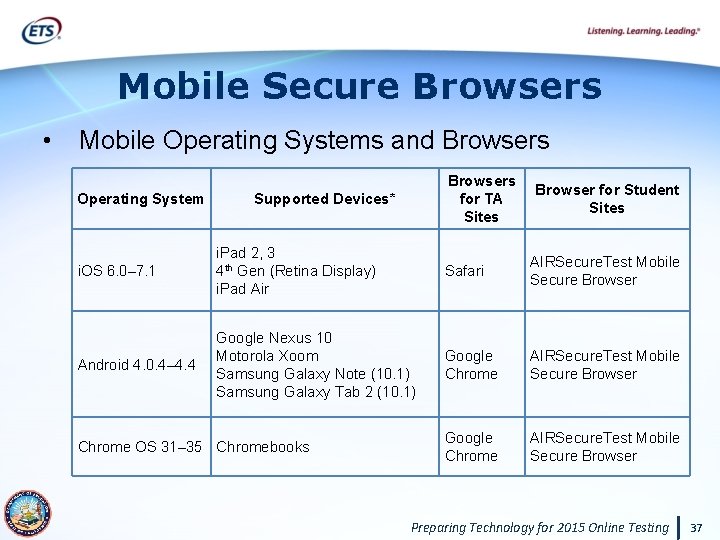
Mobile Secure Browsers • Mobile Operating Systems and Browsers Operating System Browsers for TA Sites Supported Devices* Browser for Student Sites i. OS 6. 0– 7. 1 i. Pad 2, 3 4 th Gen (Retina Display) i. Pad Air Safari AIRSecure. Test Mobile Secure Browser Android 4. 0. 4– 4. 4 Google Nexus 10 Motorola Xoom Samsung Galaxy Note (10. 1) Samsung Galaxy Tab 2 (10. 1) Google Chrome AIRSecure. Test Mobile Secure Browser Chrome OS 31– 35 Chromebooks Preparing Technology for 2015 Online Testing 37
Secure Browser Installation: Mobile Devices • • • Install on i. Pads via the Apple App Store Install on Androids via the Google Play Store Install on Chromebooks from the Chrome Web Store Preparing Technology for 2015 Online Testing 38
Secure Testing on Tablets • i. Pads: – Guided Access must be enabled and activated § i. OS feature that allows users to restrict activity to a single application § Prevents screenshots • Android tablets: – Secure browser keyboard must be selected before students can access the logon page § Default Android keyboard allows predictive text Preparing Technology for 2015 Online Testing 39
Secure Testing on Chromebooks • Chromebooks must use the secure kiosk application – Using the AIRSecure. Test kiosk application requires Chromebooks to be run in kiosk mode – Must be deployed onto managed Chromebooks via the Chrome Management Console as a kiosk application rather than via a public session Preparing Technology for 2015 Online Testing 40
Questions
Updates and Announcements
Updates and Announcements • Next Webcast: Accessibility and Accommodations for CAASPP 2014– 15 : An Overview – Date: October 22, 2014 – Time: 1 – 2: 30 p. m. Preparing Technology for 2015 Online Testing 43
Resources and Support
Resources • Technical Specifications Manual for Online Testing – Forthcoming on http: //caaspp. org • Secure Browser Installation Manual − Available at http: //caaspp. org/rsc/pdfs/CAASPP. secure-browsermanual. 2015. pdf • Bandwidth Checker − Available on the CAASPP home page at http: //caaspp. org Preparing Technology for 2015 Online Testing 45
Help Desk Support The California Technical Assistance Center (Cal. TAC) is here to support all LEA CAASPP coordinators! Monday–Friday from 7 a. m. – 5 p. m. PT E-mail: caltac@ets. org Phone: 800 -955 -2954 Web site: http: //californiatac. org/ Preparing Technology for 2015 Online Testing 46