
Calculator apps a challenge for classrooms around the

- Slides: 39
Calculator apps a challenge for classrooms around the world. Program math formulas with Small Basic.
Hour of Code™ “The 'Hour of Code™' is a nationwide initiative by Computer Science Education Week and Code. org to introduce millions of students to one hour of computer science and computer programming. ” #sbcalculatorapps #smallbasic #hourofcode #globalgoals ashiedujude. blogspot. com www. smallbasic. com www. code. org www. csedweek. org
About Calculator Apps project This is a customized snack course for teachers and students of elementary and secondary schools worldwide, as part of the sustainable development project for quality education via global goals; for those who are new to computer programming and would love to have a starter pack to inspire them. Also, teachers who find it difficult to introduce computer programming in their classrooms, especially to ages 8 and 15 students will find it helpful to use, as a Kickstarter into explaining the rudiments of coding to these categories of young children. Small Basic is the sample programming language throughout this course due to it’s simplicity. It would be very difficult to introduce majority of young students into computer programming no matter how easy it is, without first creating a background check on Algorithms and how our day to day living depends on them. At interval you will meet my sidekick on Small Basic, his name is Wazobi, a stick figure that will take you through the course via animated videos.
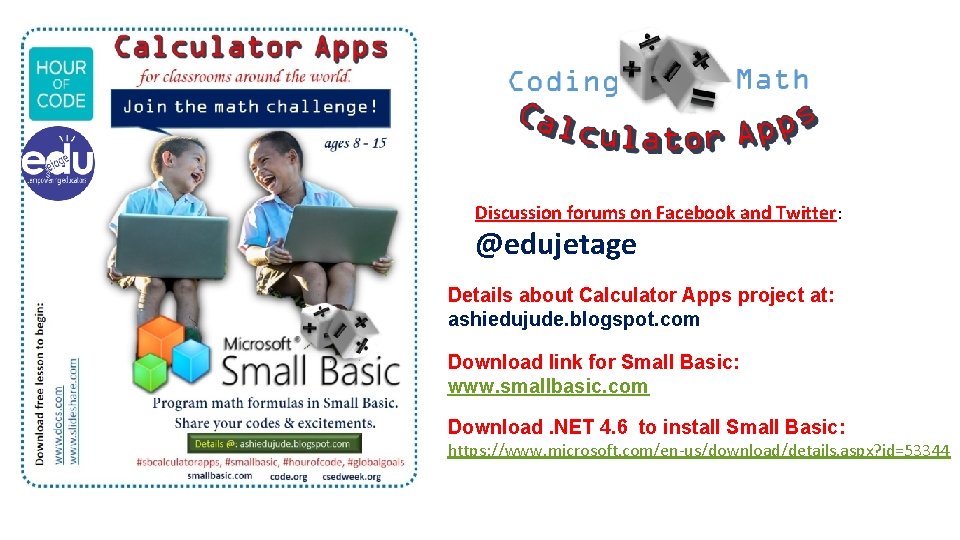
Discussion forums on Facebook and Twitter: @edujetage Details about Calculator Apps project at: ashiedujude. blogspot. com Download link for Small Basic: www. smallbasic. com Download. NET 4. 6 to install Small Basic: https: //www. microsoft. com/en-us/download/details. aspx? id=53344
Installation tips for Teachers: 1. First download and Install. NET ver 4. 6 and above setup file. 2. Before downloading and installing Small Basic setup file. If you have multiple computer systems to install both setup files: 1. Copy both files from the download folder into a new folder. 2. Rename the new folder and copy it into an external storage (Flash drive etc) 3. Switch on all computer you would need to install both setup files. 4. Copy and paste the setup folder containing files on each PC. 5. Then begin installation.
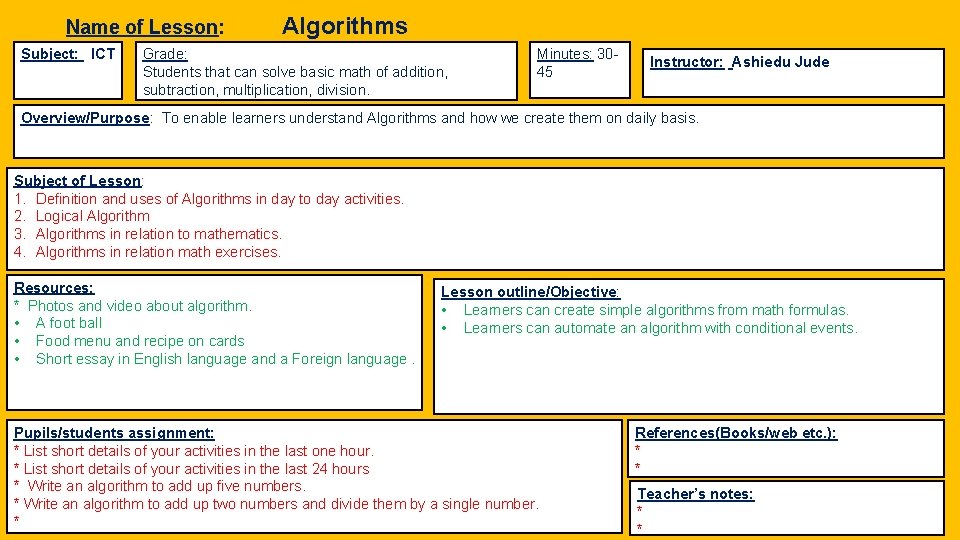
Name of Lesson: Subject: ICT Algorithms Grade: Students that can solve basic math of addition, subtraction, multiplication, division. Minutes: 3045 Instructor: Ashiedu Jude Overview/Purpose: To enable learners understand Algorithms and how we create them on daily basis. Subject of Lesson: 1. Definition and uses of Algorithms in day to day activities. 2. Logical Algorithm 3. Algorithms in relation to mathematics. 4. Algorithms in relation math exercises. Resources: * Photos and video about algorithm. • A foot ball • Food menu and recipe on cards • Short essay in English language and a Foreign language. Lesson outline/Objective: • Learners can create simple algorithms from math formulas. • Learners can automate an algorithm with conditional events. Pupils/students assignment: * List short details of your activities in the last one hour. * List short details of your activities in the last 24 hours * Write an algorithm to add up five numbers. * Write an algorithm to add up two numbers and divide them by a single number. * References(Books/web etc. ): * * Teacher’s notes: * *
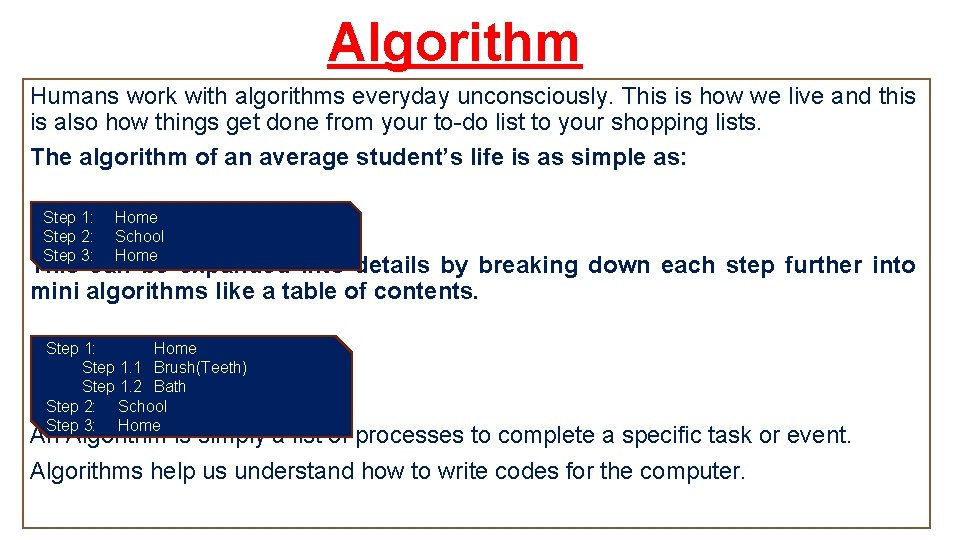
Algorithm Humans work with algorithms everyday unconsciously. This is how we live and this is also how things get done from your to-do list to your shopping lists. The algorithm of an average student’s life is as simple as: Step 1: Step 2: Step 3: Home School Home This can be expanded into details by breaking down each step further into mini algorithms like a table of contents. Step 1: Home Step 1. 1 Brush(Teeth) Step 1. 2 Bath Step 2: School Step 3: Home An Algorithm is simply a list of processes to complete a specific task or event. Algorithms help us understand how to write codes for the computer.
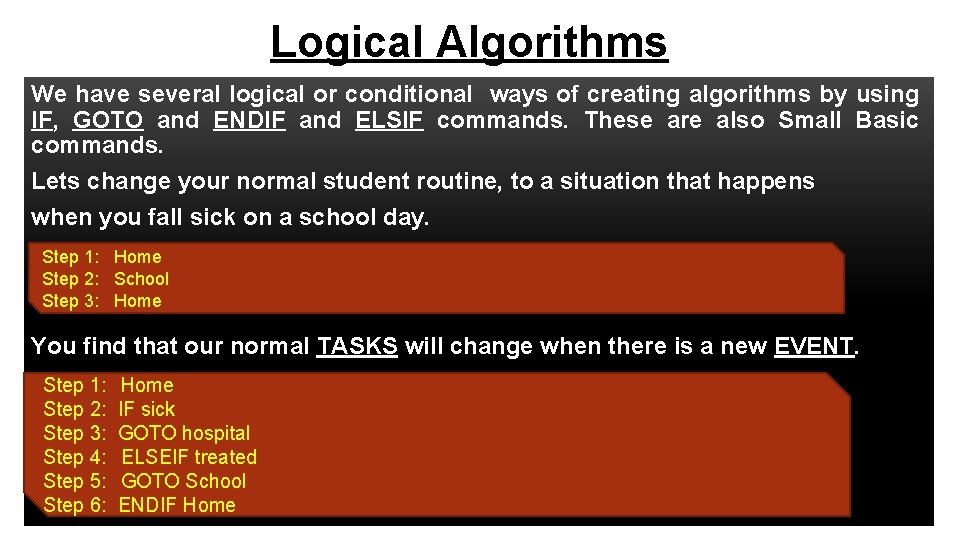
Logical Algorithms We have several logical or conditional ways of creating algorithms by using IF, GOTO and ENDIF and ELSIF commands. These are also Small Basic commands. Lets change your normal student routine, to a situation that happens when you fall sick on a school day. Step 1: Home Step 2: School Step 3: Home You find that our normal TASKS will change when there is a new EVENT. Step 1: Step 2: Step 3: Step 4: Step 5: Step 6: Home IF sick GOTO hospital ELSEIF treated GOTO School ENDIF Home
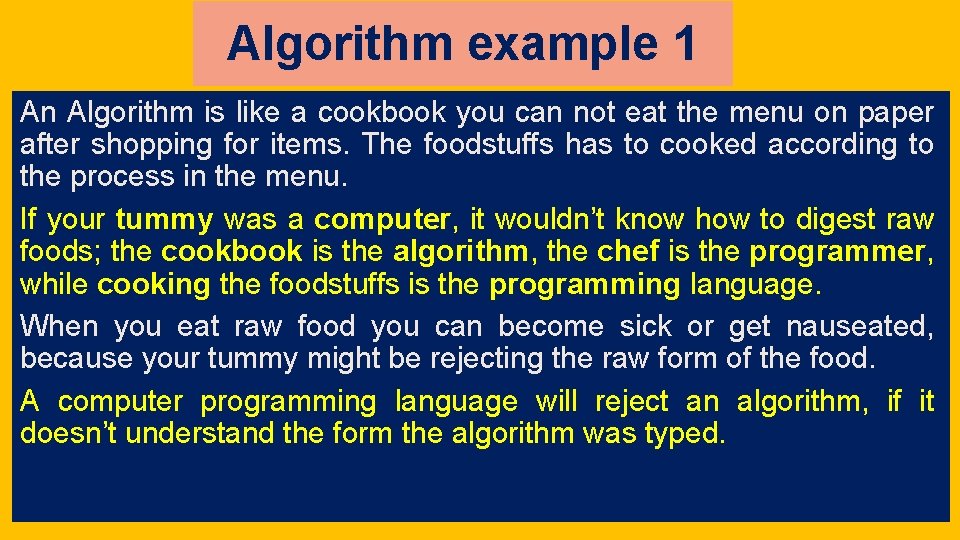
Algorithm example 1 An Algorithm is like a cookbook you can not eat the menu on paper after shopping for items. The foodstuffs has to cooked according to the process in the menu. If your tummy was a computer, it wouldn’t know how to digest raw foods; the cookbook is the algorithm, the chef is the programmer, while cooking the foodstuffs is the programming language. When you eat raw food you can become sick or get nauseated, because your tummy might be rejecting the raw form of the food. A computer programming language will reject an algorithm, if it doesn’t understand the form the algorithm was typed.
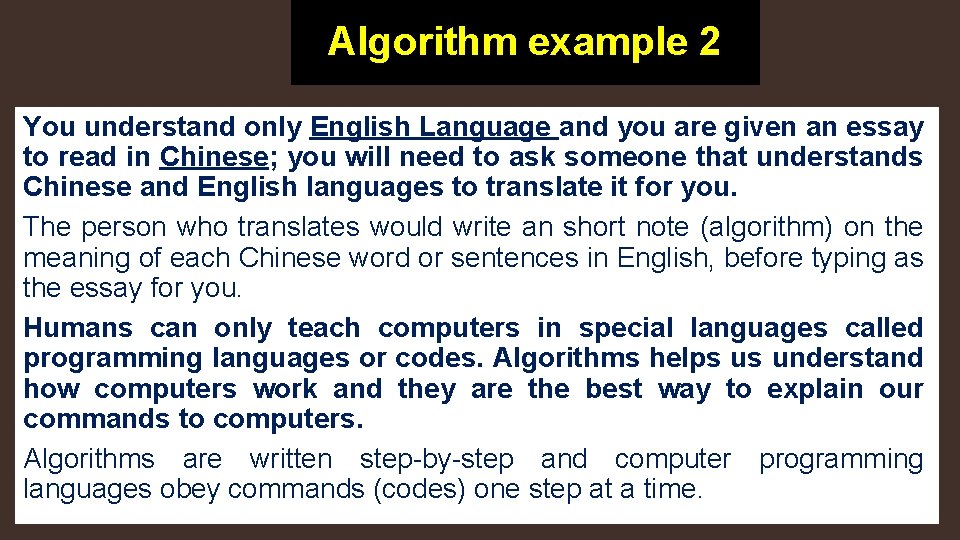
Algorithm example 2 You understand only English Language and you are given an essay to read in Chinese; you will need to ask someone that understands Chinese and English languages to translate it for you. The person who translates would write an short note (algorithm) on the meaning of each Chinese word or sentences in English, before typing as the essay for you. Humans can only teach computers in special languages called programming languages or codes. Algorithms helps us understand how computers work and they are the best way to explain our commands to computers. Algorithms are written step-by-step and computer programming languages obey commands (codes) one step at a time.
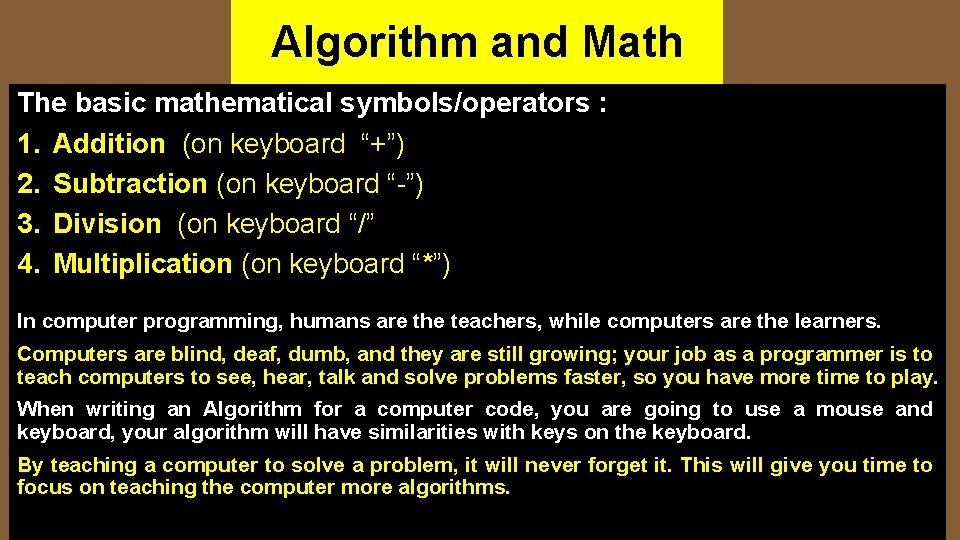
Algorithm and Math The basic mathematical symbols/operators : 1. Addition (on keyboard “+”) 2. Subtraction (on keyboard “-”) 3. Division (on keyboard “/” 4. Multiplication (on keyboard “*”) In computer programming, humans are the teachers, while computers are the learners. Computers are blind, deaf, dumb, and they are still growing; your job as a programmer is to teach computers to see, hear, talk and solve problems faster, so you have more time to play. When writing an Algorithm for a computer code, you are going to use a mouse and keyboard, your algorithm will have similarities with keys on the keyboard. By teaching a computer to solve a problem, it will never forget it. This will give you time to focus on teaching the computer more algorithms.
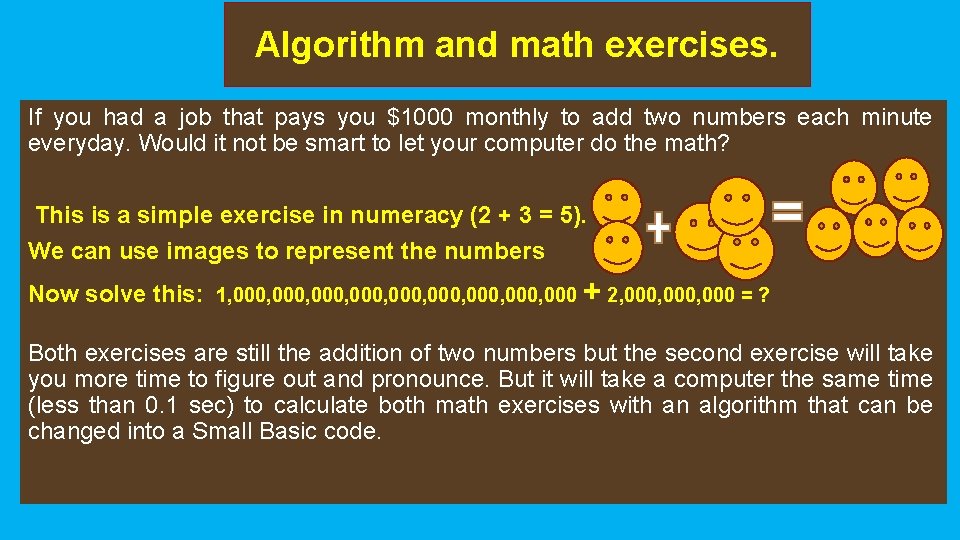
Algorithm and math exercises. If you had a job that pays you $1000 monthly to add two numbers each minute everyday. Would it not be smart to let your computer do the math? This is a simple exercise in numeracy (2 + 3 = 5). We can use images to represent the numbers Now solve this: 1, 000, 000, 000 + 2, 000, 000 = ? Both exercises are still the addition of two numbers but the second exercise will take you more time to figure out and pronounce. But it will take a computer the same time (less than 0. 1 sec) to calculate both math exercises with an algorithm that can be changed into a Small Basic code.
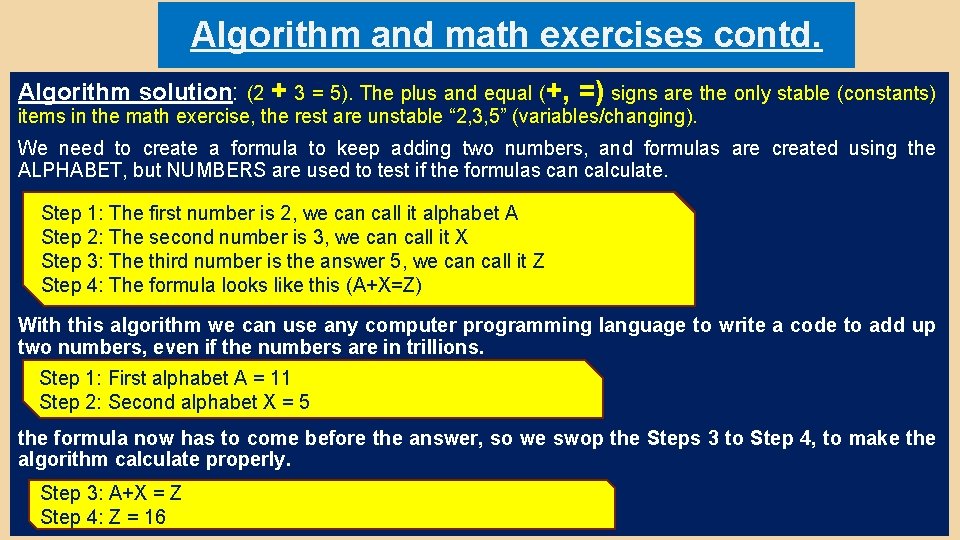
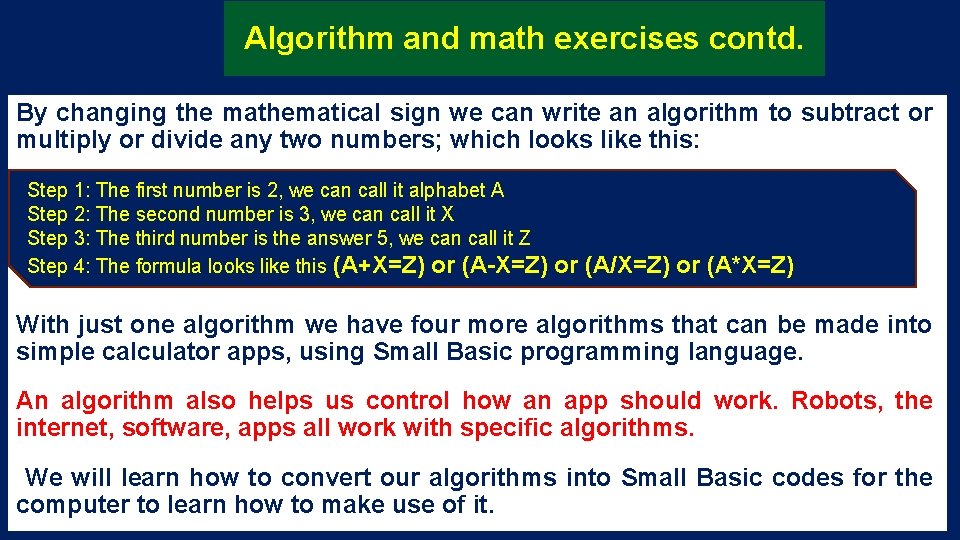
Algorithm and math exercises contd. Algorithm solution: (2 + 3 = 5). The plus and equal (+, =) signs are the only stable (constants) items in the math exercise, the rest are unstable “ 2, 3, 5” (variables/changing). We need to create a formula to keep adding two numbers, and formulas are created using the ALPHABET, but NUMBERS are used to test if the formulas can calculate. Step 1: The first number is 2, we can call it alphabet A Step 2: The second number is 3, we can call it X Step 3: The third number is the answer 5, we can call it Z Step 4: The formula looks like this (A+X=Z) With this algorithm we can use any computer programming language to write a code to add up two numbers, even if the numbers are in trillions. Step 1: First alphabet A = 11 Step 2: Second alphabet X = 5 the formula now has to come before the answer, so we swop the Steps 3 to Step 4, to make the algorithm calculate properly. Step 3: A+X = Z Step 4: Z = 16
Algorithm and math exercises contd. By changing the mathematical sign we can write an algorithm to subtract or multiply or divide any two numbers; which looks like this: Step 1: The first number is 2, we can call it alphabet A Step 2: The second number is 3, we can call it X Step 3: The third number is the answer 5, we can call it Z Step 4: The formula looks like this (A+X=Z) or (A-X=Z) or (A/X=Z) or (A*X=Z) With just one algorithm we have four more algorithms that can be made into simple calculator apps, using Small Basic programming language. An algorithm also helps us control how an app should work. Robots, the internet, software, apps all work with specific algorithms. We will learn how to convert our algorithms into Small Basic codes for the computer to learn how to make use of it.
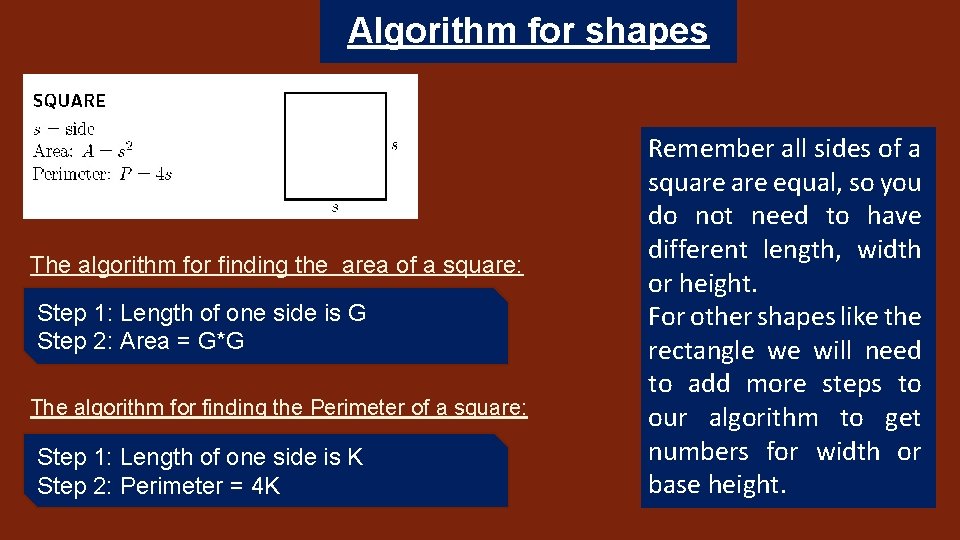
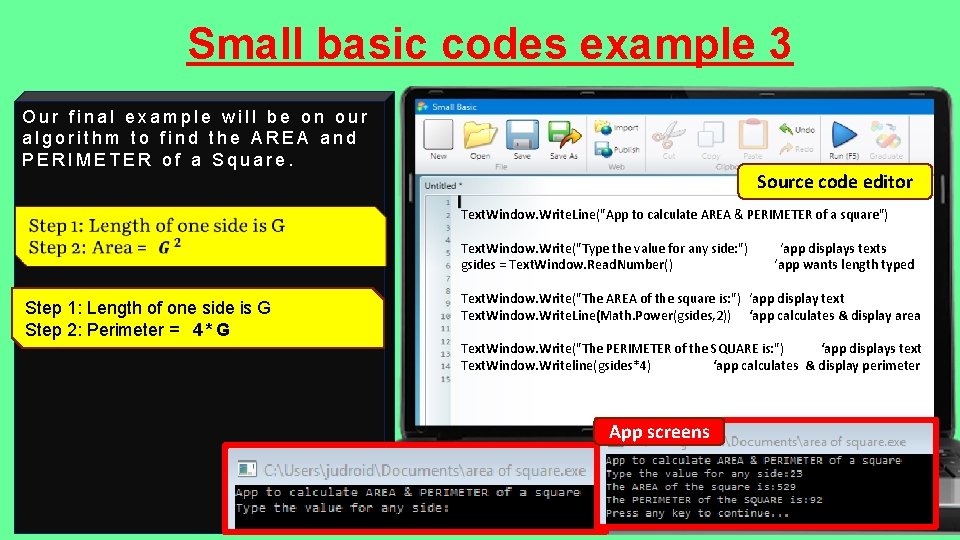
Algorithm for shapes The algorithm for finding the area of a square: Step 1: Length of one side is G Step 2: Area = G*G The algorithm for finding the Perimeter of a square: Step 1: Length of one side is K Step 2: Perimeter = 4 K Remember all sides of a square equal, so you do not need to have different length, width or height. For other shapes like the rectangle we will need to add more steps to our algorithm to get numbers for width or base height.
Congratulations you completed your lesson on Algorithms.
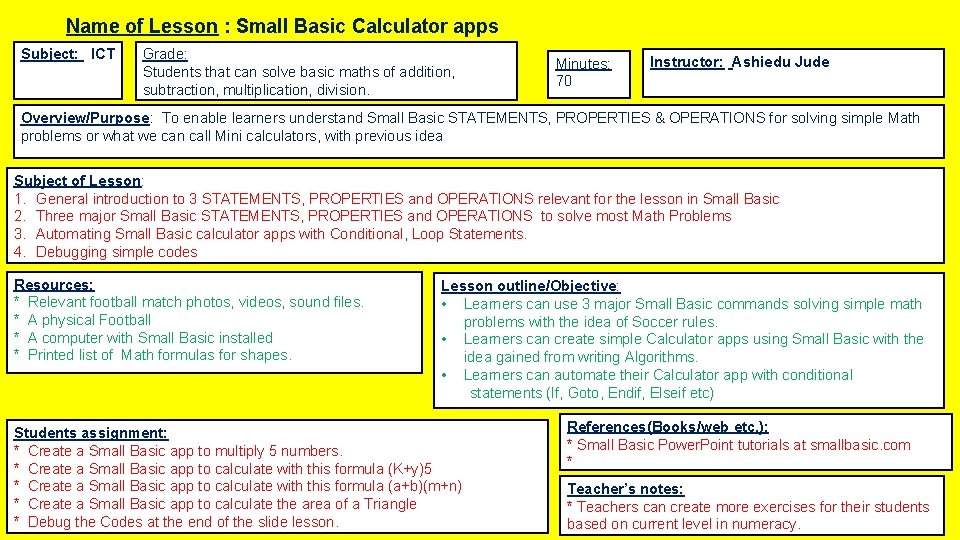
Name of Lesson : Small Basic Calculator apps Subject: ICT Grade: Students that can solve basic maths of addition, subtraction, multiplication, division. Minutes: 70 Instructor: Ashiedu Jude Overview/Purpose: To enable learners understand Small Basic STATEMENTS, PROPERTIES & OPERATIONS for solving simple Math problems or what we can call Mini calculators, with previous idea Subject of Lesson: 1. General introduction to 3 STATEMENTS, PROPERTIES and OPERATIONS relevant for the lesson in Small Basic 2. Three major Small Basic STATEMENTS, PROPERTIES and OPERATIONS to solve most Math Problems 3. Automating Small Basic calculator apps with Conditional, Loop Statements. 4. Debugging simple codes Resources: * Relevant football match photos, videos, sound files. * A physical Football * A computer with Small Basic installed * Printed list of Math formulas for shapes. Lesson outline/Objective: • Learners can use 3 major Small Basic commands solving simple math problems with the idea of Soccer rules. • Learners can create simple Calculator apps using Small Basic with the idea gained from writing Algorithms. • Learners can automate their Calculator app with conditional statements (If, Goto, Endif, Elseif etc) Students assignment: * Create a Small Basic app to multiply 5 numbers. * Create a Small Basic app to calculate with this formula (K+y)5 * Create a Small Basic app to calculate with this formula (a+b)(m+n) * Create a Small Basic app to calculate the area of a Triangle * Debug the Codes at the end of the slide lesson. References(Books/web etc. ): * Small Basic Power. Point tutorials at smallbasic. com * Teacher’s notes: * Teachers can create more exercises for their students based on current level in numeracy.
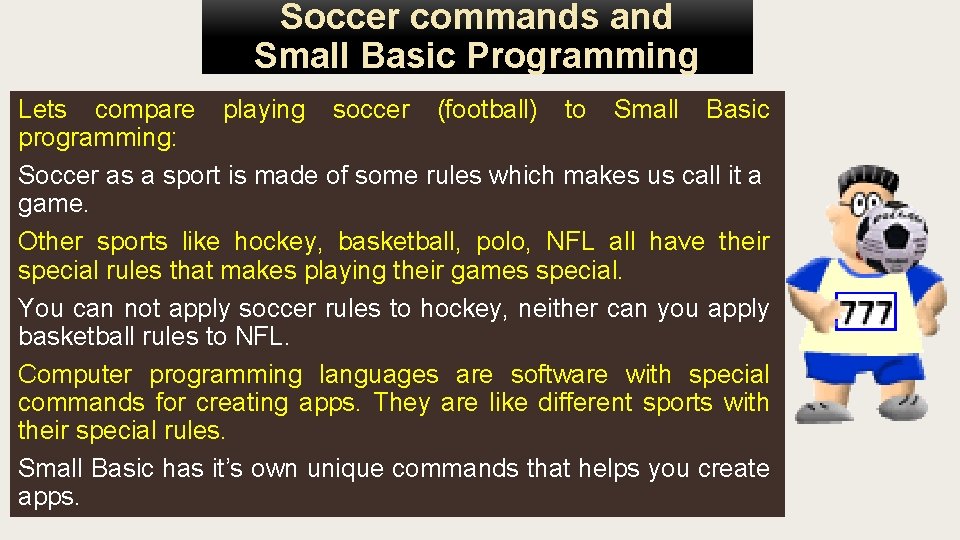
Soccer commands and Small Basic Programming Lets compare playing soccer (football) to Small Basic programming: Soccer as a sport is made of some rules which makes us call it a game. Other sports like hockey, basketball, polo, NFL all have their special rules that makes playing their games special. You can not apply soccer rules to hockey, neither can you apply basketball rules to NFL. Computer programming languages are software with special commands for creating apps. They are like different sports with their special rules. Small Basic has it’s own unique commands that helps you create apps.
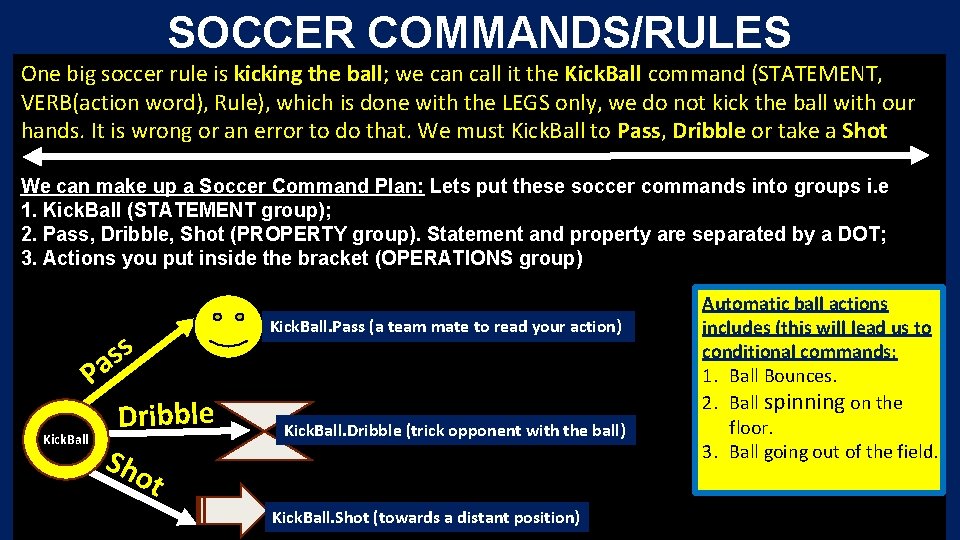
SOCCER COMMANDS/RULES One big soccer rule is kicking the ball; we can call it the Kick. Ball command (STATEMENT, VERB(action word), Rule), which is done with the LEGS only, we do not kick the ball with our hands. It is wrong or an error to do that. We must Kick. Ball to Pass, Dribble or take a Shot. We can make up a Soccer Command Plan: Lets put these soccer commands into groups i. e 1. Kick. Ball (STATEMENT group); 2. Pass, Dribble, Shot (PROPERTY group). Statement and property are separated by a DOT; 3. Actions you put inside the bracket (OPERATIONS group) Kick. Ball. Pass (a team mate to read your action) s s Pa Kick. Ball Dribble Sho Kick. Ball. Dribble (trick opponent with the ball) t Kick. Ball. Shot (towards a distant position) Automatic ball actions includes (this will lead us to conditional commands: 1. Ball Bounces. 2. Ball spinning on the floor. 3. Ball going out of the field.
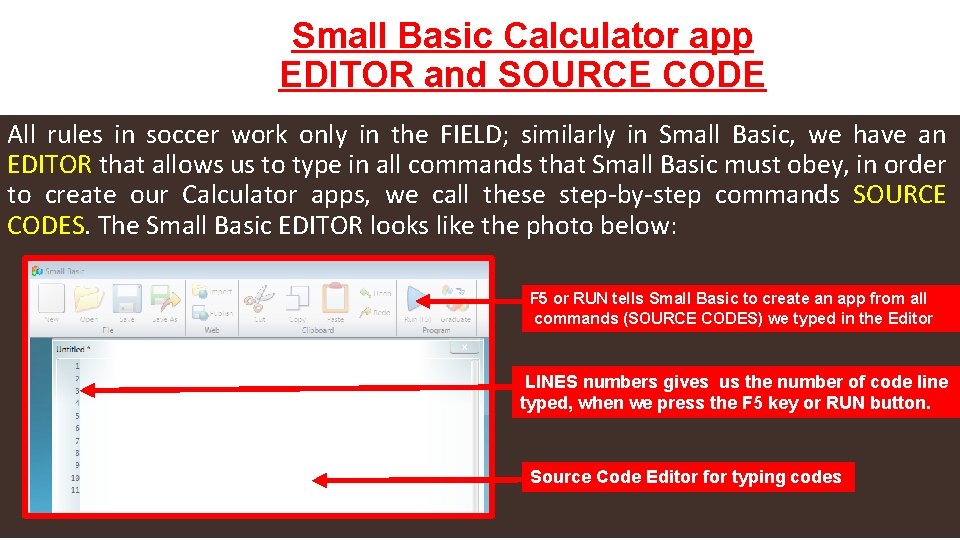
Small Basic Calculator app EDITOR and SOURCE CODE All rules in soccer work only in the FIELD; similarly in Small Basic, we have an EDITOR that allows us to type in all commands that Small Basic must obey, in order to create our Calculator apps, we call these step-by-step commands SOURCE CODES. The Small Basic EDITOR looks like the photo below: F 5 or RUN tells Small Basic to create an app from all commands (SOURCE CODES) we typed in the Editor LINES numbers gives us the number of code line typed, when we press the F 5 key or RUN button. Source Code Editor for typing codes
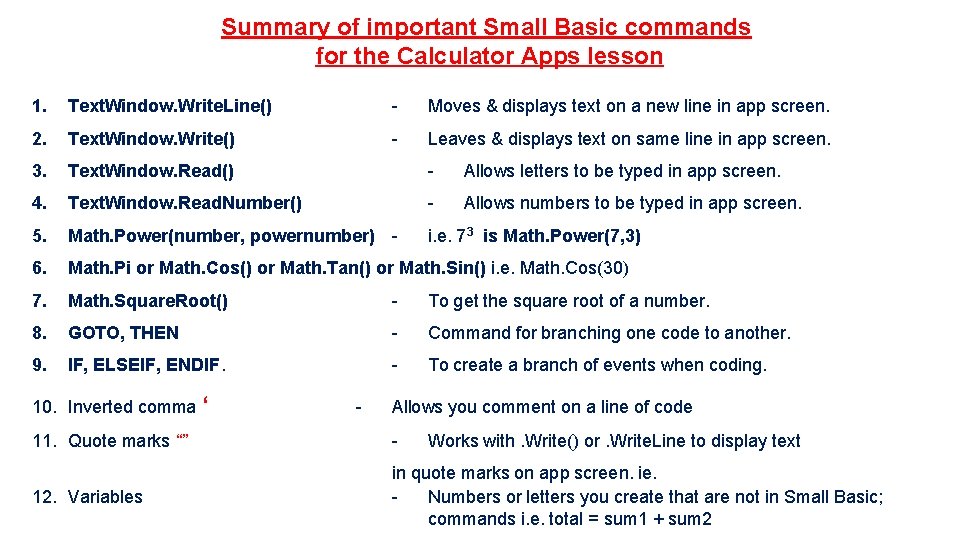
Summary of important Small Basic commands for the Calculator Apps lesson 1. Text. Window. Write. Line() - Moves & displays text on a new line in app screen. 2. Text. Window. Write() - Leaves & displays text on same line in app screen. 3. Text. Window. Read() - Allows letters to be typed in app screen. 4. Text. Window. Read. Number() - Allows numbers to be typed in app screen. 5. Math. Power(number, powernumber) - i. e. 73 is Math. Power(7, 3) 6. Math. Pi or Math. Cos() or Math. Tan() or Math. Sin() i. e. Math. Cos(30) 7. Math. Square. Root() - To get the square root of a number. 8. GOTO, THEN - Command for branching one code to another. 9. IF, ELSEIF, ENDIF. - To create a branch of events when coding. 10. Inverted comma ‘ - Allows you comment on a line of code 11. Quote marks “” - 12. Variables in quote marks on app screen. ie. Numbers or letters you create that are not in Small Basic; commands i. e. total = sum 1 + sum 2 Works with. Write() or. Write. Line to display text
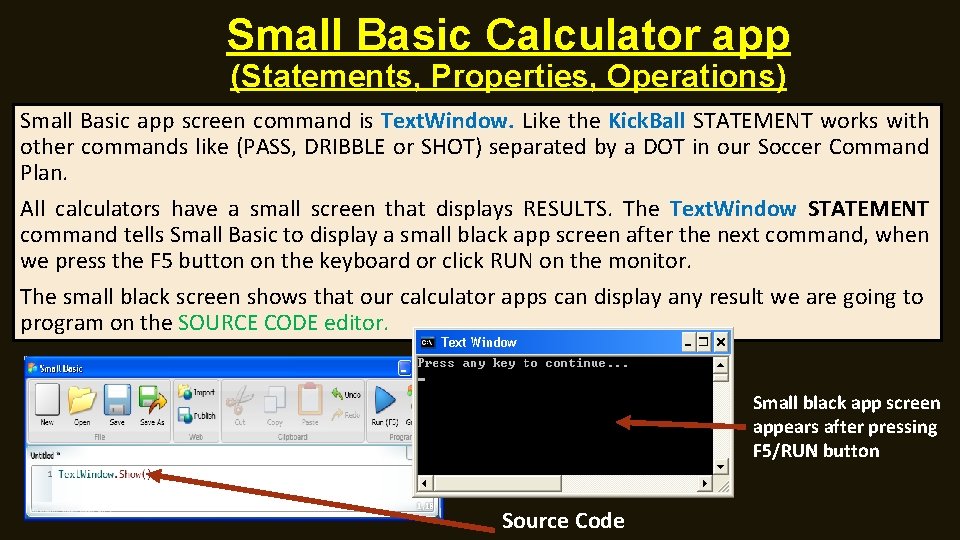
Small Basic Calculator app (Statements, Properties, Operations) Small Basic app screen command is Text. Window. Like the Kick. Ball STATEMENT works with other commands like (PASS, DRIBBLE or SHOT) separated by a DOT in our Soccer Command Plan. All calculators have a small screen that displays RESULTS. The Text. Window STATEMENT command tells Small Basic to display a small black app screen after the next command, when we press the F 5 button on the keyboard or click RUN on the monitor. The small black screen shows that our calculator apps can display any result we are going to program on the SOURCE CODE editor. Small black app screen appears after pressing F 5/RUN button Source Code
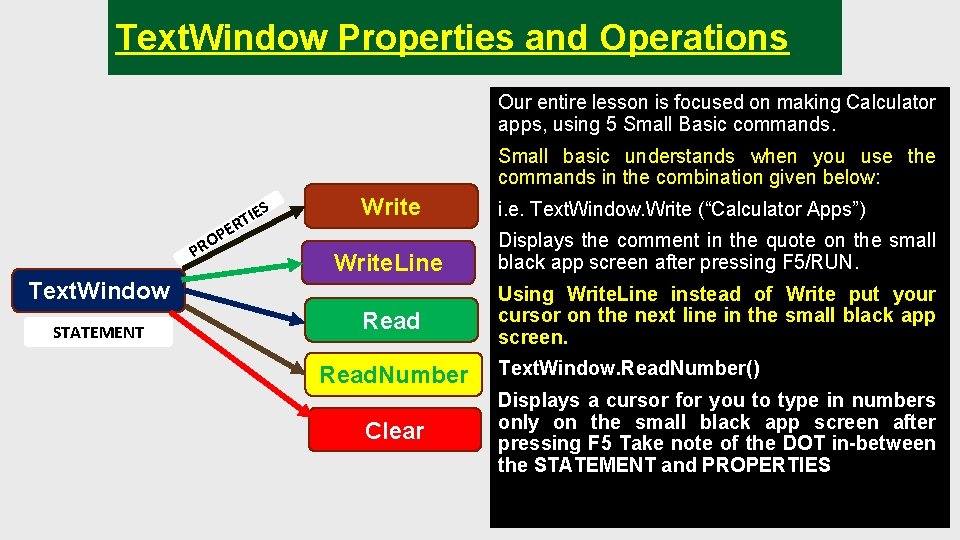
Text. Window Properties and Operations Our entire lesson is focused on making Calculator apps, using 5 Small Basic commands. Small basic understands when you use the commands in the combination given below: S TIE R E OP R P Write. Line Text. Window STATEMENT Read. Number Clear i. e. Text. Window. Write (“Calculator Apps”) Displays the comment in the quote on the small black app screen after pressing F 5/RUN. Using Write. Line instead of Write put your cursor on the next line in the small black app screen. Text. Window. Read. Number() Displays a cursor for you to type in numbers only on the small black app screen after pressing F 5 Take note of the DOT in-between the STATEMENT and PROPERTIES
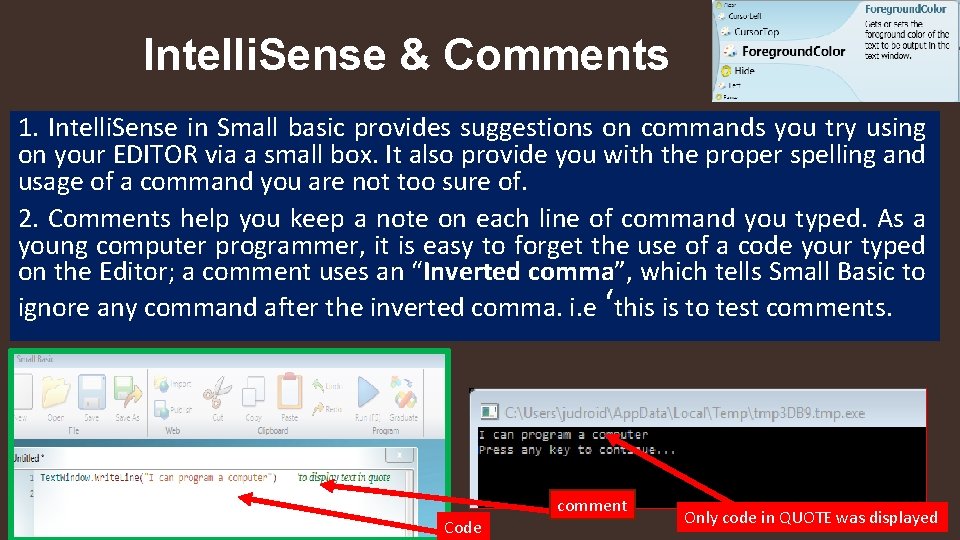
Intelli. Sense & Comments 1. Intelli. Sense in Small basic provides suggestions on commands you try using on your EDITOR via a small box. It also provide you with the proper spelling and usage of a command you are not too sure of. 2. Comments help you keep a note on each line of command you typed. As a young computer programmer, it is easy to forget the use of a code your typed on the Editor; a comment uses an “Inverted comma”, which tells Small Basic to ignore any command after the inverted comma. i. e ‘this is to test comments. comment Code Only code in QUOTE was displayed
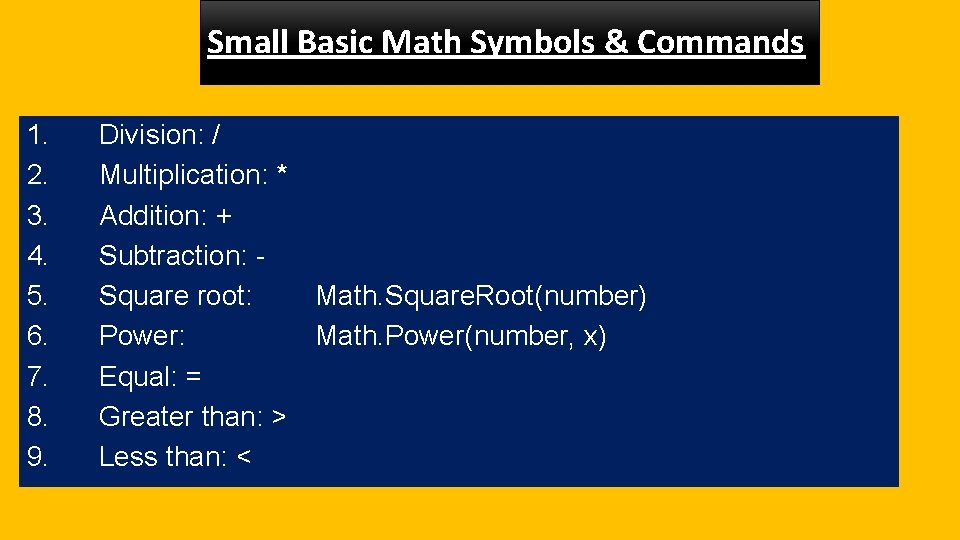
Small Basic Math Symbols & Commands 1. 2. 3. 4. 5. 6. 7. 8. 9. Division: / Multiplication: * Addition: + Subtraction: Square root: Math. Square. Root(number) Power: Math. Power(number, x) Equal: = Greater than: > Less than: <
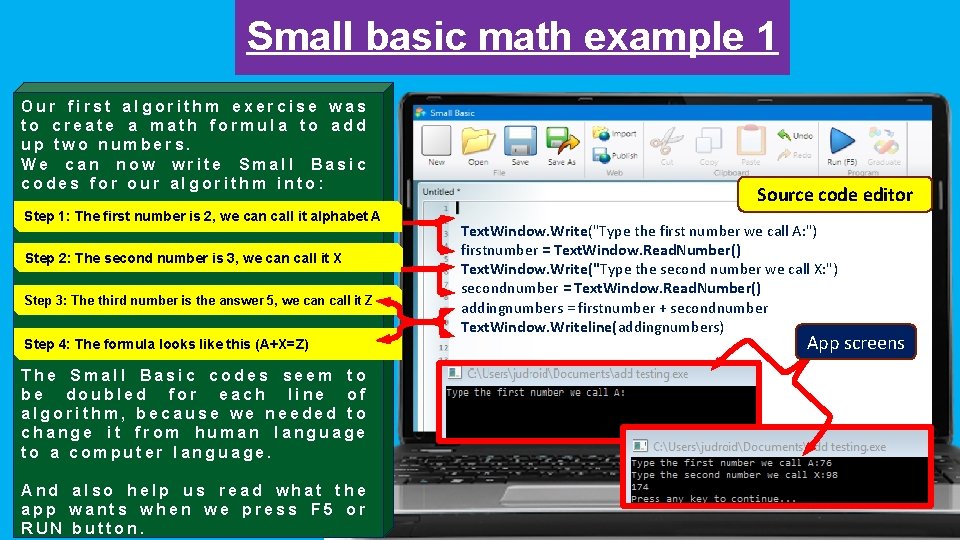
Small basic math example 1 Our first algorithm exercise was to create a math formula to add up two numbers. We can now write Small Basic codes for our algorithm into: Step 1: The first number is 2, we can call it alphabet A Step 2: The second number is 3, we can call it X Step 3: The third number is the answer 5, we can call it Z Step 4: The formula looks like this (A+X=Z) The Small Basic codes seem to be doubled for each line of algorithm, because we needed to change it from human language to a computer language. And also help us read what the app wants when we press F 5 or RUN button. Source code editor Text. Window. Write("Type the first number we call A: ") firstnumber = Text. Window. Read. Number() Text. Window. Write("Type the second number we call X: ") secondnumber = Text. Window. Read. Number() addingnumbers = firstnumber + secondnumber Text. Window. Writeline(addingnumbers) App screens
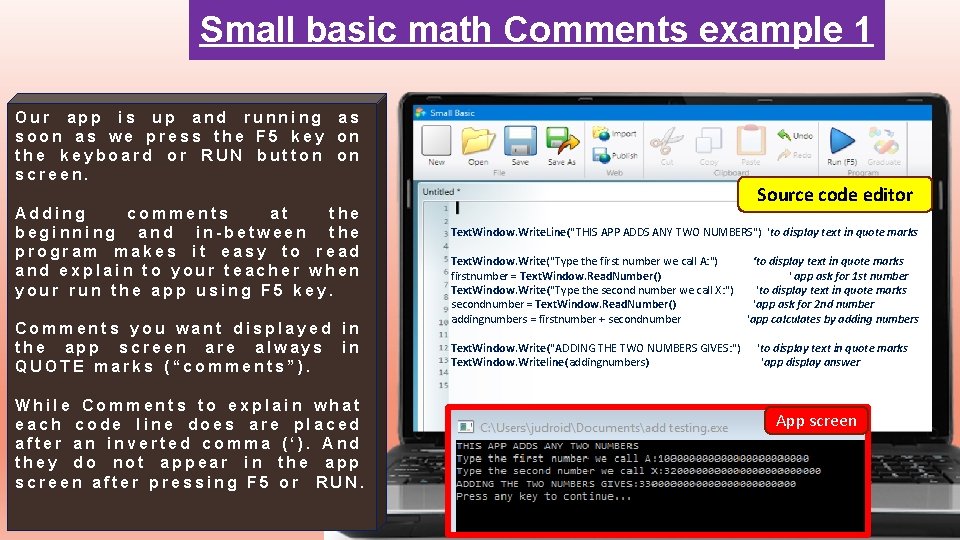
Small basic math Comments example 1 Our app is up and running as soon as we press the F 5 key on the keyboard or RUN button on screen. Adding comments at the beginning and in-between the program makes it easy to read and explain to your teacher when your run the app using F 5 key. Comments you want displayed in the app screen are always in QUOTE marks (“comments”). While Comments to explain what each code line does are placed after an inverted comma (‘). And they do not appear in the app screen after pressing F 5 or RUN. Source code editor Text. Window. Write. Line("THIS APP ADDS ANY TWO NUMBERS") 'to display text in quote marks Text. Window. Write("Type the first number we call A: ") ‘to display text in quote marks firstnumber = Text. Window. Read. Number() ' app ask for 1 st number Text. Window. Write("Type the second number we call X: ") 'to display text in quote marks secondnumber = Text. Window. Read. Number() 'app ask for 2 nd number addingnumbers = firstnumber + secondnumber 'app calculates by adding numbers Text. Window. Write("ADDING THE TWO NUMBERS GIVES: ") 'to display text in quote marks Text. Window. Writeline(addingnumbers) 'app display answer App screen
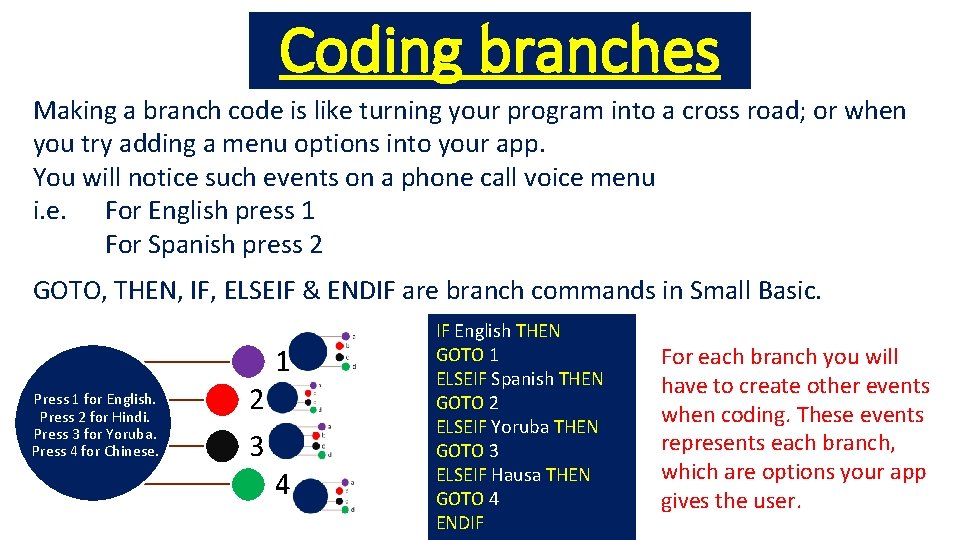
Coding branches Making a branch code is like turning your program into a cross road; or when you try adding a menu options into your app. You will notice such events on a phone call voice menu i. e. For English press 1 For Spanish press 2 GOTO, THEN, IF, ELSEIF & ENDIF are branch commands in Small Basic. 1 Press 1 for English. Press 2 for Hindi. Press 3 for Yoruba. Press 4 for Chinese. 2 3 4 IF English THEN GOTO 1 ELSEIF Spanish THEN GOTO 2 ELSEIF Yoruba THEN GOTO 3 ELSEIF Hausa THEN GOTO 4 ENDIF For each branch you will have to create other events when coding. These events represents each branch, which are options your app gives the user.
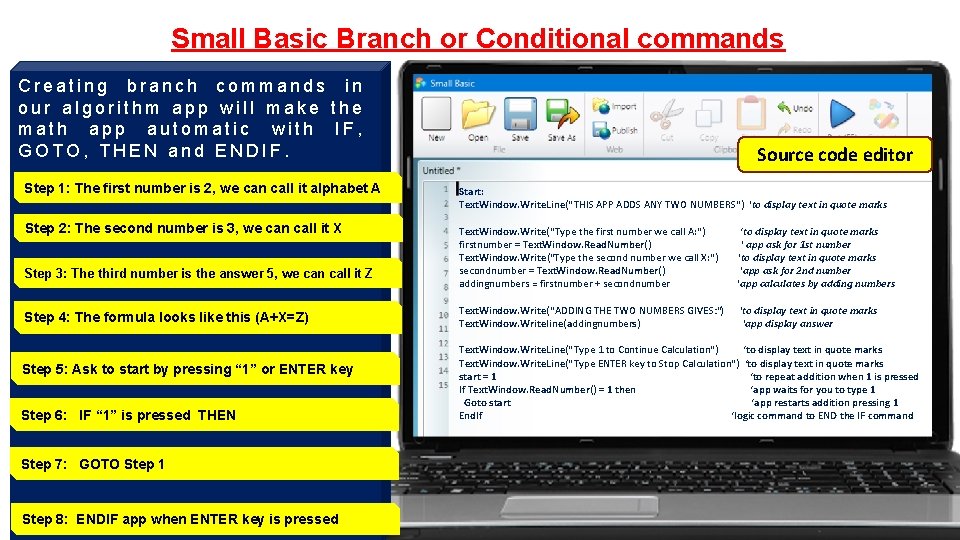
Small Basic Branch or Conditional commands Creating branch commands in our algorithm app will make the math app automatic with IF, GOTO, THEN and ENDIF. Source code editor Step 1: The first number is 2, we can call it alphabet A Start: Text. Window. Write. Line("THIS APP ADDS ANY TWO NUMBERS") 'to display text in quote marks Step 2: The second number is 3, we can call it X Text. Window. Write("Type the first number we call A: ") firstnumber = Text. Window. Read. Number() Text. Window. Write("Type the second number we call X: ") secondnumber = Text. Window. Read. Number() addingnumbers = firstnumber + secondnumber Step 3: The third number is the answer 5, we can call it Z Step 4: The formula looks like this (A+X=Z) Step 5: Ask to start by pressing “ 1” or ENTER key Step 6: IF “ 1” is pressed THEN Step 7: GOTO Step 1 Step 8: ENDIF app when ENTER key is pressed ‘to display text in quote marks ' app ask for 1 st number 'to display text in quote marks 'app ask for 2 nd number 'app calculates by adding numbers Text. Window. Write("ADDING THE TWO NUMBERS GIVES: ") 'to display text in quote marks Text. Window. Writeline(addingnumbers) 'app display answer Text. Window. Write. Line("Type 1 to Continue Calculation") ‘to display text in quote marks Text. Window. Write. Line("Type ENTER key to Stop Calculation") ‘to display text in quote marks start = 1 ‘to repeat addition when 1 is pressed If Text. Window. Read. Number() = 1 then ‘app waits for you to type 1 Goto start ‘app restarts addition pressing 1 End. If ‘logic command to END the IF command
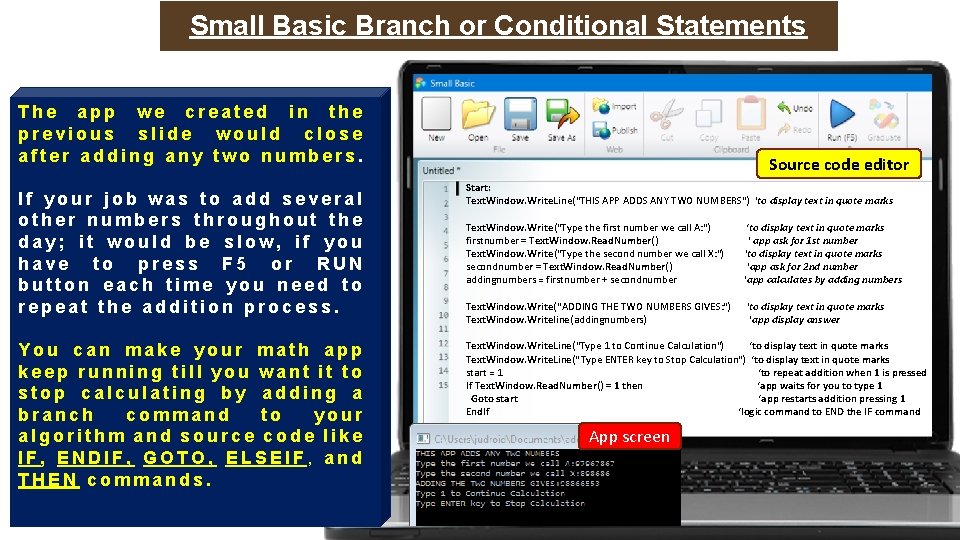
Small Basic Branch or Conditional Statements The app we created in the previous slide would close after adding any two numbers. If your job was to add several other numbers throughout the day; it would be slow, if you have to press F 5 or RUN button each time you need to repeat the addition process. You can make your math app keep running till you want it to stop calculating by adding a branch command to your algorithm and source code like IF, ENDIF, GOTO, ELSEIF, and THEN commands. Source code editor Start: Text. Window. Write. Line("THIS APP ADDS ANY TWO NUMBERS") 'to display text in quote marks Text. Window. Write("Type the first number we call A: ") ‘to display text in quote marks firstnumber = Text. Window. Read. Number() ' app ask for 1 st number Text. Window. Write("Type the second number we call X: ") 'to display text in quote marks secondnumber = Text. Window. Read. Number() 'app ask for 2 nd number addingnumbers = firstnumber + secondnumber 'app calculates by adding numbers Text. Window. Write("ADDING THE TWO NUMBERS GIVES: ") 'to display text in quote marks Text. Window. Writeline(addingnumbers) 'app display answer Text. Window. Write. Line("Type 1 to Continue Calculation") ‘to display text in quote marks Text. Window. Write. Line("Type ENTER key to Stop Calculation") ‘to display text in quote marks start = 1 ‘to repeat addition when 1 is pressed If Text. Window. Read. Number() = 1 then ‘app waits for you to type 1 Goto start ‘app restarts addition pressing 1 End. If ‘logic command to END the IF command App screen
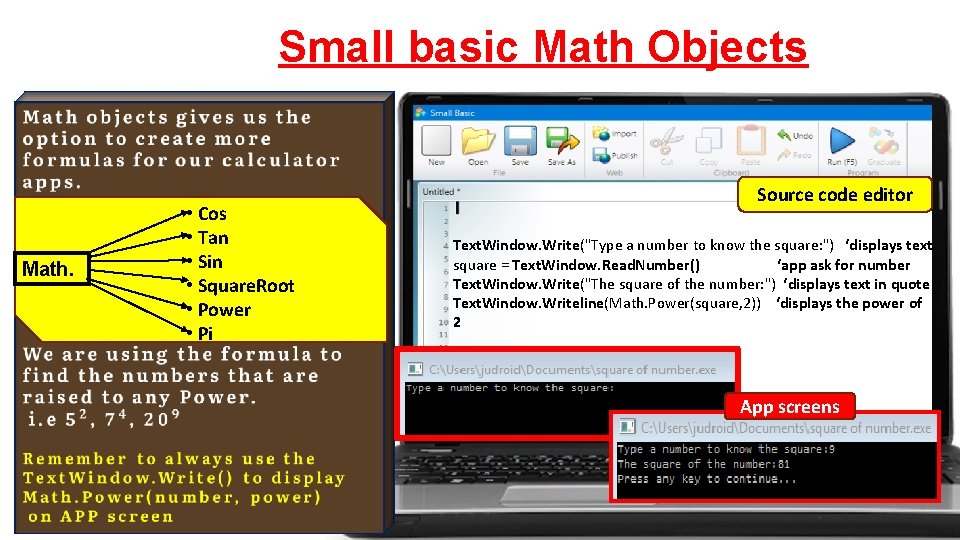
Small basic Math Objects Math. • Cos • Tan • Sin • Square. Root • Power • Pi Source code editor Text. Window. Write("Type a number to know the square: ") ‘displays text square = Text. Window. Read. Number() ‘app ask for number Text. Window. Write("The square of the number: ") ‘displays text in quote Text. Window. Writeline(Math. Power(square, 2)) ‘displays the power of 2 App screens
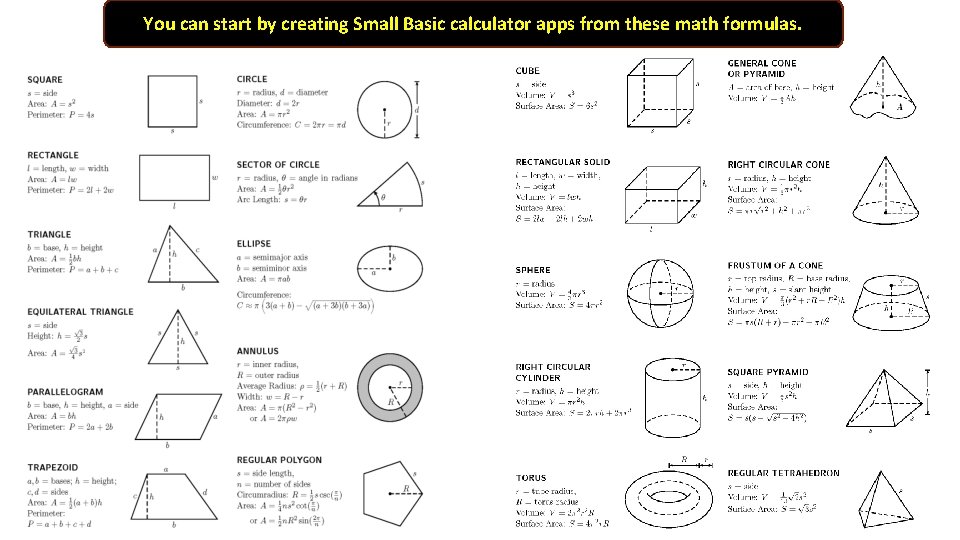
You can start by creating Small Basic calculator apps from these math formulas.
Small basic codes example 3 Our final example will be on our algorithm to find the AREA and PERIMETER of a Square. Source code editor Text. Window. Write. Line("App to calculate AREA & PERIMETER of a square") Text. Window. Write("Type the value for any side: ") ‘app displays texts gsides = Text. Window. Read. Number() ‘app wants length typed Step 1: Length of one side is G Step 2: Perimeter = 4 * G Text. Window. Write("The AREA of the square is: ") ‘app display text Text. Window. Write. Line(Math. Power(gsides, 2)) ‘app calculates & display area Text. Window. Write("The PERIMETER of the SQUARE is: ") ‘app displays text Text. Window. Writeline(gsides*4) ‘app calculates & display perimeter App screens
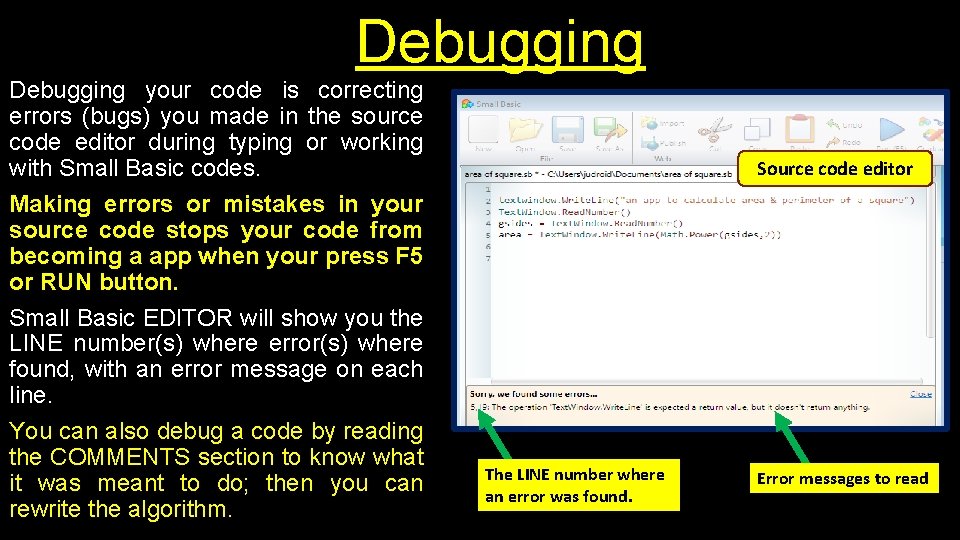
Debugging your code is correcting errors (bugs) you made in the source code editor during typing or working with Small Basic codes. Making errors or mistakes in your source code stops your code from becoming a app when your press F 5 or RUN button. Small Basic EDITOR will show you the LINE number(s) where error(s) where found, with an error message on each line. You can also debug a code by reading the COMMENTS section to know what it was meant to do; then you can rewrite the algorithm. Source code editor The LINE number where an error was found. Error messages to read
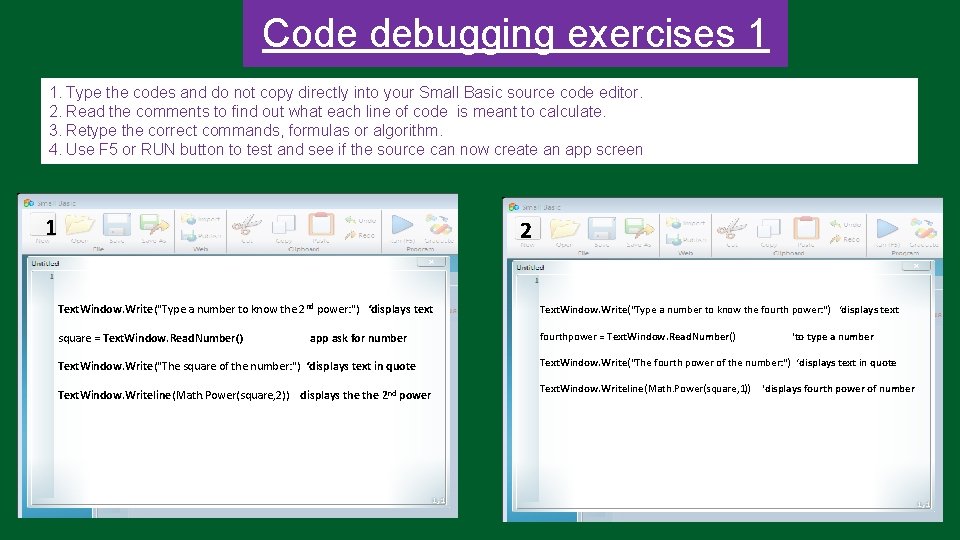
Code debugging exercises 1 1. Type the codes and do not copy directly into your Small Basic source code editor. 2. Read the comments to find out what each line of code is meant to calculate. 3. Retype the correct commands, formulas or algorithm. 4. Use F 5 or RUN button to test and see if the source can now create an app screen 1 2 Text. Window. Write("Type a number to know the 2 nd power: ") ‘displays text Text. Window. Write("Type a number to know the fourth power: ") ‘displays text square = Text. Window. Read. Number() fourthpower = Text. Window. Read. Number() app ask for number Text. Window. Write("The square of the number: ") ‘displays text in quote Text. Window. Writeline(Math. Power(square, 2)) displays the 2 nd power ‘to type a number Text. Window. Write("The fourth power of the number: ") ‘displays text in quote Text. Window. Writeline(Math. Power(square, 1)) ‘displays fourth power of number
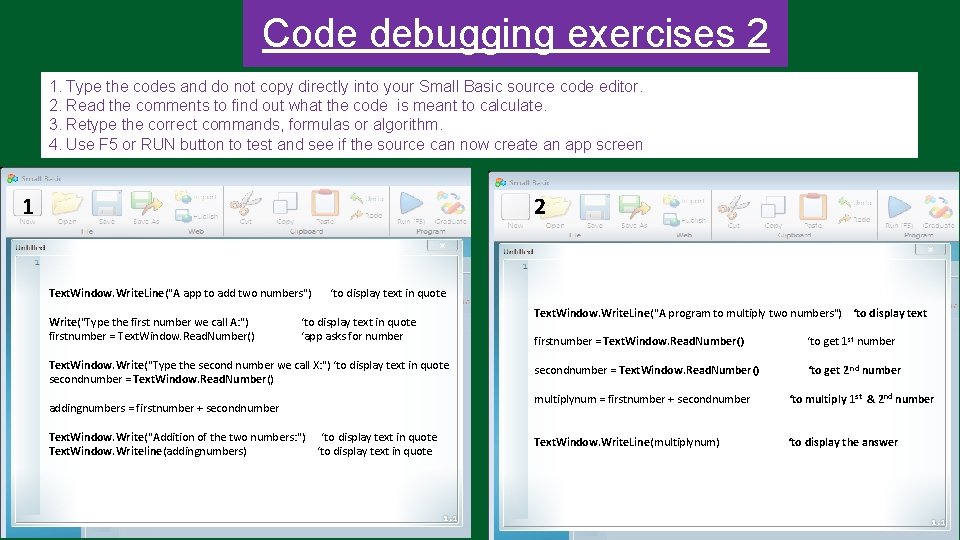
Code debugging exercises 2 1. Type the codes and do not copy directly into your Small Basic source code editor. 2. Read the comments to find out what the code is meant to calculate. 3. Retype the correct commands, formulas or algorithm. 4. Use F 5 or RUN button to test and see if the source can now create an app screen 1 2 Text. Window. Write. Line("A app to add two numbers") ‘to display text in quote Write("Type the first number we call A: ") firstnumber = Text. Window. Read. Number() ‘to display text in quote ‘app asks for number Text. Window. Write("Type the second number we call X: ") ‘to display text in quote secondnumber = Text. Window. Read. Number() addingnumbers = firstnumber + secondnumber Text. Window. Write("Addition of the two numbers: ") ‘to display text in quote Text. Window. Writeline(addingnumbers) ‘to display text in quote Text. Window. Write. Line("A program to multiply two numbers") ‘to display text firstnumber = Text. Window. Read. Number() ‘to get 1 st number secondnumber = Text. Window. Read. Number() ‘to get 2 nd number multiplynum = firstnumber + secondnumber ‘to multiply 1 st & 2 nd number Text. Window. Write. Line(multiplynum) ‘to display the answer
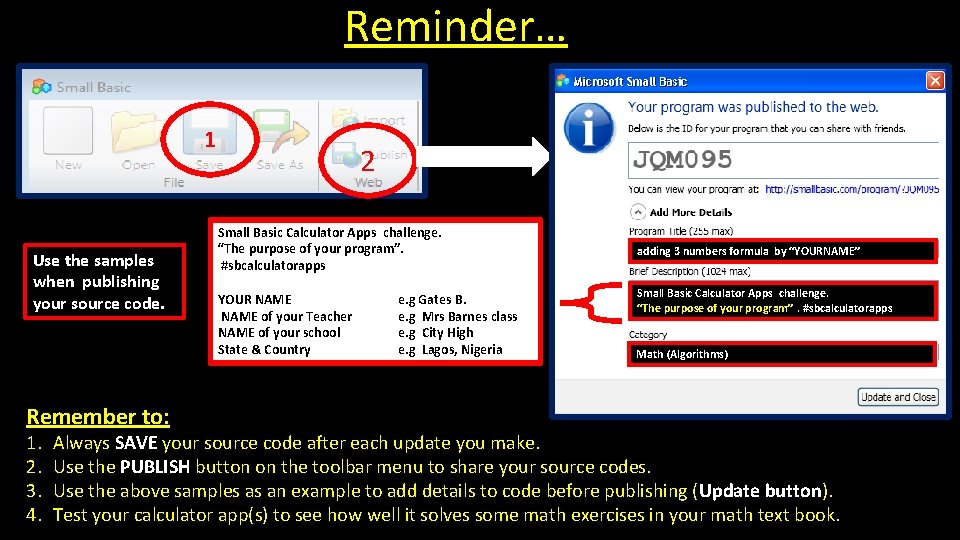
Reminder… 1 Use the samples when publishing your source code. Remember to: 1. 2. 3. 4. 2 Small Basic Calculator Apps challenge. “The purpose of your program”. #sbcalculatorapps YOUR NAME of your Teacher NAME of your school State & Country e. g Gates B. e. g Mrs Barnes class e. g City High e. g Lagos, Nigeria adding 3 numbers formula by “YOURNAME” Small Basic Calculator Apps challenge. “The purpose of your program”. #sbcalculatorapps Math (Algorithms) Always SAVE your source code after each update you make. Use the PUBLISH button on the toolbar menu to share your source codes. Use the above samples as an example to add details to code before publishing (Update button). Test your calculator app(s) to see how well it solves some math exercises in your math text book.
Congratulations you can now use Small Basic to program Math formulas.
Let the games begin!