
Calculating VAT Using absolute cell referencing Unit 8
Calculating VAT Using absolute cell referencing Unit 8. 4_Lesson 3_CD Resource 3 a_Calculating VAT using absolute cell referencing
What exactly is VAT? • VAT is value added tax • Most products we buy have VAT added to them • VAT is calculated as a percentage of the product price – usually 17. 5% • Some products have a lower rate of VAT • Some products, like food and books, do not have VAT added • Businesses have to pay VAT to the Inland Revenue on all the products they sell Unit 8. 4_Lesson 3_CD Resource 3 a_Calculating VAT using absolute cell referencing

Step 1 – Add VAT percentage to a spreadsheet The first step is to enter the VAT percentage rate into your spreadsheet. This is usually 17. 5%. On the table shown, it is in cell C 17. Unit 8. 4_Lesson 3_CD Resource 3 a_Calculating VAT using absolute cell referencing

Step 2 – Calculate VAT on ticket price Now you need to type a formula into cell D 4 to calculate the VAT on ticket price. The formula needs to always refer to cell C 17. What type of cell reference would you use? Unit 8. 4_Lesson 3_CD Resource 3 a_Calculating VAT using absolute cell referencing
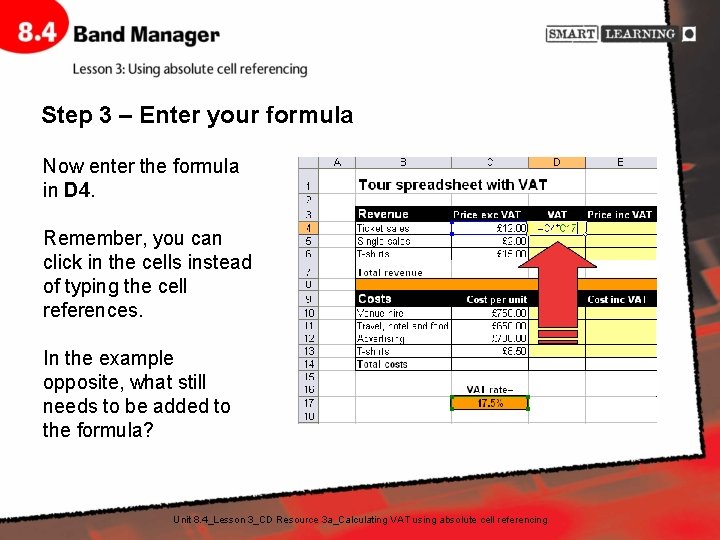
Step 3 – Enter your formula Now enter the formula in D 4. Remember, you can click in the cells instead of typing the cell references. In the example opposite, what still needs to be added to the formula? Unit 8. 4_Lesson 3_CD Resource 3 a_Calculating VAT using absolute cell referencing
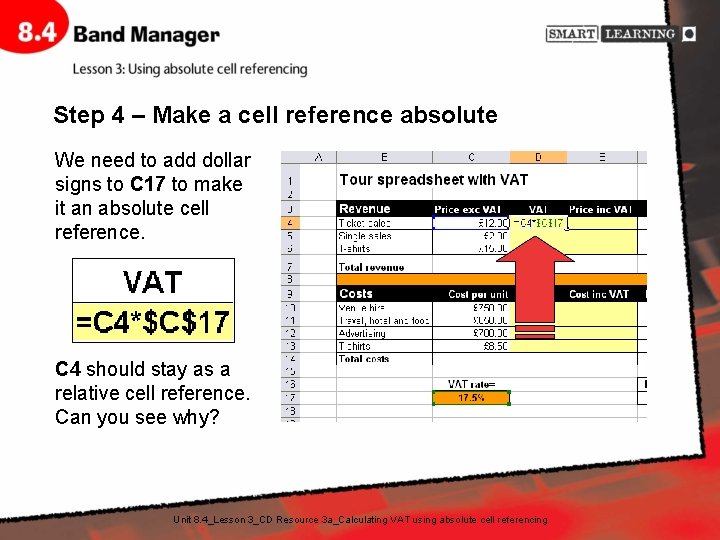
Step 4 – Make a cell reference absolute We need to add dollar signs to C 17 to make it an absolute cell reference. C 4 should stay as a relative cell reference. Can you see why? Unit 8. 4_Lesson 3_CD Resource 3 a_Calculating VAT using absolute cell referencing
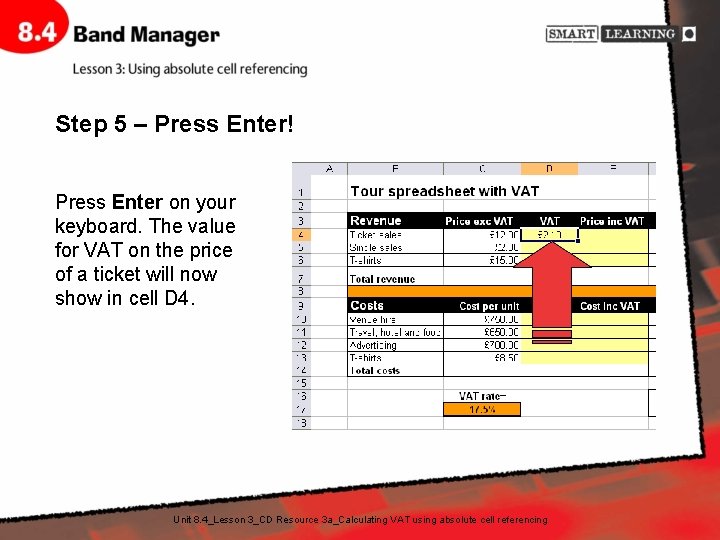
Step 5 – Press Enter! Press Enter on your keyboard. The value for VAT on the price of a ticket will now show in cell D 4. Unit 8. 4_Lesson 3_CD Resource 3 a_Calculating VAT using absolute cell referencing
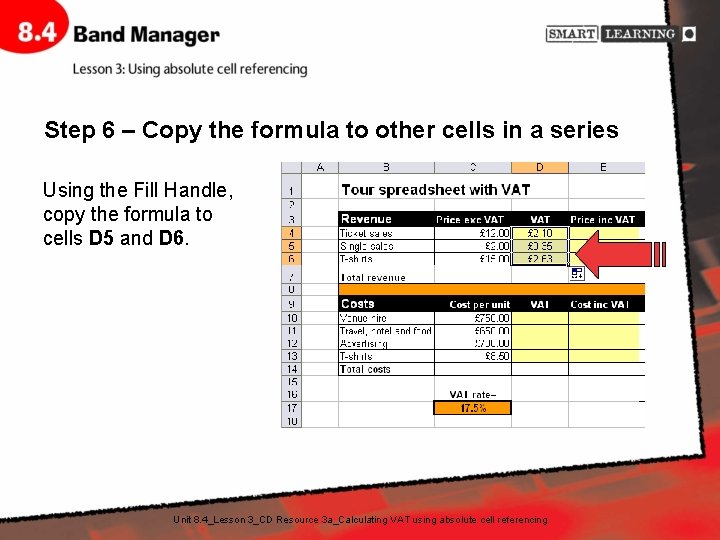
Step 6 – Copy the formula to other cells in a series Using the Fill Handle, copy the formula to cells D 5 and D 6. Unit 8. 4_Lesson 3_CD Resource 3 a_Calculating VAT using absolute cell referencing
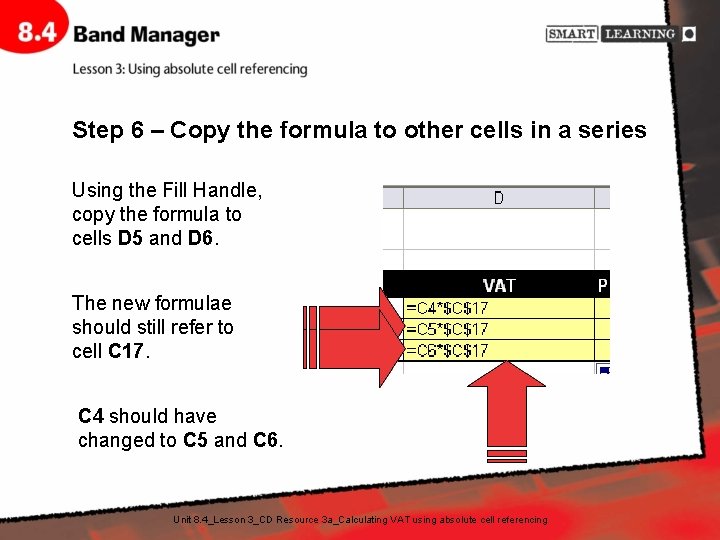
Step 6 – Copy the formula to other cells in a series Using the Fill Handle, copy the formula to cells D 5 and D 6. The new formulae should still refer to cell C 17. C 4 should have changed to C 5 and C 6. Unit 8. 4_Lesson 3_CD Resource 3 a_Calculating VAT using absolute cell referencing
- Slides: 9