
Buttons in SPM 5 Sen OSullivan ION Alice
Buttons in SPM 5 Seán O’Sullivan, ION Alice Jones, Dept of Psychology Methods for Dummies 16 th Jan 2008
SPM 5 – WTF? n Ladles and jellyspoons, I come before you to stand behind you and tell you something I know nothing about. Next Thursday, the day after Friday, there will be a ladies' meeting for men only. Wear your best clothes, if you haven't any, and if you can come, please stay home. Admission is free, you can pay at the door. We'll give you a seat, so you can sit on the floor. It makes no difference where you sit, the kid in the gallery is sure to spit.
Topics § § § Introducing the SPM 5 User Interface Spatial Pre-processing in f. MRI Model design 1 st and 2 nd Level Analysis Help in SPM 5
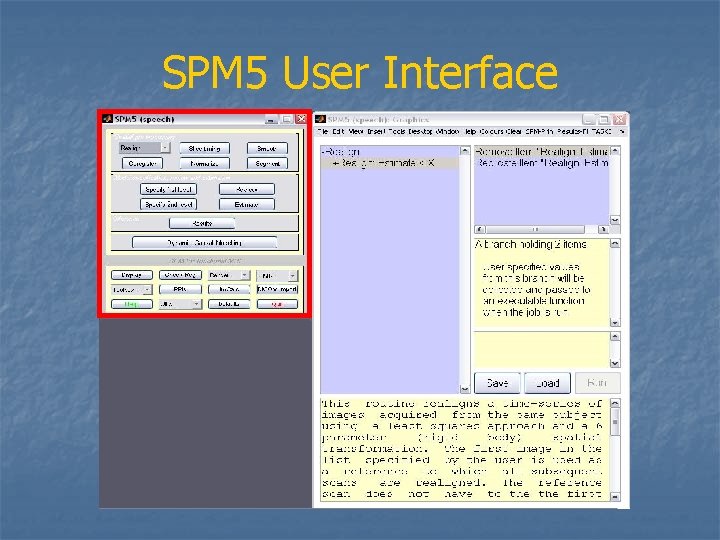
SPM 5 User Interface

Preprocessing Analysis Inference
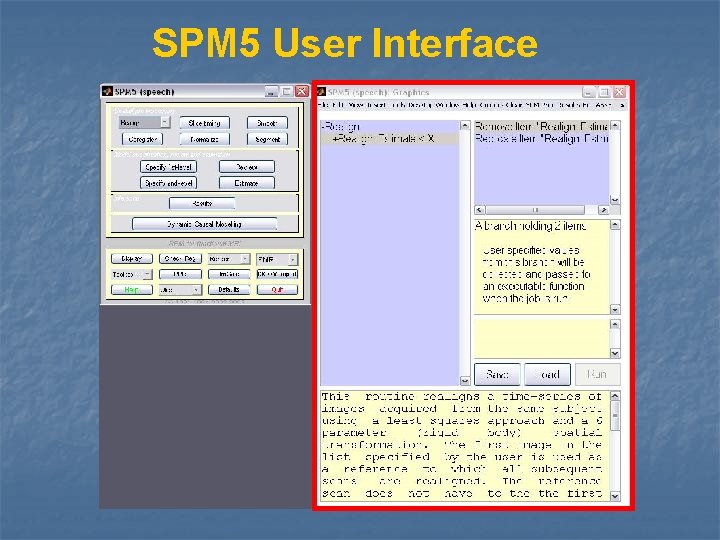
SPM 5 User Interface
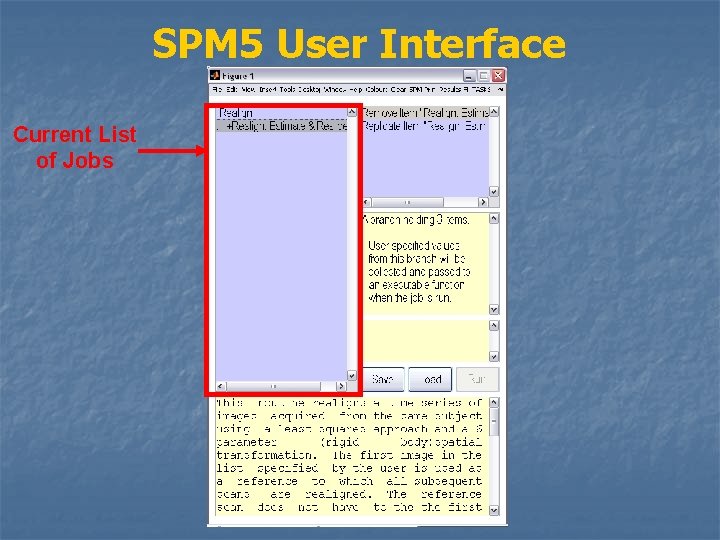
SPM 5 User Interface Current List of Jobs
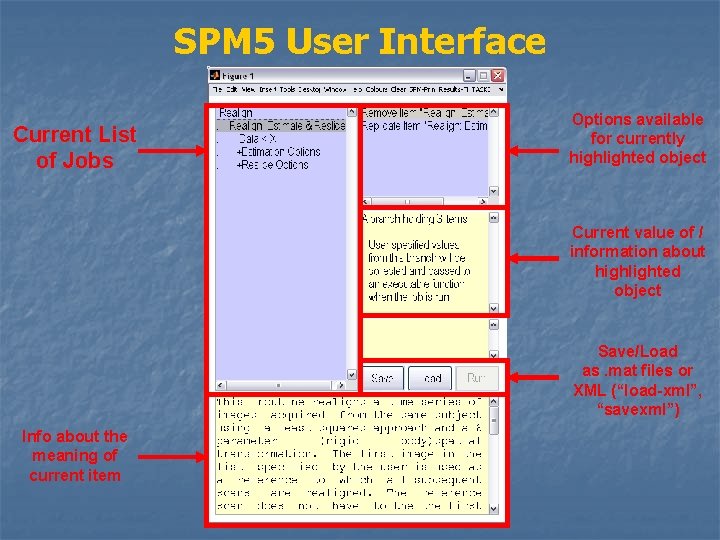
SPM 5 User Interface Current List of Jobs Options available for currently highlighted object Current value of / information about highlighted object Save/Load as. mat files or XML (“load-xml”, “savexml”) Info about the meaning of current item
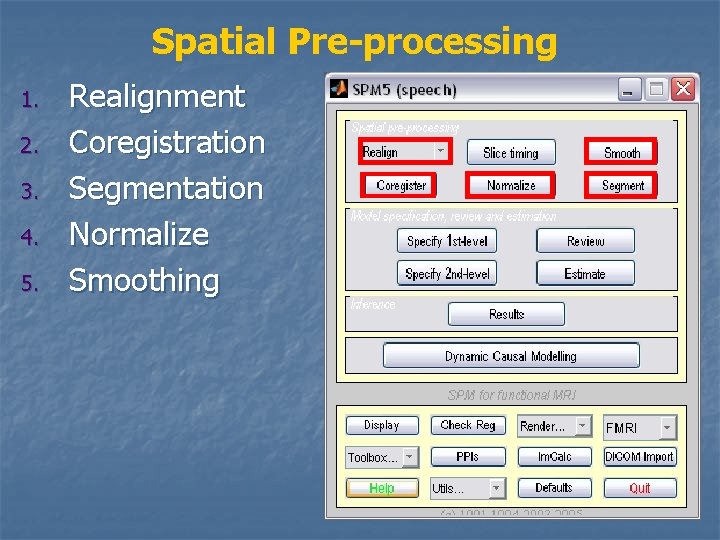
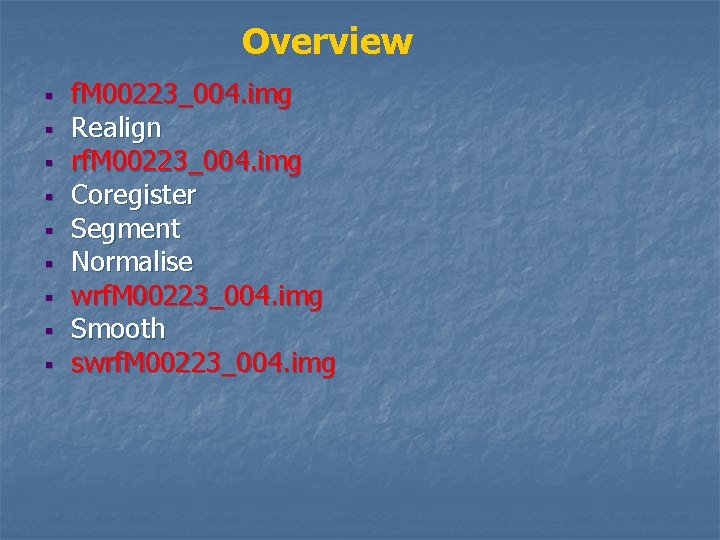
Spatial Pre-processing 1. 2. 3. 4. 5. Realignment Coregistration Segmentation Normalize Smoothing
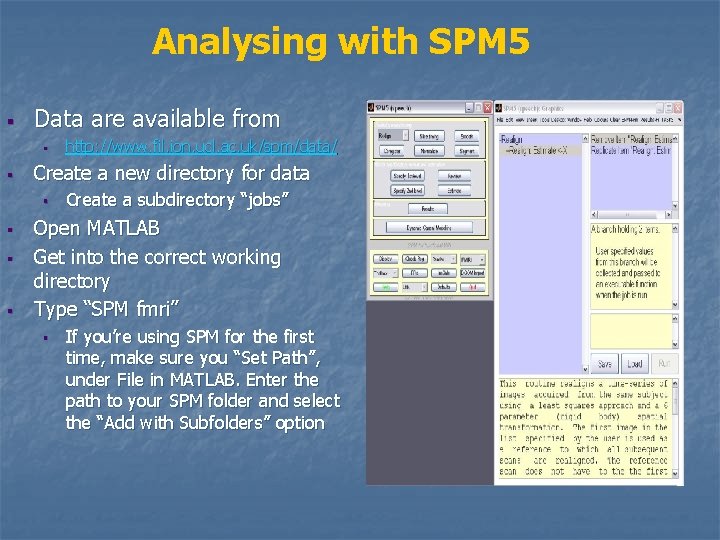
Analysing with SPM 5 § Data are available from § § Create a new directory for data § § http: //www. fil. ion. ucl. ac. uk/spm/data/ Create a subdirectory “jobs” Open MATLAB Get into the correct working directory Type “SPM fmri” § If you’re using SPM for the first time, make sure you “Set Path”, under File in MATLAB. Enter the path to your SPM folder and select the “Add with Subfolders” option
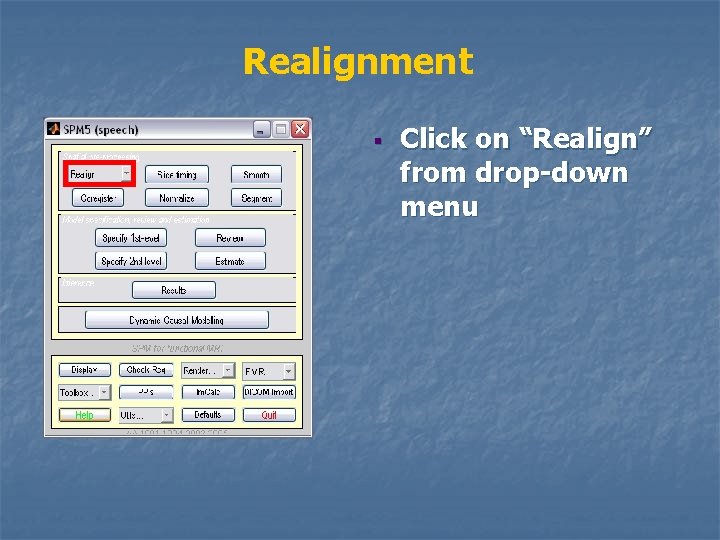
Realignment § Click on “Realign” from drop-down menu
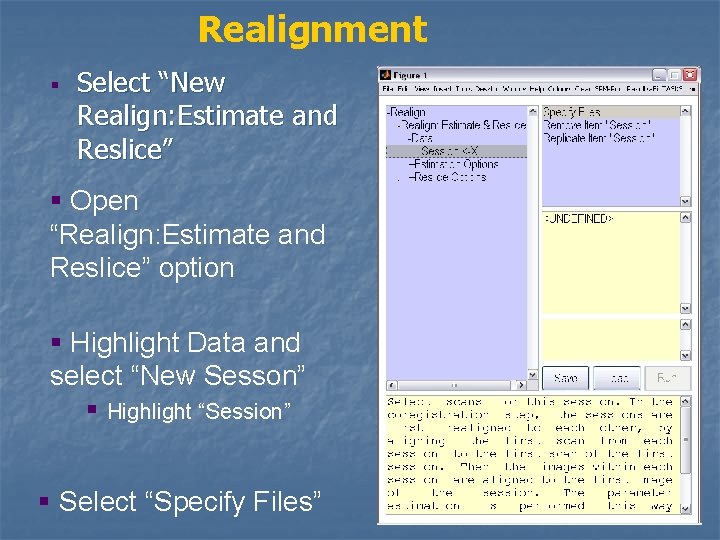
Realignment § Select “New Realign: Estimate and Reslice” § Open “Realign: Estimate and Reslice” option § Highlight Data and select “New Sesson” § Highlight “Session” § Select “Specify Files”
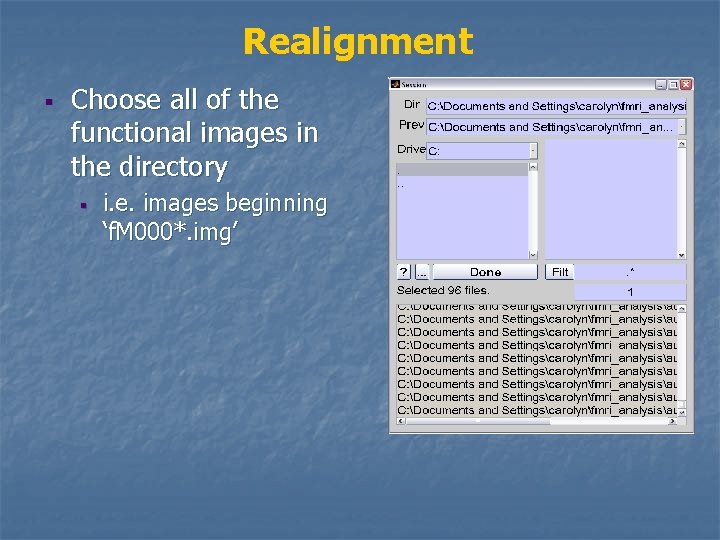
Realignment § Choose all of the functional images in the directory § i. e. images beginning ‘f. M 000*. img’
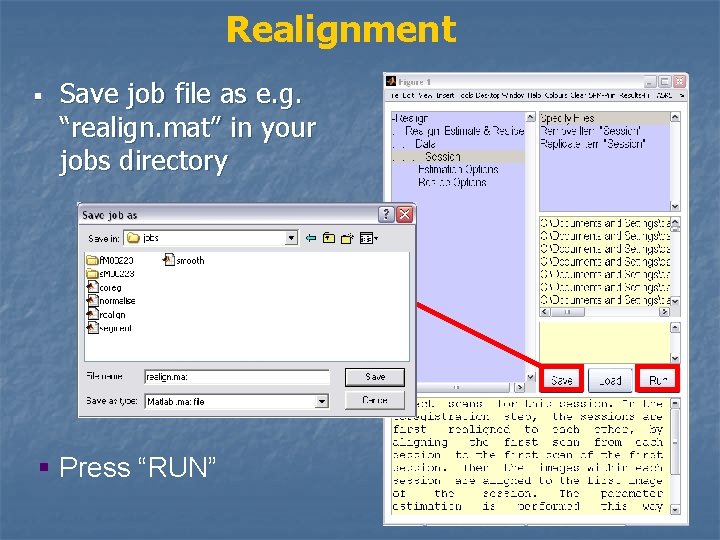
Realignment § Save job file as e. g. “realign. mat” in your jobs directory § Press “RUN”
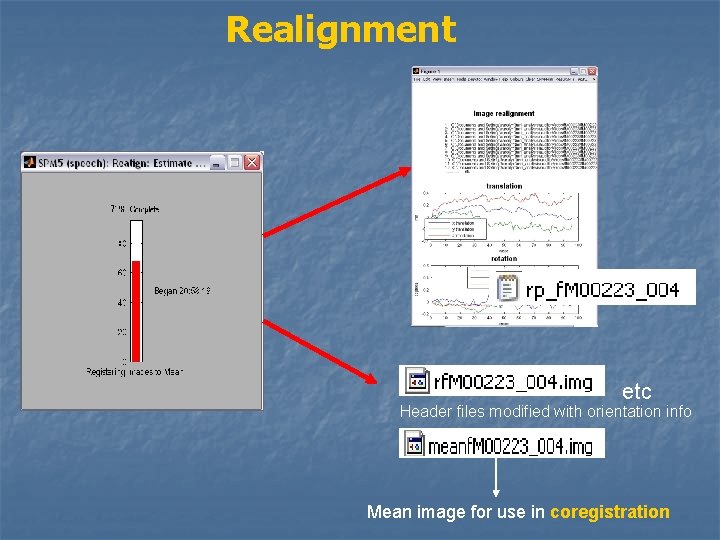
Realignment etc Header files modified with orientation info Mean image for use in coregistration
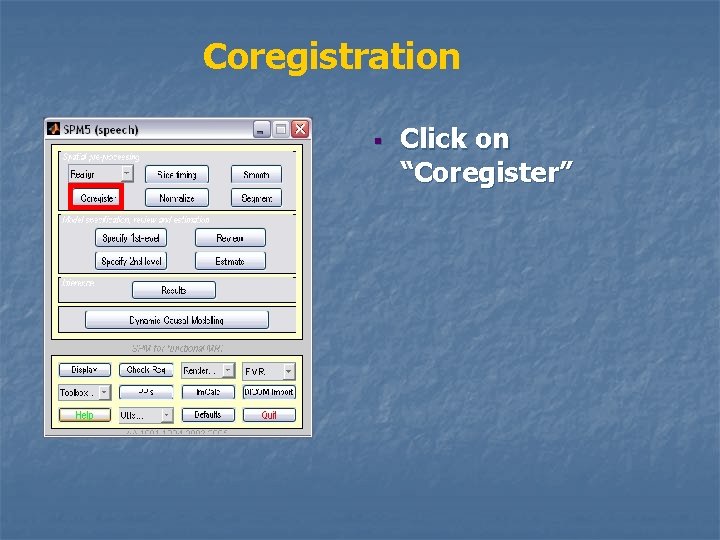
Coregistration § Click on “Coregister”
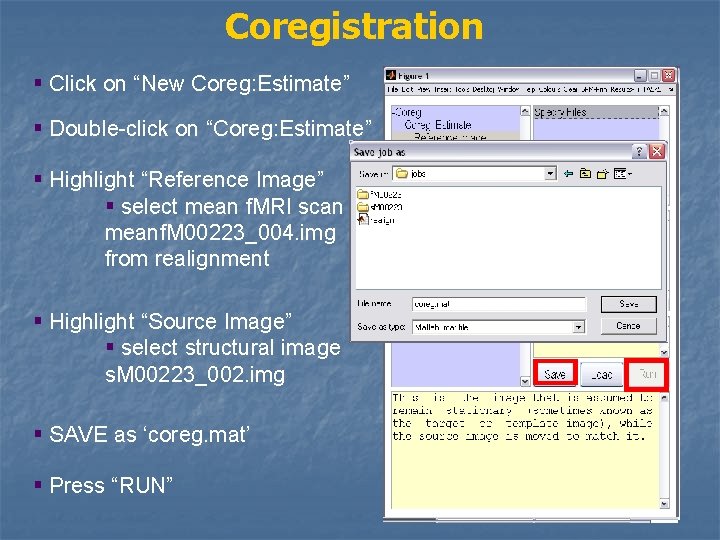
Coregistration § Click on “New Coreg: Estimate” § Double-click on “Coreg: Estimate” § Highlight “Reference Image” § select mean f. MRI scan meanf. M 00223_004. img from realignment § Highlight “Source Image” § select structural image s. M 00223_002. img § SAVE as ‘coreg. mat’ § Press “RUN”
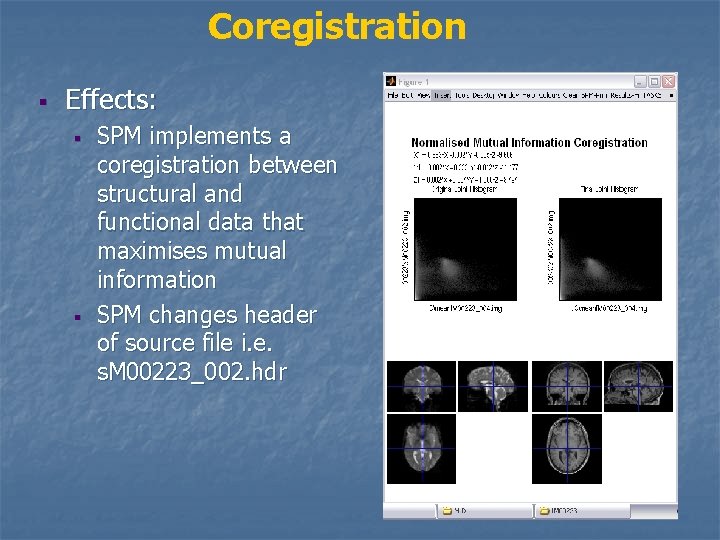
Coregistration § Effects: § § SPM implements a coregistration between structural and functional data that maximises mutual information SPM changes header of source file i. e. s. M 00223_002. hdr
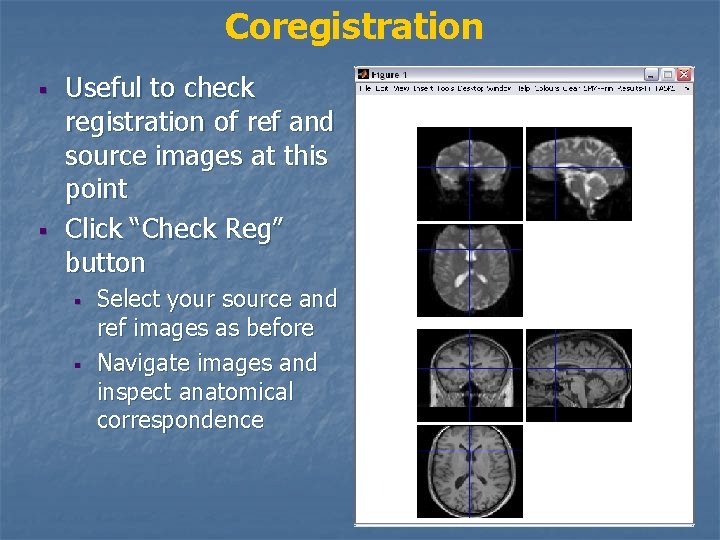
Coregistration § § Useful to check registration of ref and source images at this point Click “Check Reg” button § § Select your source and ref images as before Navigate images and inspect anatomical correspondence
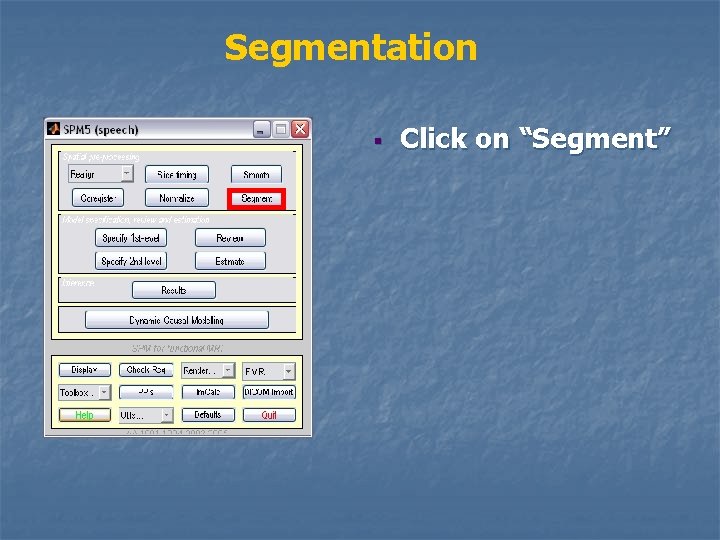
Segmentation § Click on “Segment”
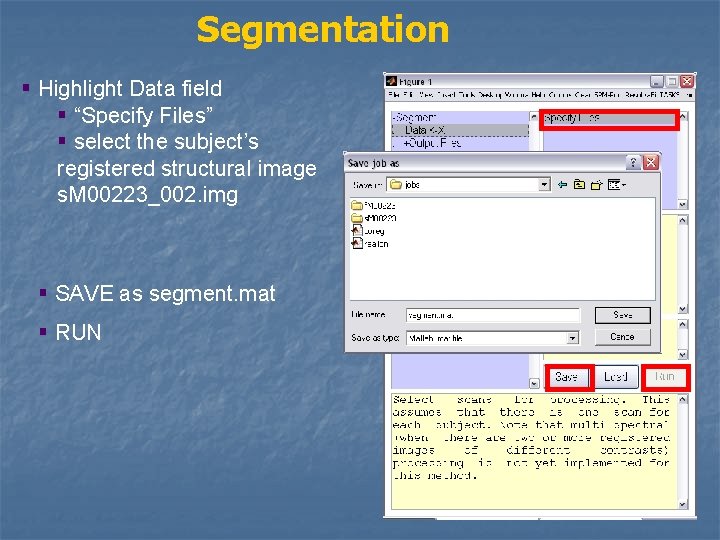
Segmentation § Highlight Data field § “Specify Files” § select the subject’s registered structural image s. M 00223_002. img § SAVE as segment. mat § RUN
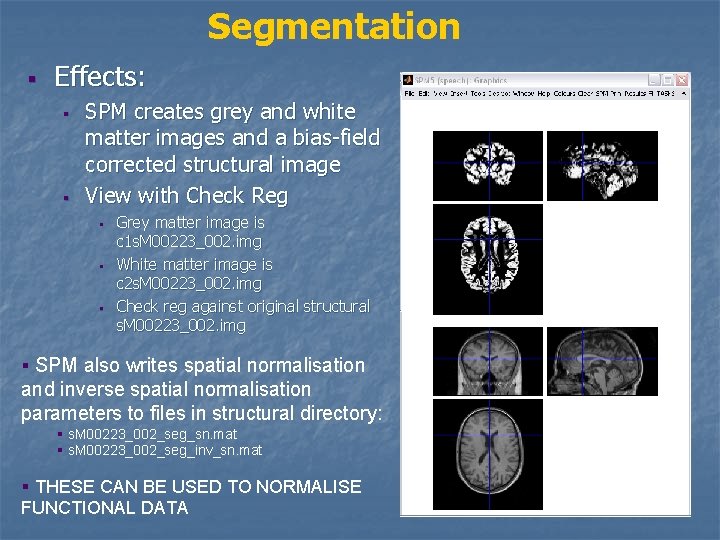
Segmentation § Effects: § § SPM creates grey and white matter images and a bias-field corrected structural image View with Check Reg § § § Grey matter image is c 1 s. M 00223_002. img White matter image is c 2 s. M 00223_002. img Check reg against original structural s. M 00223_002. img Grey matter image § SPM also writes spatial normalisation and inverse spatial normalisation parameters to files in structural directory: § s. M 00223_002_seg_sn. mat § s. M 00223_002_seg_inv_sn. mat § THESE CAN BE USED TO NORMALISE FUNCTIONAL DATA Original structural image
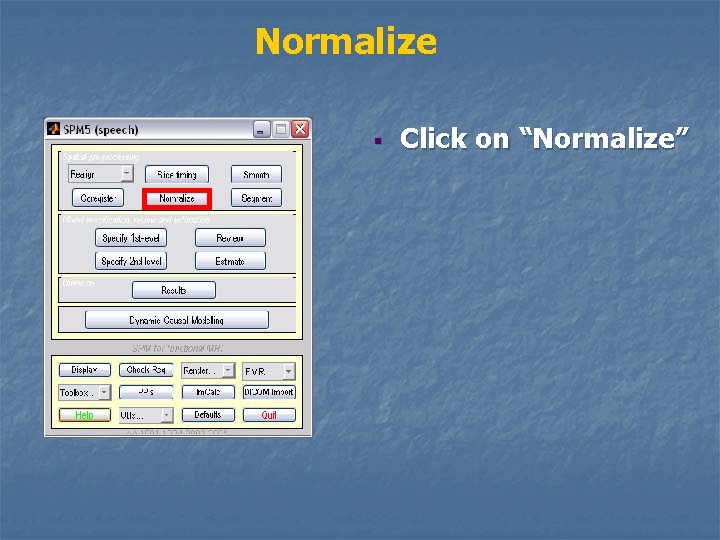
Normalize § Click on “Normalize”
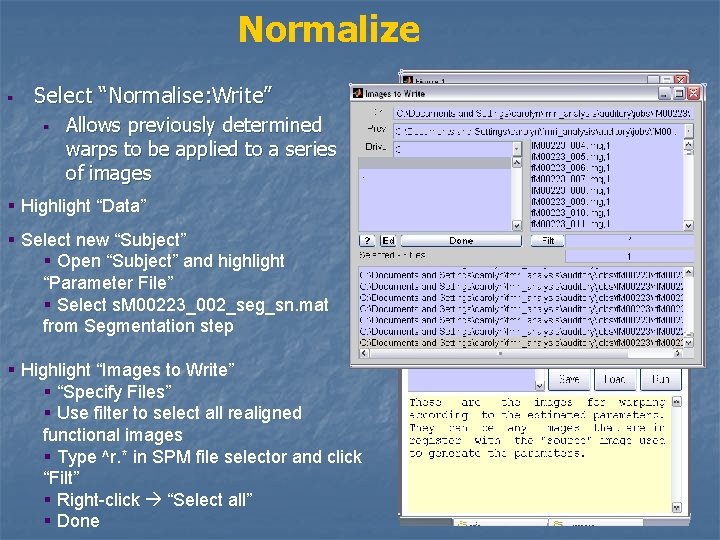
Normalize § Select “Normalise: Write” § Allows previously determined warps to be applied to a series of images § Highlight “Data” § Select new “Subject” § Open “Subject” and highlight “Parameter File” § Select s. M 00223_002_seg_sn. mat from Segmentation step § Highlight “Images to Write” § “Specify Files” § Use filter to select all realigned functional images § Type ^r. * in SPM file selector and click “Filt” § Right-click “Select all” § Done
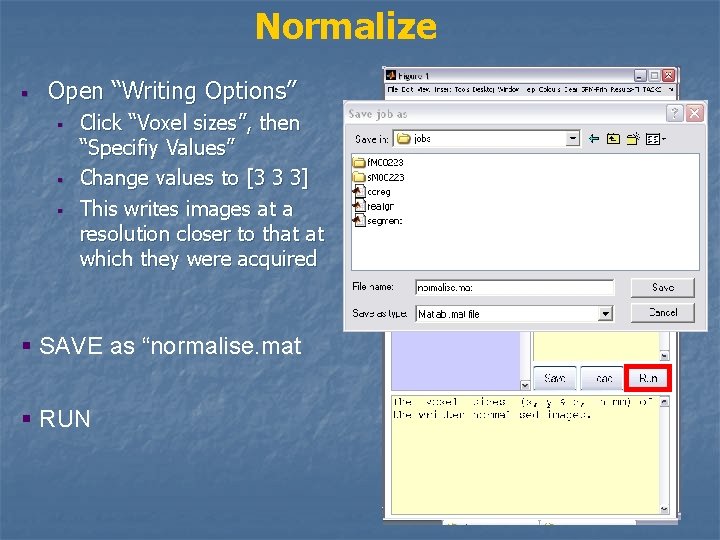
Normalize § Open “Writing Options” § § § Click “Voxel sizes”, then “Specifiy Values” Change values to [3 3 3] This writes images at a resolution closer to that at which they were acquired § SAVE as “normalise. mat § RUN
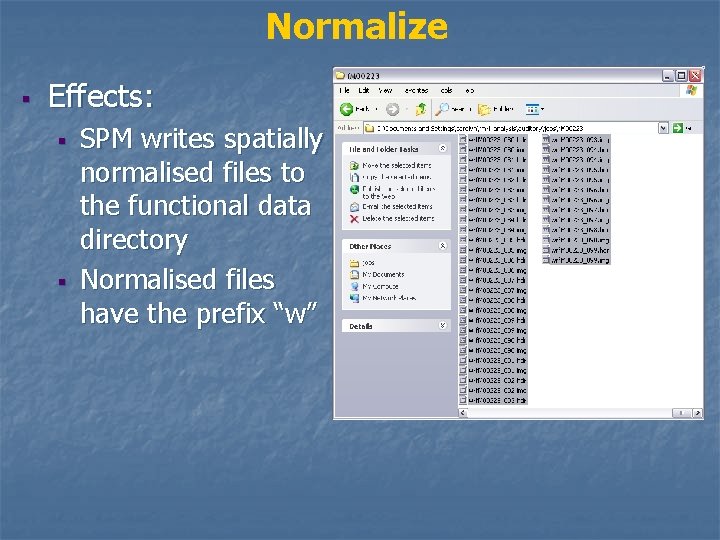
Normalize § Effects: § § SPM writes spatially normalised files to the functional data directory Normalised files have the prefix “w”
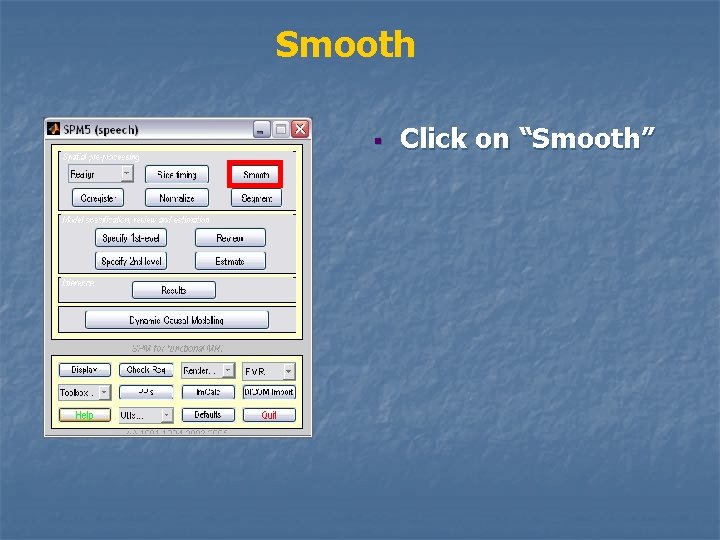
Smooth § Click on “Smooth”
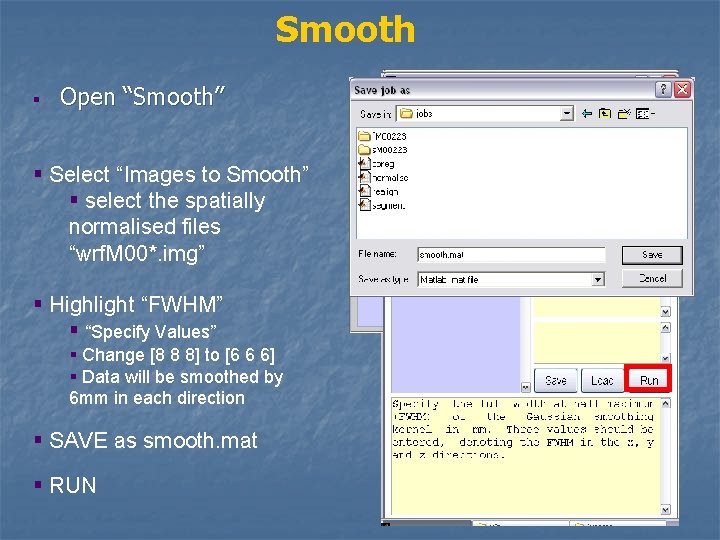
Smooth § Open “Smooth” § Select “Images to Smooth” § select the spatially normalised files “wrf. M 00*. img” § Highlight “FWHM” § “Specify Values” § Change [8 8 8] to [6 6 6] § Data will be smoothed by 6 mm in each direction § SAVE as smooth. mat § RUN
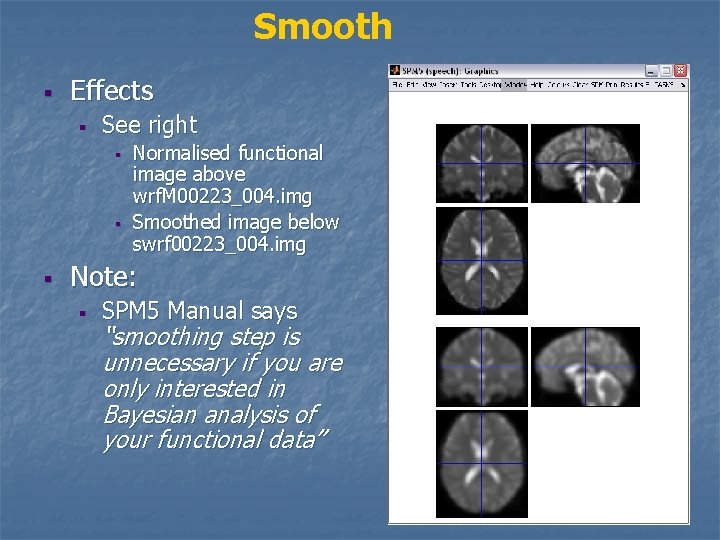
Smooth § Effects § See right § § § Normalised functional image above wrf. M 00223_004. img Smoothed image below swrf 00223_004. img Note: § SPM 5 Manual says “smoothing step is unnecessary if you are only interested in Bayesian analysis of your functional data”
Overview § § § § § f. M 00223_004. img Realign rf. M 00223_004. img Coregister Segment Normalise wrf. M 00223_004. img Smooth swrf. M 00223_004. img
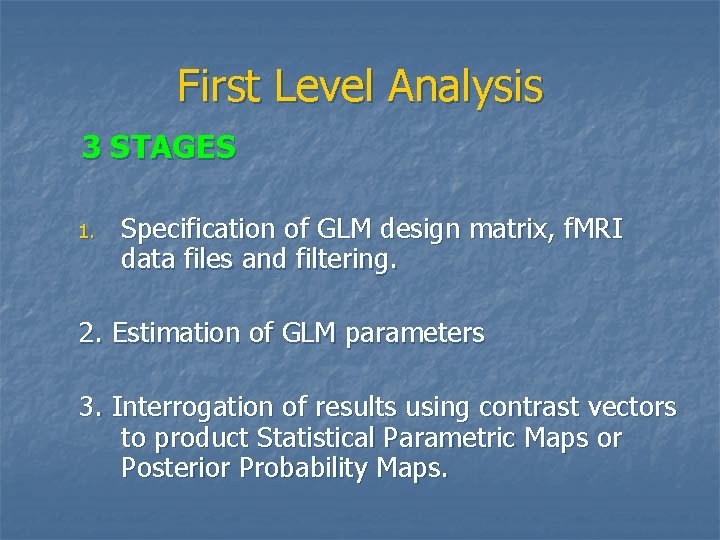
First Level Analysis 3 STAGES 1. Specification of GLM design matrix, f. MRI data files and filtering. 2. Estimation of GLM parameters 3. Interrogation of results using contrast vectors to product Statistical Parametric Maps or Posterior Probability Maps.
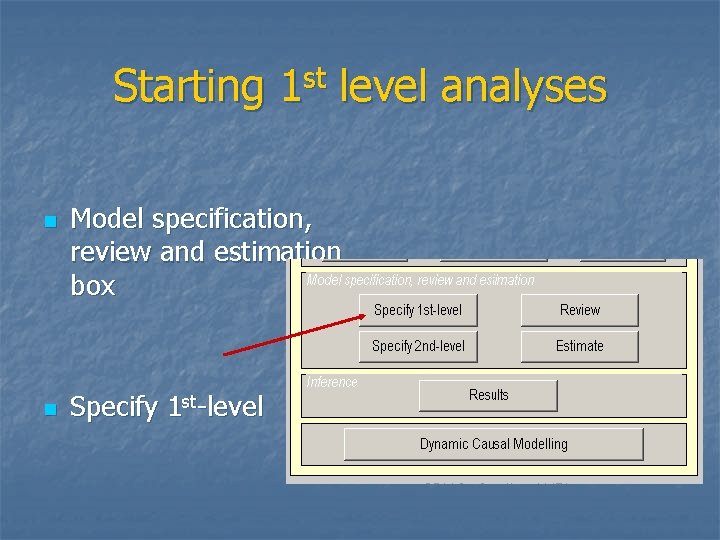
Starting 1 st level analyses n n Model specification, review and estimation box Specify 1 st-level
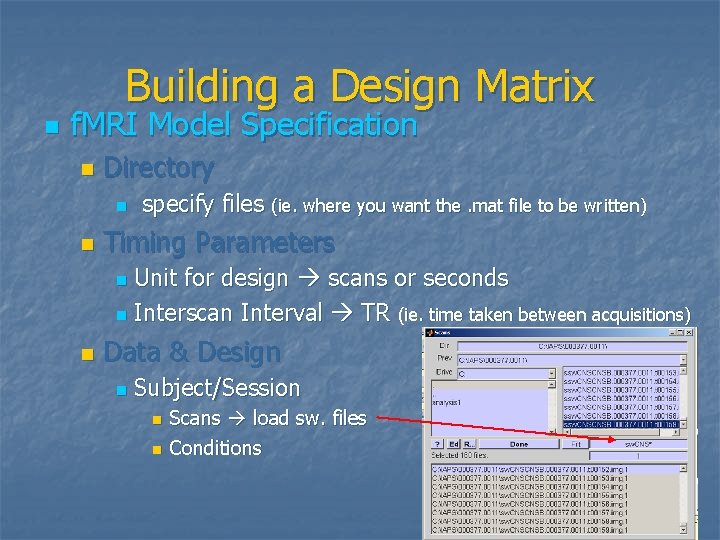
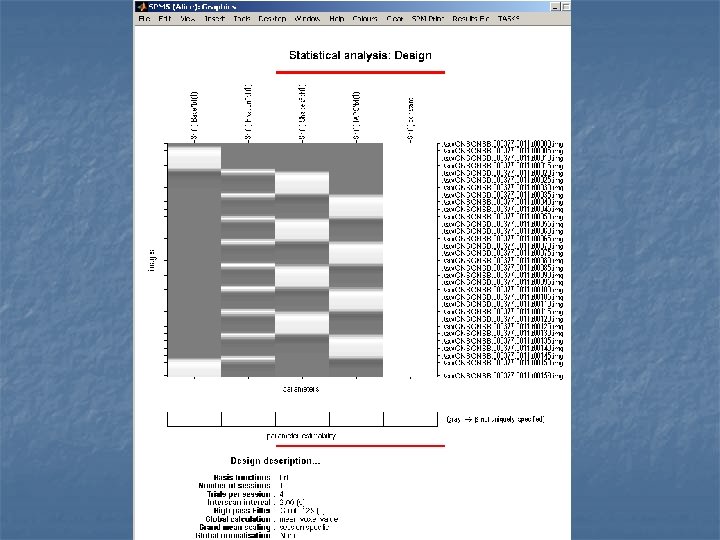
Building a Design Matrix n f. MRI Model Specification n Directory n n specify files (ie. where you want the. mat file to be written) Timing Parameters Unit for design scans or seconds n Interscan Interval TR (ie. time taken between acquisitions) n n Data & Design n Subject/Session n n Scans load sw. files Conditions
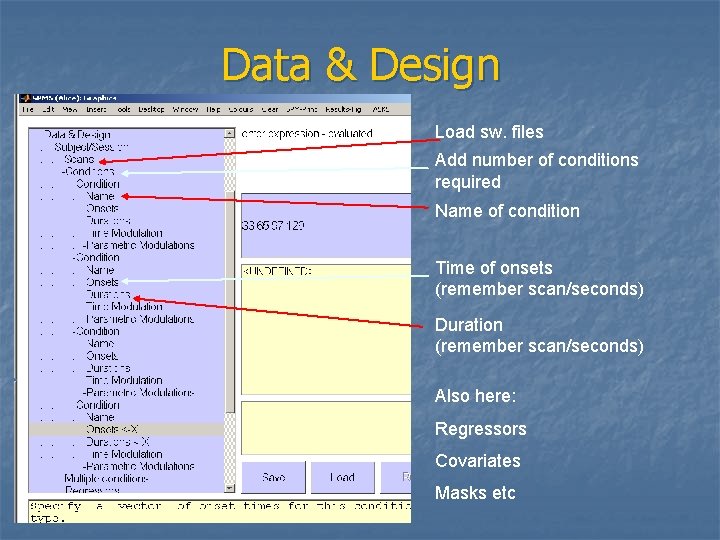
Data & Design Load sw. files n Subject/Session Add number of conditions required Name of condition Time of onsets (remember scan/seconds) Duration (remember scan/seconds) Also here: Regressors Covariates Masks etc
Output
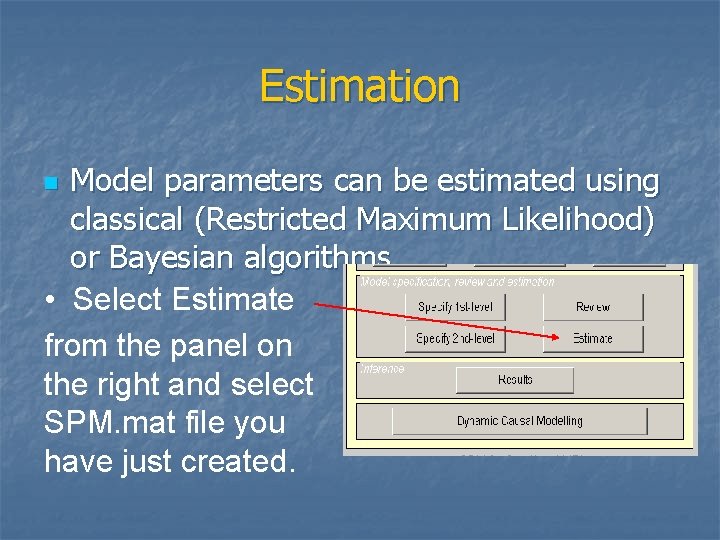
Estimation Model parameters can be estimated using classical (Restricted Maximum Likelihood) or Bayesian algorithms • Select Estimate from the panel on the right and select SPM. mat file you have just created. n
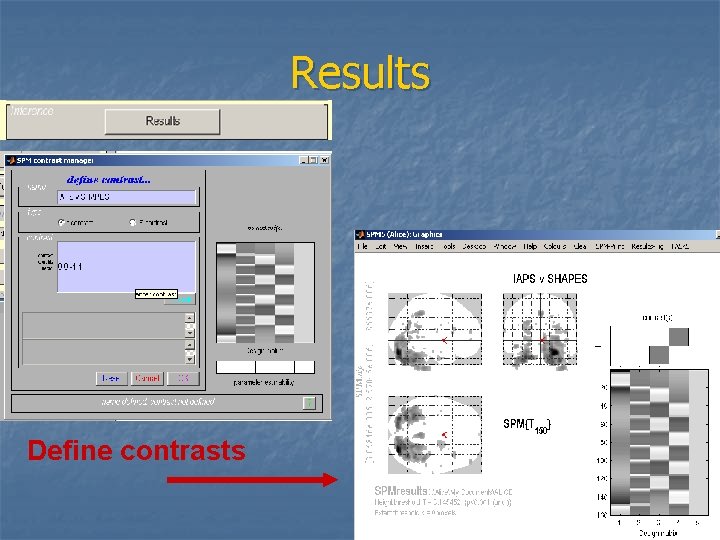
Results Define contrasts
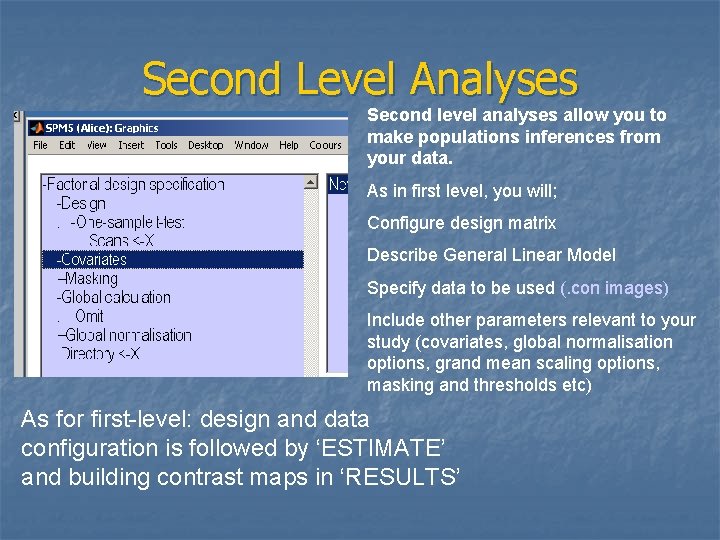
Second Level Analyses Second level analyses allow you to make populations inferences from your data. As in first level, you will; Configure design matrix Describe General Linear Model Specify data to be used (. con images) Include other parameters relevant to your study (covariates, global normalisation options, grand mean scaling options, masking and thresholds etc) As for first-level: design and data configuration is followed by ‘ESTIMATE’ and building contrast maps in ‘RESULTS’
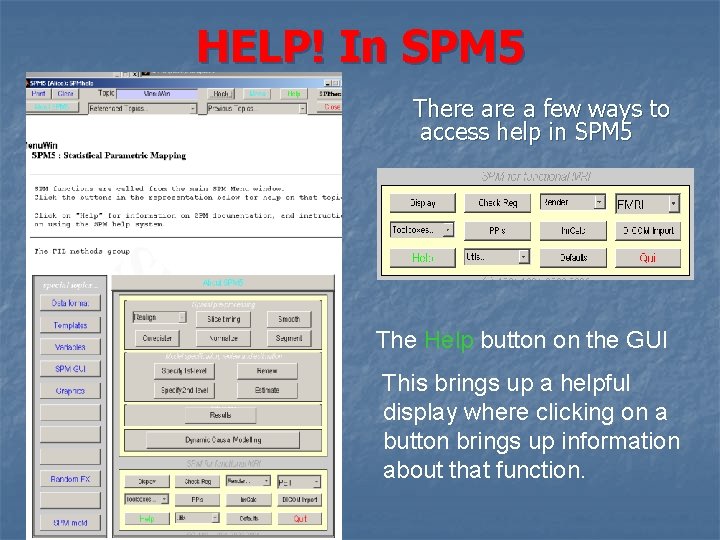
HELP! In SPM 5 There a few ways to access help in SPM 5 The Help button on the GUI This brings up a helpful display where clicking on a button brings up information about that function.
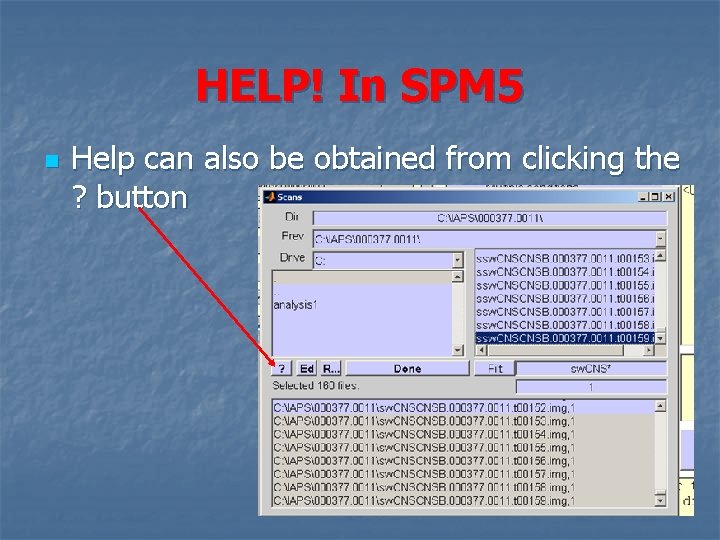
HELP! In SPM 5 n Help can also be obtained from clicking the ? button
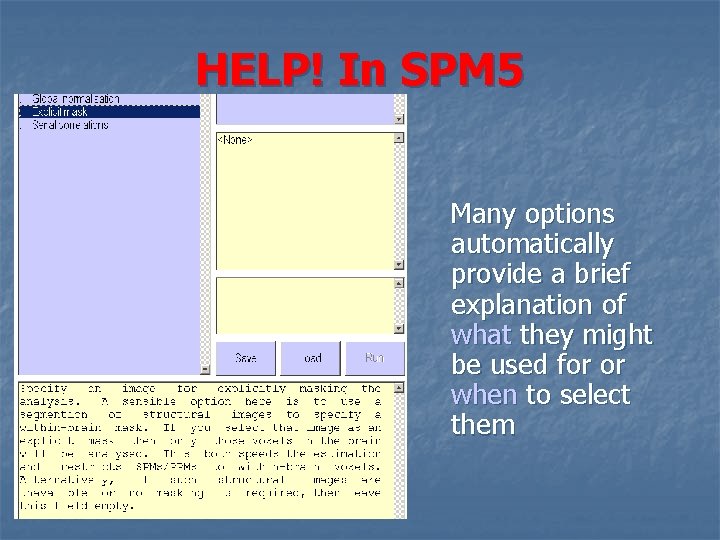
HELP! In SPM 5 Many options automatically provide a brief explanation of what they might be used for or when to select them

Sources of plagiarism n n Alice Grogan, Carolyn Mc. Gettigan Buttons in SPM 5 Manual - The FIL Methods Group
- Slides: 42