
Business Readiness TRACES NT Registration Process 2 Contents
Business Readiness TRACES. NT Registration Process
2 Contents How to register – Organisation administrator How to register – Standard user How to authorise a Standard user 2

How to register for TRACES. NT – Organisation administrator
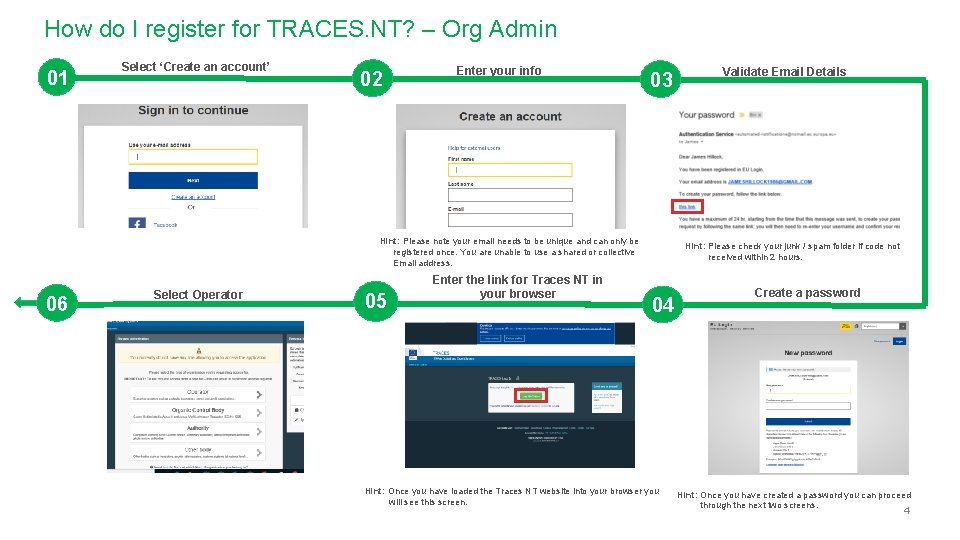
How do I register for TRACES. NT? – Org Admin 01 Select ‘Create an account’ 02 Enter your info 03 Hint: Please note your email needs to be unique and can only be registered once. You are unable to use a shared or collective Email address. 06 Select Operator 05 Enter the link for Traces NT in your browser Validate Email Details Hint: Please check your junk / spam folder if code not received within 2 hours. 04 Hint: Once you have loaded the Traces NT website into your browser you will see this screen. Create a password Hint: Once you have created a password you can proceed through the next two screens. 4

Registrations continued… 7 Click ‘Search’ Hint: In order to create a new RFL account you must first check that your organisation does not already have an account. If you are setting your organisation up for the first time you can simply click search. 12 Scroll down to ‘Assigned responsible authority’ Hint: You must select the BCP you operate through most often, or the one you have a relationship with. This BCP will be the organisation who authorises your Traces NT account. You need to select the BCP relevant to the commodity you import, i. e. Animal = CHED-A. 08 Now click ‘Create a new operator’ 09 Hint: Remember the first person to register your organisation will hold the ‘Admin’ position and will be able to validate other users to your organisation. 11 In Activity update ‘Selection’ and ‘Activity’ 10 Hint: Both the ‘Selection’ and the ‘Activity’ box should state Responsible for the Load. The remaining boxes in the Activity section can be left blank. Enter your ‘Operator details’ Hint: Fill out the information of your organisation, this should identify your business and not you personally. In ‘Chapter or activity’ select ‘Other’ 5
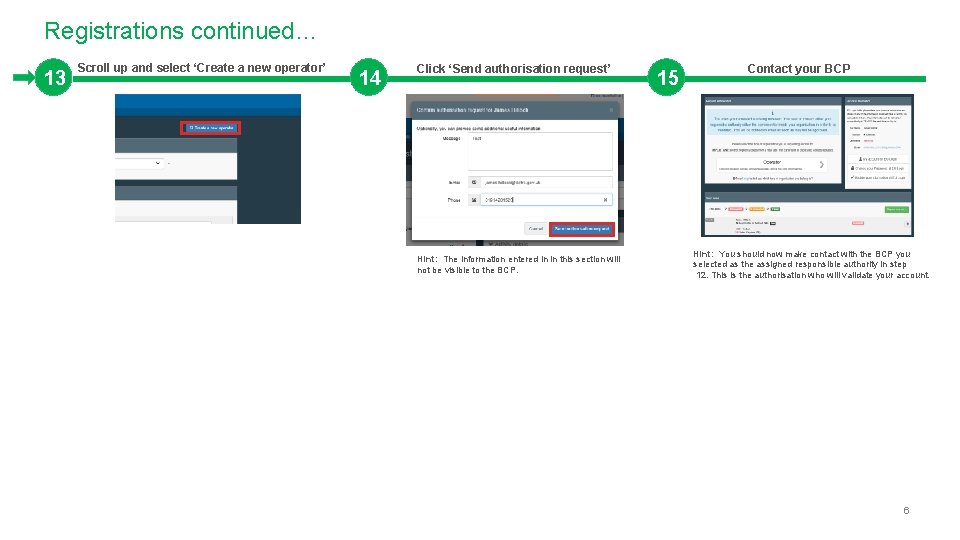
Registrations continued… 13 Scroll up and select ‘Create a new operator’ 14 Click ‘Send authorisation request’ Hint: The information entered in in this section will not be visible to the BCP. 15 Contact your BCP Hint: You should now make contact with the BCP you selected as the assigned responsible authority in step 12. This is the authorisation who will validate your account. 6

How to register for TRACES. NT – Standard user

How do I register for TRACES. NT? – Standard user 01 Select ‘Create an account’ 02 Select Operator 03 05 Enter the link for Traces NT in your browser Validate Email Details Hint: Please check your junk / spam folder if code not received within 2 hours. Hint: Please note your email is unique an can only be registered once. Hint: Remember the first person to register your organisation will hold the ‘Org Admin’ position and will be able to validate other users to your organisation. 06 Enter your info 04 Hint: Once you have loaded the Traces NT website into your browser you can Create a password Hint: Once you have created a password you can proceed through the next two screens. 8
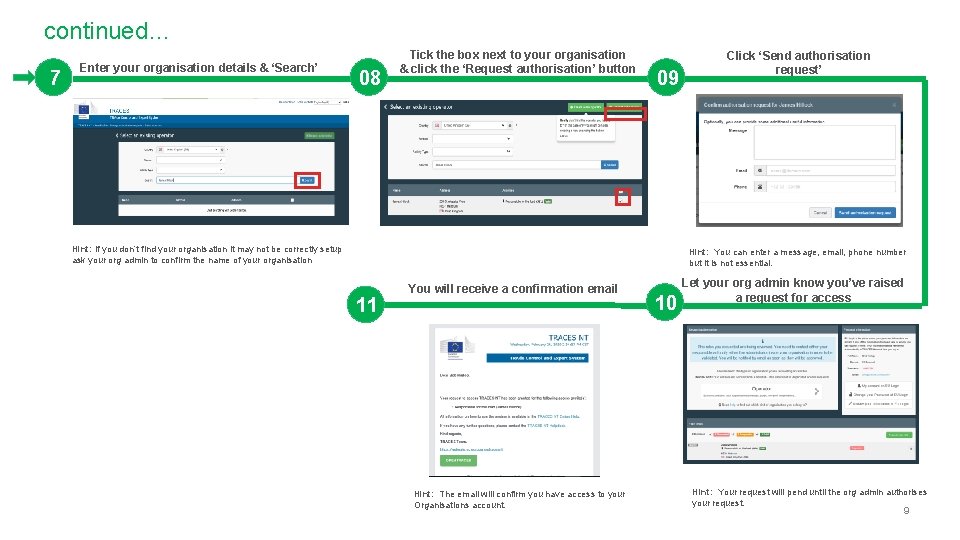
continued… 7 Enter your organisation details & ‘Search’ 08 Tick the box next to your organisation & click the ‘Request authorisation’ button 09 Hint: If you don’t find your organisation it may not be correctly setup ask your org admin to confirm the name of your organisation Click ‘Send authorisation request’ Hint: You can enter a message, email, phone number but it is not essential. 11 You will receive a confirmation email Hint: The email will confirm you have access to your Organisations account. 10 Let your org admin know you’ve raised a request for access Hint: Your request will pend until the org admin authorises your request. 9
How to authorise a Standard user
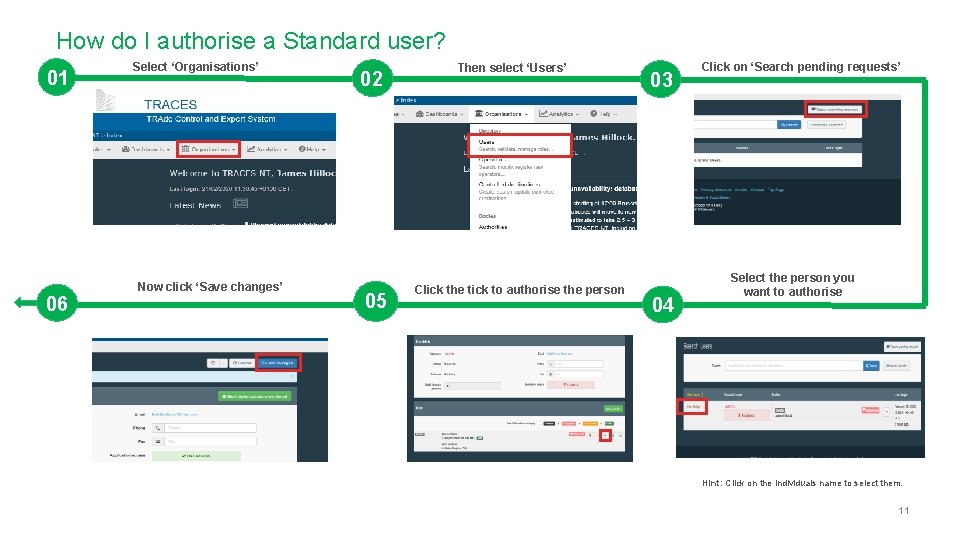
How do I authorise a Standard user? 01 06 Select ‘Organisations’ Now click ‘Save changes’ 02 05 Then select ‘Users’ Click the tick to authorise the person 03 04 Click on ‘Search pending requests’ Select the person you want to authorise Hint: Click on the individuals name to select them. 11
- Slides: 11