
Business ExplorerAnalyzer for Power Users BEX305 BExAnalyzer for

Business Explorer-Analyzer for Power Users BEX_305 BEx-Analyzer for Power Users 1
Content • Introduction • Unit 1 - BEx Overview • Unit 2 – BEx Analyzer • Unit 3 – Display Query • Unit 4 – Create Using an Existing Query • Unit 5 – Run Query • Unit 6 – Properties • Unit 7 – Create Query • Unit 8 – Delete Query • Unit 9 – Query Views • Course Summary BEX_305 BEx-Analyzer for Power Users 2
Prerequisites & Access • Prerequisites Access to data in IRIS R/3 Production and/or BEx Web Reporting Successfully completion of either § BEX_300 Business Warehouse: BEx Web Reporting Or § BEX_SLCM_300 Business Warehouse: SLCM BEx Web Reporting • For Access Have BEX_305 on training plan Signed Statement of Responsibility (SOR) Successfully completion of BEX_305 BEx-Analyzer for Power Users 3
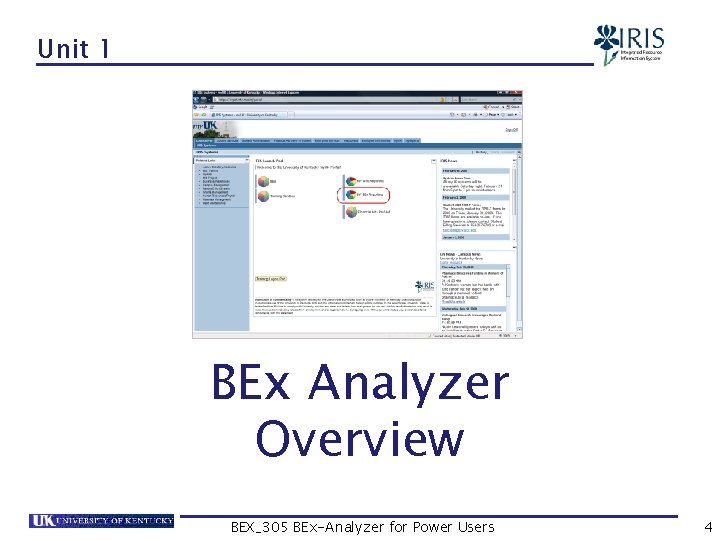
Unit 1 BEx Analyzer Overview BEX_305 BEx-Analyzer for Power Users 4
Unit 1 – BEx Analyzer Overview • BEx Analyzer Overview • BW Reporting Roles • User Role Functions • Power User Functionality • BEx-Analyzer Access BEX_305 BEx-Analyzer for Power Users 5

BEx Analyzer Overview IRIS R/3 Production BW ODS Info. Provider (summarized data) Query (Operational Data Store equivalent to flat file) (used to produce BW reports) BEX_305 BEx-Analyzer for Power Users 6
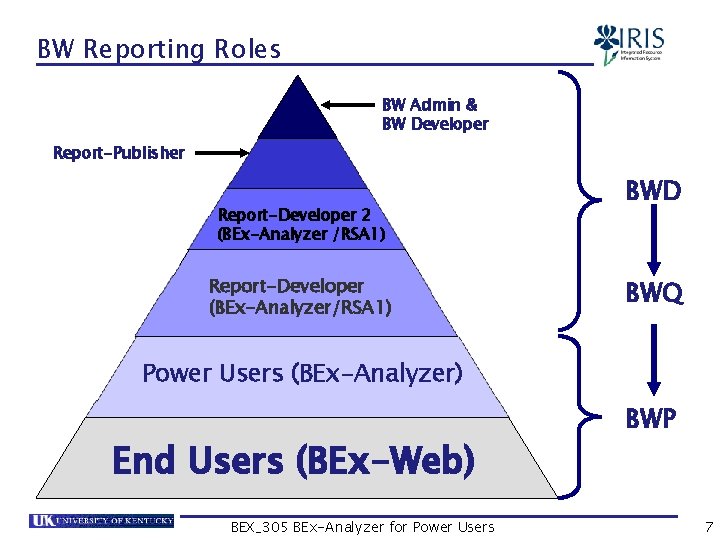
BW Reporting Roles BW Admin & BW Developer Report-Publisher Report-Developer 2 (BEx-Analyzer /RSA 1) Report-Developer (BEx-Analyzer/RSA 1) BWD BWQ Power Users (BEx-Analyzer) End Users (BEx-Web) BEX_305 BEx-Analyzer for Power Users BWP 7
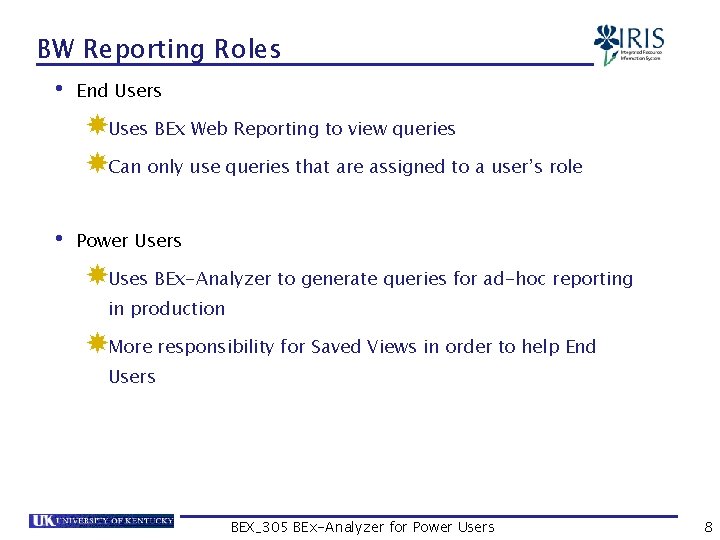
BW Reporting Roles • End Users Uses BEx Web Reporting to view queries Can only use queries that are assigned to a user’s role • Power Users Uses BEx-Analyzer to generate queries for ad-hoc reporting in production More responsibility for Saved Views in order to help End Users BEX_305 BEx-Analyzer for Power Users 8
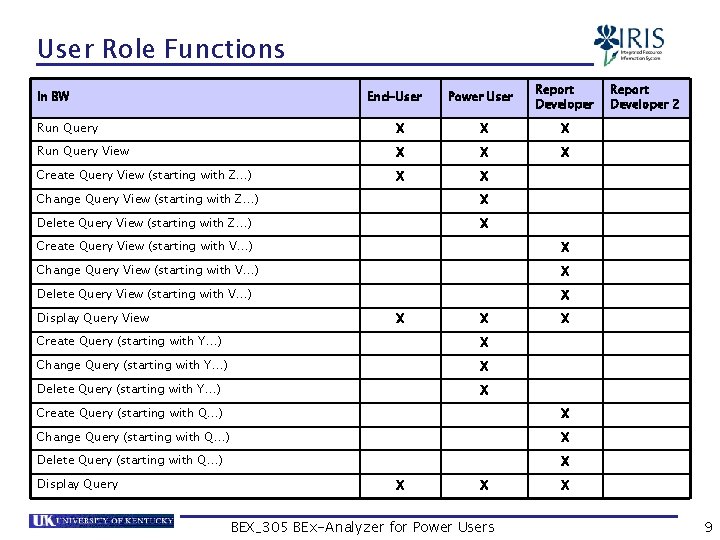
User Role Functions In BW End-User Power User Report Developer Run Query X X X Run Query View X X X Create Query View (starting with Z…) X X Change Query View (starting with Z…) X Delete Query View (starting with Z…) X Create Query View (starting with V…) X Change Query View (starting with V…) X Delete Query View (starting with V…) X Display Query View X X Create Query (starting with Y…) X Change Query (starting with Y…) X Delete Query (starting with Y…) X X Create Query (starting with Q…) X Change Query (starting with Q…) X Delete Query (starting with Q…) X Display Query X X BEX_305 BEx-Analyzer for Power Users Report Developer 2 X 9
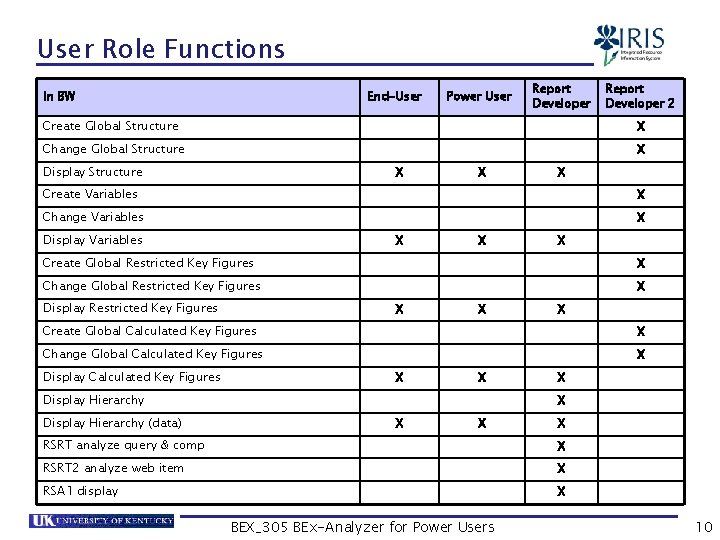
User Role Functions In BW End-User Power User Report Developer 2 Create Global Structure X Change Global Structure X Display Structure X X X Create Variables X Change Variables X Display Variables X X X Create Global Restricted Key Figures X Change Global Restricted Key Figures X Display Restricted Key Figures X X X Create Global Calculated Key Figures X Change Global Calculated Key Figures X Display Calculated Key Figures X X Display Hierarchy (data) X X X RSRT analyze query & comp X RSRT 2 analyze web item X RSA 1 display X BEX_305 BEx-Analyzer for Power Users 10
Power User Role Functionality • Run, Create, Change, Delete, and Display Queries Query Views • Display & Use Global Structures, Variables, Restricted Key Figures, Calculated Key Figures, and Hierarchies • Create & Use Local Structures, Restricted Key Figures, and Calculated Key Figures • Save Y queries within the Power User name space BEX_305 BEx-Analyzer for Power Users 11
BEx-Analyzer Requirements • Web browser in Windows Microsoft Internet Explorer (MS IE) 6. x and above Netscape Navigator (NS) 6. x and above Other web browsers, such as Firefox, are not advised (may behave differently or not at all) • Active Directory services account Domain is AD or MC BEX_305 BEx-Analyzer for Power Users 12
BEx-Analyzer Requirements • SAPGUI Need the most recent version More information on the IRIS website http: //www. uky. edu/IRIS/news/SAPGUI 710 Info. html • Microsoft Excel Works with both the 2003 and 2007 versions More information for version 2007 on the IRIS Website § http: //www. uky. edu/IRIS/news/desktopinformation. html BEX_305 BEx-Analyzer for Power Users 13
Summary • BEx Analyzer Overview • BW Reporting Roles • User Role Functions • Power User Functionality • BEx-Analyzer Access BEX_305 BEx-Analyzer for Power Users 14
Unit 2 BEx Analyzer BEX_305 BEx-Analyzer for Power Users 15
Unit 2 – BEx Analyzer • How to Access • BEx Analyzer Toolbar BEX_305 BEx-Analyzer for Power Users 16
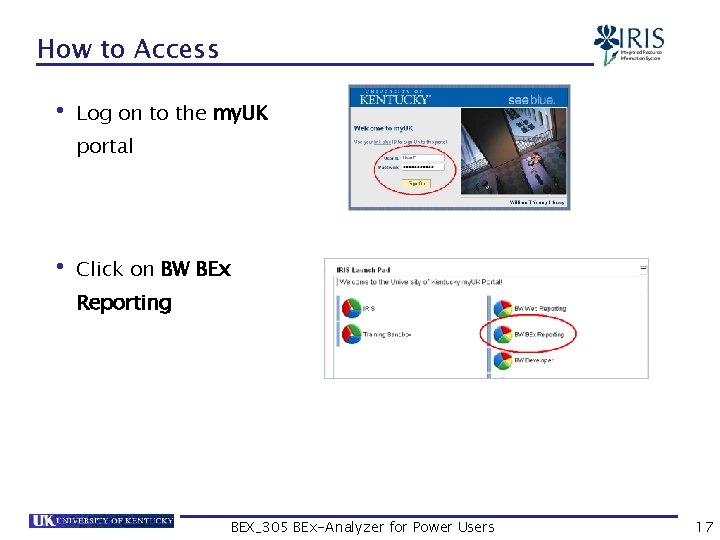
How to Access • Log on to the my. UK portal • Click on BW BEx Reporting BEX_305 BEx-Analyzer for Power Users 17
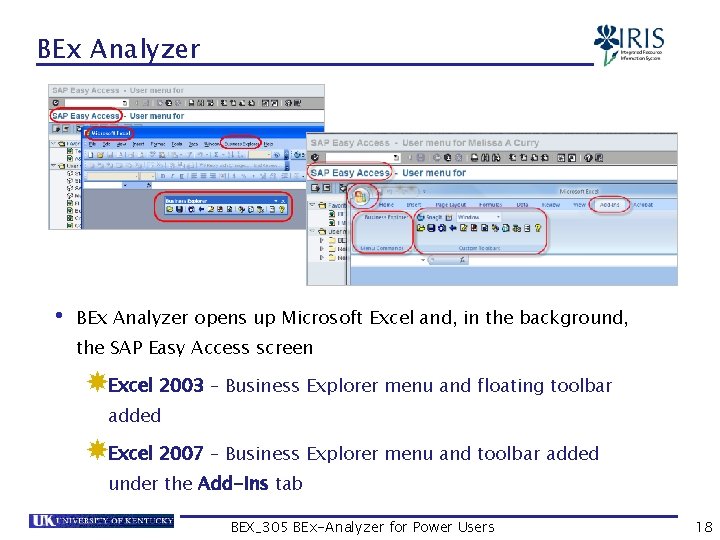
BEx Analyzer • BEx Analyzer opens up Microsoft Excel and, in the background, the SAP Easy Access screen Excel 2003 – Business Explorer menu and floating toolbar added Excel 2007 – Business Explorer menu and toolbar added under the Add-Ins tab BEX_305 BEx-Analyzer for Power Users 18
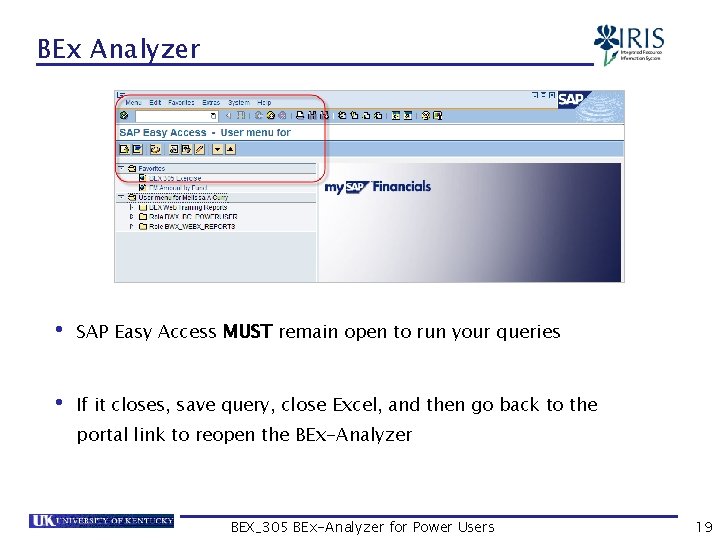
BEx Analyzer • SAP Easy Access MUST remain open to run your queries • If it closes, save query, close Excel, and then go back to the portal link to reopen the BEx-Analyzer BEX_305 BEx-Analyzer for Power Users 19
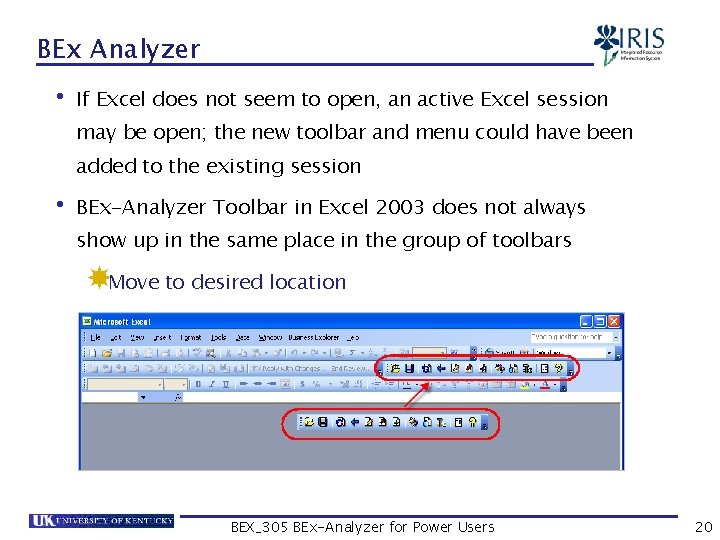
BEx Analyzer • If Excel does not seem to open, an active Excel session may be open; the new toolbar and menu could have been added to the existing session • BEx-Analyzer Toolbar in Excel 2003 does not always show up in the same place in the group of toolbars Move to desired location BEX_305 BEx-Analyzer for Power Users 20
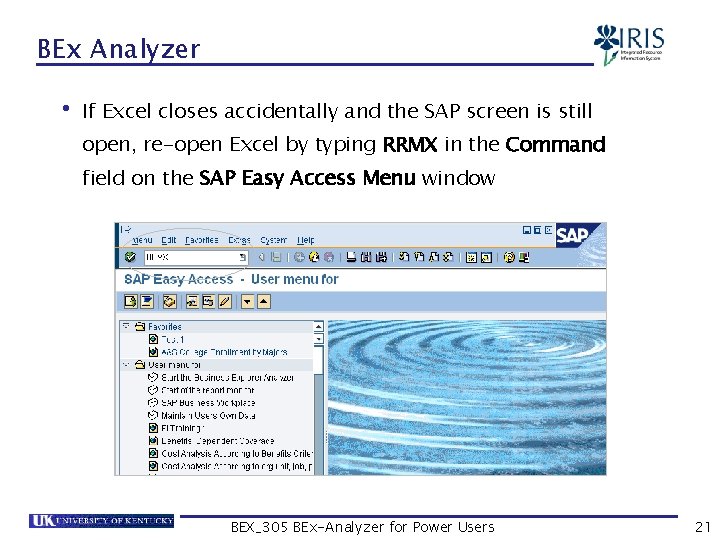
BEx Analyzer • If Excel closes accidentally and the SAP screen is still open, re-open Excel by typing RRMX in the Command field on the SAP Easy Access Menu window BEX_305 BEx-Analyzer for Power Users 21
Exercise • Log into BW BEx Reporting BEX_305 BEx-Analyzer for Power Users 22
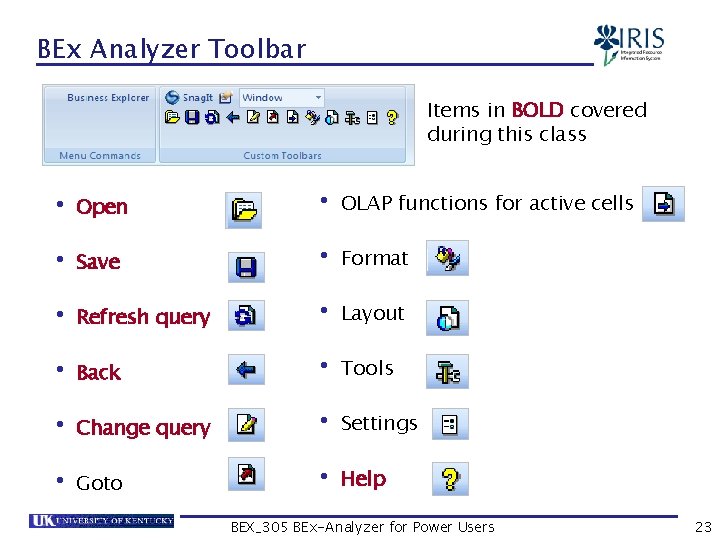
BEx Analyzer Toolbar Items in BOLD covered during this class • Open • Save • Refresh query • Back • Change query • Goto • OLAP functions for active cells • Format • Layout • Tools • Settings • Help BEX_305 BEx-Analyzer for Power Users 23
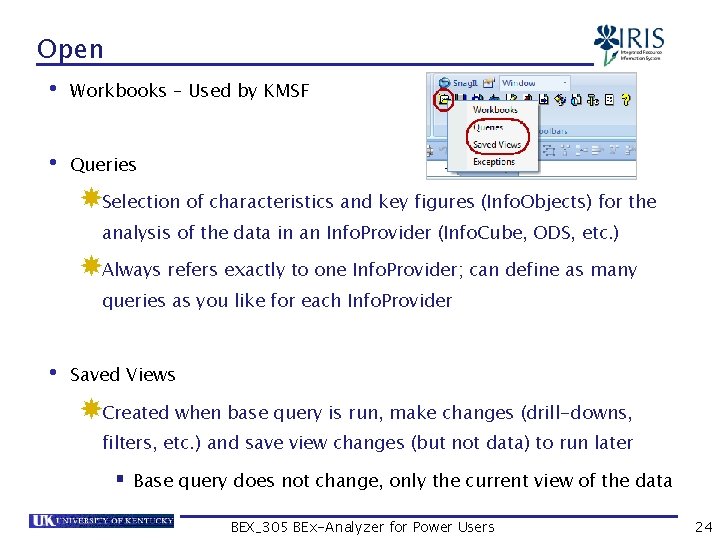
Open • Workbooks – Used by KMSF • Queries Selection of characteristics and key figures (Info. Objects) for the analysis of the data in an Info. Provider (Info. Cube, ODS, etc. ) Always refers exactly to one Info. Provider; can define as many queries as you like for each Info. Provider • Saved Views Created when base query is run, make changes (drill-downs, filters, etc. ) and save view changes (but not data) to run later § Base query does not change, only the current view of the data BEX_305 BEx-Analyzer for Power Users 24
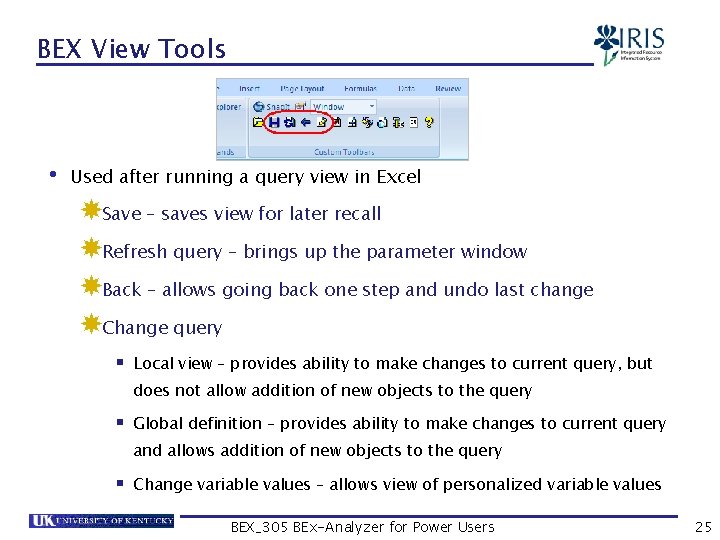
BEX View Tools • Used after running a query view in Excel Save – saves view for later recall Refresh query – brings up the parameter window Back – allows going back one step and undo last change Change query § Local view – provides ability to make changes to current query, but does not allow addition of new objects to the query § Global definition – provides ability to make changes to current query and allows addition of new objects to the query § Change variable values – allows view of personalized variable values BEX_305 BEx-Analyzer for Power Users 25
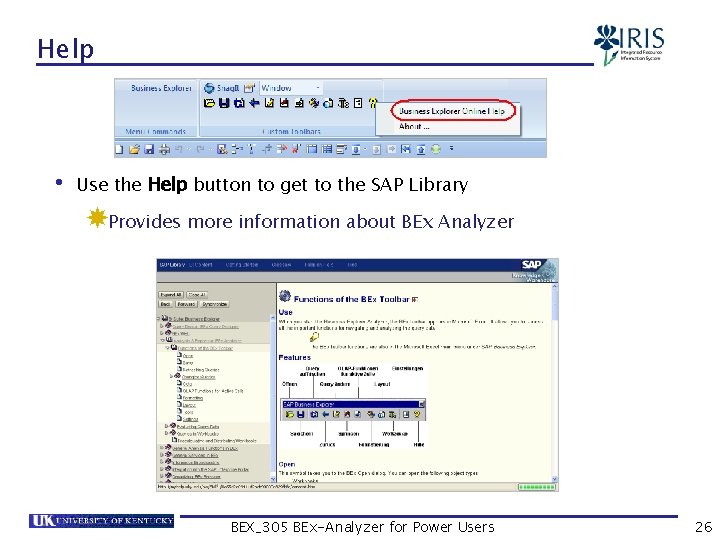
Help • Use the Help button to get to the SAP Library Provides more information about BEx Analyzer BEX_305 BEx-Analyzer for Power Users 26
Summary • How to Access • BEx Analyzer Toolbar BEX_305 BEx-Analyzer for Power Users 27
Unit 3 Display Query BEX_305 BEx-Analyzer for Power Users 28
Unit 3 – Display Query • Select Query Window • Query Display • Query Designer Window • Query Designer Toolbar BEX_305 BEx-Analyzer for Power Users 29
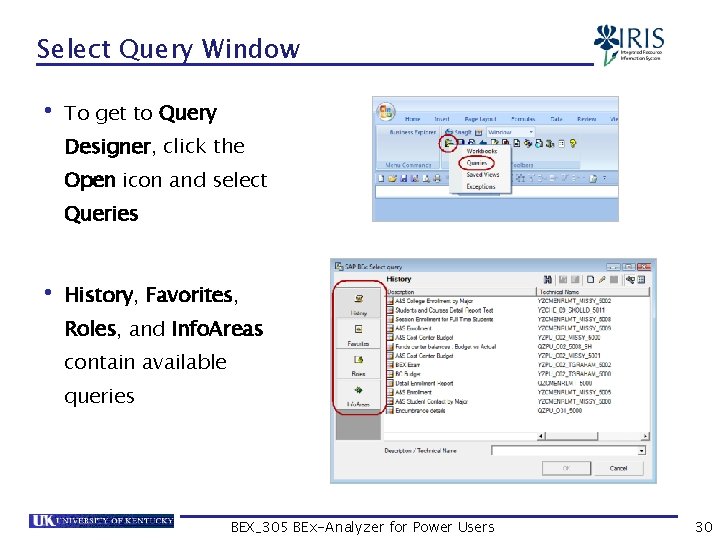
Select Query Window • To get to Query Designer, click the Open icon and select Queries • History, Favorites, Roles, and Info. Areas contain available queries BEX_305 BEx-Analyzer for Power Users 30
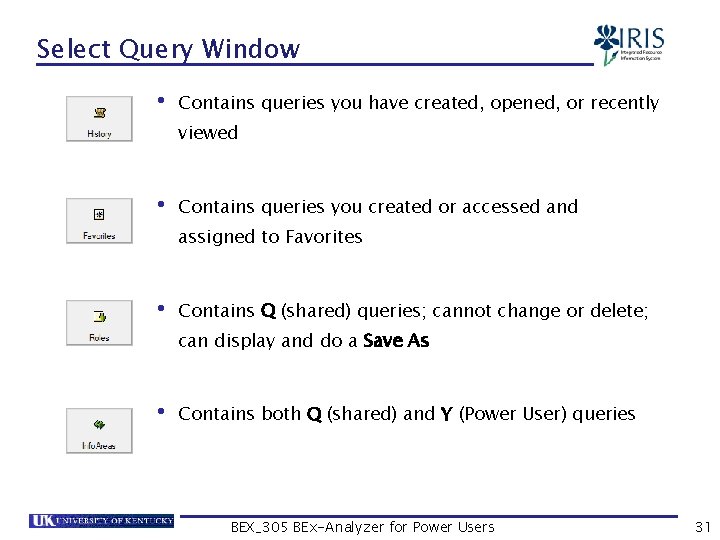
Select Query Window • Contains queries you have created, opened, or recently viewed • Contains queries you created or accessed and assigned to Favorites • Contains Q (shared) queries; cannot change or delete; can display and do a Save As • Contains both Q (shared) and Y (Power User) queries BEX_305 BEx-Analyzer for Power Users 31
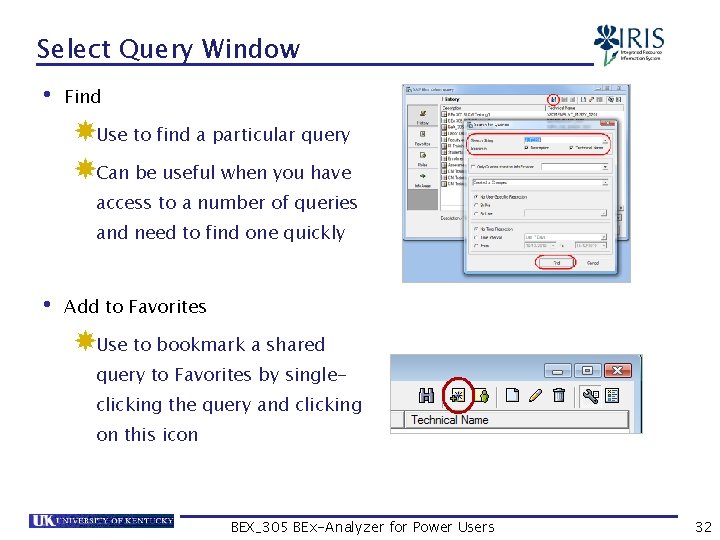
Select Query Window • Find Use to find a particular query Can be useful when you have access to a number of queries and need to find one quickly • Add to Favorites Use to bookmark a shared query to Favorites by singleclicking the query and clicking on this icon BEX_305 BEx-Analyzer for Power Users 32
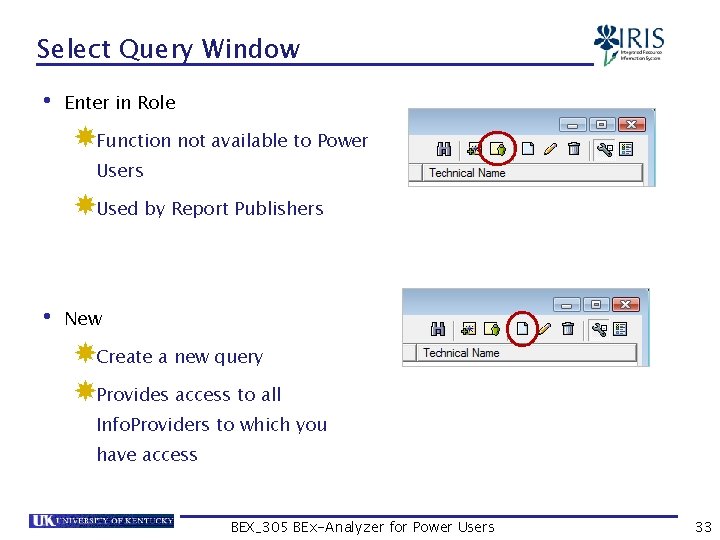
Select Query Window • Enter in Role Function not available to Power Users Used by Report Publishers • New Create a new query Provides access to all Info. Providers to which you have access BEX_305 BEx-Analyzer for Power Users 33
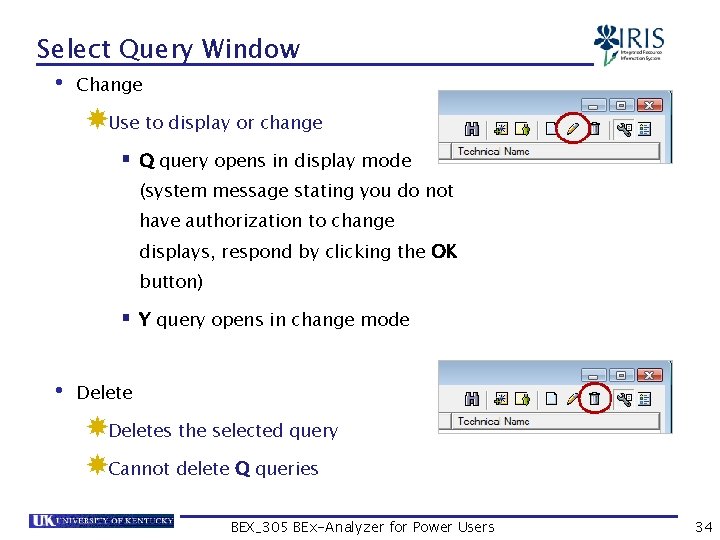
Select Query Window • Change Use to display or change § Q query opens in display mode (system message stating you do not have authorization to change displays, respond by clicking the OK button) § Y query opens in change mode • Deletes the selected query Cannot delete Q queries BEX_305 BEx-Analyzer for Power Users 34
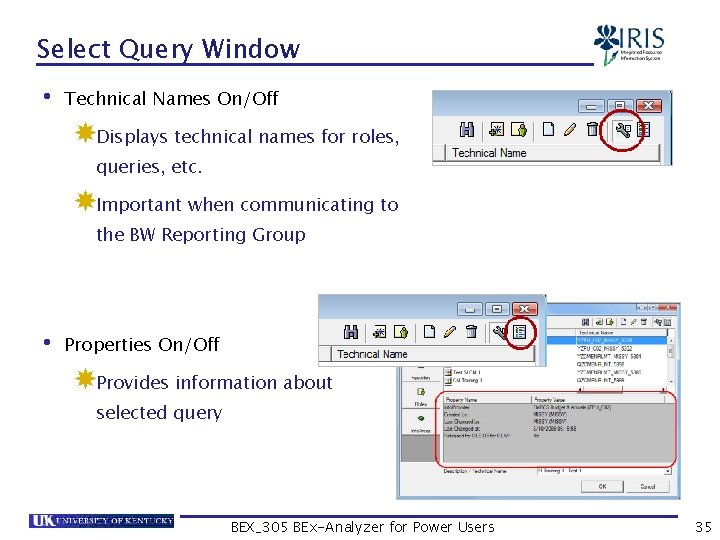
Select Query Window • Technical Names On/Off Displays technical names for roles, queries, etc. Important when communicating to the BW Reporting Group • Properties On/Off Provides information about selected query BEX_305 BEx-Analyzer for Power Users 35
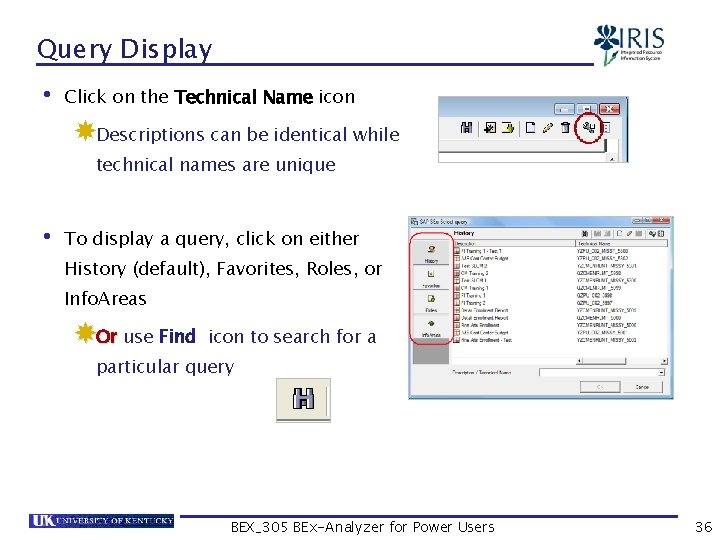
Query Display • Click on the Technical Name icon Descriptions can be identical while technical names are unique • To display a query, click on either History (default), Favorites, Roles, or Info. Areas Or use Find icon to search for a particular query BEX_305 BEx-Analyzer for Power Users 36
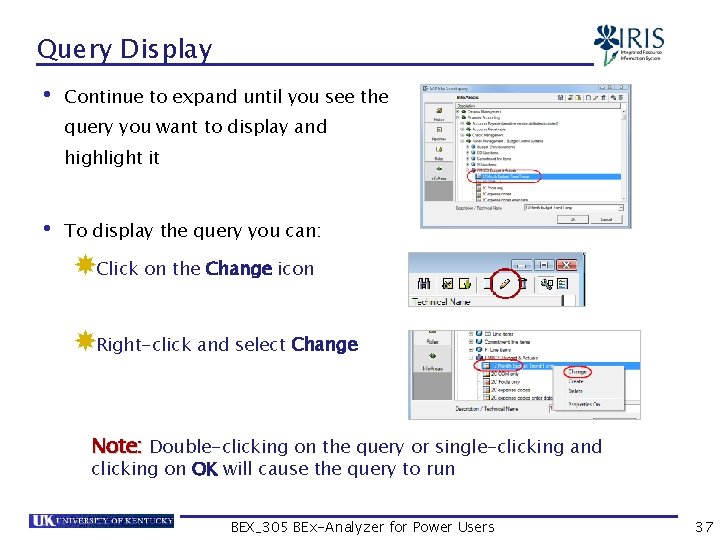
Query Display • Continue to expand until you see the query you want to display and highlight it • To display the query you can: Click on the Change icon Right-click and select Change Note: Double-clicking on the query or single-clicking and clicking on OK will cause the query to run BEX_305 BEx-Analyzer for Power Users 37
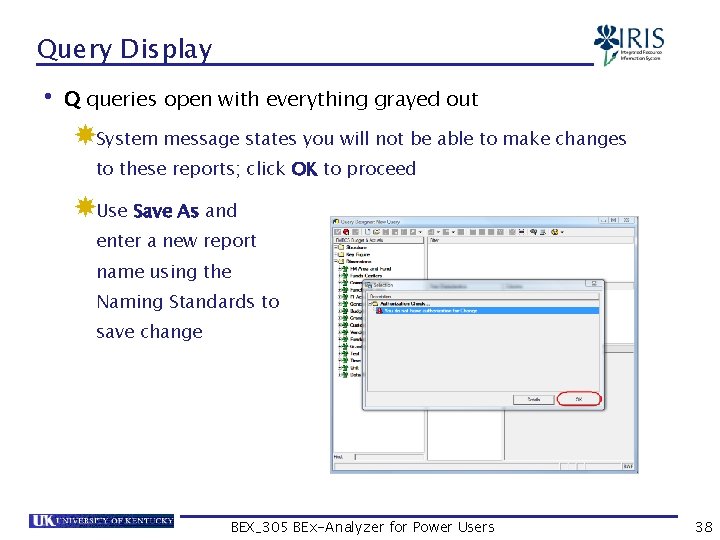
Query Display • Q queries open with everything grayed out System message states you will not be able to make changes to these reports; click OK to proceed Use Save As and enter a new report name using the Naming Standards to save change BEX_305 BEx-Analyzer for Power Users 38
Exercise • Display Query BEX_305 BEx-Analyzer for Power Users 39
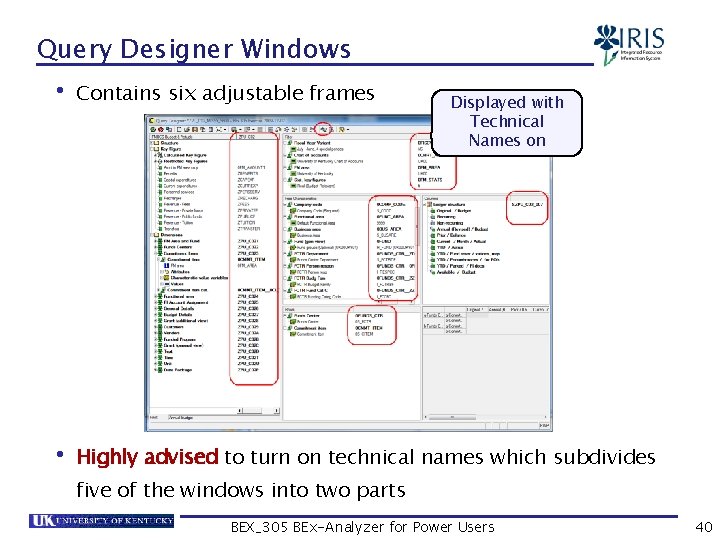
Query Designer Windows • Contains six adjustable frames Displayed with Technical Names on • Highly advised to turn on technical names which subdivides five of the windows into two parts BEX_305 BEx-Analyzer for Power Users 40
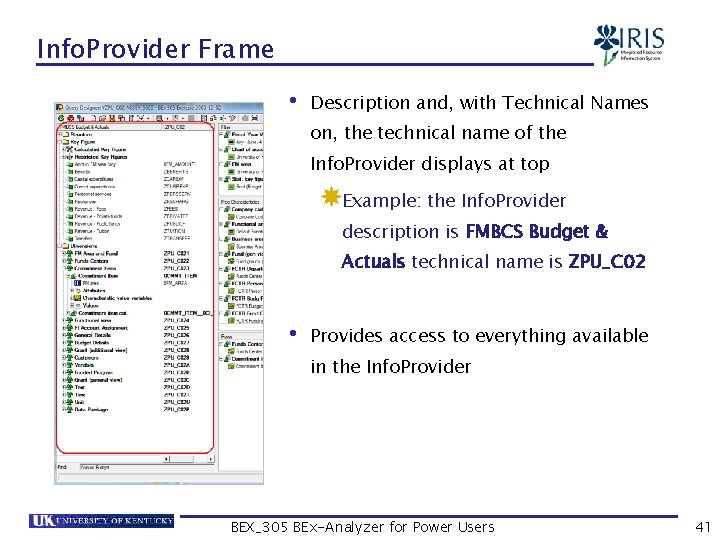
Info. Provider Frame • Description and, with Technical Names on, the technical name of the Info. Provider displays at top Example: the Info. Provider description is FMBCS Budget & Actuals technical name is ZPU_C 02 • Provides access to everything available in the Info. Provider BEX_305 BEx-Analyzer for Power Users 41
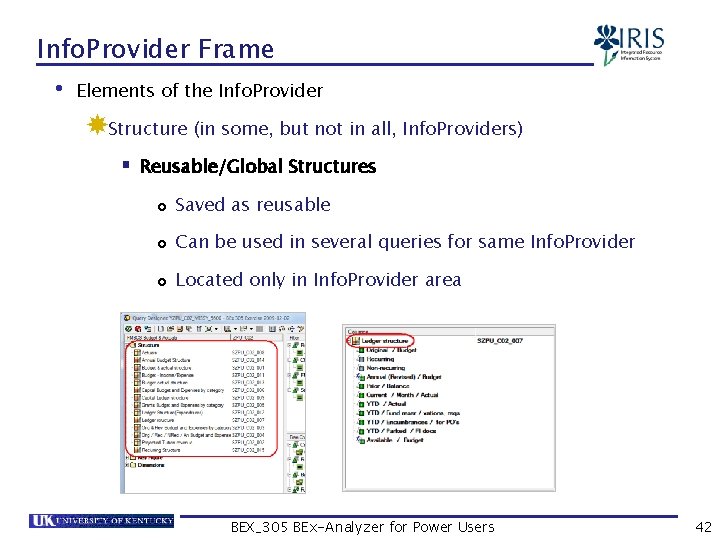
Info. Provider Frame • Elements of the Info. Provider Structure (in some, but not in all, Info. Providers) § Reusable/Global Structures £ Saved as reusable £ Can be used in several queries for same Info. Provider £ Located only in Info. Provider area BEX_305 BEx-Analyzer for Power Users 42
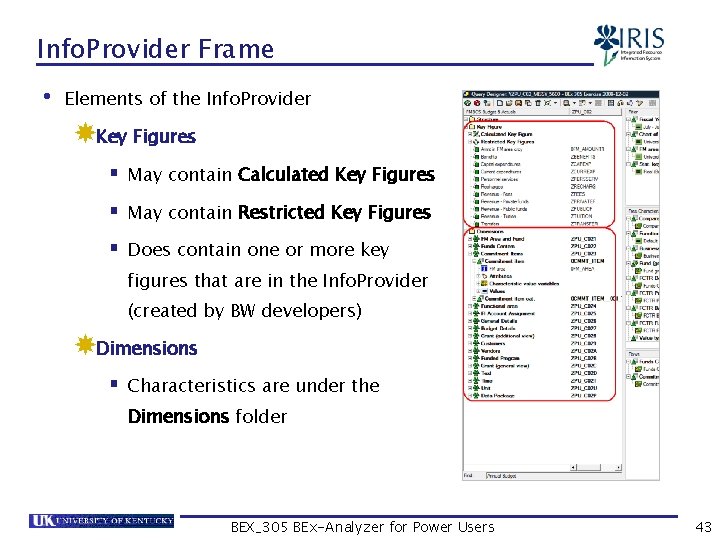
Info. Provider Frame • Elements of the Info. Provider Key Figures § May contain Calculated Key Figures § May contain Restricted Key Figures § Does contain one or more key figures that are in the Info. Provider (created by BW developers) Dimensions § Characteristics are under the Dimensions folder BEX_305 BEx-Analyzer for Power Users 43
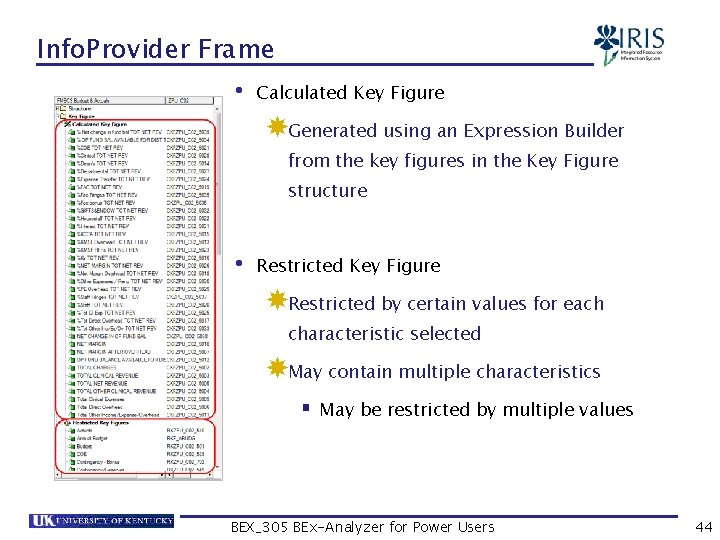
Info. Provider Frame • Calculated Key Figure Generated using an Expression Builder from the key figures in the Key Figure structure • Restricted Key Figure Restricted by certain values for each characteristic selected May contain multiple characteristics § May be restricted by multiple values BEX_305 BEx-Analyzer for Power Users 44
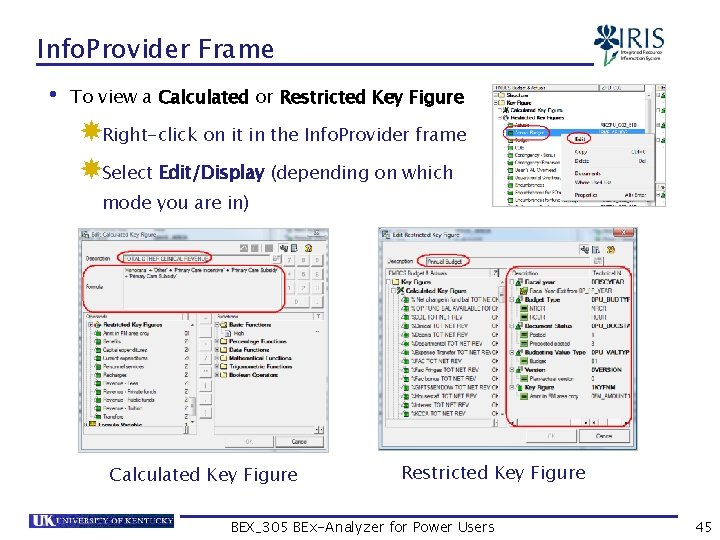
Info. Provider Frame • To view a Calculated or Restricted Key Figure Right-click on it in the Info. Provider frame Select Edit/Display (depending on which mode you are in) Calculated Key Figure Restricted Key Figure BEX_305 BEx-Analyzer for Power Users 45
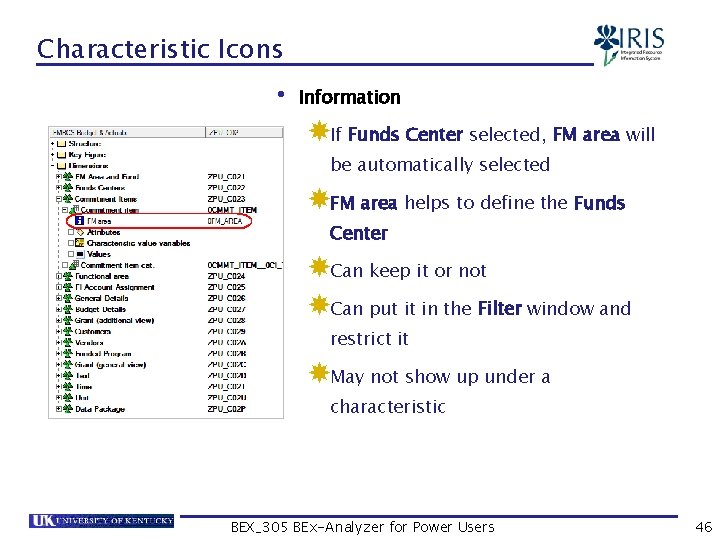
Characteristic Icons • Information If Funds Center selected, FM area will be automatically selected FM area helps to define the Funds Center Can keep it or not Can put it in the Filter window and restrict it May not show up under a characteristic BEX_305 BEx-Analyzer for Power Users 46
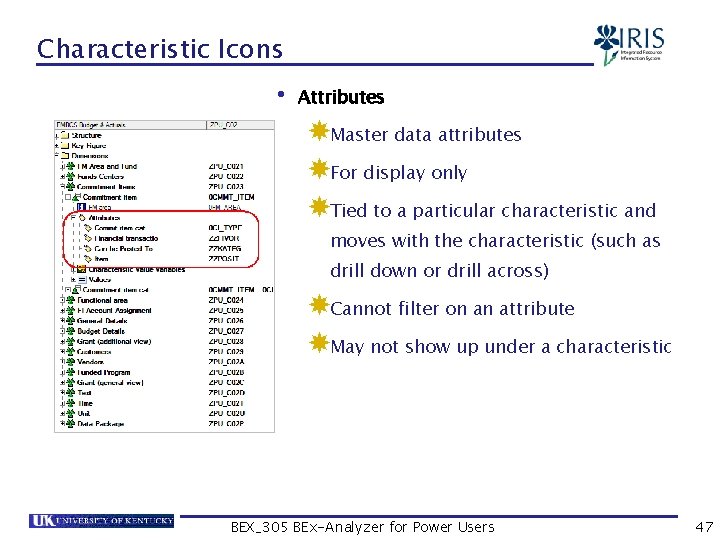
Characteristic Icons • Attributes Master data attributes For display only Tied to a particular characteristic and moves with the characteristic (such as drill down or drill across) Cannot filter on an attribute May not show up under a characteristic BEX_305 BEx-Analyzer for Power Users 47
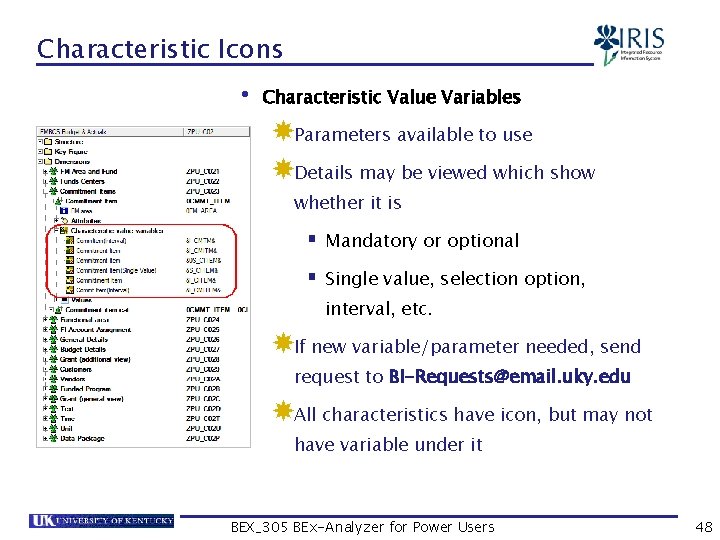
Characteristic Icons • Characteristic Value Variables Parameters available to use Details may be viewed which show whether it is § Mandatory or optional § Single value, selection option, interval, etc. If new variable/parameter needed, send request to BI-Requests@email. uky. edu All characteristics have icon, but may not have variable under it BEX_305 BEx-Analyzer for Power Users 48
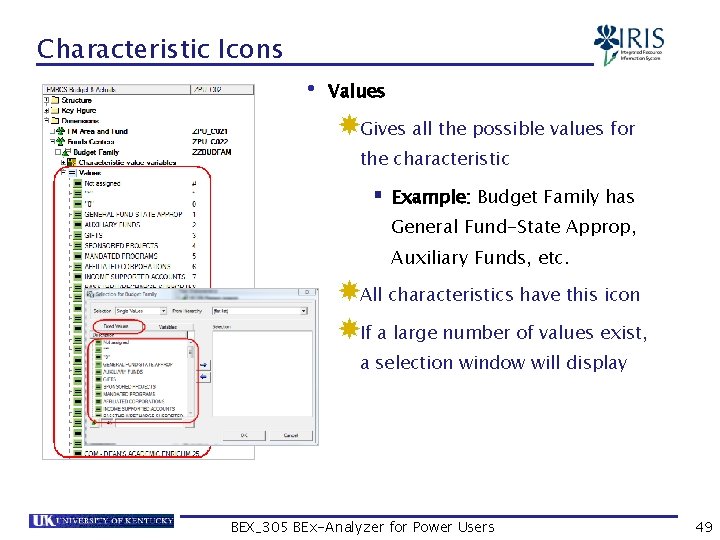
Characteristic Icons • Values Gives all the possible values for the characteristic § Example: Budget Family has General Fund-State Approp, Auxiliary Funds, etc. All characteristics have this icon If a large number of values exist, a selection window will display BEX_305 BEx-Analyzer for Power Users 49
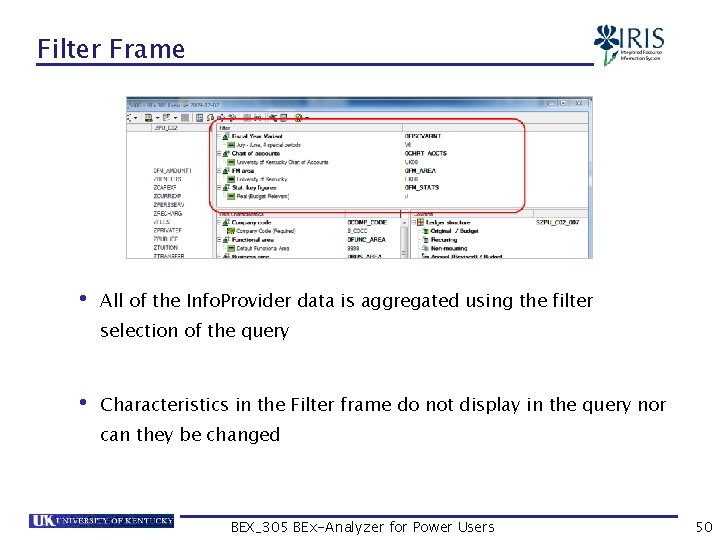
Filter Frame • All of the Info. Provider data is aggregated using the filter selection of the query • Characteristics in the Filter frame do not display in the query nor can they be changed BEX_305 BEx-Analyzer for Power Users 50
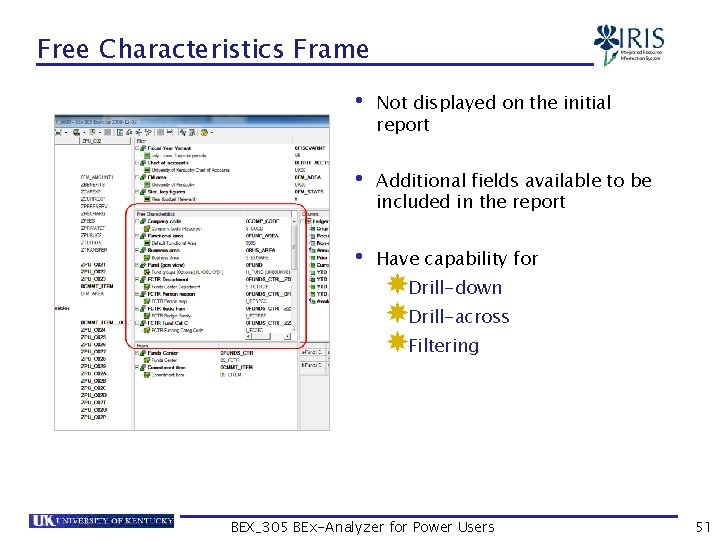
Free Characteristics Frame • Not displayed on the initial report • Additional fields available to be included in the report • Have capability for Drill-down Drill-across Filtering BEX_305 BEx-Analyzer for Power Users 51
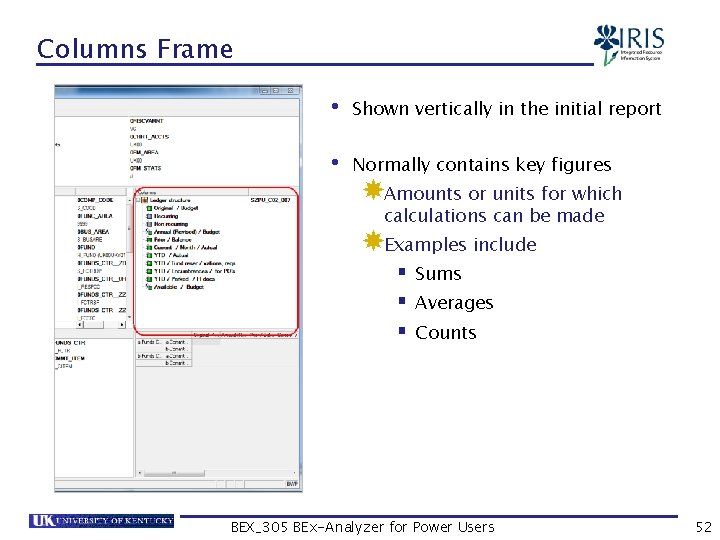
Columns Frame • Shown vertically in the initial report • Normally contains key figures Amounts or units for which calculations can be made Examples include § Sums § Averages § Counts BEX_305 BEx-Analyzer for Power Users 52
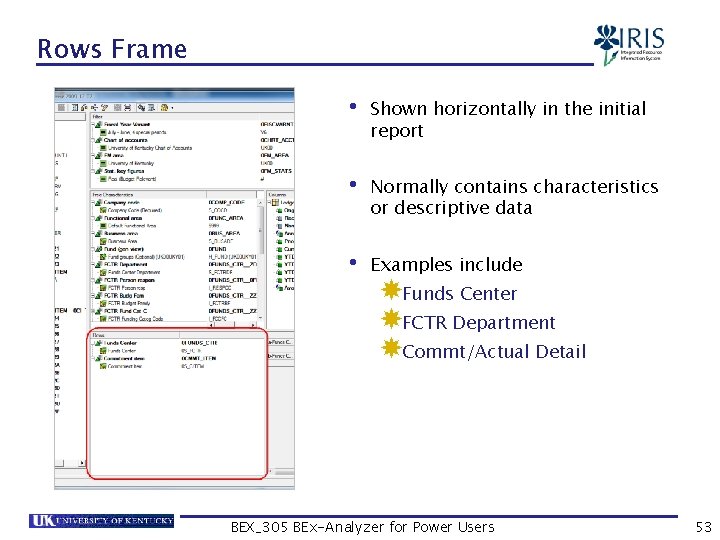
Rows Frame • Shown horizontally in the initial report • Normally contains characteristics or descriptive data • Examples include Funds Center FCTR Department Commt/Actual Detail BEX_305 BEx-Analyzer for Power Users 53
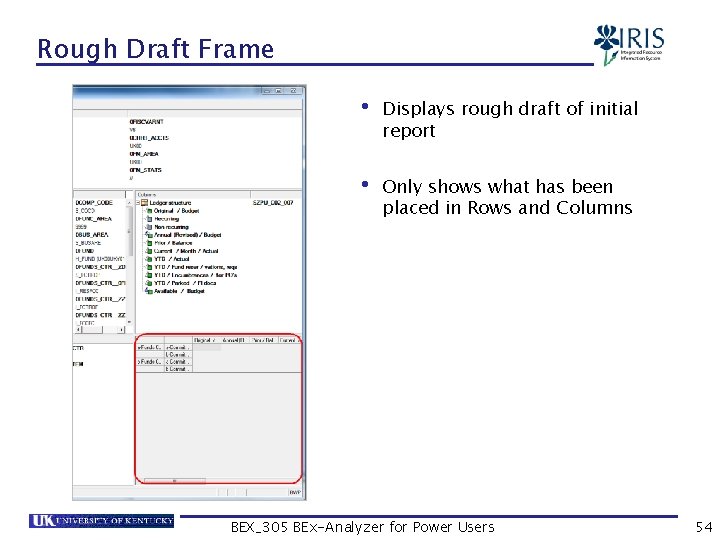
Rough Draft Frame • Displays rough draft of initial report • Only shows what has been placed in Rows and Columns BEX_305 BEx-Analyzer for Power Users 54
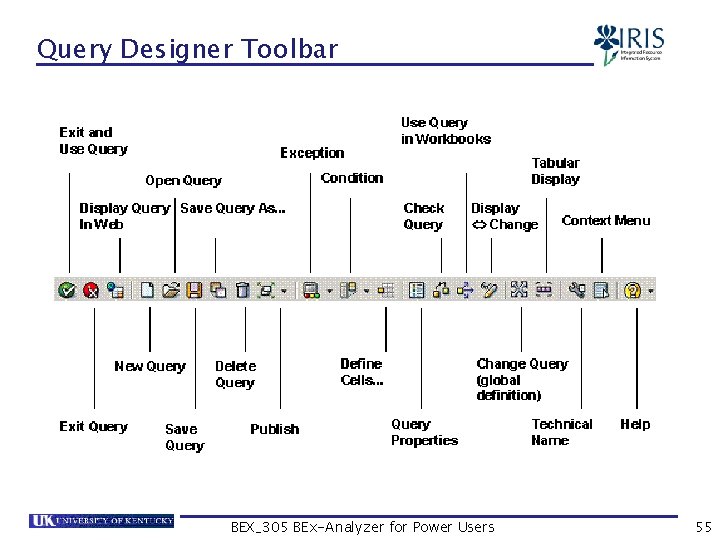
Query Designer Toolbar BEX_305 BEx-Analyzer for Power Users 55
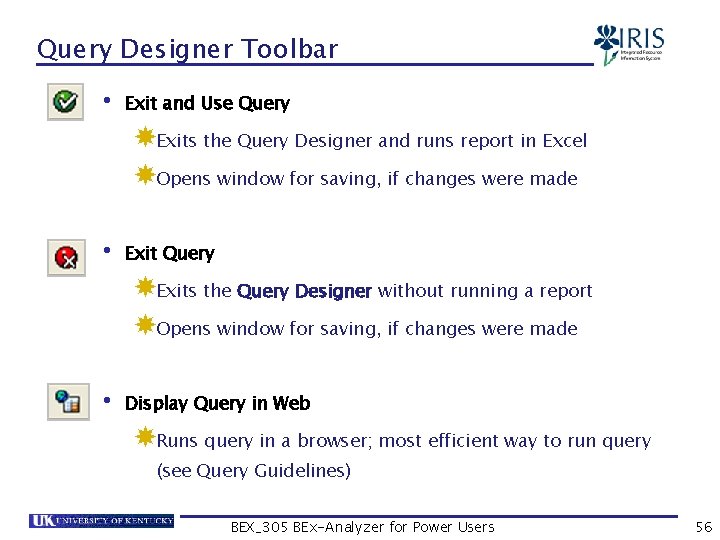
Query Designer Toolbar • Exit and Use Query Exits the Query Designer and runs report in Excel Opens window for saving, if changes were made • Exit Query Exits the Query Designer without running a report Opens window for saving, if changes were made • Display Query in Web Runs query in a browser; most efficient way to run query (see Query Guidelines) BEX_305 BEx-Analyzer for Power Users 56
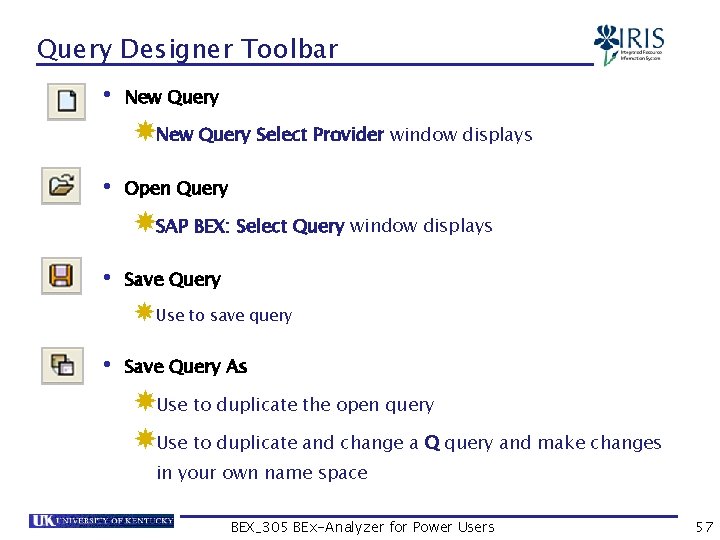
Query Designer Toolbar • New Query Select Provider window displays • Open Query SAP BEX: Select Query window displays • Save Query Use to save query • Save Query As Use to duplicate the open query Use to duplicate and change a Q query and make changes in your own name space BEX_305 BEx-Analyzer for Power Users 57
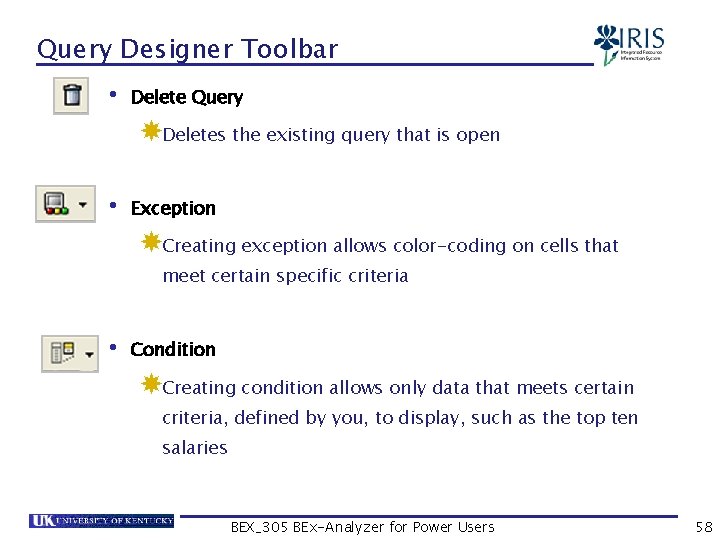
Query Designer Toolbar • Delete Query Deletes the existing query that is open • Exception Creating exception allows color-coding on cells that meet certain specific criteria • Condition Creating condition allows only data that meets certain criteria, defined by you, to display, such as the top ten salaries BEX_305 BEx-Analyzer for Power Users 58
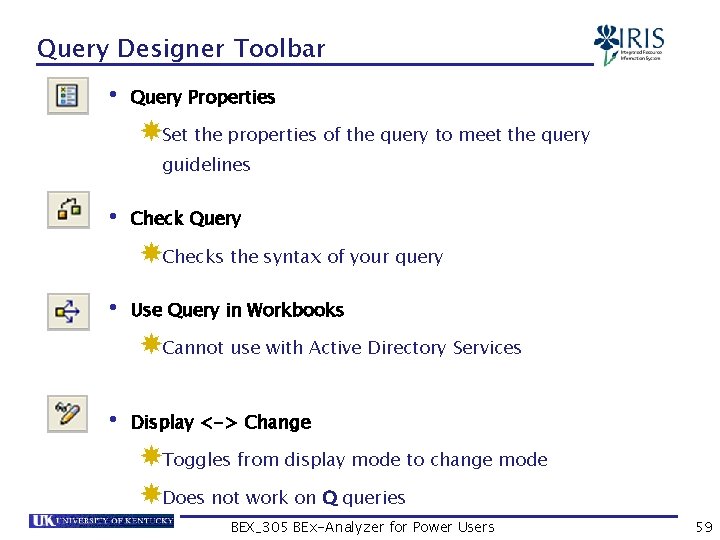
Query Designer Toolbar • Query Properties Set the properties of the query to meet the query guidelines • Check Query Checks the syntax of your query • Use Query in Workbooks Cannot use with Active Directory Services • Display <-> Change Toggles from display mode to change mode Does not work on Q queries BEX_305 BEx-Analyzer for Power Users 59
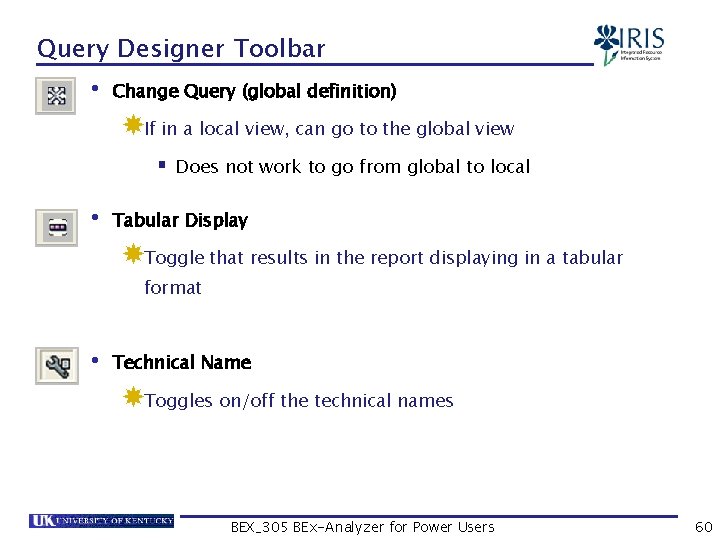
Query Designer Toolbar • Change Query (global definition) If in a local view, can go to the global view § Does not work to go from global to local • Tabular Display Toggle that results in the report displaying in a tabular format • Technical Name Toggles on/off the technical names BEX_305 BEx-Analyzer for Power Users 60
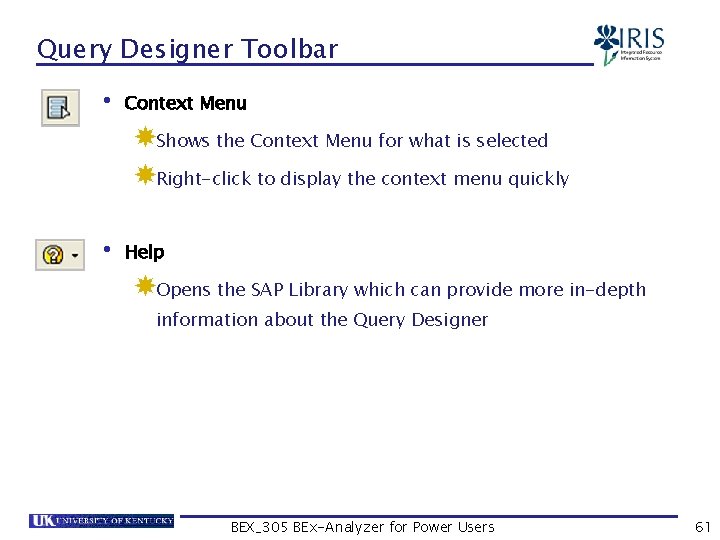
Query Designer Toolbar • Context Menu Shows the Context Menu for what is selected Right-click to display the context menu quickly • Help Opens the SAP Library which can provide more in-depth information about the Query Designer BEX_305 BEx-Analyzer for Power Users 61
Summary • Select Query Window • Query Display • Query Designer Window • Query Designer Toolbar BEX_305 BEx-Analyzer for Power Users 62
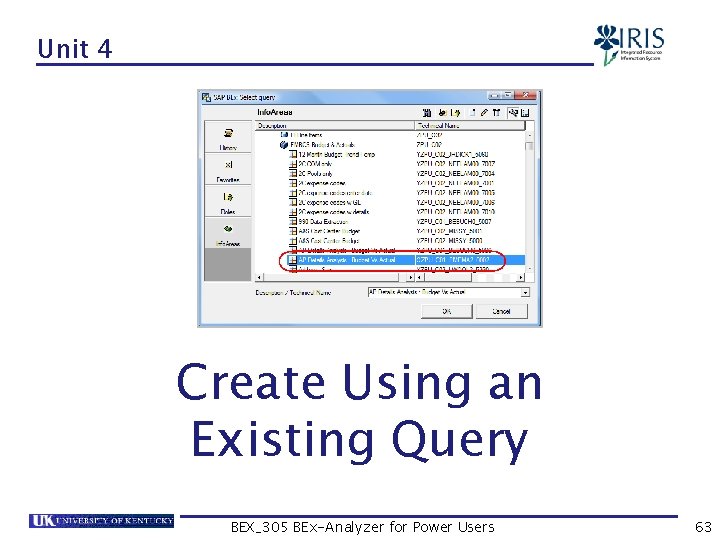
Unit 4 Create Using an Existing Query BEX_305 BEx-Analyzer for Power Users 63
Unit 4 – Create Using an Existing Query • Modify Query • Using Save As • Add Info. Objects • Reorganize Info. Objects • Remove Info. Objects • Variables • Restrictions BEX_305 BEx-Analyzer for Power Users 64
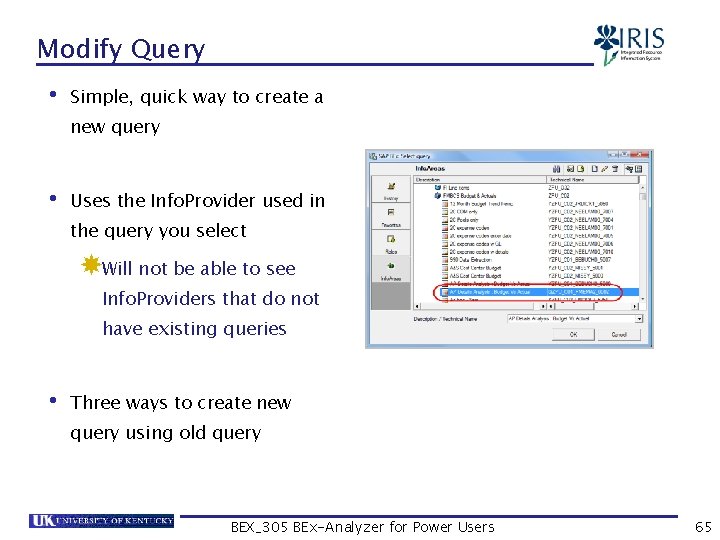
Modify Query • Simple, quick way to create a new query • Uses the Info. Provider used in the query you select Will not be able to see Info. Providers that do not have existing queries • Three ways to create new query using old query BEX_305 BEx-Analyzer for Power Users 65
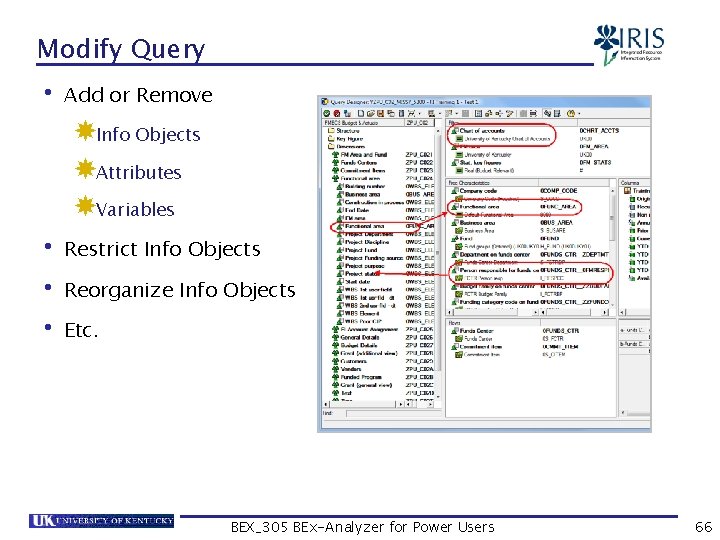
Modify Query • Add or Remove Info Objects Attributes Variables • Restrict Info Objects • Reorganize Info Objects • Etc. BEX_305 BEx-Analyzer for Power Users 66
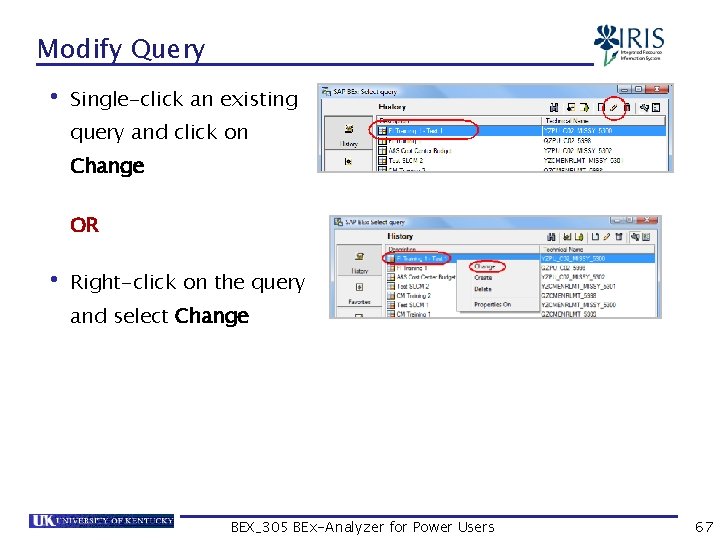
Modify Query • Single-click an existing query and click on Change OR • Right-click on the query and select Change BEX_305 BEx-Analyzer for Power Users 67
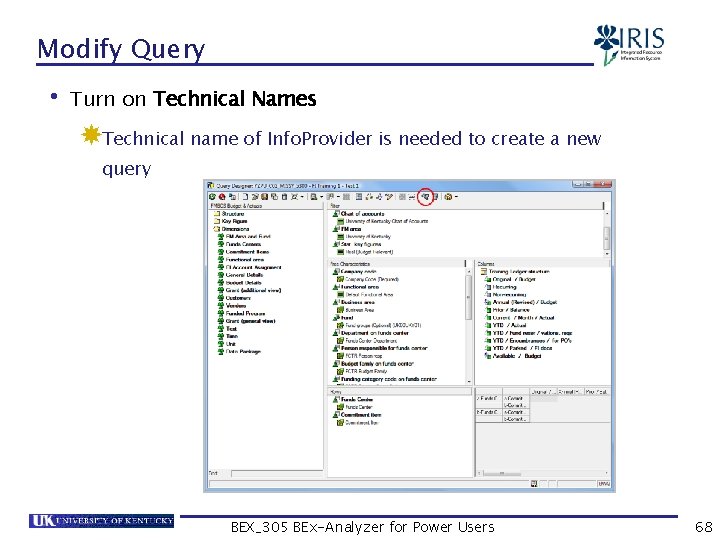
Modify Query • Turn on Technical Names Technical name of Info. Provider is needed to create a new query BEX_305 BEx-Analyzer for Power Users 68
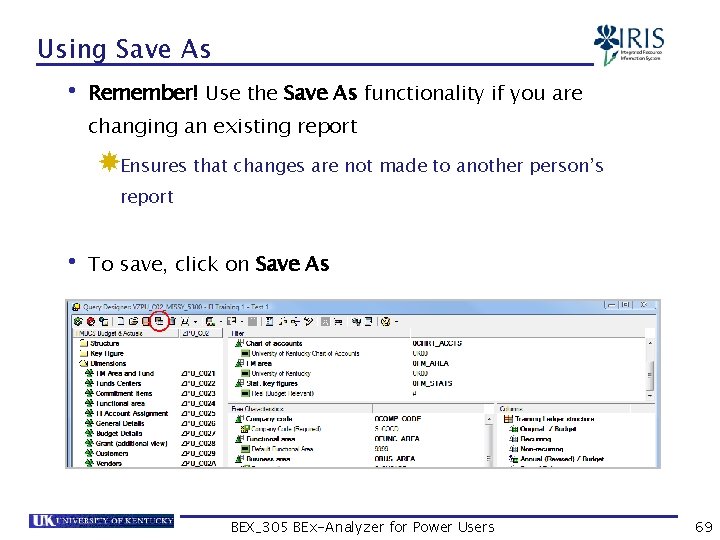
Using Save As • Remember! Use the Save As functionality if you are changing an existing report Ensures that changes are not made to another person’s report • To save, click on Save As BEX_305 BEx-Analyzer for Power Users 69
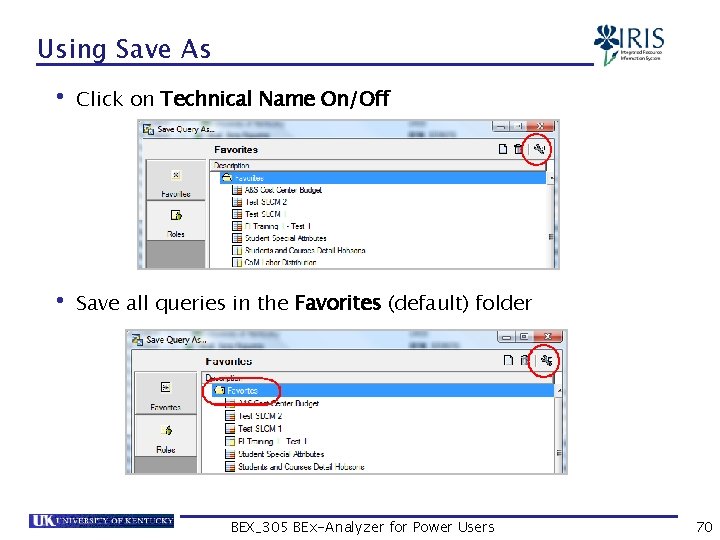
Using Save As • Click on Technical Name On/Off • Save all queries in the Favorites (default) folder BEX_305 BEx-Analyzer for Power Users 70
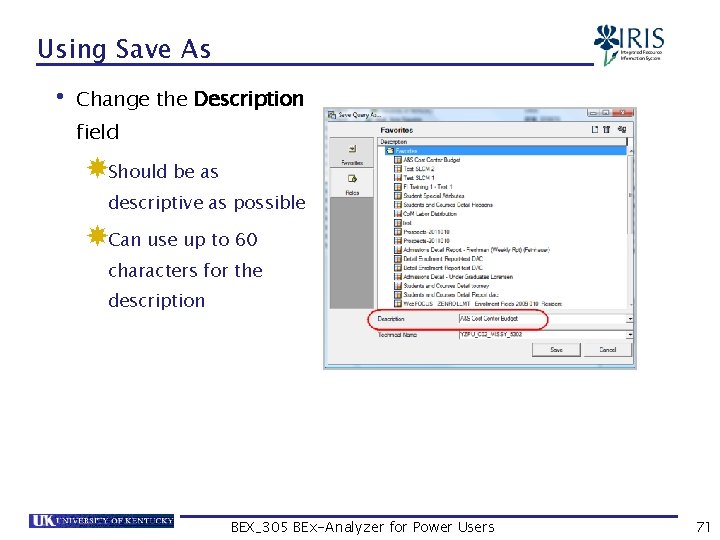
Using Save As • Change the Description field Should be as descriptive as possible Can use up to 60 characters for the description BEX_305 BEx-Analyzer for Power Users 71
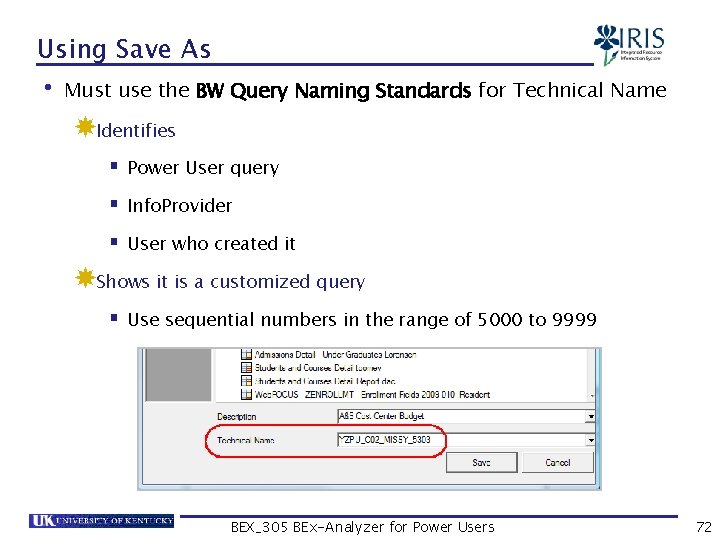
Using Save As • Must use the BW Query Naming Standards for Technical Name Identifies § Power User query § Info. Provider § User who created it Shows it is a customized query § Use sequential numbers in the range of 5000 to 9999 BEX_305 BEx-Analyzer for Power Users 72
Using Save As • Enter a Technical Name following BW Naming Standards YZPU_C 02_USER 01_5000 Y – is a must for Power Users Cube – technical name of the Info. Provider Underscore Userid – your Active Directory Services userid Underscore Nnnn – Your next number available for that Info. Provider § Starting number is 5000 BEX_305 BEx-Analyzer for Power Users 73
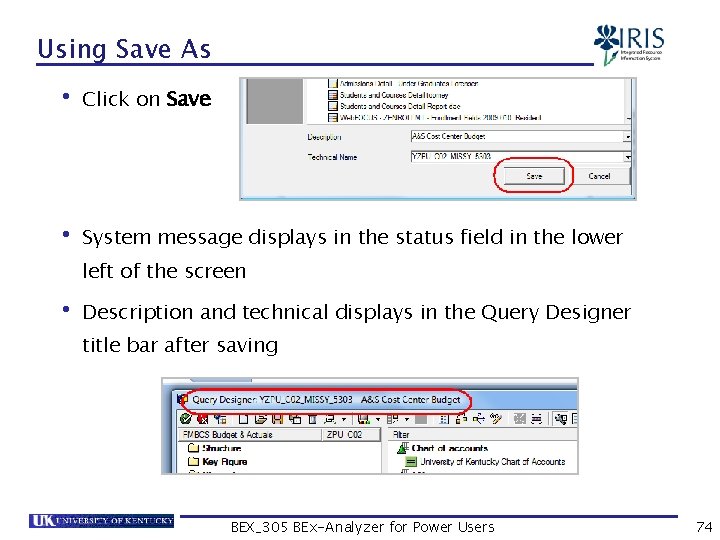
Using Save As • Click on Save • System message displays in the status field in the lower left of the screen • Description and technical displays in the Query Designer title bar after saving BEX_305 BEx-Analyzer for Power Users 74
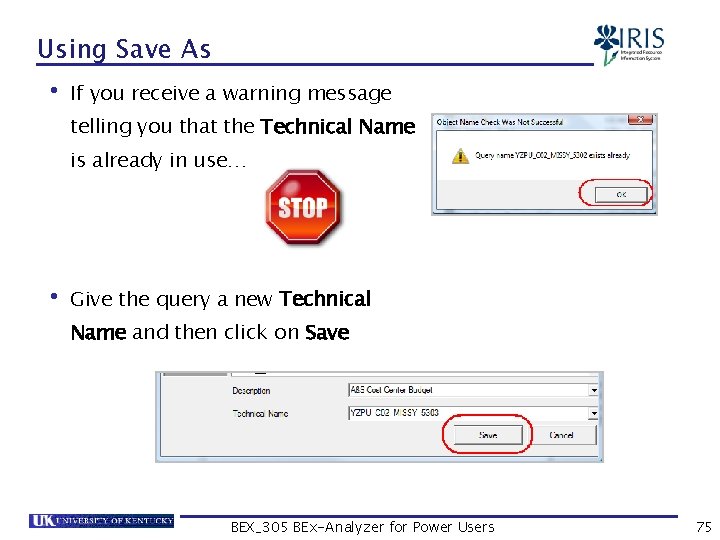
Using Save As • If you receive a warning message telling you that the Technical Name is already in use… • Give the query a new Technical Name and then click on Save BEX_305 BEx-Analyzer for Power Users 75
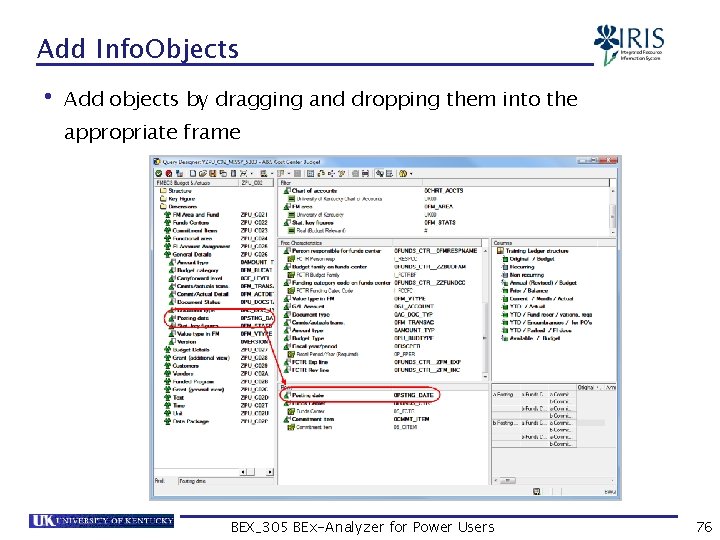
Add Info. Objects • Add objects by dragging and dropping them into the appropriate frame BEX_305 BEx-Analyzer for Power Users 76
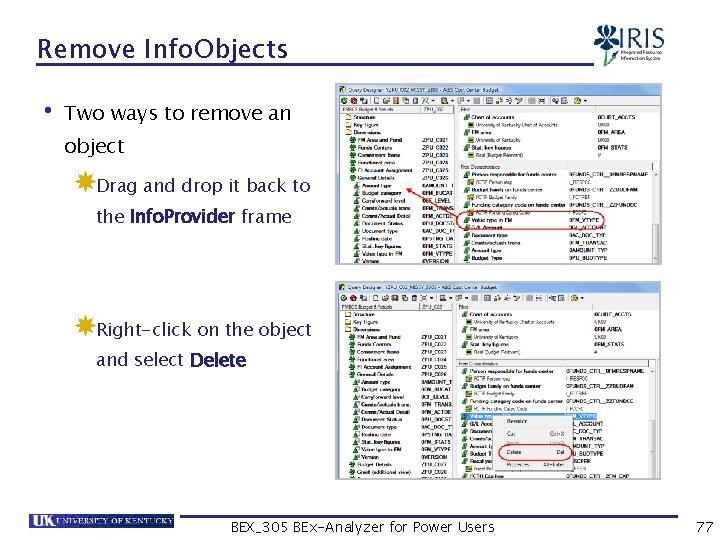
Remove Info. Objects • Two ways to remove an object Drag and drop it back to the Info. Provider frame Right-click on the object and select Delete BEX_305 BEx-Analyzer for Power Users 77
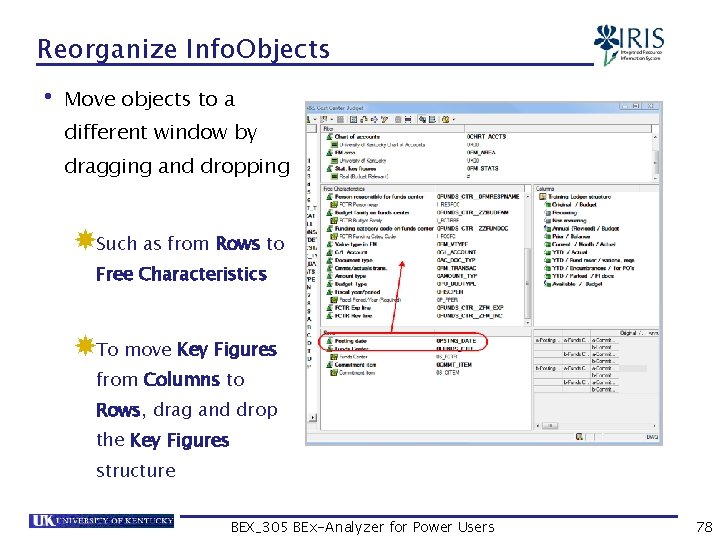
Reorganize Info. Objects • Move objects to a different window by dragging and dropping Such as from Rows to Free Characteristics To move Key Figures from Columns to Rows, drag and drop the Key Figures structure BEX_305 BEx-Analyzer for Power Users 78
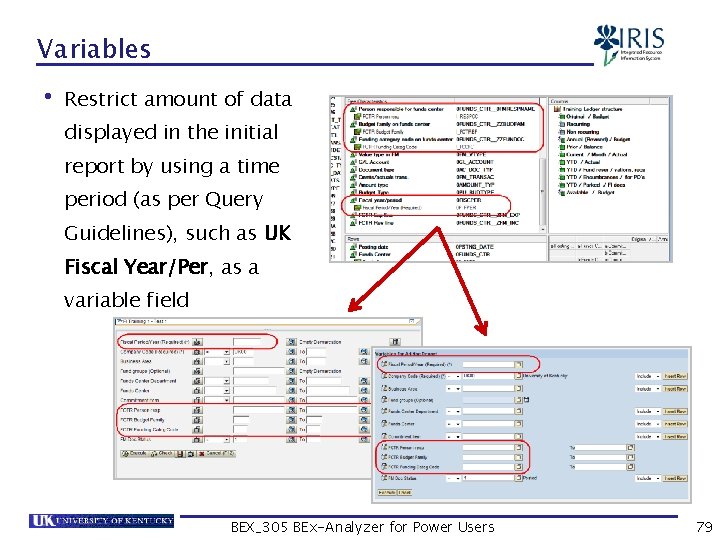
Variables • Restrict amount of data displayed in the initial report by using a time period (as per Query Guidelines), such as UK Fiscal Year/Per, as a variable field BEX_305 BEx-Analyzer for Power Users 79
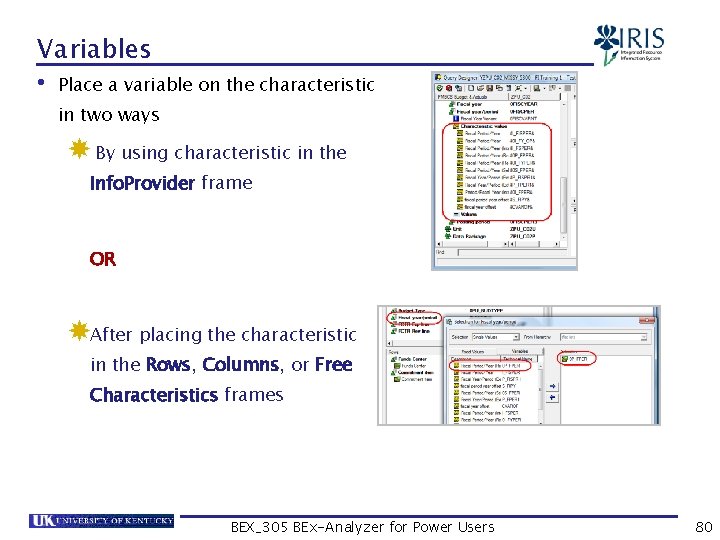
Variables • Place a variable on the characteristic in two ways By using characteristic in the Info. Provider frame OR After placing the characteristic in the Rows, Columns, or Free Characteristics frames BEX_305 BEx-Analyzer for Power Users 80
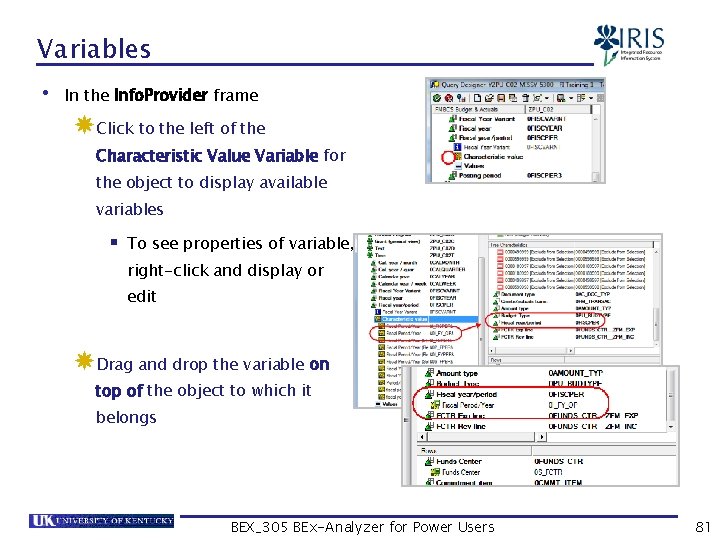
Variables • In the Info. Provider frame Click to the left of the Characteristic Value Variable for the object to display available variables § To see properties of variable, right-click and display or edit Drag and drop the variable on top of the object to which it belongs BEX_305 BEx-Analyzer for Power Users 81
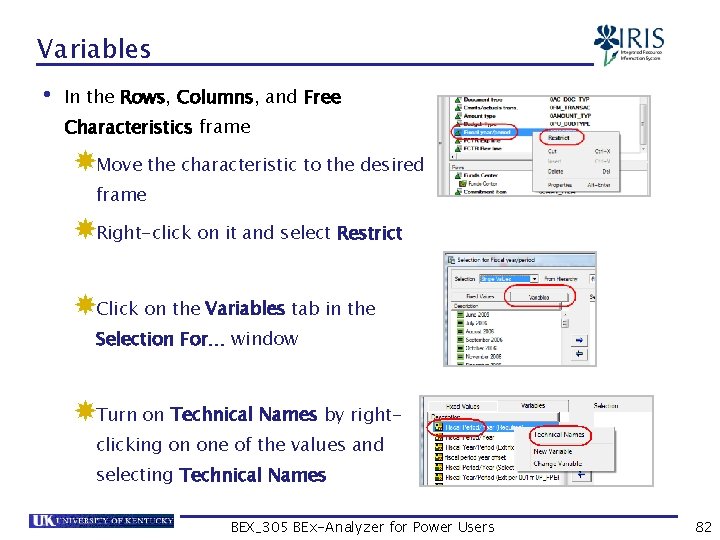
Variables • In the Rows, Columns, and Free Characteristics frame Move the characteristic to the desired frame Right-click on it and select Restrict Click on the Variables tab in the Selection For… window Turn on Technical Names by rightclicking on one of the values and selecting Technical Names BEX_305 BEx-Analyzer for Power Users 82
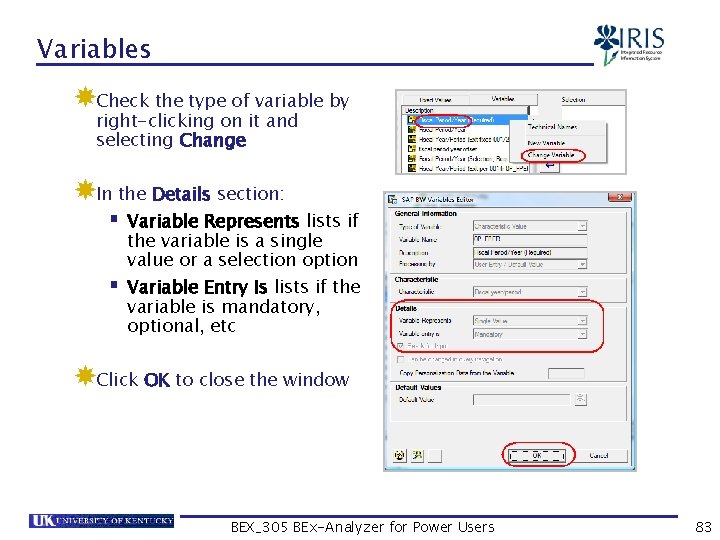
Variables Check the type of variable by right-clicking on it and selecting Change In the Details section: § Variable Represents lists if § the variable is a single value or a selection option Variable Entry Is lists if the variable is mandatory, optional, etc Click OK to close the window BEX_305 BEx-Analyzer for Power Users 83
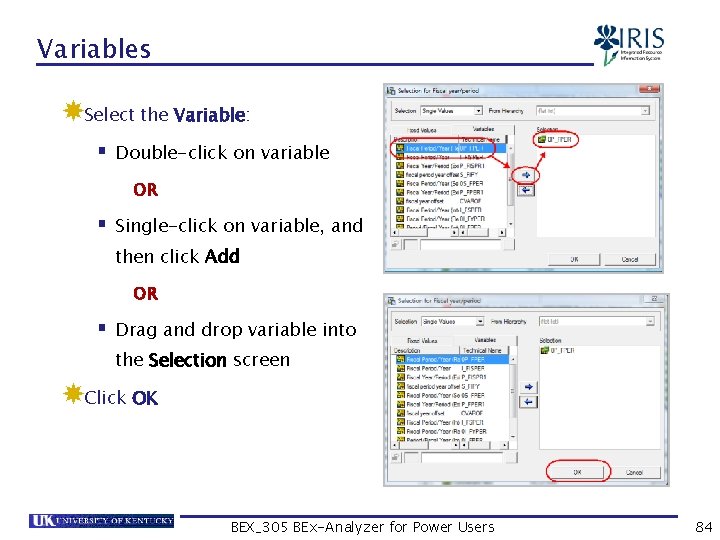
Variables Select the Variable: § Double-click on variable OR § Single-click on variable, and then click Add OR § Drag and drop variable into the Selection screen Click OK BEX_305 BEx-Analyzer for Power Users 84
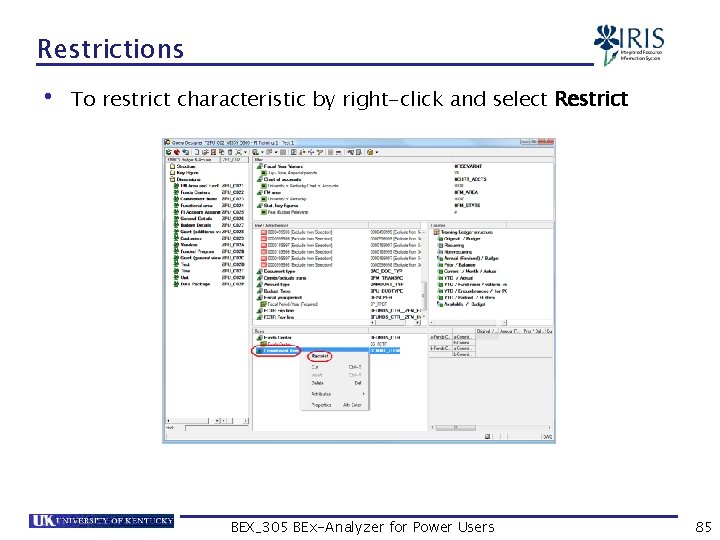
Restrictions • To restrict characteristic by right-click and select Restrict BEX_305 BEx-Analyzer for Power Users 85
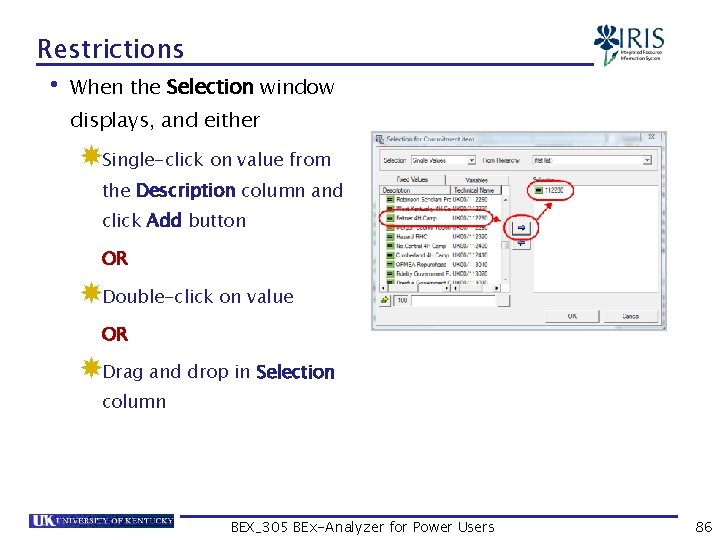
Restrictions • When the Selection window displays, and either Single-click on value from the Description column and click Add button OR Double-click on value OR Drag and drop in Selection column BEX_305 BEx-Analyzer for Power Users 86
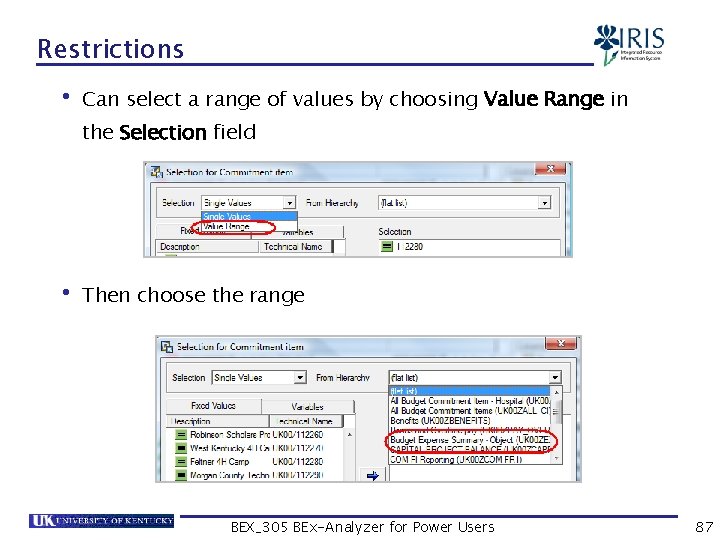
Restrictions • Can select a range of values by choosing Value Range in the Selection field • Then choose the range BEX_305 BEx-Analyzer for Power Users 87
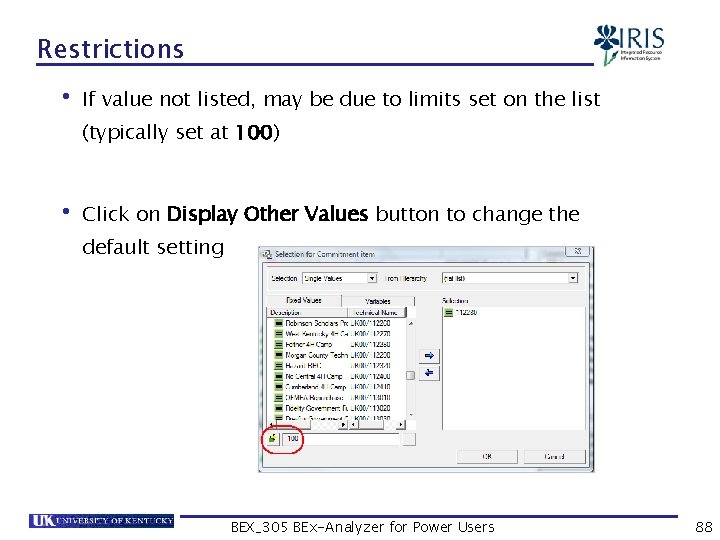
Restrictions • If value not listed, may be due to limits set on the list (typically set at 100) • Click on Display Other Values button to change the default setting BEX_305 BEx-Analyzer for Power Users 88
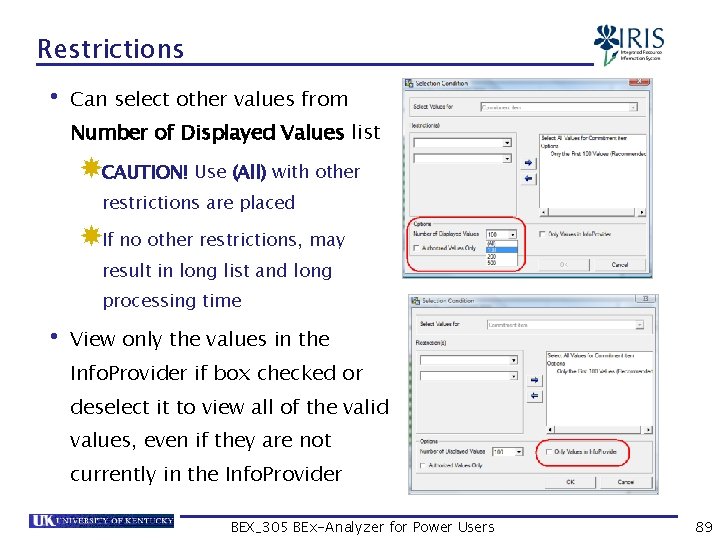
Restrictions • Can select other values from Number of Displayed Values list CAUTION! Use (All) with other restrictions are placed If no other restrictions, may result in long list and long processing time • View only the values in the Info. Provider if box checked or deselect it to view all of the valid values, even if they are not currently in the Info. Provider BEX_305 BEx-Analyzer for Power Users 89
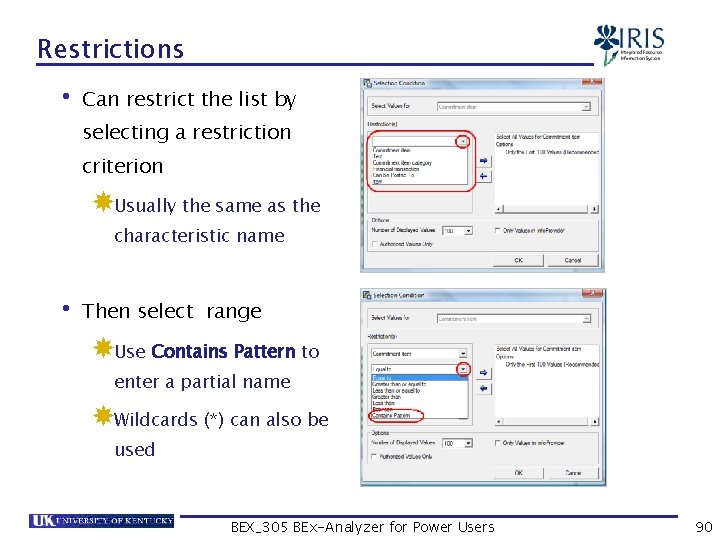
Restrictions • Can restrict the list by selecting a restriction criterion Usually the same as the characteristic name • Then select range Use Contains Pattern to enter a partial name Wildcards (*) can also be used BEX_305 BEx-Analyzer for Power Users 90
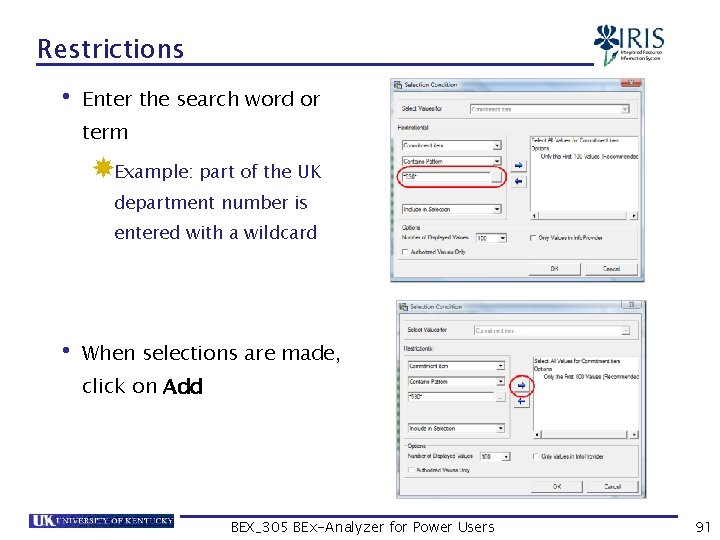
Restrictions • Enter the search word or term Example: part of the UK department number is entered with a wildcard • When selections are made, click on Add BEX_305 BEx-Analyzer for Power Users 91
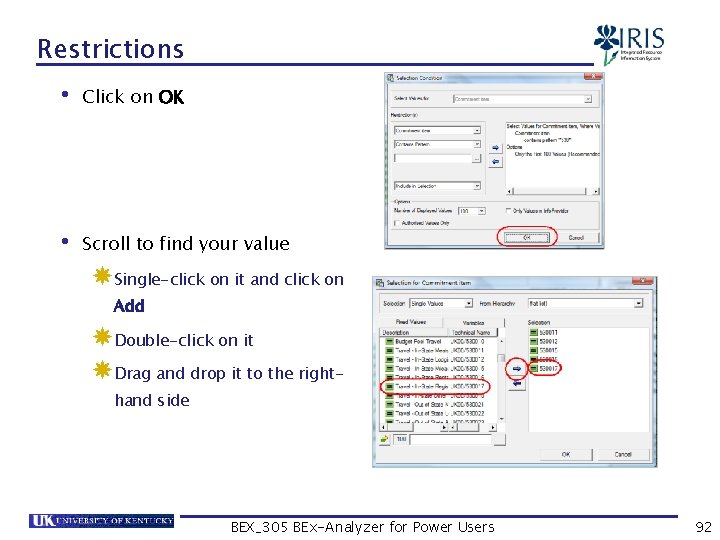
Restrictions • Click on OK • Scroll to find your value Single-click on it and click on Add Double-click on it Drag and drop it to the righthand side BEX_305 BEx-Analyzer for Power Users 92
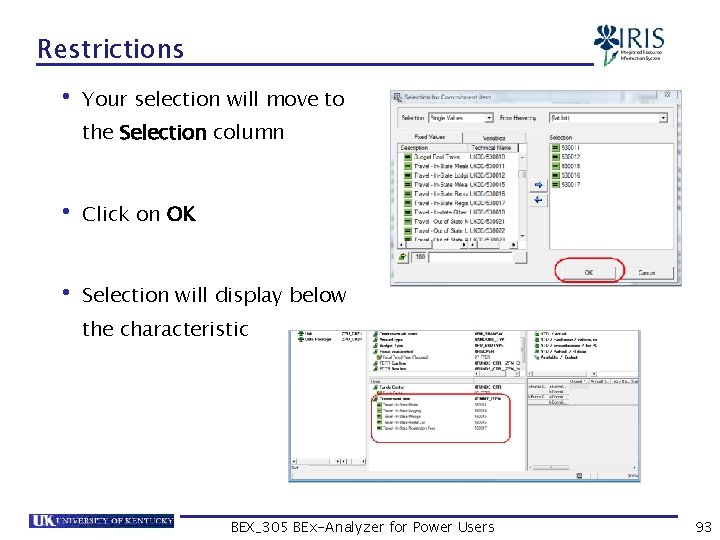
Restrictions • Your selection will move to the Selection column • Click on OK • Selection will display below the characteristic BEX_305 BEx-Analyzer for Power Users 93
Summary • Modify Query • Using Save As • Add Info. Objects • Reorganize Info. Objects • Remove Info. Objects • Variables • Restrictions BEX_305 BEx-Analyzer for Power Users 94
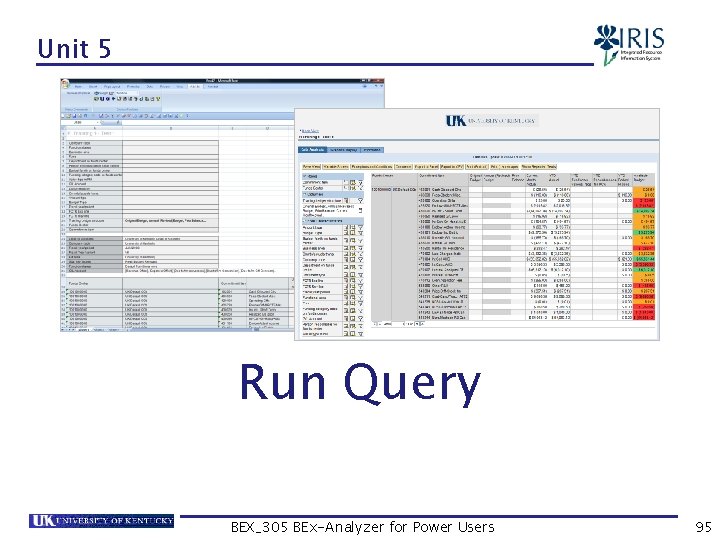
Unit 5 Run Query BEX_305 BEx-Analyzer for Power Users 95
Unit 5 – Run Query • Run Query • Via the Web • Via Excel BEX_305 BEx-Analyzer for Power Users 96
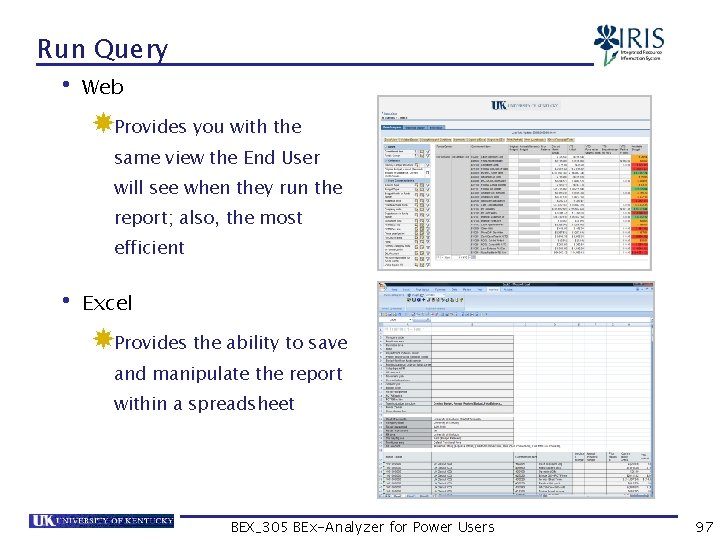
Run Query • Web Provides you with the same view the End User will see when they run the report; also, the most efficient • Excel Provides the ability to save and manipulate the report within a spreadsheet BEX_305 BEx-Analyzer for Power Users 97
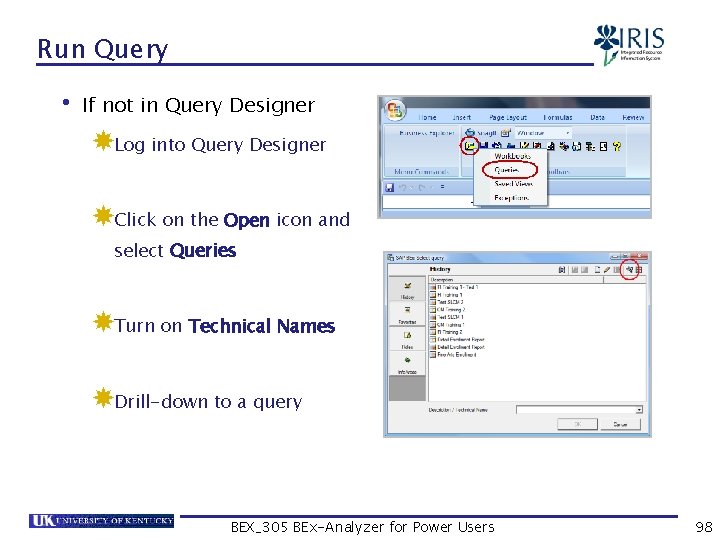
Run Query • If not in Query Designer Log into Query Designer Click on the Open icon and select Queries Turn on Technical Names Drill-down to a query BEX_305 BEx-Analyzer for Power Users 98
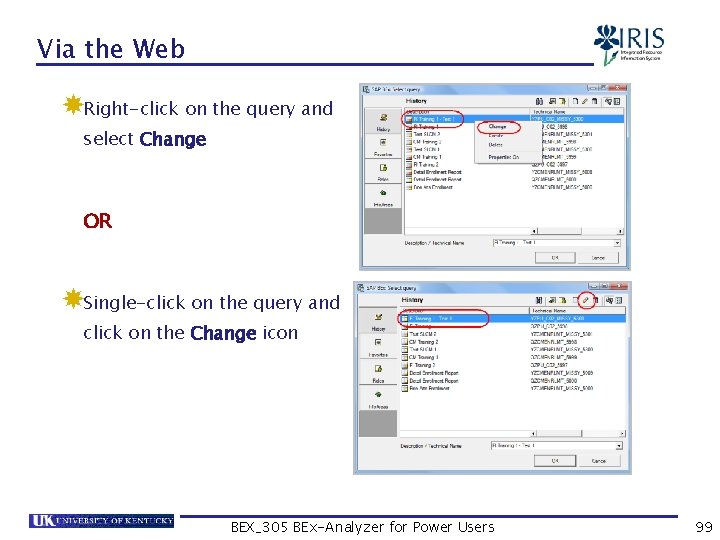
Via the Web Right-click on the query and select Change OR Single-click on the query and click on the Change icon BEX_305 BEx-Analyzer for Power Users 99
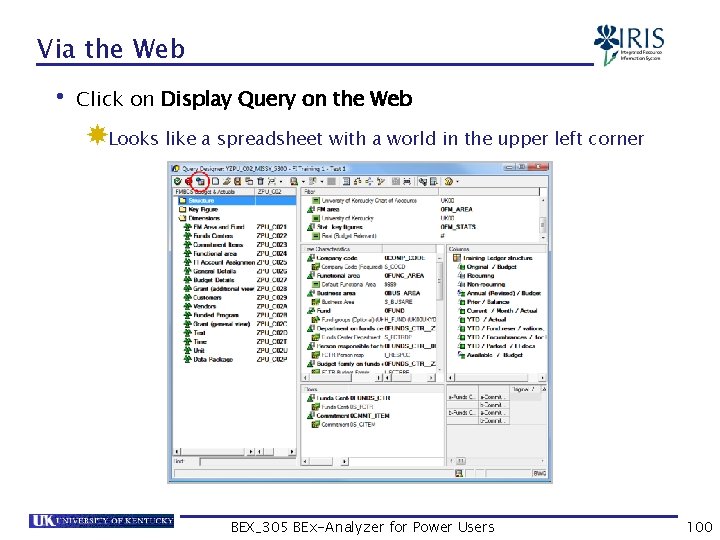
Via the Web • Click on Display Query on the Web Looks like a spreadsheet with a world in the upper left corner BEX_305 BEx-Analyzer for Power Users 100
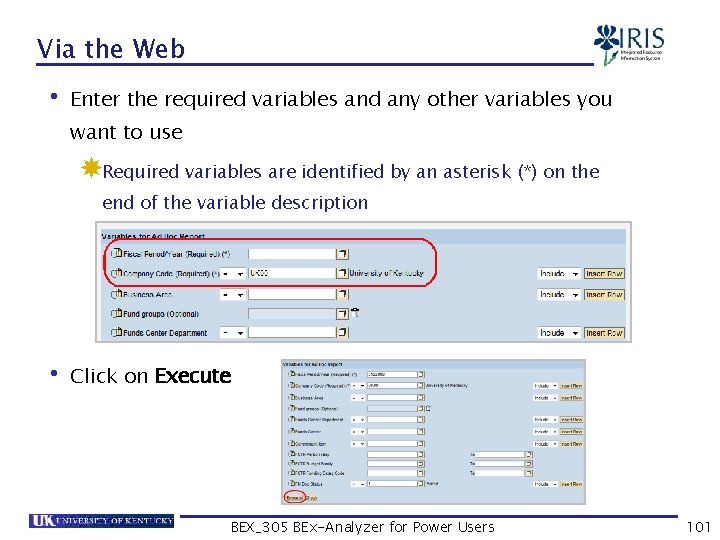
Via the Web • Enter the required variables and any other variables you want to use Required variables are identified by an asterisk (*) on the end of the variable description • Click on Execute BEX_305 BEx-Analyzer for Power Users 101
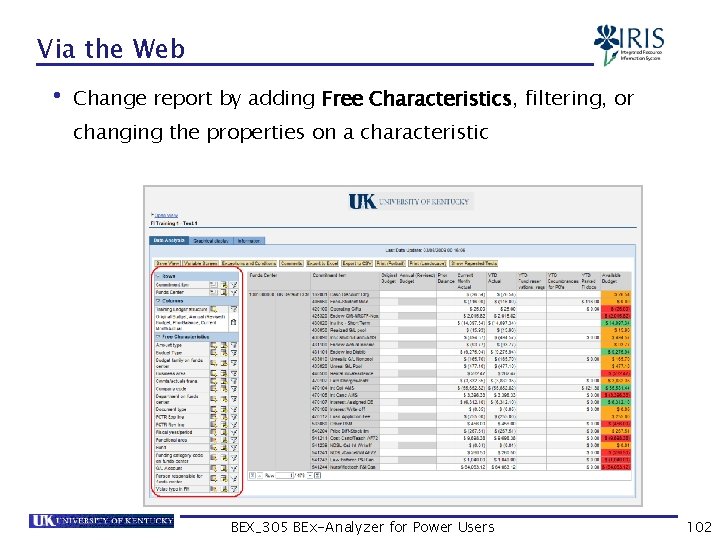
Via the Web • Change report by adding Free Characteristics, filtering, or changing the properties on a characteristic BEX_305 BEx-Analyzer for Power Users 102
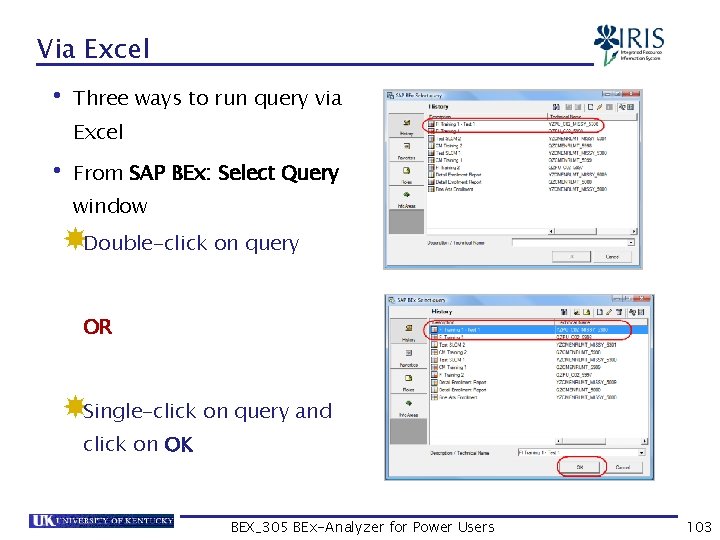
Via Excel • Three ways to run query via Excel • From SAP BEx: Select Query window Double-click on query OR Single-click on query and click on OK BEX_305 BEx-Analyzer for Power Users 103
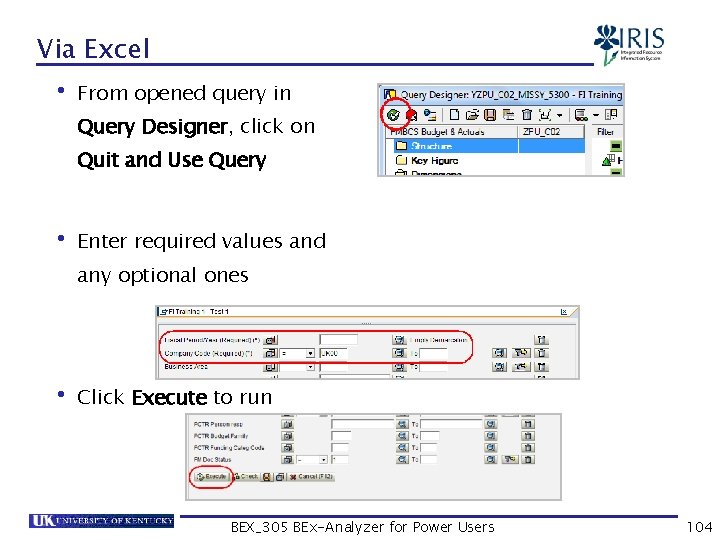
Via Excel • From opened query in Query Designer, click on Quit and Use Query • Enter required values and any optional ones • Click Execute to run BEX_305 BEx-Analyzer for Power Users 104
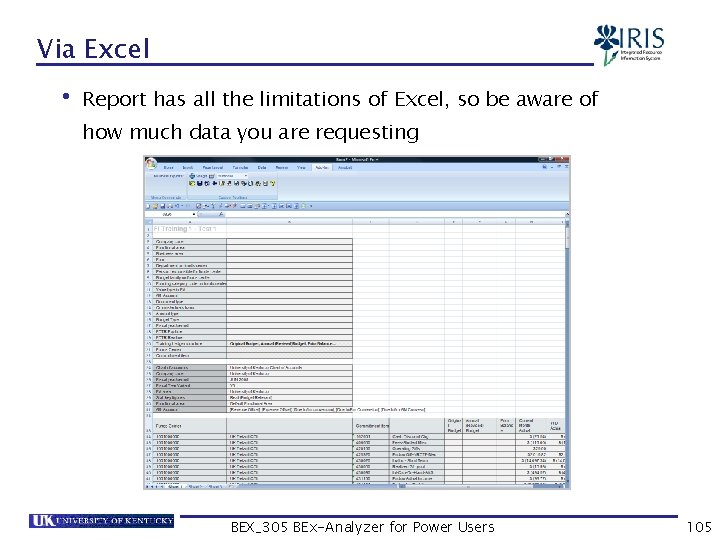
Via Excel • Report has all the limitations of Excel, so be aware of how much data you are requesting BEX_305 BEx-Analyzer for Power Users 105
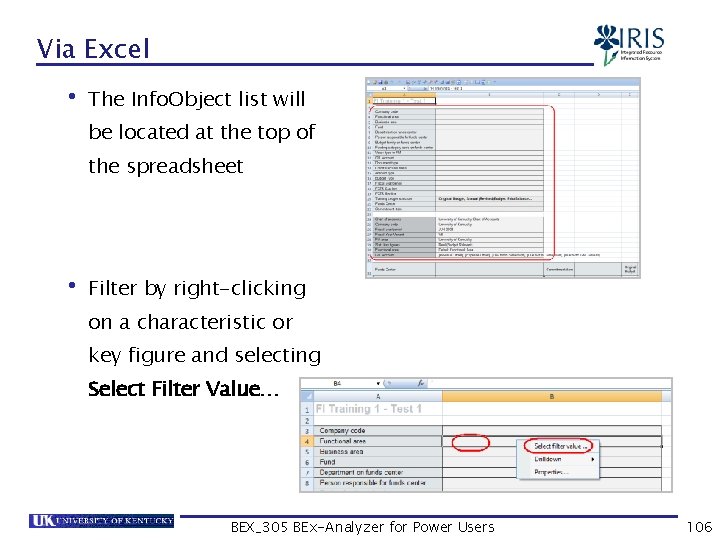
Via Excel • The Info. Object list will be located at the top of the spreadsheet • Filter by right-clicking on a characteristic or key figure and selecting Select Filter Value… BEX_305 BEx-Analyzer for Power Users 106
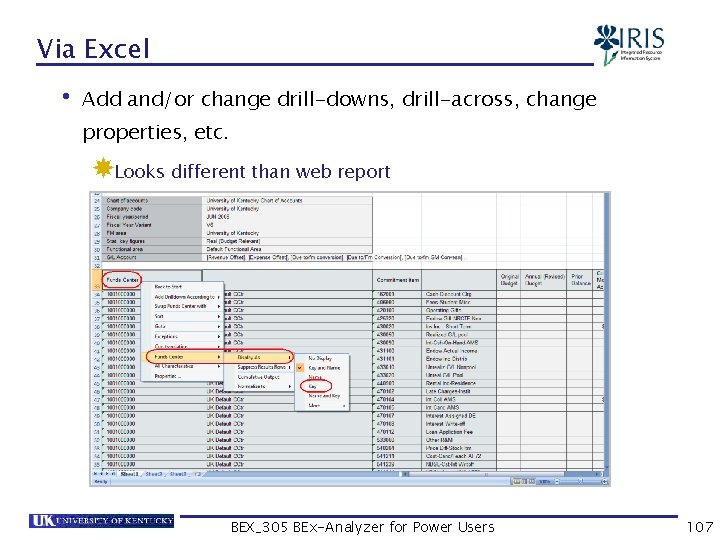
Via Excel • Add and/or change drill-downs, drill-across, change properties, etc. Looks different than web report BEX_305 BEx-Analyzer for Power Users 107
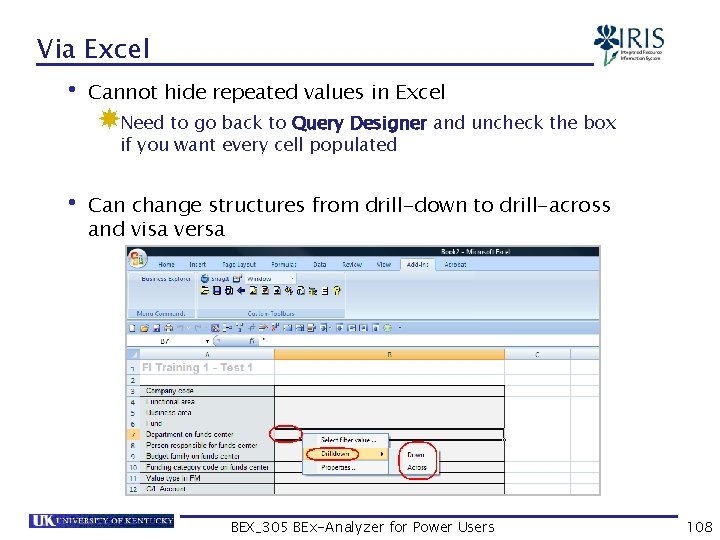
Via Excel • Cannot hide repeated values in Excel Need to go back to Query Designer and uncheck the box if you want every cell populated • Can change structures from drill-down to drill-across and visa versa BEX_305 BEx-Analyzer for Power Users 108
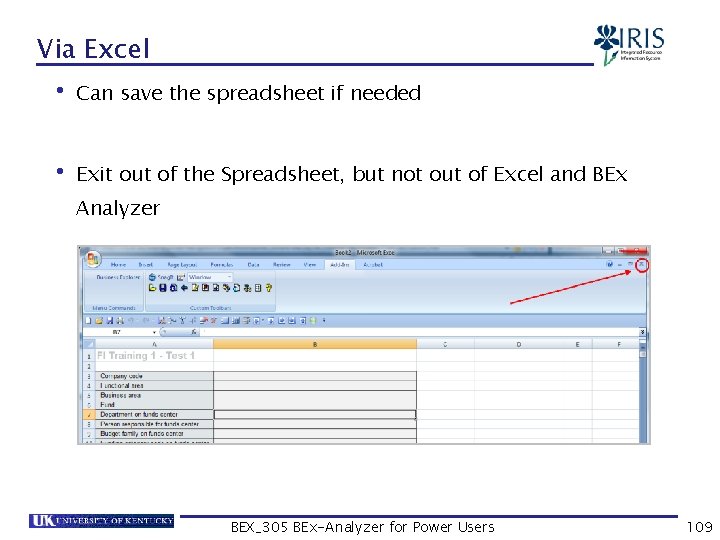
Via Excel • Can save the spreadsheet if needed • Exit out of the Spreadsheet, but not out of Excel and BEx Analyzer BEX_305 BEx-Analyzer for Power Users 109
Summary • Run Query • Via the Web • Via Excel BEX_305 BEx-Analyzer for Power Users 110
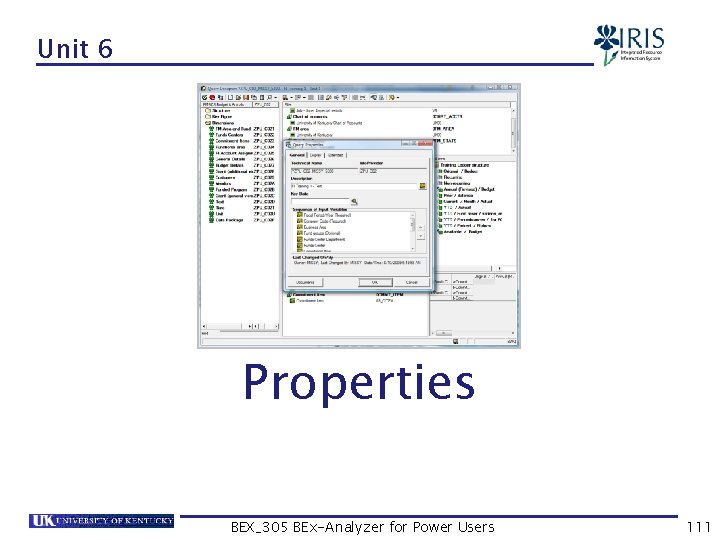
Unit 6 Properties BEX_305 BEx-Analyzer for Power Users 111
Unit 6 – Properties • Properties • Characteristic Properties • Query Properties BEX_305 BEx-Analyzer for Power Users 112
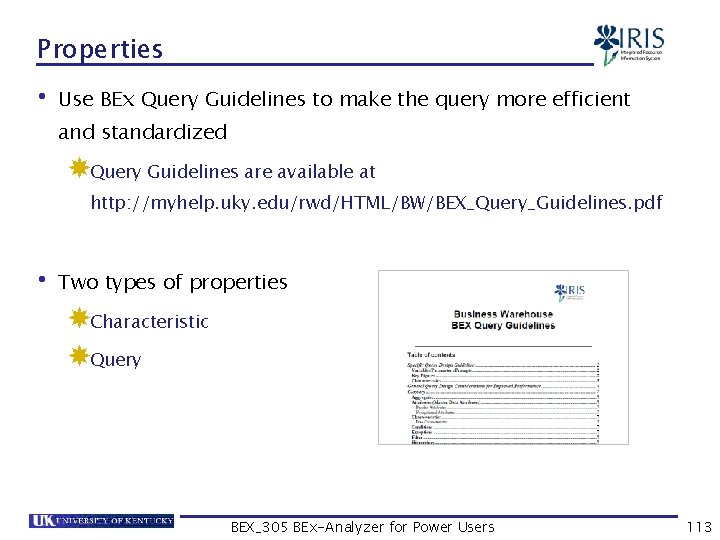
Properties • Use BEx Query Guidelines to make the query more efficient and standardized Query Guidelines are available at http: //myhelp. uky. edu/rwd/HTML/BW/BEX_Query_Guidelines. pdf • Two types of properties Characteristic Query BEX_305 BEx-Analyzer for Power Users 113
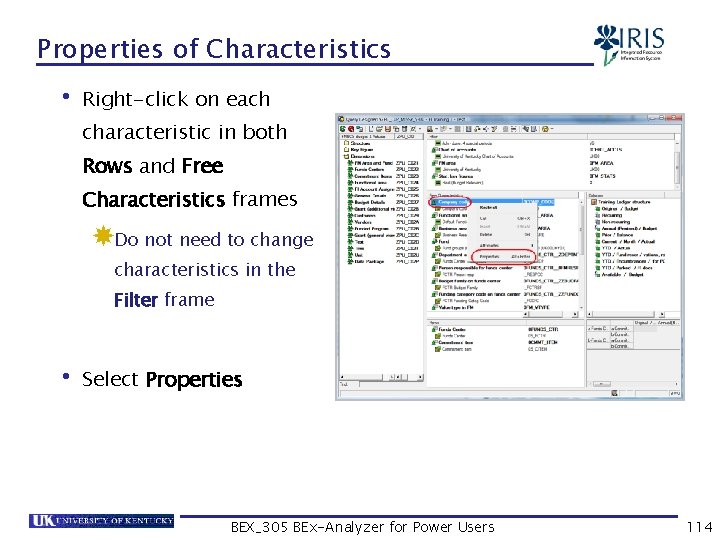
Properties of Characteristics • Right-click on each characteristic in both Rows and Free Characteristics frames Do not need to change characteristics in the Filter frame • Select Properties BEX_305 BEx-Analyzer for Power Users 114
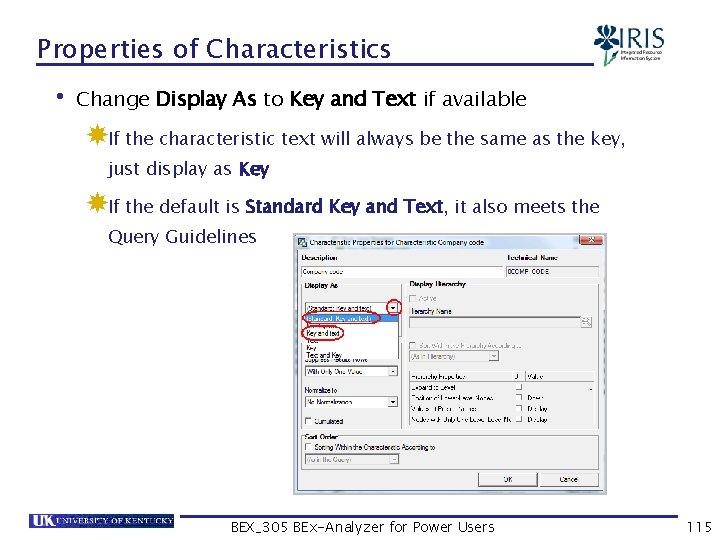
Properties of Characteristics • Change Display As to Key and Text if available If the characteristic text will always be the same as the key, just display as Key If the default is Standard Key and Text, it also meets the Query Guidelines BEX_305 BEx-Analyzer for Power Users 115
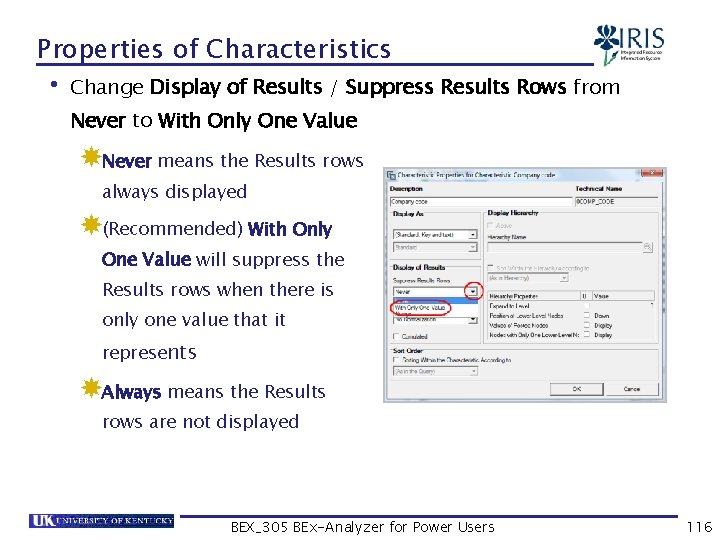
Properties of Characteristics • Change Display of Results / Suppress Results Rows from Never to With Only One Value Never means the Results rows always displayed (Recommended) With Only One Value will suppress the Results rows when there is only one value that it represents Always means the Results rows are not displayed BEX_305 BEx-Analyzer for Power Users 116
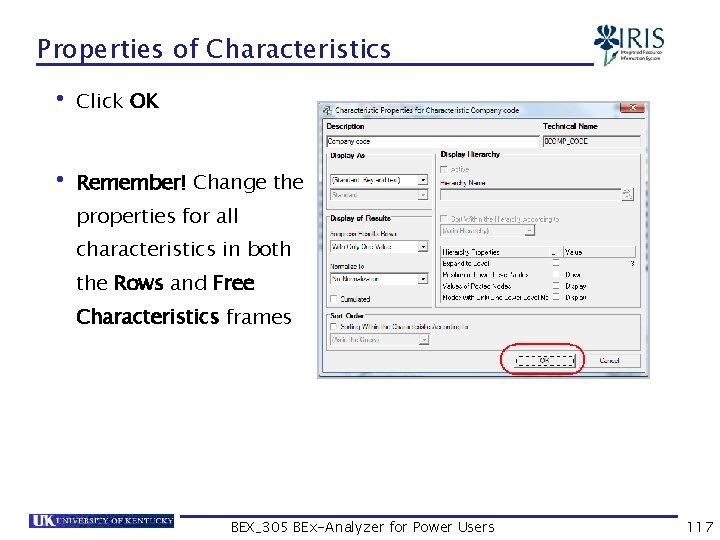
Properties of Characteristics • Click OK • Remember! Change the properties for all characteristics in both the Rows and Free Characteristics frames BEX_305 BEx-Analyzer for Power Users 117
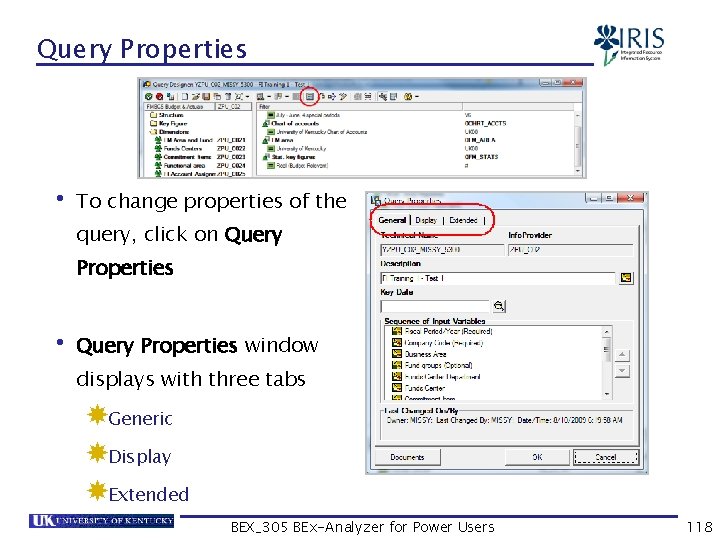
Query Properties • To change properties of the query, click on Query Properties • Query Properties window displays with three tabs Generic Display Extended BEX_305 BEx-Analyzer for Power Users 118
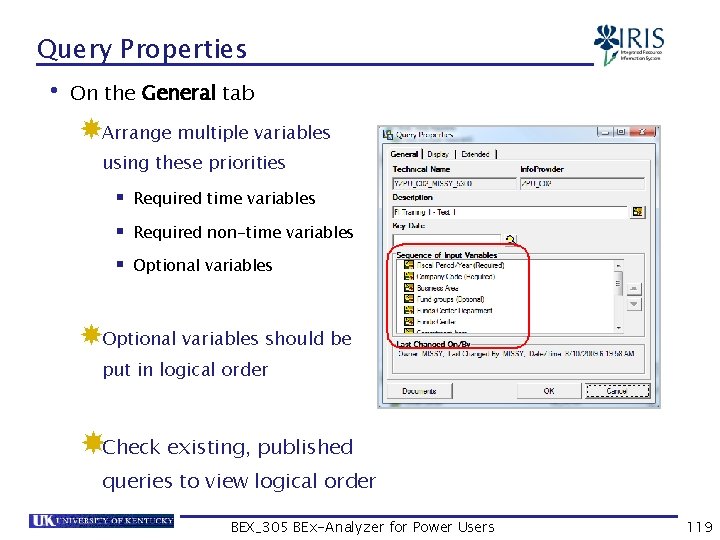
Query Properties • On the General tab Arrange multiple variables using these priorities § Required time variables § Required non-time variables § Optional variables should be put in logical order Check existing, published queries to view logical order BEX_305 BEx-Analyzer for Power Users 119
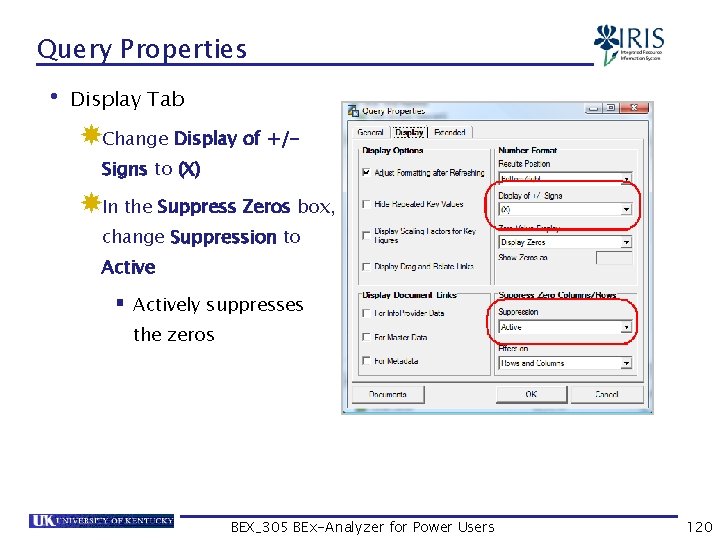
Query Properties • Display Tab Change Display of +/Signs to (X) In the Suppress Zeros box, change Suppression to Active § Actively suppresses the zeros BEX_305 BEx-Analyzer for Power Users 120
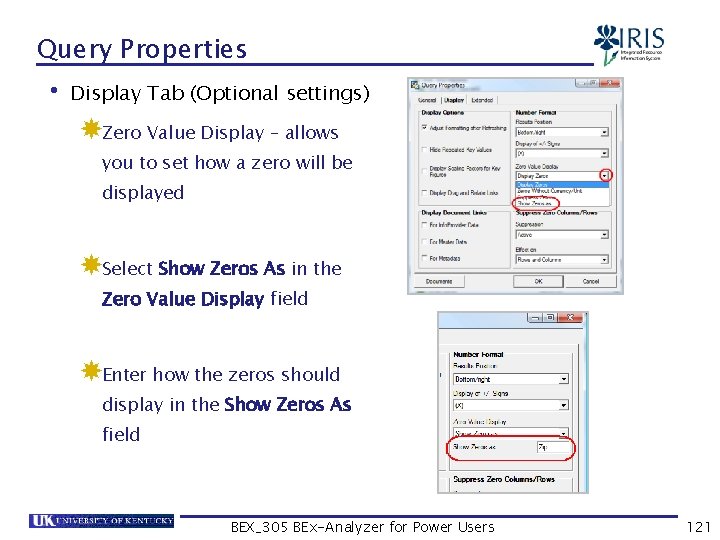
Query Properties • Display Tab (Optional settings) Zero Value Display – allows you to set how a zero will be displayed Select Show Zeros As in the Zero Value Display field Enter how the zeros should display in the Show Zeros As field BEX_305 BEx-Analyzer for Power Users 121
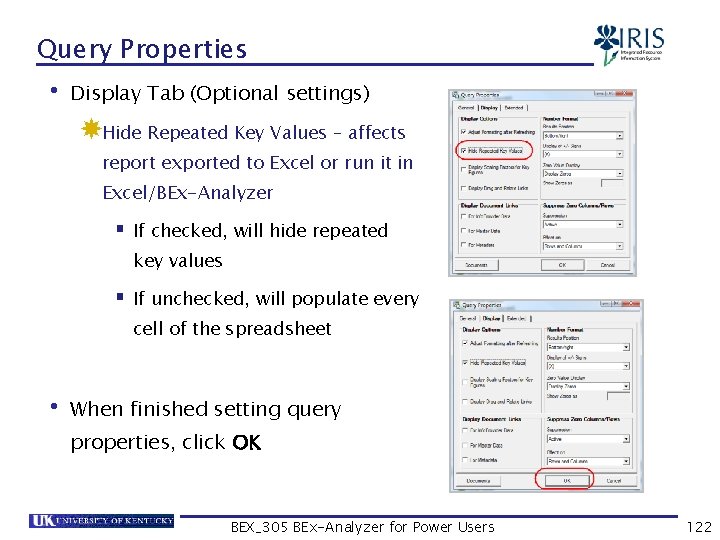
Query Properties • Display Tab (Optional settings) Hide Repeated Key Values – affects report exported to Excel or run it in Excel/BEx-Analyzer § If checked, will hide repeated key values § If unchecked, will populate every cell of the spreadsheet • When finished setting query properties, click OK BEX_305 BEx-Analyzer for Power Users 122
Summary • Properties • Characteristic Properties • Query Properties BEX_305 BEx-Analyzer for Power Users 123
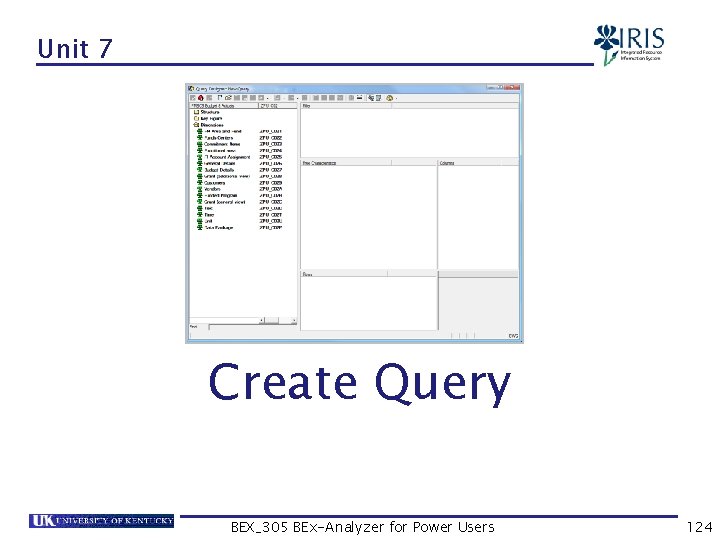
Unit 7 Create Query BEX_305 BEx-Analyzer for Power Users 124
Unit 7 – Create Query • Create Query Without Using Existing Queries • Info. Provider Icons • Save Query BEX_305 BEx-Analyzer for Power Users 125
Create Query • To create a query, first determine what data you want to retrieve • For example, to create a financial report on certain funds centers within a specific college, you may want: Fiscal year/period, G/L Account, Fund, Functional Area, Encumbrances, Amnt in FM Area Crcy, etc. • Determine which Info. Provider contains needed data BEX_305 BEx-Analyzer for Power Users 126
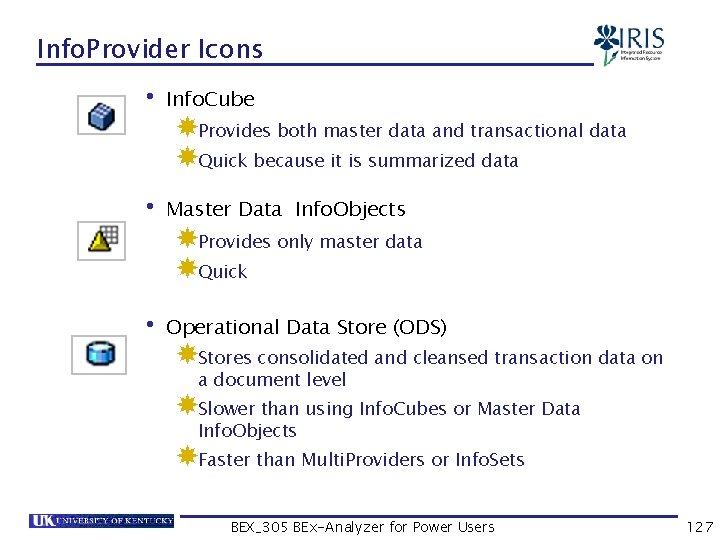
Info. Provider Icons • Info. Cube Provides both master data and transactional data Quick because it is summarized data • Master Data Info. Objects Provides only master data Quick • Operational Data Store (ODS) Stores consolidated and cleansed transaction data on a document level Slower than using Info. Cubes or Master Data Info. Objects Faster than Multi. Providers or Info. Sets BEX_305 BEx-Analyzer for Power Users 127
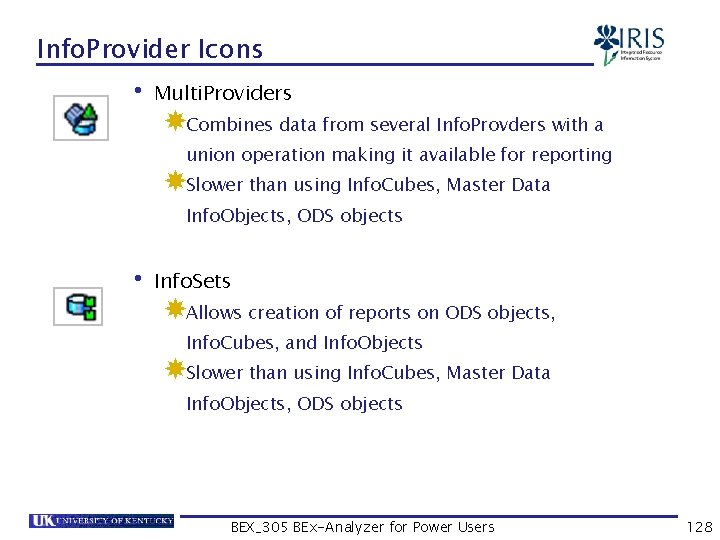
Info. Provider Icons • Multi. Providers Combines data from several Info. Provders with a union operation making it available for reporting Slower than using Info. Cubes, Master Data Info. Objects, ODS objects • Info. Sets Allows creation of reports on ODS objects, Info. Cubes, and Info. Objects Slower than using Info. Cubes, Master Data Info. Objects, ODS objects BEX_305 BEx-Analyzer for Power Users 128
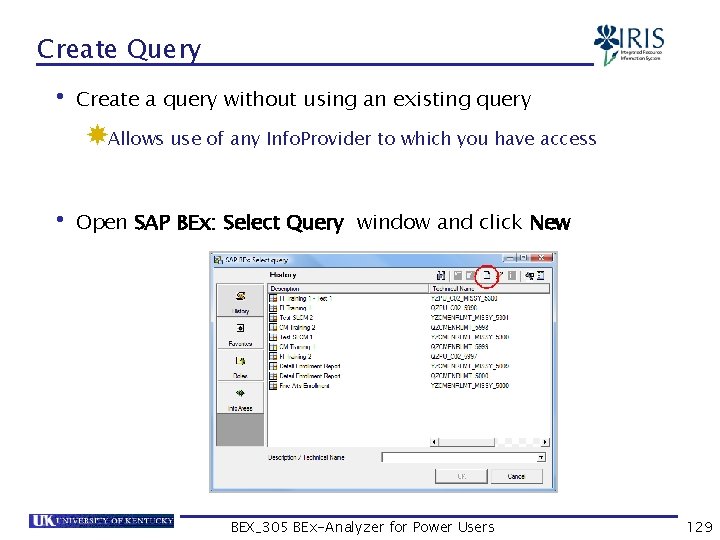
Create Query • Create a query without using an existing query Allows use of any Info. Provider to which you have access • Open SAP BEx: Select Query window and click New BEX_305 BEx-Analyzer for Power Users 129
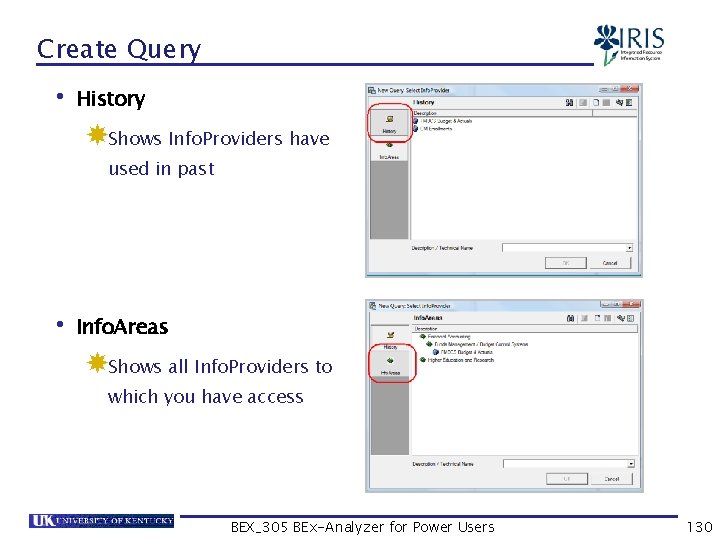
Create Query • History Shows Info. Providers have used in past • Info. Areas Shows all Info. Providers to which you have access BEX_305 BEx-Analyzer for Power Users 130
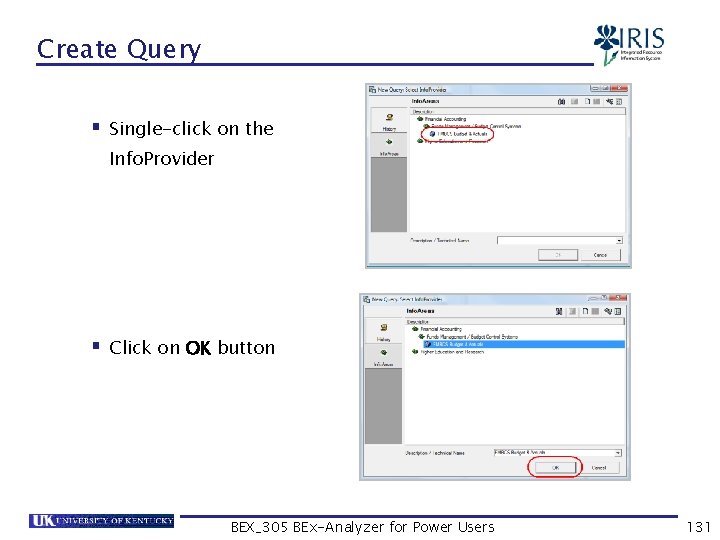
Create Query § Single-click on the Info. Provider § Click on OK button BEX_305 BEx-Analyzer for Power Users 131
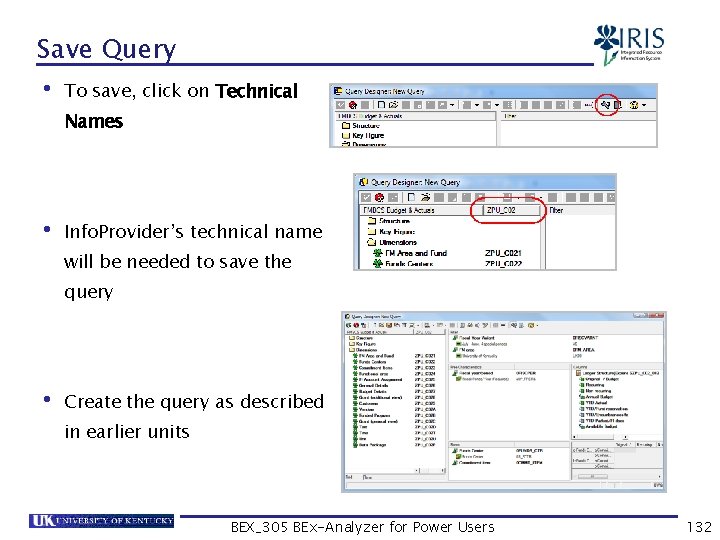
Save Query • To save, click on Technical Names • Info. Provider’s technical name will be needed to save the query • Create the query as described in earlier units BEX_305 BEx-Analyzer for Power Users 132
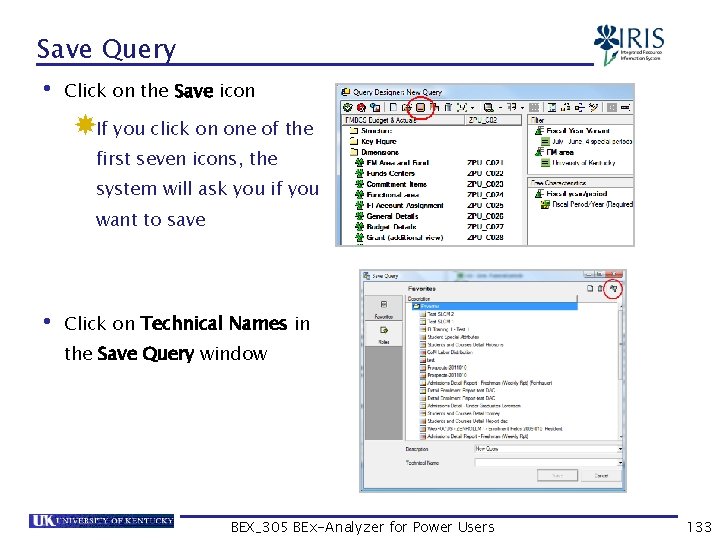
Save Query • Click on the Save icon If you click on one of the first seven icons, the system will ask you if you want to save • Click on Technical Names in the Save Query window BEX_305 BEx-Analyzer for Power Users 133
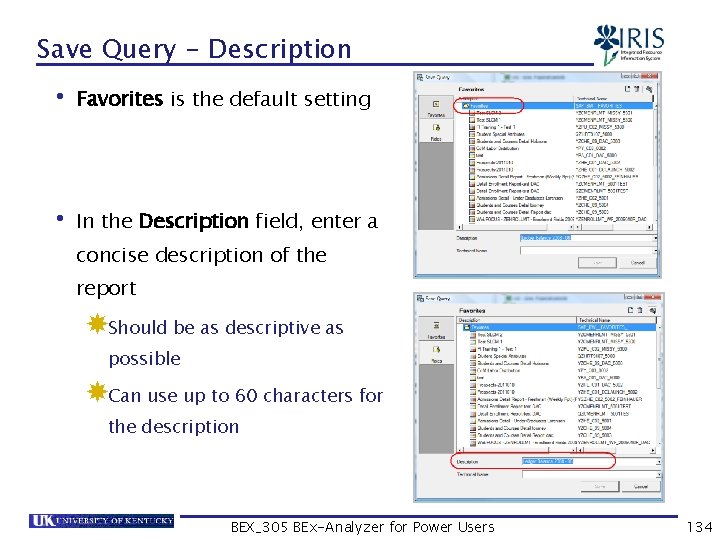
Save Query - Description • Favorites is the default setting • In the Description field, enter a concise description of the report Should be as descriptive as possible Can use up to 60 characters for the description BEX_305 BEx-Analyzer for Power Users 134
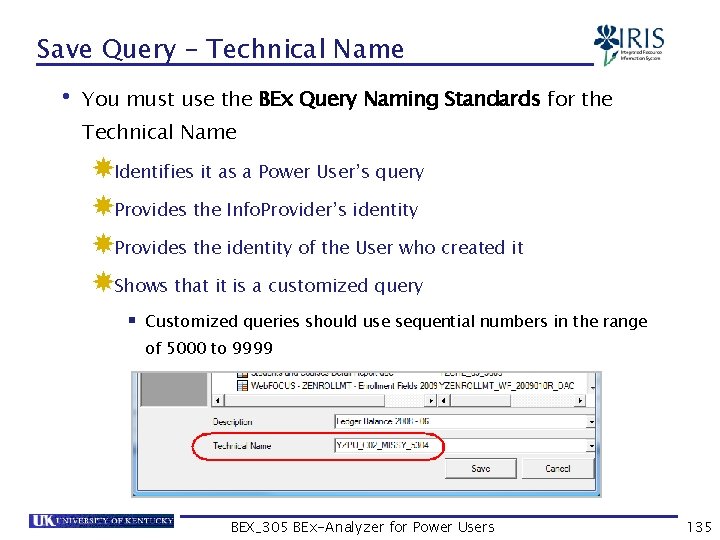
Save Query – Technical Name • You must use the BEx Query Naming Standards for the Technical Name Identifies it as a Power User’s query Provides the Info. Provider’s identity Provides the identity of the User who created it Shows that it is a customized query § Customized queries should use sequential numbers in the range of 5000 to 9999 BEX_305 BEx-Analyzer for Power Users 135
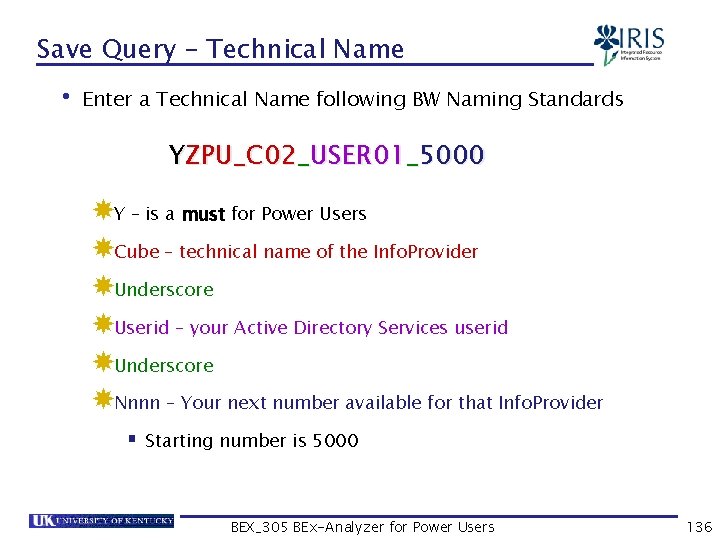
Save Query – Technical Name • Enter a Technical Name following BW Naming Standards YZPU_C 02_USER 01_5000 Y – is a must for Power Users Cube – technical name of the Info. Provider Underscore Userid – your Active Directory Services userid Underscore Nnnn – Your next number available for that Info. Provider § Starting number is 5000 BEX_305 BEx-Analyzer for Power Users 136
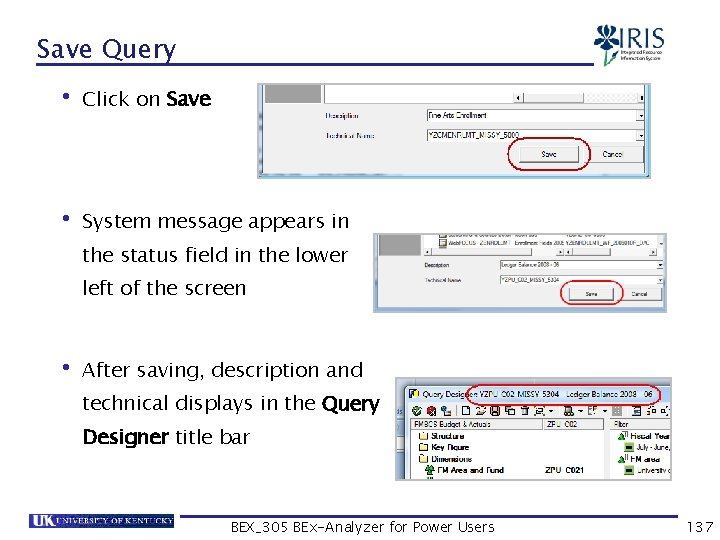
Save Query • Click on Save • System message appears in the status field in the lower left of the screen • After saving, description and technical displays in the Query Designer title bar BEX_305 BEx-Analyzer for Power Users 137
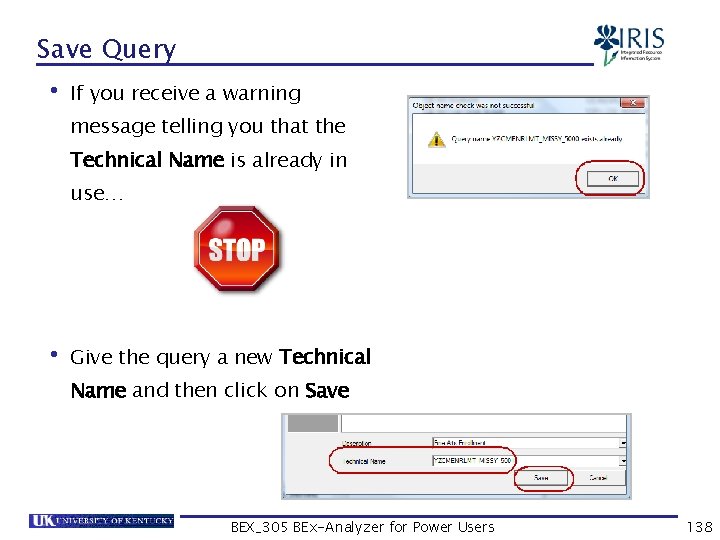
Save Query • If you receive a warning message telling you that the Technical Name is already in use… • Give the query a new Technical Name and then click on Save BEX_305 BEx-Analyzer for Power Users 138
Summary • Create Query Without Using Existing Queries • Info. Provider Icons • Save Query BEX_305 BEx-Analyzer for Power Users 139
Unit 8 Delete Query BEX_305 BEx-Analyzer for Power Users 140
Unit 8 – Delete Query • Delete a Query BEX_305 BEx-Analyzer for Power Users 141
Delete Query • Be careful when deleting a query to make sure you are deleting the correct one • Be aware of the technical name to ensure you are deleting your query and not someone else’s query, since the descriptions can be identical • You cannot delete a query with a technical name starting with Q • If you are not sure, STOP! DO NOT PASS GO!. . BEX_305 BEx-Analyzer for Power Users 142
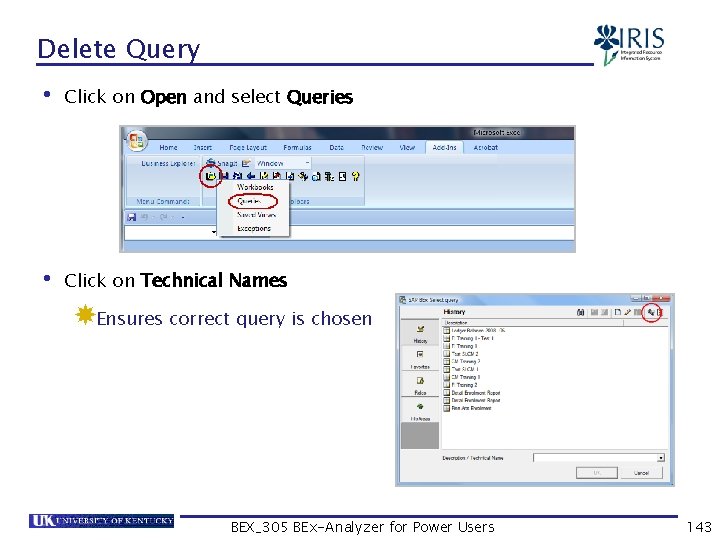
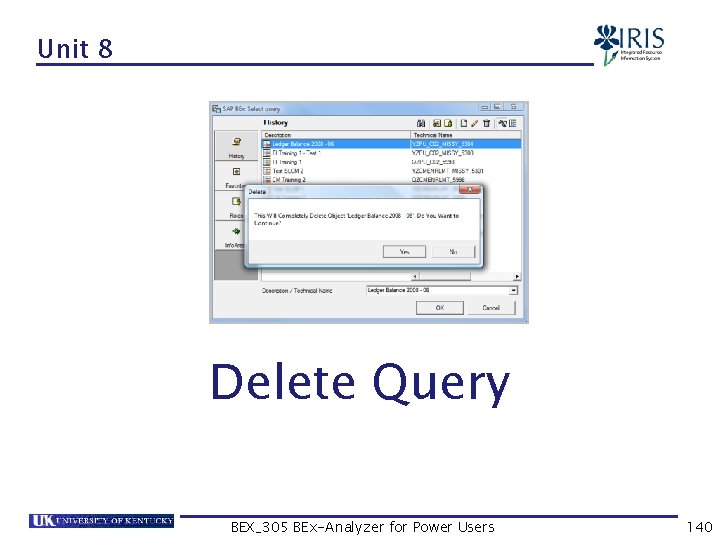
Delete Query • Click on Open and select Queries • Click on Technical Names Ensures correct query is chosen BEX_305 BEx-Analyzer for Power Users 143
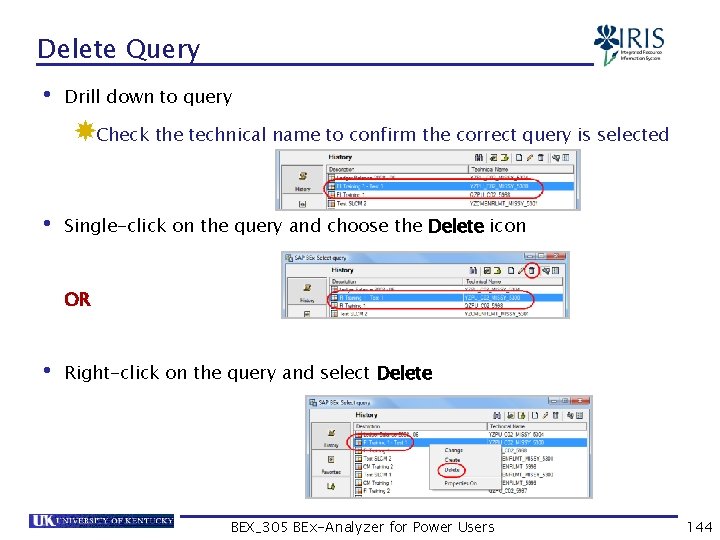
Delete Query • Drill down to query Check the technical name to confirm the correct query is selected • Single-click on the query and choose the Delete icon OR • Right-click on the query and select Delete BEX_305 BEx-Analyzer for Power Users 144
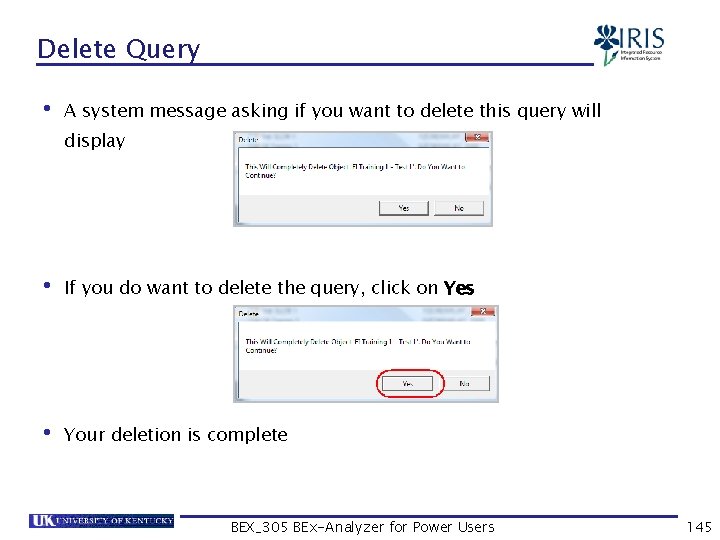
Delete Query • A system message asking if you want to delete this query will display • If you do want to delete the query, click on Yes • Your deletion is complete BEX_305 BEx-Analyzer for Power Users 145
Summary • Delete a Query BEX_305 BEx-Analyzer for Power Users 146
Unit 9 Query Views BEX_305 BEx-Analyzer for Power Users 147
Unit 9 – Query Views • Creating & Saving a Query View • Run a Query View • Change a Query View • Delete a Query View BEX_305 BEx-Analyzer for Power Users 148
Query Views • A query view is a picture of a query that saves any formatting done to the output of the query (the report) • Examples of formatting Hiding key figures from the initial display of the report Drill-down Drill-across Swap columns BEX_305 BEx-Analyzer for Power Users 149
Query Views • Can save and run query views from BEx-Web, just like the End User • Power user can do more Can actually change the original query view Can delete the original query view § The only way to delete a query view is through BEx. Analyzer BEX_305 BEx-Analyzer for Power Users 150
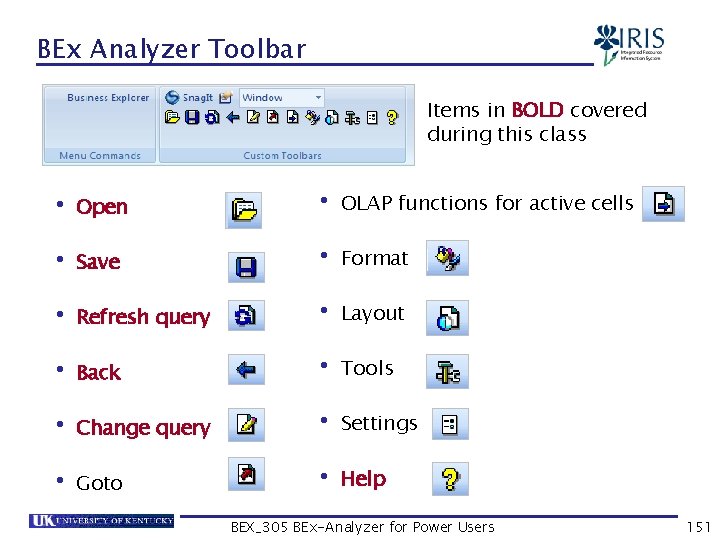
BEx Analyzer Toolbar Items in BOLD covered during this class • Open • Save • Refresh query • Back • Change query • Goto • OLAP functions for active cells • Format • Layout • Tools • Settings • Help BEX_305 BEx-Analyzer for Power Users 151
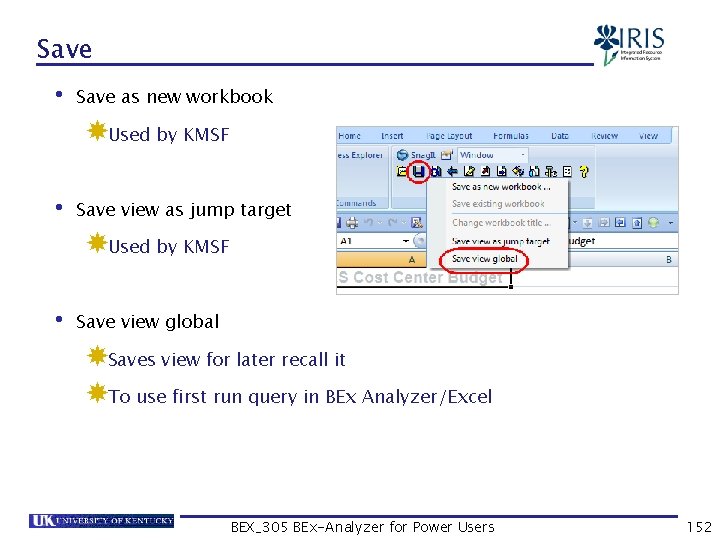
Save • Save as new workbook Used by KMSF • Save view as jump target Used by KMSF • Save view global Saves view for later recall it To use first run query in BEx Analyzer/Excel BEX_305 BEx-Analyzer for Power Users 152
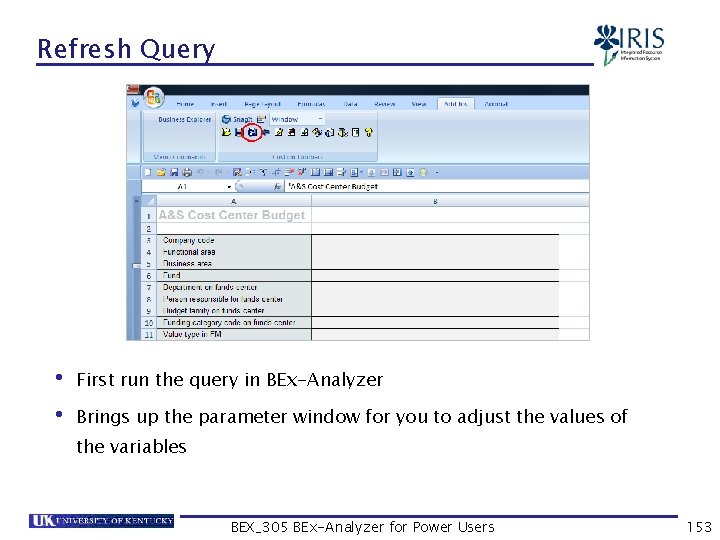
Refresh Query • First run the query in BEx-Analyzer • Brings up the parameter window for you to adjust the values of the variables BEX_305 BEx-Analyzer for Power Users 153
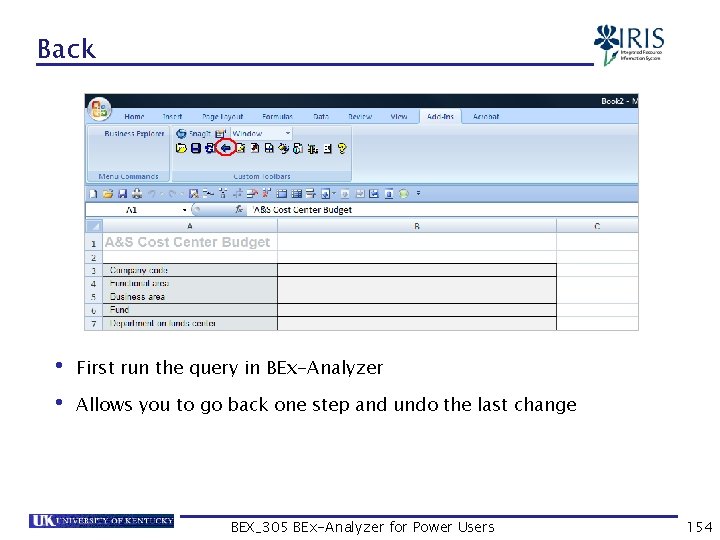
Back • First run the query in BEx-Analyzer • Allows you to go back one step and undo the last change BEX_305 BEx-Analyzer for Power Users 154
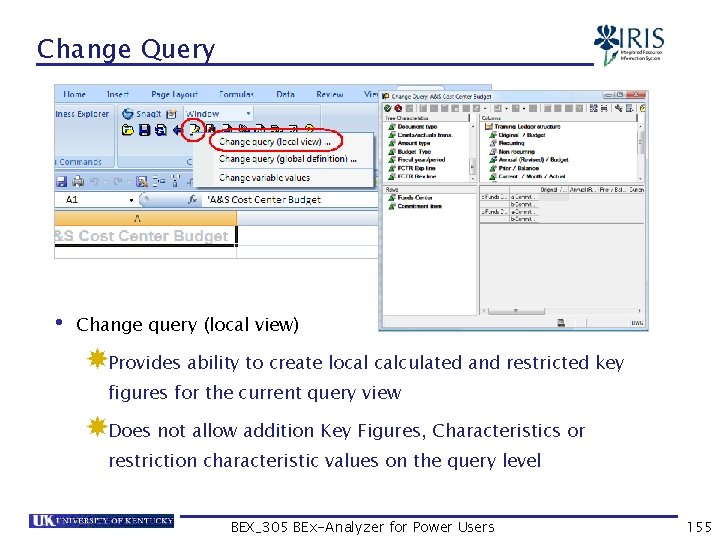
Change Query • Change query (local view) Provides ability to create local calculated and restricted key figures for the current query view Does not allow addition Key Figures, Characteristics or restriction characteristic values on the query level BEX_305 BEx-Analyzer for Power Users 155
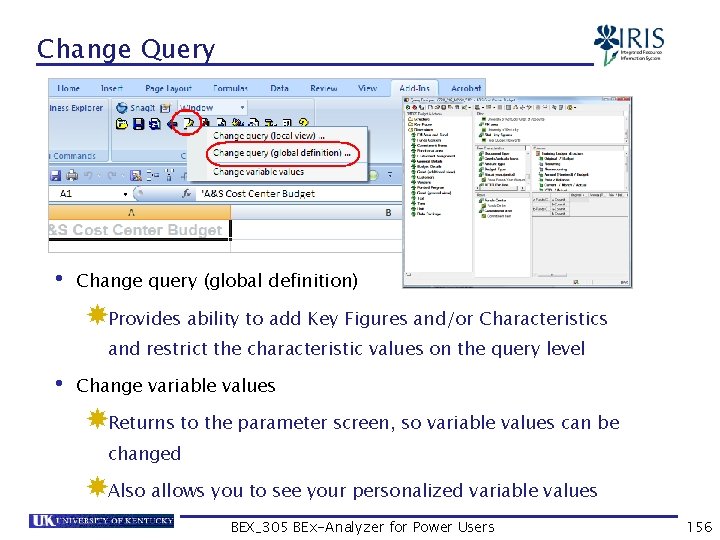
Change Query • Change query (global definition) Provides ability to add Key Figures and/or Characteristics and restrict the characteristic values on the query level • Change variable values Returns to the parameter screen, so variable values can be changed Also allows you to see your personalized variable values BEX_305 BEx-Analyzer for Power Users 156
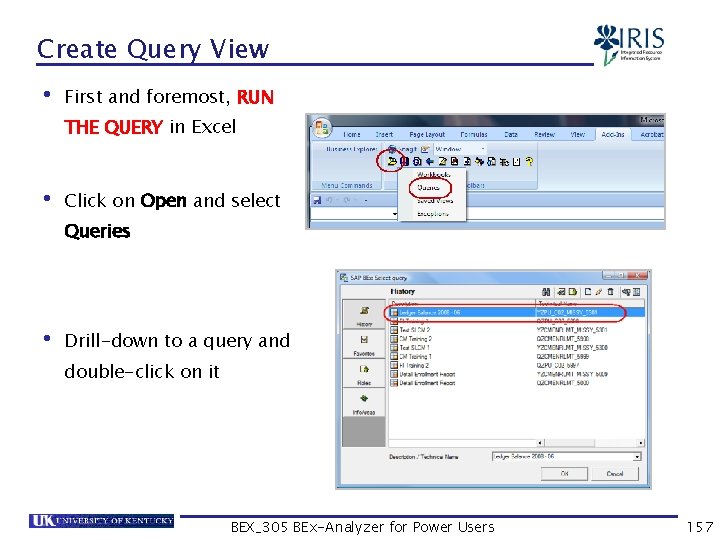
Create Query View • First and foremost, RUN THE QUERY in Excel • Click on Open and select Queries • Drill-down to a query and double-click on it BEX_305 BEx-Analyzer for Power Users 157
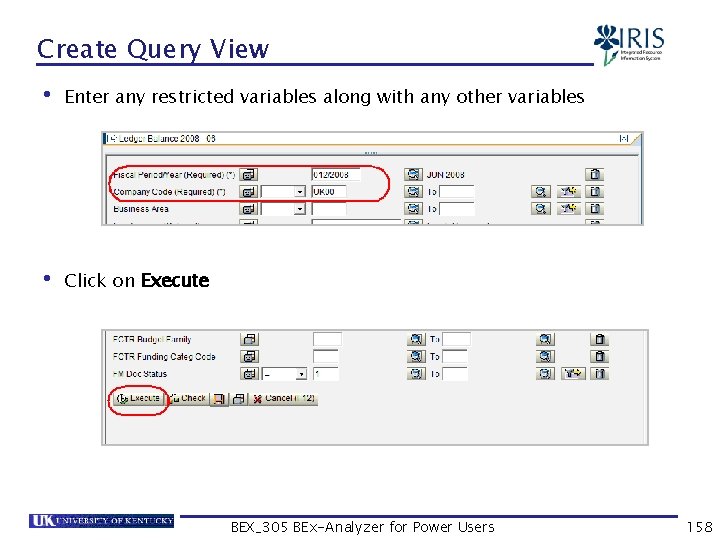
Create Query View • Enter any restricted variables along with any other variables • Click on Execute BEX_305 BEx-Analyzer for Power Users 158
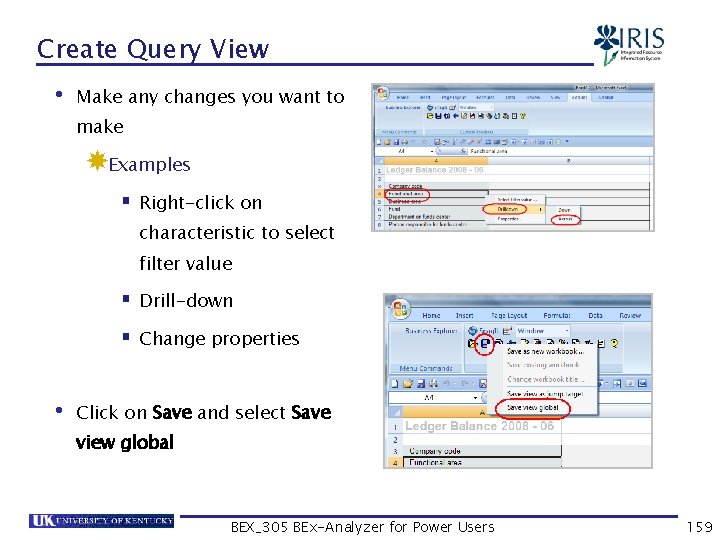
Create Query View • Make any changes you want to make Examples § Right-click on characteristic to select filter value § Drill-down § Change properties • Click on Save and select Save view global BEX_305 BEx-Analyzer for Power Users 159
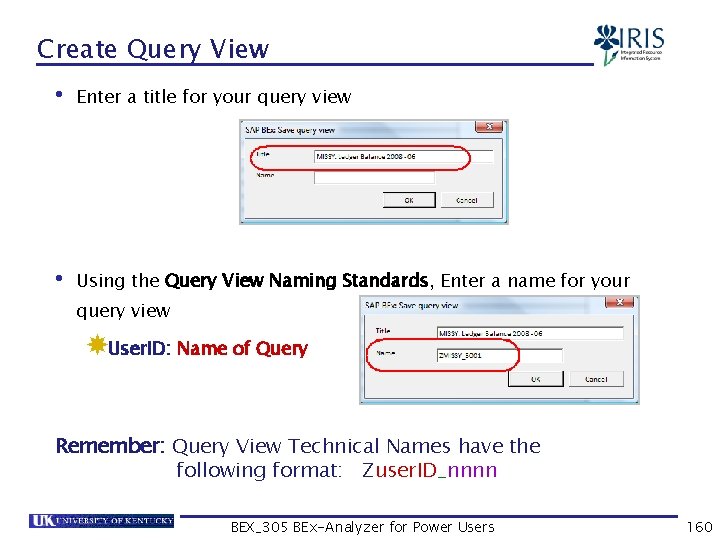
Create Query View • Enter a title for your query view • Using the Query View Naming Standards, Enter a name for your query view User. ID: Name of Query Remember: Query View Technical Names have the following format: Zuser. ID_nnnn BEX_305 BEx-Analyzer for Power Users 160
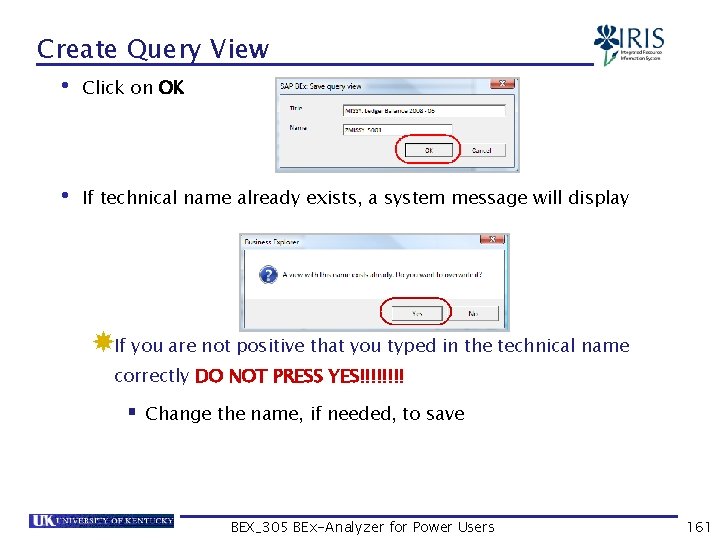
Create Query View • Click on OK • If technical name already exists, a system message will display If you are not positive that you typed in the technical name correctly DO NOT PRESS YES!!!! § Change the name, if needed, to save BEX_305 BEx-Analyzer for Power Users 161
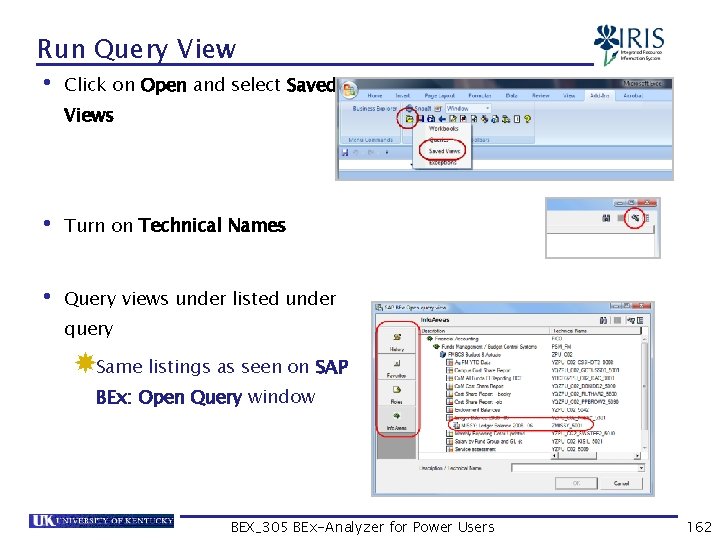
Run Query View • Click on Open and select Saved Views • Turn on Technical Names • Query views under listed under query Same listings as seen on SAP BEx: Open Query window BEX_305 BEx-Analyzer for Power Users 162
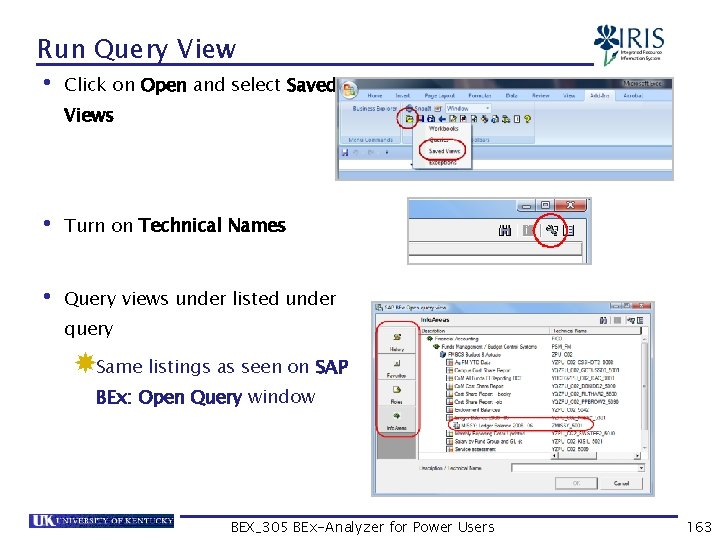
Run Query View • Click on Open and select Saved Views • Turn on Technical Names • Query views under listed under query Same listings as seen on SAP BEx: Open Query window BEX_305 BEx-Analyzer for Power Users 163
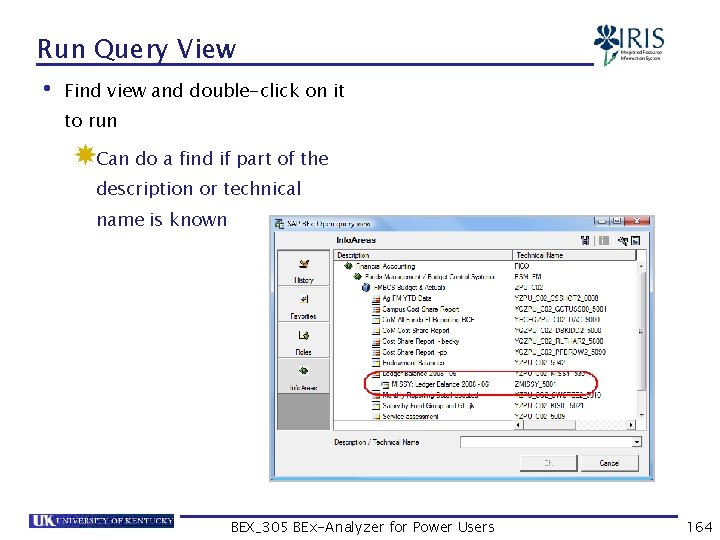
Run Query View • Find view and double-click on it to run Can do a find if part of the description or technical name is known BEX_305 BEx-Analyzer for Power Users 164
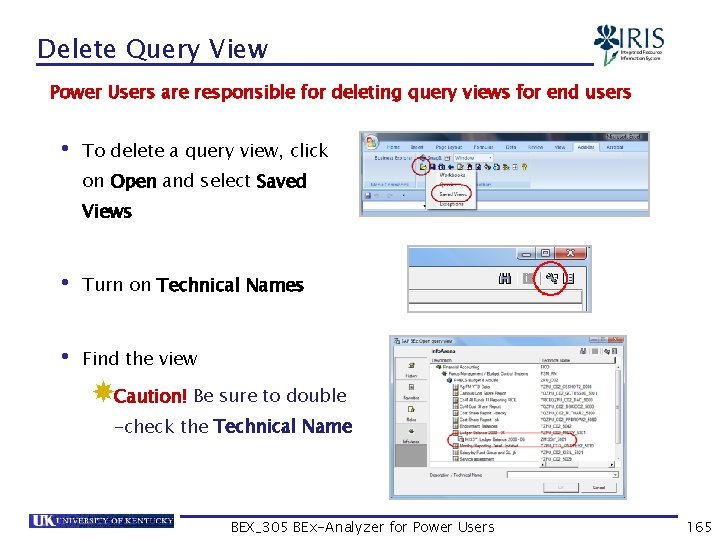
Delete Query View Power Users are responsible for deleting query views for end users • To delete a query view, click on Open and select Saved Views • Turn on Technical Names • Find the view Caution! Be sure to double -check the Technical Name BEX_305 BEx-Analyzer for Power Users 165
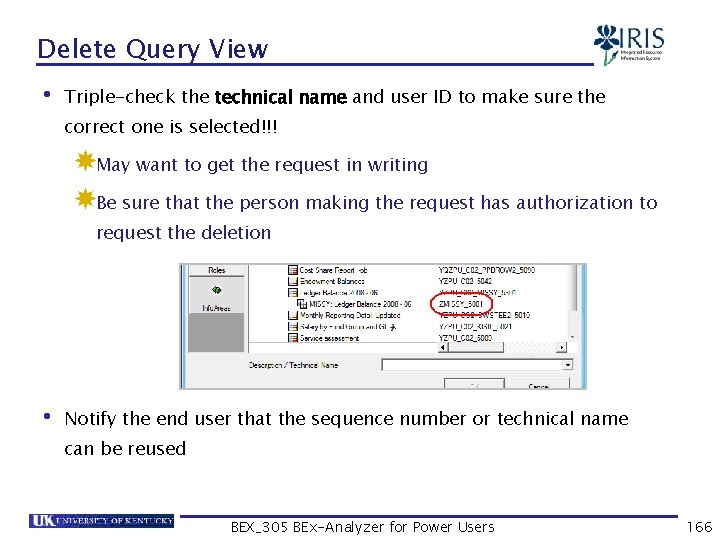
Delete Query View • Triple-check the technical name and user ID to make sure the correct one is selected!!! May want to get the request in writing Be sure that the person making the request has authorization to request the deletion • Notify the end user that the sequence number or technical name can be reused BEX_305 BEx-Analyzer for Power Users 166
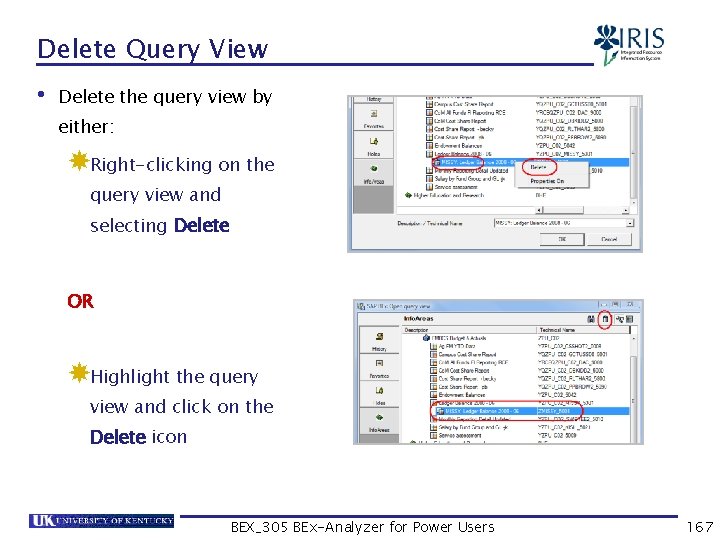
Delete Query View • Delete the query view by either: Right-clicking on the query view and selecting Delete OR Highlight the query view and click on the Delete icon BEX_305 BEx-Analyzer for Power Users 167
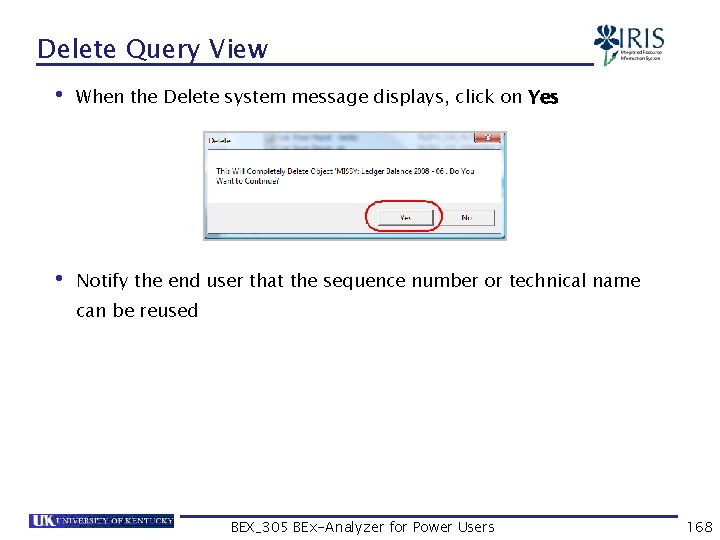
Delete Query View • When the Delete system message displays, click on Yes • Notify the end user that the sequence number or technical name can be reused BEX_305 BEx-Analyzer for Power Users 168
Summary • Creating & Saving a Query View • Run a Query View • Change a Query View • Delete a Query View BEX_305 BEx-Analyzer for Power Users 169
Power User Help Websites • my. Help website: http: //my. Help. uky. edu/rwd/HTML/BW. html Contains Quick Reference Cards (QRCs), course manuals, BW Frequently Asked Questions, and other job aids • IRIS website http: //www. uky. edu/IRIS/BW/ Contains Documentation, Assistance & Support, and other references • For the list of current Power Users, go to: http: //www. uky. edu/IRIS/BW/documents/Power. User. List_003. pdf • For questions or assistance contact: BI-Requests@email. uky. edu BEX_305 BEx-Analyzer for Power Users 170
Course Summary • Understand how to: Display a Query Create Using an Existing Query Save a Query Run Query Setting Properties Create Query Delete Query Create/Change/Delete Query View BEX_305 BEx-Analyzer for Power Users 171
- Slides: 171