
Building the User Interface by Using HTML 5
Building the User Interface by Using HTML 5: Organization, Input, and Validation Lesson 3
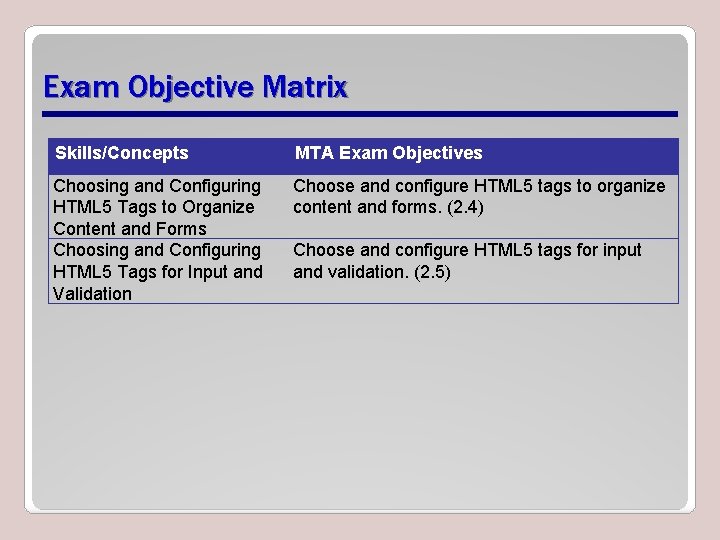
Exam Objective Matrix Skills/Concepts MTA Exam Objectives Choosing and Configuring HTML 5 Tags to Organize Content and Forms Choosing and Configuring HTML 5 Tags for Input and Validation Choose and configure HTML 5 tags to organize content and forms. (2. 4) Choose and configure HTML 5 tags for input and validation. (2. 5)
div Element • Used for years to create structure of an HTML document • Often includes a class or ID attribute • May include CSS styles such as background-color, height, and width • Example: – <div id="header" > This is a header </div>
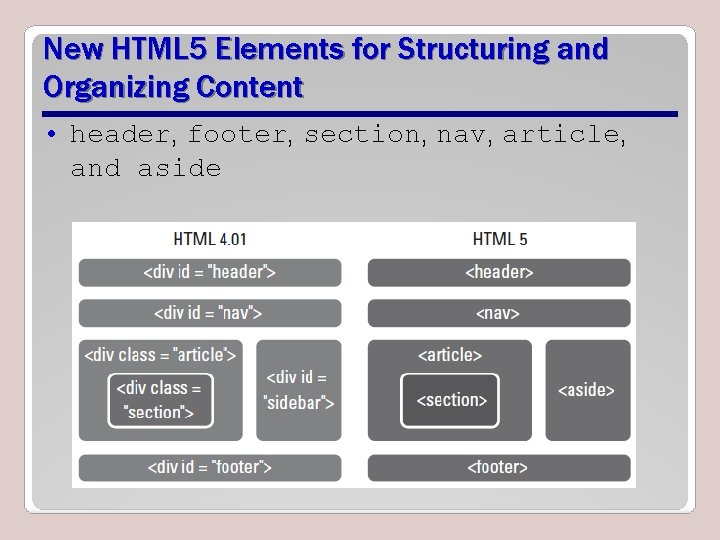
New HTML 5 Elements for Structuring and Organizing Content • header, footer, section, nav, article, and aside
Semantic Markup • Tag names that are intuitive • Makes it easier to build and modify HTML documents • Makes it easier for Web browsers and other programs to interpret • Developers can still use <div> in HTML 5 documents; should use new structure elements whenever appropriate
header and footer Elements • The header element defines a header for a document, section, or article. HTML 4. 01 uses the header div (<div id="header">). • The footer element defines a footer for a document or section, and typically contains information about the document or section, such as the author name, copyright data, links to related documents, and so on.
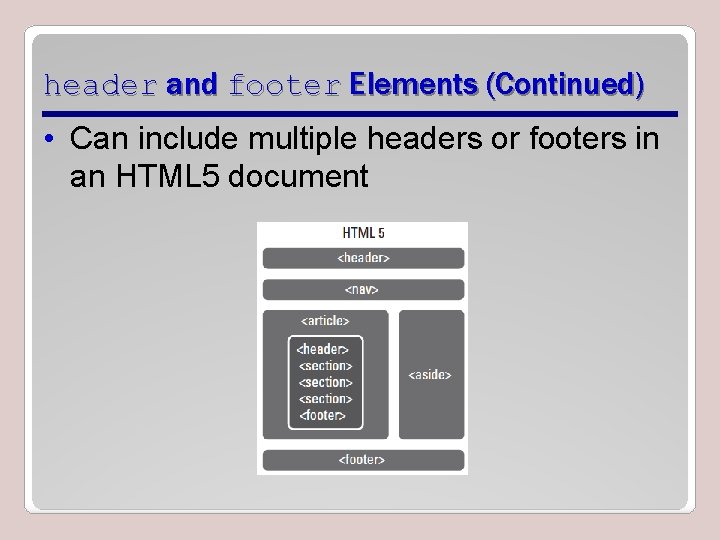
header and footer Elements (Continued) • Can include multiple headers or footers in an HTML 5 document
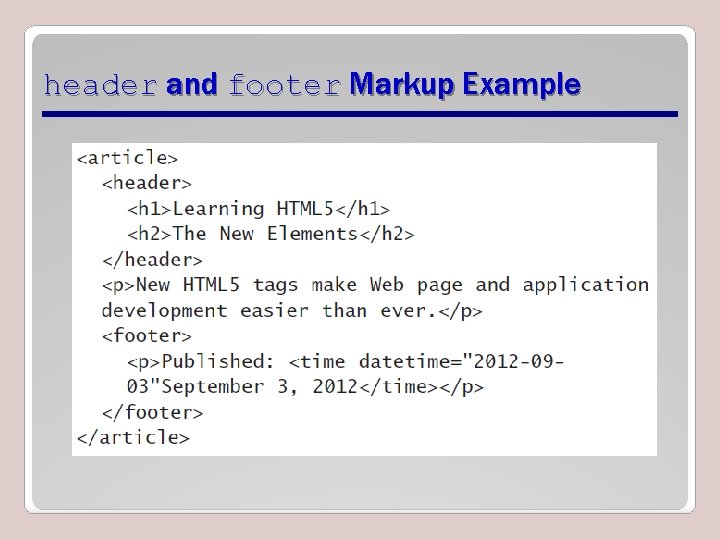
header and footer Markup Example
section Element • Defines a section in a document, such as a chapter, parts of a thesis, or parts of a Web page whose content is distinct from each other • According to the W 3 C, must contain at least one heading and define something that would ordinarily appear in the document’s outline
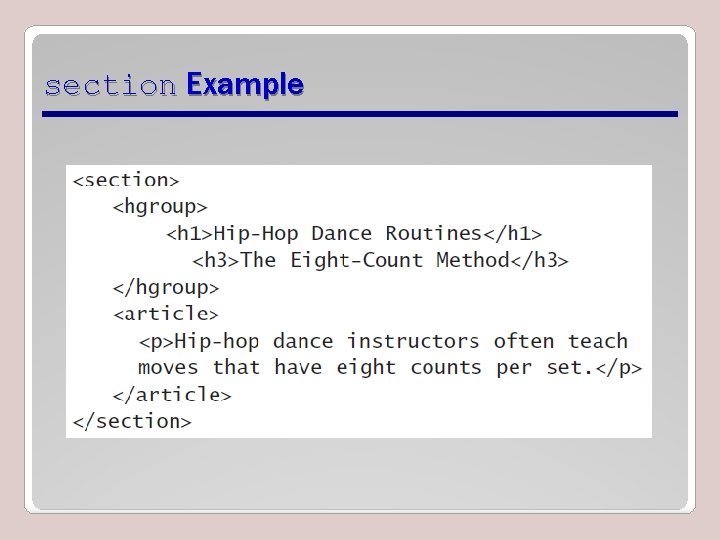
section Example
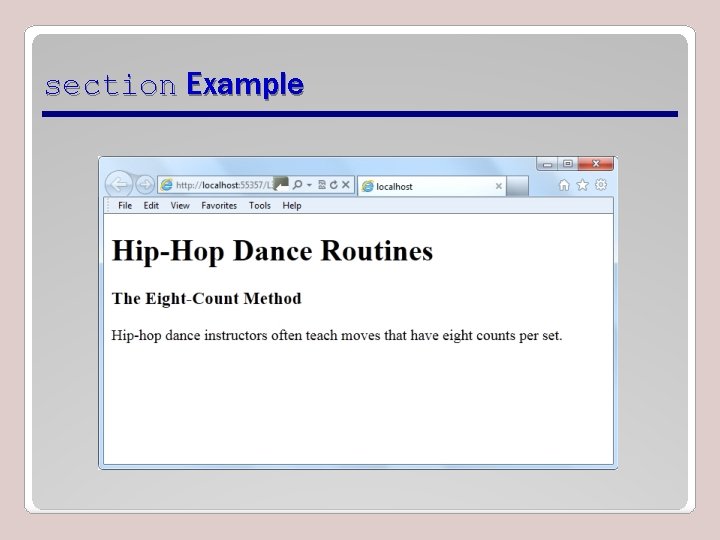
section Example
nav Element • Defines a block of navigation links and is useful for creating – A set of navigation links as a document’s primary navigation – A table of contents – Breadcrumbs in a footer – Previous-Home-Next links
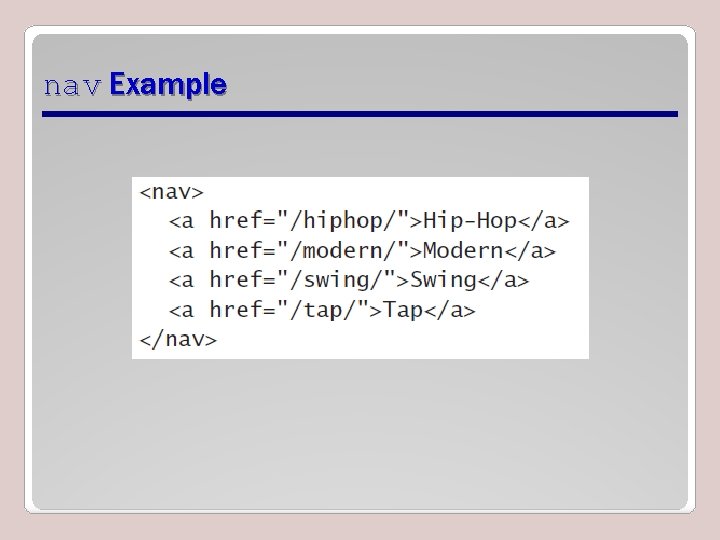
nav Example
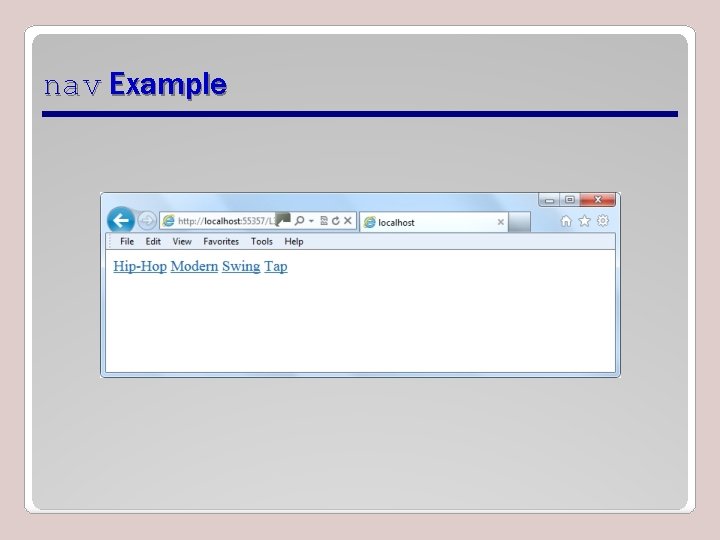
nav Example
article Element • Defines a part of an HTML document that consists of a “self-contained composition” independent from the rest of the content in the document • Content set off by <article> tags can be distributed in syndication – Think of it as content that makes sense on its own
aside Element • Used for sidebars and notes—content that’s related to the current topic but would interrupt the flow of the document if left inline
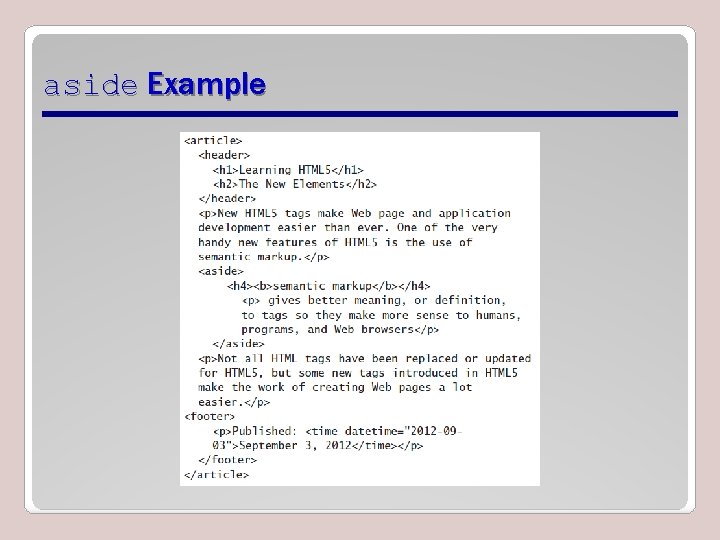
aside Example
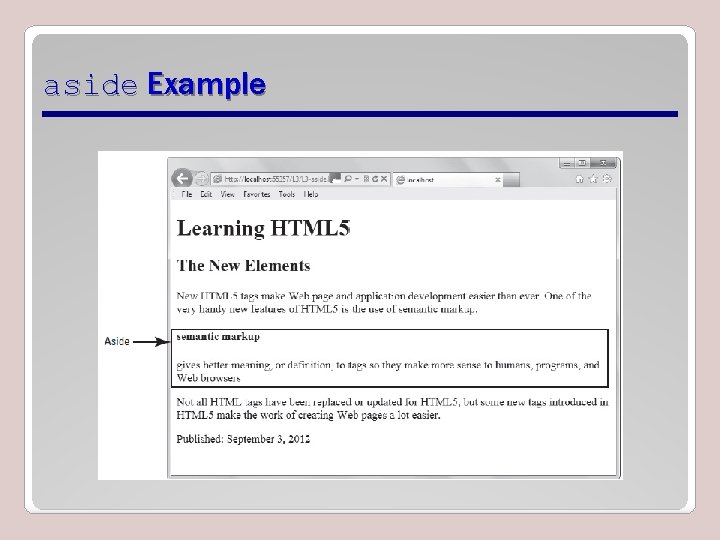
aside Example
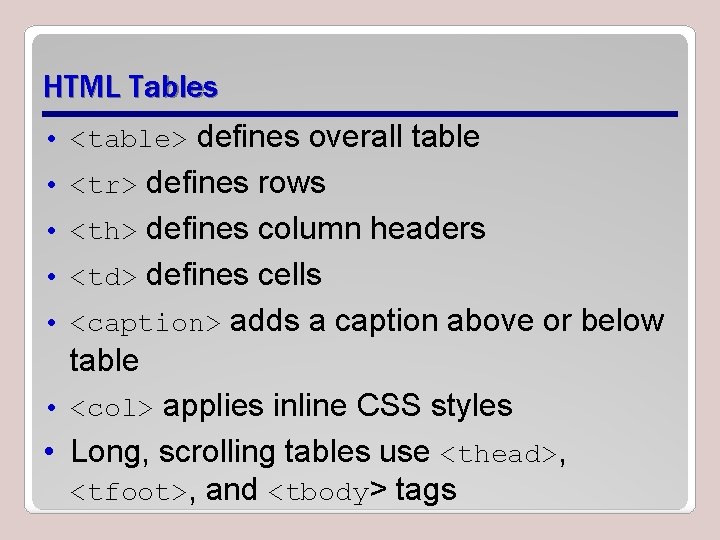
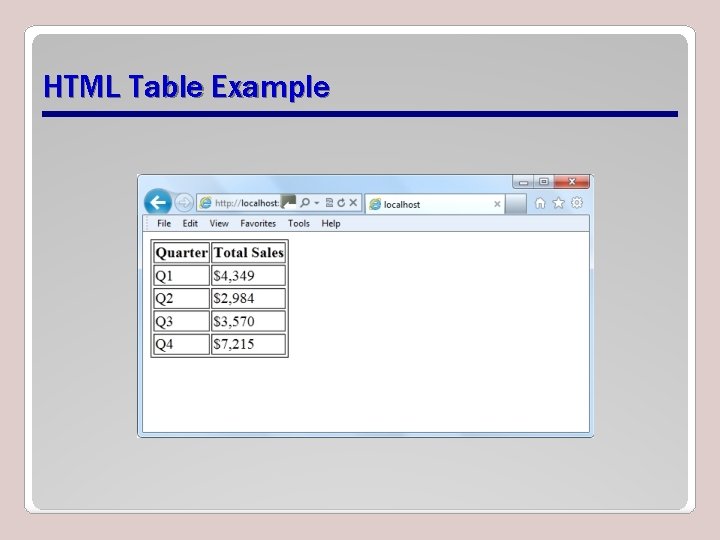
HTML Tables • <table> defines overall table • <tr> defines rows • <th> defines column headers • <td> defines cells • <caption> adds a caption above or below table • <col> applies inline CSS styles • Long, scrolling tables use <thead>, <tfoot>, and <tbody> tags
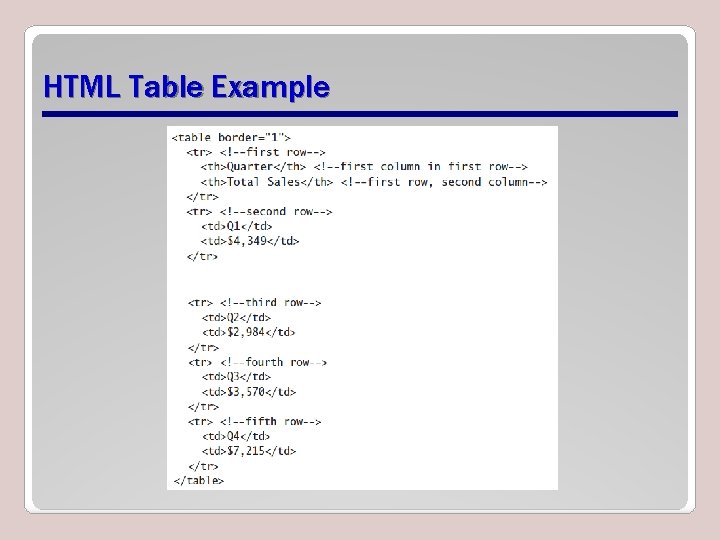
HTML Table Example
HTML Table Example
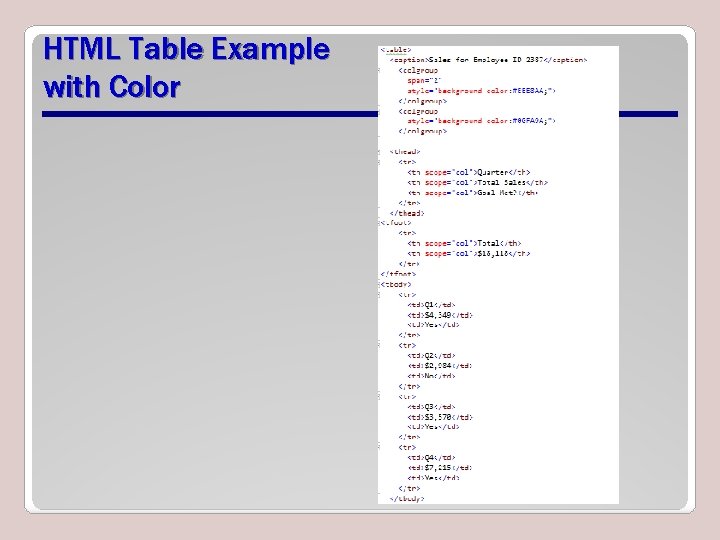
HTML Table Example with Color
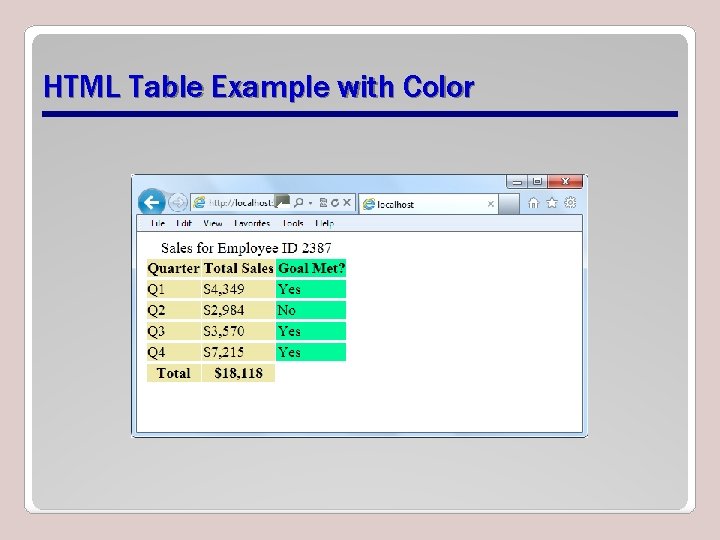
HTML Table Example with Color
Ordered List • Orders list entries using numbers, by default • Uses the <ol> tag with attributes: – reversed: Reverses the order of the list – start number: Specifies the start value of the ordered list – type: Specifies list item marker, such as "1" for displaying decimal numbers
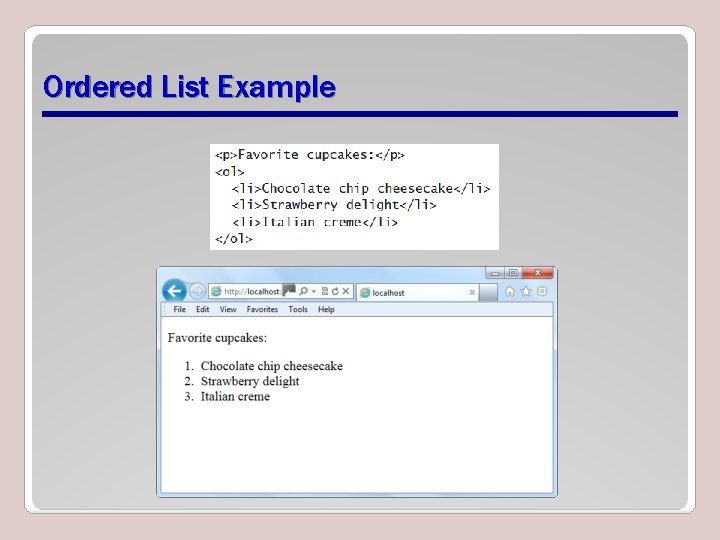
Ordered List Example
Unordered List • Displays list entries in a bulleted list • Uses a <ul> tag • Round bullet symbol is the default marker for list items • Can change bullet symbols – For squares, add type="square" to the <ul> tag – For empty circles, add type="circle"
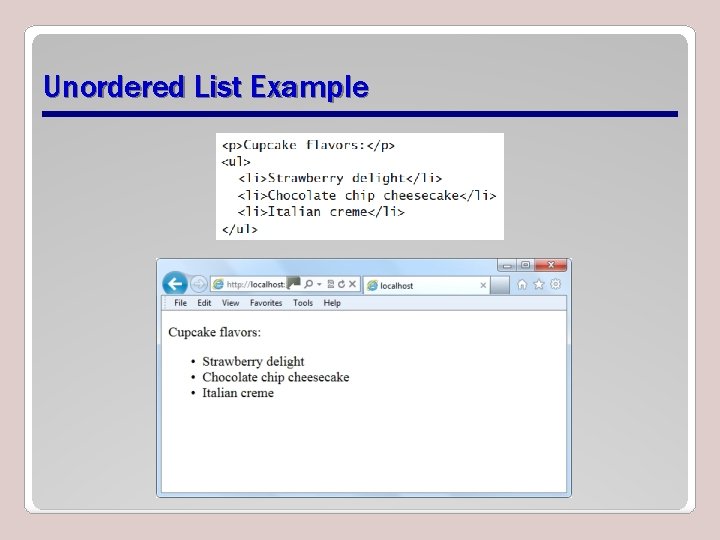
Unordered List Example
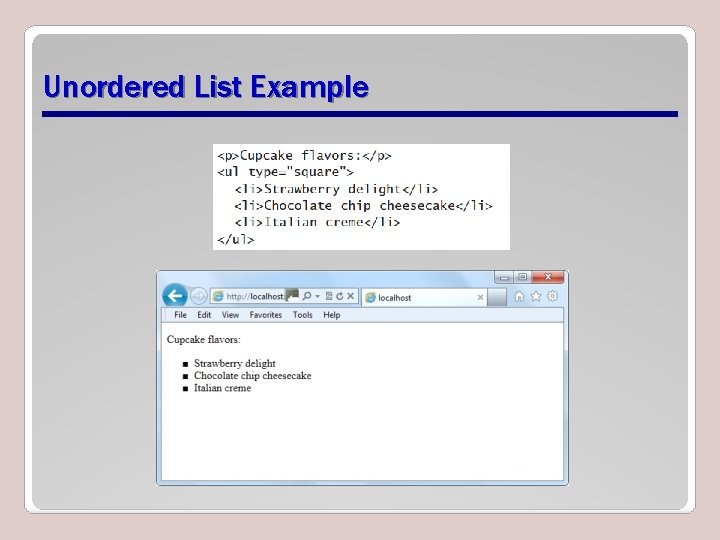
Unordered List Example
Forms and Input • Form input is the information a user enters into fields in a Web or client application form. • HTML 5 introduces several new form and input element attributes; some are: – url for entering a single Web address – email for a single email address or a list of email addresses – search to prompt users to enter text they want to search for
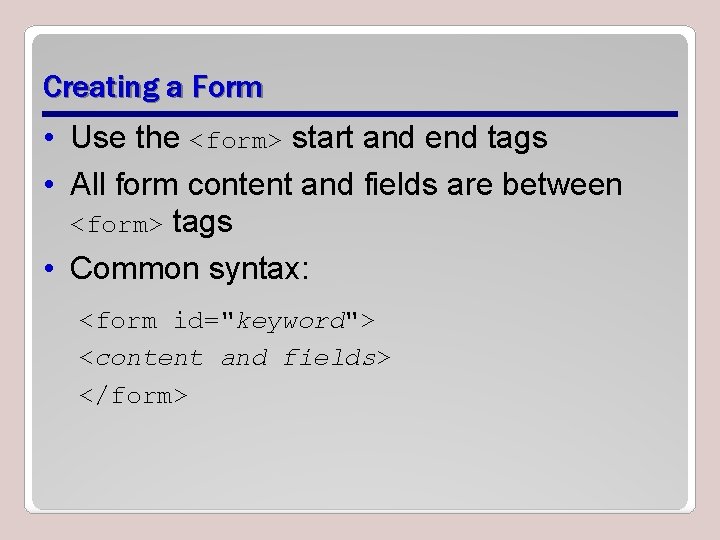
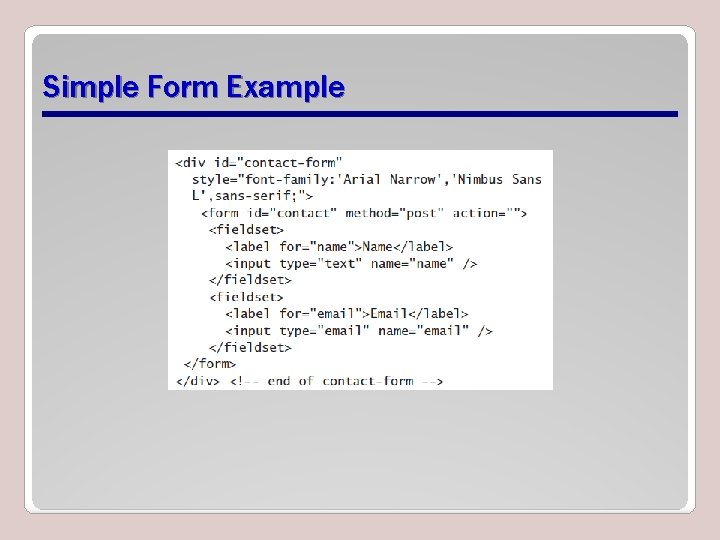
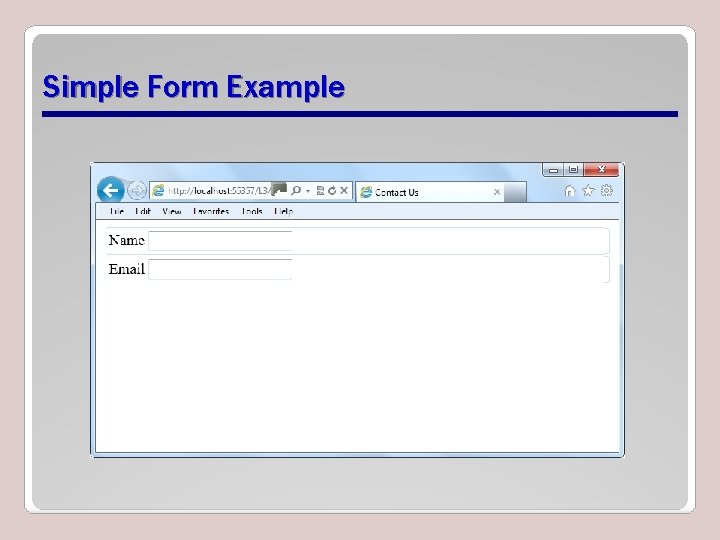
Creating a Form • Use the <form> start and end tags • All form content and fields are between <form> tags • Common syntax: <form id="keyword"> <content and fields> </form>
Creating a Form (Continued) • The fieldset element is used with many forms to group related elements. • The <fieldset> tag draws a box around individual elements and/or around the entire form.
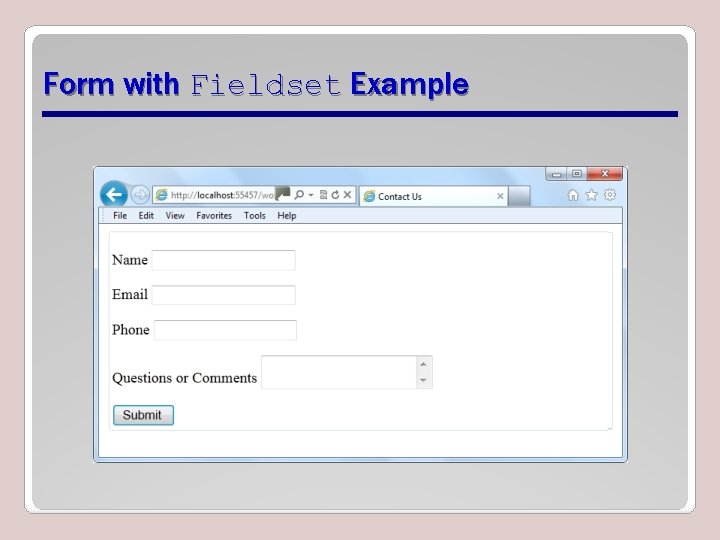
Form with Fieldset Example
Simple Form Example
Simple Form Example
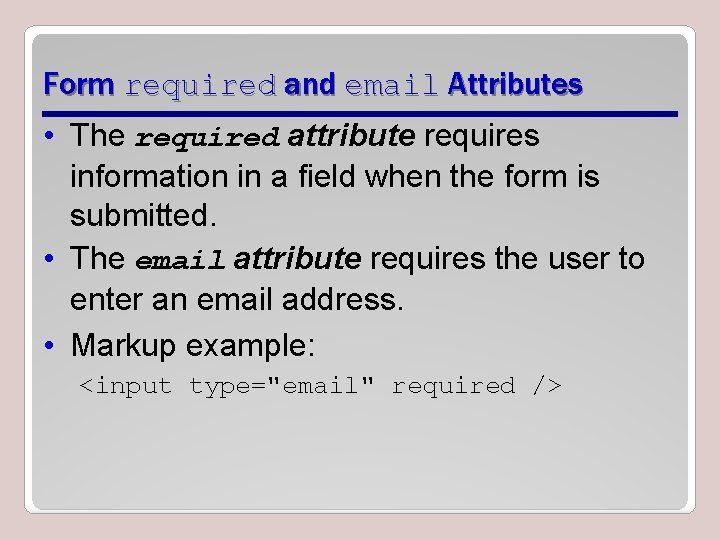
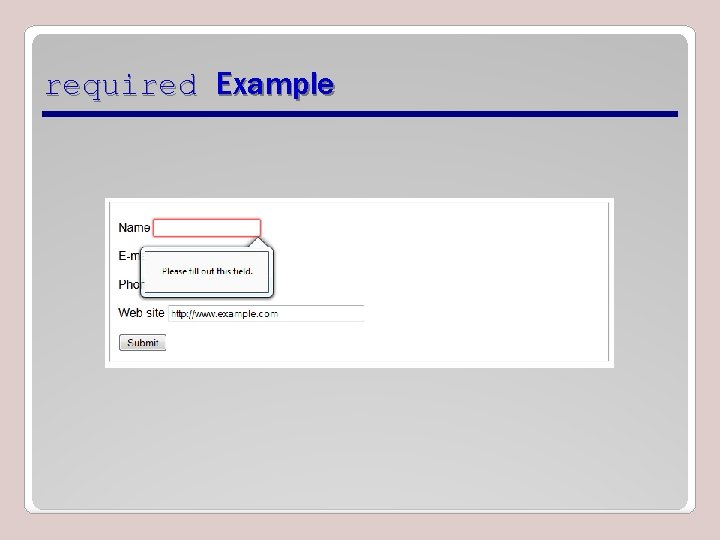
Form required and email Attributes • The required attribute requires information in a field when the form is submitted. • The email attribute requires the user to enter an email address. • Markup example: <input type="email" required />
required Example
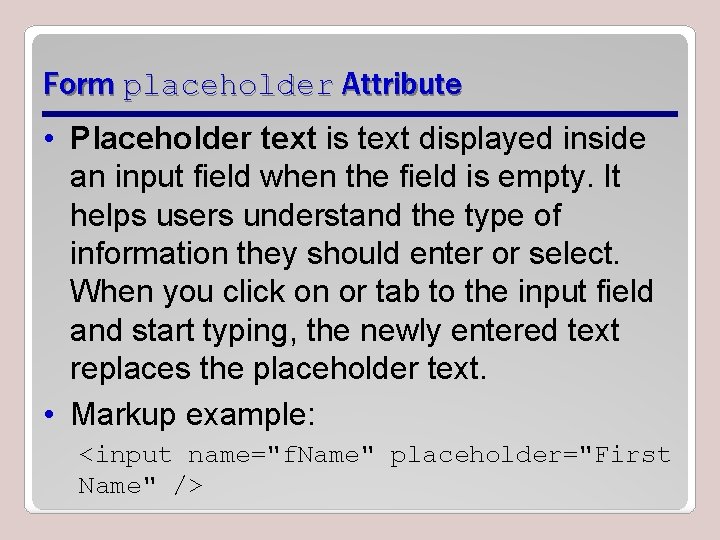
Form placeholder Attribute • Placeholder text is text displayed inside an input field when the field is empty. It helps users understand the type of information they should enter or select. When you click on or tab to the input field and start typing, the newly entered text replaces the placeholder text. • Markup example: <input name="f. Name" placeholder="First Name" />
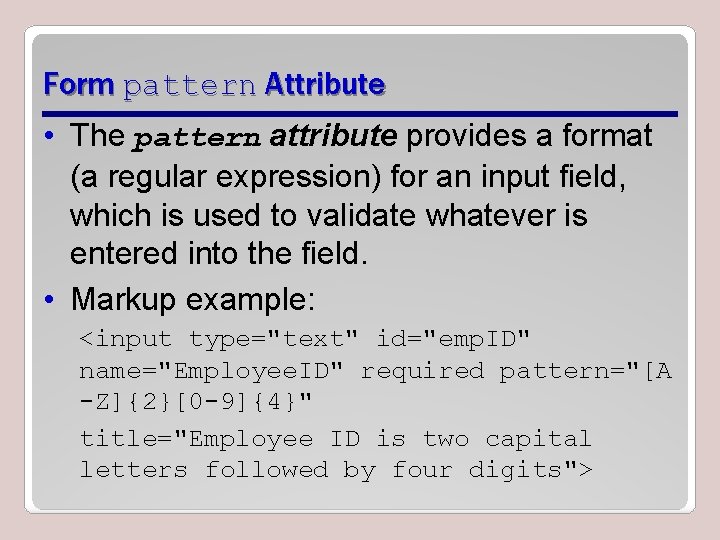
Form pattern Attribute • The pattern attribute provides a format (a regular expression) for an input field, which is used to validate whatever is entered into the field. • Markup example: <input type="text" id="emp. ID" name="Employee. ID" required pattern="[A -Z]{2}[0 -9]{4}" title="Employee ID is two capital letters followed by four digits">
Form pattern Attribute (Continued) • You can use the pattern attribute with these <input> types: – text – search – url – telephone – email – password
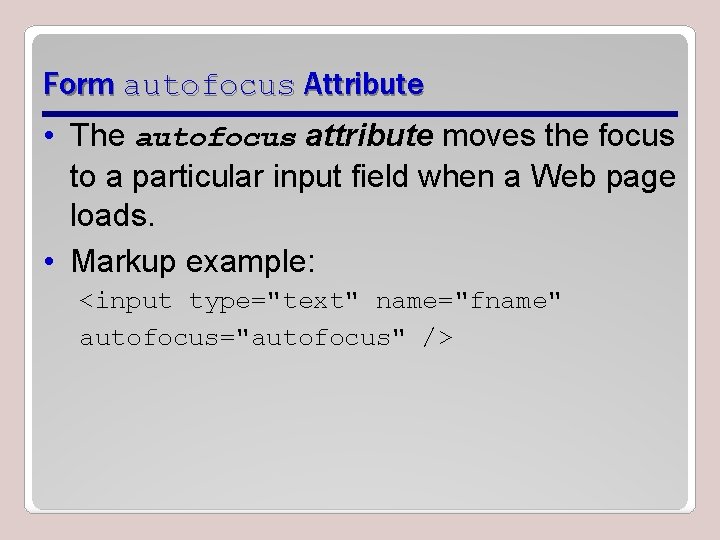
Form autofocus Attribute • The autofocus attribute moves the focus to a particular input field when a Web page loads. • Markup example: <input type="text" name="fname" autofocus="autofocus" />
Validation • The process of verifying that information entered or captured in a form is in the correct format and usable before sending the data to the server • Some things verified during validation: – Required fields are empty – Email addresses are valid – Dates are valid – Text does not appear in a numeric field or vice versa
Validation (Continued) • Automatic validation of input means the browser checks the data the user inputs. – Also referred to as client-side validation • Server-side validation occurs when server validates data received from an input form
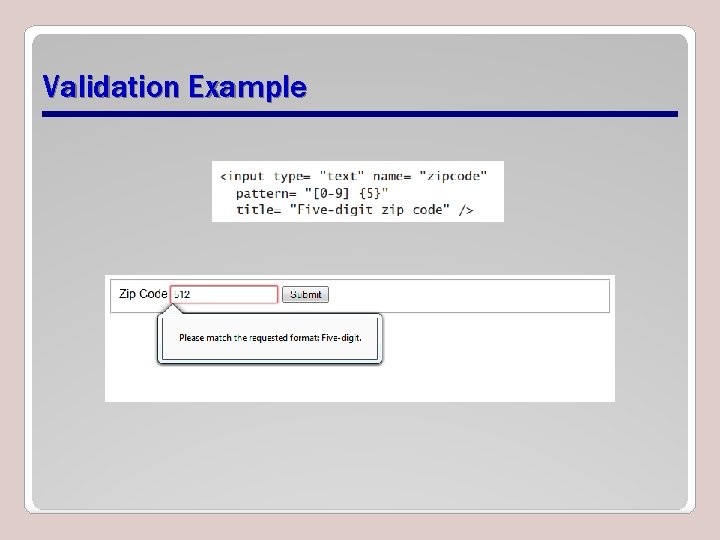
Validation Example
Recap • div element • Semantic markup • header and footer elements • section element • nav element • article element • aside element • HTML tables • Ordered and unordered lists • Forms and input • Validation
- Slides: 44