
Building GUIs Eric Roberts CS 106 A March

Building GUIs Eric Roberts CS 106 A March 3, 2010
Once upon a time. . .
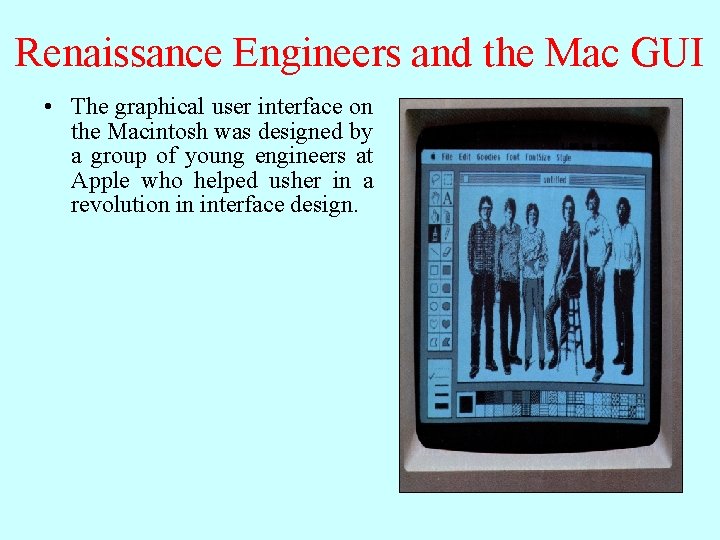
Renaissance Engineers and the Mac GUI • The graphical user interface on the Macintosh was designed by a group of young engineers at Apple who helped usher in a revolution in interface design.
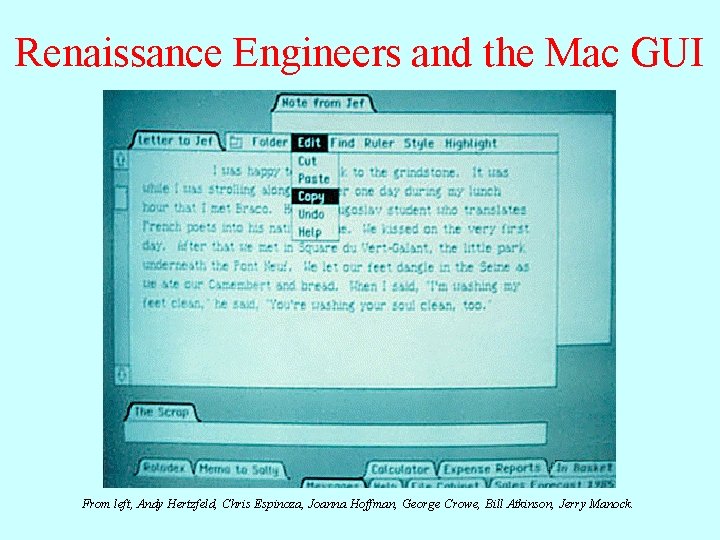
Renaissance Engineers and the Mac GUI From left, Andy Hertzfeld, Chris Espinoza, Joanna Hoffman, George Crowe, Bill Atkinson, Jerry Manock.
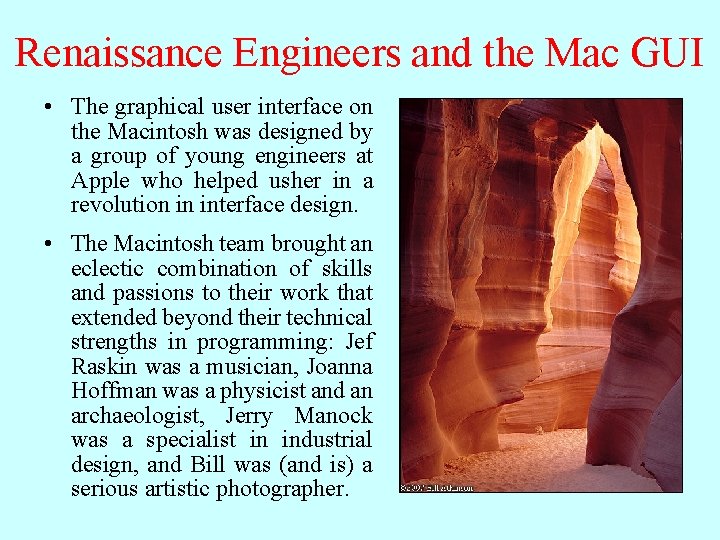
Renaissance Engineers and the Mac GUI • The graphical user interface on the Macintosh was designed by a group of young engineers at Apple who helped usher in a revolution in interface design. • The Macintosh team brought an eclectic combination of skills and passions to their work that extended beyond their technical strengths in programming: Jef Raskin was a musician, Joanna Hoffman was a physicist and an archaeologist, Jerry Manock was a specialist in industrial design, and Bill was (and is) a serious artistic photographer.

Building GUIs
Managing Component Layout • In Face. Pamphlet 2. 0, the interactors live in control strips on each side of the window. Although using control strips makes sense for simple applications, creating a more sophisticated user interface requires you to be able to place interactors anywhere inside a window. • Arranging interactors to form an elegant, easy-to-use interface is a difficult design challenge. One of the factors that complicates the design is the fact that the size of the program window can change over time. A layout that makes sense for a large window may not be appropriate for a small one. • Java seeks to solve the problem of changing window size by using layout managers, which are responsible for arranging interactors and other components when the windows that contain them change size.
Components and Containers • Understanding how layout managers work is significantly easier if you first understand the relationship between two classes—Component and Container—that are fundamental to Java’s windowing system. • The Component class forms the root of Java’s window system hierarchy in the sense that anything that appears in a window is a subclass of Component. • The Container class is a subclass of Component that can contain other Components, thereby making it possible to nest components inside structures of arbitrary depth. • As you can see from the hierarchy diagram on the next slide, many of the classes you have seen in the text are subclasses of both Component and Container. In particular, all Swing interactors, the GCanvas class, and the Program class are both components and containers.
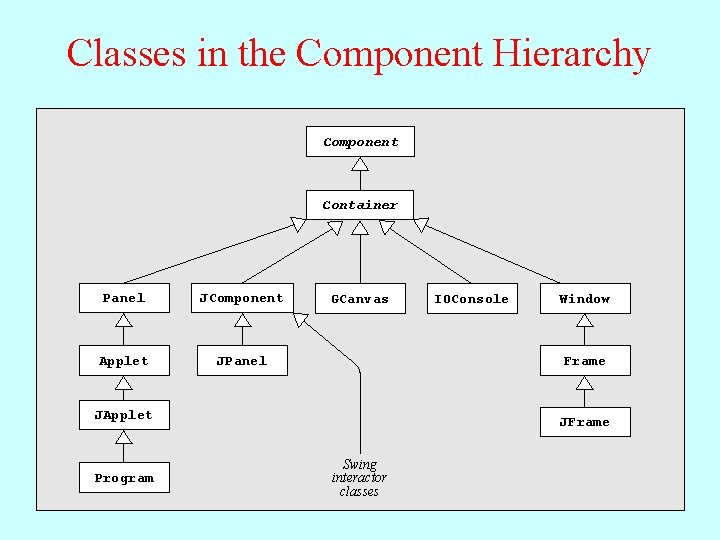
Classes in the Component Hierarchy Component Container Panel JComponent Applet JPanel GCanvas Window Frame JApplet Program IOConsole JFrame Swing interactor classes
Layout Managers • In Java, each Container has a layout manager that takes responsibility for arranging the components in that container. • The layout manager for a container is invoked automatically when the size of the container changes. Although automatic invocation is sufficient for most applications, you may at some point encounter situations in which you need to invoke the layout process by calling validate on the container. • A layout manager uses the following factors to arrange the components in a container: – – The specific policy set by the layout manager The amount of space available in the container The preferred size of each component Any constraints specified when a component was added
Assigning a New Layout Manager • You can assign a new layout manager to a Container by calling the set. Layout method with a new layout manager object that is usually constructed specifically for that purpose. • The Program class overrides the definition of set. Layout so it forwards the request to the CENTER region of the program rather than setting the layout for the program itself. This strategy makes it possible to use a control strip even if you call set. Layout. • Although it is possible to write layout managers of your own, you can usually rely on the standard layout managers supplied with Java’s libraries. The next few slides describe the built-in Border. Layout, Flow. Layout, and Grid. Layout managers; the more flexible Table. Layout manager is covered later in this lecture.

The Border. Layout Manager • A Border. Layout manager divides its container into five regions, as follows: NORTH W E S T CENTER E A S T SOUTH • When you add a component to a container managed by a Border. Layout, you need to specify the region, as in container. add(component, Border. Layout. SOUTH); • A Border. Layout manager creates the layout by giving the NORTH and SOUTH components their preferred space and then doing the same for the WEST and EAST components. Any remaining space is then assigned to the CENTER component.
The Flow. Layout Manager • The Flow. Layout manager is in many ways the simplest manager to use and is particularly convenient for getting programs running quickly. • The Flow. Layout manager arranges its components in rows from top to bottom and then from left to right within each row. If there is space within the current row for the next component, the Flow. Layout manager puts it there. If not, the layout manager centers the components on the current row and starts the next one. The Flow. Layout manager also leaves a little space between each component so that the components don’t all run together. • The problem with the Flow. Layout manager is that it has no way to make sure that the divisions between the lines come at appropriate places, as illustrated by the example on the next slide.
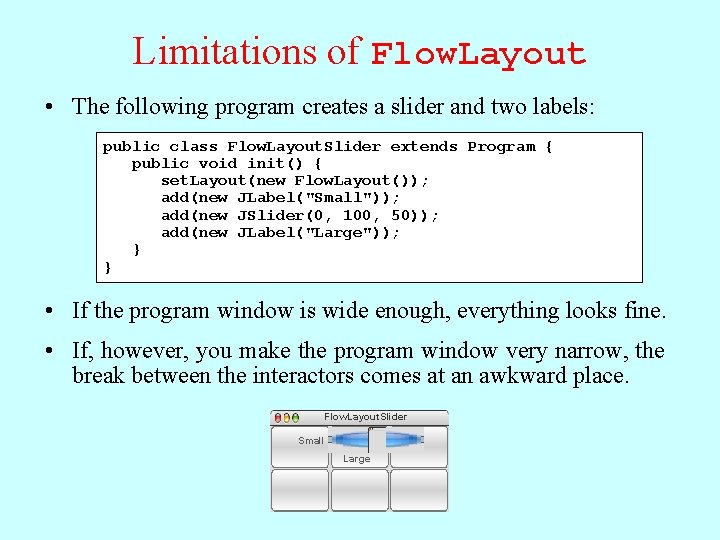
Limitations of Flow. Layout • The following program creates a slider and two labels: public class Flow. Layout. Slider extends Program { public void init() { set. Layout(new Flow. Layout()); add(new JLabel("Small")); add(new JSlider(0, 100, 50)); add(new JLabel("Large")); } } • If the program window is wide enough, everything looks fine. • If, however, you make the program window very narrow, the break between the interactors comes at an awkward place. Flow. Layout. Slider Small Large
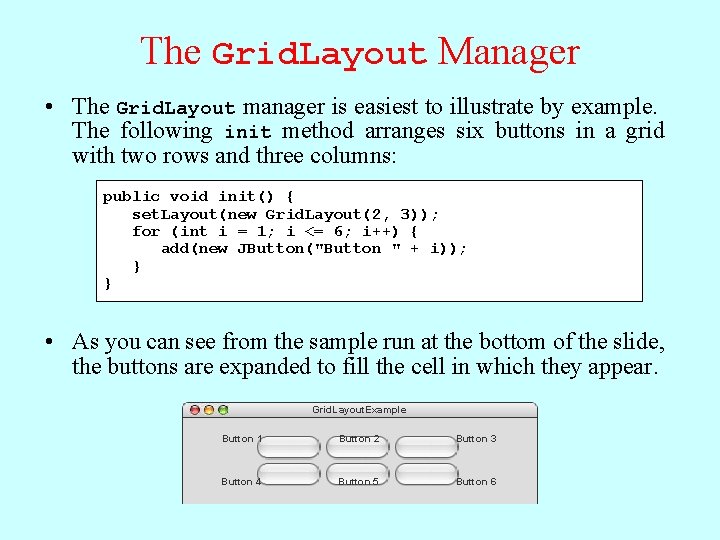
The Grid. Layout Manager • The Grid. Layout manager is easiest to illustrate by example. The following init method arranges six buttons in a grid with two rows and three columns: public void init() { set. Layout(new Grid. Layout(2, 3)); for (int i = 1; i <= 6; i++) { add(new JButton("Button " + i)); } } • If Asyou change can see the fromsize theof sample the program run at thewindow, bottom of thethe buttons slide, adjust the buttons so that arethey expanded continue to to fill thethe cell space. in which they appear. Grid. Layout. Example Button 1 1 Button 2 Button 3 3 Button 4 4 Button 55 Button 6 6
The Inadequacy of Layout Managers • The main problem with Java’s layout managers is that none of the library classes offer the right combination of simplicity and flexibility. • The simple managers—Border. Layout, Flow. Layout, and Grid. Layout—don’t have enough power to design effective user-interface layouts. Unfortunately, the Grid. Bag. Layout manager, which has the necessary flexibility to create good layout designs, is extremely difficult to use. • To address the lack of a simple but powerful layout manager, the ACM Java Task Force designed a new Table. Layout manager, which offers all the power of Grid. Bag. Layout but is much easier to use. The Table. Layout manager and its features are covered in the next few slides.
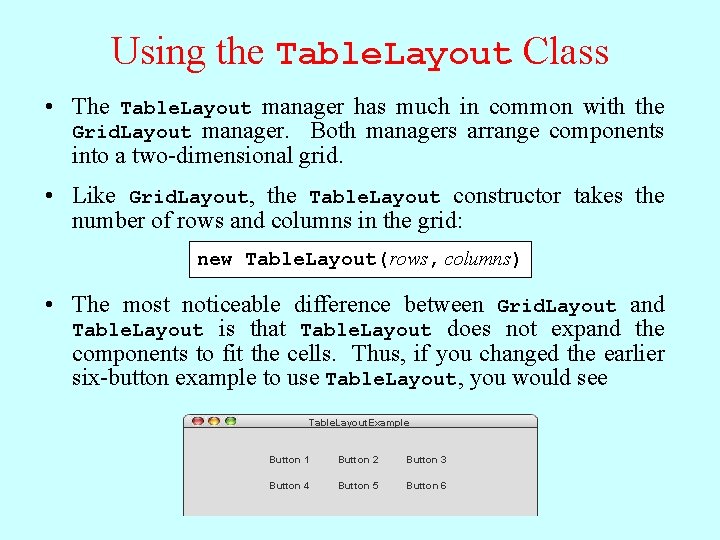
Using the Table. Layout Class • The Table. Layout manager has much in common with the Grid. Layout manager. Both managers arrange components into a two-dimensional grid. • Like Grid. Layout, the Table. Layout constructor takes the number of rows and columns in the grid: new Table. Layout(rows, columns) • The most noticeable difference between Grid. Layout and Table. Layout is that Table. Layout does not expand the components to fit the cells. Thus, if you changed the earlier six-button example to use Table. Layout, you would see Table. Layout. Example Button 1 Button 2 Button 3 Button 4 Button 5 Button 6
Specifying Constraints • The real advantage of the Table. Layout manager is that it allows clients to specify constraints that control the layout. The constraints are expressed as a string, which is passed as a second parameter to the add method. • For example, to add a component c to the current table cell and simultaneously indicate that the column should have a minimum width of 100 pixels, you could write add(c, "width=100"); • To add a label that spans three columns (as a header would likely do), you could write add(new JLabel("Heading"), "gridwidth=3"); • The Table. Layout constraints are listed on the next slide.
Available Table. Layout Constraints gridwidth=columns or gridheight=rows Indicates that this table cell should span the indicated number of columns or rows. width=pixels or height=pixels The width specification indicates that the width of this column should be at least the specified number of pixels. The height specification similarly indicates the minimum row height. weightx=weight or weighty=weight If the total size of the table is less than the size of its enclosure, Table. Layout will ordinarily center the table in the available space. If any of the cells, however, are given nonzero weightx or weighty values, the extra space is distributed along that axis in proportion to the weights specified. fill=fill Indicates how the component in this cell should be resized if its preferred size is smaller than the cell size. The legal values are NONE, HORIZONTAL, VERTICAL, and BOTH, indicating the axes along which stretching should occur; the default is BOTH. anchor=anchor If a component is not being filled along a particular axis, the anchor specification indicates where the component should be placed in its cell. The default value is CENTER, but you may also use any of the standard compass directions (NORTH, SOUTH, EAST, WEST, NORTHEAST, NORTHWEST, SOUTHEAST, or SOUTHWEST).
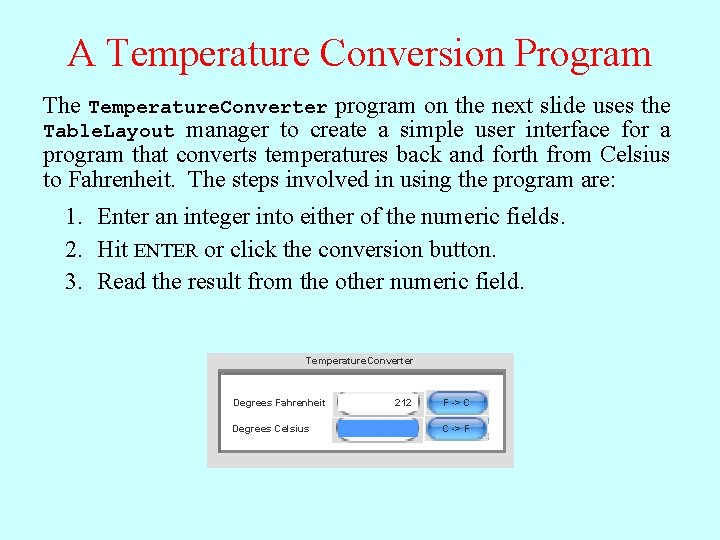
A Temperature Conversion Program The Temperature. Converter program on the next slide uses the Table. Layout manager to create a simple user interface for a program that converts temperatures back and forth from Celsius to Fahrenheit. The steps involved in using the program are: 1. Enter an integer into either of the numeric fields. 2. Hit ENTER or click the conversion button. 3. Read the result from the other numeric field. Temperature. Converter Degrees Fahrenheit 212 32 F -> C Degrees Celsius 101 100 0 C -> F
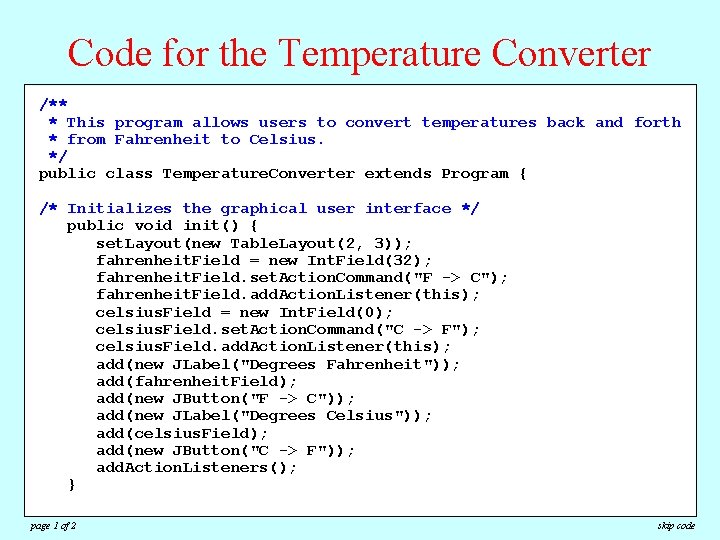
Code for the Temperature Converter /** * This program allows users to convert temperatures back and forth * from Fahrenheit to Celsius. */ public class Temperature. Converter extends Program { /* Initializes the graphical user interface */ public void init() { set. Layout(new Table. Layout(2, 3)); fahrenheit. Field = new Int. Field(32); fahrenheit. Field. set. Action. Command("F -> C"); fahrenheit. Field. add. Action. Listener(this); celsius. Field = new Int. Field(0); celsius. Field. set. Action. Command("C -> F"); celsius. Field. add. Action. Listener(this); add(new JLabel("Degrees Fahrenheit")); add(fahrenheit. Field); add(new JButton("F -> C")); add(new JLabel("Degrees Celsius")); add(celsius. Field); add(new JButton("C -> F")); add. Action. Listeners(); } page 1 of 2 skip code
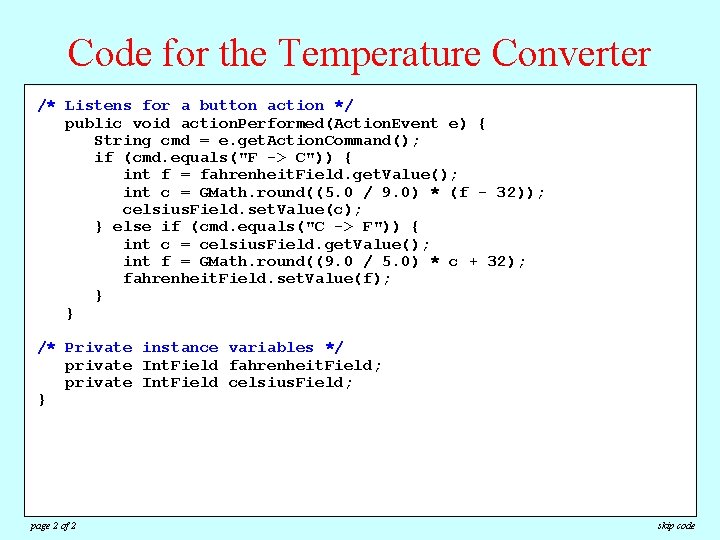
Code for the Temperature Converter /**Listens for a button action */ /* * public This program allows users to convert temperatures back and forth void action. Performed(Action. Event e) { * from Fahrenheit to Celsius. String cmd = e. get. Action. Command(); */ if (cmd. equals("F -> C")) { public class extends Program { int f. Temperature. Converter = fahrenheit. Field. get. Value(); int c = GMath. round((5. 0 / 9. 0) * (f - 32)); /* Initializes the graphical user interface */ celsius. Field. set. Value(c); public void { } else if init() (cmd. equals("C -> F")) { set. Layout(new Table. Layout(2, 3)); int c = celsius. Field. get. Value(); fahrenheit. Field = new Int. Field(32); int f = GMath. round((9. 0 / 5. 0) * c + 32); fahrenheit. Field. set. Action. Command("F -> C"); fahrenheit. Field. set. Value(f); }fahrenheit. Field. add. Action. Listener(this); } celsius. Field = new Int. Field(0); celsius. Field. set. Action. Command("C -> F"); celsius. Field. add. Action. Listener(this); /* Private instance variables */ add(new JLabel("Degrees Fahrenheit")); private Int. Field fahrenheit. Field; add(fahrenheit. Field); private Int. Field celsius. Field; add(new JButton("F -> C")); } add(new JLabel("Degrees Celsius")); add(celsius. Field); add(new JButton("C -> F")); add. Action. Listeners(); } page 2 of 2 skip code
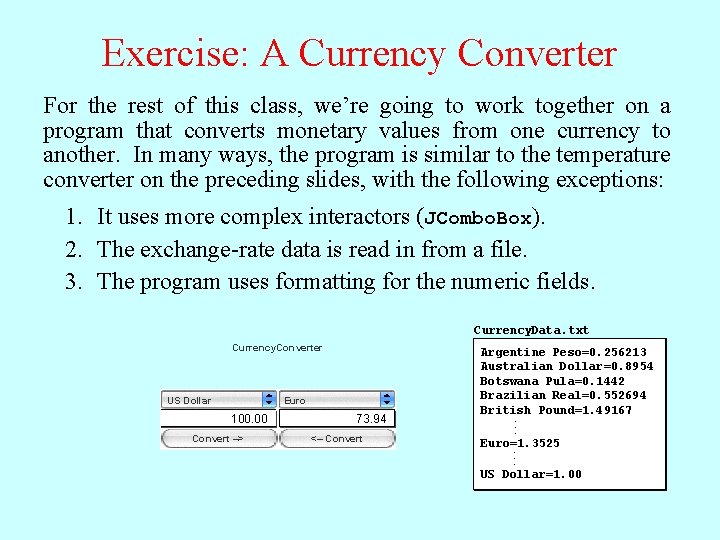
Exercise: A Currency Converter For the rest of this class, we’re going to work together on a program that converts monetary values from one currency to another. In many ways, the program is similar to the temperature converter on the preceding slides, with the following exceptions: 1. It uses more complex interactors (JCombo. Box). 2. The exchange-rate data is read in from a file. 3. The program uses formatting for the numeric fields. Currency. Data. txt Currency. Converter US Dollar Euro 100. 00 Convert –> 73. 94 <– Convert Argentine Peso=0. 256213 Australian Dollar=0. 8954 Botswana Pula=0. 1442 Brazilian Real=0. 552694 British Pound=1. 49167 . . . Euro=1. 3525. . . US Dollar=1. 00
The End
- Slides: 24