
Building analytic workflows with the JMP Journal for
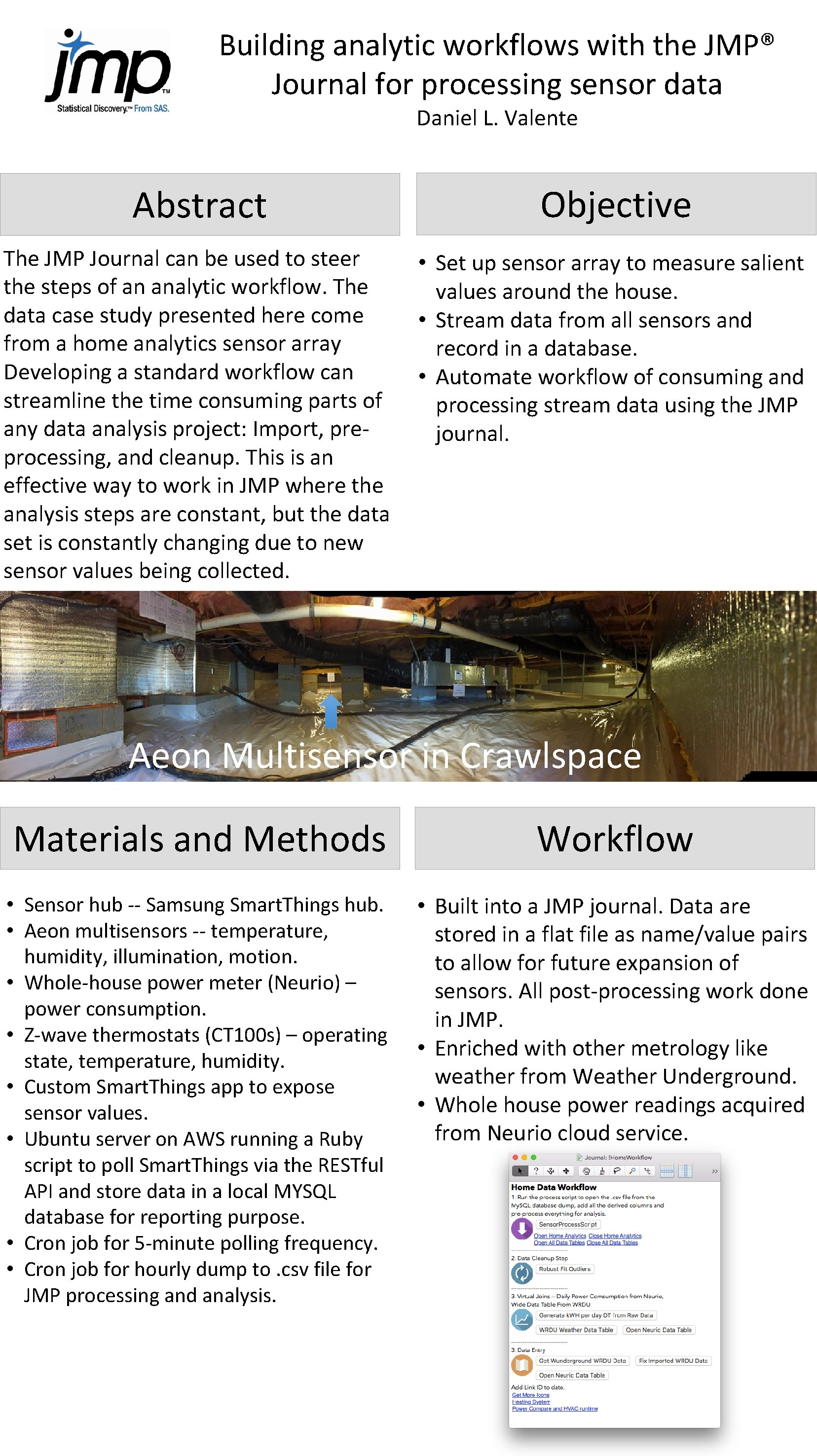
Building analytic workflows with the JMP® Journal for processing sensor data Daniel L. Valente Abstract Objective The JMP Journal can be used to steer the steps of an analytic workflow. The data case study presented here come from a home analytics sensor array Developing a standard workflow can streamline the time consuming parts of any data analysis project: Import, preprocessing, and cleanup. This is an effective way to work in JMP where the analysis steps are constant, but the data set is constantly changing due to new sensor values being collected. • Set up sensor array to measure salient values around the house. • Stream data from all sensors and record in a database. • Automate workflow of consuming and processing stream data using the JMP journal. Aeon Multisensor in Crawlspace Materials and Methods Workflow • Sensor hub -- Samsung Smart. Things hub. • Aeon multisensors -- temperature, humidity, illumination, motion. • Whole-house power meter (Neurio) – power consumption. • Z-wave thermostats (CT 100 s) – operating state, temperature, humidity. • Custom Smart. Things app to expose sensor values. • Ubuntu server on AWS running a Ruby script to poll Smart. Things via the RESTful API and store data in a local MYSQL database for reporting purpose. • Cron job for 5 -minute polling frequency. • Cron job for hourly dump to. csv file for JMP processing and analysis. • Built into a JMP journal. Data are stored in a flat file as name/value pairs to allow for future expansion of sensors. All post-processing work done in JMP. • Enriched with other metrology like weather from Weather Underground. • Whole house power readings acquired from Neurio cloud service.
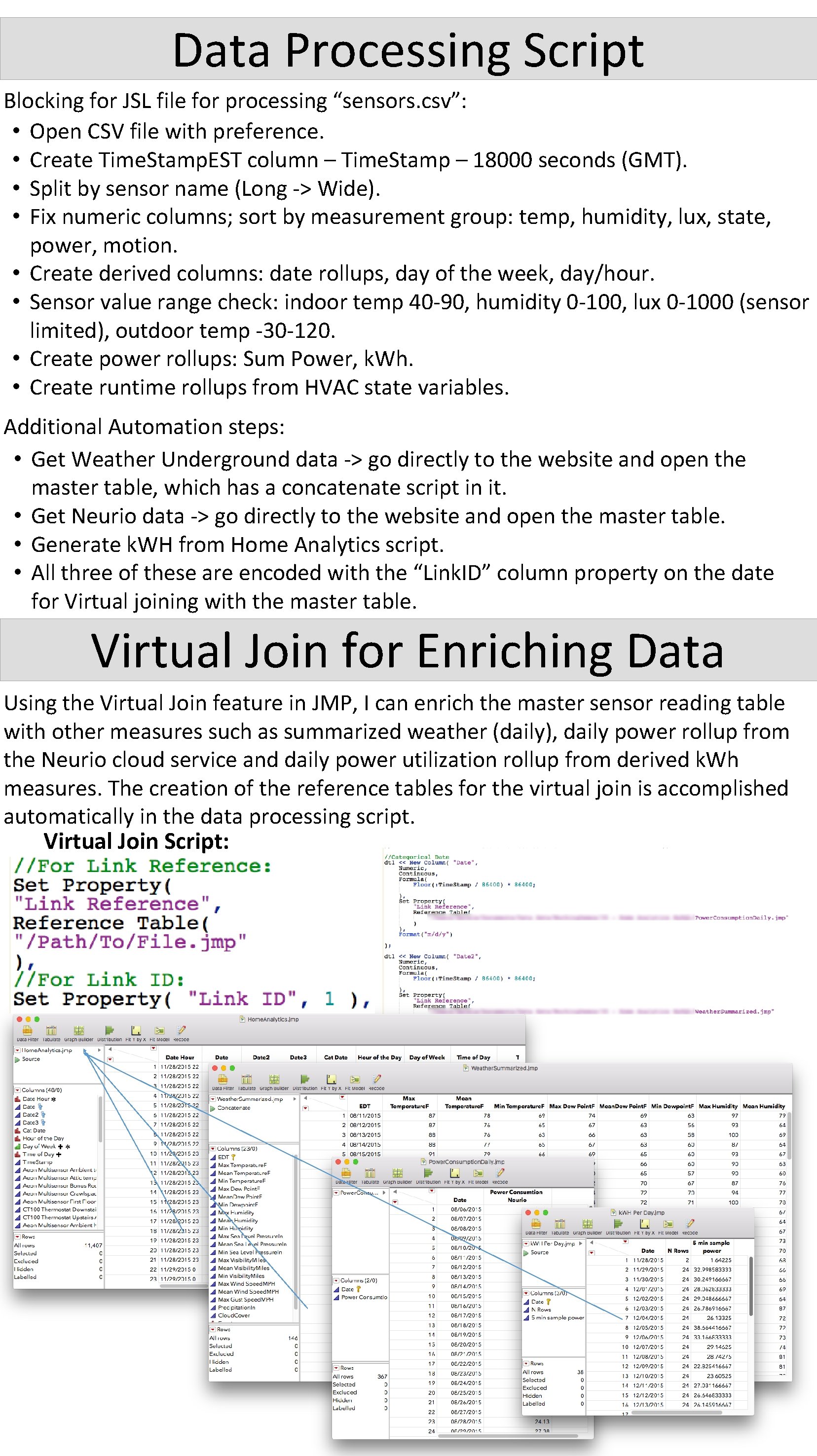
Data Processing Script Blocking for JSL file for processing “sensors. csv”: • Open CSV file with preference. • Create Time. Stamp. EST column – Time. Stamp – 18000 seconds (GMT). • Split by sensor name (Long -> Wide). • Fix numeric columns; sort by measurement group: temp, humidity, lux, state, power, motion. • Create derived columns: date rollups, day of the week, day/hour. • Sensor value range check: indoor temp 40 -90, humidity 0 -100, lux 0 -1000 (sensor limited), outdoor temp -30 -120. • Create power rollups: Sum Power, k. Wh. • Create runtime rollups from HVAC state variables. Additional Automation steps: • Get Weather Underground data -> go directly to the website and open the master table, which has a concatenate script in it. • Get Neurio data -> go directly to the website and open the master table. • Generate k. WH from Home Analytics script. • All three of these are encoded with the “Link. ID” column property on the date for Virtual joining with the master table. Virtual Join for Enriching Data Using the Virtual Join feature in JMP, I can enrich the master sensor reading table with other measures such as summarized weather (daily), daily power rollup from the Neurio cloud service and daily power utilization rollup from derived k. Wh measures. The creation of the reference tables for the virtual join is accomplished automatically in the data processing script. Virtual Join Script:
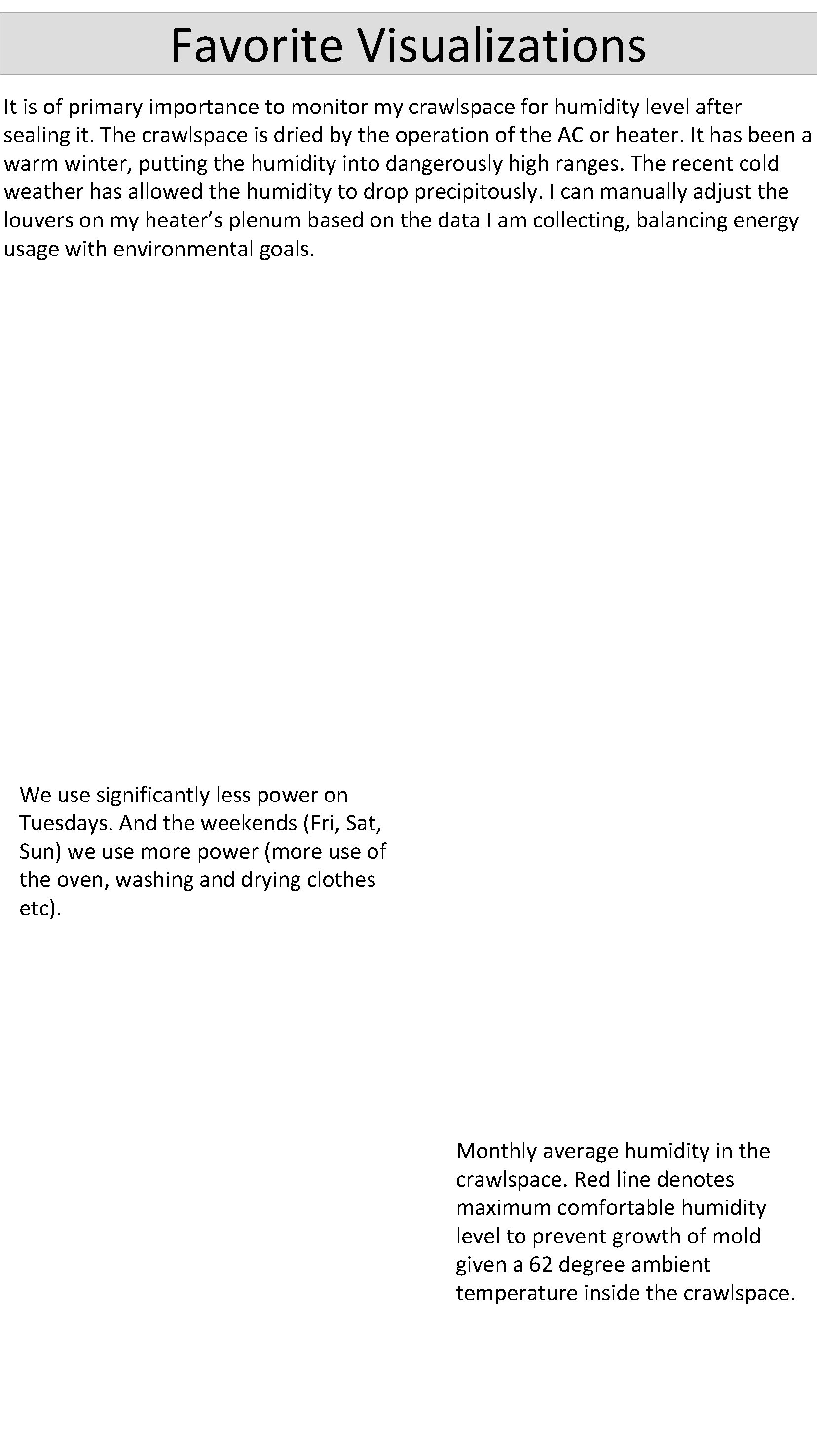
Favorite Visualizations It is of primary importance to monitor my crawlspace for humidity level after sealing it. The crawlspace is dried by the operation of the AC or heater. It has been a warm winter, putting the humidity into dangerously high ranges. The recent cold weather has allowed the humidity to drop precipitously. I can manually adjust the louvers on my heater’s plenum based on the data I am collecting, balancing energy usage with environmental goals. We use significantly less power on Tuesdays. And the weekends (Fri, Sat, Sun) we use more power (more use of the oven, washing and drying clothes etc). Monthly average humidity in the crawlspace. Red line denotes maximum comfortable humidity level to prevent growth of mold given a 62 degree ambient temperature inside the crawlspace.
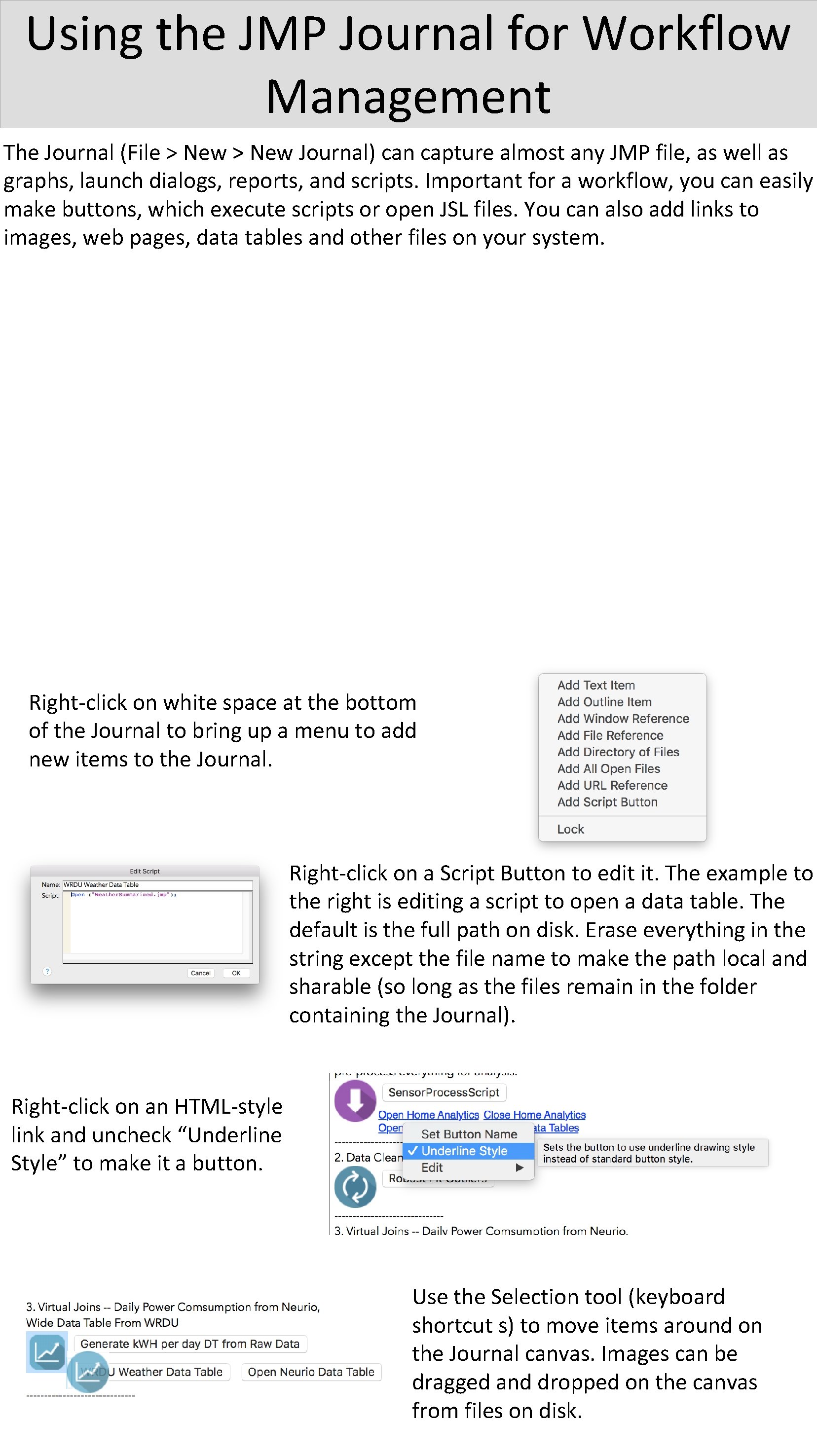
Using the JMP Journal for Workflow Management The Journal (File > New Journal) can capture almost any JMP file, as well as graphs, launch dialogs, reports, and scripts. Important for a workflow, you can easily make buttons, which execute scripts or open JSL files. You can also add links to images, web pages, data tables and other files on your system. Right-click on white space at the bottom of the Journal to bring up a menu to add new items to the Journal. Right-click on a Script Button to edit it. The example to the right is editing a script to open a data table. The default is the full path on disk. Erase everything in the string except the file name to make the path local and sharable (so long as the files remain in the folder containing the Journal). Right-click on an HTML-style link and uncheck “Underline Style” to make it a button. Use the Selection tool (keyboard shortcut s) to move items around on the Journal canvas. Images can be dragged and dropped on the canvas from files on disk.
Discussion Now that my house has been instrumented properly and data collection has been automated, it is just a matter of collecting data for a period of 365 days minimum to fully characterize the behaviors in my home. Some questions that I will explore in the upcoming year with these data: • • How many days during the “shoulder seasons” (spring and fall when the temperature is moderate and the heater or air conditioner is not running) does the level of humidity in the crawl space rise above maximum allowable levels? Is the ridge vent on my roof allowing heat in the attic to properly dissipate in the summer, or should I consider adding an attic fan? How do I need to tune the dampers in my upstairs HVAC system to keep the temperature consistent across all rooms in the house? What behaviors can my family take to minimize energy usage? I will also investigate a number of other improvements to my data collection and storage system. Resources • • Sense. API (Smart. Things data collection script): https: //github. com/rvalente/senseapi Smart. Things: https: //www. smartthings. com Aeon Multisensors: http: //aeotec. com/z-wave-sensor Neurio: http: //neur. io RBoy Smart. Things Apps: http: //smartthings. ramitbhalla. com 2 Gig CT 100 Thermostat: http: //www. amazon. com/2 gig-CT 100 -Z-Wave. Programmable-Thermostat/dp/B 008 CQ 4 V 3 Q Historical Weather: http: //www. wunderground. com/history/airport Image Permanence Institute Dew Point Calculator: http: //dpcalc. org
- Slides: 5