
Building a Red Hat Linux Firewall A User
Building a Red. Hat Linux Firewall – A User Experience USERblue San Francisco Session 6306
Abstract § Linux makes an excellent firewall! It's in there! I kept hearing that, so when I needed a firewall to protect my home lan from all the badness on the Internet I started my quest for the ideal linux firewall. I'm now on version three, and not finished yet. Come hear my story, and perhaps take home a few ideas you can use when you connect your home or office to the Internet.

The Speaker Harold Pritchett Patricia Egen Consulting (706) 546 -0692 harold@uga. edu

Disclaimer Everybody has lawyers: The ideas and concepts set forth in this presentation are solely those of the respective authors, and not of the companies and or vendors referenced within and these organizations do not endorse, guarantee, or otherwise certify any such ideas or concepts in application or usage. This material should be verified for applicability and correctness in each user environment. No warranty of any kind available.
Building your own firewall § § It’s easy with linux But my recommendation is Don’t bother Unless you want to do it as a learning experience or you’re REAL broke!
Buy a firewall § There are many vendors who make inexpensive SOHO firewall/routers. § For example, the Link. Sys firewall/hub is currently available from amazon. com for $59. 99 after a $10 mail in rebate. (and they throw in a free ethernet cable)

There a LOT of options!
Buy a firewall http: //www. linksys. com http: //www. netgear. com http: //www. actiontec. com http: //www. usr. com http: //catalog. belkin. com http: //www. cayman. com http: //www. microliss. de http: //www. 2 wire. com
Buy a firewall § www. cnet. com § www. buy. com § www. pricewatch. com § Go to any of these sites and search for “firewall”
My firewalls § First try – Redhat 5. 2 with ipfwadm § Getting better – Red. Hat 6. 2 with ipchains § Today – Red. Hat 7. 3 with iptables/netfilter
Building your firewall § Hardware § Software
Hardware § Doesn’t have to be current or state of the art hardware § While you can use a 486 system, I would recommend a Pentium, any old Pentium. § You should be able to find a 100 to 400 Mhz Pentium motherboard almost anywhere in the used equipment market
Hardware § You need: § § § § Motherboard and processor Case/Power Supply to match Memory Video card/monitor Keyboard/mouse Floppy/CDROM drives Hard drive(s) (total space at least 1. 5 Gb) 2 network cards
Hardware § Memory § 32 MB minimum § 64 MB good § 128 MB better § None of the hardware needs to be “State of the Art”
Software § § § Several Options are available LRP (Linux Router Project) LEAF (Linux Imbedded Appliance Firewall) CD-Linux DIY Many others, not mentioned here § Use google. com
Linux Router Project § § § www. linuxrouter. org Boots from a single floppy disk Minimum hardware required Based upon the 2. 2 Linux Kernel Seems to be falling into disuse
Linux Imbedded Appliance Firewall (LEAF) § § Follow-up to the Linux Router Project Single floppy boot image Also seems to based upon the 2. 2 kernel For more information: http: //leaf. sourceforge. net/ http: //lrp. steinkuehler. net/
CD-Linux § Yet another Linux distribution § One where the majority of the files can be located on a read-only medium, such as CDROM. § More secure since there is no way to change the system without creating a new CD § Hard to keep current for the same reason § www. cd-linux. org
Do it Yourself Things you will need § Basic Hardware § Red. Hat Linux version 7. 3 § If you’re going to build it, you MUST § Protect it § Keep it current
Do it Yourself Things you will need § To protect your system you need: § § § TCP wrappers A log scanner A firewall configuration file Network Time Protocol Tripwire § To keep your system current you need: § An rpm update manager
TCP Wrappers § Started from inetd § Controls access to other daemons started from inetd § Uses configuration files to determine access § /etc/hosts. deny § /etc/hosts. allow
Secure Shell § An implementation of the Secure Socket Layer (SSL) § Free for Educational and non-commercial use § Commercial version available § Developed at The Helsinki University of Technology § Available on the Internet § Included with Red. Hat Linux 7. 0+
Secure Shell § § § Automatic authentication of users Multiple strong authentication methods Authentication of both ends of connection Automatic authentication using agents Encryption and compression of data Tunneling and encryption of arbitrary connections
Secure Shell § Cryptographic algorithms available § § § § Triple DES (Default) Blowfish Twofish Arcfour Idea Cast RSA
Log. Check § § § Linux logs a tremendous amount of info People just don’t read logs Most of what is in the logs is normal The normal stuff hides the important stuff Let the computer read the logs and separate the important stuff from the junk
Log. Check § § § Written by Craig Rowland Scans logs for interesting entries Free Now called Log. Sentry Available for download at § http: //www. psionic. com/abacus/logcheck/ § Runs hourly
Log. Check § Log. Check uses four configuration files § § logcheck. hacking logcheck. violations. ignore logcheck. ignore § Files are applied in the order shown § Every line is a “regular expression”
Log. Watch § Another Log Analyzer § § § Distributed standard with Red. Hat 7. 2+ Written by Kirk Bauer <kirk@kaybee. org> http: //www. kaybee. org/~kirk Configuration files in /etc/log. d Runs once a day Does not appear to be as easily configured as logcheck
Logrotate § § § Comes with Red. Hat Linux Debian does something Different Slackware doesn’t do this at all YMMV Freely available from Redhat. com § Should build on any version of Linux
Logrotate § Check and update /etc/logrotate. conf § § Allows for keeping old logs Keeps logs from filling up disk Different logs can have different parameters Can also use files in the directory /etc/logrotate. d
RPM Update Managers § § Updateme Up 2 date Apt-rpm Autorpm
updateme § Locally written UGA utility § Checks for new versions of software § Can be configured to use any Red. Hat distribution site § Configuration file § Command line argument § Support status uncertain
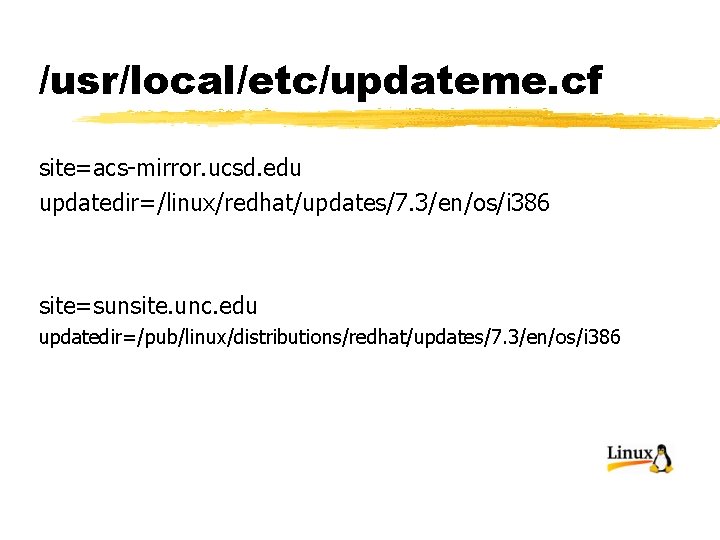
/usr/local/etc/updateme. cf site=acs-mirror. ucsd. edu updatedir=/linux/redhat/updates/7. 3/en/os/i 386 site=sunsite. unc. edu updatedir=/pub/linux/distributions/redhat/updates/7. 3/en/os/i 386
up 2 date § From Red. Hat § Requires registration with RHN (Red. Hat Network) § Free for the first computer § Subscription required for multiple computers § Requires X-11 on the computers to be managed
APT-RPM § A port of the Debian APT (Advanced Package Tool) program used to manage updates. § Requires that the site providing the updates have a special “apt” index which must be created each time it’s content changes. § Not enough sites do this yet § http: //freshrpms. net/apt/ or Google
Auto. RPM By Kirk Bauer Can download updates for later installation Can download and install updates Can do automatic updates or queue for later § Requires a bit of configuration work § I like this one § §
Firewall configuration files § http: //www. linux-firewall-tools. com/linux/ § http: //www. linuxguruz. org/iptables/ § The script I have been using is available on this second web site as “IPTABLES Masquerading Firewall” or rc. firewall_023. txt
Firewall configuration files § I like this file for several reasons: § It uses the “state” condition of connections to determine if they are allowed or denied § It is more thorough in it’s handling of icmp traffic § It has provisions for port forwarding for services operated on machines located on the local network. § Download it
Tripwire § Monitors system for modified files § Many versions, most commercial § Tripwire for linux is open source under GPL § http: //sourceforge. net/projects/tripwire § Distributed with Red. Hat 7. 2+ § tripwire-2. 3. 1 -10. i 386. rpm
Tripwire § Uses passwords and cryptographic signatures to protect configuration files § Default configuration may take some fixing § Comes with many non-existent files defined § Run it once and use the output to edit the twpol. txt file. You probably also want to remove /root and /var/log from checking. § Run from cron once a day to audit system
Tripwire § When something changes § Tripwire will find it. § If it’s OK, then run: § tripwire --update –r /full/path/to/latest/report. twr § If it’s NOT OK, then you may have been compromised § Tripwire and Auto. RPM may not play well together, giving some false positives
NTP (Network Time Protocol) § Developed by Dave Mills at The University of Deleware (mills@udel. edu) § Sets computer clock automagically § Previous version is xntp-3. 5. 93 and is on the Red. Hat 6. 1 CDROM § Current version is ntp-4. 1. 1 and is on the Red. Hat 7. 3 CDROM
NTP § Can set the clock from various sources § § Reference Time Standards Broadcast Standards (WWVB) GPS receivers Network § Configuration File § /etc/ntp. conf
NTP § Network Time Standards § Public vs Private § Primary vs Secondary § Server List § http: //www. eecis. udel. edu/~mills/ntp/servers. htm § Pick a server near you § Use a “Public” server § Do NOT use a “Primary” Server
Backups § I’m usually a big fan of frequent backups, but in the case of the firewall, it really isn’t necessary. § Back up a few of the more critical files which would be a pain to re-create. The rest can be easily rebuilt. The main file I keep copies of is my firewall config file.
Sign up for a bug fix list Go here and sign up for the redhat. com watch list. They will send you e-mail every time there is a bug fixed in Red. Hat linux. You NEED to know this… https: //listman. redhat. com/mailman/listinfo/redhat -watch-list/
References § LINUX HOWTO documents § Should be on your Install CD, or from http: //metalab. unc. edu/LDP/
References § SSH § http: //www. ssh. com/ (commercial version) § http: //www. ssh. org/ (educational version) § Log. Check § http: //www. psionic. com/abacus/logcheck/ § NTP § RFC 1796 § http: //www. eecis. udel. edu/~ntp/
References § General Security References § § //www. alw. nih. gov/Security/security. html //www. usg. edu/oiit/support/security/ //csrc. ncsl. nist. gov/ //www. cert. org/
Firewall references http: //www. linux-firewall-tools. com/linux/ http: //www. fwtk. org/mason/ http: //rcf. mvlan. net/ http: //tickle. unco. edu/cs 442/weitzel/research. html http: //tickle. unco. edu/cs 442/weitzel/execute. html http: //www. linuxsecurity. com/feature_stories/kern el-netfilter. html
Firewall Cookbook A step by step how-to
Basic steps to perform § Assemble hardware § Install operating system § Clean up install and turn off unnecessary services § Install patches and set up autorpm § More security stuff § Install firewall configuration § Final configuration
Actual installation § Assemble the hardware if necessary. § Make boot disks if necessary § Boot from CDROM or from floppy if your bios doesn’t support booting from CD § Do a minimum install of Red. Hat 7. 3 (see next few slides)
Installing Red. Hat 7. 3 § To simplify things, when I boot the CD I do a “text” install. You may prefer the “gui” installer. § Select Installation Language - “English” § Keyboard Selection - “us” § Mouse – “select yours” § Installation type – “custom”
Installing Red. Hat 7. 3 § Partition your disk. I like Disk Druid, but you can use fdisk. § § § Use separate partitions for / /var /tmp /boot /home
Installing Red. Hat 7. 3 § Disk partitioning - Define them in this order § /boot – about 64 Mb § Swap 128 Mb or real memory size, whichever is greater § /var – about 128 Mb § /tmp – about 128 Mb § /home – the rest of the disk
Installing Red. Hat 7. 3 § Disk Partitioning – continued § /boot and swap should be primary partitions. The rest can be in an extended partition § Define all partitions as type ext 3 and format them (except for the swap partition, of course)
Installing Red. Hat 7. 3 § Boot loader – you need one – I use grub. § Install it in the Master Boot Record of your primary drive § You probably don’t need any boot options § You won’t have any other OSes to boot § Or need a boot loader password
Installing Red. Hat 7. 3 § Ethernet adapters § If you have a dhcp server on your network § eth 0 § [*] use bootp/dhcp § [*] activate upon boot § eth 1 § [*] use bootp/dhcp § [ ] activate upon boot
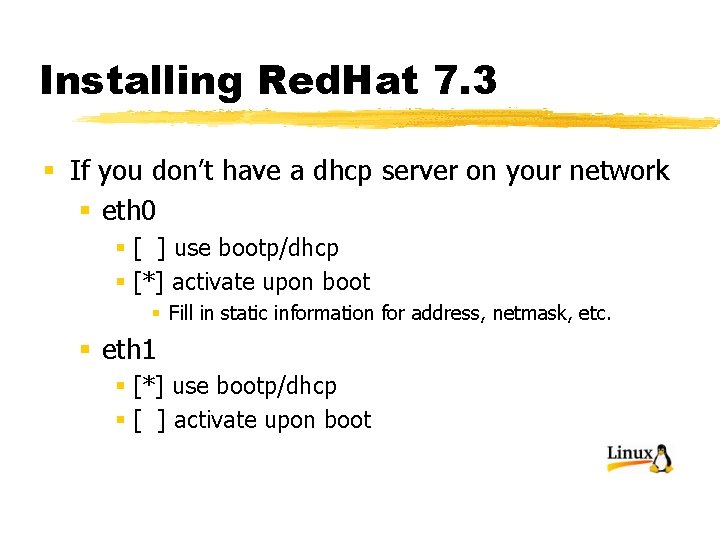
Installing Red. Hat 7. 3 § If you don’t have a dhcp server on your network § eth 0 § [ ] use bootp/dhcp § [*] activate upon boot § Fill in static information for address, netmask, etc. § eth 1 § [*] use bootp/dhcp § [ ] activate upon boot
Network Configuration § In either case, do NOT enter gateway or nameserver information. Your system will pick this up via DHCP from your ISP.
Installing Red. Hat 7. 3 § Enter your hostname § Configure the built in firewall § High security § Customize to only allow ssh § This is only temporary § Language support – American English (or whatever you want) § Select your time zone
Installing Red. Hat 7. 3 § Enter a good password for root § Add at least one additional user so you don’t have to always use root § [*] Use shadow passwords § [*] Enable MD 5 passwords § [ ] Enable NIS § [ ] Enable LDAP § [ ] Enable Kerberos
![Installing Red. Hat 7. 3 § § § Package Group Selection [*] Printing Support](http://slidetodoc.com/presentation_image_h/94823fa8cfe096f28620be4427a0d561/image-64.jpg "Installing Red. Hat 7. 3 § § § Package Group Selection [*] Printing Support")
Installing Red. Hat 7. 3 § § § Package Group Selection [*] Printing Support [*] Network Support [*] Router/Firewall [*] Network Managed Workstation [*] Utilities
Installing Red. Hat 7. 3 § Start installation, providing additional CDROMs when prompted for. § Build a boot diskette when prompted. § When done, remove all media and boot your new linux system. Connect only one of your ethernet adapters to your local network and boot your new system
Initial setup § Boot your new system with your local network attached to one of the two ethernet cards. Watch the system startup messages for “eth 0” to start correctly. Log on and try to ping another host on your local network. If it succeeds, mark that adapter as “eth 0” If it fails, swap the cable to the other adapter, reboot, and try again.
Initial setup § Edit /etc/aliases and uncomment the last line of the file and fix the address to a valid address to receive mail sent to root § Old § #root marc § New § root harold@uga. edu § Run the “newaliases” command
Initial setup § Edit the file /etc/hosts and fix it § Before 127. 0. 0. 1 § pitbull localhost. localdomain localhost After 127. 0. 0. 1 192. 168. 1. 121 localhost. localdomain localhost pitbull. halshome. net Or whatever your local address and hostname are
Initial setup § Turn off unused services chkconfig –list | grep on | more § Will show all of the services currently on, one per line. § This list looks like this:
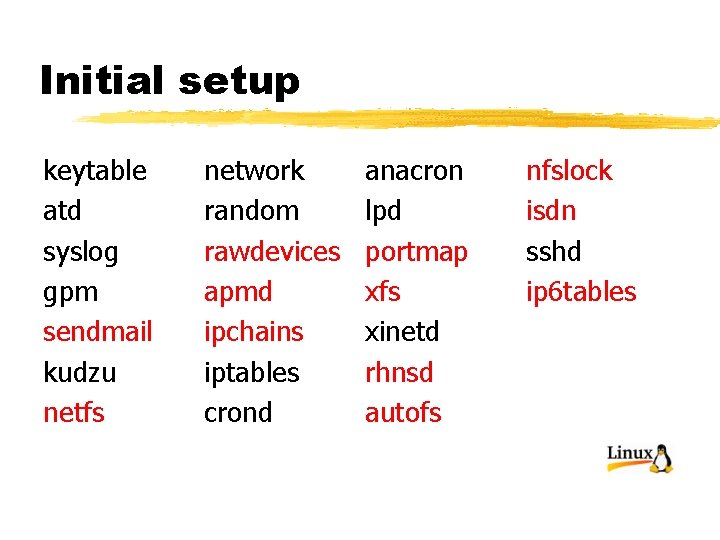
Initial setup keytable atd syslog gpm sendmail kudzu netfs network random rawdevices apmd ipchains iptables crond anacron lpd portmap xfs xinetd rhnsd autofs nfslock isdn sshd ip 6 tables
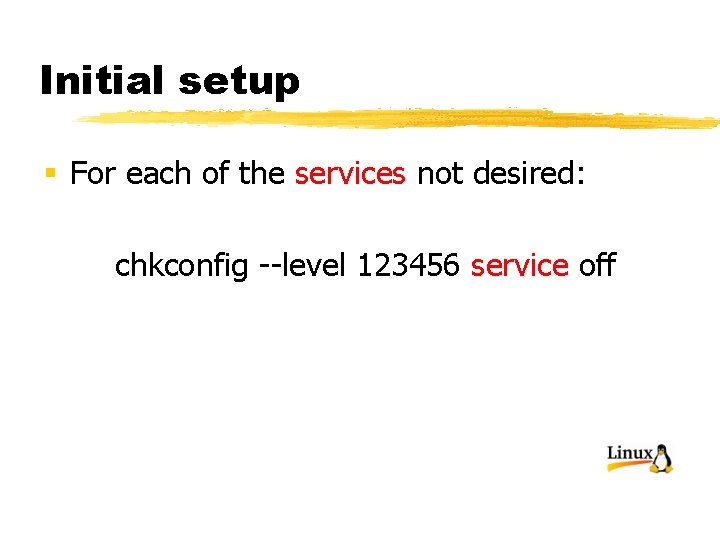
Initial setup § For each of the services not desired: chkconfig --level 123456 service off
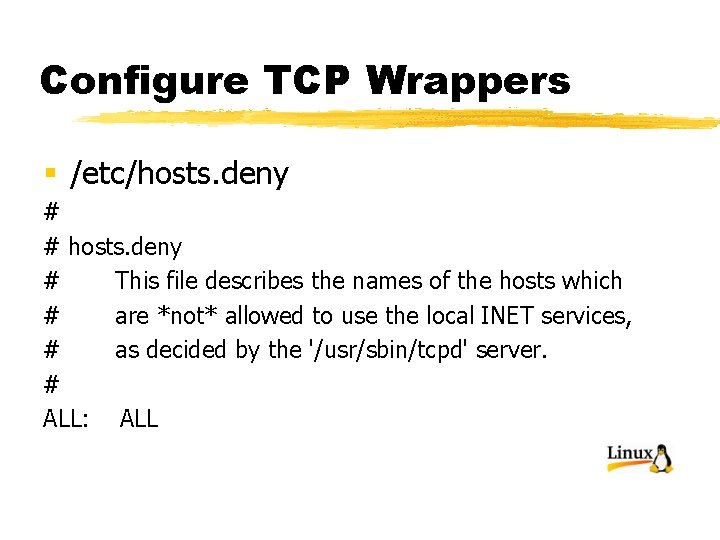
Configure TCP Wrappers § /etc/hosts. deny # # hosts. deny # This file describes the names of the hosts which # are *not* allowed to use the local INET services, # as decided by the '/usr/sbin/tcpd' server. # ALL: ALL
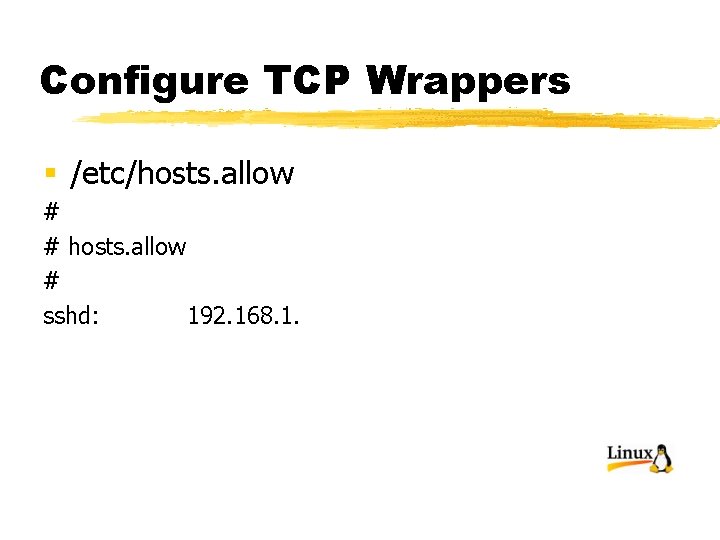
Configure TCP Wrappers § /etc/hosts. allow # # hosts. allow # sshd: 192. 168. 1.
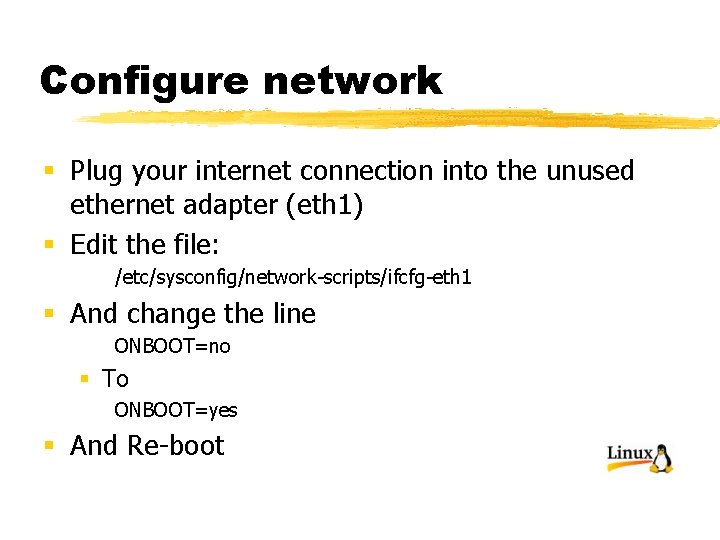
Configure network § Plug your internet connection into the unused ethernet adapter (eth 1) § Edit the file: /etc/sysconfig/network-scripts/ifcfg-eth 1 § And change the line ONBOOT=no § To ONBOOT=yes § And Re-boot
Configure network § Use the commands § ifconfig -a § netstat –rn § To check the status of the network. § It should look like this:
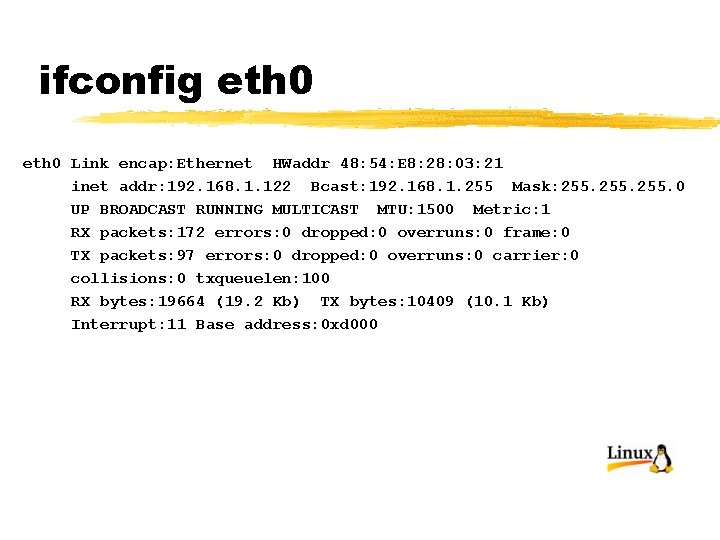
ifconfig eth 0 Link encap: Ethernet HWaddr 48: 54: E 8: 28: 03: 21 inet addr: 192. 168. 1. 122 Bcast: 192. 168. 1. 255 Mask: 255. 0 UP BROADCAST RUNNING MULTICAST MTU: 1500 Metric: 1 RX packets: 172 errors: 0 dropped: 0 overruns: 0 frame: 0 TX packets: 97 errors: 0 dropped: 0 overruns: 0 carrier: 0 collisions: 0 txqueuelen: 100 RX bytes: 19664 (19. 2 Kb) TX bytes: 10409 (10. 1 Kb) Interrupt: 11 Base address: 0 xd 000
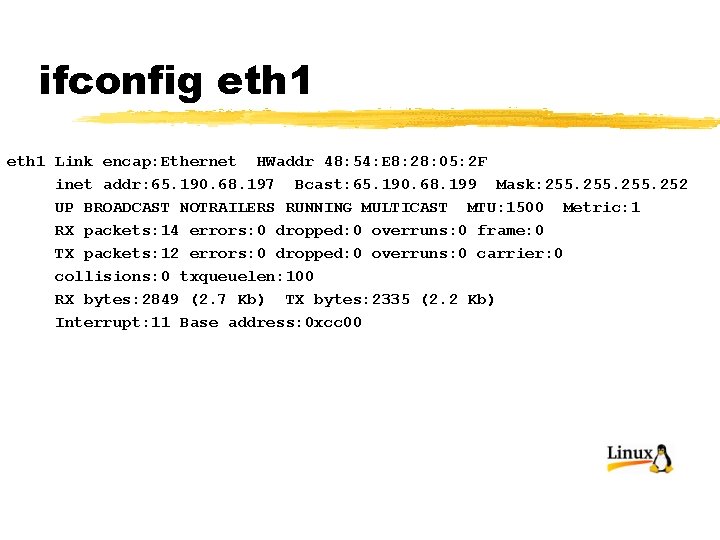
ifconfig eth 1 Link encap: Ethernet HWaddr 48: 54: E 8: 28: 05: 2 F inet addr: 65. 190. 68. 197 Bcast: 65. 190. 68. 199 Mask: 255. 252 UP BROADCAST NOTRAILERS RUNNING MULTICAST MTU: 1500 Metric: 1 RX packets: 14 errors: 0 dropped: 0 overruns: 0 frame: 0 TX packets: 12 errors: 0 dropped: 0 overruns: 0 carrier: 0 collisions: 0 txqueuelen: 100 RX bytes: 2849 (2. 7 Kb) TX bytes: 2335 (2. 2 Kb) Interrupt: 11 Base address: 0 xcc 00
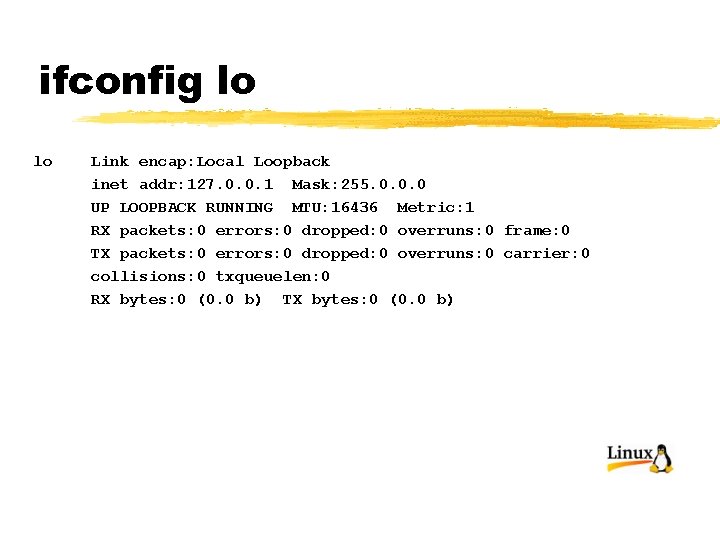
ifconfig lo lo Link encap: Local Loopback inet addr: 127. 0. 0. 1 Mask: 255. 0. 0. 0 UP LOOPBACK RUNNING MTU: 16436 Metric: 1 RX packets: 0 errors: 0 dropped: 0 overruns: 0 frame: 0 TX packets: 0 errors: 0 dropped: 0 overruns: 0 carrier: 0 collisions: 0 txqueuelen: 0 RX bytes: 0 (0. 0 b) TX bytes: 0 (0. 0 b)
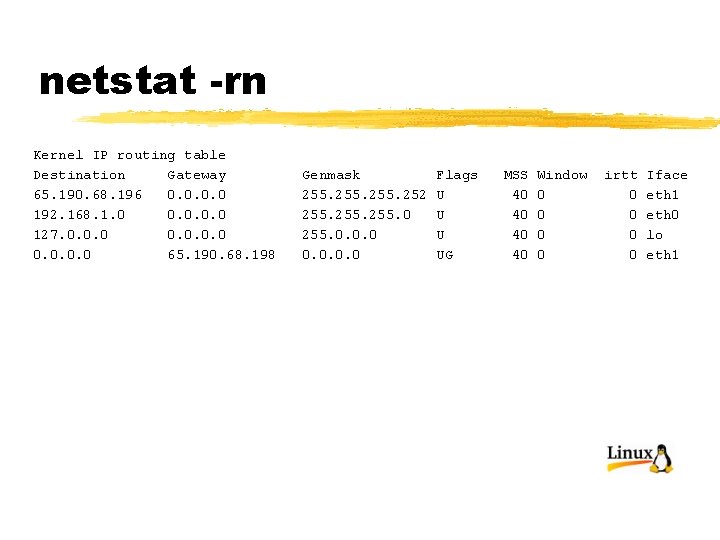
netstat -rn Kernel IP routing table Destination Gateway 65. 190. 68. 196 0. 0 192. 168. 1. 0 0. 0 127. 0. 0. 0 65. 190. 68. 198 Genmask 255. 252 255. 0. 0. 0 Flags U UG MSS 40 40 Window 0 0 irtt 0 0 Iface eth 1 eth 0 lo eth 1
You’re online! § Your machine is now connected to the internet, but is not yet acting as a firewall for the network behind it. § First, let’s check that sendmail works
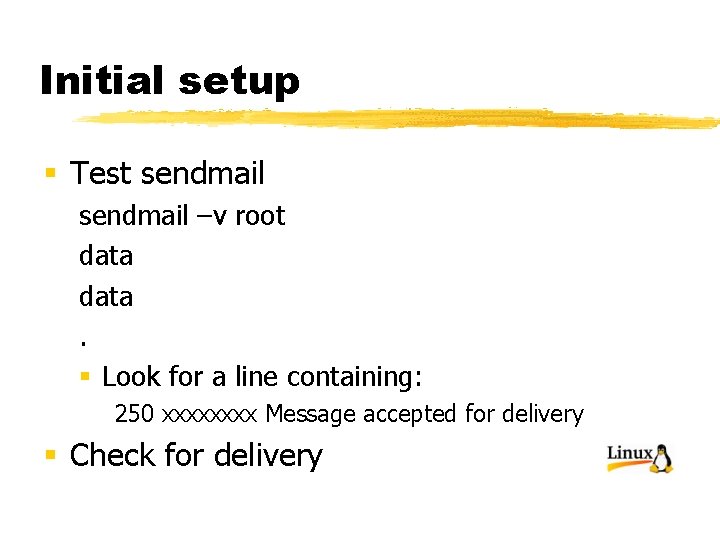
Initial setup § Test sendmail –v root data. § Look for a line containing: 250 xxxx Message accepted for delivery § Check for delivery
Additional sendmail setup § Since we will NOT be running sendmail as a daemon, we need to make sure that mail which gets queued as undelivered will get retried. § We will create a file in the hourly cron directory to invoke sendmail to run the mail queues
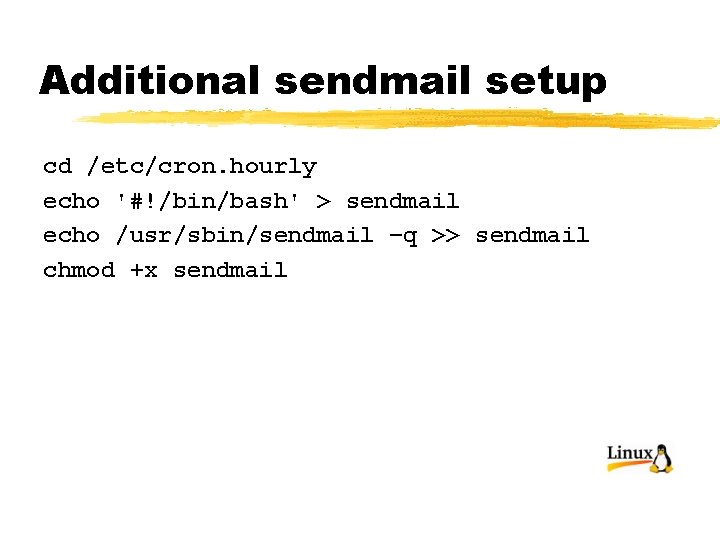
Additional sendmail setup cd /etc/cron. hourly echo '#!/bin/bash' > sendmail echo /usr/sbin/sendmail –q >> sendmail chmod +x sendmail
Installing software § We have a few packages which were not installed with the distribution. § Let’s get them and install them. § We’re now connected to the internet so we can do this
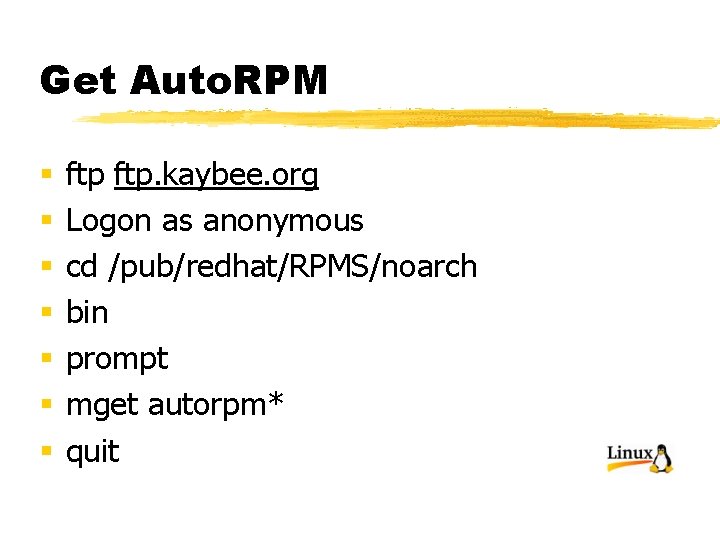
Get Auto. RPM § § § § ftp. kaybee. org Logon as anonymous cd /pub/redhat/RPMS/noarch bin prompt mget autorpm* quit
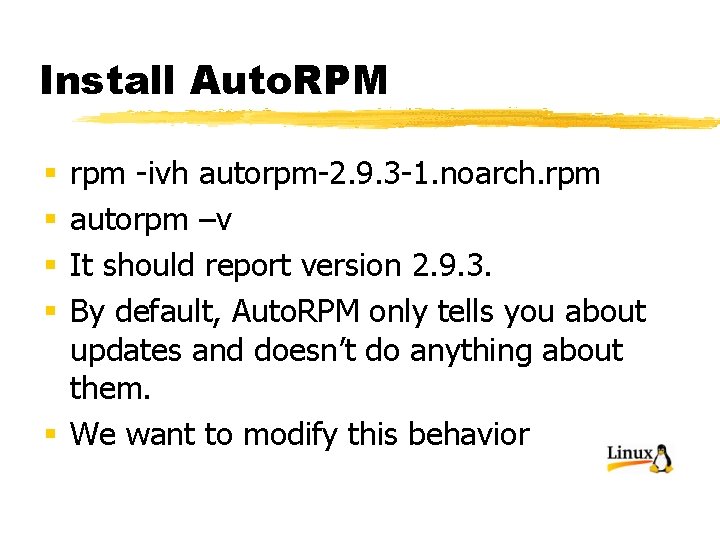
Install Auto. RPM rpm -ivh autorpm-2. 9. 3 -1. noarch. rpm autorpm –v It should report version 2. 9. 3. By default, Auto. RPM only tells you about updates and doesn’t do anything about them. § We want to modify this behavior § §
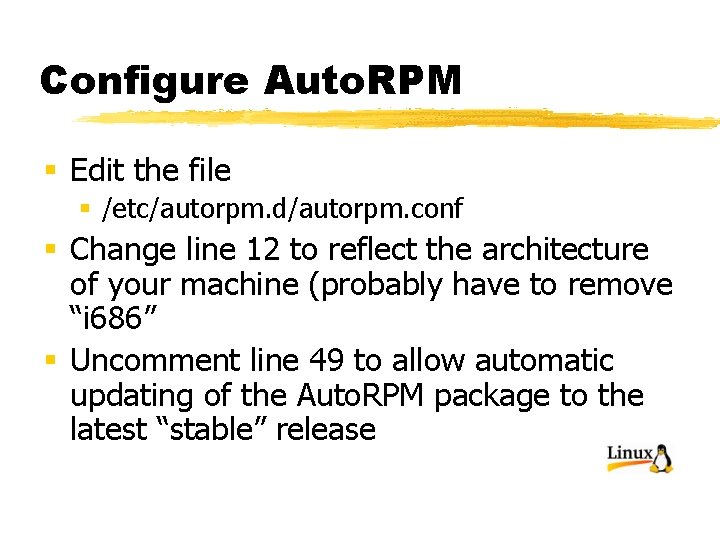
Configure Auto. RPM § Edit the file § /etc/autorpm. d/autorpm. conf § Change line 12 to reflect the architecture of your machine (probably have to remove “i 686” § Uncomment line 49 to allow automatic updating of the Auto. RPM package to the latest “stable” release
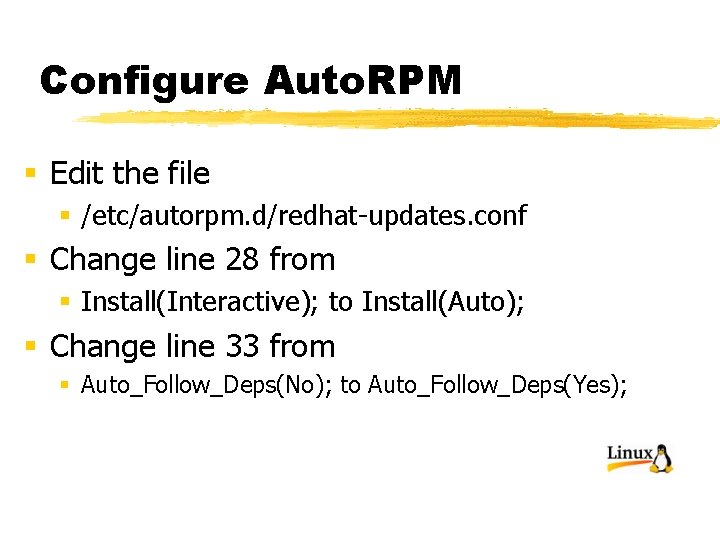
Configure Auto. RPM § Edit the file § /etc/autorpm. d/redhat-updates. conf § Change line 28 from § Install(Interactive); to Install(Auto); § Change line 33 from § Auto_Follow_Deps(No); to Auto_Follow_Deps(Yes);
Run Auto. RPM § Now run Auto. RPM in order to update the software on your new system § autorpm --notty “auto” & § E-mail will be sent to root with the results.
Install Lynx § We need a web browser to download files, but don’t want the overhead of XWindows
Install lynx § It’s on the Red. Hat CDROM, volume 3 mount -o ro /dev/cdrom /mnt/cdrom cd /mnt/cdrom/Red. Hat/RPMS rpm -ivh lynx-2. 8. 4 -18. i 386. rpm cd /root umount /dev/cdrom
Use lynx to download the iptables configuration file § lynx http: //www. linuxguruz. org/iptables/ § Use the down arrow key to scroll the page down until you see the entry for “IPTABLES masquerading firewall” § Move the cursor to this line. The URL will be highlighted § Press the “d” key to download this file § Use the default filename, “rc. firewall_023. txt
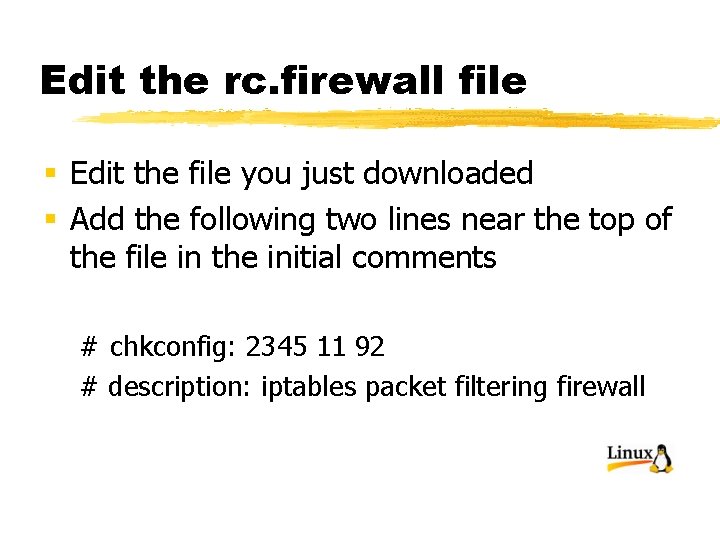
Edit the rc. firewall file § Edit the file you just downloaded § Add the following two lines near the top of the file in the initial comments # chkconfig: 2345 11 92 # description: iptables packet filtering firewall
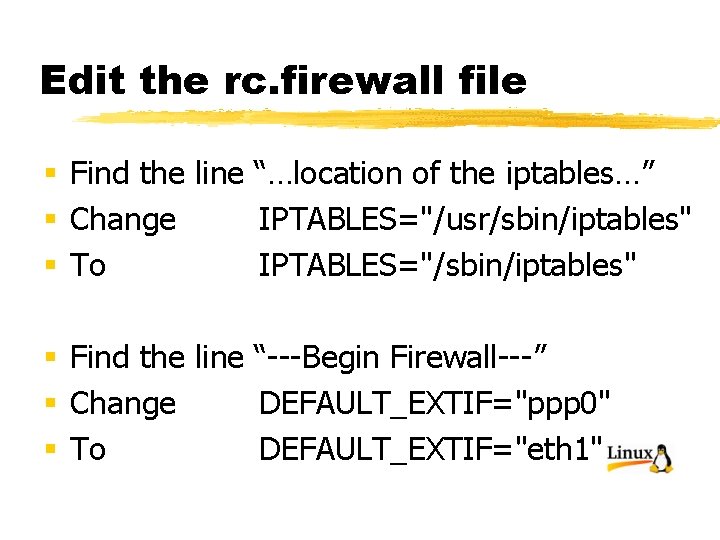
Edit the rc. firewall file § Find the line “…location of the iptables…” § Change IPTABLES="/usr/sbin/iptables" § To IPTABLES="/sbin/iptables" § Find the line “---Begin Firewall---” § Change DEFAULT_EXTIF="ppp 0" § To DEFAULT_EXTIF="eth 1"
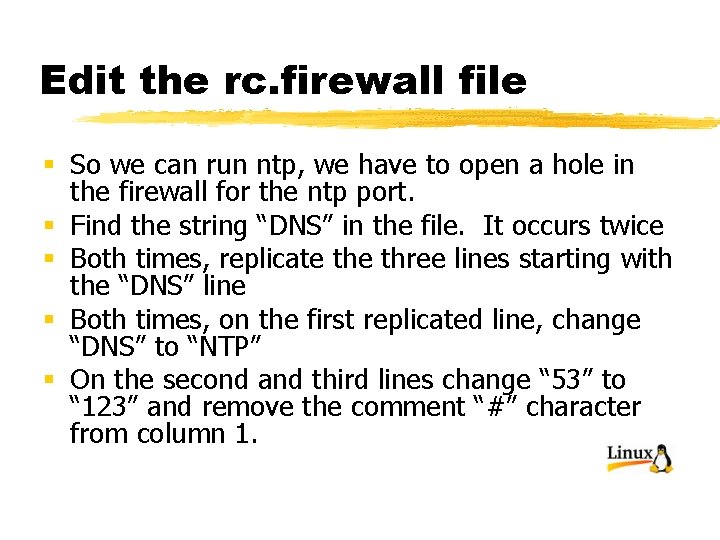
Edit the rc. firewall file § So we can run ntp, we have to open a hole in the firewall for the ntp port. § Find the string “DNS” in the file. It occurs twice § Both times, replicate three lines starting with the “DNS” line § Both times, on the first replicated line, change “DNS” to “NTP” § On the second and third lines change “ 53” to “ 123” and remove the comment “#” character from column 1.
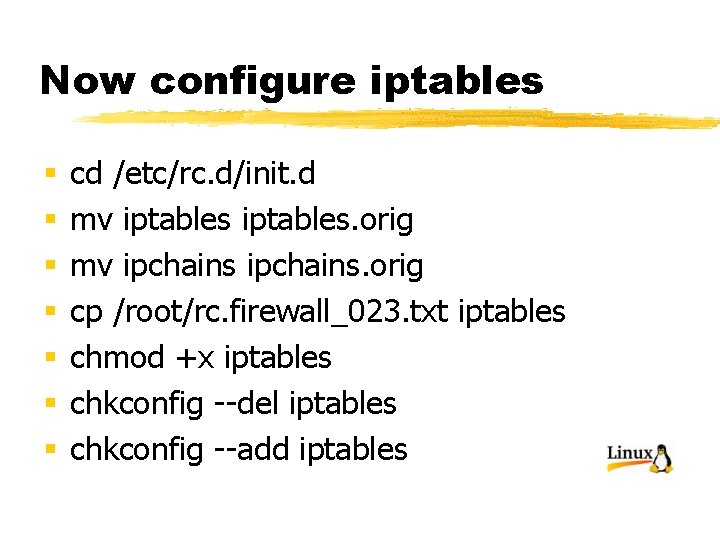
Now configure iptables § § § § cd /etc/rc. d/init. d mv iptables. orig mv ipchains. orig cp /root/rc. firewall_023. txt iptables chmod +x iptables chkconfig --del iptables chkconfig --add iptables
Start your new firewall § Reboot the system. § Watch the system console for rejections from the firewall. They will probably start almost immediately, and look something like this:
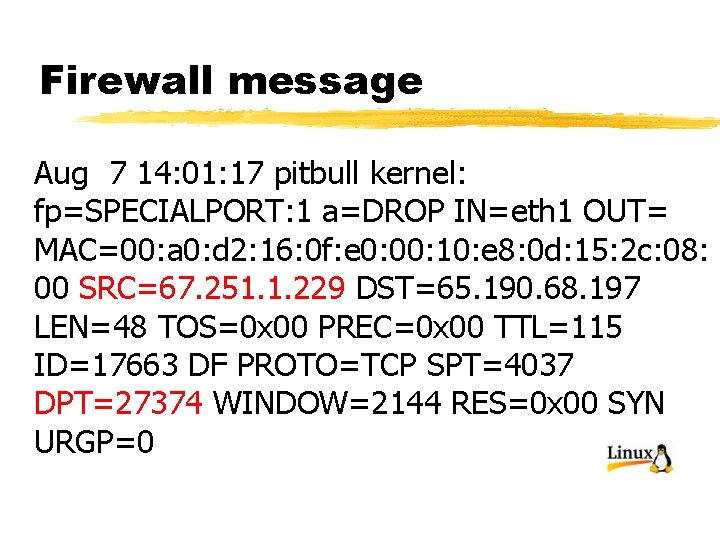
Firewall message Aug 7 14: 01: 17 pitbull kernel: fp=SPECIALPORT: 1 a=DROP IN=eth 1 OUT= MAC=00: a 0: d 2: 16: 0 f: e 0: 00: 10: e 8: 0 d: 15: 2 c: 08: 00 SRC=67. 251. 1. 229 DST=65. 190. 68. 197 LEN=48 TOS=0 x 00 PREC=0 x 00 TTL=115 ID=17663 DF PROTO=TCP SPT=4037 DPT=27374 WINDOW=2144 RES=0 x 00 SYN URGP=0
Firewall messages § The messages are logged to /var/log/messages § This particular message shows a probe to port 27374 (the backdoor installed by the Sub. Seven worm) from a computer with IP address 67. 251. 1. 229. This address resolves to a Canadian uunet subscriber 1 Cust 229. tnt 2. oxnard. ca. da. uu. net
Install ntp § We need to install the network time protocol program to synchronize the clock on our server to a master clock § It’s on the Red. Hat CDROM, volume 1 mount -o ro /dev/cdrom /mnt/cdrom cd /mnt/cdrom/Red. Hat/RPMS rpm -ivh ntp-4. 1. 1 -1. i 386. rpm libcap-1. 10 -8. i 386. rpm
Configure ntp § Go to: http: //www. eecis. udel. edu/~mills/ntp/clock 2. htm § Select one or two servers close to you § Edit /etc/ntp. conf § Make it look like this:
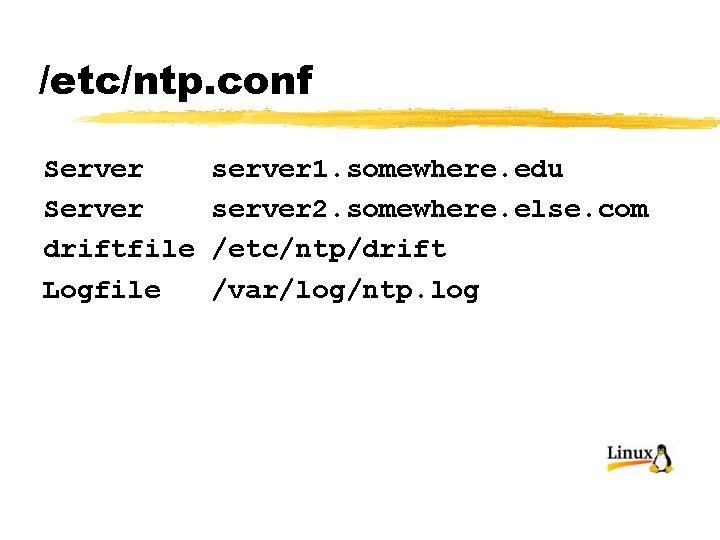
/etc/ntp. conf Server driftfile Logfile server 1. somewhere. edu server 2. somewhere. else. com /etc/ntp/drift /var/log/ntp. log
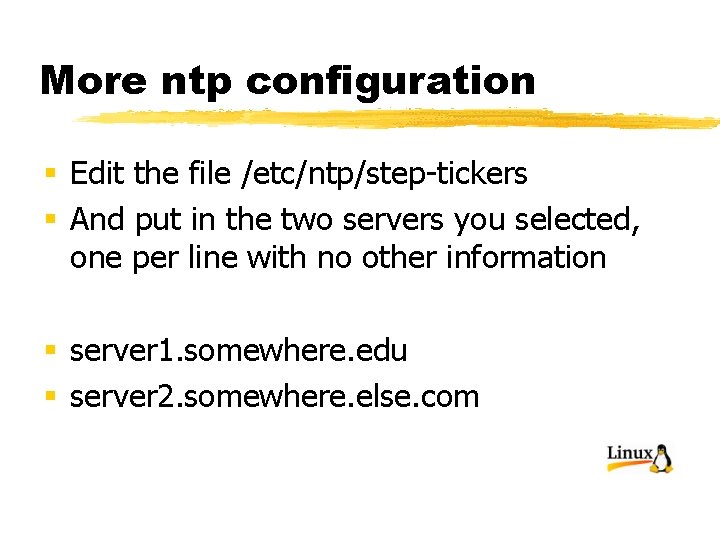
More ntp configuration § Edit the file /etc/ntp/step-tickers § And put in the two servers you selected, one per line with no other information § server 1. somewhere. edu § server 2. somewhere. else. com
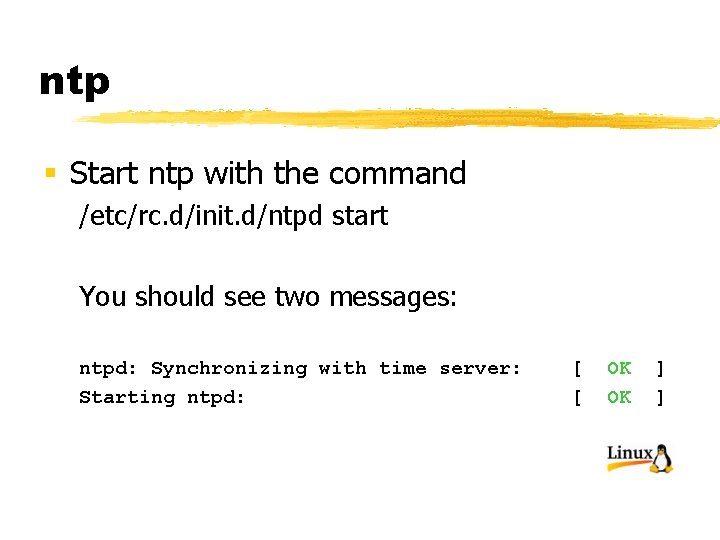
ntp § Start ntp with the command /etc/rc. d/init. d/ntpd start You should see two messages: ntpd: Synchronizing with time server: Starting ntpd: [ [ OK OK ] ]
ntp § Check to see if ntp is running with the commands ntpdc peers quit
![Checking ntp [root@pitbull root]# ntpdc> peers remote local st poll reach delay offset disp](http://slidetodoc.com/presentation_image_h/94823fa8cfe096f28620be4427a0d561/image-106.jpg "Checking ntp [root@pitbull root]# ntpdc> peers remote local st poll reach delay offset disp")
Checking ntp [root@pitbull root]# ntpdc> peers remote local st poll reach delay offset disp ==================================== =dns 2. uga. edu 192. 168. 1. 122 2 64 1 0. 05865 43190. 870 7. 93750 =dns 1. uga. edu 192. 168. 1. 122 2 64 1 0. 05772 43190. 870 7. 93750 ntpdc> quit [root@pitbull root]#
A minor fix § Edit the file /etc/sysconfig/i 18 n Change the line LANG="en_US. iso 885915" To LANG="C" § This fixes a problem with the ls command sort order.
Other things you may fix § Edit /root/. bashrc § Remove the annoying aliases for rm, cp, and mv § Add any aliases you may want. I like alias l='ls –Fl‘ § Reload with the command §. . bashrc
Other things you may fix § Since you have working log scanner (logwatch) and a working log manager (logrotate) nothing needs to be done here. § I personally would replace logwatch with Log. Sentry from Psionic Technologies and tweak the logrotate configuration files to keep the firewall logs a bit longer, but then that’s just me…
Installing Tripwire § It’s already installed, running, and sending e-mail to root once a day demanding to be configured
Configuring Tripwire /etc/tripwire/twinstall. sh § Answer prompts § Use good passphrases § tripwire --init § tripwire –check § You WILL get lots of errors
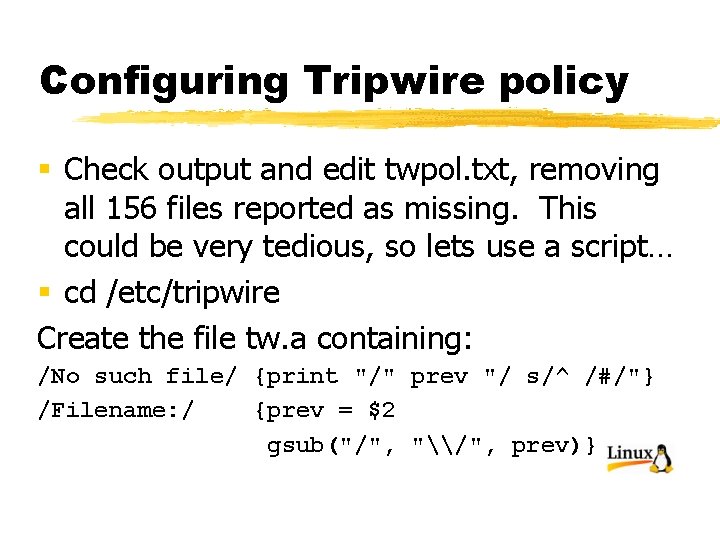
Configuring Tripwire policy § Check output and edit twpol. txt, removing all 156 files reported as missing. This could be very tedious, so lets use a script… § cd /etc/tripwire Create the file tw. a containing: /No such file/ {print "/" prev "/ s/^ /#/"} /Filename: / {prev = $2 gsub("/", "\/", prev)}
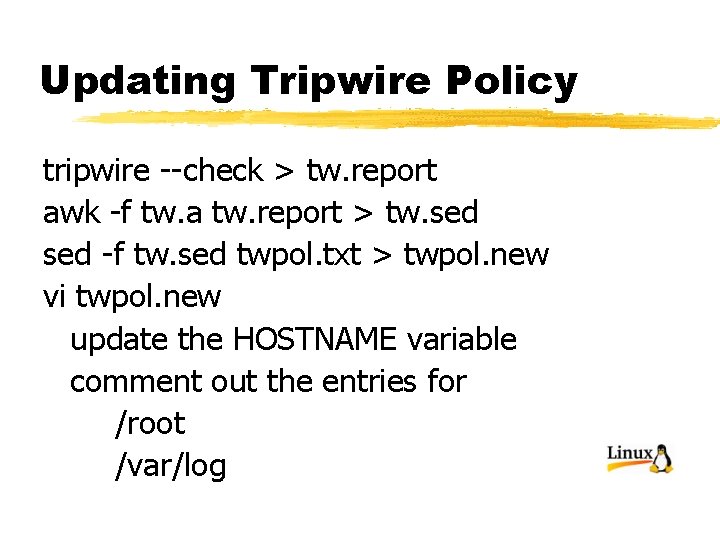
Updating Tripwire Policy tripwire --check > tw. report awk -f tw. a tw. report > tw. sed -f tw. sed twpol. txt > twpol. new vi twpol. new update the HOSTNAME variable comment out the entries for /root /var/log
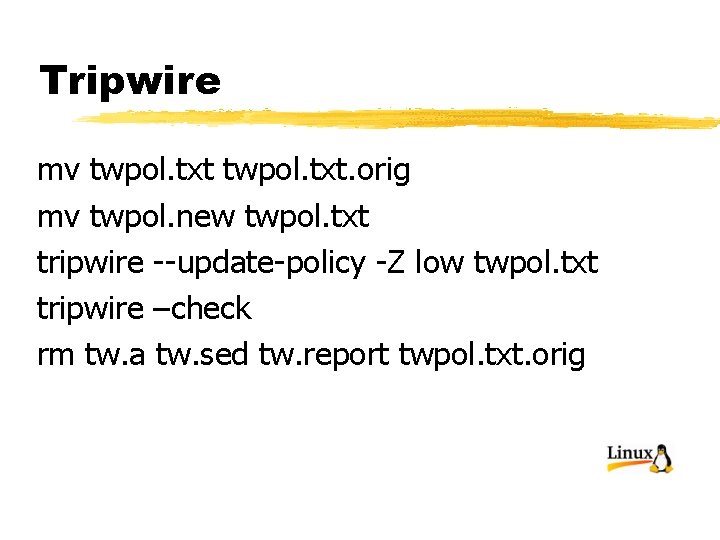
Tripwire mv twpol. txt. orig mv twpol. new twpol. txt tripwire --update-policy -Z low twpol. txt tripwire –check rm tw. a tw. sed tw. report twpol. txt. orig
Tripwire You will be mailed a report from tripwire every day. Check the report. It may show changes to files on your system. These changes may be due to the Auto. RPM program automatically installing updates. If this is the case then you need to run tripwire in update mode. Here’s a script to make this easier
twupdate script § Put this script in /usr/local/bin § Make it executable § Run it when you need to update the tripwire database
![twupdate script #!/bin/bash if [ $USER = root ] ; then dir='/var/lib/tripwire/report' fn=$(ls -r](http://slidetodoc.com/presentation_image_h/94823fa8cfe096f28620be4427a0d561/image-117.jpg "twupdate script #!/bin/bash if [ $USER = root ] ; then dir='/var/lib/tripwire/report' fn=$(ls -r")
twupdate script #!/bin/bash if [ $USER = root ] ; then dir='/var/lib/tripwire/report' fn=$(ls -r $dir | head -1) tripwire --update -a -r $dir/$fn else echo This command must run as root fi
Finally, updating your kernel § Nothing here will automatically update the kernel of your linux system. § I believe that this is a good thing. § I also believe you periodically do need to put a new kernel in production to fix problems. § The Red. Hat report will tell you when.
Updating the kernel § Go to Red. Hat. com (or some other distribution site § Download the new kernel § Install it with “rpm -ivh” so that it is installed separately, and doesn’t replace your current kernel (which is what would happen if you install with “rpm -Uvh”
Getting the new kernel ftp. redhat. com Log on as anonymous cd /pub/redhat/linux/updates/7. 3/en/os/i 586 (or whatever your architecture is) Download the “non-smp” kernel bin prompt mget kernel-2. 4* quit
Installing the new kernel § rpm -ivh kernel-2. 4. 18 -5. i 586. rpm § Reboot § Make sure the new kernel is selected on the “grub” menu. If it isn’t, then use the cursor keys to select it and press “enter” § Make sure everything works.
Installing the new kernel § Finally, if the grub boot loader comes up with your new kernel on the top line and the second entry is the default (highlighted): § Edit /etc/grub. conf § Change “default=1” § To “default=0”
Session 6306 Th-th-th-that’s all folks § Questions?
- Slides: 123