
Building a Better Container Accessibility Access and Universal
Building a Better Container: Accessibility, Access, and Universal Design Jillian Manzer & Megan Mc. Leay Instructional Designers
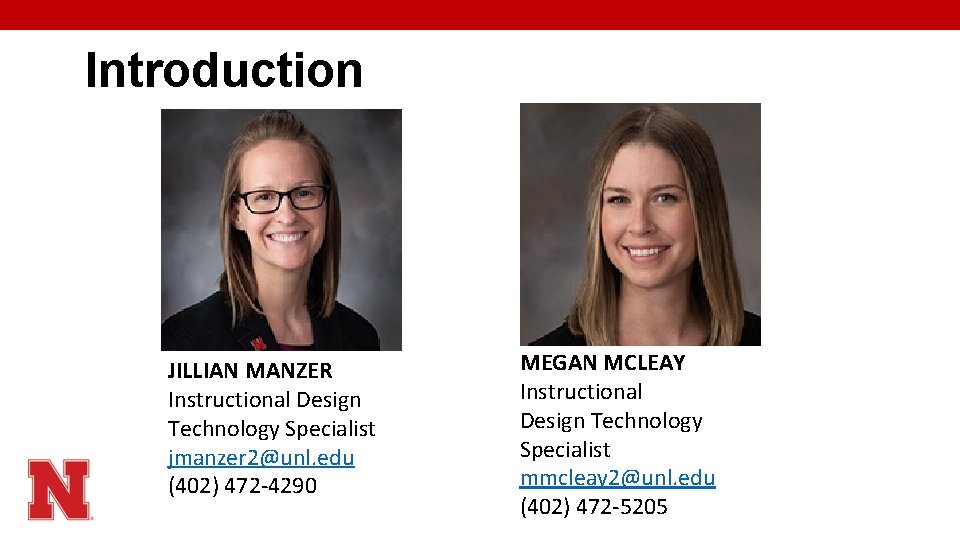
Introduction JILLIAN MANZER Instructional Design Technology Specialist jmanzer 2@unl. edu (402) 472 -4290 MEGAN MCLEAY Instructional Design Technology Specialist mmcleay 2@unl. edu (402) 472 -5205
Housekeeping • This will be recorded, and all resources made available to you • Modeling/experimenting with some strategies for teaching over zoom • Collaborative Document § Links to both Power. Point and collaborative Word document • Follows the presentation • Includes question prompts • Acts as a resource after the session • Two anonymous polls
Session Goals & Poll 1. Provide faculty with an overview of the interrelationship between accessibility and Universal Design for Learning. 2. Learn some practical strategies and best practices they can adopt that will address common barriers of equally accessing in higher education. 3. Reflect on their current teaching practices and identify ways to improve the accessibility of their classes. 4. Incorporate various Universal Design for Learning techniques.
Participant Goals: Reflection 1. What is one thing you hope to gain from attending this workshop? 2. What is one or two major questions you have concerning accessibility?
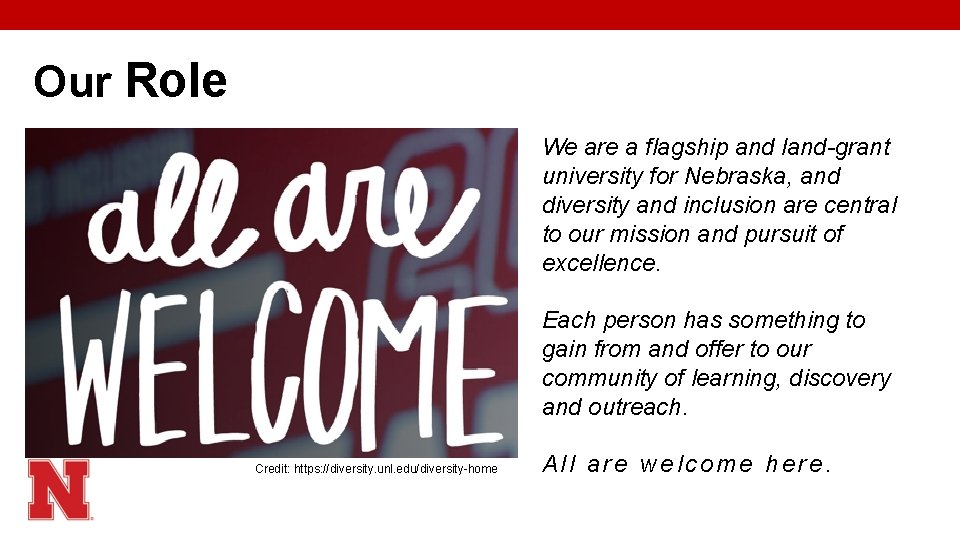
Our Role We are a flagship and land-grant university for Nebraska, and diversity and inclusion are central to our mission and pursuit of excellence. Each person has something to gain from and offer to our community of learning, discovery and outreach. Credit: https: //diversity. unl. edu/diversity-home All are welcome here.
Accessibility & Accommodation Students with disabilities and SSD office • Adhere to accommodation requirements üAlternative formats for instructional material üTime extensions on exams üPhysical barriers accommodated for § Wheelchair ramps, automatic door openers
Accessibility & Accommodation Accessibility Accommodation Can be provided by following an easy- to -implement set of standards and practices that make "adaptation” or accommodations either unnecessary or rare. Adaptations that can't be anticipated or standardized Learners can benefit from accessibility without announcing or explaining disabilities Different for each student Can’t be expected until asked May have to announce or explain disability in order to receive accommodation to SSD
Content vs. Container Content Container Accessibility *is not about the content • Subject matter experts determine the appropriate content and assessments Accessibility *is about the container • Instructional materials provided in Canvas or digitally are accessible
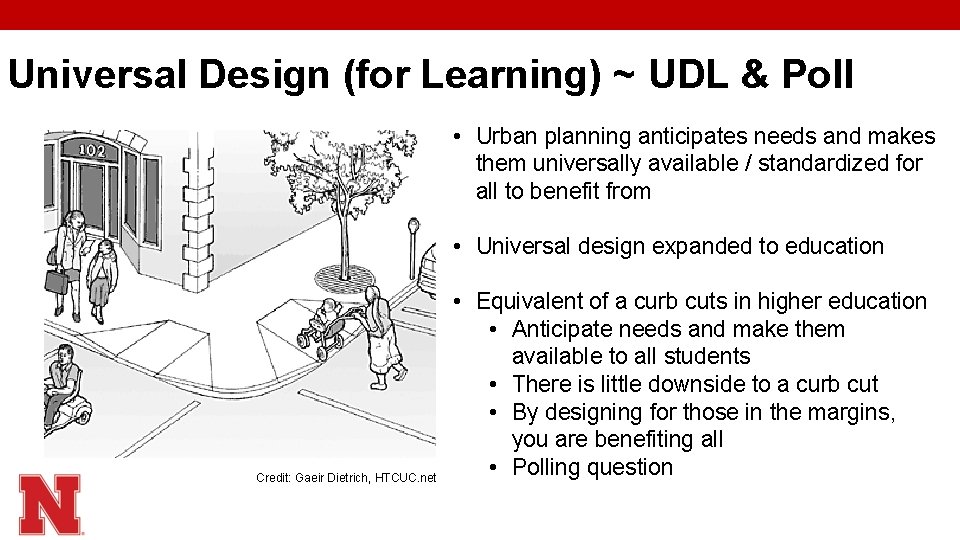
Universal Design (for Learning) ~ UDL & Poll • Urban planning anticipates needs and makes them universally available / standardized for all to benefit from • Universal design expanded to education Credit: Gaeir Dietrich, HTCUC. net • Equivalent of a curb cuts in higher education • Anticipate needs and make them available to all students • There is little downside to a curb cut • By designing for those in the margins, you are benefiting all • Polling question
Getting Started Process of Continuous Quality Improvement § Where does it make the most sense? • (Re)designing a course or material • High-enrollment or gate keeper courses • Regularly taught by you • Challenging topic(s) that are pinch-point § Think moving forward and not retroactive Consider UDL principles to help with determination
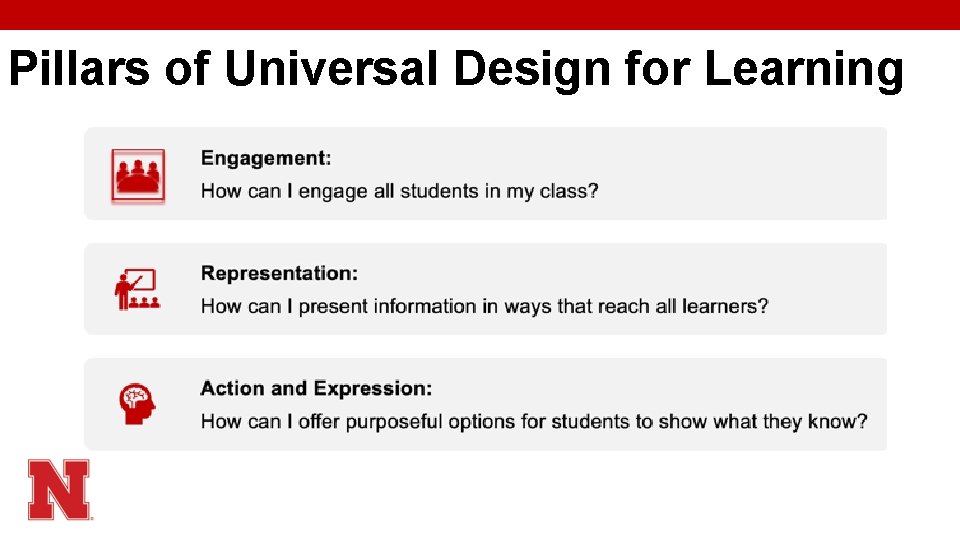
Pillars of Universal Design for Learning
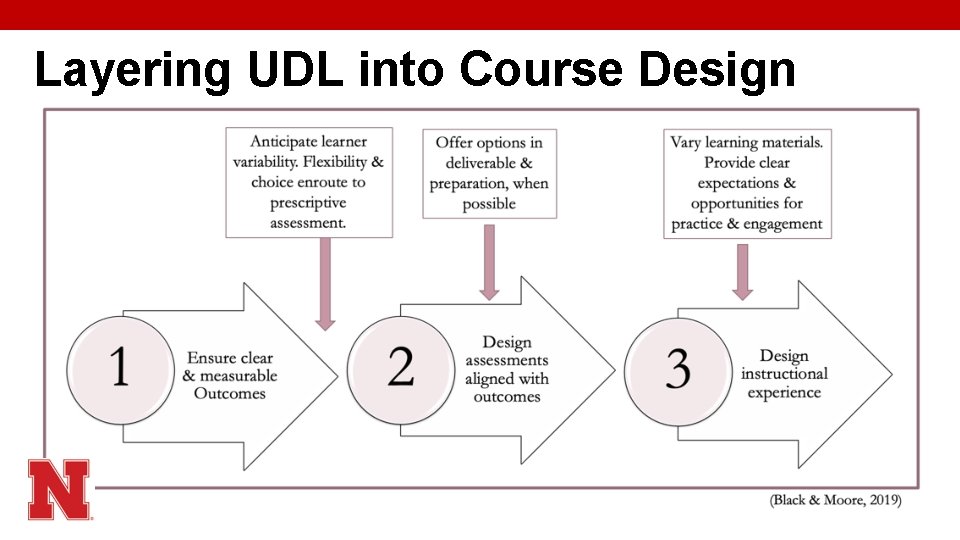
Layering UDL into Course Design
Layering UDL into Course Design: Reflection 1. In what ways could you see yourself layering in UDL principles into your course design?
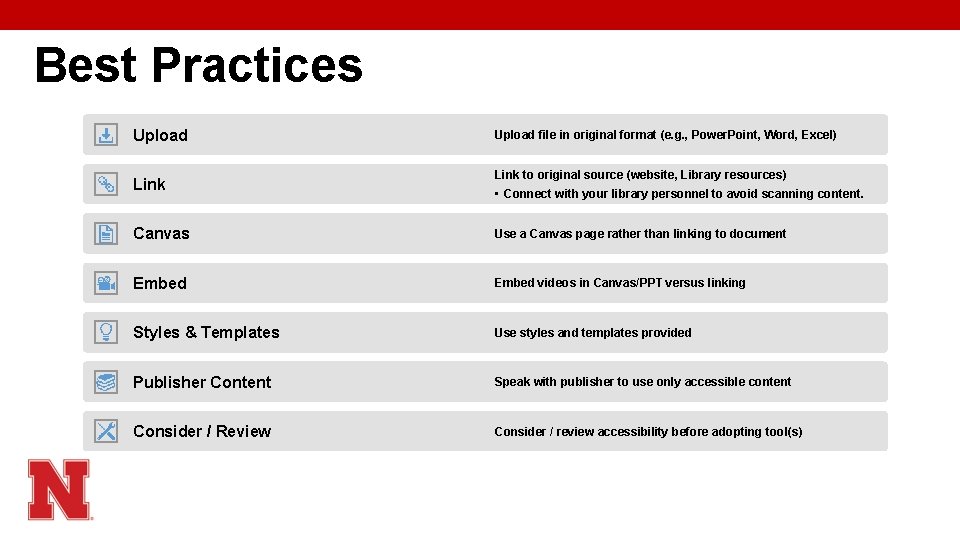
Best Practices Upload Link Upload file in original format (e. g. , Power. Point, Word, Excel) Link to original source (website, Library resources) • Connect with your library personnel to avoid scanning content. Canvas Use a Canvas page rather than linking to document Embed videos in Canvas/PPT versus linking Styles & Templates Use styles and templates provided Publisher Content Speak with publisher to use only accessible content Consider / Review Consider / review accessibility before adopting tool(s)
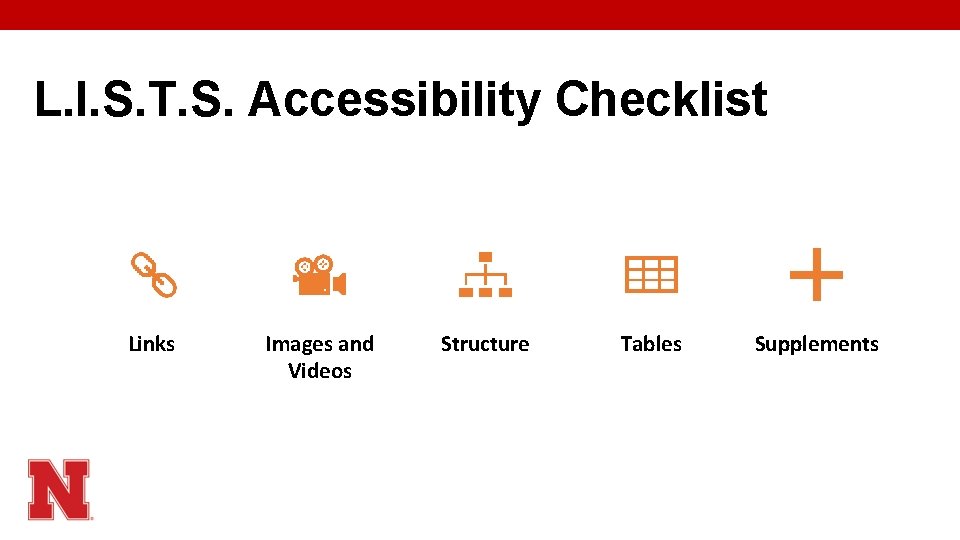
L. I. S. T. S. Accessibility Checklist Links Images and Videos Structure Tables Supplements
L = Links Best Practice: Avoid exposed URL (web address). Instead, create a hyperlink that includes words describing the target resource or location so users know where they are navigating to.
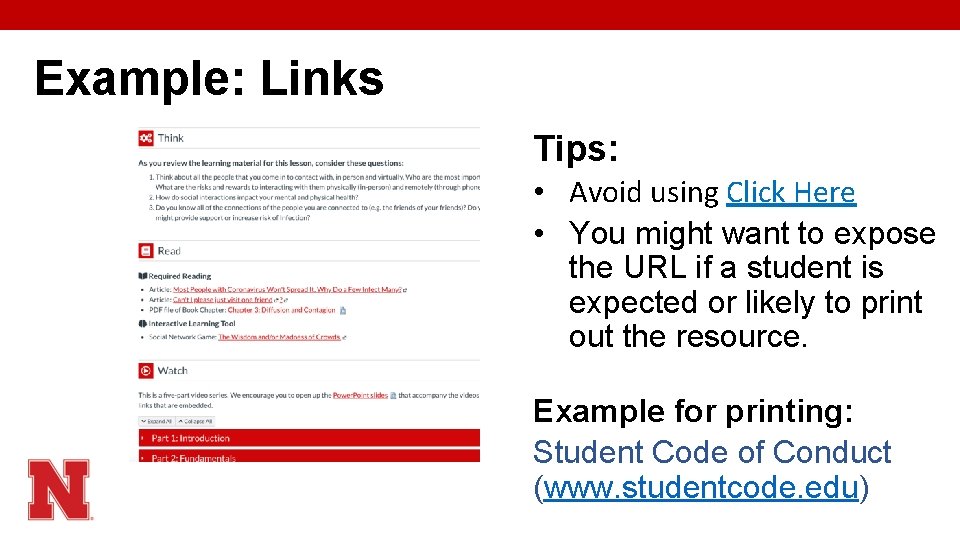
Example: Links Tips: • Avoid using Click Here • You might want to expose the URL if a student is expected or likely to print out the resource. Example for printing: Student Code of Conduct (www. studentcode. edu)
I = Images/Videos Best Practices: • Include brief (120 -125) charter alternative text (alt text) for digital materials to explain the meaning of the image. • Options to indicate decorative, if it is not essential so a screen reader will not include it as it narrates and navigates the content.
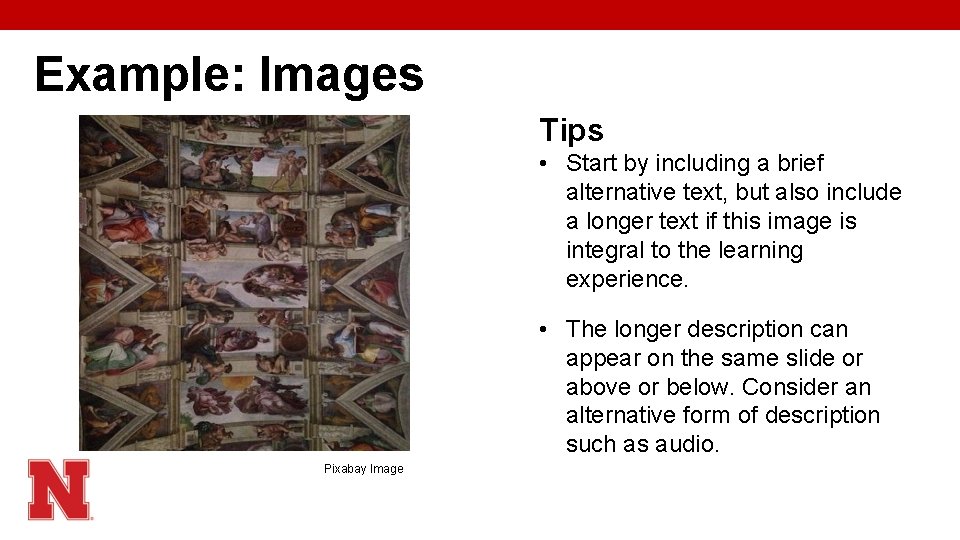
Example: Images Tips • Start by including a brief alternative text, but also include a longer text if this image is integral to the learning experience. • The longer description can appear on the same slide or above or below. Consider an alternative form of description such as audio. Pixabay Image
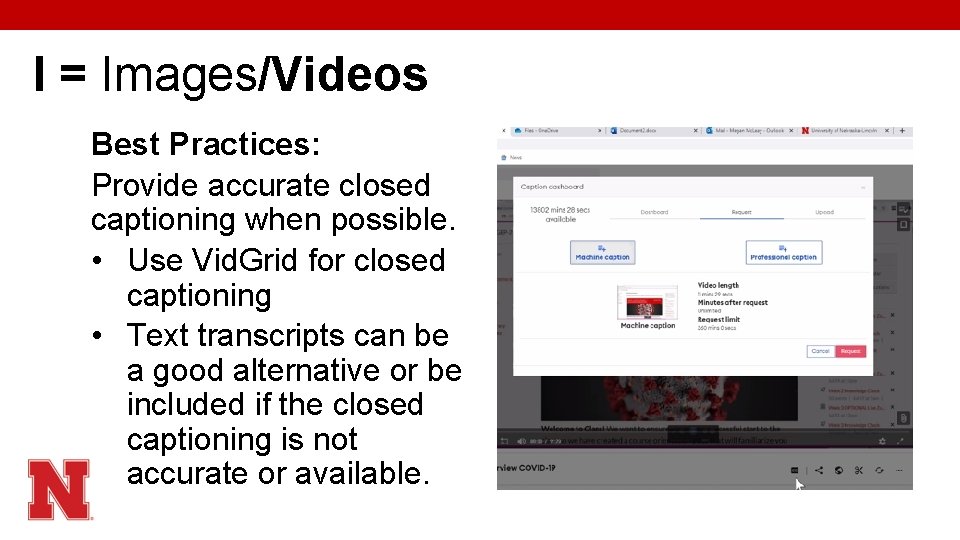
I = Images/Videos Best Practices: Provide accurate closed captioning when possible. • Use Vid. Grid for closed captioning • Text transcripts can be a good alternative or be included if the closed captioning is not accurate or available.
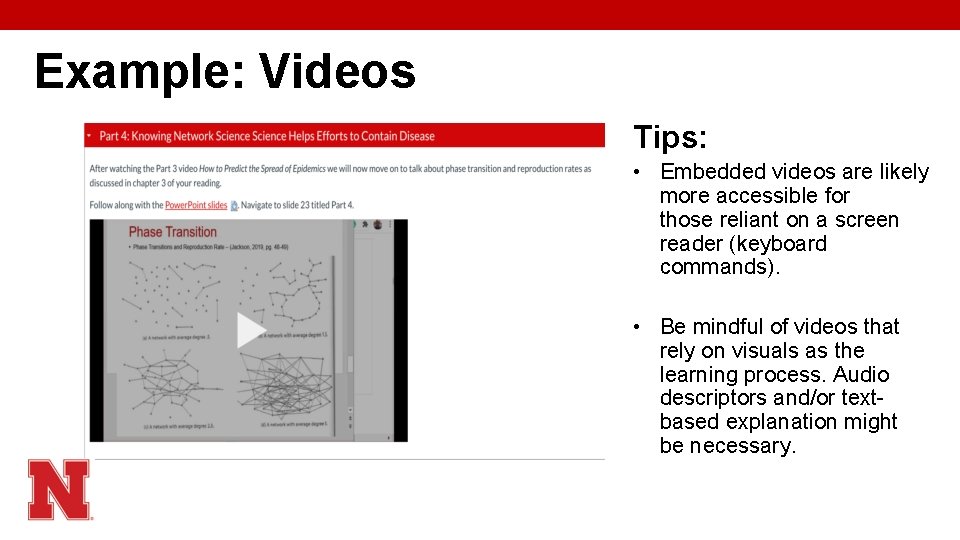
Example: Videos Tips: • Embedded videos are likely more accessible for those reliant on a screen reader (keyboard commands). • Be mindful of videos that rely on visuals as the learning process. Audio descriptors and/or textbased explanation might be necessary.
S = Structure Best Practice: • Semantic styles, regardless of platform should be used. • By using styles you encode your document structure allowing screen readers and mobile devices to access properly. Tips: • • • Use Headings in hierarchical order. Avoid underlining unless discipline/references. Use bulleted and numbered lists over hyphens. Ensure your color contrast is appropriate. Use indentations vs. Spaces.
T = Tables Best Practice: Tables should be used for tabular data only and not for style or formatting purposes. Tips: • Include a caption/title that briefly describes the table contents. Place title above table. • Designate a header and/or column row. Ensure table order reads as intended (typically left-to-right, top-to-bottom). • Avoid merging cells.
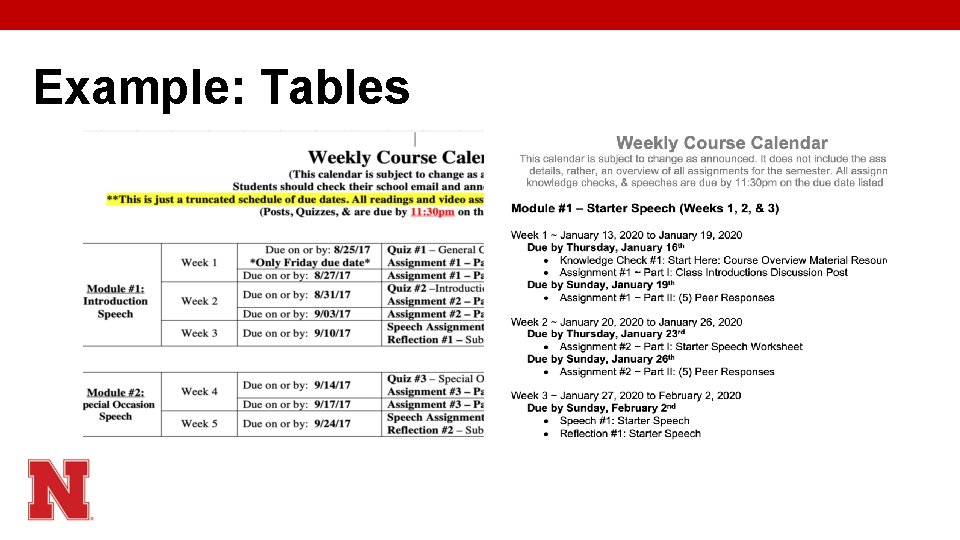
Example: Tables
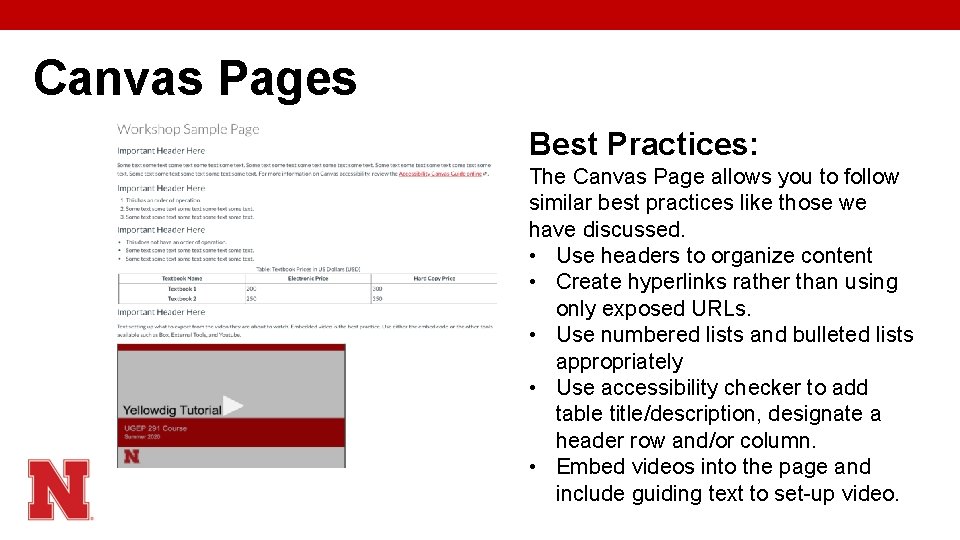
Canvas Pages Best Practices: The Canvas Page allows you to follow similar best practices like those we have discussed. • Use headers to organize content • Create hyperlinks rather than using only exposed URLs. • Use numbered lists and bulleted lists appropriately • Use accessibility checker to add table title/description, designate a header row and/or column. • Embed videos into the page and include guiding text to set-up video.
Supplements Best Practices: • Include the UNL accessibility policy in your syllabus. • Touchbase with the SSD office. • Use accessibility checkers in Canvas and Microsoft Office. § Refer to our One. Note link for more information on accessibility checkers for Word, Canvas, Excel, and Power. Point
Debrief: Reflection 1. What are one or two things you could do to improve accessibility in your course? 2. What is one thing you learned in this workshop that you will try to implement into your course?
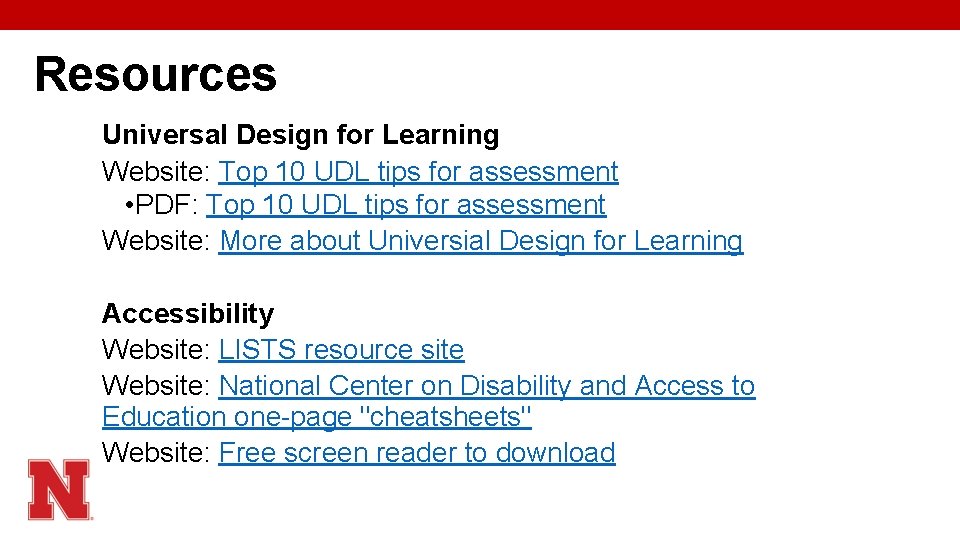
Resources Universal Design for Learning Website: Top 10 UDL tips for assessment • PDF: Top 10 UDL tips for assessment Website: More about Universial Design for Learning Accessibility Website: LISTS resource site Website: National Center on Disability and Access to Education one-page "cheatsheets" Website: Free screen reader to download
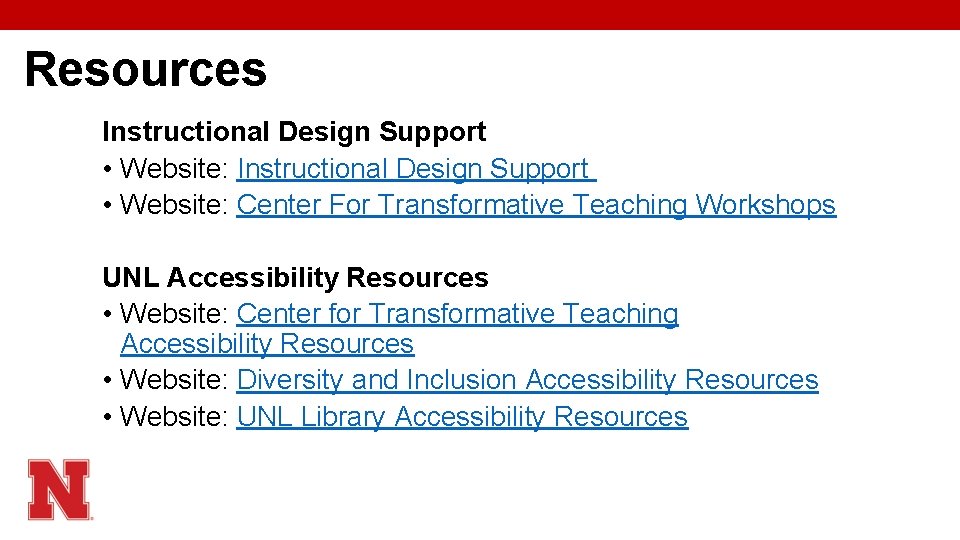
Resources Instructional Design Support • Website: Instructional Design Support • Website: Center For Transformative Teaching Workshops UNL Accessibility Resources • Website: Center for Transformative Teaching Accessibility Resources • Website: Diversity and Inclusion Accessibility Resources • Website: UNL Library Accessibility Resources
- Slides: 30