
Buffers Ed Angel Professor of Computer Science Electrical
Buffers Ed Angel Professor of Computer Science, Electrical and Computer Engineering, and Media Arts University of New Mexico Angel: Interactive Computer Graphics 4 E © Addison-Wesley 2004
Objectives Introduce additional Open. GL buffers • Learn to read and write buffers • Learn to use blending • Angel: Interactive Computer Graphics 4 E © Addison-Wesley 2004 2
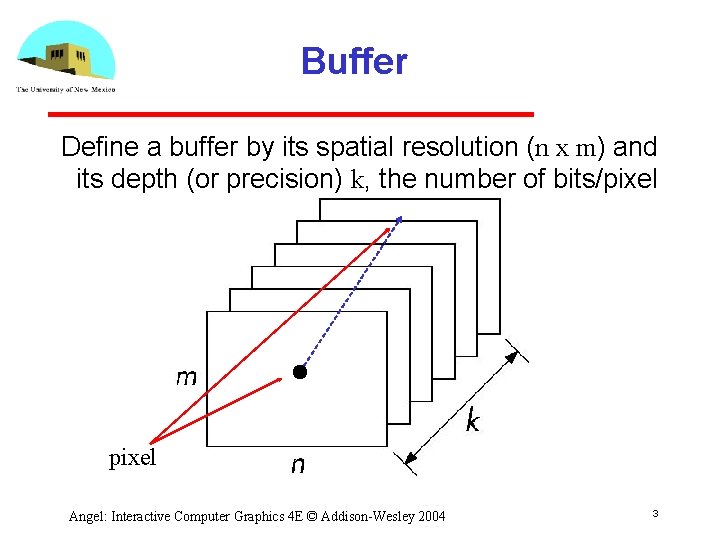
Buffer Define a buffer by its spatial resolution (n x m) and its depth (or precision) k, the number of bits/pixel Angel: Interactive Computer Graphics 4 E © Addison-Wesley 2004 3
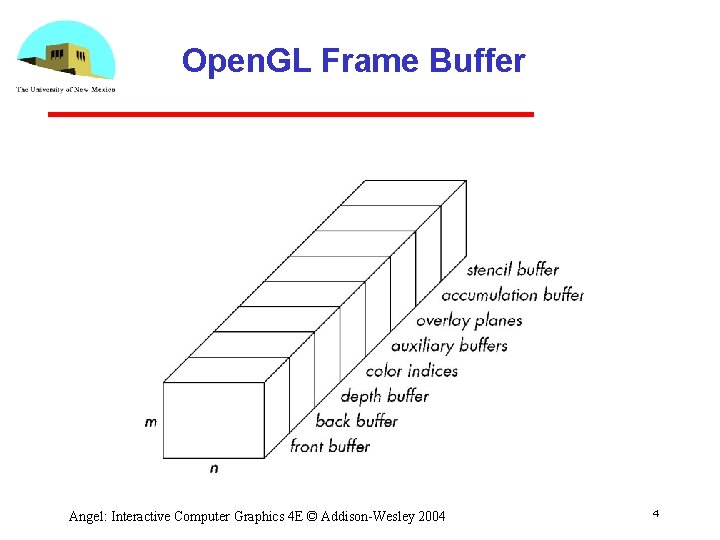
Open. GL Frame Buffer Angel: Interactive Computer Graphics 4 E © Addison-Wesley 2004 4

Open. GL Buffers • Color buffers can be displayed Front Back Auxiliary Overlay Depth • Accumulation • High resolution buffer • Stencil Holds masks Angel: Interactive Computer Graphics 4 E © Addison-Wesley 2004 5
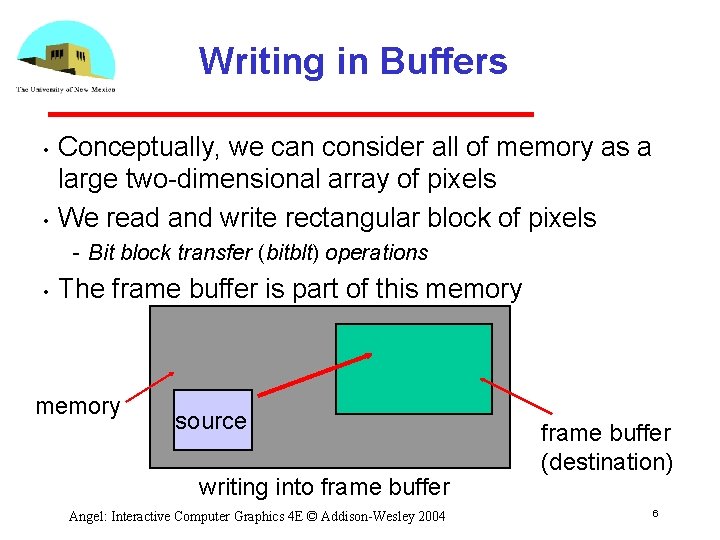
Writing in Buffers • • Conceptually, we can consider all of memory as a large two dimensional array of pixels We read and write rectangular block of pixels Bit block transfer (bitblt) operations • The frame buffer is part of this memory source writing into frame buffer Angel: Interactive Computer Graphics 4 E © Addison-Wesley 2004 frame buffer (destination) 6
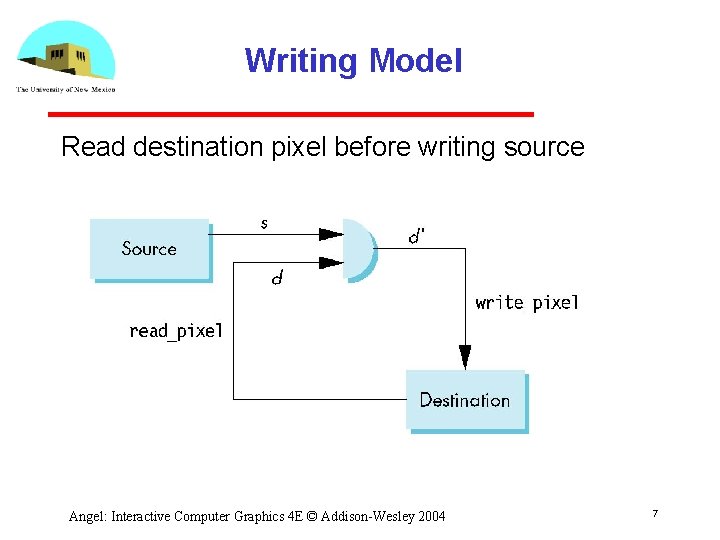
Writing Model Read destination pixel before writing source Angel: Interactive Computer Graphics 4 E © Addison-Wesley 2004 7
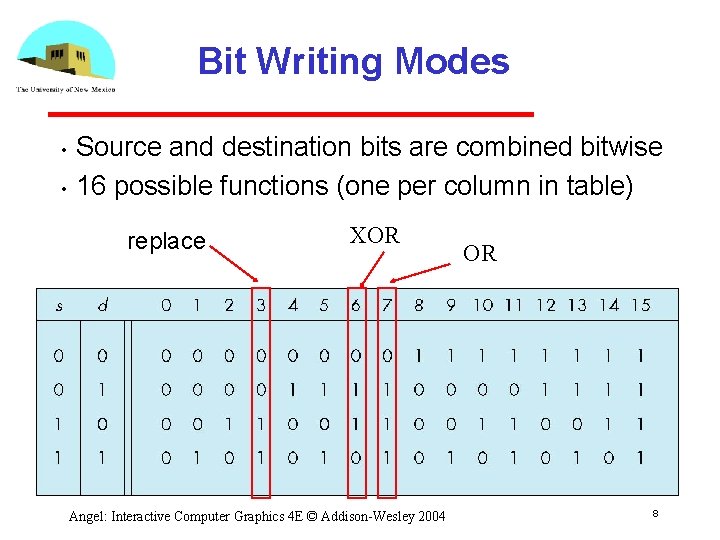
Bit Writing Modes • • Source and destination bits are combined bitwise 16 possible functions (one per column in table) replace XOR Angel: Interactive Computer Graphics 4 E © Addison-Wesley 2004 OR 8
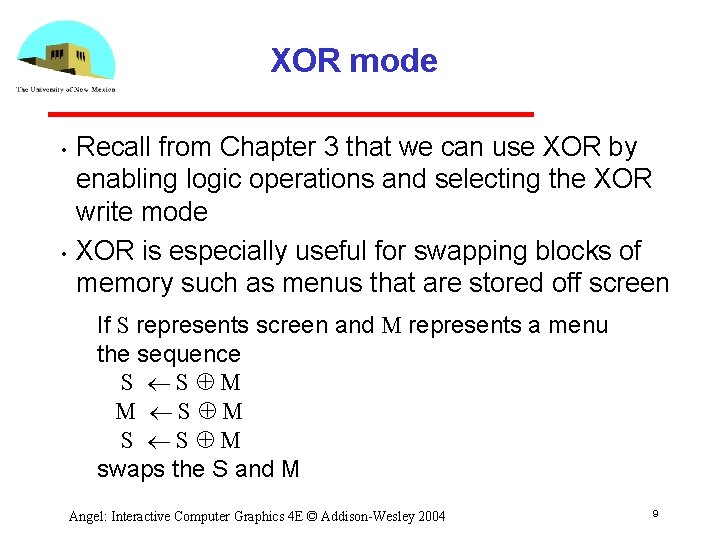
XOR mode • • Recall from Chapter 3 that we can use XOR by enabling logic operations and selecting the XOR write mode XOR is especially useful for swapping blocks of memory such as menus that are stored off screen If S represents screen and M represents a menu the sequence S S M M S S M swaps the S and M Angel: Interactive Computer Graphics 4 E © Addison-Wesley 2004 9
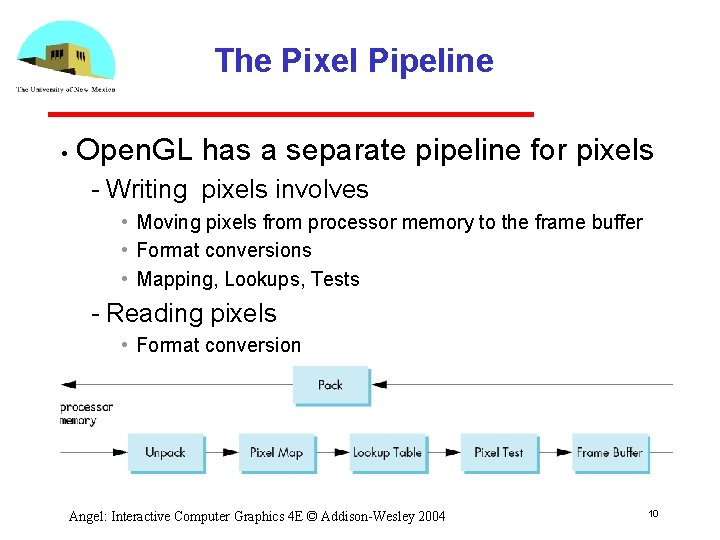
The Pixel Pipeline • Open. GL has a separate pipeline for pixels Writing pixels involves • Moving pixels from processor memory to the frame buffer • Format conversions • Mapping, Lookups, Tests Reading pixels • Format conversion Angel: Interactive Computer Graphics 4 E © Addison-Wesley 2004 10
Raster Position Open. GL maintains a raster position as part of the state • Set by gl. Raster. Pos*() • gl. Raster. Pos 3 f(x, y, z); • The raster position is a geometric entity Passes through geometric pipeline Eventually yields a 2 D position in screen coordinates This position in the frame buffer is where the next raster primitive is drawn Angel: Interactive Computer Graphics 4 E © Addison-Wesley 2004 11
Buffer Selection • Open. GL can draw into or read from any of the color buffers (front, back, auxiliary) Default to the back buffer • Change with gl. Draw. Buffer and gl. Read. Buffer • • Note that format of the pixels in the frame buffer is different from that of processor memory and these two types of memory reside in different places Need packing and unpacking Drawing and reading can be slow Angel: Interactive Computer Graphics 4 E © Addison-Wesley 2004 12
Bitmaps Open. GL treats 1 bit pixels (bitmaps) differently from multi bit pixels (pixelmaps) • Bitmaps are masks that determine if the corresponding pixel in the frame buffer is drawn with the present raster color • 0 color unchanged 1 color changed based on writing mode • Bitmaps are useful for raster text GLUT font: GLUT_BIT_MAP_8_BY_13 Angel: Interactive Computer Graphics 4 E © Addison-Wesley 2004 13
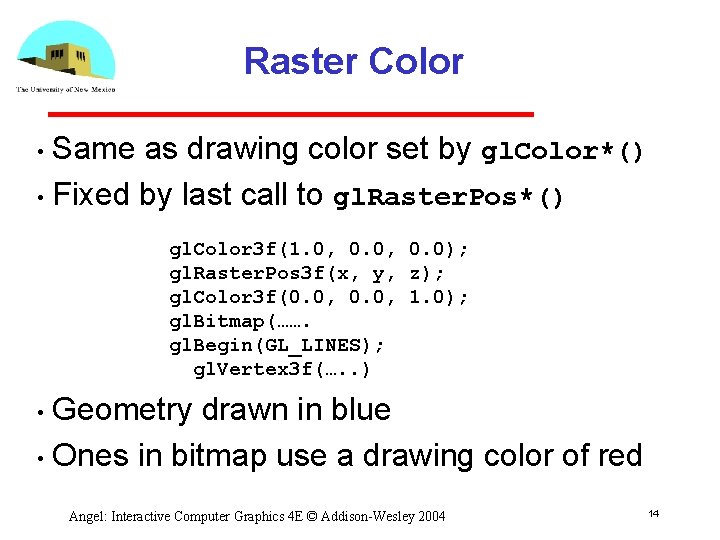
Raster Color Same as drawing color set by gl. Color*() • Fixed by last call to gl. Raster. Pos*() • gl. Color 3 f(1. 0, 0. 0); gl. Raster. Pos 3 f(x, y, z); gl. Color 3 f(0. 0, 1. 0); gl. Bitmap(……. gl. Begin(GL_LINES); gl. Vertex 3 f(…. . ) Geometry drawn in blue • Ones in bitmap use a drawing color of red • Angel: Interactive Computer Graphics 4 E © Addison-Wesley 2004 14
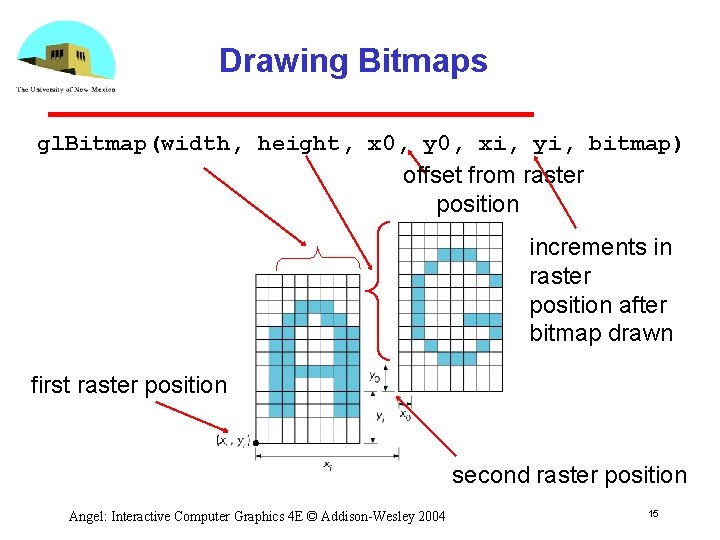
Drawing Bitmaps gl. Bitmap(width, height, x 0, y 0, xi, yi, bitmap) offset from raster position increments in raster position after bitmap drawn first raster position second raster position Angel: Interactive Computer Graphics 4 E © Addison-Wesley 2004 15
![Example: Checker Board GLubyte wb[2] = {0 x 00, 0 x ff}; GLubyte check[512];](http://slidetodoc.com/presentation_image/004e97afb4a037ce95158c234a870f34/image-16.jpg "Example: Checker Board GLubyte wb[2] = {0 x 00, 0 x ff}; GLubyte check[512];")
Example: Checker Board GLubyte wb[2] = {0 x 00, 0 x ff}; GLubyte check[512]; int i, j; for(i=0; i<64; i++) for (j=0; j<64, j++) check[i*8+j] = wb[(i/8+j)%2]; gl. Bitmap( 64, 0. 0, check); Angel: Interactive Computer Graphics 4 E © Addison-Wesley 2004 16
Pixel Maps Open. GL works with rectangular arrays of pixels called pixel maps or images • Pixels are in one byte ( 8 bit) chunks • Luminance (gray scale) images 1 byte/pixel RGB 3 bytes/pixel • Three functions Draw pixels: processor memory to frame buffer Read pixels: frame buffer to processor memory Copy pixels: frame buffer to frame buffer Angel: Interactive Computer Graphics 4 E © Addison-Wesley 2004 17
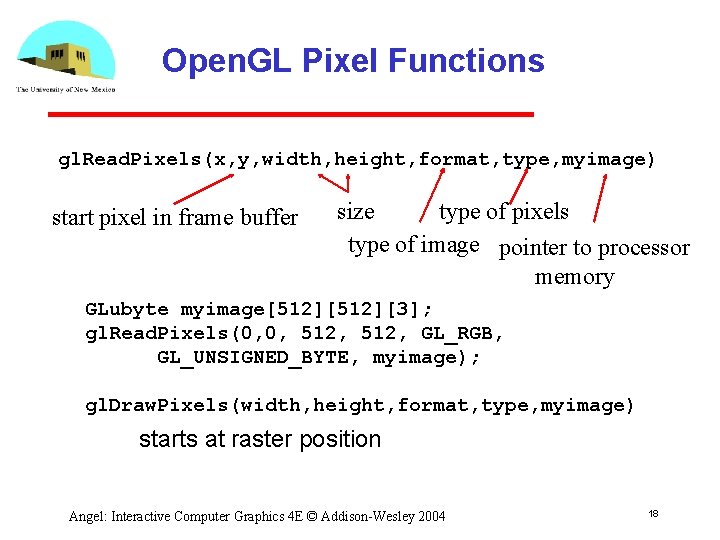
Open. GL Pixel Functions gl. Read. Pixels(x, y, width, height, format, type, myimage) start pixel in frame buffer size type of pixels type of image pointer to processor memory GLubyte myimage[512][3]; gl. Read. Pixels(0, 0, 512, GL_RGB, GL_UNSIGNED_BYTE, myimage); gl. Draw. Pixels(width, height, format, type, myimage) starts at raster position Angel: Interactive Computer Graphics 4 E © Addison-Wesley 2004 18
Image Formats We often work with images in a standard format (JPEG, TIFF, GIF) • How do we read/write such images with Open. GL? • No support in Open. GL • Open. GL knows nothing of image formats Some code available on Web Can write readers/writers for some simple formats in Open. GL Angel: Interactive Computer Graphics 4 E © Addison-Wesley 2004 19
Displaying a PPM Image PPM is a very simple format • Each image file consists of a header followed by all the pixel data • Header • P 3 # comment 1 # comment 2. #comment n rows columns maxvalue pixels Angel: Interactive Computer Graphics 4 E © Addison-Wesley 2004 20
![Reading the Header FILE *fd; int k, nm; char c; int i; char b[100];](http://slidetodoc.com/presentation_image/004e97afb4a037ce95158c234a870f34/image-21.jpg "Reading the Header FILE *fd; int k, nm; char c; int i; char b[100];")
Reading the Header FILE *fd; int k, nm; char c; int i; char b[100]; check for “P 3” float s; in first line int red, green, blue; printf("enter file namen"); scanf("%s", b); fd = fopen(b, "r"); fscanf(fd, "%[^n] ", b); if(b[0]!='P'|| b[1] != '3'){ printf("%s is not a PPM file!n", b); exit(0); } printf("%s is a PPM filen", b); Angel: Interactive Computer Graphics 4 E © Addison-Wesley 2004 21
![Reading the Header (cont) fscanf(fd, "%c", &c); while(c == '#') { fscanf(fd, "%[^n] ",](http://slidetodoc.com/presentation_image/004e97afb4a037ce95158c234a870f34/image-22.jpg "Reading the Header (cont) fscanf(fd, \"%c\", &c); while(c == '#') { fscanf(fd, \"%[^n] \",")
Reading the Header (cont) fscanf(fd, "%c", &c); while(c == '#') { fscanf(fd, "%[^n] ", b); printf("%sn", b); fscanf(fd, "%c", &c); } ungetc(c, fd); skip over comments by looking for # in first column Angel: Interactive Computer Graphics 4 E © Addison-Wesley 2004 22
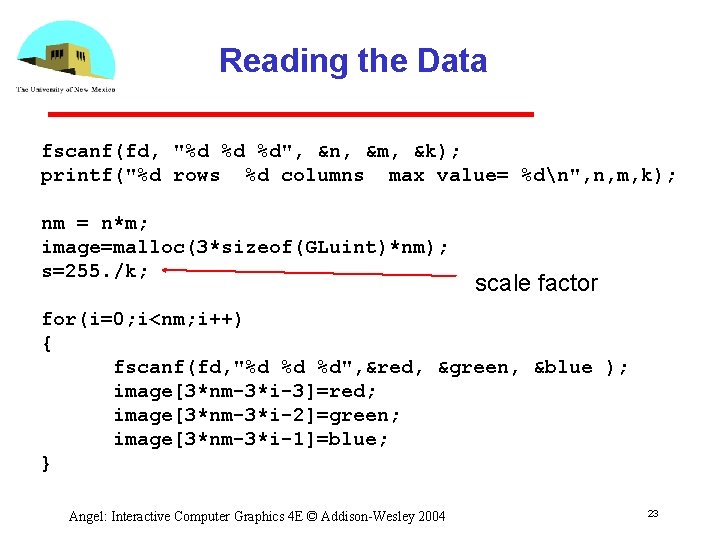
Reading the Data fscanf(fd, "%d %d %d", &n, &m, &k); printf("%d rows %d columns max value= %dn", n, m, k); nm = n*m; image=malloc(3*sizeof(GLuint)*nm); s=255. /k; scale factor for(i=0; i<nm; i++) { fscanf(fd, "%d %d %d", &red, &green, &blue ); image[3*nm-3*i-3]=red; image[3*nm-3*i-2]=green; image[3*nm-3*i-1]=blue; } Angel: Interactive Computer Graphics 4 E © Addison-Wesley 2004 23
Scaling the Image Data We can scale the image in the pipeline gl. Pixel. Transferf(GL_RED_SCALE, s); gl. Pixel. Transferf(GL_GREEN_SCALE, s); gl. Pixel. Transferf(GL_BLUE_SCALE, s); We may have to swap bytes when we go from processor memory to the frame buffer depending on the processor. If so, we can use gl. Pixel. Storei(GL_UNPACK_SWAP_BYTES, GL_TRUE); Angel: Interactive Computer Graphics 4 E © Addison-Wesley 2004 24
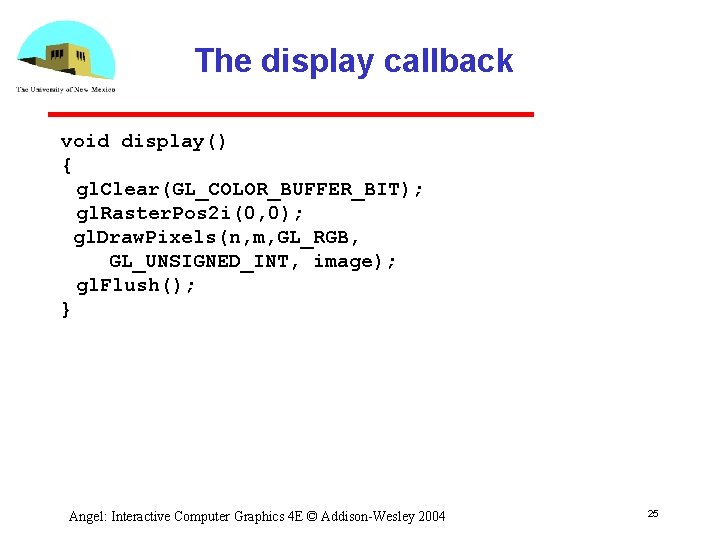
The display callback void display() { gl. Clear(GL_COLOR_BUFFER_BIT); gl. Raster. Pos 2 i(0, 0); gl. Draw. Pixels(n, m, GL_RGB, GL_UNSIGNED_INT, image); gl. Flush(); } Angel: Interactive Computer Graphics 4 E © Addison-Wesley 2004 25
- Slides: 25