
Brivo Onair Access Control EndUser Training Card Enrollment
Brivo Onair Access Control End-User Training Card Enrollment Presented by:
Table of Contents Brivo Onair Access Control End-User Training Card Enrollment What is a Card and how does it work? Slide 3 How do I enroll Cards? Slides 4 - 10 How do I assign a Card to a User? Slides 11 - 15 How do I revoke a Card? Slide 16 Additional Resources Slide 17 Sept 2019 / 11. 42 / 2
What is a Card and how does it work? A Card is a physical credential carried by the user which contains information unique to that user. How the Card works: 1. 2. A user presents the Card to a card reader to enter a door. 3. If the request is valid, the card reader flashes green (if an indicator light is present) and the door unlocks. 4. If the request is rejected, the card reader flashes red (if an indicator light is present) and the door remains locked. The card reader reads the Card and sends the data to the control panel where the request is processed. Sept 2019 / 11. 46 / 3
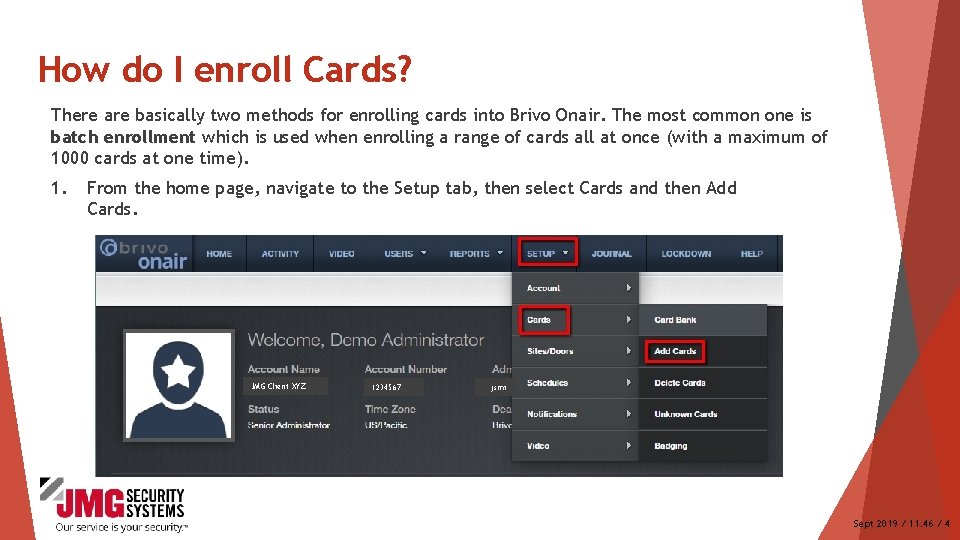
How do I enroll Cards? There are basically two methods for enrolling cards into Brivo Onair. The most common one is batch enrollment which is used when enrolling a range of cards all at once (with a maximum of 1000 cards at one time). 1. From the home page, navigate to the Setup tab, then select Cards and then Add Cards. JMG Client XYZ 1234567 jsmi Sept 2019 / 11. 46 / 4
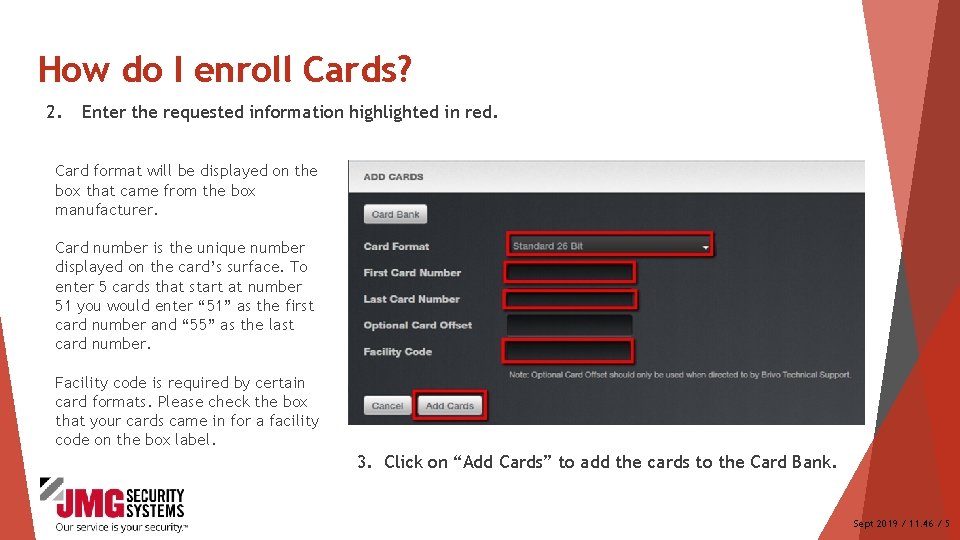
How do I enroll Cards? 2. Enter the requested information highlighted in red. Card format will be displayed on the box that came from the box manufacturer. Card number is the unique number displayed on the card’s surface. To enter 5 cards that start at number 51 you would enter “ 51” as the first card number and “ 55” as the last card number. Facility code is required by certain card formats. Please check the box that your cards came in for a facility code on the box label. 3. Click on “Add Cards” to add the cards to the Card Bank. Sept 2019 / 11. 46 / 5
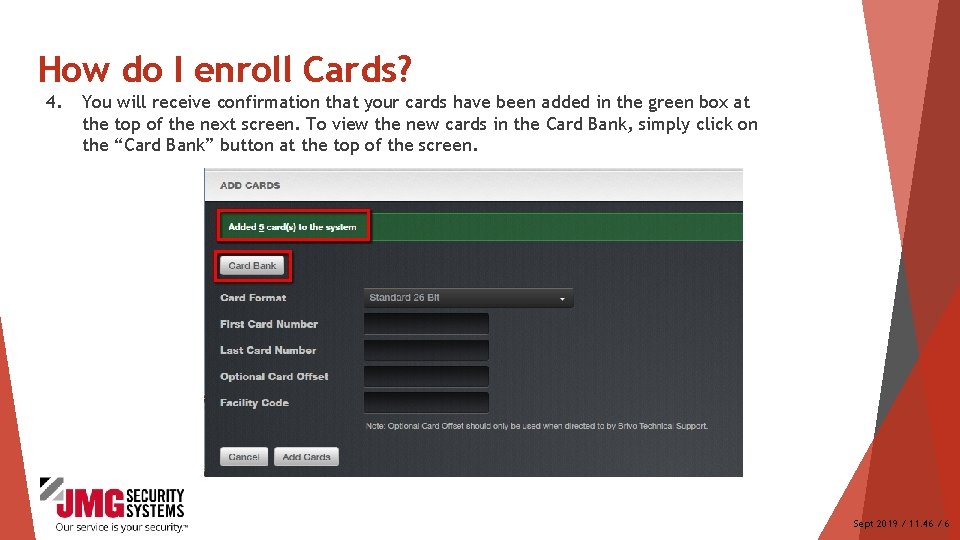
How do I enroll Cards? 4. You will receive confirmation that your cards have been added in the green box at the top of the next screen. To view the new cards in the Card Bank, simply click on the “Card Bank” button at the top of the screen. Sept 2019 / 11. 46 / 6
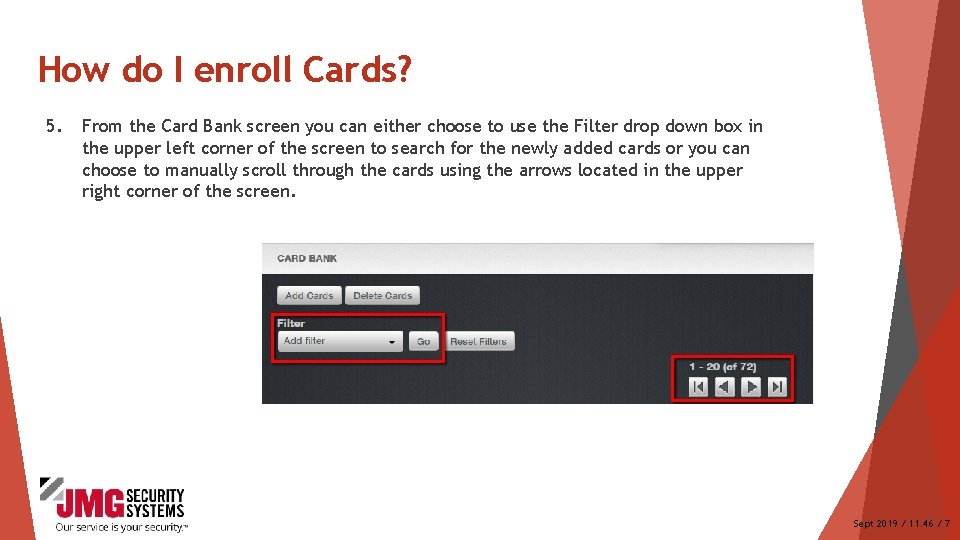
How do I enroll Cards? 5. From the Card Bank screen you can either choose to use the Filter drop down box in the upper left corner of the screen to search for the newly added cards or you can choose to manually scroll through the cards using the arrows located in the upper right corner of the screen. Sept 2019 / 11. 46 / 7
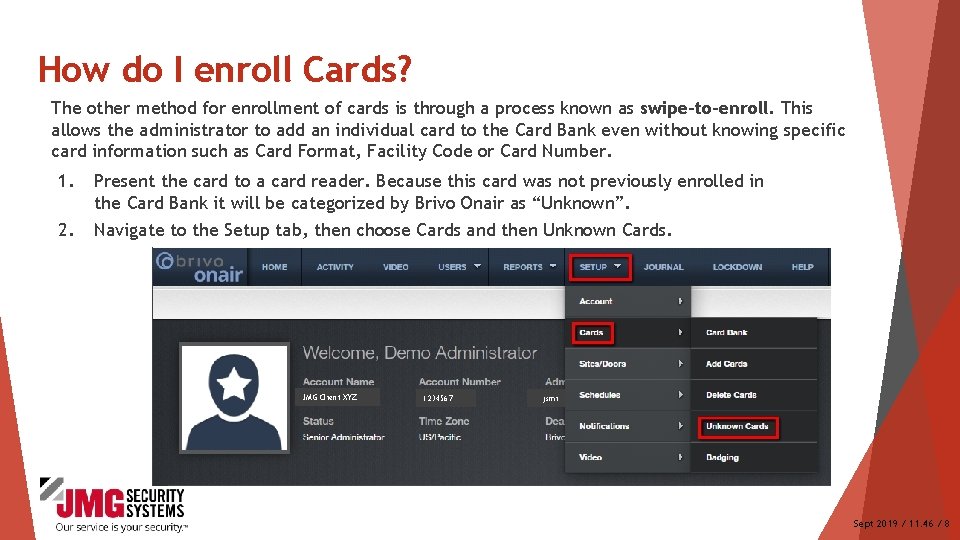
How do I enroll Cards? The other method for enrollment of cards is through a process known as swipe-to-enroll. This allows the administrator to add an individual card to the Card Bank even without knowing specific card information such as Card Format, Facility Code or Card Number. 1. Present the card to a card reader. Because this card was not previously enrolled in the Card Bank it will be categorized by Brivo Onair as “Unknown”. 2. Navigate to the Setup tab, then choose Cards and then Unknown Cards. JMG Client XYZ 1234567 jsmi Sept 2019 / 11. 46 / 8
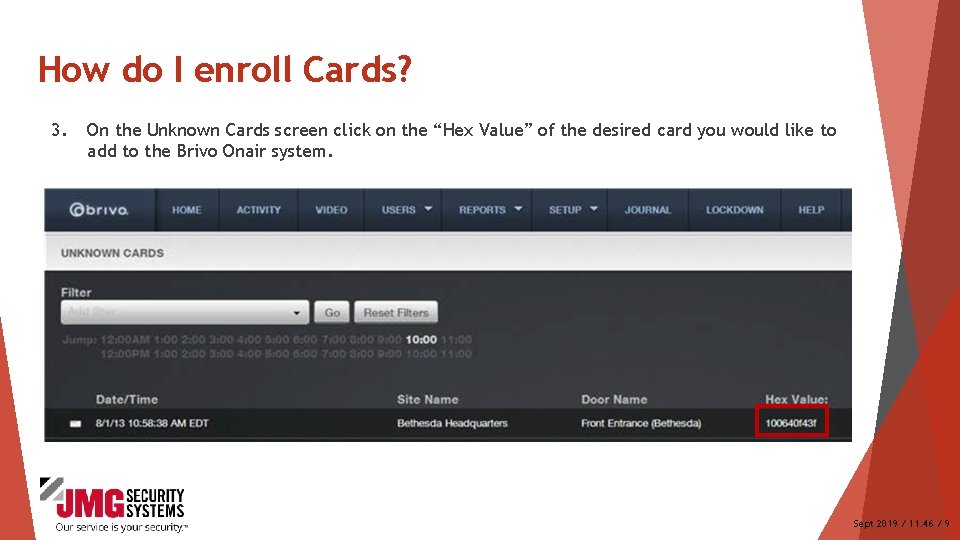
How do I enroll Cards? 3. On the Unknown Cards screen click on the “Hex Value” of the desired card you would like to add to the Brivo Onair system. Sept 2019 / 11. 46 / 9
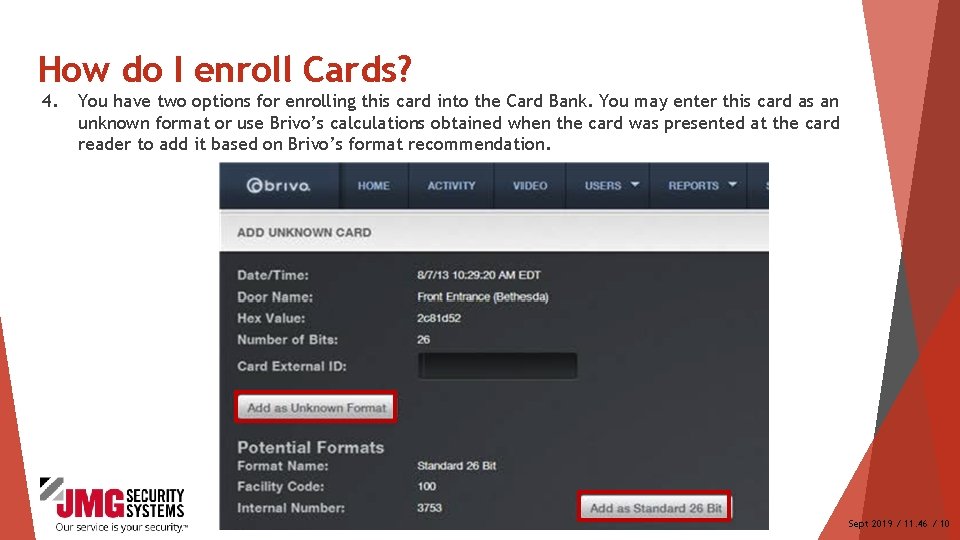
How do I enroll Cards? 4. You have two options for enrolling this card into the Card Bank. You may enter this card as an unknown format or use Brivo’s calculations obtained when the card was presented at the card reader to add it based on Brivo’s format recommendation. Sept 2019 / 11. 46 / 10
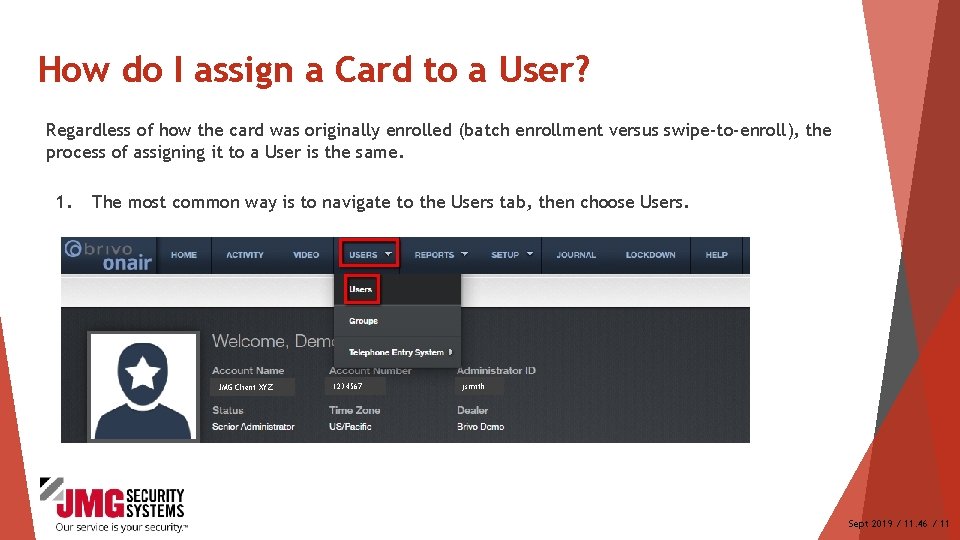
How do I assign a Card to a User? Regardless of how the card was originally enrolled (batch enrollment versus swipe-to-enroll), the process of assigning it to a User is the same. 1. The most common way is to navigate to the Users tab, then choose Users. JMG Client XYZ 1234567 jsmith Sept 2019 / 11. 46 / 11
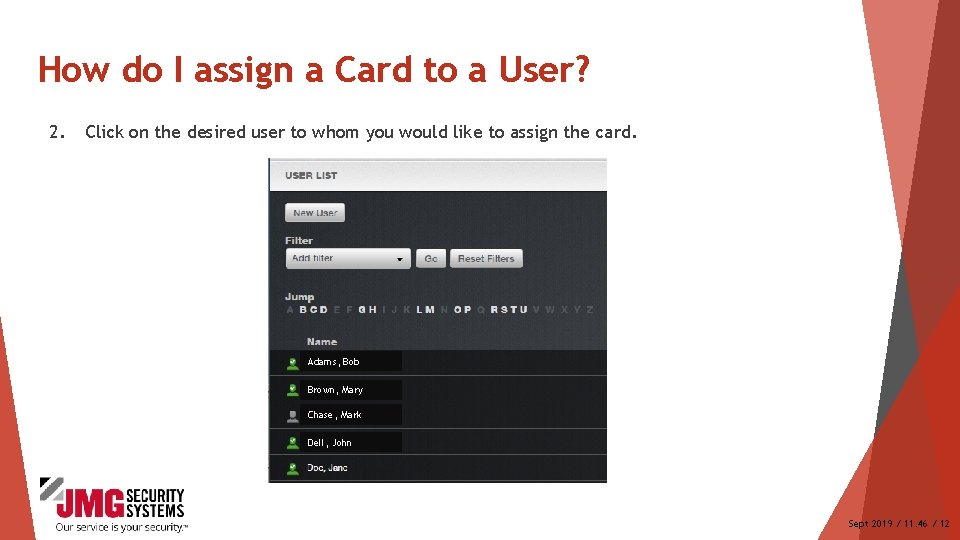
How do I assign a Card to a User? 2. Click on the desired user to whom you would like to assign the card. Adams, Bob Brown, Mary Chase, Mark Dell, John Sept 2019 / 11. 46 / 12
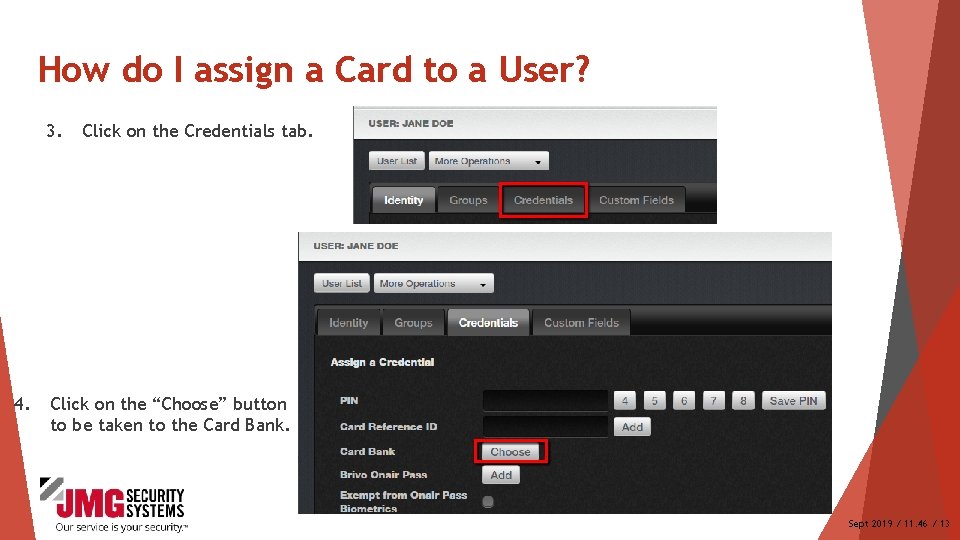
How do I assign a Card to a User? 3. 4. Click on the Credentials tab. Click on the “Choose” button to be taken to the Card Bank. Sept 2019 / 11. 46 / 13
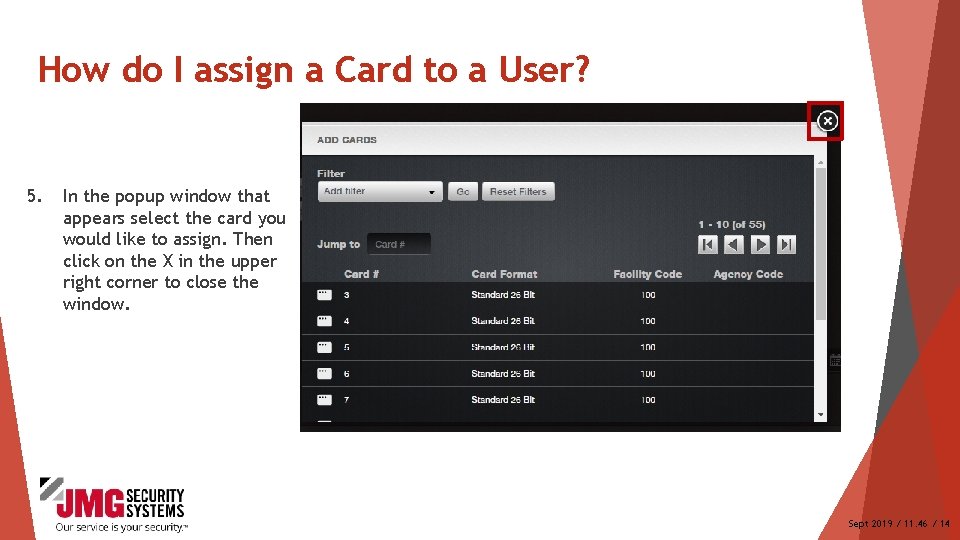
How do I assign a Card to a User? 5. In the popup window that appears select the card you would like to assign. Then click on the X in the upper right corner to close the window. Sept 2019 / 11. 46 / 14
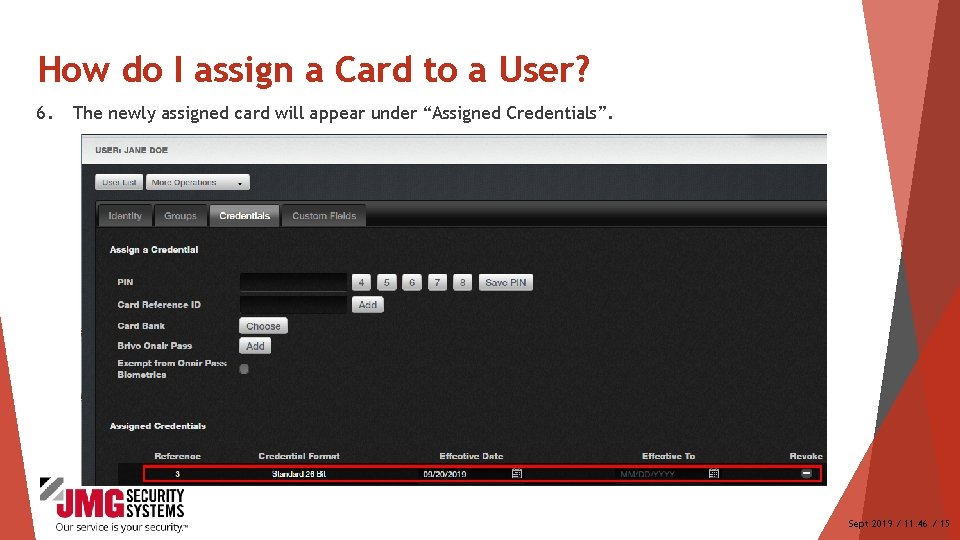
How do I assign a Card to a User? 6. The newly assigned card will appear under “Assigned Credentials”. Sept 2019 / 11. 46 / 15
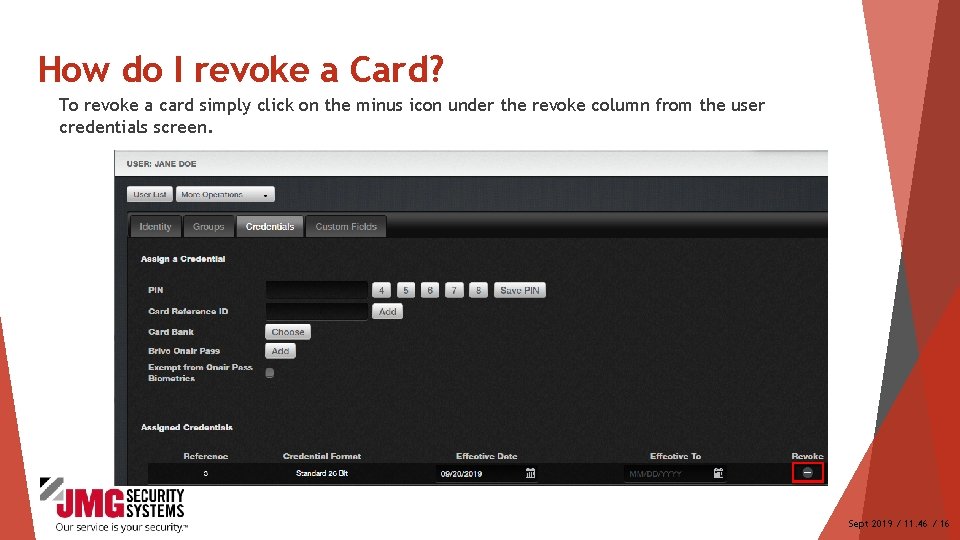
How do I revoke a Card? To revoke a card simply click on the minus icon under the revoke column from the user credentials screen. Sept 2019 / 11. 46 / 16
Additional Resources For additional information and resources, please visit our website at: www. jmgsecurity. com Additional Power. Point training guides are available from JMG on other Brivo Onair topics. To request any of these, please contact JMG at 800 -900 -4564. Sept 2019 / 11. 46 / 17
- Slides: 17