
BOBERDOO TRAINING GUIDE BOBERDOO TRAINING GUIDE 1 How
BOBERDOO TRAINING GUIDE
BOBERDOO TRAINING GUIDE 1. How do I Add New Vendors? 2. How do I Add Lead Sources to Vendors? 3. How do I View Leads in the System? 4. How do I Send Posting Instructions to Vendors? 5. How do I Set Up Buyers? 6. How do I Add Buyer Lead Filter Sets? 7. How do I Create Test Leads?
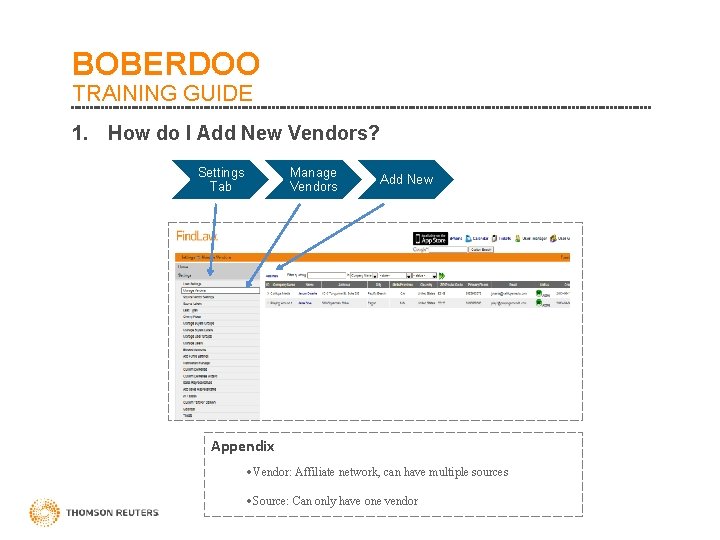
BOBERDOO TRAINING GUIDE 1. How do I Add New Vendors? Settings Tab Manage Vendors Add New Appendix ·Vendor: Affiliate network, can have multiple sources ·Source: Can only have one vendor
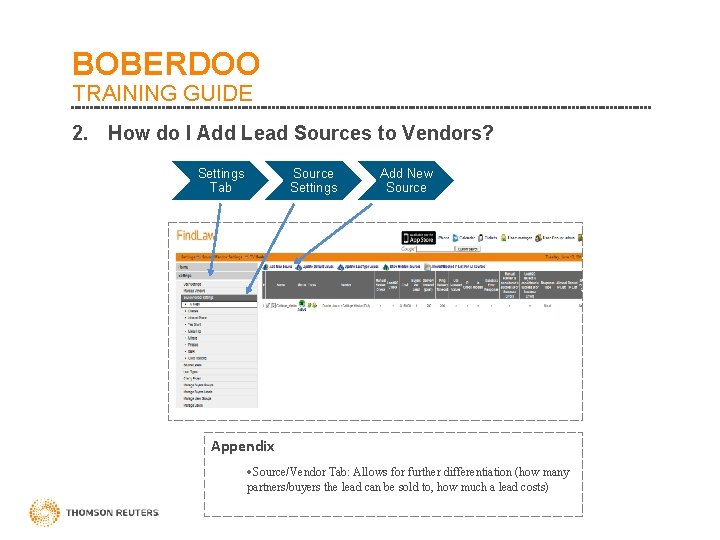
BOBERDOO TRAINING GUIDE 2. How do I Add Lead Sources to Vendors? Settings Tab Source Settings Add New Source Appendix ·Source/Vendor Tab: Allows for further differentiation (how many partners/buyers the lead can be sold to, how much a lead costs)
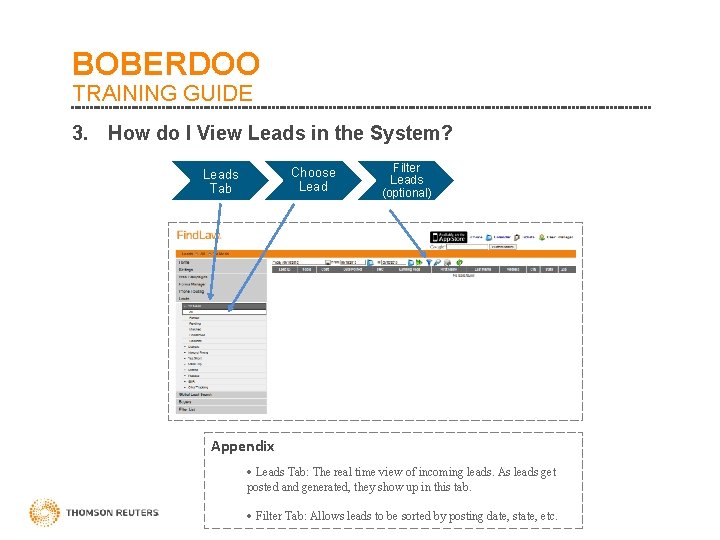
BOBERDOO TRAINING GUIDE 3. How do I View Leads in the System? Choose Leads Tab Filter Leads (optional) Appendix · Leads Tab: The real time view of incoming leads. As leads get posted and generated, they show up in this tab. · Filter Tab: Allows leads to be sorted by posting date, state, etc.
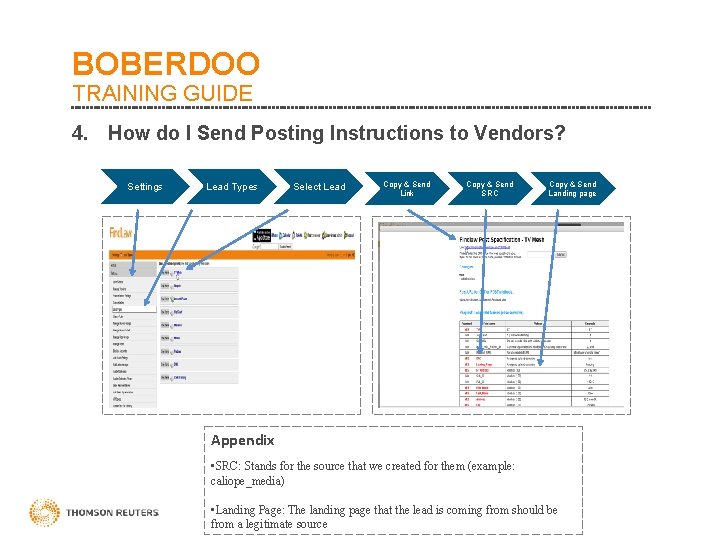
BOBERDOO TRAINING GUIDE 4. How do I Send Posting Instructions to Vendors? Settings Lead Types Select Lead Copy & Send Link Copy & Send SRC Copy & Send Landing page Appendix • SRC: Stands for the source that we created for them (example: caliope_media) • Landing Page: The landing page that the lead is coming from should be from a legitimate source
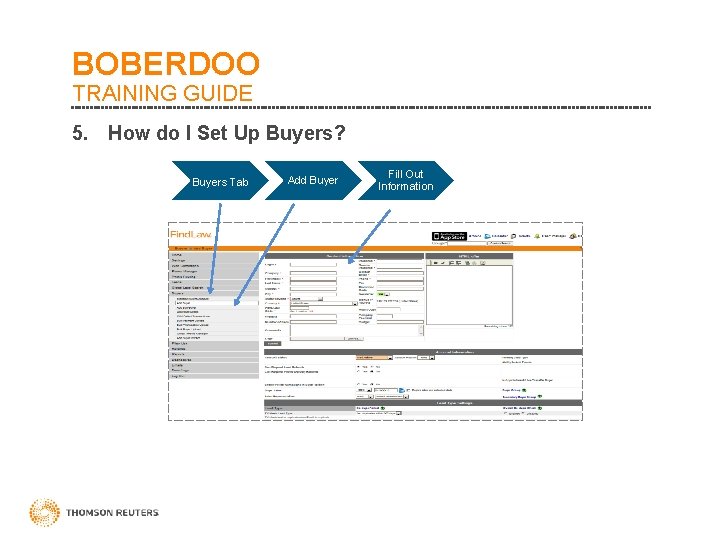
BOBERDOO TRAINING GUIDE 5. How do I Set Up Buyers? Buyers Tab Add Buyer Fill Out Information
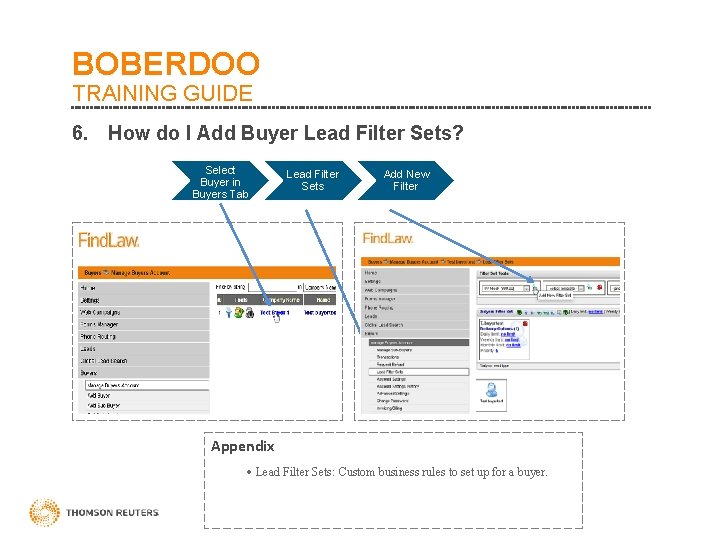
BOBERDOO TRAINING GUIDE 6. How do I Add Buyer Lead Filter Sets? Select Buyer in Buyers Tab Lead Filter Sets Add New Filter Appendix · Lead Filter Sets: Custom business rules to set up for a buyer.
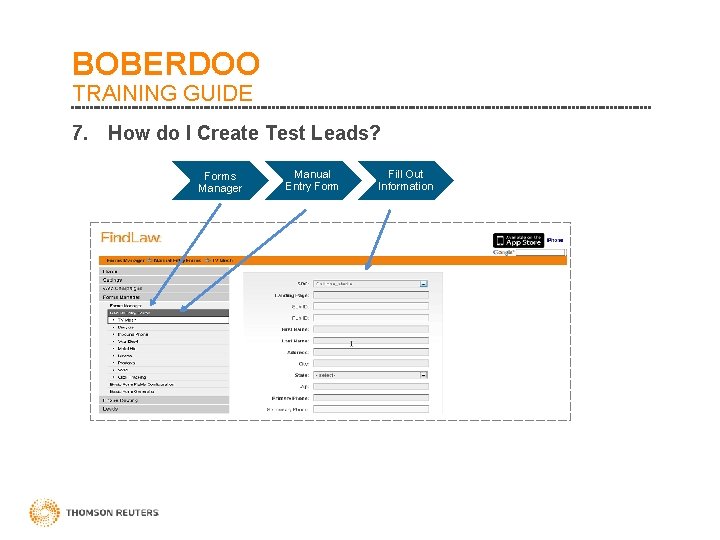
BOBERDOO TRAINING GUIDE 7. How do I Create Test Leads? Forms Manager Manual Entry Form Fill Out Information
- Slides: 9