
Boardmaker Dynamic Boards Creating interactive activities for Students
Boardmaker Dynamic Boards Creating interactive activities for Students Boardmaker Dynamic Special Education Dept. – Assistive Technology
Contents �Boardmaker Basics (reviewed) �Dynamic Buttons �Movable Buttons �Using Dynamic Boards �Alternative Access Methods Boardmaker Dynamic Special Education Dept. – Assistive Technology
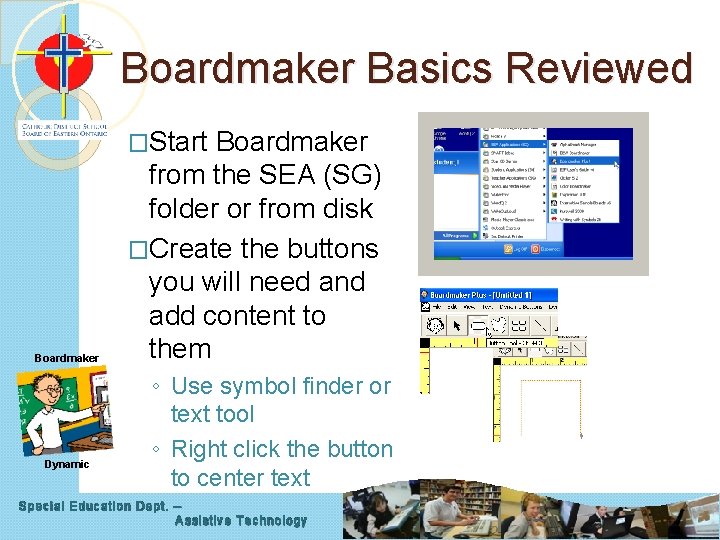
Boardmaker Basics Reviewed �Start Boardmaker Dynamic Boardmaker from the SEA (SG) folder or from disk �Create the buttons you will need and add content to them ◦ Use symbol finder or text tool ◦ Right click the button to center text Special Education Dept. – Assistive Technology
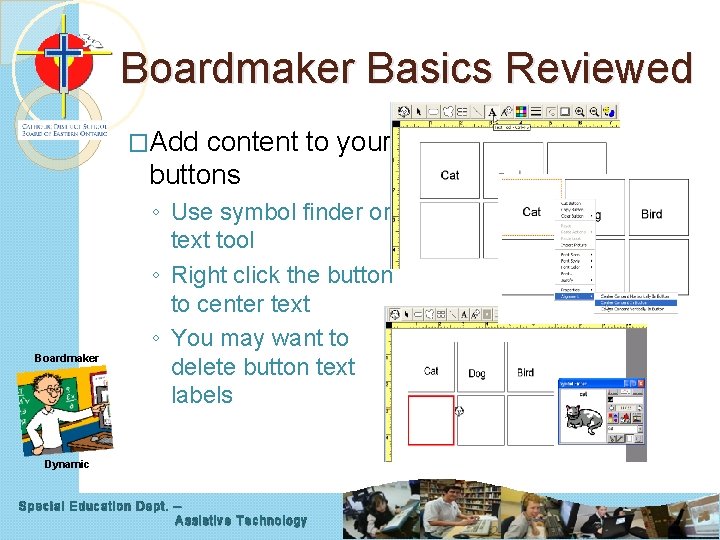
Boardmaker Basics Reviewed �Add content to your buttons Boardmaker ◦ Use symbol finder or text tool ◦ Right click the button to center text ◦ You may want to delete button text labels Dynamic Special Education Dept. – Assistive Technology
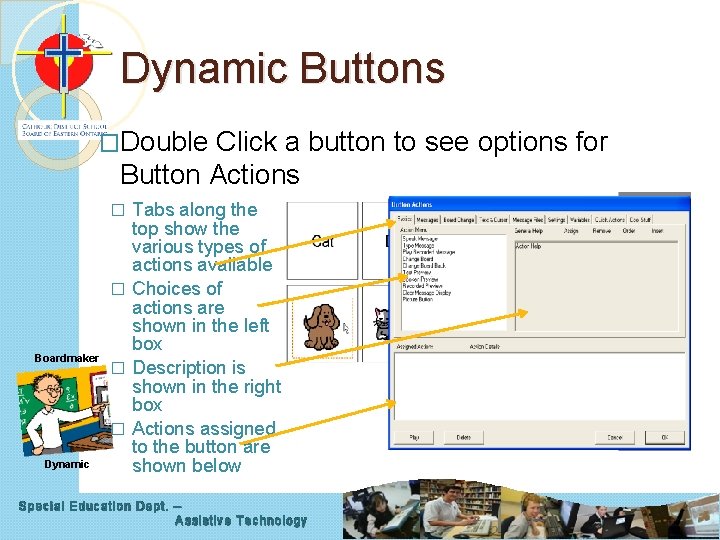
Dynamic Buttons �Double Click a button to see options for Button Actions Tabs along the top show the various types of actions available � Choices of actions are shown in the left box � Description is shown in the right box � Actions assigned to the button are shown below � Boardmaker Dynamic Special Education Dept. – Assistive Technology
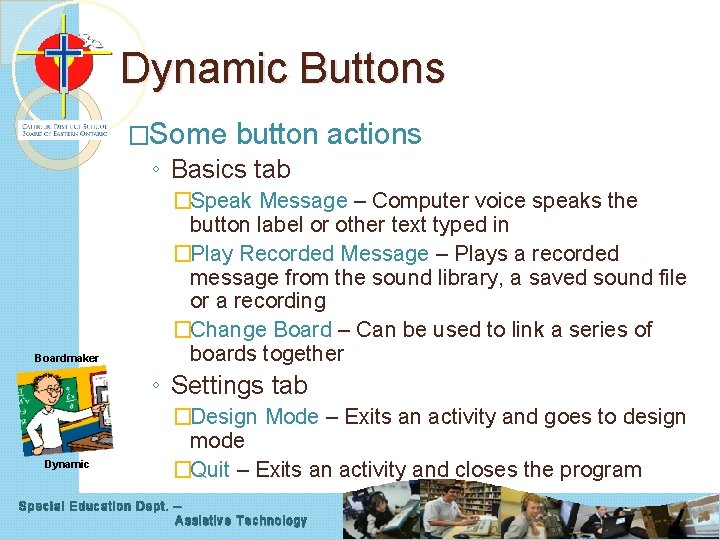
Dynamic Buttons �Some button actions ◦ Basics tab Boardmaker �Speak Message – Computer voice speaks the button label or other text typed in �Play Recorded Message – Plays a recorded message from the sound library, a saved sound file or a recording �Change Board – Can be used to link a series of boards together ◦ Settings tab Dynamic �Design Mode – Exits an activity and goes to design mode �Quit – Exits an activity and closes the program Special Education Dept. – Assistive Technology

Movable Buttons � Click Boardmaker the Rubber Duck icon � Click on the button you want to move � Name the movable button � Drag the movable button to the other button it matches � Name the destination button � Assign an action ◦ For example ‘Play Recorded Message’ and choose a Special Education Dept. – Assistive Technology reward sound Dynamic
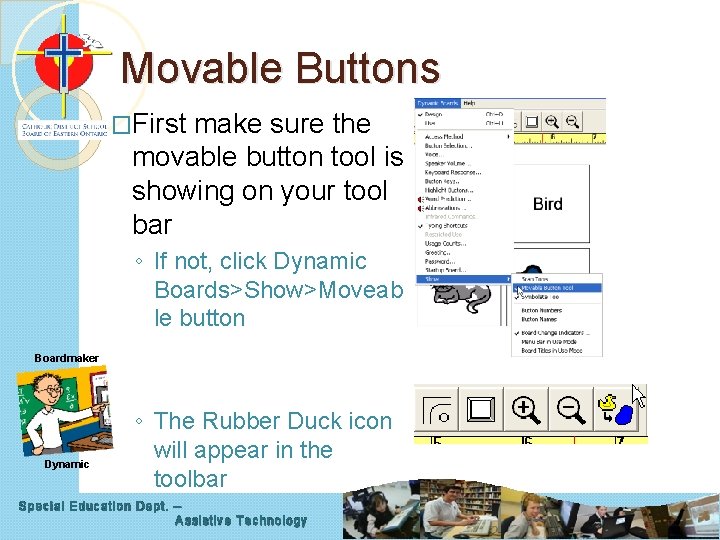
Movable Buttons �First make sure the movable button tool is showing on your tool bar ◦ If not, click Dynamic Boards>Show>Moveab le button Boardmaker Dynamic ◦ The Rubber Duck icon will appear in the toolbar Special Education Dept. – Assistive Technology
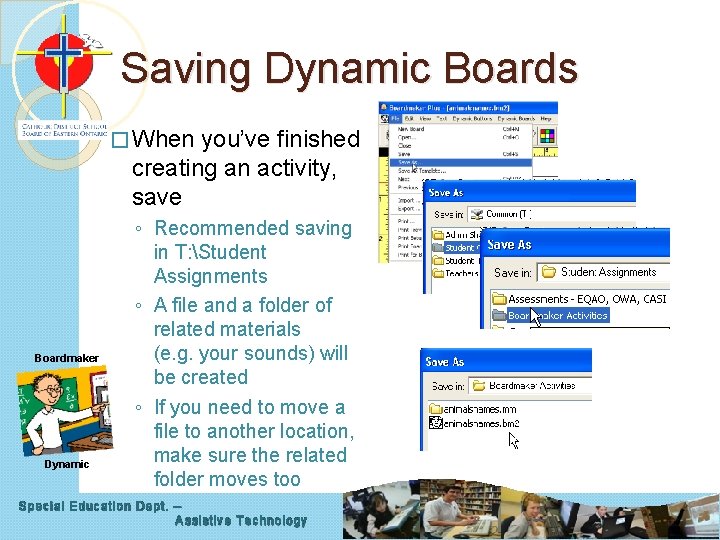
Saving Dynamic Boards � When you’ve finished creating an activity, save Boardmaker Dynamic ◦ Recommended saving in T: Student Assignments ◦ A file and a folder of related materials (e. g. your sounds) will be created ◦ If you need to move a file to another location, make sure the related folder moves too Special Education Dept. – Assistive Technology
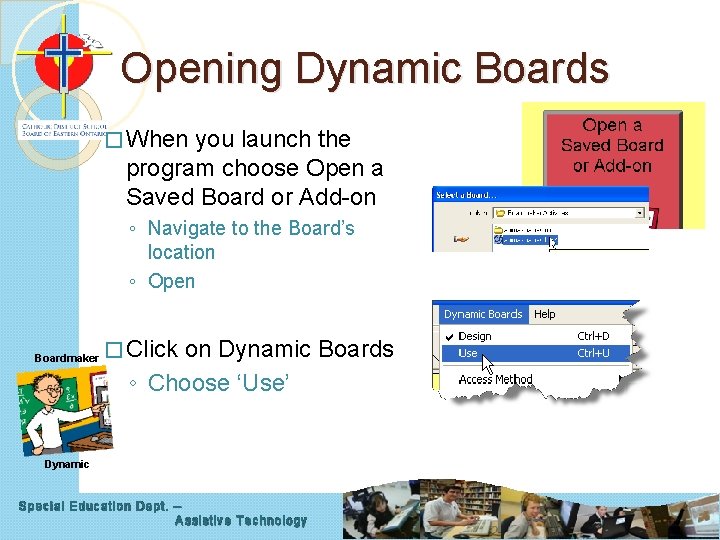
Opening Dynamic Boards � When you launch the program choose Open a Saved Board or Add-on ◦ Navigate to the Board’s location ◦ Open Boardmaker � Click on Dynamic Boards ◦ Choose ‘Use’ Dynamic Special Education Dept. – Assistive Technology
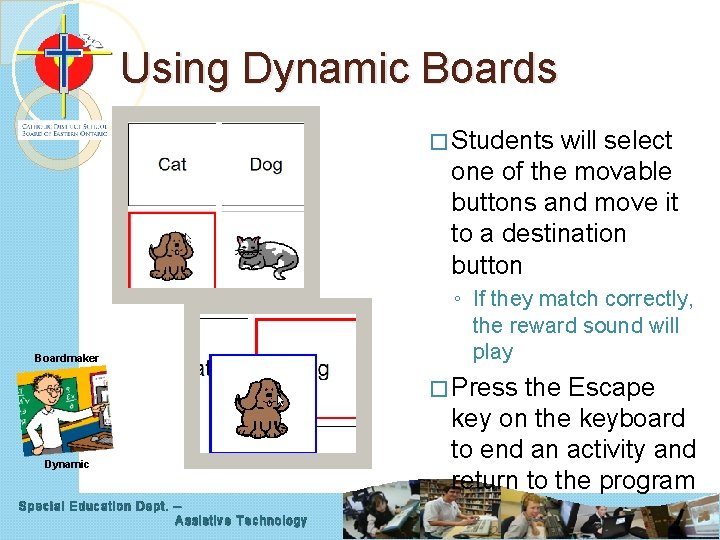
Using Dynamic Boards � Students will select one of the movable buttons and move it to a destination button Boardmaker ◦ If they match correctly, the reward sound will play � Press Dynamic Special Education Dept. – Assistive Technology the Escape key on the keyboard to end an activity and return to the program
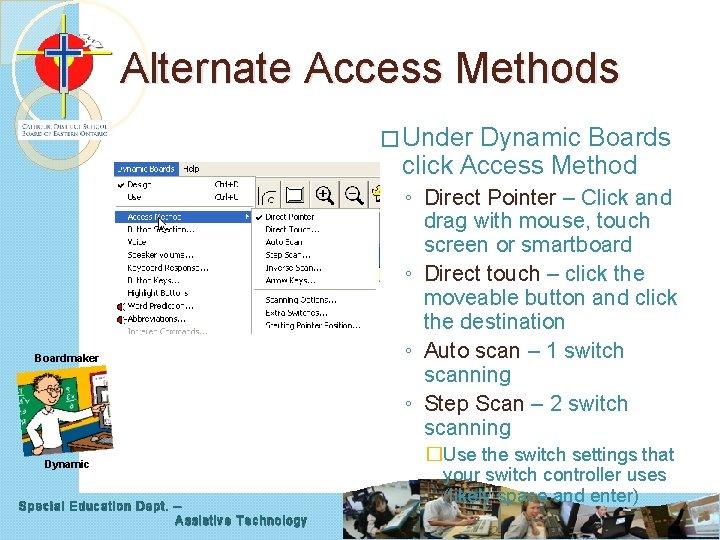
Alternate Access Methods � Under Dynamic Boards click Access Method Boardmaker Dynamic Special Education Dept. – Assistive Technology ◦ Direct Pointer – Click and drag with mouse, touch screen or smartboard ◦ Direct touch – click the moveable button and click the destination ◦ Auto scan – 1 switch scanning ◦ Step Scan – 2 switch scanning �Use the switch settings that your switch controller uses (likely space and enter)
- Slides: 12