
Blueprint A Day in the Life SelfStudy Guide
Blueprint: A Day in the Life Self-Study Guide For ABAP Resources Classified - Internal use
After reading this material, you should be able to …. • • • Identify how Blueprint and Technical Resources fit into the SDLC process Identify roles and responsibilities in Blueprint Participate in a formal review of the functional specification and approve / disapprove it in Blueprint Update the status of the functional specifications folder Create technical specifications in Blueprint and create trace relationships to functional specifications Update the status of technical specifications Understand how to use attachments appropriately Create the Generic Diagram artifact Export / Print functional specifications Classified - Internal use
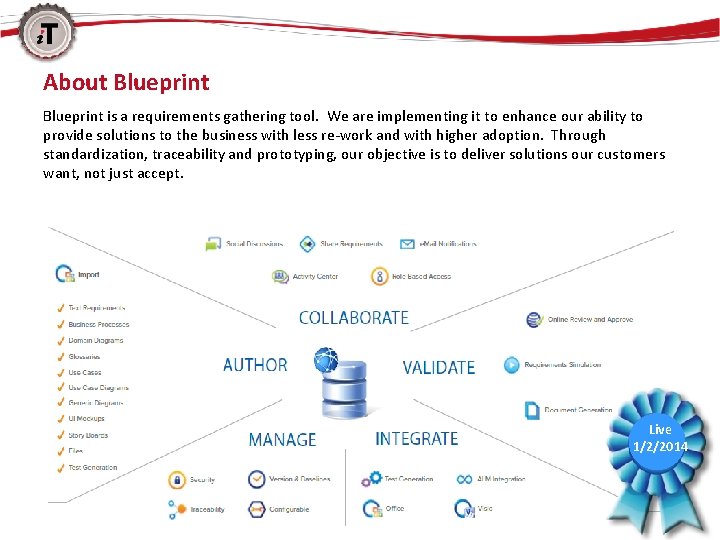
About Blueprint is a requirements gathering tool. We are implementing it to enhance our ability to provide solutions to the business with less re-work and with higher adoption. Through standardization, traceability and prototyping, our objective is to deliver solutions our customers want, not just accept. Live 1/2/2014
Overview Blueprint and the SDLC Process
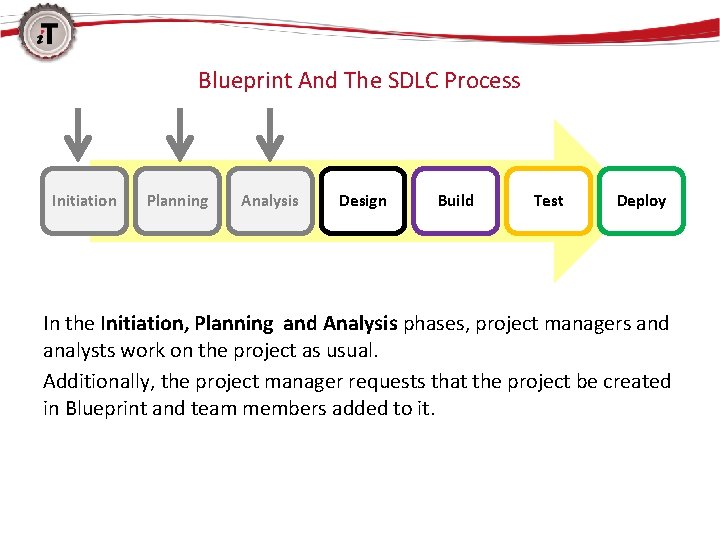
Blueprint And The SDLC Process Initiation Planning Analysis Design Build Test Deploy In the Initiation, Planning and Analysis phases, project managers and analysts work on the project as usual. Additionally, the project manager requests that the project be created in Blueprint and team members added to it.
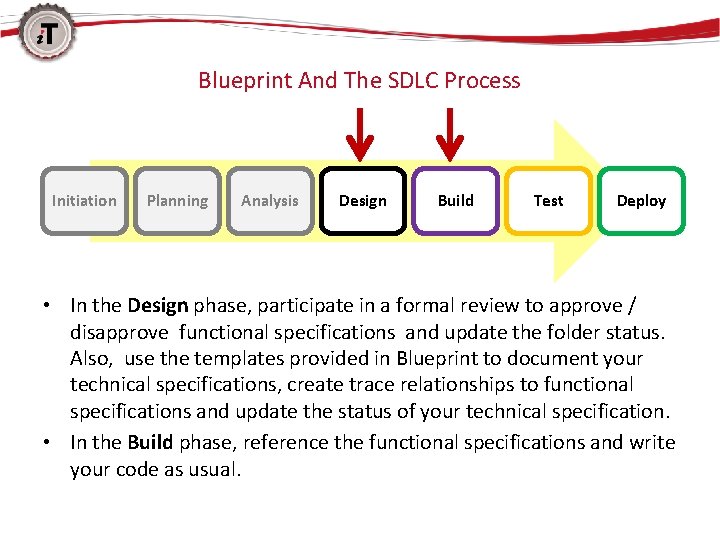
Blueprint And The SDLC Process Initiation Planning Analysis Design Build Test Deploy • In the Design phase, participate in a formal review to approve / disapprove functional specifications and update the folder status. Also, use the templates provided in Blueprint to document your technical specifications, create trace relationships to functional specifications and update the status of your technical specification. • In the Build phase, reference the functional specifications and write your code as usual.
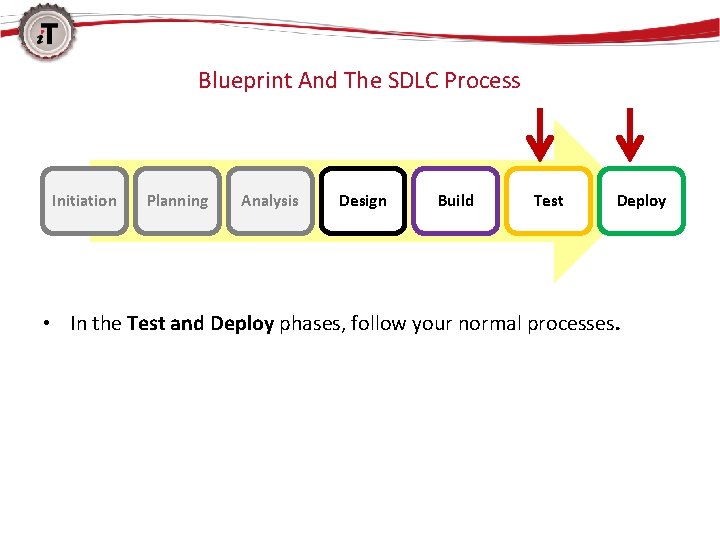
Blueprint And The SDLC Process Initiation Planning Analysis Design Build Test Deploy • In the Test and Deploy phases, follow your normal processes.
Using Blueprint in the Initiation Phase

Initiation: Step 3, Assign Roles in Blueprint Project Administrator will assign team members roles. Team Member Role within Blueprint • • Project Manager D&AM BA Project Admin: Create content, manage user access, manage project folder structure, set project specific default Tip: Assign two team members the Project Admin role. • • • Analysts (EBS, and additional D&AM BAs) Delivery Manager Service Provider(s) Author: Add, edit and delete content • Business Leads Collaborator: Read and add comments All Blueprint Users : • CCNAG Author License Group • CCNAG Collaborator License Group Note: Delete if the project is confidential Read Only (default setting) Classified - Internal use
Planning Phase & Analysis Phase (Technical Resources not involved)

Using Blueprint in the Design Phase

Design Project Role Action Item EBS BA • Document functional specifications for FRICEW • Conduct informal review of functional specifications with Deployment BA and Business Lead • Conduct formal review of functional specifications with development service providers (e. g. ABAP, and Integration) Delivery Manager • Facilitate approval of Functional Specifications by service providers – typically ABAP and Integration • Coordinate with Project Manager to get the Functional Specifications approved by the Business • Monitor development comments (e. g. : comments and open issues logged in Blueprint) Project Manager • Conduct formal Baseline Review with Business Leads to get final approval on functional specifications • Monitor project comments – ongoing throughout project.

Design Project Role Service Provider Action Item ABAP & Integration • Participate in formal review of functional specifications and update the status of the functional specification • Reference functional specification in Blueprint • Document Technical specifications in Blueprint and update the status of the technical specification • Create Trace relationships between functional specifications and technical specifications

Design: Formal Sealed Baseline Review of Functional Specifications Project Role Action Item EBS BA • Document functional specifications for FRICEW • Conduct informal review of functional specifications with Deployment BA and Business Lead • Conduct formal review of functional specifications with development service providers (e. g. ABAP, and Integration) !!! Important: The formal review must be assigned to a specific developer to review and accept the functional specifications. The formal review email notification cannot be forwarded to another person. (Doing so makes the review link invalid. ) Tip: Anyone who has access to Blueprint can be pulled into a discussion using the @mention in the Comments.
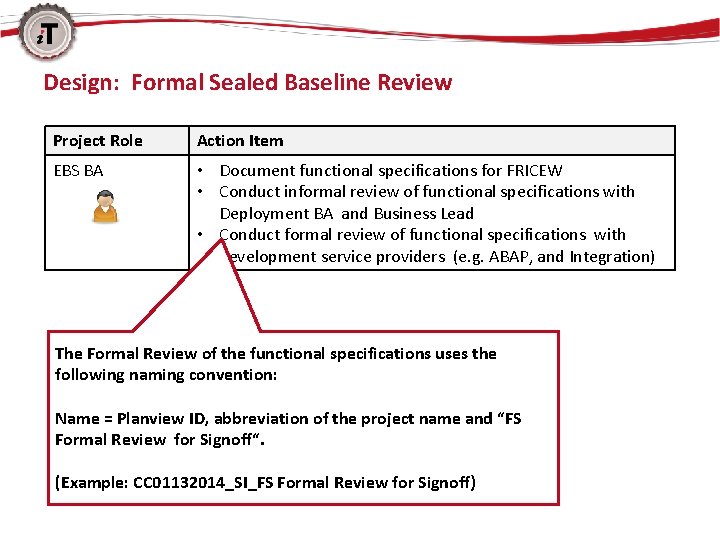
Design: Formal Sealed Baseline Review Project Role Action Item EBS BA • Document functional specifications for FRICEW • Conduct informal review of functional specifications with Deployment BA and Business Lead • Conduct formal review of functional specifications with development service providers (e. g. ABAP, and Integration) The Formal Review of the functional specifications uses the following naming convention: Name = Planview ID, abbreviation of the project name and “FS Formal Review for Signoff“. (Example: CC 01132014_SI_FS Formal Review for Signoff)
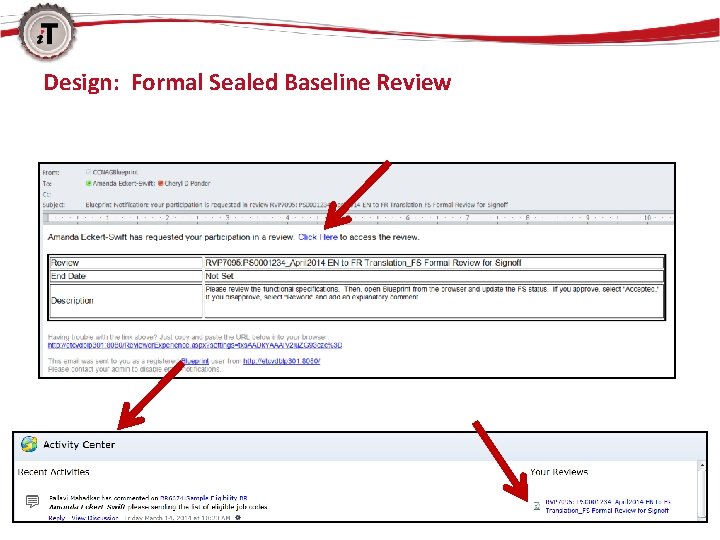
Design: Formal Sealed Baseline Review

Design: Formal Sealed Baseline Review: Your View
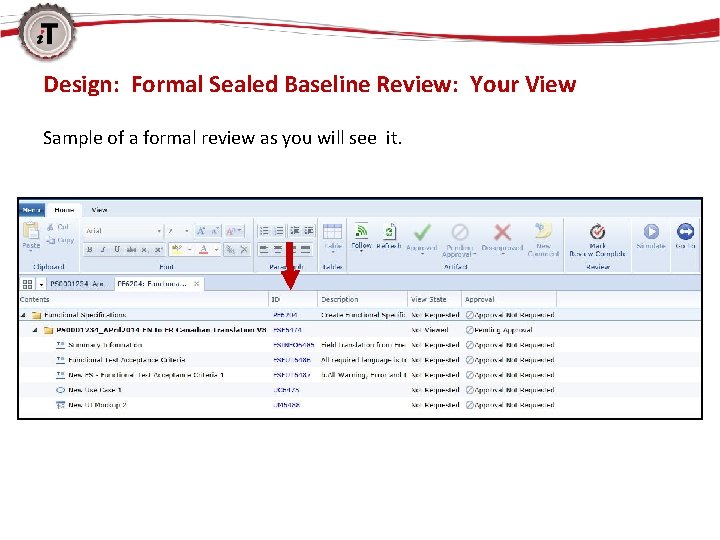
Design: Formal Sealed Baseline Review: Your View Sample of a formal review as you will see it.
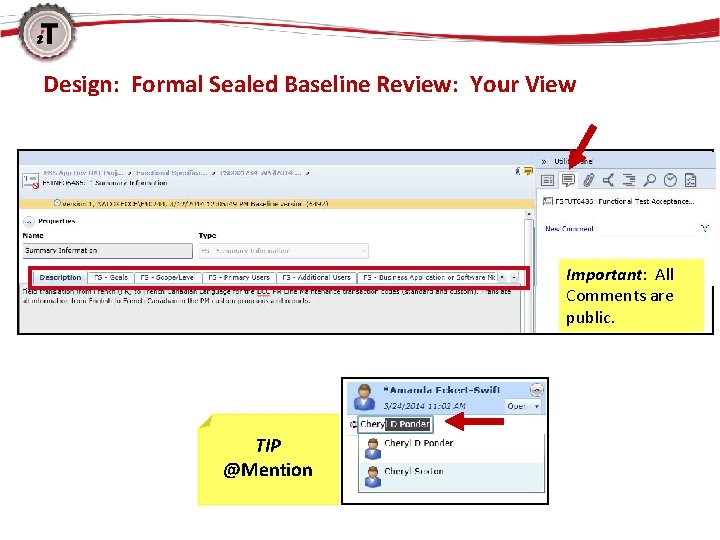
Design: Formal Sealed Baseline Review: Your View Important: All Comments are public. TIP @Mention
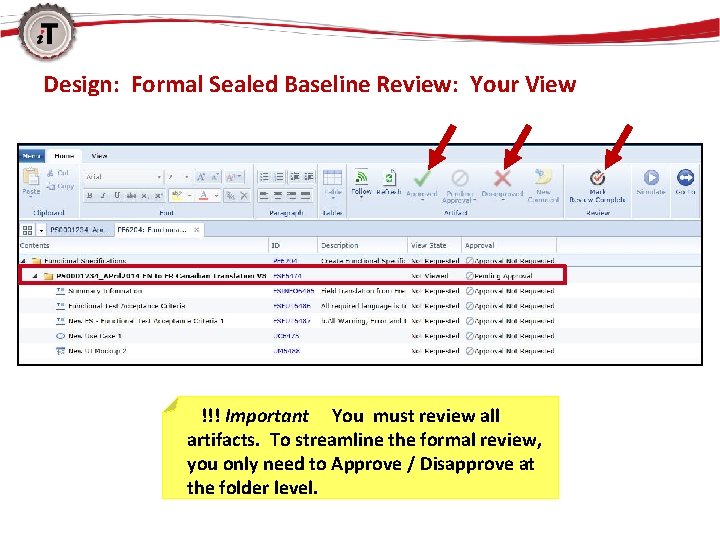
Design: Formal Sealed Baseline Review: Your View !!! Important You must review all artifacts. To streamline the formal review, you only need to Approve / Disapprove at the folder level.

Design: Formal Review Update Functional Specification Folder Status Highlight the functional specification folder and select Utility Panel > Properties > FS Document Status.
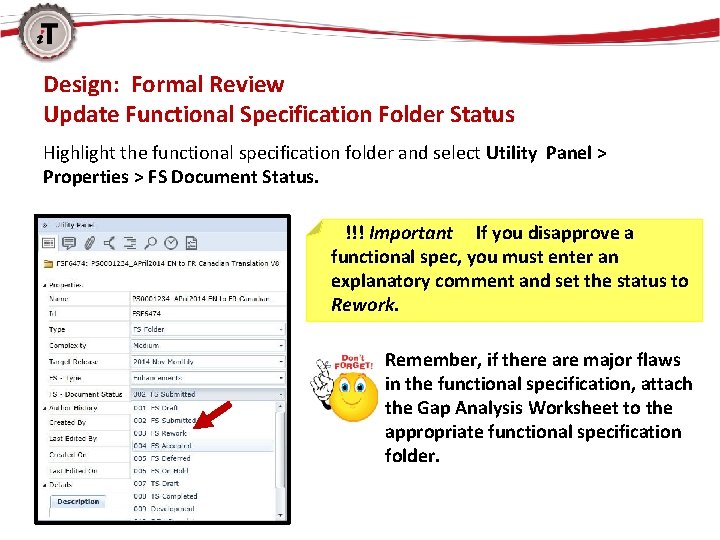
Design: Formal Review Update Functional Specification Folder Status Highlight the functional specification folder and select Utility Panel > Properties > FS Document Status. !!! Important If you disapprove a functional spec, you must enter an explanatory comment and set the status to Rework. Remember, if there are major flaws in the functional specification, attach the Gap Analysis Worksheet to the appropriate functional specification folder.
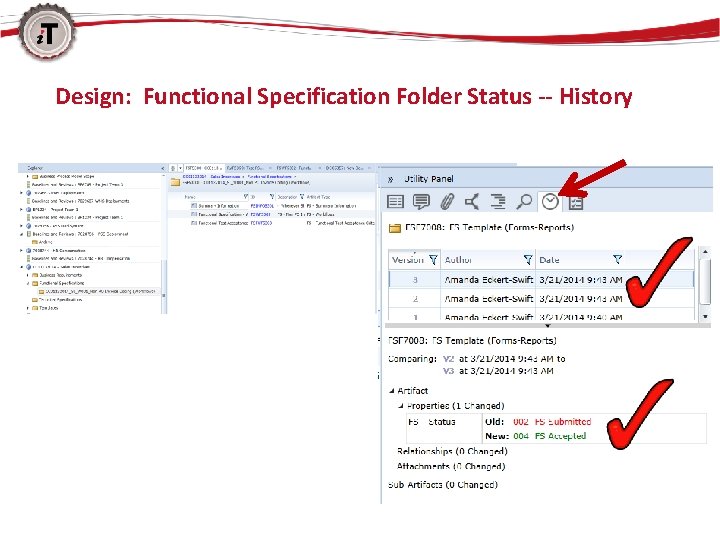
Design: Functional Specification Folder Status -- History
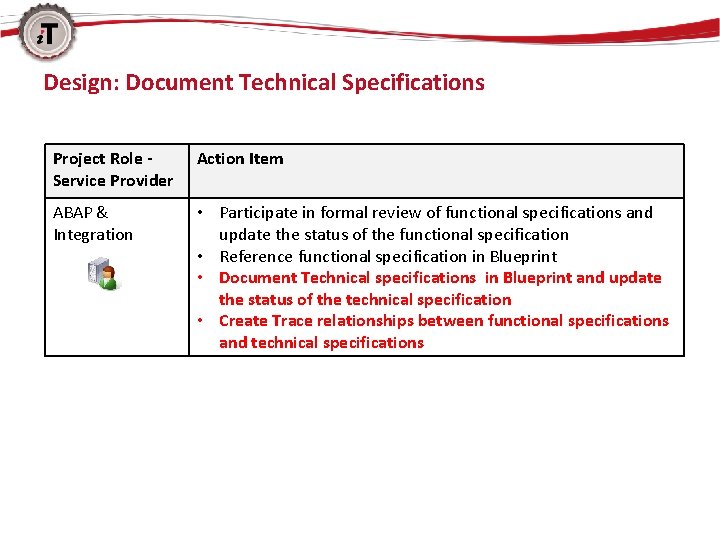
Design: Document Technical Specifications Project Role Service Provider Action Item ABAP & Integration • Participate in formal review of functional specifications and update the status of the functional specification • Reference functional specification in Blueprint • Document Technical specifications in Blueprint and update the status of the technical specification • Create Trace relationships between functional specifications and technical specifications

Design: Document Technical Specifications Continue to partner with your EBS BA as usual to finalize functional specifications and prepare technical specifications.
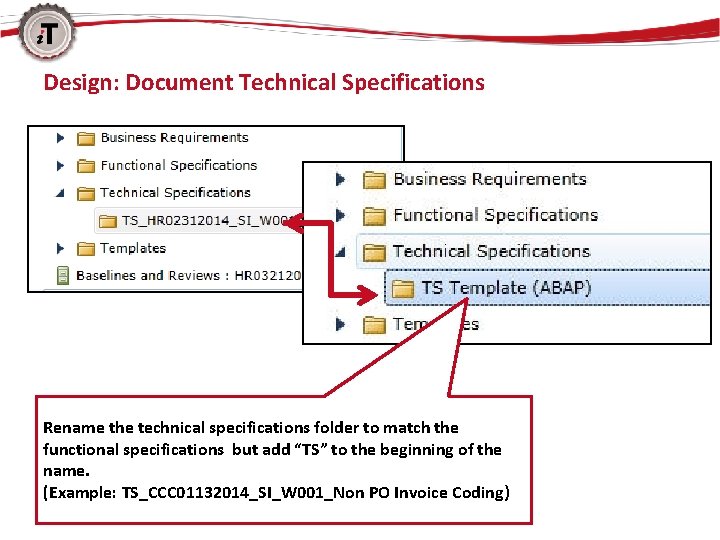
Design: Document Technical Specifications Rename the technical specifications folder to match the functional specifications but add “TS” to the beginning of the name. (Example: TS_CCC 01132014_SI_W 001_Non PO Invoice Coding)

Design: Link Technical Specification to Functional Specification Highlight the technical specification folder click Manage Traces and select the functional specification folder and then click Trace. Right-click the Trace directional arrow and select Bidirectional.
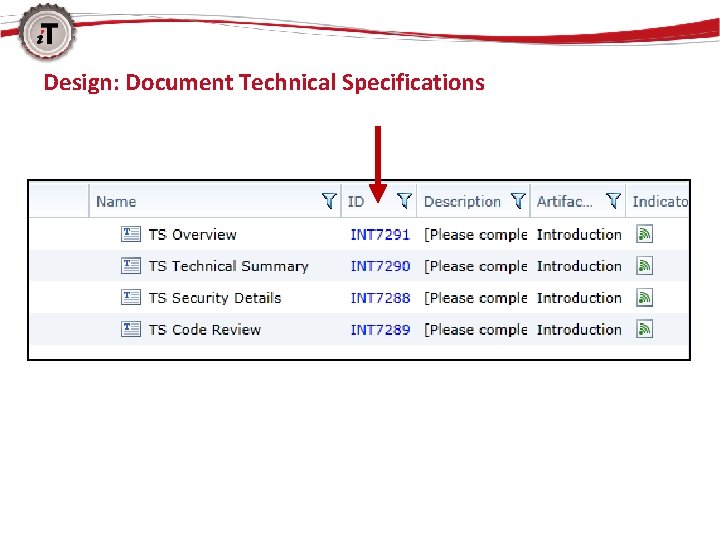
Design: Document Technical Specifications

Design: Document Technical Specifications: TS Overview Artifact
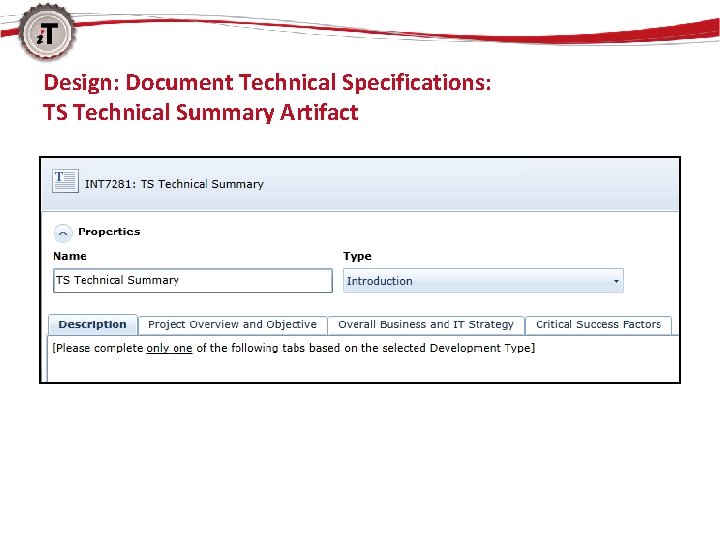
Design: Document Technical Specifications: TS Technical Summary Artifact

Design: Document Technical Specifications: TS Security Details Artifact
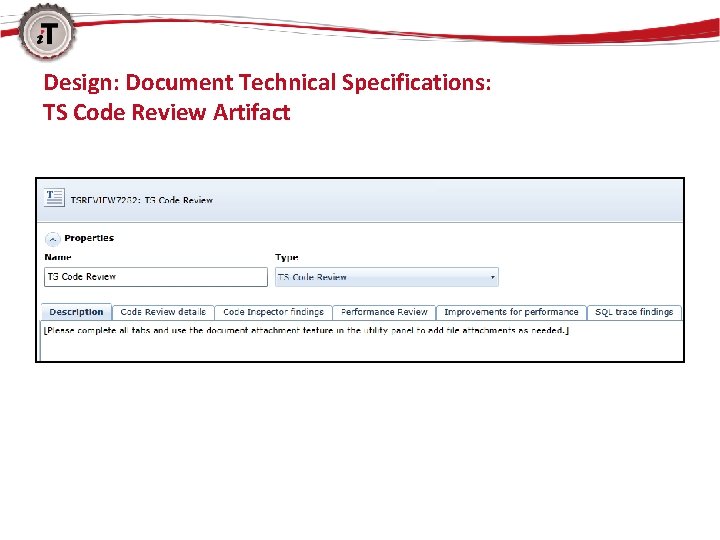
Design: Document Technical Specifications: TS Code Review Artifact
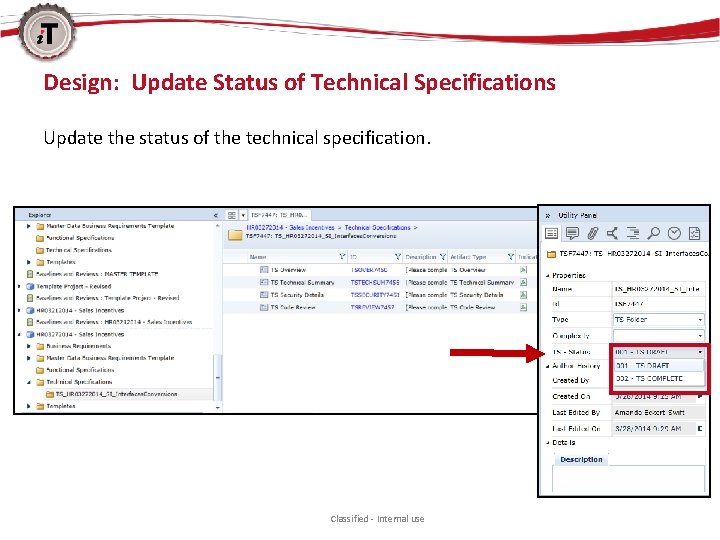
Design: Update Status of Technical Specifications Update the status of the technical specification. Classified - Internal use
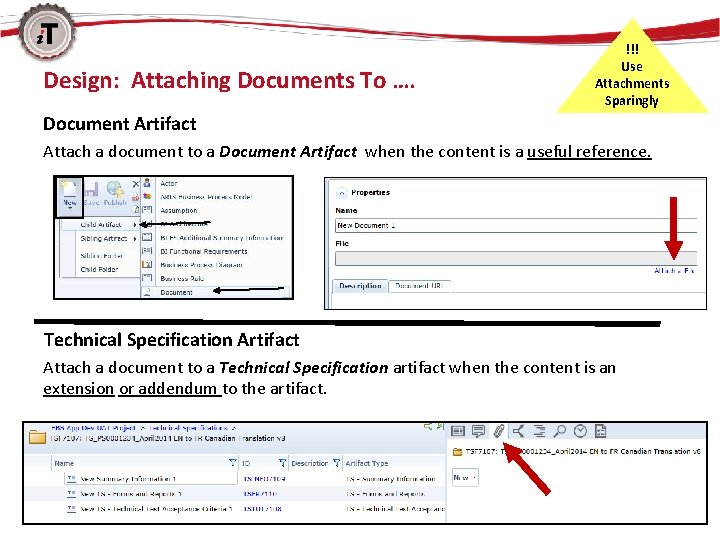
Design: Attaching Documents To …. !!! Use Attachments Sparingly Document Artifact Attach a document to a Document Artifact when the content is a useful reference. Technical Specification Artifact Attach a document to a Technical Specification artifact when the content is an extension or addendum to the artifact.
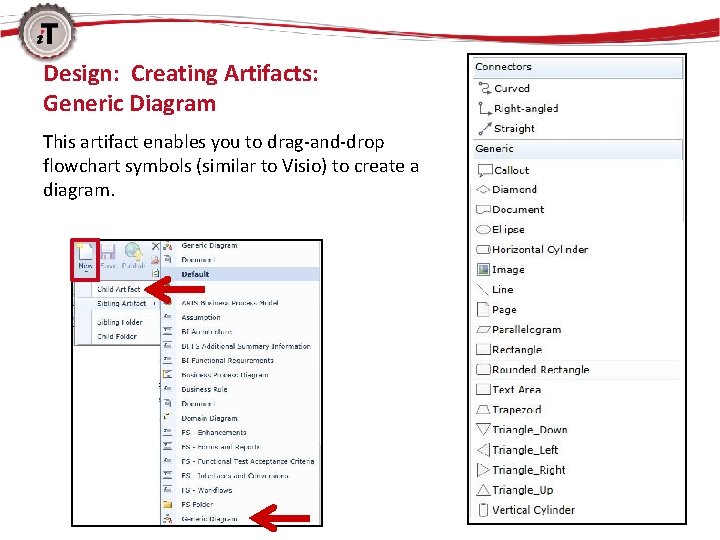
Design: Creating Artifacts: Generic Diagram This artifact enables you to drag-and-drop flowchart symbols (similar to Visio) to create a diagram.

Design: Summary As the Design phase ends …… • You participated in a formal review of the functional specifications and approved / disapproved them and added comments as needed • You updated the status of the functional specification • You documented your technical specifications in Blueprint and linked them to functional specifications • Updated the status of your technical specification • Attached support documentation as appropriate • Created supporting artifacts such as Generic Diagram as desired Classified - Internal use
Using Blueprint in the Build Phase
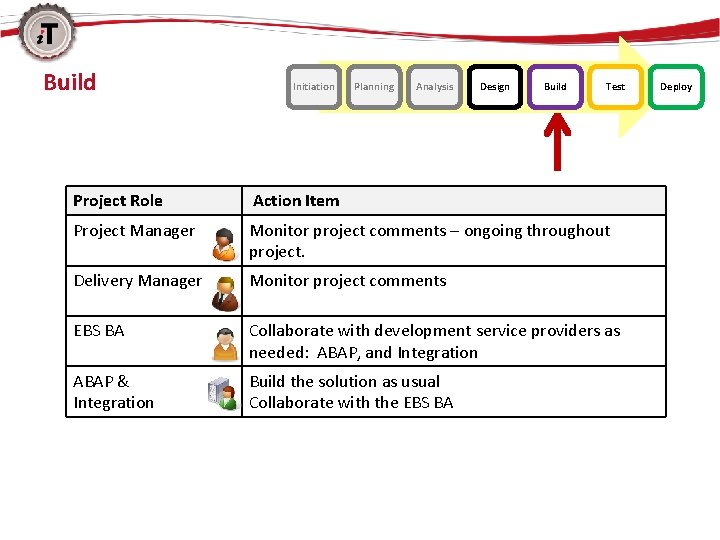
Build Initiation Planning Analysis Design Build Test Project Role Action Item Project Manager Monitor project comments – ongoing throughout project. Delivery Manager Monitor project comments EBS BA Collaborate with development service providers as needed: ABAP, and Integration ABAP & Integration Build the solution as usual Collaborate with the EBS BA Deploy
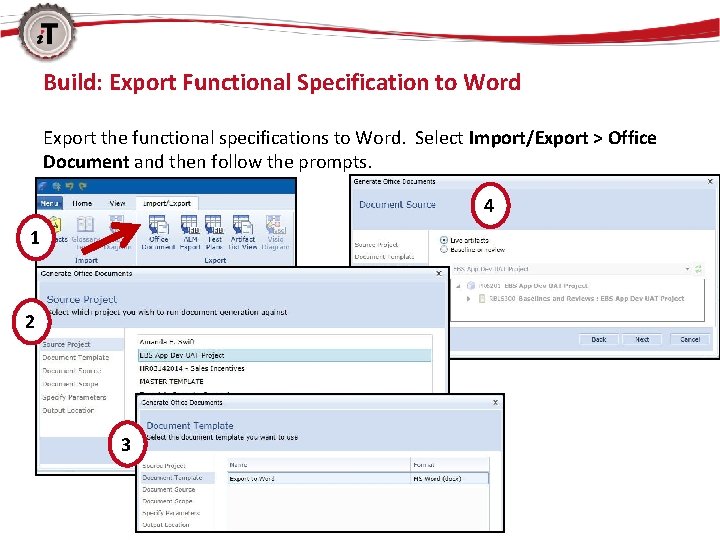
Build: Export Functional Specification to Word Export the functional specifications to Word. Select Import/Export > Office Document and then follow the prompts. 4 1 2 3
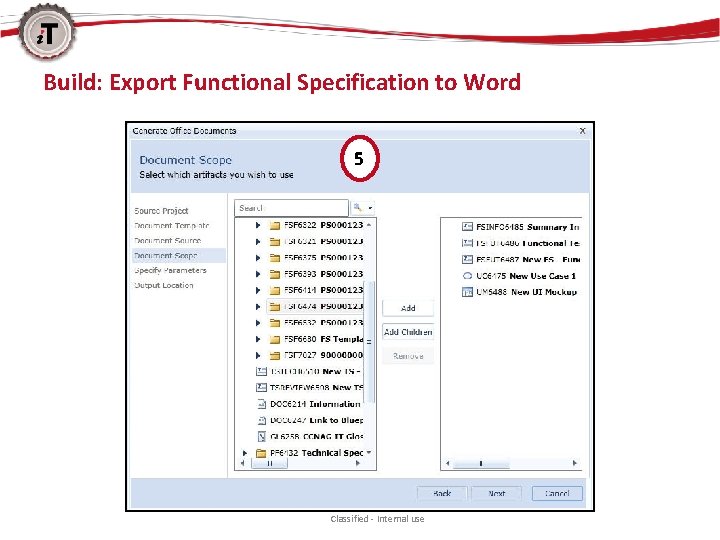
Build: Export Functional Specification to Word 5 Classified - Internal use
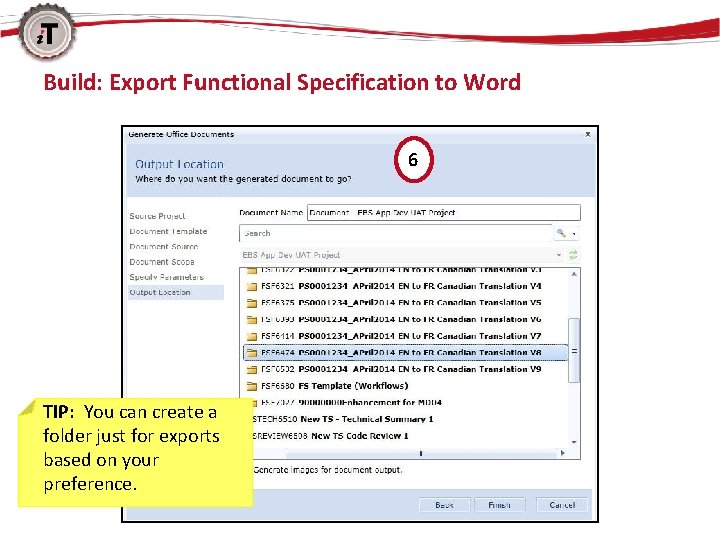
Build: Export Functional Specification to Word 6 TIP: You can create a folder just for exports based on your preference. Classified - Internal use

Build: Export Functional Specification to Word
Using Blueprint in the Test Phase

Test Initiation Planning Analysis Design Build Test Deploy Project Role Action Item Project Manager • Monitor project comments – ongoing throughout project. Deployment BA • Export Business Requirements to Quality Center • Link requirements to Cycle / UAT test cases in QC EBS BA ABAP & Integration • Link requirements to FUT test cases in QC • Resolve defects as usual
Using Blueprint in the Deployment Phase (Blueprint not involved)
Summary Now you should be able to: • Identify how Blueprint and Technical Resources fit into the SDLC process • Identify roles and responsibilities in Blueprint • Approve / Disapprove functional specifications in Blueprint and update the status of the functional specifications folder • Create technical specifications in Blueprint and create trace relationships to functional specifications • Update the status of technical specifications • Understand how to use attachments appropriately • Create the Generic Diagram artifact • Export / Print functional specifications Classified - Internal use
Wrap Up & Next Steps • If you have questions based on this self-study guide, send them to ccnagblueprint@coca-cola. com. (Please include “Technical Self. Study Question” in the subject line. ) • Save the Blueprint URL as a favorite. • Update your Elevated Trust-in settings so you can use screen captures and rich text in Blueprint 1. Access The Application Store. 2. Search for “Blueprint” and then select Blueprint Elevated Trustin Settings. 3 Click Add > Proceed to Basket > Place Order. Your request will be processed as usual. Classified - Internal use
Additional Training and Resources • • Blueprint Share. Point site for supplemental resources. Add this URL to your favorites and be sure to take note of – Training Support Documents (training materials and quick references) – Discussion Board – Suggestion Box – FAQs Set an alert to Blueprint News to receive notifications. – Check the box next to any news item. From the ribbon, click List > Alert Me > Set alert on this list. (You can view or update your alert frequency by clicking Manage My Alerts. ) Optional: Select RSS Feed > Subscribe to this feed. Classified - Internal use

The End Thank you for reviewing this self-study guide. Classified - Internal use
- Slides: 49