
Blue J A Very Quick Introduction Blue J

Blue. J: A Very Quick Introduction

Blue. J n Blue. J is an IDE (Integrated Development Environment). It includes n n n an editor, which you use to write your programs a debugger, to help you find your mistakes a viewer, to see the parts of your program an easy way to run Java programs an easy way to view documentation

Open Blue. J, choose New Project

Name the project, click Create

Create and name a new Class or Applet The name of the class should begin with a capital letter

Double-click the new class to edit it The stripes show that the class "Drawing" is not compiled (ready to run)

Edit your class, then Compile it You must compile before you can run. Blue. J starts you with a simple class or a simple applet. You can modify what Blue. J gives you, or just replace it with your own program.

If it's an applet: Right-click the class and choose Run Applet

If applet: choose how to run it, and what size it should be
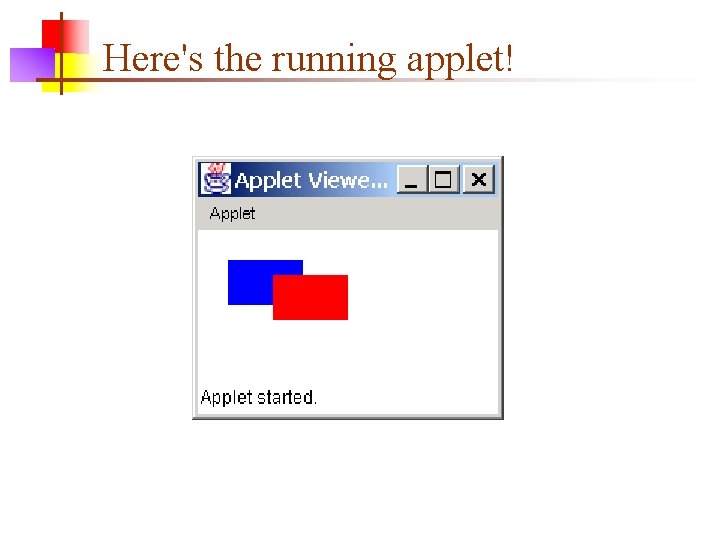
Here's the running applet!

If application: right-click and choose void main(args)
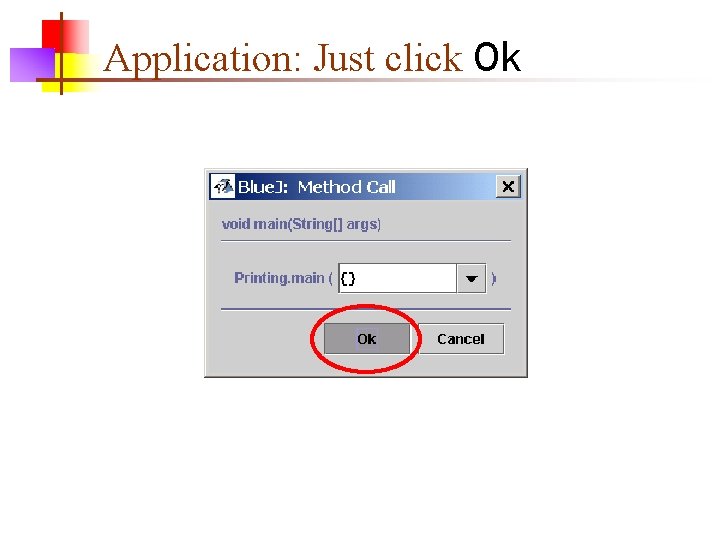
Application: Just click Ok
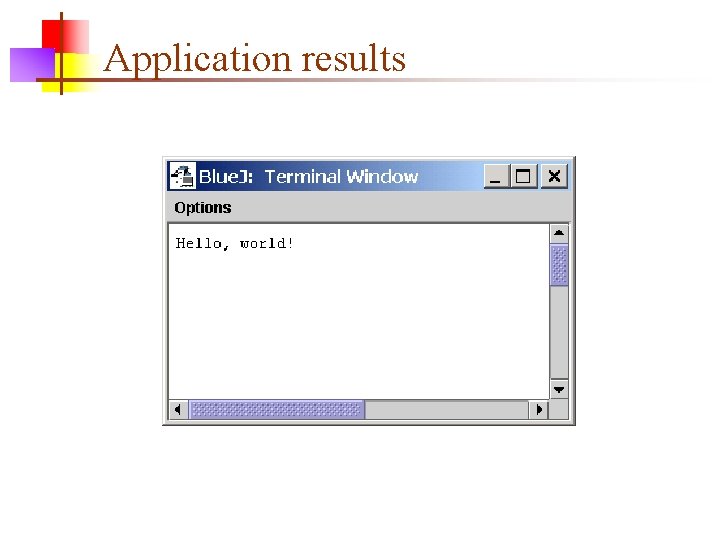
Application results

Final notes n n n You don't have to Save your work—Blue. J does that automatically for you when you compile If you quit Blue. J and come back later, use Open Project to continue where you left off This quick introduction does not replace working through the tutorial!

The End
- Slides: 15