
Blending Universal Design ELearning and Information and Communication
Blending Universal Design, E-Learning, and Information and Communication Technologies Roberta Thomson, M. A. , UDL Faculty, Project Coordinator, Mc. Gill University Catherine Fichten, Ph. D. , Co-Director, Adaptech Research Network Jennison Asuncion, M. A. , Co-Director, Adaptech Research Network Alice Havel, Ph. D. , Adaptech Research Network and Dawson College Jillian Budd, M. A. , Adaptech Research Network and Mc. Gill University 30 th Annual International Technology and Persons with Disabilities Conference San Diego, California March, 2015
Agenda • • • Context, Potential and Focus Three Key Components Universal Design Higher Education Stakeholders Requirements Concerns and Barriers Training Resources Seven Design Questions 2
Context • Diverse higher education student body • • • Cultural backgrounds second language learners learning styles processing speeds socio-economic status age, etc. • E-learning involves • ICTs used by students • ICTs used by faculty 3
Potential • ICTs hold potential for greater access • “However, just because a course is digital does not ensure that it is usable by everyone or that it is accessible to all (Berkowitz, 2008)” 4
Focus • Blending Universal Design (UD) with • E-learning tools used by faculty • ICTs used by students in • Traditional classrooms • Hybrid / blended courses • Online courses • MOOCs (Massive Open Online Courses) 5
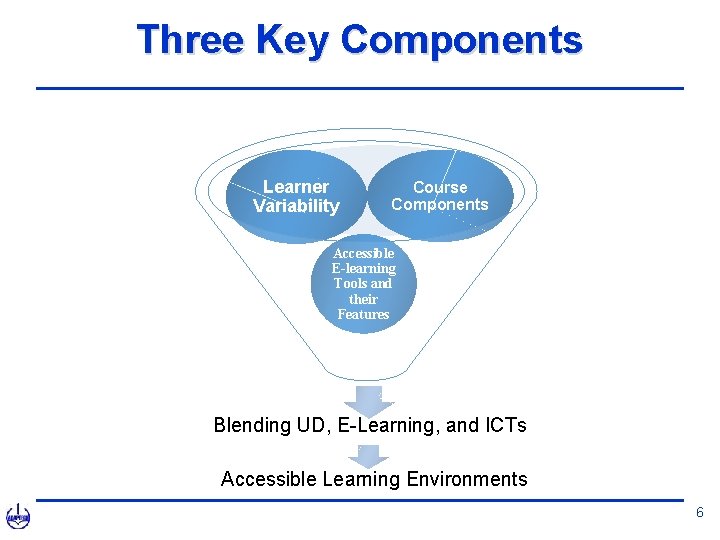
Three Key Components Learner Variability Course Components Accessible E-learning Tools and their Features Blending UD, E-Learning, and ICTs Accessible Learning Environments 6
Universal Design (UD) • Originating in architecture • Considers physical / sensory needs of all • Designing for all • Aligns with social model of disability • Remove barriers • Think to yourself - Pair and Share 7
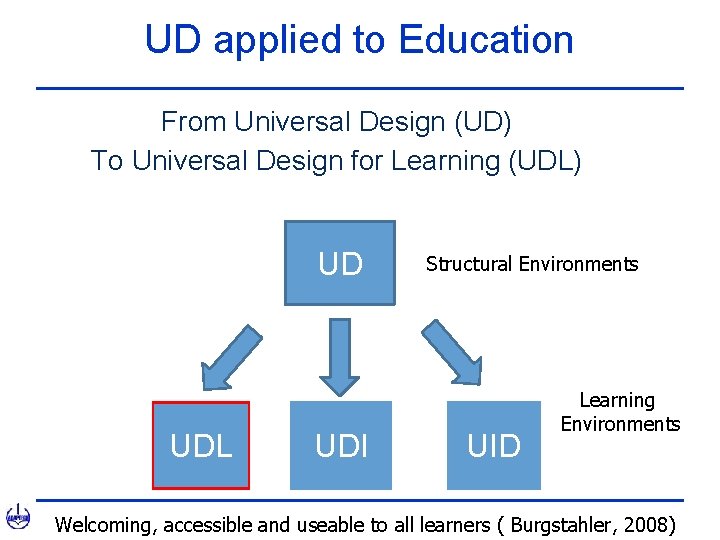
UD applied to Education From Universal Design (UD) To Universal Design for Learning (UDL) UD UDL UDI Structural Environments UID Learning Environments Welcoming, accessible and useable to all learners ( Burgstahler, 2008)

UDL Principles Descriptions Multiple Means Course content offered in a multitude of formats (e. g. , Power. Point, video, podcast, of Representation images) Multiple Means Instructors offer multiple pathways to engage of Engagement students in the course material (e. g. , wikis, group chats, online mind mapping) Multiple Means Instructors offer multiple methods of expression/evaluation (e. g. , participation in of Action and discussion forum, online multiple-choice Expression quiz, virtual group project) 9
Post-Secondary Stakeholders 1. 2. 3. 4. 5. Students Disability service providers Access technologists Instructors using e-learning Campus e-learning professionals who lead and select e-learning products 6. Vendors: develop/sell e-learning products to colleges 10
Considerations • ICTs used by students to access material • Learning Management Systems (LMSs) work on multiple platforms • Lecture presentations inclusive of • Variability of skills, preferences and abilities • Materials accessible and useable by largest numbers • Variety of communication modalities, content representations, engagement methods, and evaluation techniques 11
Concerns & Barriers “… in the rush to integrate technology into teaching, instructors and those responsible for designing, supporting, and implementing e‑learning often fail to think about the specific accessibility requirements of students with different needs” (Bissonnette, 2006). 12

Concerns & Barriers • No consideration of compatibility between elearning and students’ assistive technologies • e. g. , screen readers, keyboard/mouse • High cost of ICTs • Inadequate opportunities to experiment before purchasing • Adaptech Research Network • Free or inexpensive alternatives adaptech. org/downloads 13
Training & Support • Instructors may need training on • How to use their LMSs • How students with different access needs use ICTs • How to employ UD in designing • course materials • teaching methods • evaluation • Build in reflection time pre and during course 14
Learning Management Systems (LMSs) • Desire 2 Learn, Blackboard, Moodle, Vclass… • • • Varying degree of customization Evolution – increase access or barriers (Rangin) Material presentation – chunk into modules Course calendar – link all modules/evaluations In-person and virtual office hours Use student-view feature to verify usability 15
Syllabus • First contact with a course • UD course syllabus includes • • photo or captioned video introducing the instructor course tour in printed and captioned video formats link to instructions on how to use the LMS description of multiple pathways to attain objectives information on how to arrange for specific needs presented in accessible format embed links to outside sources 16
Lectures • • • Presentation in accessible format Font size is sufficient, sufficient color contrast Don’t use color as the only way to convey content Avoid automatic slide transitions Use simple language Reading order of text boxes that are not part of the native slide layout • screen reader usually reads these last 17
Lectures • Video • • • Captioned • Player controls are accessible. Embedded audio • Include a transcript Post presentations online in timely manner • Accessible text based format (not PDF) Use Creative Commons • http: //creativecommons. org/licenses/ Record lecture and caption • Post on LMS: students view at own time and pace 18
Textbooks • • E-text in accessible format provides options Portability among devices Laptops, tablets, e-readers, and smartphones Publishers may use proprietary formats • restrict accessibility for certain students • no option to select text for reformatting or use with screen reader • may use complicated navigation schemes • Before selecting an e-textbook talk to the vendor • accessibility • usability 19
Documents • • Provide in advance In accessible, useable formats Use alt text for images and tables Caption videos Described video Avoid scanned paper to pdf or image OCR document to make accessible 20
Communication • On-line communication • Email, Skype, Adobe Connect, discussion forum, chat • Asynchronous – individual time and pace • Self-review of content and grammar • Synchronous – real time chat room, IM • More access and usability challenges • Provide multiple means of engagement • Audio, video, text 21
Communication In-Class • Synchronous tools not all UD • Audience response tools (clickers) • Some clickers have small screens • Surveys not all universally designed • UD requires engagement alternatives 22
Evaluation • Multiple pathways to achieving course objectives • Reduce barriers of paper, speeded testing • Build in extra-time • Late day bank for submission 23
Evaluation • Provide options • • • Written papers Virtual group projects Online tests Blogs Portfolios Mind/concept mapping Discussion forums Audio recording Hands-on demonstrations Student presentations Online oral exams through Skype Course participation in-class, online 24
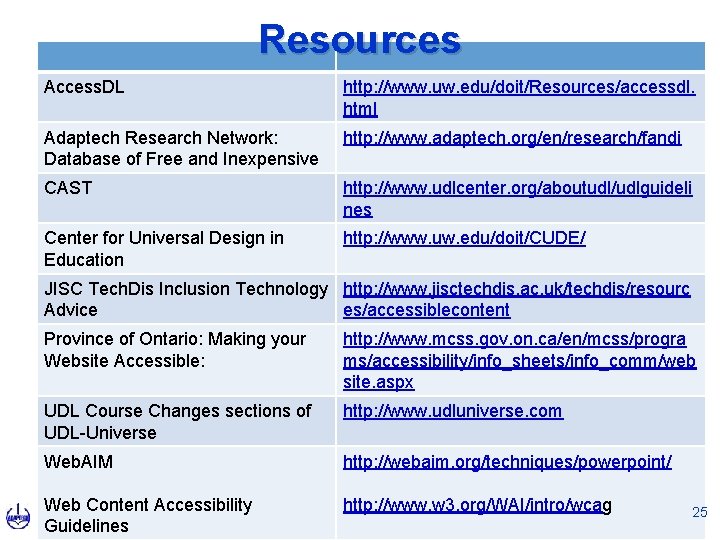
Resources Access. DL http: //www. uw. edu/doit/Resources/accessdl. html Adaptech Research Network: Database of Free and Inexpensive http: //www. adaptech. org/en/research/fandi CAST http: //www. udlcenter. org/aboutudl/udlguideli nes Center for Universal Design in Education http: //www. uw. edu/doit/CUDE/ JISC Tech. Dis Inclusion Technology http: //www. jisctechdis. ac. uk/techdis/resourc Advice es/accessiblecontent Province of Ontario: Making your Website Accessible: http: //www. mcss. gov. on. ca/en/mcss/progra ms/accessibility/info_sheets/info_comm/web site. aspx UDL Course Changes sections of UDL-Universe http: //www. udluniverse. com Web. AIM http: //webaim. org/techniques/powerpoint/ Web Content Accessibility Guidelines http: //www. w 3. org/WAI/intro/wcag 25
Seven Course Design Questions 1. Has thought be given to barriers in the course for the diversity of learners? 2. Is accessibility of LMS for all learners been considered? 3. Are the variety of platforms mobile devices used for e-learning considered? 4. Are alternative digital representations of course material accessible and useable? 26
Seven Course Design Questions 5. Are there options for student engagement with content and course objectives? 6. Are there alternatives offered to students to demonstrate what they have learned through accessible ICTs or e-learning tools? 7. Have learning modules and activities been validated for access and usability with institution’s access technologist? 27
Contact Us / More Information • Roberta Thomson roberta. thomson 2@mcgill. ca • Catherine Fichten catherine. fichten@mcgill. ca • Alice Havel ahavel@dawsoncollege. qc. ca • Jillian Budd jbudd@dawsoncollege. qc. ca • Jennison Asuncion jasuncion@dawsoncollege. qc. ca 28
- Slides: 28