
BLENDER MATERIAL AND TEXTURES Material Basic Material Settings
課程:BLENDER 的材質與花 紋 MATERIAL AND TEXTURES
Material (材質)
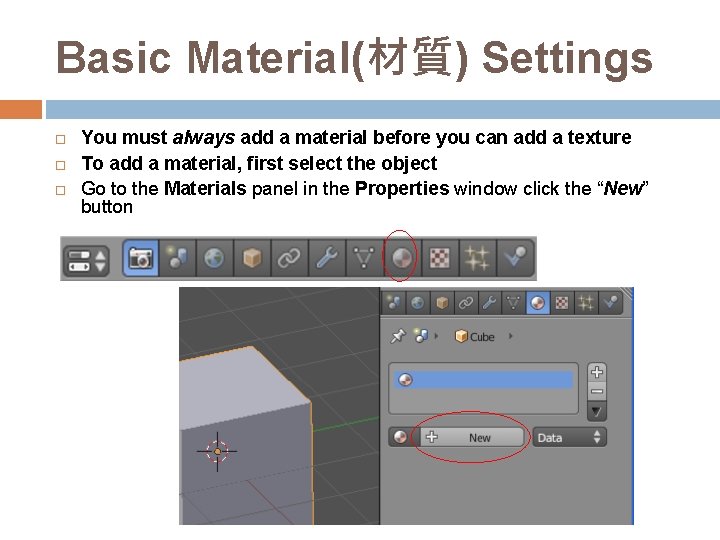
Basic Material(材質) Settings You must always add a material before you can add a texture To add a material, first select the object Go to the Materials panel in the Properties window click the “New” button
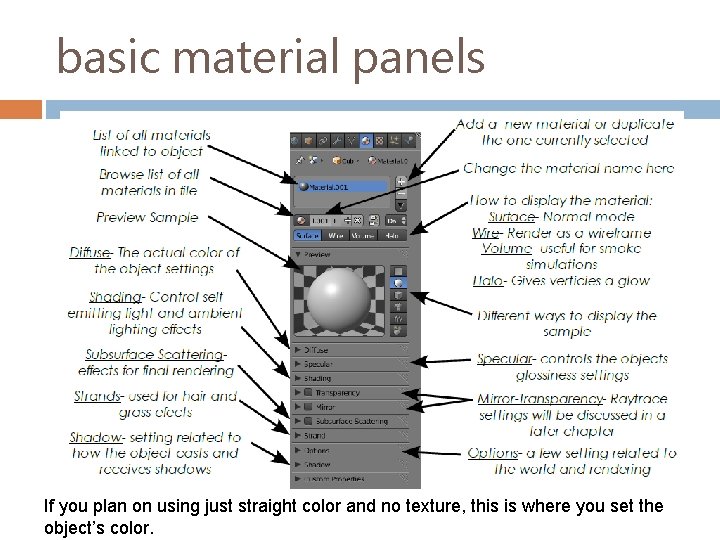
basic material panels If you plan on using just straight color and no texture, this is where you set the object’s color.
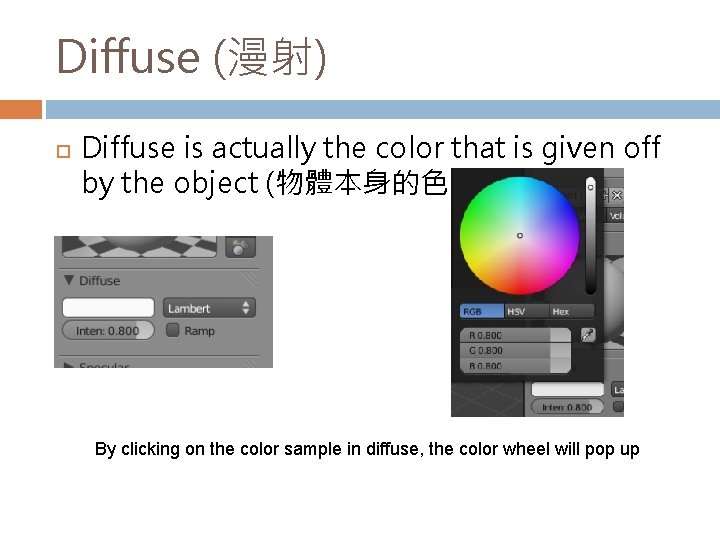
Diffuse (漫射) Diffuse is actually the color that is given off by the object (物體本身的色彩) By clicking on the color sample in diffuse, the color wheel will pop up
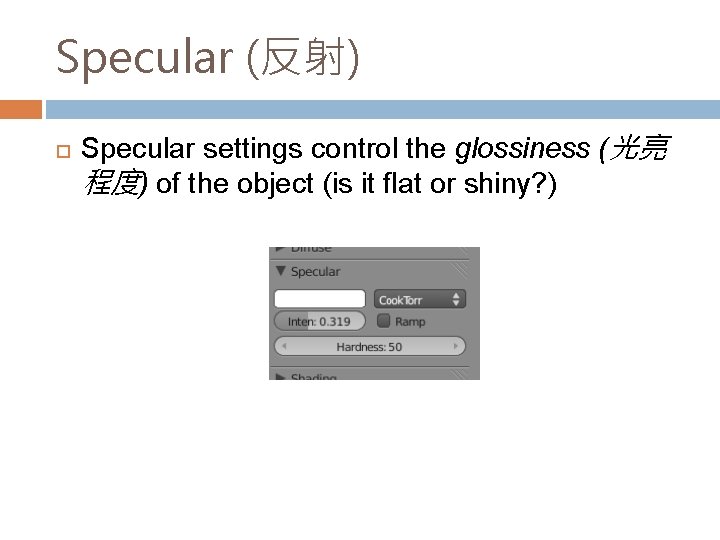
Specular (反射) Specular settings control the glossiness (光亮 程度) of the object (is it flat or shiny? )
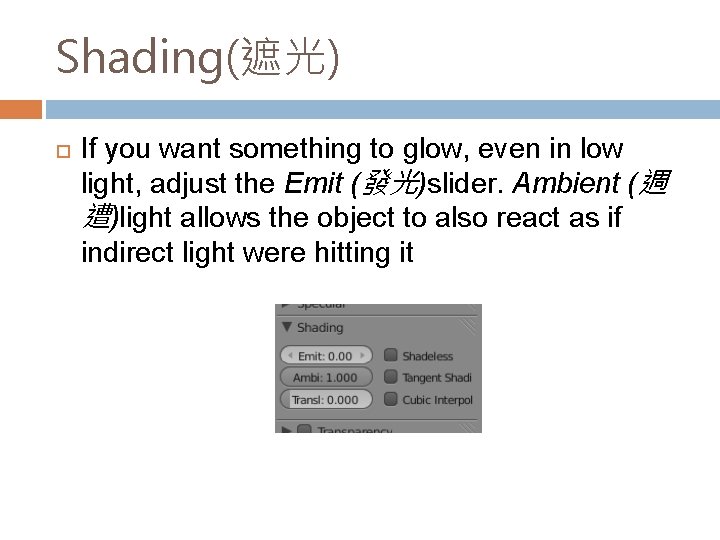
Shading(遮光) If you want something to glow, even in low light, adjust the Emit (發光)slider. Ambient (週 遭)light allows the object to also react as if indirect light were hitting it
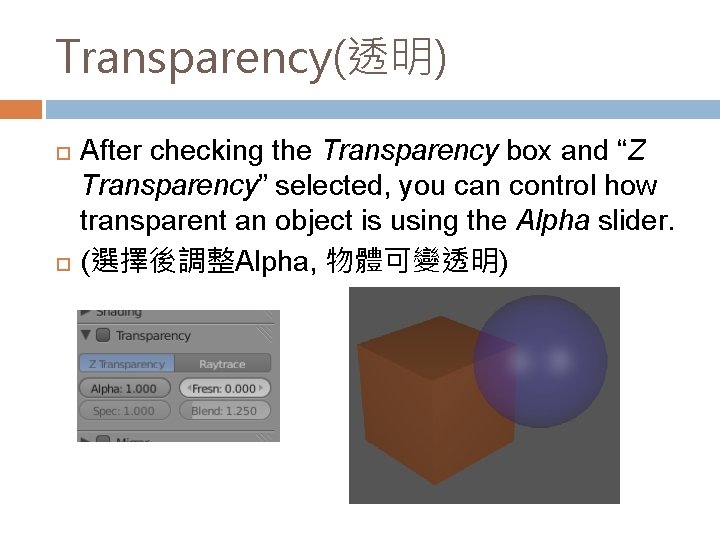
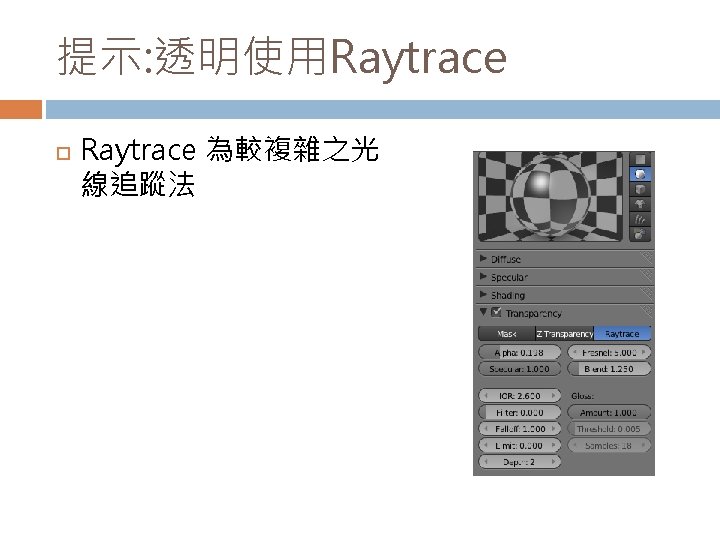
Transparency(透明) After checking the Transparency box and “Z Transparency” selected, you can control how transparent an object is using the Alpha slider. (選擇後調整Alpha, 物體可變透明)
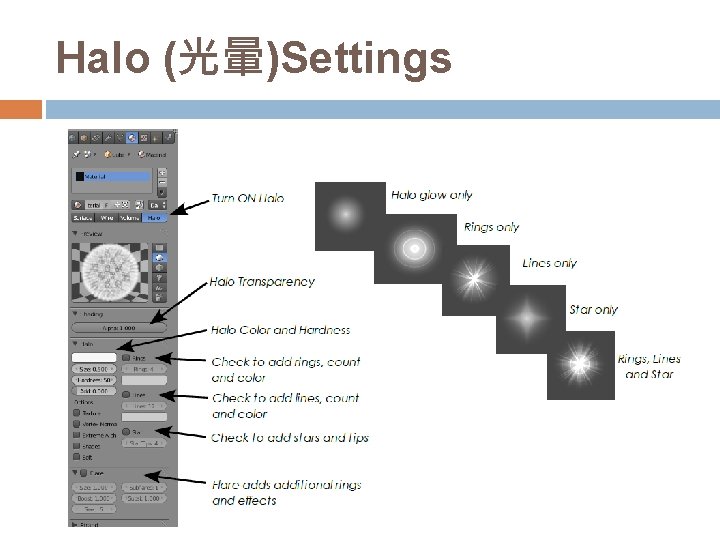
Halo (光暈)Settings
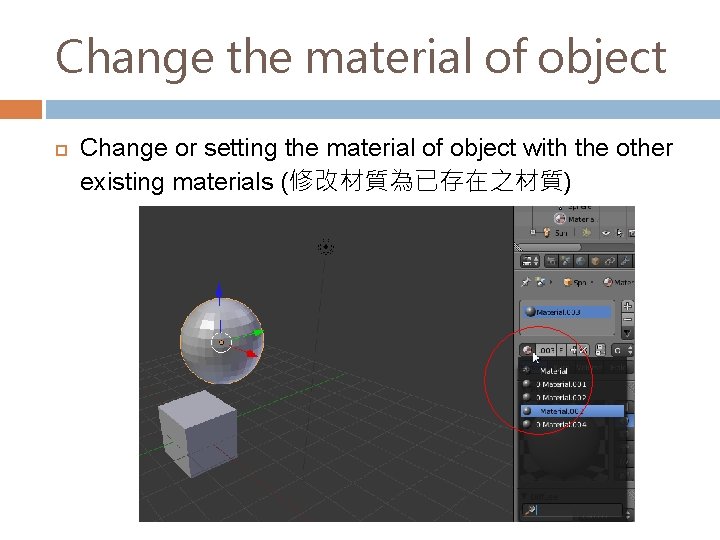
Change the material of object Change or setting the material of object with the other existing materials (修改材質為已存在之材質)
Textures (花紋)
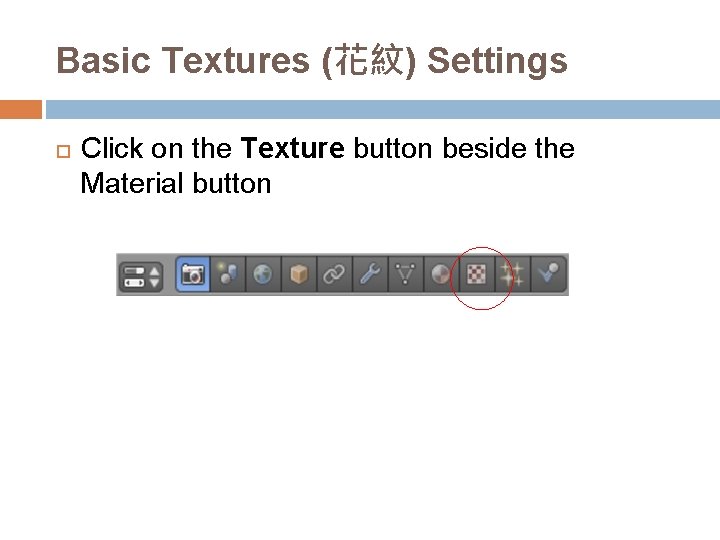
Basic Textures (花紋) Settings Click on the Texture button beside the Material button
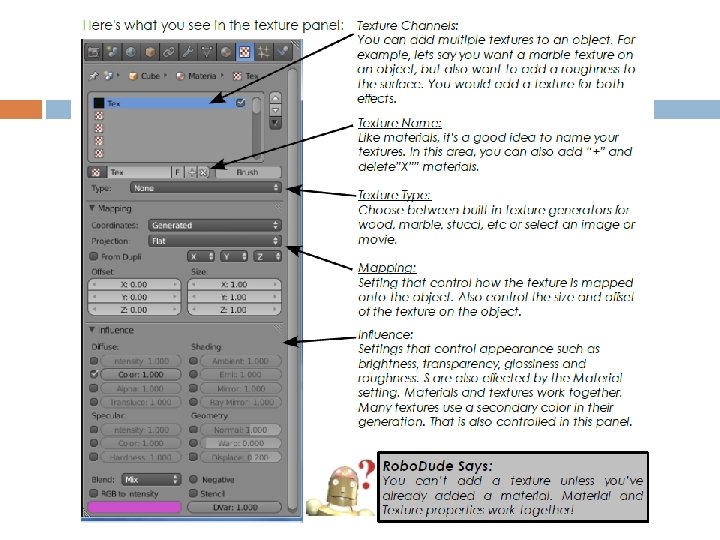
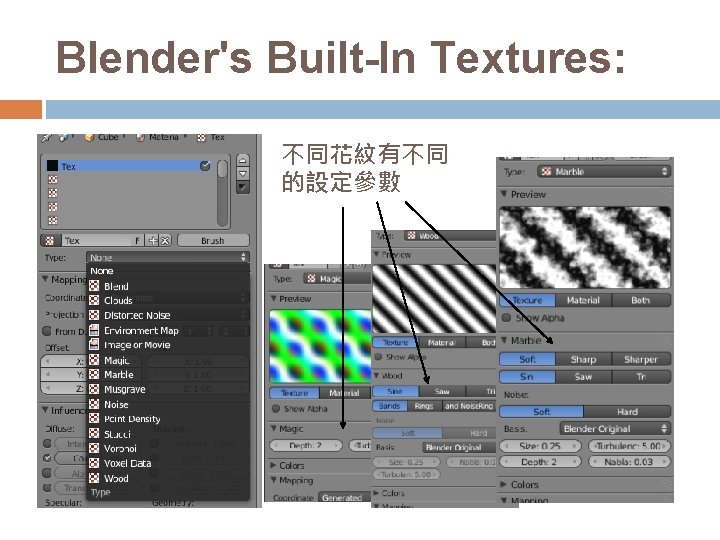
Blender's Built-In Textures: 不同花紋有不同 的設定參數
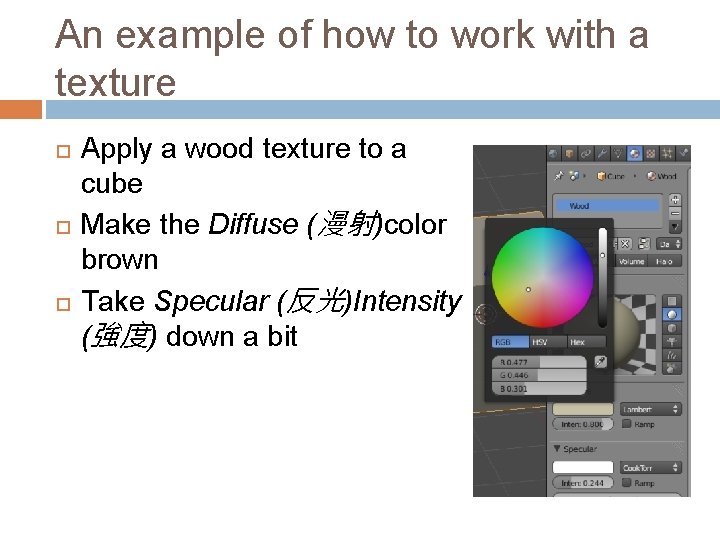
An example of how to work with a texture Apply a wood texture to a cube Make the Diffuse (漫射)color brown Take Specular (反光)Intensity (強度) down a bit
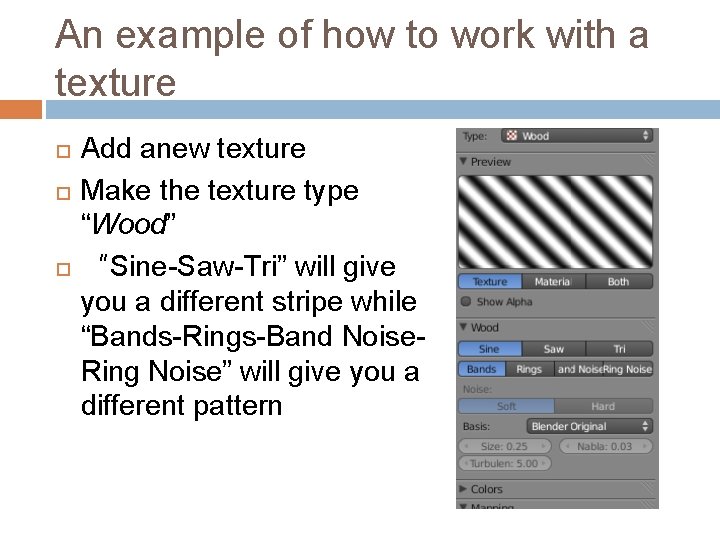
An example of how to work with a texture Add anew texture Make the texture type “Wood” “Sine-Saw-Tri” will give you a different stripe while “Bands-Rings-Band Noise. Ring Noise” will give you a different pattern
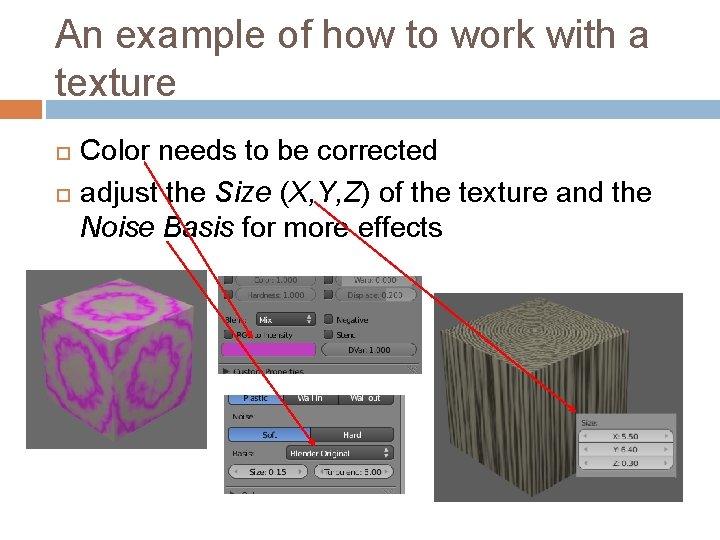
An example of how to work with a texture Color needs to be corrected adjust the Size (X, Y, Z) of the texture and the Noise Basis for more effects
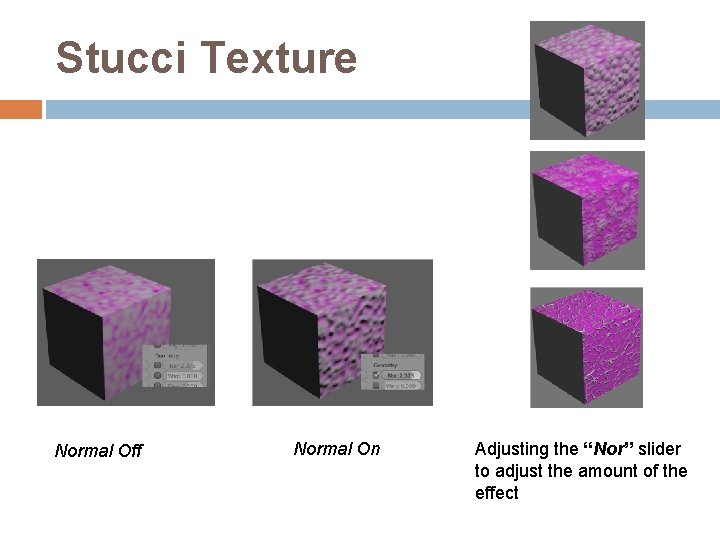
Stucci Texture Normal Off Normal On Adjusting the “Nor” slider to adjust the amount of the effect
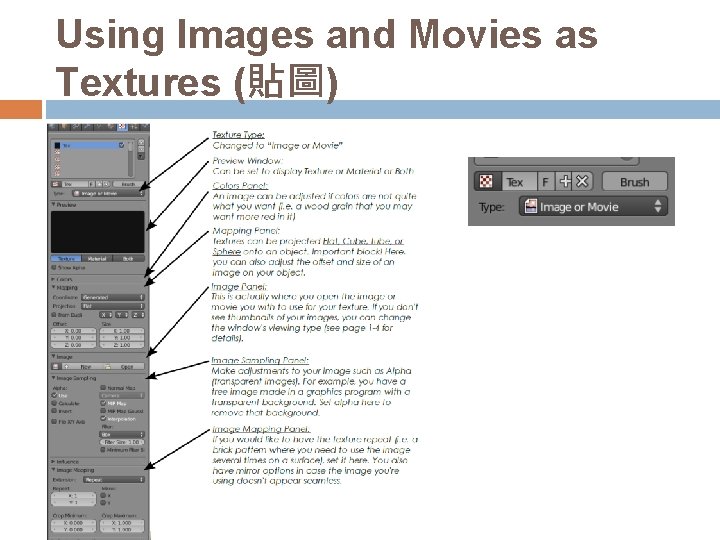
Using Images and Movies as Textures (貼圖)
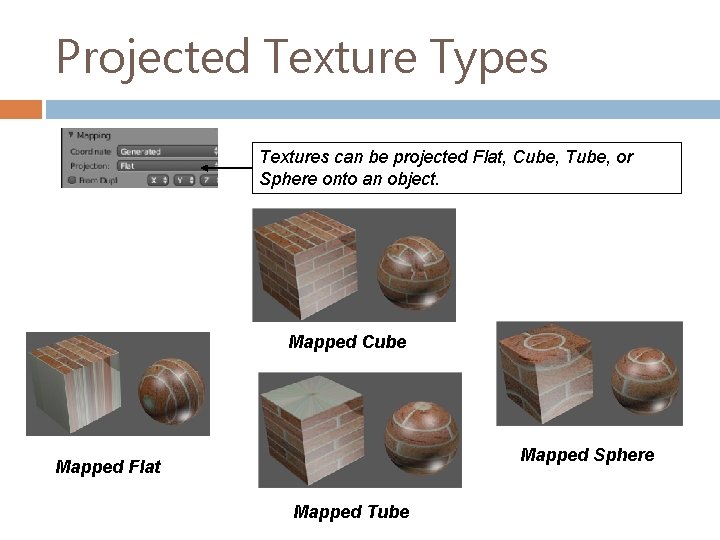
Projected Texture Types Textures can be projected Flat, Cube, Tube, or Sphere onto an object. Mapped Cube Mapped Sphere Mapped Flat Mapped Tube
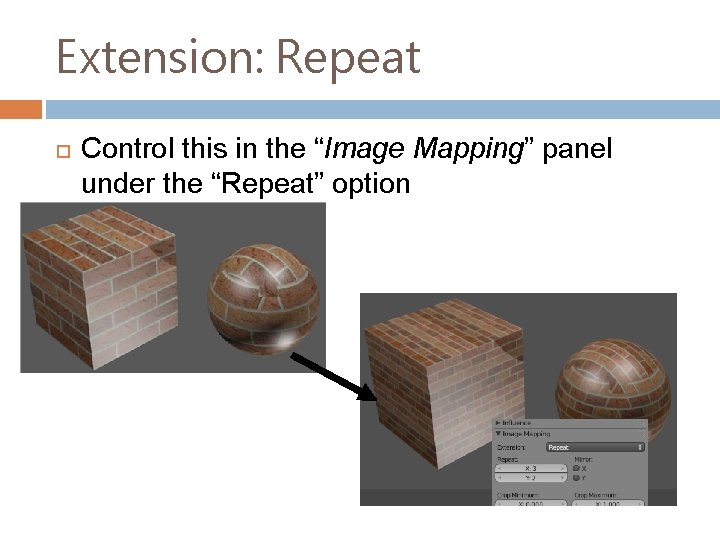
Extension: Repeat Control this in the “Image Mapping” panel under the “Repeat” option
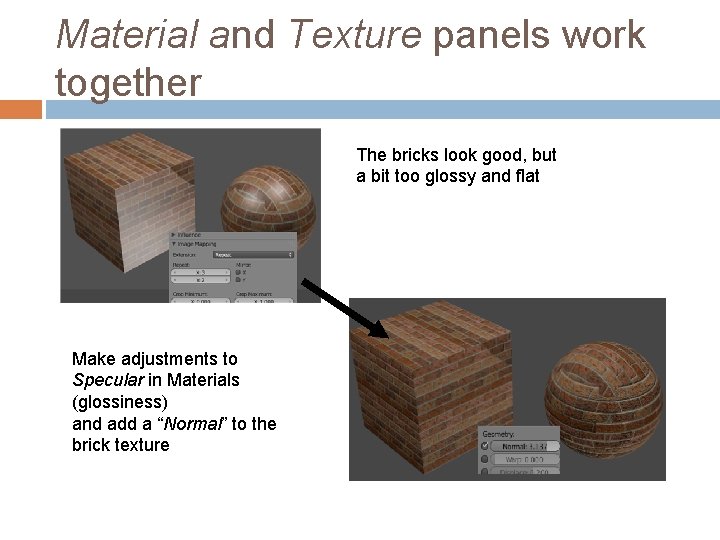
Material and Texture panels work together The bricks look good, but a bit too glossy and flat Make adjustments to Specular in Materials (glossiness) and add a “Normal” to the brick texture
End
- Slides: 25