
BKSB How to support your learners Objectives Understand
BKSB How to support your learners

Objectives Understand what BKSB is, and how it can be a useful tool for assessors and learners Know how to navigate BKSB, and understand general functionality Know where to find resources and access them with your leaners Know how to add Groups Know how to set Targets Know how to run Diagnostic Reports Know what your learners will see, and how to guide them around the resources
What is BKSB and Why Is It Useful? BKSB is an online portal for tutors, assessors and learners which supports learning and testing for functional skills BKSB requires an Initial Assessment and Diagnostic Assessment to be taken for each course the learner is enrolled on – giving you an insight into areas of strength and areas of development for each learner There are resources in PDF form, as well as interactive resources which include videos, practice exercises and other activities pitched at the learners current working level (this can be over ridden) There are Practice the Skill and Exam Practice resources to test understanding You are able to set Targets, giving the learner structure and SMART goals for their learning You are able to add groups – so that you can run reports on them, send them messages etc.
When to use BKSB Learners should be using BKSB daily, or as often as they can find time for learning It is a key component in ensuring they have accessible resources 24 hours a day The majority of their learning should be done on BKSB, or using other resources, and intervention for Functional Skills should be put into place only for areas that they are struggling with when working independently We need to encourage learners to take ownership of their progress, and BKSB allows them to do this
Tutor Dashboard and Functions The next section will cover all of the functions you can use as a Tutor on BKSB
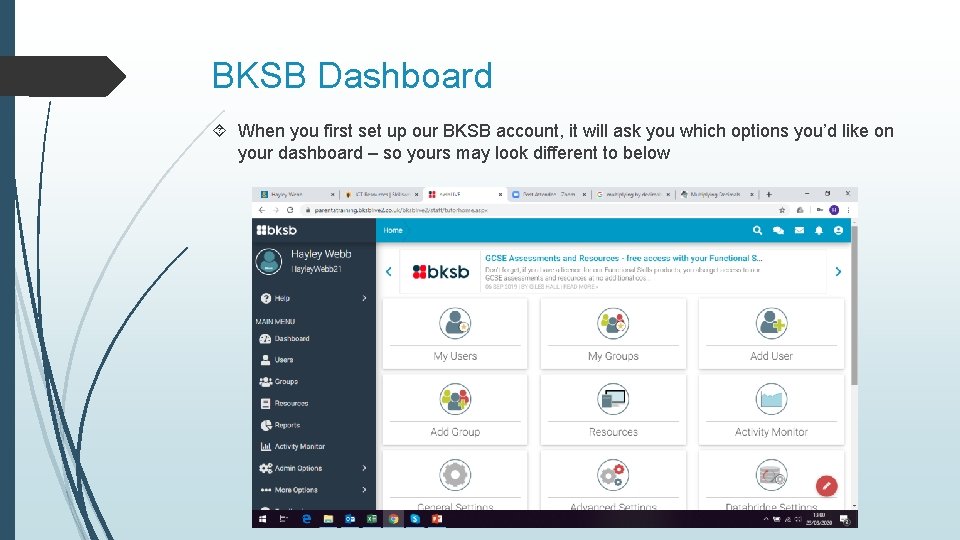
BKSB Dashboard When you first set up our BKSB account, it will ask you which options you’d like on your dashboard – so yours may look different to below
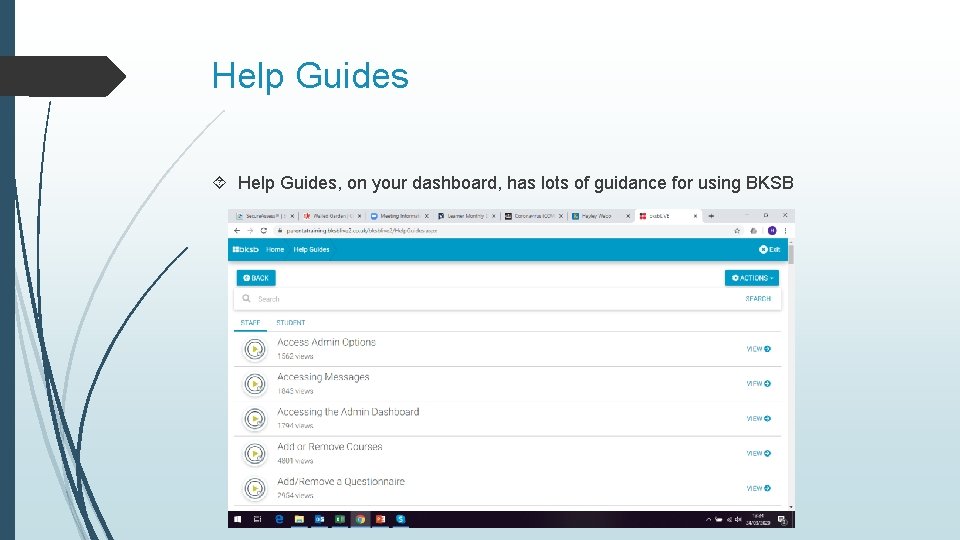
Help Guides Help Guides, on your dashboard, has lots of guidance for using BKSB
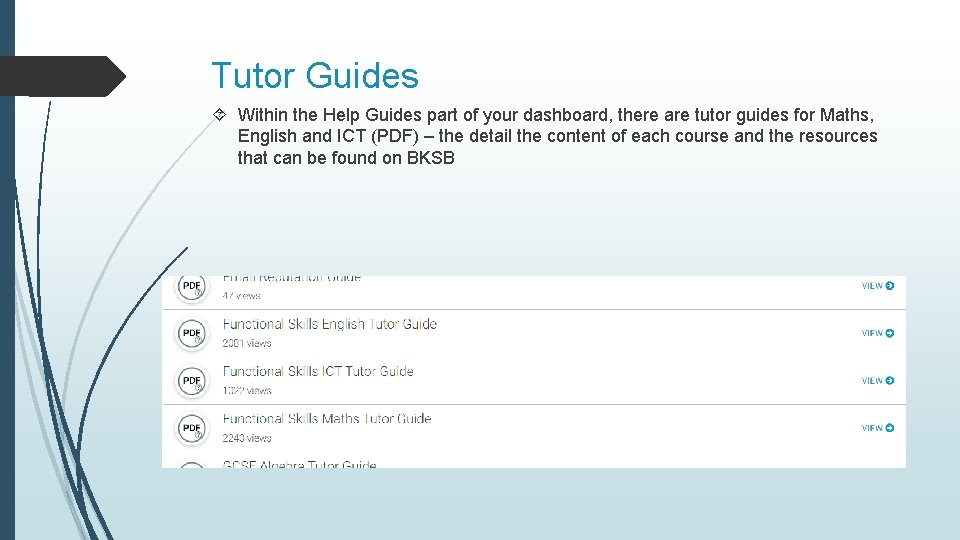
Tutor Guides Within the Help Guides part of your dashboard, there are tutor guides for Maths, English and ICT (PDF) – the detail the content of each course and the resources that can be found on BKSB
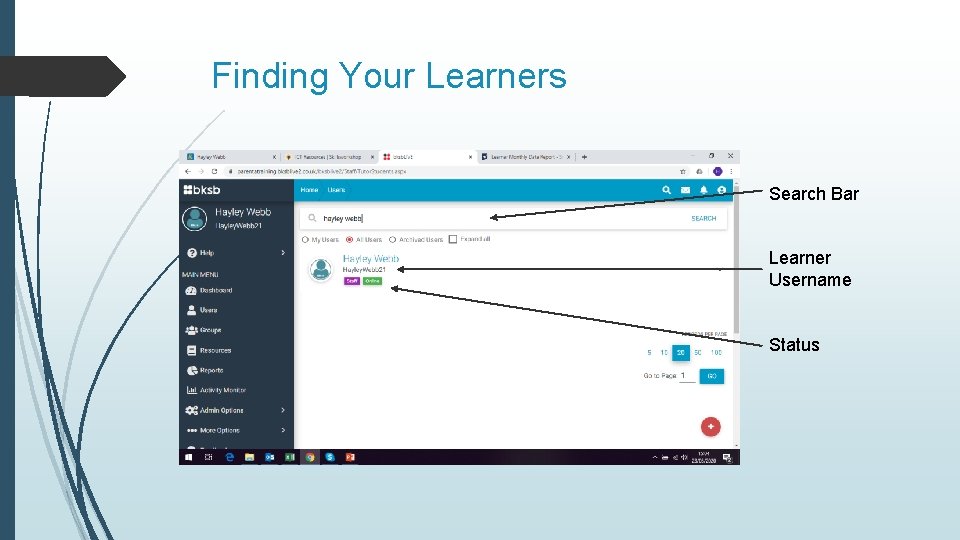
Finding Your Learners Search Bar Learner Username Status
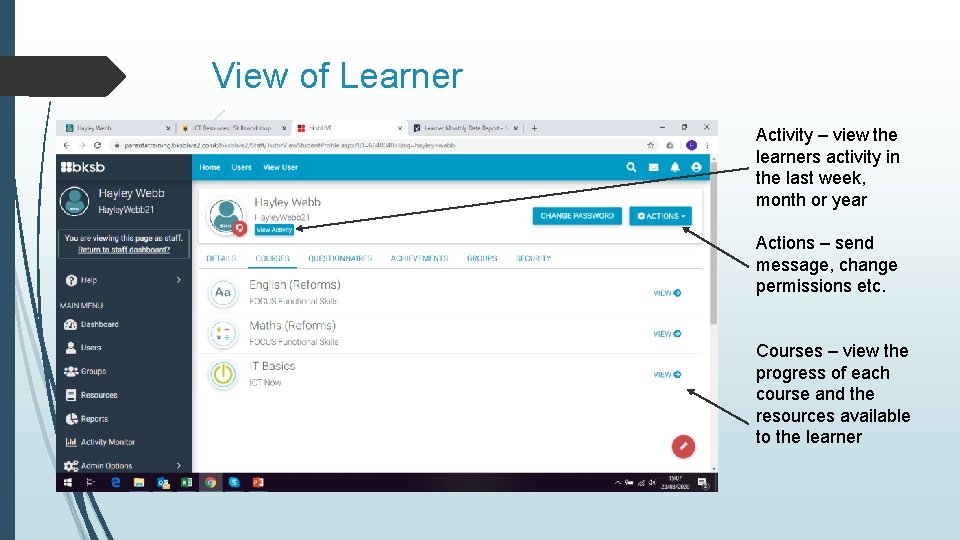
View of Learner Activity – view the learners activity in the last week, month or year Actions – send message, change permissions etc. Courses – view the progress of each course and the resources available to the learner
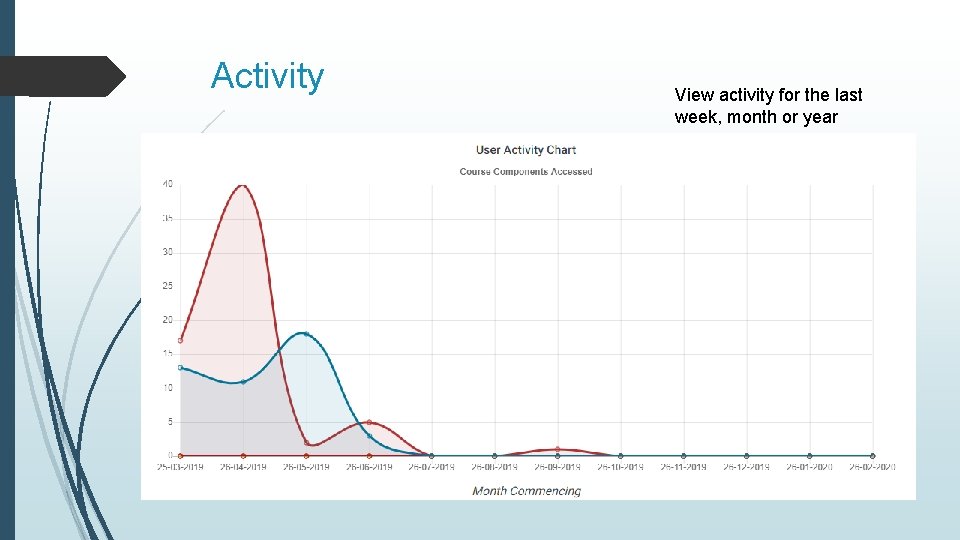
Activity View activity for the last week, month or year
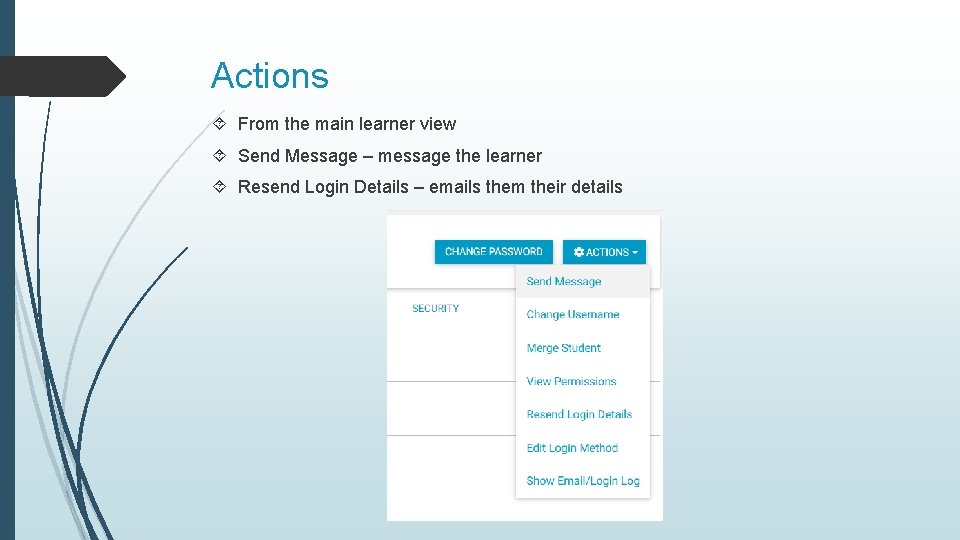
Actions From the main learner view Send Message – message the learner Resend Login Details – emails them their details
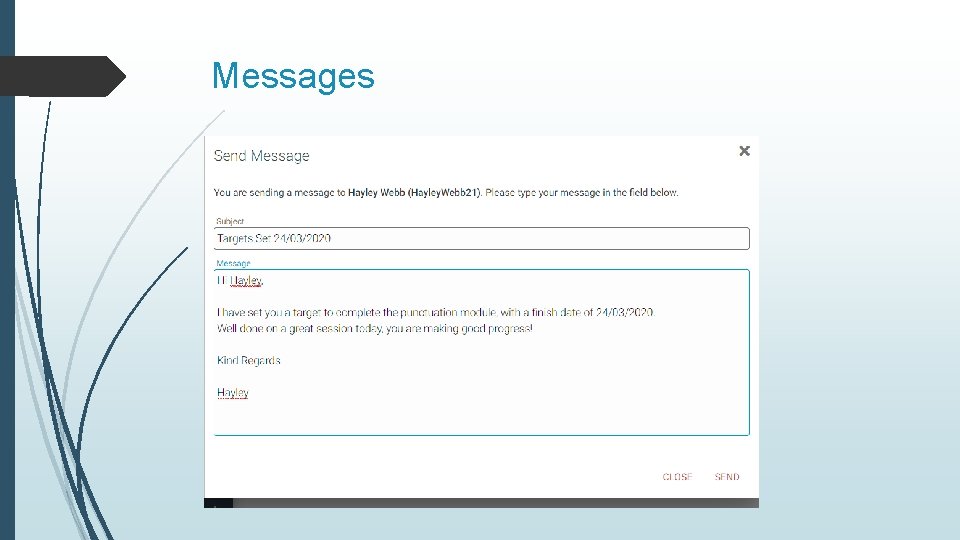
Messages
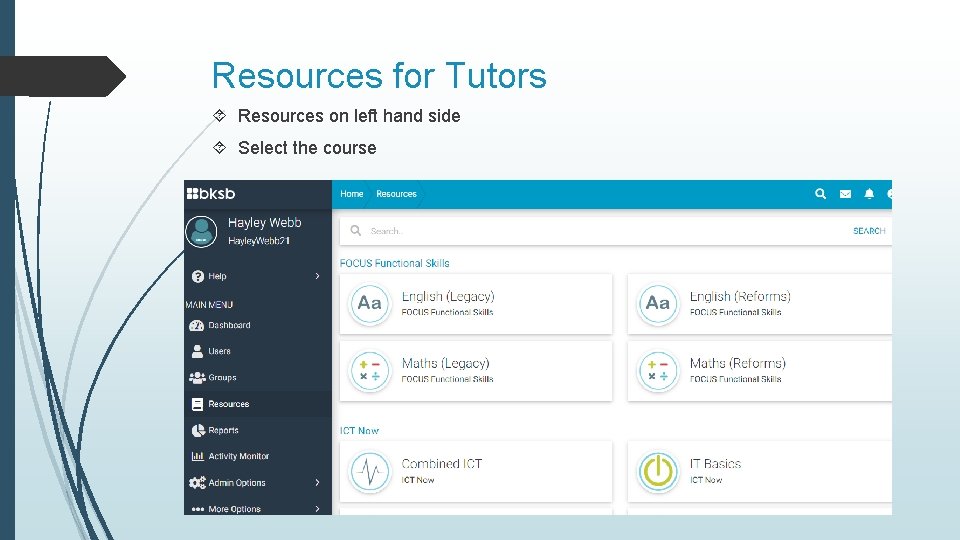
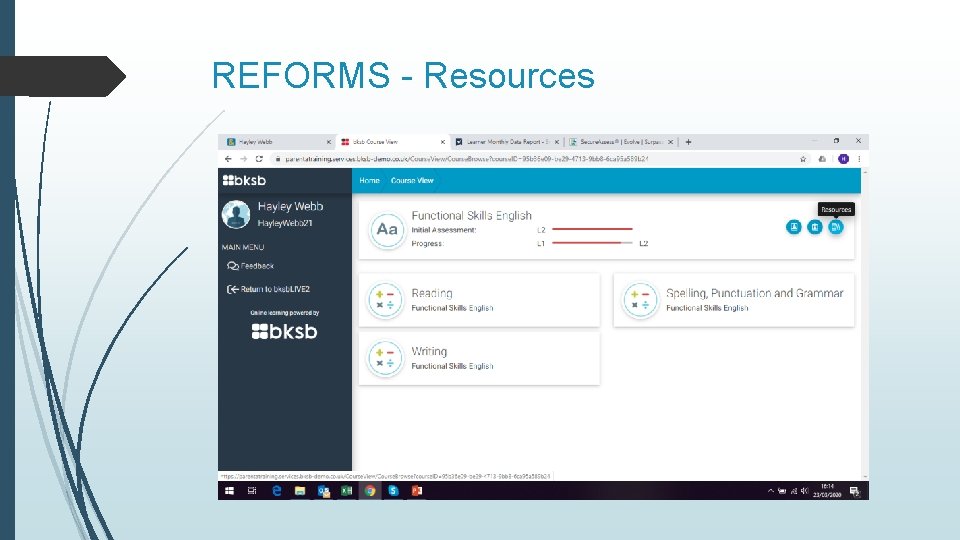
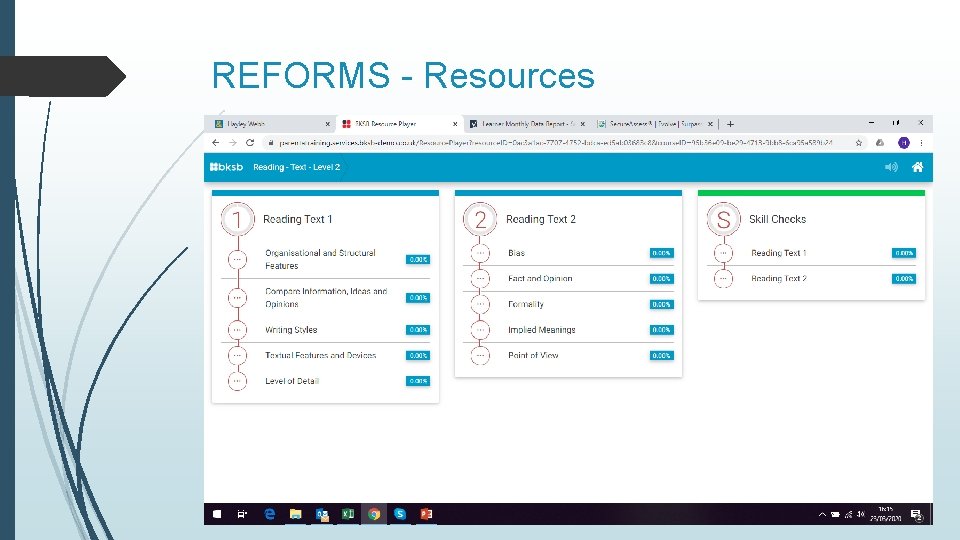
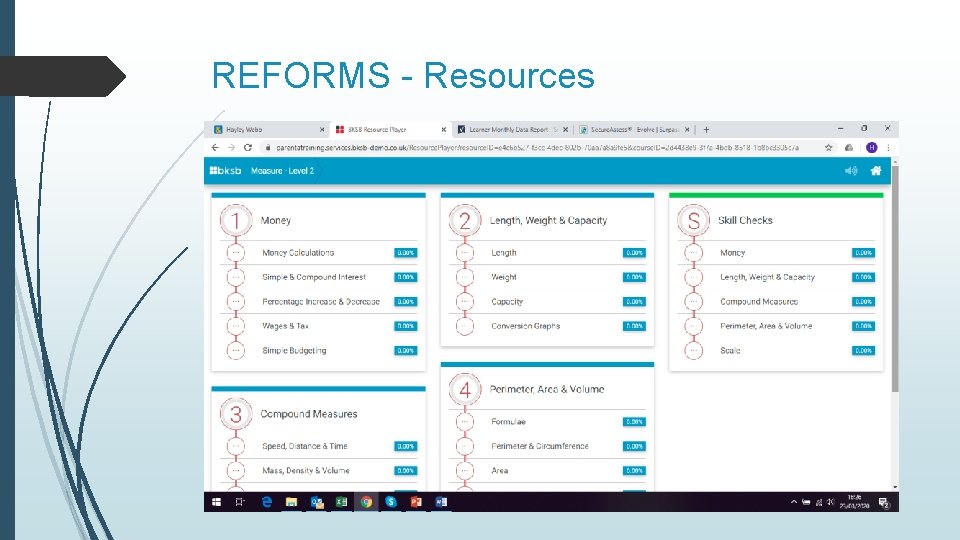
Resources for Tutors Resources on left hand side Select the course
Resources for Tutors Click through to the resource you want to use You can use this live with learners on Zoom (or other video link) They will have the same resources in their Learning Plan so that they can repeat and embed the learning, as well as Test the Skill independently Saves you heading into an individual learner profile for a resource, they are all in one place Resources under LEGACY have options for paper resources (PDF) or interactive (videos and questions) Resources under REFORMS are only interactive You could always send the learners the paper resources as additional material (save to your computer and email)
Legacy and Reforms You’ll be able to clearly see in BKSB whether a learner is enrolled onto Legacy or Reforms The two look quite different once you click into the course, so we will look at both separately
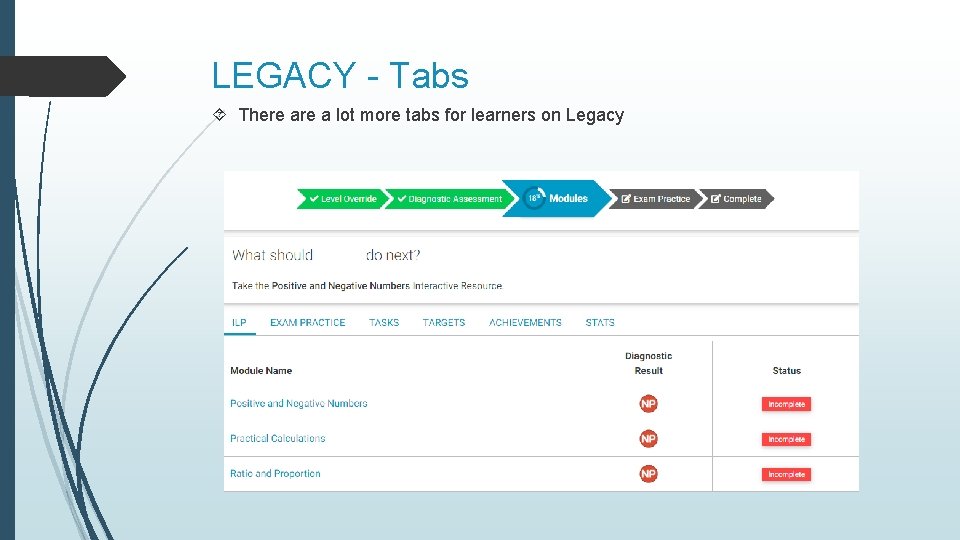
LEGACY - Tabs There a lot more tabs for learners on Legacy
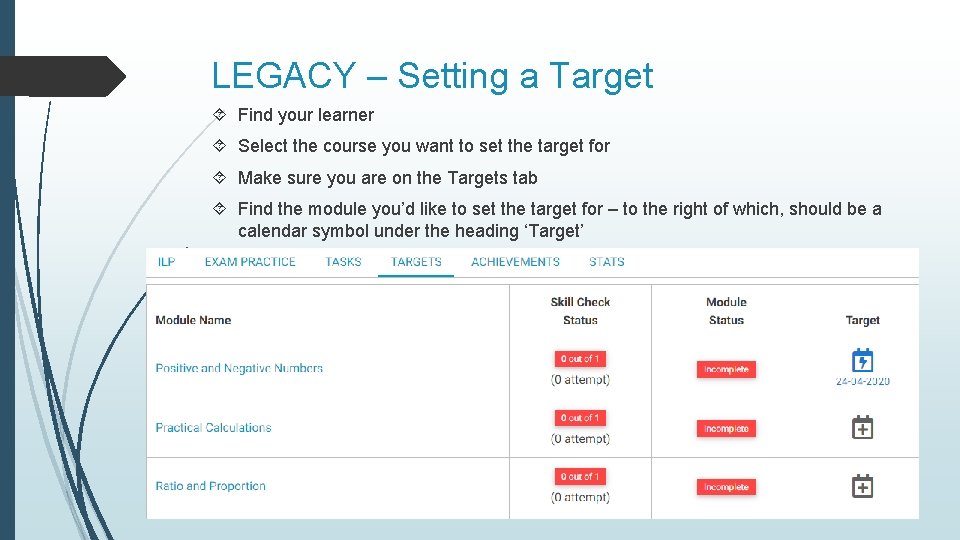
LEGACY – Setting a Target Find your learner Select the course you want to set the target for Make sure you are on the Targets tab Find the module you’d like to set the target for – to the right of which, should be a calendar symbol under the heading ‘Target’
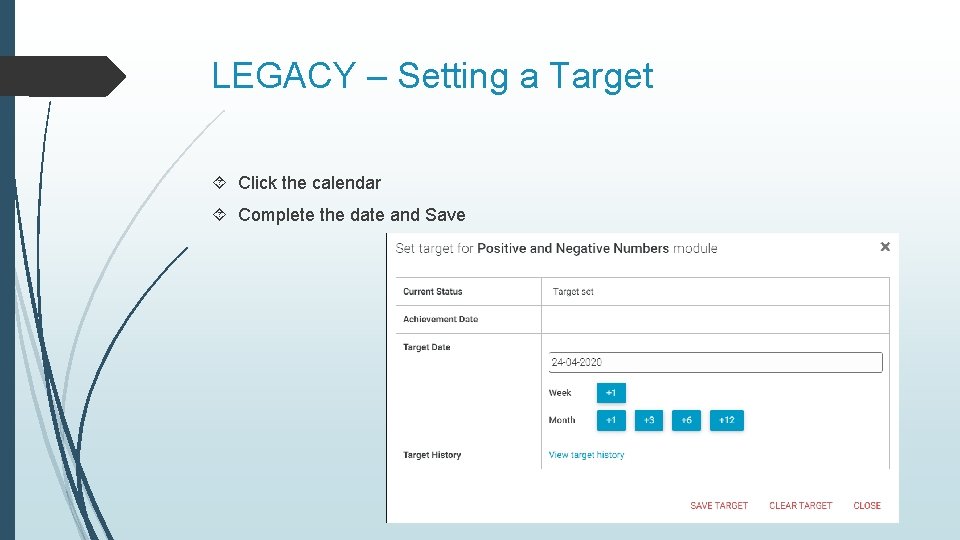
LEGACY – Setting a Target Click the calendar Complete the date and Save
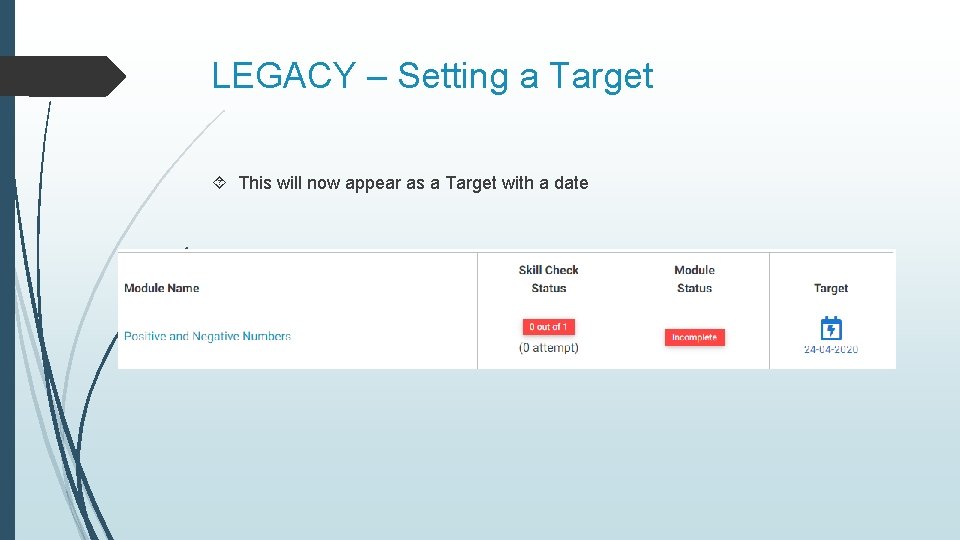
LEGACY – Setting a Target This will now appear as a Target with a date
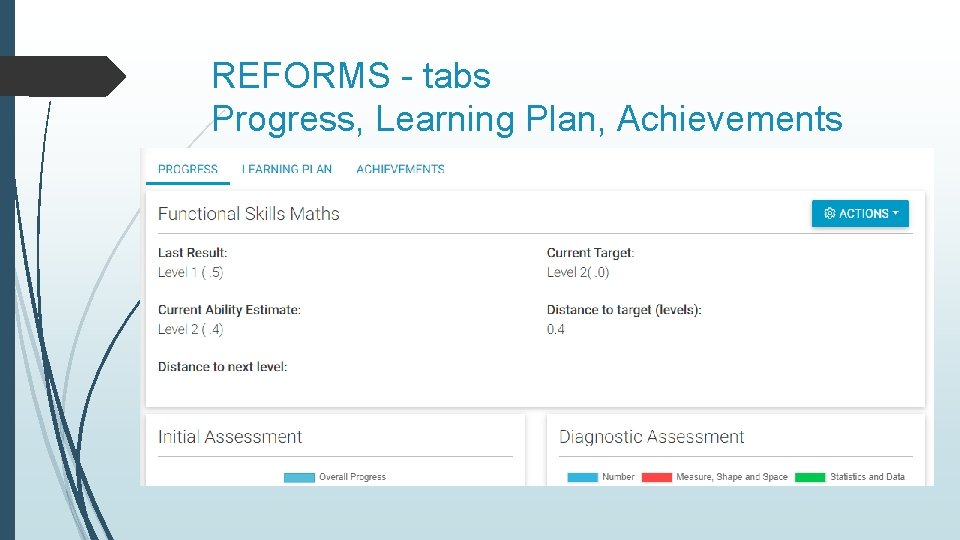
REFORMS - tabs Progress, Learning Plan, Achievements
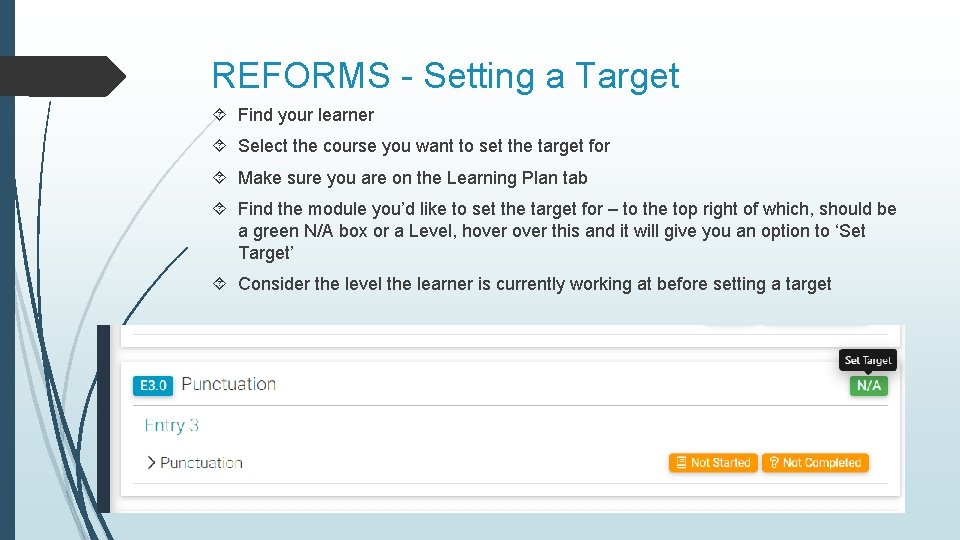
REFORMS - Setting a Target Find your learner Select the course you want to set the target for Make sure you are on the Learning Plan tab Find the module you’d like to set the target for – to the top right of which, should be a green N/A box or a Level, hover this and it will give you an option to ‘Set Target’ Consider the level the learner is currently working at before setting a target
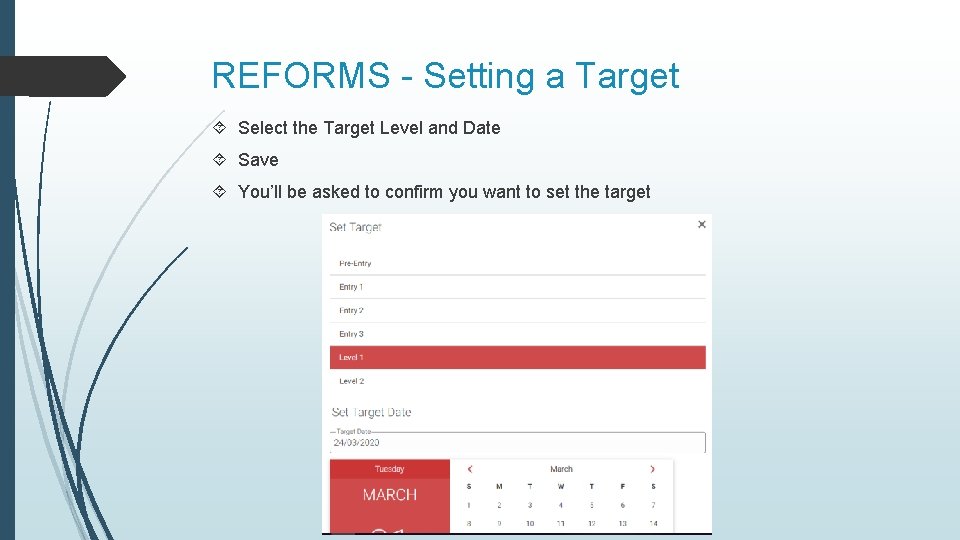
REFORMS - Setting a Target Select the Target Level and Date Save You’ll be asked to confirm you want to set the target
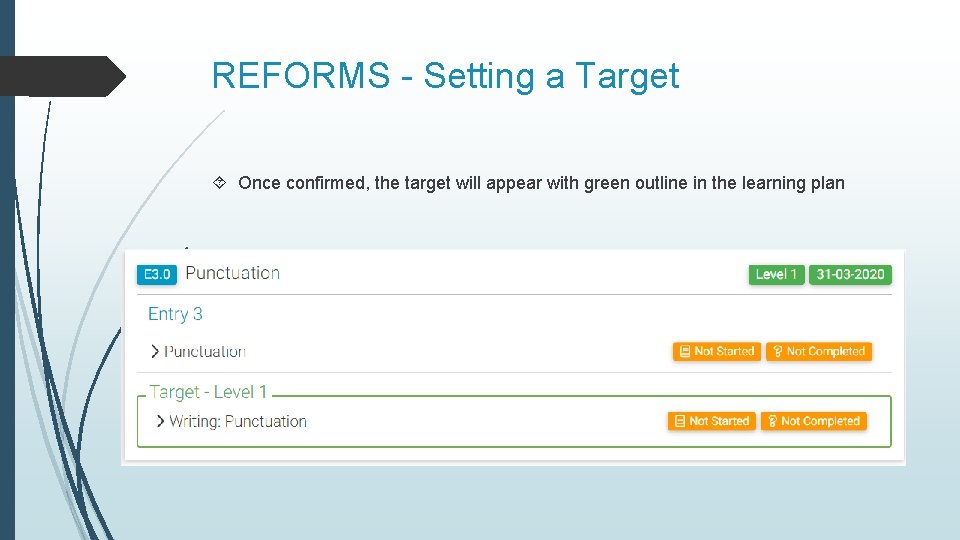
REFORMS - Setting a Target Once confirmed, the target will appear with green outline in the learning plan
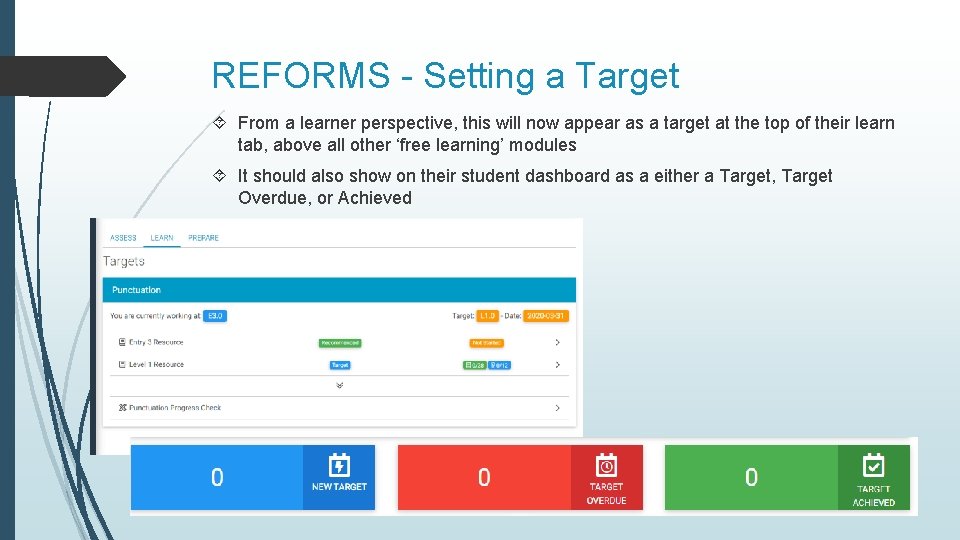
REFORMS - Setting a Target From a learner perspective, this will now appear as a target at the top of their learn tab, above all other ‘free learning’ modules It should also show on their student dashboard as a either a Target, Target Overdue, or Achieved
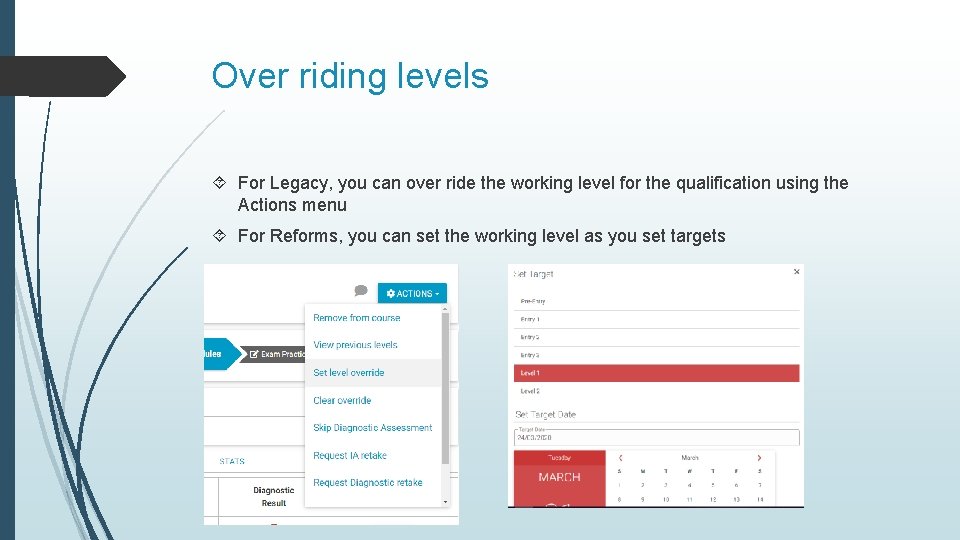
Over riding levels For Legacy, you can over ride the working level for the qualification using the Actions menu For Reforms, you can set the working level as you set targets
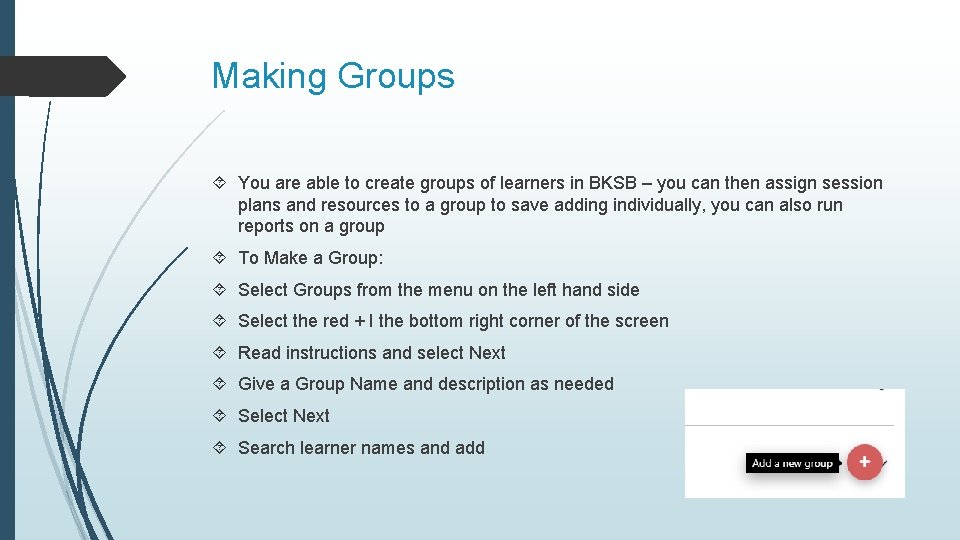
Making Groups You are able to create groups of learners in BKSB – you can then assign session plans and resources to a group to save adding individually, you can also run reports on a group To Make a Group: Select Groups from the menu on the left hand side Select the red + I the bottom right corner of the screen Read instructions and select Next Give a Group Name and description as needed Select Next Search learner names and add
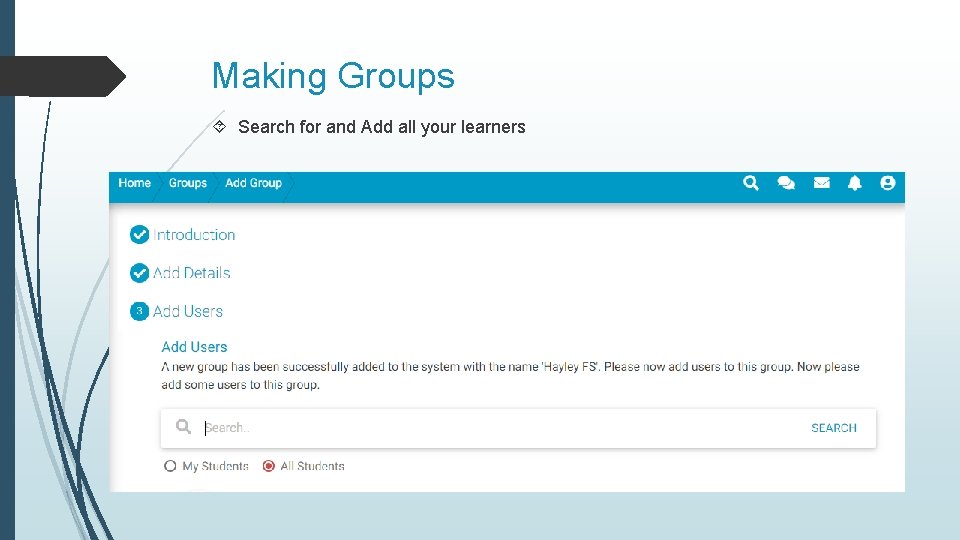
Making Groups Search for and Add all your learners
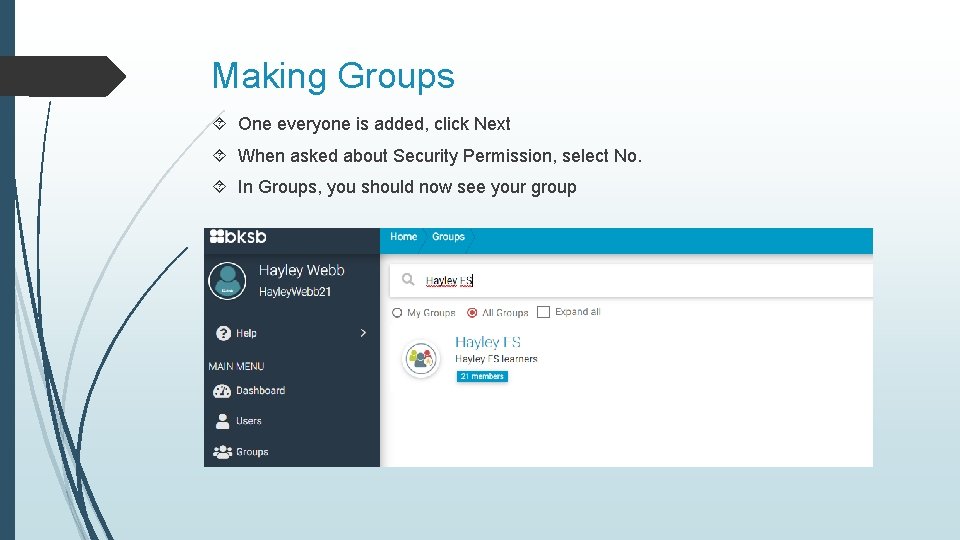
Making Groups One everyone is added, click Next When asked about Security Permission, select No. In Groups, you should now see your group
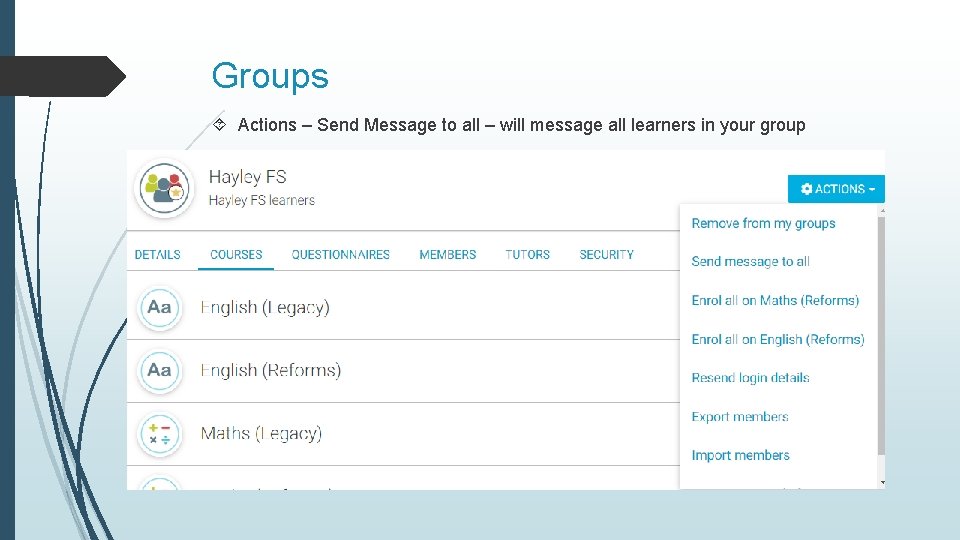
Groups Actions – Send Message to all – will message all learners in your group
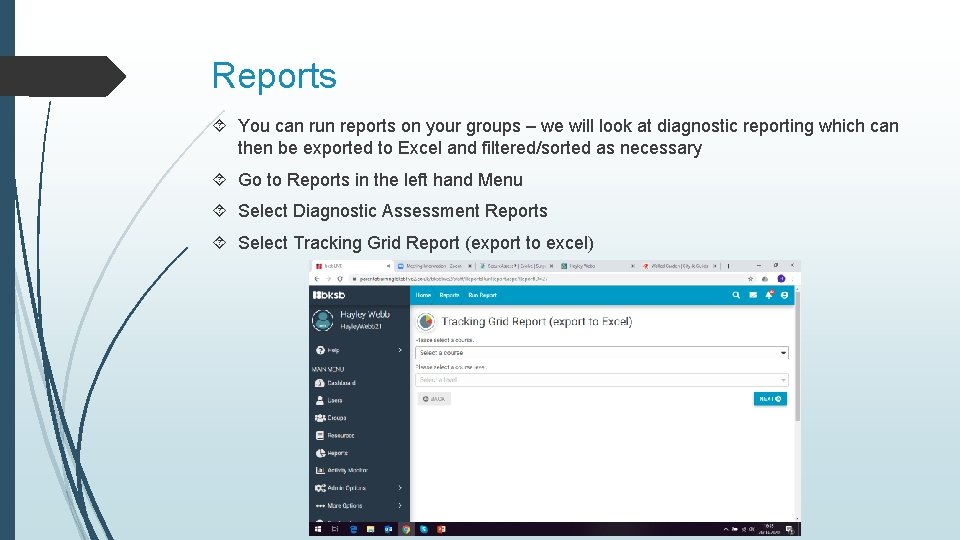
Reports You can run reports on your groups – we will look at diagnostic reporting which can then be exported to Excel and filtered/sorted as necessary Go to Reports in the left hand Menu Select Diagnostic Assessment Reports Select Tracking Grid Report (export to excel)
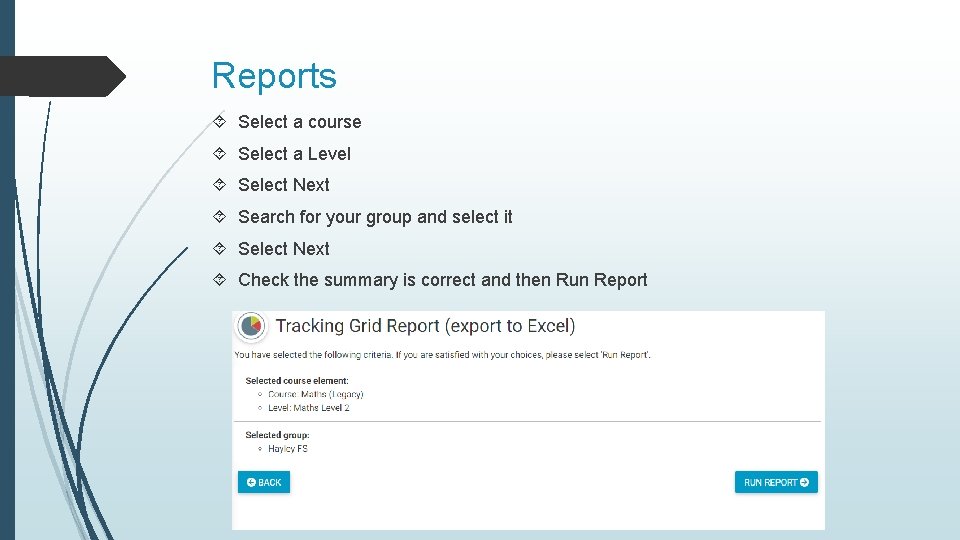
Reports Select a course Select a Level Select Next Search for your group and select it Select Next Check the summary is correct and then Run Report
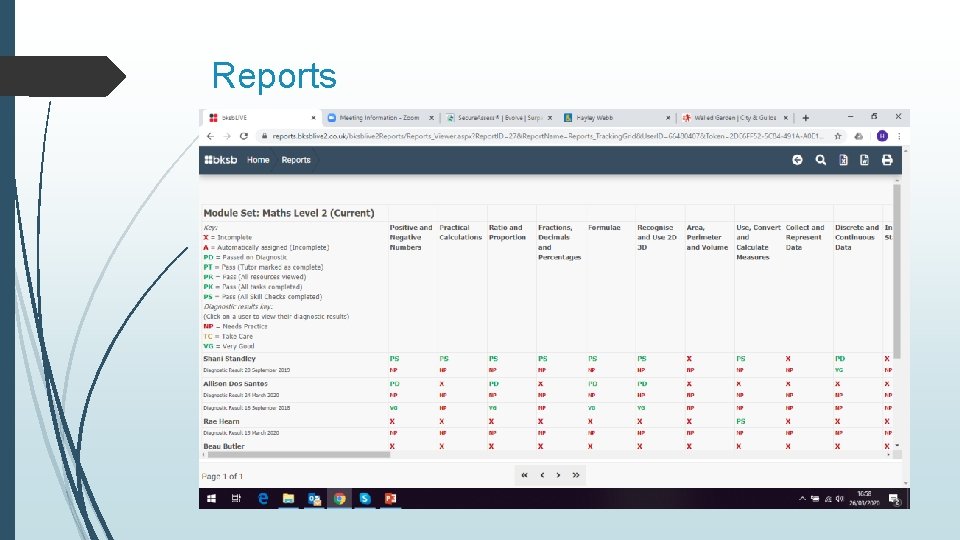
Reports
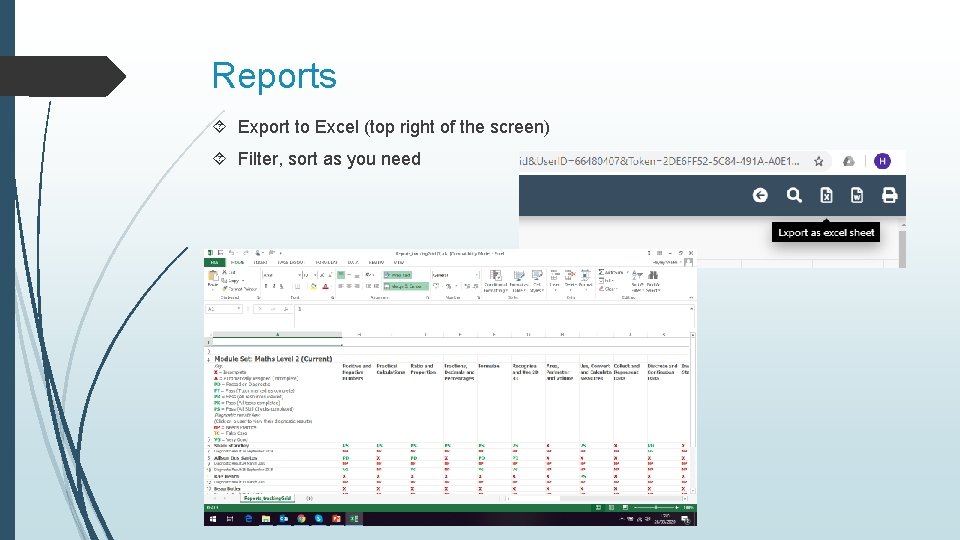
Reports Export to Excel (top right of the screen) Filter, sort as you need
Student Dashboard and Functions We will now look at the learner’s view of BKSB
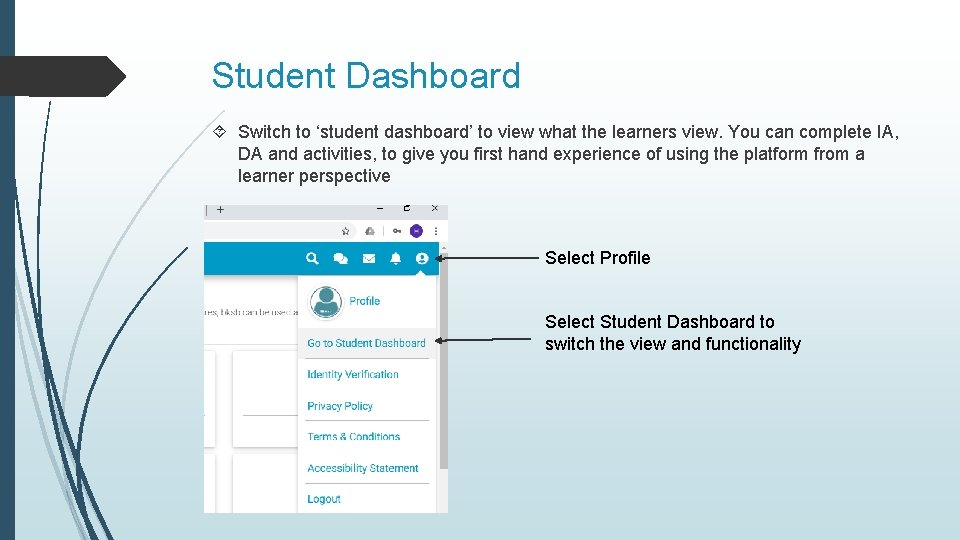
Student Dashboard Switch to ‘student dashboard’ to view what the learners view. You can complete IA, DA and activities, to give you first hand experience of using the platform from a learner perspective Select Profile Select Student Dashboard to switch the view and functionality
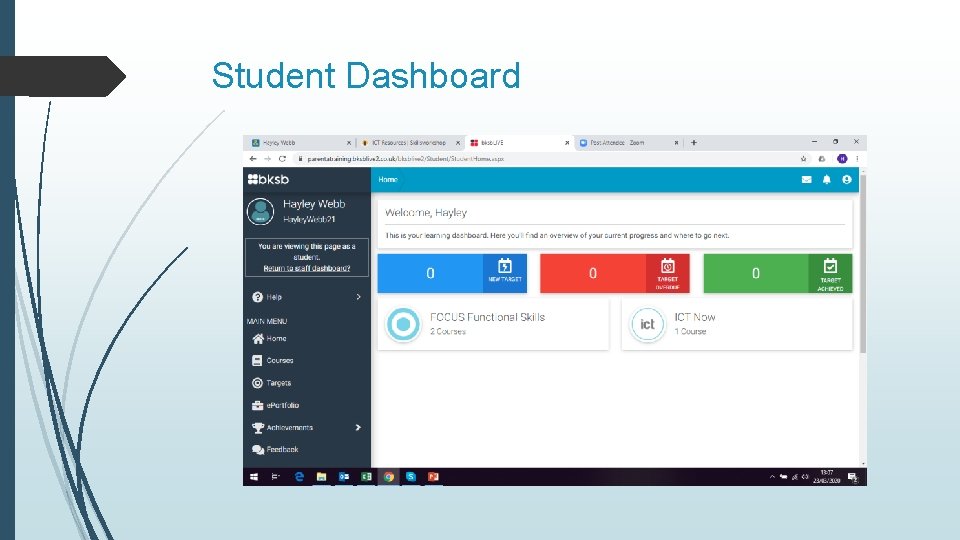
Student Dashboard
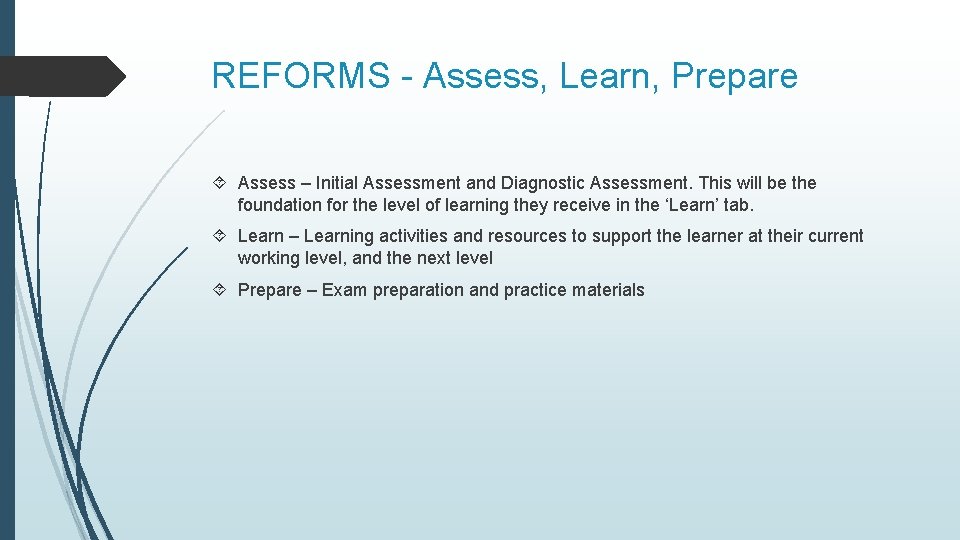
REFORMS - Assess, Learn, Prepare Assess – Initial Assessment and Diagnostic Assessment. This will be the foundation for the level of learning they receive in the ‘Learn’ tab. Learn – Learning activities and resources to support the learner at their current working level, and the next level Prepare – Exam preparation and practice materials
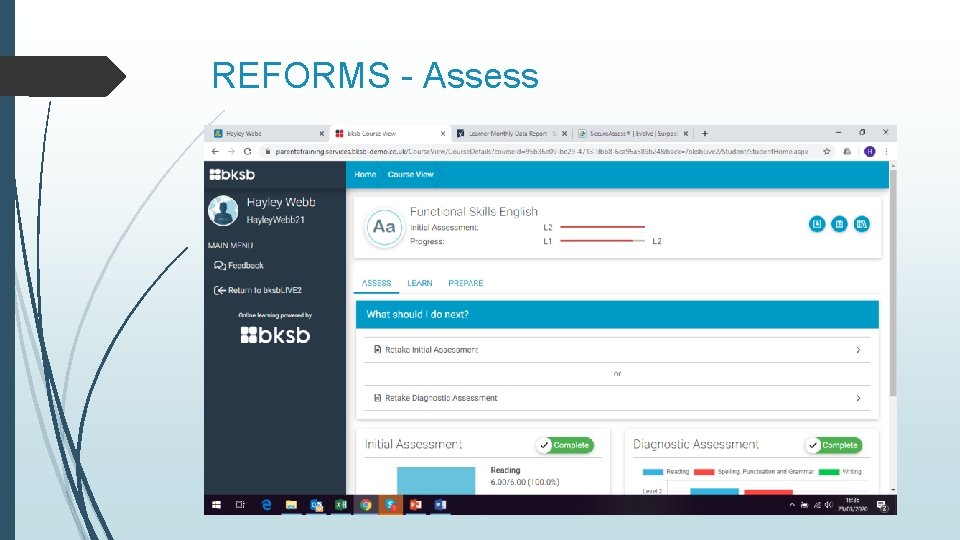
REFORMS - Assess
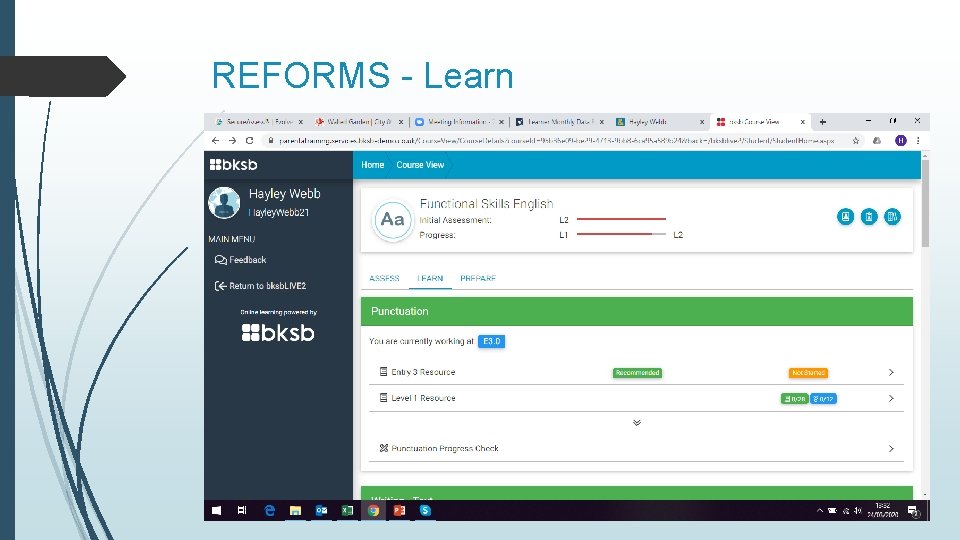
REFORMS - Learn
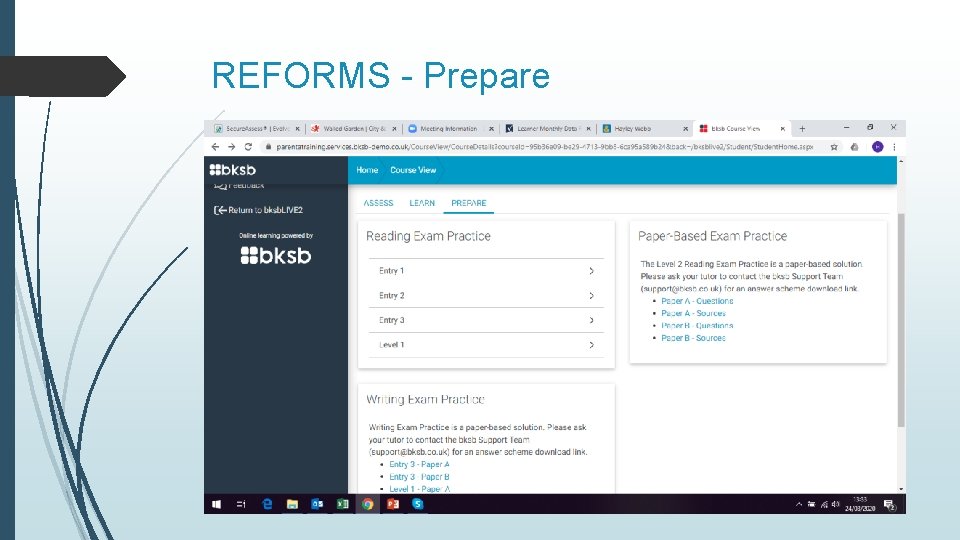
REFORMS - Prepare
REFORMS - Resources
REFORMS - Resources
REFORMS - Resources
LEGACY ILP – shows the modules for the course, and if the learner needs practice or not Targets – shows the modules with any targets set Achievements – shows completed modules and assessments
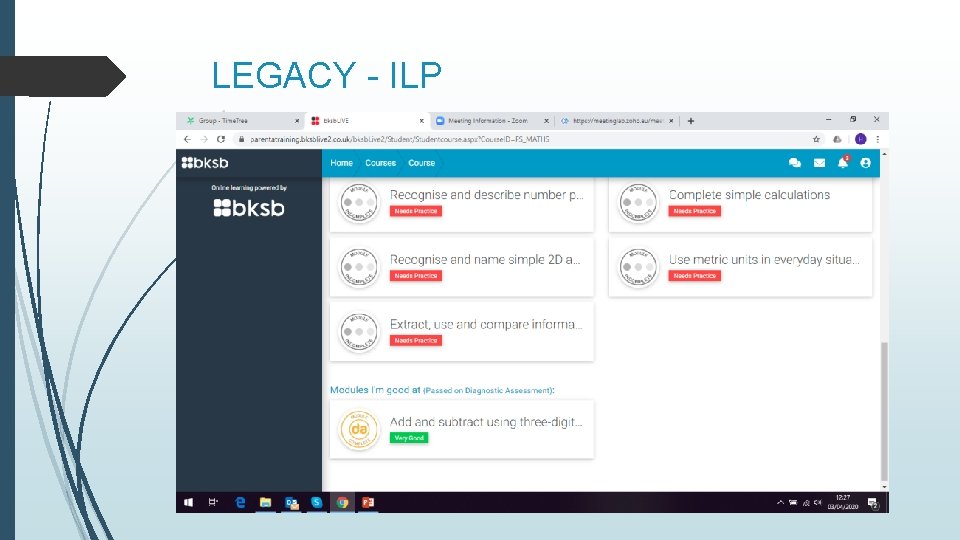
LEGACY - ILP
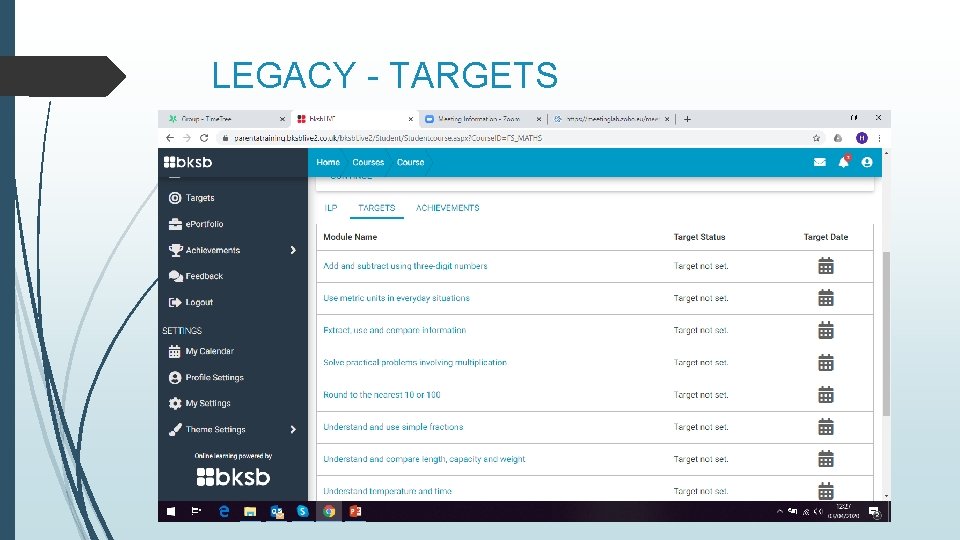
LEGACY - TARGETS
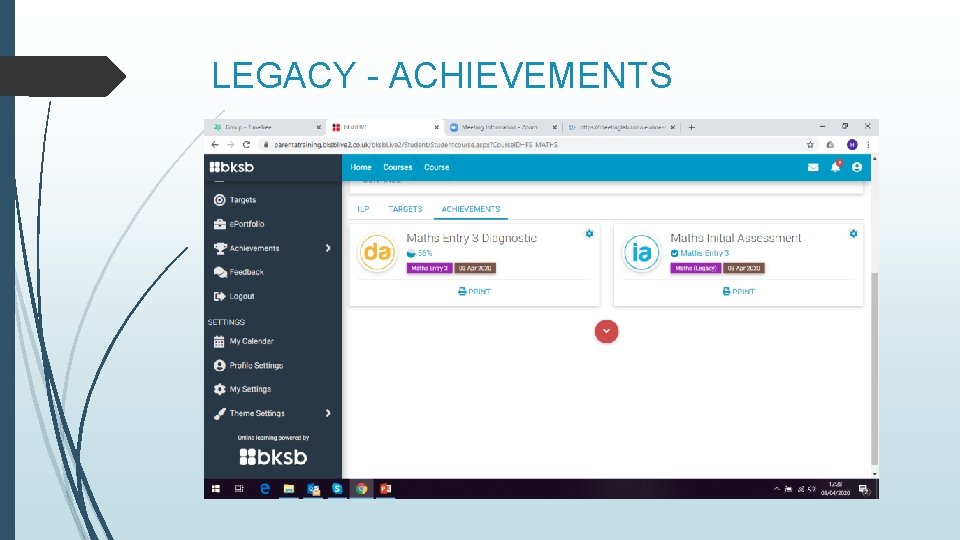
LEGACY - ACHIEVEMENTS
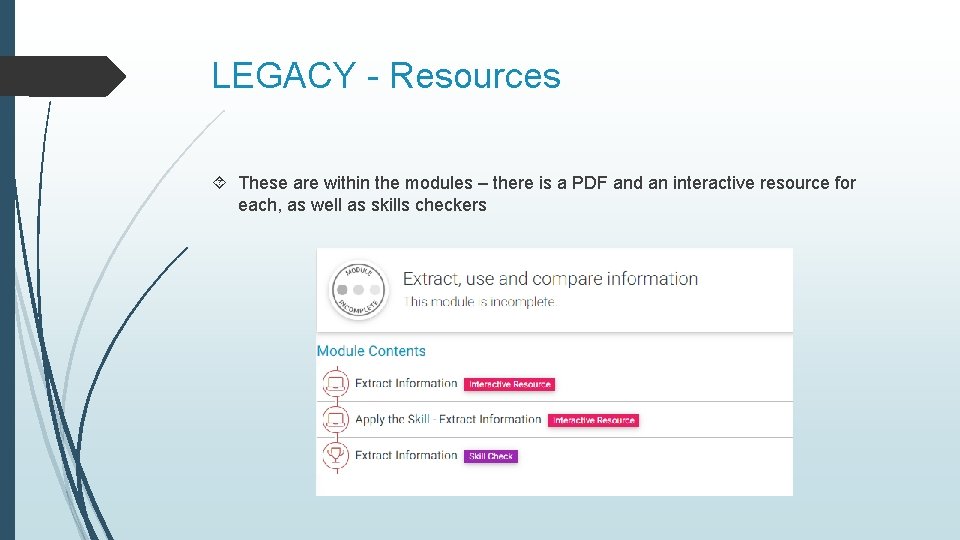
LEGACY - Resources These are within the modules – there is a PDF and an interactive resource for each, as well as skills checkers
Questions?
- Slides: 50