
Bionic Arduino Introduction to Microcontrollers with Arduino Class
Bionic Arduino Introduction to Microcontrollers with Arduino Class 2 13 Nov 2007 - machineproject - Tod E. Kurt
What’s for Today • Random Behavior • RGB LEDs • Color mixing • Analog input with variable resistors • Potentiometers & photocells • Basic serial input & output • Playing sound with piezo buzzers
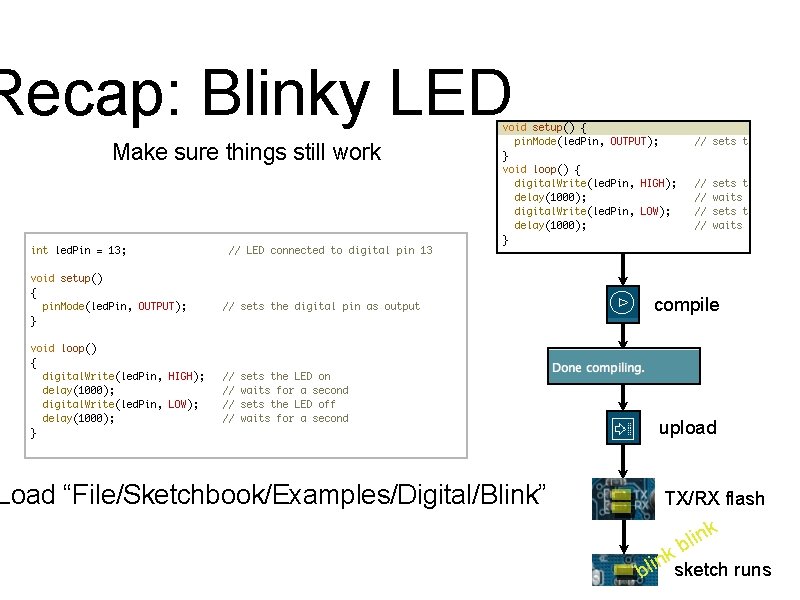
Recap: Blinky LED Make sure things still work Load “File/Sketchbook/Examples/Digital/Blink” compile upload TX/RX flash k in l b nksketch runs i l b

Known Good Configuration Rule #1 of experimenting: Before trying anything new, Get back to a known working state So spend a few minutes & get “Blink” working again
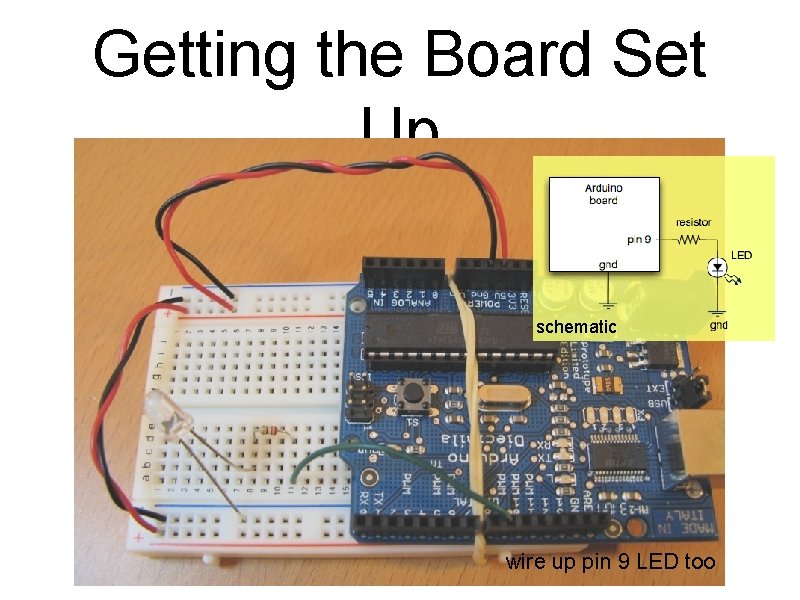
Getting the Board Set Up schematic wire up pin 9 LED too

Questions / Review Any questions, comments, or problems?
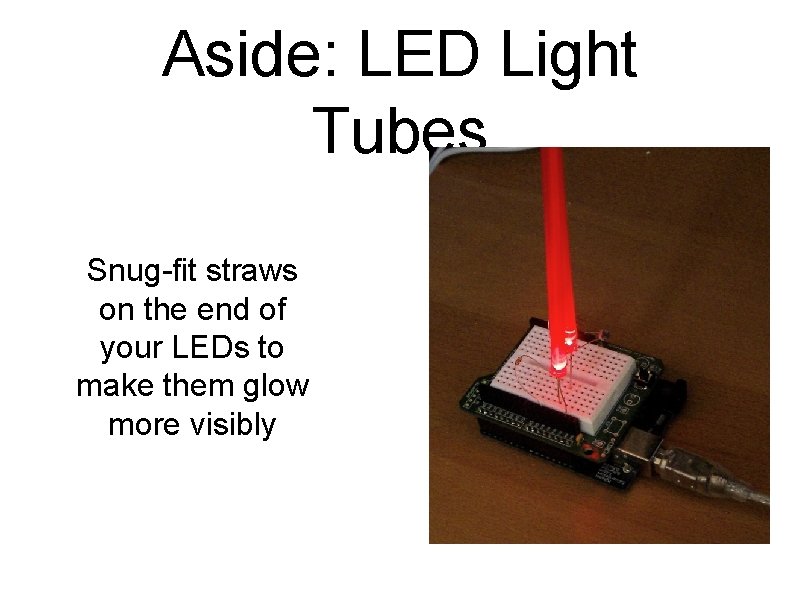
Aside: LED Light Tubes Snug-fit straws on the end of your LEDs to make them glow more visibly

Random Behavior “Candle. Light” Uses simple pseudo random number generator to mimic flame Use random(min, max) to pick a number between min & max.
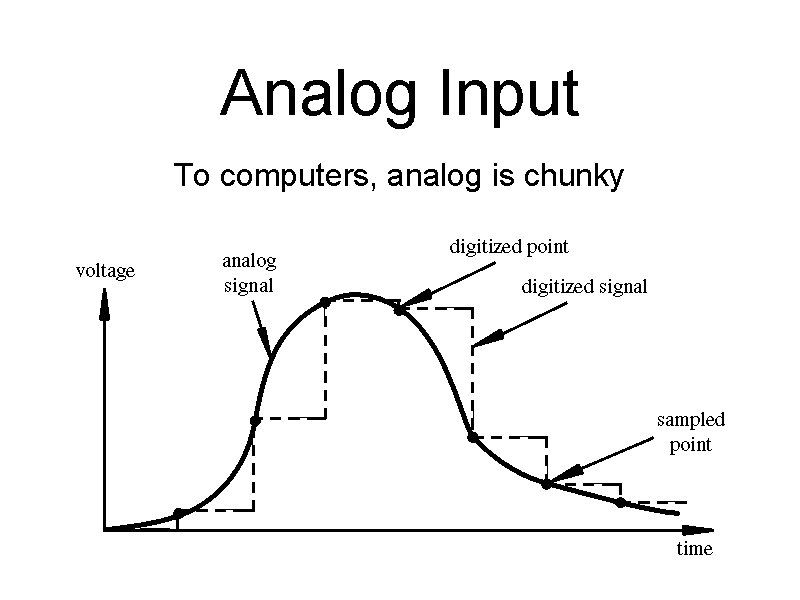
Analog Input To computers, analog is chunky
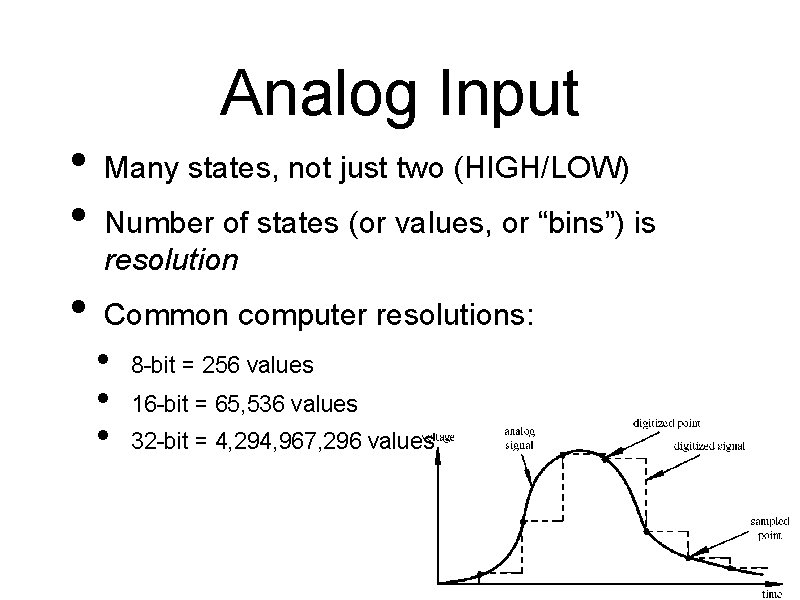
Analog Input • • • Many states, not just two (HIGH/LOW) Number of states (or values, or “bins”) is resolution Common computer resolutions: • • • 8 -bit = 256 values 16 -bit = 65, 536 values 32 -bit = 4, 294, 967, 296 values

Analog Input • Arduino (ATmega 168) has six ADC inputs • (ADC = Analog to Digital Converter) • Reads voltage between 0 to 5 volts • Resolution is 10 -bit (1024 values) • In other words, 5/1024 = 4. 8 m. V smallest voltage change you can measure

Analog Input Sure sure, but how to make a varying voltage? With a potentiometer. Or just pot. 50 k +5 V– measure– gnd– The pot you have pots also look like this

Potentiometers Moving the knob is like moving where the arrow taps the voltage on the resistor
What good are pots? • Anytime you need a ranged input • (we’re used to knobs) • Measure rotational position • steering wheel, robotic joint, etc. • But more importantly for us, potentiometers are a good example of a resistive sensor
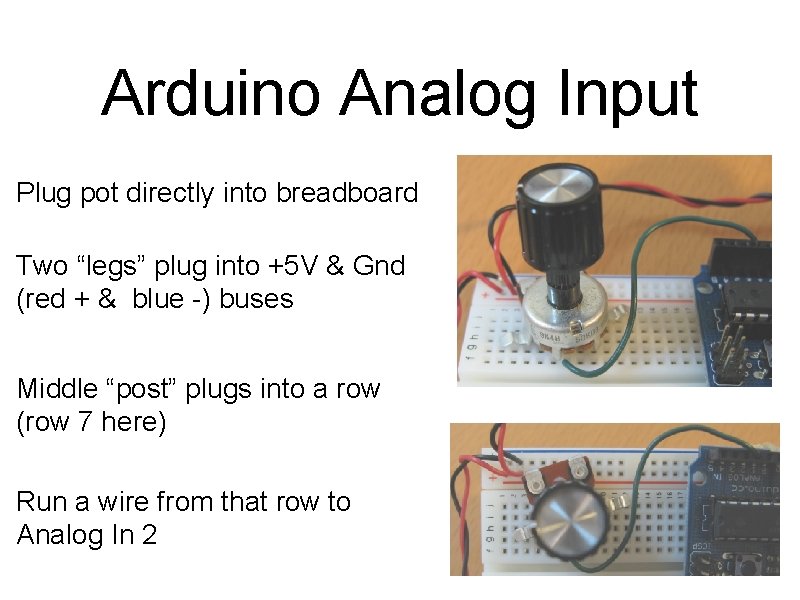
Arduino Analog Input Plug pot directly into breadboard Two “legs” plug into +5 V & Gnd (red + & blue -) buses Middle “post” plugs into a row (row 7 here) Run a wire from that row to Analog In 2
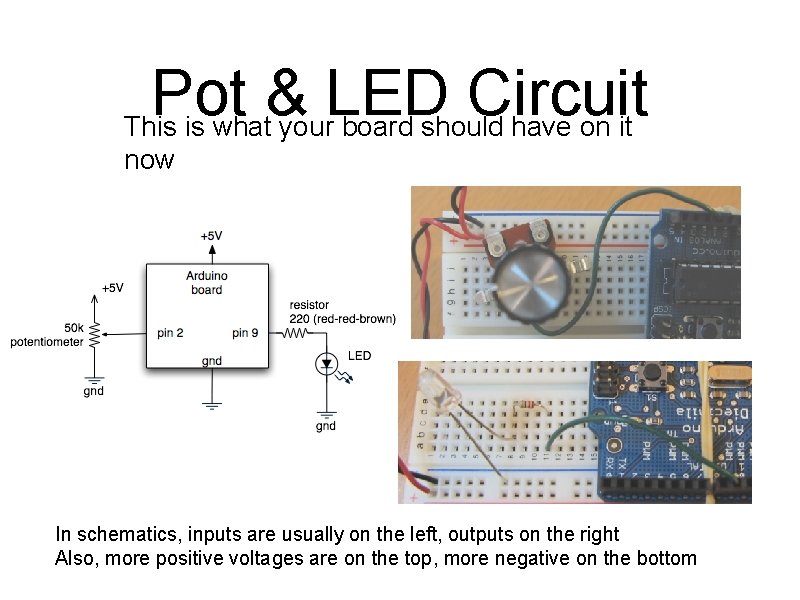
Pot & LED Circuit This is what your board should have on it now In schematics, inputs are usually on the left, outputs on the right Also, more positive voltages are on the top, more negative on the bottom
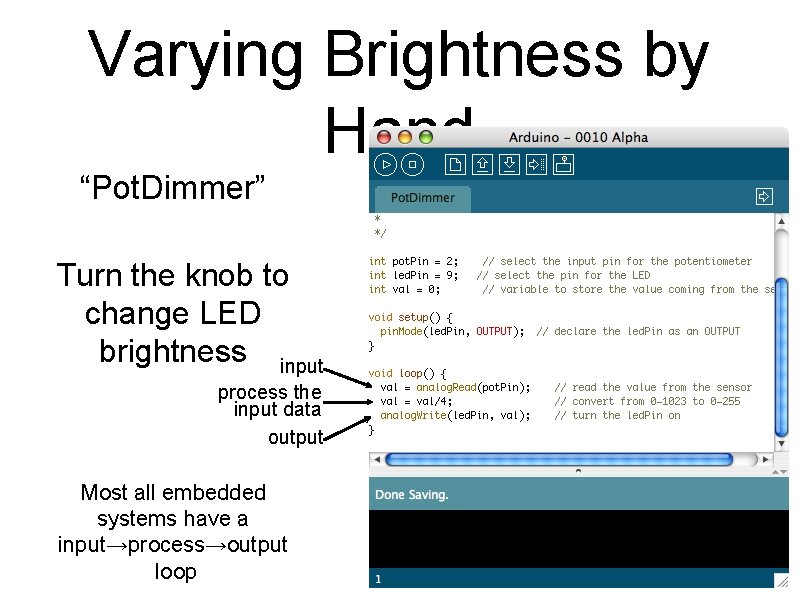
Varying Brightness by Hand “Pot. Dimmer” Turn the knob to change LED brightness input process the input data output Most all embedded systems have a input→process→output loop
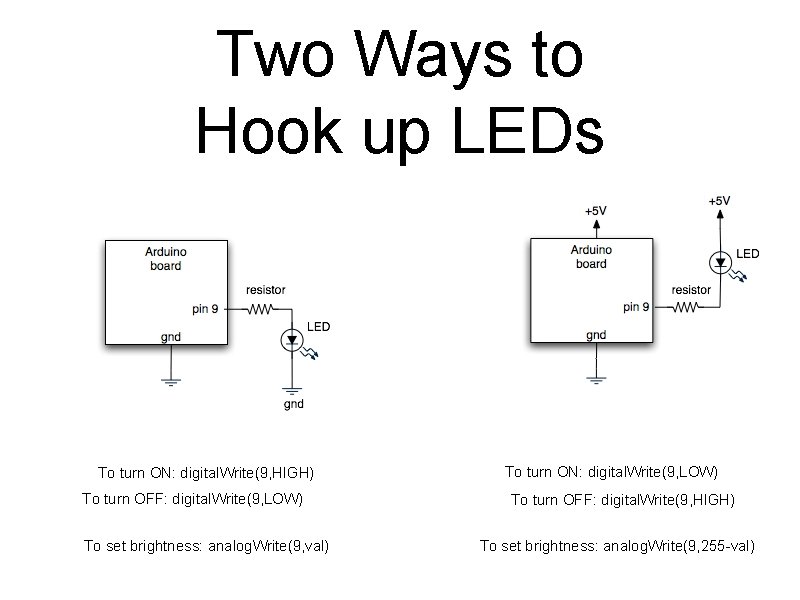
Two Ways to Hook up LEDs To turn ON: digital. Write(9, HIGH) To turn ON: digital. Write(9, LOW) To turn OFF: digital. Write(9, HIGH) To set brightness: analog. Write(9, val) To set brightness: analog. Write(9, 255 -val)
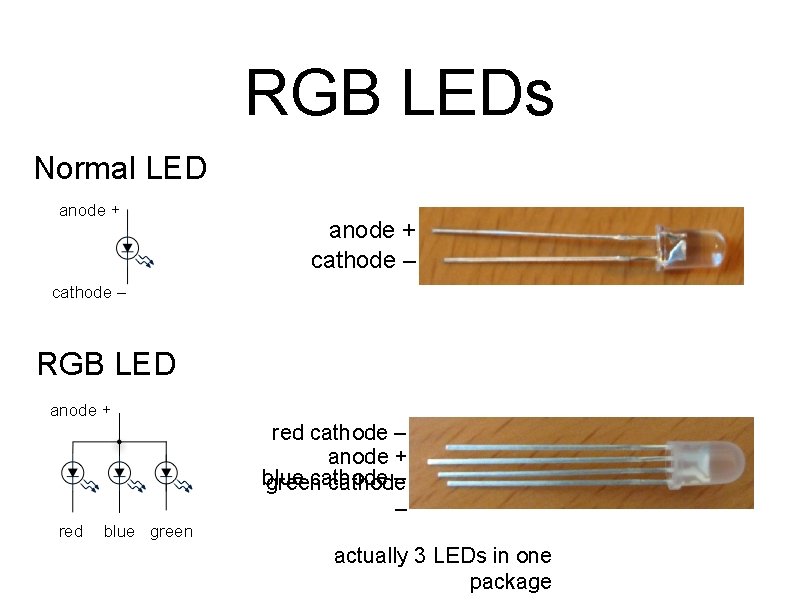
RGB LEDs Normal LED anode + cathode – RGB LED anode + red cathode – anode + blue cathode – green cathode – red blue green actually 3 LEDs in one package
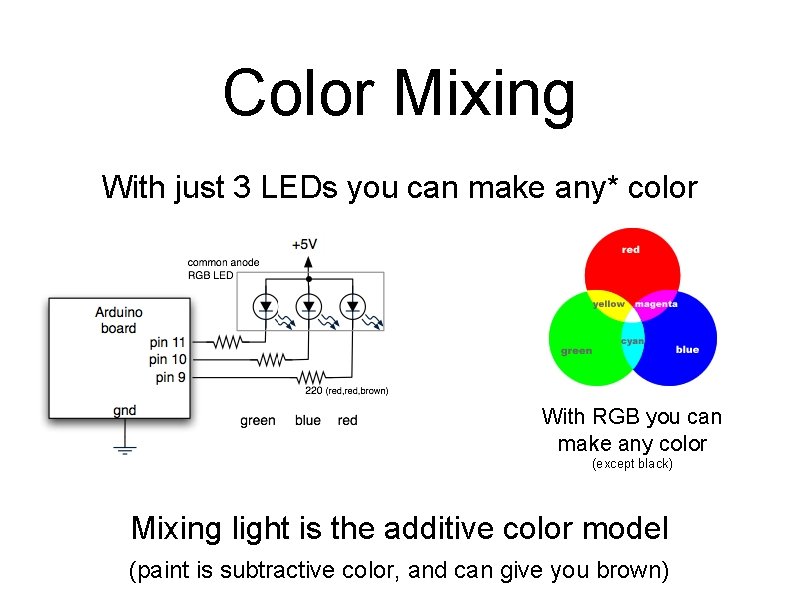
Color Mixing With just 3 LEDs you can make any* color With RGB you can make any color (except black) Mixing light is the additive color model (paint is subtractive color, and can give you brown)
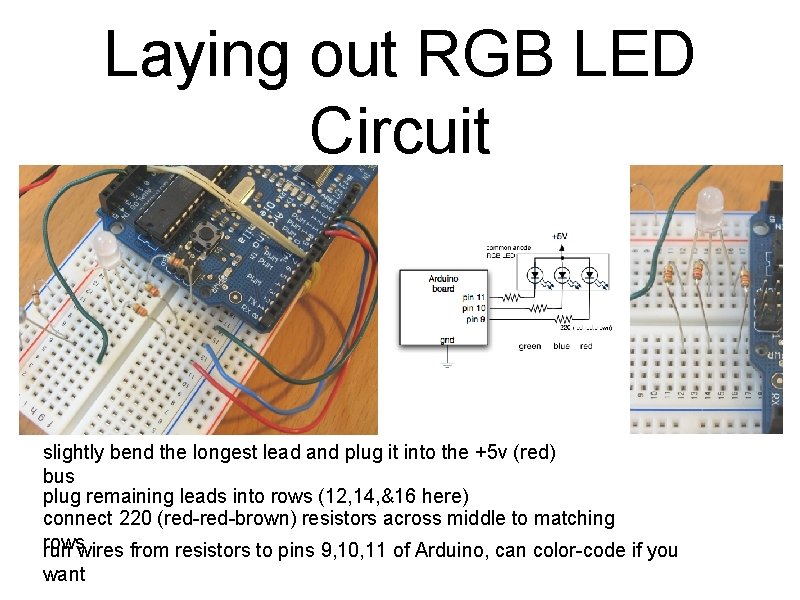
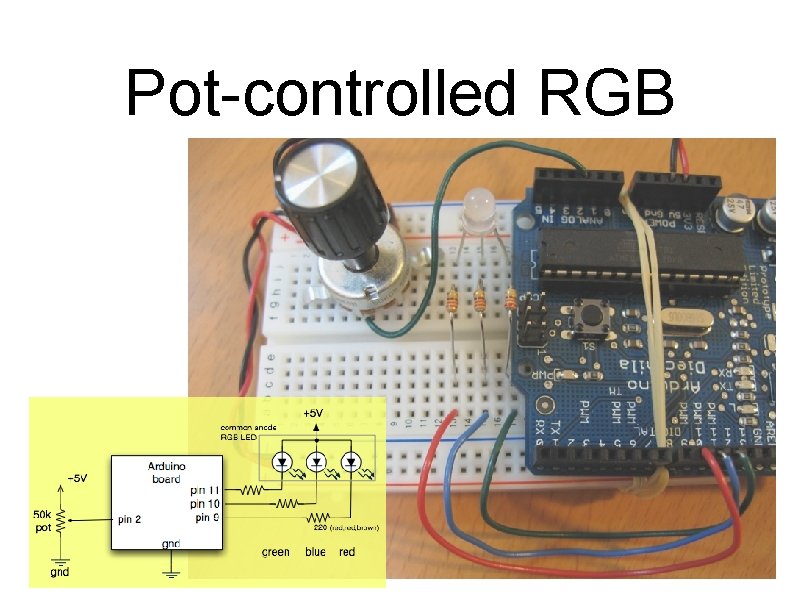
Laying out RGB LED Circuit slightly bend the longest lead and plug it into the +5 v (red) bus plug remaining leads into rows (12, 14, &16 here) connect 220 (red-brown) resistors across middle to matching rows run wires from resistors to pins 9, 10, 11 of Arduino, can color-code if you want
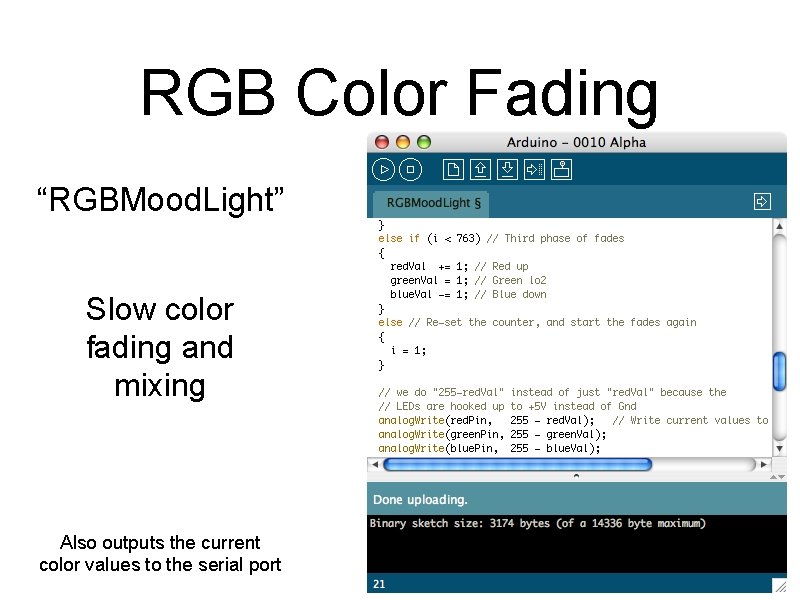
RGB Color Fading “RGBMood. Light” Slow color fading and mixing Also outputs the current color values to the serial port
Pot-controlled RGB

Pot-controlled RGB “RGBPot. Mixer” Use the pot from before to control the color mix The code turns the single ranged input value into “sectors” where each sector is a color
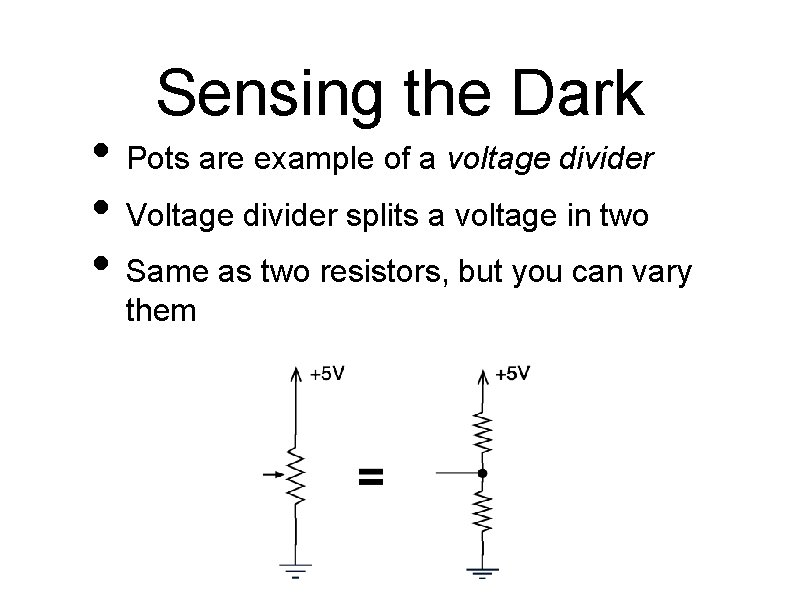
Sensing the Dark • Pots are example of a voltage divider • Voltage divider splits a voltage in two • Same as two resistors, but you can vary them
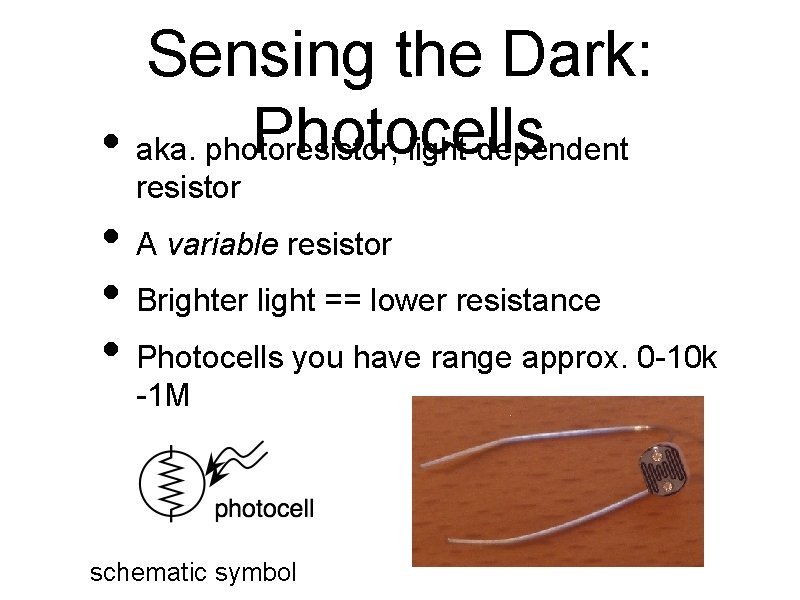
Sensing the Dark: Photocells • aka. photoresistor, light-dependent resistor • A variable resistor • Brighter light == lower resistance • Photocells you have range approx. 0 -10 k -1 M schematic symbol
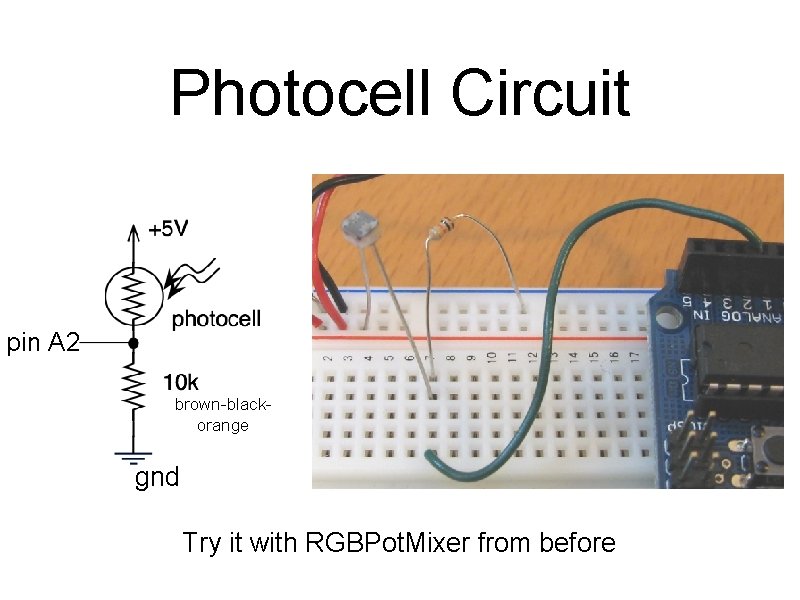
Photocell Circuit pin A 2 brown-blackorange gnd Try it with RGBPot. Mixer from before
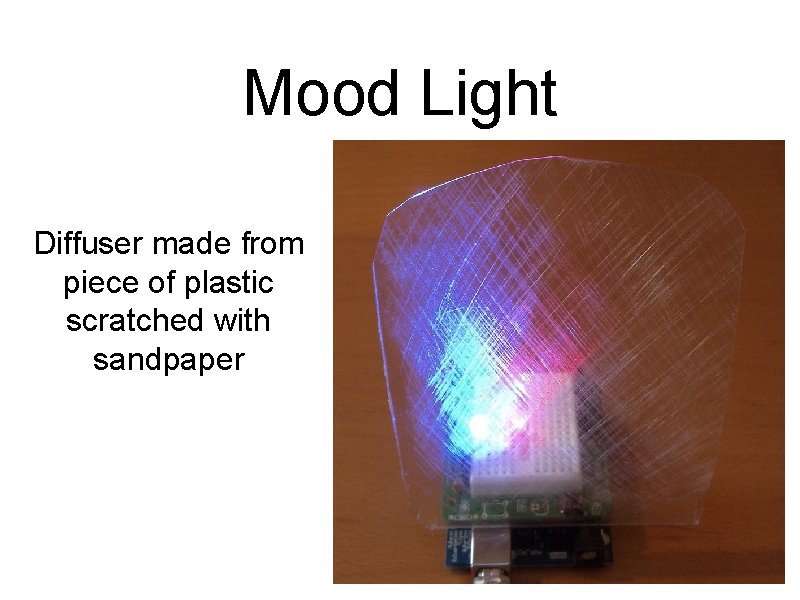
Mood Light Diffuser made from piece of plastic scratched with sandpaper
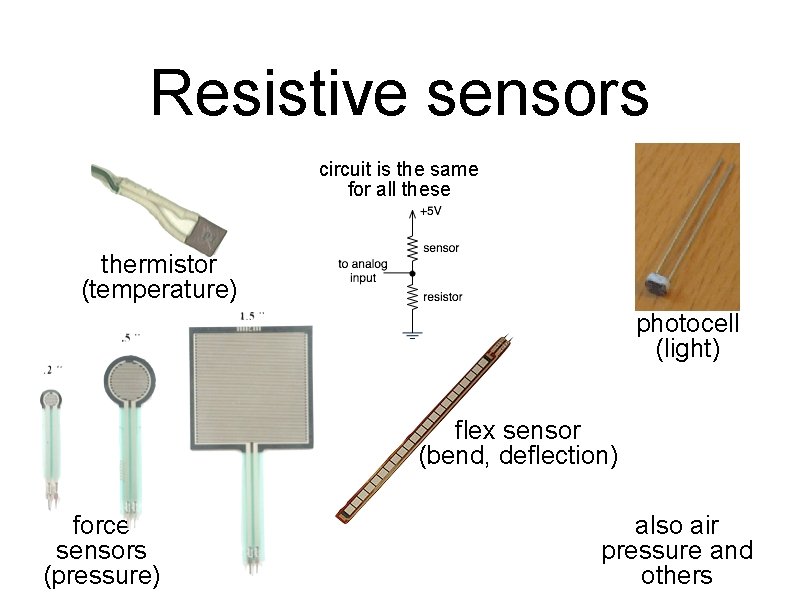
Resistive sensors circuit is the same for all these thermistor (temperature) photocell (light) flex sensor (bend, deflection) force sensors (pressure) also air pressure and others
Communicating with Others • • Arduino can use same USB cable for programming and to talk with computers Talking to other devices uses the “Serial” commands • • • Serial. begin() – prepare to use serial Serial. print() – send data to computer Serial. read() – read data from computer
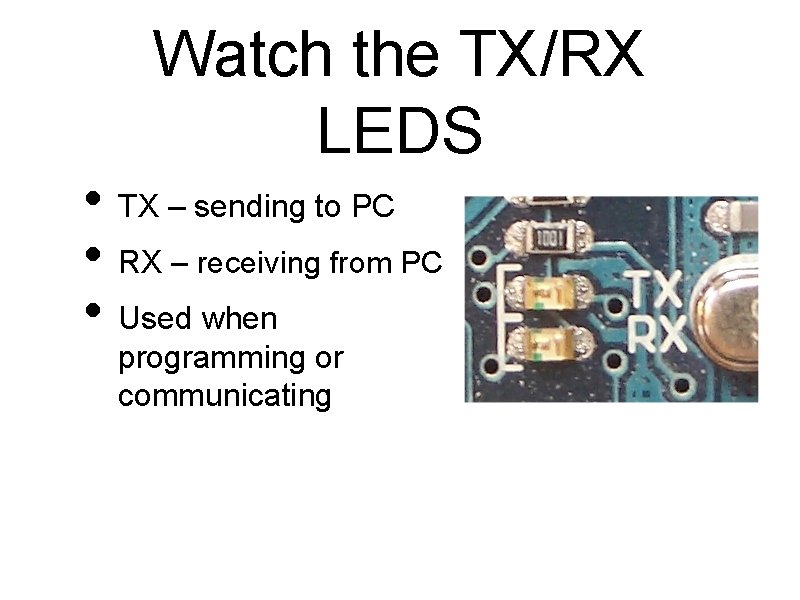
Watch the TX/RX LEDS • TX – sending to PC • RX – receiving from PC • Used when programming or communicating
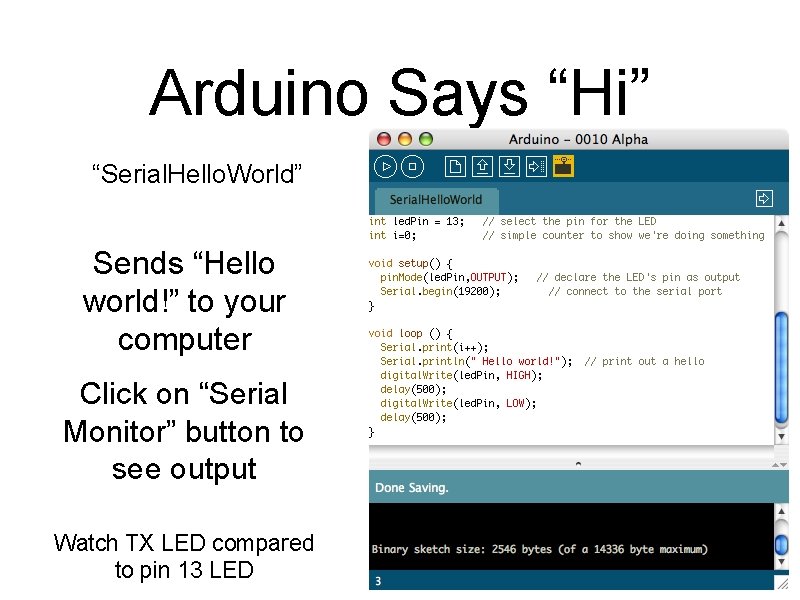
Arduino Says “Hi” “Serial. Hello. World” Sends “Hello world!” to your computer Click on “Serial Monitor” button to see output Watch TX LED compared to pin 13 LED
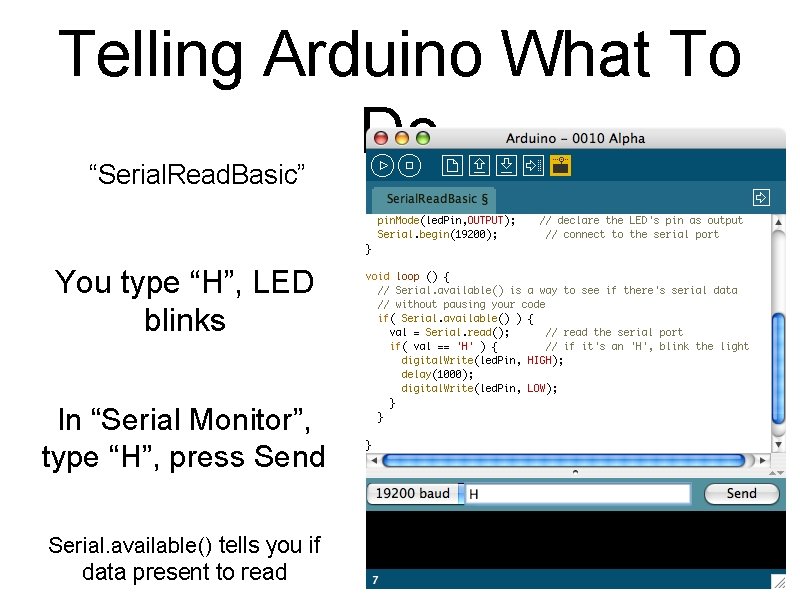
Telling Arduino What To Do “Serial. Read. Basic” You type “H”, LED blinks In “Serial Monitor”, type “H”, press Send Serial. available() tells you if data present to read
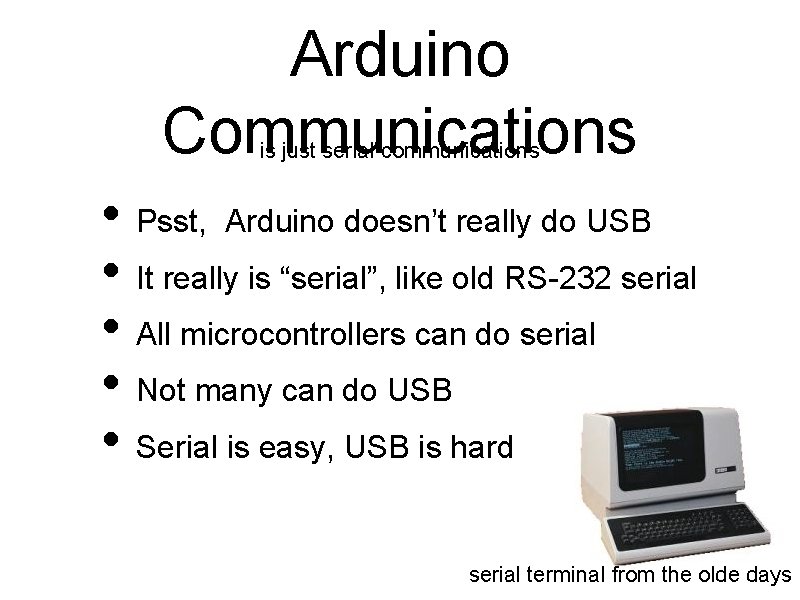
Arduino Communications is just serial communications • Psst, Arduino doesn’t really do USB • It really is “serial”, like old RS-232 serial • All microcontrollers can do serial • Not many can do USB • Serial is easy, USB is hard serial terminal from the olde days
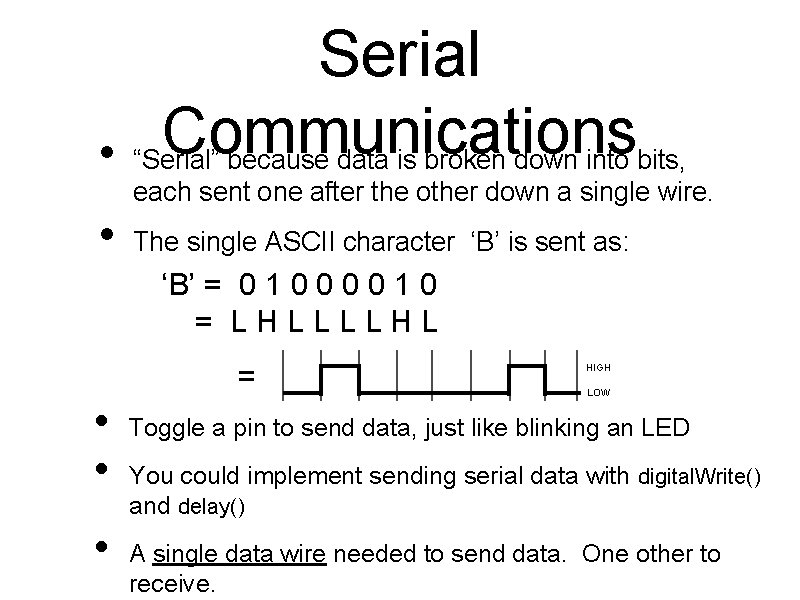
Serial Communications • “Serial” because data is broken down into bits, each sent one after the other down a single wire. • The single ASCII character ‘B’ is sent as: ‘B’ = 0 1 0 = L H L = • • • HIGH LOW Toggle a pin to send data, just like blinking an LED You could implement sending serial data with digital. Write() and delay() A single data wire needed to send data. One other to receive.
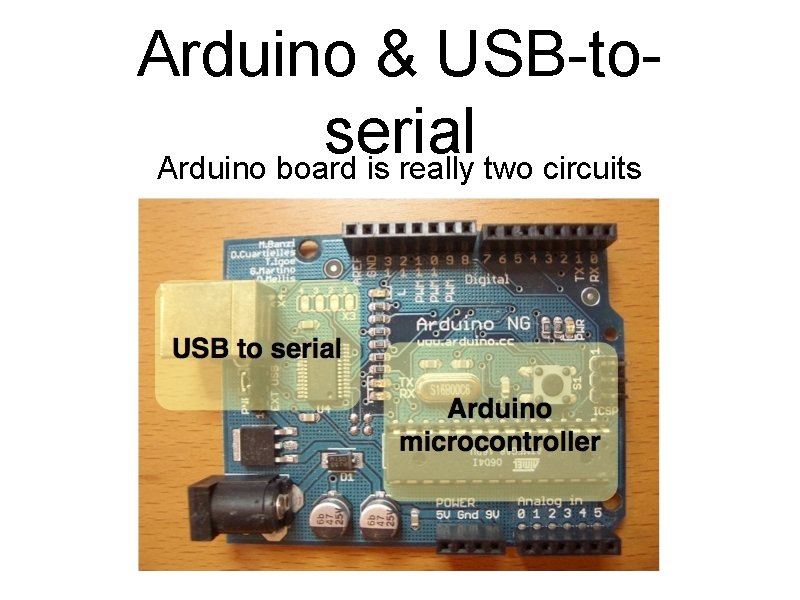
Arduino & USB-toserial Arduino board is really two circuits
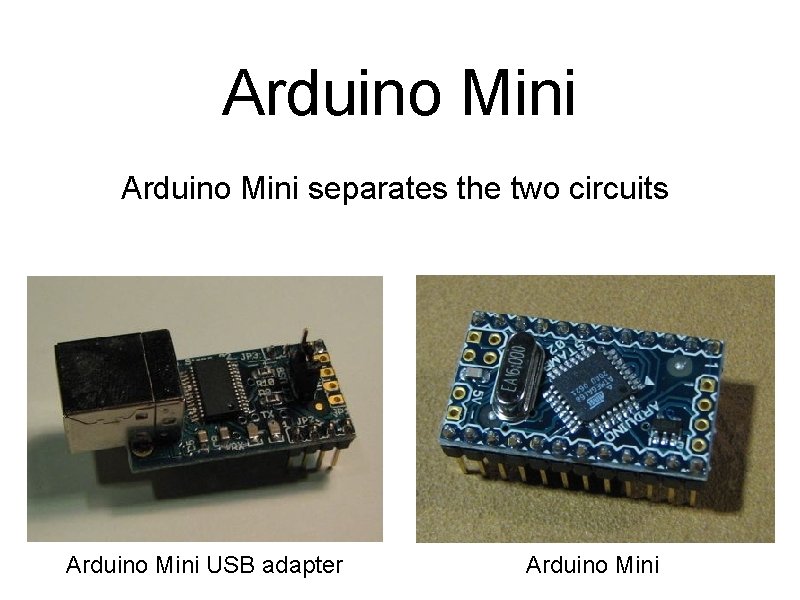
Arduino Mini separates the two circuits Arduino Mini USB adapter Arduino Mini
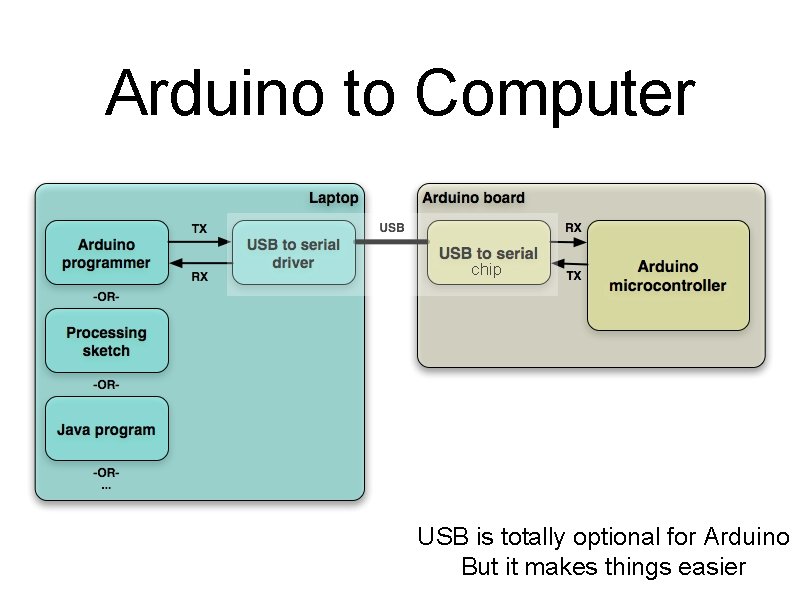
Arduino to Computer chip USB is totally optional for Arduino But it makes things easier
Arduino & USB • Since Arduino is all about serial • And not USB, • Interfacing to things like USB flash drives, USB hard disks, USB webcams, etc. is not possible
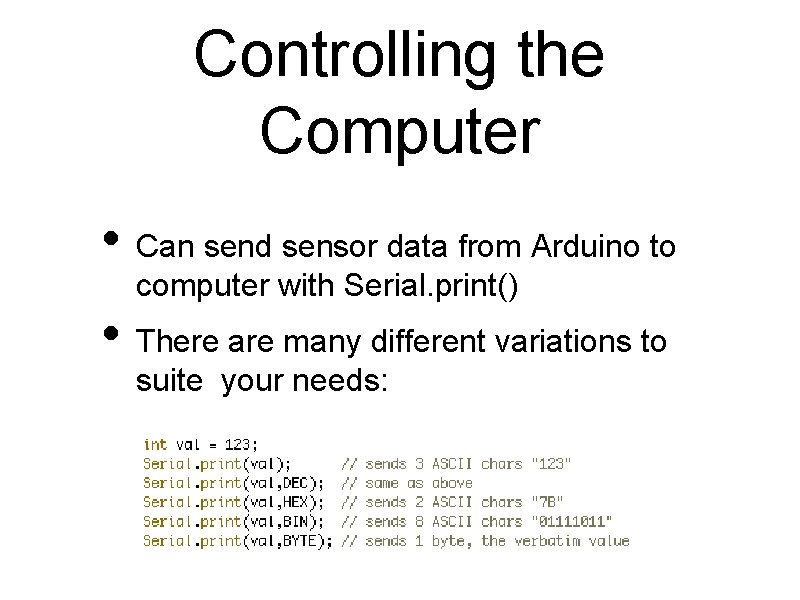
Controlling the Computer • Can send sensor data from Arduino to computer with Serial. print() • There are many different variations to suite your needs:
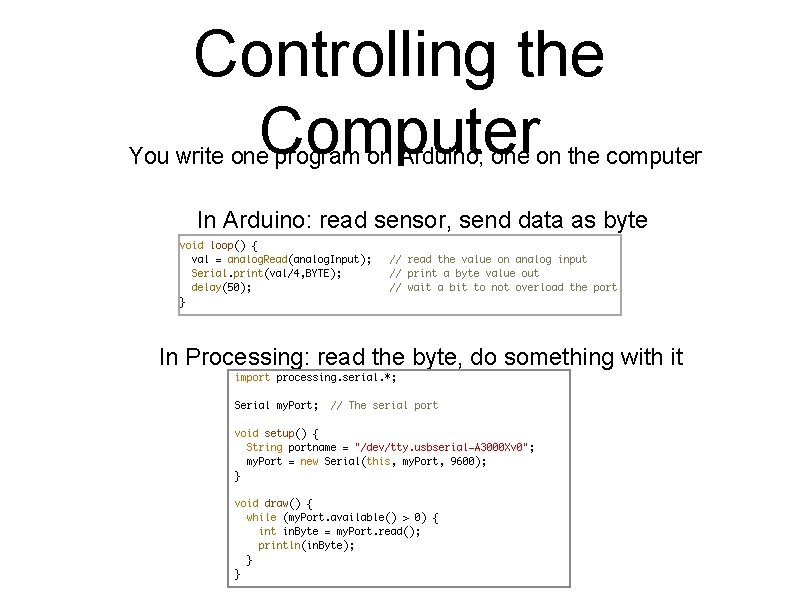
Controlling the Computer You write one program on Arduino, one on the computer In Arduino: read sensor, send data as byte In Processing: read the byte, do something with it

Controlling the Computer • Receiving program on the computer can be in any language that knows about serial ports • C/C++, Perl, PHP, Java, Max/MSP, Python, Visual Basic, etc. • Pick your favorite one, write some code for Arduino to control
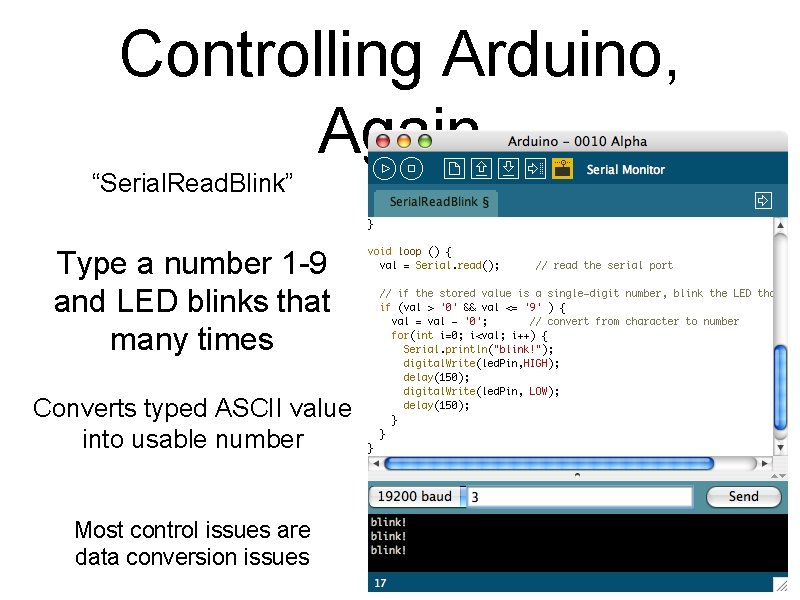
Controlling Arduino, Again “Serial. Read. Blink” Type a number 1 -9 and LED blinks that many times Converts typed ASCII value into usable number Most control issues are data conversion issues
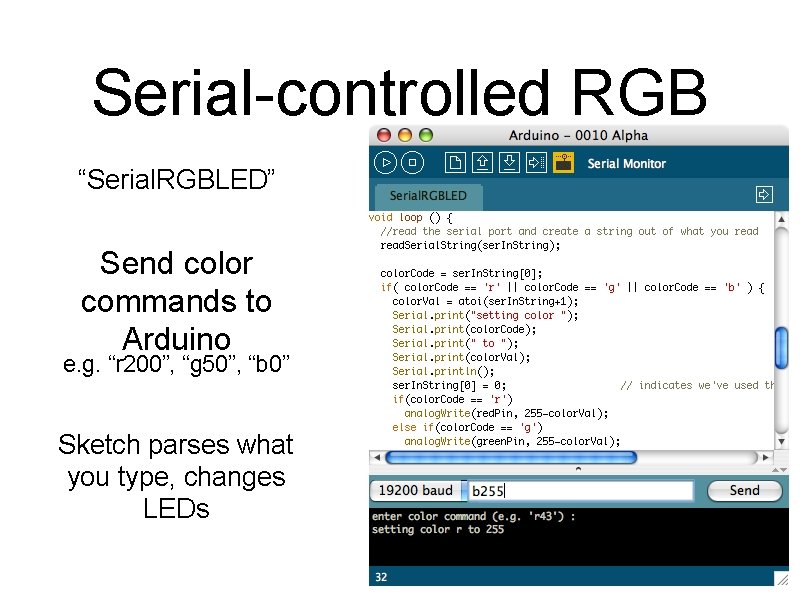
Serial-controlled RGB “Serial. RGBLED” Send color commands to Arduino e. g. “r 200”, “g 50”, “b 0” Sketch parses what you type, changes LEDs g 50
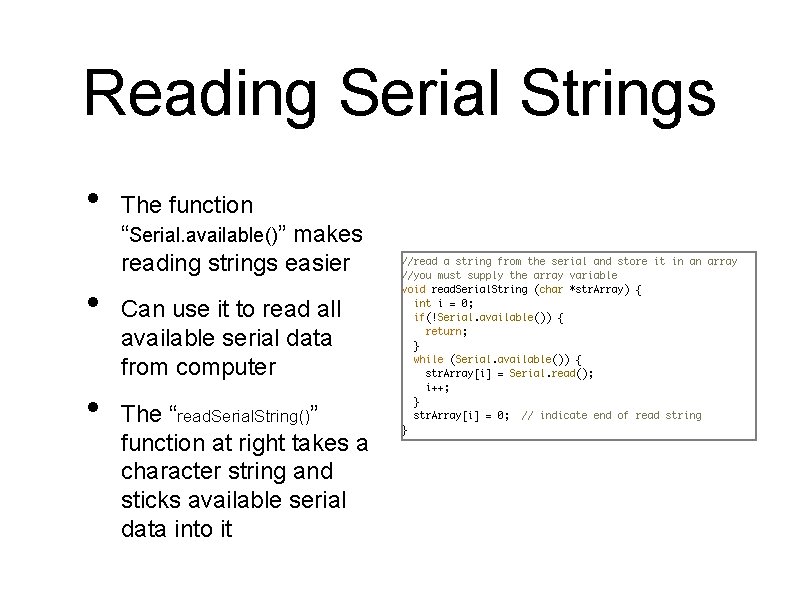
Reading Serial Strings • • • The function “Serial. available()” makes reading strings easier Can use it to read all available serial data from computer The “read. Serial. String()” function at right takes a character string and sticks available serial data into it

Piezoelectrics • Big word – piezein is greek for “squeeze” • Some crystals, when squeezed, make a spark • Turns out the process goes the other way too • Spark a quartz crystal, and it flexes • Piezo buzzers use this to make sound (flex something back and forth, it moves air)
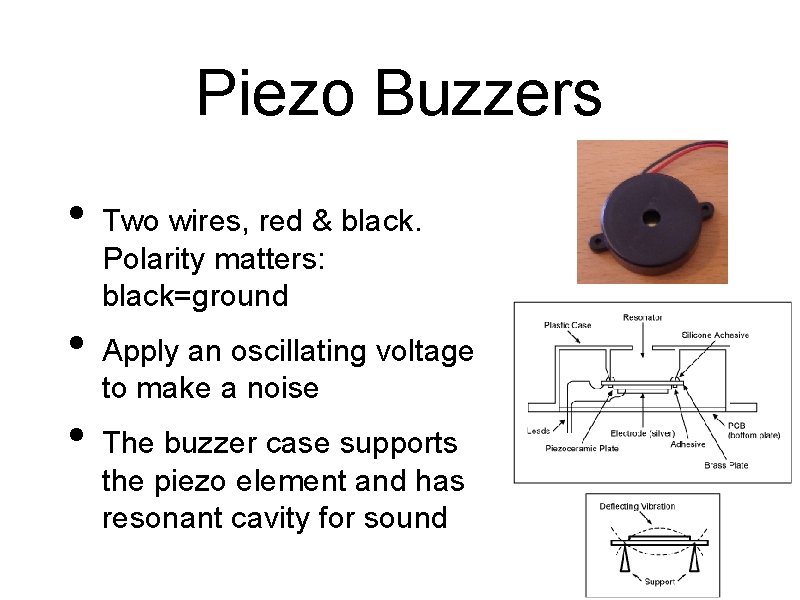
Piezo Buzzers • • • Two wires, red & black. Polarity matters: black=ground Apply an oscillating voltage to make a noise The buzzer case supports the piezo element and has resonant cavity for sound
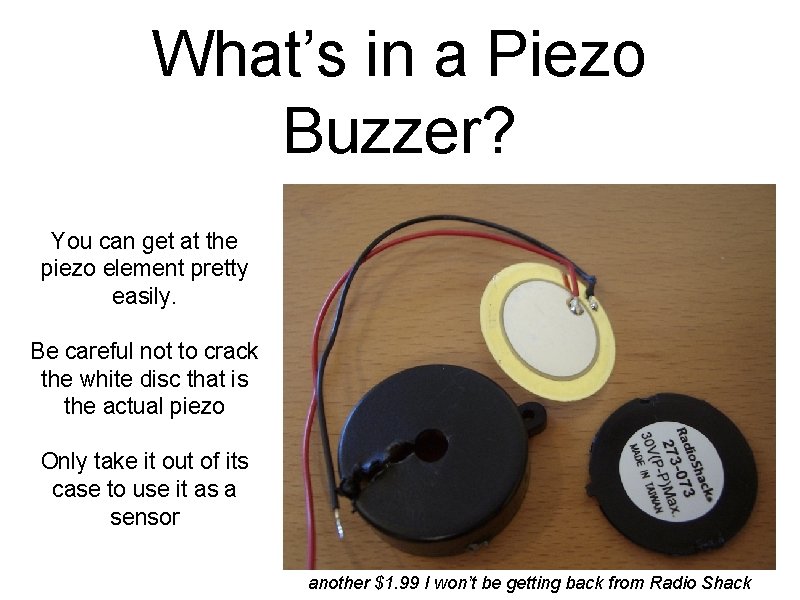
What’s in a Piezo Buzzer? You can get at the piezo element pretty easily. Be careful not to crack the white disc that is the actual piezo Only take it out of its case to use it as a sensor another $1. 99 I won’t be getting back from Radio Shack
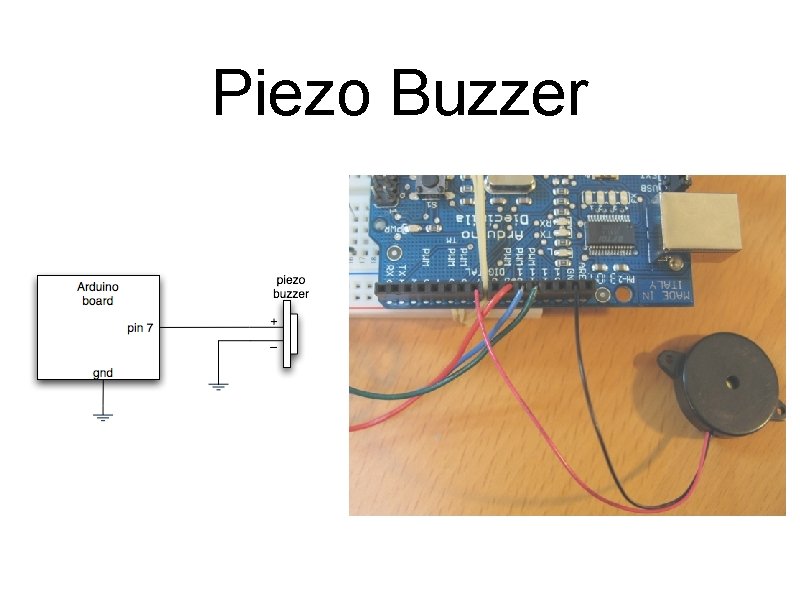
Piezo Buzzer
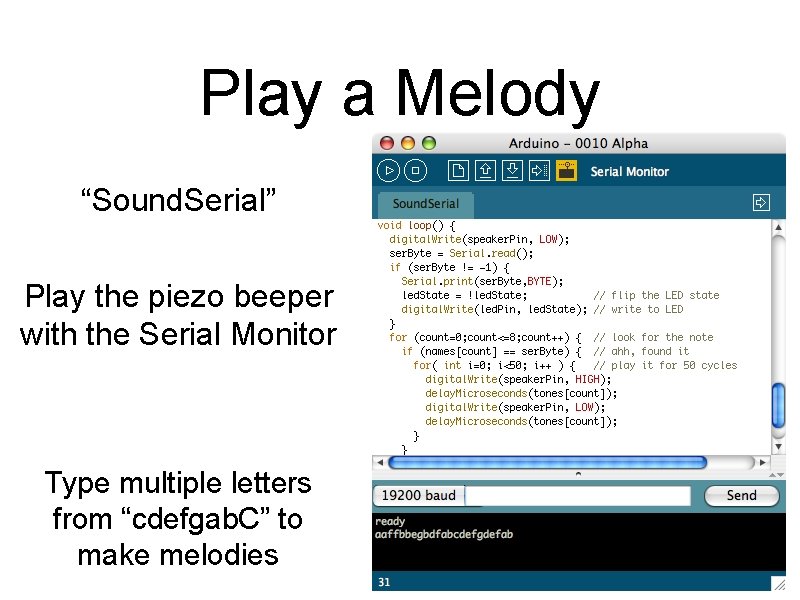
Play a Melody “Sound. Serial” Play the piezo beeper with the Serial Monitor Type multiple letters from “cdefgab. C” to make melodies
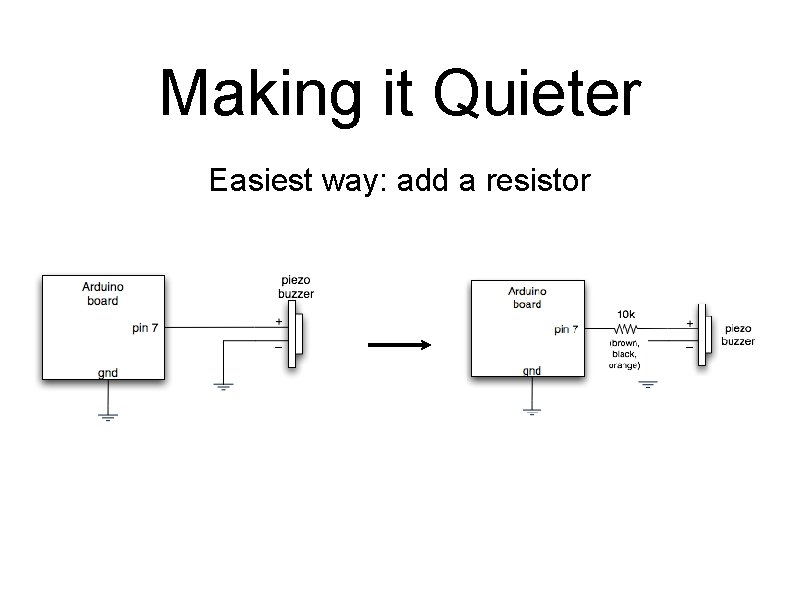
Making it Quieter Easiest way: add a resistor
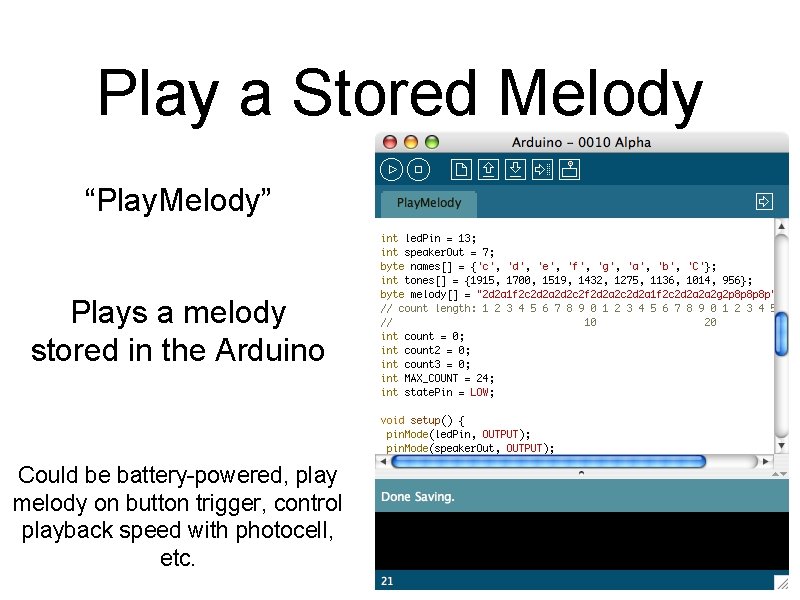
Play a Stored Melody “Play. Melody” Plays a melody stored in the Arduino Could be battery-powered, play melody on button trigger, control playback speed with photocell, etc.
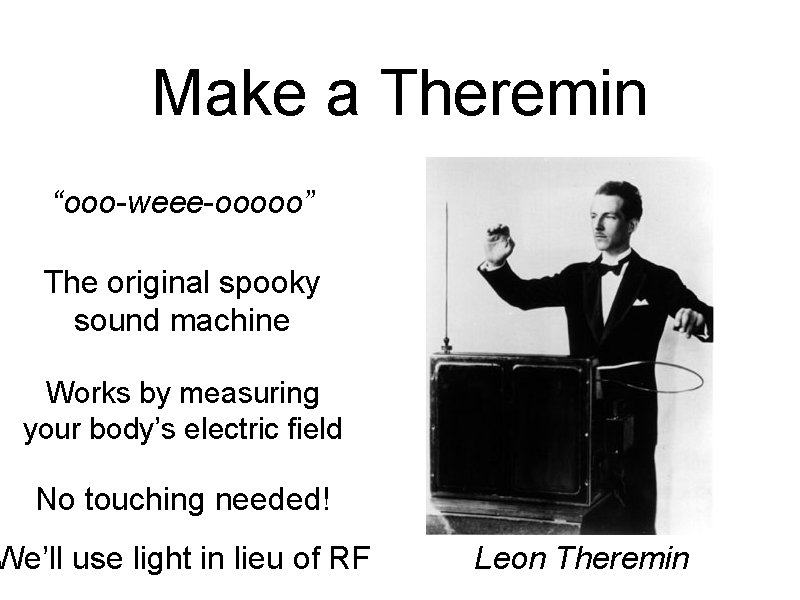
Make a Theremin “ooo-weee-ooooo” The original spooky sound machine Works by measuring your body’s electric field No touching needed! We’ll use light in lieu of RF Leon Theremin
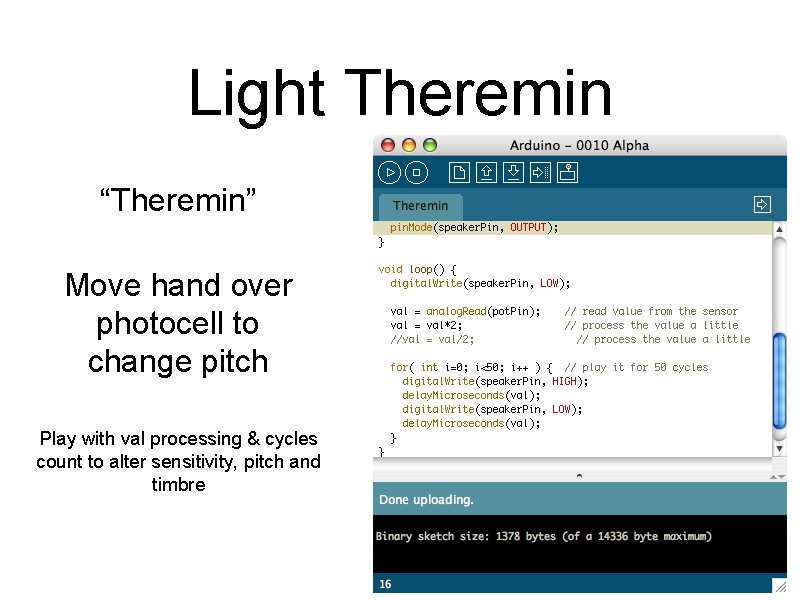
Light Theremin “Theremin” Move hand over photocell to change pitch Play with val processing & cycles count to alter sensitivity, pitch and timbre
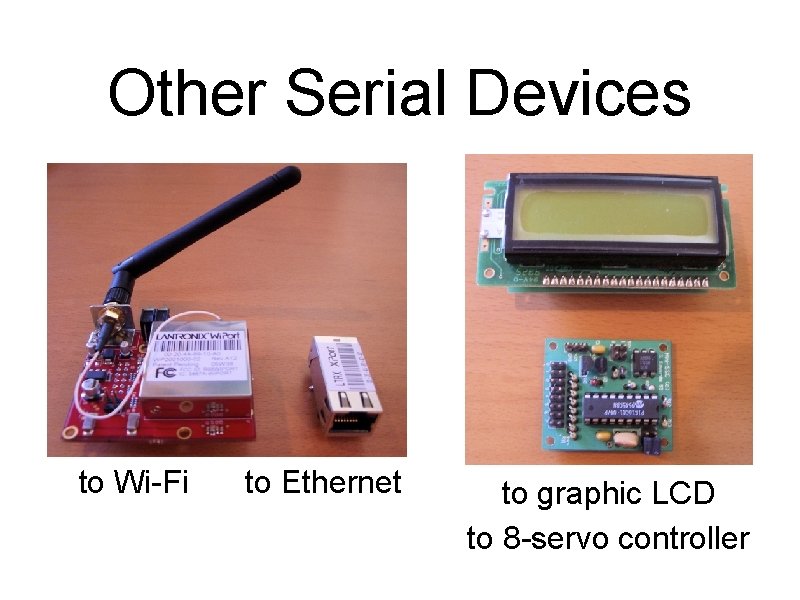
Other Serial Devices to Wi-Fi to Ethernet to graphic LCD to 8 -servo controller

Serial Examples to Roomba
Going Further • Piezo buzzers • Can hook up multiple buzzers for polyphonic sound • Can play waves other than just square waves using PWM techniques • Can also be used as input devices (we’ll cover that later)
Going Further • Serial communications • Not just for computer-to-Arduino communications • Many other devices speak serial • Older keyboards & mice speak are serial (good for sensors!) • Interface boards (graphic LCDs, servo drivers, RFID readers, Ethernet, Wi-Fi)
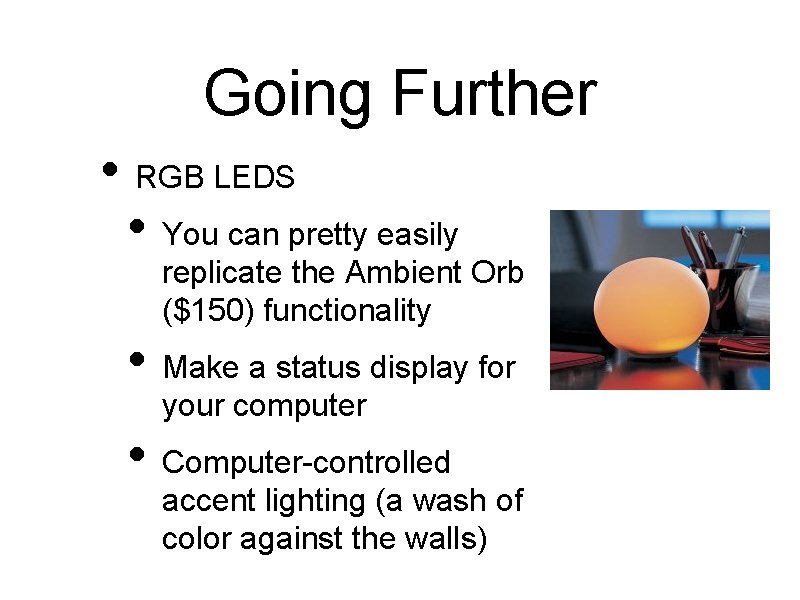
Going Further • RGB LEDS • You can pretty easily replicate the Ambient Orb ($150) functionality • Make a status display for your computer • Computer-controlled accent lighting (a wash of color against the walls)

END Class 2 http: //todbot. com/blog/bionicarduino/ Tod E. Kurt tod@todbot. com
- Slides: 60