
BIMS Webinar on the management of Field Book
BIMS Webinar on the management of Field Book App data May 21 st, 2018 Sook Jung and Taein Lee Main Lab, Washington State University
• Introduction to BIMS • Field Book Data Management in BIMS Agenda • How to configure BIMS to match Field Book • How to generate a trait file for Field Book • How to generate a field file for Field Book • How to upload Field Book exported file to BIMS • Questions
Introduction to BIMS • Vision • Current Functionality • How to Start Using BIMS
BIMS Vision To provide individual breeders with a secure and comprehensive online breeding management system which will allow them to: • Store, manage, archive and analyze their private breeding program data • Fully integrate their data with publicly available genomic, genetic and breeding data in the community database • Manage data from the Field Book App, an android app for collecting phenotype data in the field üUtilize their integrated pedigree, phenotype and genotype data in performing genomic analysis and making breeding decisions. üKeep incorporating open-source new genomics tool and breeding decision tools with seamless access to HPC – powerful!
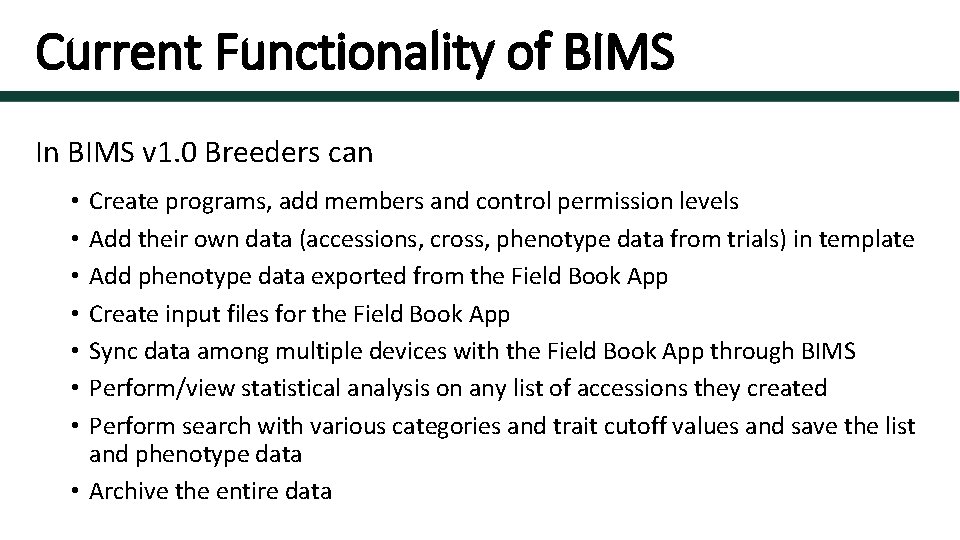
Current Functionality of BIMS In BIMS v 1. 0 Breeders can Create programs, add members and control permission levels Add their own data (accessions, cross, phenotype data from trials) in template Add phenotype data exported from the Field Book App Create input files for the Field Book App Sync data among multiple devices with the Field Book App through BIMS Perform/view statistical analysis on any list of accessions they created Perform search with various categories and trait cutoff values and save the list and phenotype data • Archive the entire data • •
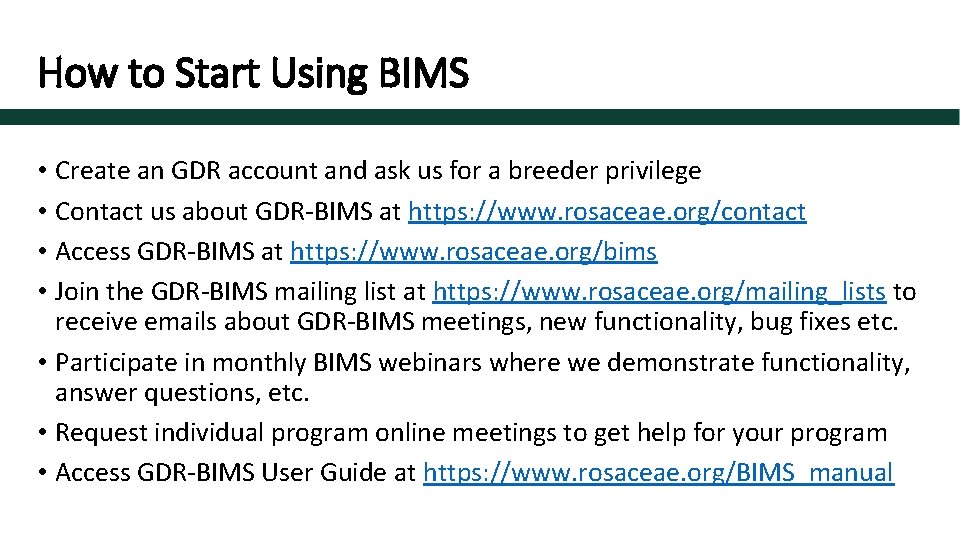
How to Start Using BIMS • Create an GDR account and ask us for a breeder privilege • Contact us about GDR-BIMS at https: //www. rosaceae. org/contact • Access GDR-BIMS at https: //www. rosaceae. org/bims • Join the GDR-BIMS mailing list at https: //www. rosaceae. org/mailing_lists to receive emails about GDR-BIMS meetings, new functionality, bug fixes etc. • Participate in monthly BIMS webinars where we demonstrate functionality, answer questions, etc. • Request individual program online meetings to get help for your program • Access GDR-BIMS User Guide at https: //www. rosaceae. org/BIMS_manual
Field Book Data Management in BIMS • How to configure BIMS to match Field Book • How to generate a trait file for Field Book • How to generate a field file for Field Book • for a new cross • for existing trial • for a new trial • How to upload Field Book exported file to BIMS • uploading trait file to BIMS • uploading field file to BIMS
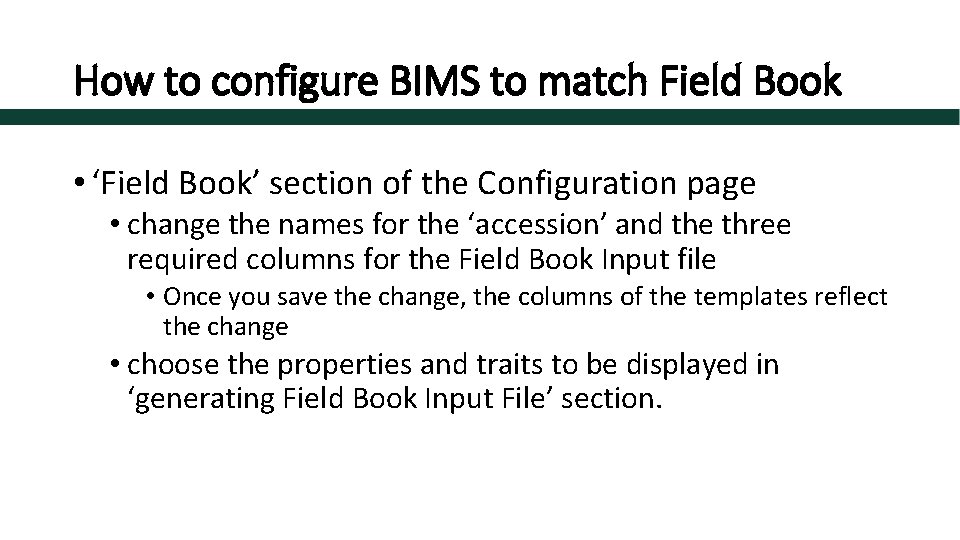
How to configure BIMS to match Field Book • ‘Field Book’ section of the Configuration page • change the names for the ‘accession’ and the three required columns for the Field Book Input file • Once you save the change, the columns of the templates reflect the change • choose the properties and traits to be displayed in ‘generating Field Book Input File’ section.
Field Book Management: generate trait file • When you have trait descriptors already in BIMS, you don’t have to create trait manually in Field Book App • Trait file: choose the trait descriptors then click!
Field Book Management: generate Field file • New Cross: to generate progeny names to add to Field Book Field input file and BIMS • Existing Trial: as a way to sync devices through BIMS • New Trial: when you want to do another trial with accessions in BIMS
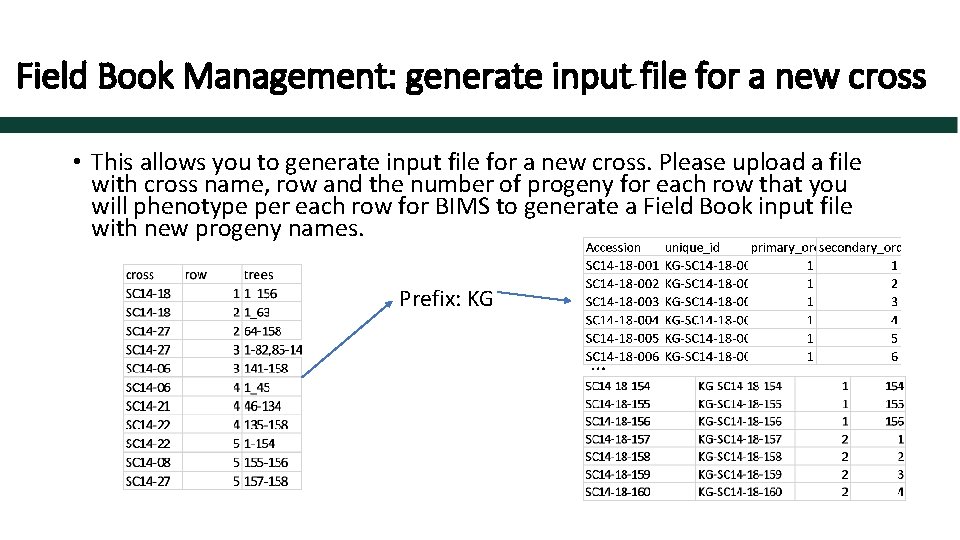
Field Book Management: generate input file for a new cross • This allows you to generate input file for a new cross. Please upload a file with cross name, row and the number of progeny for each row that you will phenotype per each row for BIMS to generate a Field Book input file with new progeny names. Prefix: KG …
Field Book Management: generate input file • Existing Trial: a way of syncing data from multiple devices • You can load the exported file to BIMS and then recreate input file with an indication (a trait) which have been already phenotyped. • The exported file in database format, however, only contains the unique_id that have been phenotyped. • So make sure you first upload the original field book input file for the trial before you upload the exported database file. • You can add trait values, accession properties and/or sample properties in the input file
Field Book Management: generate input file • New Trial: when you want to do another trial with accessions in BIMS • Create an accession list from ‘Search’ page • Add required columns to the BIMS generated input file
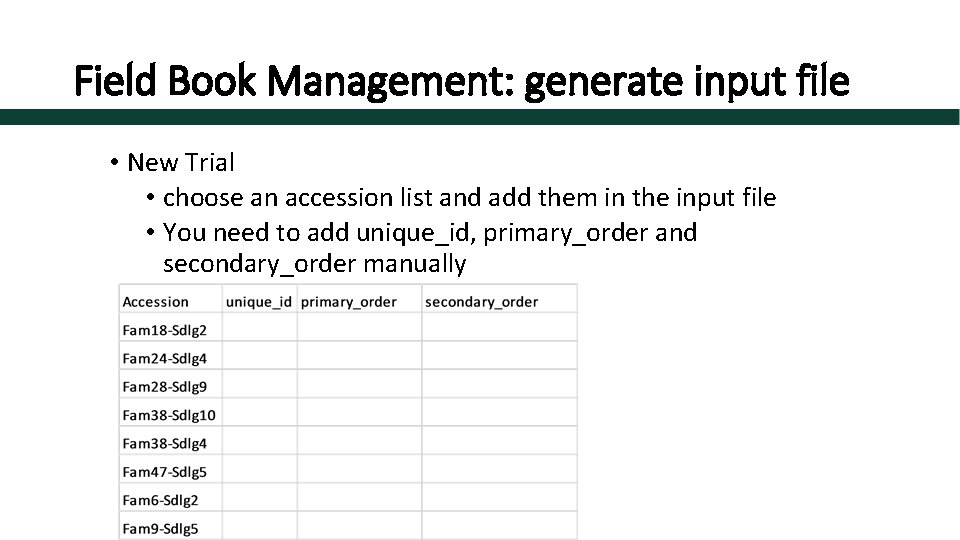
Field Book Management: generate input file • New Trial • choose an accession list and add them in the input file • You need to add unique_id, primary_order and secondary_order manually
Field Book Management: upload exported file • Upload exported field file (field_book_sample_webinar. csv)
Discussion • Questions • Suggestions
- Slides: 16