
Bihar RTPS Other Online on Service Plus http
Bihar RTPS & Other Online on Service. Plus http: //serviceonline. bihar. gov. in Under Bihar e-District Mission Mode Project Technical Support by National Informatics Centre (NIC) Bihar State Centre, Patna
Agenda 1. Overview 2. Service. Plus Introduction 3. Bihar e-District Home Page 4. Service. Plus Features 5. Technical Integration Completed & Planned 6. Pre-requisites for working of Service. Plus 7. Working of Services on Service. Plus - RTPS and Others 8. Users of RTPS Services 9. Software Required for Working of Service. Plus 10. Installation of Mozilla Firefox Browser
Agenda 11. Installation of Adobe Flash Player for Mozilla Firefox 12. Installation / Configuration of Java 13. Installation of DSC Driver 14. DSC Registration in Service. Plus 15. DSC Activation in Service. Plus 16. Action of Applicants (Demo) 17. Action of Designated Officers (Demo) 18. Action of Admin Users 19. Technical Support 20. Feedback
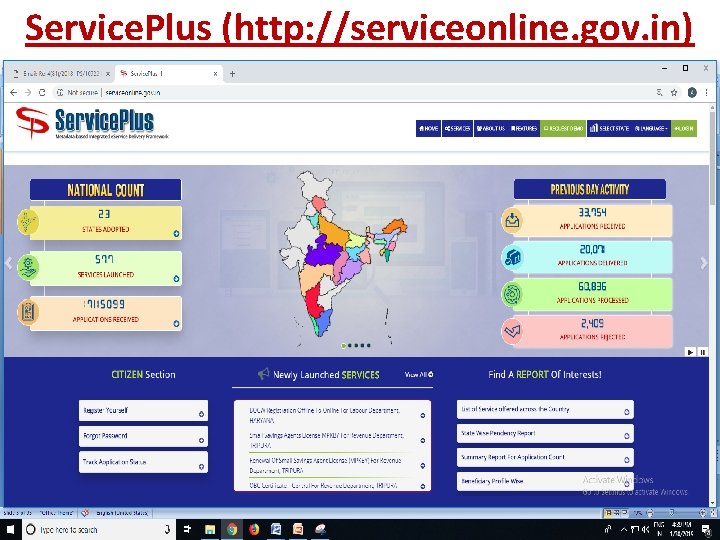
Service. Plus (http: //serviceonline. gov. in)
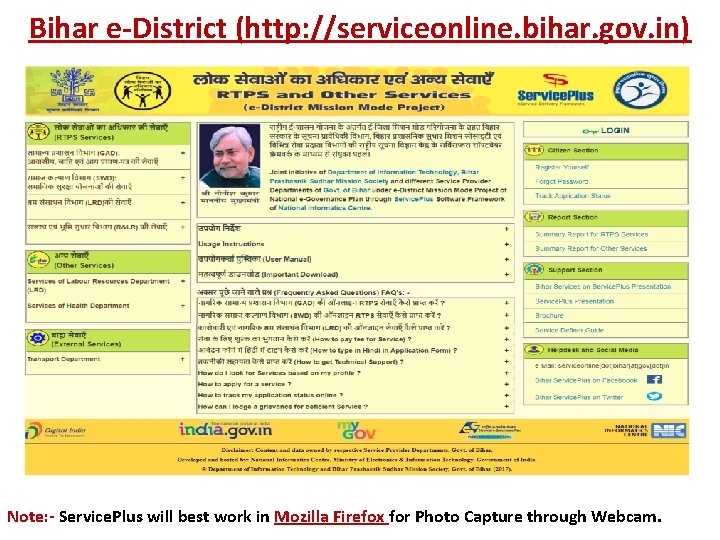
Bihar e-District (http: //serviceonline. bihar. gov. in) Note: - Service. Plus will best work in Mozilla Firefox for Photo Capture through Webcam.
Service. Plus Features 1. Meta data based integrated, configurable, e-Service delivery and grievance redressal software framework of NIC. 2. Security features for Certificate / License: - • Water Mark • QR Code • Verification Link • Nation-wide Unique Ref. No. 3. Local Government Code (LGD) Compliance: LGD recognized by Govt. of India as Standard Code to be used by every Software Application across India.
Technical Integration Completed • Integration of Digital Sign and e-Sign facility for signing Certificate, License, Sanction Order etc. • SMS Gateway of C-DAC (hired by DIT) for notifications, alerts etc. • E-Mail Gateway of NIC for notifications, alerts etc. • OGRAS Payment Gateway of Finance Department. • Aadhaar based Authentication of UIDAI with Sub. AUA as Service Provider Departments and AUA as DIT. • E-Taal for counting of services delivered. • Rapid Assessment System(RAS) for Feedback.
Technical Integration Planned • UMANG (Unified Mobile Application for New-age Governance), Meit. Y, Govt. of India. • Single Windows Clearance System (SWCS) of Department of Industries. • Shrum Suvidha Portal (SSP) of Ministry of Labour & Employment (Mo. LE), Govt. of India for Labour Identification Number (LIN). • Software Applications of Transport, Food, Registration, Land Records etc.
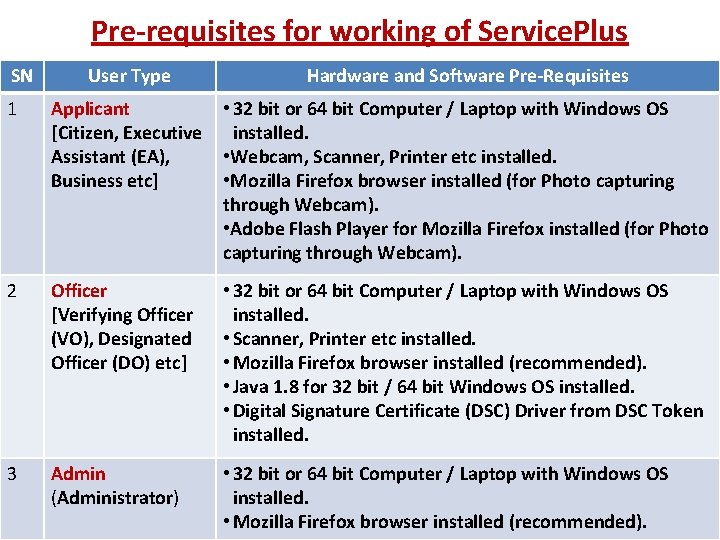
Pre-requisites for working of Service. Plus Hardware and Software Pre-Requisites 1 User Type Applicant • 32 bit or 64 bit Computer / Laptop with Windows OS [Citizen, Executive installed. Assistant (EA), • Webcam, Scanner, Printer etc installed. Business etc] • Mozilla Firefox browser installed (for Photo capturing through Webcam). • Adobe Flash Player for Mozilla Firefox installed (for Photo capturing through Webcam). 2 Officer [Verifying Officer (VO), Designated Officer (DO) etc] • 32 bit or 64 bit Computer / Laptop with Windows OS installed. • Scanner, Printer etc installed. • Mozilla Firefox browser installed (recommended). • Java 1. 8 for 32 bit / 64 bit Windows OS installed. • Digital Signature Certificate (DSC) Driver from DSC Token installed. 3 Admin (Administrator) • 32 bit or 64 bit Computer / Laptop with Windows OS installed. • Mozilla Firefox browser installed (recommended). SN
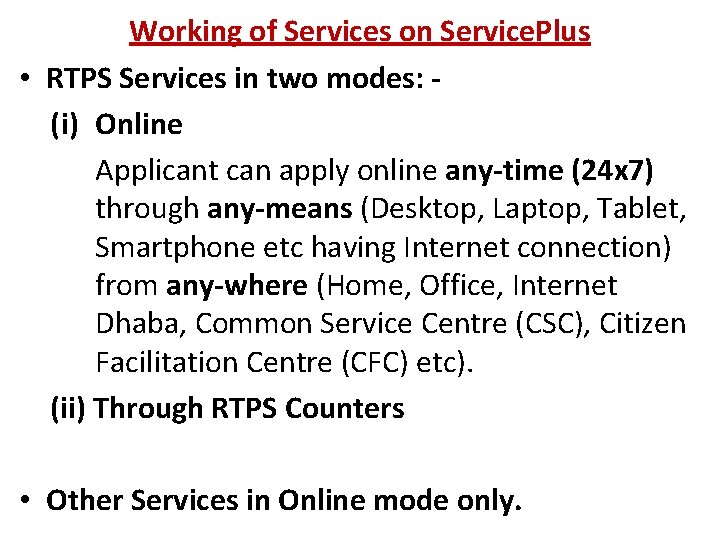
Working of Services on Service. Plus • RTPS Services in two modes: (i) Online Applicant can apply online any-time (24 x 7) through any-means (Desktop, Laptop, Tablet, Smartphone etc having Internet connection) from any-where (Home, Office, Internet Dhaba, Common Service Centre (CSC), Citizen Facilitation Centre (CFC) etc). (ii) Through RTPS Counters • Other Services in Online mode only.
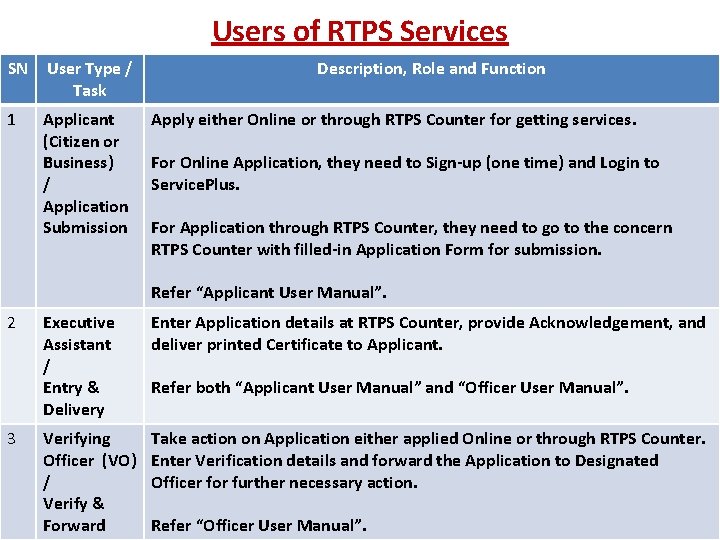
Users of RTPS Services SN User Type / Task 1 Applicant (Citizen or Business) / Application Submission Description, Role and Function Apply either Online or through RTPS Counter for getting services. For Online Application, they need to Sign-up (one time) and Login to Service. Plus. For Application through RTPS Counter, they need to go to the concern RTPS Counter with filled-in Application Form for submission. Refer “Applicant User Manual”. 2 Executive Assistant / Entry & Delivery Enter Application details at RTPS Counter, provide Acknowledgement, and deliver printed Certificate to Applicant. Refer both “Applicant User Manual” and “Officer User Manual”. 3 Verifying Officer (VO) / Verify & Forward Take action on Application either applied Online or through RTPS Counter. Enter Verification details and forward the Application to Designated Officer for further necessary action. Refer “Officer User Manual”.
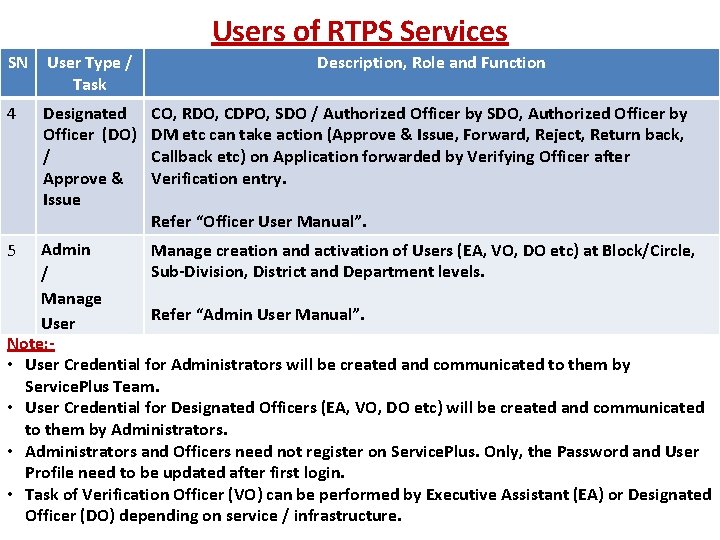
Users of RTPS Services SN User Type / Task 4 Designated Officer (DO) / Approve & Issue Description, Role and Function CO, RDO, CDPO, SDO / Authorized Officer by SDO, Authorized Officer by DM etc can take action (Approve & Issue, Forward, Reject, Return back, Callback etc) on Application forwarded by Verifying Officer after Verification entry. Refer “Officer User Manual”. Admin Manage creation and activation of Users (EA, VO, DO etc) at Block/Circle, Sub-Division, District and Department levels. / Manage Refer “Admin User Manual”. User Note: • User Credential for Administrators will be created and communicated to them by Service. Plus Team. • User Credential for Designated Officers (EA, VO, DO etc) will be created and communicated to them by Administrators. • Administrators and Officers need not register on Service. Plus. Only, the Password and User Profile need to be updated after first login. • Task of Verification Officer (VO) can be performed by Executive Assistant (EA) or Designated Officer (DO) depending on service / infrastructure. 5
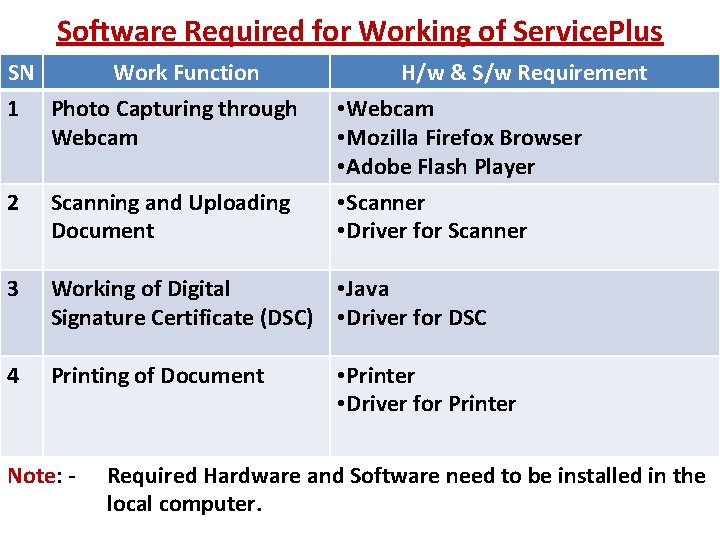
Software Required for Working of Service. Plus SN Work Function 1 Photo Capturing through Webcam H/w & S/w Requirement • Webcam • Mozilla Firefox Browser • Adobe Flash Player 2 Scanning and Uploading Document • Scanner • Driver for Scanner 3 Working of Digital • Java Signature Certificate (DSC) • Driver for DSC 4 Printing of Document Note: - • Printer • Driver for Printer Required Hardware and Software need to be installed in the local computer.
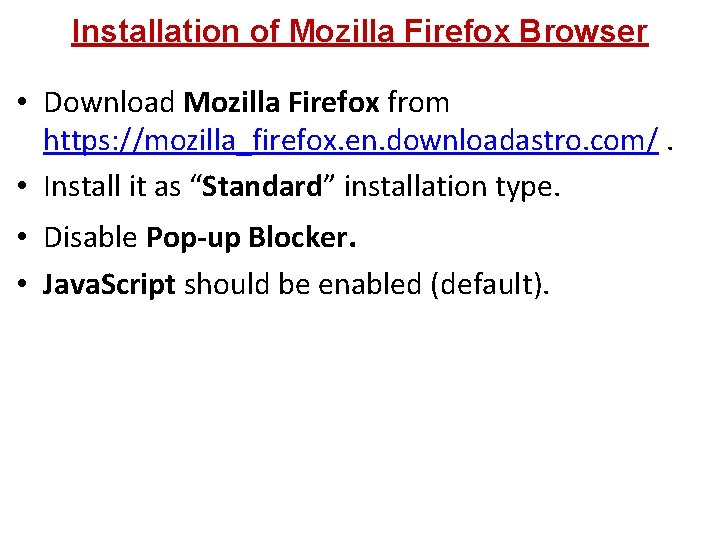
Installation of Mozilla Firefox Browser • Download Mozilla Firefox from https: //mozilla_firefox. en. downloadastro. com/. • Install it as “Standard” installation type. • Disable Pop-up Blocker. • Java. Script should be enabled (default).
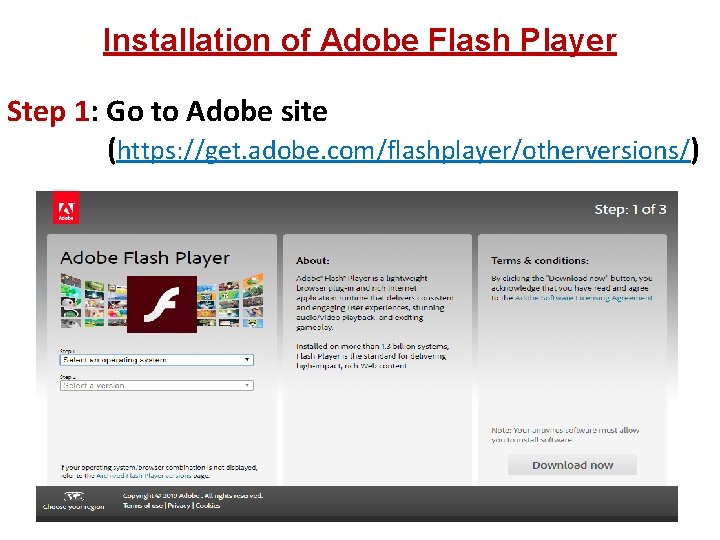
Installation of Adobe Flash Player Step 1: Go to Adobe site (https: //get. adobe. com/flashplayer/otherversions/)
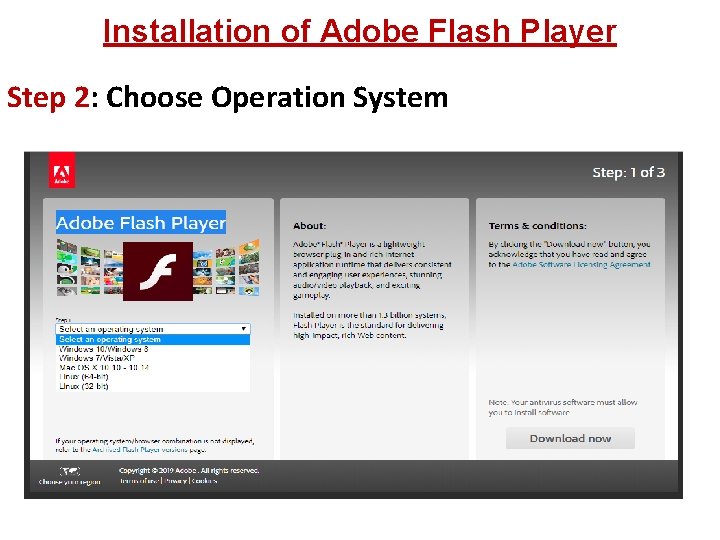
Installation of Adobe Flash Player Step 2: Choose Operation System
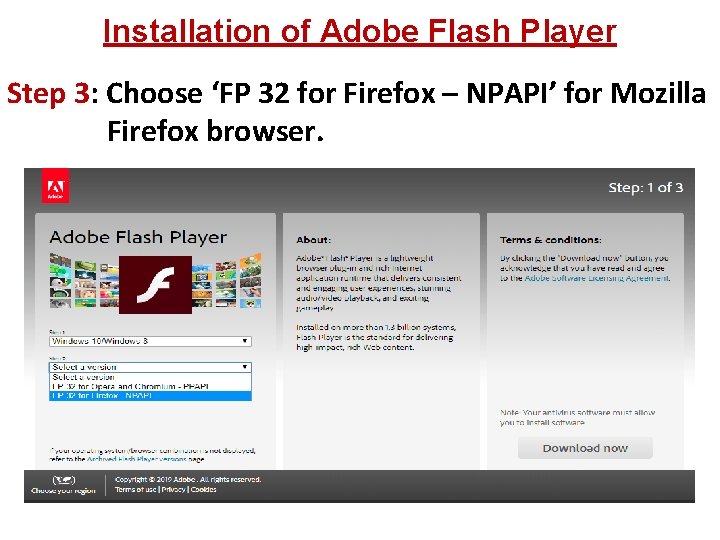
Installation of Adobe Flash Player Step 3: Choose ‘FP 32 for Firefox – NPAPI’ for Mozilla Firefox browser.
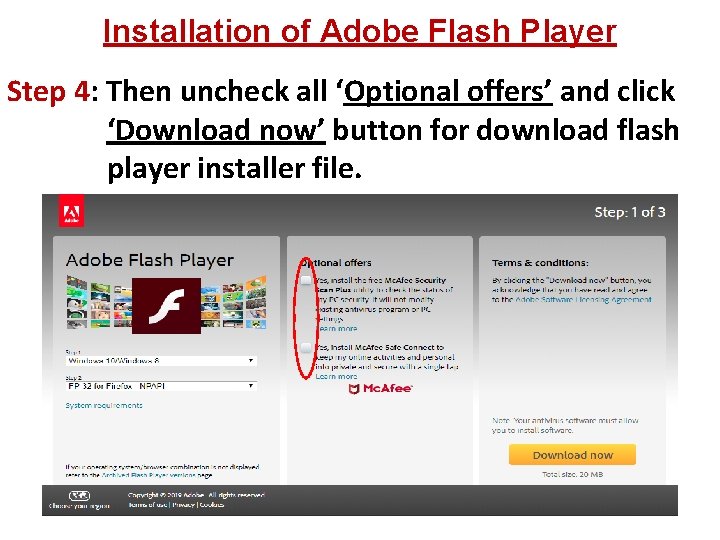
Installation of Adobe Flash Player Step 4: Then uncheck all ‘Optional offers’ and click ‘Download now’ button for download flash player installer file.
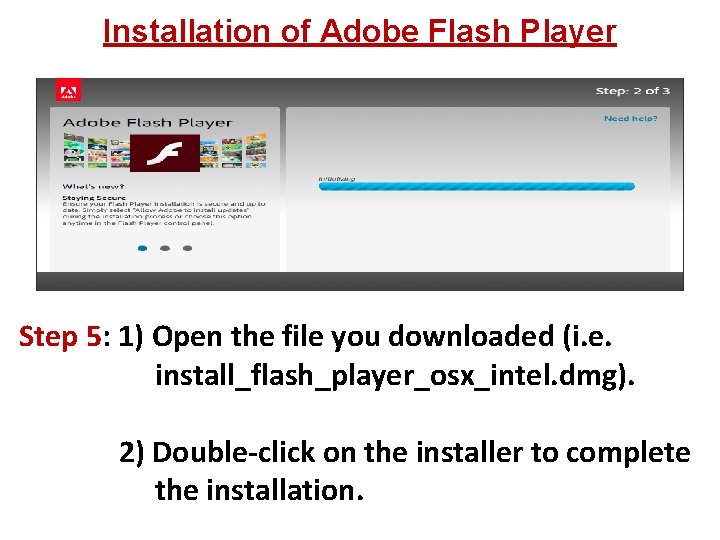
Installation of Adobe Flash Player Step 5: 1) Open the file you downloaded (i. e. install_flash_player_osx_intel. dmg). 2) Double-click on the installer to complete the installation.
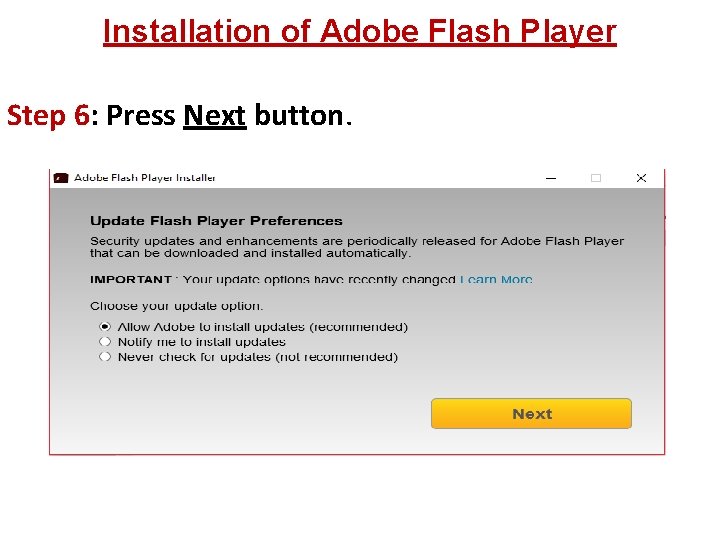
Installation of Adobe Flash Player Step 6: Press Next button.
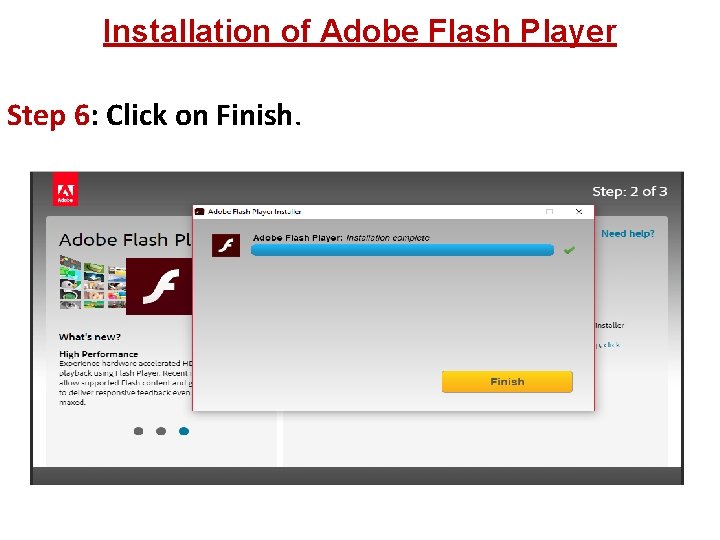
Installation of Adobe Flash Player Step 6: Click on Finish.
Installation / Configuration of Java a) Download Java 1. 8 32 bit or Java 1. 8 64 bit depending on your system configuration and install it. b) Go to Control Panel Program Java Security tick “Enable Java content in the browser”. c) Go to Control Panel Program Java Advance Default Java for browsers tick “Mozilla family”. d) Go to Control Panel Program Java General Temporary Internet Files Settings Delete All Files.
Installation of DSC Driver Install DSC Driver from DSC Token.
DSC Registration in Service. Plus How to register DSC in Service. Plus?
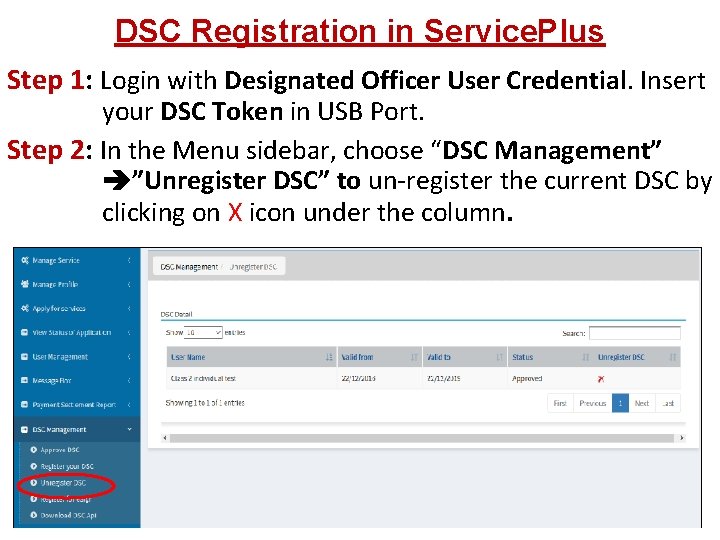
DSC Registration in Service. Plus Step 1: Login with Designated Officer User Credential. Insert your DSC Token in USB Port. Step 2: In the Menu sidebar, choose “DSC Management” ”Unregister DSC” to un-register the current DSC by clicking on X icon under the column.
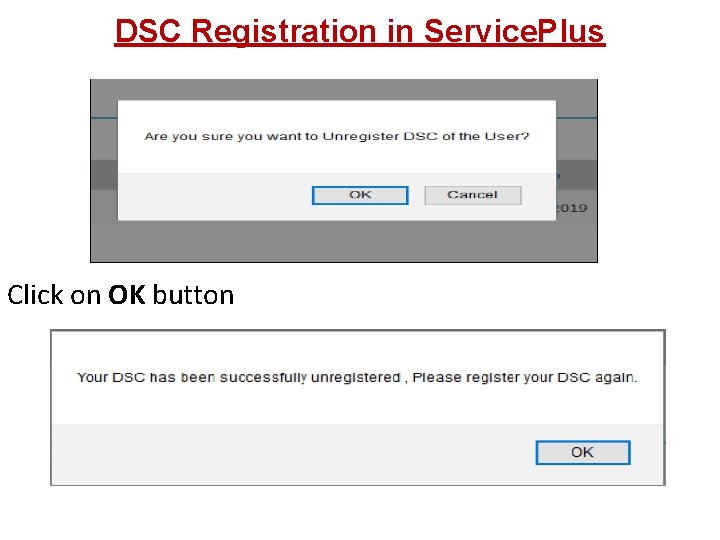
DSC Registration in Service. Plus Click on OK button
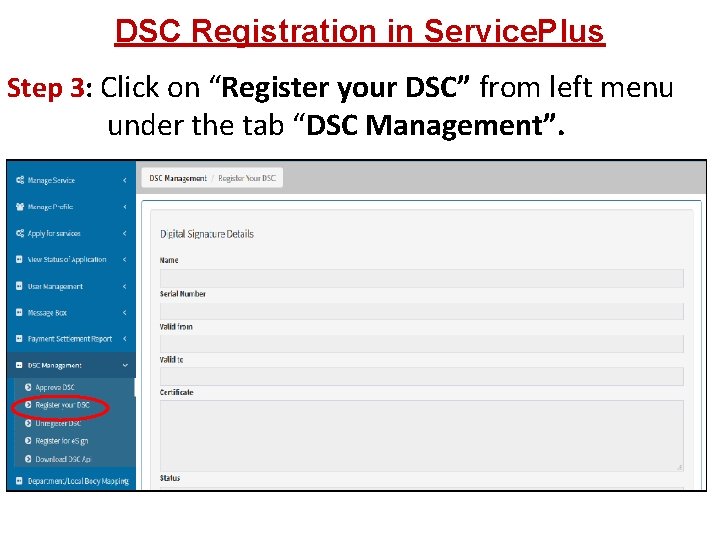
DSC Registration in Service. Plus Click on “Register your DSC” from left menu Step 3: under the tab “DSC Management”.
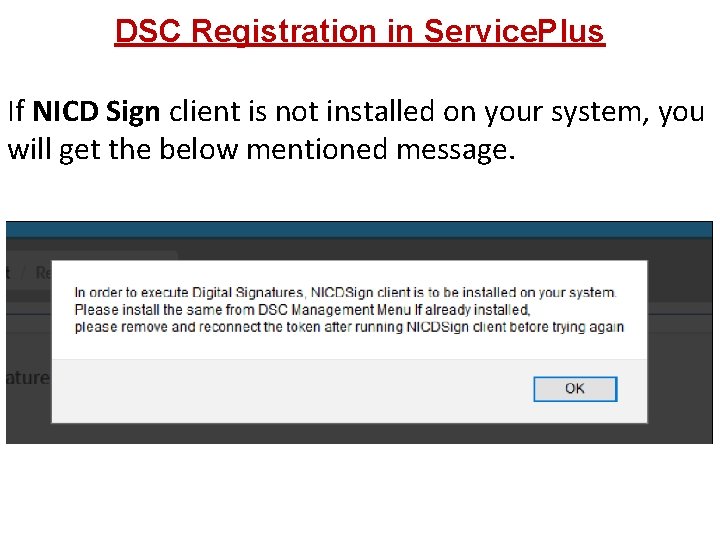
DSC Registration in Service. Plus If NICD Sign client is not installed on your system, you will get the below mentioned message.
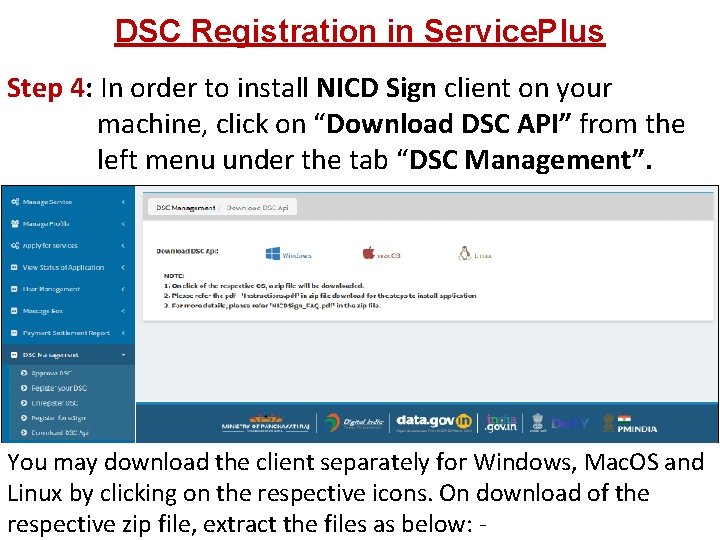
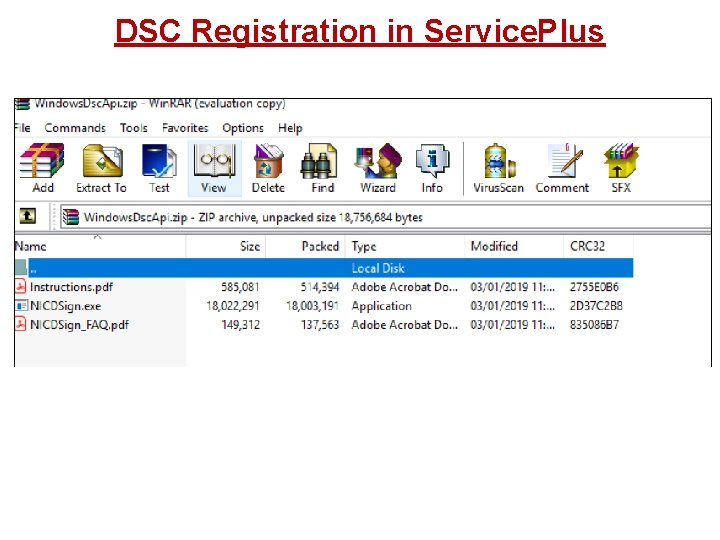
DSC Registration in Service. Plus Step 4: In order to install NICD Sign client on your machine, click on “Download DSC API” from the left menu under the tab “DSC Management”. You may download the client separately for Windows, Mac. OS and Linux by clicking on the respective icons. On download of the respective zip file, extract the files as below: -
DSC Registration in Service. Plus
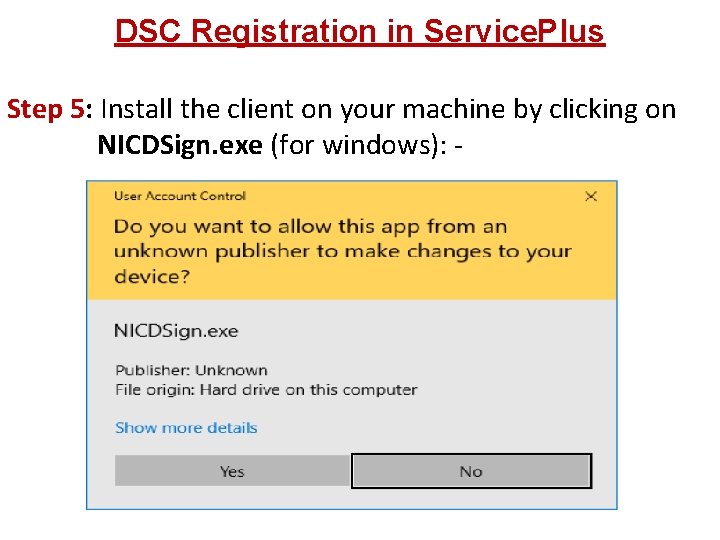
DSC Registration in Service. Plus Step 5: Install the client on your machine by clicking on NICDSign. exe (for windows): -
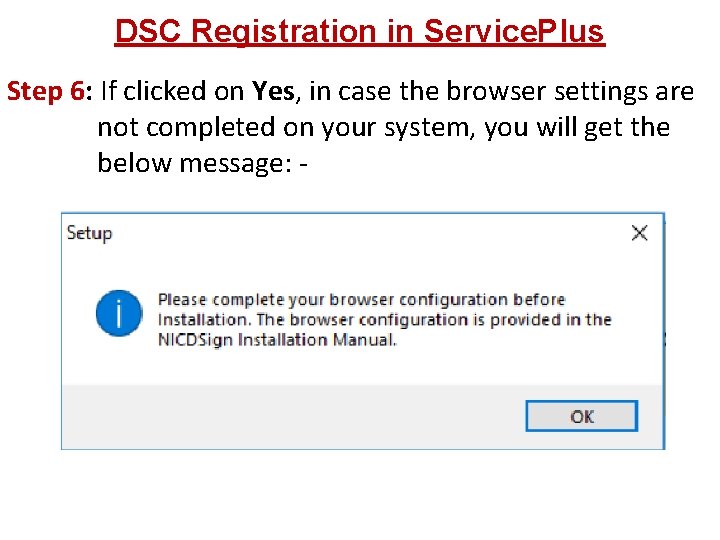
DSC Registration in Service. Plus Step 6: If clicked on Yes, in case the browser settings are not completed on your system, you will get the below message: -
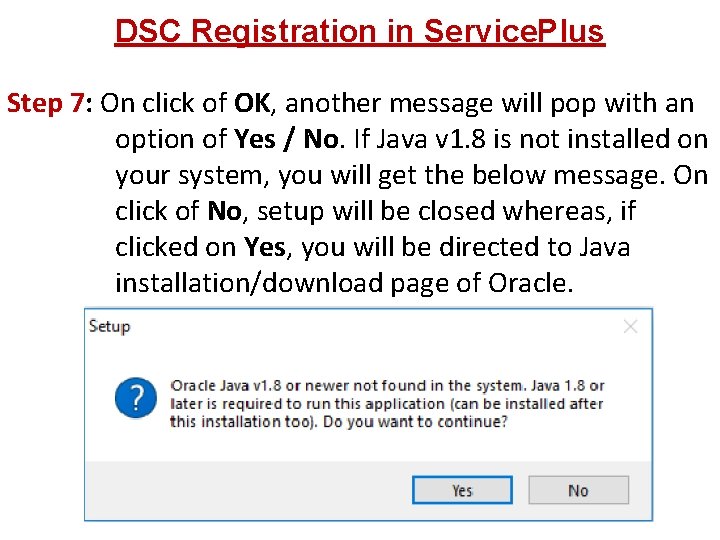
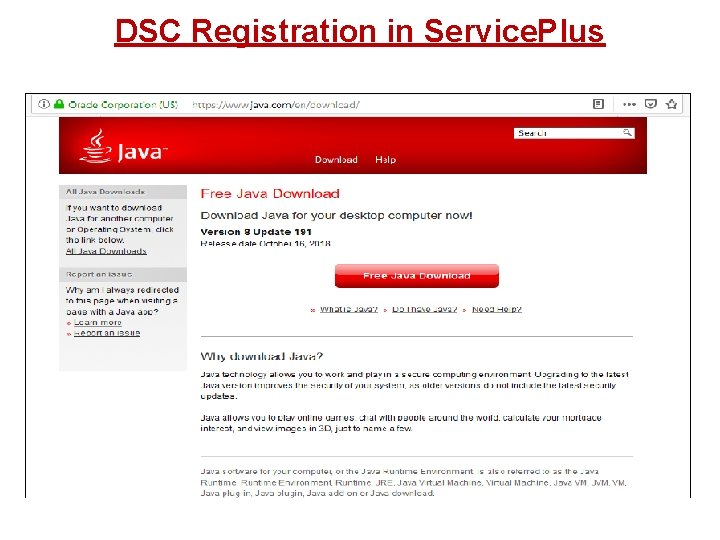
DSC Registration in Service. Plus Step 7: On click of OK, another message will pop with an option of Yes / No. If Java v 1. 8 is not installed on your system, you will get the below message. On click of No, setup will be closed whereas, if clicked on Yes, you will be directed to Java installation/download page of Oracle.
DSC Registration in Service. Plus
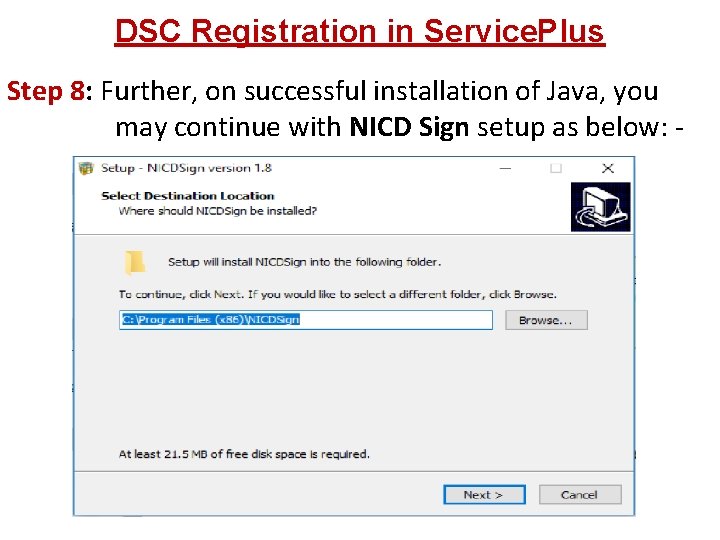
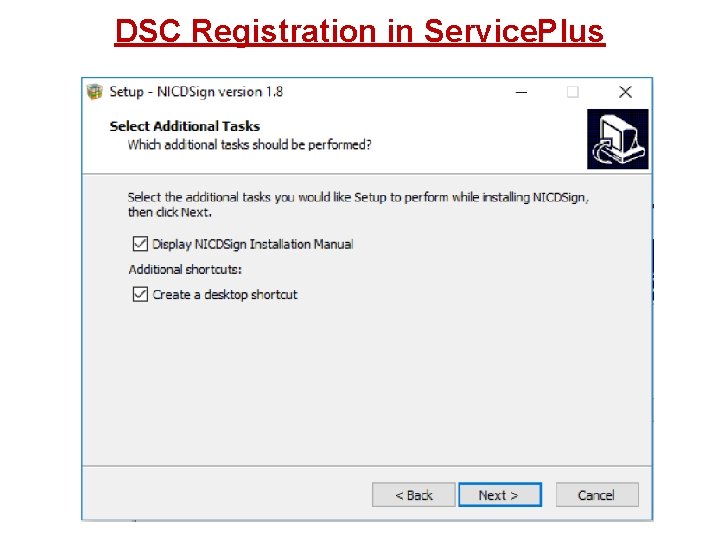
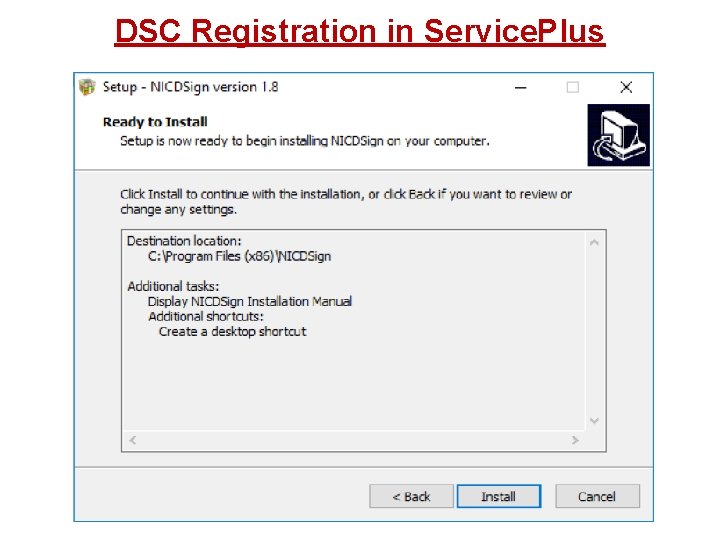
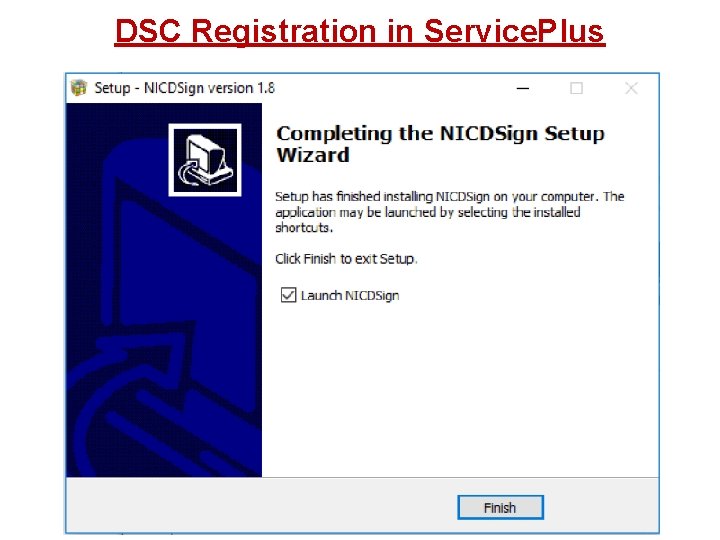
DSC Registration in Service. Plus Step 8: Further, on successful installation of Java, you may continue with NICD Sign setup as below: -
DSC Registration in Service. Plus
DSC Registration in Service. Plus
DSC Registration in Service. Plus
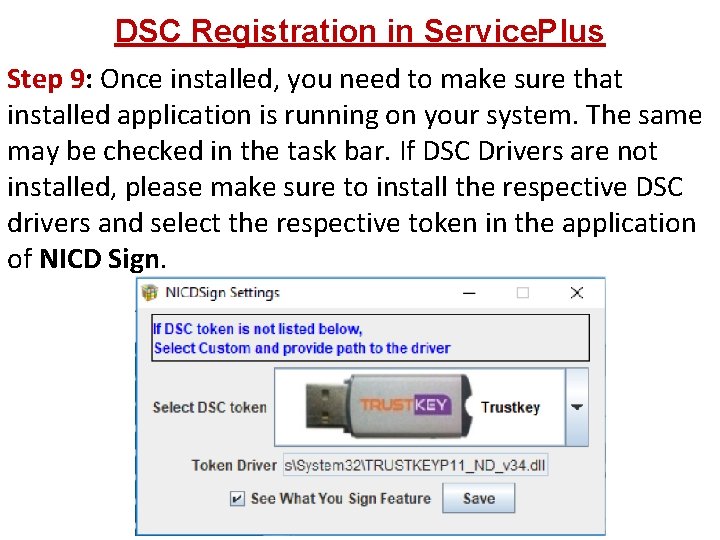
DSC Registration in Service. Plus Step 9: Once installed, you need to make sure that installed application is running on your system. The same may be checked in the task bar. If DSC Drivers are not installed, please make sure to install the respective DSC drivers and select the respective token in the application of NICD Sign.
DSC Registration in Service. Plus
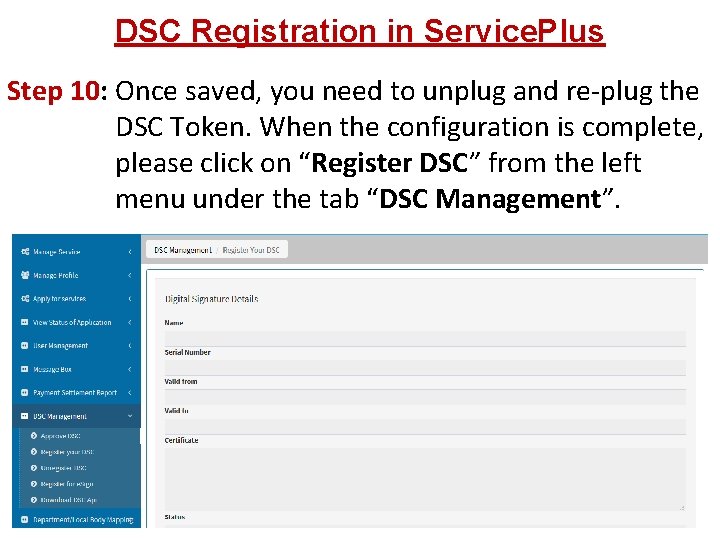
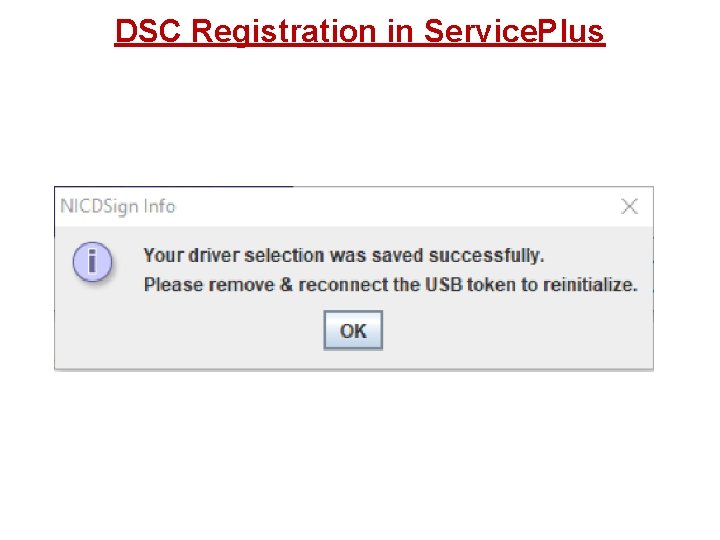
DSC Registration in Service. Plus Step 10: Once saved, you need to unplug and re-plug the DSC Token. When the configuration is complete, please click on “Register DSC” from the left menu under the tab “DSC Management”.
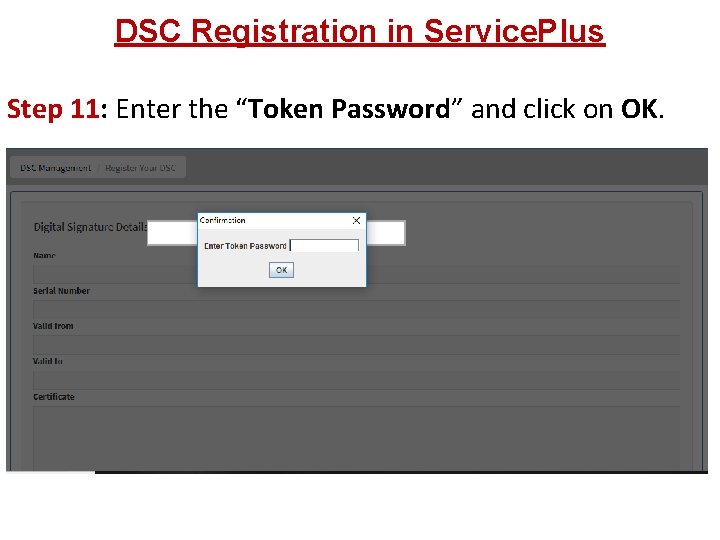
DSC Registration in Service. Plus Step 11: Enter the “Token Password” and click on OK.
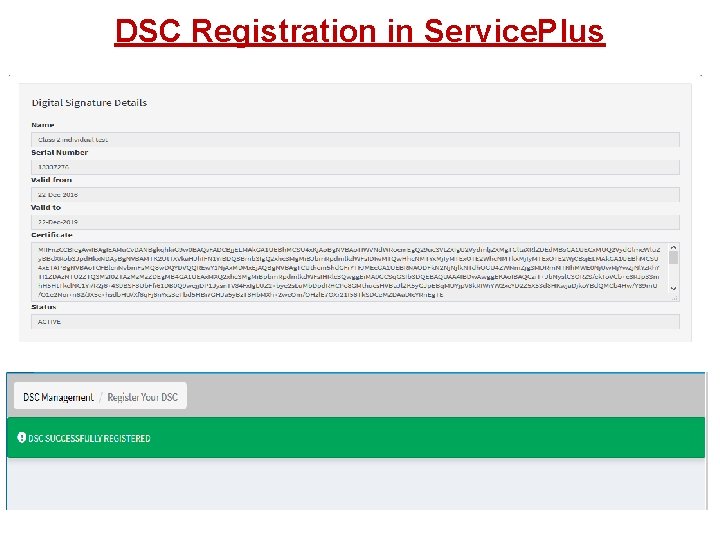
DSC Registration in Service. Plus
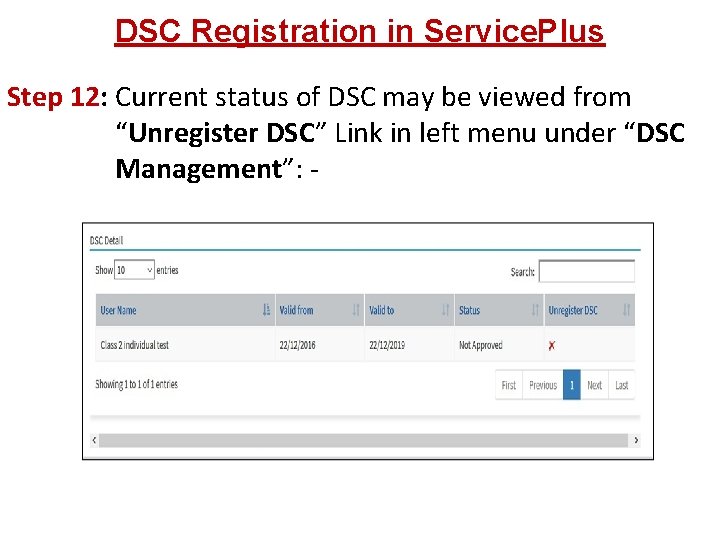
DSC Registration in Service. Plus Step 12: Current status of DSC may be viewed from “Unregister DSC” Link in left menu under “DSC Management”: -
DSC Activation in Service. Plus How to Activate DSC in Service. Plus?
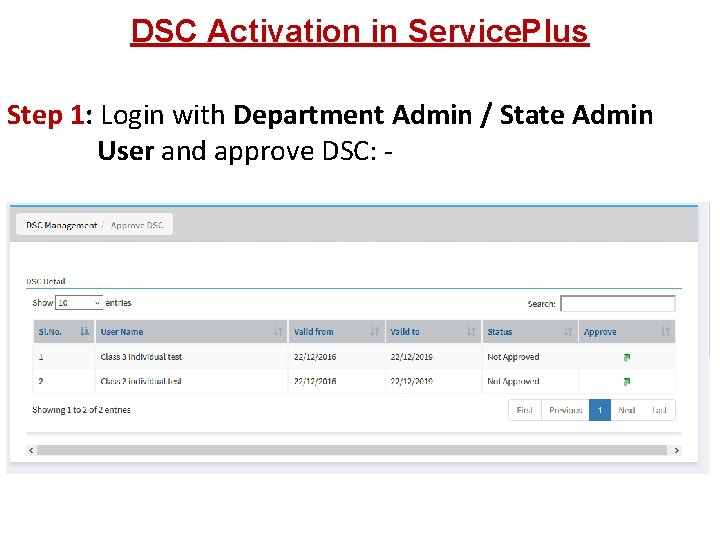
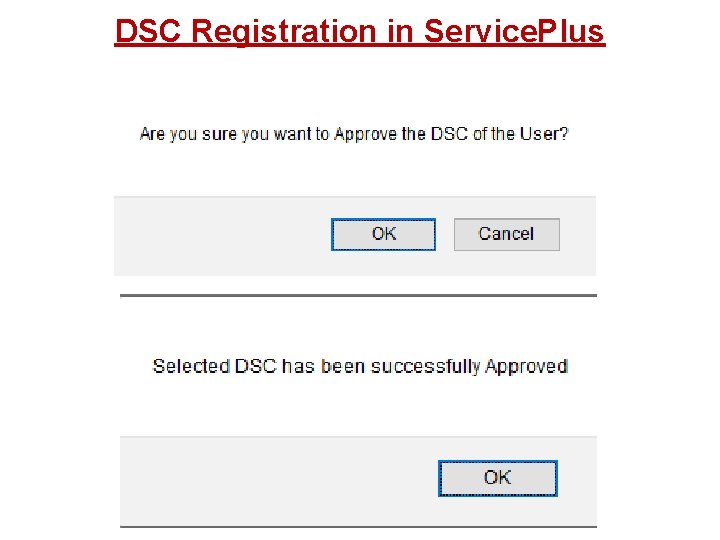
DSC Activation in Service. Plus Step 1: Login with Department Admin / State Admin User and approve DSC: -
DSC Registration in Service. Plus
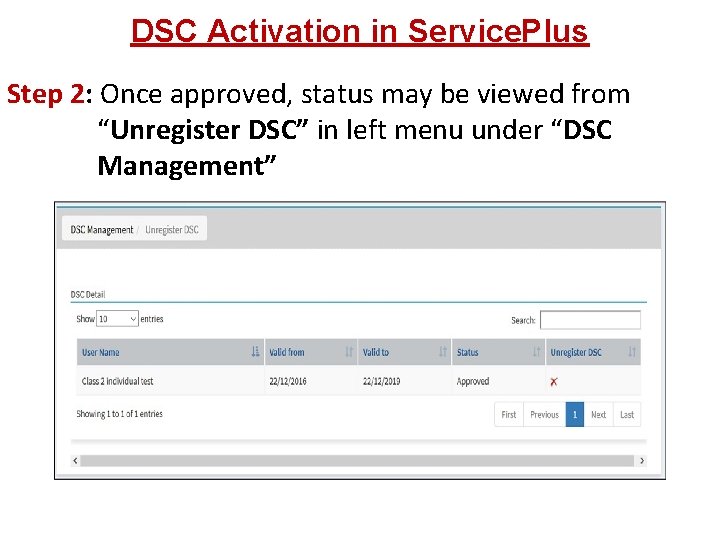
DSC Activation in Service. Plus Step 2: Once approved, status may be viewed from “Unregister DSC” in left menu under “DSC Management”
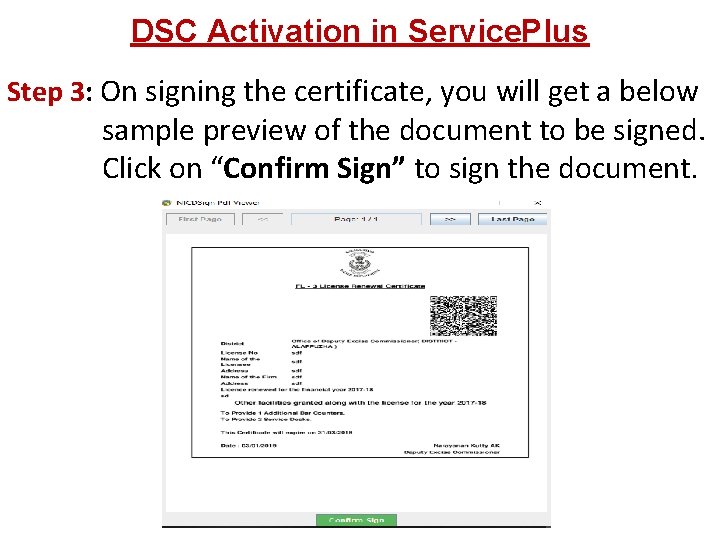
DSC Activation in Service. Plus On signing the certificate, you will get a below Step 3: sample preview of the document to be signed. Click on “Confirm Sign” to sign the document.
Action of Applicants • How to Register (Sign-up)? • How to Edit / Update Profile? • How to Reset Password? • How to Use Forget Password?
Register New User (Sign-up) How to Register New User (Sign-up)?
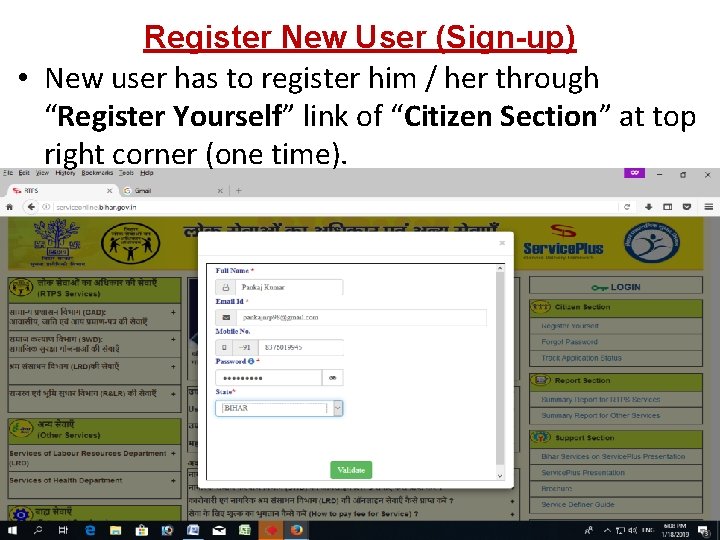
Register New User (Sign-up) • New user has to register him / her through “Register Yourself” link of “Citizen Section” at top right corner (one time).
![Register New User (Sign-up) • Fill the form and click [Validate]. OTP(s) will be](http://slidetodoc.com/presentation_image_h/ce4927aaaebeeca3f4a74ef3c839a715/image-53.jpg "Register New User (Sign-up) • Fill the form and click [Validate]. OTP(s) will be")
Register New User (Sign-up) • Fill the form and click [Validate]. OTP(s) will be sent to your E-Mail-ID and Mobile No.
![Register New User (Sign-up) • Enter the OTP(s) and click on [Validate].](http://slidetodoc.com/presentation_image_h/ce4927aaaebeeca3f4a74ef3c839a715/image-54.jpg "Register New User (Sign-up) • Enter the OTP(s) and click on [Validate].")
Register New User (Sign-up) • Enter the OTP(s) and click on [Validate].
![Register New User (Sign-up) • After successful verification, [Submit] the form. The E-Mail Address](http://slidetodoc.com/presentation_image_h/ce4927aaaebeeca3f4a74ef3c839a715/image-55.jpg "Register New User (Sign-up) • After successful verification, [Submit] the form. The E-Mail Address")
Register New User (Sign-up) • After successful verification, [Submit] the form. The E-Mail Address & Password (provided above) would be your User Credential for Service. Plus.
Edit / Update User Profile How to Edit / Update User Profile?
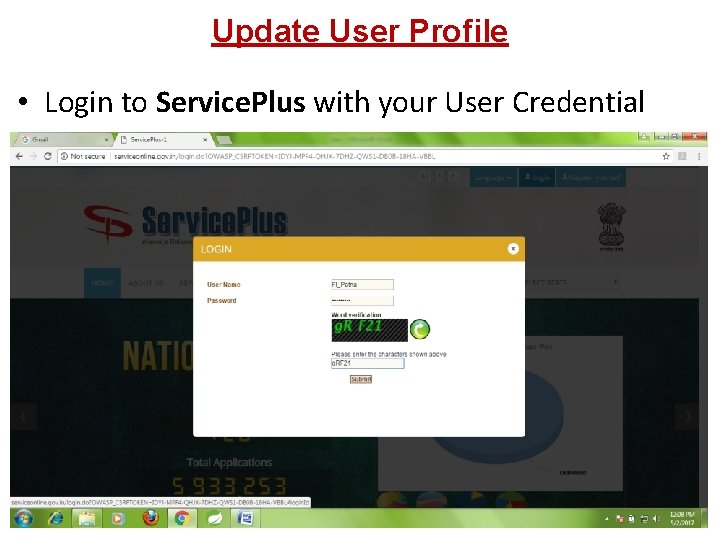
Update User Profile • Login to Service. Plus with your User Credential
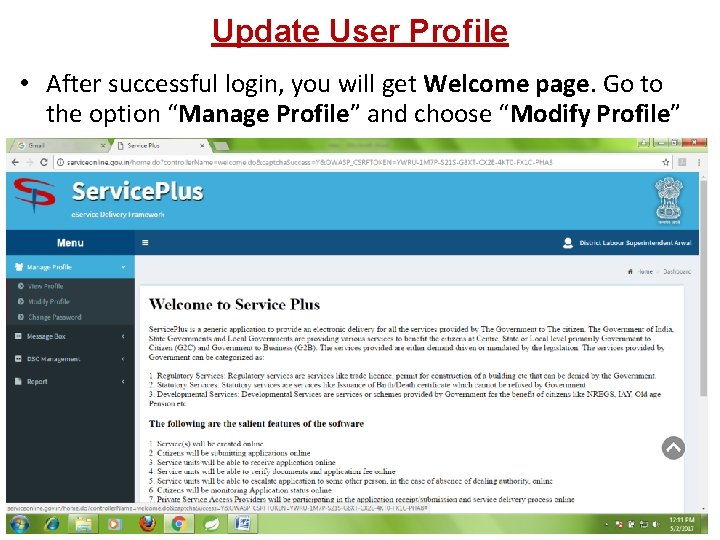
Update User Profile • After successful login, you will get Welcome page. Go to the option “Manage Profile” and choose “Modify Profile”
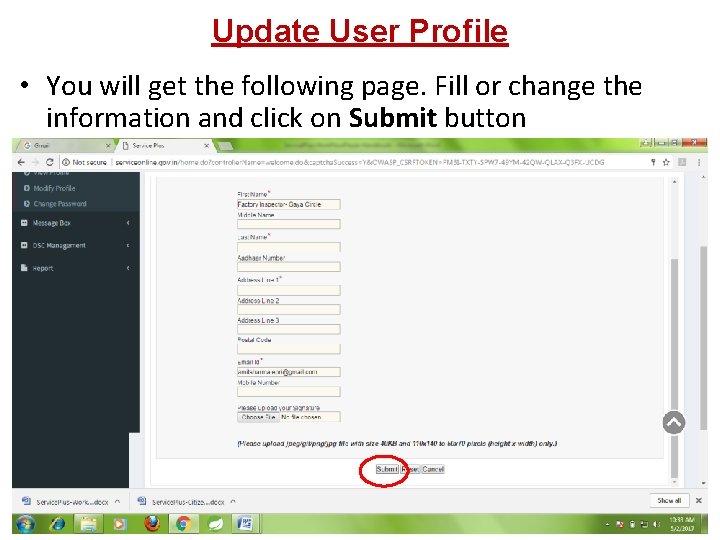
Update User Profile • You will get the following page. Fill or change the information and click on Submit button
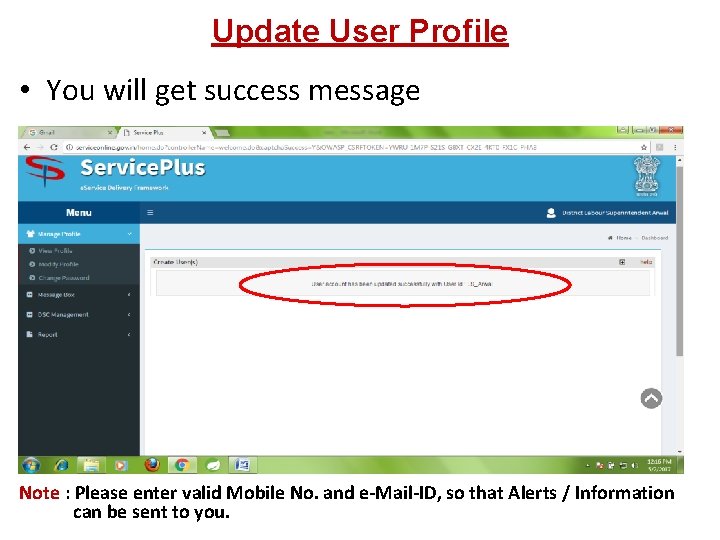
Update User Profile • You will get success message Note : Please enter valid Mobile No. and e-Mail-ID, so that Alerts / Information can be sent to you.
Reset Password How to Reset Password ?
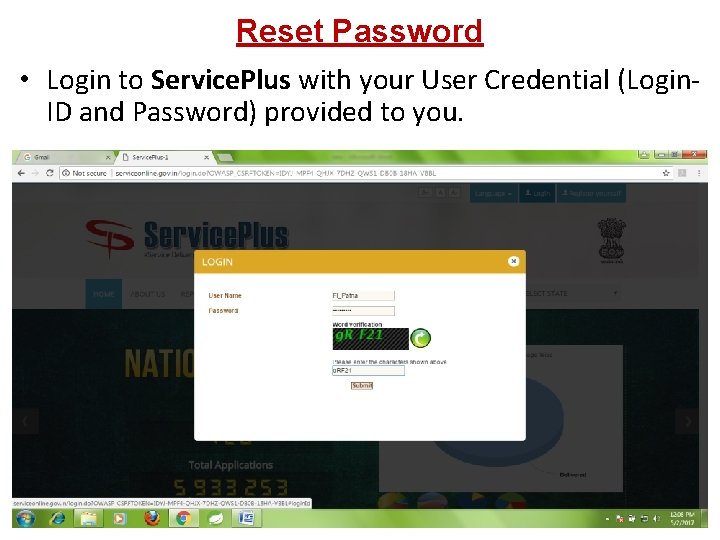
Reset Password • Login to Service. Plus with your User Credential (Login. ID and Password) provided to you.
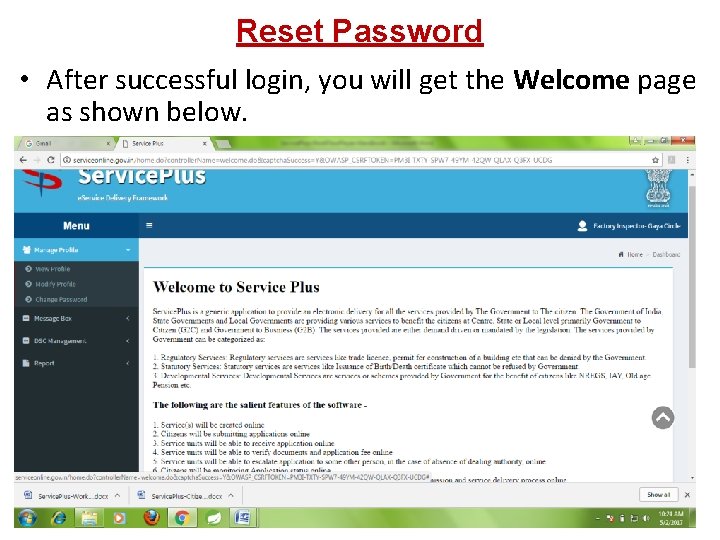
Reset Password • After successful login, you will get the Welcome page as shown below.
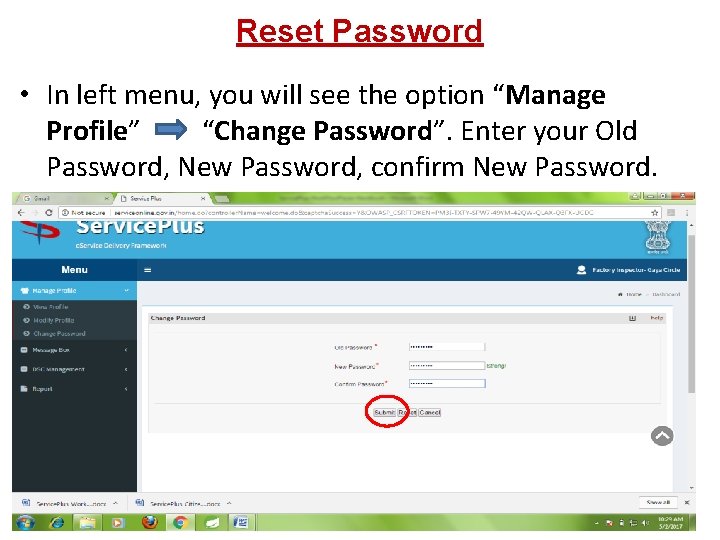
Reset Password • In left menu, you will see the option “Manage Profile” “Change Password”. Enter your Old Password, New Password, confirm New Password.
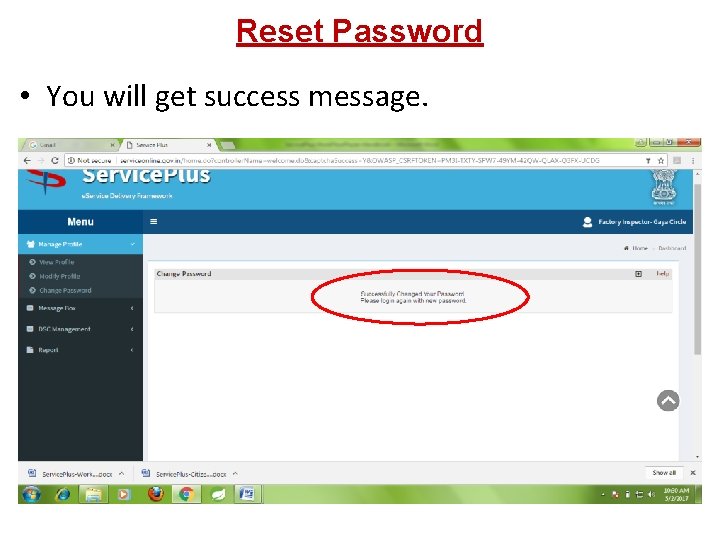
Reset Password • You will get success message.
Forget Password How to use Forget Password ?
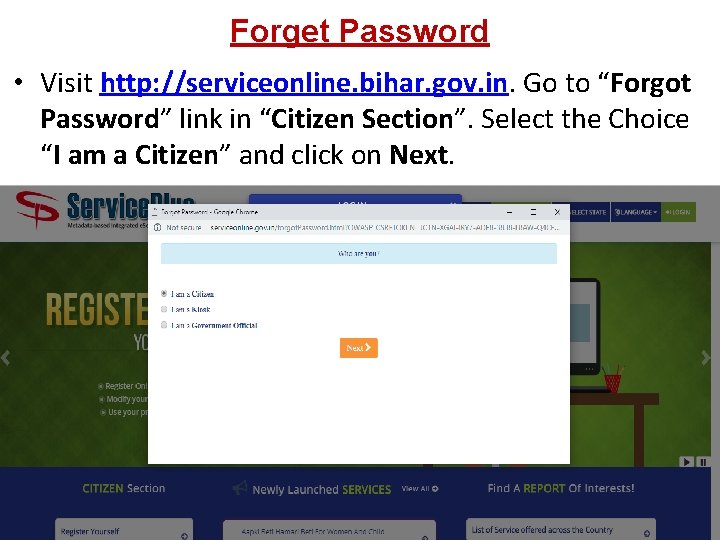
Forget Password • Visit http: //serviceonline. bihar. gov. in. Go to “Forgot Password” link in “Citizen Section”. Select the Choice “I am a Citizen” and click on Next.
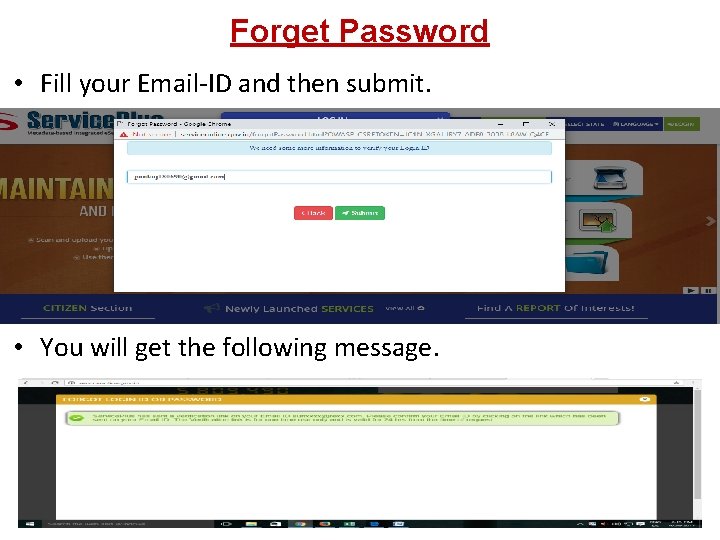
Forget Password • Fill your Email-ID and then submit. • You will get the following message.
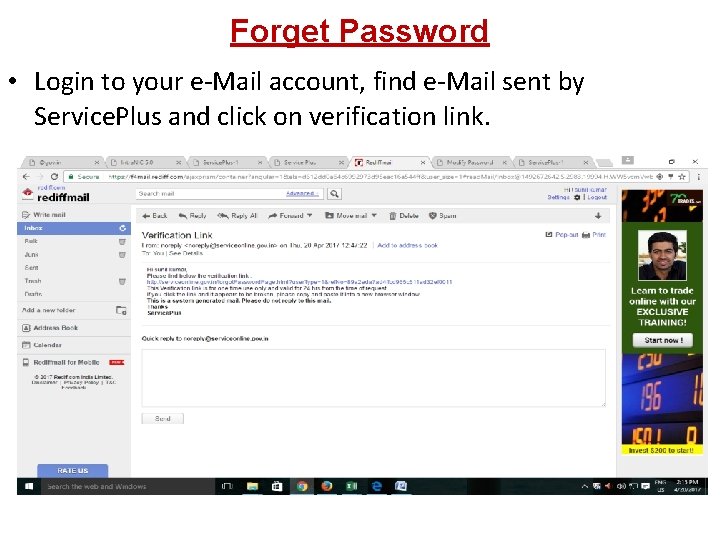
Forget Password • Login to your e-Mail account, find e-Mail sent by Service. Plus and click on verification link.
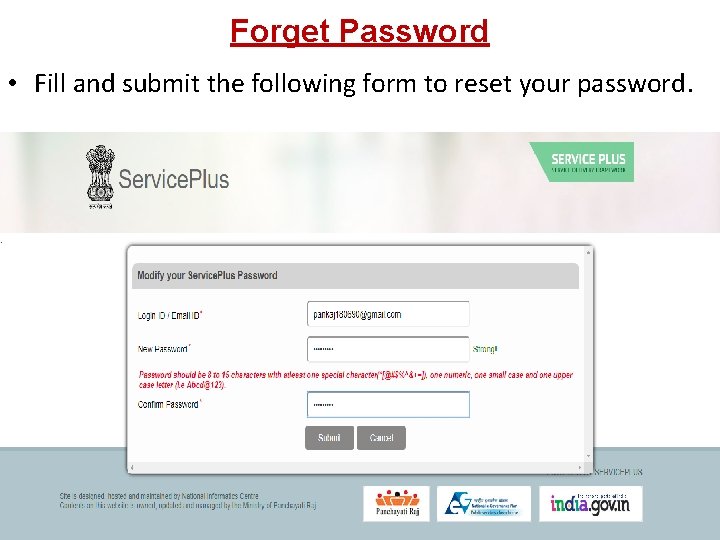
Forget Password • Fill and submit the following form to reset your password.
Action of Designated Officer Demonstration on Service. Plus
Action of Admin Users Creation and Action of Admin Users
Creation of Admin Users • District level Admin Users will be created by Service. Plus Team and the User Credentials will be distributed to them through DIO / ADIO of NIC. • Sub-Division Admin Users will be created and distributed by District level Admin Users. • Block / Circle level Admin Users will be created and distributed by District / Sub-Division Admin Users.
Action of Admin Users 1. Creation of Department, District, Sub-Division, Block / Circle level Designated Officer Users (EA, CO, RDO, CDPO, SDO, DM etc). 2. Updation of User Profile of newly created Designated Officer Users. 3. Activation of newly created Designated Officer Users.
Action of Admin Users 1. Creation of Designated Officer Users by Admin
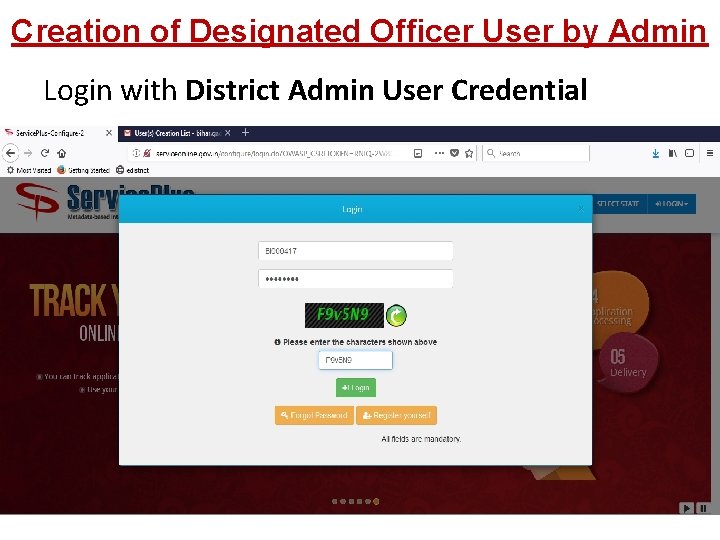
Creation of Designated Officer User by Admin Login with District Admin User Credential
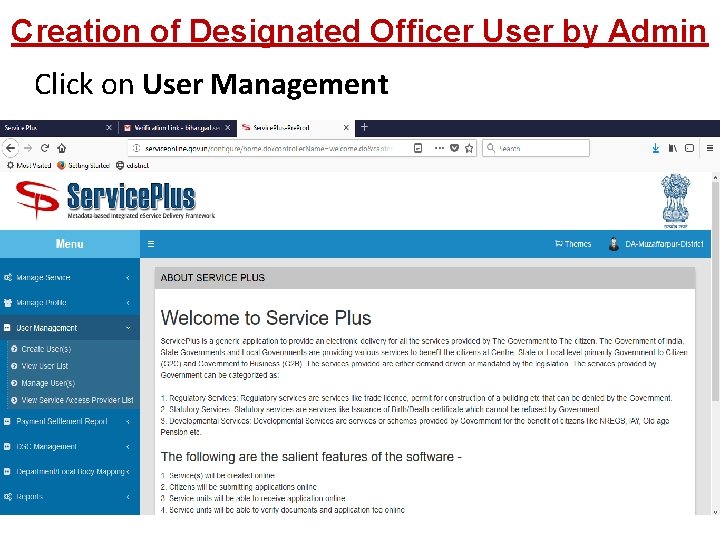
Creation of Designated Officer User by Admin Click on User Management
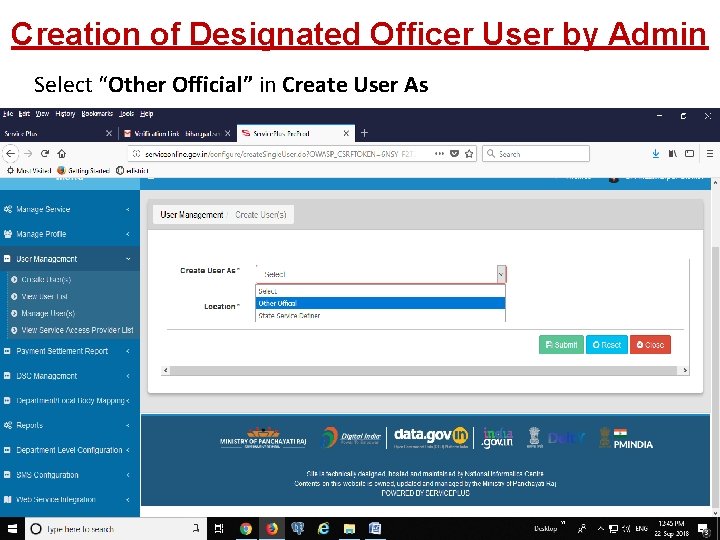
Creation of Designated Officer User by Admin Select “Other Official” in Create User As
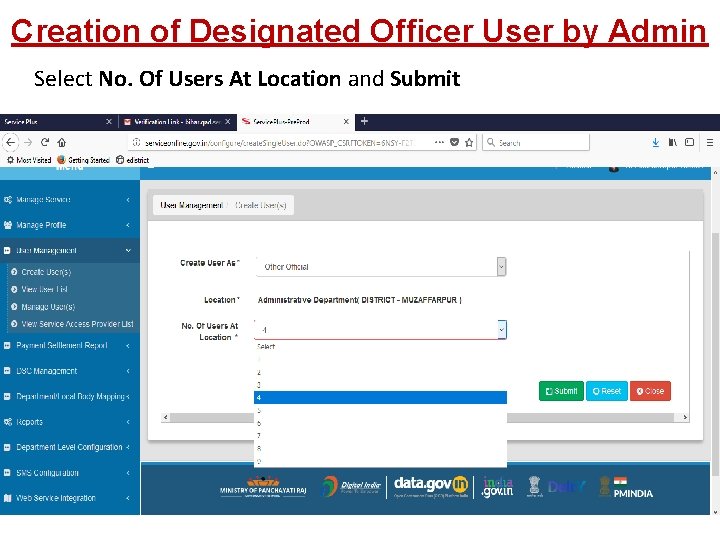
Creation of Designated Officer User by Admin Select No. Of Users At Location and Submit
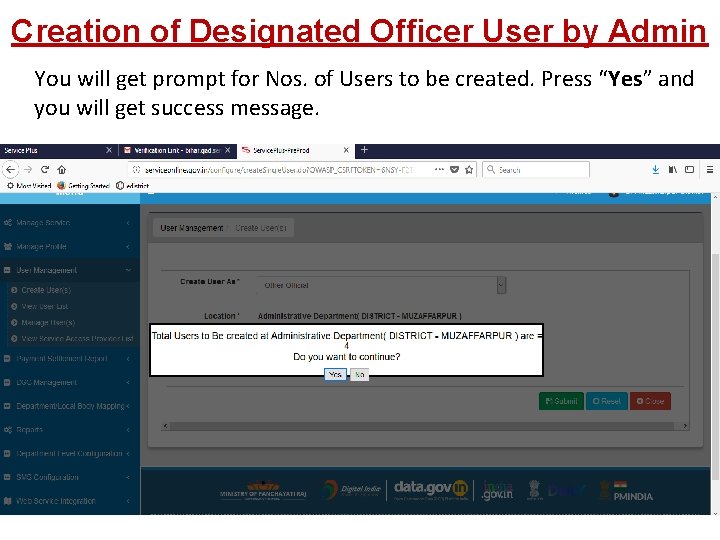
Creation of Designated Officer User by Admin You will get prompt for Nos. of Users to be created. Press “Yes” and you will get success message.
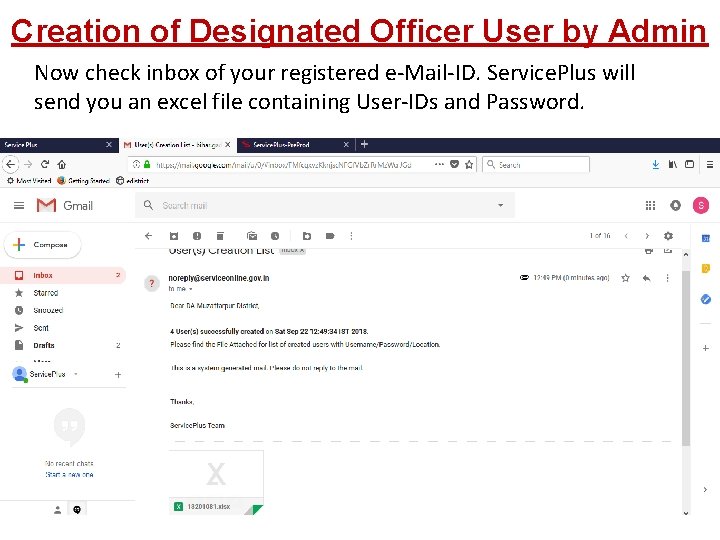
Creation of Designated Officer User by Admin Now check inbox of your registered e-Mail-ID. Service. Plus will send you an excel file containing User-IDs and Password.
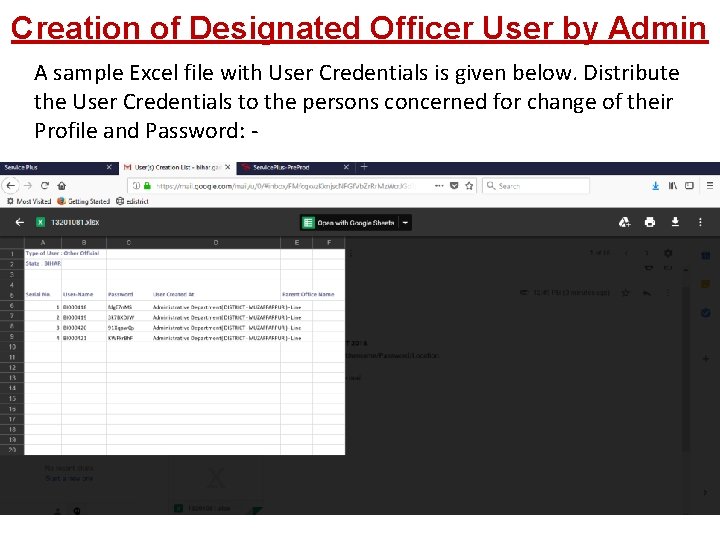
Creation of Designated Officer User by Admin A sample Excel file with User Credentials is given below. Distribute the User Credentials to the persons concerned for change of their Profile and Password: -
Action of Admin Users 2. Updation of User Profile of newly created Designated Officer Users by Admin
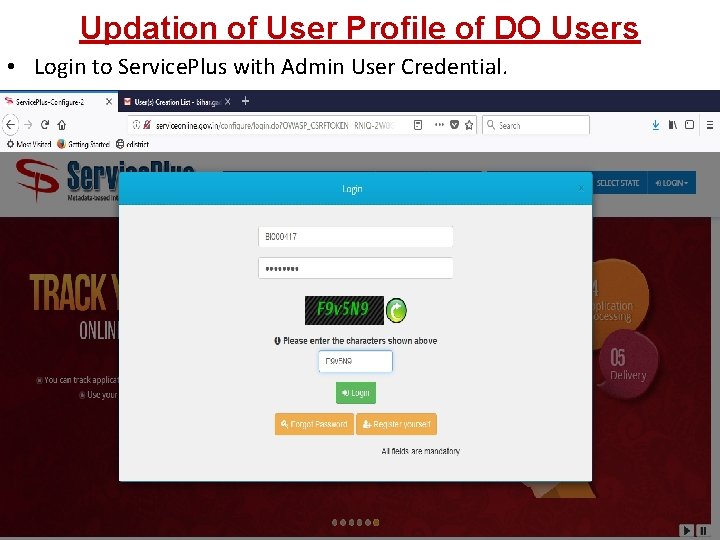
Updation of User Profile of DO Users • Login to Service. Plus with Admin User Credential.
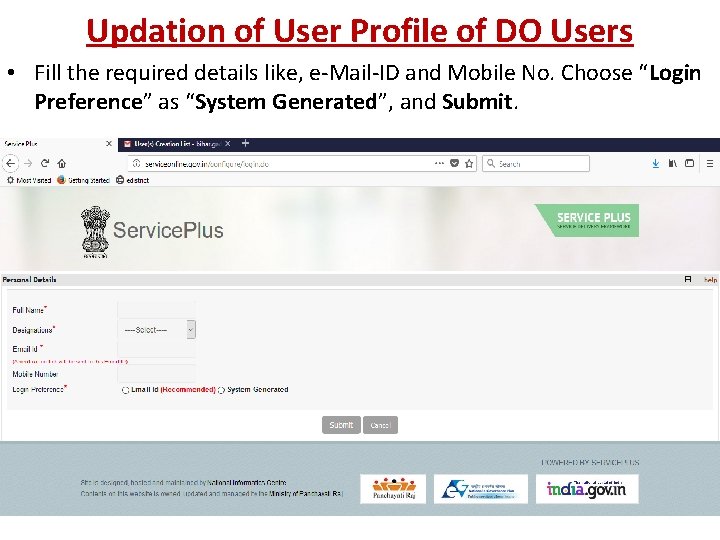
Updation of User Profile of DO Users • Fill the required details like, e-Mail-ID and Mobile No. Choose “Login Preference” as “System Generated”, and Submit.
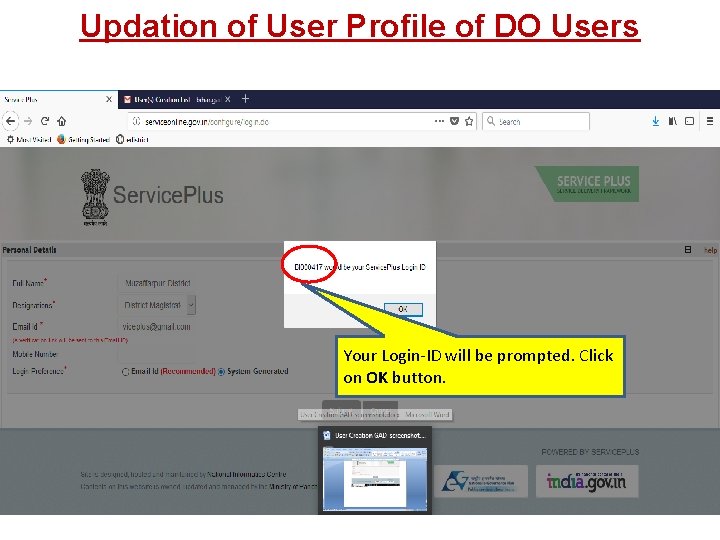
Updation of User Profile of DO Users Your Login-ID will be prompted. Click on OK button.
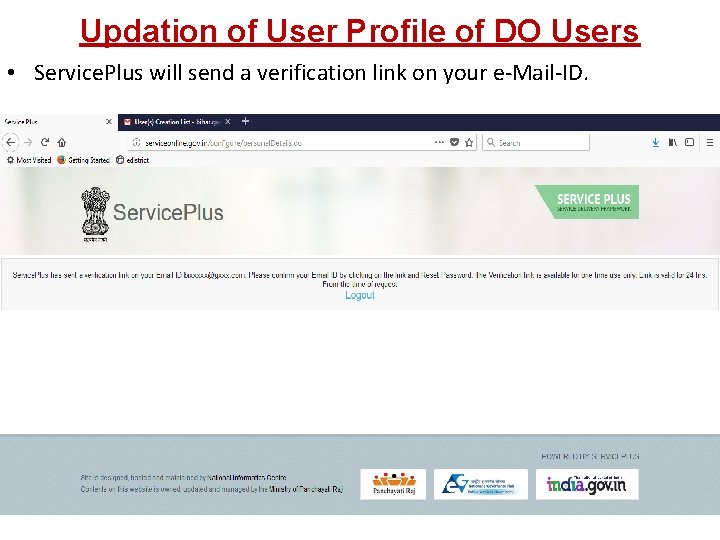
Updation of User Profile of DO Users • Service. Plus will send a verification link on your e-Mail-ID.
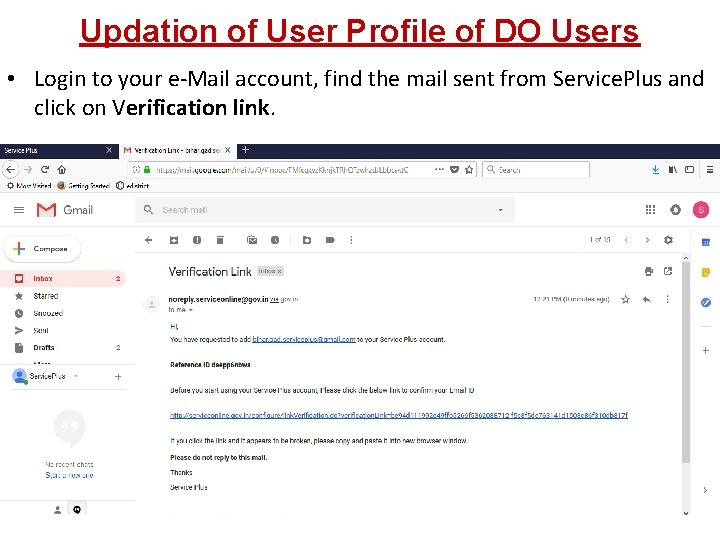
Updation of User Profile of DO Users • Login to your e-Mail account, find the mail sent from Service. Plus and click on Verification link.
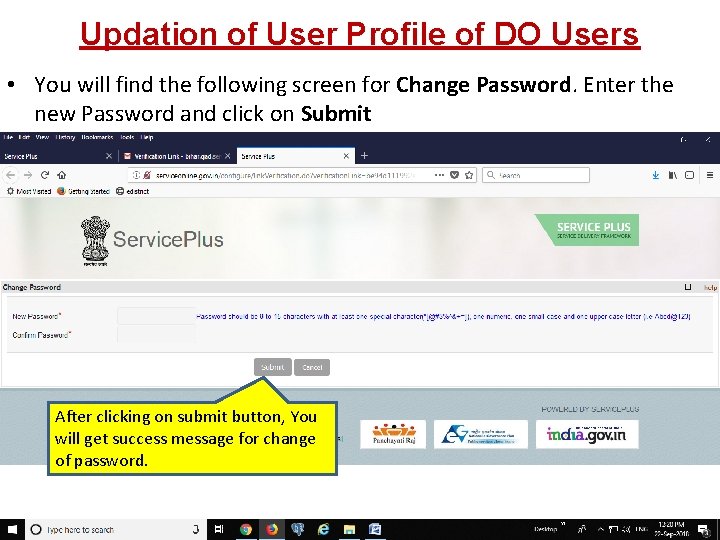
Updation of User Profile of DO Users • You will find the following screen for Change Password. Enter the new Password and click on Submit After clicking on submit button, You will get success message for change of password.
Action of Admin Users 3. Activation of newly created Designated Officer (DO) Users by Admin
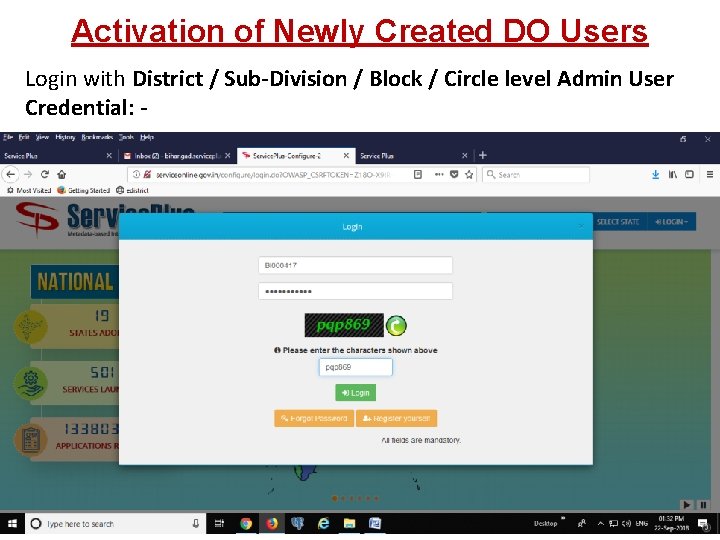
Activation of Newly Created DO Users Login with District / Sub-Division / Block / Circle level Admin User Credential: -
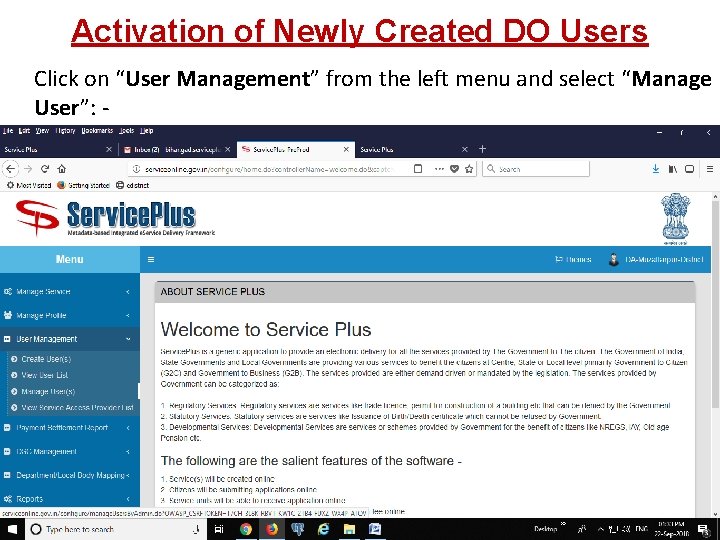
Activation of Newly Created DO Users Click on “User Management” from the left menu and select “Manage User”: -
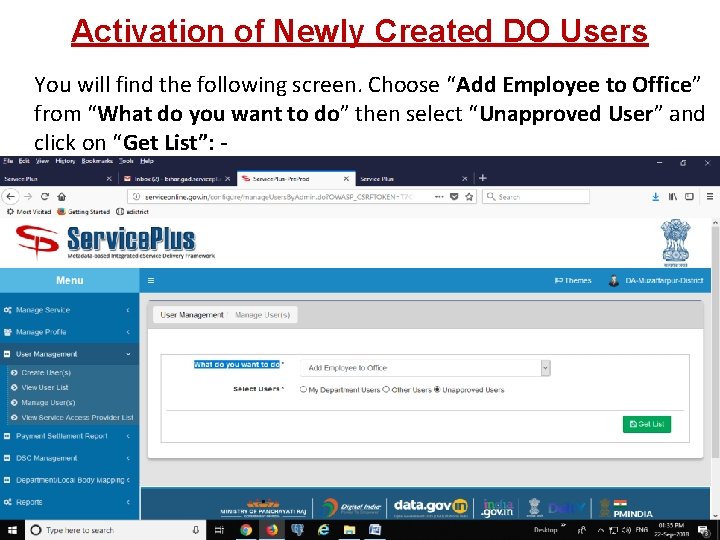
Activation of Newly Created DO Users You will find the following screen. Choose “Add Employee to Office” from “What do you want to do” then select “Unapproved User” and click on “Get List”: -
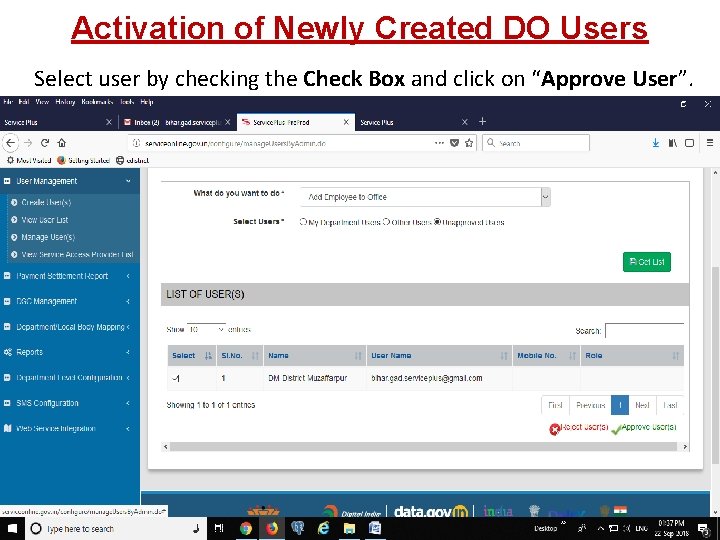
Activation of Newly Created DO Users Select user by checking the Check Box and click on “Approve User”.
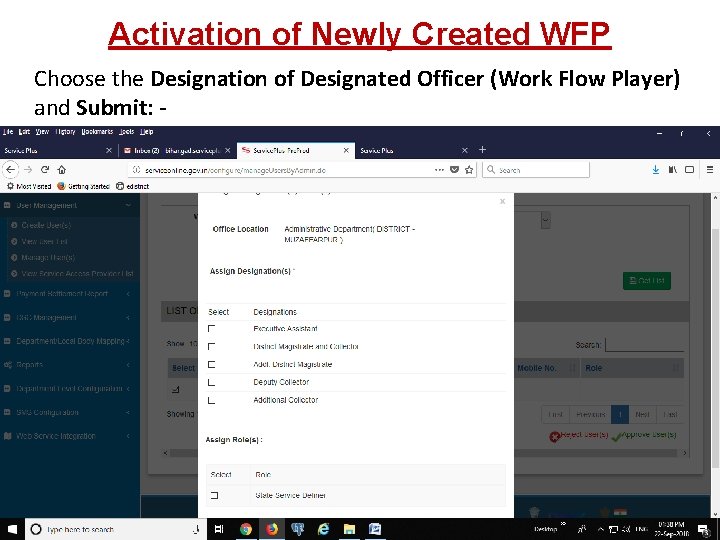
Activation of Newly Created WFP Choose the Designation of Designated Officer (Work Flow Player) and Submit: -
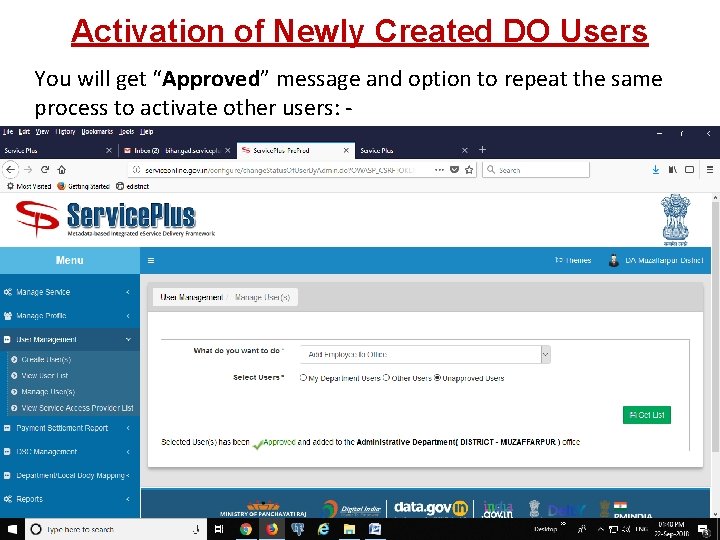
Activation of Newly Created DO Users You will get “Approved” message and option to repeat the same process to activate other users: -
Helpdesk / Technical Support 1. Panchayat, Block / Circle, Sub-Division, District, and Department level Executive Assistant. 2. Block / Circle and Sub-Division level IT Assistant through Executive Assistant, 3. District IT Manager through IT Assistant, 4. DIO / ADIO of NIC District Centre and Department IT Manager though District IT Manager, and 5. Service. Plus Team of NIC Bihar through DIO / ADIO of NIC District Centre and Department IT Manager.
Feedback Your suggestion will help us to improve the Services. Thank you.
- Slides: 98