
Bid Stamp Vendor Information System Webinar Information and
Bid. Stamp Vendor Information System Webinar Information and Overview
Presenter Kelly Parker, Director, Cooperative Contracts Chief Procurement Office Organizers Joan Scott, Contract Manager, Cooperative Contracts Chief Procurement Office
Housekeeping Available for Download: • DIR Bid. Stamp Training Guide: Vendor Information System Portal (Vendor Guide) • Power Point Presentation
Agenda • What is the Bid. Stamp? • Vendor Information System Portal (VIS) defined • Account creation and login • Vendor account management • Responding to a solicitation • Demonstration • Questions

Bid. Stamp Defined • The Bid. Stamp application is DIR’s e-procurement system that supports solicitations and contracts throughout the procurement lifecycle. It facilitates and adds automation to the following procurement processes: • Solicitation creation and posting • Collecting vendor responses • Evaluation of responses and recommendation • Contract creation, award, and management
Bid. Stamp VIS Portal • Vendor Information System Portal (VIS) provides vendors with the ability to create a profile that supports responding to DIR solicitations. This presentation introduces Vendors to 3 major components of the Bid. Stamp VIS portal: • Account creation and login • Vendor account management • Responding to a solicitation
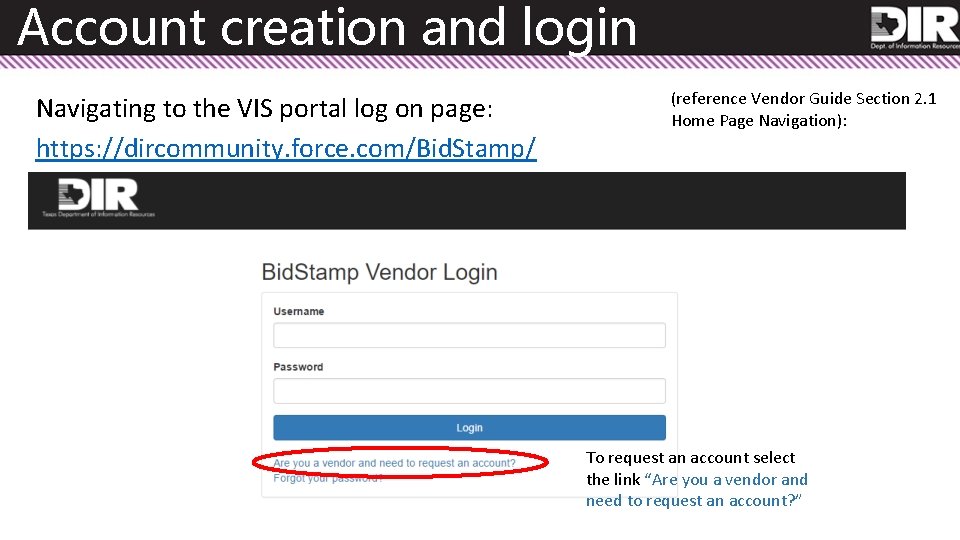
Account creation and login Navigating to the VIS portal log on page: https: //dircommunity. force. com/Bid. Stamp/ (reference Vendor Guide Section 2. 1 Home Page Navigation): To request an account select the link “Are you a vendor and need to request an account? ”
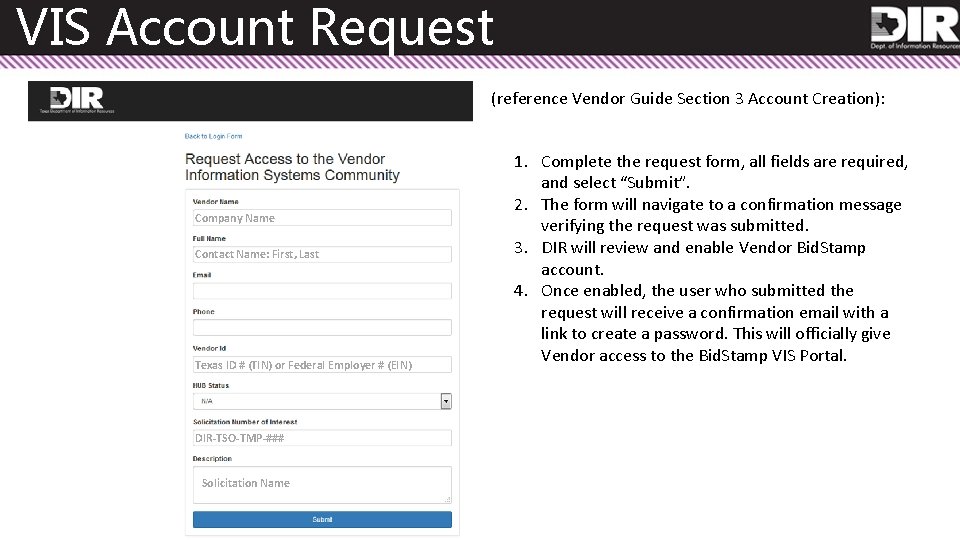
VIS Account Request (reference Vendor Guide Section 3 Account Creation): Company Name Contact Name: First, Last Texas ID # (TIN) or Federal Employer # (EIN) DIR-TSO-TMP-### Solicitation Name 1. Complete the request form, all fields are required, and select “Submit”. 2. The form will navigate to a confirmation message verifying the request was submitted. 3. DIR will review and enable Vendor Bid. Stamp account. 4. Once enabled, the user who submitted the request will receive a confirmation email with a link to create a password. This will officially give Vendor access to the Bid. Stamp VIS Portal.
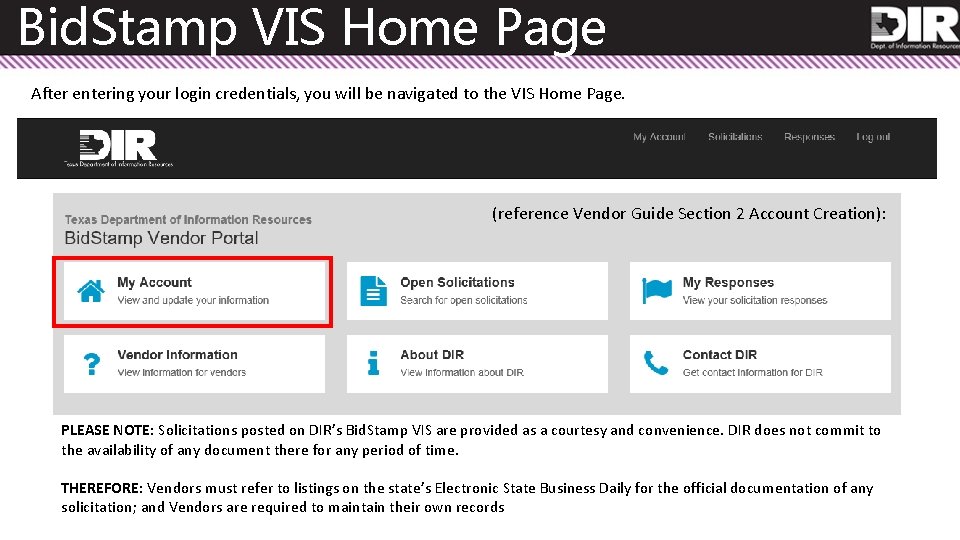
Bid. Stamp VIS Home Page After entering your login credentials, you will be navigated to the VIS Home Page. (reference Vendor Guide Section 2 Account Creation): PLEASE NOTE: Solicitations posted on DIR’s Bid. Stamp VIS are provided as a courtesy and convenience. DIR does not commit to the availability of any document there for any period of time. THEREFORE: Vendors must refer to listings on the state’s Electronic State Business Daily for the official documentation of any solicitation; and Vendors are required to maintain their own records
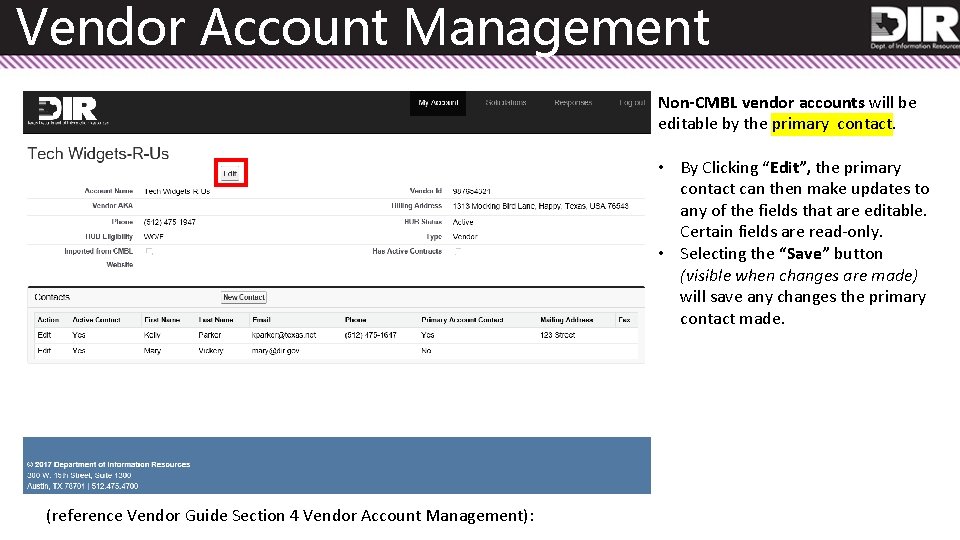
Vendor Account Management Non-CMBL vendor accounts will be editable by the primary contact. • By Clicking “Edit”, the primary contact can then make updates to any of the fields that are editable. Certain fields are read-only. • Selecting the “Save” button (visible when changes are made) will save any changes the primary contact made. (reference Vendor Guide Section 4 Vendor Account Management):
Vendor Account Management, cont. Two types of contacts can be associated with Bid. Stamp VIS portal accounts: standard contacts and primary contacts. Primary Contacts – The main contacts for a given account. By default, the first contact to request an account will receive primary contact status. • If the vendor account information is not imported from a CMBL vendor profile, the primary contact(s) associated with an account can edit overall vendor account information in addition to their own contact information. • The primary contact will have the ability to edit the contact information of other contacts associated with the account. • Primary contacts can submit questions and response materials on behalf of the account. Standard Contacts – The secondary contacts for a given account. Standard contacts must request primary accounts status from the accounts primary contact. • Standard contacts are only able to edit the information associated with their own account. • Standard contacts can submit questions and response materials on behalf of the account.
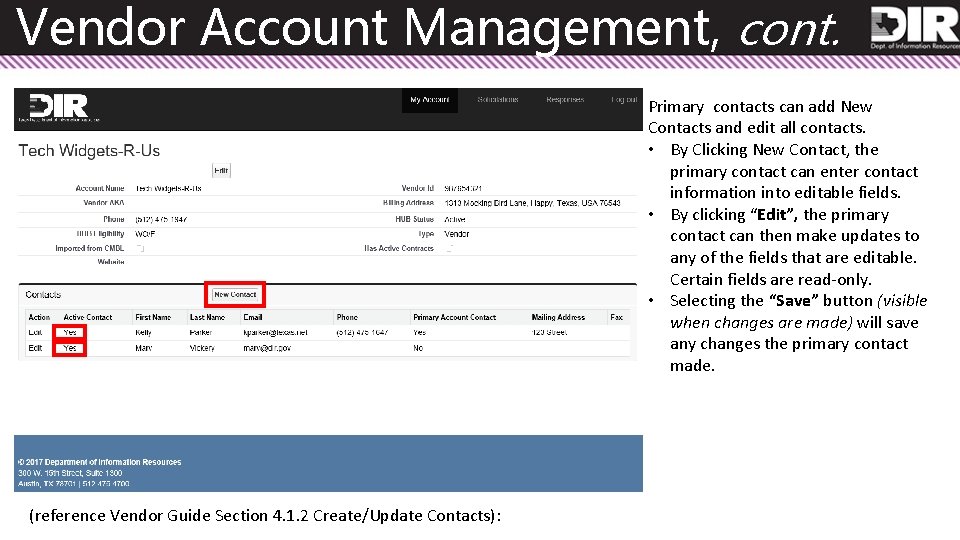
Vendor Account Management, cont. Primary contacts can add New Contacts and edit all contacts. • By Clicking New Contact, the primary contact can enter contact information into editable fields. • By clicking “Edit”, the primary contact can then make updates to any of the fields that are editable. Certain fields are read-only. • Selecting the “Save” button (visible when changes are made) will save any changes the primary contact made. (reference Vendor Guide Section 4. 1. 2 Create/Update Contacts):
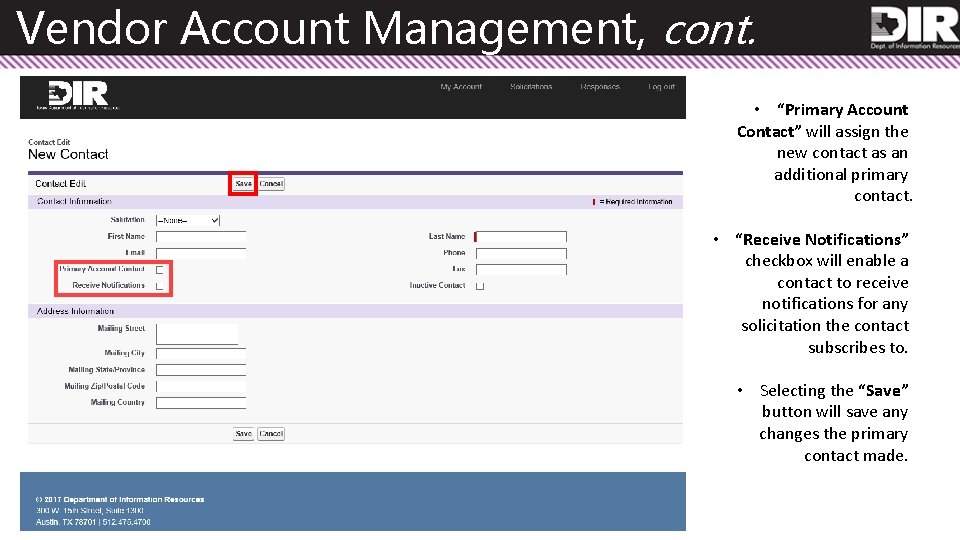
Vendor Account Management, cont. • “Primary Account Contact” will assign the new contact as an additional primary contact. • “Receive Notifications” checkbox will enable a contact to receive notifications for any solicitation the contact subscribes to. • Selecting the “Save” button will save any changes the primary contact made.
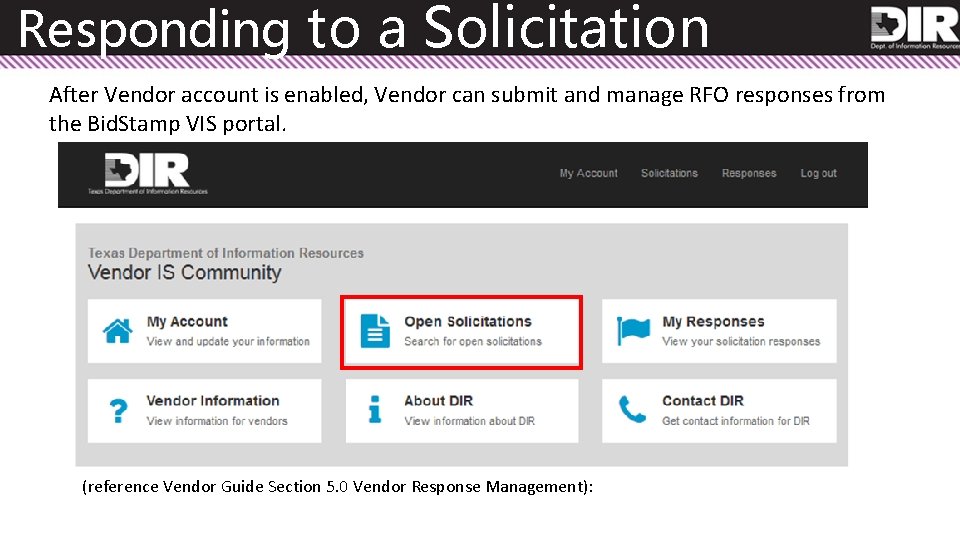
Responding to a Solicitation After Vendor account is enabled, Vendor can submit and manage RFO responses from the Bid. Stamp VIS portal. (reference Vendor Guide Section 5. 0 Vendor Response Management):
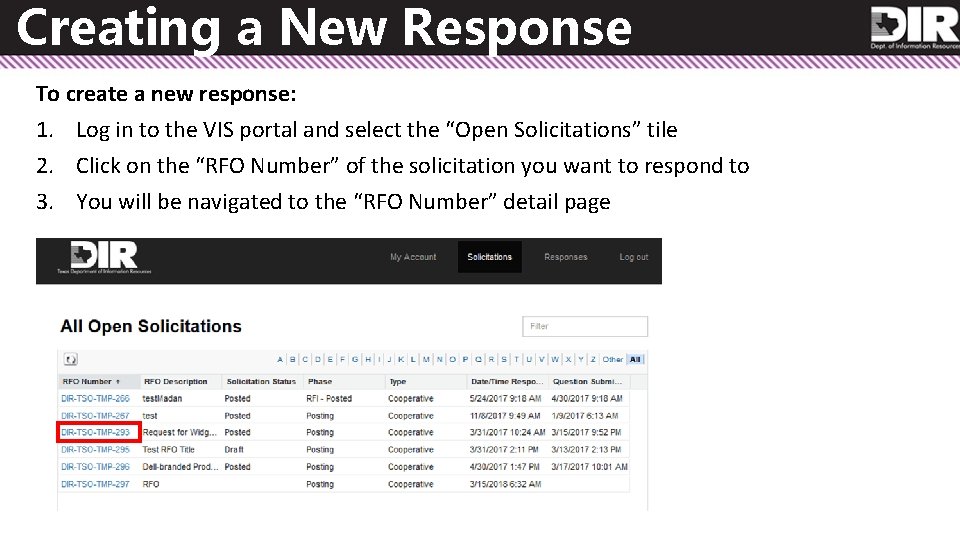
Creating a New Response To create a new response: 1. Log in to the VIS portal and select the “Open Solicitations” tile 2. Click on the “RFO Number” of the solicitation you want to respond to 3. You will be navigated to the “RFO Number” detail page
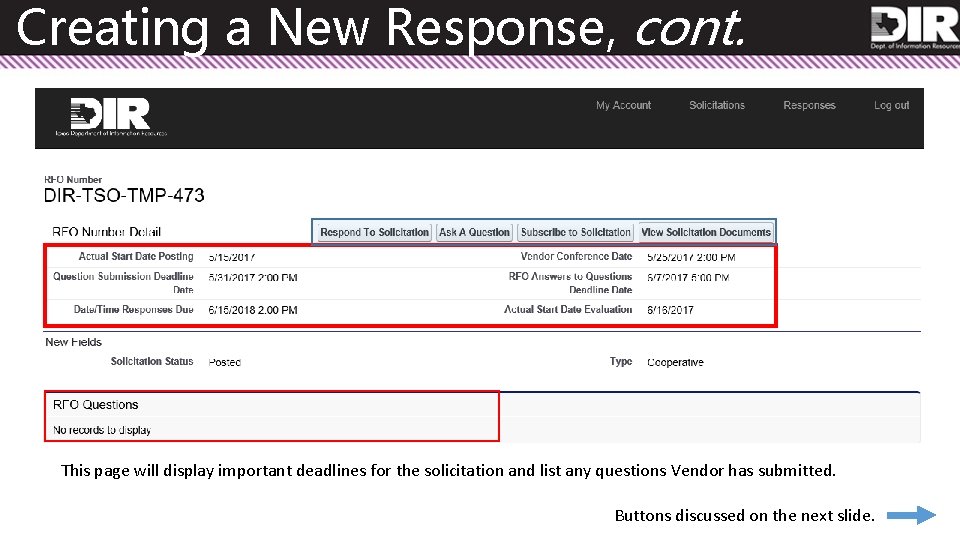
Creating a New Response, cont. This page will display important deadlines for the solicitation and list any questions Vendor has submitted. Buttons discussed on the next slide.
Creating a New Response, cont. RFO Number Detail Button Description: Respond to a Solicitation (or View Response): Create a new response or view a response that is in-progress. If a response has already been created or started, this button will read as “View Response” and allow you to resume your progress on an existing RFO response. Ask A Question: Submit a question to be reviewed by a DIR resource. Questions can be submitted up until the “Question Submission Deadline date” indicated in the RFO document and on the detail page. Subscribe to Solicitation: Subscribe to a solicitation if you would like to receive addendum notifications. To subscribe to the solicitation, you must select the “Subscribe to Solicitation” button AND have enabled your contact to “Receive Notifications”. (reference slide 12 of this presentation) View Solicitation Documents: Navigate to the ESBD posting for a solicitation and view the solicitation’s documents.
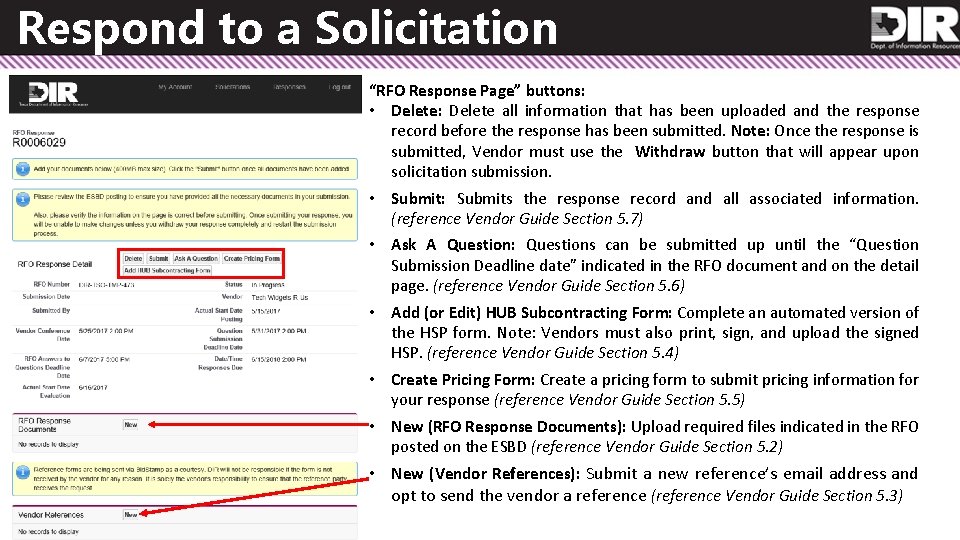
Respond to a Solicitation “RFO Response Page” buttons: • Delete: Delete all information that has been uploaded and the response record before the response has been submitted. Note: Once the response is submitted, Vendor must use the Withdraw button that will appear upon solicitation submission. • Submit: Submits the response record and all associated information. (reference Vendor Guide Section 5. 7) • Ask A Question: Questions can be submitted up until the “Question Submission Deadline date” indicated in the RFO document and on the detail page. (reference Vendor Guide Section 5. 6) • Add (or Edit) HUB Subcontracting Form: Complete an automated version of the HSP form. Note: Vendors must also print, sign, and upload the signed HSP. (reference Vendor Guide Section 5. 4) • Create Pricing Form: Create a pricing form to submit pricing information for your response (reference Vendor Guide Section 5. 5) • New (RFO Response Documents): Upload required files indicated in the RFO posted on the ESBD (reference Vendor Guide Section 5. 2) • New (Vendor References): Submit a new reference’s email address and opt to send the vendor a reference (reference Vendor Guide Section 5. 3)
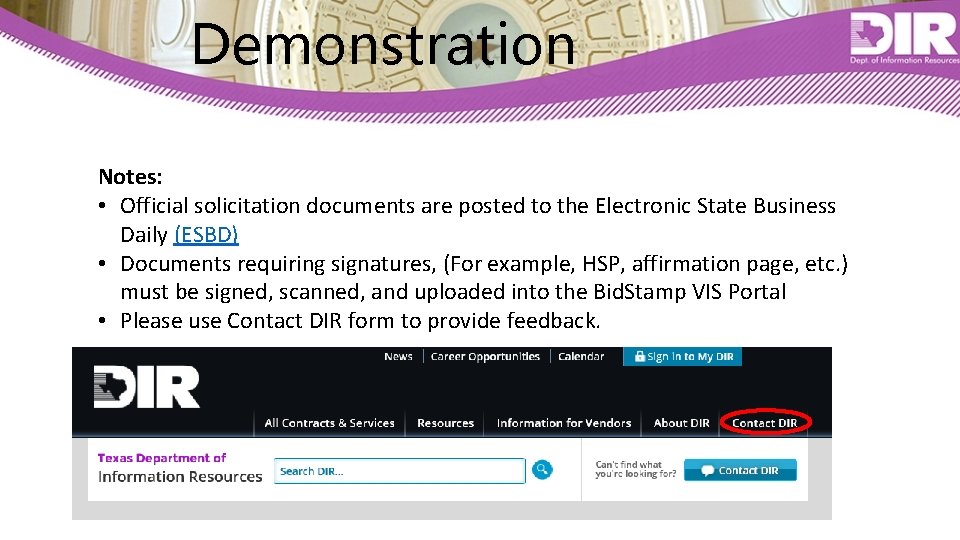
Demonstration Notes: • Official solicitation documents are posted to the Electronic State Business Daily (ESBD) • Documents requiring signatures, (For example, HSP, affirmation page, etc. ) must be signed, scanned, and uploaded into the Bid. Stamp VIS Portal • Please use Contact DIR form to provide feedback.
Contact Info Kelly Parker Director, Cooperative Contracts kelly. parker@dir. texas. gov
- Slides: 20