
Berkeley Lab BI Portal PO Summary Line Detail
Berkeley Lab BI Portal PO Summary & Line Detail with Accruals and Drill-through Reports March 8, 2019

Berkeley Lab BI Portal Page 2 • The number of reports have been developed to help RA’s/project managers track and analyze accruals for Earned Value Management Systems (EVMS) but other Lab staff will also find them useful as they contains not only accruals (uploaded to FMS via Template A/B) but also costs, encumbrances and vouchers/invoices by PO Line for all Purchase Orders. • The reports located in the Berkeley Lab BI Portal > Reports > Procurement https: //cogweb. lbl. gov/cognos) PO Summary & Line Detail with Accruals is a main report. From this report you can drill through to the following reports: • Encumbrance Line Detail Report (New Report)– Encumbrances by PO line • PO Line Hard Close Accrual Details(New Report) – Hard close accruals entered into templates A/B • Purchase Line Transactions (Existing Report) – Added Analysis type • Voucher Line Details Report (New Report) – Certified/Uncertified Vouchers with Invoices and drill through to Intellego Invoices These reports also available as stand alone reports and you can run them from the portal page. 2

PO Summary & Line Detail with Accruals - Example: Run For “Project” 3 The main report is “PO Summary & Line Detail with Accruals” report (aka EVMS Report) provides summary and detail information about PO • Click on PO Summary & Line Detail with Accruals • The prompt page is very similar to the Purchases report • Multi-select is enabled • Input “Project ID” (all or partial digits) • Define the “Order Create Date”, “Type”, “Status”, “Include Burden $$”, “Detail/Summary” • Select “Go” 3

PO Summary & Line Detail with Accruals- Example: Run For “Project” 4 • • • “PO Number” drill through opens the Purchase Order Detail Report “LTD PO Cost” & “YTD Transaction Amount” drill throughs open the Purchase Transactions Report with extra fields: Analysis Type, Resource Category and Resource Type “Encumbrance Amount” drill through opens the Encumbrance Report with extra fields: PO Line Number, PO Line Description, Resource Type, and Project Description “Last Hard Close Accrual Amount” drill through opens a new report Hard Close PO Accrual Details which pulls your last hard close accrual data from FMS “Voucher Certified/Uncertified Amount” drill throughs opens a new report which shows vouchers and invoices for a PO line. If you click on invoice link, you will get the invoice image from Intellego. 4

Example: PO Number drill through 5 • Click on PO Number drill through to get PO Details Report 5
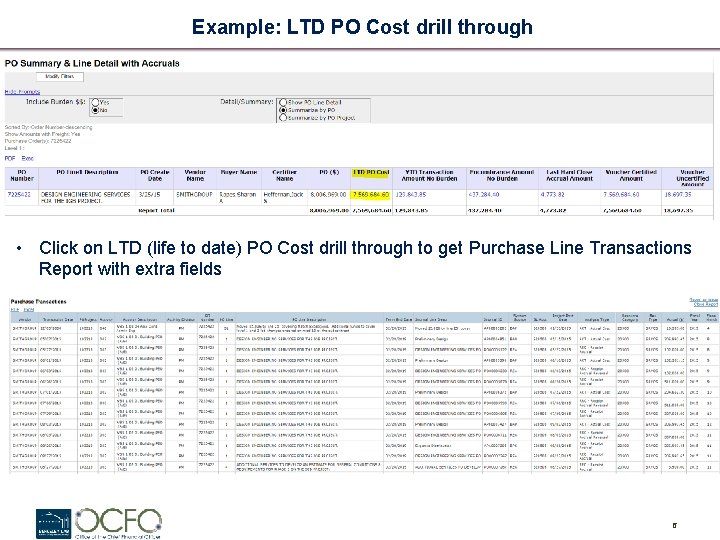
Example: LTD PO Cost drill through 6 • Click on LTD (life to date) PO Cost drill through to get Purchase Line Transactions Report with extra fields 6
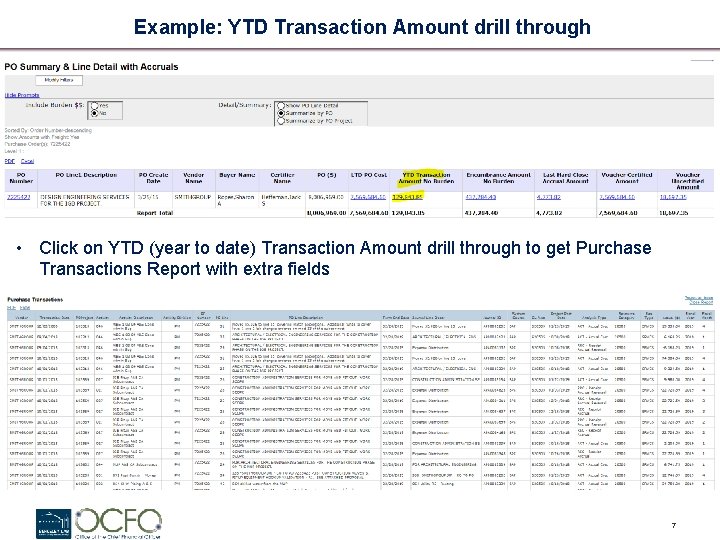
Example: YTD Transaction Amount drill through 7 • Click on YTD (year to date) Transaction Amount drill through to get Purchase Transactions Report with extra fields 7
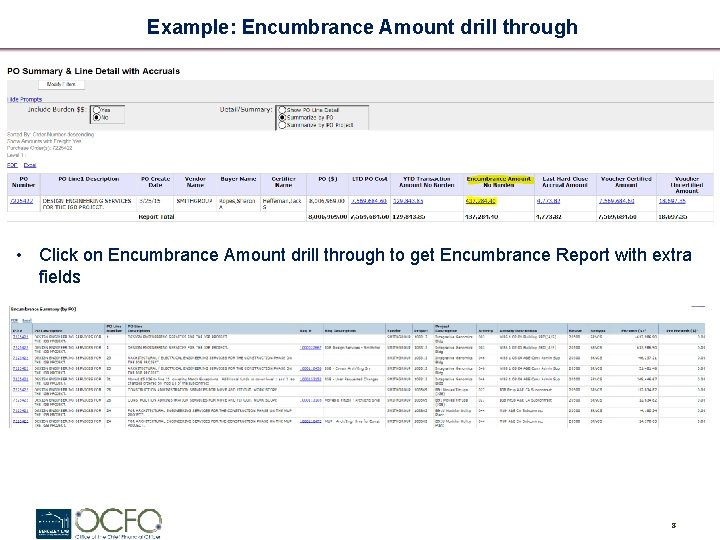
Example: Encumbrance Amount drill through 8 • Click on Encumbrance Amount drill through to get Encumbrance Report with extra fields 8
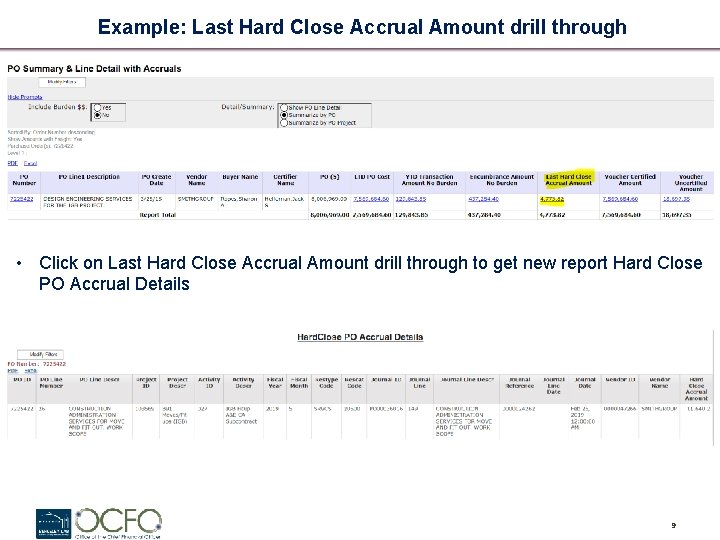
Example: Last Hard Close Accrual Amount drill through 9 • Click on Last Hard Close Accrual Amount drill through to get new report Hard Close PO Accrual Details 9
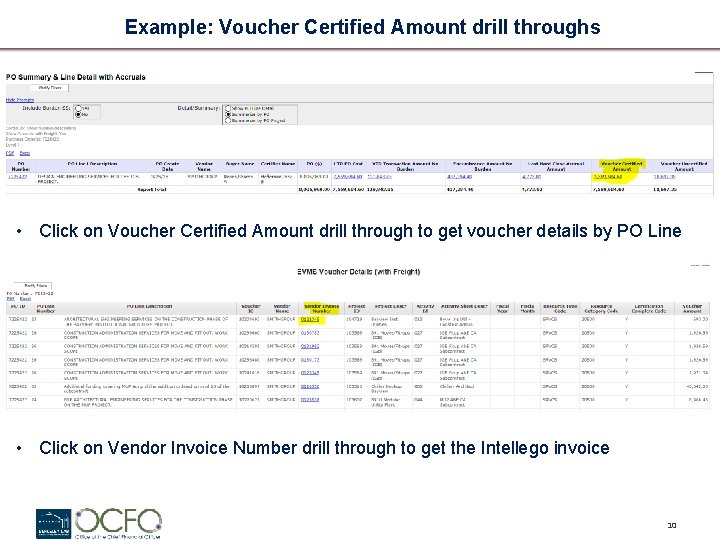
Example: Voucher Certified Amount drill throughs 10 • Click on Voucher Certified Amount drill through to get voucher details by PO Line • Click on Vendor Invoice Number drill through to get the Intellego invoice 10
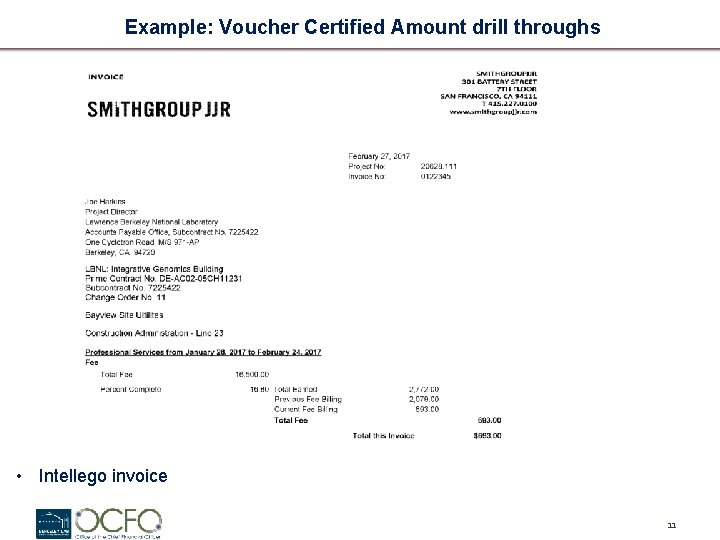
Example: Voucher Certified Amount drill throughs 11 • Intellego invoice 11

Example: Voucher Uncertified Amount drill throughs 12 • Click on Voucher Uncertified Amount drill through to get voucher details by PO Line • Click on Vendor Invoice Number drill through to get the Intellego invoice 12
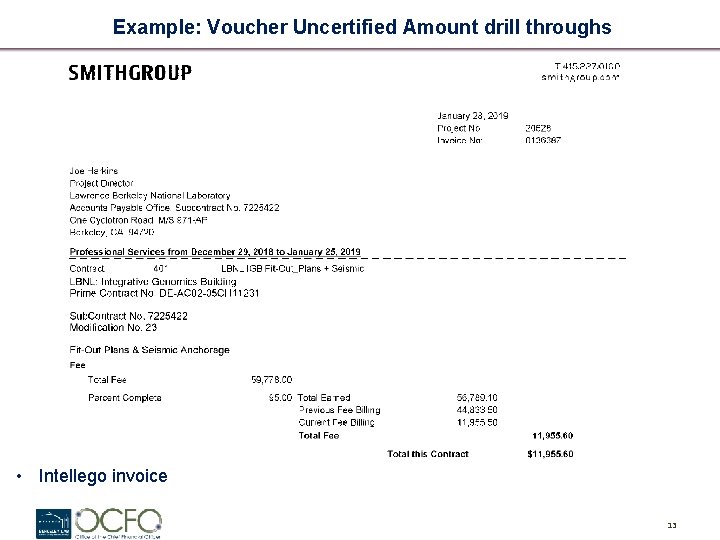
Example: Voucher Uncertified Amount drill throughs 13 • Intellego invoice 13
- Slides: 13