
Beginners Microsoft Office Word 2007 Lesson 2 Entering
Beginners: Microsoft Office Word 2007 Lesson 2: Entering Text Isaac Katete
Lesson 2 Overview �Typing Text �Specifying fonts and text size �Formatting – bold, italic, underline �Take advantage of automatic spelling corrections �Making bullet or numbered lists
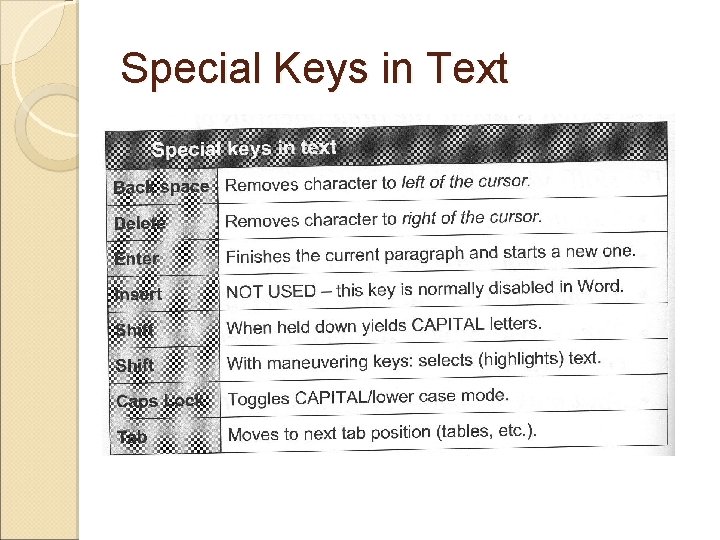
Special Keys in Text
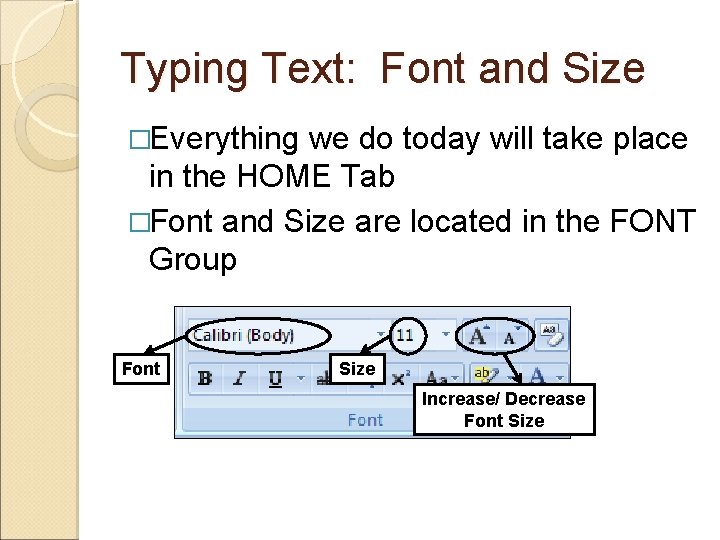
Typing Text: Font and Size �Everything we do today will take place in the HOME Tab �Font and Size are located in the FONT Group Font Size Increase/ Decrease Font Size
Exercise �Click on the next to the box with the name of the current font. Scroll down to find Time New Roman in the listing and click on it. �Click on the size selector arrow and click on �Now type: The quick brown fox. 28. �Select �Type: Brush Script font and size 36. jumped over the lazy dogs. Notice the different font and size.

Formatting Text �Bold ◦ The Bold command, type bold text. , allows you to �Italic ◦ The Italic command, , allows you to type italic, learning, text.
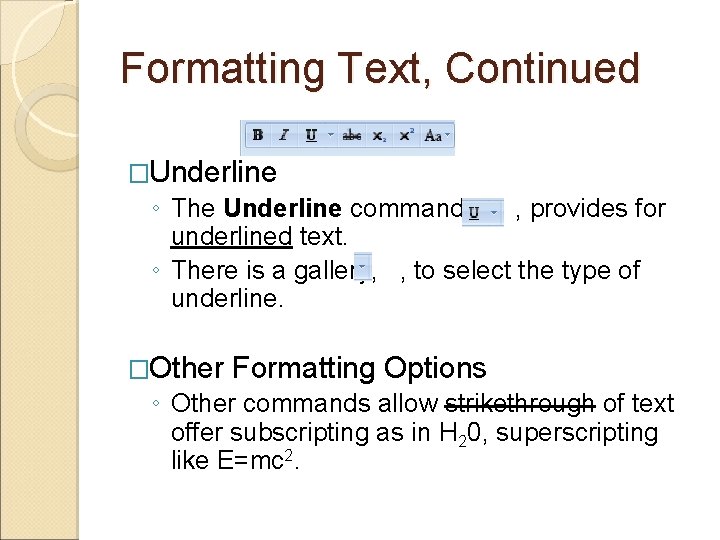
Formatting Text, Continued �Underline ◦ The Underline command, , provides for underlined text. ◦ There is a gallery, , to select the type of underline. �Other Formatting Options ◦ Other commands allow strikethrough of text offer subscripting as in H 20, superscripting like E=mc 2.
Exercise � Select Times New Roman font. � Set the size to 24. � Now click on the Bold command. � Type some text. � Click on the Italic command. � Type some more text. � Click the Underline command. � Type some more text. � Click Bold again to release bolding, and type additional text. � Try various combinations to learn how the commands all work.
Correcting Text �Backspace Key – erases the character immediately to the left of the cursor �Delete Key – erases a character to the right of the cursor
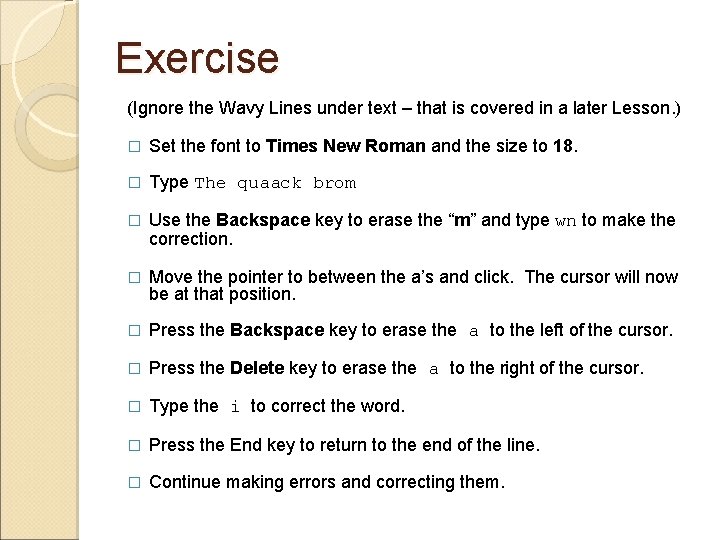
Exercise (Ignore the Wavy Lines under text – that is covered in a later Lesson. ) � Set the font to Times New Roman and the size to 18. � Type The quaack brom � Use the Backspace key to erase the “m” and type wn to make the correction. � Move the pointer to between the a’s and click. The cursor will now be at that position. � Press the Backspace key to erase the a to the left of the cursor. � Press the Delete key to erase the a to the right of the cursor. � Type the i to correct the word. � Press the End key to return to the end of the line. � Continue making errors and correcting them.
Auto. Correct �If you forget to capitalize the first letter in a new sentence or paragraph, Word will do that for you. �If you accidentally hold down the Shift key too long and type a couple of capital letters at the beginning of a word, Word will correct that too. �If you accidentally leave the Caps Lock on and type a word that should be capitalized (by holding down the Shift key for the first letter), Word will make the correction and release the Caps Lock.
Auto. Correct Cont. �Word will also correct a large number of typographical errors. �To cancel the Auto. Correct action – as soon as the correction appears (after you type the space), hold down the Ctrl key and the Z key or click the Undo icon.
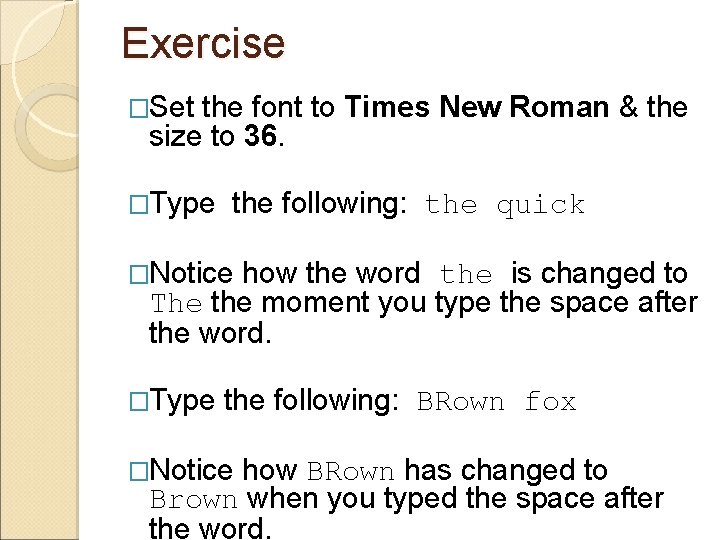
Exercise �Set the font to Times New Roman & the size to 36. �Type the following: the quick �Notice how the word the is changed to The the moment you type the space after the word. �Type the following: BRown fox �Notice how BRown has changed to Brown when you typed the space after the word.
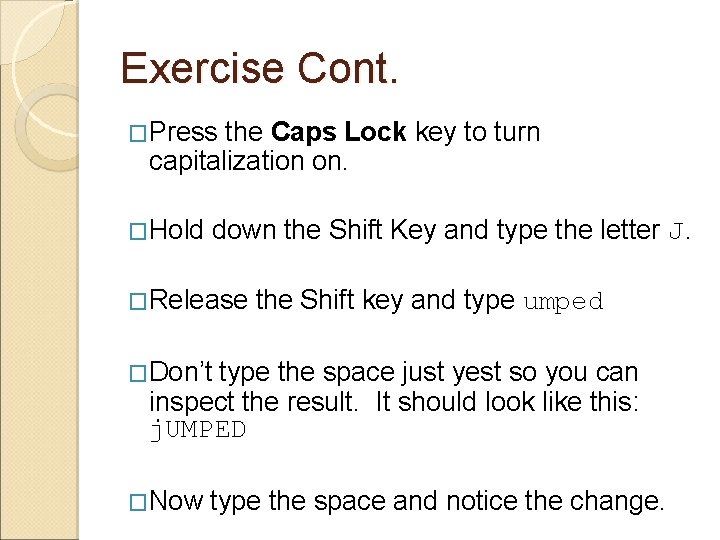
Exercise Cont. �Press the Caps Lock key to turn capitalization on. �Hold down the Shift Key and type the letter J. �Release the Shift key and type umped �Don’t type the space just yest so you can inspect the result. It should look like this: j. UMPED �Now type the space and notice the change.
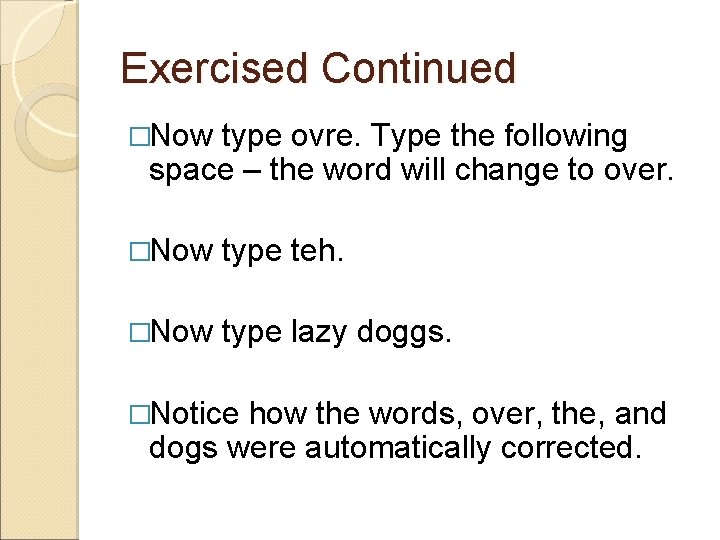
Exercised Continued �Now type ovre. Type the following space – the word will change to over. �Now type teh. �Now type lazy doggs. �Notice how the words, over, the, and dogs were automatically corrected.
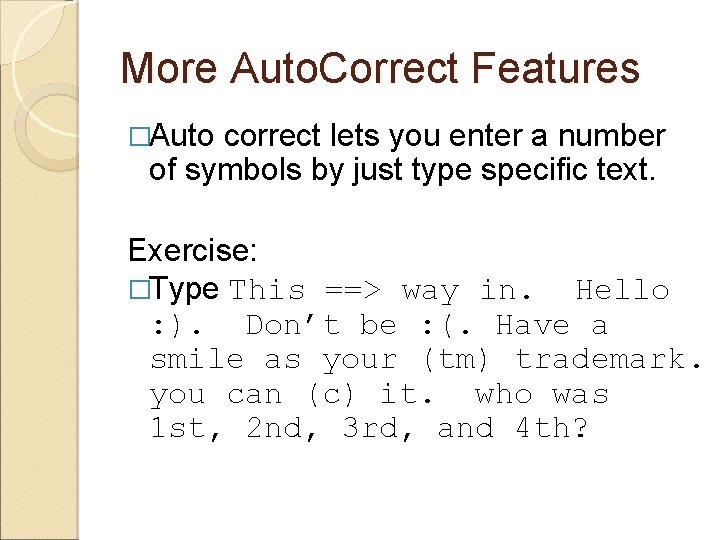
More Auto. Correct Features �Auto correct lets you enter a number of symbols by just type specific text. Exercise: �Type This ==> way in. Hello : ). Don’t be : (. Have a smile as your (tm) trademark. you can (c) it. who was 1 st, 2 nd, 3 rd, and 4 th?
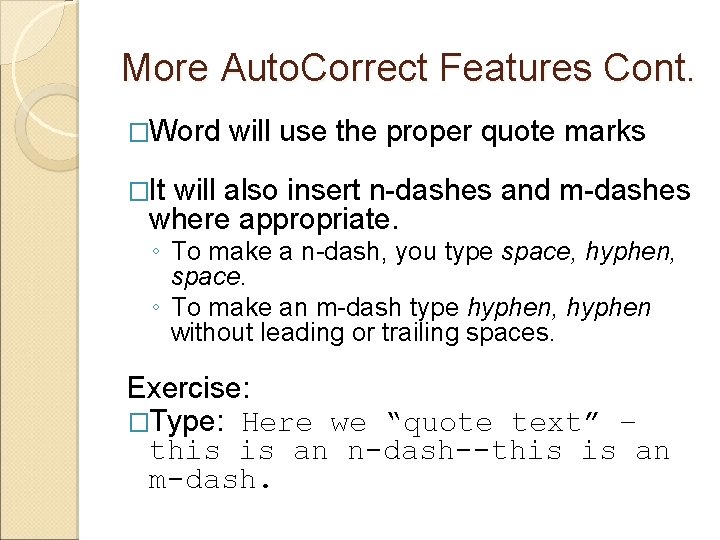
More Auto. Correct Features Cont. �Word will use the proper quote marks �It will also insert n-dashes and m-dashes where appropriate. ◦ To make a n-dash, you type space, hyphen, space. ◦ To make an m-dash type hyphen, hyphen without leading or trailing spaces. Exercise: �Type: Here we “quote text” – this is an n-dash--this is an m-dash.
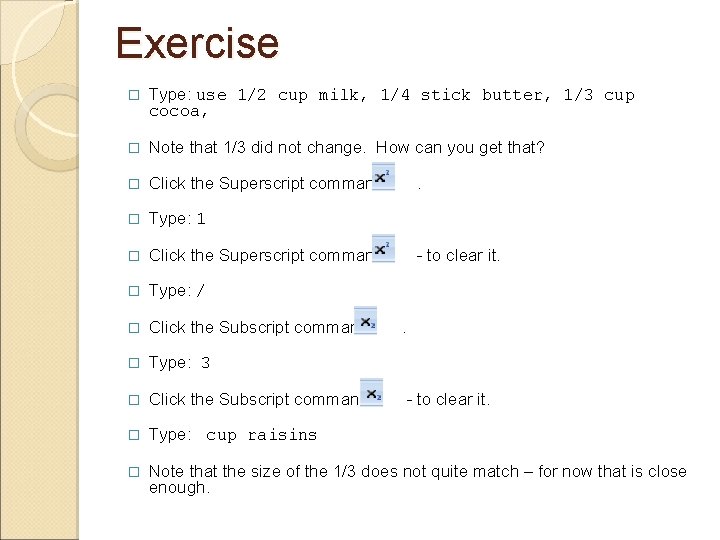
Exercise � Type: use 1/2 cup milk, 1/4 stick butter, 1/3 cup cocoa, � Note that 1/3 did not change. How can you get that? � Click the Superscript command � Type: 1 � Click the Superscript command � Type: / � Click the Subscript command � Type: 3 � Click the Subscript command � Type: cup raisins � Note that the size of the 1/3 does not quite match – for now that is close enough. . - to clear it.
Automatic Bullets & Numbered Lists � There is an Auto. Format feature in Word to will make bulleted & numbered lists ◦ There will be more on lists in a later lesson as well. � To create a Bullet List: ◦ type an asterisk, a space, and the your text. ◦ After you press the Enter key, the next bullet will already be shown. ◦ To stop the list press the Enter key again. � To create a Numbered List: ◦ Start a line with the first number followed by a period or an openparenthesis mark, a space, and then your text � The Undo command or Ctrl-Z will allow you to place the asterisk or number without engaging the list feature.
Exercise: Bullet Lists � Type: * milk � Press the Enter key � Type: butter � Press Enter, type: cocoa � Press Enter, type: raisins � Press Enter.
Exercise: Numbered Lists � Type: 1. milk � Press the Enter key � Type: butter � Press Enter, type: cocoa � Press Enter, type raisins � Press Enter
The End of Lesson 2 �Senior Academy. (2008). Word 2007 Basics: An Introduction to Microsoft Office Word 2007. Ludwig Keck. �View These Slides Online: ◦ http: //slidesha. re/Q 5 KEX 6
- Slides: 22