
BEGINNER EV 3 PROGRAMMING Lesson Introduction Topics Covered
BEGINNER EV 3 PROGRAMMING Lesson: Introduction Topics Covered: NXT Basics Introduction to the NXT Brick and EV 3 Software By: Droids Robotics
Lesson Objectives 1. Learn how the NXT brick operates 2. Learn about the main components of the EV 3 software 2
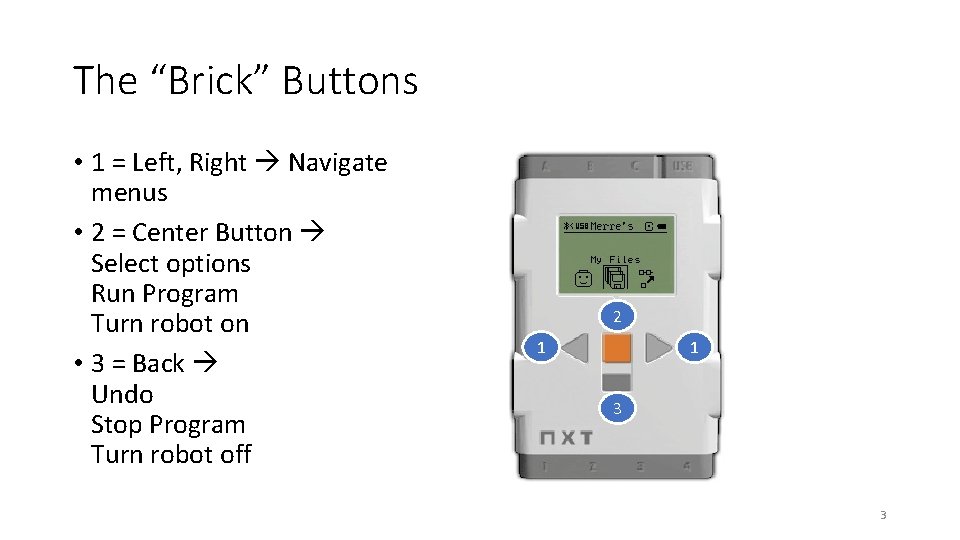
The “Brick” Buttons • 1 = Left, Right Navigate menus • 2 = Center Button Select options Run Program Turn robot on • 3 = Back Undo Stop Program Turn robot off 2 1 1 3 3
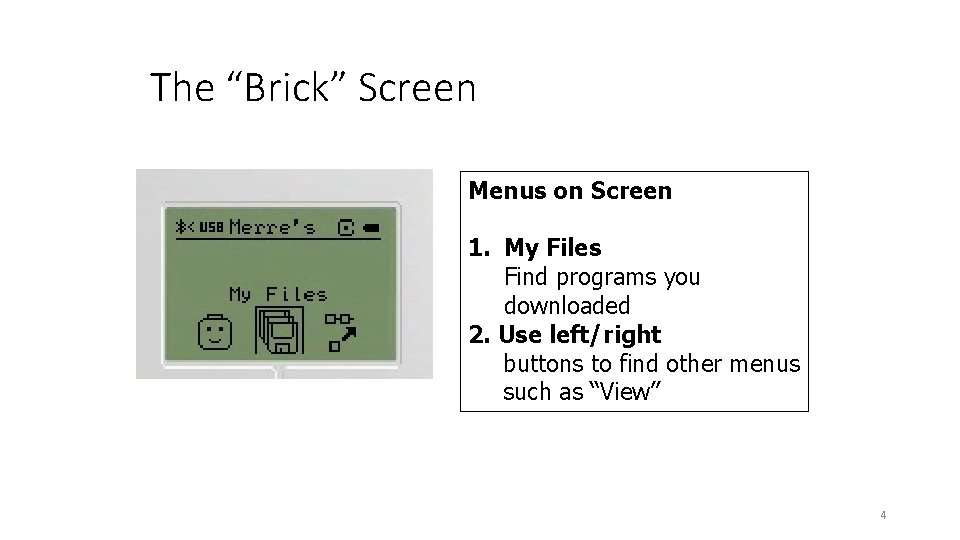
The “Brick” Screen Menus on Screen 1. My Files Find programs you downloaded 2. Use left/right buttons to find other menus such as “View” 4
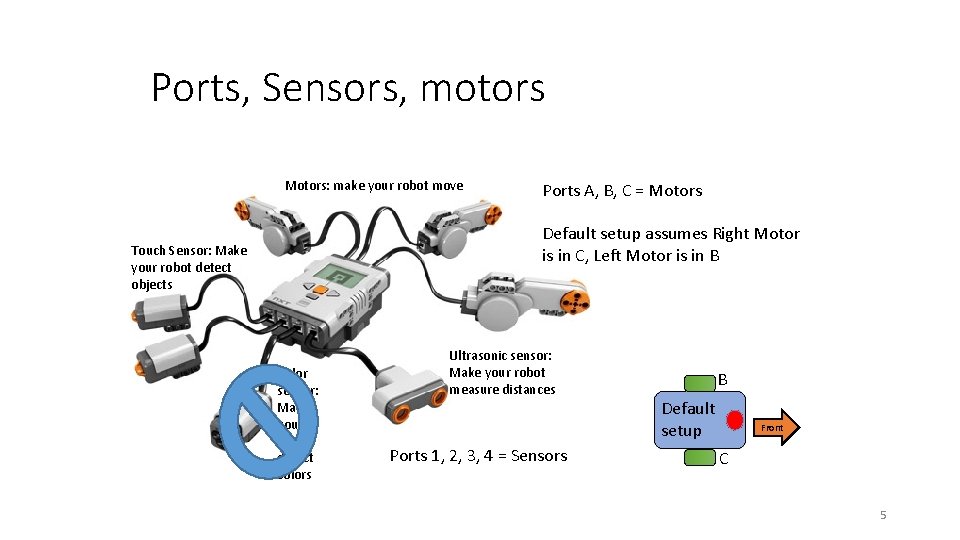
Ports, Sensors, motors Motors: make your robot move Ports A, B, C = Motors Default setup assumes Right Motor is in C, Left Motor is in B Touch Sensor: Make your robot detect objects Color sensor: Make your robot detect colors Ultrasonic sensor: Make your robot measure distances Ports 1, 2, 3, 4 = Sensors B Default setup Front C 5
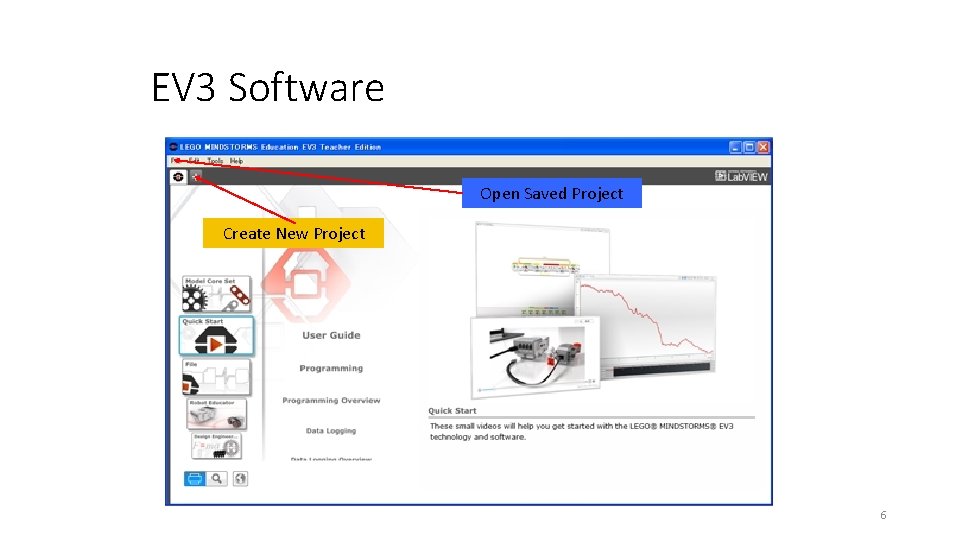
EV 3 Software Open Saved Project Create New Project 6
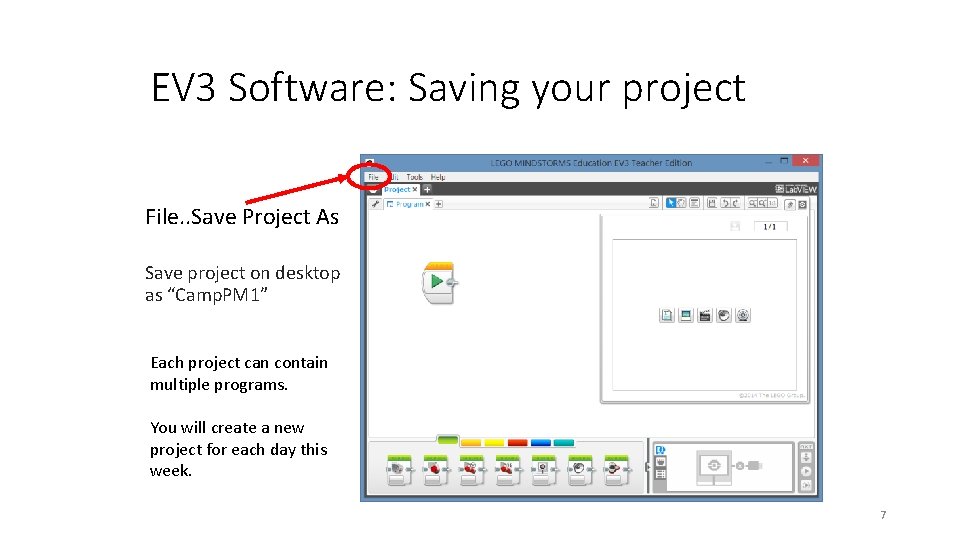
EV 3 Software: Saving your project File. . Save Project As Save project on desktop as “Camp. PM 1” Each project can contain multiple programs. You will create a new project for each day this week. 7
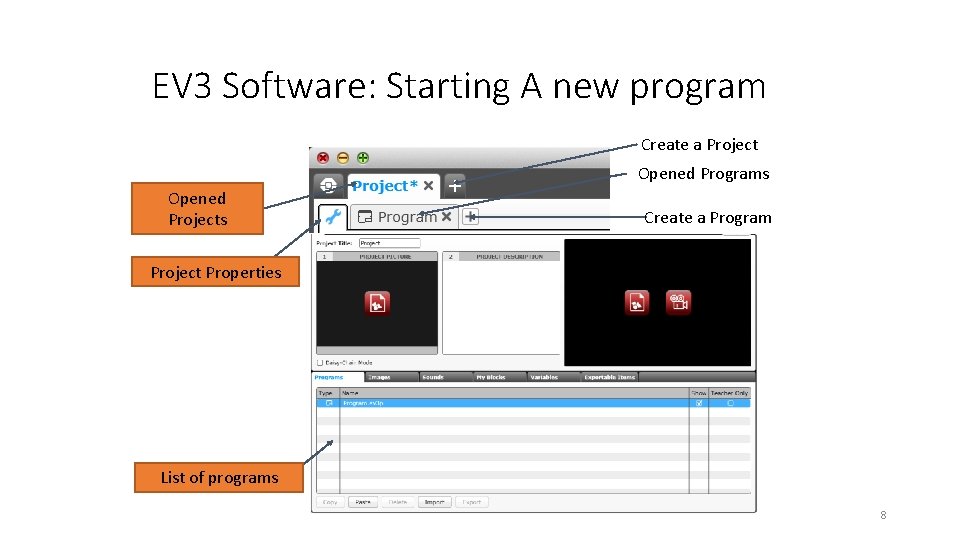
EV 3 Software: Starting A new program Create a Project Opened Programs Opened Projects Create a Program Project Properties List of programs 8
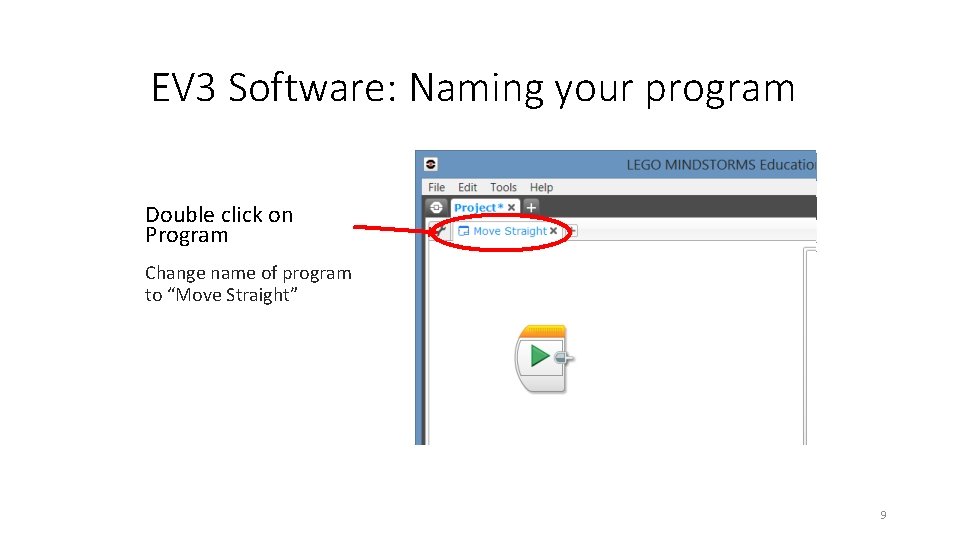
EV 3 Software: Naming your program Double click on Program Change name of program to “Move Straight” 9
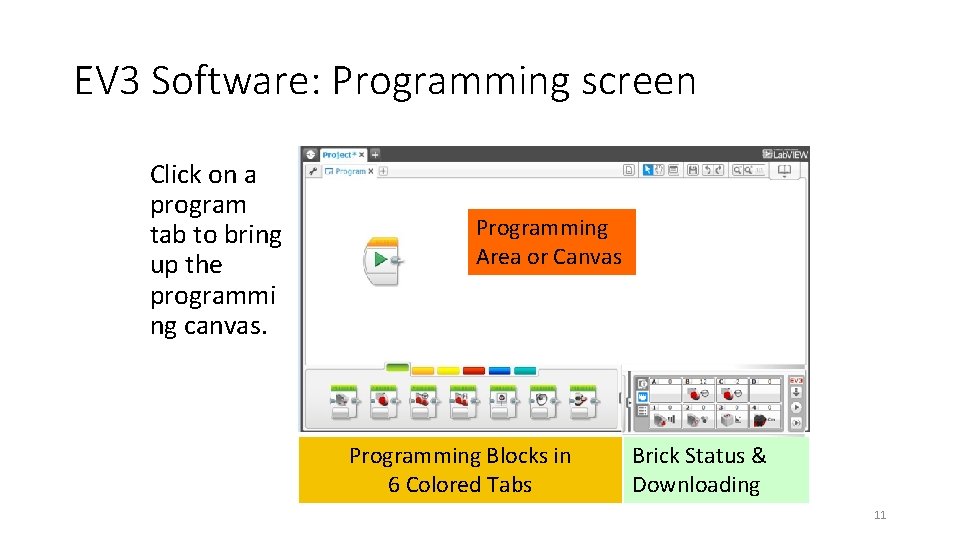
EV 3 Software: Programming screen Click on a program tab to bring up the programmi ng canvas. Programming Area or Canvas Programming Blocks in 6 Colored Tabs Brick Status & Downloading 11
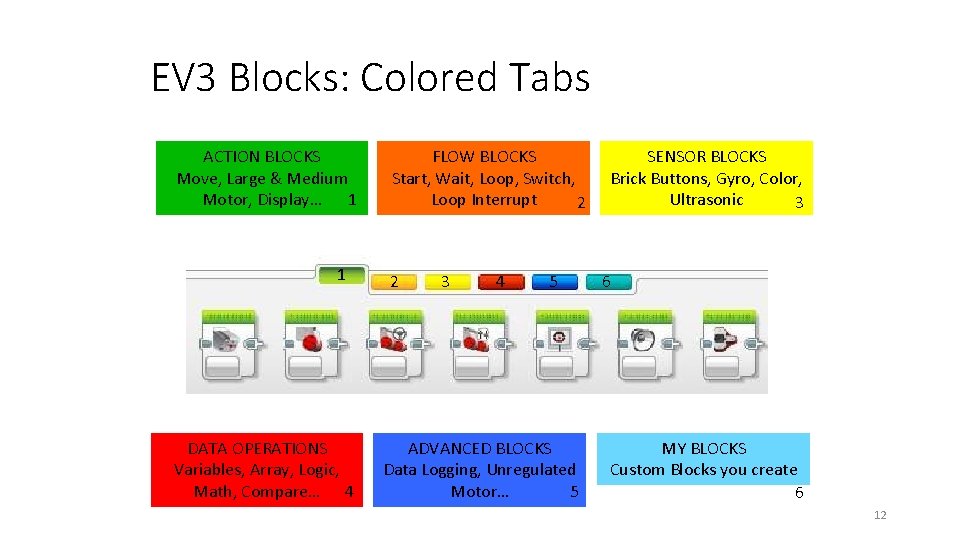
EV 3 Blocks: Colored Tabs ACTION BLOCKS Move, Large & Medium Motor, Display… 1 1 DATA OPERATIONS Variables, Array, Logic, Math, Compare… 4 FLOW BLOCKS Start, Wait, Loop, Switch, Loop Interrupt 2 2 3 4 5 ADVANCED BLOCKS Data Logging, Unregulated 5 Motor… SENSOR BLOCKS Brick Buttons, Gyro, Color, Ultrasonic 3 6 MY BLOCKS Custom Blocks you create 6 12
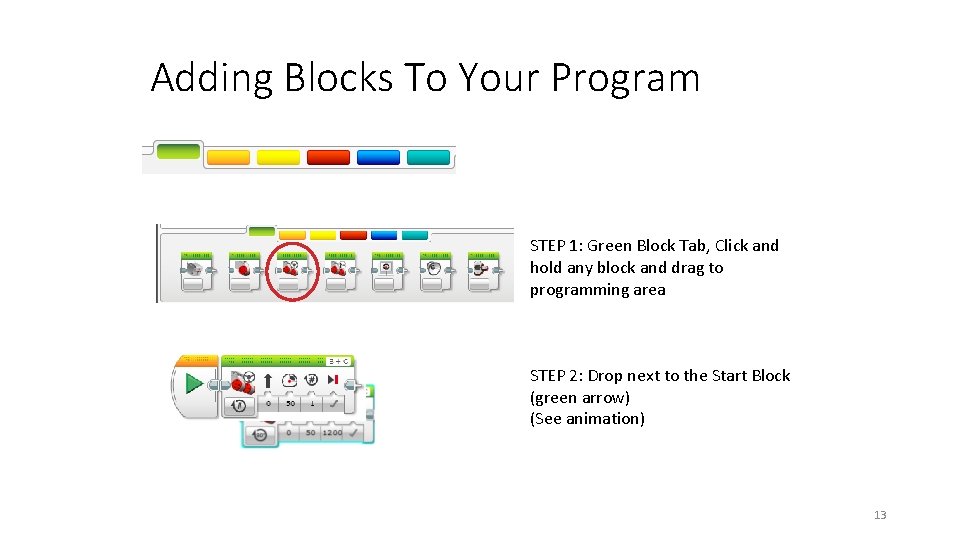
Adding Blocks To Your Program STEP 1: Green Block Tab, Click and hold any block and drag to programming area STEP 2: Drop next to the Start Block (green arrow) (See animation) 13
- Slides: 12