
Before the class starts 1 login to a
Before the class starts: 1) login to a computer 2) start Stata 13
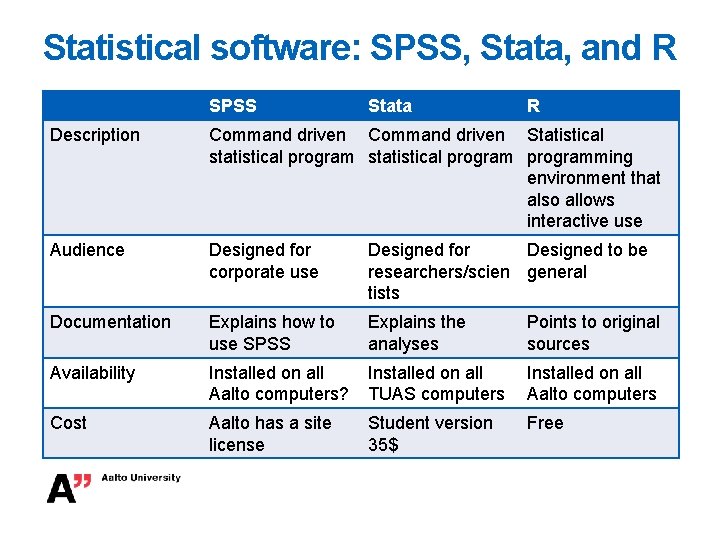
Statistical software: SPSS, Stata, and R SPSS Stata R Description Command driven Statistical statistical programming environment that also allows interactive use Audience Designed for corporate use Designed for Designed to be researchers/scien general tists Documentation Explains how to use SPSS Explains the analyses Points to original sources Availability Installed on all Aalto computers? Installed on all TUAS computers Installed on all Aalto computers Cost Aalto has a site license Student version 35$ Free
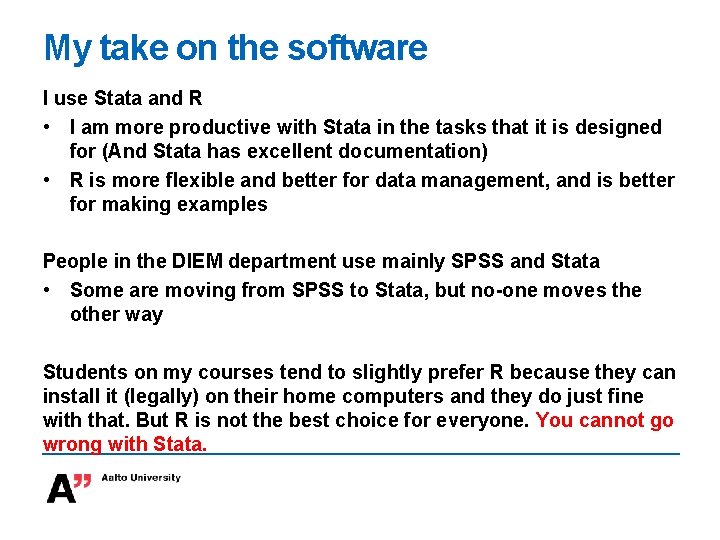
My take on the software I use Stata and R • I am more productive with Stata in the tasks that it is designed for (And Stata has excellent documentation) • R is more flexible and better for data management, and is better for making examples People in the DIEM department use mainly SPSS and Stata • Some are moving from SPSS to Stata, but no-one moves the other way Students on my courses tend to slightly prefer R because they can install it (legally) on their home computers and they do just fine with that. But R is not the best choice for everyone. You cannot go wrong with Stata.
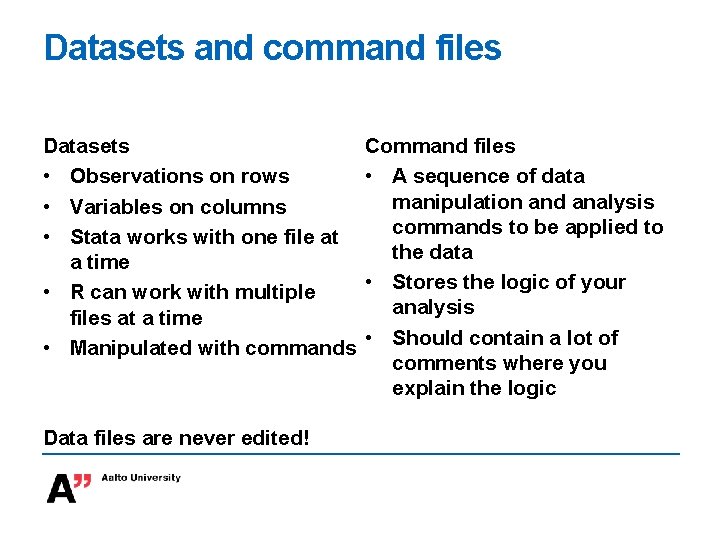
Datasets and command files Datasets • Observations on rows • Variables on columns • Stata works with one file at a time • R can work with multiple files at a time • Manipulated with commands Data files are never edited! Command files • A sequence of data manipulation and analysis commands to be applied to the data • Stores the logic of your analysis • Should contain a lot of comments where you explain the logic
Using the software: Menus vs. Typing commands vs. Command file Menus • Good for learning the program • Good if you do not remember the command for a particular analysis (Lack of menus is one of the reasons why R has a steeper learning curve) Typing commands • This is normally the fastest way to explore the data and experiment with the analyses Command file • Should always be used for the analyzes that you want to publish
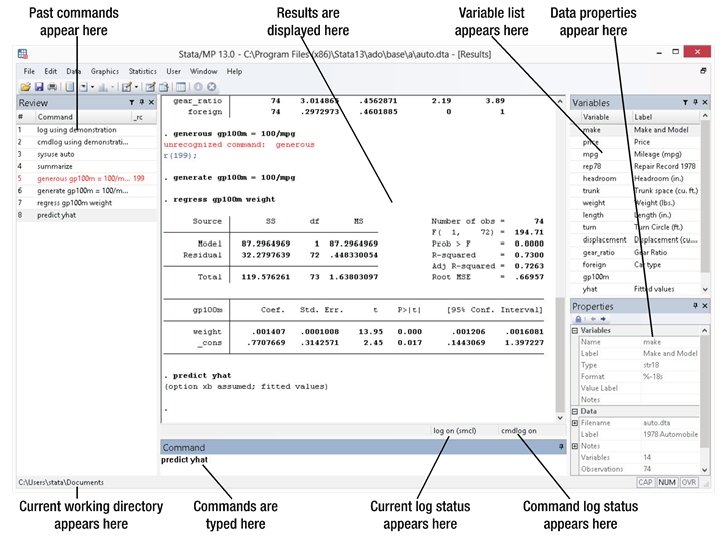
Open the getting started manual and load the auto. dta dataset following the instructions on page 1
Introduction to Stata
Introduction to Stata 1. 2. 3. 4. 5. 6. 7. 8. Using the software as calculator Accessing and reading the documentation Creating and running projects as analysis files Loading and manipulating datasets (e. g. merging, sorting, filtering) Basic exploratory data analysis including means, correlations, etc Basics of graphics Generating data and running simple simulations Creating loops in analysis files and other very basic automation
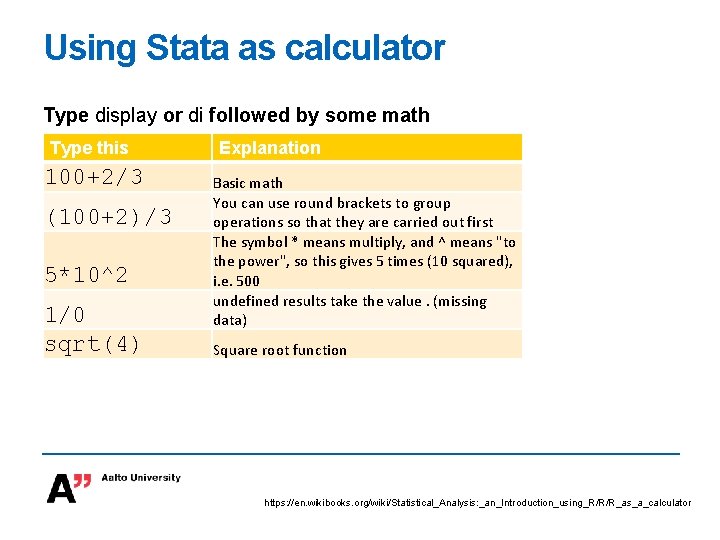
Using Stata as calculator Type display or di followed by some math Type this 100+2/3 (100+2)/3 5*10^2 1/0 sqrt(4) Explanation Basic math You can use round brackets to group operations so that they are carried out first The symbol * means multiply, and ^ means "to the power", so this gives 5 times (10 squared), i. e. 500 undefined results take the value. (missing data) Square root function https: //en. wikibooks. org/wiki/Statistical_Analysis: _an_Introduction_using_R/R/R_as_a_calculator
Continue working through the “ 1 Introducing Stata – sample session”. Stop when you reach “A simple hypothesis test” on page 13.
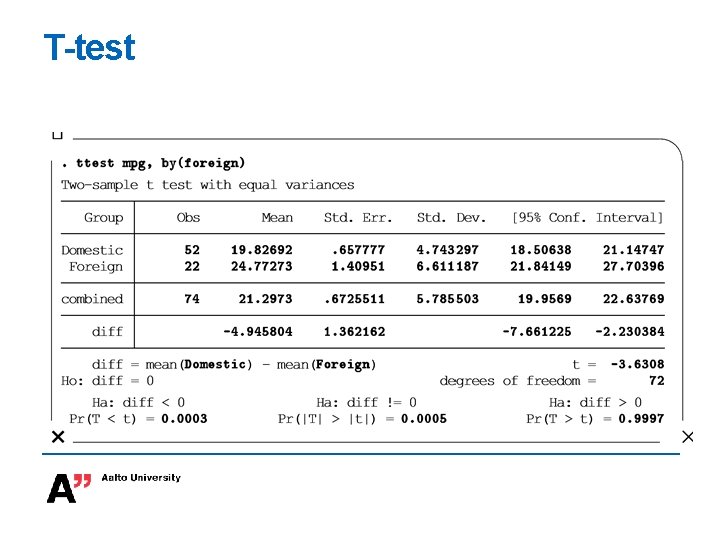
T-test
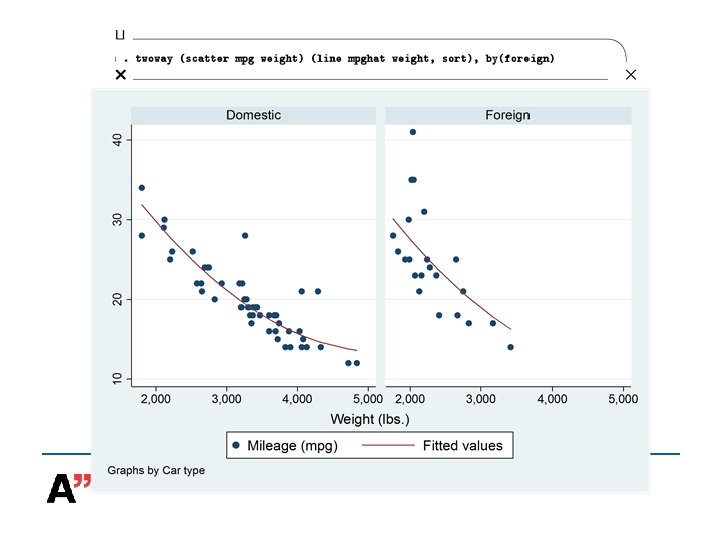
Continue working through the “ 1 Introducing Stata – sample session”. Stop when you have done the graph on on page 19.
Continue working through the “ 1 Introducing Stata – sample session”
Using the help (Chapter 4) Try the following commands help regression diagnostics help regress
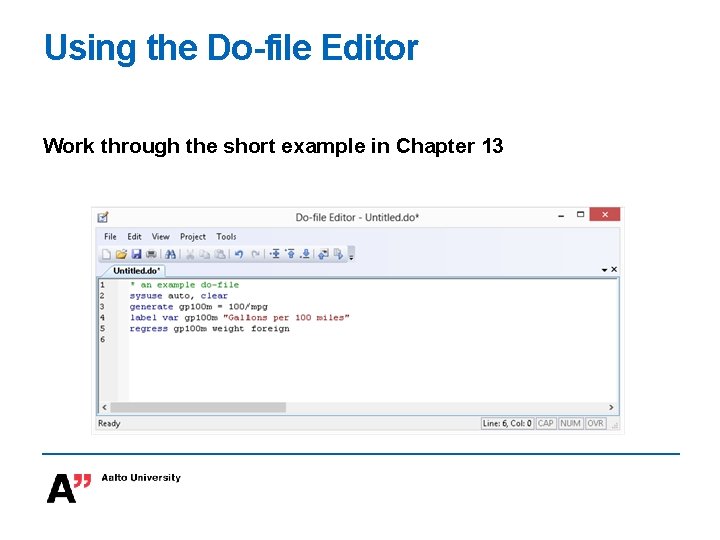
Using the Do-file Editor Work through the short example in Chapter 13
Working with datasets (512)
Loading CSV files Load a dataset from UCLA website import delimited using “http: //www. ats. ucla. edu/stat/data/test. csv”, clear Inspect the dataset describe summarize codebook http: //www. ats. ucla. edu/stat/r/modules/raw_data. htm
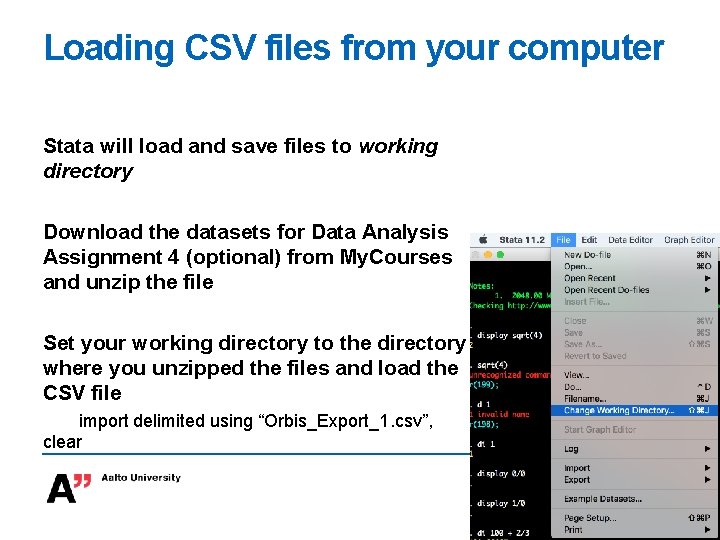
Loading CSV files from your computer Stata will load and save files to working directory Download the datasets for Data Analysis Assignment 4 (optional) from My. Courses and unzip the file Set your working directory to the directory where you unzipped the files and load the CSV file import delimited using “Orbis_Export_1. csv”, clear
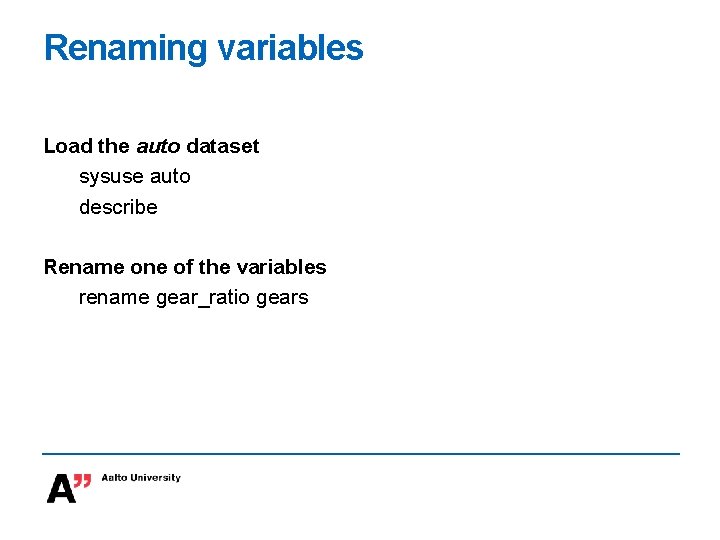
Renaming variables Load the auto dataset sysuse auto describe Rename one of the variables rename gear_ratio gears
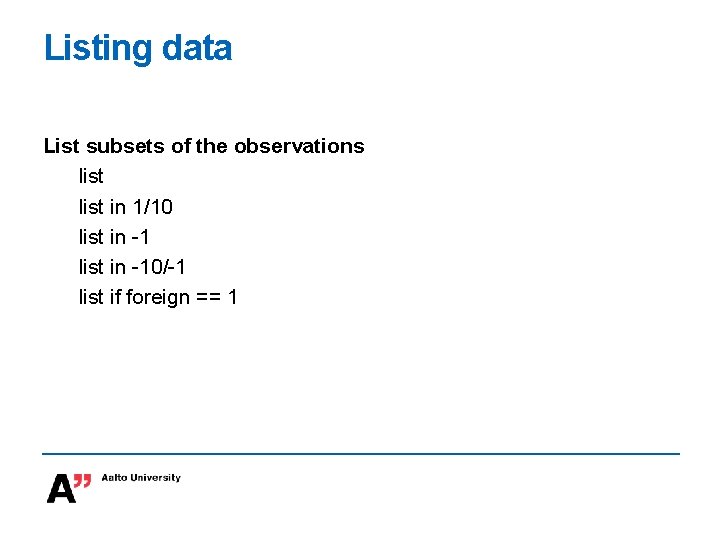
Listing data List subsets of the observations list in 1/10 list in -10/-1 list if foreign == 1
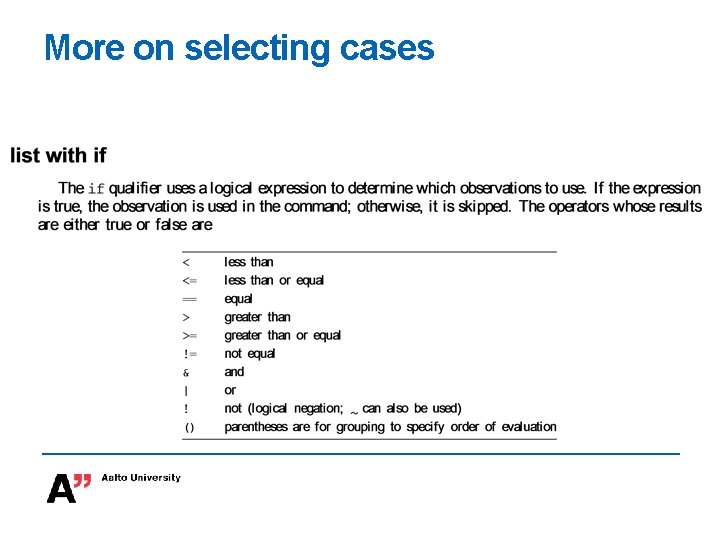
More on selecting cases
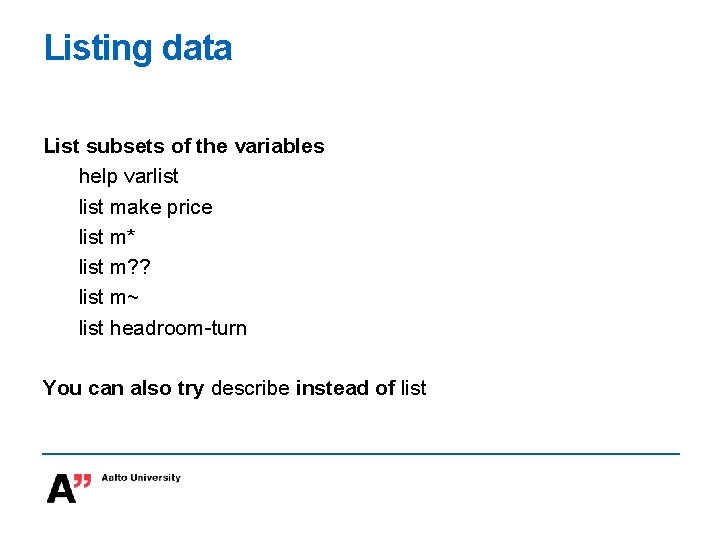
Listing data List subsets of the variables help varlist make price list m* list m? ? list m~ list headroom-turn You can also try describe instead of list
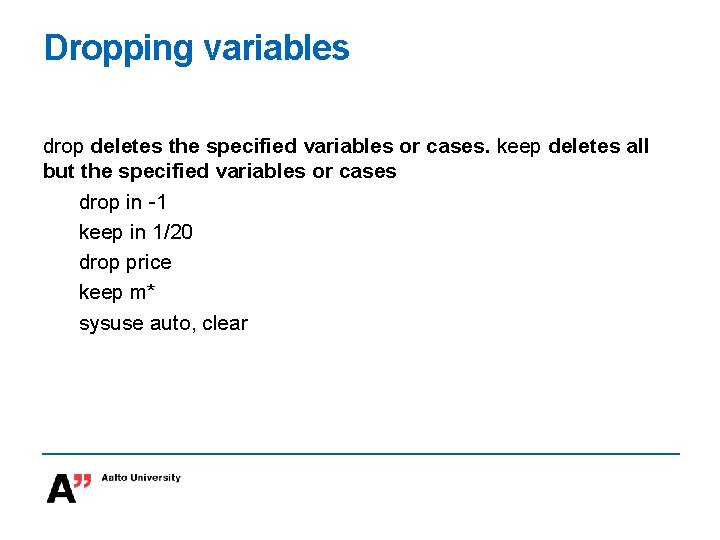
Dropping variables drop deletes the specified variables or cases. keep deletes all but the specified variables or cases drop in -1 keep in 1/20 drop price keep m* sysuse auto, clear
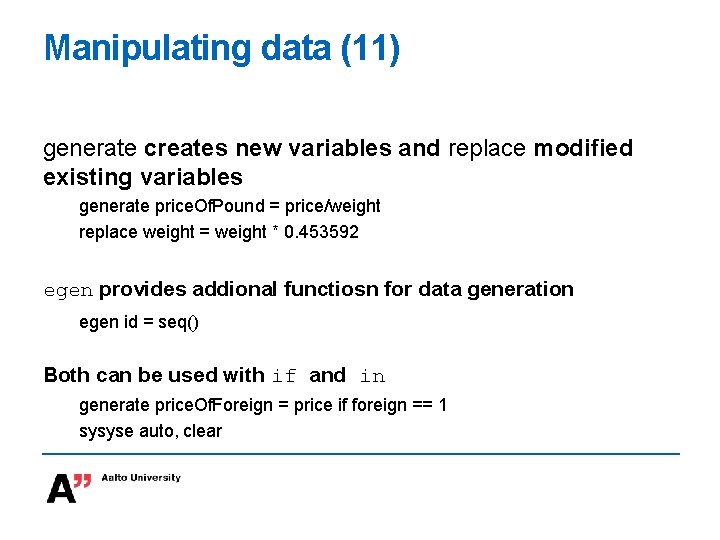
Manipulating data (11) generate creates new variables and replace modified existing variables generate price. Of. Pound = price/weight replace weight = weight * 0. 453592 egen provides addional functiosn for data generation egen id = seq() Both can be used with if and in generate price. Of. Foreign = price if foreign == 1 sysyse auto, clear
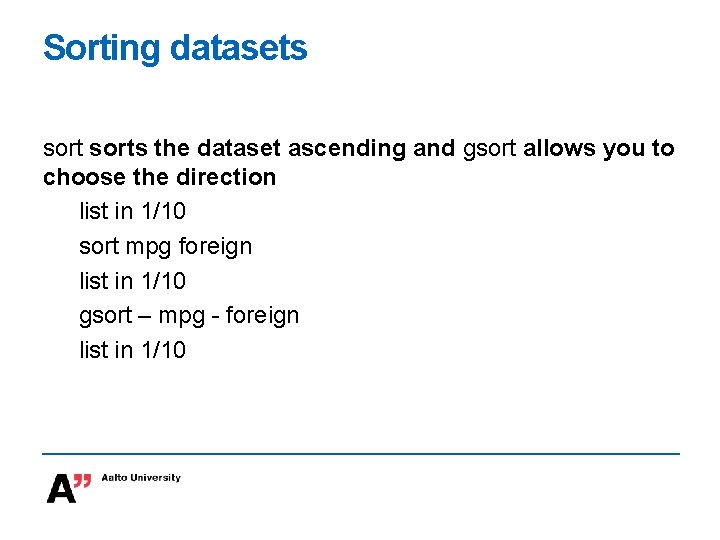
Sorting datasets sorts the dataset ascending and gsort allows you to choose the direction list in 1/10 sort mpg foreign list in 1/10 gsort – mpg - foreign list in 1/10
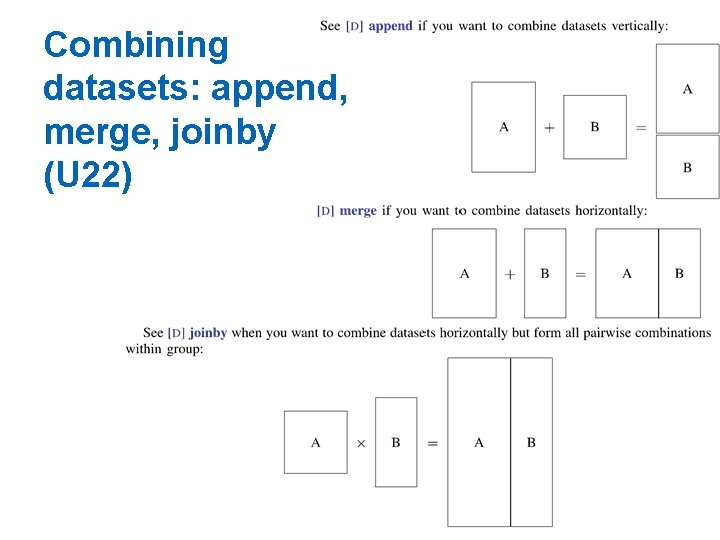
Combining datasets: append, merge, joinby (U 22)
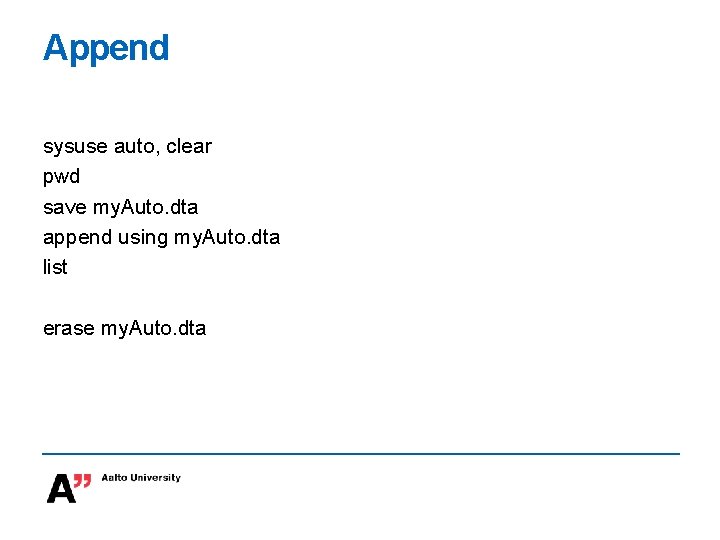
Append sysuse auto, clear pwd save my. Auto. dta append using my. Auto. dta list erase my. Auto. dta
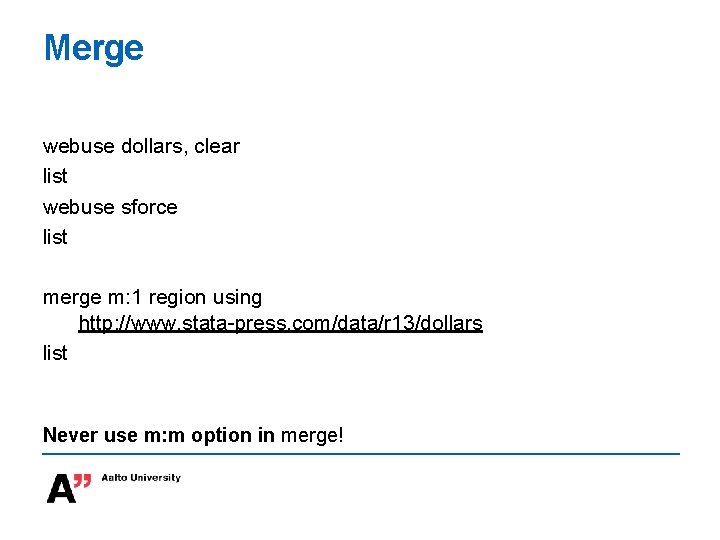
Merge webuse dollars, clear list webuse sforce list merge m: 1 region using http: //www. stata-press. com/data/r 13/dollars list Never use m: m option in merge!
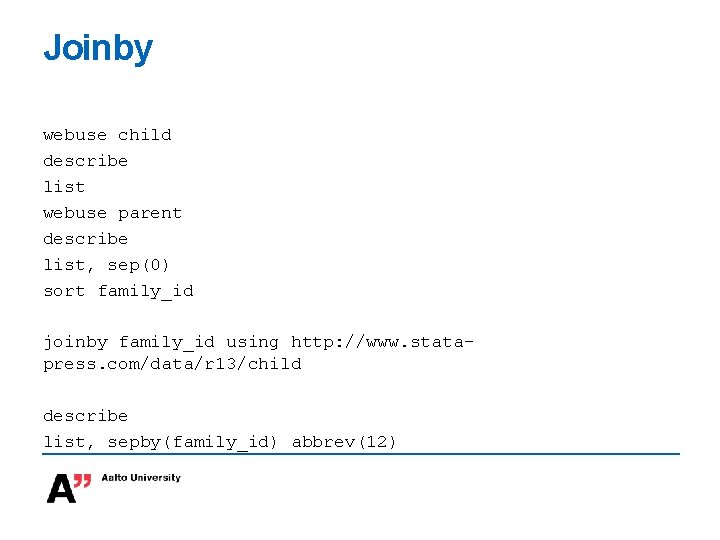
Joinby webuse child describe list webuse parent describe list, sep(0) sort family_id joinby family_id using http: //www. statapress. com/data/r 13/child describe list, sepby(family_id) abbrev(12)
Useful commands for exploratory data analysis
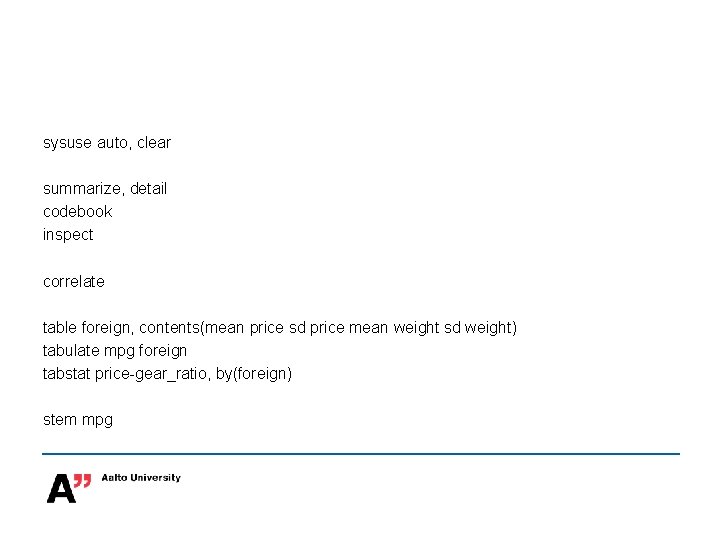
sysuse auto, clear summarize, detail codebook inspect correlate table foreign, contents(mean price sd price mean weight sd weight) tabulate mpg foreign tabstat price-gear_ratio, by(foreign) stem mpg

Basics of graphics
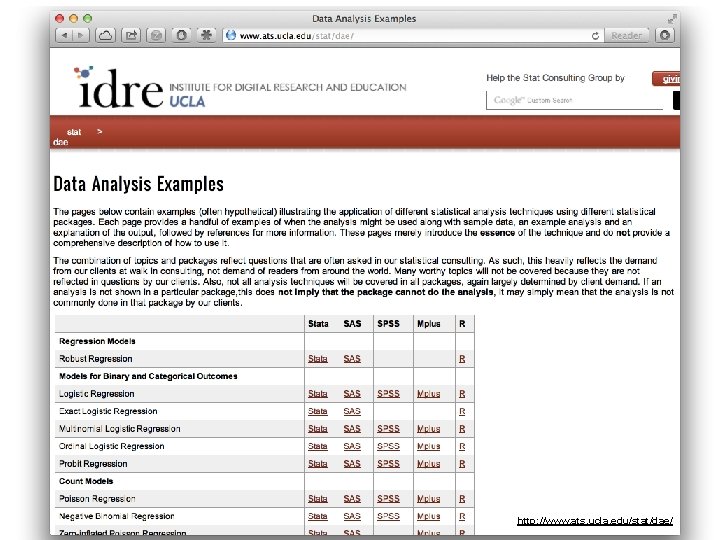
Examples Browse graph examples at: http: //www. ats. ucla. edu/Stat/stata/library/Graph. Examples/defau lt. htm
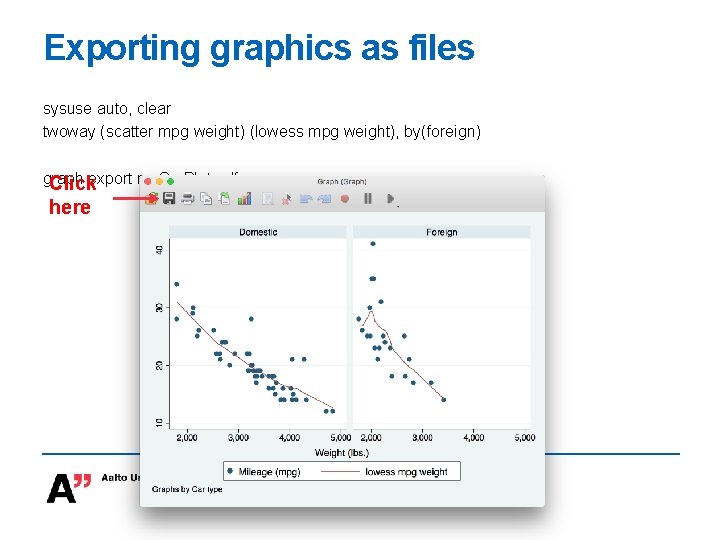
Exporting graphics as files sysuse auto, clear twoway (scatter mpg weight) (lowess mpg weight), by(foreign) graph Clickexport my. Car. Plot. pdf here
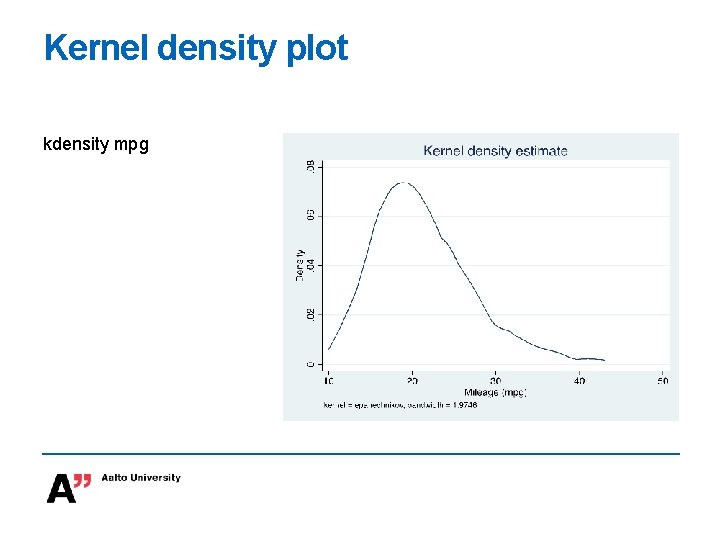
Kernel density plot kdensity mpg
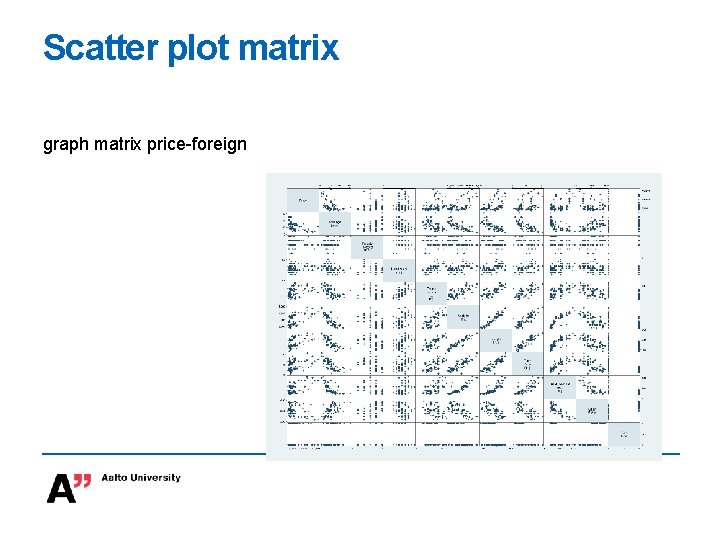
Scatter plot matrix graph matrix price-foreign
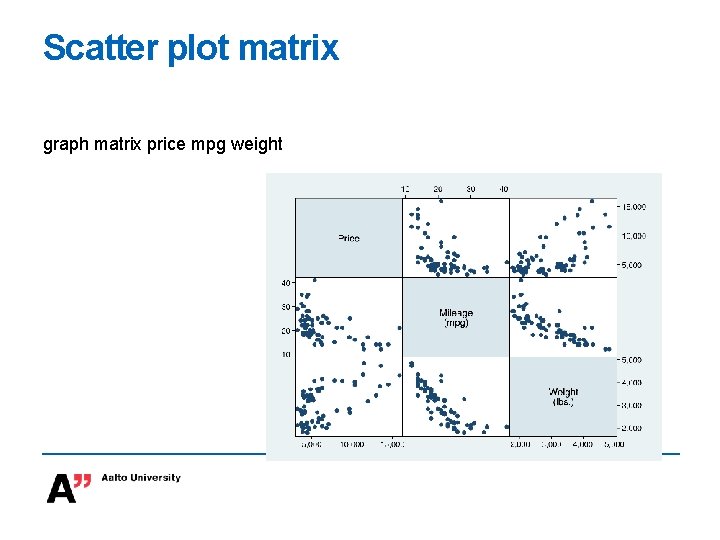
Scatter plot matrix graph matrix price mpg weight
Aggregating and restructuring data
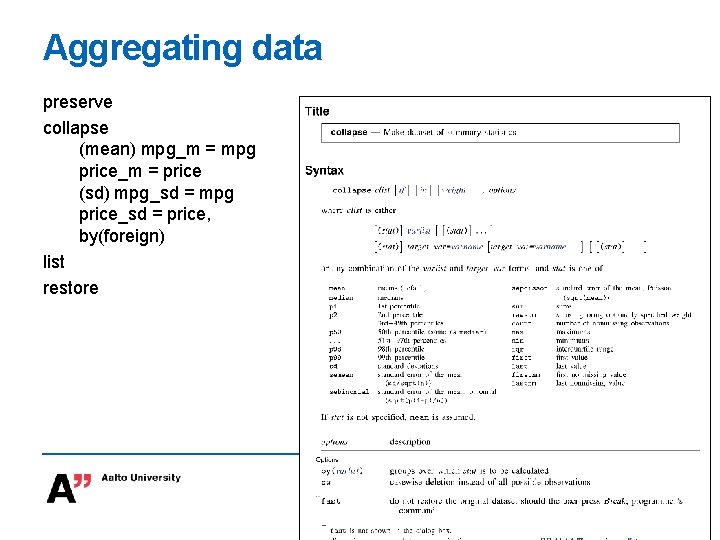
Aggregating data preserve collapse (mean) mpg_m = mpg price_m = price (sd) mpg_sd = mpg price_sd = price, by(foreign) list restore
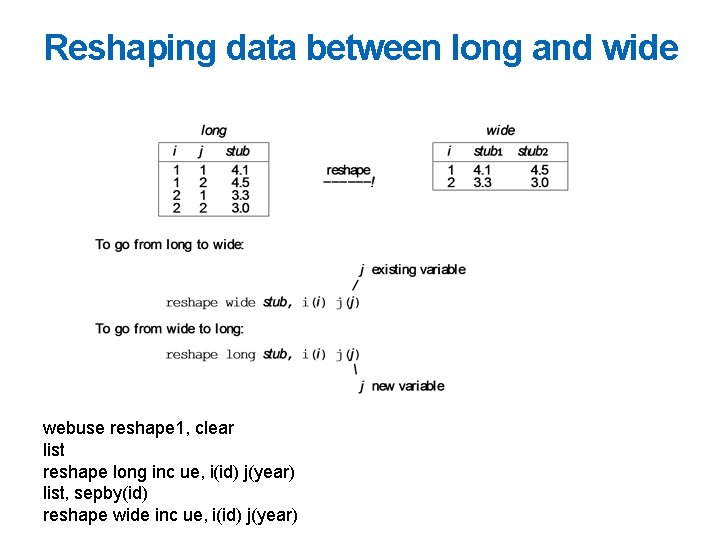
Reshaping data between long and wide webuse reshape 1, clear list reshape long inc ue, i(id) j(year) list, sepby(id) reshape wide inc ue, i(id) j(year)
Simple simulations
Generating random numbers Throw ten dice clear set obs 10 generate die = floor(runiform()*6+1) list Generate ten standard normal variables (mean = 0, SD = 1) generate normal = rnormal() list
Effects of model misspecification on regression clear set obs 1000 generate x 1 = rnormal() generate x 2 = x 1 + rnormal() generate y = x 1 + x 2 rnormal() regress y x 1 x 2 regress y x 1
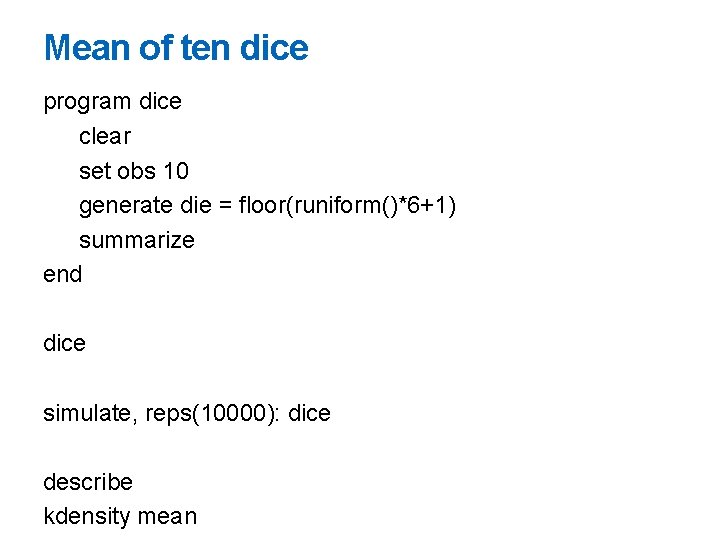
Mean of ten dice program dice clear set obs 10 generate die = floor(runiform()*6+1) summarize end dice simulate, reps(10000): dice describe kdensity mean
Loops and other basic automation
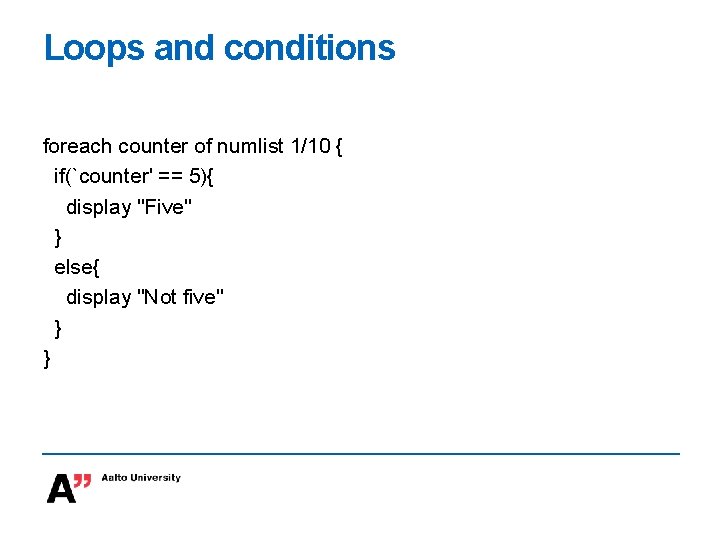
Loops and conditions foreach counter of numlist 1/10 { if(`counter' == 5){ display "Five" } else{ display "Not five" } }

Conclusion
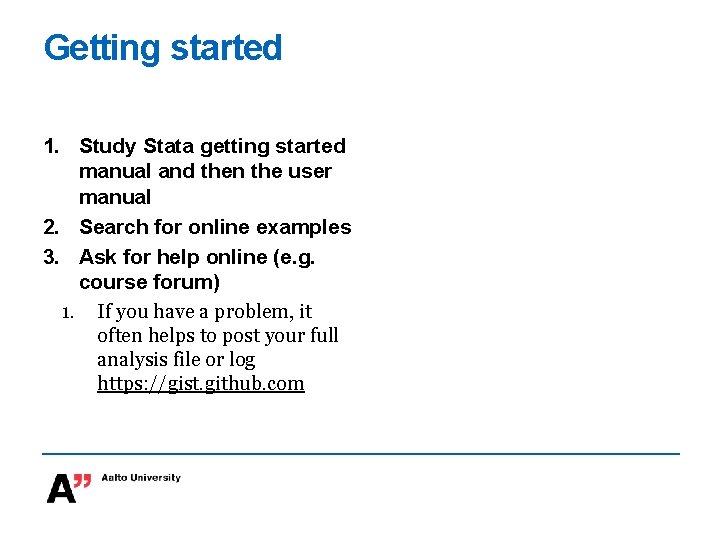
Getting started 1. Study Stata getting started manual and then the user manual 2. Search for online examples 3. Ask for help online (e. g. course forum) 1. If you have a problem, it often helps to post your full analysis file or log https: //gist. github. com
http: //www. ats. ucla. edu/stat/dae/
- Slides: 51