
Basics of Web Design Chapter 5 Graphics Text
Basics of Web Design Chapter 5 Graphics & Text Styling Basics Key Concepts 1
Learning Outcomes Describe types of graphics used on the Web Apply the image element to add graphics to web pages Configure images as backgrounds on web pages Configure images as hyperlinks Configure multiple background images with CSS 3 Configure text typeface, size, weight, and style with CSS Align and indent text with CSS Configure list markers with CSS Configure an image map Copyright © 2018 Terry Ann Morris, Ed. D. 2
Types of Graphics Graphic types commonly sed on web pages: GIF JPG PNG Copyright © 2018 Terry Ann Morris, Ed. D. 3
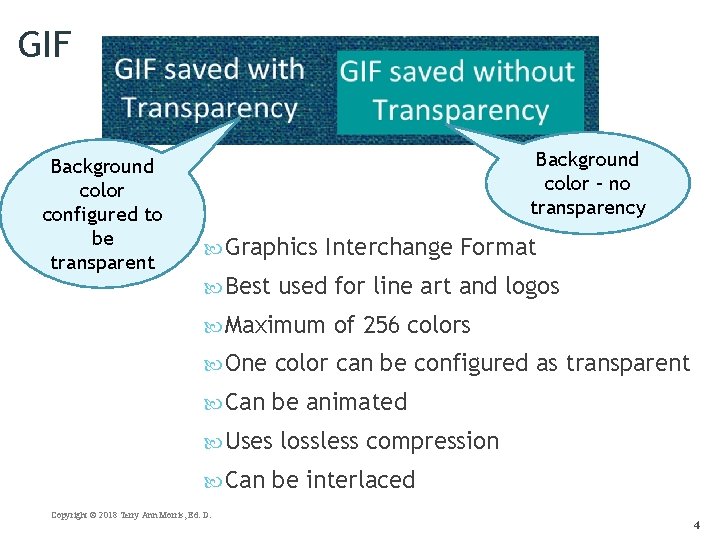
GIF Background color configured to be transparent Background color – no transparency Graphics Best Interchange Format used for line art and logos Maximum of 256 colors One color can be configured as transparent Can be animated Uses Can Copyright © 2018 Terry Ann Morris, Ed. D. lossless compression be interlaced 4
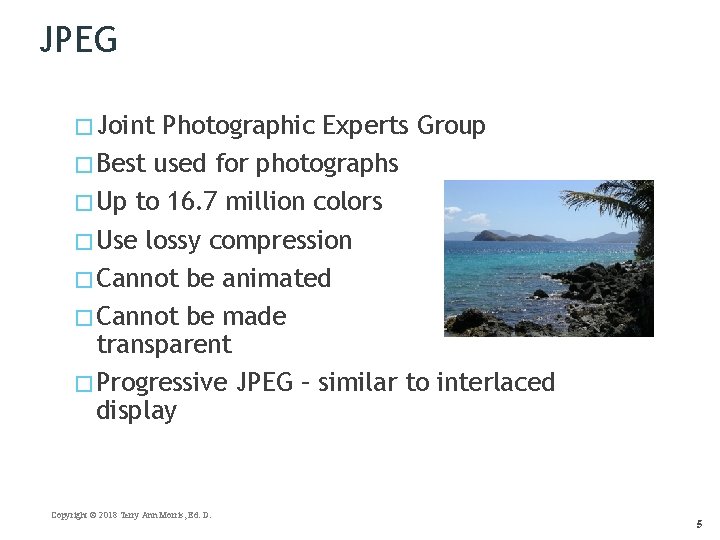
JPEG � Joint Photographic Experts Group � Best used for photographs � Up to 16. 7 million colors � Use lossy compression � Cannot be animated � Cannot be made transparent � Progressive JPEG – similar to interlaced display Copyright © 2018 Terry Ann Morris, Ed. D. 5
PNG Portable Network Graphic Support millions of colors Support multiple levels of transparency (but browsers do not -so limit to one transparent color for Web display) Support interlacing Use lossless compression Combines the best of GIF & JPEG Browser support is growing Copyright © 2018 Terry Ann Morris, Ed. D. 6
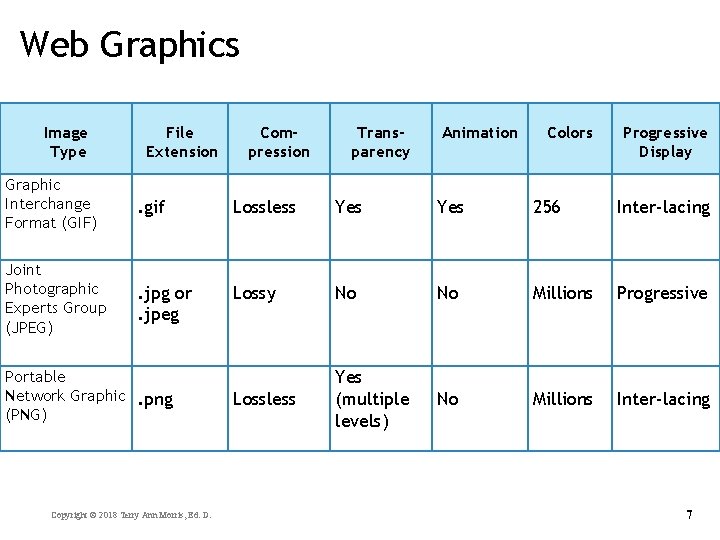
Web Graphics Image Type File Extension Compression Transparency Animation Colors Progressive Display Graphic Interchange Format (GIF) . gif Lossless Yes 256 Inter-lacing Joint Photographic Experts Group (JPEG) . jpg or. jpeg Lossy No No Millions Progressive Lossless Yes (multiple levels) No Millions Inter-lacing Portable Network Graphic. png (PNG) Copyright © 2018 Terry Ann Morris, Ed. D. 7
Image Optimization The process of creating an image with the lowest file size that still renders a good quality image— balancing image quality and file size. a Photographs taken with digital cameras are not usually optimized for the Web Use a graphics application to: Reduce image dimensions Reduce size of the image file Copyright © 2018 Terry Ann Morris, Ed. D. mer a c e s o we u ? d w o s H image 8
Optimize An Image for the Web Image Optimization Reduce the file size of the image Reduce the dimensions of the image to the actual width and height of the image on the web page. Image Editing Tools: GIMP (free!) Adobe Fireworks Adobe Photoshop http: //pixlr. com/editor (free!) Copyright © 2018 Terry Ann Morris, Ed. D. 9
Choosing Names for Image Files Use all lowercase letters Do not use punctuation symbols and spaces Do not change the file extensions (should be. gif, . jpg, . jpeg, or. png) Keep your file names short but descriptive i 1. gif is probably too short myimagewithmydogonmybirthday. gif dogbday. gif Copyright © 2018 Terry Ann Morris, Ed. D. may be just about right is too long
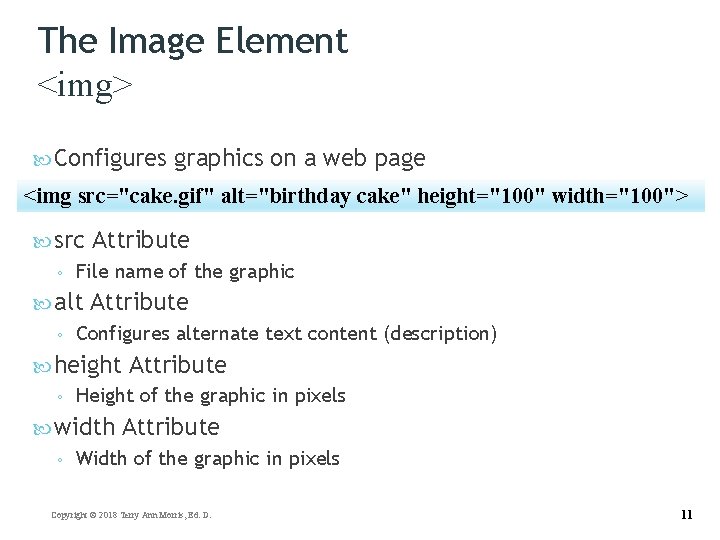
The Image Element <img> Configures graphics on a web page <img src="cake. gif" alt="birthday cake" height="100" width="100"> src ◦ File name of the graphic alt ◦ Attribute Configures alternate text content (description) height ◦ Height of the graphic in pixels width ◦ Attribute Width of the graphic in pixels Copyright © 2018 Terry Ann Morris, Ed. D. 11
Accessibility & Images Required: Configure the alt attribute Alternate text content to convey the meaning/intent of the image If the image contains a text message, then the text should typically be the value of the alt attribute NOT Use the file name of the image alt=“” for purely decorative images Recommended: If your site navigation uses image links for the main navigation, provide simple text links at the bottom of the page. Copyright © 2018 Terry Ann Morris, Ed. D.
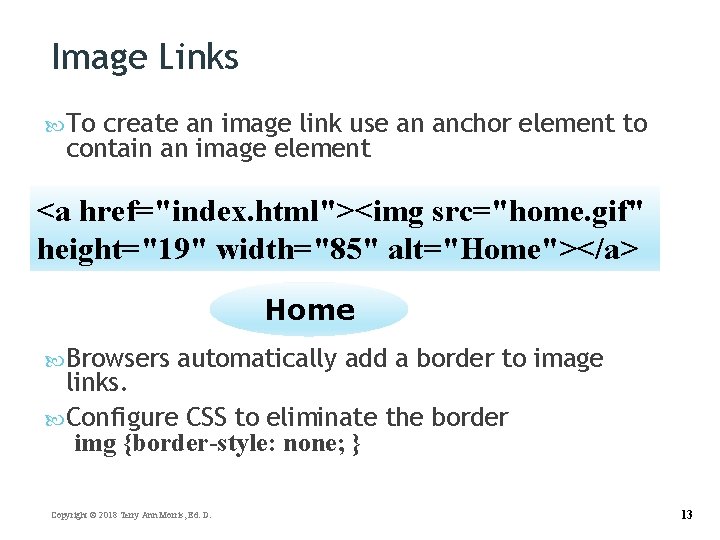
Image Links To create an image link use an anchor element to contain an image element <a href="index. html"><img src="home. gif" height="19" width="85" alt="Home"></a> Home Browsers automatically add a border to image links. Configure CSS to eliminate the border img {border-style: none; } Copyright © 2018 Terry Ann Morris, Ed. D. 13
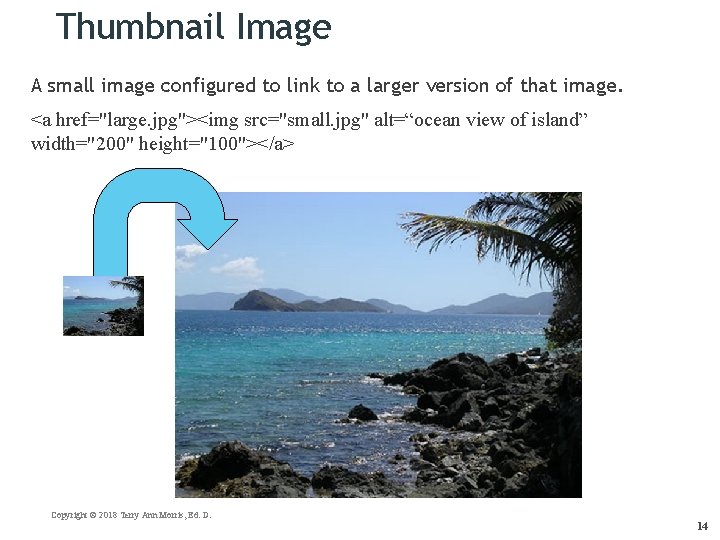
Thumbnail Image A small image configured to link to a larger version of that image. <a href="large. jpg"><img src="small. jpg" alt=“ocean view of island” width="200" height="100"></a> Copyright © 2018 Terry Ann Morris, Ed. D. 14
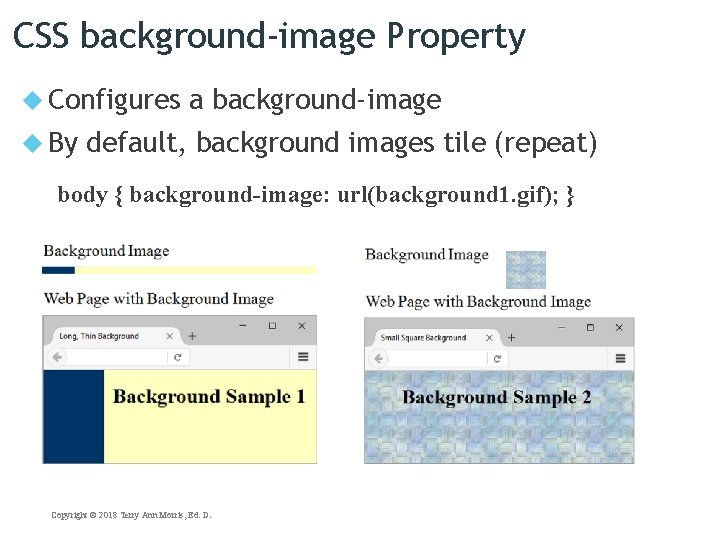
CSS background-image Property Configures By a background-image default, background images tile (repeat) body { background-image: url(background 1. gif); } Copyright © 2018 Terry Ann Morris, Ed. D.
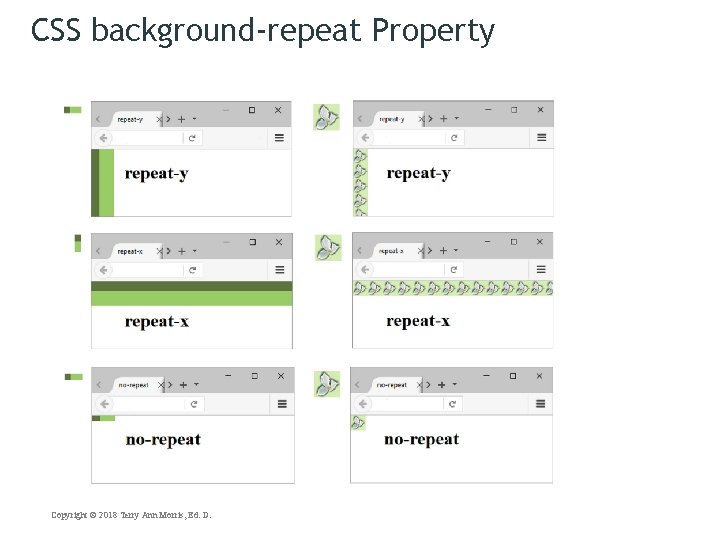
CSS background-repeat Property Copyright © 2018 Terry Ann Morris, Ed. D.
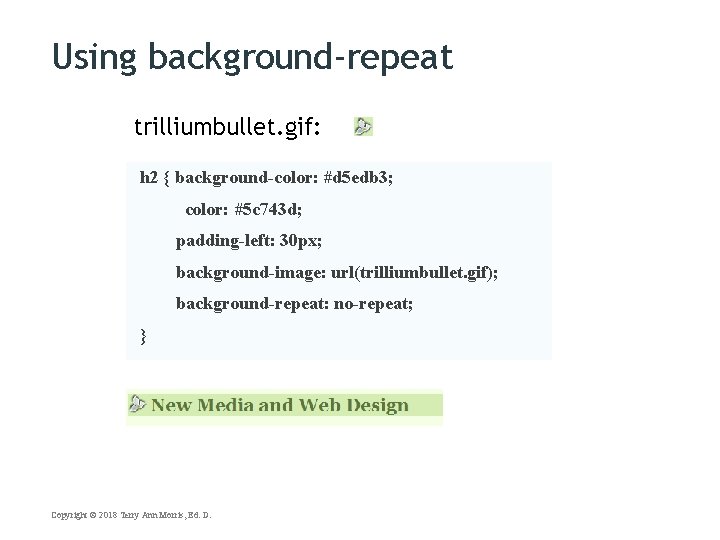
Using background-repeat trilliumbullet. gif: h 2 { background-color: #d 5 edb 3; color: #5 c 743 d; padding-left: 30 px; background-image: url(trilliumbullet. gif); background-repeat: no-repeat; } Copyright © 2018 Terry Ann Morris, Ed. D.
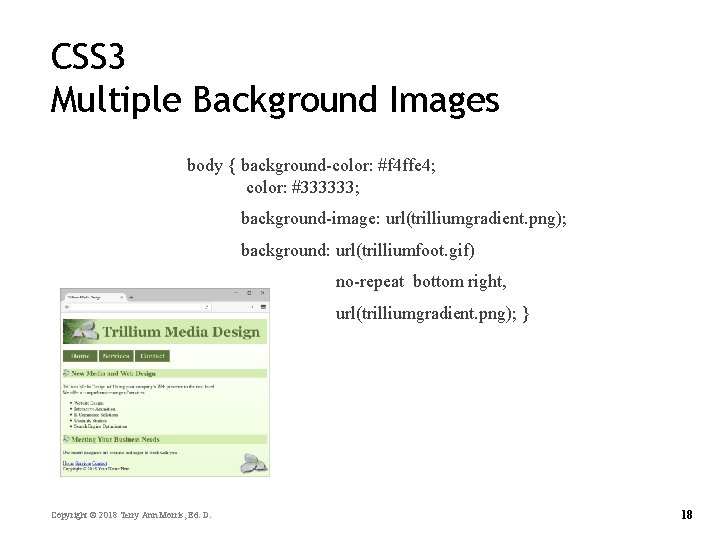
CSS 3 Multiple Background Images body { background-color: #f 4 ffe 4; color: #333333; background-image: url(trilliumgradient. png); background: url(trilliumfoot. gif) no-repeat bottom right, url(trilliumgradient. png); } Copyright © 2018 Terry Ann Morris, Ed. D. 18
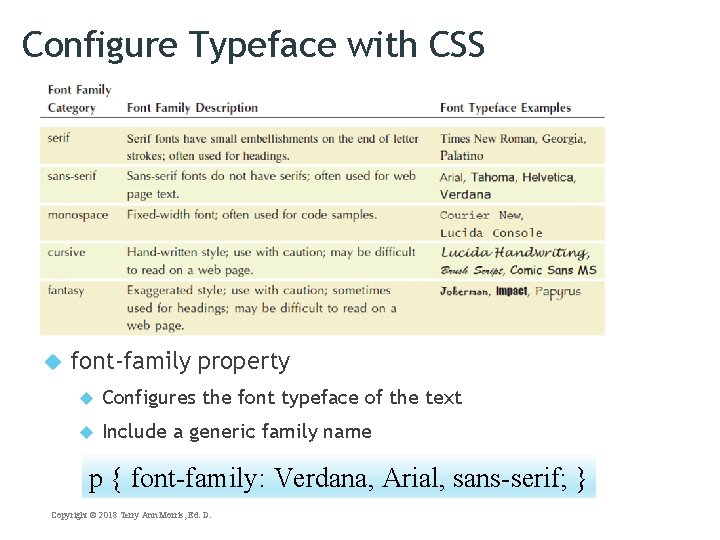
Configure Typeface with CSS font-family property Configures the font typeface of the text Include a generic family name p { font-family: Verdana, Arial, sans-serif; } Copyright © 2018 Terry Ann Morris, Ed. D.
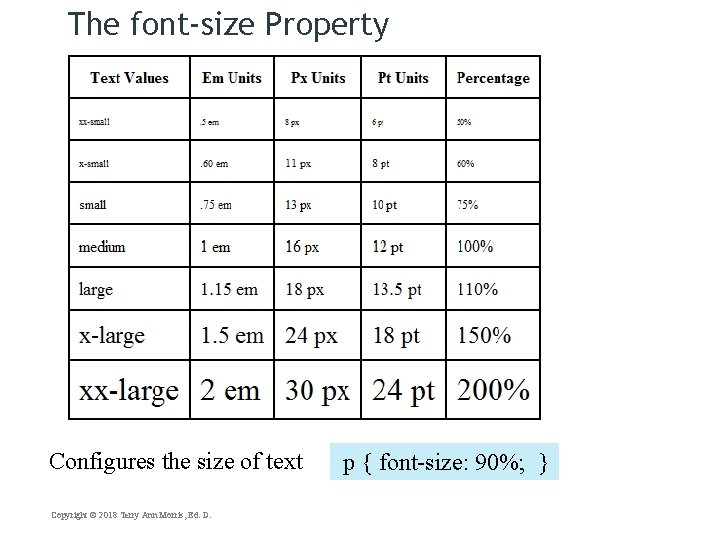
The font-size Property Configures the size of text Copyright © 2018 Terry Ann Morris, Ed. D. p { font-size: 90%; }
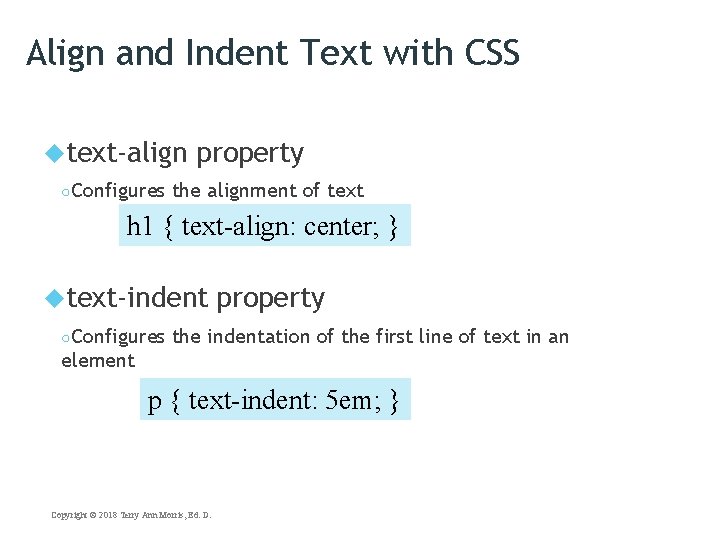
Align and Indent Text with CSS text-align ○Configures property the alignment of text h 1 { text-align: center; } text-indent ○Configures property the indentation of the first line of text in an element p { text-indent: 5 em; } Copyright © 2018 Terry Ann Morris, Ed. D.
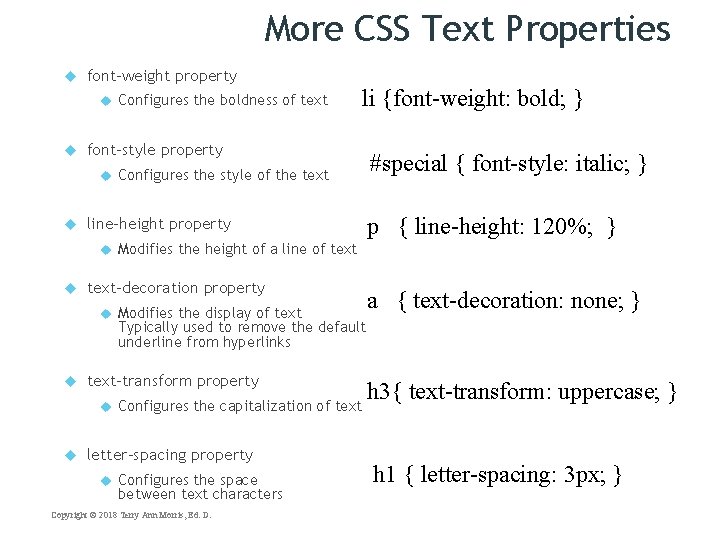
More CSS Text Properties font-weight property Modifies the display of text Typically used to remove the default underline from hyperlinks Configures the capitalization of text letter-spacing property p { line-height: 120%; } Modifies the height of a line of text-transform property #special { font-style: italic; } text-decoration property Configures the style of the text line-height property li {font-weight: bold; } font-style property Configures the boldness of text Configures the space between text characters Copyright © 2018 Terry Ann Morris, Ed. D. a { text-decoration: none; } h 3{ text-transform: uppercase; } h 1 { letter-spacing: 3 px; }
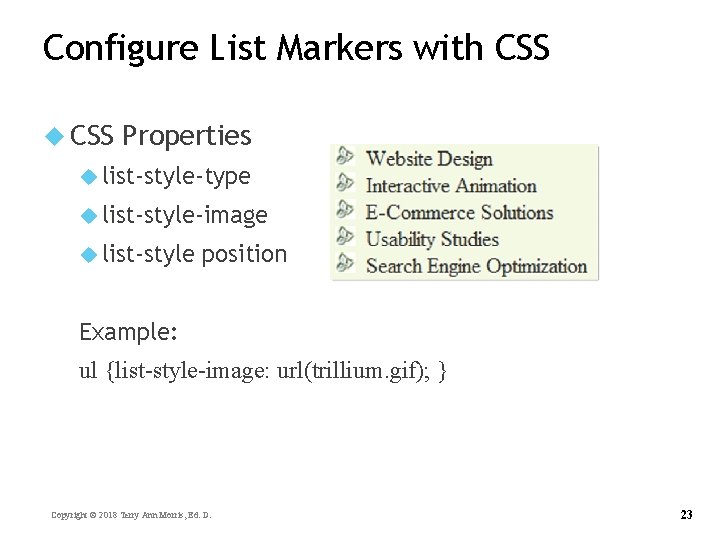
Configure List Markers with CSS Properties list-style-type list-style-image list-style position Example: ul {list-style-image: url(trillium. gif); } Copyright © 2018 Terry Ann Morris, Ed. D. 23
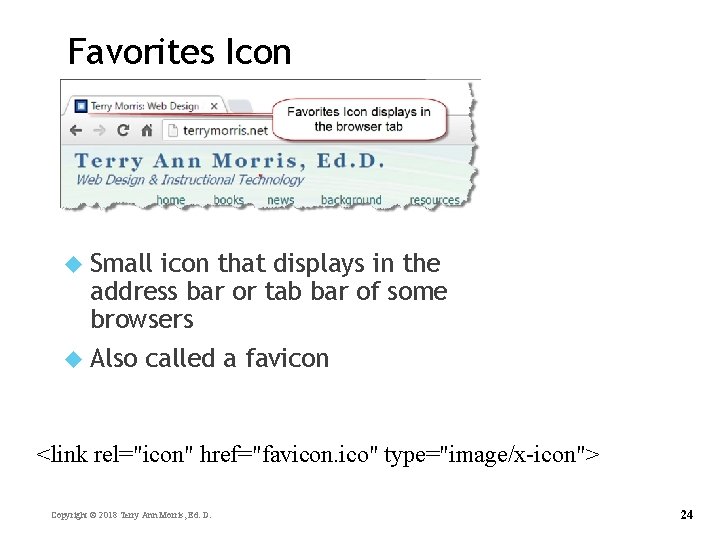
Favorites Icon Small icon that displays in the address bar or tab bar of some browsers Also called a favicon <link rel="icon" href="favicon. ico" type="image/x-icon"> Copyright © 2018 Terry Ann Morris, Ed. D. 24
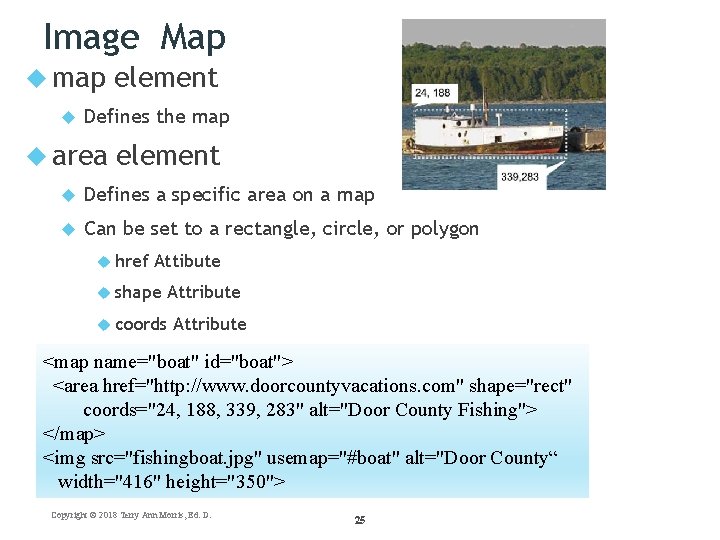
Image Map map element Defines the map area element Defines a specific area on a map Can be set to a rectangle, circle, or polygon href Attibute shape Attribute coords Attribute <map name="boat" id="boat"> <area href="http: //www. doorcountyvacations. com" shape="rect" coords="24, 188, 339, 283" alt="Door County Fishing"> </map> <img src="fishingboat. jpg" usemap="#boat" alt="Door County“ width="416" height="350"> Copyright © 2018 Terry Ann Morris, Ed. D. 25
Summary This chapter introduced the HTML techniques and technologies used to place images and configure text on web pages. Issues related to accessibility and images were also discussed. The number one reason for visitors to leave web pages is too long of a download time. When using images, be careful to minimize this issue. Copyright © 2018 Terry Ann Morris, Ed. D. 26
- Slides: 26