
Basic Statistics with Google Sheets Unit 3 Data
Basic Statistics with Google Sheets Unit 3: Data and Information Adapted from http: //www. cpalms. org/Public/Preview Resource. Lesson/Preview/72217
Warmup - Describe what you know about statistics Share what you know about statistics with your elbow partner.
Review of Statistics - Ask eight or so randomly selected students for their birth date (day of the month). - Write these numbers on the board. - On the side of the board, list the key terms "min, " "max, " "mean, " "median, " "mode, " and "range. " - Ask the class as a group to compute each of these valu
Definitions - Min: The smallest number (what if there is more than one? - no problem!) Max: The largest number (ditto) Mean: The average (sum of the numbers, divided by how many numbers there are) Median: The center value in a sorted list of numbers. - Have the students help you to rewrite the values from smallest to largest. - Which is the middle number? - Since there are 8 numbers, there is no middle number! - In this case, the median is the mean (average) of the two center numbers = 4 th number + 5 th number / 2.

Definitions - Range: The difference between the largest and smallest value (max - min). - Mode: The most frequently appearing value. - In such a small set, there is likely to not be a mode, unless two students happen to share the same birth date. - You might wish to poll the students for another number (e. g. , the students' grade) that's likely to have more repeated values, and then compute the mode (and, optionally, the other statistics).
Discussion - Range: The difference between the largest and smallest value (max - min). - Mode: The most frequently appearing value. - In such a small set, there is likely to not be a mode, unless two students happen to share the same birth date. - You might wish to poll the students for another number (e. g. , the students' grade) that's likely to have more repeated values, and then compute the mode (and, optionally, the other statistics).
Guided Activity - Predict how many individual candy pieces are in your bag of candy. - Write your prediction in your journal. - Open your bag of candy and sort the candy into categories based on color and type - Note the difference in the total number of candies predicted versus the actual number that was in the packet. - Note the difference in your journal.
Rows <------> Open a new spreadsheet in Excel. Type the colors in Row 2. (Leave Row 1 empty to allow the addition of a descriptive Title later. ) For example: ● ● ● In Cell B 2 type: “Red” In Cell C 2 type: “Orange” In Cell D 2 type: “Yellow” In Cell E 2 type: “Green” In Cell F 2 type: “Blue” In Cell G 2 type: “Brown”
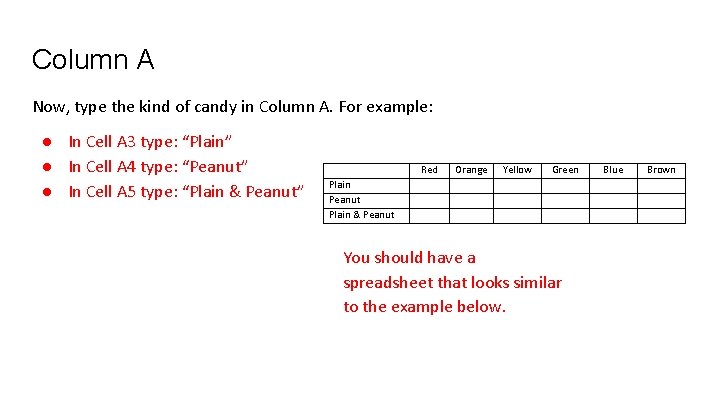
Column A Now, type the kind of candy in Column A. For example: ● In Cell A 3 type: “Plain” ● In Cell A 4 type: “Peanut” ● In Cell A 5 type: “Plain & Peanut” Red Orange Yellow Green Plain Peanut Plain & Peanut You should have a spreadsheet that looks similar to the example below. Blue Brown
Input Data Input your candy data into the proper cells. (For example, if you have 6 plain Red candies input “ 6” into cell B 3. ) Continue inputting data until all Plain & Peanut columns are fully populated. You should have a spreadsheet similar to the example below (with different data in the cells).
Excel Formula for Totals Use Excel formulas to find the total for each color. In this example, you have 6 plain Red candies and 4 peanut Red candies, so you need to write a formula to total the Red column. ● In Cell B 5 type: “=sum(B 3: B 4)”. Note: The equal sign indicates to Excel that a formula is being written. The sum causes Excel to add and the (B 3: B 4) tells Excel the cells from B 3 to B 4 should be added. ● Formulas can be copied and pasted in Excel. So, select cell B 5, right click “Copy”, select cells C 5 through G 5, and right click “Paste” to copy the sum formula for all colors. Note: Alternatively, in Cell C 5 type: “=sum(C 3: C 4)”, in Cell D 5 type” “=sum(D 3: D 4)”, and so on through column G.
Statistical Calculations: Plain Candies ● To calculate the mean for the plain candies in Cell B 10 type: “=average(B 3: G 3)” ● To calculate the median for the plain candies in Cell B 11 type: “=median(B 3: G 3)” ● To calculate the mode for the plain candies in Cell B 12 type: “=mode(B 3: G 3)” ● To calculate the standard deviation for the plain candies in Cell B 13 type: “=stdev(B 3: G 3)” ● Use Cells A 10 -A 13 to label the mean, median, mode, and
Statistical Calculations: Peanut Candies ● To calculate the mean for the peanut candies in Cell E 10 type: “=average(B 4: G 4)” ● To calculate the median for the peanut candies in Cell E 11 type: “=median(B 4: G 4)” ● To calculate the mode for the peanut candies in Cell E 12 type: “=mode(B 4: G 4)” ● To calculate the standard deviation for the peanut candies in Cell E 13 type: “=stdev(B 4: G 4)” ● Use Cells D 10 -D 13 to label the mean, median, mode, and standard deviation calculations.
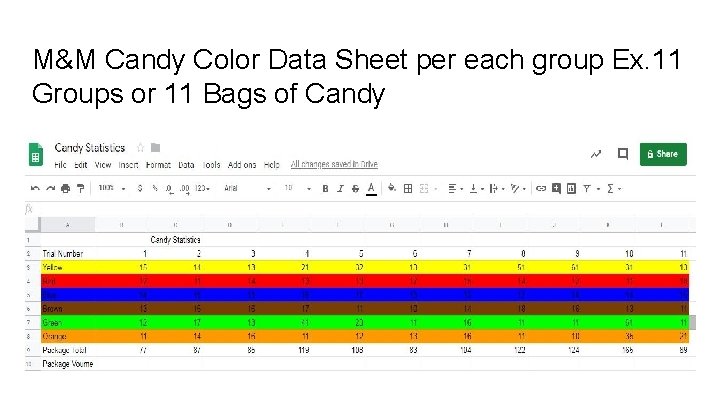
M&M Candy Color Data Sheet per each group Ex. 11 Groups or 11 Bags of Candy
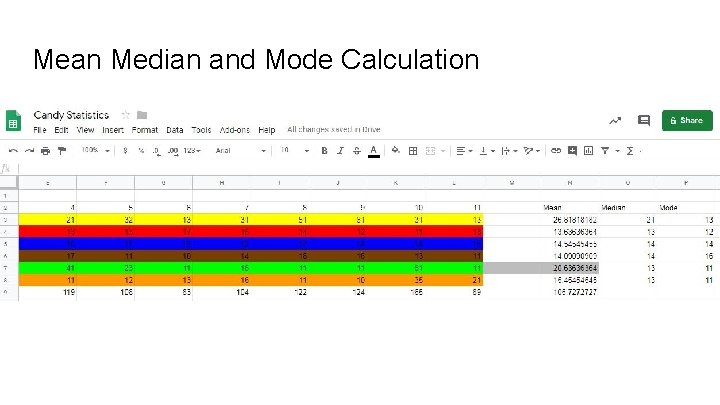
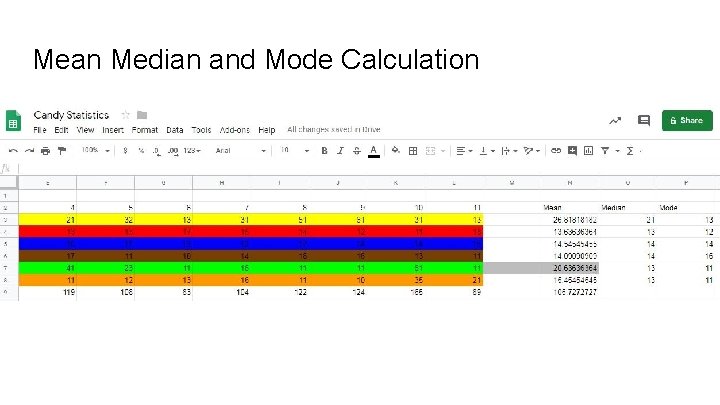
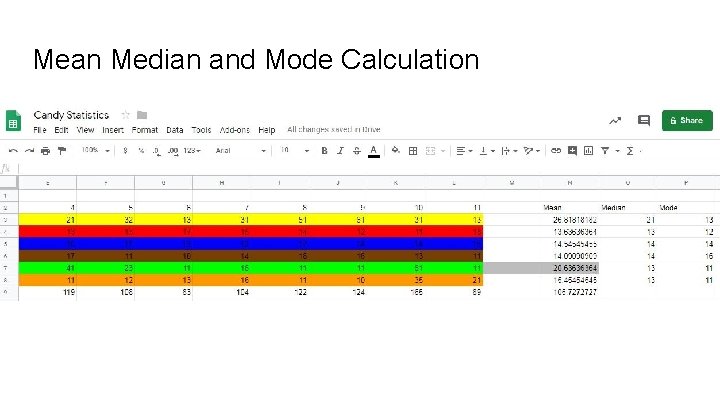
Mean Median and Mode Calculation
Mean Median and Mode Calculation
Mean Median and Mode Calculation
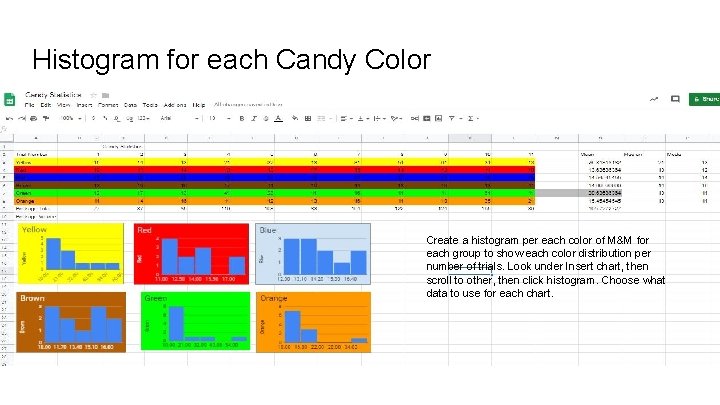
Histogram for each Candy Color Create a histogram per each color of M&M for each group to show each color distribution per number of trials. Look under Insert chart, then scroll to other, then click histogram. Choose what data to use for each chart.
Questions 1. Which color was the most prevalent in the plain bag of candy? Did this match your prediction? 2. Which color was the most prevalent in the peanut bag of candy? Did this match your prediction? 3. Which color was the most prevalent in both bags of candy combined? 4. Why is it important to use statistics to understand large data sets?
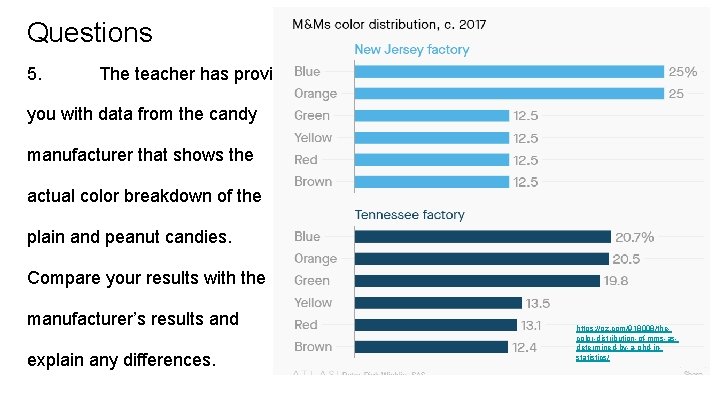
Questions 5. The teacher has provided you with data from the candy manufacturer that shows the actual color breakdown of the plain and peanut candies. Compare your results with the manufacturer’s results and explain any differences. https: //qz. com/918008/thecolor-distribution-of-mms-asdetermined-by-a-phd-instatistics/
- Slides: 20