
Basic Introduction to Banner Finance Kimberly L Oxendine
Basic Introduction to Banner Finance Kimberly L. Oxendine Kimberly. oxendine@uncp. edu 522 -5756
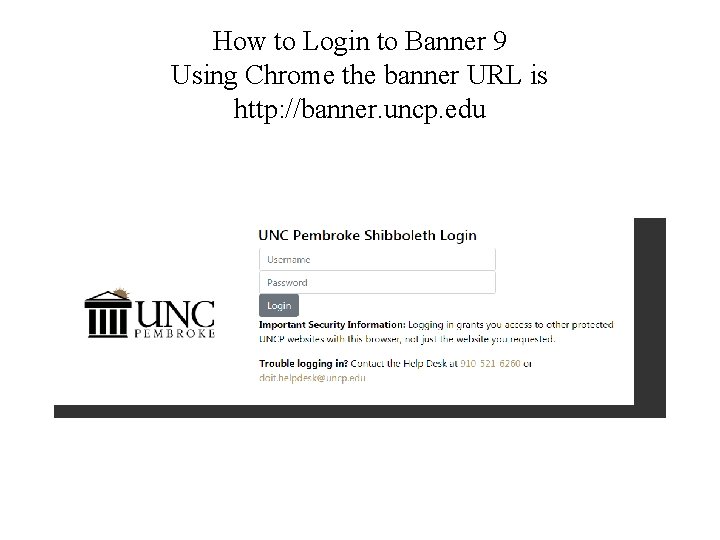
How to Login to Banner 9 Using Chrome the banner URL is http: //banner. uncp. edu
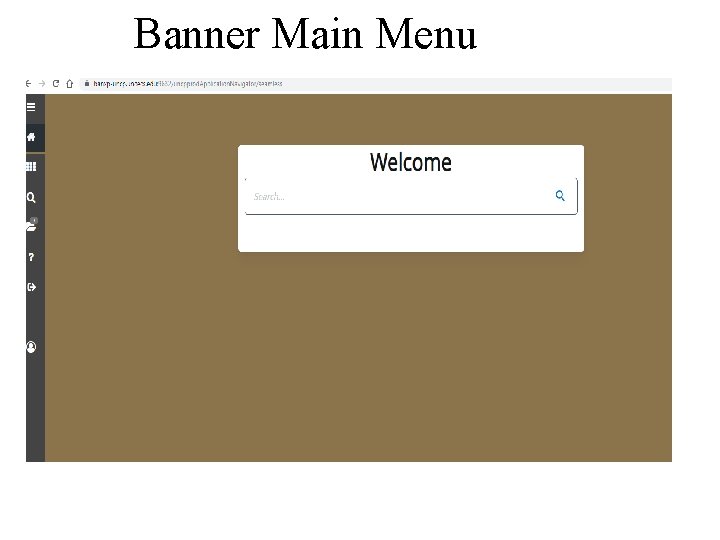
Banner Main Menu
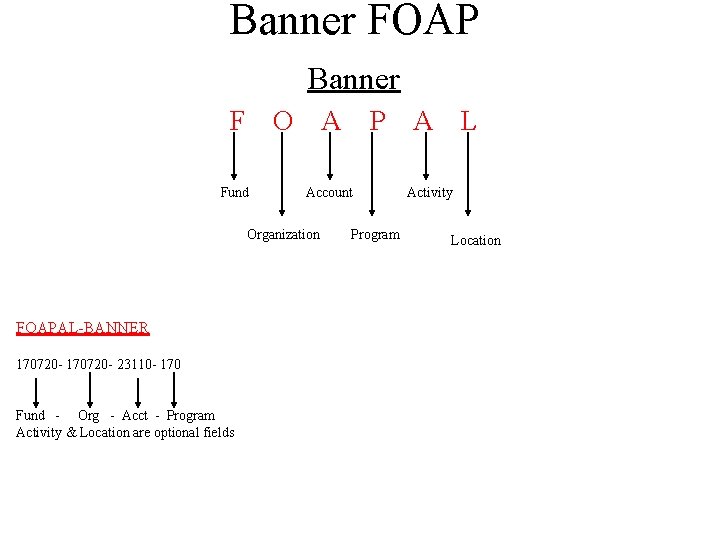
Banner FOAP Banner F O Fund A Account Organization FOAPAL-BANNER 170720 - 23110 - 170 Fund - Org - Acct - Program Activity & Location are optional fields P Program A L Activity Location

Banner Naming Conventions Banner form, report, job and table names have the following structure: • • Position 1 identifies the primary system owning the form, report, job, or table Position 2 identifies the module owning the form, report, job, or table Position 3 identifies the type of form, report, job, or table Positions 4, 5, 6, & 7 uniquely identify the form, report, job or table All Forms beginning with an an “F” are Finance Forms. Example-Form Name F O A I D E N Operations Finance Application Identification This form will allow you to find a banner Id number.
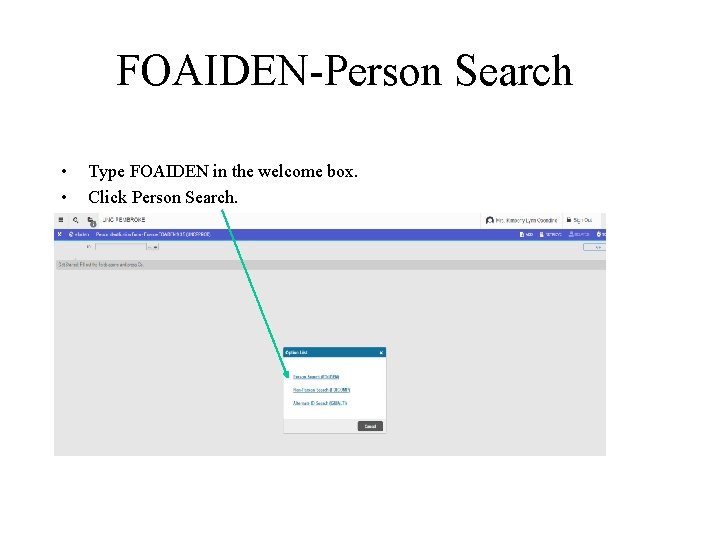
FOAIDEN-Person Search • • Type FOAIDEN in the welcome box. Click Person Search.
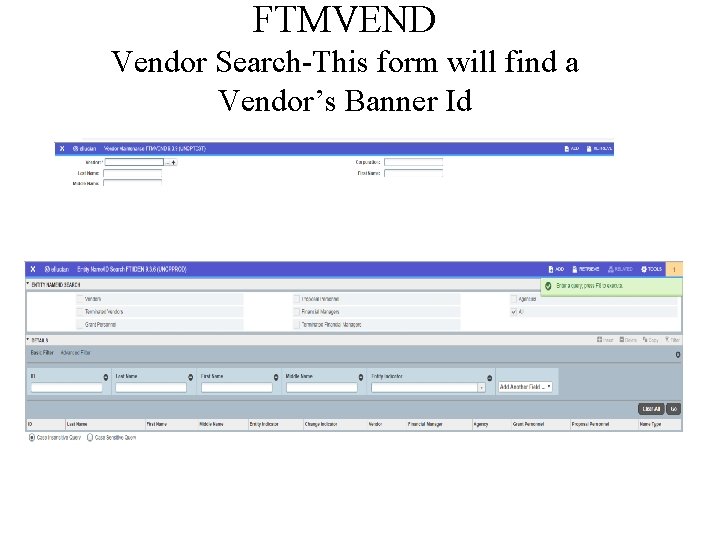
FTMVEND Vendor Search-This form will find a Vendor’s Banner Id
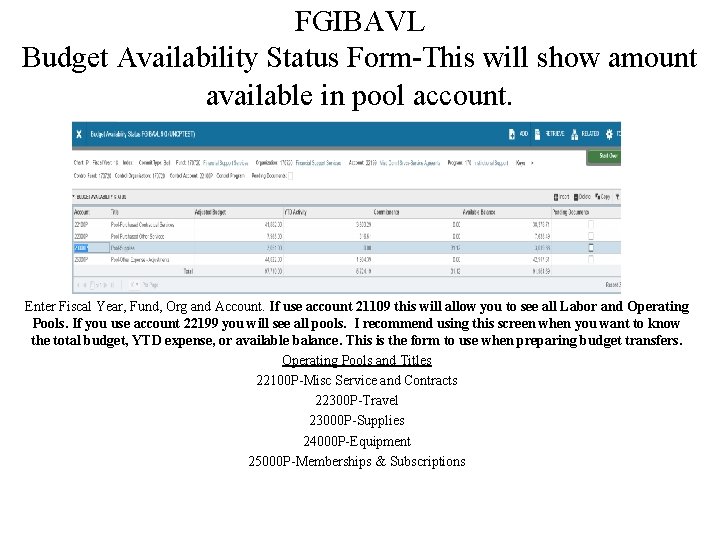
FGIBAVL Budget Availability Status Form-This will show amount available in pool account. Enter Fiscal Year, Fund, Org and Account. If use account 21109 this will allow you to see all Labor and Operating Pools. If you use account 22199 you will see all pools. I recommend using this screen when you want to know the total budget, YTD expense, or available balance. This is the form to use when preparing budget transfers. Operating Pools and Titles 22100 P-Misc Service and Contracts 22300 P-Travel 23000 P-Supplies 24000 P-Equipment 25000 P-Memberships & Subscriptions
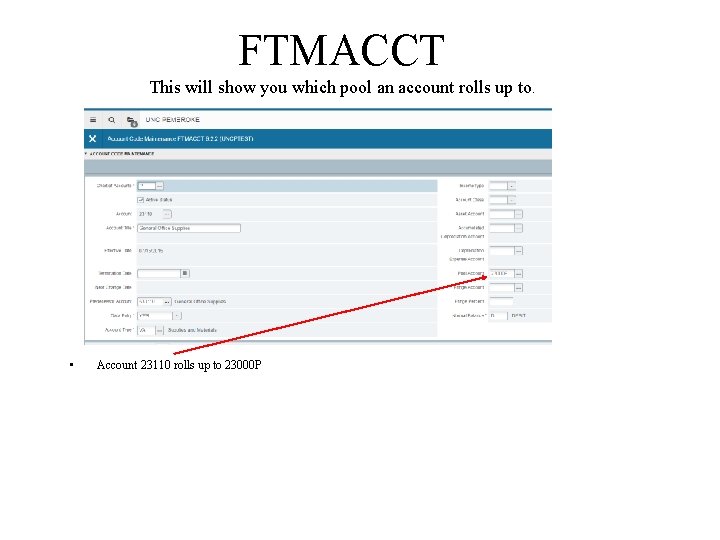
FTMACCT This will show you which pool an account rolls up to. • Account 23110 rolls up to 23000 P
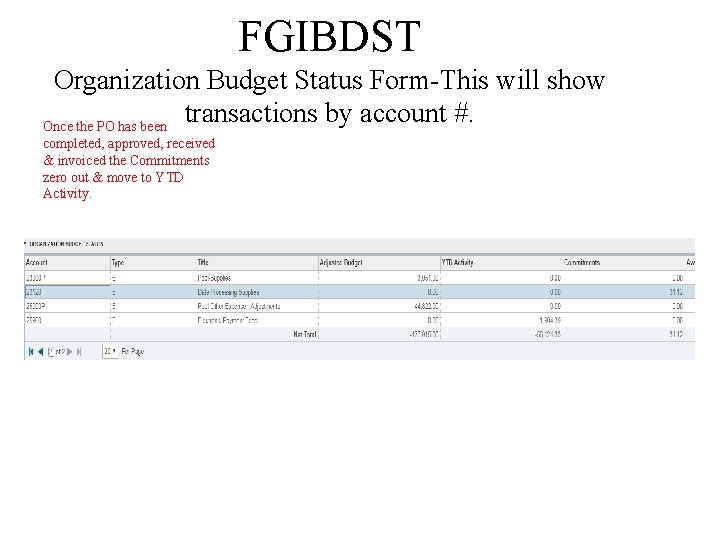
FGIBDST Organization Budget Status Form-This will show transactions by account #. Once the PO has been completed, approved, received & invoiced the Commitments zero out & move to YTD Activity.
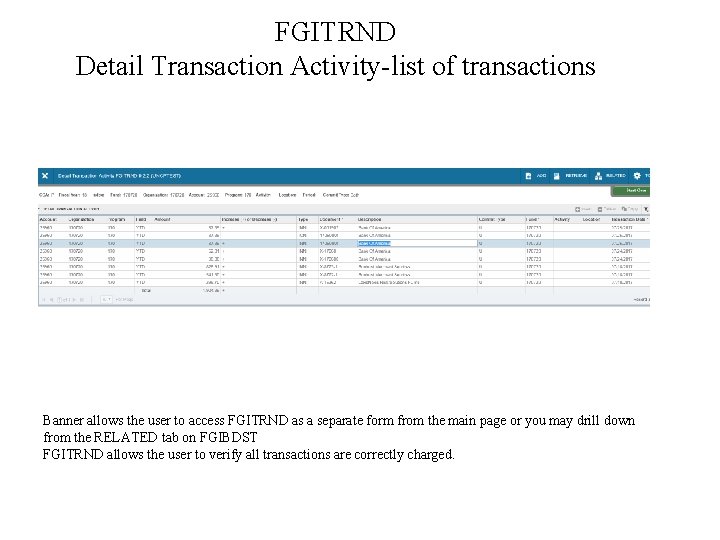
FGITRND Detail Transaction Activity-list of transactions Banner allows the user to access FGITRND as a separate form from the main page or you may drill down from the RELATED tab on FGIBDST FGITRND allows the user to verify all transactions are correctly charged.
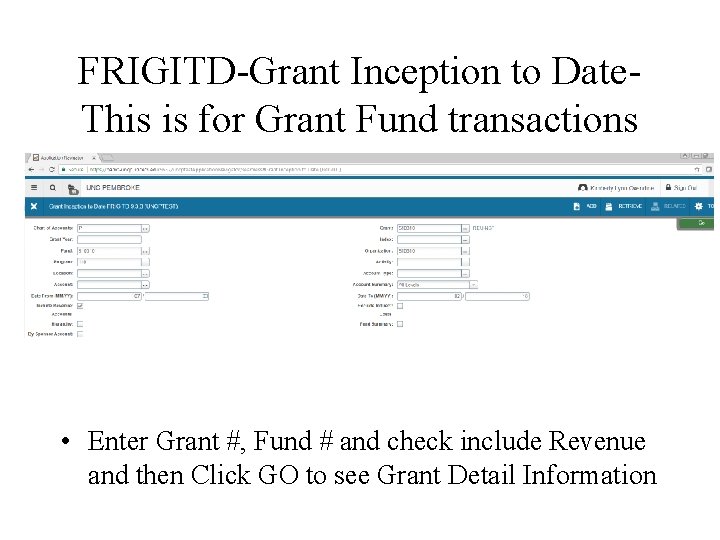
FRIGITD-Grant Inception to Date. This is for Grant Fund transactions • Enter Grant #, Fund # and check include Revenue and then Click GO to see Grant Detail Information
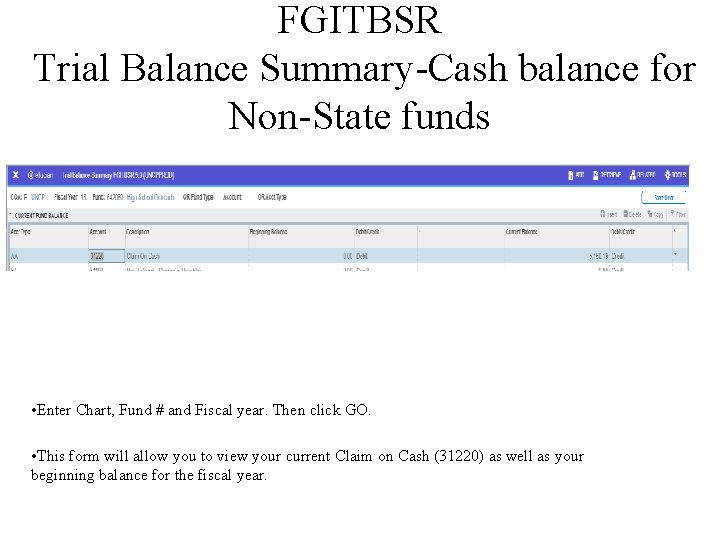
FGITBSR Trial Balance Summary-Cash balance for Non-State funds • Enter Chart, Fund # and Fiscal year. Then click GO. • This form will allow you to view your current Claim on Cash (31220) as well as your beginning balance for the fiscal year.
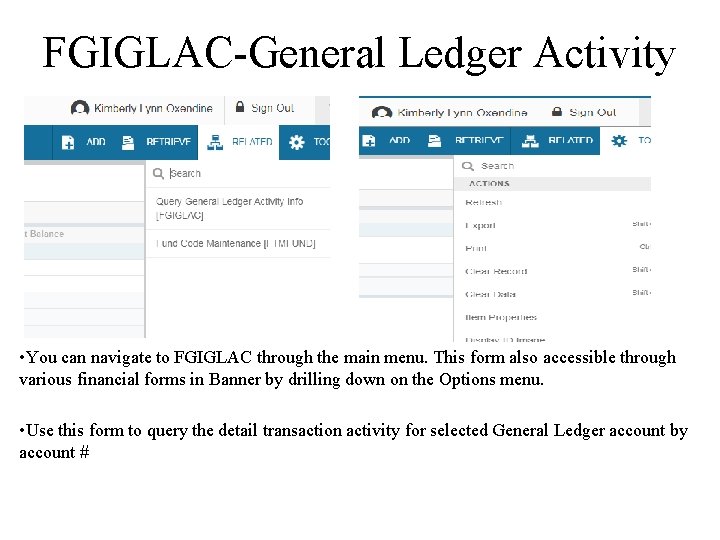
FGIGLAC-General Ledger Activity • You can navigate to FGIGLAC through the main menu. This form also accessible through various financial forms in Banner by drilling down on the Options menu. • Use this form to query the detail transaction activity for selected General Ledger account by account #
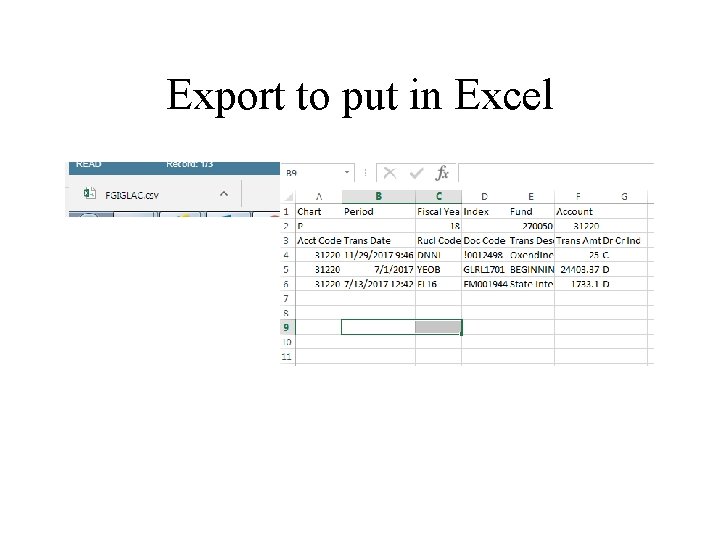
Export to put in Excel
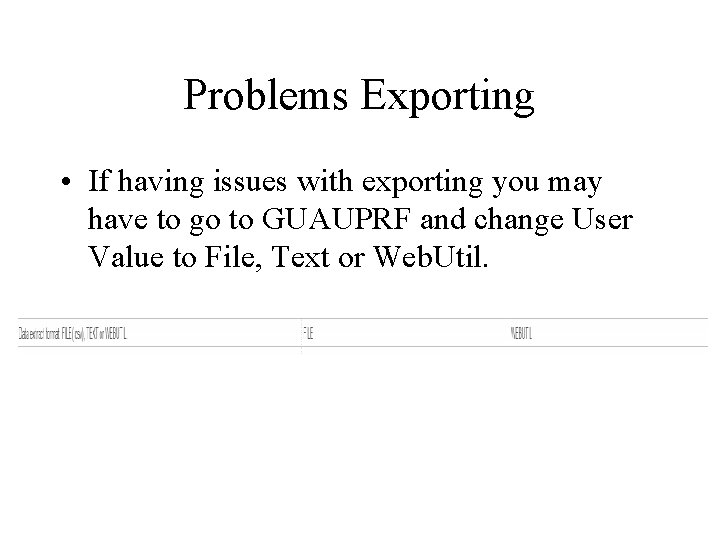
Problems Exporting • If having issues with exporting you may have to go to GUAUPRF and change User Value to File, Text or Web. Util.
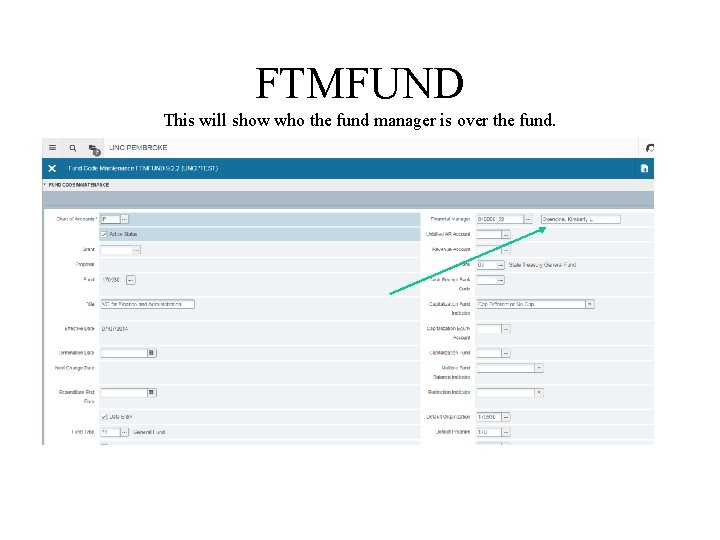
FTMFUND This will show who the fund manager is over the fund.
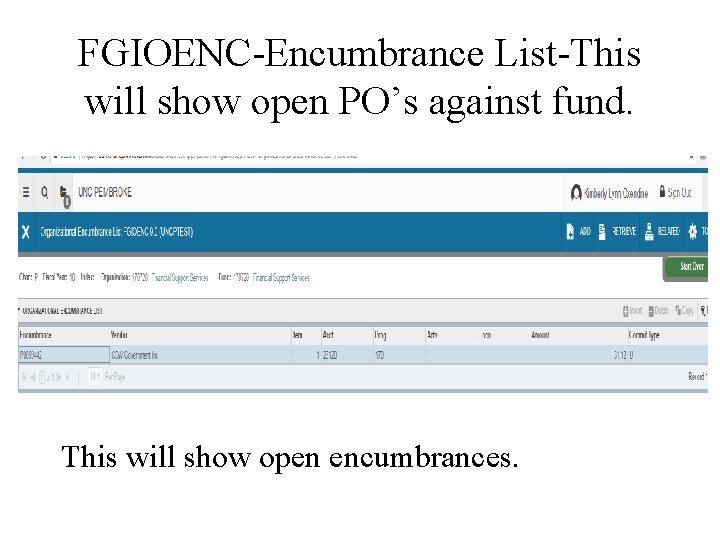
FGIOENC-Encumbrance List-This will show open PO’s against fund. This will show open encumbrances.
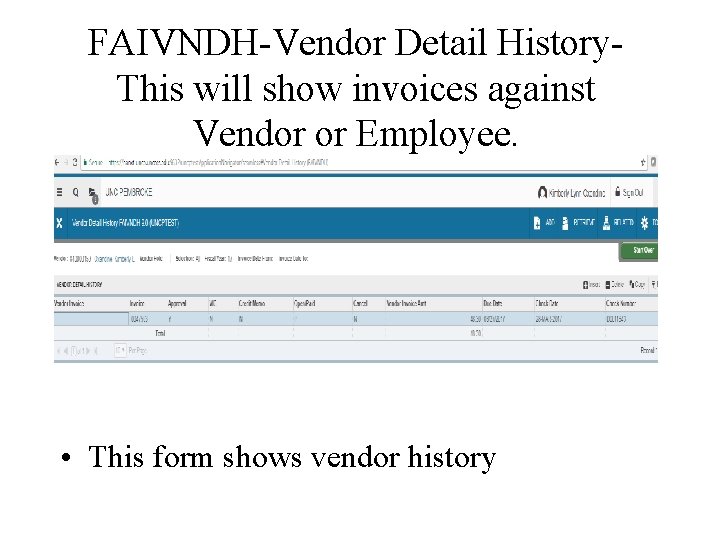
FAIVNDH-Vendor Detail History. This will show invoices against Vendor or Employee. • This form shows vendor history
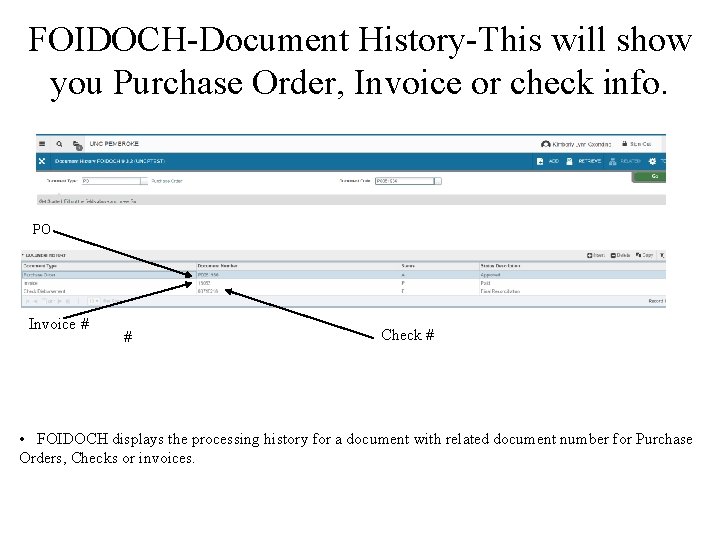
FOIDOCH-Document History-This will show you Purchase Order, Invoice or check info. PO Invoice # # Check # • FOIDOCH displays the processing history for a document with related document number for Purchase Orders, Checks or invoices.
Budget Transfer To adjust and move budgets electronic completion of a Budget Transfer Form is needed. Form can be found at; https: //www. uncp. edu/resources/financialplanning-and-budgeting/financial-planning-andbudgeting-forms Cash Transfer: To move cash please email the Controller’s Office.
UNCP Resources • The following resources can be found at: • https: //www. uncp. edu/resources/financial-planningand-budgeting/helpful-hints • Budgeting Do’s and Dont’s • UNCP Spending Guidelines • Guide for UNCP Budget Revisions and Transfers • Current Employer Benefit Rates
- Slides: 22