
BASIC COBRA Portal WalkThrough Click Here To Start
BASIC COBRA Portal Walk-Through Click Here To Start
Before Getting Started… • Button On each page you will see options for making a selection, going back a page, or moving forward in the presentation. Be sure to click on underlined “buttons” with your selection or to proceed to next page when instructed. You may also hover some of the buttons for additional information. • Some of the slides have ? to provide additional information. You can either hover the button to see what information will be provided or click to view additional information on that slide. Any time you click one of these “? ”, you will have the option to return to the previous slide back to where you were. • To exit the presentation at any time, just press the “Esc” key on your keyboard and the presentation will end. Continue Return to 2 Main Menu
Where Would You Like To Begin? Take Me To The COBRA Portal Walk-Through Review COBRA Frequently Asked Questions Find Out When To Report A COBRA Event Contact BASIC COBRA
Welcome to the BASIC COBRA Portal Walk-Through • Have you already created your username and password per the emailed instructions for www. My. RSC. com? Yes, I’m ready to get started No, please show me how Go Back Return to 4 Main Menu
How to Create a Username & Password • Go to our secure portal at www. myrsc. com • To the right of the screen under “First Time Logging In? ” click Register ? • Click the “my. RSC Temporary Login ID” link • In the Login ID field, enter your Login Code provided by BASIC • In the Employer Code field, enter the code provided in your “Welcome” email or contact BASIC • Once you have logged in, you will be asked to enter a login ID and password of your choice Return to 5 Continue Main Menu
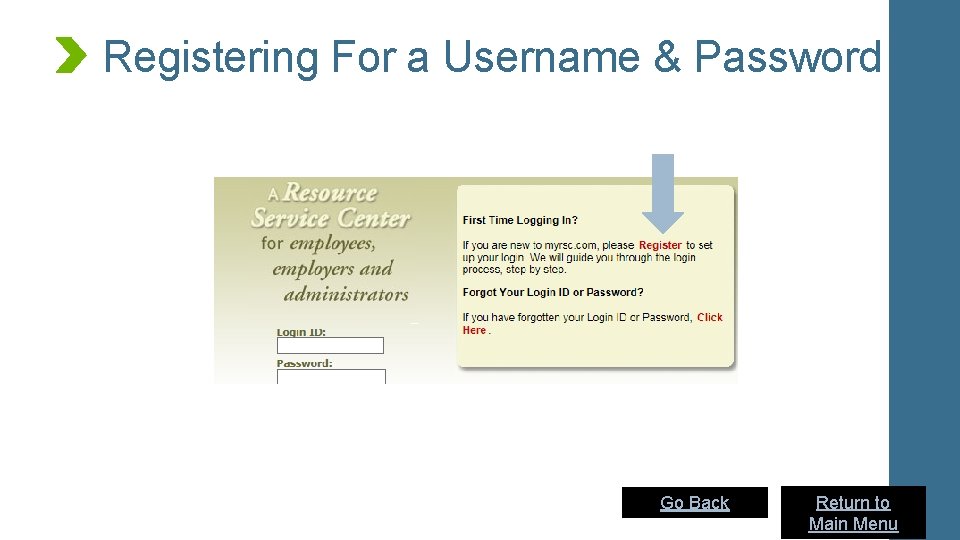
Registering For a Username & Password Go Back Return to 6 Main Menu
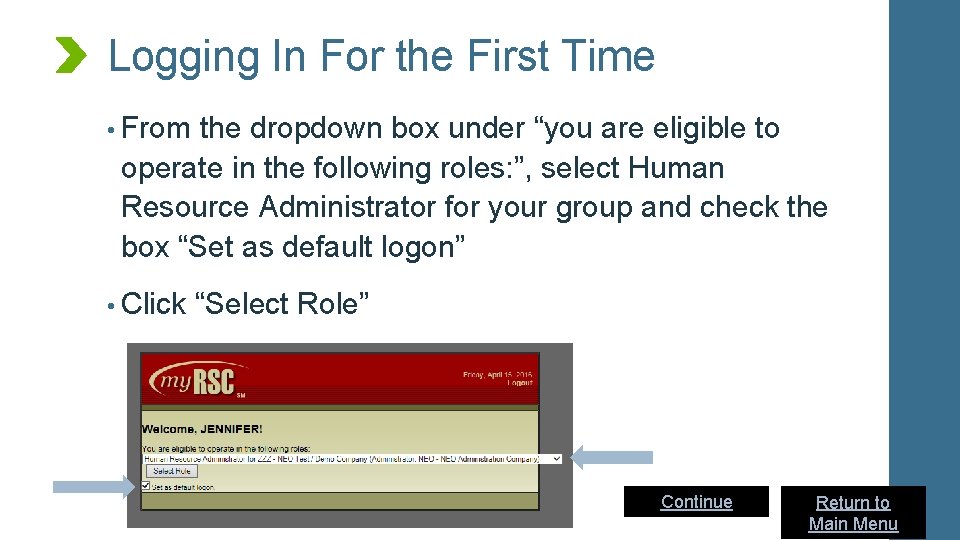
Logging In For the First Time • From the dropdown box under “you are eligible to operate in the following roles: ”, select Human Resource Administrator for your group and check the box “Set as default logon” • Click “Select Role” Continue Return to 7 Main Menu
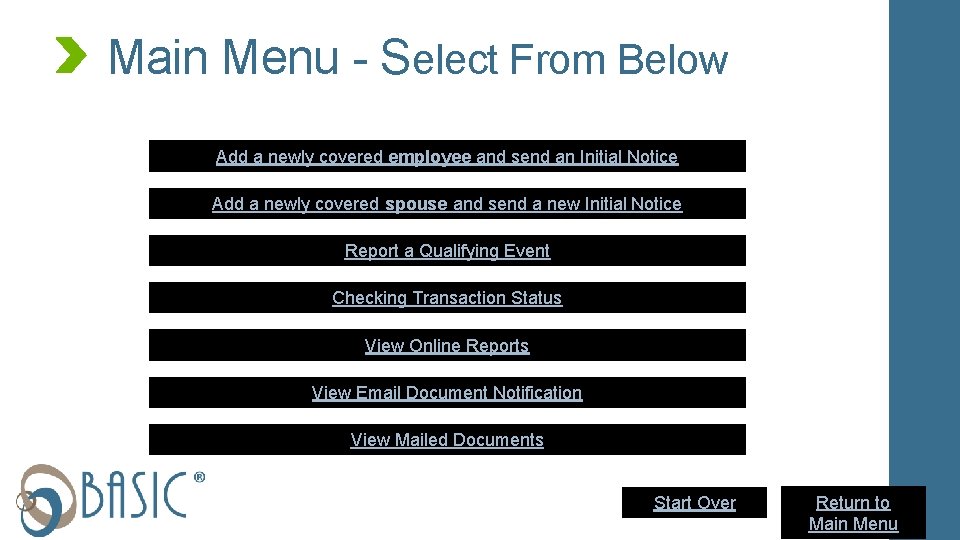
Main Menu - Select From Below Add a newly covered employee and send an Initial Notice Add a newly covered spouse and send a new Initial Notice Report a Qualifying Event Checking Transaction Status View Online Reports View Email Document Notification View Mailed Documents Start Over Return to 8 Main Menu
Contact Information BASIC COBRA cobrasupport@basiconline. com 888 -486 -2601 www. basiconline. com Go Back Return to 9 Main Menu
Contact Information QE to Report BASIC COBRA cobrasupport@basiconline. com 888 -486 -2601 www. basiconline. com Go Back Return to 10 Main Menu
Contact Information How to create BASIC COBRA cobrasupport@basiconline. com 888 -486 -2601 www. basiconline. com Go Back Start Over Return to 11 Main Menu
When to Report a Qualifying Event Has the employee experienced any of the following triggering events? • Death of employee • Divorce or Legal Separation • Loss of Dependency Status • Entitlement to Medicare resulting in involuntary termination of coverage (rare) • Reduction of Hours • Retirement • Termination of Employment (Voluntary or Involuntary) Yes No Go Back Return to 12 Main Menu
This Could Be a Qualifying Event • Was the employee covered under one or more COBRA eligible benefit(s) at the time of the event? ? • The employee must have been enrolled in the benefit on the date of the event. If the employee has only elected a benefit but has not yet reached the eligible start date of the benefit, they are not considered to have been covered under the group health plan. Yes No Go Back Start Over Return to 13 Main Menu
Examples of Group Health Plans • Health Insurance Plans, HMOs, and Self Funded Plans • Dental and Vision Plans • Flexible Spending Account (FSA) • Health Reimbursement Account (HRA) • Wellness Program – If it provides medical benefits • Employee Assistance Program (EAP) – If it provides medical benefits • On-Site Medical Clinics Go Back Return to 14 Main Menu
Qualifying Event to Report? NO • According to your answer, it sounds like you may not have a Qualifying Event to report. • There must be a triggering event plus loss of coverage to have a Qualifying Event. If no loss of coverage occurs as a result of an event, there is no qualifying event. Likewise, if a loss of coverage occurs without a triggering event, there is no Qualifying Event to report. As a rule, if there is no Qualifying Event, there is generally no obligation to offer COBRA. ? • Please contact BASIC with any questions. Go Back Start Over Return to 15 Main Menu
COBRA Events • Death of employee • Divorce or Legal Separation • Loss of Dependency Status • Entitlement to Medicare resulting in involuntary termination of coverage (rare) • Reduction of Hours • Retirement • Termination of Employment (Voluntary or Involuntary) Go Back Return to 16 Main Menu
Qualifying Event to Report? YES • According to your answer, it sounds like you have a Qualifying Event to report. Click Here For Instructions To Report This Qualifying Event • Since you have indicated that there was triggering event plus loss of coverage, you must report this Qualifying Event to BASIC within 30 days from the last day of coverage. Go Back Start Over Return to 17 Main Menu
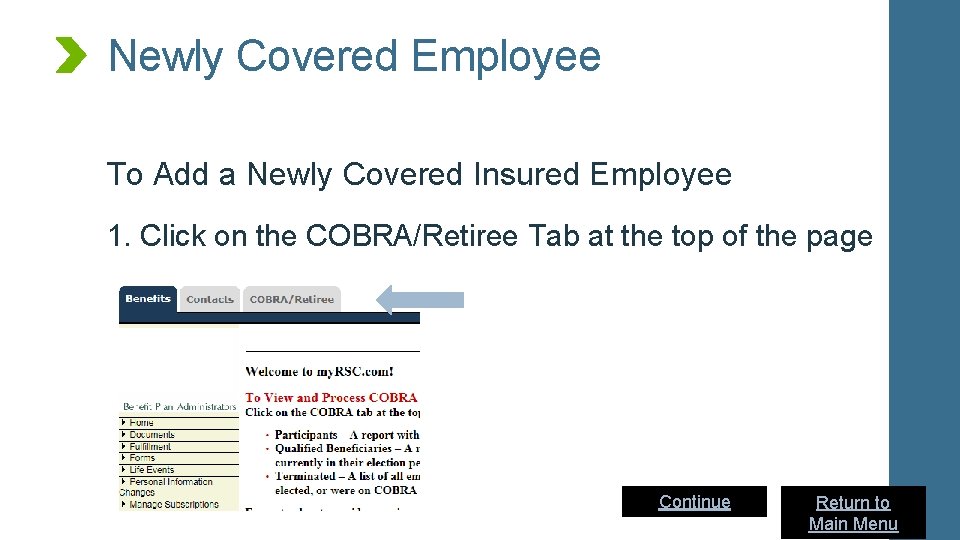
Newly Covered Employee To Add a Newly Covered Insured Employee 1. Click on the COBRA/Retiree Tab at the top of the page Continue Return to 18 Main Menu
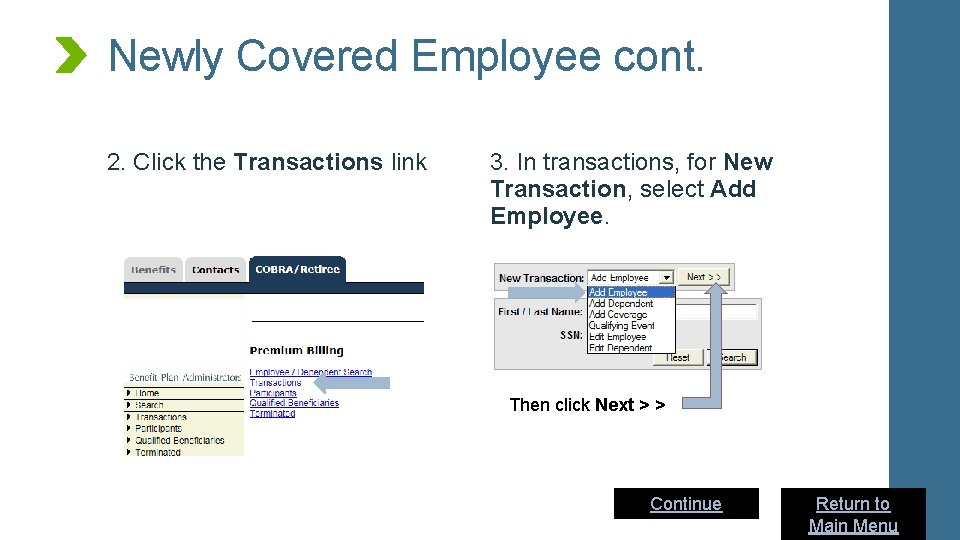
Newly Covered Employee cont. 2. Click the Transactions link 3. In transactions, for New Transaction, select Add Employee. Then click Next > > Continue Return to 19 Main Menu
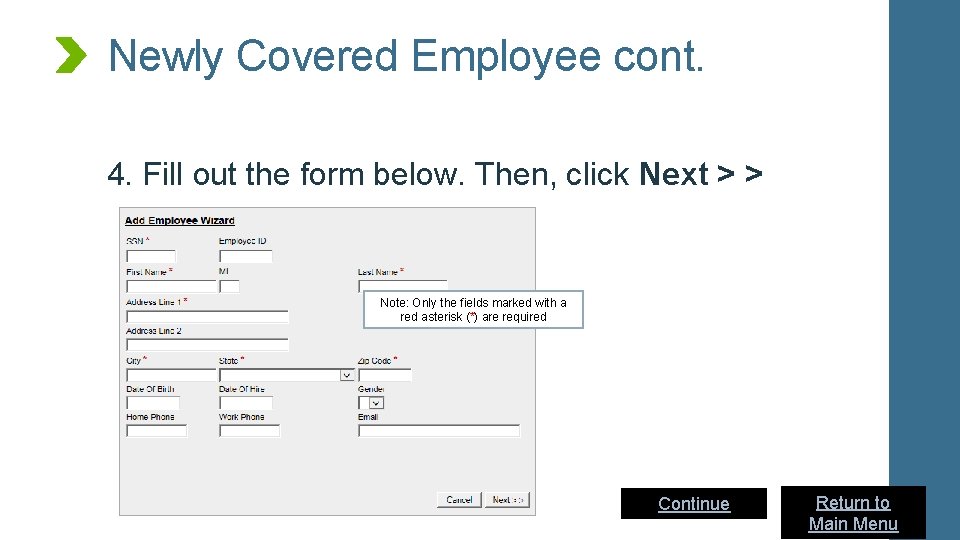
Newly Covered Employee cont. 4. Fill out the form below. Then, click Next > > Note: Only the fields marked with a red asterisk (*) are required Continue Return to 20 Main Menu
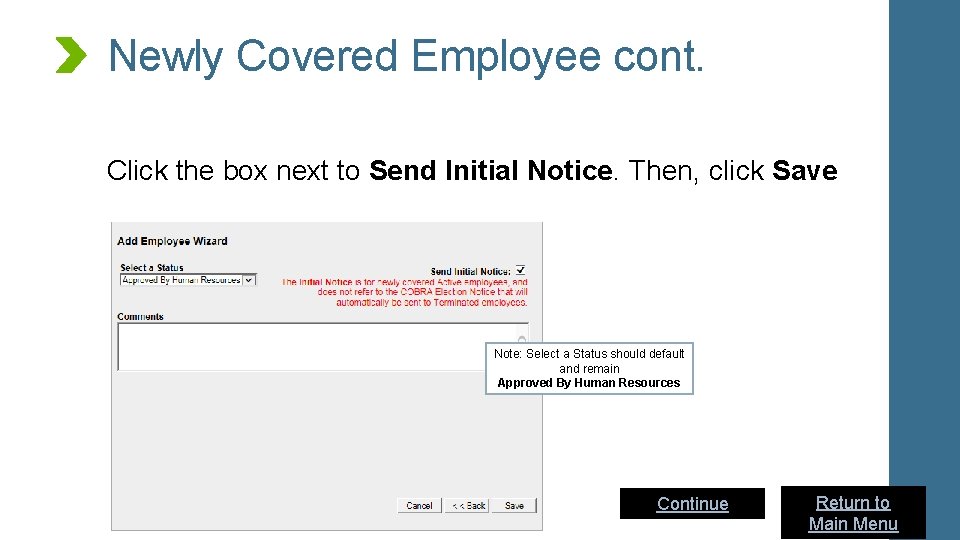
Newly Covered Employee cont. Click the box next to Send Initial Notice. Then, click Save Note: Select a Status should default and remain Approved By Human Resources Continue Return to 21 Main Menu
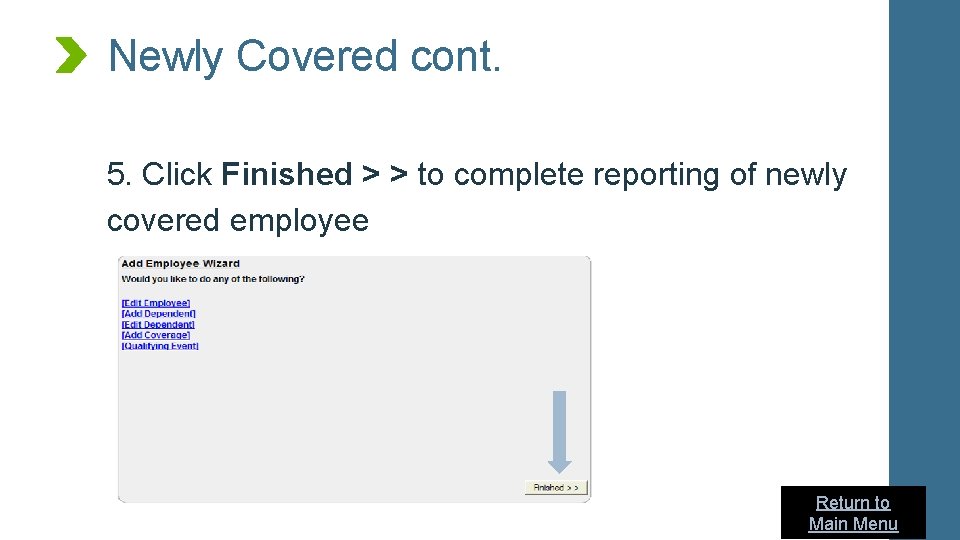
Newly Covered cont. 5. Click Finished > > to complete reporting of newly covered employee Return to 22 Main Menu
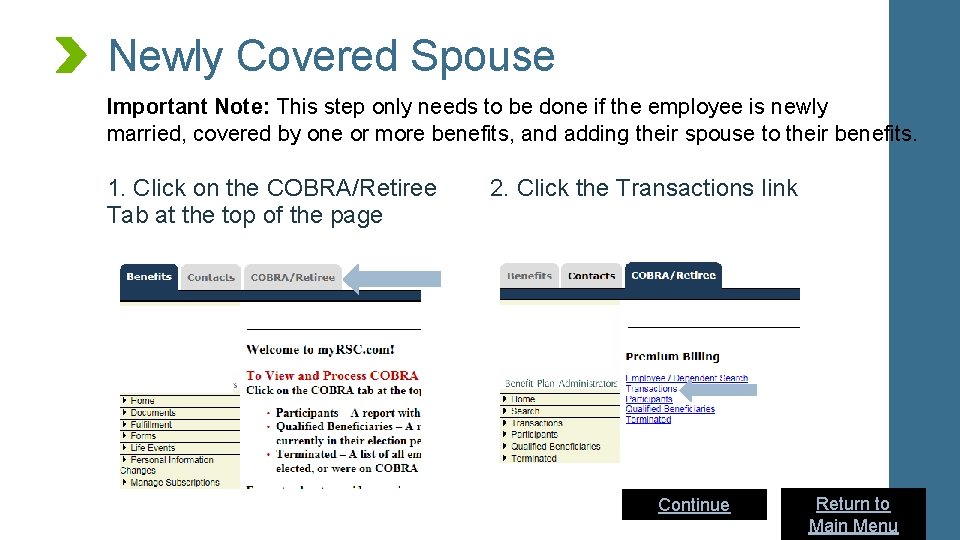
Newly Covered Spouse Important Note: This step only needs to be done if the employee is newly married, covered by one or more benefits, and adding their spouse to their benefits. 1. Click on the COBRA/Retiree Tab at the top of the page 2. Click the Transactions link Continue Return to 23 Main Menu
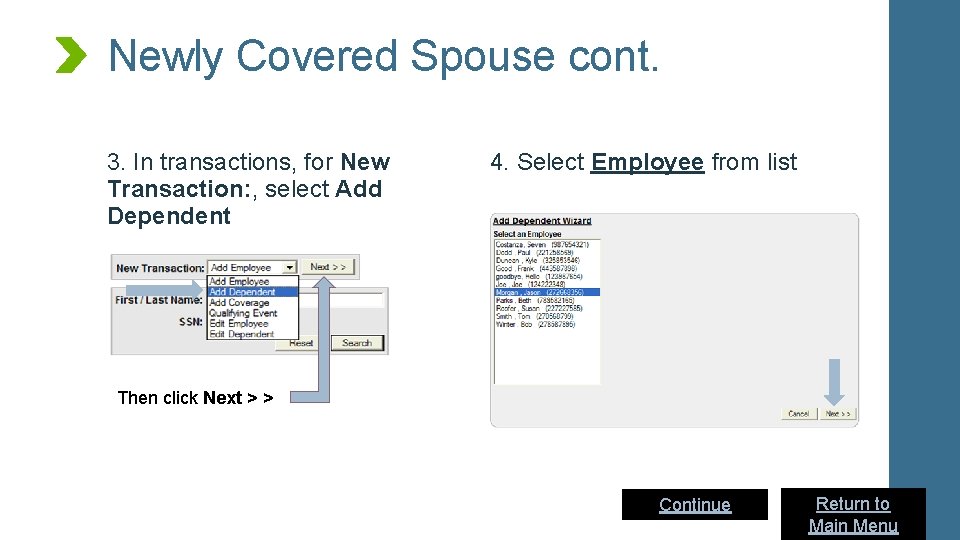
Newly Covered Spouse cont. 3. In transactions, for New Transaction: , select Add Dependent 4. Select Employee from list Then click Next > > Continue Return to 24 Main Menu
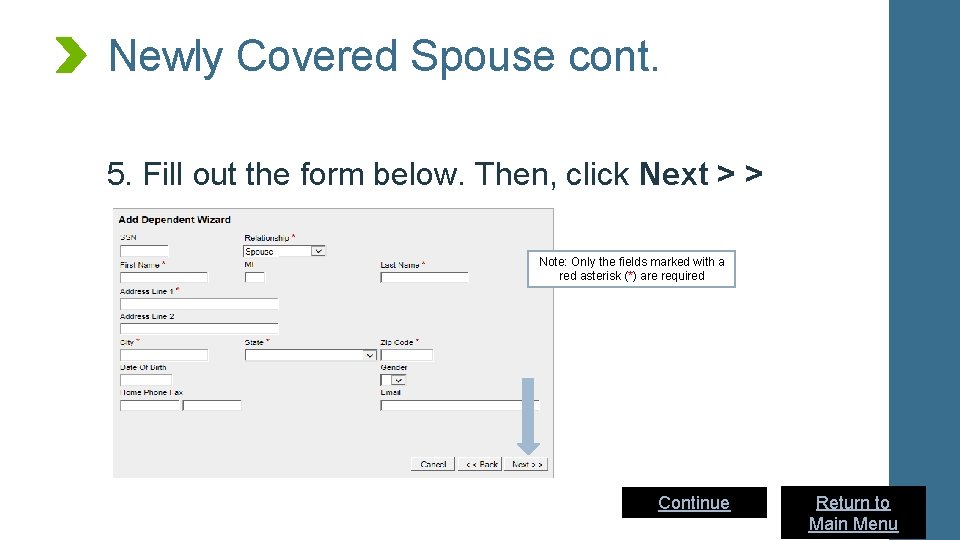
Newly Covered Spouse cont. 5. Fill out the form below. Then, click Next > > Note: Only the fields marked with a red asterisk (*) are required Continue Return to 25 Main Menu
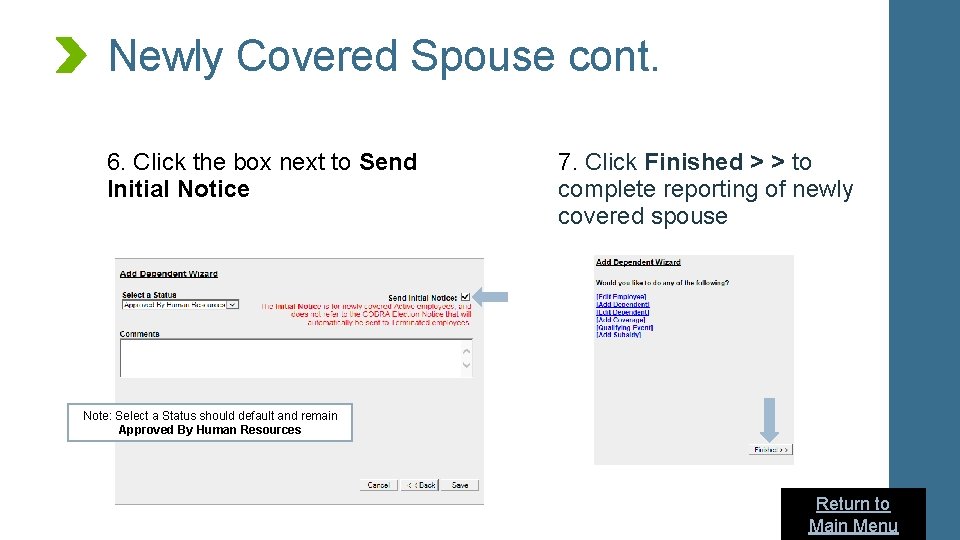
Newly Covered Spouse cont. 6. Click the box next to Send Initial Notice 7. Click Finished > > to complete reporting of newly covered spouse Note: Select a Status should default and remain Approved By Human Resources Return to 26 Main Menu
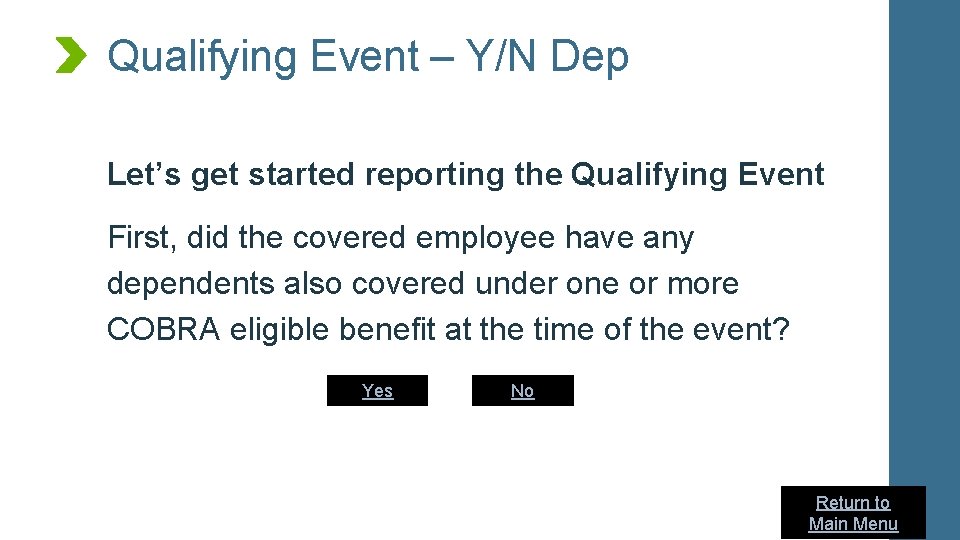
Qualifying Event – Y/N Dep Let’s get started reporting the Qualifying Event First, did the covered employee have any dependents also covered under one or more COBRA eligible benefit at the time of the event? Yes No Return to 27 Main Menu
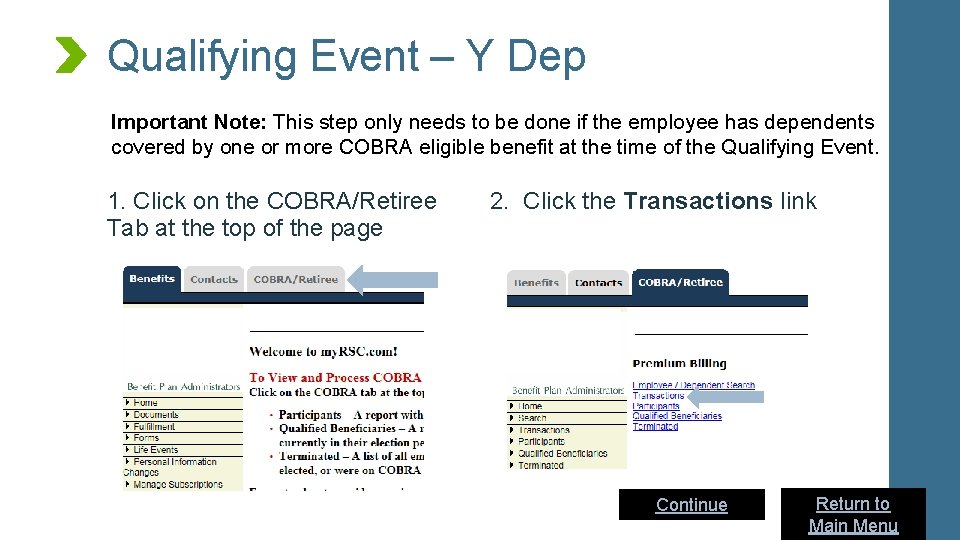
Qualifying Event – Y Dep Important Note: This step only needs to be done if the employee has dependents covered by one or more COBRA eligible benefit at the time of the Qualifying Event. 1. Click on the COBRA/Retiree Tab at the top of the page 2. Click the Transactions link Continue Return to 28 Main Menu
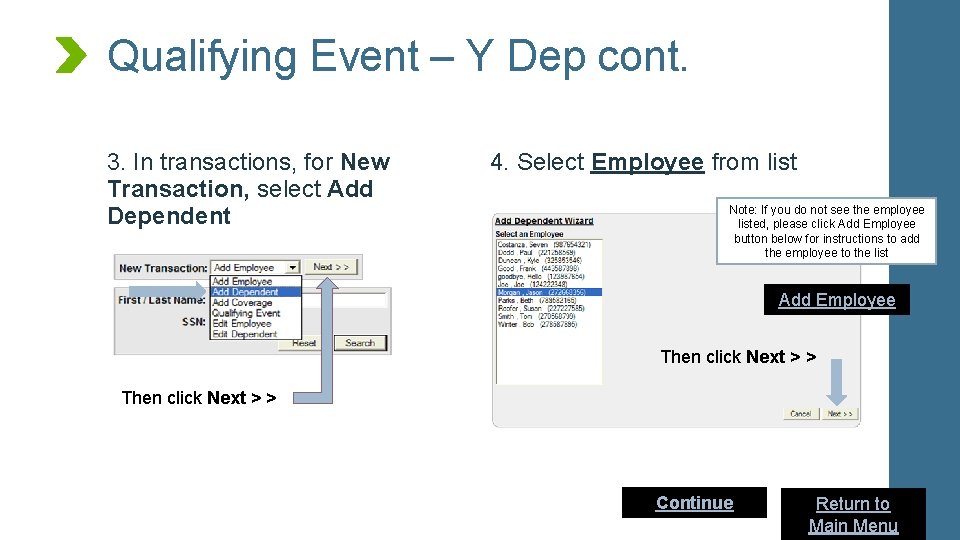
Qualifying Event – Y Dep cont. 3. In transactions, for New Transaction, select Add Dependent 4. Select Employee from list Note: If you do not see the employee listed, please click Add Employee button below for instructions to add the employee to the list Add Employee Then click Next > > Continue Return to 29 Main Menu
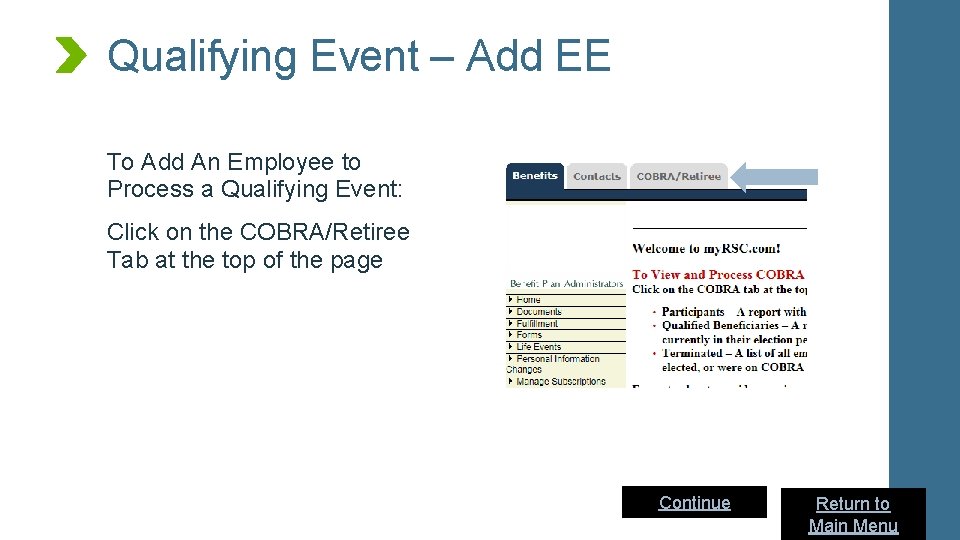
Qualifying Event – Add EE To Add An Employee to Process a Qualifying Event: Click on the COBRA/Retiree Tab at the top of the page Continue Return to 30 Main Menu
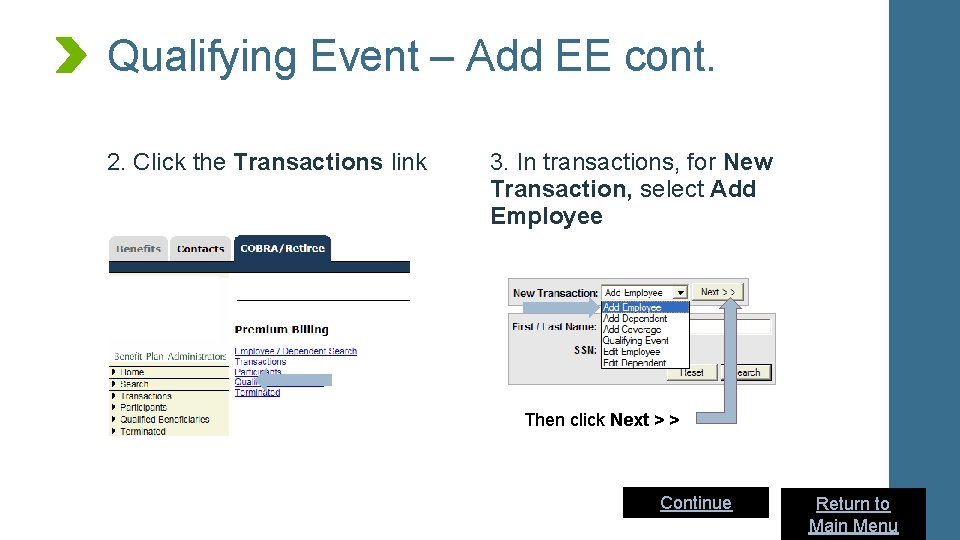
Qualifying Event – Add EE cont. 2. Click the Transactions link 3. In transactions, for New Transaction, select Add Employee Then click Next > > Continue Return to 31 Main Menu
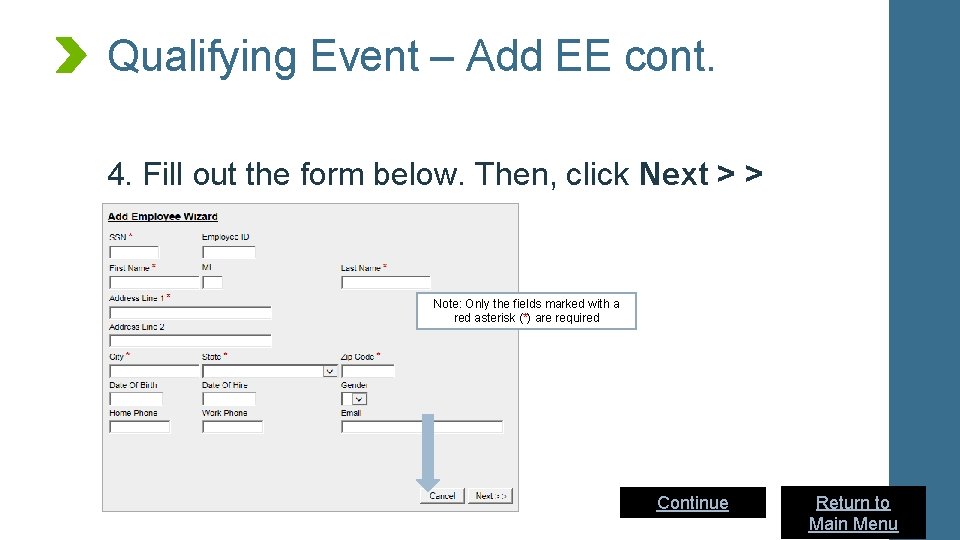
Qualifying Event – Add EE cont. 4. Fill out the form below. Then, click Next > > Note: Only the fields marked with a red asterisk (*) are required Continue Return to 32 Main Menu
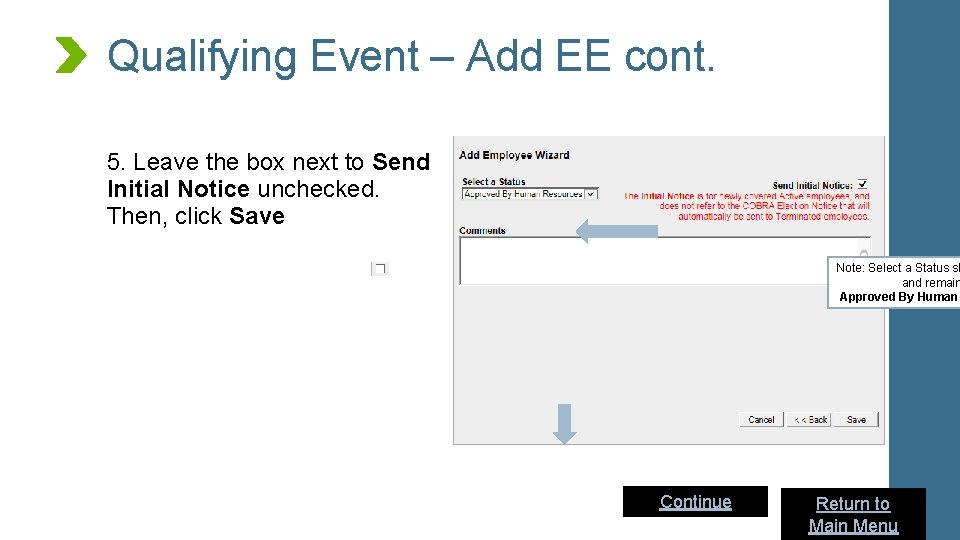
Qualifying Event – Add EE cont. 5. Leave the box next to Send Initial Notice unchecked. Then, click Save Note: Select a Status sh and remain Approved By Human Continue Return to 33 Main Menu
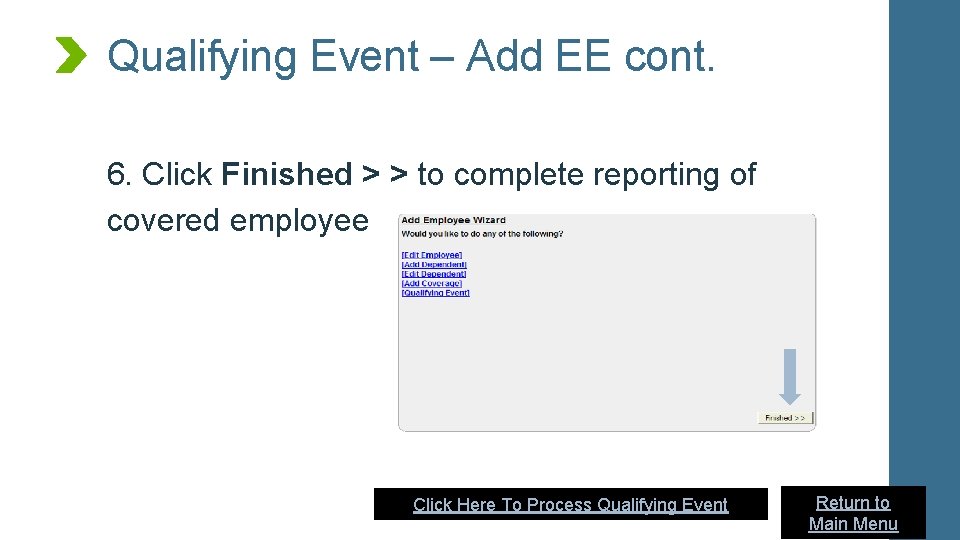
Qualifying Event – Add EE cont. 6. Click Finished > > to complete reporting of covered employee Click Here To Process Qualifying Event Return to 34 Main Menu
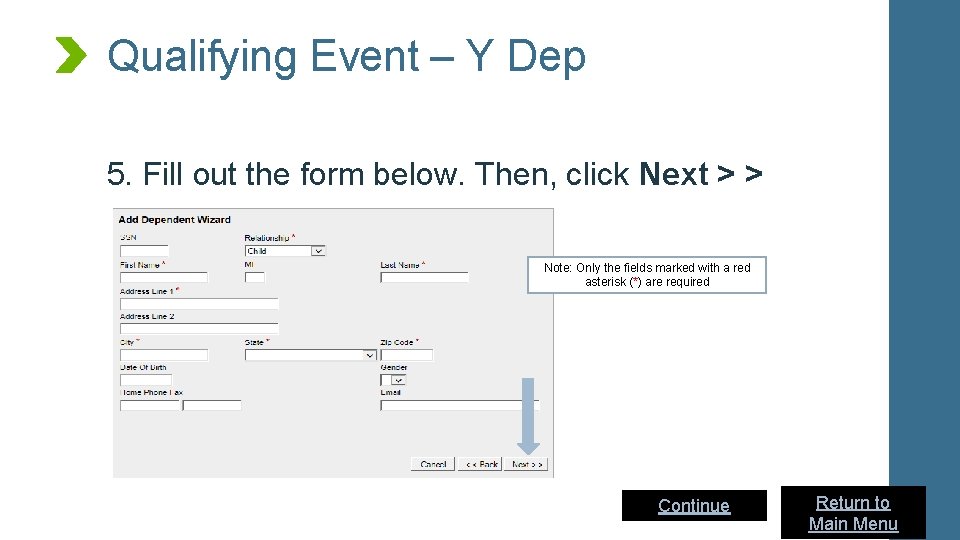
Qualifying Event – Y Dep 5. Fill out the form below. Then, click Next > > Note: Only the fields marked with a red asterisk (*) are required Continue Return to 35 Main Menu
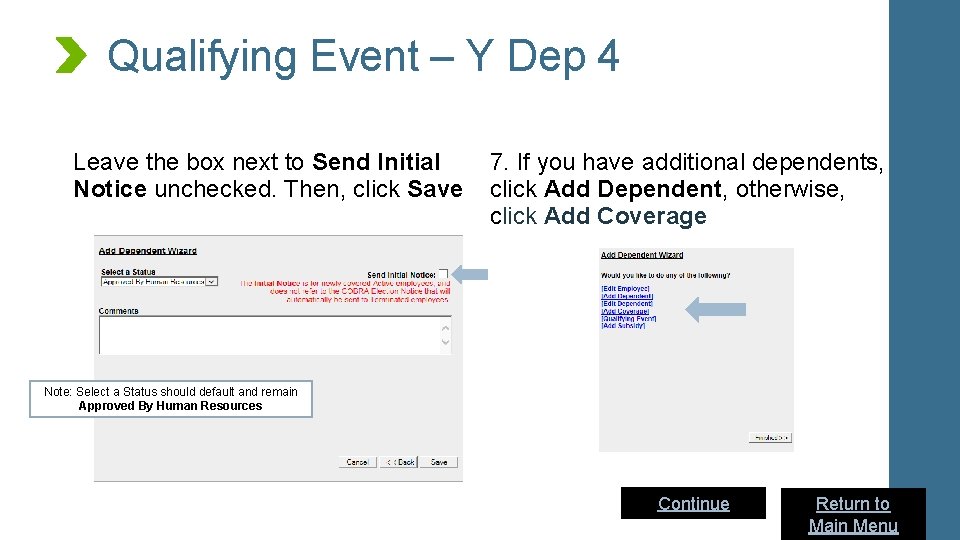
Qualifying Event – Y Dep 4 Leave the box next to Send Initial Notice unchecked. Then, click Save 7. If you have additional dependents, click Add Dependent, otherwise, click Add Coverage Note: Select a Status should default and remain Approved By Human Resources Continue Return to 36 Main Menu
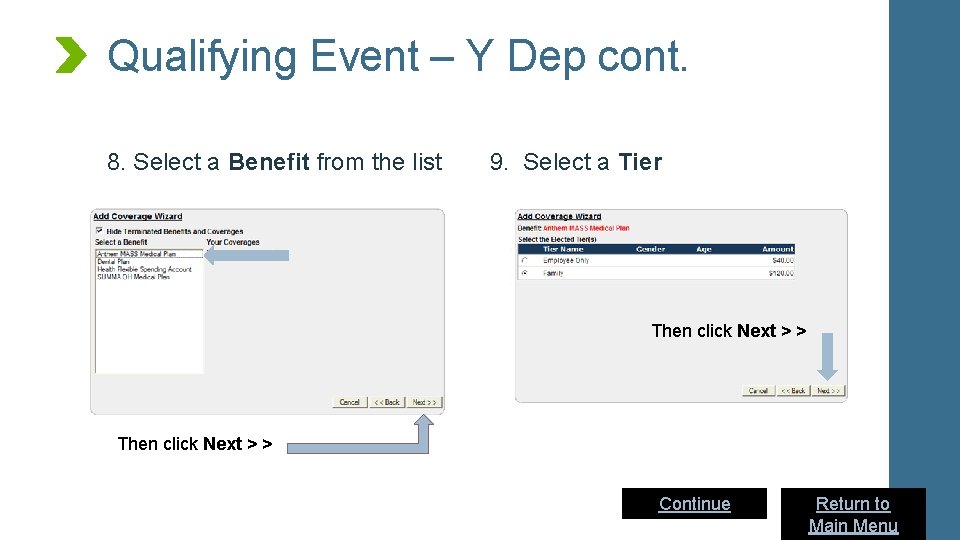
Qualifying Event – Y Dep cont. 8. Select a Benefit from the list 9. Select a Tier Then click Next > > Continue Return to 37 Main Menu
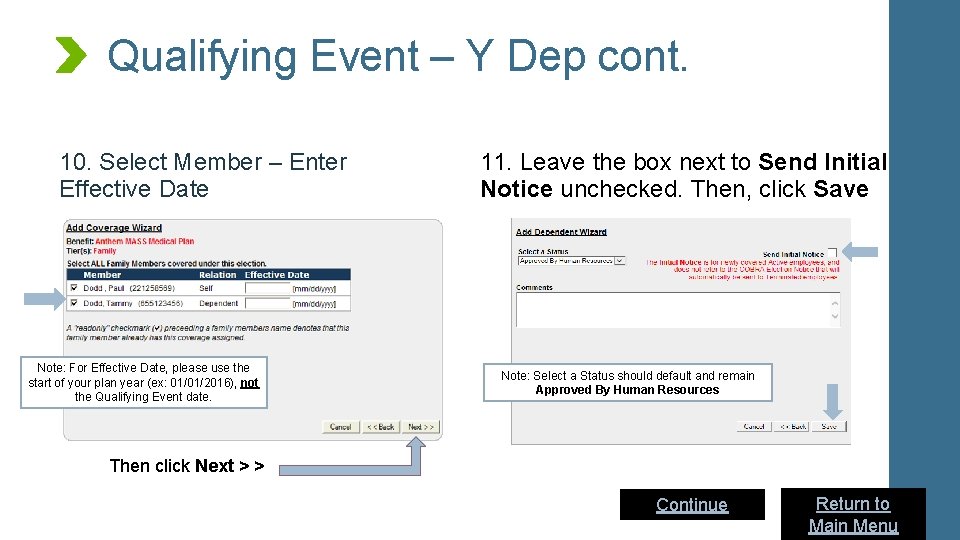
Qualifying Event – Y Dep cont. 10. Select Member – Enter Effective Date Note: For Effective Date, please use the start of your plan year (ex: 01/01/2016), not the Qualifying Event date. 11. Leave the box next to Send Initial Notice unchecked. Then, click Save Note: Select a Status should default and remain Approved By Human Resources Then click Next > > Continue Return to 38 Main Menu
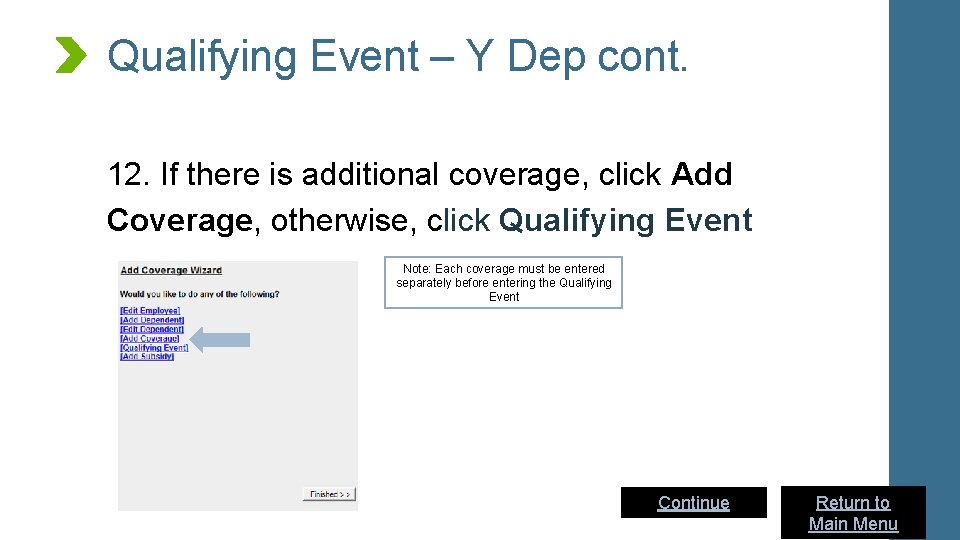
Qualifying Event – Y Dep cont. 12. If there is additional coverage, click Add Coverage, otherwise, click Qualifying Event Note: Each coverage must be entered separately before entering the Qualifying Event Continue Return to 39 Main Menu
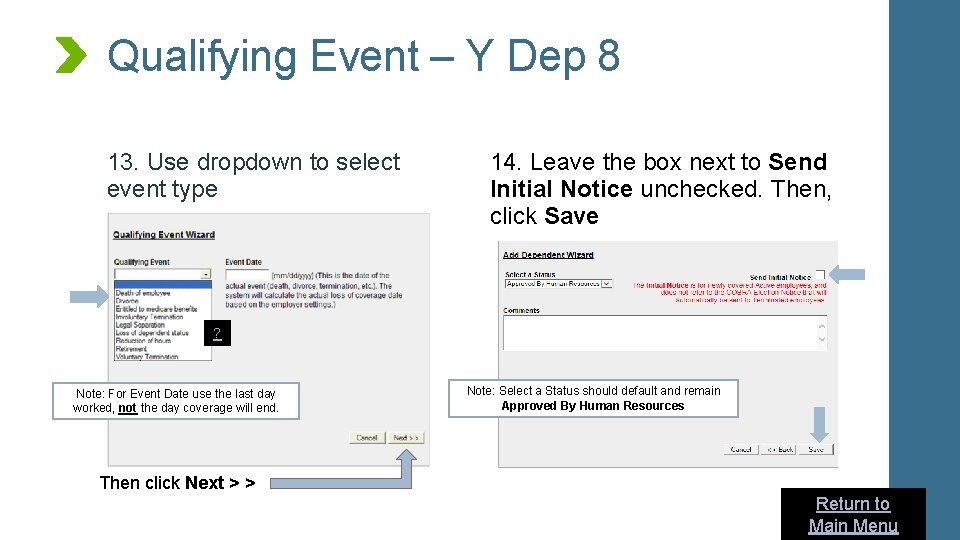
Qualifying Event – Y Dep 8 13. Use dropdown to select event type 14. Leave the box next to Send Initial Notice unchecked. Then, click Save ? Note: For Event Date use the last day worked, not the day coverage will end. Note: Select a Status should default and remain Approved By Human Resources Then click Next > > Return to Main Menu
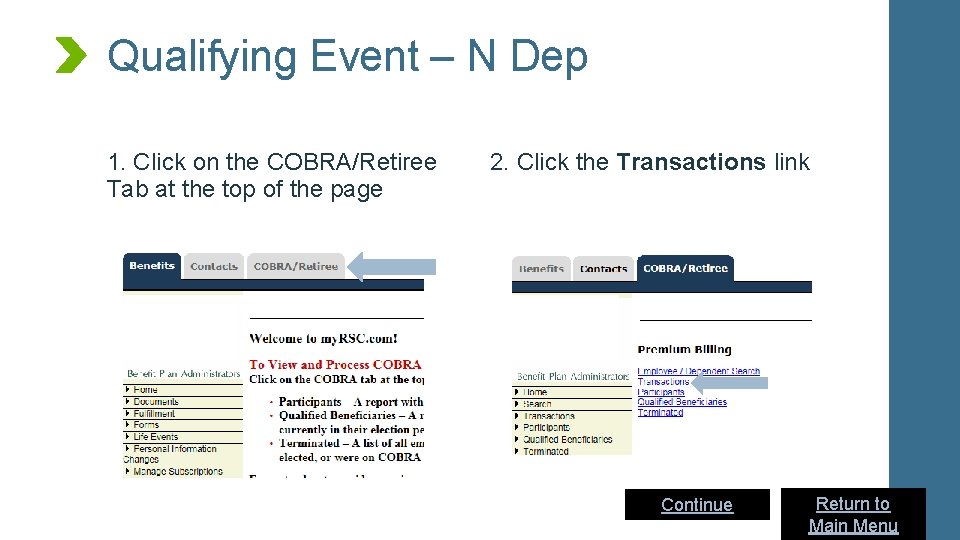
Qualifying Event – N Dep 1. Click on the COBRA/Retiree Tab at the top of the page 2. Click the Transactions link Continue Return to Main Menu
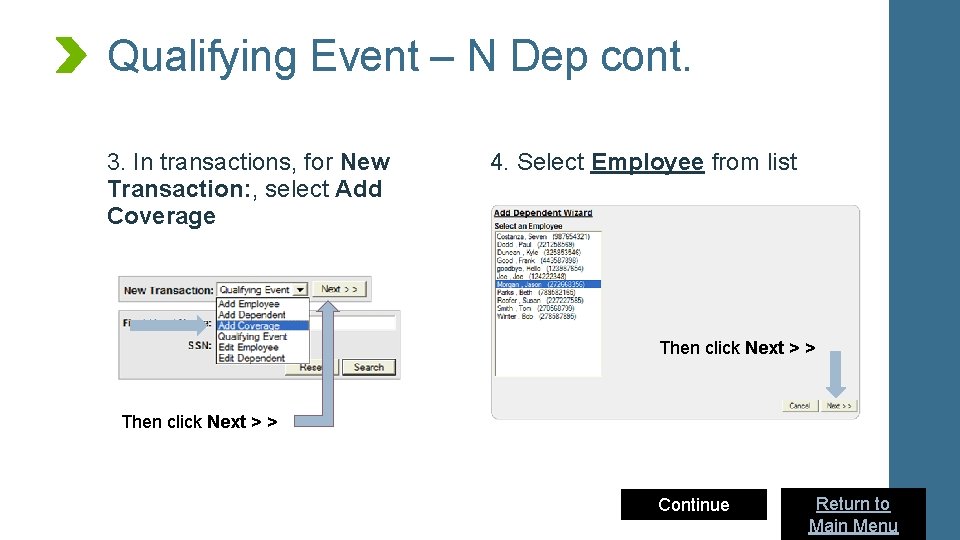
Qualifying Event – N Dep cont. 3. In transactions, for New Transaction: , select Add Coverage 4. Select Employee from list Then click Next > > Continue Return to Main Menu
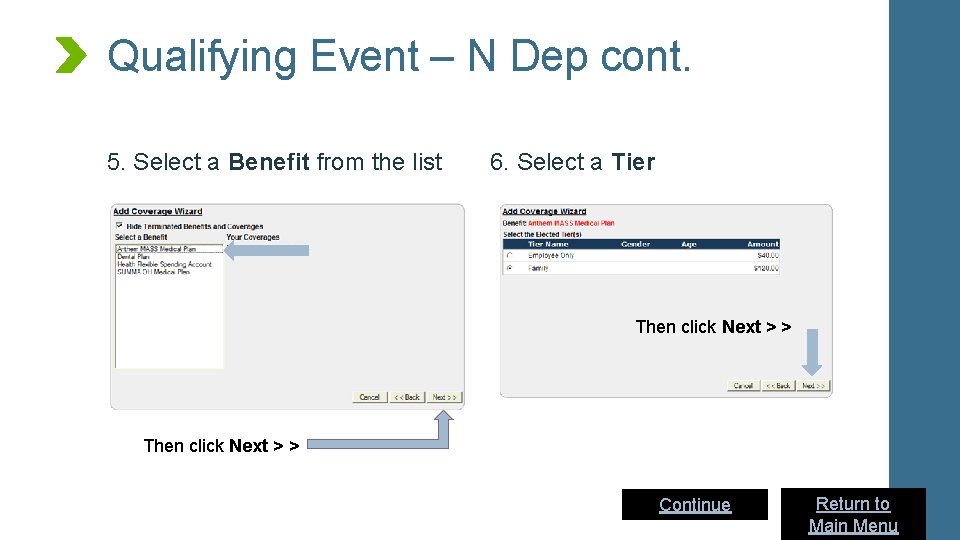
Qualifying Event – N Dep cont. 5. Select a Benefit from the list 6. Select a Tier Then click Next > > Continue Return to Main Menu
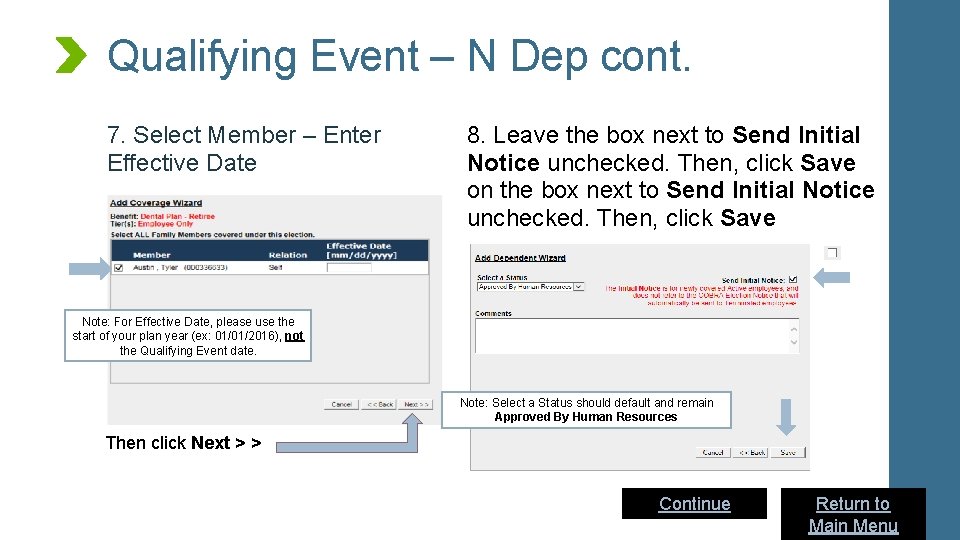
Qualifying Event – N Dep cont. 7. Select Member – Enter Effective Date 8. Leave the box next to Send Initial Notice unchecked. Then, click Save on the box next to Send Initial Notice unchecked. Then, click Save Note: For Effective Date, please use the start of your plan year (ex: 01/01/2016), not the Qualifying Event date. Note: Select a Status should default and remain Approved By Human Resources Then click Next > > Continue Return to Main Menu
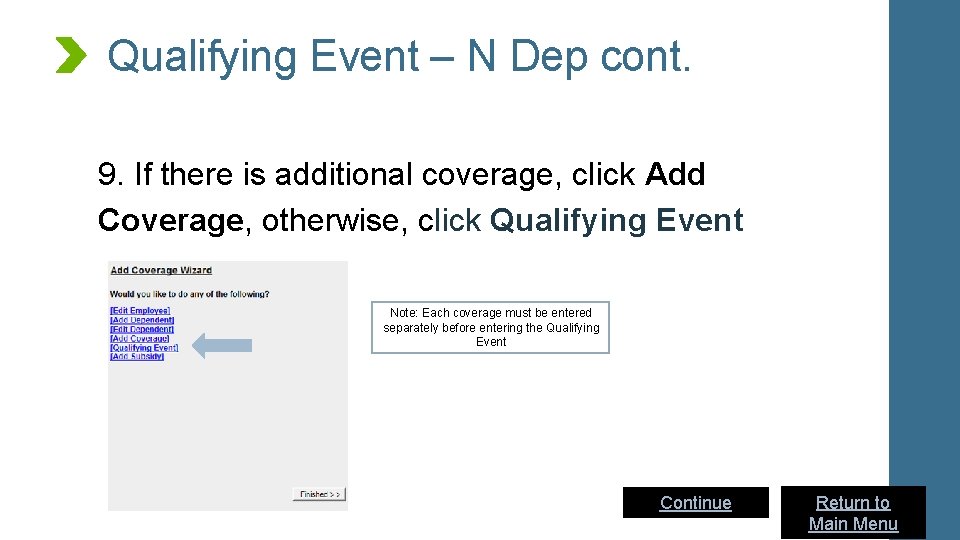
Qualifying Event – N Dep cont. 9. If there is additional coverage, click Add Coverage, otherwise, click Qualifying Event Note: Each coverage must be entered separately before entering the Qualifying Event Continue Return to Main Menu
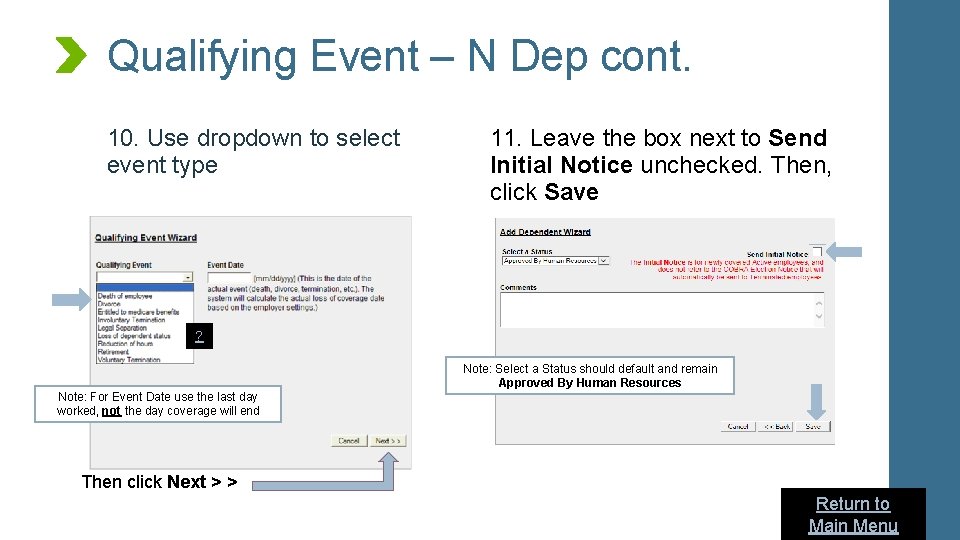
Qualifying Event – N Dep cont. 10. Use dropdown to select event type 11. Leave the box next to Send Initial Notice unchecked. Then, click Save ? Note: Select a Status should default and remain Approved By Human Resources Note: For Event Date use the last day worked, not the day coverage will end Then click Next > > Return to Main Menu
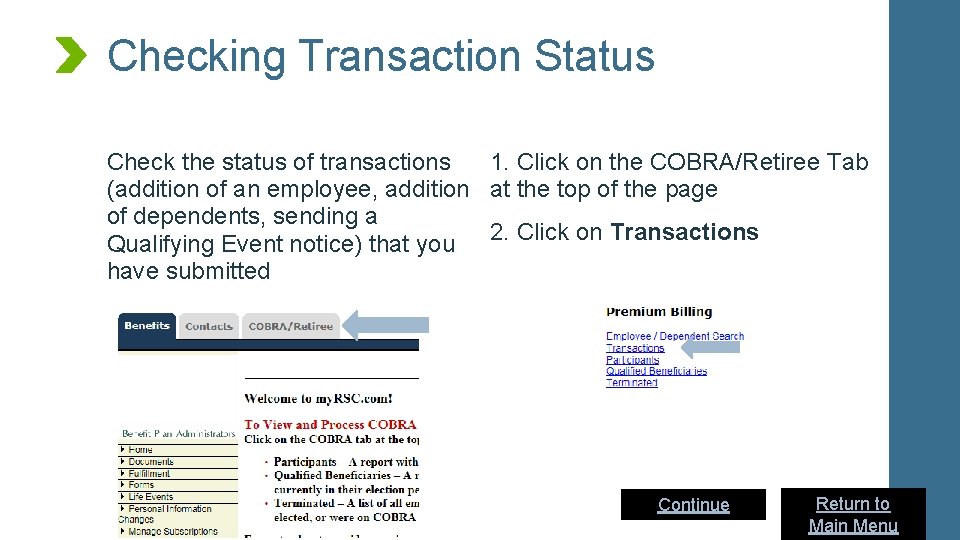
Checking Transaction Status Check the status of transactions 1. Click on the COBRA/Retiree Tab (addition of an employee, addition at the top of the page of dependents, sending a Qualifying Event notice) that you 2. Click on Transactions have submitted Continue Return to Main Menu
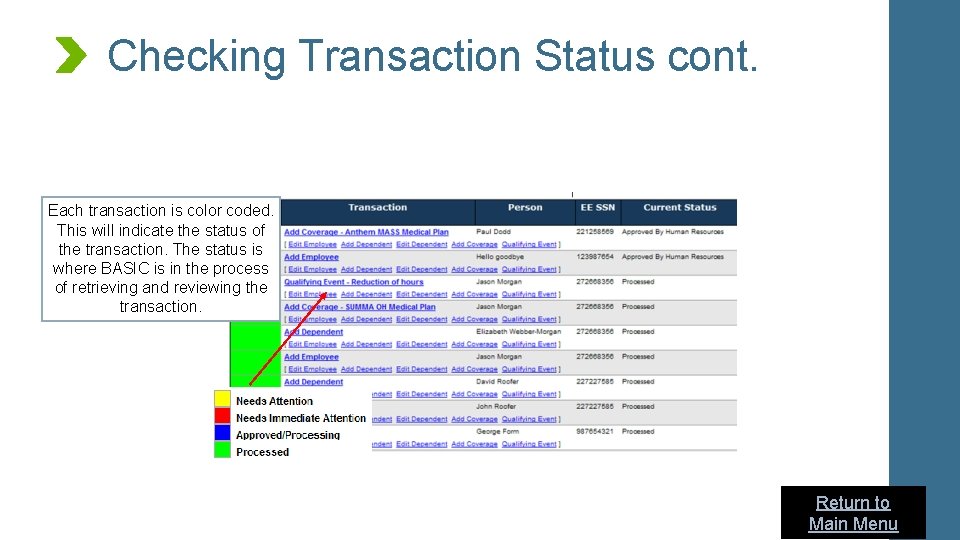
Checking Transaction Status cont. Each transaction is color coded. This will indicate the status of the transaction. The status is where BASIC is in the process of retrieving and reviewing the transaction. Return to Main Menu
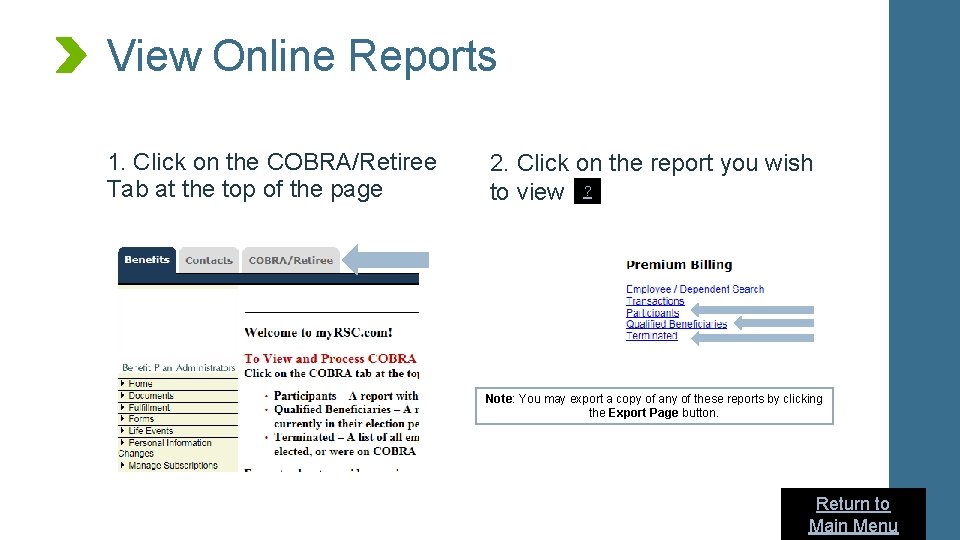
View Online Reports 1. Click on the COBRA/Retiree Tab at the top of the page 2. Click on the report you wish to view ? Note: You may export a copy of any of these reports by clicking the Export Page button. Return to Main Menu
View Online Reports cont. • Participants Report: This is a list of all current COBRA participants that includes start date, benefits, and current paid through date. • Qualified Beneficiaries: Indicates all employees who are in their 60 -day COBRA election period because they have recently experienced a Qualifying Event and lost coverage AND who received an election notice for COBRA Continuation coverage from BASIC. The report includes their event date and last day to elect coverage. • Terminated: This report lists any individual who was offered or accepted COBRA and terminated. (e. g. , due to failure to make timely election or payment. ) Go Back Return to Main Menu
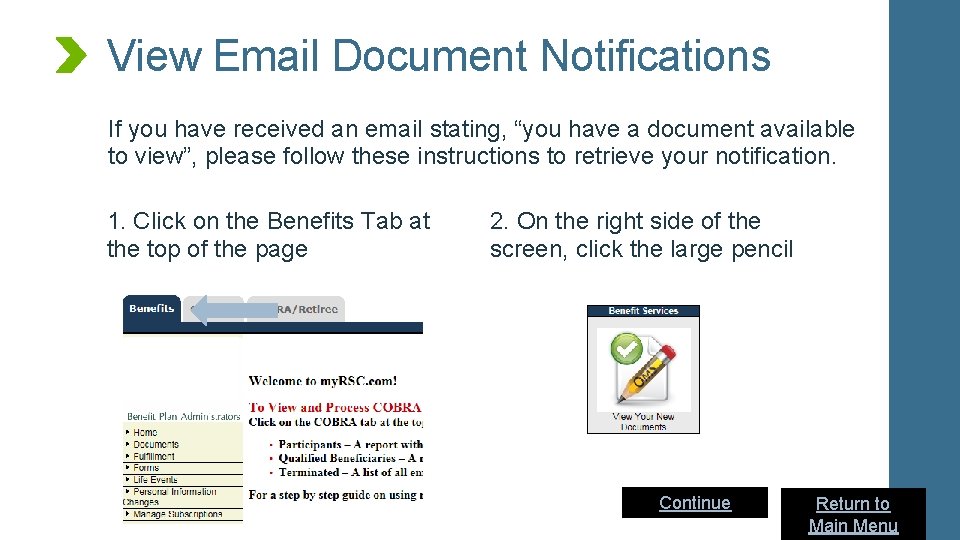
View Email Document Notifications If you have received an email stating, “you have a document available to view”, please follow these instructions to retrieve your notification. 1. Click on the Benefits Tab at the top of the page 2. On the right side of the screen, click the large pencil Continue Return to Main Menu
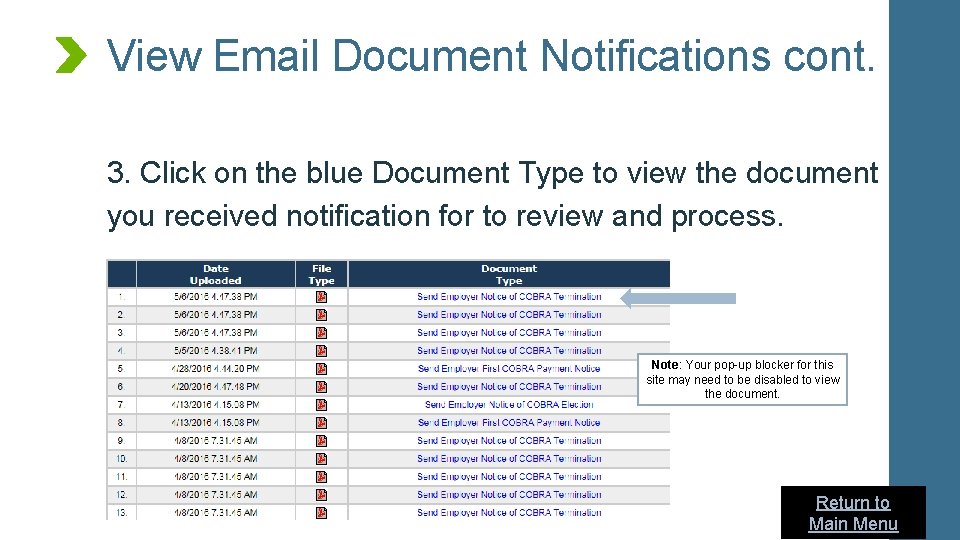
View Email Document Notifications cont. 3. Click on the blue Document Type to view the document you received notification for to review and process. Note: Your pop-up blocker for this site may need to be disabled to view the document. Return to Main Menu
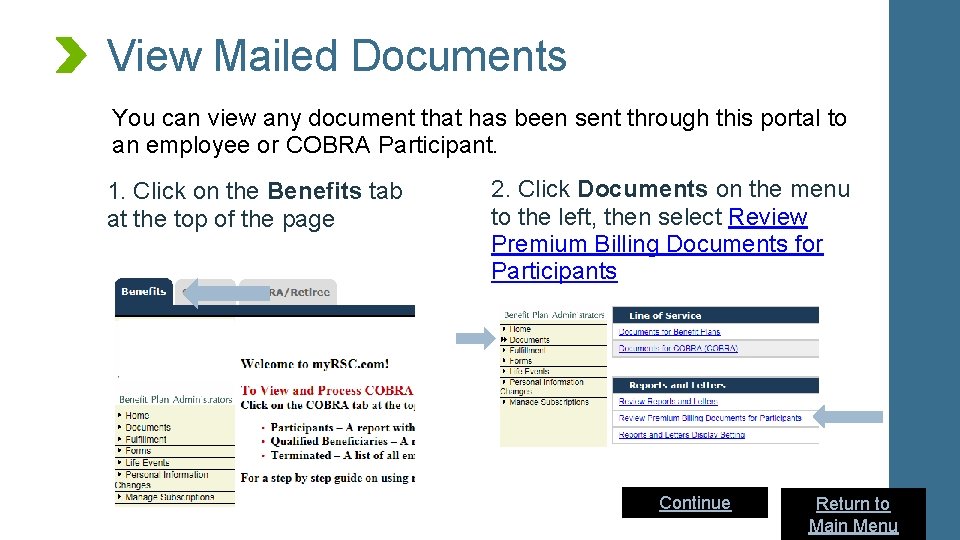
View Mailed Documents You can view any document that has been sent through this portal to an employee or COBRA Participant. 1. Click on the Benefits tab at the top of the page 2. Click Documents on the menu to the left, then select Review Premium Billing Documents for Participants Continue Return to Main Menu
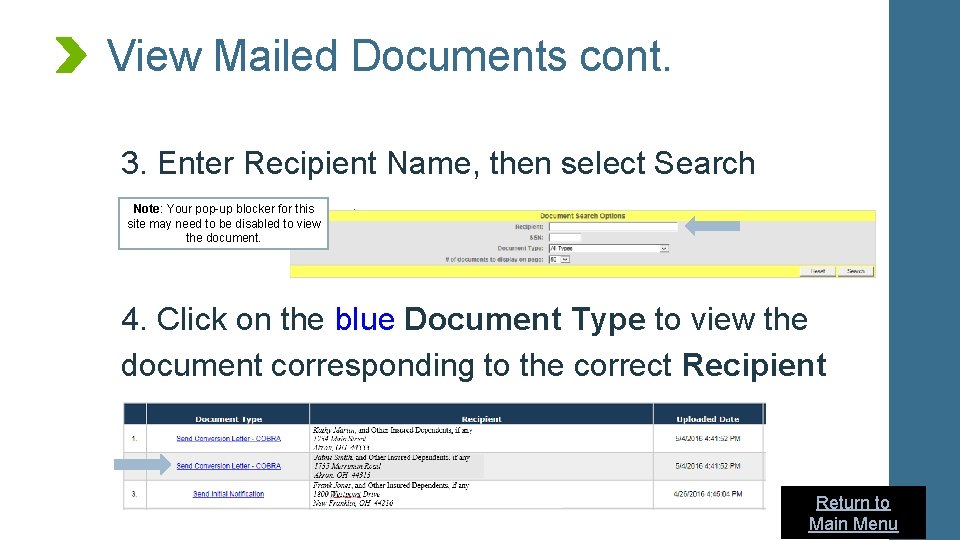
View Mailed Documents cont. 3. Enter Recipient Name, then select Search Note: Your pop-up blocker for this site may need to be disabled to view the document. 4. Click on the blue Document Type to view the document corresponding to the correct Recipient Return to Main Menu
- Slides: 54