
Barcode and Pin Gaining access to services and
Barcode and Pin Gaining access to services and resources Ryan M. Shook, MLS Assistant Professor, Digital Librarian University Libraries Robert F. Kennedy Memorial Library Office: +1 (671) 735 -2342 Mobile: +1 (671) 689 -4449 shookr@triton. uog. edu https: //www. uog. edu/library
Objectives ▪ Identify Barcode # on a UOG Student ID. ▪ Create a New Library Account & user PIN. ▪ Changing a User PIN. ▪ Log in via UOG Library Patron Authentication screen.
Objectives ▪ Identify Barcode # on a UOG Student ID. ▪ Create a New Library Account & user PIN. ▪ Changing a User PIN. ▪ Log in via UOG Library Patron Authentication screen.
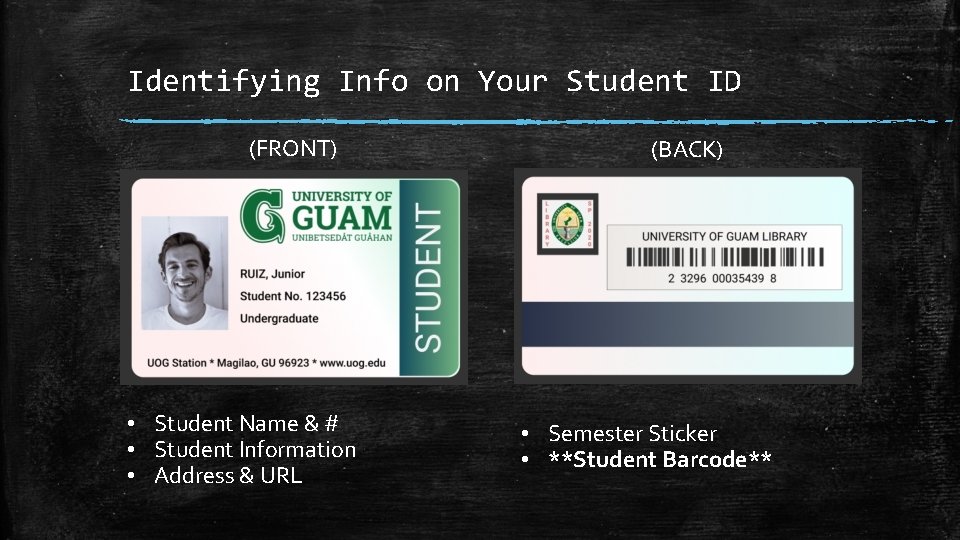
Identifying Info on Your Student ID (FRONT) • Student Name & # • Student Information • Address & URL (BACK) • Semester Sticker • **Student Barcode**

Student Barcode Number is located on the back of your student ID Card. (FRONT) • Student Name & # • Student Information • Address & URL (BACK) • Semester Sticker • **Student Barcode**
Objectives ▪ Identify Barcode # on a UOG Student ID. ▪ Create a New Library Account & user PIN. ▪ Changing a User PIN. ▪ Log in via UOG Library Patron Authentication screen.
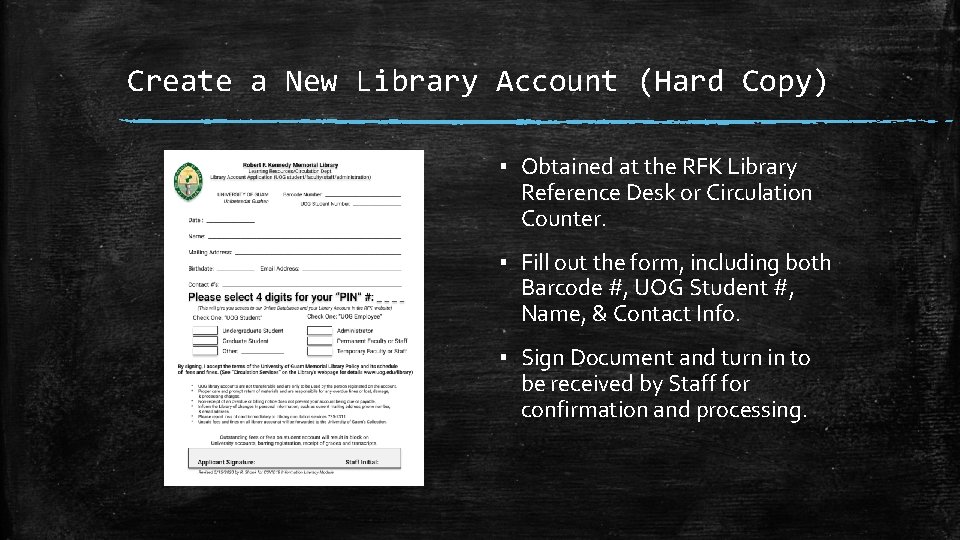
Create a New Library Account (Hard Copy) ▪ Obtained at the RFK Library Reference Desk or Circulation Counter. ▪ Fill out the form, including both Barcode #, UOG Student #, Name, & Contact Info. ▪ Sign Document and turn in to be received by Staff for confirmation and processing.
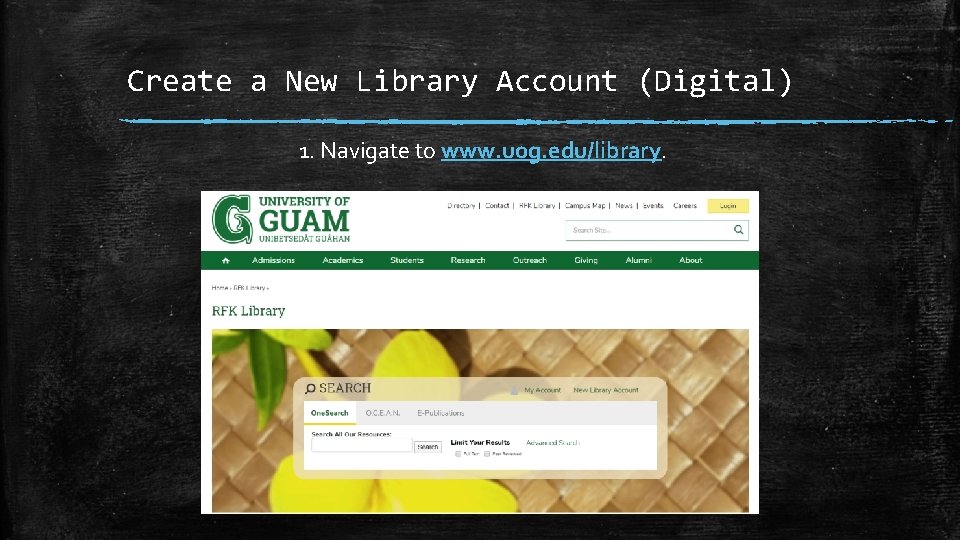
Create a New Library Account (Digital) 1. Navigate to www. uog. edu/library.
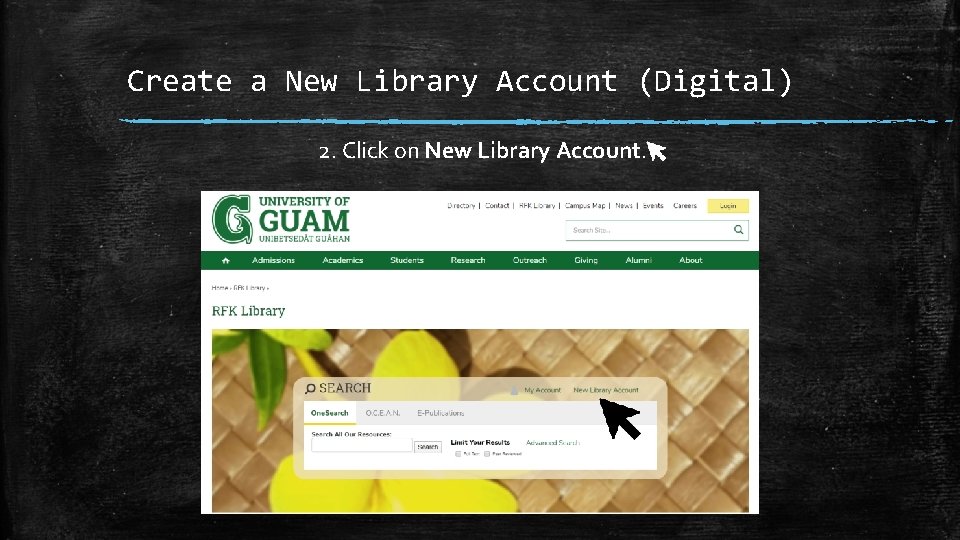
Create a New Library Account (Digital) 2. Click on New Library Account.
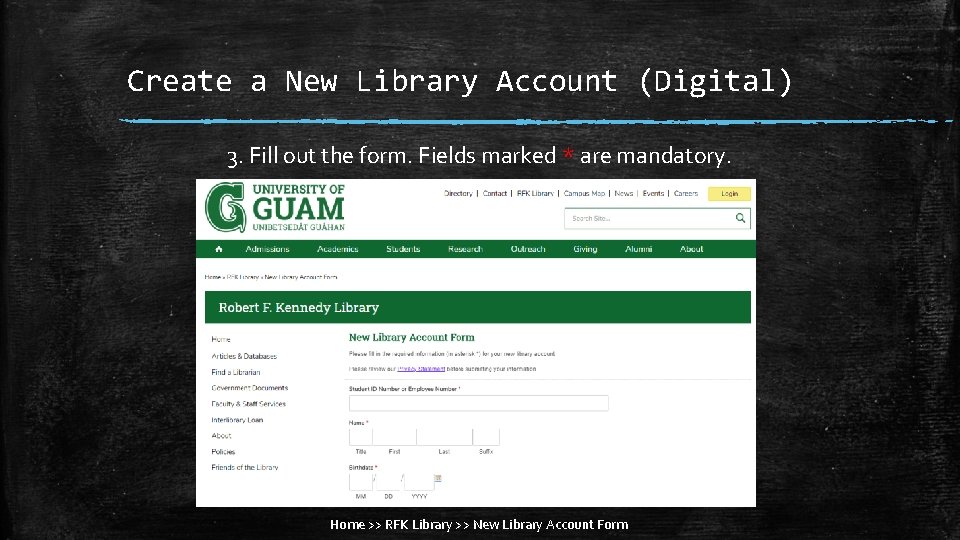
Create a New Library Account (Digital) 3. Fill out the form. Fields marked * are mandatory. Home >> RFK Library >> New Library Account Form
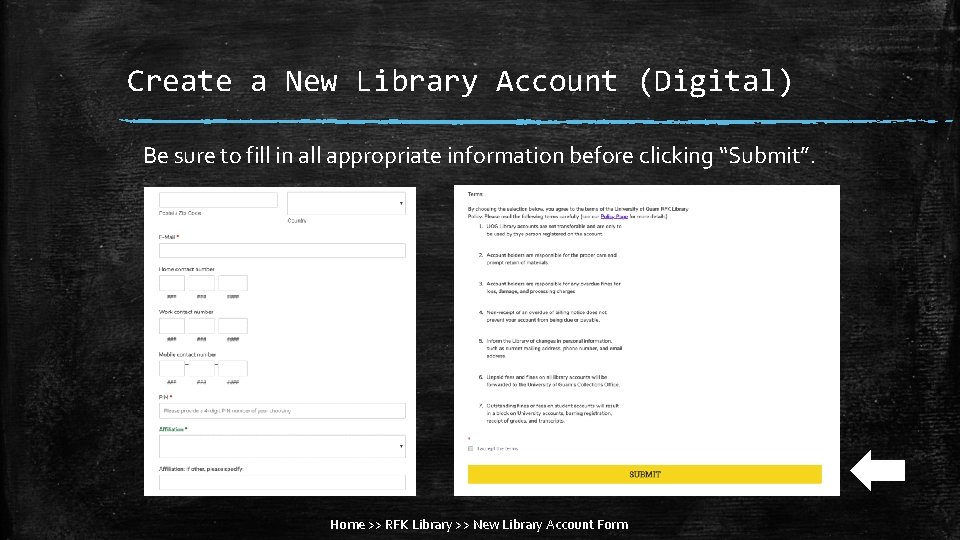
Create a New Library Account (Digital) Be sure to fill in all appropriate information before clicking “Submit”. Home >> RFK Library >> New Library Account Form
Objectives ▪ Identify Barcode # on a UOG Student ID. ▪ Create a New Library Account & user PIN. ▪ Changing a User PIN. ▪ Log in via UOG Library Patron Authentication screen.
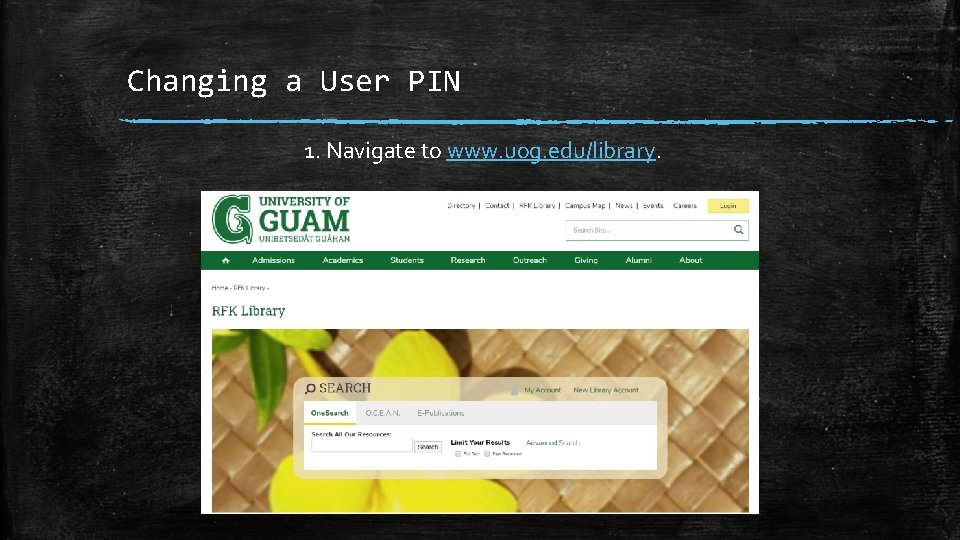
Changing a User PIN 1. Navigate to www. uog. edu/library.
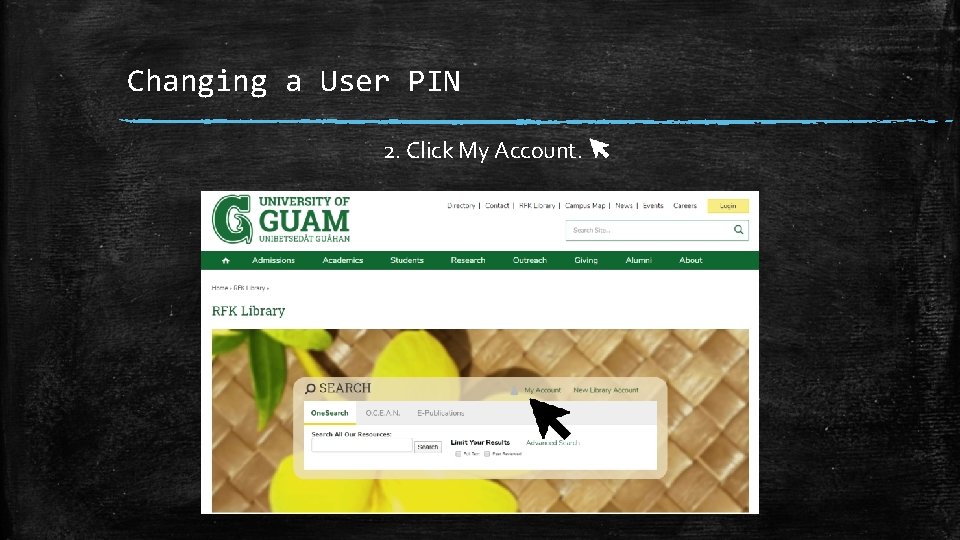
Changing a User PIN 2. Click My Account.
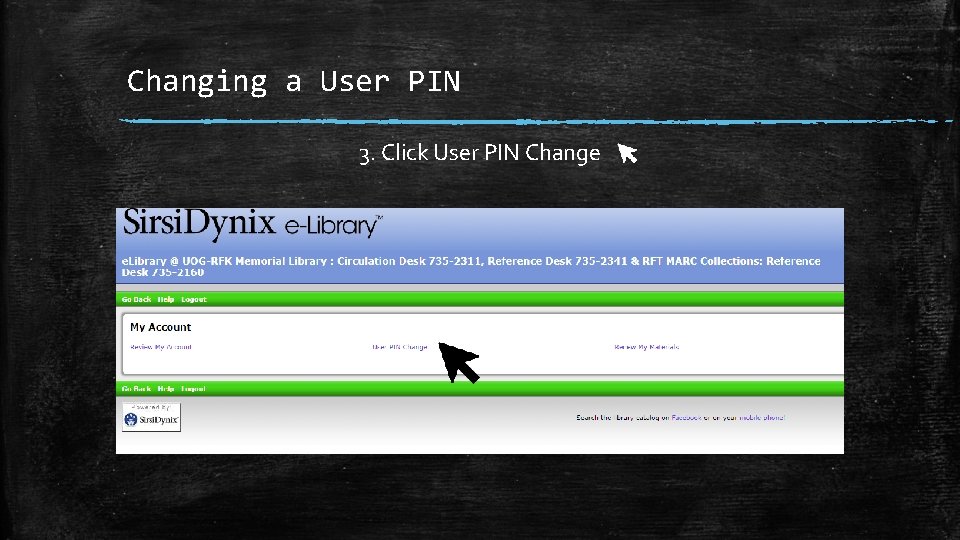
Changing a User PIN 3. Click User PIN Change
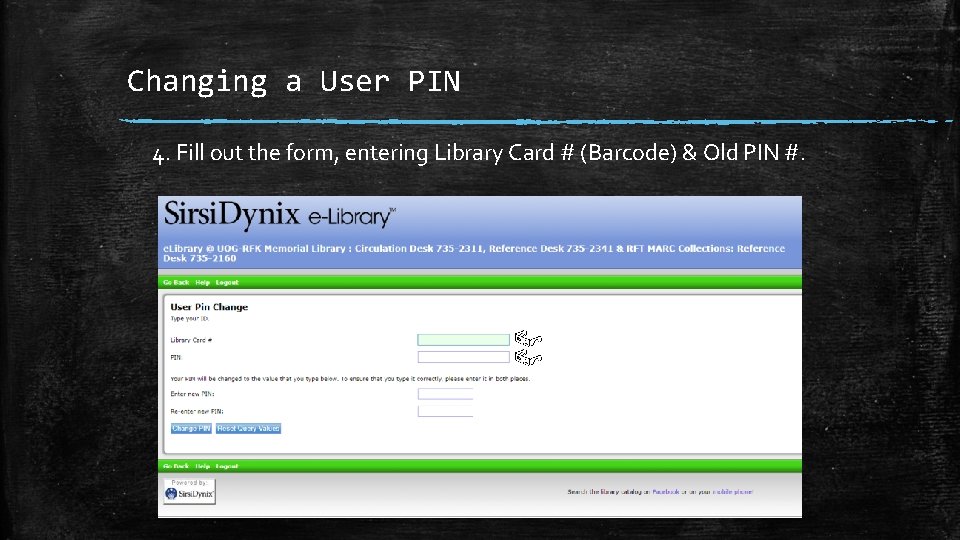
Changing a User PIN 4. Fill out the form, entering Library Card # (Barcode) & Old PIN #.
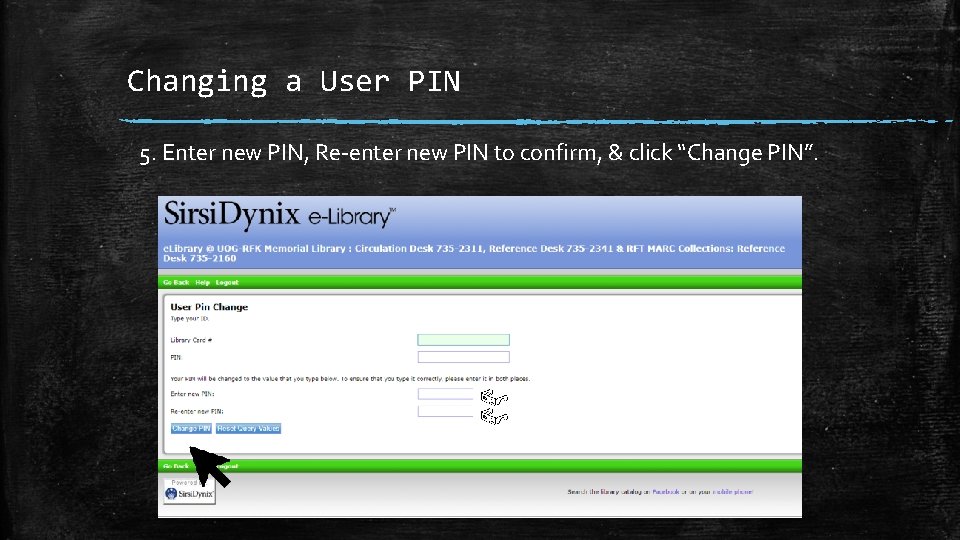
Changing a User PIN 5. Enter new PIN, Re-enter new PIN to confirm, & click “Change PIN”.
Objectives ▪ Identify Barcode # on a UOG Student ID. ▪ Create a New Library Account & user PIN. ▪ Changing a User PIN. ▪ Log in via UOG Library Patron Authentication screen.
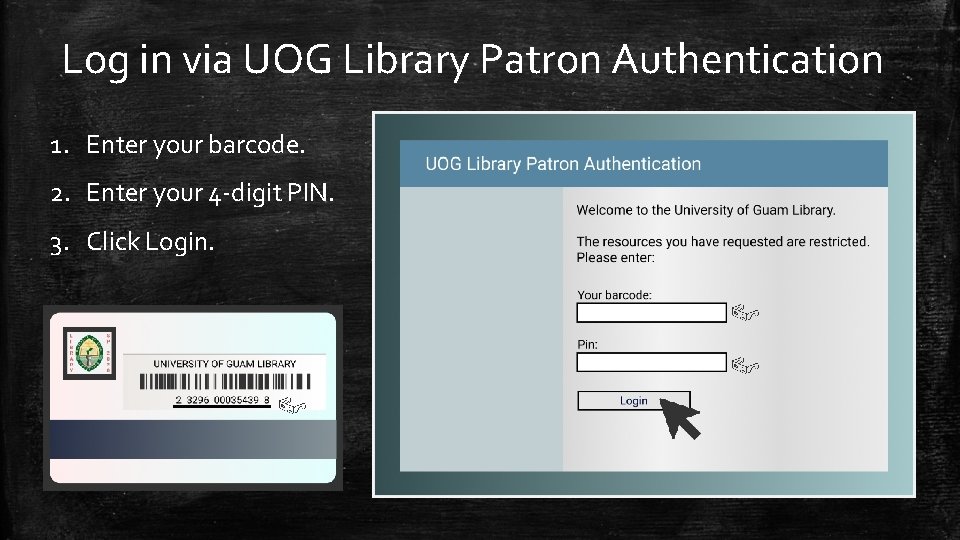
Log in via UOG Library Patron Authentication 1. Enter your barcode. 2. Enter your 4 -digit PIN. 3. Click Login.
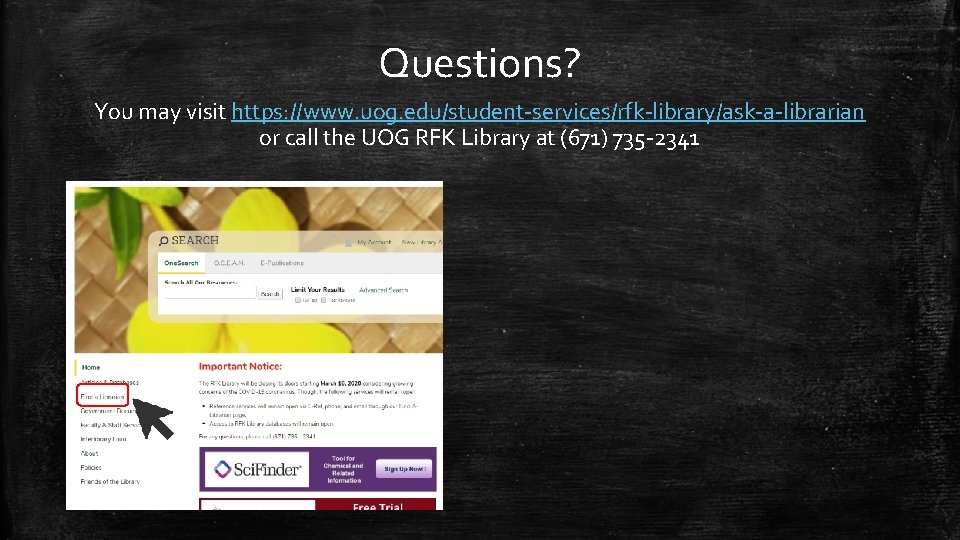
Questions? You may visit https: //www. uog. edu/student-services/rfk-library/ask-a-librarian or call the UOG RFK Library at (671) 735 -2341
Thank You. Ryan M. Shook, MLS Assistant Professor, Digital Librarian University Libraries Robert F. Kennedy Memorial Library Office: +1 (671) 735 -2342 Mobile: +1 (671) 689 -4449 shookr@triton. uog. edu https: //www. uog. edu/library
- Slides: 21