
Balloon Popper Game Information Technology Career Cluster Activity
Balloon Popper Game Information Technology Career Cluster Activity
Step 1 Go to https: //tinyurl. com/Newclickergame. This will take you to Scratch, MIT’s coding website.
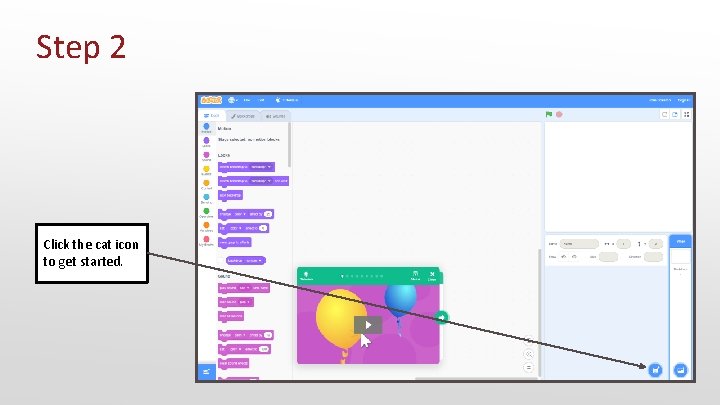
Step 2 Click the cat icon to get started.
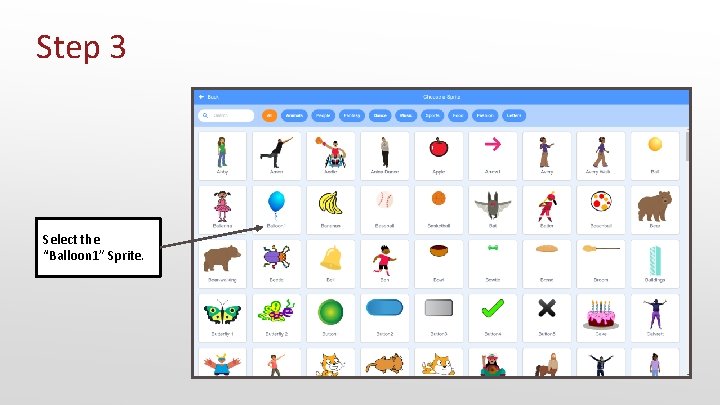
Step 3 Select the “Balloon 1” Sprite.
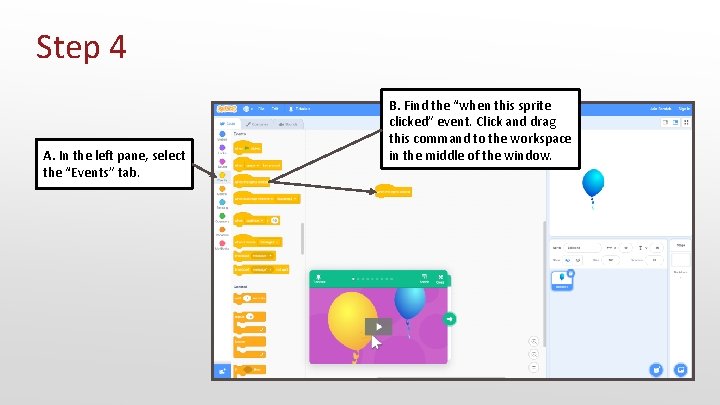
Step 4 A. In the left pane, select the “Events” tab. B. Find the “when this sprite clicked” event. Click and drag this command to the workspace in the middle of the window.
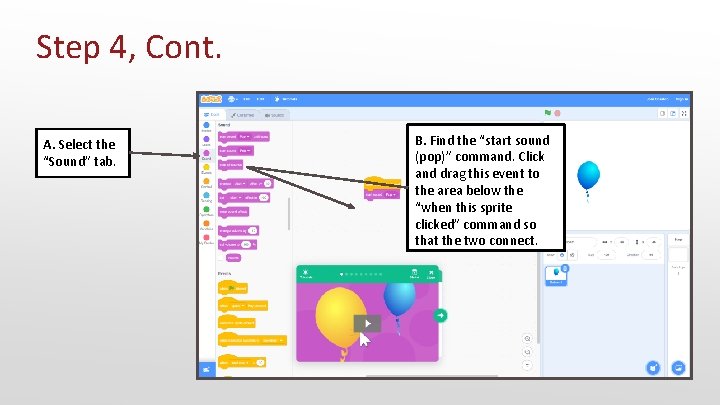
Step 4, Cont. A. Select the “Sound” tab. B. Find the “start sound (pop)” command. Click and drag this event to the area below the “when this sprite clicked” command so that the two connect.
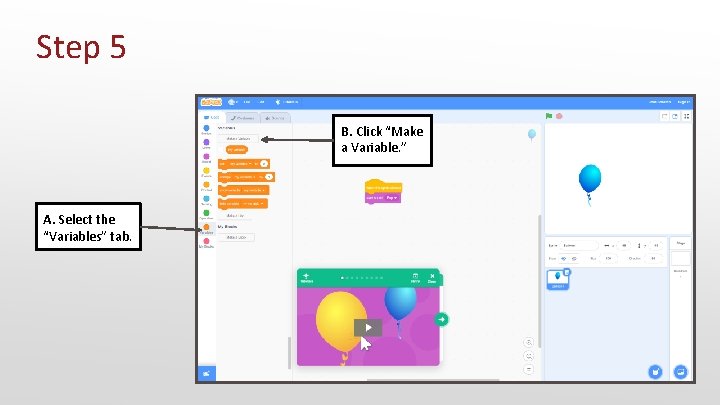
Step 5 B. Click “Make a Variable. ” A. Select the “Variables” tab.
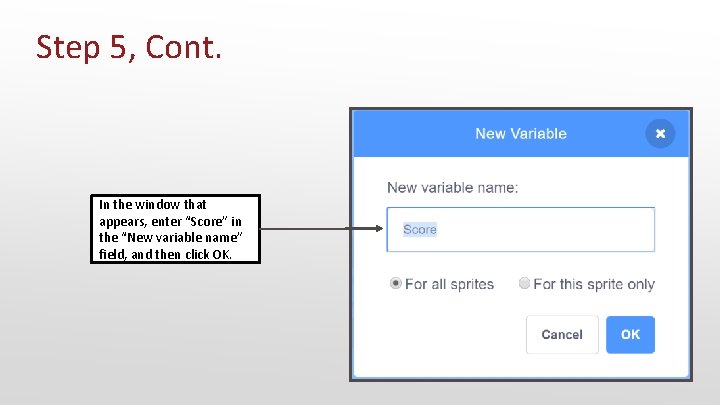
Step 5, Cont. In the window that appears, enter “Score” in the “New variable name” field, and then click OK.
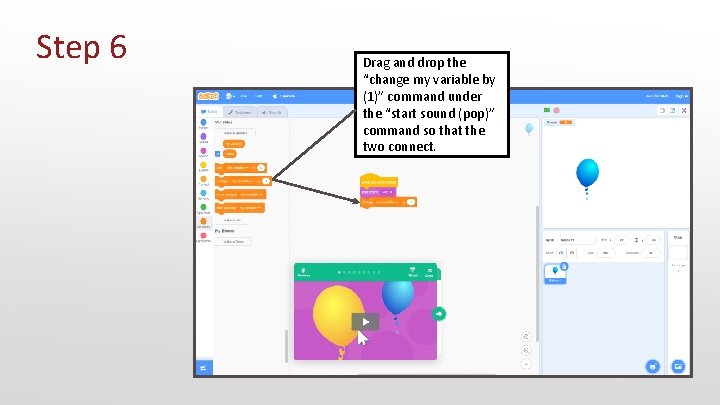
Step 6 Drag and drop the “change my variable by (1)” command under the “start sound (pop)” command so that the two connect.
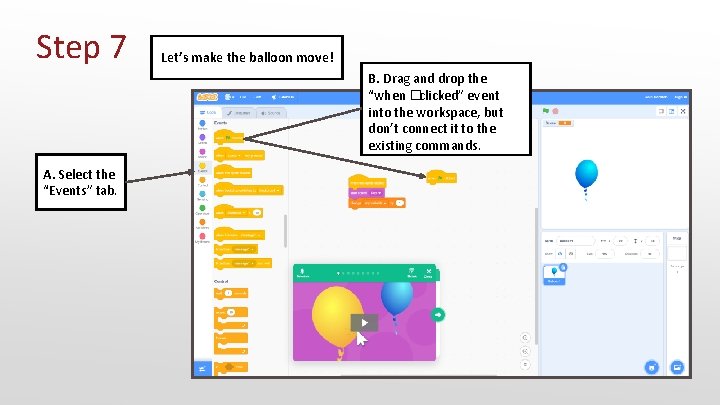
Step 7 Let’s make the balloon move! B. Drag and drop the “when �clicked” event into the workspace, but don’t connect it to the existing commands. A. Select the “Events” tab.
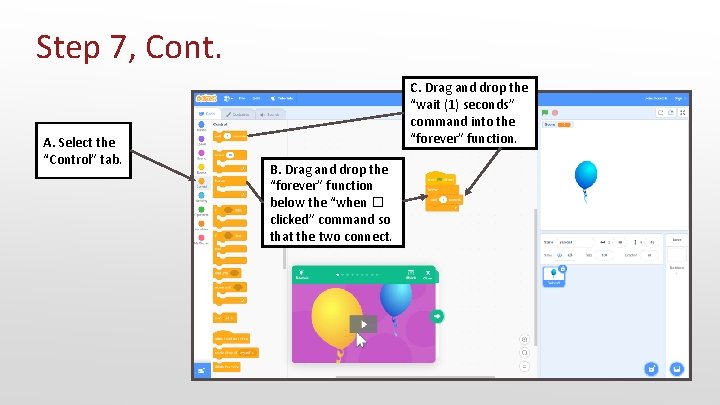
Step 7, Cont. A. Select the “Control” tab. C. Drag and drop the “wait (1) seconds” command into the “forever” function. B. Drag and drop the “forever” function below the “when � clicked” command so that the two connect.
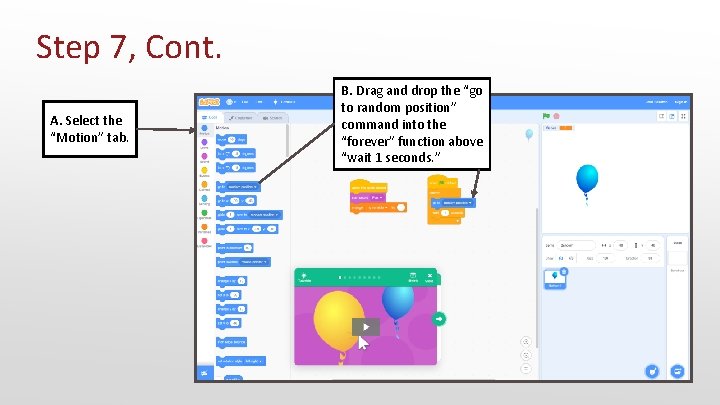
Step 7, Cont. A. Select the “Motion” tab. B. Drag and drop the “go to random position” command into the “forever” function above “wait 1 seconds. ”
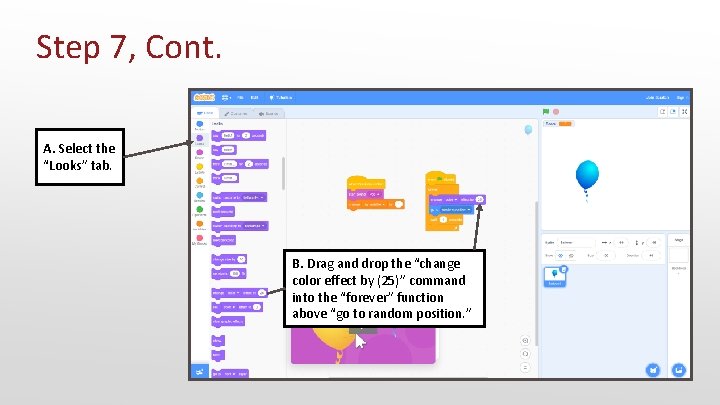
Step 7, Cont. A. Select the “Looks” tab. B. Drag and drop the “change color effect by (25)” command into the “forever” function above “go to random position. ”
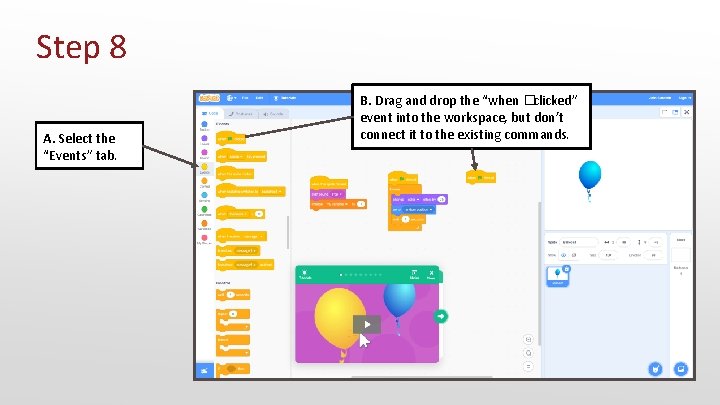
Step 8 A. Select the “Events” tab. B. Drag and drop the “when �clicked” event into the workspace, but don’t connect it to the existing commands.
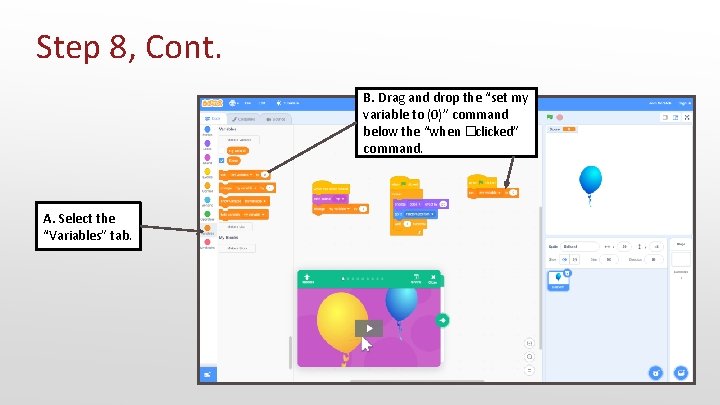
Step 8, Cont. B. Drag and drop the “set my variable to (0)” command below the “when �clicked” command. A. Select the “Variables” tab.
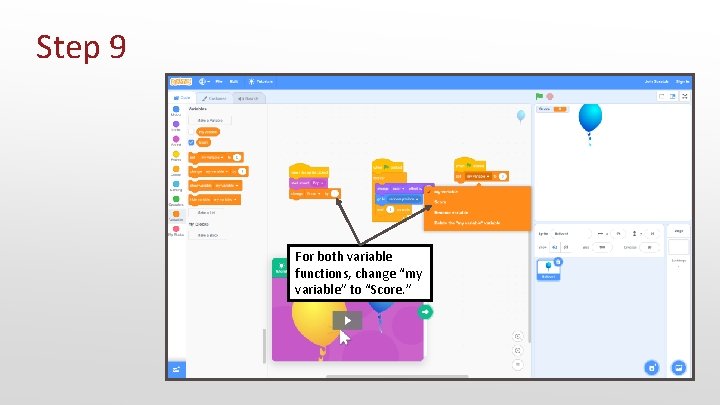
Step 9 For both variable functions, change “my variable” to “Score. ”
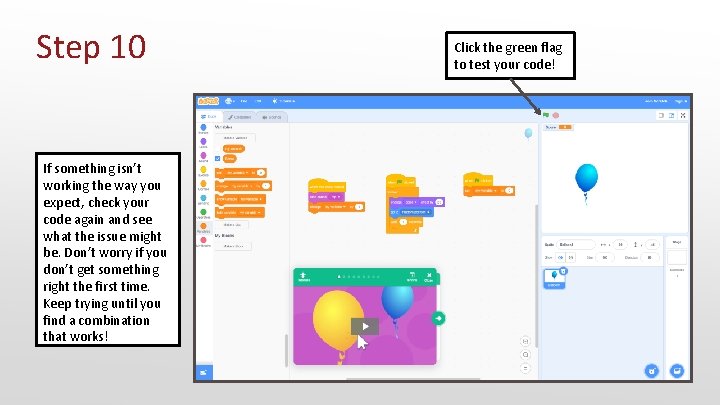
Step 10 If something isn’t working the way you expect, check your code again and see what the issue might be. Don’t worry if you don’t get something right the first time. Keep trying until you find a combination that works! Click the green flag to test your code!
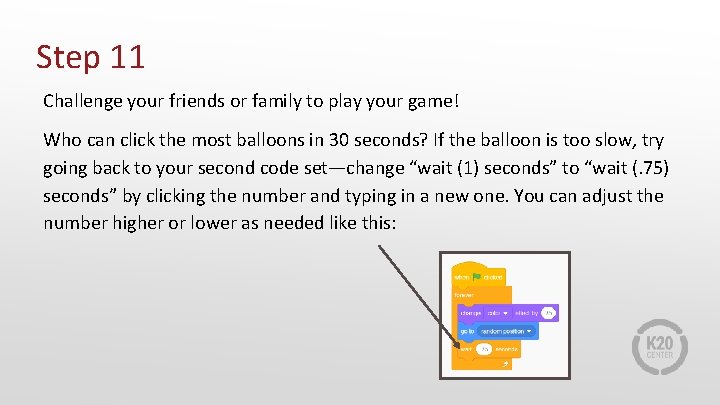
Step 11 Challenge your friends or family to play your game! Who can click the most balloons in 30 seconds? If the balloon is too slow, try going back to your second code set—change “wait (1) seconds” to “wait (. 75) seconds” by clicking the number and typing in a new one. You can adjust the number higher or lower as needed like this:
What’s Next? Next, complete the “How Am I Feeling? What Am I Thinking? ” activity found in the activity guide to reflect on your exploration in Scratch.
- Slides: 19