
Bailiff Training Session August 2020 Recommended Prep Download
Bailiff Training Session August 2020
Recommended Prep • Download Zoom and make an account (it’s free) • Read the Bailiff Checklist • Open Zoom and click around to get comfortable with the interface • Open the practice Google Drive and poke around to get familiar with the folder and what it contains • Open a ballot and take a look at it
Agenda • Role of the Bailiff • Getting in to Your Room • Bailiff’s Script/Checklist • Zoom Functions • Google Drive • Connectivity Issues
Agenda • Role of the Bailiff • Getting in to Your Room • Bailiff’s Script/Checklist • Zoom Functions • Google Drive • Connectivity Issues
Role of the Bailiff • Ensure that Zoom courtroom is running smoothly • Help judges if they have technical questions on Zoom or Ballots • Help students who have connectivity problems • Let Tab Room know of any issues
General Bailiff Tasks • Check-in Students • Place into breakout rooms • Check-in Judges • Distribute ballot links • Start live stream • Wait for Tab to give all clear • Note round start time to calculate All-Loss • Round proceeds as normal (pretrial, openings, 1 st case-in-chief) • Mid-trial break • Place students in breakout rooms • Bring everyone back and trial continues • End of trial • Stop the live stream • Confirm ballots submitted by judges
Dress for Bailiffs • Nice looking clothes (casual ok) • Above sweat pants • Below suit • Don’t need to wear a suit, but you will be on camera at certain points during the round
Recommended Tech Setup • Laptop or desktop required • Tablet and phone do not have the needed features • Wired connection beats a wireless connection • Beware of other bandwidth usage on your network • Remember your background!
Communicating with Tab Room • We will use Slack • If you are already a member of the AMTA Slack account, you don’t need to do anything • If you are not, we will add you – keep an eye out for that email
Agenda • Role of the Bailiff • Getting in to Your Room • Bailiff’s Script/Checklist • Zoom Functions • Google Drive • Connectivity Issues
Your Courtroom • Two components: • Zoom Room • Google Drive Folder • Courtroom assignments will be sent to you ahead of time • If doing multiple rounds, new Zoom link for each round but same Courtroom Folder
Signing On • Tab Room staff must let you into the room • Then, you will be designated the “host” • It may take time for us to get to your room • Please click the link to your room 15 minutes before the student check-in time
Agenda • Role of the Bailiff • Getting in to your room • Bailiff’s Script/Checklist • Zoom Functions • Google Drive • Connectivity Issues
Bailiff and Presider Work Together • Bailiff and Presider will have scripts • Scripts help move the trial along • Bailiff will make announcements before and after trial • Presider will lead everything during trial
When in Doubt, Follow the Script • Lots of tasks to complete as Bailiff • The script acts as a checklist to guide you through the process • Recommend: have script separate • Either print it ahead of time; or • Having the script on a different phone or tablet
Tips for Managing the Round • If you have multiple screens, use them • Don’t panic – if you need more time, take it • If you have a problem and are not sure what to do, ask Tab for help via Slack • Make sure to communicate with Tab Room often • Use the chat function to communicate directly with the presider or competitors as necessary
Agenda • Role of the Bailiff • Getting in to your room • Bailiff’s Script/Checklist • Zoom Functions • Google Drive • Connectivity Issues
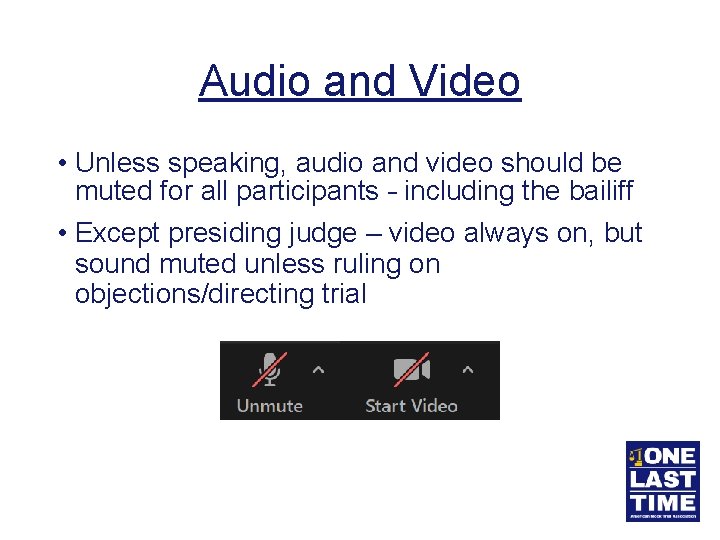
Audio and Video • Unless speaking, audio and video should be muted for all participants – including the bailiff • Except presiding judge – video always on, but sound muted unless ruling on objections/directing trial
Zoom - What We Tell Judges • Speaker View vs. Gallery View • Side-by-side mode • Especially important for live stream • Hide non-video participants
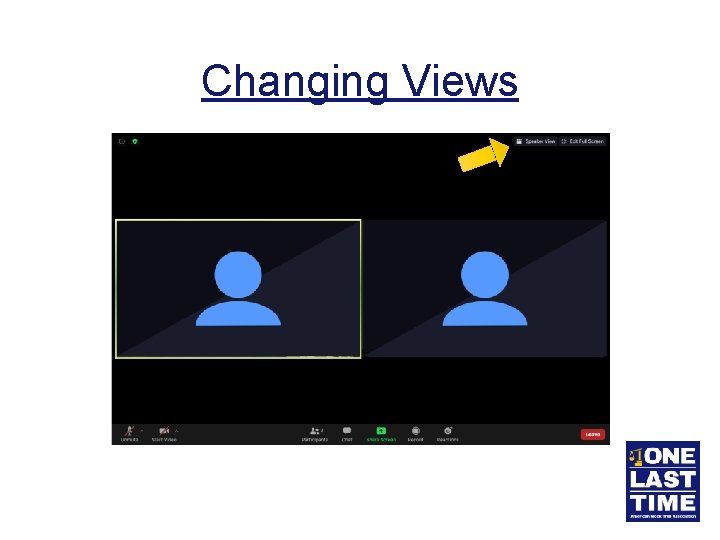
Changing Views
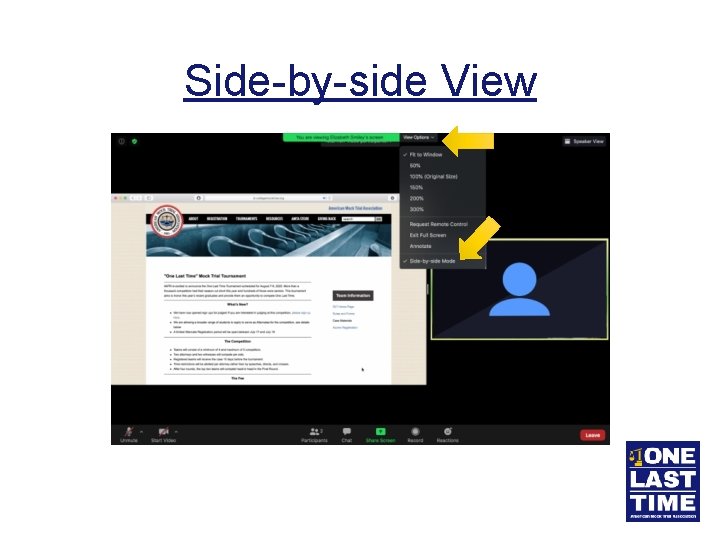
Side-by-side View
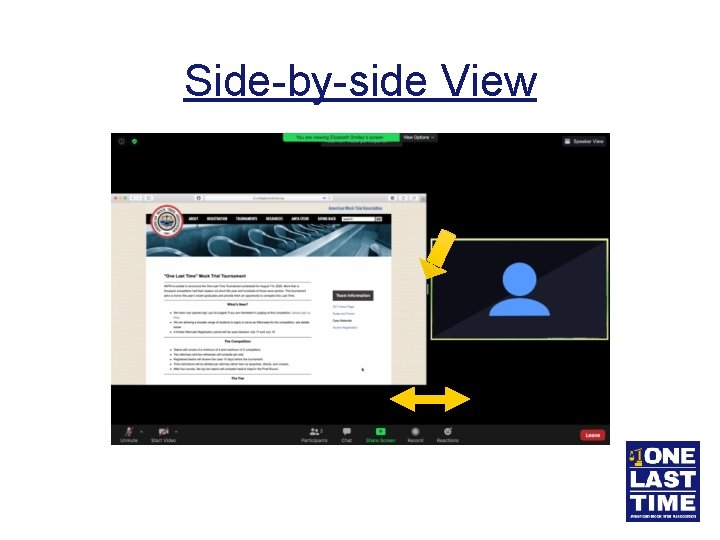
Side-by-side View
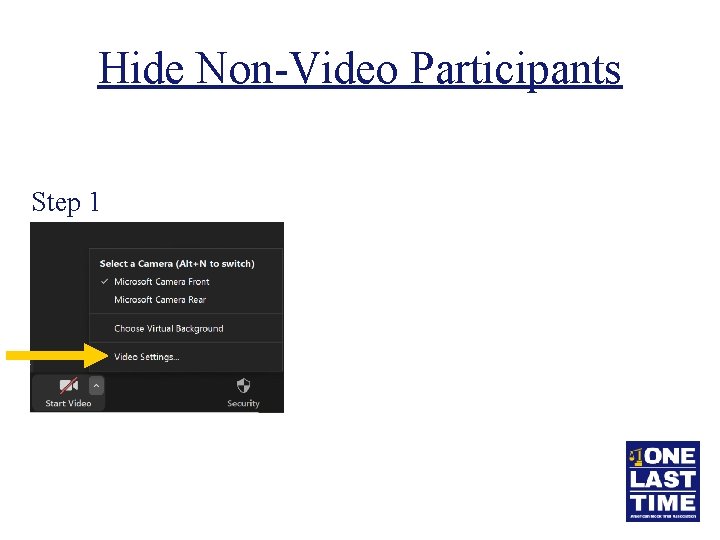
Hide Non-Video Participants Step 1
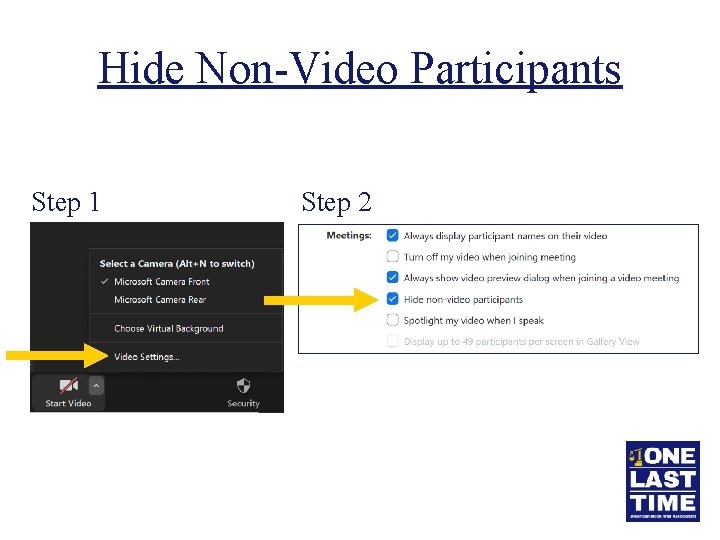
Hide Non-Video Participants • Hide all non-video participants Step 1 Step 2
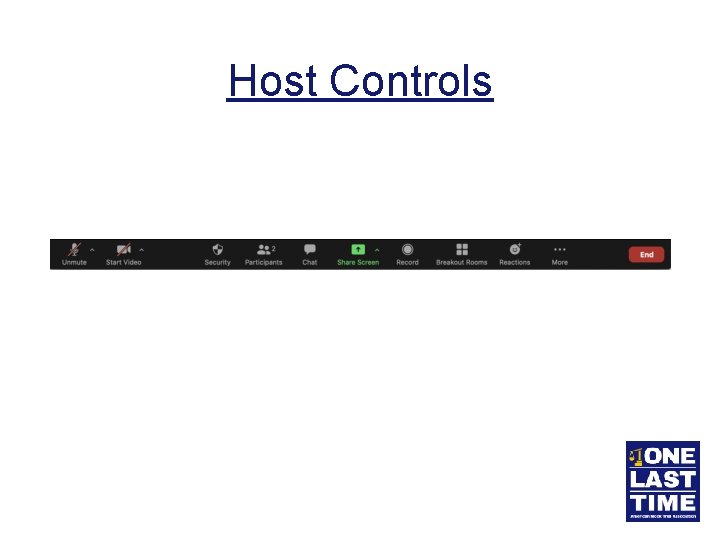
Host Controls
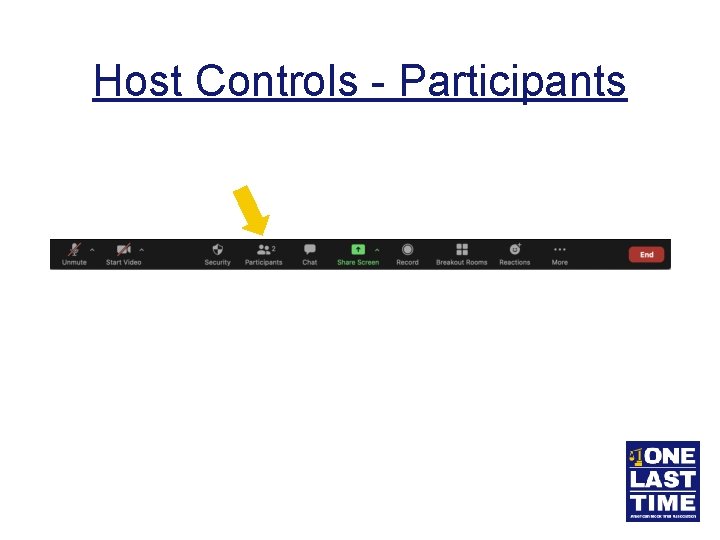
Host Controls - Participants
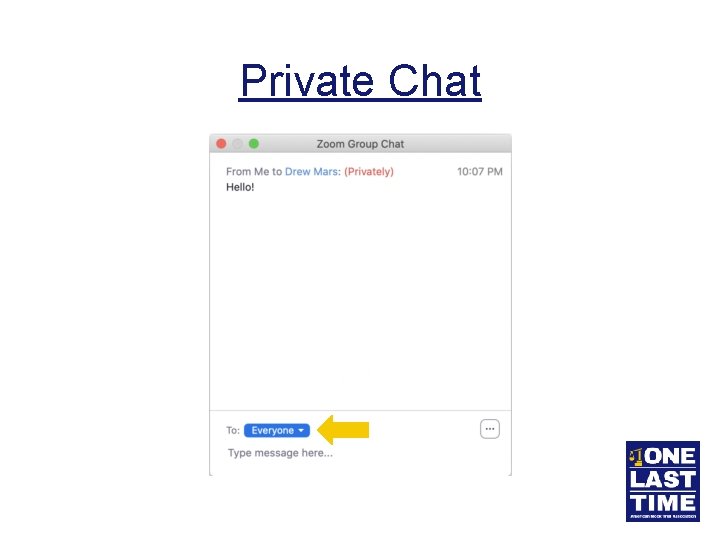
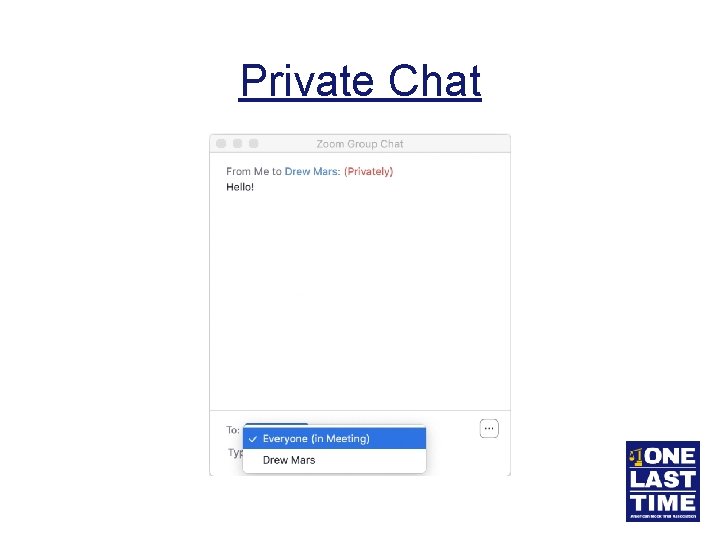
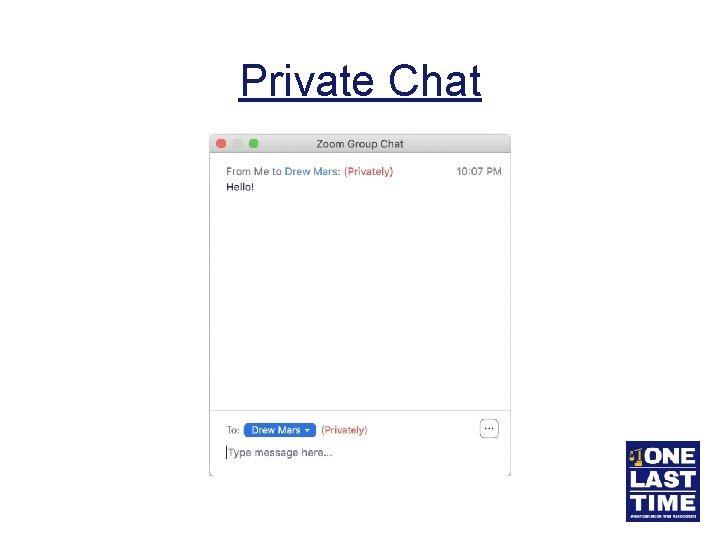
Participant Controls • List of all participants • Allows you to: • • • Admit and remove people Mute audio Stop video Start a private chat Make someone a co-host
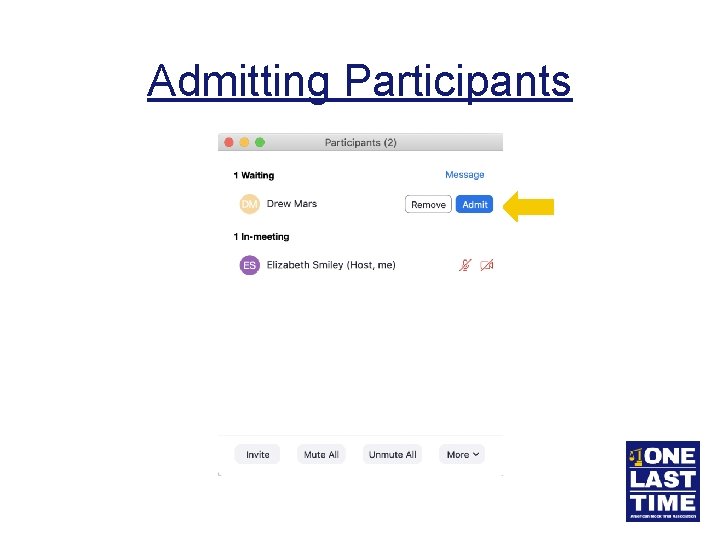
Admitting Participants
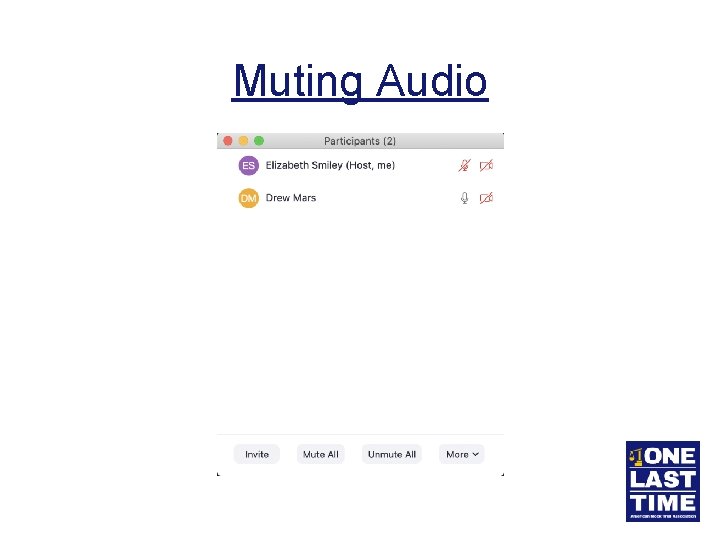
Muting Audio
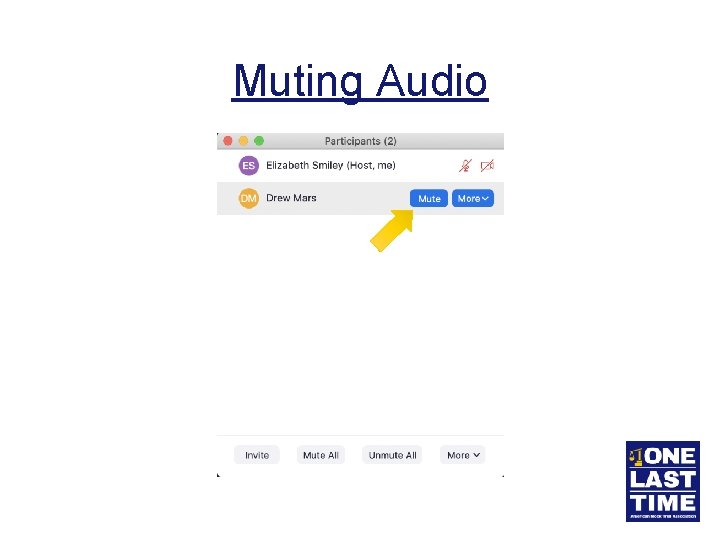
Muting Audio
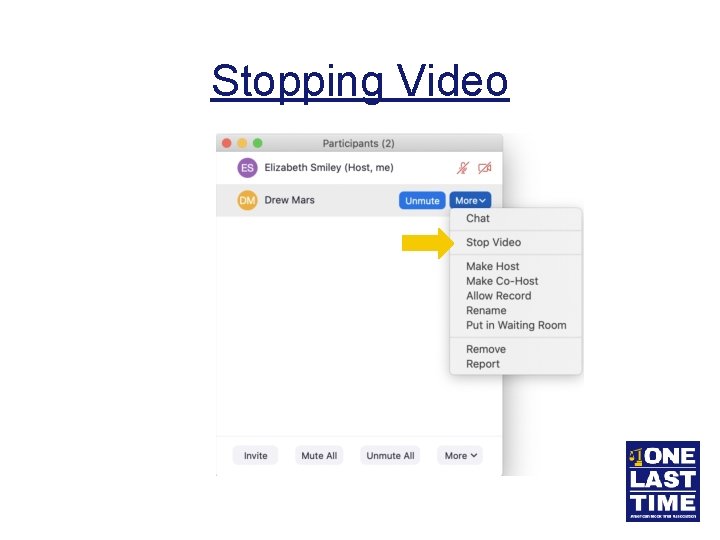
Stopping Video
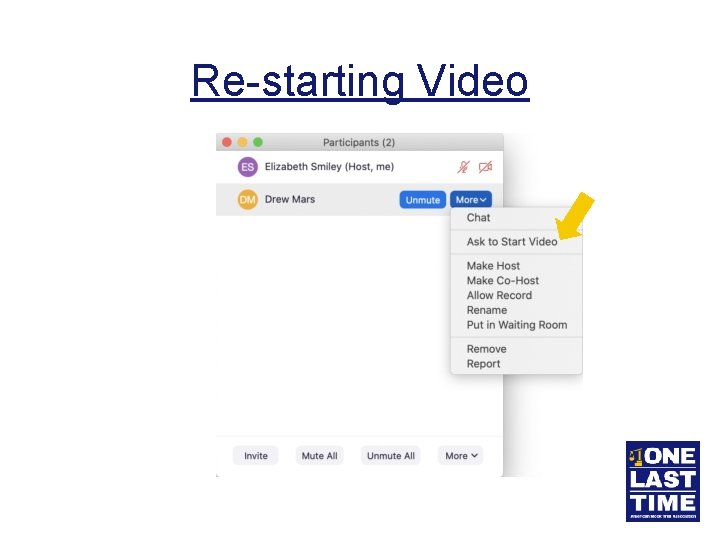
Re-starting Video
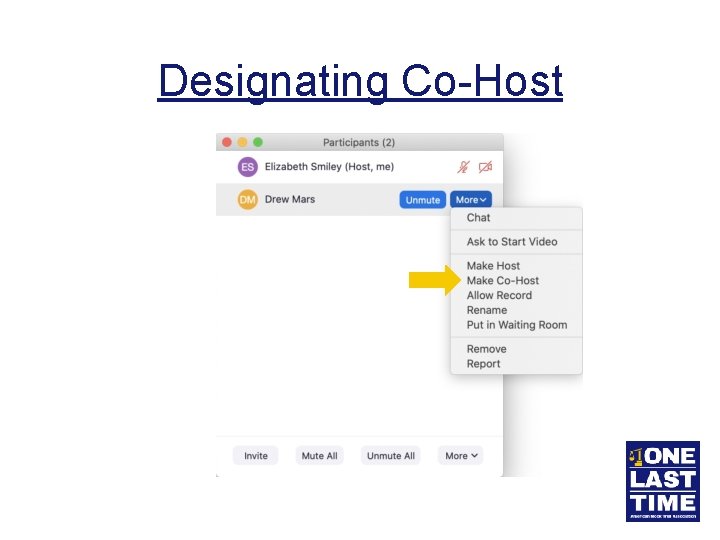
Designating Co-Host
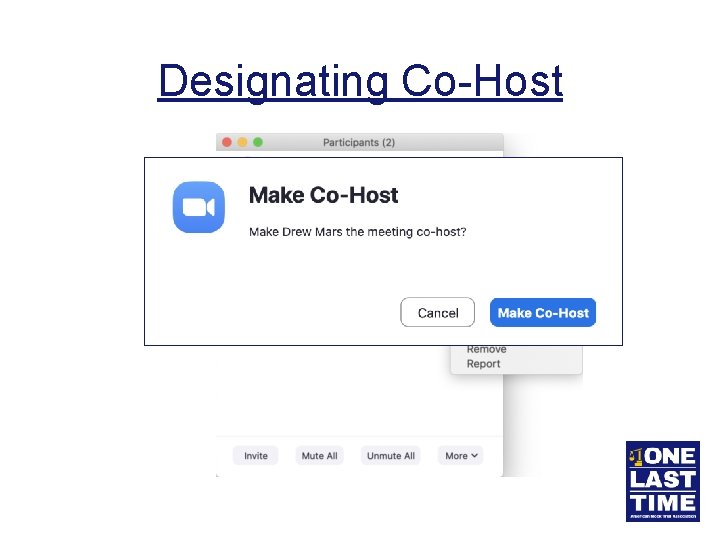
Designating Co-Host
Host vs. Co-Host • You will be the “Host” of the meeting • Only the Host can: • Make someone a co-host • Creating and managing breakout rooms • Start live streaming • The Host and the Co-host can: • • Mute participants (including video) Admit/remove participants Rename participants Record
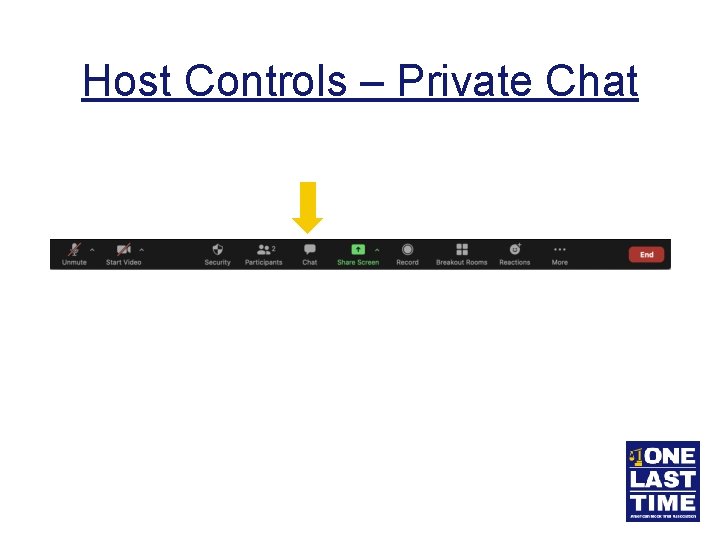
Host Controls – Private Chat
Private Chat
Private Chat
Private Chat
Host Controls – Screen Share Settings
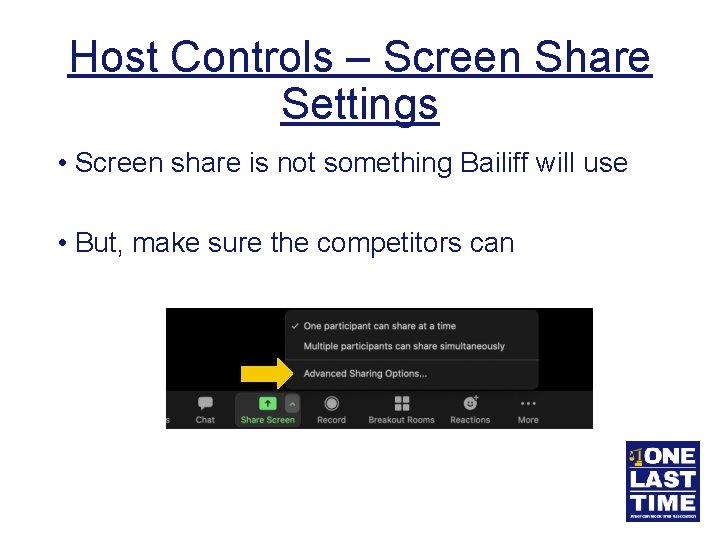
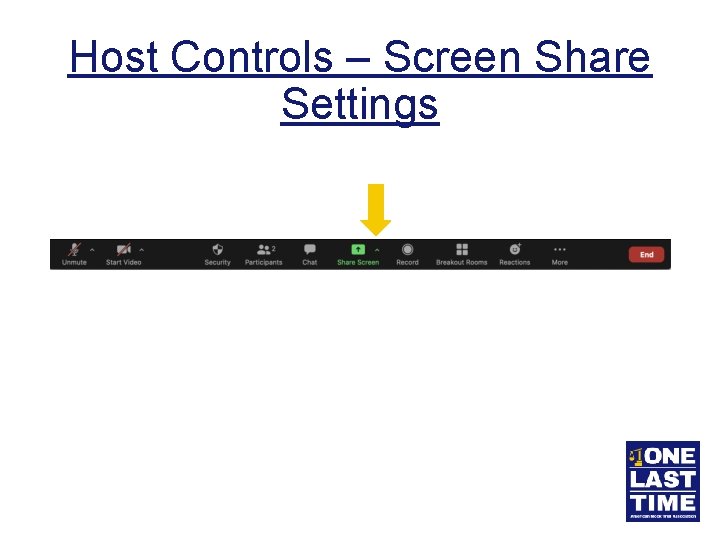
Host Controls – Screen Share Settings • Screen share is not something Bailiff will use • But, make sure the competitors can
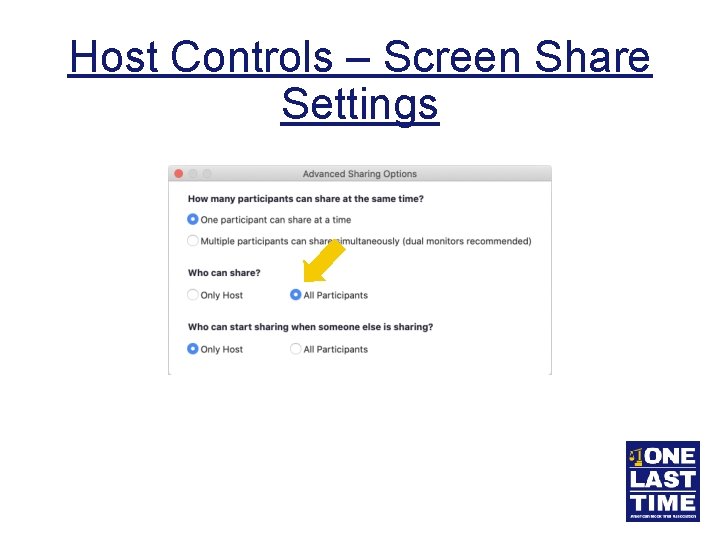
Host Controls – Screen Share Settings
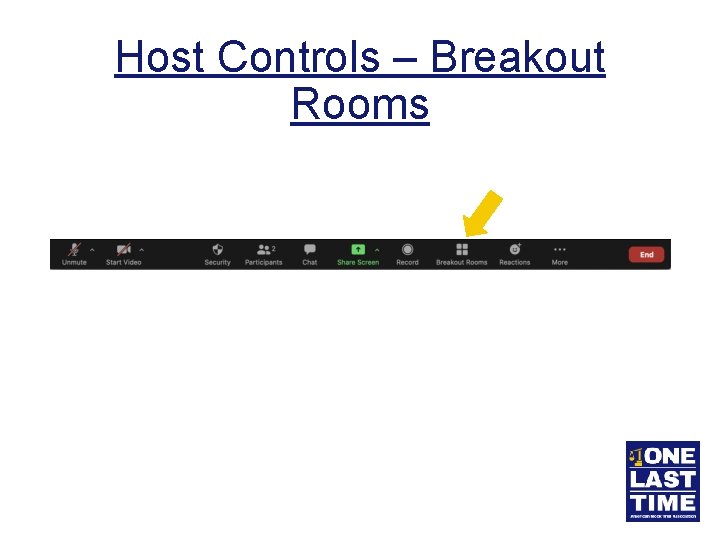
Host Controls – Breakout Rooms
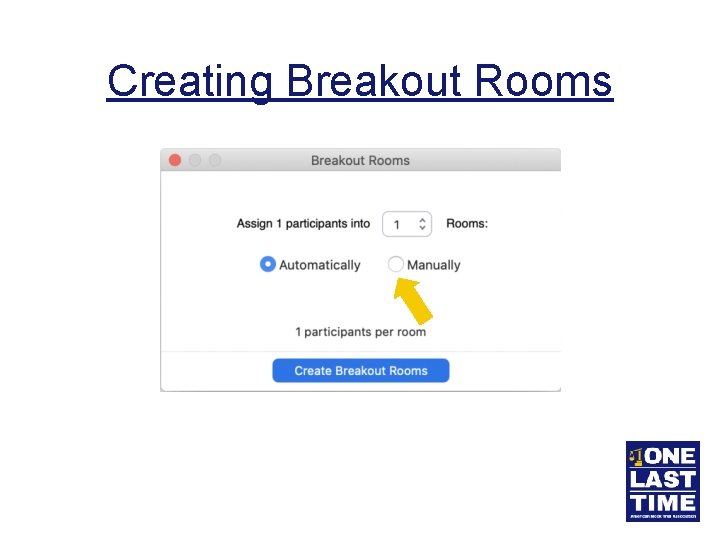
Creating Breakout Rooms
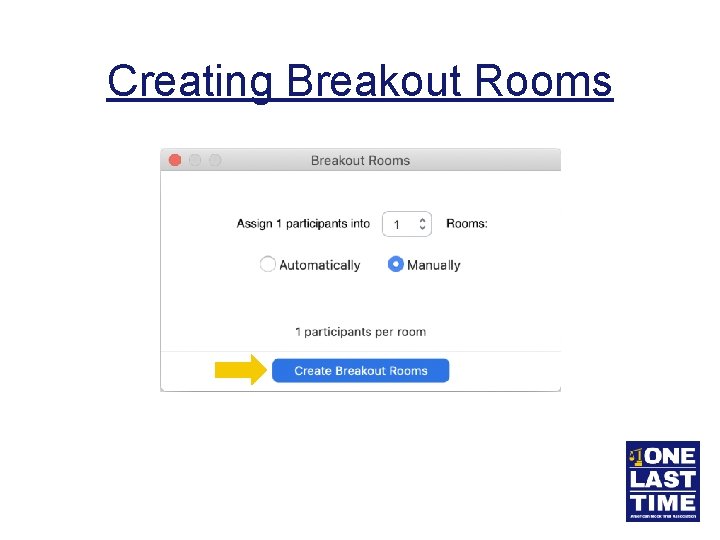
Creating Breakout Rooms
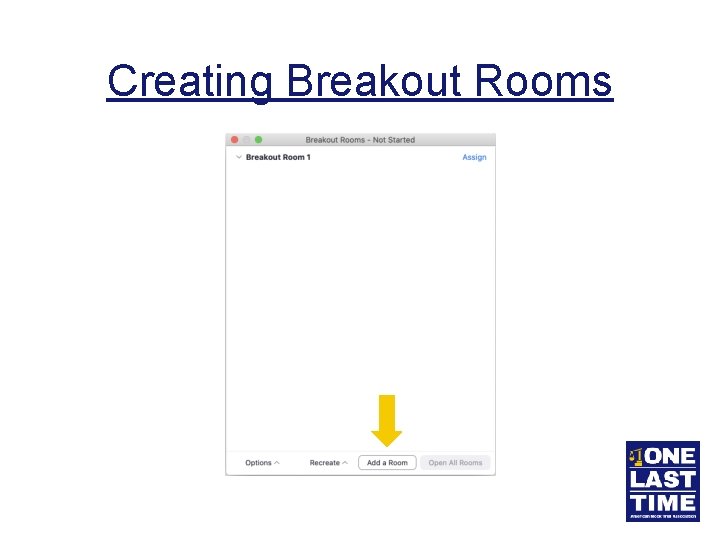
Creating Breakout Rooms
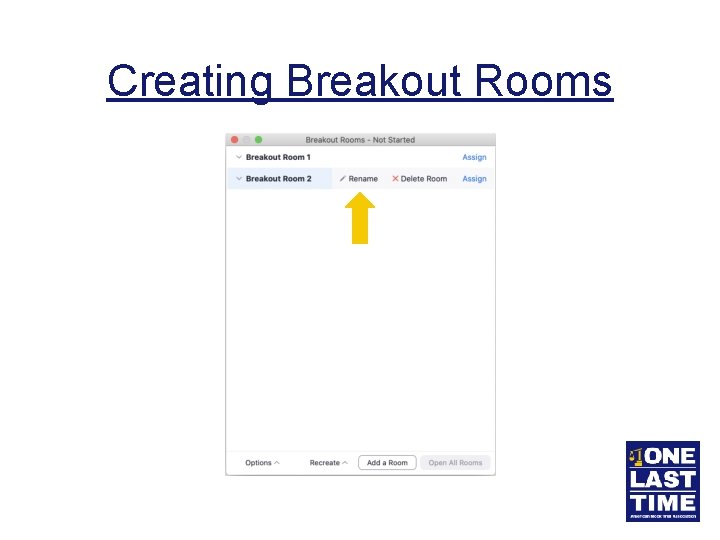
Creating Breakout Rooms
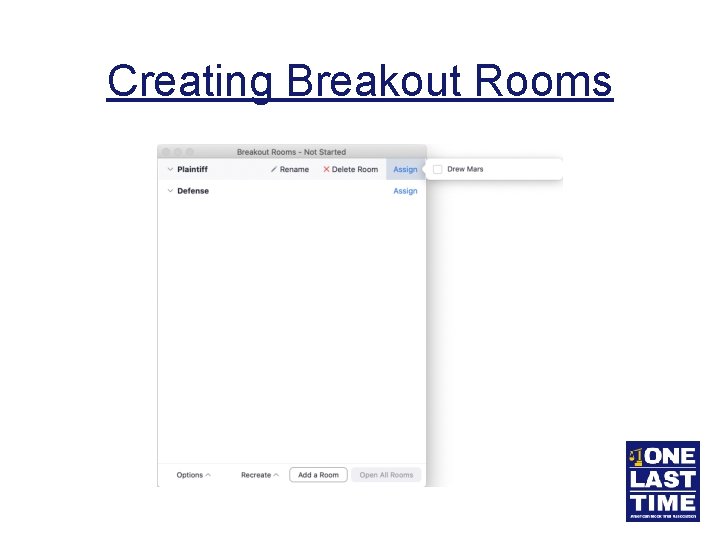
Creating Breakout Rooms
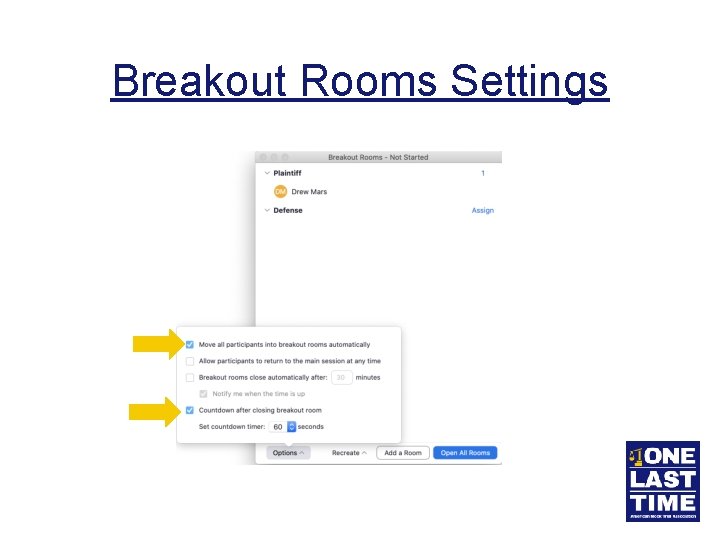
Breakout Rooms Settings
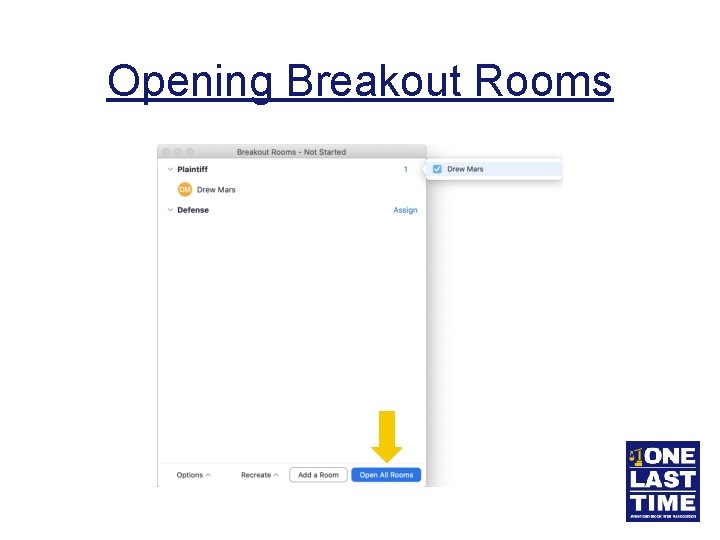
Opening Breakout Rooms
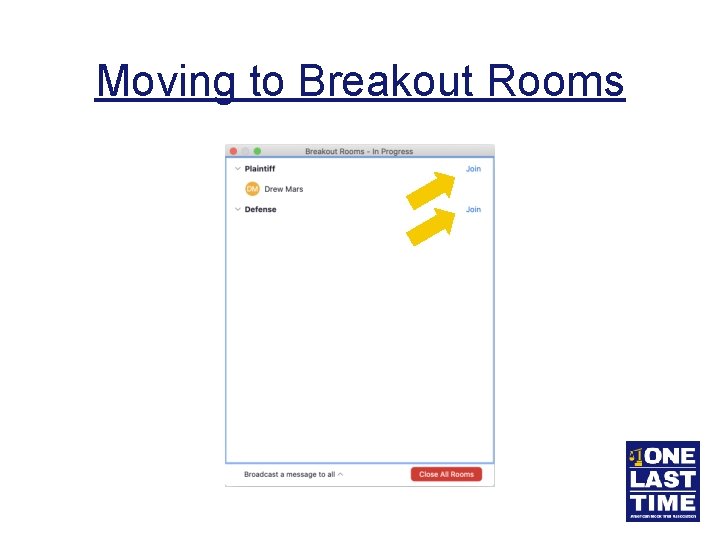
Moving to Breakout Rooms
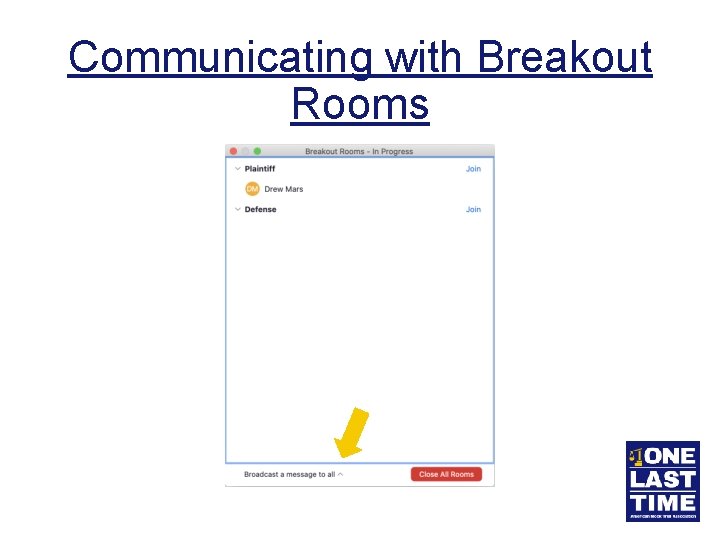
Communicating with Breakout Rooms
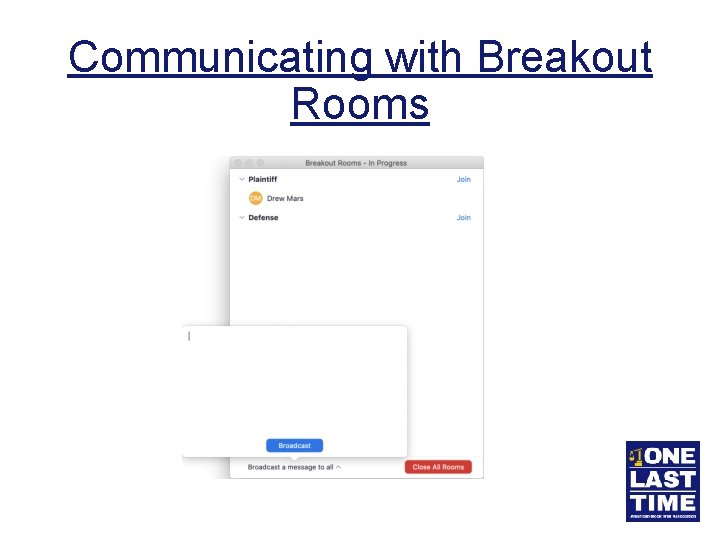
Communicating with Breakout Rooms
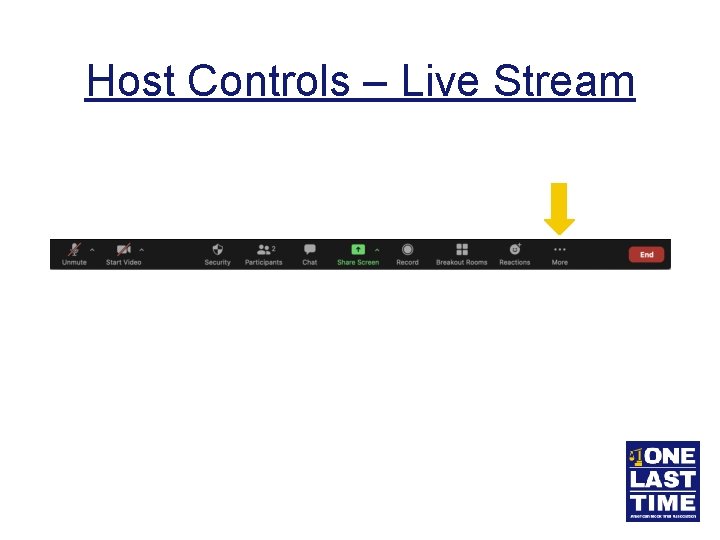
Host Controls – Live Stream
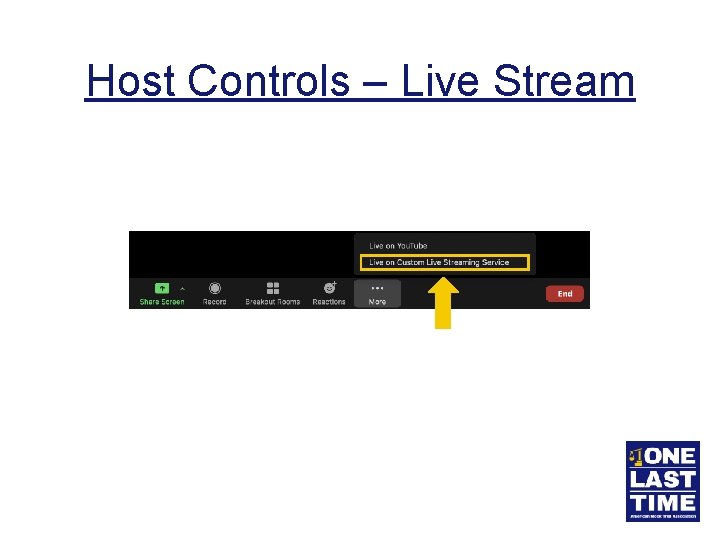
Host Controls – Live Stream
Live Stream Procedure • When round is ready to go, tell Tab and turn on live stream in the meeting • Tab will give you all clear to start the round • When you start the live stream, it is not live on You. Tube yet • Tab Room must start the actual broadcast
If the Live Stream Fails • We will allow spectators to enter the round if the live stream fails • However, spectators will ONLY be admitted if: • There is a break in the trial • The spectator’s name is in this format: “(Observer [team #]) [Name]” • Ex: (Observer 55) Missi Watt • Ex: (Observer 75) Brandon Harper
Agenda • Role of the Bailiff • Getting in to your room • Bailiff’s Script/Checklist • Zoom Functions • Google Drive • Connectivity Issues
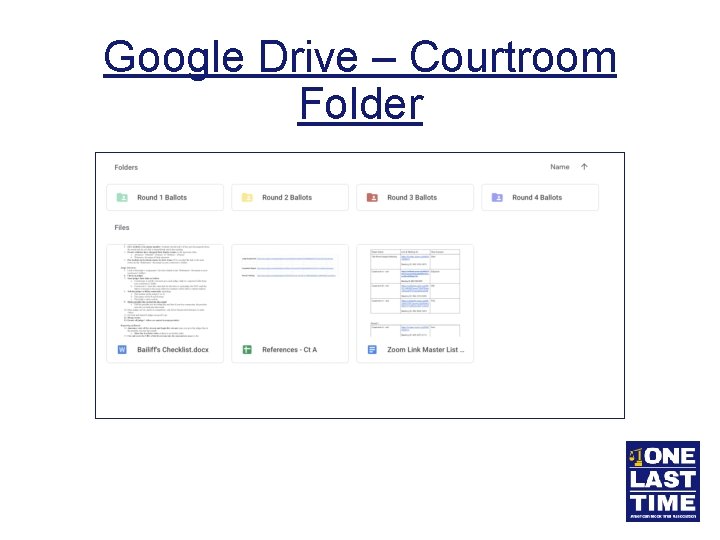
Google Drive – Courtroom Folder • Has everything you will need for the round • • Ballots Rosters Link to Judge Assignments Link to Zoom room for Tab Room and other Courtrooms • Bailiff’s Script/Checklist
Google Drive – Courtroom Folder
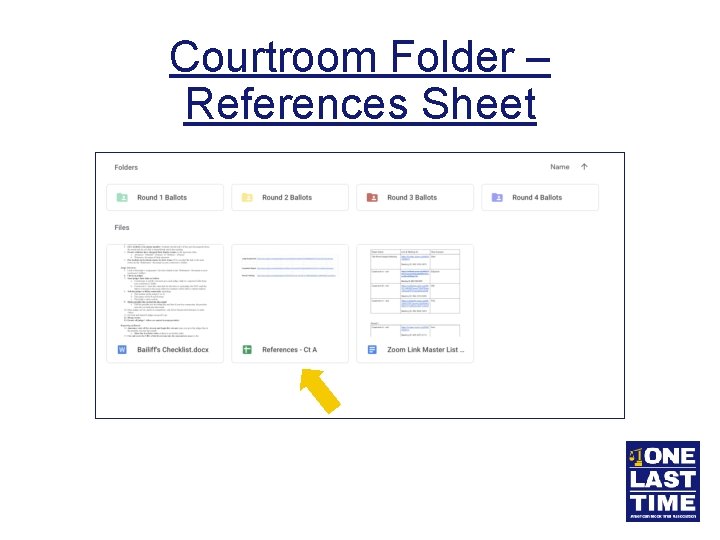
Courtroom Folder – References Sheet
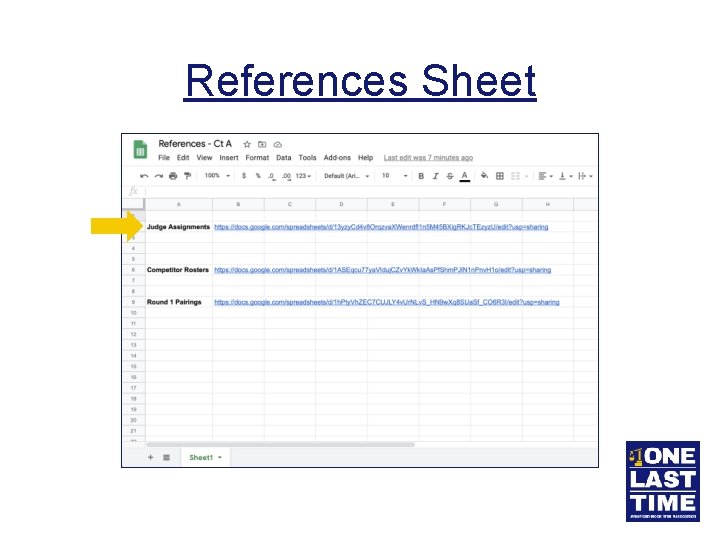
References Sheet
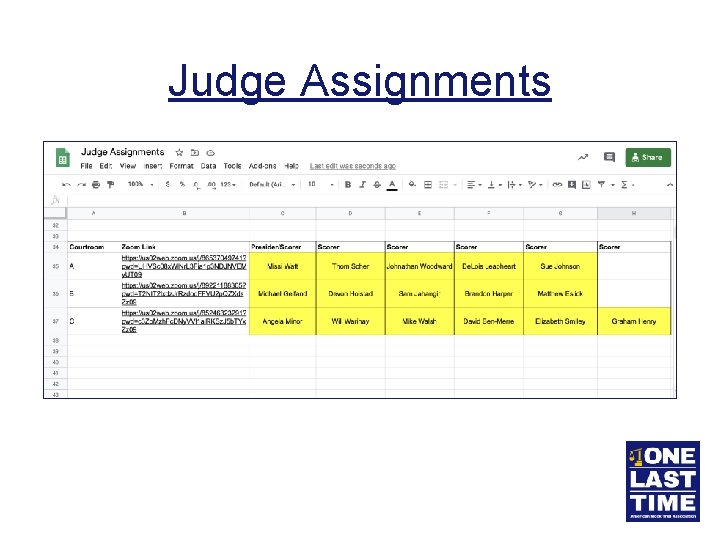
Judge Assignments
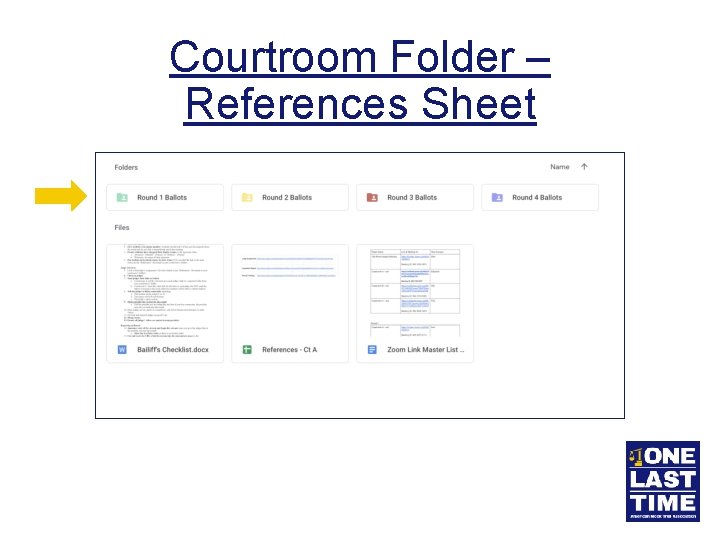
Courtroom Folder – References Sheet
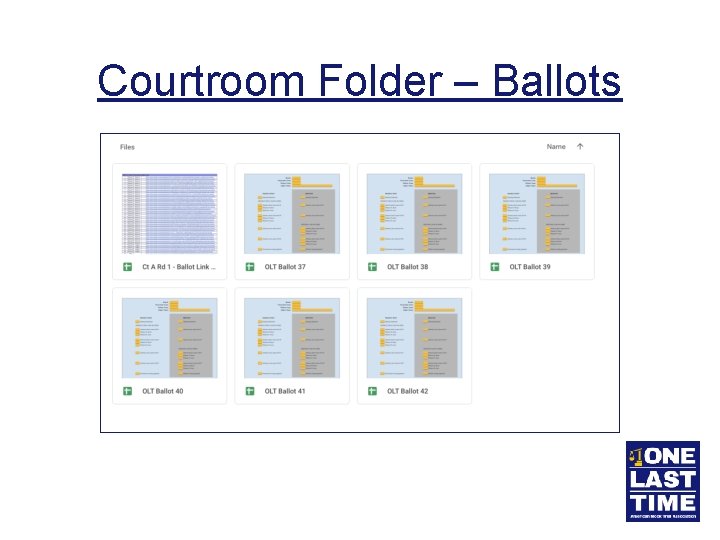
Courtroom Folder – Ballots
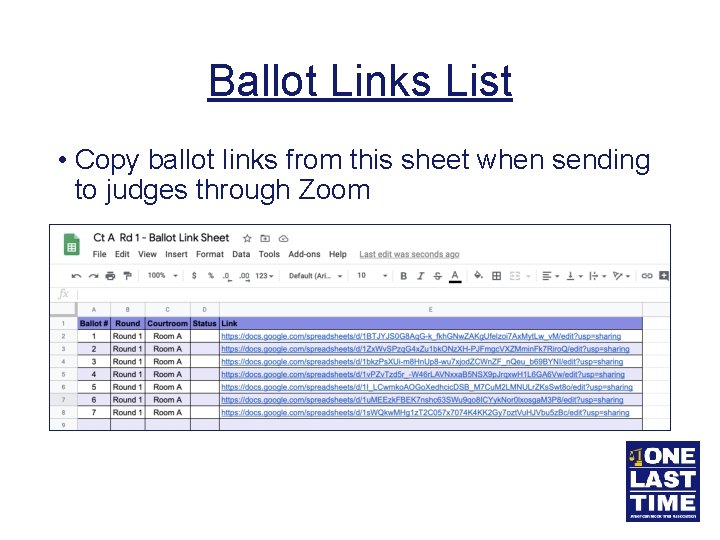
Ballot Links List • Copy ballot links from this sheet when sending to judges through Zoom
Ballots • Look like traditional blue ballots, but they are online • 2 step process: • Filling it out – all yellow boxes must be completed • Submitting it – judges must follow the submit steps to complete the ballot
Agenda • Role of the Bailiff • Getting in to your room • Bailiff’s Script/Checklist • Zoom Functions • Google Drive and Ballots • Connectivity Issues
Loss of Connection – Competitor What students are supposed to do: 1. Try to reconnect to the meeting by clicking the link again 2. Send a message to the Bailiff and his/her team 3. If he/she still can’t connect: • Use Zoom app on phone; or • Use the dial-in info to call into the meeting on phone 4. When re-entering the meeting, make sure audio and video are muted • Especially if coming in by phone
Loss of Connection – Competitor • If the competitor re-enters by dialing in on their phone: • Make sure to mute the competitor ASAP • Re-name the competitor to their attorney or witness role so that judges know who they are
Loss of Connection – Judge • If a judge loses connection, find their contact info in the judge assignment sheet • Contact the judge via phone • If you are unable to reach the judge, let Tab Room know immediately • If you reach the judge, help them rejoin the meeting as best they can
Loss of Connection – You • First, wait about 1 minute • Then, try to re-enter the meeting via the link • If that does not work after 2 or 3 tries, contact Tab Room • We will have someone take over bailiff responsibilities until you are able to re-enter the room
Loss of Connection • Whenever someone must re-enter the room, remind them to MUTE their audio and video • If not, they may disturb the trial
Questions?
- Slides: 74