
Backup Techniques Objectives to illustrate practical application of
Backup Techniques • Objectives – to illustrate practical application of backup utilities • Contents – using dd, a direct device access command – manipulating magnetic tapes – getting best of cpio – working with DOS format diskettes – network backups • Practical – to use DOS utilities • Summary
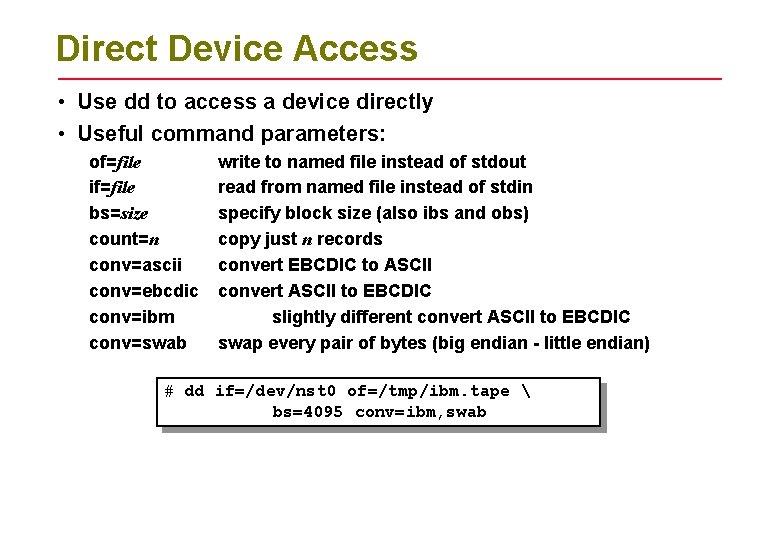
Direct Device Access • Use dd to access a device directly • Useful command parameters: of=file if=file bs=size count=n conv=ascii conv=ebcdic conv=ibm conv=swab write to named file instead of stdout read from named file instead of stdin specify block size (also ibs and obs) copy just n records convert EBCDIC to ASCII convert ASCII to EBCDIC slightly different convert ASCII to EBCDIC swap every pair of bytes (big endian - little endian) # dd if=/dev/nst 0 of=/tmp/ibm. tape bs=4095 conv=ibm, swab
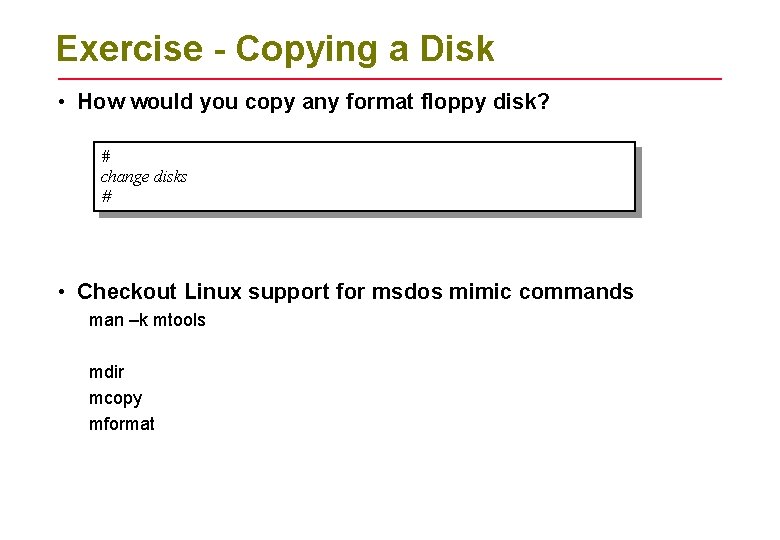
Exercise - Copying a Disk • How would you copy any format floppy disk? # change disks # • Checkout Linux support for msdos mimic commands man –k mtools mdir mcopy mformat

Using dd To Identify File Type • Imagine you are given a backup disk marked with file name but no information about command used to create it – you are asked to restore data from that backup – which utility will you use? • This is where dd comes into it: # dd if=/dev/fd 0 count=1 of=test 1 read just one block from the device and store it in a file # file test 1: tar • This is much neater than trying each utility in turn to see if it works!
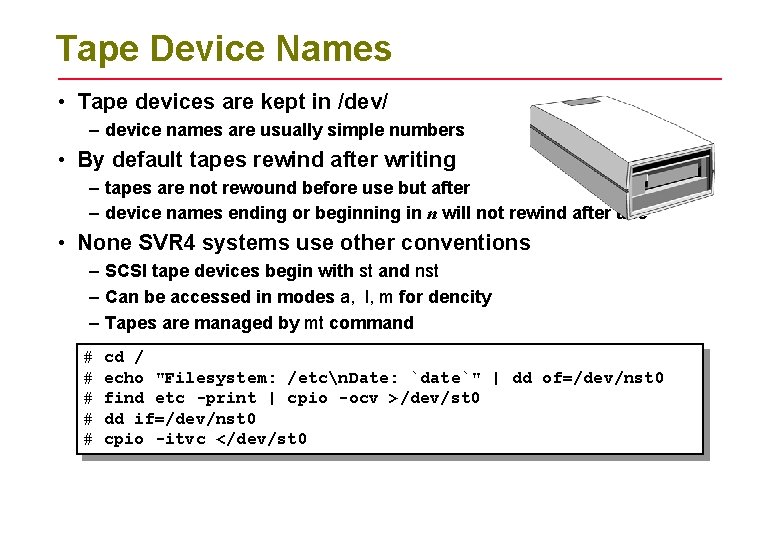
Tape Device Names • Tape devices are kept in /dev/ – device names are usually simple numbers • By default tapes rewind after writing – tapes are not rewound before use but after – device names ending or beginning in n will not rewind after use • None SVR 4 systems use other conventions – SCSI tape devices begin with st and nst – Can be accessed in modes a, l, m for dencity – Tapes are managed by mt command # # # cd / echo "Filesystem: /etcn. Date: `date`" | dd of=/dev/nst 0 find etc -print | cpio -ocv >/dev/st 0 dd if=/dev/nst 0 cpio -itvc </dev/st 0
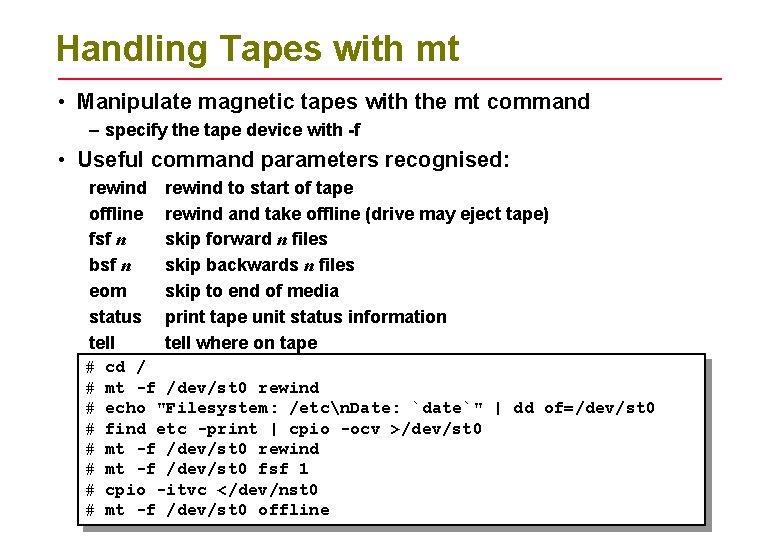
Handling Tapes with mt • Manipulate magnetic tapes with the mt command – specify the tape device with -f • Useful command parameters recognised: rewind offline fsf n bsf n eom status tell # # # # rewind to start of tape rewind and take offline (drive may eject tape) skip forward n files skip backwards n files skip to end of media print tape unit status information tell where on tape cd / mt -f /dev/st 0 rewind echo "Filesystem: /etcn. Date: `date`" | dd of=/dev/st 0 find etc -print | cpio -ocv >/dev/st 0 mt -f /dev/st 0 rewind mt -f /dev/st 0 fsf 1 cpio -itvc </dev/nst 0 mt -f /dev/st 0 offline
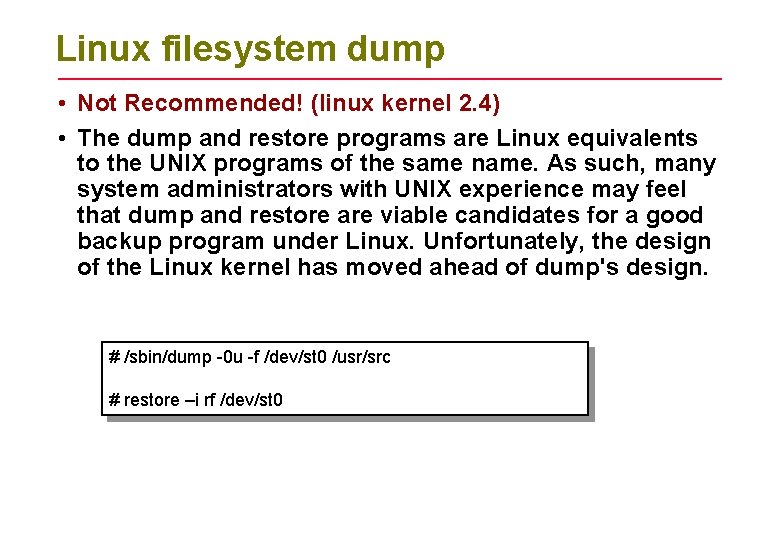
Linux filesystem dump • Not Recommended! (linux kernel 2. 4) • The dump and restore programs are Linux equivalents to the UNIX programs of the same name. As such, many system administrators with UNIX experience may feel that dump and restore are viable candidates for a good backup program under Linux. Unfortunately, the design of the Linux kernel has moved ahead of dump's design. # /sbin/dump -0 u -f /dev/st 0 /usr/src # restore –i rf /dev/st 0
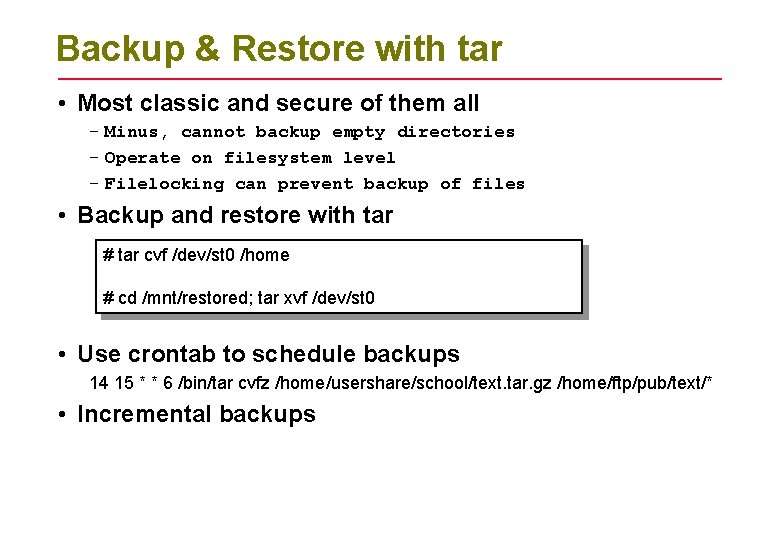
Backup & Restore with tar • Most classic and secure of them all – Minus, cannot backup empty directories – Operate on filesystem level – Filelocking can prevent backup of files • Backup and restore with tar # tar cvf /dev/st 0 /home # cd /mnt/restored; tar xvf /dev/st 0 • Use crontab to schedule backups 14 15 * * 6 /bin/tar cvfz /home/usershare/school/text. tar. gz /home/ftp/pub/text/* • Incremental backups
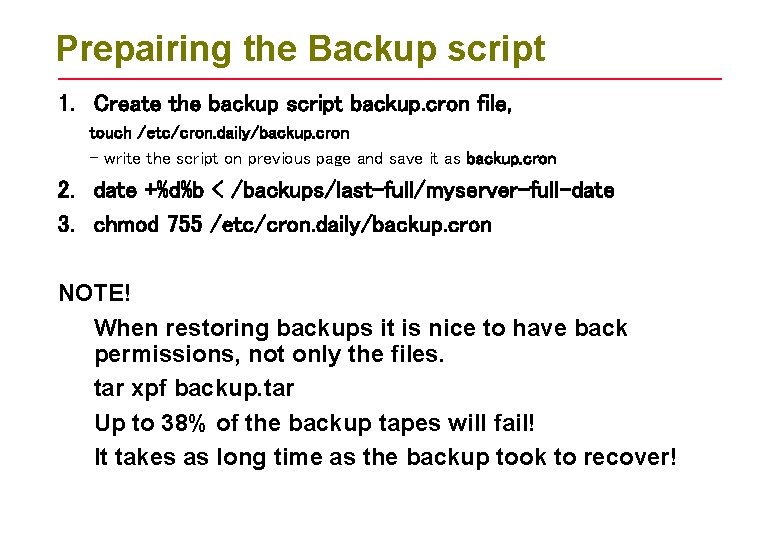
Prepairing the Backup script 1. Create the backup script backup. cron file, touch /etc/cron. daily/backup. cron - write the script on previous page and save it as backup. cron 2. date +%d%b < /backups/last-full/myserver-full-date 3. chmod 755 /etc/cron. daily/backup. cron NOTE! When restoring backups it is nice to have back permissions, not only the files. tar xpf backup. tar Up to 38% of the backup tapes will fail! It takes as long time as the backup took to recover!
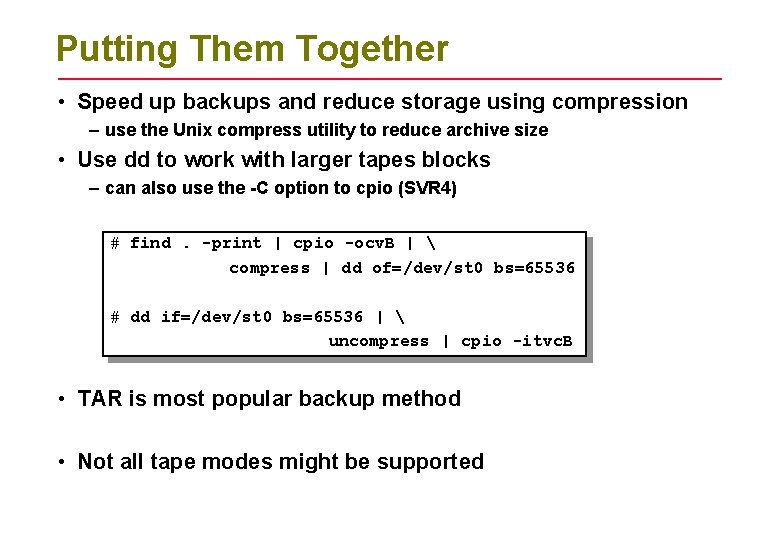
Putting Them Together • Speed up backups and reduce storage using compression – use the Unix compress utility to reduce archive size • Use dd to work with larger tapes blocks – can also use the -C option to cpio (SVR 4) # find. -print | cpio -ocv. B | compress | dd of=/dev/st 0 bs=65536 # dd if=/dev/st 0 bs=65536 | uncompress | cpio -itvc. B • TAR is most popular backup method • Not all tape modes might be supported
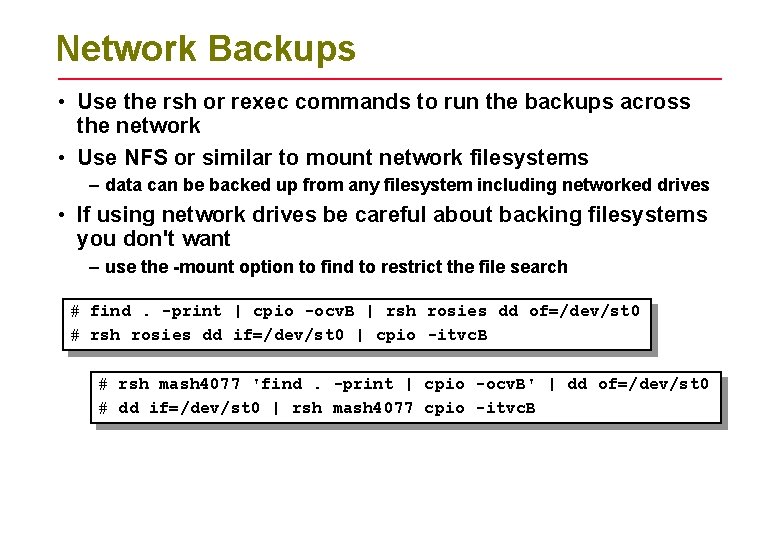
Network Backups • Use the rsh or rexec commands to run the backups across the network • Use NFS or similar to mount network filesystems – data can be backed up from any filesystem including networked drives • If using network drives be careful about backing filesystems you don't want – use the -mount option to find to restrict the file search # find. -print | cpio -ocv. B | rsh rosies dd of=/dev/st 0 # rsh rosies dd if=/dev/st 0 | cpio -itvc. B # rsh mash 4077 'find. -print | cpio -ocv. B' | dd of=/dev/st 0 # dd if=/dev/st 0 | rsh mash 4077 cpio -itvc. B
Summary • Use dd for direct device access • dd can be used to encompass and read any format backup • Tapes can be controlled with mt command • Unix support special commands for working with DOS format diskettes • Backup utilities can be used in conjunction with compress command to save storage • Using combination of rsh command backup utilities we can perform backups over the network • Avoid dump and restore • Use TAR or CPIO • Use script for scheduling backups
- Slides: 12