
Award Review Completion Training Overview Quick Facts RAMP

- Slides: 17
Award Review & Completion Training
Overview
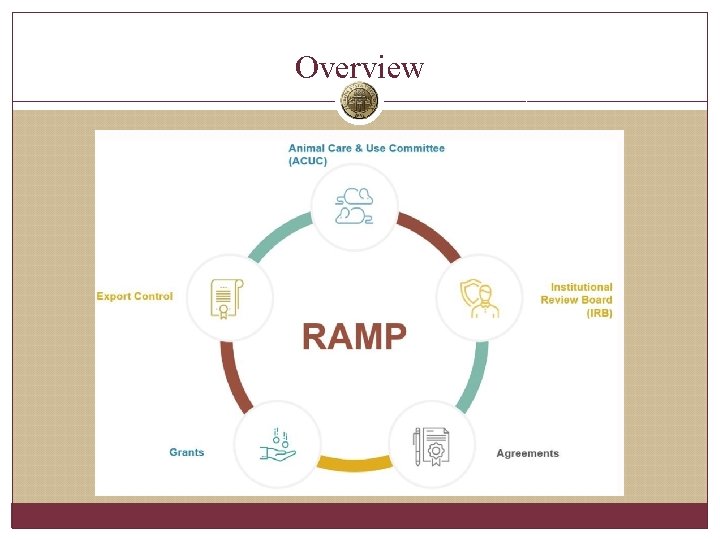
Quick Facts �RAMP Grants goes live July 1 st. �All existing awards will be migrated over to and administered in RAMP Grants starting July 1 st. �New awards will be set up in RAMP, which will integrate with Omni for financial management. �In addition to exchanging information with Omni, the RAMP Awards records will exchange information with related Funding Proposal, IRB, ACUC and Agreements records.
Training and Resources RAMP Website: https: //ramp. research. fsu. edu/ � Training schedule by topic with Zoom meeting links � How-to Guides � FAQ’s � Shared email is active! Ramp-grants@fsu. edu Training topics � Proposal & SF 424 Submissions Training � Budget Entry & Cost Share Training � Collaborative Proposals & SF 424 Submissions Training � Award Review & Completion Training (w/ and w/o advances) � Department Approvers Training � Award Modifications Training
Today’s Agenda 1. Terminology and Navigation in RAMP Grants 2. Walk-through changing proposal status to awarded 3. Walk through completing award smartform with central office
Where to Begin The award setup process begins by selecting the funding proposal that has been awarded. Awards received for proposals submitted prior to RAMP should be sent to your Specialist. They will enter a placeholder proposal into RAMP and then also enter the award.
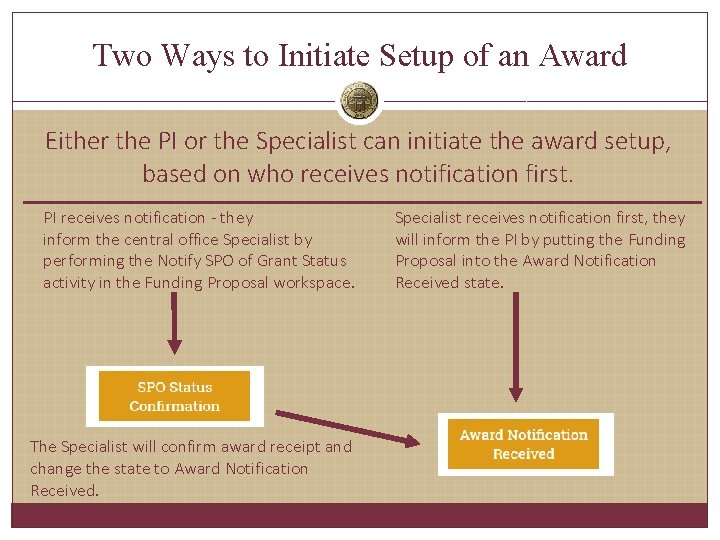
Two Ways to Initiate Setup of an Award Either the PI or the Specialist can initiate the award setup, based on who receives notification first. PI receives notification - they inform the central office Specialist by performing the Notify SPO of Grant Status activity in the Funding Proposal workspace. The Specialist will confirm award receipt and change the state to Award Notification Received. Specialist receives notification first, they will inform the PI by putting the Funding Proposal into the Award Notification Received state.
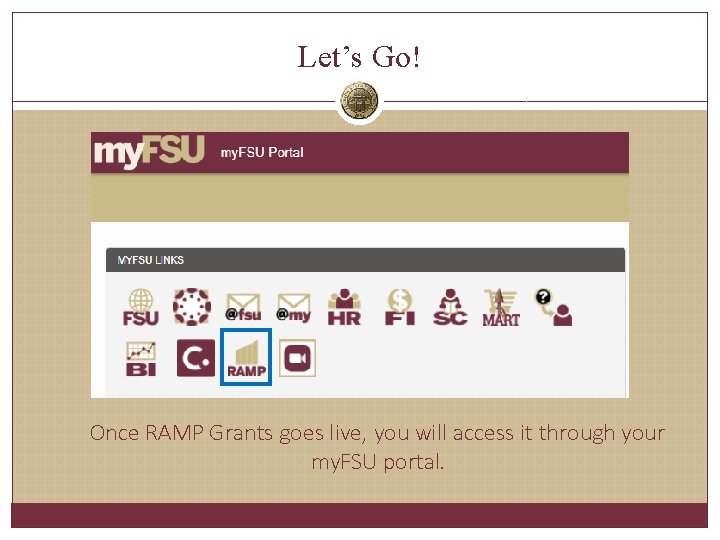
Let’s Go! Once RAMP Grants goes live, you will access it through your my. FSU portal.
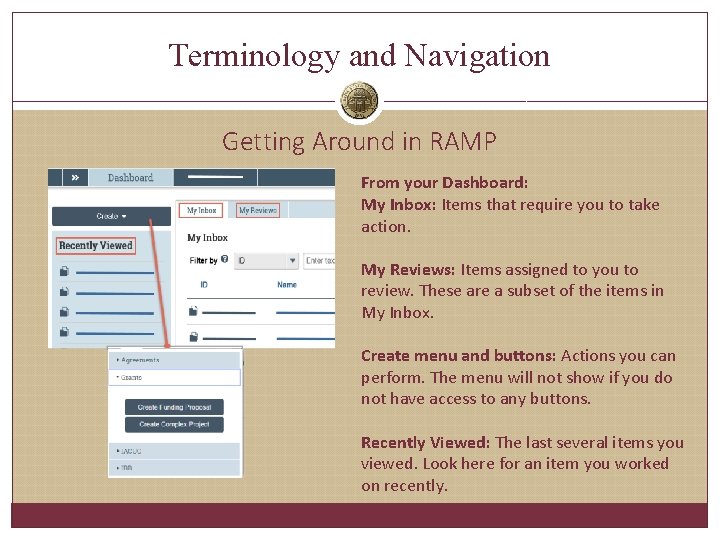
Terminology and Navigation Getting Around in RAMP From your Dashboard: My Inbox: Items that require you to take action. My Reviews: Items assigned to you to review. These are a subset of the items in My Inbox. Create menu and buttons: Actions you can perform. The menu will not show if you do not have access to any buttons. Recently Viewed: The last several items you viewed. Look here for an item you worked on recently.
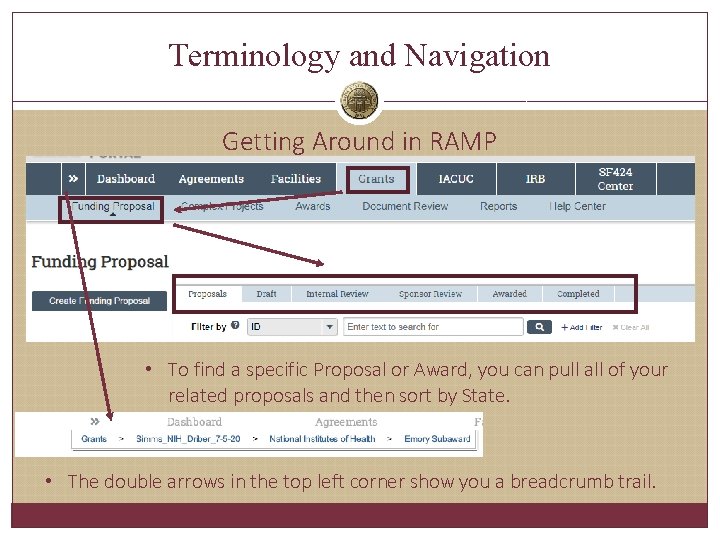
Terminology and Navigation Getting Around in RAMP • To find a specific Proposal or Award, you can pull all of your related proposals and then sort by State. • The double arrows in the top left corner show you a breadcrumb trail.
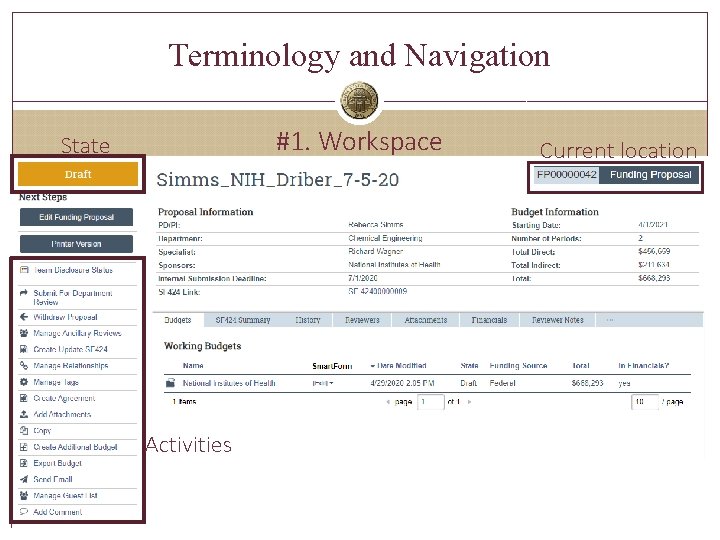
Terminology and Navigation #1. Workspace State Activities Current location
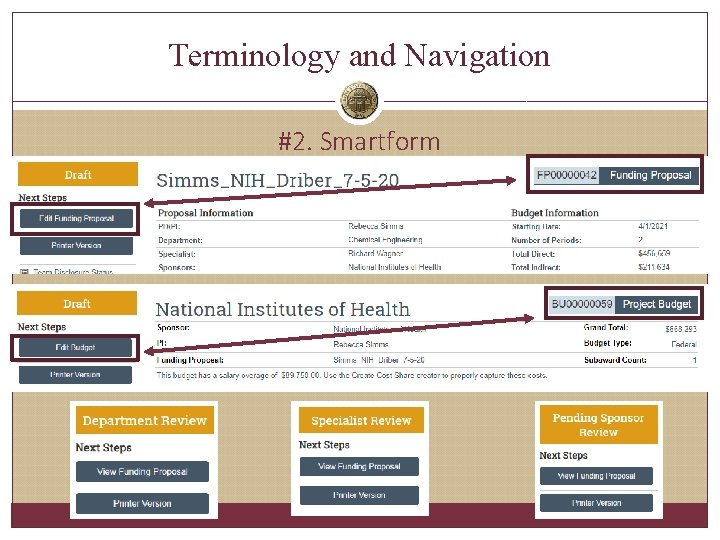
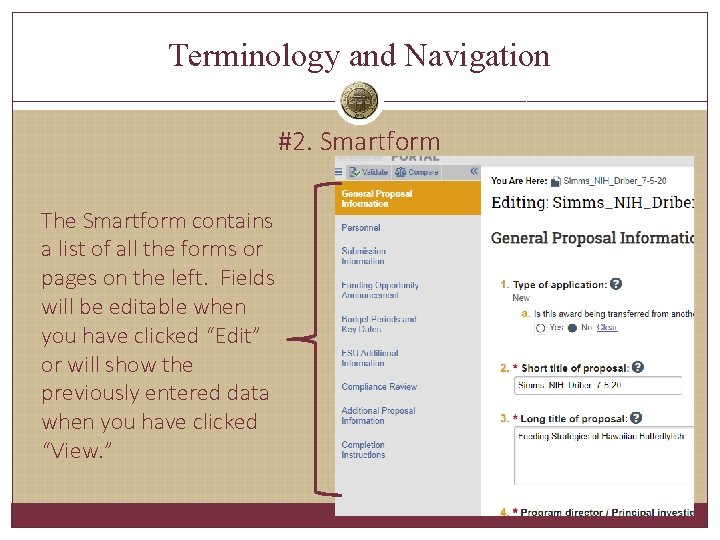
Terminology and Navigation #2. Smartform
Terminology and Navigation #2. Smartform The Smartform contains a list of all the forms or pages on the left. Fields will be editable when you have clicked “Edit” or will show the previously entered data when you have clicked “View. ”
Terminology and Navigation People in RAMP Ø Specialist – Central office (SRA or FSURF) Research Administrators Ø Grants Officers Ø Post-Award Coordinators Ø Grants Compliance Analysts Ø Study Staff – PI, Department Research Administrators, other technical staff in the Department. These people are added as administrative personnel with edit rights. They all have the same level of access to the proposals and awards. Ø Department Reviewers – people designated by your Department to review proposals
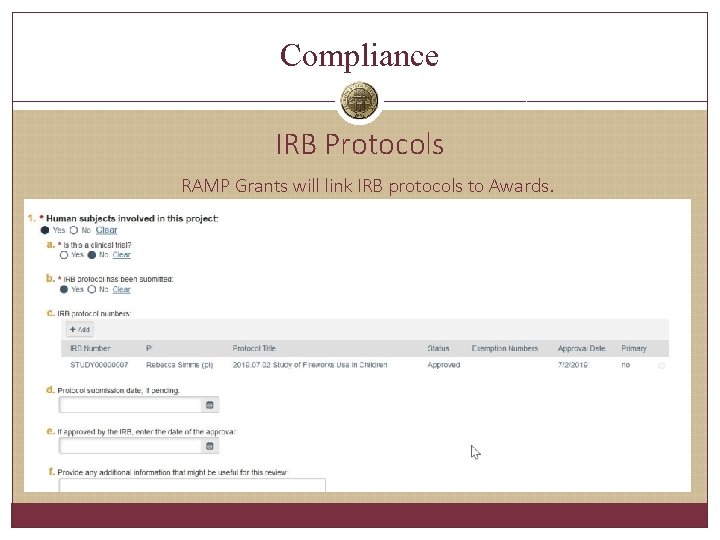
Compliance IRB Protocols RAMP Grants will link IRB protocols to Awards.
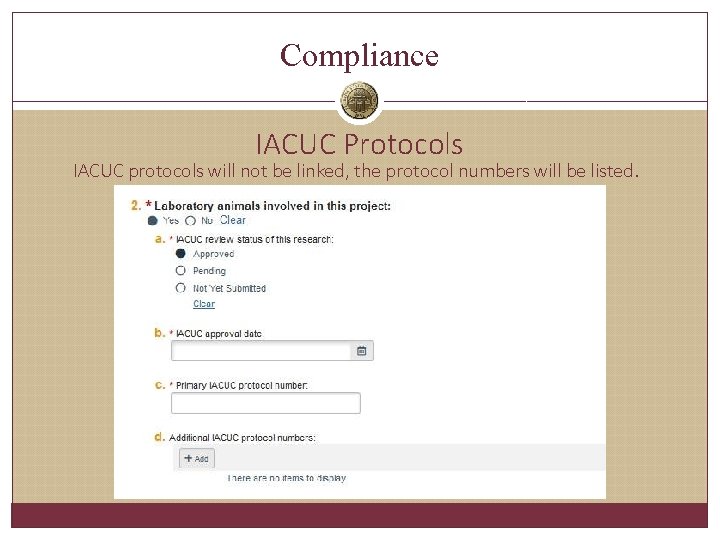
Compliance IACUC Protocols IACUC protocols will not be linked, the protocol numbers will be listed.
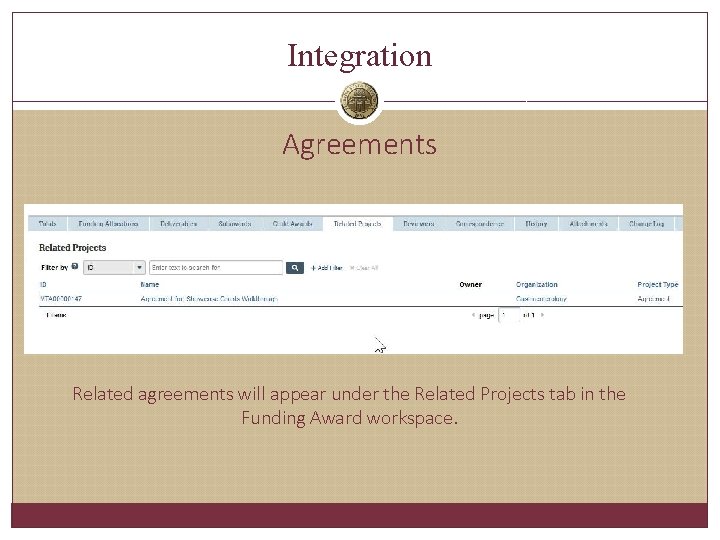
Integration Agreements Related agreements will appear under the Related Projects tab in the Funding Award workspace.