
Avigilon Biometric Setup Guide http www facebook comVIRDIKOREA

Avigilon Biometric Setup Guide http: //www. facebook. com/VIRDIKOREA www. virditech. com

VIRDI BIOMETRIC OVERVIEW http: //www. facebook. com/VIRDIKOREA www. virditech. com
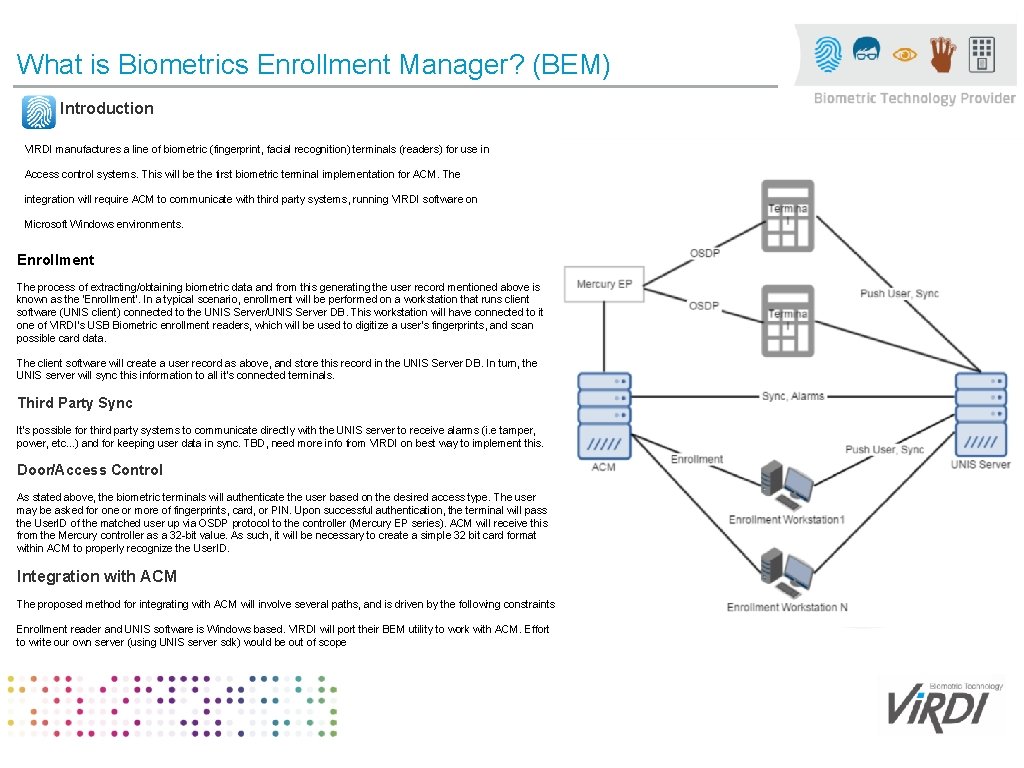
What is Biometrics Enrollment Manager? (BEM) Introduction VIRDI manufactures a line of biometric (fingerprint, facial recognition) terminals (readers) for use in Access control systems. This will be the first biometric terminal implementation for ACM. The integration will require ACM to communicate with third party systems, running VIRDI software on Microsoft Windows environments. Enrollment The process of extracting/obtaining biometric data and from this generating the user record mentioned above is known as the 'Enrollment'. In a typical scenario, enrollment will be performed on a workstation that runs client software (UNIS client) connected to the UNIS Server/UNIS Server DB. This workstation will have connected to it one of VIRDI's USB Biometric enrollment readers, which will be used to digitize a user's fingerprints, and scan possible card data. The client software will create a user record as above, and store this record in the UNIS Server DB. In turn, the UNIS server will sync this information to all it's connected terminals. Third Party Sync It's possible for third party systems to communicate directly with the UNIS server to receive alarms (i. e tamper, power, etc. . . ) and for keeping user data in sync. TBD, need more info from VIRDI on best way to implement this. Door/Access Control As stated above, the biometric terminals will authenticate the user based on the desired access type. The user may be asked for one or more of fingerprints, card, or PIN. Upon successful authentication, the terminal will pass the User. ID of the matched user up via OSDP protocol to the controller (Mercury EP series). ACM will receive this from the Mercury controller as a 32 -bit value. As such, it will be necessary to create a simple 32 bit card format within ACM to properly recognize the User. ID. Integration with ACM The proposed method for integrating with ACM will involve several paths, and is driven by the following constraints Enrollment reader and UNIS software is Windows based. VIRDI will port their BEM utility to work with ACM. Effort to write our own server (using UNIS server sdk) would be out of scope
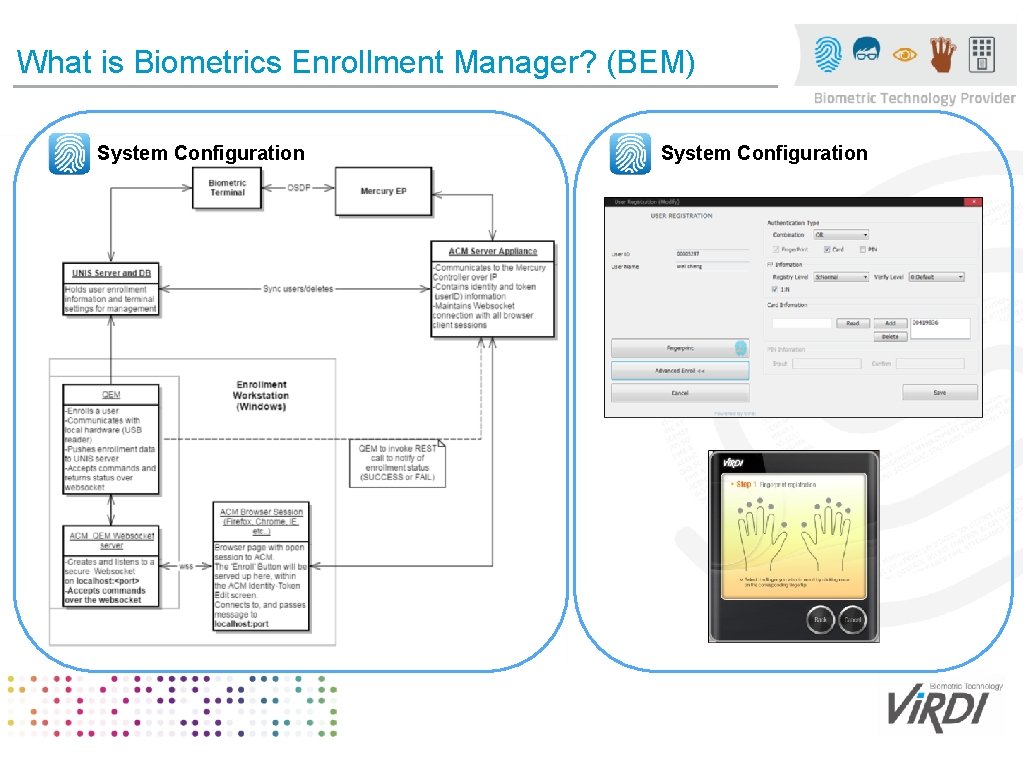
What is Biometrics Enrollment Manager? (BEM) System Configuration
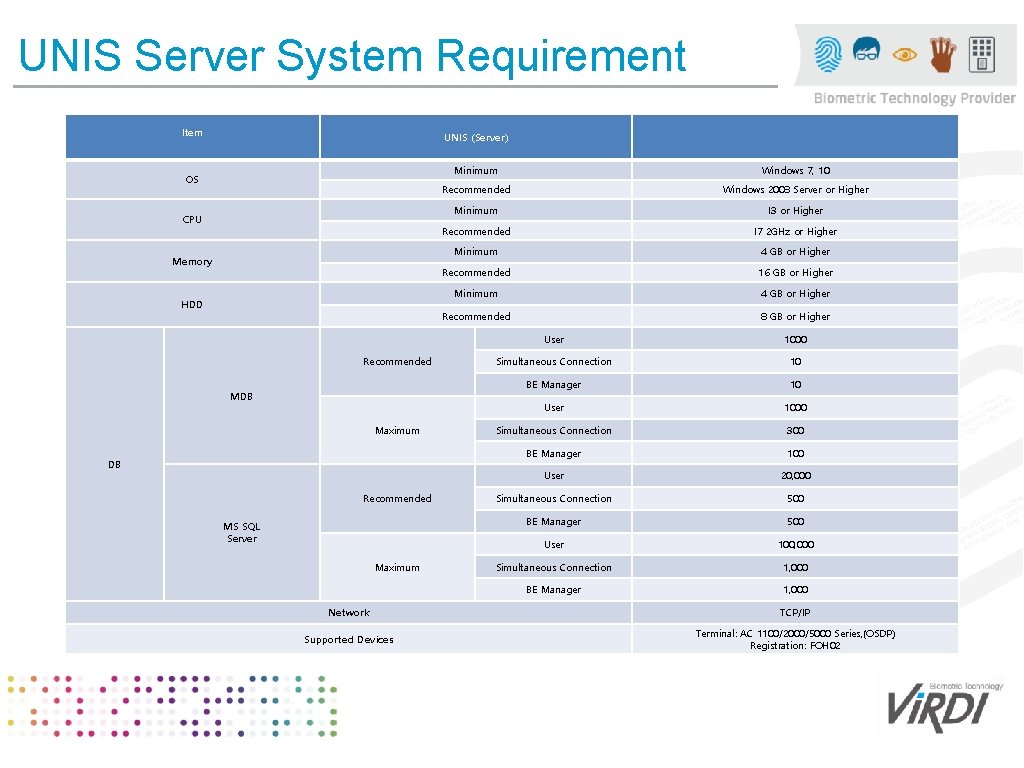
UNIS Server System Requirement Item UNIS (Server) OS CPU Memory HDD Recommended MDB Maximum DB Recommended MS SQL Server Maximum Minimum Windows 7, 10 Recommended Windows 2008 Server or Higher Minimum I 3 or Higher Recommended I 7 2 GHz or Higher Minimum 4 GB or Higher Recommended 16 GB or Higher Minimum 4 GB or Higher Recommended 8 GB or Higher User 1000 Simultaneous Connection 10 BE Manager 10 User 1000 Simultaneous Connection 300 BE Manager 100 User 20, 000 Simultaneous Connection 500 BE Manager 500 User 100, 000 Simultaneous Connection 1, 000 BE Manager 1, 000 Network TCP/IP Supported Devices Terminal: AC 1100/2000/5000 Series, (OSDP) Registration: FOH 02

VIRDI OSDP READER OVERVIEW http: //www. facebook. com/VIRDIKOREA www. virditech. com
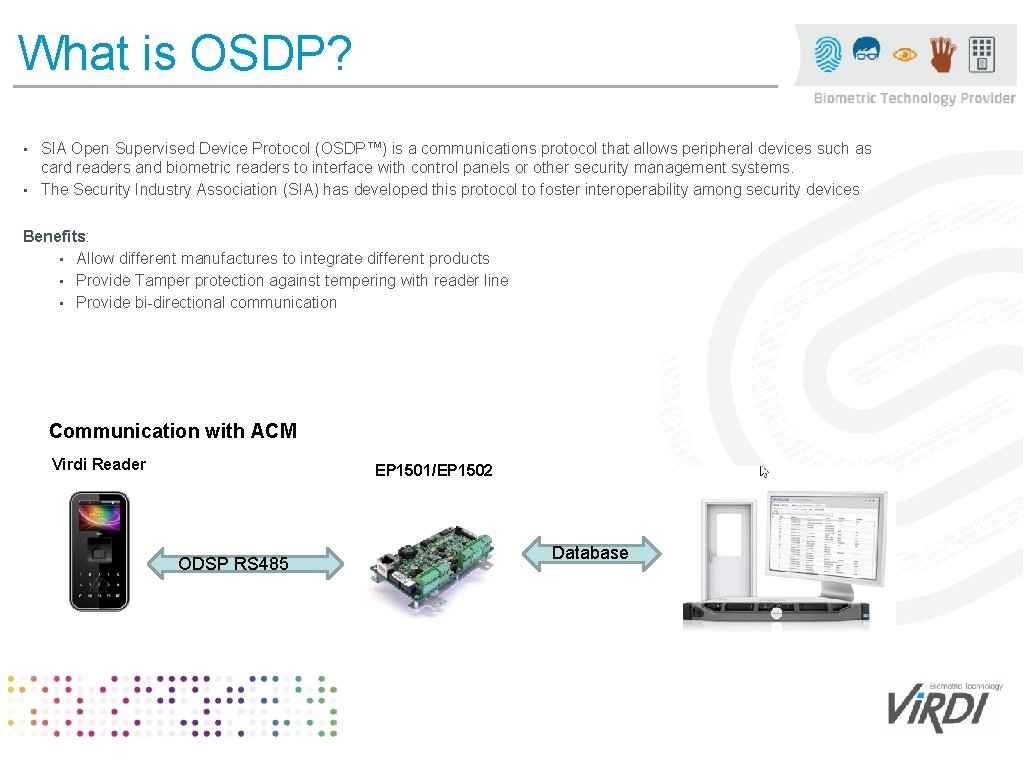
What is OSDP? SIA Open Supervised Device Protocol (OSDP™) is a communications protocol that allows peripheral devices such as card readers and biometric readers to interface with control panels or other security management systems. ▪ The Security Industry Association (SIA) has developed this protocol to foster interoperability among security devices ▪ Benefits: ▪ Allow different manufactures to integrate different products ▪ Provide Tamper protection against tempering with reader line ▪ Provide bi-directional communication Communication with ACM Virdi Reader EP 1501/EP 1502 ODSP RS 485 Database
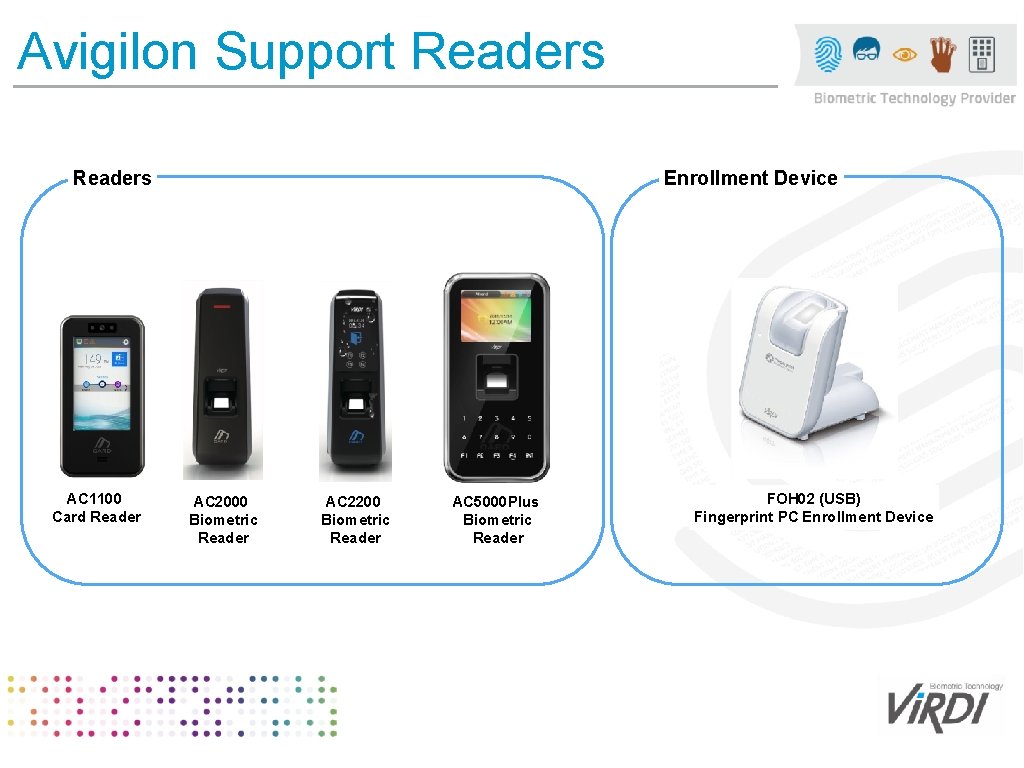
Avigilon Support Readers AC 1100 Card Reader Enrollment Device AC 2000 Biometric Reader AC 2200 Biometric Reader AC 5000 Plus Biometric Reader FOH 02 (USB) Fingerprint PC Enrollment Device
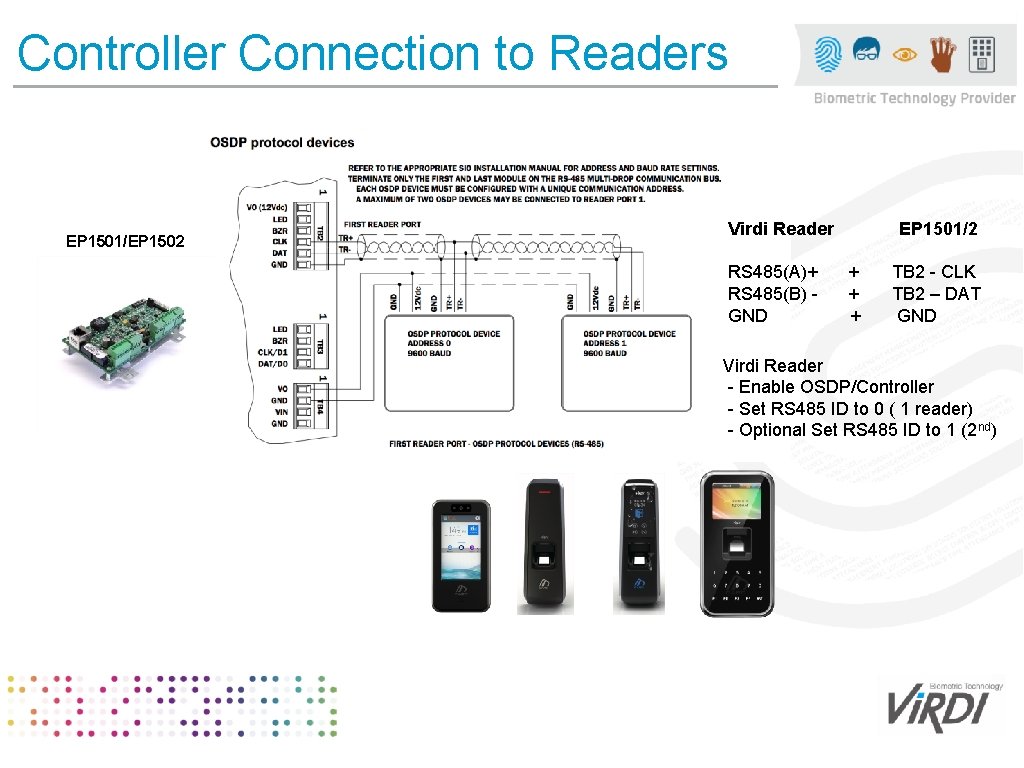
Controller Connection to Readers EP 1501/EP 1502 Virdi Reader EP 1501/2 RS 485(A)+ + TB 2 - CLK RS 485(B) - + TB 2 – DAT GND + GND Virdi Reader - Enable OSDP/Controller - Set RS 485 ID to 0 ( 1 reader) - Optional Set RS 485 ID to 1 (2 nd)

VIRDI READER SETUP GUIDE http: //www. facebook. com/VIRDIKOREA www. virditech. com
![Device Setup (AC 5000) 1 2 Enable OSDP Select [ENT~] ( [5. Terminal] [6.](http://slidetodoc.com/presentation_image/3d0b45fcb8b6baafddcaa704963fbf36/image-11.jpg "Device Setup (AC 5000) 1 2 Enable OSDP Select [ENT~] ( [5. Terminal] [6.")
Device Setup (AC 5000) 1 2 Enable OSDP Select [ENT~] ( [5. Terminal] [6. External Device] ) in the initial screen ◆, and the following screen appears. 3 Setting the Terminal IP Select ◆ [ENT~] [2. Network] [1. IP] in the initial screen ◆, and the following screen appears: RS 485 ID setting Click [0] ~ [7] key to set ID for RS 485 communication. It can be set for the connection with the external device. 4 Setting the Server IP Select ◆ [ENT~] [2. Network] [1. Server IP] in the initial screen ◆, and the following screen appears:
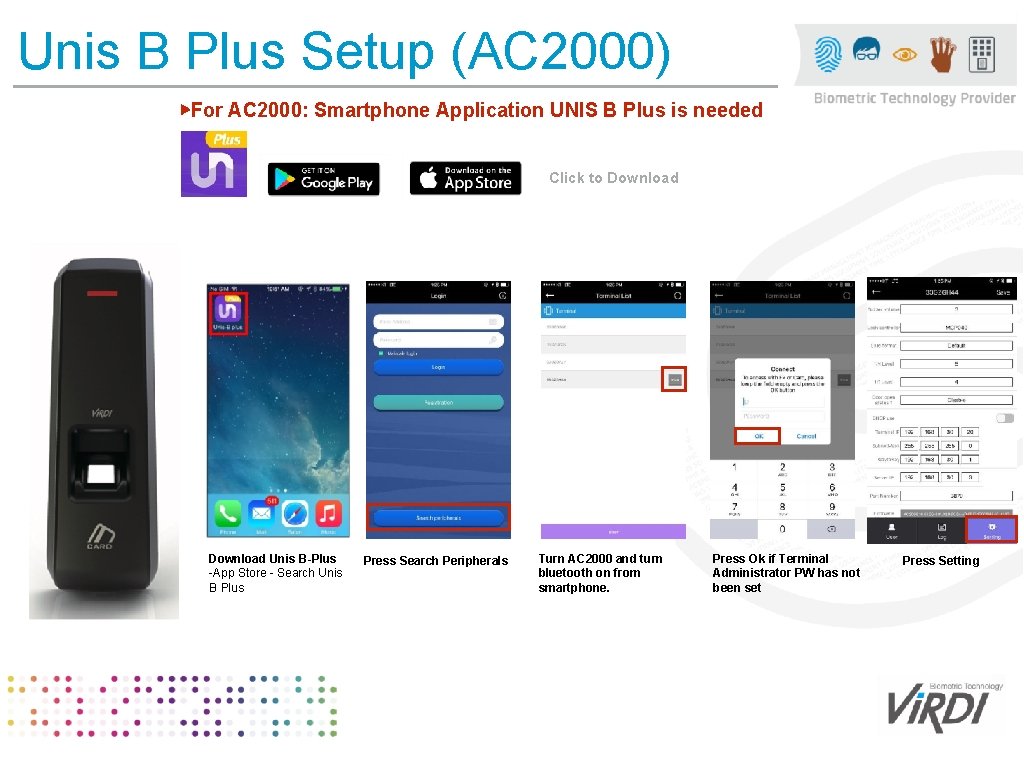
Unis B Plus Setup (AC 2000) ▶For AC 2000: Smartphone Application UNIS B Plus is needed Click to Download Unis B-Plus -App Store - Search Unis B Plus Press Search Peripherals Turn AC 2000 and turn bluetooth on from smartphone. Press Ok if Terminal Administrator PW has not been set Press Setting
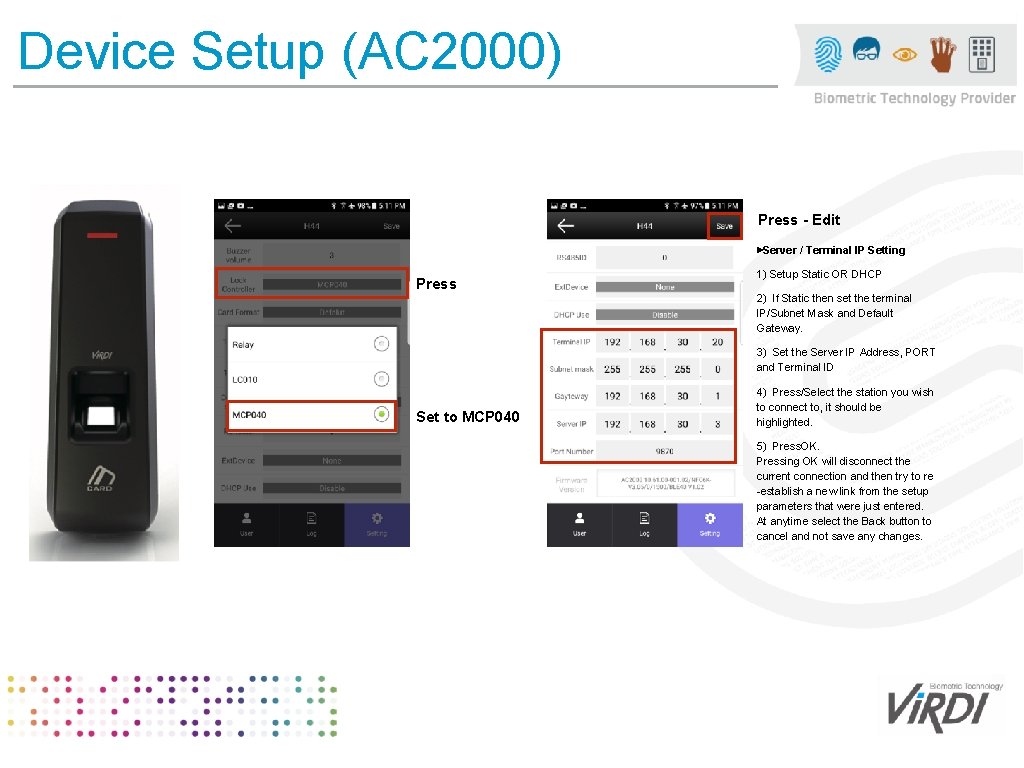
Device Setup (AC 2000) Press - Edit ▶Server / Terminal IP Setting Press 1) Setup Static OR DHCP 2) If Static then set the terminal IP/Subnet Mask and Default Gateway. 3) Set the Server IP Address, PORT and Terminal ID Set to MCP 040 4) Press/Select the station you wish to connect to, it should be highlighted. 5) Press. OK. Pressing OK will disconnect the current connection and then try to re -establish a new link from the setup parameters that were just entered. At anytime select the Back button to cancel and not save any changes.
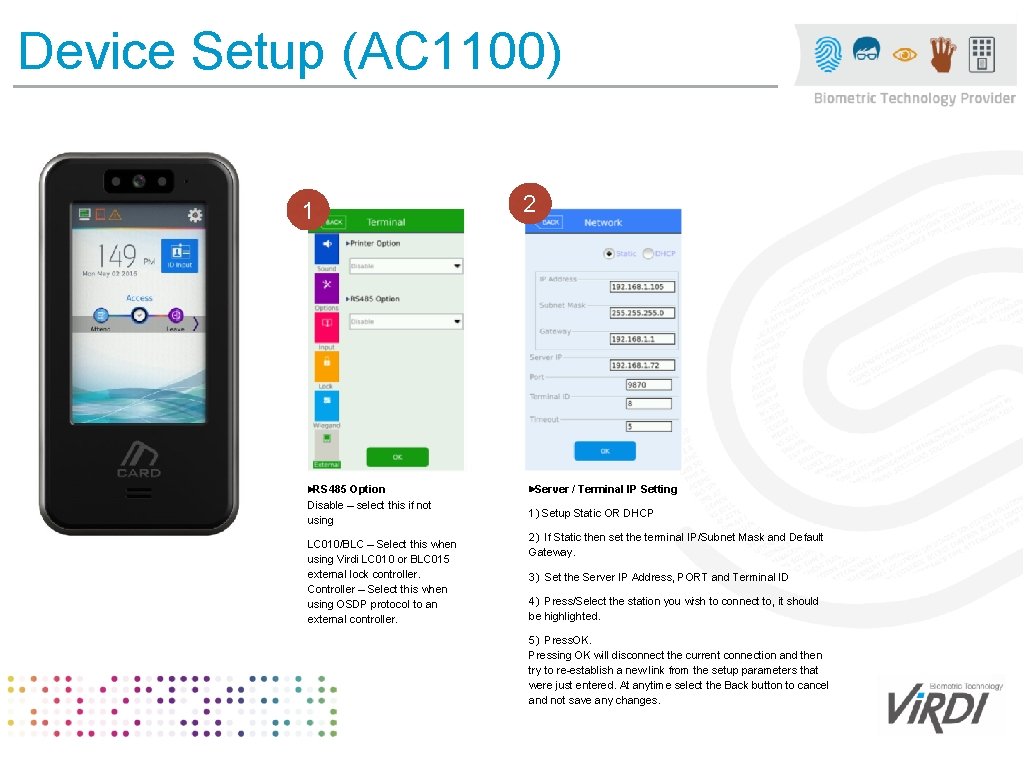
Device Setup (AC 1100) 1 ▶RS 485 Option Disable – select this if not using LC 010/BLC – Select this when using Virdi LC 010 or BLC 015 external lock controller. Controller – Select this when using OSDP protocol to an external controller. 2 ▶Server / Terminal IP Setting 1) Setup Static OR DHCP 2) If Static then set the terminal IP/Subnet Mask and Default Gateway. 3) Set the Server IP Address, PORT and Terminal ID 4) Press/Select the station you wish to connect to, it should be highlighted. 5) Press. OK. Pressing OK will disconnect the current connection and then try to re-establish a new link from the setup parameters that were just entered. At anytime select the Back button to cancel and not save any changes.
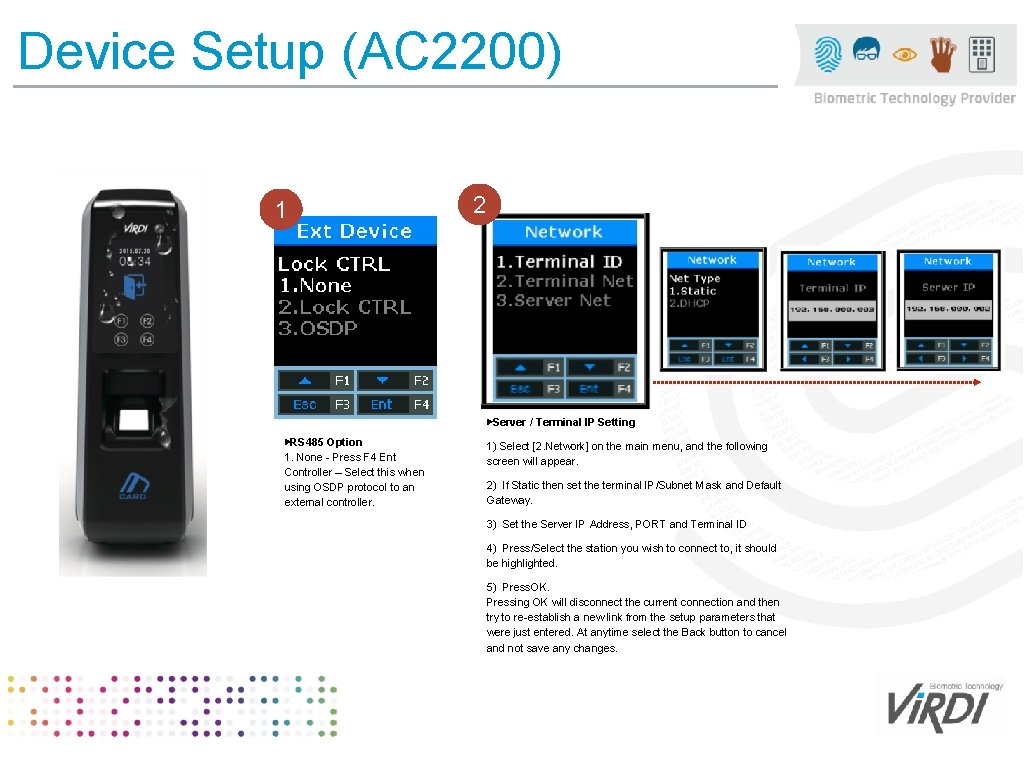
Device Setup (AC 2200) 1 2 ▶Server / Terminal IP Setting ▶RS 485 Option 1. None - Press F 4 Ent Controller – Select this when using OSDP protocol to an external controller. 1) Select [2. Network] on the main menu, and the following screen will appear. 2) If Static then set the terminal IP/Subnet Mask and Default Gateway. 3) Set the Server IP Address, PORT and Terminal ID 4) Press/Select the station you wish to connect to, it should be highlighted. 5) Press. OK. Pressing OK will disconnect the current connection and then try to re-establish a new link from the setup parameters that were just entered. At anytime select the Back button to cancel and not save any changes.

UNIS / BE Manager Setup http: //www. facebook. com/VIRDIKOREA www. virditech. com
Overview UNIS Database Software (UNIS) – database for Virdi Reader terminals for biometrics ▪ Biometrics Enrollment Manager Software (BEM) – Enrollment manager for enrolling biometric data into Virdi Readers. ▪ ▪ ▪ Install UNIS Software Install Biometrics Enrollment Manager Software Setup IP connections to the database in UNIS and BEM In Virdi Readers set the IP of the database for the readers to connect. In BEM Software – terminal management , add the Virdi Readers that are used.
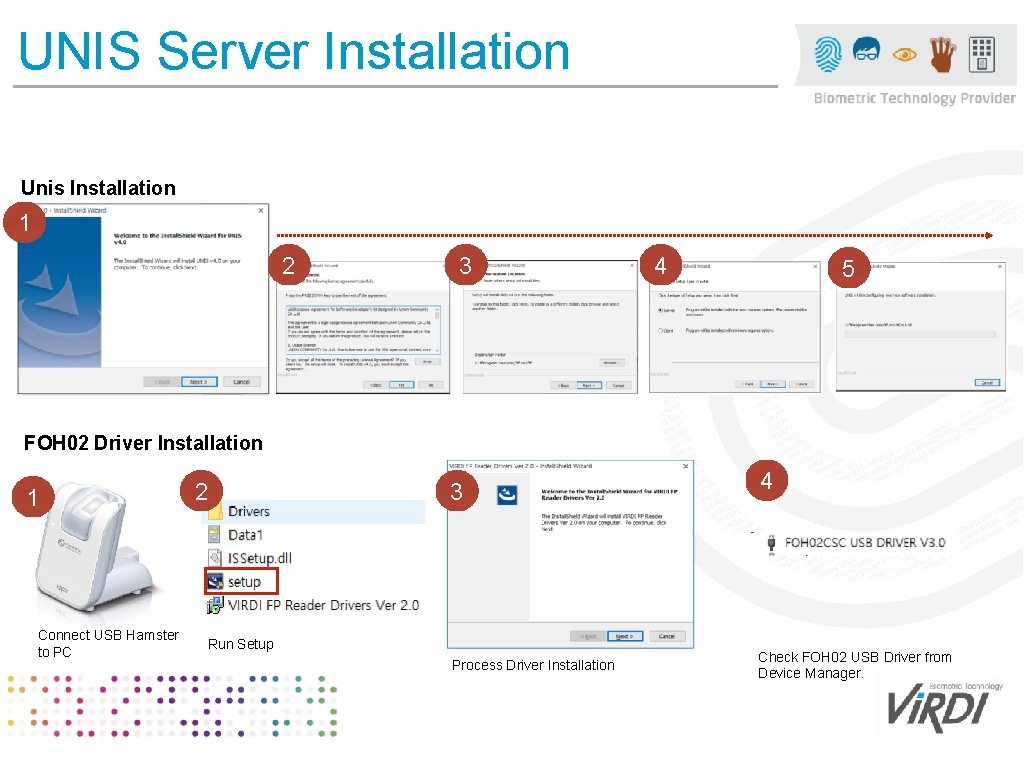
UNIS Server Installation Unis Installation 1 2 3 4 5 FOH 02 Driver Installation 1 Connect USB Hamster to PC 2 3 Run Setup Process Driver Installation 4 Check FOH 02 USB Driver from Device Manager.
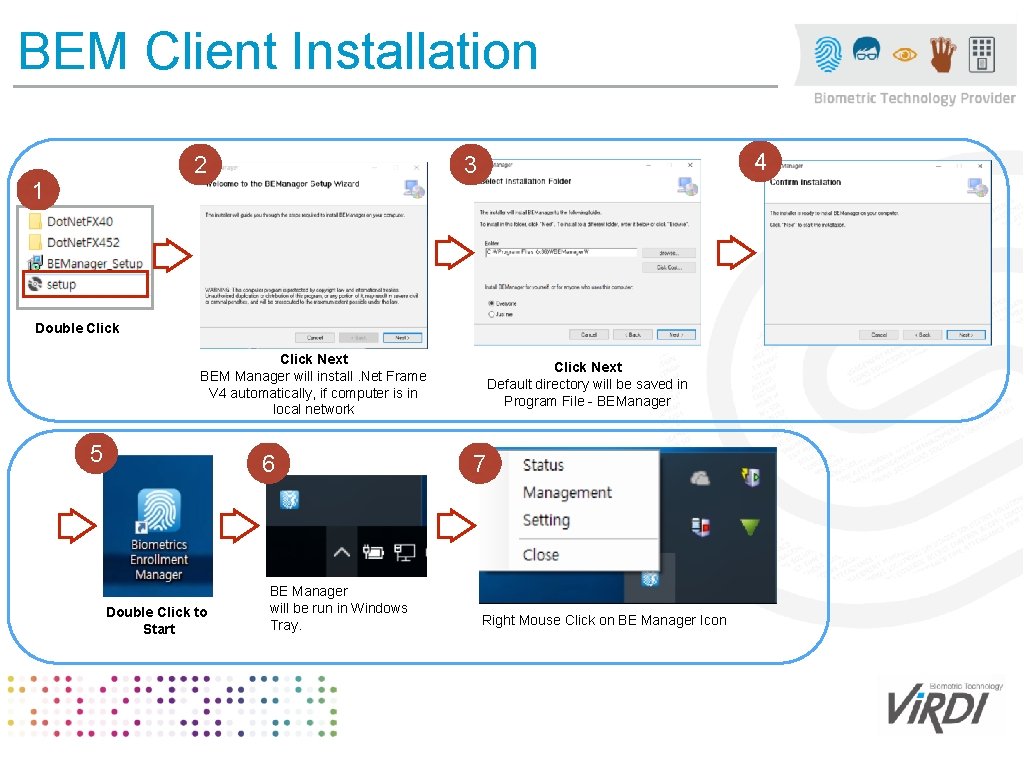
BEM Client Installation 2 1 4 3 Double Click Next BEM Manager will install. Net Frame V 4 automatically, if computer is in local network 5 6 Double Click to Start BE Manager will be run in Windows Tray. Click Next Default directory will be saved in Program File - BEManager 7 Right Mouse Click on BE Manager Icon
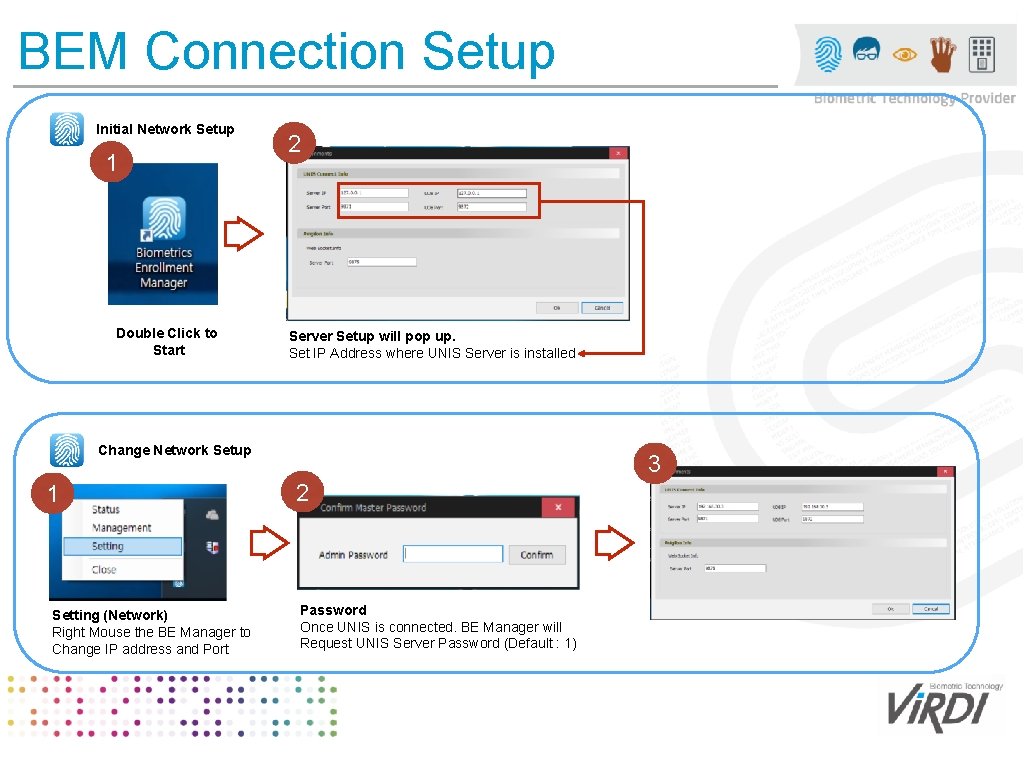
BEM Connection Setup Initial Network Setup 1 Double Click to Start 2 Server Setup will pop up. Set IP Address where UNIS Server is installed Change Network Setup 1 Setting (Network) Right Mouse the BE Manager to Change IP address and Port 3 2 Password Once UNIS is connected. BE Manager will Request UNIS Server Password (Default : 1)
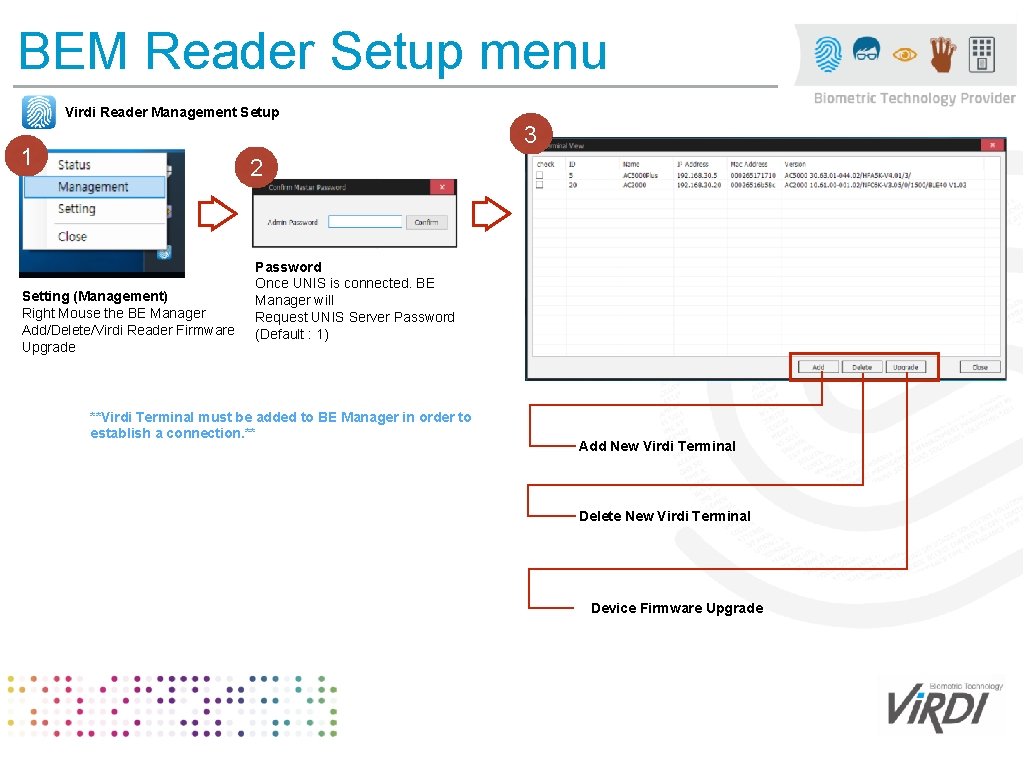
BEM Reader Setup menu Virdi Reader Management Setup 3 1 2 Setting (Management) Right Mouse the BE Manager Add/Delete/Virdi Reader Firmware Upgrade Password Once UNIS is connected. BE Manager will Request UNIS Server Password (Default : 1) **Virdi Terminal must be added to BE Manager in order to establish a connection. ** Add New Virdi Terminal Delete New Virdi Terminal Device Firmware Upgrade
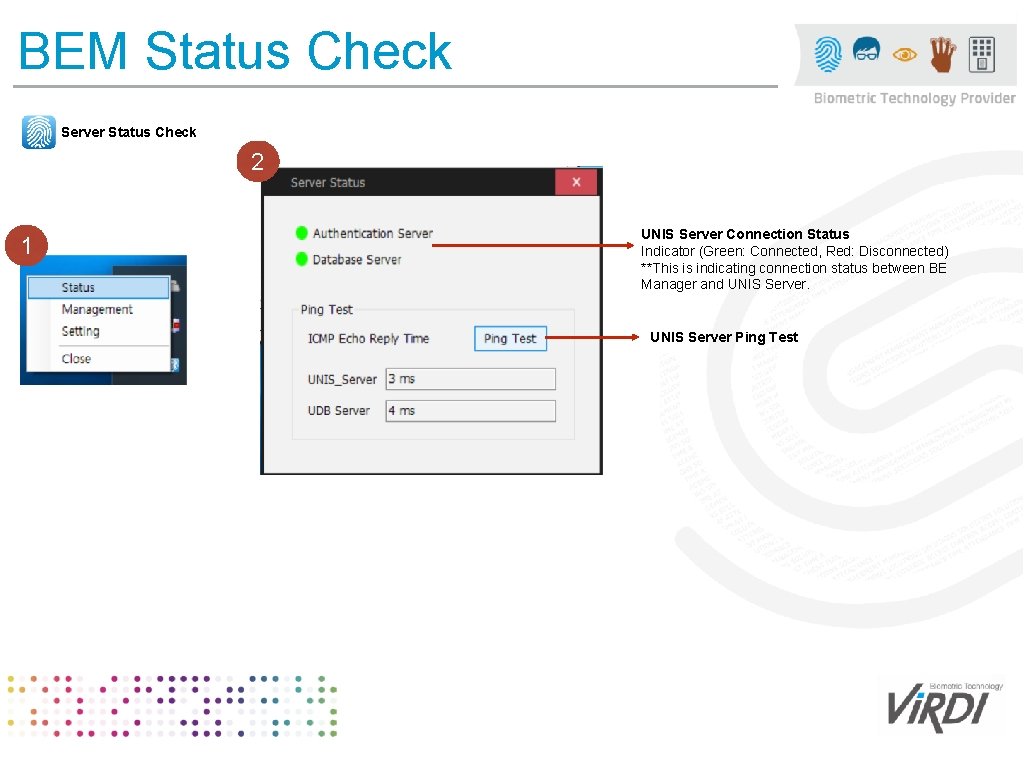
BEM Status Check Server Status Check 2 1 UNIS Server Connection Status Indicator (Green: Connected, Red: Disconnected) **This is indicating connection status between BE Manager and UNIS Server Ping Test

BEM Fingerprint Enrollment 1 2 Add Identity 4 -Click Fingerprint 3 Create New 5 6 -Set Token Type to - Virdi Biometric -Click - Save and Enroll 7 -Click finger indication button -Register Fingerprint from FOH 02 Enrollment Device 8 -Saved Fingerprint will be indicated in green dot.
- Slides: 23