
Avea Critical Care Ventilator Quick Guide 432020 How



- Slides: 27
Avea Critical Care Ventilator Quick Guide 4/3/2020
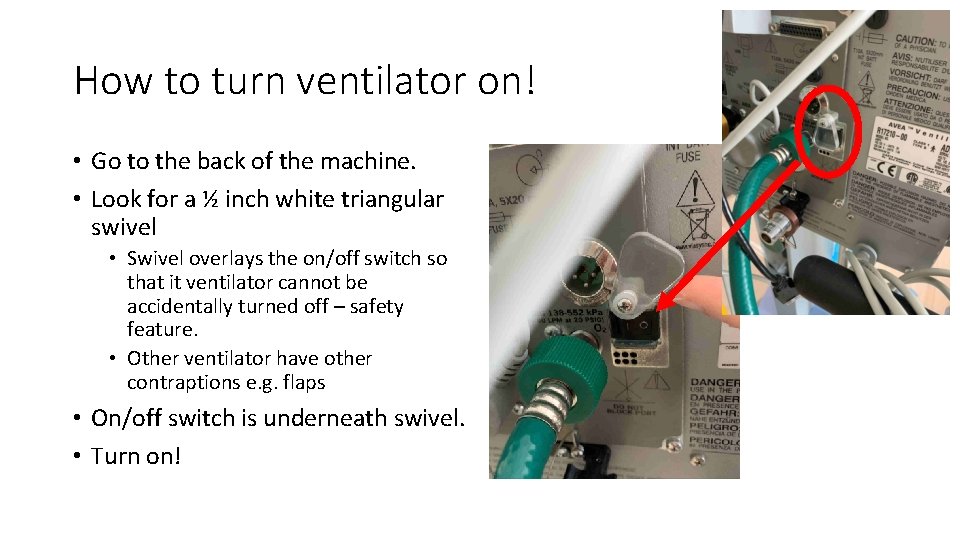
How to turn ventilator on! • Go to the back of the machine. • Look for a ½ inch white triangular swivel • Swivel overlays the on/off switch so that it ventilator cannot be accidentally turned off – safety feature. • Other ventilator have other contraptions e. g. flaps • On/off switch is underneath swivel. • Turn on!
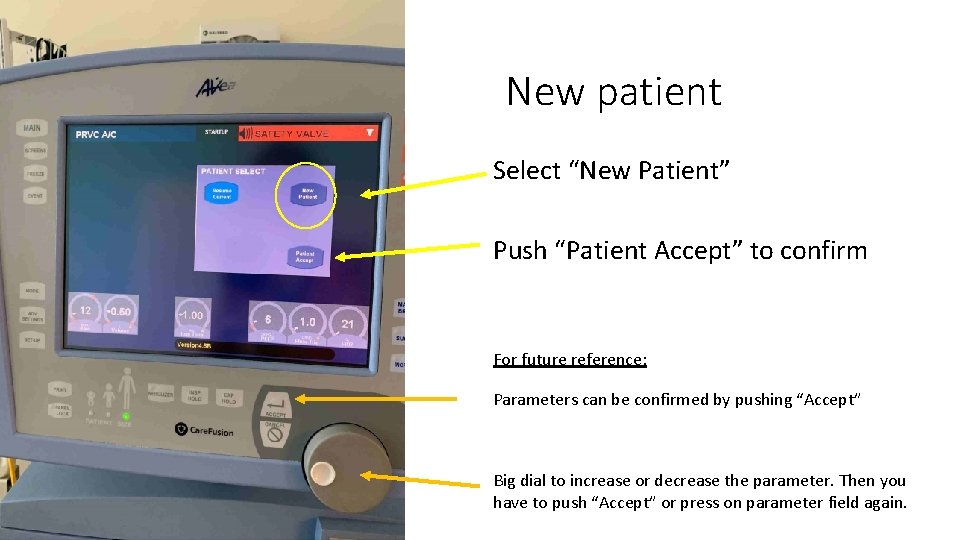
New patient Select “New Patient” Push “Patient Accept” to confirm For future reference: Parameters can be confirmed by pushing “Accept” Big dial to increase or decrease the parameter. Then you have to push “Accept” or press on parameter field again.
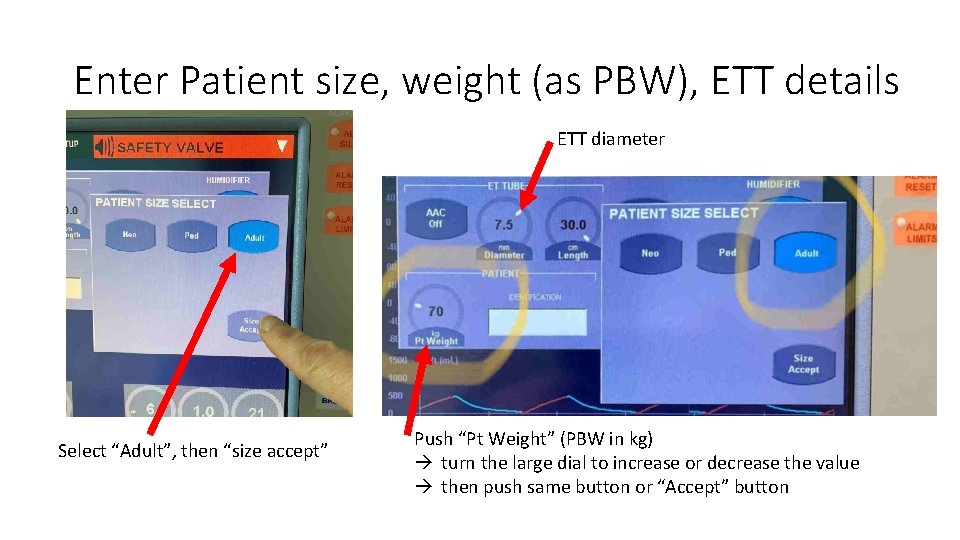
Enter Patient size, weight (as PBW), ETT details ETT diameter Select “Adult”, then “size accept” Push “Pt Weight” (PBW in kg) turn the large dial to increase or decrease the value then push same button or “Accept” button
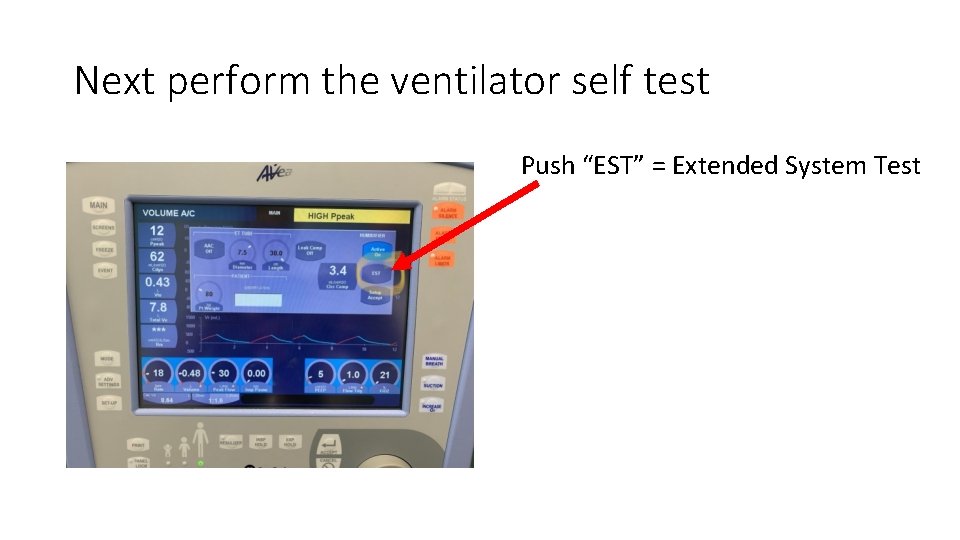
Next perform the ventilator self test Push “EST” = Extended System Test
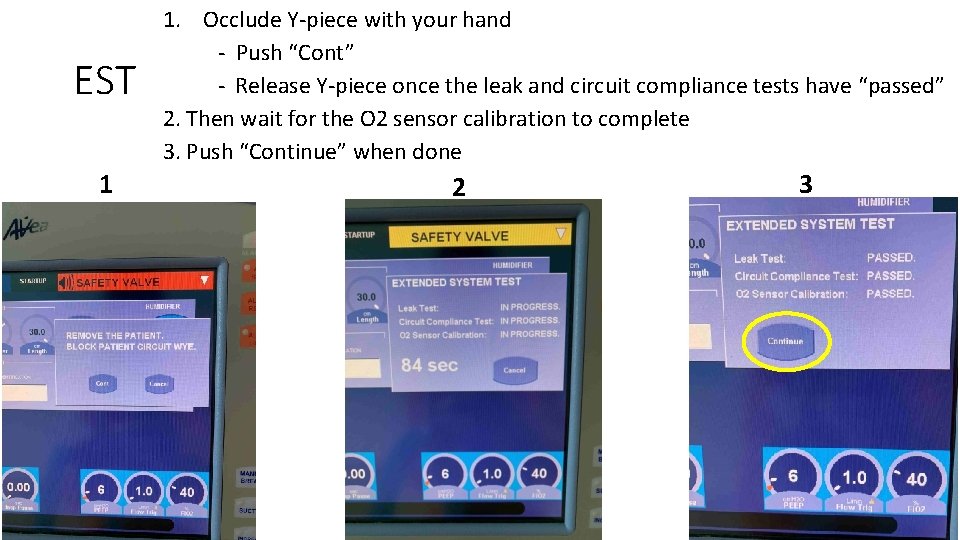
EST 1 1. Occlude Y-piece with your hand - Push “Cont” - Release Y-piece once the leak and circuit compliance tests have “passed” 2. Then wait for the O 2 sensor calibration to complete 3. Push “Continue” when done 2 3
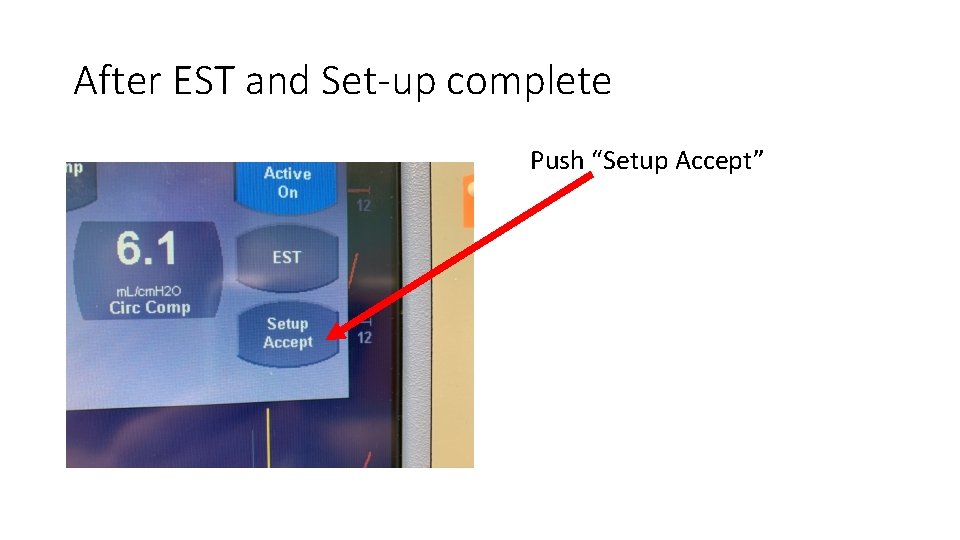
After EST and Set-up complete Push “Setup Accept”
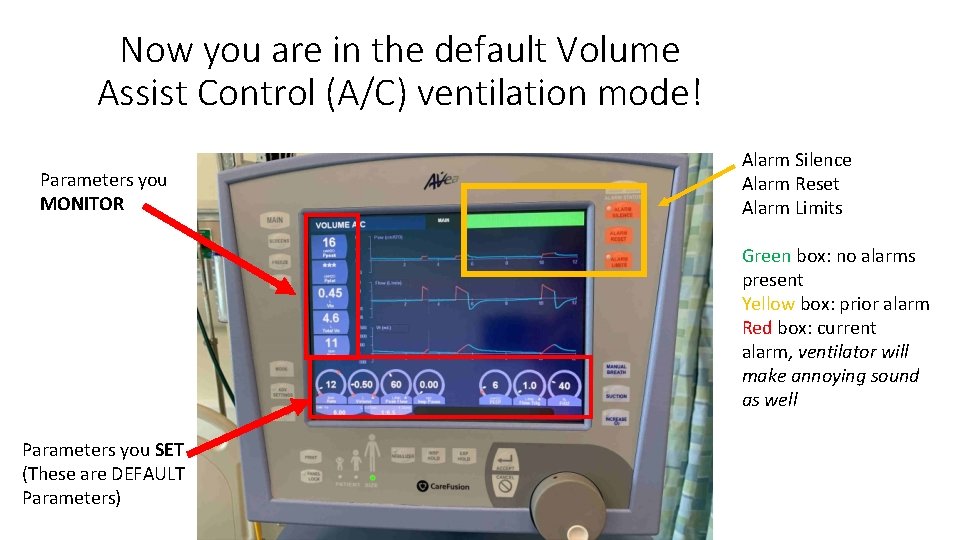
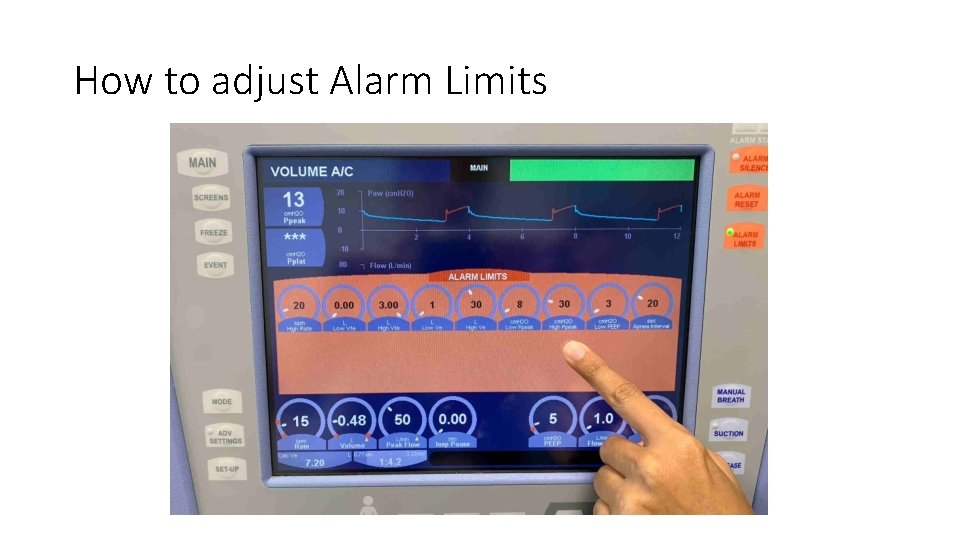
Now you are in the default Volume Assist Control (A/C) ventilation mode! Parameters you MONITOR Alarm Silence Alarm Reset Alarm Limits Green box: no alarms present Yellow box: prior alarm Red box: current alarm, ventilator will make annoying sound as well Parameters you SET (These are DEFAULT Parameters)
How to adjust Alarm Limits
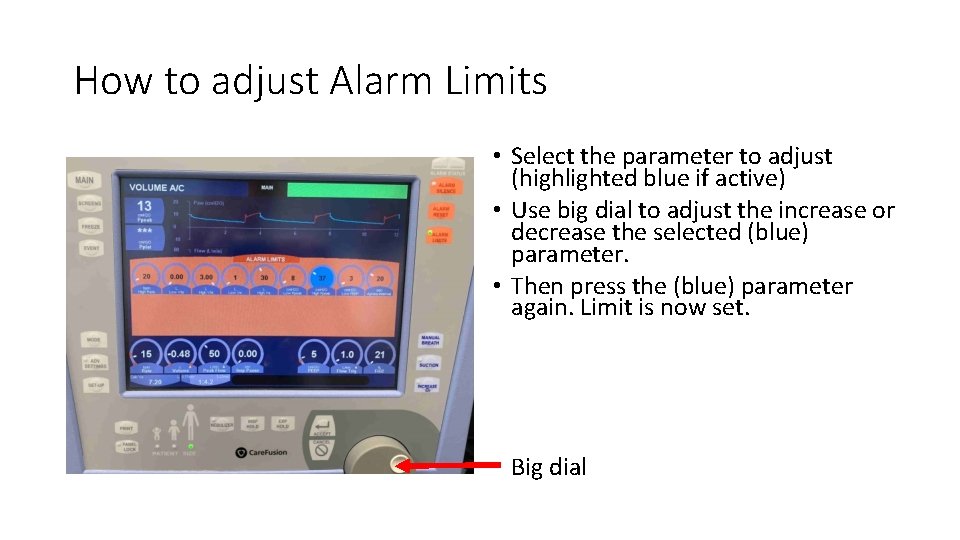
How to adjust Alarm Limits
How to adjust Alarm Limits • Select the parameter to adjust (highlighted blue if active) • Use big dial to adjust the increase or decrease the selected (blue) parameter. • Then press the (blue) parameter again. Limit is now set. Big dial
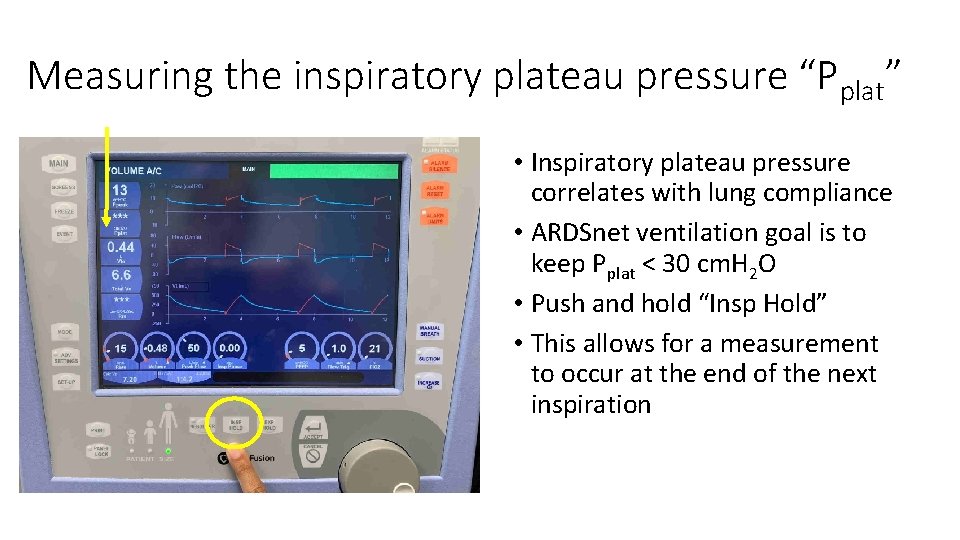
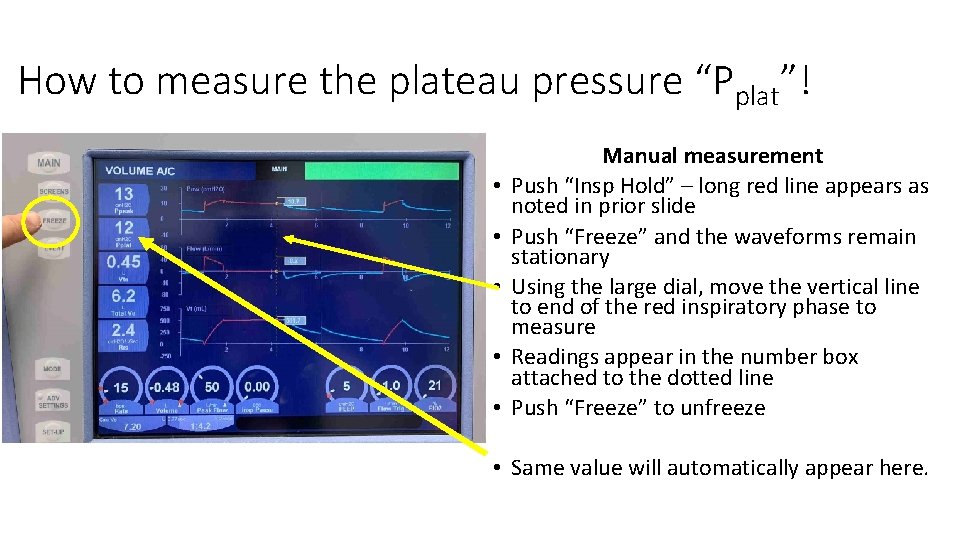
Measuring the inspiratory plateau pressure “Pplat” • Inspiratory plateau pressure correlates with lung compliance • ARDSnet ventilation goal is to keep Pplat < 30 cm. H 2 O • Push and hold “Insp Hold” • This allows for a measurement to occur at the end of the next inspiration
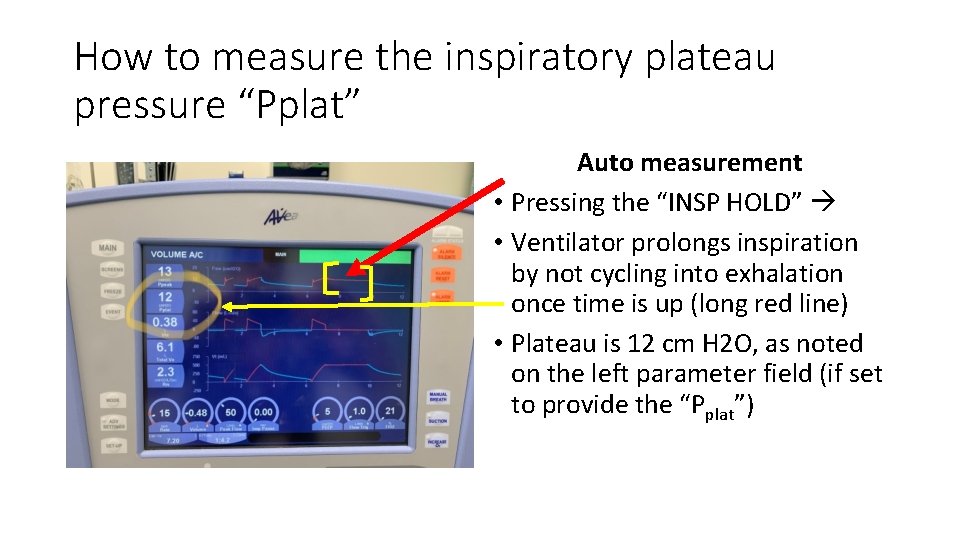
How to measure the inspiratory plateau pressure “Pplat” Auto measurement • Pressing the “INSP HOLD” • Ventilator prolongs inspiration by not cycling into exhalation once time is up (long red line) • Plateau is 12 cm H 2 O, as noted on the left parameter field (if set to provide the “Pplat”)
How to measure the plateau pressure “Pplat”! • • • Manual measurement Push “Insp Hold” – long red line appears as noted in prior slide Push “Freeze” and the waveforms remain stationary Using the large dial, move the vertical line to end of the red inspiratory phase to measure Readings appear in the number box attached to the dotted line Push “Freeze” to unfreeze • Same value will automatically appear here.
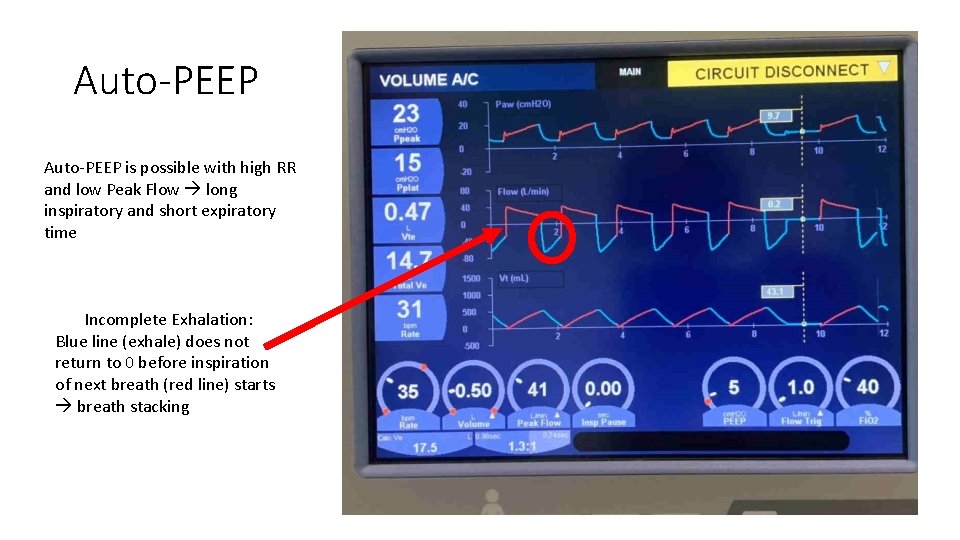
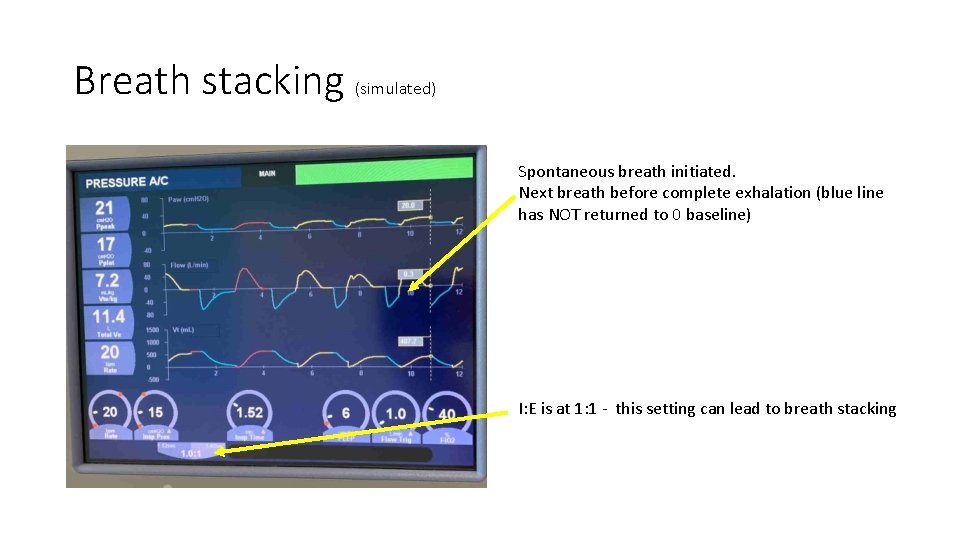
Auto-PEEP is possible with high RR and low Peak Flow long inspiratory and short expiratory time Incomplete Exhalation: Blue line (exhale) does not return to 0 before inspiration of next breath (red line) starts breath stacking
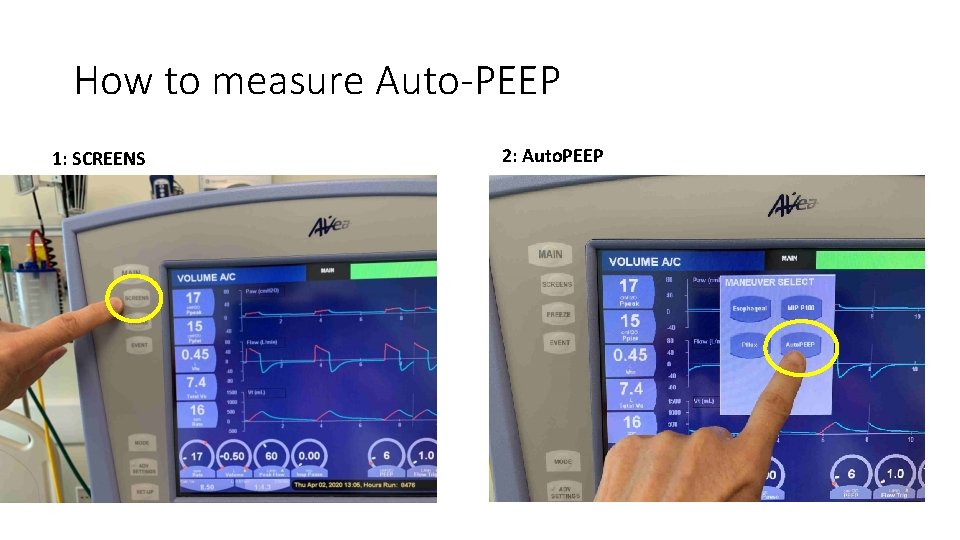
How to measure Auto-PEEP 1: SCREENS 2: Auto. PEEP
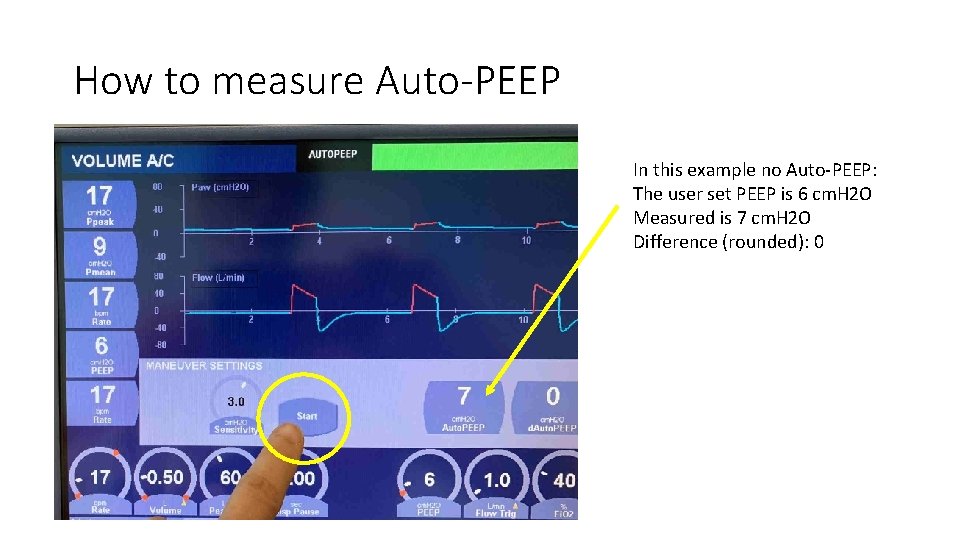
How to measure Auto-PEEP In this example no Auto-PEEP: The user set PEEP is 6 cm. H 2 O Measured is 7 cm. H 2 O Difference (rounded): 0
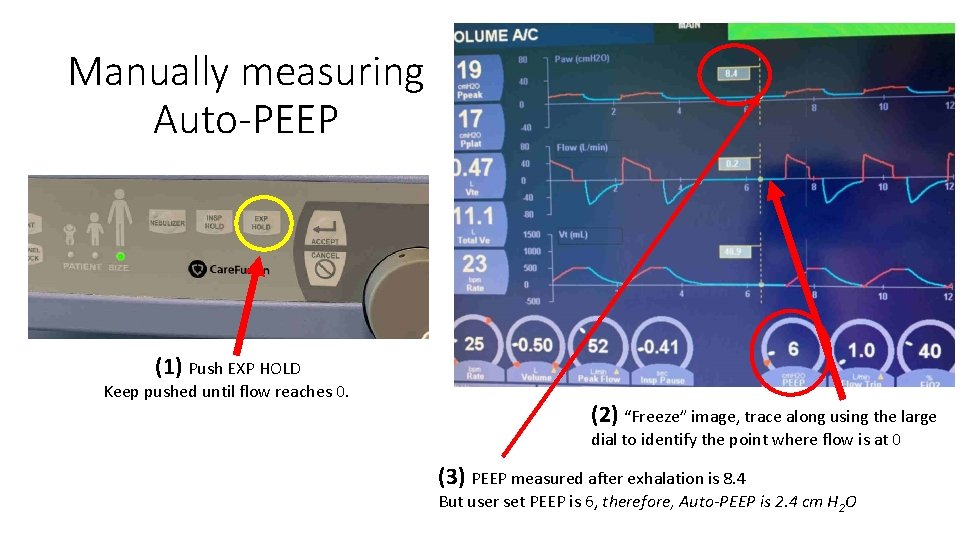
Manually measuring Auto-PEEP (1) Push EXP HOLD Keep pushed until flow reaches 0. (2) “Freeze” image, trace along using the large dial to identify the point where flow is at 0 (3) PEEP measured after exhalation is 8. 4 But user set PEEP is 6, therefore, Auto-PEEP is 2. 4 cm H 2 O
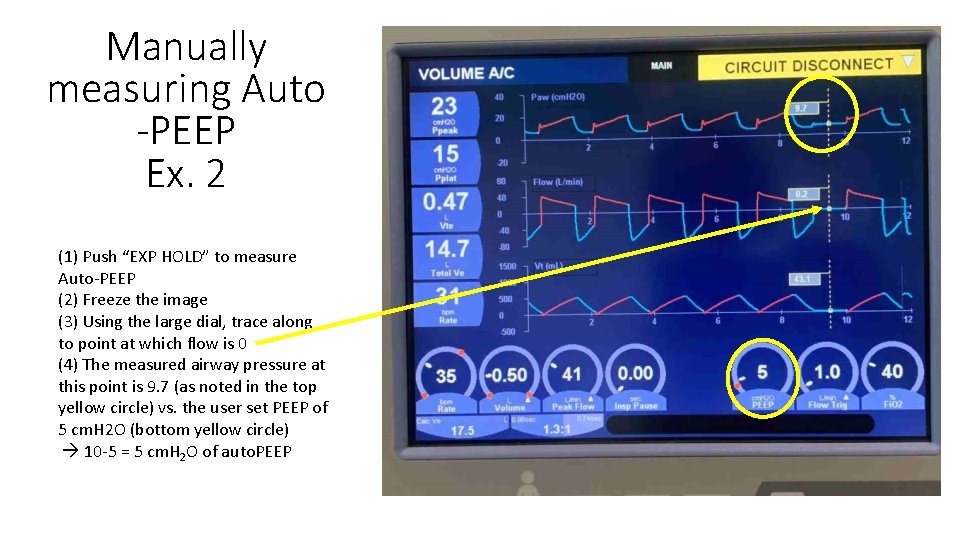
Manually measuring Auto -PEEP Ex. 2 (1) Push “EXP HOLD” to measure Auto-PEEP (2) Freeze the image (3) Using the large dial, trace along to point at which flow is 0 (4) The measured airway pressure at this point is 9. 7 (as noted in the top yellow circle) vs. the user set PEEP of 5 cm. H 2 O (bottom yellow circle) 10 -5 = 5 cm. H 2 O of auto. PEEP
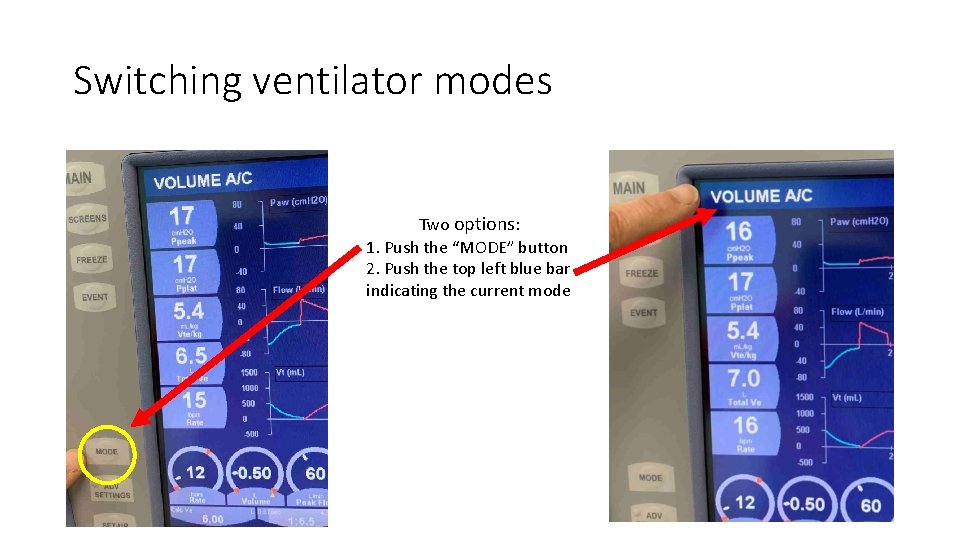
Switching ventilator modes Two options: 1. Push the “MODE” button 2. Push the top left blue bar indicating the current mode
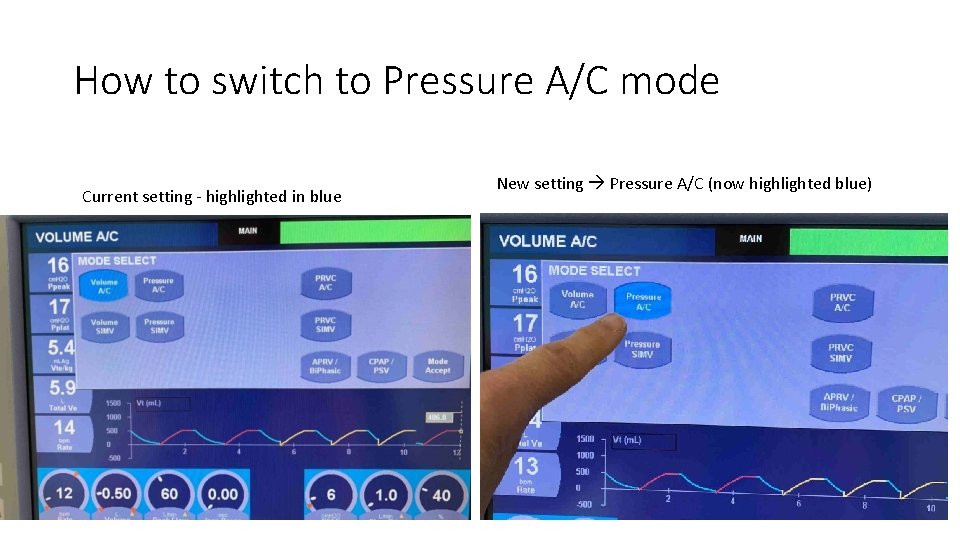
How to switch to Pressure A/C mode Current setting - highlighted in blue New setting Pressure A/C (now highlighted blue)
How to switch to Pressure A/C mode! After making your selection, confirm with “Mode Accept”
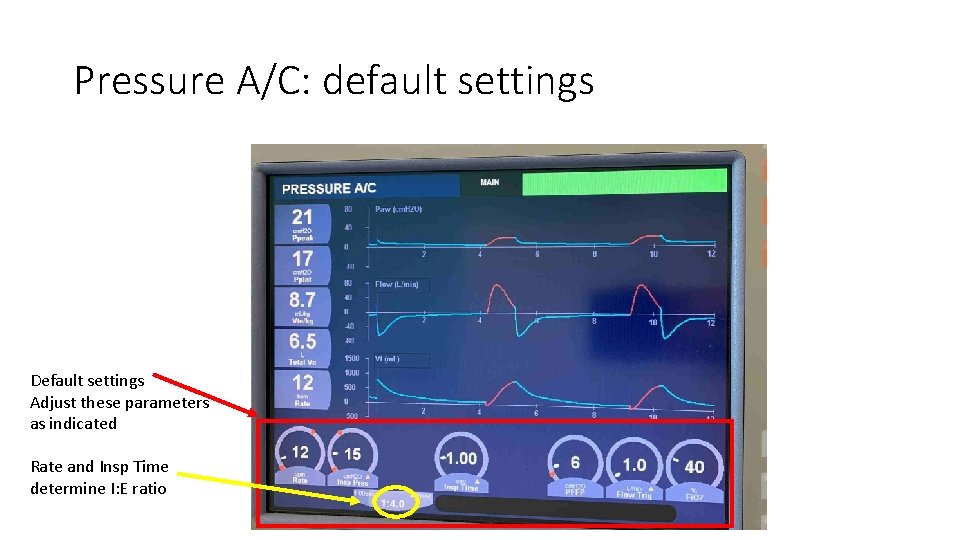
Pressure A/C: default settings Default settings Adjust these parameters as indicated Rate and Insp Time determine I: E ratio
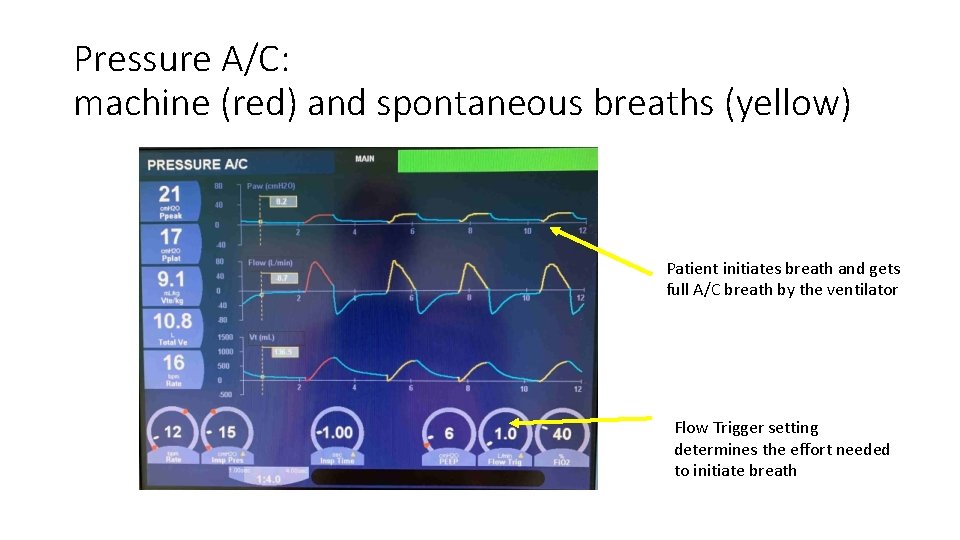
Pressure A/C: machine (red) and spontaneous breaths (yellow) Patient initiates breath and gets full A/C breath by the ventilator Flow Trigger setting determines the effort needed to initiate breath
Breath stacking (simulated) Spontaneous breath initiated. Next breath before complete exhalation (blue line has NOT returned to 0 baseline) I: E is at 1: 1 - this setting can lead to breath stacking
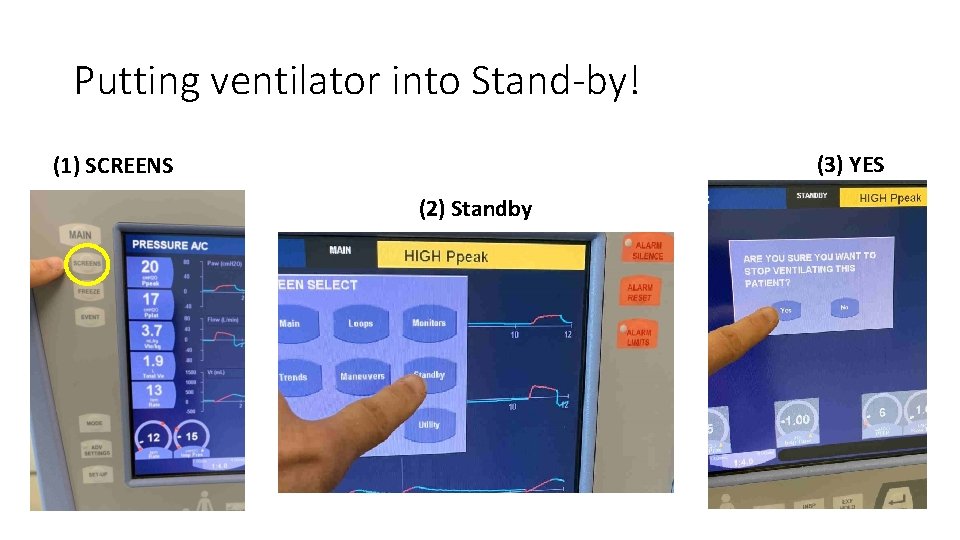
Putting ventilator into Stand-by! (3) YES (1) SCREENS (2) Standby
The End